
A favicon is the smallest brand asset a website owns, and it is also one of the most seen. It sits in the browser tab, in the bookmarks bar, on the phone home screen and in the search results, meeting a visitor before a single word on the page is read. The best favicon generators are the tools that turn a logo or a simple mark into that tiny icon without losing its shape, its colour or its meaning at 16 pixels wide. This guide tests ten of them against one checklist and names a winner for each job a site owner has.
The Favicon Checklist Every Icon Must Pass
Before any tool earns a place on this list, the icon it makes has to pass seven tests. A tool that fails one can still be useful, and a tool that passes all seven is rare, so the checklist below is the spine of the whole guide. Run your own icon through it before you publish.
- It stays readable at 16 pixels wide, the size of a browser tab icon, with no detail that turns to mud
- It stays readable at 32 pixels wide, the size most bookmarks and taskbar icons use
- It ships in the formats each platform expects, ICO for older browsers, PNG for modern browsers and the Apple touch icon for iOS
- It keeps a transparent background where the design needs one, so a dark logo does not sit in a white box on a dark tab
- It looks sharp on a retina display, so the source file starts large and clean, never stretched up from a small image
- It survives a dark browser theme, so a dark mark gets a light backing or a light version of the mark
- It exports a full set in one download, with the HTML snippet included, so nothing is forgotten at launch
Most favicons fail the first test. A full logo with a wordmark, a tagline and a thin illustration cannot shrink to 16 pixels, because the letters collapse into grey smudges and the thin lines vanish. The fix is to use one bold shape, one letter or one symbol, and to test it at the smallest size first. Each mark that passes has one idea, drawn thick, with space around it.
Formats are where free tools split into two groups. The careful tools export ICO, PNG at several sizes, the Apple touch icon and a web manifest in one ZIP file, with the HTML to paste into the site header. The careless tools export a single PNG and leave the rest to the site owner. Transparency is the test beginners miss most often. A logo designed on a white page looks broken in a dark browser tab, because the white rectangle around the mark shows up as a hard box. Apple touch icons cannot use transparency, so they need a solid background.
How Did We Test the Best Favicon Generators?
Every tool on this list was judged against the same seven tests, and against three practical questions. The first is price, and the answer has to be honest about what is free and what is not. Several tools here are free for the favicon itself, and charge only for the wider design platform around it, so the price quoted here is the price of making and downloading a favicon, not the whole platform. The second is speed, because a favicon is a small job and a tool that takes an hour to learn has already failed. The third is the quality of the export, measured by the formats, the sizes and the HTML that comes with the download.
Testing started with one source image, a simple geometric mark in teal and violet, exported at 1024 pixels square with a transparent background. Each tool received the same file, and each download was checked for the sizes, the formats and the clarity of the smallest icon. A second test used a text mark, a single letter on a coloured background, because many small sites have no logo yet. A third test used an emoji.
How to choose the right favicon generator for your site
Start from what you already have. If you have a finished logo, pick a specialist that converts it into a full size set in one download, and check the ICO, the Apple touch icon and the web manifest all come with it. If you have no logo yet, pick a tool that lets you draw the mark first, whether that is a text generator or a pixel editor, and only then worry about the export. Finally, test the smallest icon before you commit, because the best favicon generators are the ones whose exports still read clearly when they shrink to tab size.
Specialist Tools vs Design Platforms, Which Wins for Favicons?
Specialists and design platforms solve different halves of the favicon job. A specialist such as RealFaviconGenerator or Favicon.io takes a finished mark and turns it into every size and format a site needs, with previews on each platform and the HTML to install them, in minutes and for free.
A design platform such as Canva, Adobe Express or Design.com starts earlier, helping you draw or generate the mark itself, with fonts, templates and brand kits, and the favicon comes out of that work as a PNG that still needs a specialist for the ICO and touch icons. If the logo exists, the specialist wins outright. If the mark still needs designing, start on a platform and finish with a specialist.
Pricing was checked on the public pages of each vendor in November 2026. Prices change, so confirm the price on the vendor site before buying. Where a vendor lists two different prices, this guide uses the lower annual billing figure. No tool on this list was paid to be here.
The 10 Tools at a Glance
The ten tools below cover every way a site owner can make a favicon, from a free specialist that does one job perfectly to a full design platform that starts from a logo. The best favicon generators were judged on the checklist above, price, export quality and speed.
| Tool | Best for | Starting price | Free plan | Watch out |
|---|---|---|---|---|
| RealFaviconGenerator | Complete cross platform set | Free | Yes | Plain interface |
| Favicon.io | Text, emoji and image icons | Free | Yes | Smaller export set |
| Favicon.cc | Pixel drawn icons | Free | Yes | No full platform set |
| Favicon-Generator.org | One upload, full size set | Free | Yes | Dated design |
| Design.com | Logo plus favicon in one kit | From about $3 a month | Yes | Paid plans vary by page |
| Canva | Design the mark yourself | Free, Pro $144 a year | Yes | No favicon export set |
| Adobe Express | Quick mark plus brand assets | Free, Premium $9.99 a month | Yes | No dedicated favicon export |
| Favicomatic | Maximum browser compatibility | Free | Yes | Very basic interface |
| Looka | Logo first, favicon second | From about $20 one time | Design free | Favicon is a byproduct |
| Favicon.one | Fast image to icon conversion | Free | Yes | Few design controls |
RealFaviconGenerator leads the table on export depth, and Favicon.io leads on speed. Design.com is the one pick for a site owner who needs a logo and a favicon from the same account, and Canva is the one for a site owner who wants to draw the mark by hand first.
The 10 Tools in Detail
The best favicon generators are ranked below by how many checklist tests they pass. RealFaviconGenerator leads on export, Favicon.io leads on speed, Favicon.cc leads on control, and the rest justify their spots on single jobs, not overall strength.
1. RealFaviconGenerator — Complete Cross Platform Set
RealFaviconGenerator is the most thorough favicon tool here, and it earns the top spot because it treats every platform as a separate job. Upload one high resolution image and it builds icons for desktop browsers, iOS, Android, Windows tiles and macOS Safari, with a live preview on each one, so a problem is spotted before anything is downloaded.
The download is a ZIP file with the favicon ICO, the Apple touch icons, the Android and progressive web app icons and the web manifest, plus the HTML snippet to paste into the site header. Per platform controls let you set the background, the margins and the theme colour separately, so the Apple icon gets its solid background while the browser icon keeps its transparency. A built in checker tests a live site and reports which icons are missing or wrong. It costs nothing and asks for no account.
2. Favicon.io — Fastest Text, Emoji and Image Icon
Favicon.io is the tool most people reach for first, and the reason is speed. It turns plain text, an emoji or an existing image into a favicon in under a minute, and every download ships as a ready ZIP with the ICO file, several PNG sizes, an Apple touch icon and a copy paste HTML snippet. The text generator offers a choice of font, colours and shape, so a site with no logo yet can still have a clean single letter icon.
The emoji generator serves the same need for a different kind of site. Pick an emoji and a background, and the tool builds a favicon from it, which suits a side project, a newsletter or a personal site that wants a friendly mark without hiring a designer. The image generator takes a PNG or JPG and converts it, though a busy photograph will shrink into a blur where a simple mark would have held its shape. It is free, shows ads, and its export set is smaller than the one RealFaviconGenerator builds.
3. Favicon.cc — Pixel Drawn Icons by Hand
Favicon.cc gives a designer something no other tool on this list offers, which is control over every single pixel. The editor is a 16 by 16 grid, and each square is one pixel of the finished icon, so a mark drawn here is designed at the exact size it will be seen at, with no shrinking and no surprises. That suits a pixel artist, a game developer or a designer who wants a retro mark that looks hand made.
The editor also imports an image and lets you edit it pixel by pixel, which is the best way to rescue a logo that shrinks badly. Animated favicons are supported too, with frames drawn in the same grid, though few sites need one. It is free, and its interface shows its age. The export is a single ICO file rather than a full cross platform set, so a site that needs Apple and Android icons must pair it with another tool.
4. Favicon-Generator.org — One Upload, Full Size Set
Favicon-Generator.org does one job and does it without fuss. Upload an image, and it returns a complete set of sizes from one file, with ICO and PNG downloads and the HTML to install them. There is no account to create, no design canvas to learn and no upsell waiting at the download button, which makes it the easiest tool on this list for a site owner who already has a logo and only needs the files.
The strength is the breadth of the size set. The download covers the small tab sizes, the larger bookmark sizes and the touch icons, so a site owner using it does not have to guess which sizes matter. The weakness is the age of the design, because the site looks dated and offers little guidance on which file goes where. It is free, and it accepts common image formats, though it does not list SVG input, so a vector logo should be exported to PNG first at a large size.
5. Design.com — Logo Plus Favicon in One Kit
Design.com earns its mid-list place because a favicon is rarely the first thing a new business needs. The business needs a logo first, and Design.com builds that logo from a name and a short description, with thousands of concepts from a library of designer made templates, and then the favicon follows from the same mark. That single flow is the reason to choose it. The icon, the logo and the social images all share the same colours and the same mark from day one.
The logo maker lets you change fonts, shapes, layout and colours after the concepts appear, with an AI chat for changes in plain language. Downloads include PNG, JPG, SVG, EPS and PDF, so the mark behind the favicon is a vector file that scales cleanly to any size.
Pricing needs a check before buying, because Design.com lists different figures on different pages. Its blog lists Starter from about $3 a month on annual billing, with Value from about $4 and Premium from about $5, while its purchasing FAQ lists typical monthly figures near $25 for Starter and near $34 for Value and Premium, with the exact price shown only at checkout. The free plan covers designing and downloading selected free logos, so the workflow can be tested before paying.
6. Canva — Design the Mark Yourself
Canva is the design canvas on this list, and it suits a site owner who wants to draw the favicon mark by hand rather than convert an existing logo. The free plan includes thousands of templates, shapes, icons and fonts, and a square canvas at 512 pixels or larger gives a clean source for any converter. A mark built in Canva can be exported as a PNG with a transparent background, and that file then goes to a specialist for the ICO and the full size set.
The advantage is creative control. A site owner can test a letter, a symbol and a colour in minutes, and can see the mark at full size before shrinking it. Brand Kit on the Pro plan stores the colours and fonts, so the favicon, the social images and the site header all stay consistent. Canva Pro runs $144 a year for one person, and the free plan is enough for the favicon job itself. Canva has no dedicated favicon export, so it cannot replace a specialist on its own.
7. Adobe Express — Quick Mark Plus Brand Assets
Adobe Express brings Adobe fonts and templates to a favicon workflow that otherwise looks like Canva, and the difference is in the details. The free plan includes a logo maker, a large template library and one click resize, so a mark designed for a favicon can be resized for a social post or a flyer without redrawing it. The Adobe font library is stronger than most rivals, and a single letter mark in the right font can carry a whole brand.
At $9.99 a month, Premium adds generative credits, the full template library and brand kits, though the free plan covers the favicon job on its own. The export is a PNG, and like Canva, Adobe Express has no dedicated favicon export set, so the PNG goes to a specialist for the ICO and the touch icons. That two step workflow is a small cost, and the gain is a mark that was designed rather than converted.
8. Favicomatic — Maximum Browser Compatibility
Favicomatic is the oldest style of tool on this list, and it survives because it solves a problem the modern tools ignore. It builds an ICO file that packs many sizes into one download, with the sizes older browsers expect, so a site that still serves visitors on old systems gets an icon that works for them. The interface is a single upload form, with no design canvas and no preview.
The value is backward compatibility. A modern browser reads a PNG favicon without trouble, and an older browser may only read the ICO, so a site that ships only a PNG can show a blank tab to a visitor on an old machine. Favicomatic closes that gap for free, with no account and no upsell. The cost is the lack of guidance, because the site does not explain which file to use where.
9. Looka — Logo First, Favicon Second
Looka is a guided logo maker, and the favicon is a byproduct of the logo rather than the main event. Enter a business name, pick a style, and Looka generates logo concepts, then lets you edit the colours, fonts and layout until the mark feels right. The favicon files come with the brand kit, so a site owner who buys the logo gets the icon as part of the same purchase.
The strength is the guidance. A beginner who does not know where to start gets a structured flow, with questions about style and industry, and the concepts that come back are coherent enough to choose from. The weakness is the price of the full files. The basic package starts from about $20 as a one time purchase for a single PNG, and the vector files and the full brand kit cost more.
10. Favicon.one — Fast Image to Icon Conversion
Favicon.one closes the list with the simplest job of all, which is turning an image into an icon as fast as possible. Upload an image up to 10 MB, and it converts it into ICO, PNG, Apple touch and Android files, with a manifest and setup guidance for popular frameworks. There is no design canvas, no text generator and no pixel editor, and that narrow focus is the point, because the tool does not pretend to be a design platform.
The conversion is quick, and the file set is wider than the one Favicon.io builds, with the Android and manifest files included alongside the browser icons. The limit is the lack of design controls, so a busy image will shrink into a blur, and the tool will not warn you about it the way a live preview would. It is free, runs in the browser with no account, and for a developer who already has a clean mark, it is a fast final step.
Best Pick by Job
Everyday jobs each get one choice from the table above. Pick the row that matches your site.
| Job | Pick | Why it wins here |
|---|---|---|
| Complete cross platform set | RealFaviconGenerator | Every size, format and preview in one free download |
| Fastest text or emoji icon | Favicon.io | Text, emoji or image to icon in under a minute |
| Pixel drawn icon | Favicon.cc | Draw each pixel by hand at 16 by 16 |
| One upload, full size set | Favicon-Generator.org | Single upload, many sizes, no account needed |
| Logo plus favicon in one kit | Design.com | One account, shared brand kit, many file types |
| Design the mark yourself | Canva | Full design canvas, free PNG export |
| Quick mark plus brand assets | Adobe Express | Templates, fonts and one click resize |
| Maximum browser compatibility | Favicomatic | ICO with many sizes for old browsers |
| Logo first, favicon second | Looka | Guided logo maker, favicon files included |
| Fast image to icon conversion | Favicon.one | Upload to ICO and PNG in seconds |
What Size Should a Favicon Be in 2026
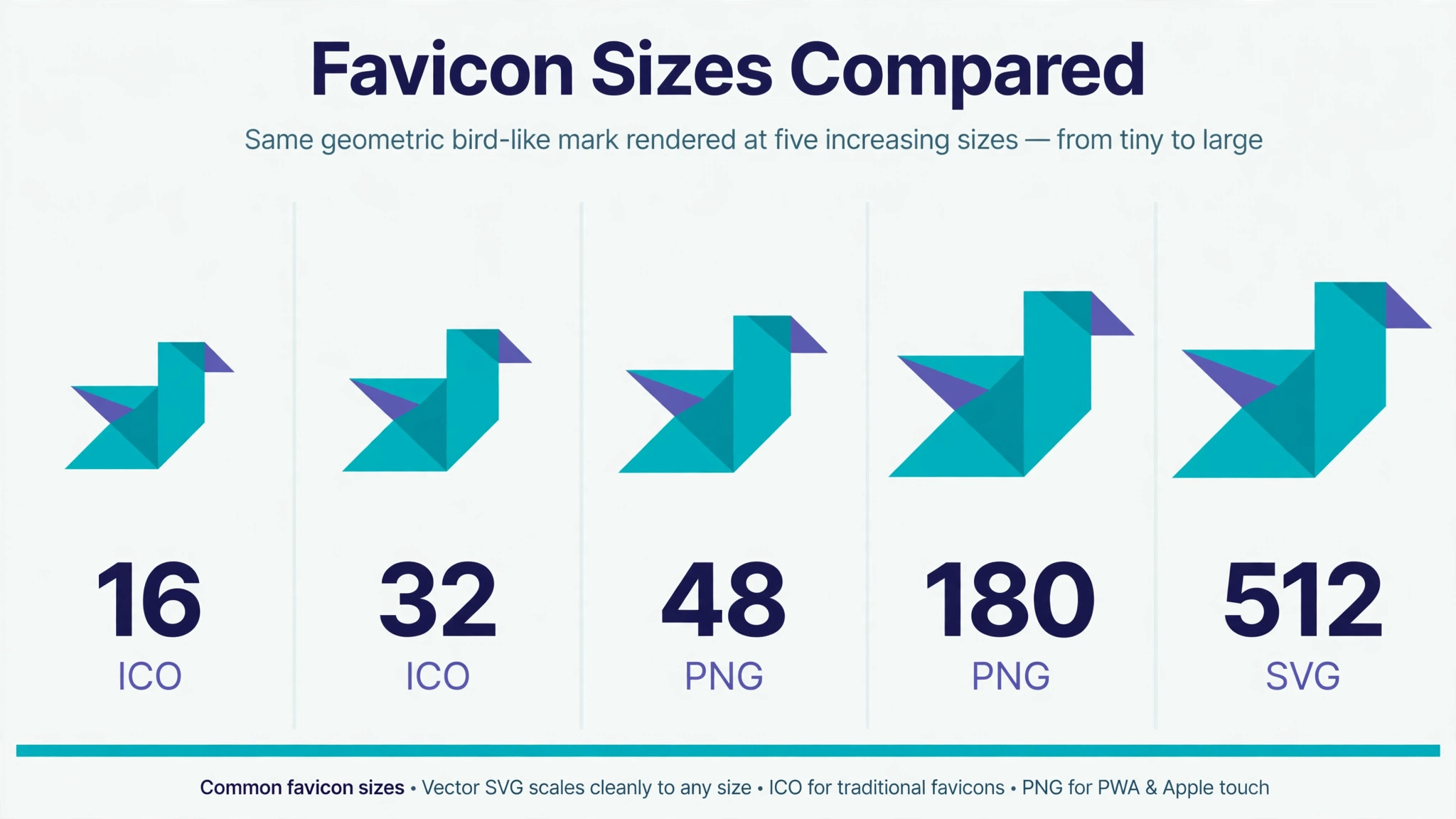
One size is never enough, and the best favicon generators are the ones that admit it. A browser tab uses 16 pixels, a bookmark uses 32, a Windows taskbar uses 48, an iPhone home screen uses 180, and an Android home screen uses 192, with 512 as the large source for a progressive web app. A site that ships only a 32 pixel PNG will show a blurry icon on a phone.
The practical set to ship is an ICO file that packs 16, 32 and 48 pixels together, a PNG at 180 pixels for Apple, a PNG at 192 pixels for Android, a PNG at 512 pixels for the web manifest, and an SVG for the browsers that support it. That set covers every device a visitor is likely to use, and it is exactly the set the top tools on this list export in one download. The source file should start at 1024 pixels square, or 512 at the very least.
Which Format Wins Where, PNG, ICO or SVG?
Each format has a job. The best favicon generators ship all three because no single format covers every browser. ICO is the oldest format, and it remains the only one that packs several sizes into a single file, which is why browsers still look for a file named favicon.ico at the root of a site. It is the safest default, and every site should ship one.
PNG is the modern workhorse. It supports transparency, it compresses cleanly, and it is the format Apple and Android expect for their touch icons. A PNG at 180 pixels is the Apple touch icon, a PNG at 192 pixels is the Android icon, and a PNG at 512 pixels is the large icon for a progressive web app. PNG cannot pack several sizes into one file, so it needs the ICO alongside it. SVG is the newest format, and the sharpest, because a vector file scales to any size without loss. Support is broad in modern browsers, though not universal, so an SVG should be shipped as an extra, never as the only favicon.
How Do You Install a Favicon Without Breaking Your Site?
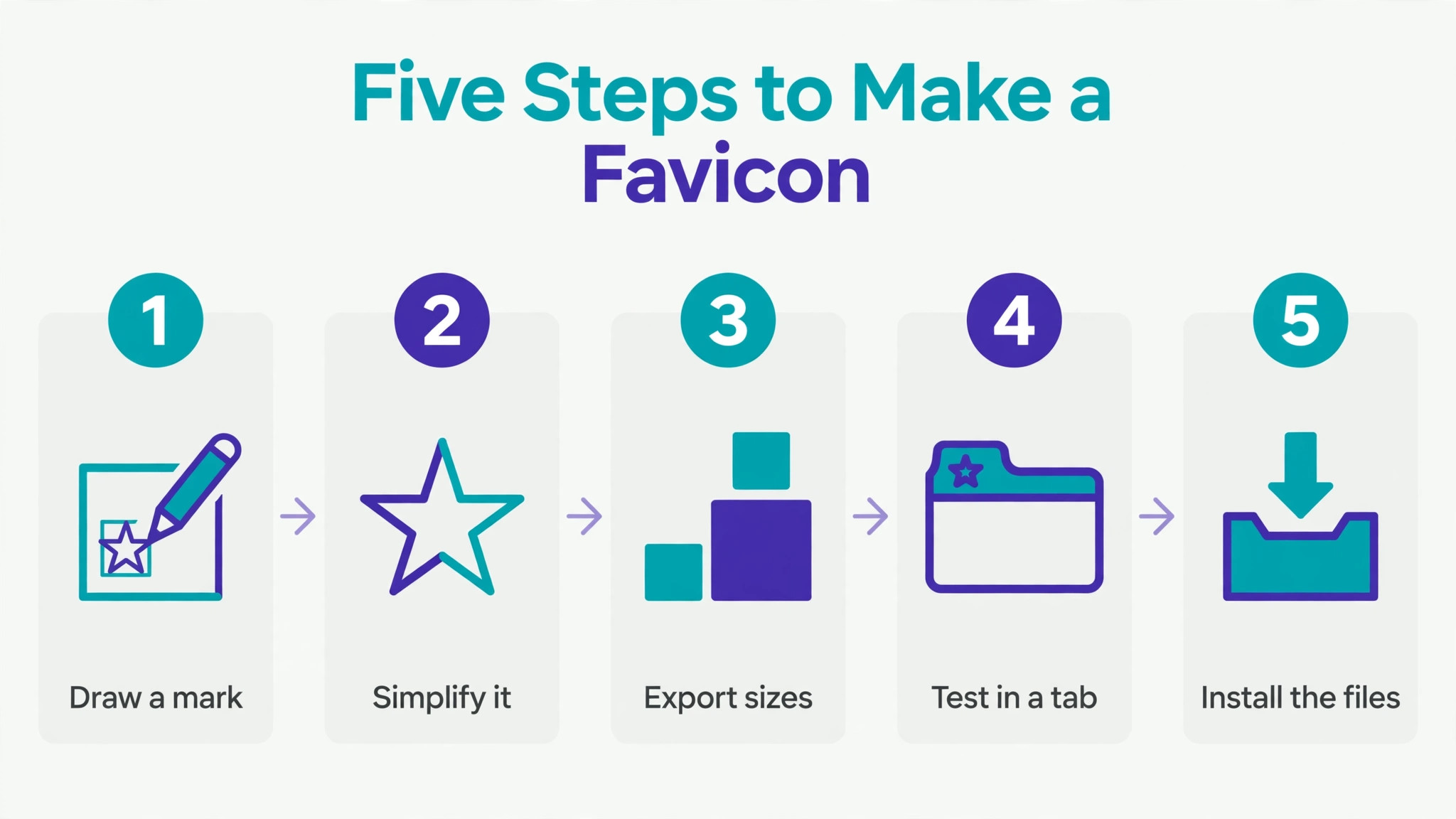
Installing a favicon is a small job, and the best favicon generators make it smaller by handing over the HTML with the files. The first step is to place the files at the root of the site or in an assets folder, and to keep the file names exactly as the generator wrote them, because the HTML snippet refers to those names. Renaming a file after the snippet is written is the most common cause of a missing favicon.
The second step is to paste the HTML snippet into the header of every page, or into the header template that every page shares. A site built on a content management system usually has a single header file, and a site built by hand needs the snippet on each page. The third step is to test the result in a private browser window, because a normal window may show the old icon from its cache for hours. Check the tab and the bookmark bar, then add the site to a phone home screen and check the icon.
The fourth step is to clear the cache on the live site if the icon still does not appear, because a caching plugin or a content delivery network may be serving the old header. Purge the cache, wait a few minutes, and test again.
Frequently Asked Questions
The best favicon generators answer most questions by the way they export, and the six questions below cover the ones that come up after the download, when the icon is live.
Why does my favicon look blurry in a browser tab?
A blurry tab icon almost always comes from a source file that was too small or too detailed. A photograph, a full wordmark or a thin illustration cannot shrink to 16 pixels without losing its edges. Redraw the mark as one bold shape or one letter, start from a file of at least 512 pixels square and test it at 16 pixels before publishing.
Do I still need an ICO file in 2026?
Yes, and the reason is compatibility rather than fashion. Modern browsers read PNG and SVG without trouble, and older browsers and some bookmark systems still look for the ICO file first. An ICO that packs 16, 32 and 48 pixels costs almost nothing to ship, so ship it alongside the PNG set and let each browser pick the format it prefers.
Can I use an emoji as my favicon?
Yes, and for a personal site, a newsletter or a side project it can work well. Favicon.io builds one from an emoji in seconds, and the result is a friendly mark that needs no designer. The limit is that an emoji is not a brand, and a business that wants to be recognised in a row of tabs should use its own mark instead. An emoji favicon also depends on the emoji font of the visitor device, so it can look different on a phone and on a desktop.
What background colour should my Apple touch icon use?
A solid background that matches the brand, because Apple touch icons cannot use transparency and a transparent file will show as black on an iPhone home screen. Pick the brand colour, or a light neutral for a dark mark, and check the result on a real phone. The better tools on this list set this background per platform, so the Apple icon gets its solid colour while the browser icon keeps its transparency.
How long does it take for a new favicon to appear?
A new favicon usually appears in a private browser window at once, and in a normal window after the cache clears, which can take hours or a day. A phone home screen icon updates when the site is added again, and a search engine may take days to show the new icon. If the icon appears in a private window and not in a normal one, the files are correct and the cache is the cause, so purge the site cache and wait rather than reuploading.
Is a free favicon generator safe to use?
A free generator from a known tool on this list is safe, and the files it builds are yours to use. The risk comes from unknown sites that ask for an email address before the download, or bury a licence term in small print, so check the terms before using an icon on a business website. The tools on this list ask for no account for the favicon itself, and the download is a plain ZIP file.
Run the Checklist Again Before You Publish
A favicon is finished when it passes the checklist above, not when the download completes. Open the smallest icon in a browser tab and look at it for five seconds. If the mark is clear, the colours hold, and the shape is recognisable without the site name beside it, the icon is ready. If any part of it turns to mud at 16 pixels, go back to the mark and simplify it.
The best favicon generators make the technical part easy. The hard part is the design decision before the upload. One bold shape, one letter or one symbol, drawn thick, with space around it and tested at the smallest size first, will beat a detailed logo every time. Pick the tool that matches your job, run the checklist, and publish the icon that passes it.