
The best social media post makers promise a feed that looks designed without a designer on staff. Most of that promise holds up, yet the advice around these tools often falls apart once a real week of posting begins. This guide takes that advice apart first, then ranks twelve tools on speed, brand control, resizing and price, so you can pick the one that fits your week.
Myth 1. You Need a Designer for Every Post
Nobody with a shop, a practice or a side business can hire a designer for every post, and nobody needs to. A designer is worth paying for the brand itself, meaning the logo, the palette and the two or three layouts that define how the business looks. Once those exist, the daily post is assembly work, and assembly work is exactly what the tools in this guide are built for.
What a post maker gives you is the locked template, the right canvas size and the brand colours in one place, so the tenth post looks like the first one instead of drifting into a different style every Tuesday. If your posts look uneven, the problem is almost never talent. It is the absence of a repeatable starting point, and that is a tool problem with a tool answer.
Myth 2. A Free Tool Is Always the Cheap Option
A free plan costs nothing on the day you sign up and can cost hours every week after that. The free tier of most post makers hides the two features that save time, namely the brand kit and one-click resizing, and without them every post becomes a small rebuild. You retype the hex code, you re-upload the logo, you drag the headline back into place, and by Friday you have spent an extra ninety minutes on work a paid plan would have done in seconds.
A plan at ten dollars a month that saves two hours a week is cheaper than a free plan that eats those hours, and the maths gets clearer the more you post. The honest test is a timed week. Build five posts on the free tier, time the whole job, then repeat it on a trial of the paid tier. If the paid tier saves an hour, it pays for itself in the first week.
Myth 3. More Templates Means Better Posts
A library of a million templates sounds like an advantage until you open it on a Monday morning and spend twenty minutes choosing. Choice is only useful when it is organised, and the biggest libraries are the worst organised of all. What matters is not how many templates a tool holds but how many fit your business, your platforms and your voice.
A cafe needs ten strong layouts for menus, offers and opening hours, not ten thousand layouts for industries it will never enter. A tool with two hundred templates in your niche beats a tool with two hundred thousand templates scattered across every niche, because the smaller shelf lets you pick in seconds and post on time. The accounts that look templated are the ones that change nothing, and the accounts that look designed are the ones that change the photo, the headline and one colour accent every time.
Myth 4. One Tool Can Do Every Job Perfectly
No single post maker wins on templates, photo editing, resizing, scheduling, animation and price all at once, and the guides that claim otherwise are selling a subscription rather than giving advice. Canva wins on breadth, Adobe Express wins on speed from photo to post, and a batch tool like RelayThat wins on resizing while losing on freeform design. The right question is not which tool is best in the abstract but which job fills your week.
A shop posting daily needs a planner and a brand kit. A creator posting twice a week needs speed and strong fonts. A team of ten needs locked templates and approvals. Each of those jobs has a different winner, and the tables below name them plainly so you can match the tool to the week you actually live.
How the Best Social Media Post Makers Were Tested
Every tool below was judged on the same five questions, and the order in this guide follows the answers rather than brand fame. First, how fast does a finished post appear, measured from a blank canvas to an exported image with real copy and a real photo. Second, does the brand stay locked, meaning colours, fonts and logo apply without retyping. Third, does one design resize cleanly to a square feed post, a portrait post and a story frame without the headline drifting or the price getting cropped.
Fourth, what does a year of use actually cost, counting the plan that unlocks the brand kit rather than the free tier that hides it. Fifth, can a beginner finish a decent post in the first session without a tutorial. Prices were checked in November 2026 and move without notice, so confirm the total at checkout.
The 12 Tools at a Glance
The table below gives the short version of the twelve best social media post makers in this guide,
| Tool | Best for | Starting paid price | Free plan | Watch out |
|---|---|---|---|---|
| Canva | Everyday posting | Pro $144 a year | Yes | Popular templates look familiar |
| Adobe Express | Fast photo to post | Premium $9.99 a month | Yes | Smaller template shelf |
| VistaCreate | Animated templates | Pro $13 a month | Yes | Looser brand lock |
| Design.com | Logo plus social kit | Starter about $5 a month billed annually | Yes | Shallower design depth |
| Snappa | Quick simple graphics | Pro $15 a month | Yes | Small template shelf |
| PicMonkey | Photo-led posts | Basic $7.99 a month | No, 7-day trial | No permanent free plan |
| Easil | Brand-safe team posts | Plus about $6.25 a month billed annually | Yes | Smaller community |
| PosterMyWall | Events and promos | Premium about $9.08 a month billed annually | Yes | Busy interface |
| Stencil | Fastest simple edits | Pro $9 a month | Yes | Few advanced features |
| RelayThat | Batch resizing | Pro $15 a month | No | No freeform editing |
| Fotor | Photo editing plus design | Pro $8.99 a month | Yes | Design tools are secondary |
| Visme | Data-led graphics | From $12.25 a month billed annually | Yes | Heavier than a pure post maker |
Canva leads the table on everyday use, Adobe Express leads it on speed, and VistaCreate leads it on motion. Design.com earns its place on the value of a shared brand kit rather than on design depth alone, which is the honest reason it sits fourth.
Best Pick by Job
The table below assigns one pick from the best social media post makers to each common job, so find the row that describes your week and start there.
| Job | Pick | Why it wins here |
|---|---|---|
| Everyday posting | Canva | Brand kit, planner, resize in one place |
| Fast photo to post | Adobe Express | Quick fixes, strong fonts, clean finish |
| Animated posts | VistaCreate | Motion templates built in |
| Logo plus social kit | Design.com | One account, one shared brand kit |
| Quick simple graphics | Snappa | Fastest start, no learning curve |
| Photo-led posts | PicMonkey | Retouching built into the design flow |
| Brand-safe team posts | Easil | Locked templates, team controls |
| Events and promos | PosterMyWall | Deep promo and event shelf |
| Fastest simple edits | Stencil | Open, edit, export in minutes |
| Batch resizing | RelayThat | One design, every size at once |
| Photo editing plus design | Fotor | AI photo tools beside templates |
| Data-led graphics | Visme | Charts and figures inside the post |
The 12 Tools in Detail
Below are the best social media post makers, ranked on what a working week actually demands. Canva leads on everyday use and Adobe Express on speed, VistaCreate and Design.com follow on breadth and brand value,
1. Canva — Everyday Posting, the Broadest Workshop
Canva is the default for a reason, and the reason is breadth rather than any single brilliant feature. The template shelf covers feed posts, stories, carousels, covers, ads and event graphics, the brand kit holds colours, fonts and logo in one place, and Magic Resize turns one design into every platform size in a single click. Pro is $144 a year for one person on the vendor pricing read in October 2026, with monthly billing higher, and older pages still show $120 a year, so check the vendor page before paying.
The free tier is generous for occasional posting, but the brand kit and the resizer sit behind Pro, and those two features are the reason to pay. The real weakness is familiarity. A template a million businesses use starts to look like every other feed, and the fix is a fresh photo plus one changed choice on every design.
2. Adobe Express — Fast Photo to Post, the Quickest Finish
Adobe Express is the fastest route from a photo to a finished post, and it earns second place on speed and polish. Open a photo, brighten it, add the headline and the price, and the post is ready. The quick actions cover background removal, photo enhancement and text effects without a menu hunt, and no font library on this list is stronger. A post that needs to look expensive in ten minutes is an Express job. Premium is $9.99 a month billed monthly, and the free plan handles an occasional post well enough to test the editor properly.
The brand kit, the resize tool and the full font library sit in Premium, The template shelf runs smaller than Canva, so a poster repeating the same four layouts will build more from scratch. What Express gives back is finish. Its type handling and photo tools make a simple layout look like a designer made it, and on a feed where buyers judge a business by the post, finish is not decoration. It is the first impression.
3. VistaCreate — Animated Posts, the Motion Choice
VistaCreate takes third place on variety and motion, and it is the pick when still images start to feel flat. The template shelf runs deep, the styles lean bright and modern, and animated templates turn a static offer into a moving post that stops a scroll without any video editing. Pro runs $13 a month billed monthly or $120 a year, and the free Starter tier is generous enough for a proper test, with more than 100,000 templates and a large stock photo library.
Pro unlocks the brand kit, the full template range, background removal and the resize tool, and it covers up to ten team seats, which makes it good value for a small team. The brand lock is looser than Canva, so a hurried user can still drift off palette, and the fix is two or three locked templates saved and reused rather than a fresh start from the shelf each time.
4. Design.com — Logo Plus Social Kit, the Brand-First Pick
Design.com sits fourth because a social feed starts with the brand, and this platform builds everything else from it. A single subscription covers one logo, one kit, one website, business cards and social templates, with matching colours and fonts across the lot, so the feed post, the story frame and the card agree from the outset. The logo maker builds a clean mark from a business name and a few choices, and the kit carries that mark into every post.
Starter is about $5 a month billed annually or $15 a month billed monthly, with Value and Premium tiers above it adding a website builder and link-in-bio pages, and a free tier lets you browse and build before paying. The social templates are decent rather than dazzling. Its worth sits in the kit every piece shares, which suits a new business building a brand from scratch in one week. A new business that needs a logo, a feed and a card in seven days gets more from that single payment than from a design-only tool costing twice as much.
5. Snappa — Quick Simple Graphics, the No-Learning-Curve Pick
Snappa is the quick pick, and it earns fifth place on speed of start. There is almost no learning curve, the editor opens fast, and a simple post is done in five minutes. Pro is $15 a month billed monthly or $10 a month billed annually, and the free tier allows three downloads a month, which is thin for a working account but enough to learn the editor.
What the money buys is simplicity. There are no menus to learn, no features to ignore, and no way to get lost. Fewer templates than the leaders sit on the shelf, and the resize tool is basic, so a post that needs five sizes will take longer here than in Canva or RelayThat. A Snappa post looks clean and professional, and most posts need to be clear, on brand and on time rather than prize-winning.
6. PicMonkey — Photo-Led Posts, the Retouching Pick
PicMonkey comes at post making from the photo side, and it takes sixth place on image work. The photo editor is the strongest here after Adobe Express, with retouching, filters, touch-up tools and colour correction that make a dull product photo look bright without a separate app. Basic is $7.99 a month and Pro is $12.99 a month, with a 7-day free trial and no permanent free plan, so the first post costs money.
Pro adds background removal, Smart Resize for different social sizes, a brand kit and Shutterstock stock photos, and most buyers who post weekly will need Pro rather than Basic. The template set is smaller than Canva, the brand kit is simpler, and there is no built-in scheduler to match the bigger platforms. PicMonkey handles photo-led posts brilliantly and everything else only adequately. A business shooting on a phone in winter will use it every week.
7. Easil — Brand-Safe Team Posts, the Control Pick
Easil takes the brand-safe slot, ranking seventh on control. Its templates are built for teams that must stay on brand, with locked colours, locked fonts and approval flows that stop a stray post before it goes live. Plus comes in at about $6.25 a month per user billed annually, with a free tier underneath and an Edge plan for larger teams, which makes Easil one of the cheapest paid seats on this list.
The template range is solid for marketing and social formats, the resize tool covers the main platform sizes, and the drag-and-drop editor is easy enough for a new starter to use on day one. The secret is the lock, and the failing is the smaller shelf. For a team, the lock wins, because a feed that changes colour with every poster reads as five different businesses.
8. PosterMyWall — Events and Promos, the Campaign Pick
PosterMyWall earns eighth place on campaign work, and it is the pick when the post is an event, a sale or a promotion rather than a daily update. The template shelf is deep for flyers, posters, event announcements and seasonal offers, and the platform adds social publishing and email campaigns beside the design tool, so a promo can go from design to inbox in one session. Premium is about $9.08 a month billed annually, with a free plan for testing, and the paid tier removes watermarks and unlocks the full template range. The interface is busier than Snappa or Stencil, and a first-time user will spend a session learning where things live.
9. Stencil — Fastest Simple Edits, the Minimal Pick
Stencil is the minimal pick, and it takes ninth place on pure speed for simple work. Open the tool, pick a size, drop in a photo, add a headline, export. The whole job takes minutes, and there is almost nothing to learn, which is the point. Pro is $9 a month, and the free plan covers occasional use with a limited number of saved images a month. The trade side is a short feature list. Most daily posts need a size, a photo, a headline and an export button, and Stencil gives exactly those.
10. RelayThat — Batch Resizing, the Automation Pick
RelayThat is the resize machine, and it finishes tenth on batch work. Load the brand once, type the headline, and the tool produces the same post sized for every platform you publish on. The proportions adjust, the text reflows, and the brand elements stay in place, which removes the rebuild that eats the afternoon of anyone posting the same offer in five places.
Pro is $15 a month, with a Pro Plus plan at $25 a month covering two users, and there is no free plan, which makes it the dearest single seat on this list for what it does. RelayThat is an automation layer rather than a design tool, for a business that already knows its layout and wants it repeated.
11. Fotor — Photo Editing Plus Design, the All-Rounder Pick
Fotor takes eleventh place as the photo-first all-rounder. The AI photo tools cover enhancement, background removal, retouching and batch editing, and the template shelf beside them covers social posts, banners and collages, Pro is $8.99 a month billed monthly or $39.99 a year, which works out near $3.33 a month, and the free plan is usable for testing both sides of the tool. The design tools are secondary to the photo tools, and that shows in a template shelf that is thinner than Canva and a brand kit that is simpler than Easil. Most shops photograph first, so Fotor suits them, and the yearly price is low enough to keep as a second tool.
12. Visme — Data-Led Graphics, the Numbers Pick
Visme closes the roundup as the numbers pick, ranking twelfth on data-led posts. Its strength is charts, figures and infographics inside a social graphic, so a post that carries a statistic, a comparison or a survey result looks designed rather than pasted together. Paid plans start from $12.25 a month billed annually, with a free tier for testing, and the paid tiers add the brand kit, more templates and higher export quality.
The editor is heavier than a pure post maker, and a simple offer graphic will take longer here than in Snappa or Stencil, so Visme is the wrong tool for a quick daily post. It is the right tool for the weekly post that has to carry numbers.
Canva vs Adobe Express: Which One Wins Your Week?
Canva wins when the week is full of different post types, because its template shelf, brand kit and planner cover the whole job in one account. Adobe Express wins when the week is photo-led and short on time, because a photo becomes a finished post in minutes with stronger type and retouching.
Among the best social media post makers, these two sit closest together, so the choice comes down to volume against speed. Pick Canva for five or more varied posts a week, and pick Adobe Express when most posts start from a photo and need to look polished fast.
How to Choose the Right Post Maker for Your Business
Start with your week, not the feature list. Count how many posts you publish, which platforms they go to, and whether a photo or a template starts the job. A daily poster needs a brand kit and one-click resizing, while an occasional poster can stay on a free plan until the rebuilds start costing time.
Then test the shortlist with one real post. Among the best social media post makers, the right one is the tool where that post, resized to every size you use, still reads clearly on a phone. If it does, pay for it. If it does not, move on.
What Post Sizes Keep a Design Intact?
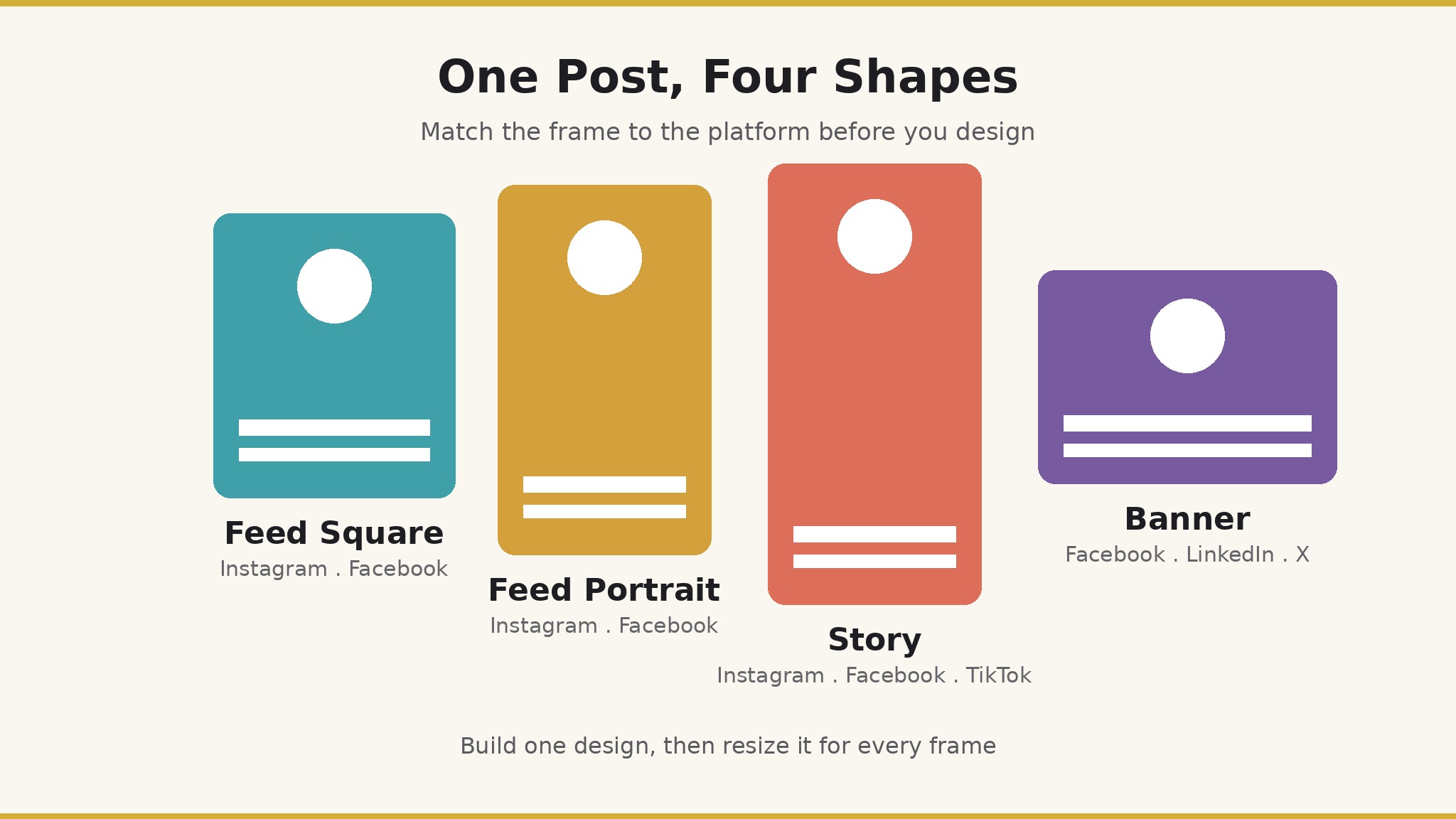
A post fails most often on size, not on taste. Instagram feed posts work best at 1080 by 1350 pixels in portrait, stories at 1080 by 1920, and Facebook link posts at 1200 by 630, while LinkedIn and X each crop differently again. The best social media post makers in this guide all handle resizing, but they handle it differently, and the difference matters. Canva, VistaCreate, RelayThat and PicMonkey Pro resize with one click and reflow the text.
The test before committing to any tool is simple. Make one post, resize it to all three sizes, and open each result on a phone. If the headline, the price and the logo survive in all three, the tool passes. If any of them drifts, the tool will cost an hour a week, and no template shelf is worth that. Keep text inside the middle eighty percent of the frame, the price in large type near the bottom centre, and the logo away from corners.
How Do You Plan a Week of Posts in One Sitting?
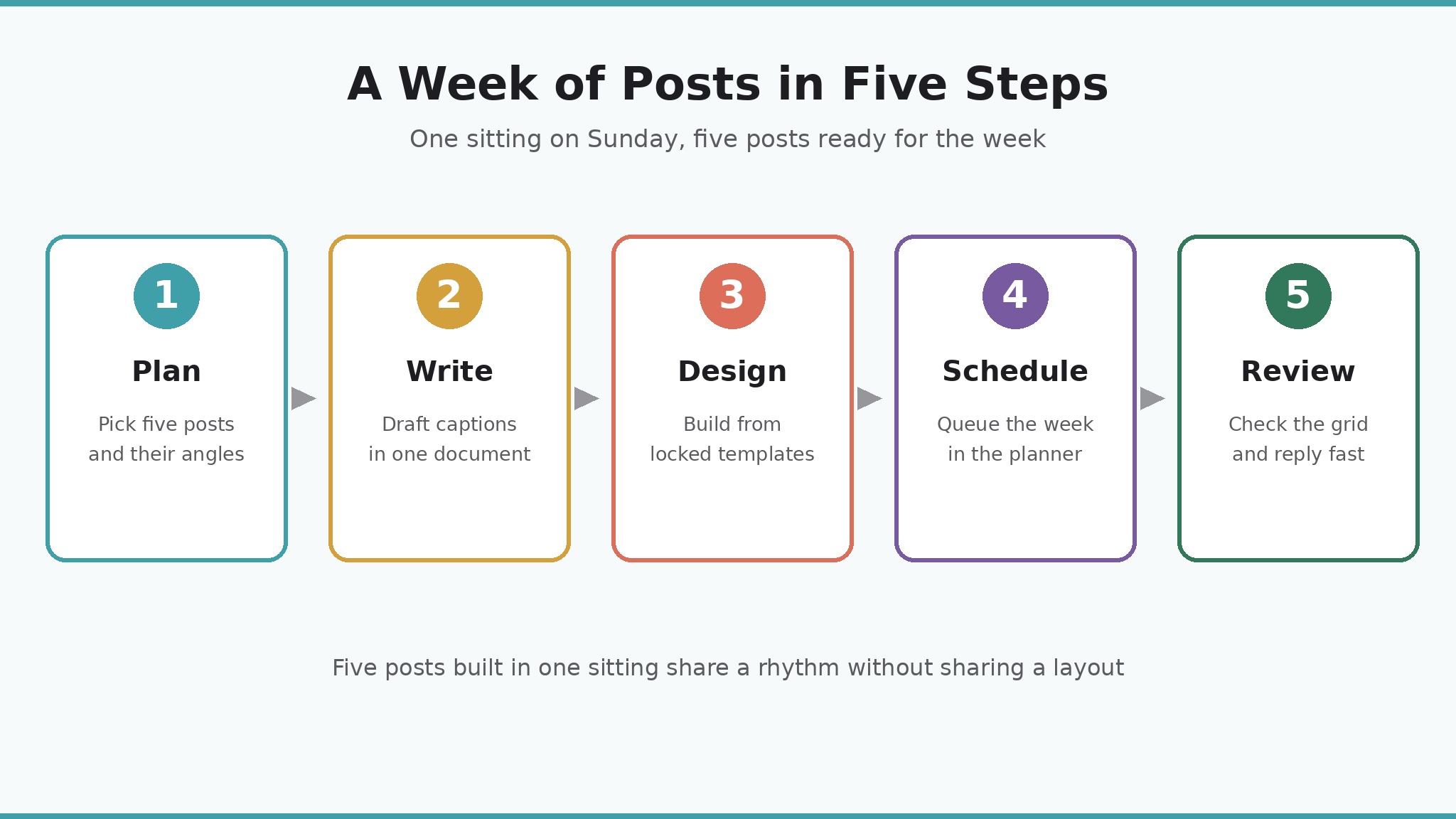
The fastest posters do not design daily. They design once, in a single sitting, and the week runs itself. Sunday night or Monday morning, pick the five posts, write the captions in a document, then build the graphics in one batch while the brand kit is open and the palette is fresh in mind.
A planner inside Canva or PosterMyWall then schedules the week, and the phone stays in a pocket during working hours. The common failure is the opposite habit, designing each post at the moment it is due, which turns every post into a fresh decision under time pressure and produces a feed that looks like five different businesses. A week planned in one sitting gives the feed a rhythm instead of a panic.
Why Do Good Posts Go Invisible?
The first mistake is posting the same image three times for one offer. A new listing, a sale or an event deserves three different graphics, one for the announcement, one for the reminder and one for the last chance, The second mistake is hiding the price, the date or the location in the caption instead of the image. Most viewers never open the caption, so the fact that decides the click has to live in the graphic itself, in large type where cropping cannot reach it.
The third mistake is changing the palette every week. A feed that changes colour with every post reads as five different businesses, and followers cannot learn to recognise yours at a glance. Among the best social media post makers, the cure for all three is the same locked starting point, three layouts with locked colours and fonts.
Frequently Asked Questions
How much should a small business pay for a post maker?
Start free and pay only when the free tier costs you time. For most small businesses the honest range is five to fifteen dollars a month for one seat, which buys the brand kit and the resize tool on Canva, Adobe Express, VistaCreate or Snappa. Design.com Starter at about five dollars a month billed annually is the cheapest route to a logo plus a social kit, while RelayThat at fifteen dollars a month only earns its price when you publish the same post on five platforms daily.
Can I make good posts on my phone?
Yes, and most posters do. Canva, Adobe Express, VistaCreate, PicMonkey and Fotor all run well on a phone, and the photo is already there. The desktop is better for building the brand kit and the master templates, while the phone is better for the daily post, since the photo, the caption and the publish step all live on the same device. Build the three master layouts on a desktop, then run daily posts from the phone.
Do I need a paid plan to keep my brand consistent?
A paid plan is the practical answer, because the brand kit sits behind the paywall on Canva, Adobe Express and VistaCreate. The free tiers let you design, but they do not lock the colours and fonts, so the feed drifts over a month. If the budget is tight, Easil free and Design.com free cover the basics, and the paid upgrade can wait a month.
Will my posts look the same as every other business?
They will if you use the most popular template unchanged. The fix takes two minutes per post, and it is a fresh photo, one changed colour accent and a headline in your own words. The template is the skeleton, not the post, and the photo is what makes it yours. The test is the grid view. Open your profile grid and look at nine posts at once. If they rhyme without repeating, the feed is working.
Should the price go on the graphic or in the caption?
Put it on the graphic for an offer, a sale or a new product, because the price is the first thing a buyer wants and the graphic is the first thing a buyer sees. Put it in large type near the bottom centre, where it survives cropping on every platform. For a brand post, a story or a market update, leave the price out and use one number or one idea instead, so the post reads as news rather than an advert.
Can one tool cover every platform?
Among the best social media post makers, Canva comes closest, with templates, resize and scheduling for Instagram, Facebook, LinkedIn and TikTok in one account. Adobe Express is close behind on speed, and VistaCreate is close behind on motion. No tool does everything perfectly, and a business that also cuts video will still use the phone for the clip itself. The design tool covers the still graphics and the cover frames, and that is most of the weekly work.
The Last Myth to Drop
The last myth is the quietest one, and it says the feed has to be perfect before it can start. It does not. It has to be recognisable, regular and honest, and those three things come from a locked template, a weekly batch and a photo that shows the real business. Pick the tool that matches your week, build three master layouts, and post from the phone for two weeks. If nine posts rhyme without repeating, the system works. A good post maker, a locked brand and an hour a week will carry a feed further than any of those promises, and the feed that ships every week beats the feed that waits for perfect every time.