
You open a note you edited yesterday and something is wrong. A paragraph is missing, a sentence appears twice, or a second file has appeared with a word like conflict in its name. The note you trusted is suddenly not the note you wrote, and the first instinct is to delete the strange copy and move on. That instinct is exactly how good work gets lost. To fix Obsidian sync conflicts safely, you need to slow down for ten minutes, protect both versions, and then merge with a clear method instead of guessing which copy is right.
This guide gives you that method. You will learn what a conflict copy actually is, how to compare two versions, how to use version history and local file recovery when the damage is worse than it looks, and how to fix the setup that caused the problem so it does not return next week. It covers Obsidian Sync, iCloud, Dropbox, OneDrive, Syncthing, and Git, because the right repair depends on the sync tool you use. Prices are checked at draft time and noted where they matter. Every step follows one rule above all else. Never delete a version until the merged note is saved, synced, and checked on a second device.
What a Sync Conflict Really Means
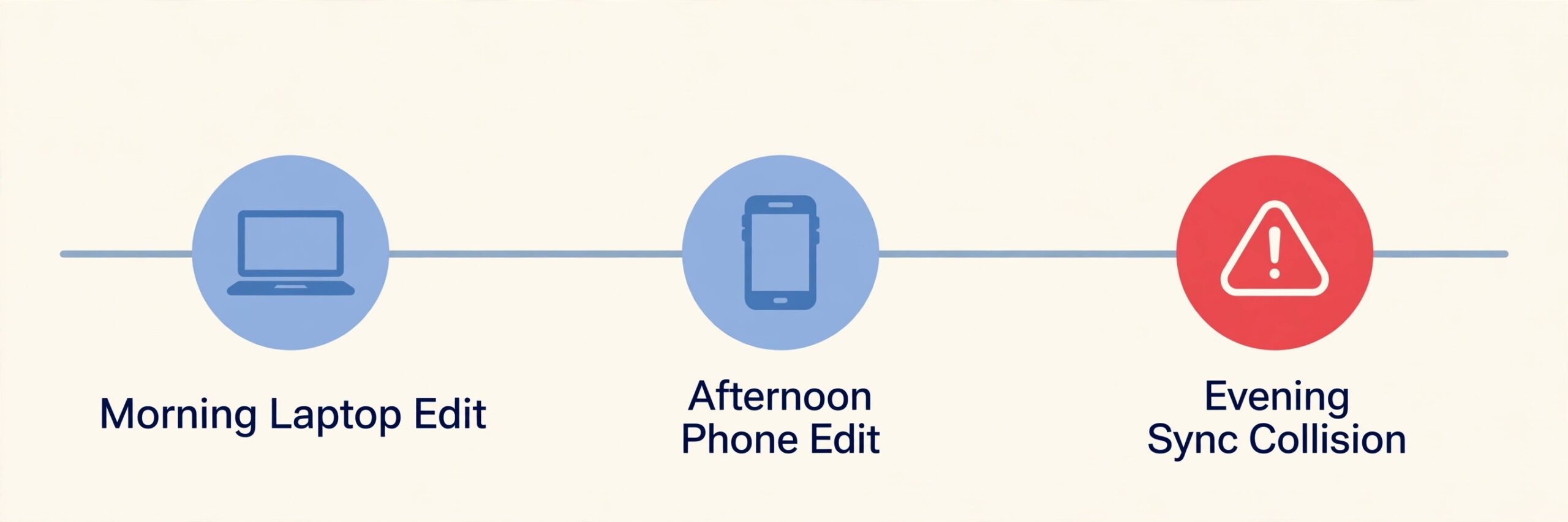
A sync conflict is not a sign that Obsidian deleted your work. It is a sign that two devices changed the same note before either one had a chance to learn about the other change. Picture a note that starts identical on a laptop and a phone. You edit the top on the laptop while offline, then edit the bottom on the phone before the laptop has synced. When both devices finally connect, the sync tool has two different versions of one file and no reliable way to know which edits belong together. A careful tool keeps both versions and asks you to decide.
Obsidian Sync tries to merge changes automatically in many cases. When edits touch different parts of a note, an automatic merge often works and you never notice it. When edits overlap, or when a device was offline for a long time, the merge can fail, duplicate a section, or drop a change. Newer Obsidian Sync settings also offer a conflict file option, which creates a separate conflict copy instead of attempting an automatic merge in those hard cases. That copy is a safety net. It means the system refused to guess, and you should be glad it did.
Third party sync tools behave differently. iCloud, Dropbox, and OneDrive sync whole files, so they often create a file with a name like conflicted copy plus a device name and a date. Syncthing creates a file with a sync conflict marker and a timestamp. Git stops and marks the conflict inside the file itself, with markers showing both versions, and waits for you to resolve it before you can commit. Each approach preserves work in its own way, but each one leaves a mess if you clean it up in a hurry.
Stop and Protect Both Versions First
The first five minutes decide whether you lose work. Do not edit either version yet. Do not rename files in a panic. Do not delete anything. Open Obsidian on one device only, preferably the desktop, and pause sync if your setup allows it. In Obsidian Sync, you can pause sync from the sync status area. With a third party tool, quit the sync app or pause its syncing for the vault folder. The goal is simple. Freeze the situation so no new change overwrites the evidence while you work.
Next, make a safety copy outside the vault. Copy the whole vault folder to a dated folder on your desktop, or at least copy the affected note and its conflict copy to a folder outside Obsidian. Name the backup folder with the date and the word conflict, so you can find it later if the merge goes wrong. This copy costs almost nothing and removes the fear from every later step. If you merge badly, you can start again from the safety copy instead of trying to remember what you deleted.
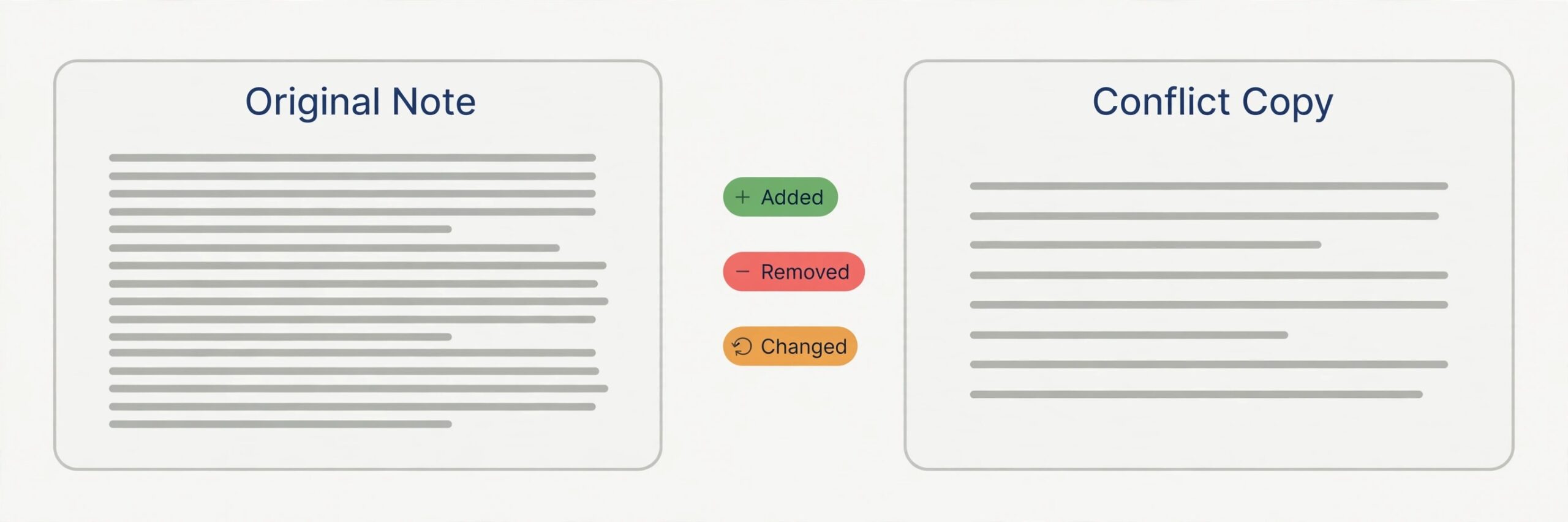
Then identify exactly what you have. Open the original note and the conflict copy side by side and note the differences. Check file sizes and modified dates, because a much larger file may contain duplicated sections, while a much smaller file may have lost a section. Read both versions fully. Many people spot one missing paragraph, restore it, and miss a second change further down the note.
How to Fix Obsidian Sync Conflicts in 15 Minutes
This workflow shows how to fix Obsidian sync conflicts for Obsidian Sync conflict files, for iCloud and Dropbox conflicted copies, and for Syncthing conflict files, with only small changes noted where they matter. Follow the steps in order, and do not skip the verification step at the end. A merge that looks right on one device but has not synced is not finished.
Step 1. Open both versions and mark the differences
Open the original note in Obsidian and the conflict copy in a second pane, or open the conflict copy in a plain text editor if Obsidian hides it from search. Read from top to bottom and mark every difference. You are looking for text added in one version only, text removed in one version only, text edited differently in both versions, and text moved to a different place. Moved text looks like a deletion and an addition at once, so check the whole note before you conclude that a paragraph was deleted.
Step 2. Build one merged note, paragraph by paragraph
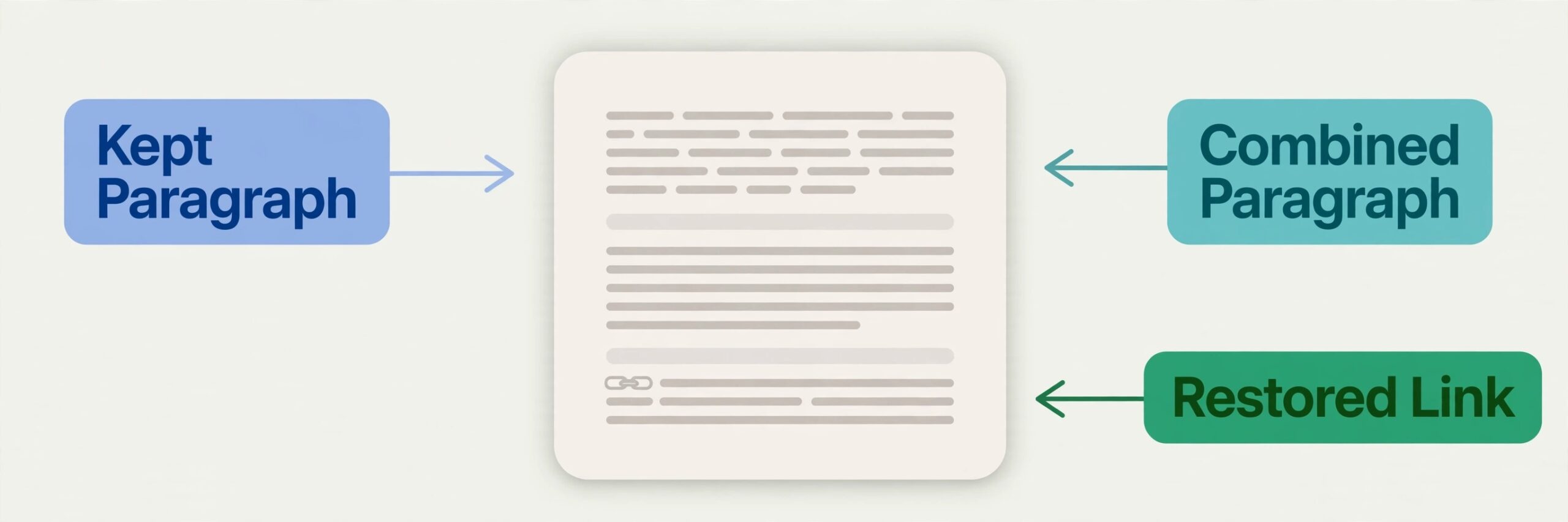
Create the merged note in the original file, not in the conflict copy. Work paragraph by paragraph from the top. If only one version has a paragraph, keep it. If both versions edited the same paragraph, read both wordings and write the better one, keeping any fact that appears in only one wording. If a paragraph was deleted in one version but kept in the other, do not assume the deletion was deliberate. Check whether it looks like an accident, such as a whole section vanishing after an offline edit, or a deliberate cut replaced by a shorter summary nearby.
Keep links, tags, and frontmatter intact while you merge. A note that looks right but has a broken internal link, a missing tag, or a damaged properties block will cause a second problem later, when a search or a graph view misses it. Compare the properties block separately, because a merge can duplicate a property key or drop a date. Compare checklist states too, because sync problems often hide in a task ticked on one device and edited on the other. Where versions disagree, write your own final wording rather than pasting both wordings one after the other.
Step 3. Save, sync one device, then check the other
Save the merged note and let the device you are working on finish syncing before you touch any other device. Watch the sync status until it shows that syncing is complete, and on mobile, keep Obsidian in the foreground until the sync indicator settles. Mobile sync only runs while the app is open on most setups, and closing the app seconds after an edit is one of the most common causes of a repeat conflict. Wait for the sync to finish, even if the wait feels slow.
Then open Obsidian on the second device and let it sync before you edit anything there. Open the merged note and check the start, the middle, and the end. Check that the paragraph you rescued is present, that no section is duplicated, and that the note has not reverted to an older version. If the second device shows the merged note correctly, the conflict is resolved. If it shows an old version, or if a new conflict copy appears, stop editing and use version history before you edit again.
Step 4. Remove the conflict copy only after verification
Once the merged note is correct on two devices, you can remove the conflict copy. Move it to the trash inside Obsidian, or to your safety backup folder outside the vault if you want extra caution for a week. Do not delete it from the file manager while Obsidian is still syncing, because a file deleted mid sync can reappear. Let sync settle, then delete, then let sync settle again. After a week of normal syncing, delete the archive.
Use Version History When Merging Is Not Enough
Sometimes merging by hand is not enough, because the version you need is not in either visible file. Perhaps an automatic merge overwrote a paragraph before a conflict file was created, or a note was edited on three devices and the middle version is missing. That is what version history is for, and Obsidian gives you two separate safety nets. If you need to fix Obsidian sync conflicts after an automatic merge has already hidden a change, version history is usually where the missing text still lives.
Obsidian Sync version history stores past versions of synced notes on the server side of your Sync account. Open the note, open the version history view, and browse saved versions by date and time. You can compare a past version with the current note, copy text from it, or restore it. Copy is usually safer than restore, because copying lets you paste a single lost paragraph into your merged note without wiping edits you made since. Always copy the current note to a safety file before you restore, so a bad restore is reversible.
The length of Sync version history depends on your plan. On the official Obsidian Sync page at draft time, Sync Standard is listed at 4 dollars per user per month billed annually, or 5 dollars billed monthly, with 1 synced vault, 1 GB of storage, and 1 month of version history. Sync Plus is listed at 8 dollars per user per month billed annually, with 10 synced vaults, 10 GB of storage, and 12 months of version history. Check the official Obsidian Sync page and the checkout total before you buy, because plan details change and older guides still describe earlier plan names.
The second safety net is the File Recovery core plugin, which is built into Obsidian and works without any paid sync plan. File Recovery takes local snapshots of your notes as you edit them, on the device where you edited them. Open it from Settings, under Core plugins, or run the command to open local history for the current note. The snapshot viewer shows past versions and lets you copy or restore one. Snapshots are local only, so check File Recovery on the device where the edit happened, not on your other devices. Your own backup, such as a Time Machine backup or a dated zip of the vault, is a third net that works when both Obsidian nets fail.
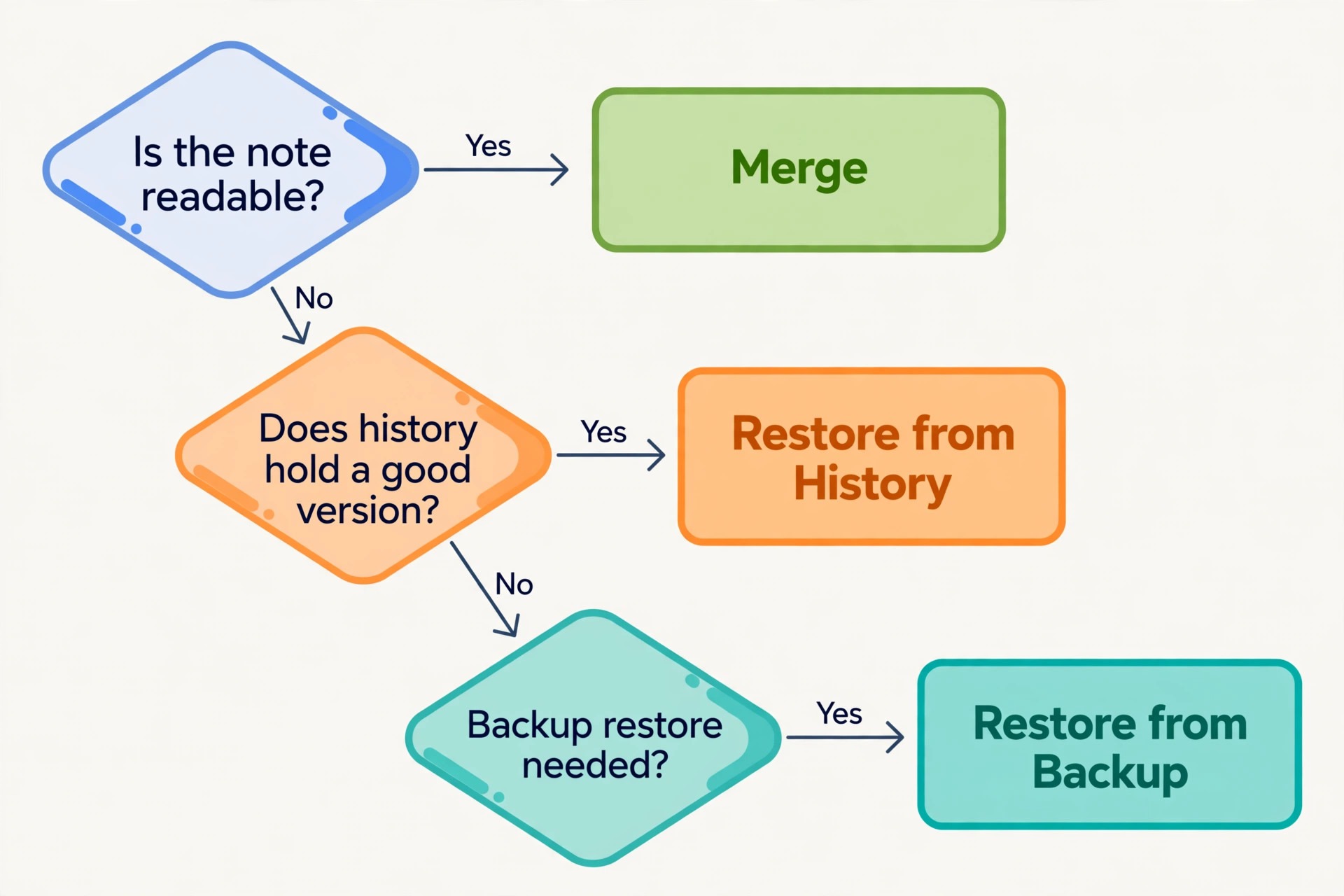
Fix the Problem for Each Sync Method
The method you use to fix Obsidian sync conflicts depends on your sync tool, and applying the wrong fix can make things worse. Use the section that matches your setup, and do not mix methods on the same vault.
Obsidian Sync
If you use Obsidian Sync, first confirm that every device is connected to the same remote vault, with the same encryption choice. A device connected to a different remote vault will sync the wrong set of notes and create widespread differences. Next, turn on the conflict file behaviour if you prefer manual control over automatic merging. In recent Obsidian Sync versions, you can choose to create a conflict file when independent edits collide, instead of letting the automatic merge attempt to combine them. That trades a little cleanup work for much lower risk of a silent bad merge. For notes that matter, manual conflict files are the safer choice. Also keep the vault small enough to finish syncing.
Exclude large attachment folders from mobile sync where your plan allows it, or split rarely used archives into a separate vault.
iCloud Drive, Dropbox, and OneDrive
iCloud is convenient on Apple devices, but it is also a common source of conflicts, because iCloud syncs files on its own schedule and can keep a file in a downloading state while Obsidian tries to read it. Keep Obsidian open until sync finishes, avoid editing the same note on a Mac and an iPhone within seconds of each other, and do not store the vault in a folder that macOS offloads to the cloud. An offloaded file can make Obsidian see an empty or stale note and then overwrite the real version when the download completes.
Check that iCloud Drive is enabled on every device and that you have free iCloud storage, because a full account silently stops syncing new changes.
Dropbox and OneDrive both create conflicted copies with clear names, which makes them easier to spot than silent merges, but they share a weakness. They sync whole files, so a small edit still uploads the whole file, and a rapid edit on two devices almost guarantees a conflicted copy. The fix is behavioural. Finish on one device, wait for the cloud icon to show sync complete, then switch devices. Also keep vault files available offline on every device that edits them. Online only storage is fine for archives you only read, but a note opened before it is fully downloaded can appear empty and then overwrite the real note when saved.
Syncthing and Git
Syncthing is free and open source, and it syncs directly between your devices without a central server. Check that every device has the same folder settings, the same file versioning choice, and the same ignore rules. A device with different settings will diverge from the rest of the vault in ways that look like random conflicts. Syncthing also needs time and network access. On a phone, it may be paused by battery optimisation, or it may only sync on Wi-Fi, so edits made on mobile data will not reach other devices until you are back on Wi-Fi. Do not edit a note on a second device until the first device has had a chance to sync.
Git is the most powerful option, and the least forgiving if you skip the learning step. With Git, a conflict appears as markers inside the note itself, and you resolve it by editing the note to remove the markers and keep the right text, then committing the result. Never commit a note that still contains conflict markers, and never force push a vault unless you have a full safety backup and understand that force pushing can erase other devices work. For most note takers, Git works best on desktop only, with regular commits and pushes. If you use Git across devices, commit and push before switching devices, and pull before editing on the new device.
Three patterns explain most repeat conflicts, so check them before you call a merge finished. First, timing. Editing on a phone just after a laptop, editing while offline and then editing the same note elsewhere before the first device reconnects, and leaving the same note open on two machines are the usual triggers. Second, mobile. On a phone, sync often only runs while Obsidian is in the foreground, so wait for sync to finish before you edit and again before you lock the phone, and use one capture note for quick ideas instead of editing many notes on the go. Third, damage.
If a note repeats a paragraph three times, mixes in text from another note, or suddenly empties, stop merging by hand, copy the whole vault outside any sync folder, pause sync everywhere, and rebuild from the last known good version in history or from a clean offline device, rather than salvaging garbled text.
The Conflict Resolution Workflow and Prevention Checklist
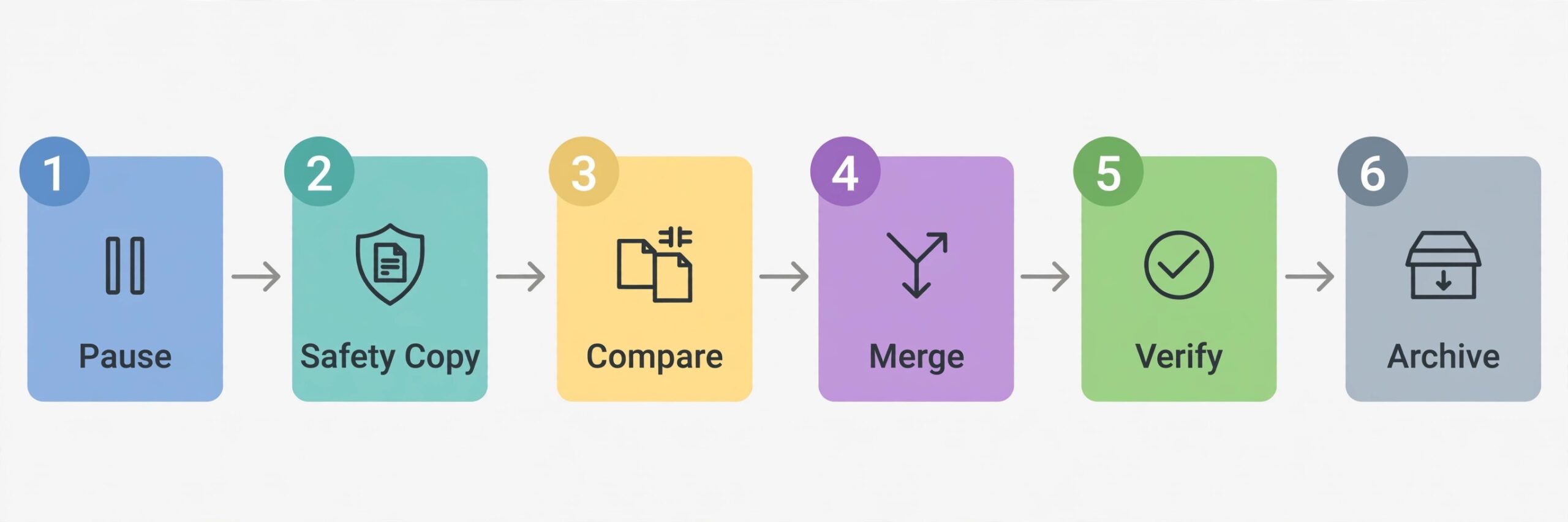
This section is the part to bookmark, because it turns everything above into a repeatable routine. Use this routine whenever you fix Obsidian sync conflicts, so you can follow it under pressure without rereading the whole guide. The workflow runs in seven steps. Pause sync and make a safety copy outside the sync folder. Find every conflict copy and count how many notes are affected. Open the original and the conflict copy side by side and mark every difference. Build one merged note in the original file, paragraph by paragraph, keeping links, tags, and properties intact. Save and let the working device finish syncing before you touch another device.
Open the second device, let it sync, and verify the merged note. Move the conflict copy to a dated archive outside the vault, and delete the archive after a week of clean syncing.
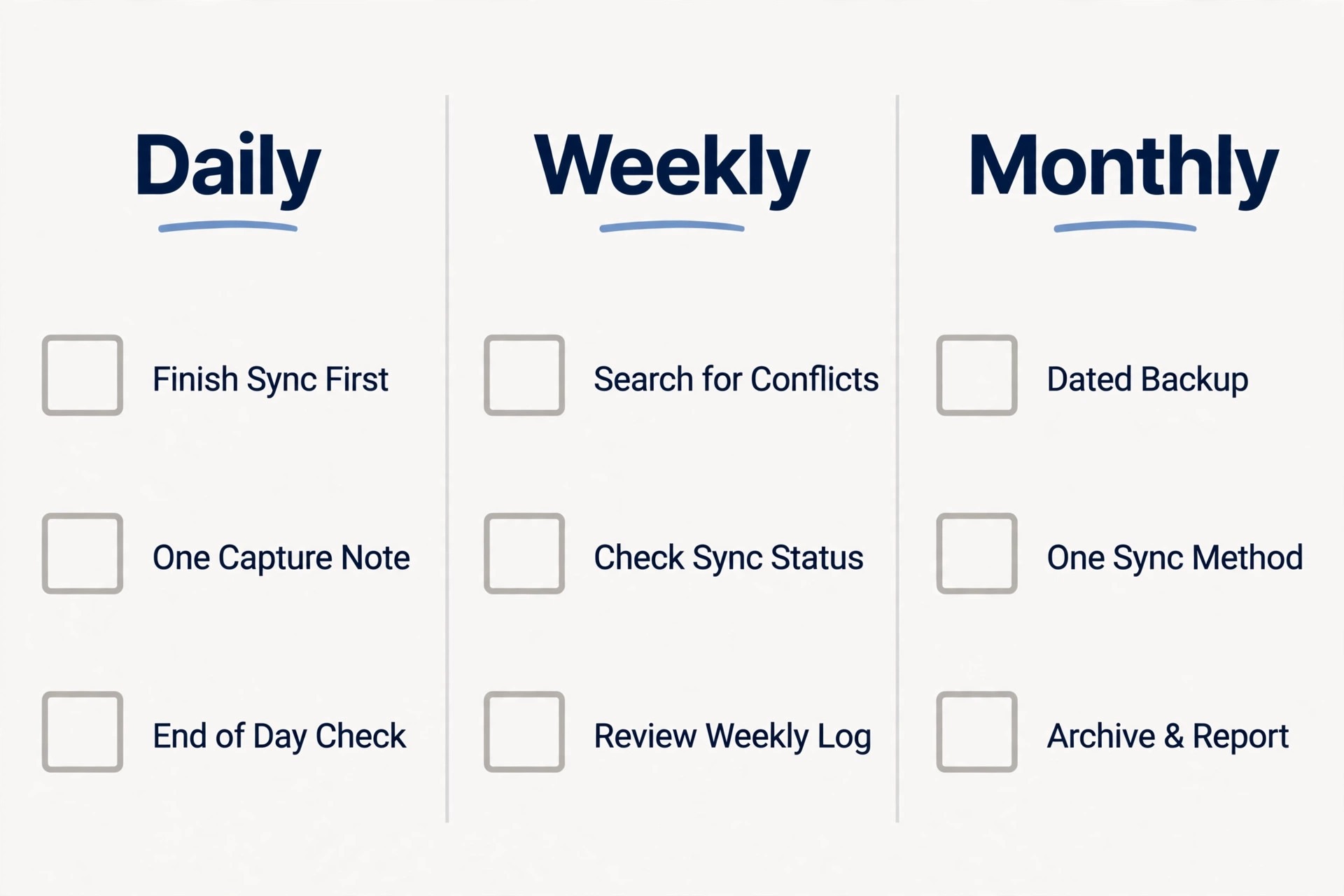
The prevention checklist runs daily, weekly, and monthly. Daily, finish sync on one device before you edit the same note on another device, and keep Obsidian in the foreground on mobile until the sync indicator settles. Daily, use one capture note on mobile for quick ideas instead of editing many notes on the go. Weekly, search the vault for conflict in file names and resolve new copies while they are fresh. Weekly, check sync status and storage on each device. Monthly, make a dated backup outside any sync folder and test that you can open a note from it. Monthly, confirm that each vault uses exactly one sync method.
Two habits on that checklist matter more than the rest. The first is one sync method per vault, because two sync tools on one vault create conflicts that no workflow can outrun. The second is the wait for sync before switching devices, because most conflicts are caused by a fast switch that never gave sync time to finish.
How to Choose a Sync Method That Fits Your Notes
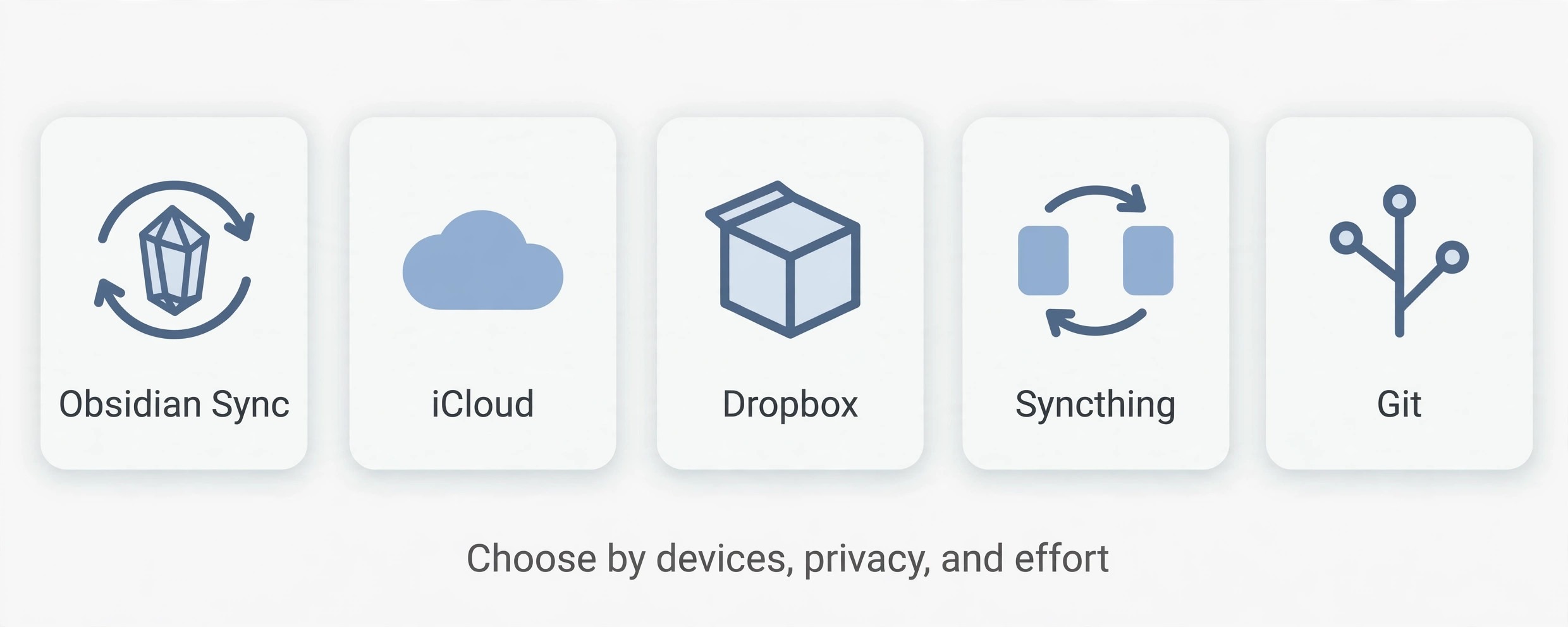
Choosing a sync method is a decision about trade offs, not about finding a perfect tool. Obsidian Sync is the simplest choice for most people who want official support, end to end encryption, and version history without managing files themselves. Its limits are storage and vault count on the lower plan. iCloud suits Apple only setups with no extra app, but it risks offloaded files and has no Obsidian specific version history.
iCloud suits Apple only setups, while Dropbox and OneDrive suit users already on those clouds who want clear conflicted copy names and cloud version history. Syncthing suits users who want free, private, direct device to device sync and are comfortable checking settings on each device, but it needs a separate backup, because it syncs deletions to every device too. Git suits users who want full version control and are willing to commit and pull daily, but it is complex on mobile and risky if you rush a commit.
| Sync method | Best for | Main risk | Cost at draft time |
|---|---|---|---|
| Obsidian Sync | Most Obsidian users, all devices | Automatic merge hiding a lost paragraph | From 4 dollars per user per month billed annually |
| iCloud Drive | Apple only setups | Offloaded files and delayed sync | Included with iCloud storage you already pay for |
| Dropbox or OneDrive | Users already on those clouds | Whole file conflicts on rapid edits | Depends on your existing cloud plan |
| Syncthing | Private, free, direct sync | Phone battery and network pauses | Free and open source |
| Git | Full version control fans | Conflict markers and complex mobile use | Free, plus hosting if you use a private remote |
Mistakes That Turn a Small Conflict Into Lost Notes
A common error when people try to fix Obsidian sync conflicts is deleting the conflict copy before merging. People delete it because it looks like clutter, or because they assume the original note is the right one. The original note is often the version that lost a paragraph, and the conflict copy is often the version that still has it. Delete nothing until the merged note is verified on two devices.
The second mistake is editing both devices while a conflict is unresolved. Each new edit creates a third version, and a third version turns a simple two way merge into a puzzle where no version is complete. Pause, merge, verify, and only then return to normal editing. If you must capture an idea while a conflict is open, write it in a separate scratch note that is not part of the conflict, and move it into place after the merge.
The third mistake is restoring a whole vault from an old backup without a safety copy of the current vault. An old backup may be clean, but it may be missing a week of good edits that exist only in the current vault. Restore to a new folder, compare the important notes, and merge the good edits forward. The fourth mistake is running two sync tools on the same vault. If a vault sits in iCloud Drive and is also connected to Obsidian Sync, both tools will move files and each will see the other tool changes as new edits. Pick one sync method per vault and let it settle before you judge it.
The fifth mistake is ignoring small conflicts because the note still looks mostly right. A small conflict today often means a setup problem that will create a large conflict later, on a note you care about more. Resolve small conflicts promptly and note what caused them. A conflict log, even a single line in a scratch note with the date, the note name, and the cause, helps you spot patterns that a single incident hides. The sixth mistake is trusting automatic merging for notes that matter without checking the result. A thirty second read catches a duplicated paragraph while version history still holds the good version.
For readers who are still choosing a note system, related reading includes Notion vs Obsidian for a direct comparison of structure and sync behaviour, and best note taking apps for the wider field when Obsidian sync is not the right fit for a team. Both guides help you judge whether the conflict problem is a setup fix inside Obsidian or a sign that a different tool would suit your workflow better. For the official service details behind the prices in this guide, see Obsidian Sync.
Frequently Asked Questions
Will I lose notes if I delete a conflict copy?
You can lose notes if you delete a conflict copy before you merge it, because the conflict copy may hold the only version of a paragraph removed from the original note. Merge first, verify the merged note on two devices, and only then move the conflict copy to an archive outside the vault. Keep that archive for a week, then delete it once sync has stayed clean.
How do I find all conflict copies in my vault?
Search your vault for the word conflict in file names, using Obsidian search or your file manager, and check for names that include a device name, a date, or a sync conflict marker. Also check the vault trash folder and your sync app activity log. Resolve every copy you find, because an old conflict copy left in the vault can be mistaken for a current note later.
Can I fix Obsidian sync conflicts on my phone alone?
You can, but a desktop is easier for a long or complex merge, because you can open two panes and check file dates in the file manager. On a phone, pause sync, copy the conflict text into a scratch note, merge carefully in the original note, wait for sync to finish in the foreground, and then verify on a second device. For a short note with one missing paragraph, phone only merging works fine. For a long note, wait until you are at a desktop.
Does Obsidian Sync version history replace a backup?
No, and treating it as a backup is a common cause of permanent loss. Sync version history is limited by time and by plan, it only covers synced notes, and it can record damaged versions as the newest versions if damage syncs before you notice it. A backup is an independent copy outside the sync system that sync cannot overwrite. Use both, because they protect against different failures.
Why do conflicts keep happening on the same note?
A note that conflicts repeatedly is usually a note you edit on multiple devices in quick succession, a note touched by an automatic plugin on two devices, or a note inside a vault that uses two sync methods at once. Check your switching habit first, then check plugins that rewrite that note, then check the vault location and sync method. Fixing the repeated trigger matters more than merging the same note a fifth time.
Should I switch sync tools if conflicts keep happening?
Switch only after you have fixed the habits and setup that cause most conflicts, because a new tool with the same fast switching habit and the same double sync setup will conflict in the same way. Try one sync method per vault, wait for sync before switching devices, and use conflict files instead of automatic merging for important notes. If conflicts persist after a month of that routine, then switch tools and keep a backup of the old vault until the new setup has run cleanly for two weeks.
One Note, One Version, No Surprises
A sync conflict feels like a technical failure, but it is usually a timing problem with a human fix. Two devices changed the same note before they could talk to each other, and the system kept both versions rather than guessing. The next time you fix Obsidian sync conflicts, protect both versions, merge them paragraph by paragraph, verify the result on a second device, and then fix the habit or setup that caused the collision. That routine takes fifteen minutes for a single note, and it saves the hours that a lost manuscript or a missing research section would cost.
Start with the note that is conflicting right now. Pause sync, make a safety copy, merge with the workflow above, and check the result on another device before you delete anything. Then run the prevention checklist for a week, with one sync method per vault and a short wait for sync before every device switch. If a conflict still appears, you will have a clean merge method, a version history fallback, and a backup to fall back on, which means the conflict becomes an annoyance instead of a loss.