
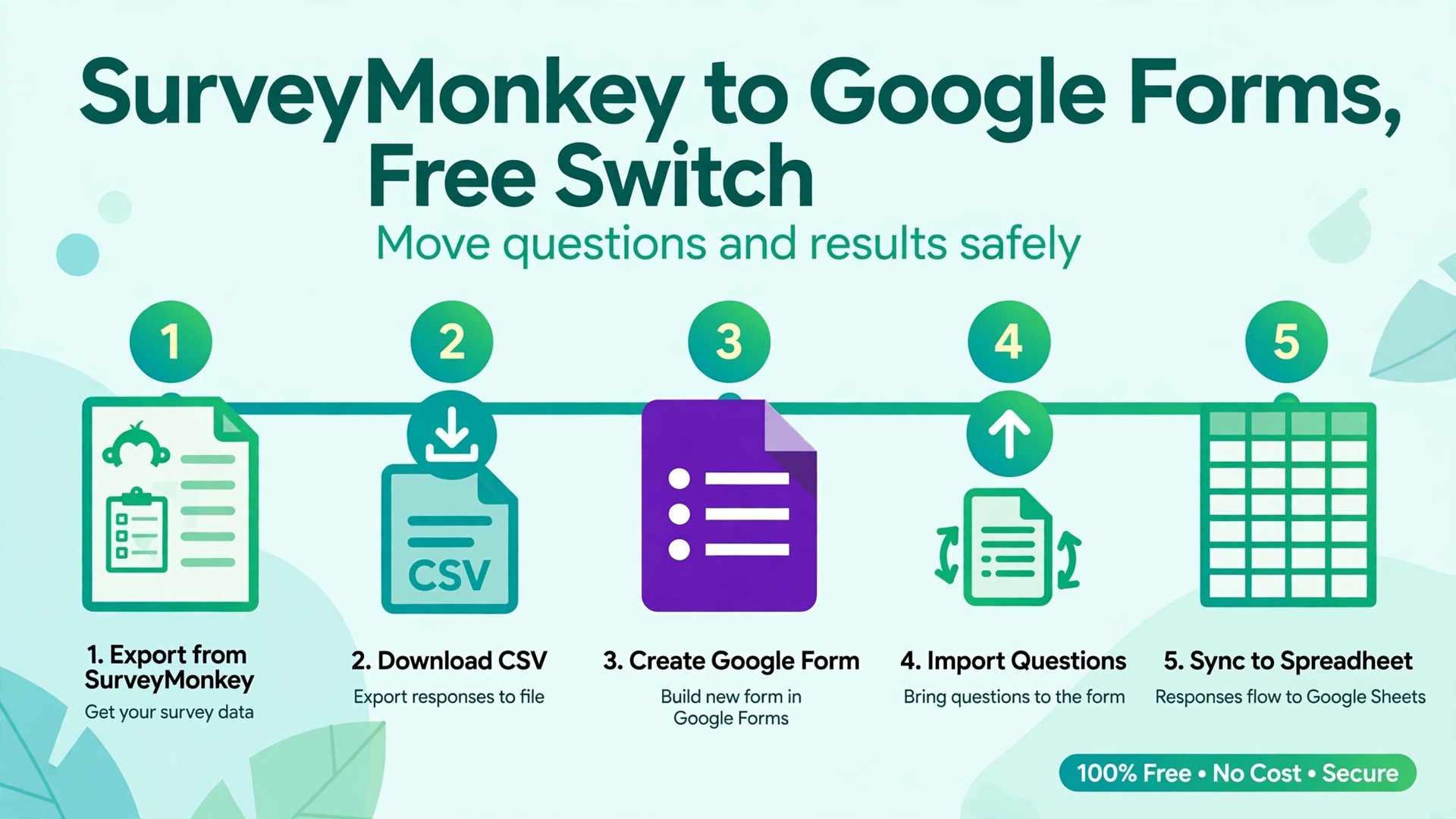
For a small research team, a classroom study or a thesis survey, free Google Forms wins on cost, speed and the way results land straight in a spreadsheet you already know how to use. When you switch SurveyMonkey to Google Forms, you stop paying a monthly plan for a survey that may only run for a few weeks, and you gain a tool every collaborator can open without a new account. SurveyMonkey still leads on built-in analysis, with crosstabs, significance testing and sentiment tools that Forms does not try to match. The right move is to move the questionnaire cleanly, rebuild the logic honestly, and plan the analysis in Sheets from the start.
That trade is the heart of this guide. It covers question type mapping, logic and skip rules, response limits and analysis differences, results export to Sheets, data quality checks, and a migration order for live surveys. It is written for research use, where a changed wording, a dropped option or a broken skip can alter the findings, not just the look of the form. A marketing poll can tolerate a rough rebuild. A research survey cannot, because the data collected after the move must still mean the same thing as the data collected before it. Keep that test in mind at every step.
If a respondent would answer differently, or if an analyst would code the answer differently, the migration is not finished yet.
Why Researchers Move, and When SurveyMonkey Still Wins
Cost is usually the first reason, but it is rarely the whole reason. SurveyMonkey paid plans are billed per user and the price changes with billing period, region and plan tier, so check the official pricing page before you cancel anything named here. When you switch SurveyMonkey to Google Forms, note that the free Basic plan caps the number of questions and responses per survey and does not give you the full export set, which makes it a poor home for a finished research dataset. Paid plans unlock exports in CSV, XLS, PPT, PDF and SPSS formats, skip logic, question and answer piping, and deeper analysis. If you run surveys all year, that bundle can be worth paying for.
If you run one study, one dissertation survey or one annual staff questionnaire, paying for a full year to collect data for a month is hard to justify.
Forms changes the maths because it is free with any Google account. There is no seat count to manage, no renewal date to diary, and no extra charge for a collaborator who only needs to view results. Responses go to a linked Google Sheet in one click, and from there you can filter, pivot, chart and share without learning a new analysis panel. For a team that already works in Drive and Sheets, that familiarity is a real advantage. Supervisors can check a live response count, co-researchers can clean data in the same sheet, and nobody needs to ask for an export file to see the latest numbers.
SurveyMonkey still wins in four research situations, and naming them now saves a painful move later. First, complex logic. SurveyMonkey supports skip logic, advanced branching and piping, where an earlier answer is inserted into a later question. Forms supports section-based branching only, which this guide rebuilds in detail below. Second, built-in analysis. Crosstabs, filters with compare rules, statistical significance flags and text analysis are built into SurveyMonkey paid plans. In Forms you build those yourself in Sheets, which is doable but takes time and care. Third, quotas, panel recruitment and multilingual survey management at scale, which matter for larger commercial studies. Fourth, respondent experience controls such as advanced randomisation and block randomisation, which Forms does not offer natively.
How to Switch SurveyMonkey to Google Forms Without Losing a Live Survey
Start by freezing the old survey on paper before you touch the new form. Export the SurveyMonkey questionnaire as a document or a PDF if your plan allows it, and also export the response data in CSV and XLS formats while the paid plan is still active. Exports are the point of no return in this move. Once a paid plan lapses, export options can narrow, and a dataset you assumed was safe can become hard to retrieve. Download both formats, check that both open, and store a copy outside the survey account, in a project folder with the date in the file name.
Do the same for any SPSS export if your analysis depends on value labels, because rebuilding those labels by hand later is slow and error prone.
Next, build a question inventory. List every question in order, with its exact wording, its answer options in order, whether it was required, whether it used logic, and what happened to respondents who skipped it. Include page breaks, section headings and any intro or consent text, because those shape how respondents read the survey. This inventory becomes your rebuild checklist and your audit trail. When a supervisor asks why a question moved or changed, the inventory answers that question without guesswork. It also stops the most common migration error, which is rebuilding from memory and quietly dropping a question, an option or a required flag.
Then decide the cutover model for a live survey. There are three honest options, and only one of them suits research. The first option is a hard cutover, where the old link stops and the new link starts on the same day. This is clean but it breaks any respondent who has the old link saved, and it splits the dataset across two tools. The second option is a parallel run, where both surveys collect responses for a short overlap period and the results are merged later. This protects respondents but creates a merging job and a risk of double counting. The third option, and the one this guide recommends for research, is a staged cutover.
Close the old survey to new respondents on a fixed date, keep the old link live as a redirect notice, publish the new form, and analyse the two datasets as two waves with a shared codebook. State the cutover date in the methods note, so any reader can see where one dataset ends and the other begins.
Before you build, settle three decisions that affect every later step. First, will old and new data be merged into one analysis file, or reported as separate waves. Merging is only safe if wording, options and logic match exactly, and this guide shows how to test that match. Second, who owns the new form and the linked sheet. Use a project account or a shared Drive folder, not a personal account that leaves with one team member. Third, what happens to consent and privacy notices. Copy the consent text word for word, keep the same data handling statement, and check whether your ethics approval or institutional rules require a note when the data processor changes from SurveyMonkey to Google.
A tool change is a methods change, and for approved research it should be recorded as one.
Question Type Mapping for Research Surveys
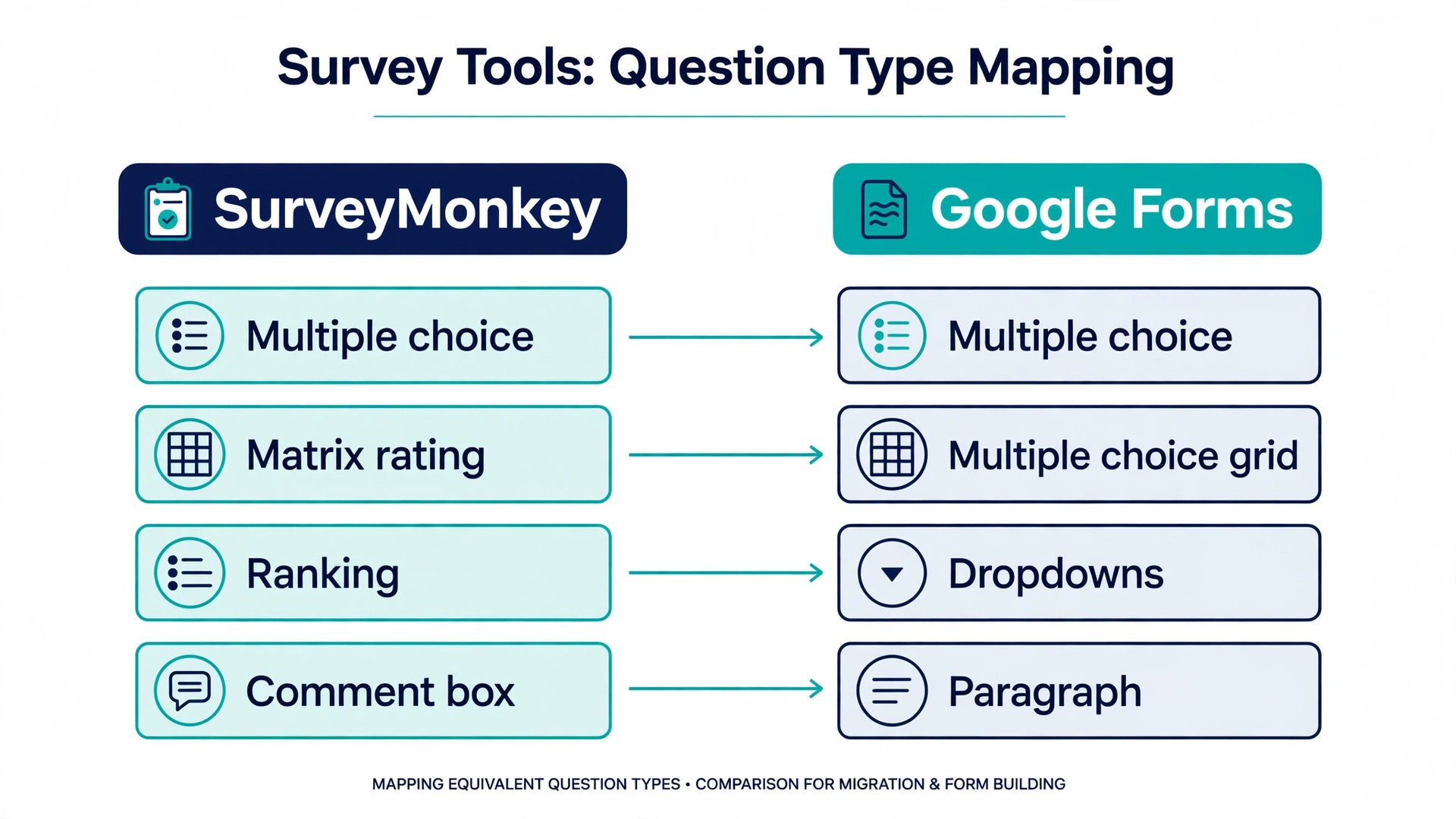
Mapping is where most migrations quietly change the data. A question that looks the same on screen can produce a different spreadsheet column, a different code or a different analysis choice. When you switch SurveyMonkey to Google Forms, work through the table below row by row, and tick off each question in your inventory as you rebuild it. Where Forms has no direct match, use the workaround column, and then test it with a pilot respondent before launch. A workaround that works in the editor but confuses a respondent is not a solution.
| SurveyMonkey question | Google Forms equivalent | What changes and what to check |
|---|---|---|
| Multiple choice, one answer | Multiple choice | Branching is available. Keep option order identical and keep the other option handling in mind, since free text entered under other lands in the same column as a text value. |
| Multiple choice, many answers | Checkboxes | Branching is not available from checkboxes. If that question drove a skip, rebuild it as a multiple choice routing question first, then ask the detail question. Checkbox answers arrive comma separated in one Sheets cell. |
| Dropdown | Dropdown | Branching is available. Dropdowns suit long lists such as country or department, and they keep the form shorter on screen. |
| Matrix rating scale | Multiple choice grid | One answer per row, one column per row in Sheets. Keep row order and scale labels identical. Grid questions cannot branch. |
| Matrix with many answers per row | Checkbox grid | Many answers per row, one column per row in Sheets. Check that row and column limits in the grid still fit your matrix. |
| Linear or star rating | Linear scale or Rating | Linear scale gives a numbered scale. Rating gives star, heart or thumb icons and stores a number. Neither supports branching, and neither is a Net Promoter Score question on its own. |
| Net Promoter Score | Linear scale from 0 to 10 | Build the scale manually, label only the ends or add a short explanation above it, and compute promoters, passives and detractors in Sheets. Do not assume a built-in NPS score will appear. |
| Ranking | Multiple choice grid or a set of dropdowns | Forms has no native ranking question. A grid forces one choice per row but does not force a unique rank per column unless you test it. For a strict ranking, use one dropdown per rank position and validate the set in Sheets. |
| Short text box | Short answer | Add response validation for email format, number range or text length where the old question enforced a shape. Without validation, open text invites malformed entries. |
| Comment box or essay | Paragraph | Long text arrives as one cell per respondent. Plan coding time, because paragraph answers are the hardest to analyse in bulk. |
| Date or time | Date or Time | Keep the date format consistent and check how the linked sheet displays dates before analysis. A date stored as text will break sorting. |
| File upload | File upload | Uploads go to Drive and the sheet holds links, not files. Check storage, file type limits and who can open uploaded files. |
| Demographic single choice | Multiple choice or Dropdown | Keep categories identical across waves. A changed age band or job category breaks trend comparison even if the question looks similar. |
Logic and Skip Rules Rebuilt in Sections
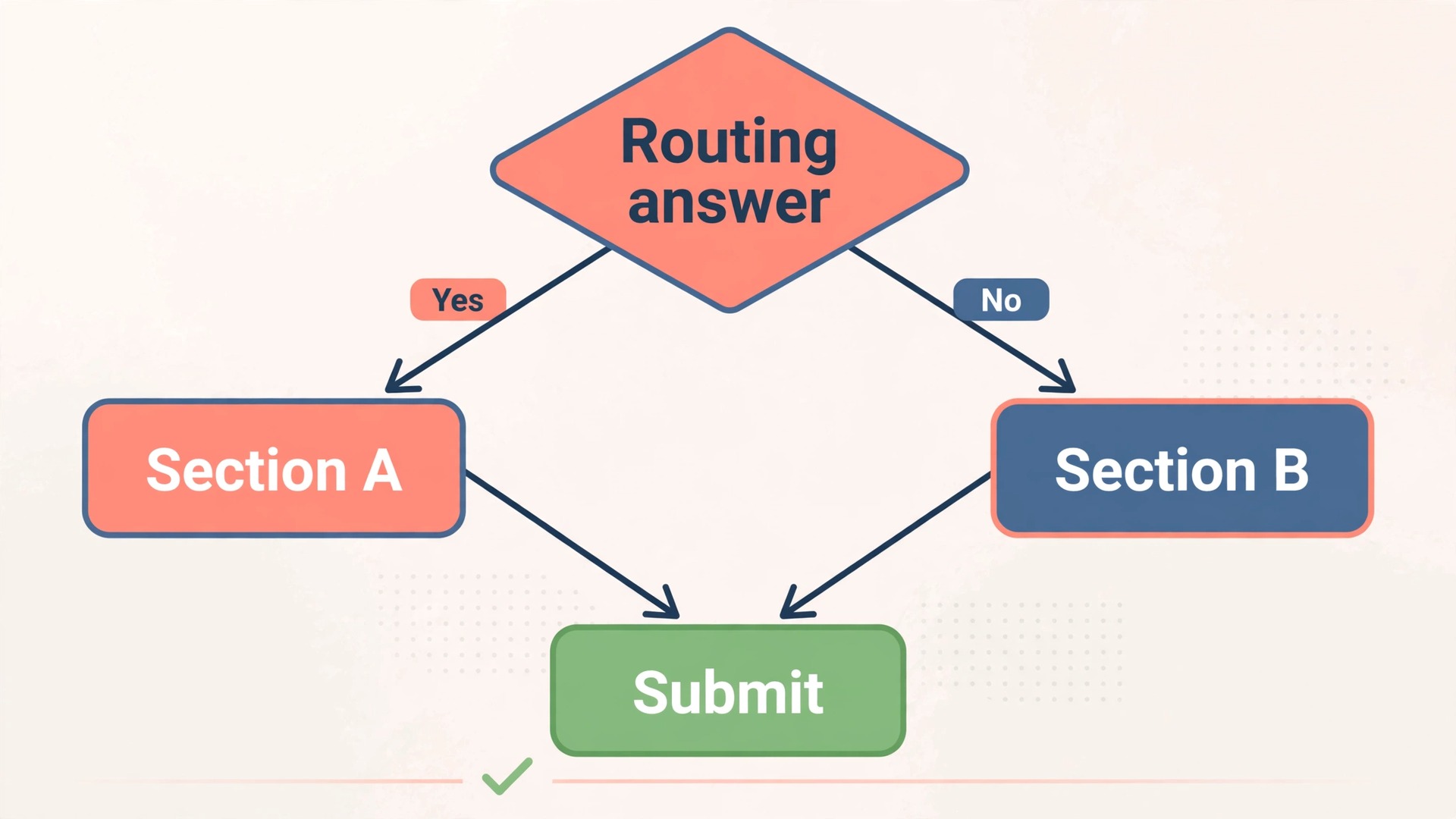
Forms logic is section-based, and understanding that one fact prevents most rebuild failures. Google documents “Go to section based on answer” for Multiple choice and Dropdown questions only. Checkboxes, short answer, paragraph, linear scale and grid questions cannot trigger a branch. You cannot show or hide a single question inside a section based on an earlier answer, and you cannot combine two answers into one branching rule in the native editor. Each routing decision rests on one answer to one multiple choice or dropdown question. That is narrower than SurveyMonkey skip logic and advanced branching, and the rebuild must respect it rather than pretend otherwise.

When you switch SurveyMonkey to Google Forms, rebuild logic in four steps. First, draw the old logic as a simple flow on paper, with one box per SurveyMonkey page and one arrow per skip rule. Second, turn each distinct destination into a Forms section. A section in Forms is a page, and routing moves respondents between pages. Third, convert every question that drove a skip into a multiple choice or dropdown question, even if the original was a checkbox question.
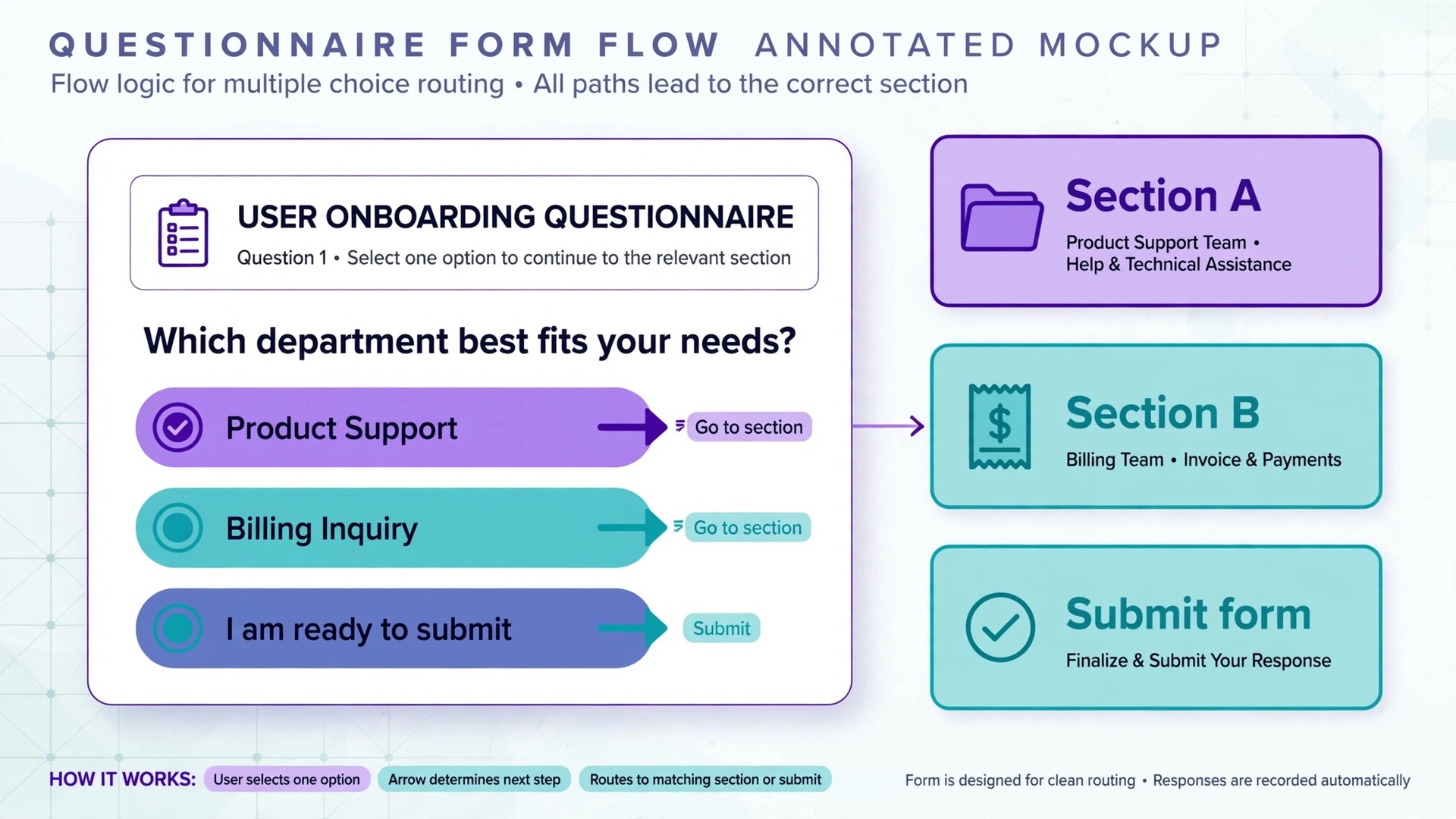
Where the original allowed several choices and the skip depended on one of them, add a routing question that asks the respondent to pick the main reason or the single condition that decides the path, then ask the checkbox detail question inside the routed section. Fourth, set each option destination explicitly, including the default path. The destinations available are continue to the next section, jump to any section, go back to an earlier section, or submit the form. An option left on the default path can send respondents somewhere you did not intend, so check every option, not just the interesting ones.
Response Limits and Analysis Differences
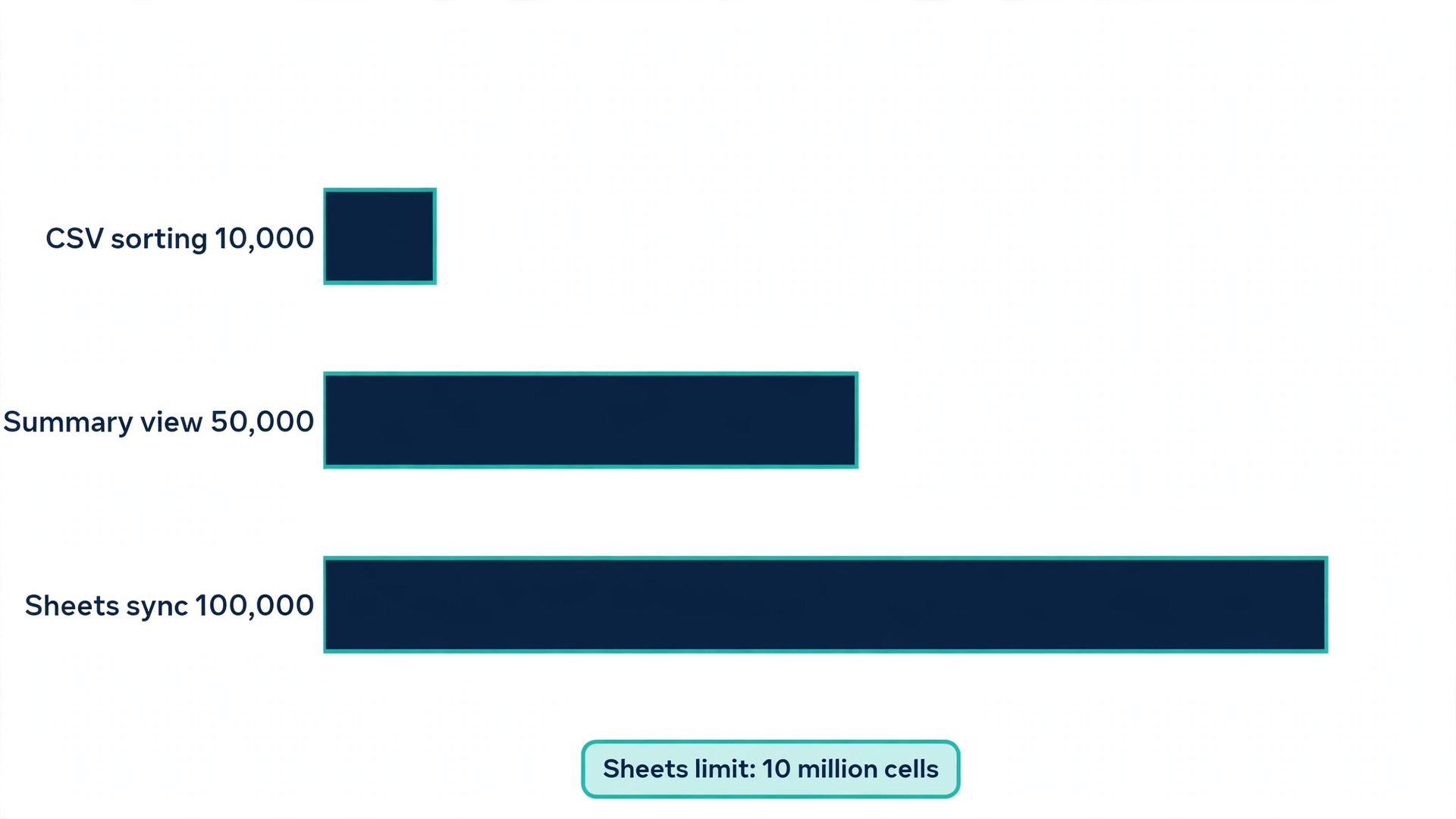
After you switch SurveyMonkey to Google Forms, the biggest differences appear after data collection, so compare them on analysis, not just on building. Google publishes no hard maximum number of responses for Forms. What it publishes are thresholds where features change. The response summary may stop displaying above 50,000 responses, live sync to Sheets may stop above 100,000 responses, and a CSV download may stop sorting by timestamp above 10,000 responses. Forms keeps accepting responses past those points, and you can still download a CSV file. The practical ceiling for a linked sheet is the Sheets limit of 10 million cells, which a long survey with many questions will reach sooner than a short one.
For most research surveys, with hundreds or a few thousand responses, none of these thresholds bite. For a large public survey, plan the export schedule around them and do not rely on the live summary alone.
SurveyMonkey limits work differently, because they are plan limits. The free plan caps questions and responses per survey, and paid plans set annual response allowances that vary by tier. Responses beyond a plan limit can be held or removed after a grace period if you do not upgrade, so export old data before a plan change, not after. That difference matters for budgeting. Forms costs nothing at research scale, but it asks you to do the analysis work. SurveyMonkey costs a subscription, but it gives you built-in charts, filters, crosstabs and significance testing in return.
A team that values analyst time over subscription cost may reasonably stay, while a team with Sheets skills and a tight budget will usually gain from the move.
Analysis in Forms starts with the summary view, which gives counts and simple charts per question. That view is useful for a quick check, but it is not a research analysis. Real analysis happens in the linked sheet. Build pivot tables for cross-tabulations, use formulas for means and percentages, and use filters to compare subgroups. For significance testing, export to a statistics package or use Sheets formulas with care, and record which test you used and why. For open text, add a coding column next to each paragraph answer, code in batches, and keep a second coder check for a sample if your methods require it. None of this is automatic, and that is the honest cost of free.
Results Export to Sheets, Step by Step
When you switch SurveyMonkey to Google Forms, export is the part of this migration that must work perfectly, because the spreadsheet is now your analysis file. Start from the finished form, not from a draft, and link the sheet before you publish the link to respondents. Linking after responses have arrived still collects them, but linking first avoids a gap where early responses sit only in the Forms response view. The steps below assume a desktop browser, which is the reliable route for setup, even if respondents answer on phones.
- Open the form in the editor and choose the Responses tab at the top of the page.
- Find the Sheets icon or the link to Sheets option in the Responses tab and choose to create a new spreadsheet for this form.
- Name the spreadsheet for the project, with the study name and the fieldwork dates, and save it in the project Drive folder rather than in a personal root folder.
- Open the new sheet and check that the first row holds one column per question, with the timestamp column first, followed by each question in form order.
- Submit a test response that covers every branch, then refresh the sheet and check that each answer lands in the expected column, including checkbox answers, grid answers and other text.
- Freeze the first row, add filters, and create a second tab called Cleaned Data, so analysis never overwrites the raw response tab.
- In the Cleaned Data tab, use formulas that pull from the raw tab, rather than typing over raw values, so a correction in the raw file flows through and an audit trail remains.
- Set sharing on the sheet to the research team only, and check that collaborators who need to clean data can edit while supervisors who only need to view cannot accidentally overwrite values.
- Download a backup copy in XLSX format each week during fieldwork, and store it in the project folder with the date in the file name.
- When fieldwork closes, stop accepting responses in the form settings, download a final CSV and a final XLSX copy, and record the final response count in the project log.
Merging old SurveyMonkey data with new Forms data needs its own careful step. Build a shared codebook first, with one row per variable, the exact question wording in each tool, the option codes in each tool, and the rule for recoding one into the other. Then create a merged file in which old and new responses share the same columns, the same codes and the same missing value rules. Add a source column that records which tool collected each response, and a wave column that records the fieldwork period. Never paste new responses under old columns without checking that the columns mean the same thing.
A checkbox question in Forms stores several answers in one cell, while SurveyMonkey may export each option as its own column, so merging those two shapes needs a split step, not a paste step. Test the merge on ten rows from each tool before you merge thousands.
Data Quality Checks Before You Publish and After You Launch
When you switch SurveyMonkey to Google Forms, quality checks split into two rounds. The first round happens before launch, and it catches design errors while they are still cheap to fix. The second round happens during fieldwork, and it catches respondent and data problems while you can still act on them. Skipping the first round is the most expensive mistake in this migration, because a live survey with a broken branch collects unusable data for days before anyone notices.
Before launch, run a pilot with at least five people who were not involved in building the form, and give each pilot respondent a different path through the logic. Ask them to note any question that confused them, any section that felt out of order, and any place where they expected a follow-up that never appeared. Check the pilot rows in Sheets for column alignment, for other text handling, for date formats, and for grid answers landing in the right columns. Check required flags by trying to submit with a required question blank on each path. Check the consent text, the privacy notice and the thank-you message for wording copied correctly from the old survey.
Check the form on a phone, because most respondents will answer on one, and a grid that looks fine on a desktop can be hard to use on a small screen.
During fieldwork, check the data on a fixed schedule, not when you remember. Once a week, or daily for a short fieldwork window, review the response count, the completion rate, the time taken per response, and the distribution of answers to the first few questions. A sudden drop in completions after a branch point points to a broken or confusing section. A run of identical straight-line answers on a grid points to low engagement that needs a methods note, not silent deletion. A spike in other text for one option points to a missing option that respondents are writing in by hand. Each of these patterns has a fix, but only if you see it early.
Add a check for duplicates, using timestamp and any identifier your ethics approval allows, and decide a duplicate rule before you need it. Deleting responses during fieldwork without a written rule creates a bias you cannot defend later.

Live Survey Cutover Order for a Running Study
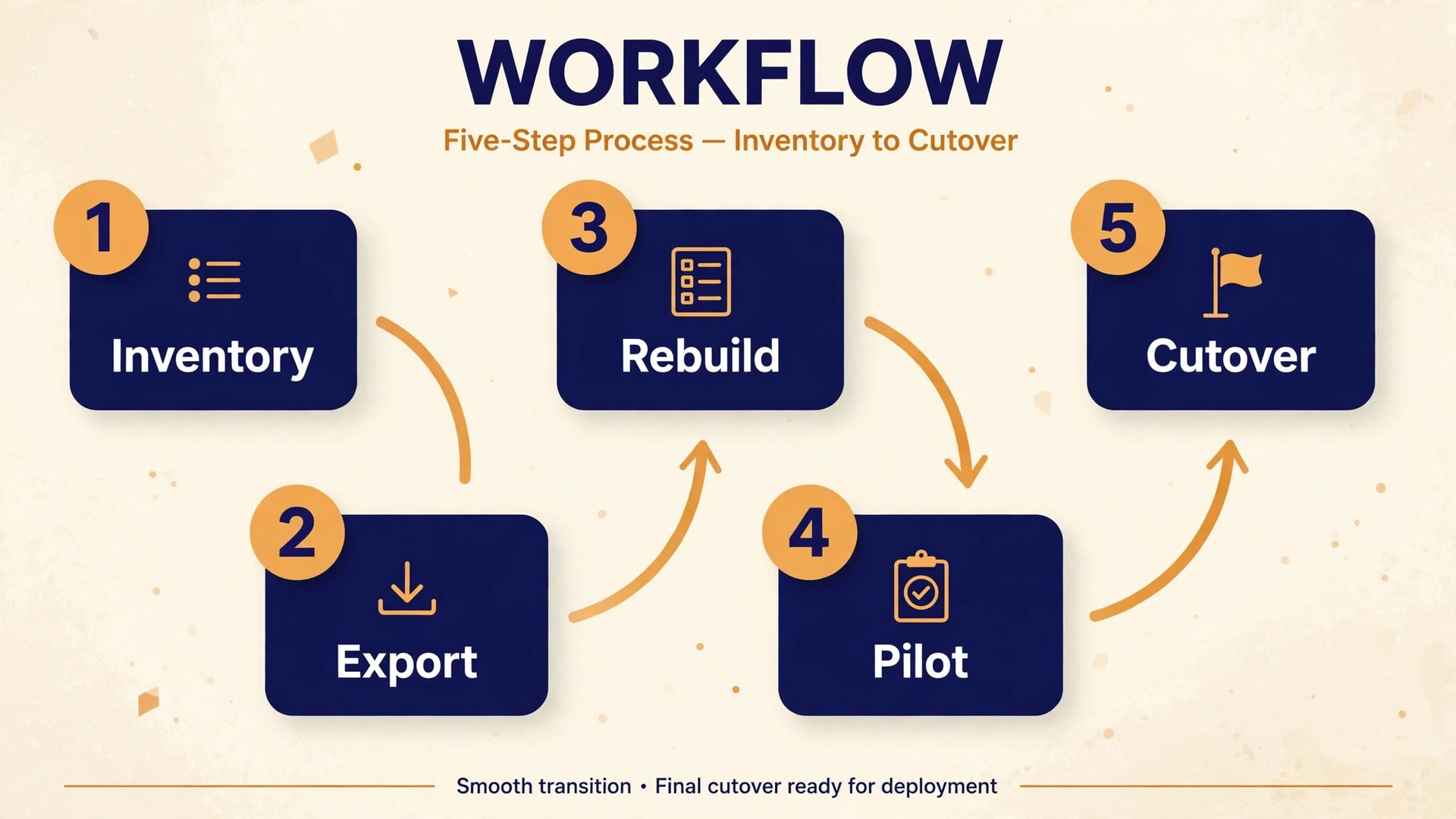
A live survey needs a cutover order, not just a new form link. Follow the order below, and do not skip ahead to cancellation until the step before it has a check mark. The order protects respondents who are mid-survey, protects the old dataset, and gives you a fallback if the new form fails on day one.
- Export all SurveyMonkey data and the questionnaire, and verify both files open and hold the expected counts.
- Build the Forms version from the inventory, rebuild logic in sections, and run pilot tests on every path.
- Write the codebook, including wording changes, logic changes, recoding rules and the planned cutover date.
- Set up the linked sheet, the Cleaned Data tab, sharing rules and the weekly backup routine.
- Publish the Forms link in a staging location first, test it as a guest on a phone and on a desktop, and check that the first test row lands correctly in Sheets.
- Announce the change to current respondents and stakeholders, with the cutover date, the new link and a note that the study questions have not changed in meaning.
- On the cutover date, close the old survey to new respondents, keep the old link live as a notice that points to the new form, and start fieldwork on Forms.
- Monitor new responses daily for the first week, checking branch counts, completion rates and column alignment against the pilot.
- Keep the SurveyMonkey account active until the old data is verified in the archive and the new data has run cleanly for at least one full week.
- Only then cancel or downgrade the SurveyMonkey plan, update every document, email signature and web page that carried the old link, and record the final counts for both waves in the project log.
For related reading on surveys and spreadsheets, see best AI research tools for tools that can support analysis around your survey, best AI tools for Excel and Google Sheets for spreadsheet help once results land in Sheets, and Google Sheets for freelance invoicing for a practical example of building reliable Sheets workflows. Those guides help with the analysis side of the move, while this guide covers the questionnaire and data transfer itself.
Frequently Asked Questions
Can I switch SurveyMonkey to Google Forms in the middle of a study?
Yes, with a staged cutover and a shared codebook. Close the old survey to new respondents on a fixed date, keep the old link as a notice pointing to the new form, and analyse the two waves with the same variable names and codes. Do not merge the datasets until wording, options and logic have been checked row by row, and record the cutover date in your methods note so readers can see where one wave ends and the other begins.
Will my SurveyMonkey responses transfer automatically into Google Forms?
No. There is no automatic transfer of responses between the two tools. Export the old responses in CSV and XLS formats while the paid plan is active, store copies in your project folder, and build a merged analysis file in Sheets using a codebook. The new form collects new responses only, so the export step must happen before you cancel or downgrade the old plan.
What happens to skip logic when I rebuild it in Forms?
Skip logic becomes section-based branching. Only multiple choice and dropdown questions can trigger a branch, and each branch moves respondents between sections rather than showing or hiding a single question. Convert checkbox-driven skips into a multiple choice routing question, put conditional questions in their own sections, and pilot every path before launch. Piping and per-group quotas have no native equivalent and need a redesign or manual monitoring.
Does Google Forms have a response limit for research surveys?
Google publishes no hard maximum number of responses, but it does publish thresholds where features change. The summary view may stop displaying above 50,000 responses, Sheets sync may stop above 100,000 responses, and CSV timestamp sorting may change above 10,000 responses. Most research surveys sit far below those thresholds. For very large surveys, plan regular exports and do not rely on the live summary alone.
How do I keep old and new results comparable?
Keep question wording, option order, scale direction and required flags identical wherever comparability matters, and record any deliberate change in the codebook. Use the same codes in the merged file, add a source column for the tool and a wave column for the fieldwork period, and use different missing value codes for questions skipped by logic and questions skipped by respondents. Test the merge on a small sample from each tool before merging the full datasets.
Is Google Forms free enough for a large research project?
For most projects, yes. Forms is free with any Google account, with no seat charge and no response cap published by Google. The real costs are analyst time in Sheets, Drive storage for file uploads, and the absence of built-in crosstabs, significance testing and sentiment analysis. If your project needs those built-in tools as a core requirement, or depends on piping, quotas and advanced randomisation, keep a paid survey tool or pair Forms with a statistics package and budget the extra step.
A Move That Protects the Findings, Not Just the Form
After you switch SurveyMonkey to Google Forms, a good migration is judged by the dataset it produces, not by how quickly the new form went live. The questionnaire should read the same to respondents, the logic should send each group to the right questions, the sheet should hold clean columns with a clear codebook, and the methods note should honestly record the cutover date and any wording change. When those four things hold, the saving from leaving a paid plan is a genuine gain, because the research still stands up to scrutiny.
Start with the inventory and the export, not with the new form builder. Those two steps take the least time and prevent the most damage. Build the mapping table, pilot every branch, set up the linked sheet with a cleaned copy and a backup routine, and then cut over in stages with daily checks in the first week. If a pilot path fails, fix it before launch, because a live survey rewards haste with unusable data. Done in that order, the move gives a research team free fieldwork, a spreadsheet the whole team can use, and results that still mean what the original study intended them to mean.
Prices and plan limits change often, so check the official SurveyMonkey pricing page and the official Google Forms help pages at the time you move, and confirm the total at checkout, including tax and billing period, before you pay for or cancel anything. A figure quoted in a guide is a starting point for your own check, not a substitute for it.