
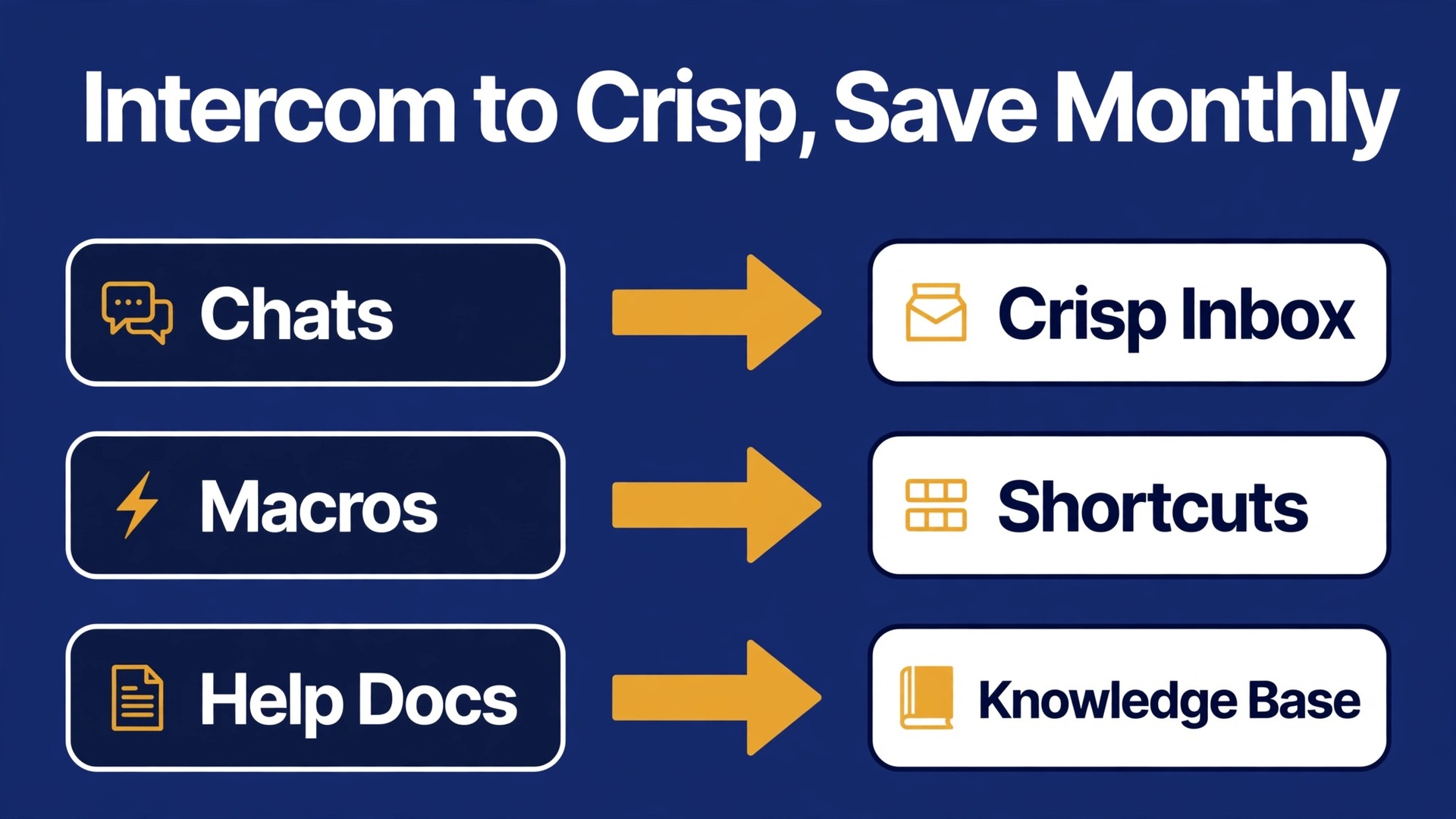
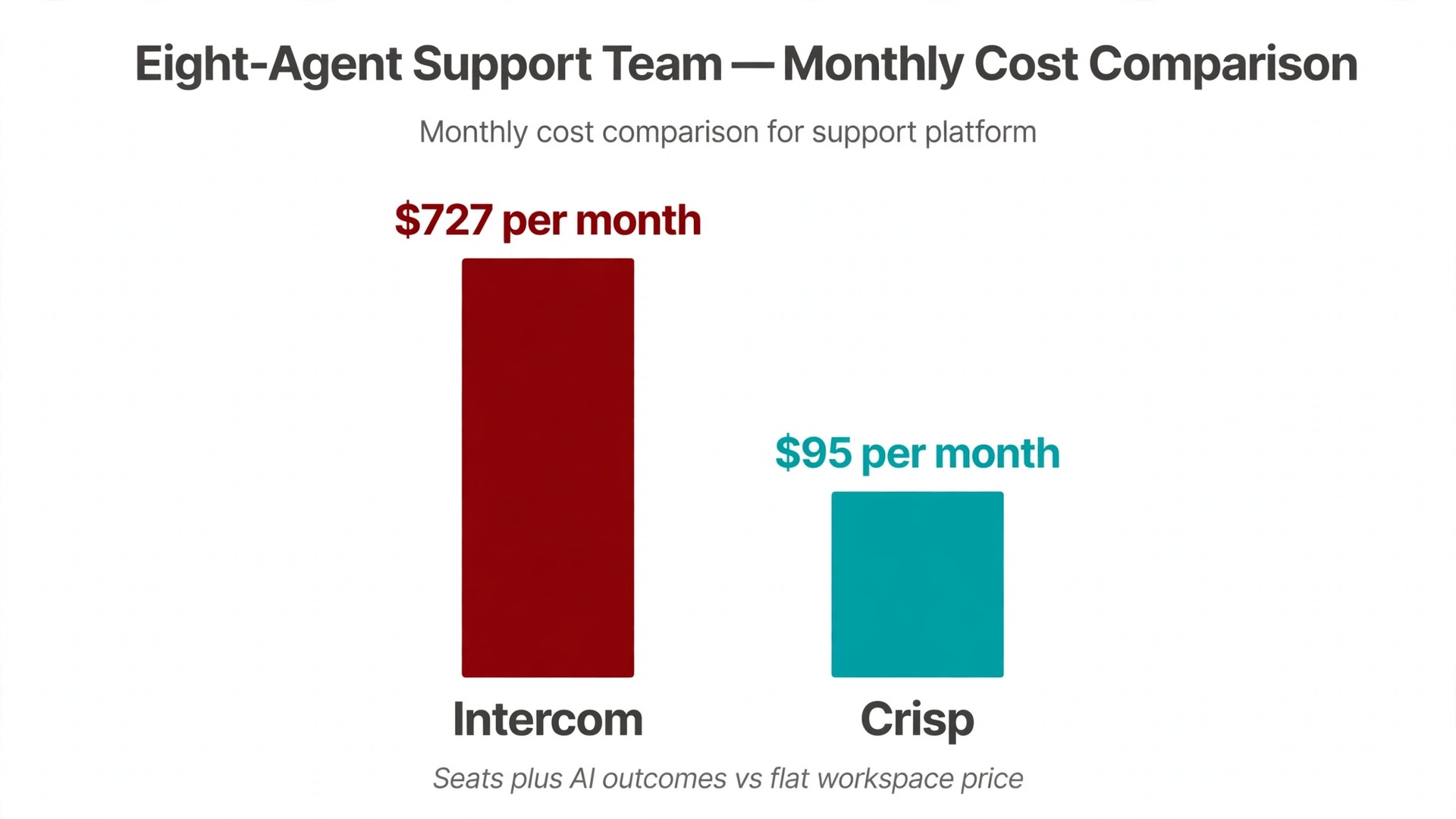
A support team of eight agents on Intercom Essential at 29 dollars per seat per month on annual billing pays 232 dollars a month before any AI cost, and every Fin outcome adds 99 cents on top. If you decide to switch Intercom to Crisp, the same eight agents fit on Crisp Essentials at 95 dollars per workspace per month, which saves 137 dollars a month before AI is counted at all. That saving is real, but it is not free. Expect one to three weeks of rebuild work for macros, help docs, bots and routing, and plan for chat history to move only partly, not perfectly.
This guide is written for a support lead doing the move alongside normal ticket work, with no migration vendor and no spare engineering team. First, decide what history you actually need. Then map every macro, article, bot and tag to its Crisp equivalent. Then rebuild in Crisp while Intercom still answers customers. Only then change the widget, the email address and the help center links. Prices change often, so check both vendor pricing pages on the week you pay, and treat every figure here as a planning estimate, not a quote.
Why Support Teams Leave Intercom for Crisp
Most teams do not leave Intercom because the inbox is bad. They leave because the bill grows in two directions at once. Headcount pushes the seat bill up, and automation pushes the Fin bill up, so a busy month costs more in both places. A team answering 500 AI-resolved conversations in a month pays 495 dollars for those outcomes alone, on top of seats, which is the line that makes finance ask whether a flat workspace price would be calmer.
Crisp bills per workspace, not per seat, up to a seat cap on each plan. That single difference changes the maths for a small team. Adding a part-time agent costs nothing extra while you stay inside your plan cap, and a quiet month does not punish you for automation volume in the same way. Model your team size for the next year, not just this month, before you call Crisp cheaper, since each plan caps seats.
There is a second reason teams move, and it is about fit. Intercom is a large platform with deep workflow, product messaging and sales features that a pure support team may never open. Crisp is narrower. It covers live chat, email, a shared inbox, a knowledge base and a chatbot, with fewer layers between an agent and a conversation. For a team whose whole job is answering customers fast, that narrowness feels like speed. For a team that also runs onboarding tours, product announcements and sales qualification inside Intercom, the move means giving up tools that Crisp does not replace one for one. List every Intercom feature your team opens in a normal week before you commit.
If the list is mostly inbox, macros, articles and one bot, Crisp fits. If the list includes complex outbound series and product tours, keep Intercom or budget for separate tools.
A third reason is control over the help center and the widget. Crisp includes its knowledge base from Essentials upward and gives a team one place for chat, email and help articles without an enterprise tier. Be honest about which of these reasons is yours, because the reason decides what you rebuild first. Either way, a team that decides to switch Intercom to Crisp for a clear reason finishes faster than a team that moves because a competitor did.
What Moves and What Does Not When You Switch Intercom to Crisp
Start with the honest picture, because it sets every deadline that follows. Crisp gives direct import routes for contacts and help center articles, plus a CSV route for message shortcuts. It does not give a one-click button that lifts every past Intercom conversation, with authors and timestamps intact, into the Crisp inbox. Crisp’s own migration guidance describes importing past conversations through the Crisp API, and warns that this step needs development work. Many teams therefore move the live work and reference material, and keep Intercom readable for a transition period instead of forcing history across.
What moves cleanly is the structure of support. Contact profiles move by CSV, help articles by URL import, and macros as message shortcuts. Tags move as fields on contacts once names are mapped, while inboxes, assignment rules and workflows are rebuilt in Crisp’s inbox settings, routing rules and workflow builder. None of these transfers by itself. Each one is a deliberate rebuild, and that is why the mapping table in this guide matters more than any import button.
What does not move cleanly is conversation history, bot behaviour and reporting history. A past conversation carries who said what, when, on which channel, with which tags, ratings and internal notes, and an API import takes engineering time plus a decision about how far back to go. Bot behaviour never transfers, because Fin and Hugo are different systems with different training and guardrails. Reporting history does not transfer either, so screenshot your Intercom reports before cutover as your baseline. If a contract requires full history inside the new tool, budget for the API route on day one. If it only requires history to remain accessible, a read-only Intercom period plus an archive export is cheaper.
Conversation History and Its Import Limits
History is where migrations disappoint, so decide the policy before anyone touches an export. Ask how far back agents actually open old chats, which customers have open or disputed threads, and what your retention policy requires you to keep. Most agents open recent chats and almost never open a three-year-old thread unless a dispute revives it. A practical policy is to import or archive the last 90 days in full detail, keep a searchable archive for older material, and leave the oldest history in Intercom until the read-only window ends.
Intercom’s own export help describes two practical routes, both with limits. A single conversation can be exported from its menu as text or PDF, which suits one customer request, not a migration. A bulk export from the Inbox downloads multiple conversations as PDF or text files, at 200 to 300 conversations per operation, so a team with 5,000 past conversations should expect roughly 17 to 25 operations, plus time to file the downloads. Saved Inbox views can also be exported as CSV, with exports up to 25,000 cells downloading immediately and larger ones arriving by email.
That CSV gives metadata and a link back to each conversation, which is excellent for triage, but it is not a transcript import file for Crisp.
The API route is the only path that treats history as data rather than documents. Intercom’s Conversations API can retrieve full content in bulk, and Crisp’s API can create conversations on the other side, but someone must write and test the script, map old contact and agent IDs to new ones, and handle attachments. Fetch files during the same pass that reads each conversation, since export download links can expire. Filter before you import, and skip spam, test chats and bot loops. A common target is open conversations, the last 90 days, and top customers, with the rest archived as files.
Never close Intercom on the same day you open Crisp. Keep it paid and readable for two to three months, tell agents exactly where to look for old chats, and close it only after two full weeks pass without anyone needing it.
The Chat and Macro Mapping Table
This table is the working document for the whole move. Fill it in before you rebuild anything in Crisp, and get each row signed off by the agent who owns that macro, bot or article set. Every row needs a decision and a Crisp destination. A row with no destination is a deliberate drop, not an oversight, and it should say so in plain words.
| Intercom item | What it holds | Decision | Crisp destination |
|---|---|---|---|
| Macros for refunds, shipping and account access | Saved replies agents insert in one click | Keep and convert | Message shortcuts, imported by CSV where possible |
| Macros for greetings and closings | Short polite openers and sign-offs | Keep, shorten and convert | Message shortcuts, grouped by topic |
| Macros with product links or screenshots | Replies that embed links, images or steps | Keep, recheck every link | Message shortcuts, with images re-uploaded and links tested |
| Macros nobody used in 90 days | Old replies for retired offers or features | Drop | No Crisp shortcut, note the drop in the table |
| Shared inbox and team assignment | Who sees which conversation first | Rebuild | Crisp inboxes and routing rules, tested with real chats |
| Private notes and mentions | Internal context agents leave for each other | Rebuild as habit | Crisp private notes and mentions inside conversations |
| Conversation tags | Labels for topic, priority and product area | Map and clean | Crisp contact and conversation segments, with merged duplicates |
| Saved views and filters | Queues agents work from each day | Rebuild | Crisp inbox filters and saved views, named the same way |
| Fin AI bot answers | Automated replies and handoffs | Rebuild, do not copy | Hugo AI agent, trained on the new knowledge base |
| Workflow automations | Triggers, delays and routing steps | Rebuild step by step | Crisp workflow builder and chatbot builder |
| Outbound messages and product notices | Proactive chats and emails | Review, then rebuild | Crisp campaigns and chat triggers, only where still needed |
| Help center articles and collections | Self-serve guides customers read | Import, then review | Crisp knowledge base, with matching categories |
| Customer data and custom fields | Plan, signup date and account notes | Map field by field | Crisp contact profiles, with a field map saved alongside |
| Satisfaction ratings and reports | Past scores and team performance | Archive, do not import | Screenshots and CSV exports kept as baseline files |
Work through the table in usage order, starting with the 20 macros agents use every day, then the top 30 help articles, then routing, then bots. Merge duplicates as you go, since most workspaces hold three versions of the refund reply. Pick the best version of each, update links and policy dates, and drop the rest.
Macro and Snippet Conversion in Practice
Macros are the fastest win in this migration, because agents feel the difference on the first day. In Crisp, the equivalent is called message shortcuts, and you manage them under inbox settings. Crisp’s migration guidance points teams to the message shortcut import option when they hold a CSV file, which makes a spreadsheet the right working tool for this phase. Export or copy your Intercom macros into one sheet with four columns. Keep the shortcut name, the full reply text, the topic group, and a note about links or images inside it. Then clean the sheet before you import anything, because a dirty import creates a dirty shortcut list that agents stop trusting.
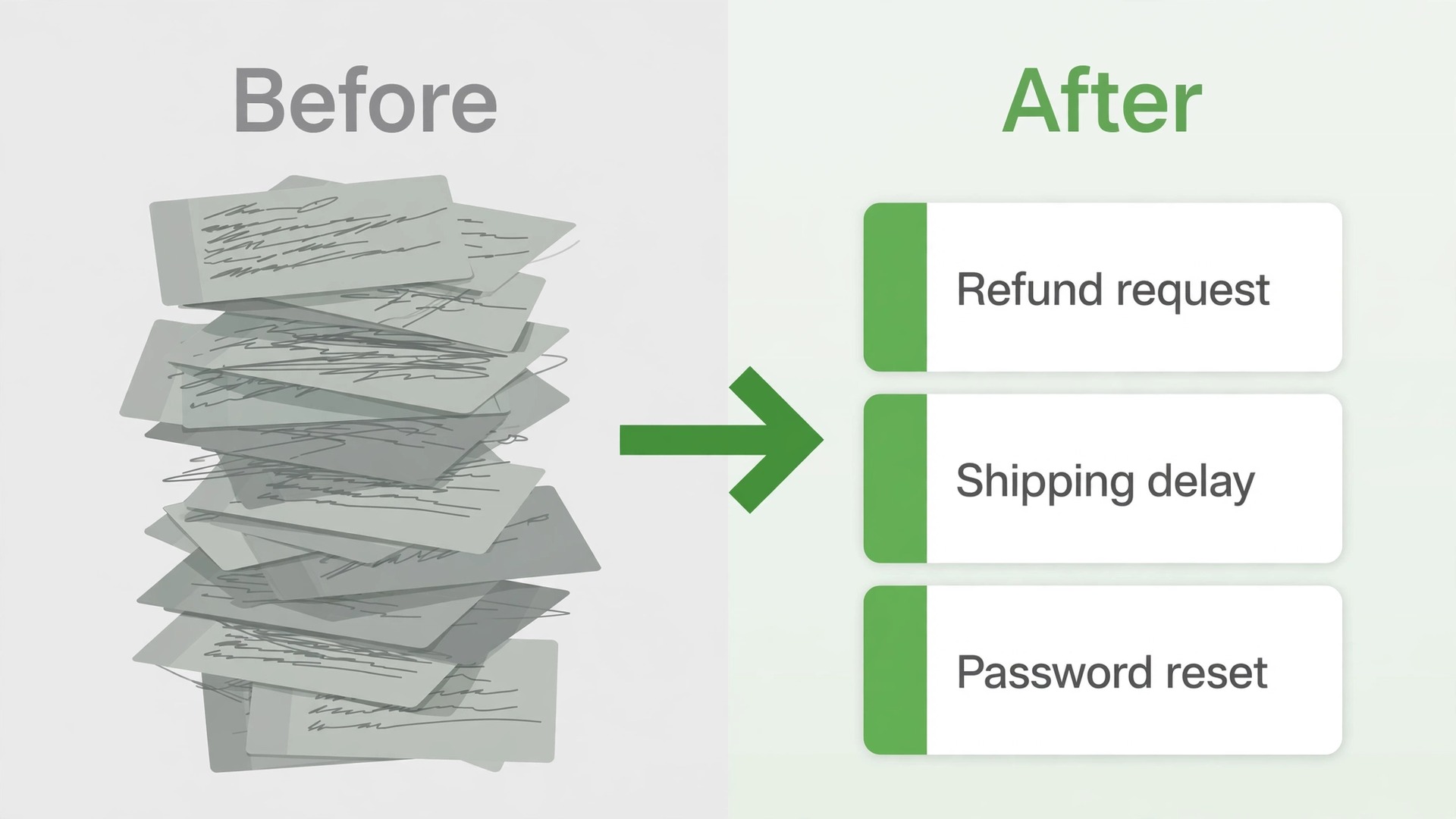
Cleaning means four passes. Delete retired macros for offers, prices and features that no longer exist. Merge near-duplicates into one best version and update policy wording. Replace every link with its current destination and test it, since help center URLs will change and old Intercom article links will break. Shorten replies that agents always edit before sending. A shortcut should be sendable as written, with only the customer name, order number or date changed.
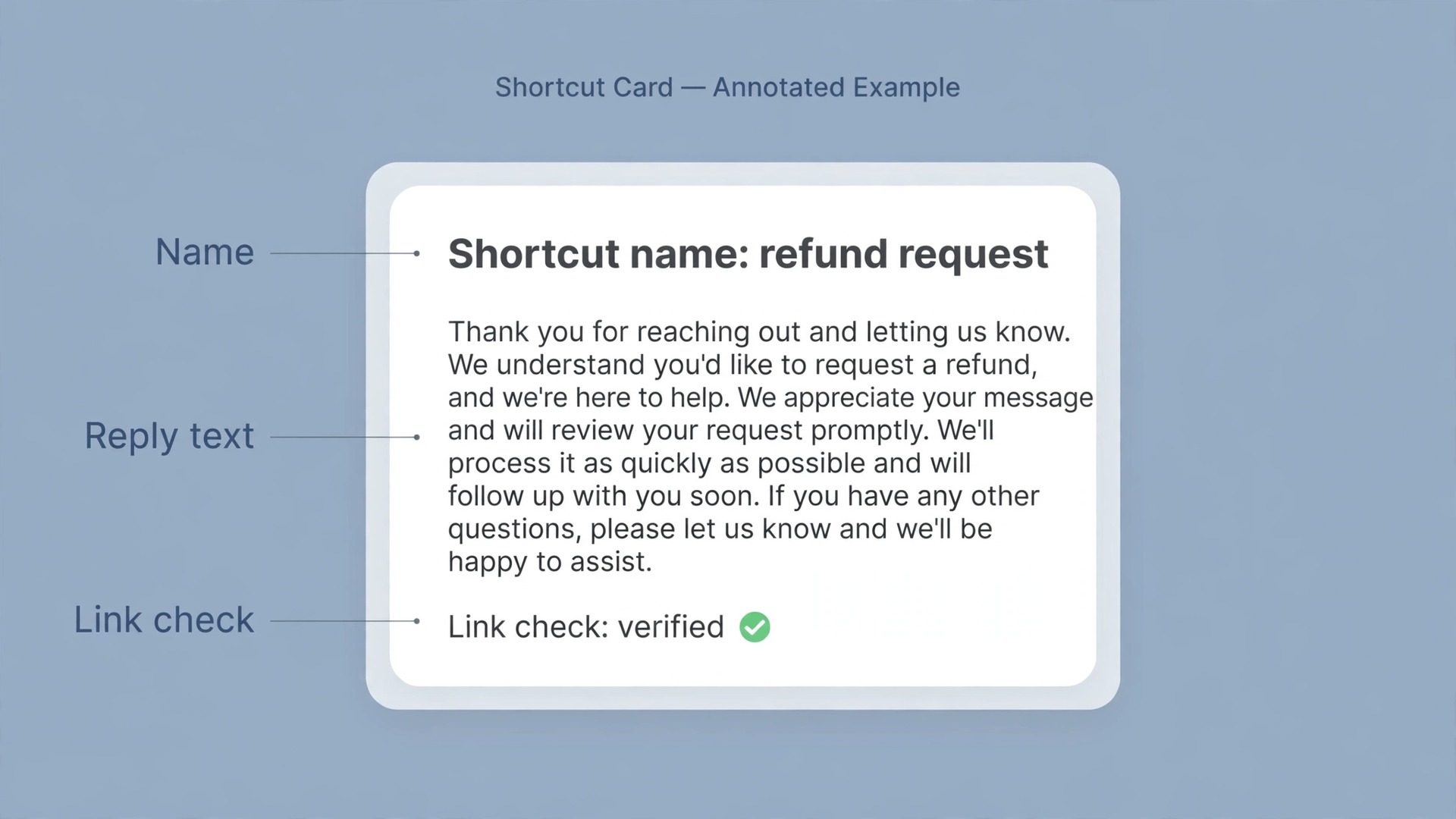
Then test the shortcuts the way agents will use them. Create a test inbox, import the top 20 shortcuts, and run five realistic conversations through them. Check that greetings sound human, that refund wording matches current policy, that links open the right Crisp article, and that images still display. Keep shortcut names short and predictable, such as refund request, shipping delay and password reset, since agents search by memory. When the top 20 pass, import the rest in batches by topic and retest each batch. If you decide to switch Intercom to Crisp without this test, you will discover broken links in live customer chats, which is the worst possible place to find them.
Two details catch teams out. A macro that pulled in a customer name or plan automatically in Intercom may need a manual edit in Crisp, so train agents on exactly what to change before sending. If you support customers in more than one language, keep each language version as its own clearly labelled shortcut.
Help Center Article Move Step by Step
The help center move is more forgiving than the chat history move, because Crisp offers a direct importer for it. You open the Crisp knowledge base, choose the import action, paste the public URL of your existing help center, and let Crisp fetch the articles. Crisp notifies you by email when the import finishes, with timing depending on article count. For basic articles that sounds simple, but treat the import as a first draft, not a finished help center.
Run the move in this order.
- Audit Intercom articles first and delete or archive anything outdated, duplicated or tied to a retired feature. Importing 300 articles when customers only need 120 just moves clutter.
- Check that your Intercom help center is public, since Crisp must be able to fetch it. If some collections are private, publish them temporarily or move those articles by hand.
- Run the Crisp import from the public help center URL and wait for the completion email before judging the result.
- Review every imported article for formatting, headings, images, categories and internal links. Fix broken images and links by hand, because automated imports handle text better than media.
- Rebuild categories in Crisp to match how customers search, not how Intercom happened to organise collections years ago. Group by customer problem, such as billing, account access and shipping, rather than by internal team.
- Update every article that links to another article, since URLs change in the move. A help center full of dead internal links sends customers straight back to live chat.
- Set up redirects or a clear notice on the old help center, so search engines and bookmarked links land on the new Crisp articles instead of a dead page.
- Test the top 20 articles on a phone, because most customers read help on mobile. Check that steps, screenshots and tables still read clearly on a small screen.
For a multilingual help center, import language by language from each matching language URL, and review each language separately. Train Hugo only after the review pass, since an agent trained on outdated articles will repeat those mistakes to customers at scale.

Chatbot and Automation Rebuilds
No bot migrates. Fin and Hugo are different products, and any guide that promises a one-click bot transfer is selling something that does not exist. What transfers is your knowledge of what customers ask, which answers resolve them, and where a human must step in. That knowledge is the real asset, and the rebuild should start from your Intercom conversation data, not from a blank chatbot canvas.
Begin by listing your top 30 customer intents from Intercom reports and tags, usually password resets, refunds, shipping questions, billing changes, plan upgrades, bug reports and account deletions. For each intent, note the current Fin behaviour, the resolution rate if you know it, and the exact handoff rule. Rebuild in order of volume, since a bot that handles the top five intents well saves more time than one that half-handles fifty. Set up the inbox first, then configure Hugo progressively through its agent settings, training and guidance screens, testing with real past questions before widening the topics it may answer alone.
Automation needs the same discipline. Intercom workflows with triggers, delays, assignment rules and follow-ups must be recreated in Crisp’s workflow builder and chatbot builder, step by step. Map each workflow on paper first, with its trigger, conditions and end action, then build and test it with a test contact. Watch four traps. Welcome messages firing for imported contacts, auto-assignment routing test conversations to real agents, satisfaction surveys firing on closed chats, and outbound triggers assuming Intercom fields that do not exist yet in Crisp. Switch each automation on one at a time, and watch its first 20 conversations before moving on.
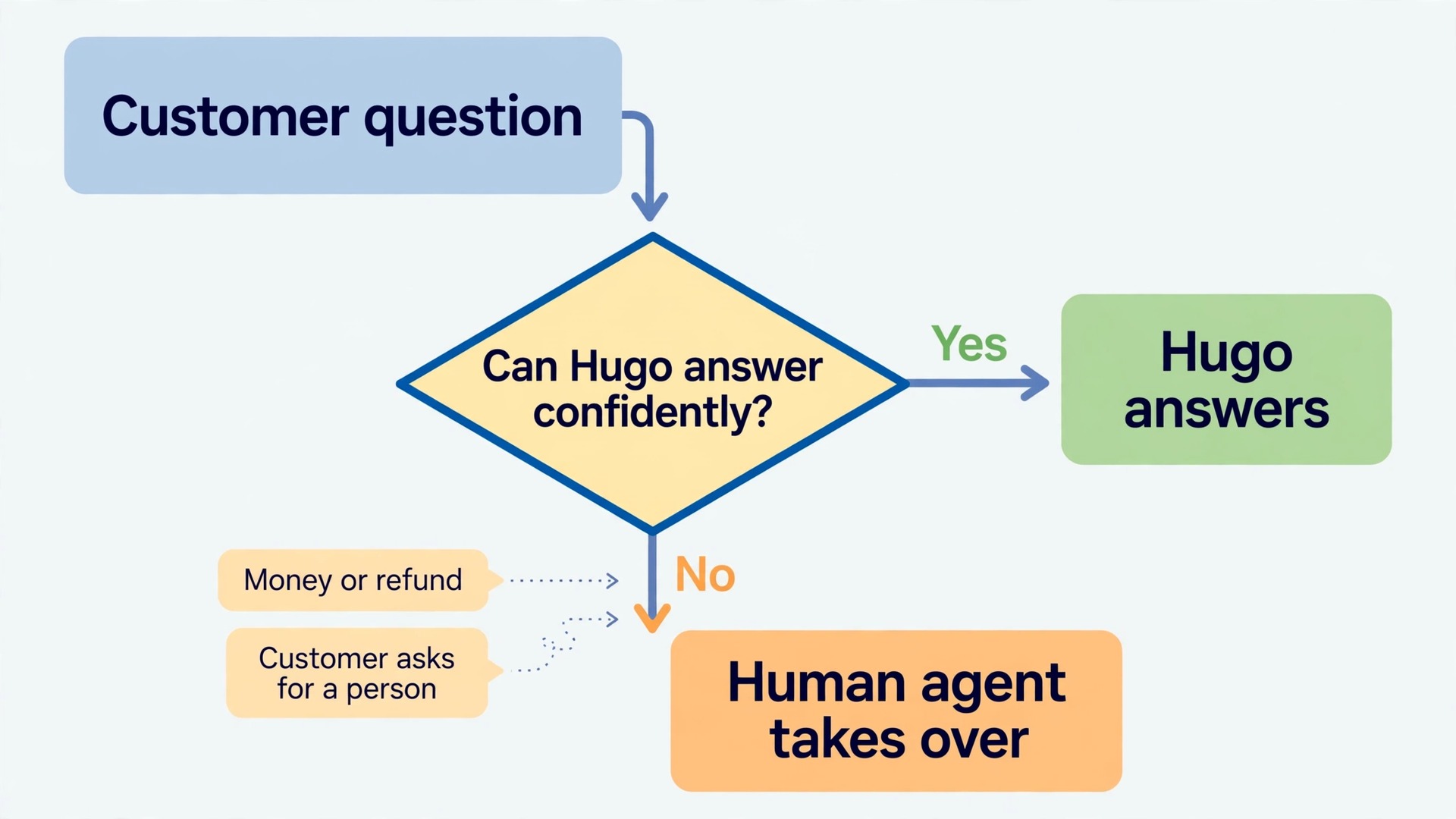
Set a clear human handoff rule. Hugo should hand over when a customer asks for a person, when the question involves money, refunds or account closure, when the same question repeats twice, and when confidence is low. Measure the rebuild by resolution quality, not by how many conversations the bot touched.
Contact data is the least dramatic part of the move, but sloppy contact data poisons everything else, from routing to personalisation. Crisp’s contact import starts from a CSV file, and you map each column to a Crisp field during import. Email is required, and first and last names are strongly recommended, because without them Crisp may infer names from email addresses and get them wrong. Prepare the CSV with the same care you gave the macro sheet, and keep a copy of the field map for troubleshooting.
Build the field map before you import. List every Intercom field your team actually uses, such as plan, signup date, company, country and account status, and match each one to a Crisp field or a deliberate drop. Drop fields nobody has used in a year, and merge fields holding the same fact under two names. Country should arrive as a code, such as US, rather than a full country name, and multi-value fields need a consistent separator so segments split correctly. Run a test import of 100 contacts first and check names, companies, segments and custom fields by hand.
Tags need a separate decision, because Intercom tags often grow into synonyms. Merge billing question, billing issue and billing help into one tag, and do the same for every topic family. Check company links for your top customers by hand, since a wrong company link gives the wrong account context in every future chat. Import only data you have a reason to hold, delete test and spam contacts first, and confirm that anyone who unsubscribed or asked for deletion in Intercom is not quietly reimported.
Pricing Comparison for a Real Support Team
Crisp charges per workspace per month, with a seat cap on each plan. At the time of writing, published pricing summaries put Free at zero dollars for 2 seats, Mini at 45 dollars a month for 4 seats, Essentials at 95 dollars a month for 10 seats, and Plus at 295 dollars a month for 20 or more seats, with extra Plus seats at 10 dollars each per month. Paid plans include AI credits of roughly 5, 25 and 75 dollars, which guides translate to about 90, 450 and 1,350 AI conversations. The knowledge base, omnichannel inbox and chatbot builder start at Essentials, so do not price the move on Mini if you need those tools.
Intercom charges per seat per month plus a usage charge for Fin. Published summaries at the time of writing put Essential at 29 dollars per seat per month on annual billing or 39 dollars billed monthly, Advanced at 85 or 99 dollars, and Expert at 132 or 139 dollars. Fin adds 99 cents per outcome, charged at most once per conversation, on top of seats. Some visitors have reported a lower Essential test price, so confirm the price you are actually offered before signing. If you decide to switch Intercom to Crisp, build the comparison on the plan you will really use, including the AI line, not on the cheapest tier of either product.
| Team size and volume | Intercom estimate | Crisp estimate | What to watch |
|---|---|---|---|
| 4 agents, light AI use | Essential seats at 29 dollars each, 116 dollars a month on annual billing | Mini at 45 dollars a month, but no knowledge base | Crisp looks cheaper, yet the missing knowledge base may force Essentials |
| 8 agents, 500 Fin outcomes a month | Essential seats at 232 dollars plus 495 dollars in outcomes, 727 dollars a month | Essentials at 95 dollars a month plus AI credits | The AI line is where most of the saving sits |
| 10 agents, heavy automation | Advanced seats at 850 dollars plus outcomes, well over 1,000 dollars a month | Essentials at 95 dollars a month, up to its seat cap | Check whether Essentials covers every channel you need |
| 12 agents, growing fast | Per seat billing keeps rising with every hire | Essentials cap passed, Plus at 295 dollars a month | The jump from Essentials to Plus is steep, so model growth early |
| 2 agents, just starting | Essential seats at 58 dollars a month on annual billing | Free at zero dollars for 2 seats | Free Crisp suits a tiny team, but check profile and channel limits |
Run your own numbers with last month real figures. Price both tools for that month and for a month with 30 percent more volume, which shows whether your bill grows with headcount, with automation, or with both. Budget for overlap too, since you will pay for both tools for two to three months. Even with overlap, most small teams save in year one, but a 12-agent team with heavy ticketing and white-label needs may find Plus pricing much closer to Intercom than the headline suggests.
A Cutover Plan That Keeps Support Replies Flowing
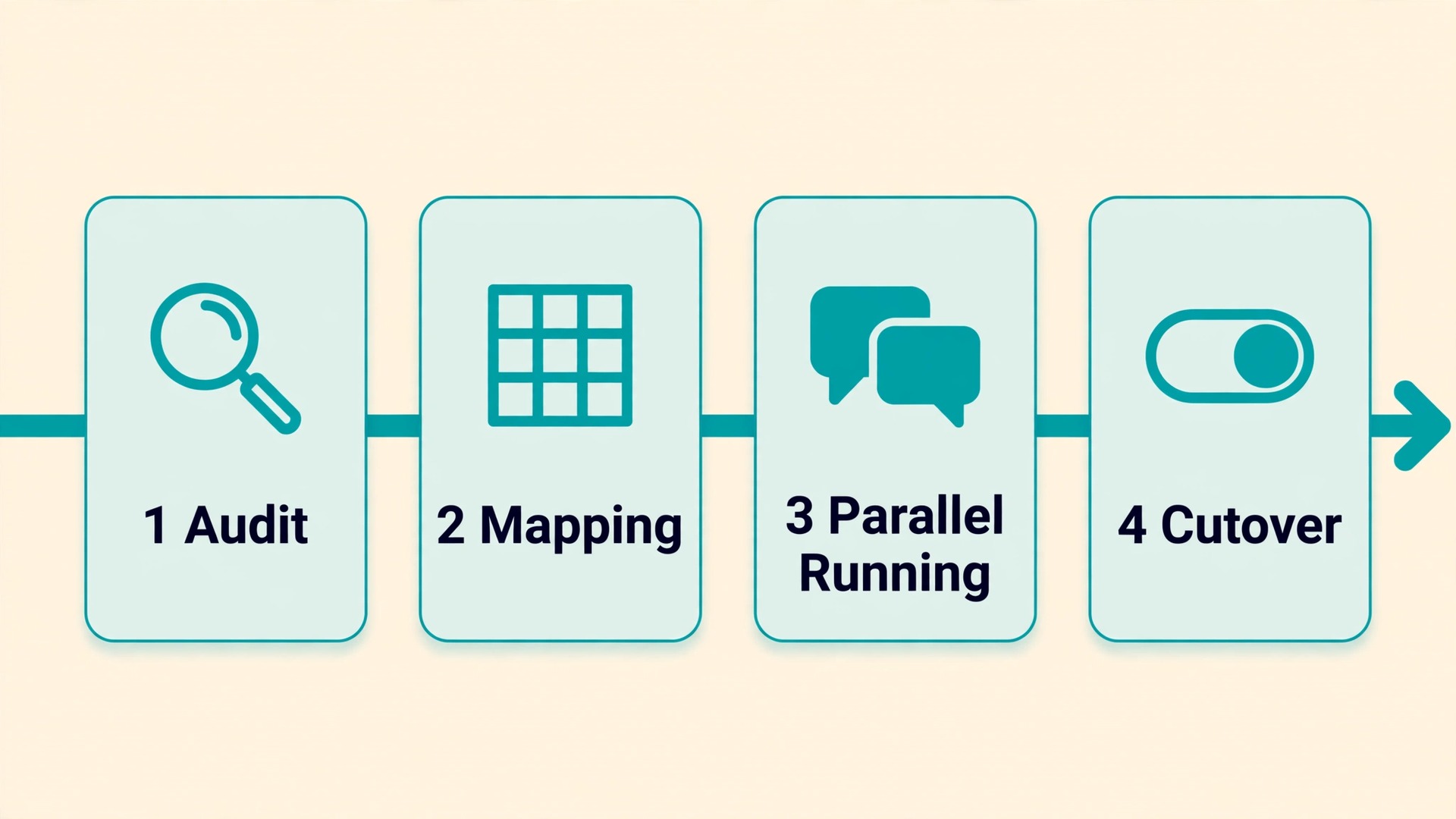
A cutover plan is a staffing plan first and a software plan second. Customers do not care which inbox you use. They care that someone answers, that the answer is correct, and that they do not have to repeat themselves. Build the plan around those three tests, and give every phase a named owner and a rollback step. If a phase fails its test, you pause and fix it while Intercom still runs, rather than pushing forward into a broken week.
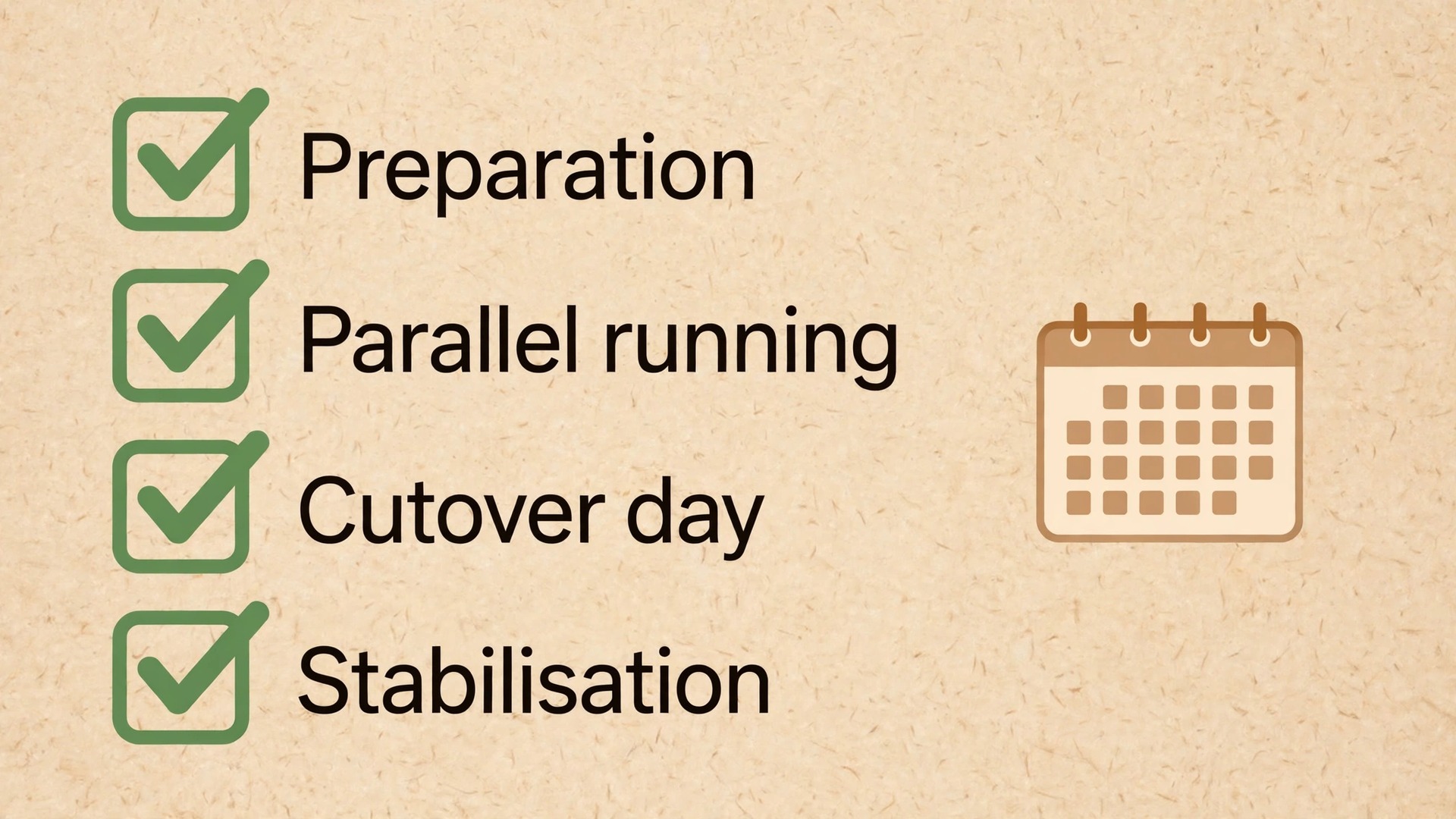
Week one is preparation. Finish the mapping table, clean the macro sheet, audit help articles and map contact fields. Set up the Crisp workspace with inboxes, routing rules and the top 20 shortcuts in a test setup, and screenshot Intercom reports while it is still fully live.
Week two is parallel running. Agents work in Crisp for a small slice of real traffic, such as one channel, while Intercom still handles the rest. Turn on one automation at a time, watch its first 20 conversations, and fix routing before widening it. Train Hugo on the cleaned knowledge base, review its answers daily, and fix each day’s broken shortcut, wrong bot answer and routing miss before the next day starts.
Cutover day itself should be boring, and boring is the goal. Announce the change only after the new widget, email and help center links are tested. Change the widget in a quiet period, switch support email routing, and watch the Crisp inbox as a team for the first two hours, keeping Intercom open beside it so conversations that started there can be finished there.
The two weeks after cutover are stabilisation. Review response time, first-contact resolution and satisfaction daily against the Intercom baseline, allowing for a short dip while agents learn the tool. Keep fixing Hugo guidance from real failed answers, and keep Intercom readable for the full window. If you decide to switch Intercom to Crisp on a plan that protects reply speed first and cost second, this phased plan is how you keep that promise. A rushed weekend switch may save a week of overlap cost and cost a month of customer trust, which is a bad trade for any support team.
If you are still comparing tools before you commit, read our guides to the best AI customer support tools, how to set up an AI support chatbot, and the Intercom Fin, Zendesk AI and Freshdesk comparison. The Tidio, Intercom and Chatbase comparison is also worth a read before you sign anything.
Frequently Asked Questions
Can I move all my Intercom conversations into Crisp?
No, not with a one-click import. Crisp offers direct imports for contacts and help articles, and a CSV route for message shortcuts, but past conversations need an API build to land inside Crisp. Most teams import open and recent conversations, archive older ones as files, and keep Intercom readable for two to three months.
How long does a small team migration usually take?
A team of two to ten agents should plan one to three weeks of rebuild work, plus two to three months where Intercom stays readable. Mapping macros, articles and routing first makes the rebuild fastest, and testing takes the remaining time, since each shortcut, bot flow and automation needs real conversations before it can be trusted.
Do Intercom macros transfer automatically to Crisp?
They do not transfer by themselves, but they convert well with a spreadsheet in between. Copy macros into a sheet, delete retired ones, merge duplicates, fix links, then import or rebuild them as Crisp message shortcuts. Test the top 20 in a test inbox before cutover.
What happens to my help center articles and search rankings?
Articles move through Crisp’s knowledge base importer from your public help center URL, but you must review formatting, images, categories and internal links by hand afterwards. Update internal links, set up redirects on the old help center, and check that the top 20 articles read well on a phone. Keep old articles live until the new ones are indexed.
Will the switch Intercom to Crisp save money for a team over 10 agents?
It can, but the maths changes past the Essentials seat cap. Essentials covers 10 seats at 95 dollars a month, while Plus at 295 dollars a month covers 20 or more seats with extra seats at 10 dollars each. A 12-agent team may still save against per-seat billing plus Fin outcomes, but the saving is smaller than the headline suggests. Model next year team size and higher volume before you decide.
Should I close Intercom on cutover day?
No. Keep Intercom paid and readable for two to three months while Crisp builds its own history, and close it only after two full weeks pass without any agent needing it. The overlap cost is real, but it is cheaper than rebuilding trust after a dropped conversation.
A Smaller Bill Without a Support Blackout
The teams that succeed with this move treat it as a rebuild, not a transfer. They clean their macros, prune their help center, rebuild their bot from real customer questions, and run both tools side by side until Crisp proves itself. They also accept the one hard limit honestly. Chat history will not arrive perfectly intact, and planning for that limit beats pretending it does not exist. When you switch Intercom to Crisp with that mindset, the reward is concrete. A flatter monthly bill, a shorter shortcut list, a help center customers can actually search, and an inbox agents can work without wading through years of imported noise.
Start with the mapping table, test the top 20 shortcuts, and let reply speed, not launch speed, decide when Intercom finally closes.