
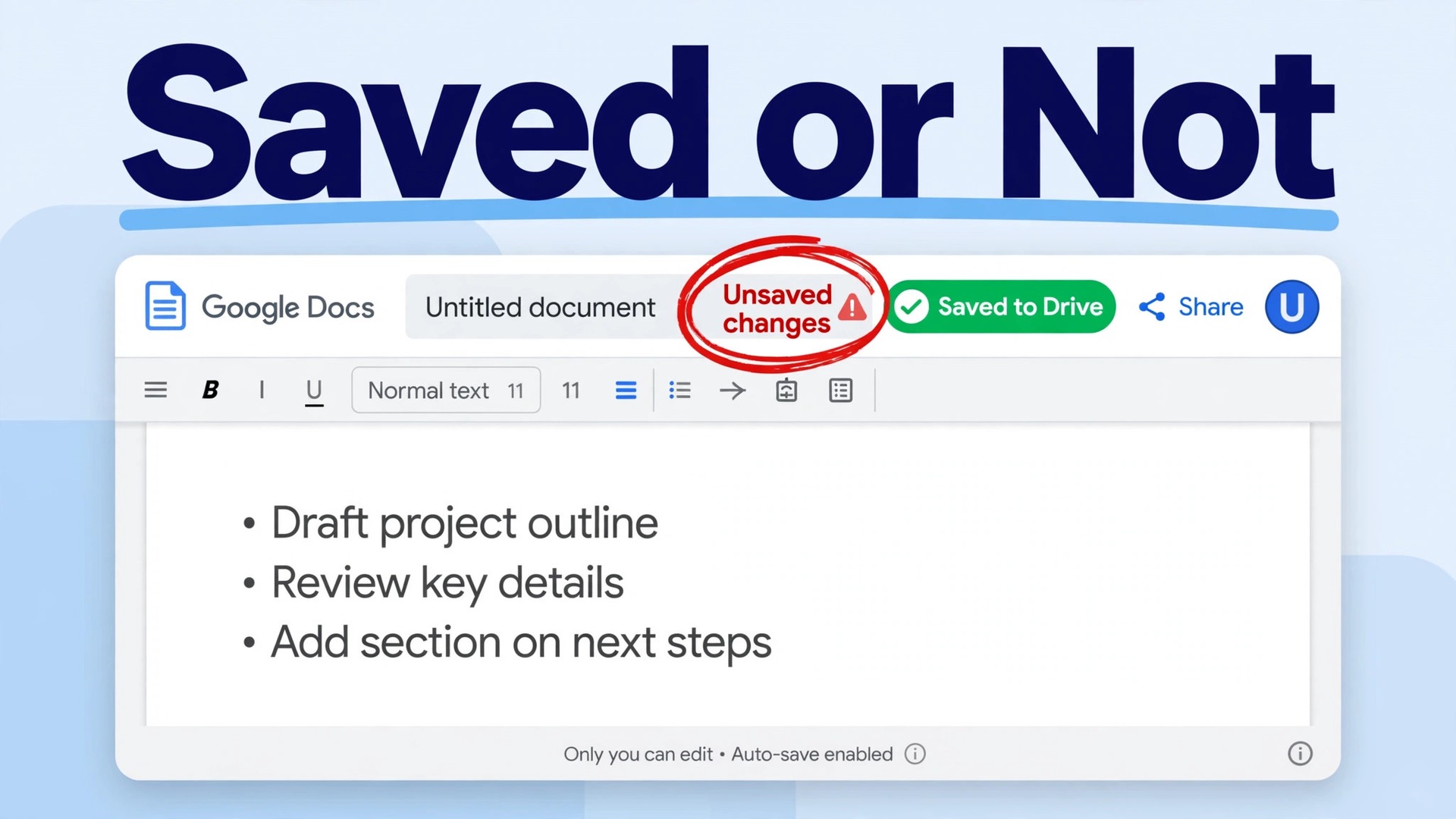
Two documents can look identical on screen, and only one of them is safe. In the first, every edit has already reached Google servers, and closing the laptop changes nothing. In the second, the words are sitting in the browser alone, waiting on a connection that dropped ten minutes ago, and one careless refresh wipes them out. The difference is invisible until you know where to look, and that is why so many people discover the problem only after they have lost work. To fix Google Docs not saving changes, you need to read the save status first, protect the unsaved text second, and only then work through causes in order, from the fastest check to the deepest repair.
This guide follows that order on purpose. Most saving failures come from a short list of causes, and they are worth ruling out in sequence. A dropped connection, a stuck offline cache, a browser extension blocking the sync, a full storage pool, or the wrong account are behind nearly every case.
The Fix Order Checklist
Work through this checklist from the top, and stop as soon as the save status returns to normal. Testing after each step is what turns a long list into a short repair, because the moment saving resumes, you have found your cause. Do not skip ahead to reinstalling a browser or clearing site data before you have tried the two minute checks, since the aggressive fixes carry their own risks, and one of them can delete unsaved offline edits if you run it at the wrong time.
- Read the save status next to the document title, and note the exact message. It tells you whether Docs is offline, trying to connect, or reporting an error.
- Copy all unsaved text into a local file before you refresh, close the tab, or clear anything. This is your insurance, and it costs thirty seconds.
- Check your connection by loading another site in a new tab, and check the Google Workspace Status Dashboard for a Docs outage.
- Pause your VPN or proxy briefly, and try a different network if you are on a restricted office or school connection.
- Toggle offline mode off and back on in Docs settings, then reopen the document and watch the save status.
- Open the document in an incognito or private window. If it saves there, an extension or a browser setting is the cause.
- Disable extensions one group at a time, starting with ad blockers, privacy tools, and script blockers, and test saving after each group.
- Clear site data for docs.google.com only after your edits are saved or copied somewhere safe, then sign in again and retest.
- Check Google Drive storage, and confirm the account is not full and you are signed into the account that owns the document.
- Try another browser, another device, and another account check. If the document saves everywhere else, the problem is local to the first browser.
- Open version history, and restore or copy the newest good version if edits were already lost.
- Download a local copy in Word or PDF format, so you hold a version that no sync failure can touch.
The rest of this guide explains each step in full, including the exact menus and the warning signs that tell you to stop and back up first. This order is how to fix Google Docs not saving changes without wasting an afternoon on the wrong cause.

First, Protect the Work You Have Not Saved Yet
The single most expensive mistake in this whole repair is refreshing the page before you secure your text. If Docs is disconnected, the newest edits may exist only in that browser tab. A refresh, a browser crash, or a cleared cache can take them with it, and version history cannot restore edits that never reached Google servers. So before you touch any setting, make a copy.
Select the whole document with Ctrl plus A on Windows or Cmd plus A on Mac, copy it, and paste it into a plain text editor, a local Word file, or an email draft addressed to yourself. Keep that backup open until the document status reads Saved to Drive again. If the document is long, paste it in two parts, and check that the end of the pasted copy matches the end of the document.
There is one more protection worth taking while the document is still open. Use File, then Download, and save a copy in Microsoft Word format. If the download button is greyed out or the file that downloads is missing your newest edits, your pasted text copy is still your safety net. Do not close the tab until at least one of these two backups exists. Everything after this point is safe to try, because the worst case is now a retype of a section, not a rewrite of a whole document.
This backup first habit also changes how you judge the later steps. Once your text is safe, you can clear site data, disable extensions, and switch browsers without fear, and you can fix Google Docs not saving changes aggressively instead of hesitating over every click.

Read the Save Status Before You Change Anything
Google Docs shows its sync state in small text near the top of the page, close to the document title and the share button. Learning to read it takes five seconds, and it prevents most wrong turns. The messages fall into four groups, and each one points at a different cause.
When the status reads All changes saved in Drive, your work is safe on Google servers. If a collaborator says they cannot see your edits, the problem is more likely on their side, or they are looking at a different document or a different account. Ask them to refresh, and confirm you are both opening the same file by comparing the document link.
When the status reads Working offline, or shows an offline icon, Docs is storing edits on your device and will push them to Drive once the connection returns. Edits made in this state are not lost, but they are not yet backed up either, so do not close the laptop lid and walk away for hours. Reconnect, keep the document open, and wait for the status to change to Saved to Drive before you close anything.
When the status shows an error, or a message about sync failing, note the exact wording before you dismiss it. Phrases such as could not sync, checking offline sync status, or trying to connect each point at a different layer. A sync failure after reconnecting points at storage, a file problem, or a stuck cache. A message that never moves past checking offline sync status points at the offline setup itself, and the offline section below covers it directly. Reading that message correctly is the first real step to fix Google Docs not saving changes, because it tells you which section to open next.
One more check belongs here, and it takes ten seconds. Click the document title area and confirm the account shown in the top right corner is the account you expect. Many saving mysteries turn out to be two accounts, where edits were made in one account and the owner is checking a second account that never received them.
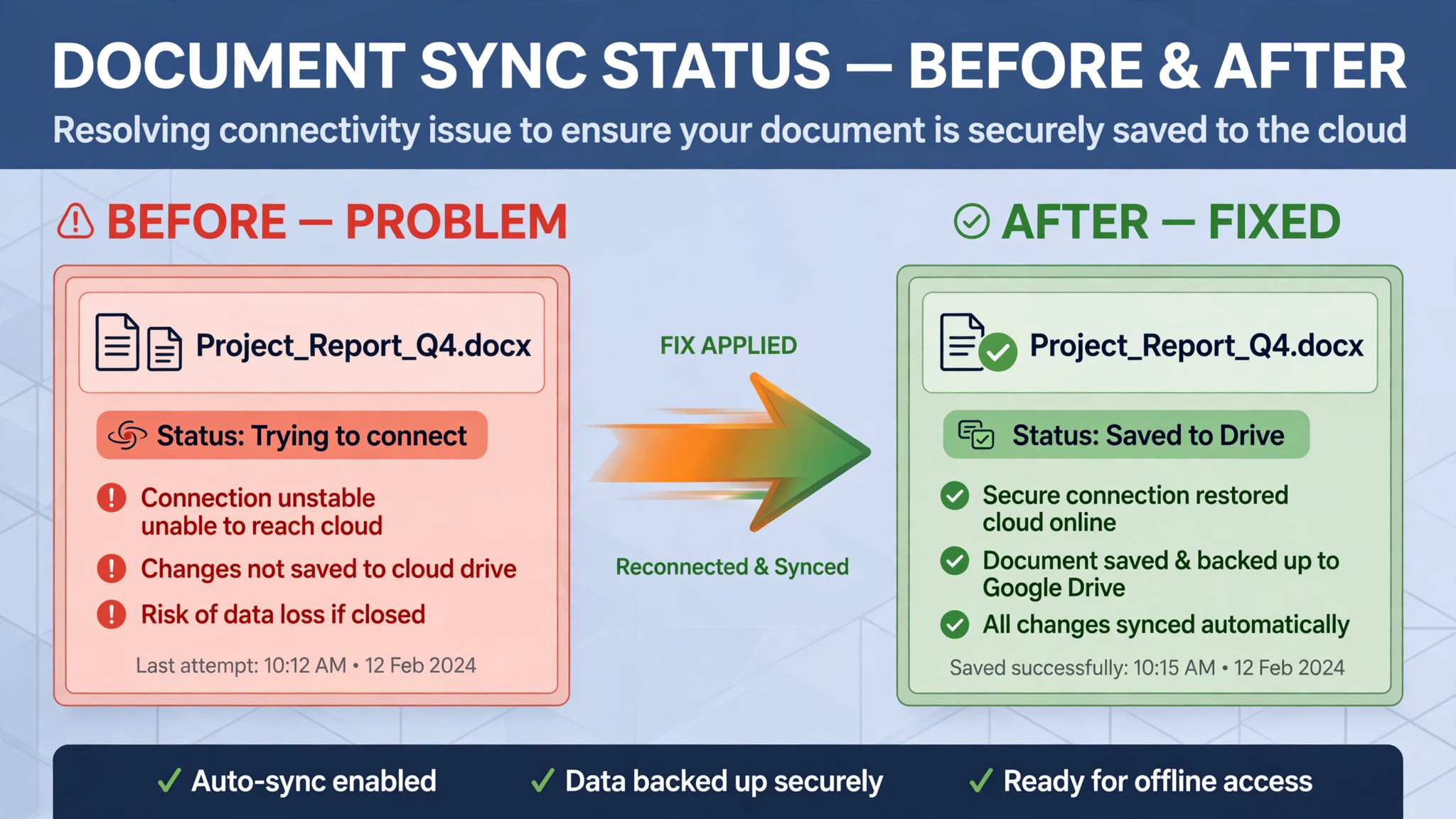
How to Fix Google Docs Not Saving Changes When the Connection Drops
A connection failure is the most common cause, and also the most deceptive, because a browser can look online while Docs cannot reach Google servers. A page that loaded five minutes ago proves nothing about the connection right now, and a Wi-Fi icon showing full bars proves nothing about whether traffic to Google is actually getting through.
Open a new tab and load a video site or a news site that you have not visited recently, so the browser cannot serve a cached copy. If that page loads slowly or fails, the connection itself is the problem, and no Docs setting will fix it. Restart your router if you are at home, move closer to the access point, or switch from Wi-Fi to a wired connection or a phone hotspot for a test. If Docs starts saving on the hotspot, the original network is blocking or throttling the traffic, and you have your answer.
VPNs, proxies, and school or office networks deserve special attention here. Docs relies on a steady live connection to Google servers, and some corporate networks, firewalls, and VPN setups interrupt exactly that kind of traffic while ordinary web browsing still works. Pause the VPN briefly and test saving again. If saving resumes, the VPN or its server location is the cause.
Also check the Google Workspace Status Dashboard, which reports outages across Google services including Docs and Drive. An outage is rare, but it is the one cause where every fix you try will fail, and waiting is the correct action. If the dashboard shows a Docs disruption, keep your backup copy safe and retry after the dashboard clears.
If the connection tests pass, other sites load fast, the VPN is off, and the dashboard is green, yet Docs still will not save, the connection is ruled out. Move on to offline mode, because a healthy connection plus a stuck offline cache is the next most likely combination.
Work Through Offline Mode Without Losing Edits
Offline mode is designed to protect you, and when it misbehaves it confuses people precisely because it keeps working after the connection fails. You can keep typing, the document looks normal, and nothing warns you loudly enough that your edits are no longer reaching Drive. Understanding how offline mode is set up, and where it breaks, turns it from a trap into a tool.
Offline access in Docs runs through Google Drive settings and the Docs Offline extension in Chrome. To turn it on or off, open the Docs home screen from the three line menu in the top left, open Settings from the sidebar, and find the Offline toggle. Turning it off, waiting a few seconds, and turning it back on forces Docs to rebuild the offline setup, and that reset clears a surprising number of stuck sync states. Reopen the document after the toggle and watch the save status for a full minute, since a sync that restarts can take a little while to settle.
Several offline setup failures have specific tells. If you see a message that offline sync is disabled by your administrator, a work or school account policy is blocking offline access, and only your Workspace admin can change it. If a message says another user has already enabled offline access, remember that only one account per browser profile can use offline mode, so a second account needs its own browser profile.
One hard limit catches many people. Offline mode does not run in a private or incognito window, so testing Docs in incognito while expecting offline edits to sync will mislead you. Incognito is still a useful test, but it tests extensions and browser settings, not offline sync.
When you are genuinely offline, the correct routine is simple and worth following exactly. Keep the document open, reconnect to a stable connection, and wait for the status to settle to Saved to Drive before you close the tab or shut the laptop. Closing a device too quickly after reconnecting is one of the most common ways offline edits fail to finish syncing, and it is the first thing to fix Google Docs not saving changes after an offline session.
If offline edits still refuse to sync after a stable reconnect and an offline toggle reset, the file itself may be too large for reliable offline sync, and splitting a very large document into smaller parts is a practical workaround.
Rule Out Extension and Browser Problems
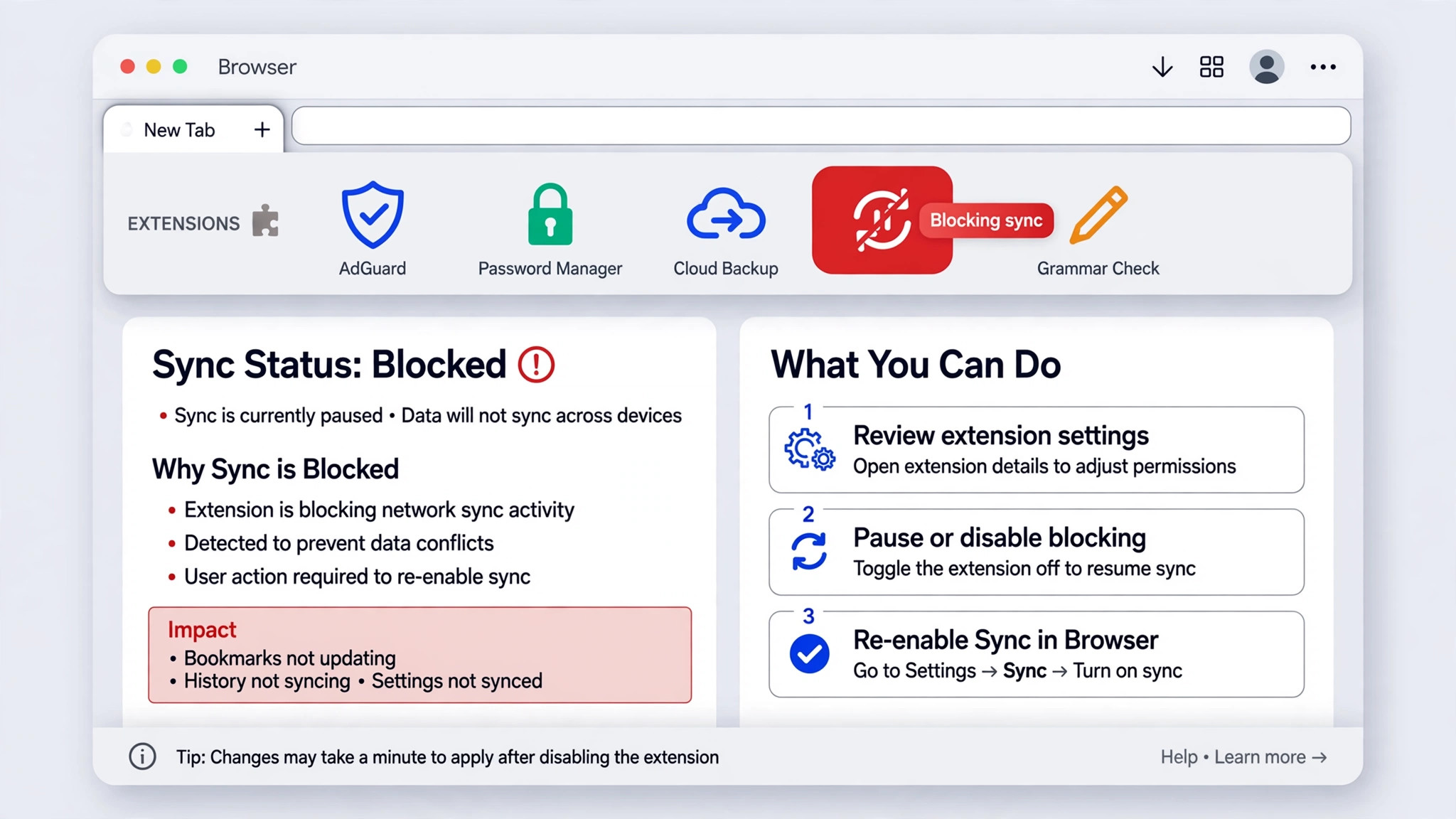
When the connection is fine and offline mode is reset, the browser itself becomes the prime suspect. Extensions are the leading cause in this group, because an extension that modifies pages, blocks scripts, or filters network requests can quietly break the live sync that Docs depends on, while leaving ordinary browsing untouched. The fastest way to test this is an incognito window, since most extensions are disabled there by default.
Open an incognito or private window, sign into the same Google account, and open the same document. Type a test sentence and watch the save status. If the test sentence saves in incognito but not in your normal window, you have ruled the cause down to an extension, a browser setting, or stored site data in the normal profile. If it fails in incognito too, the cause is more likely the network, the account, or the document itself, and you can skip the extension hunt.
Back in your normal window, disable extensions in groups rather than one by one at first, since group testing is faster. Start with ad blockers, privacy tools, script blockers, and any extension that claims to clean, speed up, or protect browsing, because those are the categories most likely to interfere with a live web app. After each group, reload the document and test saving.
If extensions are ruled out, turn to stored site data. Over time, cached files and cookies for docs.google.com can corrupt in ways that break sync without breaking page loading. Clearing site data for Docs specifically is safer than clearing your whole browser history, since it limits the damage to one site. Do this only after your edits are saved or copied somewhere safe, because clearing site data can remove unsaved offline edits stored in that browser.
Browser version matters too, and it is a check people skip because updating feels unrelated to saving. Google states that offline mode requires an up to date browser and the Docs Offline extension turned on, and an old browser can fail on features that Docs now expects. Update the browser, restart it fully, and retest before you conclude the browser is broken. If the document saves in a different browser on the same computer, the original browser profile is the problem, and resetting that profile or switching browsers is a reasonable lasting fix.
If incognito saves fine, you have already narrowed how to fix Google Docs not saving changes to one cause, and the extension hunt below is the only work left.
When Storage or the Account Is the Blocker
A full Google account stops saving in a way that looks like a Docs bug, and it fools people because the document itself can be small. Google Docs files do not count heavily toward storage on their own, but the storage pool is shared across Gmail, Google Drive, and Google Photos, and a free Google account gets 15 GB across all three. When that shared pool fills up, Docs cannot save new changes, Gmail can stop receiving, and Drive uploads fail, all at once. Checking the breakdown by service is the key step, because the service that filled the pool is rarely the service that shows the symptom.
Open the Google One storage page or the storage section of Drive, and read the breakdown. If Photos holds most of the space, phone photo and video backups are the usual cause. If Drive holds most of it, look for large video files, old backups, or shared files that you own. Delete what you no longer need, starting with the largest files, and then empty Trash in Drive, because deleted files still count toward storage until Trash is emptied. When the pool is full, the only way to fix Google Docs not saving changes is to free space first, since no browser setting can save into an account with nowhere left to write.
Account mix ups belong in this section as well, because they mimic a storage problem. Confirm the account in the top right corner, confirm the document owner by checking the sharing settings, and confirm you have edit access rather than view or comment access. A document you can only view or comment on will never save your edits as document changes. Ask the owner for edit access, or make your own copy with File, then Make a copy, and work in the copy.
Work and school accounts add one more layer. An admin can restrict offline access, limit sharing, or set storage policies that a personal account never hits. If the same document saves fine in a personal account but not in a work account, contact your Workspace admin with the exact error message and the steps you have already tried.

Recover What You Lost With Version History
Version history is the safety net that makes most Docs disasters recoverable, but only for edits that actually reached Google servers. If an edit synced at least once, a version of it exists in the history, even if later edits overwrote it or a collaborator deleted a section. If an edit never left your browser, version history cannot help, which is why the backup step at the start of this guide matters so much. Check version history early in a recovery, not as a last resort, because it tells you exactly what survived.
Open the document, then use File, then Version history, then See version history. Version history is often the fastest way to fix Google Docs not saving changes after edits are already lost, because it shows you exactly what reached the servers and when. The keyboard shortcut is Ctrl plus Alt plus Shift plus H on Windows, or Cmd plus Option plus Shift plus H on Mac. A panel opens on the right showing versions grouped by date, with timestamps and the names of the editors behind each version.
Click a version to preview the document as it looked at that time, and use the colour highlights to see who changed what, which matters on shared documents where several people edit at once.
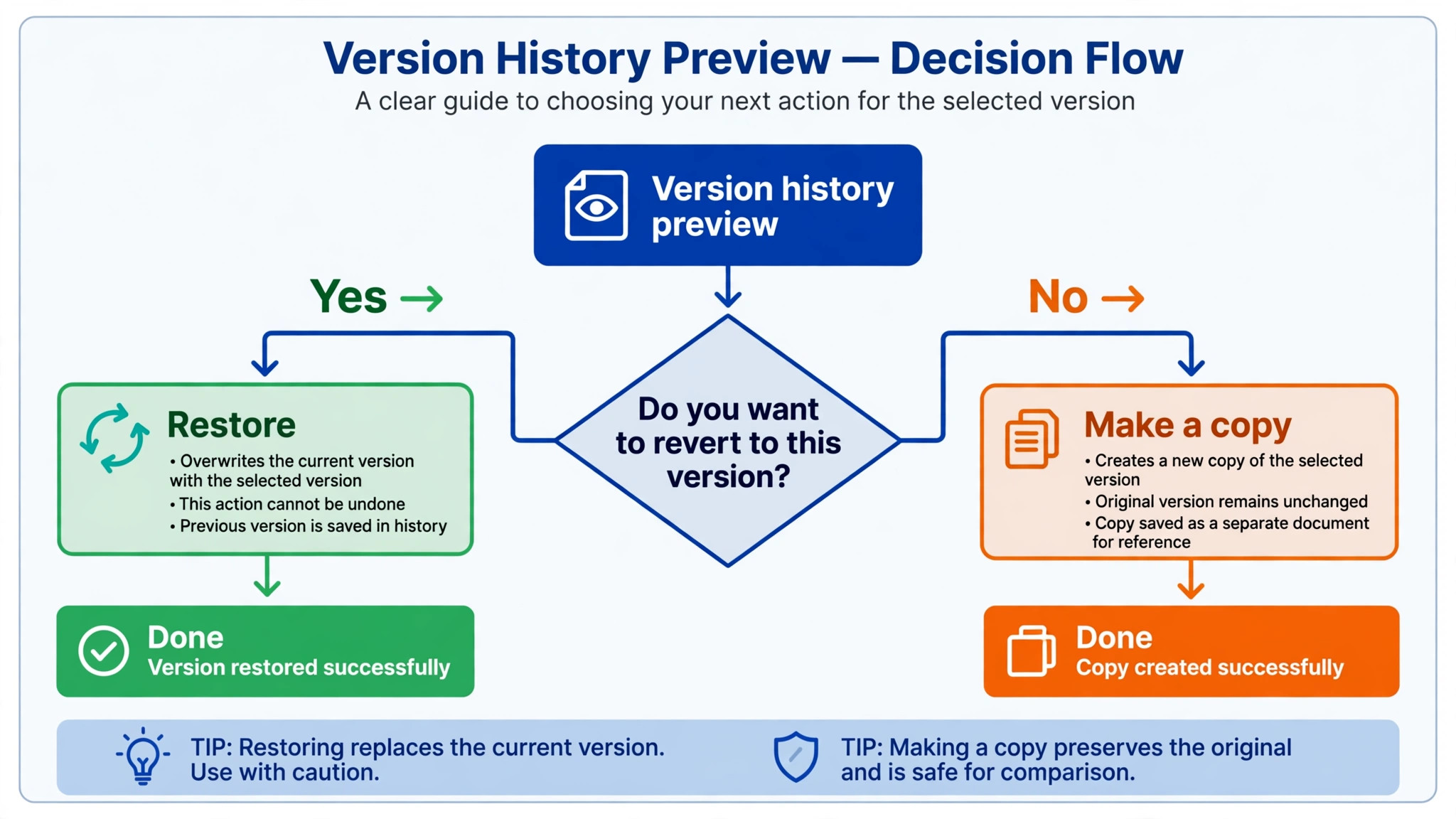
When you find the version you want, you have two choices, and picking the right one matters. Restore this version replaces the current document with the older version, and everything written after that version is lost from the current document, though the history itself is kept. Make a copy, found under the three dot menu beside a version, creates a separate document from that version, leaving your current document untouched.
Naming versions turns this safety net from a timeline into a map. Before a major rewrite, a restructure, or a round of shared editing, use File, then Version history, then Name current version, and give it a label such as Draft before restructure or Client approved text. Named versions are far easier to find in a long history, and a document can hold up to 40 named versions.
One honest limit deserves stating plainly. Version history shows what Google saved, not what you typed. If you wrote for an hour while offline and the sync never completed, those paragraphs may exist only in your local backup. In that case, paste the backup text into the newest good version, and check the result against the version history timestamps to confirm nothing else is missing. That comparison, backup against history, is the most reliable way to prove a document is whole again.
Keep a Safe Local Copy From Now On
A sync failure hurts in proportion to how much work exists only in the cloud copy. A local copy habit removes that risk almost entirely, and it costs less than a minute per document if you build it into the moments you already pause.
The simplest habit is a download at each milestone. When you finish a section, a draft, or a day of writing, use File, then Download, and save a copy in Microsoft Word format for editing or PDF format for a fixed record. Store these downloads in a folder with dates in the filenames, so you can always tell which local copy is newest.
A second habit protects shared documents specifically. Before a collaborator starts a heavy edit, or before you accept a big round of suggestions, name the current version, as described above, and download a copy. That pair, a named version plus a local file, gives you two independent ways back, and either one alone is usually enough.
Mistakes That Make the Problem Come Back
The first mistake is fixing only the symptom. Freeing a little storage to drop just below the limit, without changing the photo backup setting that filled the account, means the account fills again within weeks. Fix the source as well as the symptom, by switching photo backups to a storage saving quality or turning off automatic backup for large videos.
The second mistake is clearing site data or reinstalling a browser before backing up unsaved edits. These aggressive steps are effective, but they can remove offline edits stored in that browser, and once removed, those edits are gone unless a local copy exists. Always secure the text first, then clear, then test.
The fourth mistake is ignoring the account check. People reset browsers, disable extensions, and clear caches while signed into the wrong account, or while working on a document they can only comment on. A ten second glance at the account avatar and the sharing settings rules out both problems.
A Short Routine That Keeps Docs Saving
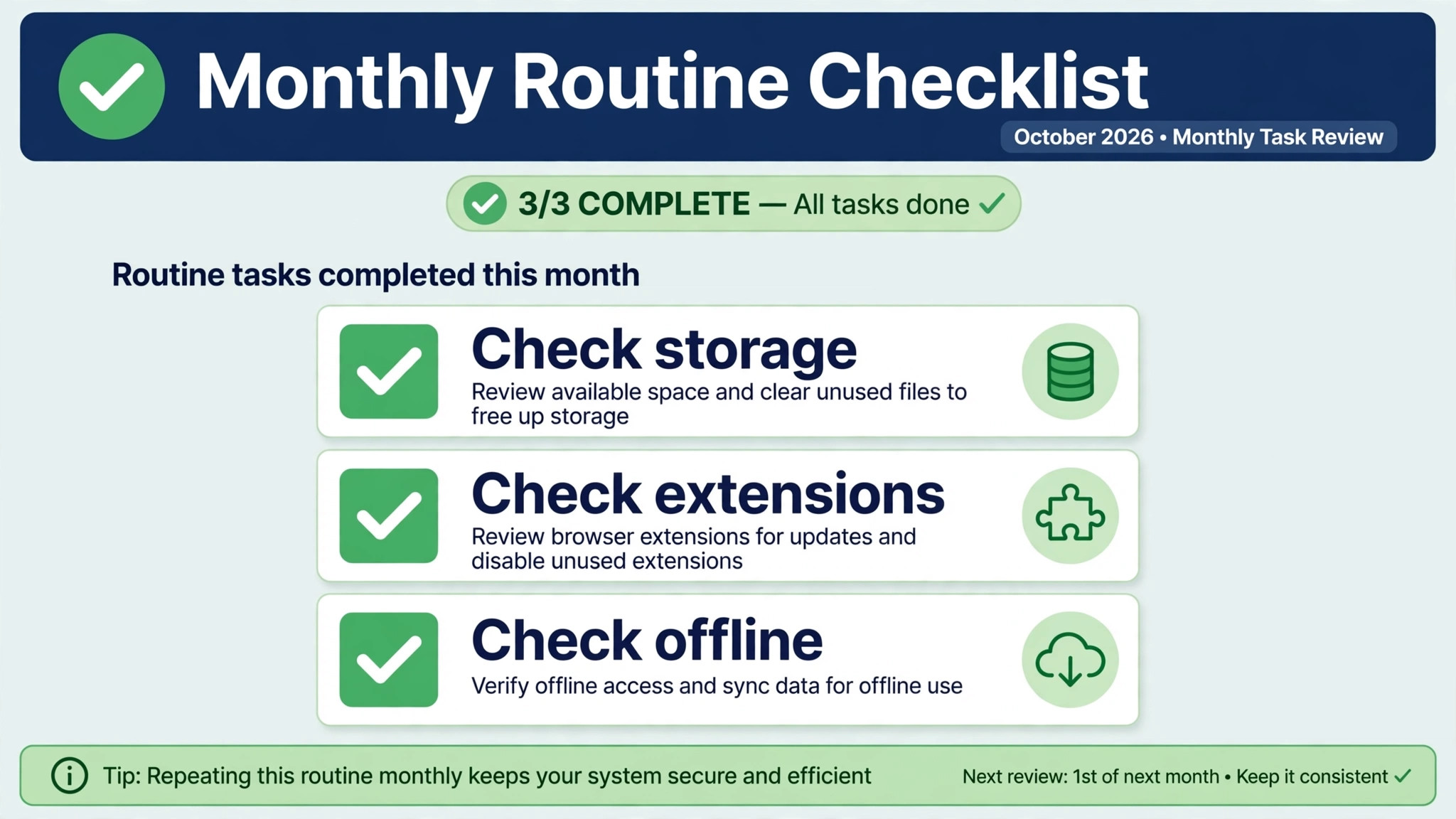
Prevention is less work than recovery, and a short monthly routine covers most causes before they bite. Once a month, check your Drive storage percentage and note the trend, not just the current number. If storage rises by several gigabytes a month, find the source now, before it hits the limit during a busy week. Once a month, glance at your extensions, and remove any you no longer recognise or use. Once a month, confirm offline mode is still enabled on the devices where you need it.
Once a week, a lighter check is enough. Open your most active document, confirm the status reads Saved to Drive, and download a milestone copy if you finished a section. That weekly glance catches a stuck sync while the missing edits are still fresh in your mind.
Related reading on this site can help with the wider picture around Docs and Drive. The cleanup plan for a full Drive account walks through freeing shared storage in order of biggest return, the guide to fixing a slow browser covers the extension and cache checks in more depth, and the piece on resolving sync conflicts in a notes app shows how the same one variable at a time testing applies beyond Docs. Those guides are useful after the fix, not instead of it, because no general browser guide can replace reading your own save status and testing your own setup.
You can find them at Google Drive storage full cleanup plan, Chrome running slow with too many tabs, and Obsidian sync conflicts.
Frequently Asked Questions
Why does Google Docs say Working offline when my internet seems fine?
Working offline means Docs cannot reach Google servers from that browser, even if other sites load. A VPN, a proxy, a school or office firewall, or a stuck offline cache can block Docs traffic while ordinary browsing still works. Pause the VPN, try a different network, and toggle offline mode off and back on in Docs settings.
Can I recover edits that never synced to Drive?
Only if you still have them somewhere. Edits that never reached Google servers do not appear in version history, so recovery depends on a local copy, a downloaded file, or the original browser tab still being open. If the tab is still open, copy the text out before you refresh or clear anything.
What does Checking offline sync status mean, and how long should I wait?
It means Docs is trying to verify or rebuild its offline setup, and it usually clears within a few minutes. Reload the page once, confirm offline mode is enabled in Drive settings, and make sure you are not in a private window, since offline mode does not run there.
Does a full Google Drive stop Docs from saving even when the document is tiny?
Yes, because the 15 GB free limit is shared across Gmail, Drive, and Photos. A small document still needs free space in the shared pool to save new changes, and a pool filled by photos or large Drive files blocks Docs along with everything else. Check the storage breakdown by service, clean the service using the most space, empty Trash in Drive, and test saving again after space is freed.
Will turning off offline mode delete my documents?
No. Turning off offline access only stops your computer from keeping local copies you can open without internet. Your files stay in Google Drive, and turning offline back on rebuilds the local copies. The risk runs the other way, since clearing site data or turning offline off while unsaved offline edits are still waiting to sync can remove those pending edits, so back up first.
Why can a collaborator see my document but not my latest edits?
The usual causes are a sync that has not finished, a collaborator looking at a different copy or account, or edits made while offline that have not yet uploaded. Confirm your own status reads Saved to Drive, ask the collaborator to refresh and to check they opened the same document link, and check version history to confirm your edits appear there.
Your Doc, Saved and Provable
Most Docs saving failures end with a small, specific repair, not a rebuild. A connection tested on a second network, a VPN paused, an offline toggle reset, an extension disabled, a storage pool freed, or a version restored. The order in this guide exists so you find that repair quickly, and so each test rules out a cause instead of adding a guess. Work it from the top, test after each step, and write down what you changed, so the next failure starts from evidence rather than from scratch.
To fix Google Docs not saving changes for good, pair the repair with the two habits that make the next failure cheap. Name a version before every major rewrite, and download a local copy at every milestone. Those two habits take less than a minute each, and they turn a sync failure from a lost morning into a short retype. Keep the monthly routine going as well, since a storage pool, an extension list, and an offline setup that are checked regularly rarely fail without warning.
If you work through the whole checklist and Docs still will not save, gather three pieces of evidence before you seek help. Note the exact save status message, list the tests you ran and their results, and note the storage percentage with the breakdown by service. That evidence lets support, or a Workspace admin, pinpoint the problem in minutes instead of starting the same checklist from scratch.