
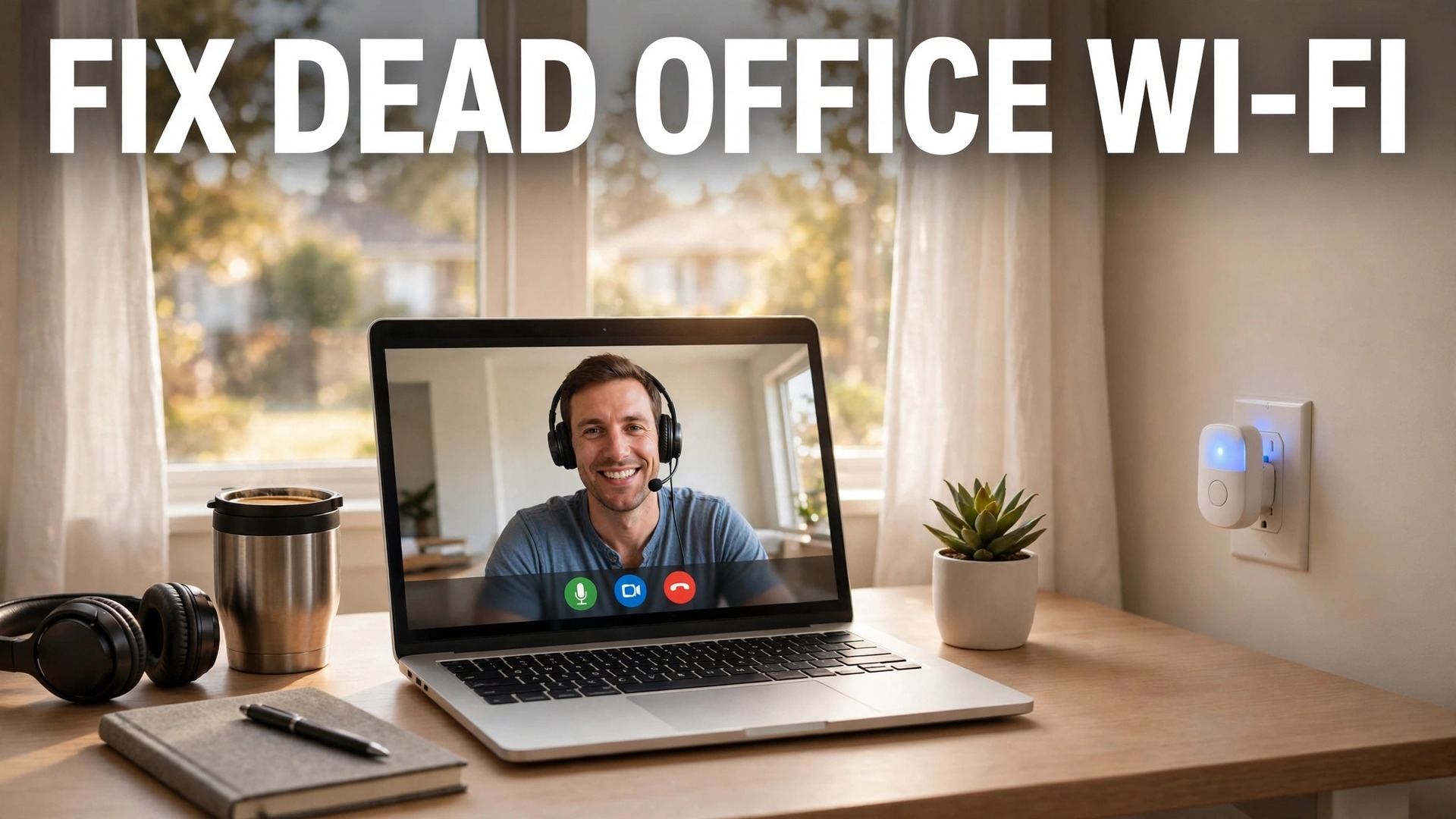
The home office problem usually announces itself on a video call, when the picture freezes, the voice breaks up, or the screen share stalls, even though the rest of the house seems fine online. The cause is rarely the broadband itself, because the router sits in another room, behind walls, floors and furniture, and the office receives only a weak, reflected signal. When you set up wi-fi extender for home office, you place a small device in the middle of that weak path to receive and rebroadcast the signal, and for many homes that single change turns an unreliable office into a steady workspace without rewiring the house or replacing the router.
This guide covers a complete extender setup for home office work. It explains how extenders differ from mesh systems and access points, gives a placement method based on testing rather than guessing, walks through setup and security steps, and provides a dead zone checklist to prove the office is fixed before an important call. It assumes a standard home router and a home office used for video calls, file uploads and cloud work, and it focuses on steady, usable signal rather than on headline speeds that look good on a box.
Why a Home Office Loses Signal First
Home offices lose signal first because they are often the room farthest from the router, and the signal must pass through the most obstacles to reach them. A router in a living room sends signal through walls, doors, floors, large furniture and sometimes a kitchen full of appliances, and each obstacle weakens the signal and adds interference. A spare bedroom converted into an office, a garden room, or a corner room at the far end of a house all suffer the same pattern, which is a signal that is strong near the router, usable in the middle of the house, and weak or unstable in the office itself.
Video calls expose that weakness first, because they need steady, low delay data in both directions, while web browsing and email can tolerate brief drops that a call cannot.
Other devices make the problem worse, because a home network is shared, and a family streaming video, gaming, or backing up photos competes for the same router capacity. An office that works fine at 9 am, when the house is quiet, may fail at 4 pm, when children return and streaming starts, and that pattern points to congestion and weak signal combined, not to a single fault. Thick walls, metal objects, fish tanks, mirrors and microwave ovens all interfere with wireless signals in different ways, and a desk placed against a shared wall with a large metal filing cabinet can sit in a dead spot even when the rest of the room seems fine.
Moving the desk a few feet, or moving the router a few feet, sometimes helps, but when the office is genuinely far from the router, a device in the middle of the path is the practical fix.
An extender is not the only fix, and it is not always the best one, which is why this guide compares options later. A wired connection, a mesh system, or a dedicated access point may suit larger homes or heavier office work better, but an extender is cheaper, faster to install, and sufficient for many single office problems, especially where the office needs a moderate speed boost rather than a whole house redesign. The key is to place and test it properly, because an extender placed too far from the router merely rebroadcasts a weak signal, and an extender placed too close to the router adds little coverage where it is needed. Placement, not price, decides whether an extender works.

How to set up wi-fi extender for home office Step by Step
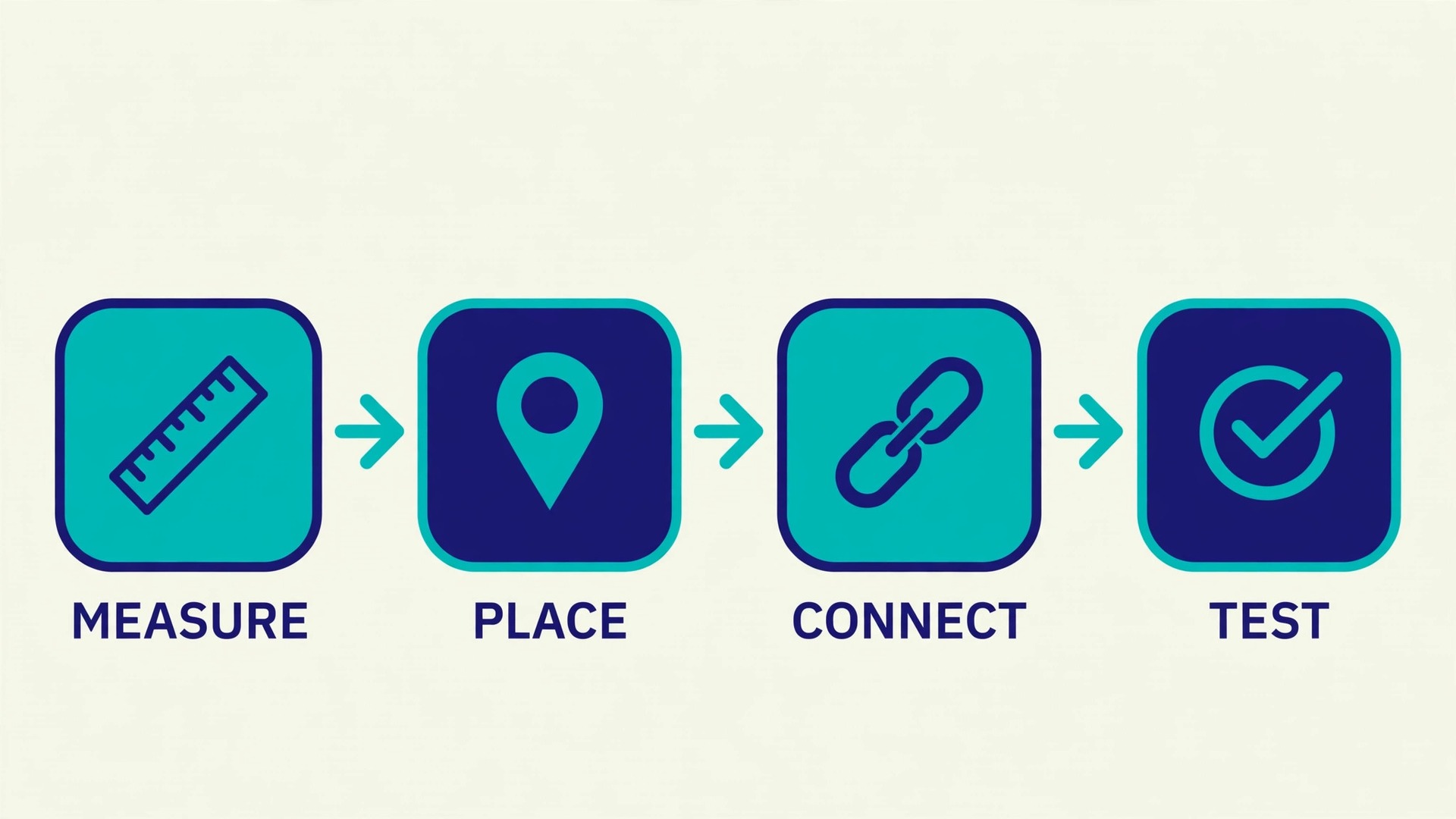
The best way to set up wi-fi extender for home office starts with measuring the problem before buying anything, because a measurement tells you where the signal actually fails and how much help the office needs. Walk from the router to the office with a phone, running a simple speed test or signal check at each room, and note where speed drops sharply and where calls start to break up. That walk reveals the middle point where signal is still decent, and that middle point is where the extender belongs, not in the office itself, where signal is already too weak to rebroadcast well.
If you already own an extender, the same walk, done after setup, proves whether placement helped or merely moved the problem.
Next, choose an extender that matches your router’s wireless standard and band, because a modern extender paired with an old router, or an old extender paired with a new router, will limit the whole link to the older standard. A dual band extender, which handles both 2.4 GHz and 5 GHz bands, suits most homes, because 2.4 GHz travels farther through walls while 5 GHz gives faster speeds over shorter distances. Check that the extender supports the same security type as your router, and buy from a maker whose setup app or web page you find clear, because a confusing setup process causes more failed installations than any hardware fault.
Keep the receipt and the box until the office has been tested for a full working week, so a unit that does not suit your home can be returned.
Setup itself follows a consistent pattern across most makers, though exact screens differ. Plug the extender into a power outlet at the chosen middle point, use its app or web setup to connect it to your existing network, and give the extended network a name you can recognise, either the same name as the main network for automatic roaming, or a distinct name for the office so you can force office devices onto it. Test the office immediately with a video call, a large file upload, and a speed test at the desk, not just beside the extender, because desk level results are what matter.
Adjust placement by a few feet at a time if results are poor, retesting after each move, until calls stay steady for a full day. That patient testing loop is the whole secret of a good extender setup.
A Placement Method Based on Testing
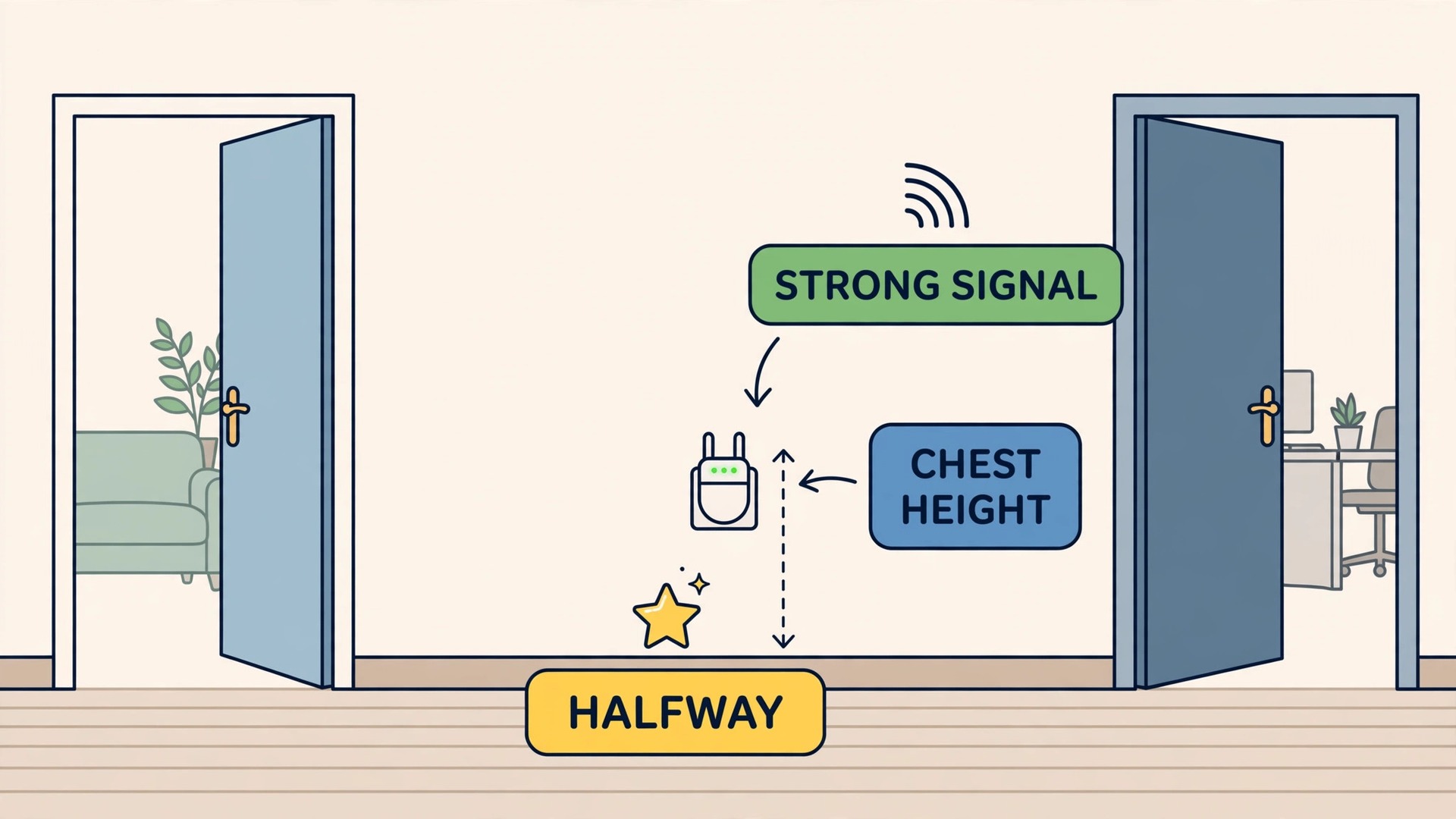
Placement by guessing is the most common extender mistake, because people place the extender in the office, where the problem is felt, rather than halfway to the router, where the signal is still strong enough to help. The table below gives starting placements for common home layouts, but treat them as starting points for testing, not as final answers, because wall materials and furniture change every home.
| Home layout | Start the extender here | Why this spot works | Test at the desk |
|---|---|---|---|
| Router in living room, office one room away | Hallway or landing between rooms | Signal still strong, close to office | Video call for 10 minutes without freezing |
| Router downstairs, office upstairs | Top of the stairs or upstairs landing | Catches signal rising through the floor | Large file upload without stalling |
| Long house, office at far end | Middle room, not the office itself | Rebroadcasts a decent signal onward | Speed test and call together |
| Office in a garden room | Inside the house wall nearest the garden | Last strong indoor point before outdoors | Call from the garden room desk |
| Flat with thick walls | Corridor outside the office door | Avoids the worst wall for the first hop | Browsing and call at the same time |
Test placement with real work, not just with a signal icon, because a phone can show full bars while a call still breaks up under load. Run a video call while another device streams video, upload a large file, and open several cloud documents, because that combined load resembles a real working day far better than a single speed test. Move the extender in small steps, such as from a hallway socket to a landing socket, and retest after each move, noting results in a short log.
A placement that passes a quiet morning test but fails a busy afternoon test is not finished, so test at the busiest time your household normally reaches, when other devices compete for the router. Keep a short log when you set up wi-fi extender for home office and test placements, noting socket, time, and call result.
Height and obstacles matter as much as distance. Place the extender at roughly waist to chest height, away from large metal objects, fish tanks, mirrors and microwave ovens, and clear of thick furniture that blocks signal. Avoid placing it inside a cupboard, behind a television, or low on the floor behind a sofa, because each of those spots muffles the signal before it can help. If the extender has adjustable antennas, point them in different directions and test, because antenna angle changes coverage in ways that are hard to predict without testing. A few minutes of careful placement testing saves weeks of blaming the extender, the router, or the broadband provider for a problem that was really about position.
A Dead Zone Checklist for the Office
Use this checklist to prove the office is fixed, rather than assuming a new device solved the problem. Work through it over a full working day, because a setup that passes one test in the morning may still fail under afternoon load, and a checklist completed honestly is worth more than a single speed number.
- Test a video call from the office desk for at least 10 minutes, with camera on, and note any freezing or voice breakup.
- Upload a large file from the office while on a call, and check that neither task stalls the other badly.
- Test from the exact desk chair position, not from the doorway, because a few feet can change signal noticeably.
- Test at the busiest household time, when streaming, gaming or other calls compete for the router.
- Check that office devices connect to the extender or the best signal, not to a weak distant router signal.
- Walk the office and note any corner where signal drops, especially behind large furniture or metal cabinets.
- Test a cloud document, a shared drive folder, and a web meeting tool, because different tools stress the network differently.
- Restart the router and extender once after setup, and retest, so the checklist reflects a normal fresh start.
- Note the results, including time of day and which devices were active, so future problems can be compared fairly.
- Repeat the checklist after any router move, extender move, or major furniture change in the office.
When you set up wi-fi extender for home office, the checklist is the proof that matters, because it ties the setup to real work rather than to a signal icon. If any item fails, move the extender a few feet, retest that item, and note the change, rather than buying a second device immediately. Most offices pass the full checklist after one or two placement adjustments, and the log of those adjustments becomes a useful record if problems return later, because it shows what already worked and what did not.

Extender, Mesh or Access Point Compared
An extender is one of three common fixes, and choosing among them honestly saves money and disappointment. The table below compares the options for a single home office problem, not for a whole house redesign, because the right answer depends on how many rooms need help and how heavy the office work is.
| Option | How it works | Cost level | Best for | Drawbacks |
|---|---|---|---|---|
| Wi-Fi extender | Rebroadcasts the existing signal | Low | One weak office, moderate use | Can halve speed on a single band, needs good placement |
| Mesh system | Multiple units share one network | Medium to high | Several weak rooms, whole house | Higher cost, more units to manage |
| Wired access point | Cable feeds a second wireless point | Medium, needs a cable run | Heavy office work, stable calls | Requires running a cable to the office |
| Powerline adapter | Network travels over home wiring | Medium | Offices where wireless cannot reach | Speed varies with home wiring quality |
| Direct cable | Computer wired to the router | Low, needs a long cable | Fixed desk, maximum stability | Cable run may be ugly or impractical |
A wired connection remains the most stable option for a fixed desk, because it removes wireless variation entirely, and any office worker who can run a cable neatly should consider it first, even if an extender is kept as backup for other devices. A mesh system suits homes where several rooms are weak, because its units coordinate as one network and hand devices between them more smoothly than a standalone extender. A wired access point combines the best of both, giving wireless freedom in the office with a stable cable feed behind it, but it needs a cable run, which may require drilling or a long route along skirting boards.
Choose the extender when the problem is one office, the budget is limited, and the work is typical office load, such as calls, documents and cloud apps. Choose mesh when the whole house struggles, choose a cable or access point when calls must never drop, such as for live teaching or client presentations, and choose powerline only after testing, because home wiring quality varies so much that results are hard to predict. When you set up wi-fi extender for home office, that decision should follow the dead zone checklist results, not a marketing claim, because a measured weak spot points clearly to the right fix.

Setup, Security and Naming
Setup steps vary by maker, but the security steps should never be skipped, because an extender is part of your home network and a weak setup can expose it. Change the extender’s default admin password during setup, and use the same strong wireless security type as your router, because an extender set to an older, weaker security type can become the weakest point in the network. Keep the extender’s firmware updated, using its app or web page, and check for updates after setup and every few months, because makers fix security and stability issues in updates that users often miss.
If the extender offers a guest network or a separate office network, consider using it for office devices, so work traffic stays separate from smart home gadgets and visitor devices.
Naming the extended network deserves a deliberate choice. Using the same network name as the main router lets devices roam between router and extender automatically, which feels smooth, but some devices cling to a weak router signal instead of switching to the stronger extender, causing the very problem the extender was meant to fix. Using a distinct office name, such as office wifi, lets you force office devices onto the extender and prove which signal they use, at the cost of manual switching when you move rooms. For a fixed home office, a distinct name is often the more reliable choice, because office devices stay put and you can verify their connection at a glance.
Test both options for a day each if you are unsure, and keep the one that gives steadier calls.
After setup, record the essentials in a short note, which are the extender’s admin password, its network name, its position, and the firmware version, and store that note where the household can find it. That note saves a full reset and reconfiguration later, when a password is forgotten or a new household member needs to help. Restart the extender after major router changes, because an extender that worked before a router update can lose its link silently, and a simple restart often restores it faster than a full reconfiguration. Record settings carefully when you set up wi-fi extender for home office for the first time, before anything changes.

Mistakes That Leave an Office Still Weak
The first mistake is placing the extender in the office itself, where signal is already too weak to rebroadcast usefully, instead of halfway to the router where signal is still decent. The second mistake is judging the setup by signal bars alone, without testing a real call and upload under household load, which hides problems until an important meeting exposes them. The third mistake is buying the cheapest extender without checking that it matches the router’s wireless standard and bands, which limits the whole link to the oldest standard in the chain and wastes the router’s capability.
The fourth mistake is ignoring interference, such as placing the extender beside a microwave, a large metal cabinet, or a fish tank, all of which degrade wireless signal noticeably. The fifth mistake is never updating firmware or restarting after router changes, so a setup that worked for months slowly degrades and nobody knows why. The sixth mistake is adding a second extender to fix a badly placed first one, which creates overlapping signals and roaming confusion, when moving the first extender a few feet would have solved the problem. Fix placement first, test honestly, and add hardware only when a tested placement still fails the dead zone checklist.
Fix placement before buying more hardware when you set up wi-fi extender for home office and the office still feels weak.

When to Call for Help or Change Approach
Most extender problems yield to placement testing and a restart, but some signs point to a different fix, and recognising them early saves money. If the office signal is weak even a few feet from the router, the router itself may be faulty, poorly placed, or overloaded, and no extender will fix a weak source. If the whole house struggles, not just the office, a mesh system or a router upgrade is more sensible than a single extender. If speeds collapse whenever a specific appliance runs, interference or wiring may be the real cause, and moving the desk or the appliance may help more than any network device.
Contact your broadband provider if speeds at the router itself, tested with a cable, fall far below your plan for sustained periods, because that points to a line or account problem rather than a home wireless problem. Contact the extender maker if setup fails repeatedly with correct passwords and a strong middle point signal, because a faulty unit is possible and should be returned within the return window. For a garden office or a detached building, consider a wired access point or a dedicated outdoor link, because a standard indoor extender rarely covers that distance reliably through exterior walls.
A clear escalation path, from placement to restart to provider to different hardware, keeps a home office problem from becoming a months long frustration. Work through that order when you set up wi-fi extender for home office with a stubborn office, instead of buying devices at random.
More Reading on Stratilyze
If this guide helps your home office signal, the wider Stratilyze guides cover the network around it. The guide to home Wi-Fi mesh networks explains whole house coverage, the guide to routers for low latency gaming covers router features that also help calls, and the guide to Wi-Fi that keeps dropping on a laptop helps when a single device, not the whole office, loses connection. Read the mesh guide next if more than one room struggles, because a single extender cannot fix a whole house problem.
Frequently Asked Questions
Where should I place a Wi-Fi extender when you set up wi-fi extender for home office?
Place it halfway between the router and the office, at a point where the signal from the router is still decent, not in the office itself where signal is already weak. Use a hallway, landing, or middle room socket, at waist to chest height, away from large metal objects, fish tanks, mirrors and microwave ovens. Test from the office desk with a real video call and upload after each move, and adjust by a few feet at a time until calls stay steady for a full day.
Will an extender halve my internet speed?
A single band extender can reduce speed, because it must receive and then rebroadcast on the same band, splitting its time between the two jobs. A dual band extender reduces that effect by using one band for the router link and the other for devices, though results still depend on placement and signal strength. Test at the office desk with real work, not just a speed test beside the extender, because desk level results under household load are what matter for calls and uploads.
Should the extender use the same network name as my router?
Using the same name lets devices roam automatically, but some devices cling to a weak router signal instead of switching to the stronger extender. Using a distinct office name lets you force office devices onto the extender and verify their connection at a glance, which is often more reliable for a fixed desk. Test both options for a day each if unsure, and keep the one that gives steadier calls, because the best naming choice depends on how your devices actually behave.
Why does my office work in the morning but fail in the afternoon?
That pattern usually points to household congestion combined with weak signal, because other devices streaming, gaming, or backing up compete for the same router capacity in the afternoon. An office with a marginal signal copes when the house is quiet, then fails when load rises, because calls need steady data in both directions while browsing tolerates brief drops. Test the dead zone checklist at the busiest household time, and place the extender to pass that test, not just a quiet morning test.
Is a mesh system better than an extender for a home office?
A mesh system is better when several rooms are weak, because its units coordinate as one network and hand devices between them more smoothly than a standalone extender. An extender is better when only one office is weak and the budget is limited, because it is cheaper and faster to install for a single problem. For a fixed desk where calls must never drop, a wired connection or a wired access point beats both, because it removes wireless variation entirely.
What should I do if the extender setup keeps failing?
Check the middle point signal first, restart both router and extender, and confirm you are using the correct network password and security type, because those three causes cover most setup failures. Move the extender closer to the router for setup, then move it outward step by step once connected, testing at the desk after each move. If setup still fails with a strong middle point signal, contact the maker within the return window, because a faulty unit is possible and should be replaced rather than troubleshooted for weeks.
A Home Office Connection You Can Trust
A home office extender works when it sits halfway to the router, at a tested middle point where signal is still decent, and when the setup is proven by a full day of real work, not by signal bars alone. Measure the weak path first, match the extender to your router’s bands and security, choose a distinct office network name if devices cling to weak signals, and work through the dead zone checklist at the busiest household time. Move the extender a few feet at a time when tests fail, update firmware, and escalate to mesh, cable, or provider help only when tested placement still fails.
Done that way, the extender stops being a hopeful purchase and becomes a reliable part of a home office that holds calls steady all day. Keep the placement log and the setup note with your other household records, so a future move, a new router, or a helpful family member can restore the working setup without starting the whole testing process again, and retest the checklist once a season, because furniture, devices and household routines all change over time. Share the setup note with anyone who manages the house network, so a router change does not silently break the office connection that took careful testing to build.