

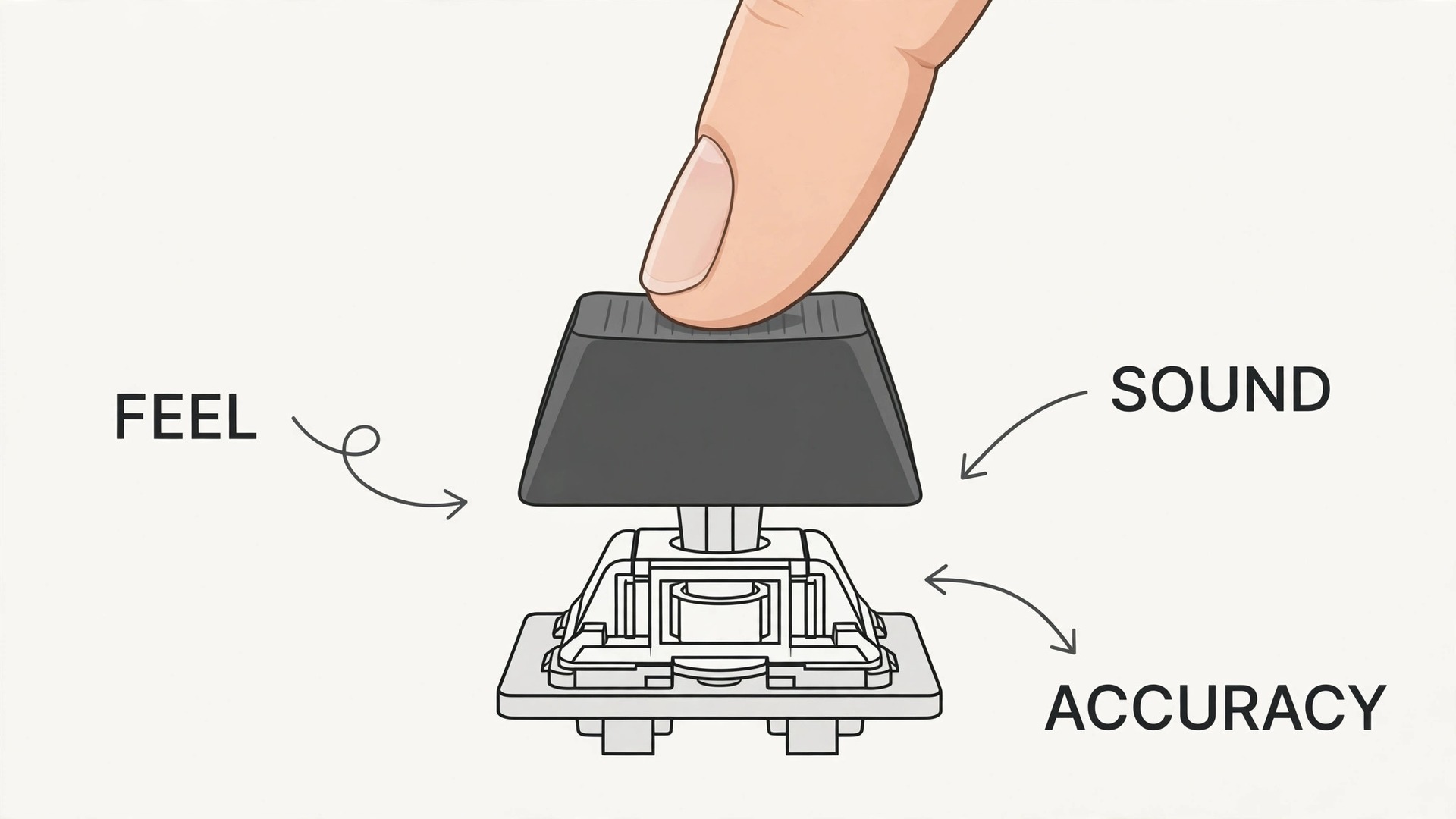
A programmer presses keys tens of thousands of times in a working week, and the tool under those fingers shapes comfort, speed and accuracy more than most developers admit. A mushy membrane keyboard hides mistakes, because every key feels the same, while a well chosen mechanical keyboard gives a distinct feel and sound for each press, so typing becomes more certain and less tiring. When you use mechanical keyboard for programming setup, you choose that feel deliberately, instead of accepting whatever keyboard came in the box, and the difference shows up in fewer typos, less finger fatigue, and a setup that invites long focused sessions rather than enduring them.
This guide builds a programming keyboard setup from the switch up. It compares switch types honestly, explains layouts and sizes, gives a shortcut system for common editors, covers ergonomics and sound for shared spaces, and lists the mistakes that waste money on features programmers never use. It assumes you write code most working days, and it focuses on practical choices, not on collecting rare keycaps or chasing the loudest board on the market. Whether you code in a quiet office, a shared flat, or a home studio, the same basics decide whether a mechanical board helps your work or merely decorates your desk.
Why Switch Feel Matters for Code
Programming is not like writing prose, because code demands exact characters in exact places, and a single wrong bracket or missed semicolon can break a build. A keyboard that gives clear feedback on every press helps the typist notice errors as they happen, because a missed press feels different from a completed one, and a double press feels different again. That feedback loop matters most during long sessions, when attention fades and fingers run on habit, because the keyboard becomes a second check on accuracy that a flat, uniform board cannot provide.
Developers who switch often report fewer missed keys within the first weeks, not because the board types for them, but because it tells them what actually happened under their fingers.
Comfort is the second reason, and it grows with session length. Mechanical switches come in different weights, travel distances and feels, so a programmer can choose a light switch for fast typing, a tactile switch for clear feedback, or a heavier switch that resists accidental presses during thinking pauses. That choice is personal, and it depends on hand size, typing force and existing strain, which is why trying switches before buying matters more than reading reviews. A switch that feels perfect to one developer can feel stiff and tiring to another, and no review can predict your hands.
A small switch tester, which holds one of each common switch type, costs little and prevents the most common regret in keyboard buying, which is a full board with the wrong feel.
Durability completes the practical case. Quality mechanical switches are rated for tens of millions of keypresses, far beyond typical membrane boards, and many boards allow individual switches to be replaced without soldering, so a single worn or faulty switch does not mean a new keyboard. Keycaps can also be replaced when legends wear, which keeps the board readable after years of use. For a tool used eight hours a day, that longevity changes the economics, because a board that lasts five years and stays comfortable costs less per year than a cheap board replaced annually, and it avoids the repeated adjustment period that comes with every new keyboard.
How to use mechanical keyboard for programming setup Without Wasting Money
The best way to use mechanical keyboard for programming setup is to start with a switch tester and a clear list of your own needs, before looking at any full board. Note your main editor, your operating system, whether you use a number pad, how much desk space you have, and whether you share your workspace with others who will hear your typing. Those five facts narrow the choice dramatically, because they rule out boards that lack the keys you need, boards that are too large for your desk, and loud boards that will annoy a shared office.
With those facts fixed, try the tester for a few days, typing real code rather than random text, and note which switch feels best after an hour, not after a minute, because first impressions favour novelty while longer sessions reveal fatigue.
Next, choose a board with hot swappable switches if your budget allows, because that feature lets you change switches later without soldering, and it turns a wrong first choice into a small fix instead of a wasted purchase. Choose a standard layout that your editor shortcuts assume, unless you have a specific reason to change, because non standard layouts can hide keys your workflow depends on, such as function keys or a dedicated escape key. Check connectivity, because a wired board suits a fixed desk best, while a wireless board suits a shared desk or a laptop setup, and some wireless boards add latency or battery chores that fixed desk users do not need.
Finally, set the board up properly instead of plugging it in and forgetting it. Place it so your wrists stay straight, your elbows sit at a comfortable angle, and your shoulders stay relaxed, and add a wrist rest only if it keeps wrists neutral rather than bending them upward. Remap any key that slows you down, such as caps lock, to a function you actually use, like escape or control, and save that mapping so it survives reinstalls. Test the full setup on a real coding task for a week, and note any key that still causes errors or pain, because a week of real work reveals problems that a showroom test never will.
Switch Types Compared
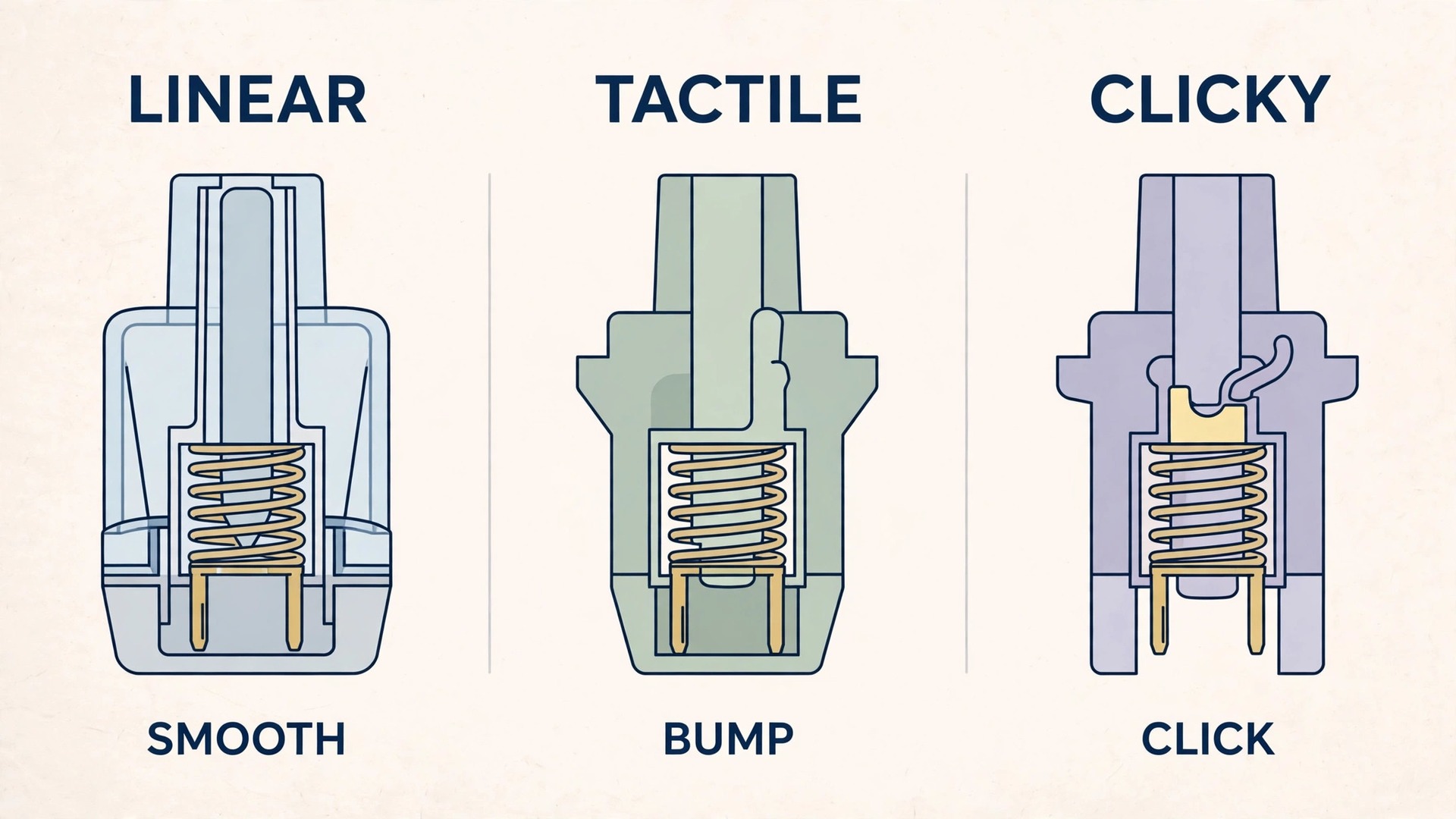
Switch choice is the heart of a programming keyboard, and the three main families each suit different typists. Linear switches press smoothly from top to bottom with no bump and no click, which suits fast typists and gamers who want minimal resistance. Tactile switches add a small bump partway down the press, which tells the finger the key has registered without a loud click, and many programmers prefer this family for code. Clicky switches add both a bump and an audible click, which gives the clearest feedback but also the most noise, and they suit private offices far better than shared spaces.
| Switch family | Feel | Sound | Best for | Watch out for |
|---|---|---|---|---|
| Linear, light | Smooth, no bump | Quiet to moderate | Fast typists, long sessions | Easy to press accidentally |
| Linear, heavy | Smooth, firm resistance | Quiet to moderate | Typists with strong fingers | Tiring for light typists |
| Tactile, light | Small bump, no click | Quiet | Most programmers, shared spaces | Bump can feel subtle at first |
| Tactile, heavy | Clear bump, firm press | Moderate | Accurate typists, fewer errors | Can tire hands over long days |
| Clicky | Bump plus audible click | Loud | Private offices, feedback lovers | Too loud for shared rooms |
| Silent tactile | Bump with dampened sound | Very quiet | Offices, calls, late night coding | Slightly softer feel than standard tactile |
Weight matters as much as family, and it is measured in grams of force needed to press the key. Light switches around 45 grams suit fast, light typists, medium switches around 55 to 65 grams suit most programmers, and heavy switches above 70 grams suit typists who rest fingers heavily on keys and want to avoid accidental presses. If you already have wrist or finger strain, start lighter rather than heavier, because a heavy switch adds effort to every one of those tens of thousands of weekly presses. If you type with heavy hands and constantly trigger keys by resting on them, a heavier switch may actually reduce errors, so let your own typing habits, not a reviewer’s preference, decide.
When you use mechanical keyboard for programming setup, remember that switch choice is reversible on hot swappable boards, so do not agonise for weeks over the first pick. Buy a tester, choose the family that feels best after an hour of real code, and plan to swap a few switches later if one key, such as the space bar or enter, feels wrong. That practical attitude saves money and time, and it keeps the focus on code, where it belongs, rather than on endless keyboard debate.
Layouts and Sizes for Programmers
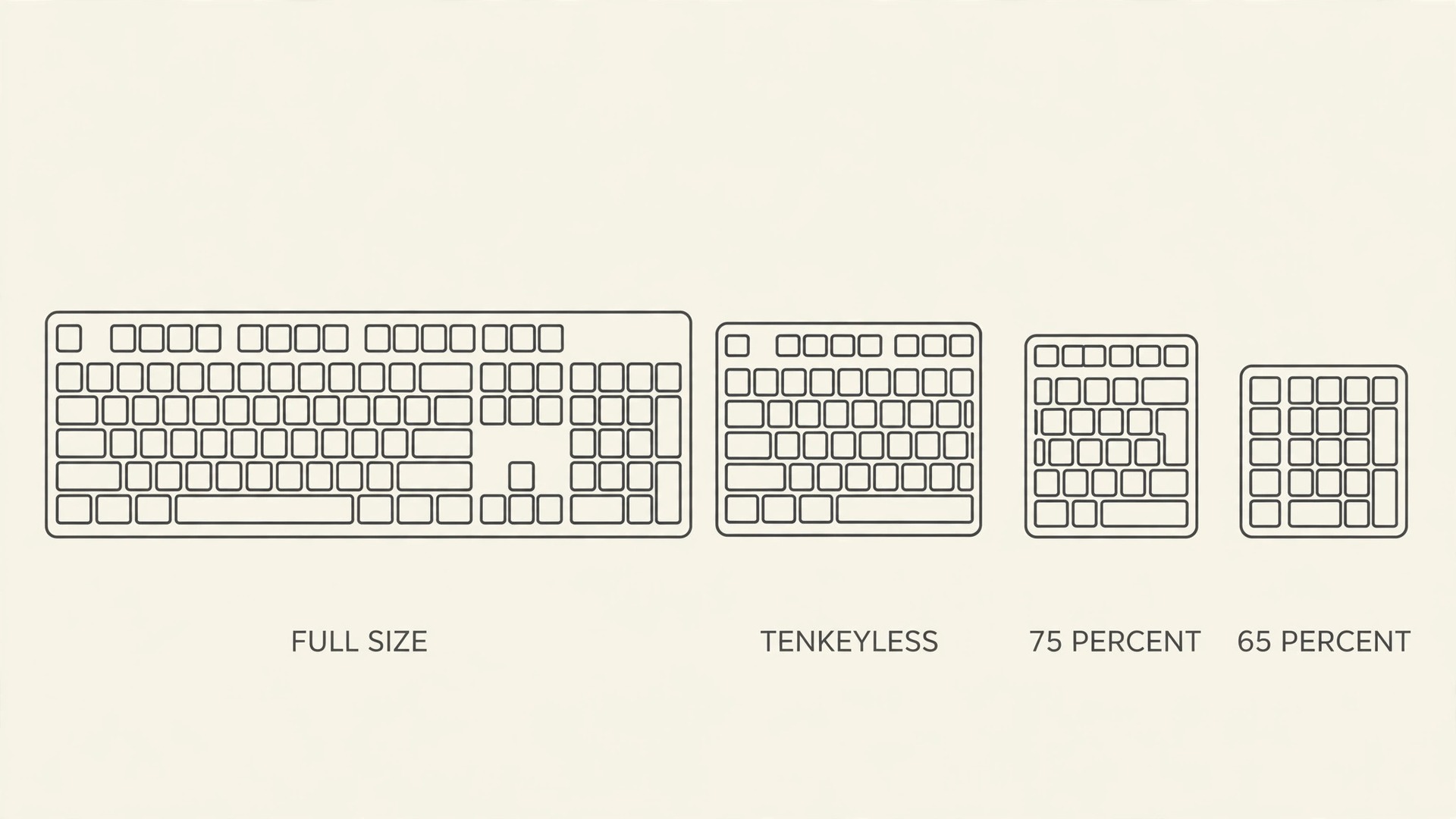
Layout decides which keys you can reach without looking, and programmers use more of the keyboard than most typists, because brackets, symbols, function keys and navigation keys all matter in code. A full size board includes a number pad, function row and navigation cluster, which suits developers who enter numbers often or use function keys heavily. A tenkeyless board drops the number pad, saving desk space and bringing the mouse closer, which suits most programmers who rarely enter long numbers.
A 75 percent board keeps function keys and navigation in a compact frame, while a 65 percent or 60 percent board drops more keys and relies on layers, which suits minimal desks but demands learning new key combinations for missing functions.
Before choosing a compact board, list the keys your workflow actually uses in a normal week, and check how each one is reached on the smaller layout. If a key you press fifty times a day moves to a two key combination, that board will slow you down until the combination becomes habit, and for some developers that cost never pays off. If you rarely use the number pad but constantly use arrow keys and page navigation, a tenkeyless or 75 percent board is a strong fit.
If you use a laptop as your main machine, a compact board that matches the laptop’s key feel can ease switching between desk and travel, though it adds another device to carry and charge if wireless. Test the layout for a week when you use mechanical keyboard for programming setup with a compact board, before deciding it works.
Keycap legends deserve a brief note, because programmers read key legends for symbols constantly, and worn or unclear legends slow work. Choose keycaps with clear, durable legends, and prefer a layout whose symbol positions match your operating system and editor expectations, especially for brackets and slashes that differ between regions. If you use multiple languages or keyboard layouts, check that the board supports your layout in firmware or software, because a board that cannot produce a character you need daily is a daily frustration, not a minor quirk. A standard, well labelled layout beats an exotic one for almost every working programmer.
A Shortcut System for Editors
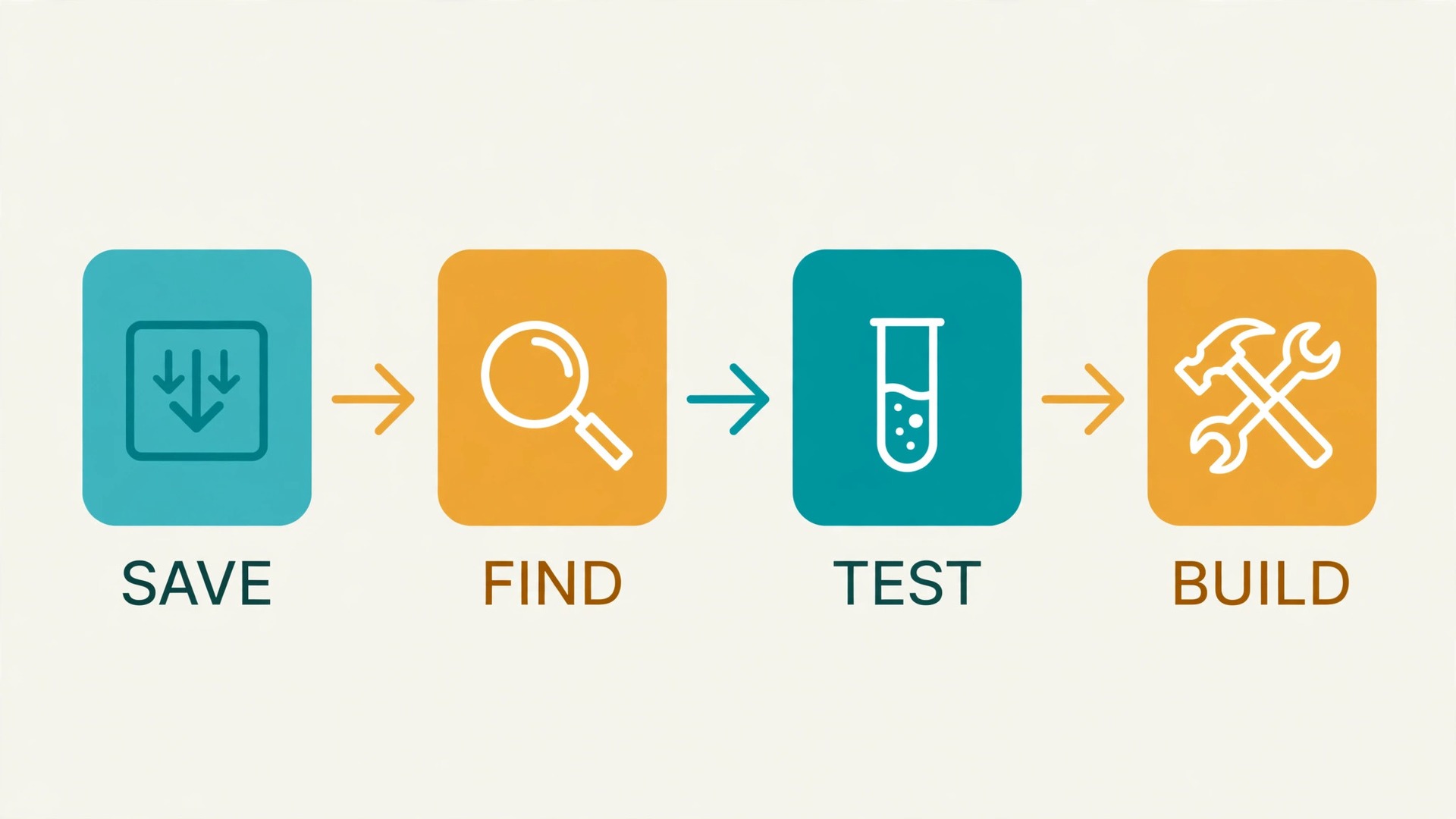
A mechanical board helps most when it is paired with a shortcut system, because shortcuts move work from mouse to keys, where the board’s feedback pays off. Start with the shortcuts you already use most, such as saving, finding, jumping to a definition, and running tests, and make sure each one is comfortable on the new board. If a common shortcut strains your hand, remap it to a closer key or a layer you can reach easily, and practise the new mapping for a week before judging it. A shortcut that feels awkward on day one often feels natural by day seven, while a shortcut that still hurts after a week needs a different mapping, not more practise.
Use this shortcut checklist to build a system that survives editor changes and board swaps.
- List your twenty most used editor actions, and confirm each has a comfortable shortcut on the new board.
- Remap caps lock to escape or control, because caps lock is rarely needed in code and the new function is used constantly.
- Put window and pane switching on keys your left hand reaches without moving from the home row.
- Keep test running, building and debugging shortcuts consistent across projects, so habit transfers.
- Use editor layers or leader keys for less common actions, rather than memorising long chord combinations.
- Back up your keymap and editor settings, so a new machine or reinstall restores your system in minutes.
- Practise one new shortcut per week, and add it to a short note until it becomes automatic.
- Review the list monthly, and drop shortcuts you never use, because a short list you trust beats a long list you forget.
- Test shortcuts with your actual hand position, not with hands posed for a photo, because real posture decides comfort.
- If a shortcut causes pain, change it immediately, because no shortcut is worth a repetitive strain injury.
Layers deserve a plain explanation, because compact boards depend on them. A layer is a second function for each key, reached by holding a special key, so a small board can offer arrows, function keys and symbols without dedicated keys. Layers work well when they are consistent and few, such as one layer for navigation and one for symbols, but they fail when every key has three hidden functions nobody remembers. Keep layers simple, label them in a note near the desk for the first month, and choose a board with enough keys that layers supplement rather than replace your core workflow.
Keep layers simple when you use mechanical keyboard for programming setup with a small board, and write them down for the first month.
Ergonomics for programmers starts with posture, not with accessories, because a perfect keyboard cannot fix a chair that is too low or a screen that is too high. Sit with feet flat, back supported, and elbows at a comfortable angle, and place the keyboard so wrists stay straight and shoulders stay down. A wrist rest helps only if it supports the palms, not the wrists themselves, and if it keeps wrists neutral, so test any rest for a full day before keeping it. Split or tented boards suit some developers with shoulder or wrist pain, but they change key positions significantly, so try one before buying if possible, and give the adjustment at least two weeks before judging it.
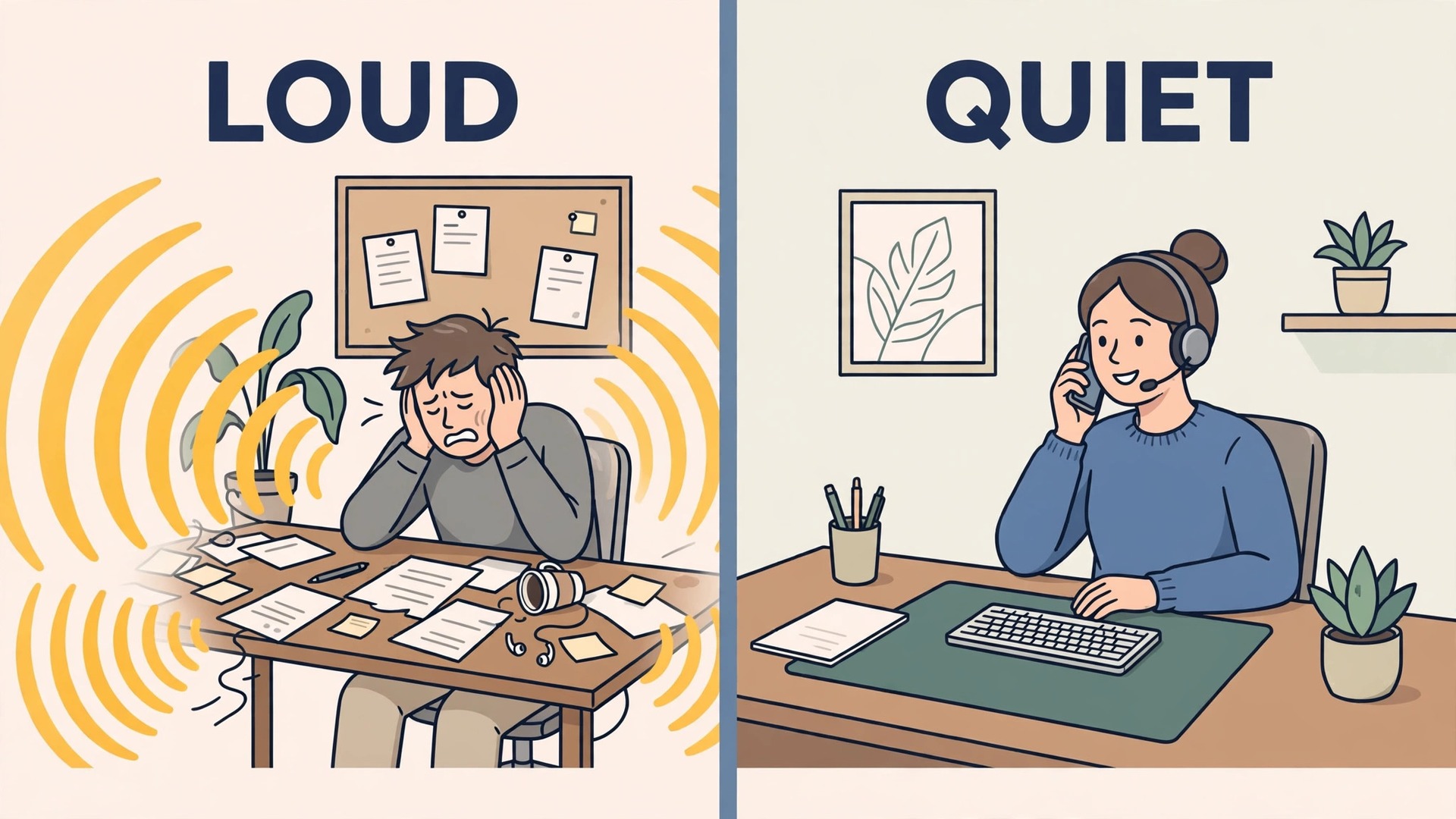
Sound is a social question as much as a technical one, because a loud board in a shared office affects colleagues, call quality and concentration. Clicky switches are the loudest, tactile switches are moderate, and silent switches with dampened stems are the quietest mechanical option, though even silent boards make more noise than a membrane board. If you share a room, choose tactile or silent switches, add a desk mat to absorb vibration, and test the board on a call, because microphone pickup matters as much as room noise.
Lubricating switches and adding case foam can reduce sound further, but those modifications take time and skill, so start with a quiet switch choice rather than planning to silence a loud board later.
Lighting and software complete the setup without affecting code directly. Backlit keys help in dim rooms and late sessions, but bright, flashing effects distract and drain wireless batteries, so choose a calm, single colour backlight at a low brightness. Software for remapping and layers should be simple and reliable, and settings should be stored on the board itself where possible, so the setup works on any computer without reinstalling software. A board that needs constant software attention is a board that interrupts work, while a board that simply works after setup is a board that earns its place.
If you work across two operating systems, check that your keymap and layers behave the same on both, because a shortcut that works on one system and fails on the other breaks habit at the worst moment. Store the keymap on the board where the maker allows it, and keep a plain text backup of the mapping in your notes, so a new machine, a borrowed laptop, or a fresh install restores your setup without a long evening of reconfiguration.
Mistakes That Waste Money on Keyboards
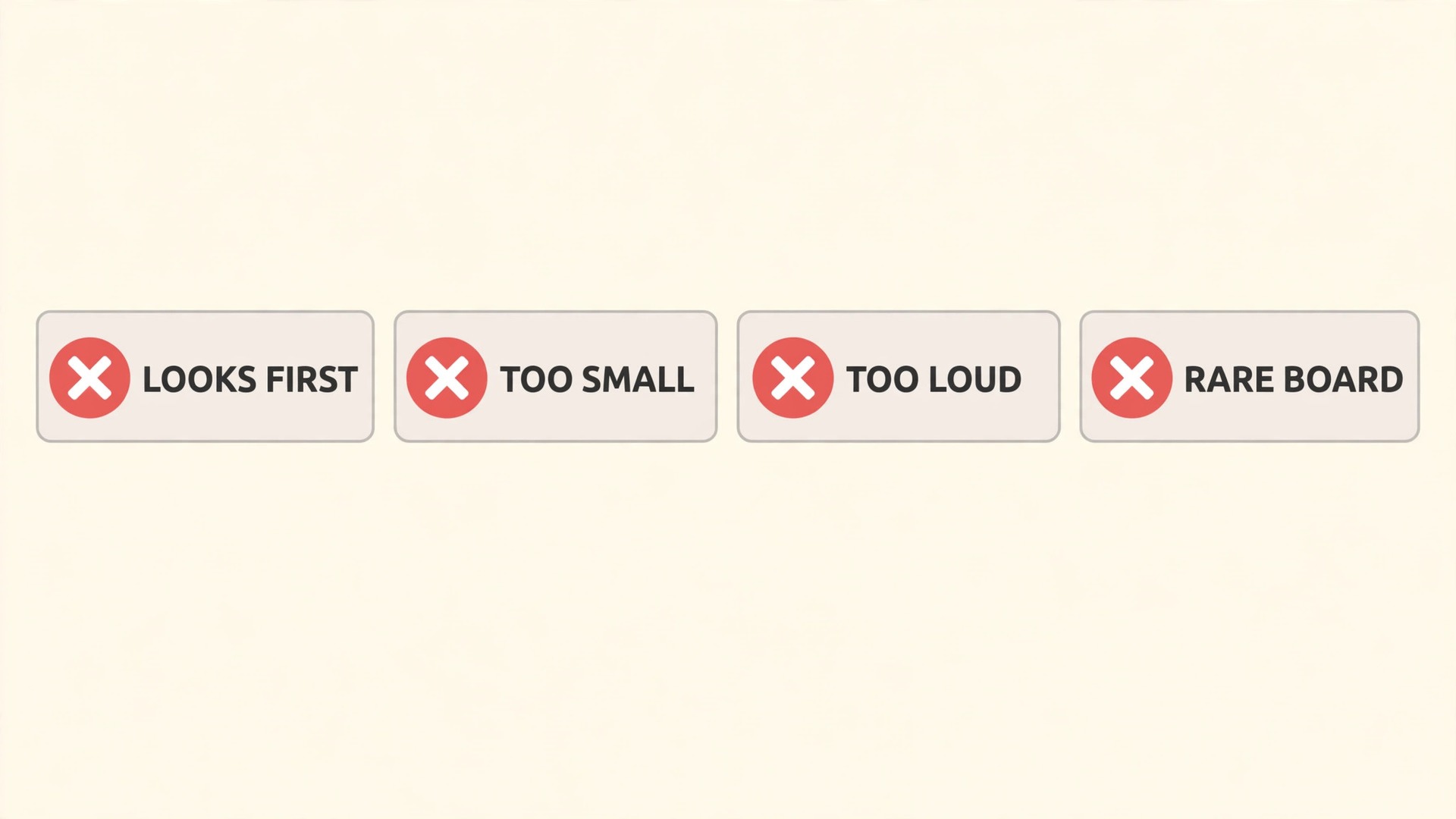
The first mistake is buying for looks instead of feel, because a beautiful board with the wrong switches becomes an expensive decoration that still hurts after an hour. Try switches first, choose feel second, and treat keycap colours and lighting as final details, not as deciding factors. The second mistake is buying the smallest board available without checking daily keys, which trades desk space for constant layer hunting, and that trade rarely pays for programmers who use function and navigation keys often. The third mistake is ignoring sound, which leads to a board that cannot be used in the office it was bought for, and a second purchase to fix the first.
The fourth mistake is chasing rare or limited boards before learning what you actually like, because limited boards cost more, sell out fast, and cannot be returned easily if the feel is wrong. Start with a standard, hot swappable board from a maker with good support, learn your preferences over a few months, and only then consider a more unusual board if a specific feature would genuinely help. The fifth mistake is neglecting the rest of the desk, because a great keyboard on a bad chair, with a screen at the wrong height, still produces pain, and the keyboard gets blamed for a posture problem.
Fix the chair and screen first, then judge the keyboard, and you will spend less and hurt less.
Maintenance, Modding and Long Term Care
A mechanical board rewards simple maintenance, and a few minutes a month keeps it feeling new for years. Remove keycaps every few months, clean dust and crumbs from the plate with a soft brush or compressed air, and wipe keycaps with a damp cloth, drying them fully before replacing them. Check stabilisers on large keys such as space, enter and shift, because rattling stabilisers are the most common source of annoying sound on an otherwise good board, and a small amount of suitable lubricant on stabiliser wires, applied carefully, often fixes the rattle. Keep drinks away from the board, because a spill can kill switches and, on non hot swappable boards, the whole keyboard.
Modding, which means changing switches, keycaps, stabilisers or sound dampening, is optional, and it should follow need, not fashion. Change switches if a specific key feels wrong, change keycaps if legends wear or if a clearer profile helps accuracy, and add foam or dampening only if sound is a real problem in your space. Each change should be tested on real code for a week before the next change, because changing five things at once makes it impossible to know which change helped. Keep original parts in a labelled bag, so the board can be restored or sold later, and avoid modifications that void support on a new board until you are sure you want to keep it.
When you use mechanical keyboard for programming setup for the long term, think in years rather than in launches, because keyboard fashion changes faster than typing needs. A standard layout, a comfortable switch, a saved keymap, and a simple cleaning routine will serve longer than any limited edition colour scheme, and they will transfer to your next board when this one eventually retires. Buy once, set up carefully, maintain lightly, and spend the saved attention on code, which is, after all, the reason the keyboard exists.

More Reading on Stratilyze
If this guide helps your coding setup, the wider Stratilyze guides cover the desk around it. The guide to keyboards for programming beginners explains first board choices in more detail, the guide to mechanical keyboards for long writing covers comfort for extended typing, and the guide to chairs for long study sessions helps with the seating that makes any keyboard comfortable. Read the beginners guide next if this is your first mechanical board, because it covers budget picks without assuming prior knowledge.
Frequently Asked Questions
What switch type is best when you use mechanical keyboard for programming setup for the first time?
A light to medium tactile switch is the safest first choice for most programmers, because the small bump gives clear feedback without the noise of a clicky switch, and the moderate weight suits long sessions. Try a switch tester with real code for an hour before buying, and choose a hot swappable board if possible, so a wrong first choice can be fixed by swapping switches instead of replacing the board. Light typists should start lighter, while heavy handed typists may prefer a firmer tactile switch to avoid accidental presses.
Do mechanical keyboards really reduce typing errors in code?
They can help, because clear tactile feedback tells the typist when a key has actually registered, which reduces missed and doubled presses during long sessions. The effect is modest, not magical, and it depends on choosing a switch that suits your hands, because a switch that is too heavy causes fatigue and a switch that is too light causes accidental presses. Pair the board with a consistent shortcut system and good posture, and the combined effect on accuracy and comfort is far larger than any single feature alone.
Clicky switches are usually too loud for shared rooms, but tactile and silent switches are workable, especially with a desk mat to absorb vibration. Test the board on a call before committing, because microphone pickup matters as much as room noise, and choose silent switches if you take many calls. Lubrication and case foam can reduce sound further, but starting with a quiet switch choice is simpler and more reliable than trying to silence a loud board afterwards.
Should a programmer choose a full size or a compact keyboard?
Choose full size if you enter numbers often or rely heavily on function keys, and choose tenkeyless or 75 percent if you rarely use the number pad and want more mouse room. Compact 65 percent and 60 percent boards suit minimal desks, but they move function and navigation keys onto layers, so list the keys you press daily and check how each is reached before buying. A board that hides a key you press fifty times a day behind a combination will slow you down until that combination becomes habit.
What is a hot swappable keyboard, and is it worth it?
A hot swappable keyboard lets you pull out a switch and push in a different one without soldering, using a simple puller tool. It is worth it for most first time buyers, because it turns a wrong switch choice into a small fix, lets you mix switch weights for different keys, and lets you replace a single faulty switch instead of the whole board. The feature adds a little cost, but it usually saves money over the life of the board, especially while you are still learning your preferences.
How do I maintain a mechanical keyboard when you use mechanical keyboard for programming setup every day?
Clean it lightly every few months by removing keycaps, brushing dust from the plate, and wiping keycaps with a damp cloth, drying them fully before replacing them. Check large key stabilisers for rattling, keep drinks away from the board, and store original parts in a labelled bag if you swap switches or keycaps. When you use mechanical keyboard for programming setup every day, that simple routine keeps the board feeling new for years, and it prevents the gradual build up of dust and grime that makes keys feel rough and sound uneven.
The Programming Setup Verdict
A programming keyboard setup works when the switch suits your hands, the layout keeps your daily keys within reach, and the shortcuts and seating support long sessions without strain. Start with a switch tester and real code, choose a tactile switch and a standard hot swappable board if you are unsure, and set up posture, keymaps and a quiet switch choice for shared spaces before worrying about colours or lighting. Maintain the board lightly, change one thing at a time, and judge every change on a week of real work. Done that way, the keyboard stops being a purchase to debate and becomes a reliable tool that makes code more accurate, more comfortable, and more enjoyable to write.