
More than half of the laptops sold under 1,000 dollars still ship with a screen that cannot show the colors you are trying to edit. That single fact explains why so many photo edits look right on a laptop and wrong on a phone, a print or a client monitor. A good editing laptop under this budget is not the fastest gaming machine you can find. It is a machine with a color accurate screen, enough RAM for RAW files, a processor that does not stall on exports, and a weight you will actually carry. The best laptop for photo editing under 1000 is therefore a balance, and the right balance changes with the kind of editing you do most.
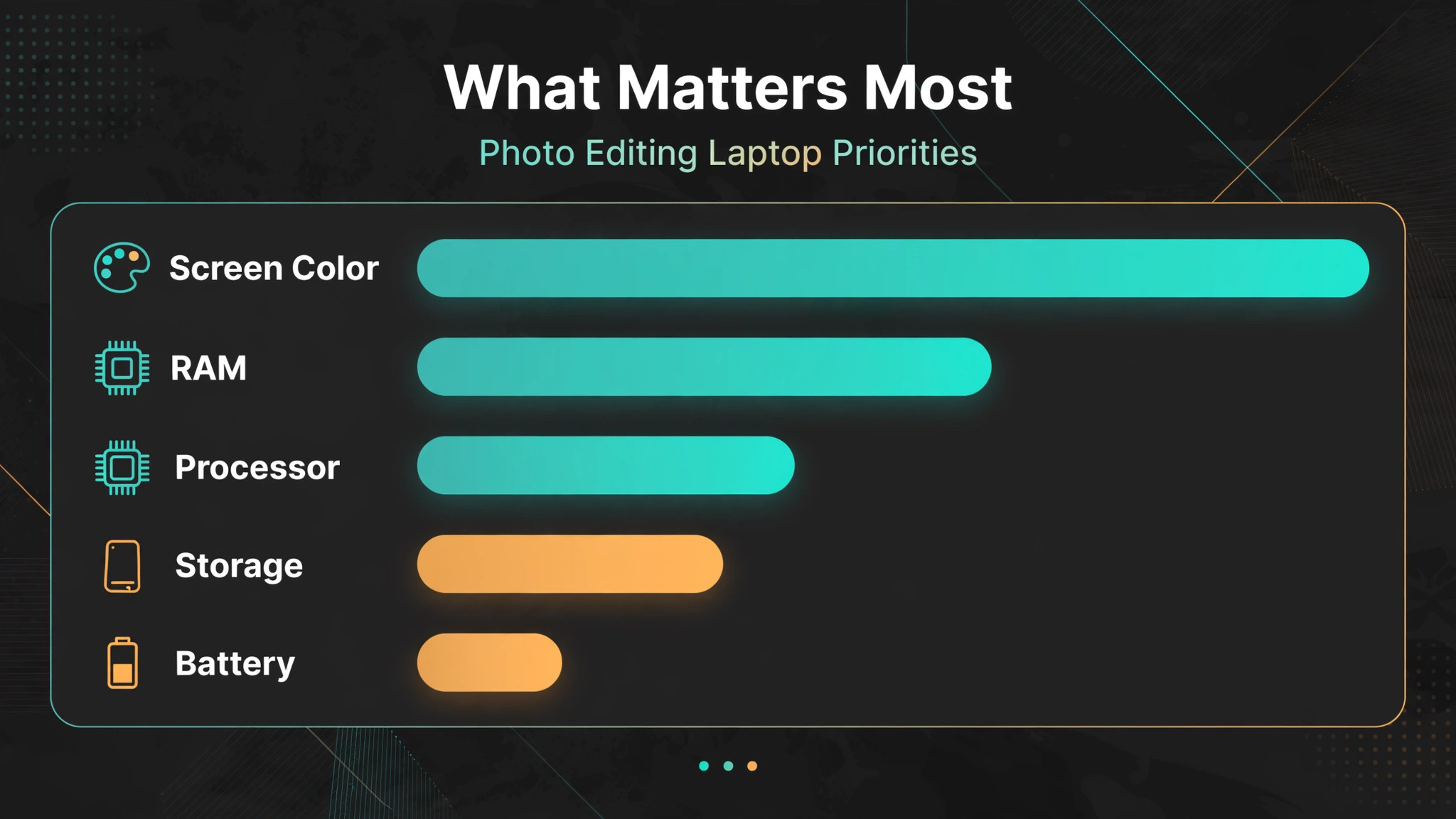
How to Judge the best laptop for photo editing under 1000
Screen color comes first, because a fast laptop with a poor screen will produce confident edits that are wrong. Look for a panel that covers 100 percent of sRGB at minimum, and P3 or Adobe RGB coverage if you print or deliver for clients who use wide gamut displays. OLED panels offer deep blacks and strong contrast, which help with shadow detail, but they can also make images look more vivid than a print will. IPS panels are more predictable for print work, and they are easier to calibrate consistently. Brightness matters too.
A 250 nit panel is usable indoors, a 400 nit panel is more comfortable near a window, and a 500 nit panel, such as the MacBook Air display discussed below, gives more headroom in mixed lighting. Whatever panel you choose, calibrate it with a colorimeter if you print, because factory calibration drifts and room lighting changes how colors appear.
RAM comes second. Sixteen gigabytes is the sensible minimum for Lightroom and Photoshop work with modern RAW files, especially when you run a browser, a catalog and an editing app at the same time. Eight gigabytes can work for light JPEG editing, but it will slow down with large panoramas, layered files or AI masking. Storage comes third. A 512 gigabyte SSD is a good starting point, because RAW libraries grow quickly, and a 256 gigabyte drive, as on the base MacBook Air below, means you will need an external drive from the start. That is not a deal breaker, but it is a real extra cost and an extra item to carry.
Processor and graphics come fourth, and they matter in different ways. Lightroom imports, previews and exports lean on the CPU and on fast storage. Photoshop filters, AI selection tools and some Lightroom masking features lean on the GPU. A modern multi core CPU with integrated graphics can handle most photo work, while a discrete GPU such as an RTX card helps with heavy AI tools, large composites and occasional video work. Do not buy a gaming laptop simply because it has a strong GPU. Many gaming laptops have fast graphics but poor color accuracy, heavy bodies and short battery life, which are poor trade offs for a photographer who edits on location.
Weight and battery life decide whether the laptop leaves the house. A 2.7 pound laptop that you carry everywhere will be used more than a 5 pound workstation that stays on a desk. Battery life of 12 hours or more for light use is common on efficient modern laptops, but heavy editing will cut that figure sharply on any machine. Check port selection as well. An SD card reader saves a dongle for many photographers, while a laptop with only two USB-C ports will need a hub for a card reader, an external drive and a charger at the same time. That hub cost and hassle should be part of the purchase decision, not discovered after you buy.
The Five Laptops Compared
The table below compares the five laptops reviewed in detail. Prices are street prices reported in recent guides and listings, and they move with sales, condition and configuration, so check the exact configuration before you buy. A renewed or refurbished price is noted where it applies, because condition and warranty change the value of the deal.
| Laptop | CPU and GPU | RAM and storage | Screen and color | Weight | Street price |
|---|---|---|---|---|---|
| Acer Swift Go 14 | AMD Ryzen 7000 series, integrated graphics | 16 GB, 512 GB SSD typical | 14 inch OLED, strong contrast | About 2.7 pounds typical | Around 700 dollars to 900 dollars |
| Apple MacBook Air M2 renewed | Apple M2, integrated GPU | 8 GB unified, 256 GB SSD base | 13.6 inch Liquid Retina, P3, 500 nits | 2.7 pounds | Under 1000 dollars renewed |
| ASUS ProArt Studiobook 16 renewed | Intel Core i7-12700H, RTX 3070 Ti 8 GB | 16 GB, dual 1 TB SSD RAID 1 | 16 inch 4K OLED, 3840 by 2400 | About 5 pounds class | Under 1000 dollars renewed |
| Acer Aspire 16 AI | Snapdragon X, integrated NPU graphics | 16 GB typical | 16 inch touchscreen, 100 percent sRGB | 3.42 pounds | 599 dollars reported |
| HP OmniBook 5 OLED | Snapdragon X Plus, Adreno graphics | 16 GB, 1 TB SSD | 14 inch 2K OLED, 1920 by 1200 | Light ultrabook class | Under 700 dollars reported |
No single row wins every column, which is why the verdict below is split by situation. The Swift Go balances screen, weight and price. The MacBook Air balances color, portability and battery life, but with less storage and fewer ports. The ProArt wins on screen resolution and GPU power, but loses on weight and warranty. The Aspire wins on price and battery life, but uses an ARM processor that can limit some software. The OmniBook wins on OLED value and storage, but shares the ARM compatibility question. Read the product sections with your main editing task in mind, and the right choice will become clear quickly.
Winners by Situation
For most photographers editing RAW files for web, social media and occasional print, the Acer Swift Go 14 is the overall winner. It pairs an OLED screen with a portable body, a Ryzen processor that handles Lightroom well, and a price that leaves room for an external drive or a calibration tool. For a photographer who already uses Apple devices, values silence and battery life, and can live with a smaller screen and an external drive, the MacBook Air M2 renewed is the better fit, because its P3 display and efficient chip produce a calm, predictable editing experience.
For a photographer who needs the most color detail and GPU power for large files, client deliverables or fine art print work, the ProArt Studiobook renewed is the specialist pick, provided the renewed warranty and weight are acceptable.
For a student or beginner on the tightest budget, the Acer Aspire 16 AI is the value pick, because it offers a large 100 percent sRGB touchscreen, long battery life and a price near 600 dollars. For a remote worker who wants OLED color, a full terabyte of storage and the longest battery life in this group, the HP OmniBook 5 OLED is the endurance pick, with the same ARM software check as the Aspire. The key question is not which laptop is best in abstract. It is which trade off you will notice least in your daily work. A traveler will notice weight every day. A print photographer will notice color every day.
A student will notice price every day. Choose the laptop whose weakness you will notice least.
The Laptops in Detail
Acer Swift Go 14
The Swift Go 14 is the laptop to buy if you want a strong OLED screen in a body you will carry without thinking about it. The OLED panel gives deep blacks and sharp contrast, which helps when you are judging shadow detail in portraits or night shots. The Ryzen 7000 series processor handles Lightroom imports, culling and exports without the fan noise and heat of a gaming laptop, and the compact 14 inch size fits in most camera bags alongside a lens or two. The main limits are graphics power and upgrade room.
Integrated graphics will handle most photo work, but heavy AI masking on very large files, complex panoramas and video work will be slower than on a discrete GPU machine. Check the exact configuration before buying, because RAM and storage vary by listing, and a model with 8 gigabytes of RAM is a weaker buy for RAW work than a 16 gigabyte model at a similar price. If you edit mainly in Lightroom, deliver for web and social media, and travel often, this is the most balanced choice in the group.
Apple MacBook Air M2 Renewed
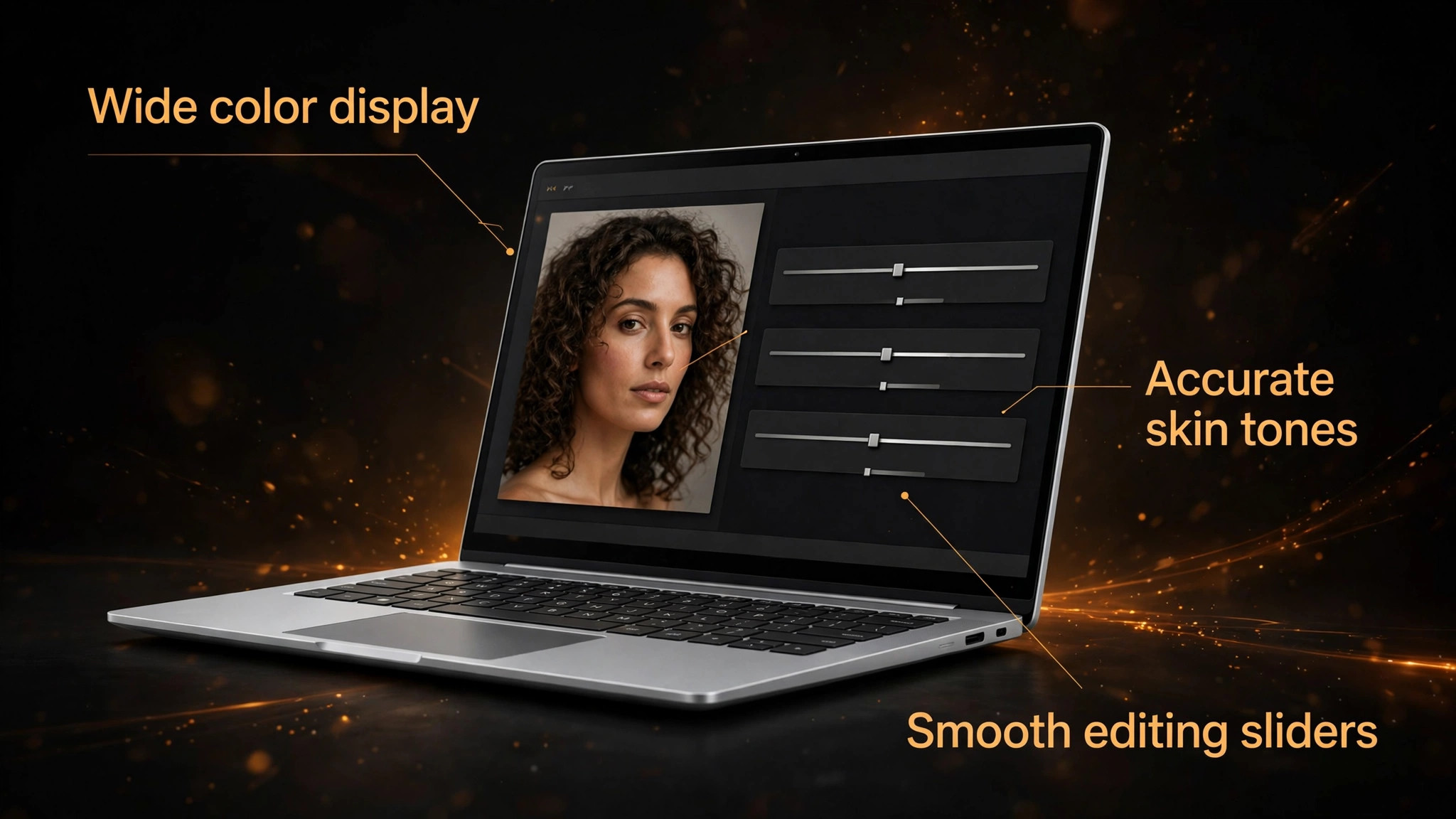
The MacBook Air M2 renewed is the best choice for photographers already in the Apple system, or for anyone who values a quiet, light laptop with a trustworthy screen. The 13.6 inch Liquid Retina display covers the P3 wide color gamut and supports one billion colors, with brightness up to 500 nits, so skin tones and sunset colors render accurately without extra calibration for most web work. The M2 chip uses unified memory, so 8 gigabytes performs better in real editing than 8 gigabytes in many Windows laptops, because CPU, GPU and Neural Engine share the same fast pool.
The fanless design is silent during long export queues, and battery life of 15 hours or more for typical use means you can edit on location without hunting for power. The limits are clear. The base 256 gigabyte SSD is too small for a serious photo library, so budget for a fast external drive. There are only two USB-C ports, so a hub is likely. And renewed condition means you should buy from a reputable seller with a clear return policy and check battery health, screen condition and charger on arrival. If those checks pass, this is a calm, capable editing machine at a price that would be impossible for a new MacBook.
ASUS ProArt Studiobook 16 Renewed
The ProArt Studiobook is the specialist in this group, and it shows in both strengths and weaknesses. The 16 inch 4K OLED panel at 3840 by 2400 resolution offers color detail and contrast that no other laptop here matches, which matters for fine art prints, client deliverables and detailed retouching where small color shifts are visible. The Intel Core i7-12700H with 14 cores and 20 threads, paired with an RTX 3070 Ti with 8 gigabytes of video memory, handles GPU accelerated filters, Lightroom AI masking and occasional video work with ease. Dual 1 terabyte SSDs in RAID 1 protect against a single drive failure, which is a thoughtful choice for photographers who cannot afford to lose work.
The trade offs are weight, battery life and warranty. This is a workstation class machine, not a travel ultrabook, and renewed units in guides were noted with a 90 day warranty, which is far shorter than a new laptop warranty. Buy this only if color and GPU power are your top priorities, you mostly edit at a desk, and you have a backup plan for storage and repairs. For that photographer, no other laptop under 1,000 dollars comes close on screen and power.
Acer Aspire 16 AI
The Aspire 16 AI is the budget surprise in this group, because it offers a large screen, long battery life and a price near 600 dollars. The 16 inch touchscreen covers 100 percent of sRGB, which is sufficient for web and social media output, and the 120 hertz refresh rate makes the interface feel responsive. Battery life of 16 to 18 hours in mixed use, as reported in a recent guide, is a major advantage for students, field editors and anyone who works away from power. The Snapdragon X processor handles basic photo editing competently, including exposure, contrast and color grading, and 16 gigabytes of RAM handles moderate RAW files without trouble. The limit is compatibility.
ARM processors can have issues with some software, plugins and drivers, so check that your exact editing app, plugins and card reader work on this platform before you buy. Color gamut is also narrower than P3 or Adobe RGB panels, so print photographers who need wide gamut work should look at the ProArt or MacBook instead. For a beginner, a student or a second editing machine, the Aspire offers remarkable value, provided the software check passes.
HP OmniBook 5 OLED
The OmniBook 5 OLED is the endurance and storage value pick, with a 14 inch 2K OLED display, 16 gigabytes of RAM and a 1 terabyte SSD at a reported price under 700 dollars. That combination is unusual at this price, because many budget OLED laptops cut storage or RAM to hit a headline price. Battery life is a standout, with guides reporting 12 to 15 hours of real editing use and a manufacturer claim far higher for light use, which makes this a strong choice for all day work away from a desk. The Snapdragon X Plus processor runs cool and quiet, and the OLED panel gives the deep blacks and accurate colors photographers care about for web delivery.
The limits mirror the Aspire. ARM compatibility needs checking for specialized software, the port selection is limited, and the laptop is not a touchscreen, which matters if you retouch with a stylus or prefer touch navigation. If your workflow uses standard Lightroom and Photoshop features, you want OLED color without a premium price, and you value storage and battery life, the OmniBook is a compelling buy that leaves budget for a calibrator or an external drive.
Screen Color, Performance and Battery in Practice
Screen color is not only about the panel specification. It is about how the screen behaves in your room, at your brightness setting, and after weeks of use. A panel that covers 100 percent of sRGB can still look different from a print if the room is warm, the screen is set too bright, or the editing app uses a different color profile from the export. Set brightness to a consistent level for editing, use a neutral room light where possible, and export a test image to a phone and, if you print, to a test print before you judge a new laptop.
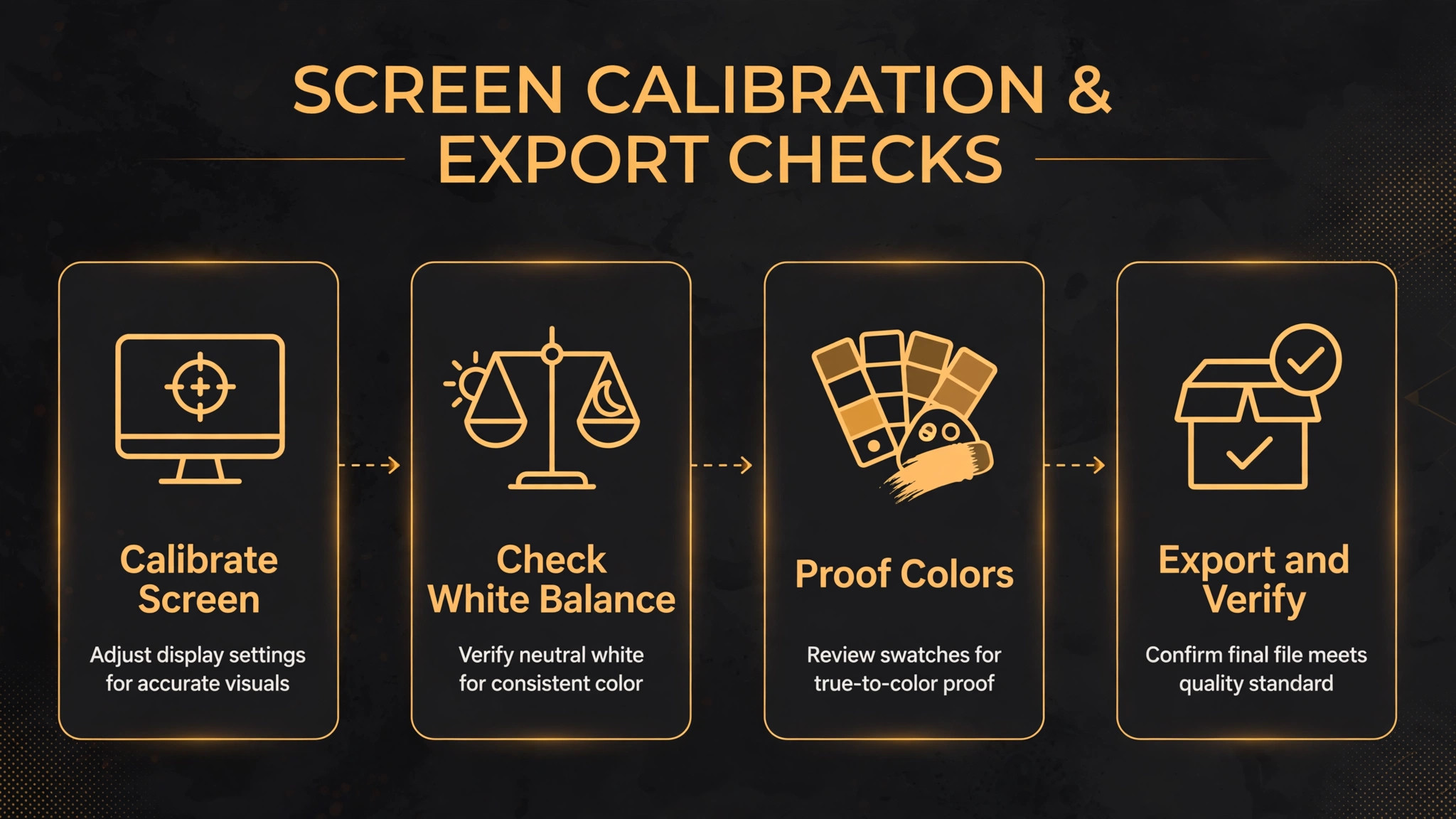
A laptop that looks vivid in a shop may look muted at home, and a laptop that looks muted in a shop may be the more accurate panel. Calibration helps, but it does not fix a panel with poor coverage. If you print regularly, prioritize gamut coverage and calibration support over refresh rate or touchscreen features, which do not improve color accuracy.
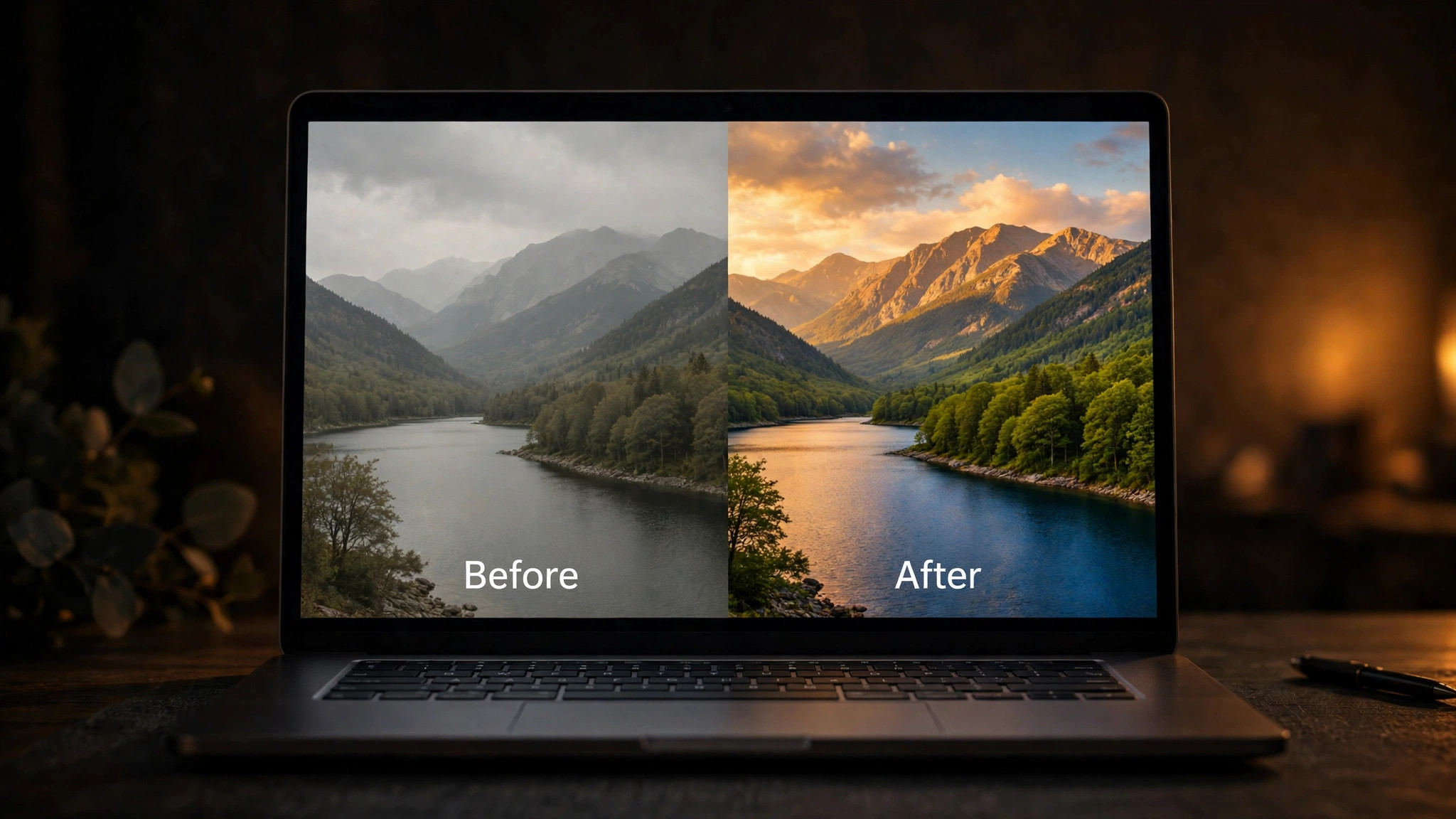
Performance in practice is about stalls, not benchmark scores. A laptop that imports 500 RAW files without freezing, builds previews in the background, and exports a batch while you cull the next set is a good editing laptop, even if its benchmark score is not the highest in the group. RAM and storage speed affect those stalls more than a small CPU difference. A laptop with 16 gigabytes of RAM and a fast SSD will feel smoother than a laptop with a faster CPU but only 8 gigabytes of RAM and a slow drive.
GPU acceleration helps with specific tools, such as AI masking, denoise and some filters, but it does not make culling faster or make a poor screen accurate. If your work is mainly culling, basic adjustments and exports, spend on screen and RAM first. If your work includes heavy retouching, large composites or video, spend on GPU and CPU second, after screen and RAM are sorted.
Battery life in practice falls sharply during editing. A laptop rated for 18 hours of video playback may give 6 to 8 hours of Lightroom work, and less during exports. That is still useful, but it means you should not plan a full day of heavy editing without a charger, even on an efficient laptop. For travel, carry the charger, use a lower brightness setting when possible, and close background apps that sync large libraries while you edit. A laptop that charges over USB-C can use a compact travel charger, while a laptop with a proprietary charger adds bulk.
Check charging speed as well, because a laptop that charges slowly will not recover much during a short coffee break, while a laptop with fast charging can add several hours of use in under an hour.
Why Some Good Laptops Still Lose Here
Rejection reasons matter, because a laptop can be good in general and wrong for photo editing under 1,000 dollars. We did not pick the Acer Aspire 16 AI as the overall winner, despite its low price and long battery life, because its ARM processor creates a software compatibility risk that a photographer should not discover after buying, and its sRGB only screen limits print work. We did not pick the ASUS ProArt Studiobook as the overall winner, despite its superb screen and GPU, because its weight, battery life and short renewed warranty make it a poor daily travel machine for most photographers.
We did not pick the MacBook Air M2 as the overall winner, despite its color and silence, because the base storage is too small, ports are too few, and renewed condition requires careful checking that not every buyer wants to do.
We also passed over gaming laptops with strong GPUs but poor color accuracy, because a fast GPU cannot fix a screen that shifts colors. We passed over Chromebooks and low cost laptops with 8 gigabytes of RAM and a narrow gamut screen, because they stall on RAW files and mislead color decisions. And we passed over older workstation laptops with strong CPUs but heavy bodies and worn batteries, because a laptop that stays on a desk and needs constant charging is not a portable editing tool, even if its specification sheet looks impressive. The best laptop for photo editing under 1000 is not the machine with the highest score in any one column.
It is the machine whose weaknesses you can live with, and whose strengths match the work you do every week.
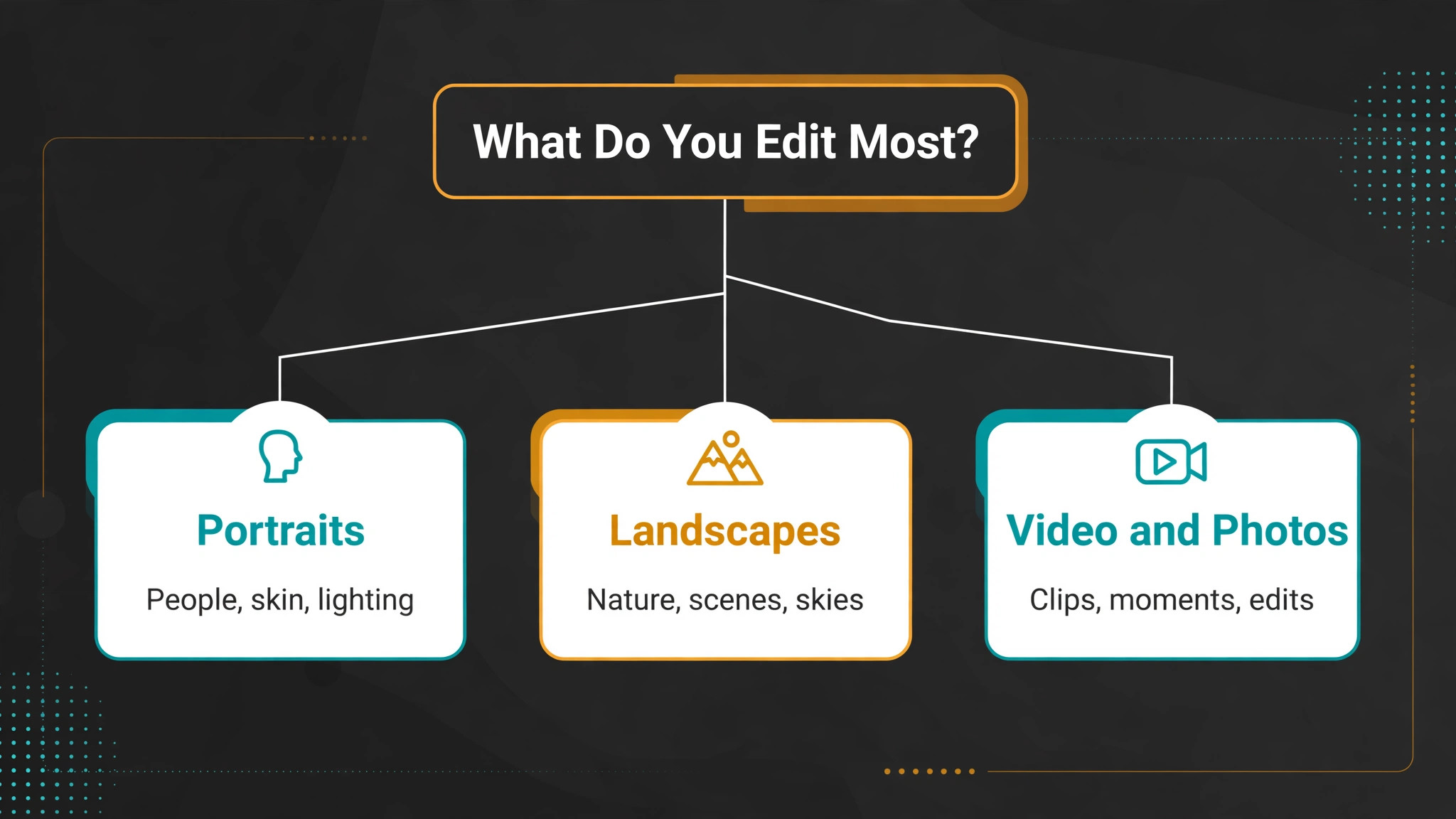
Buying Advice Before You Spend
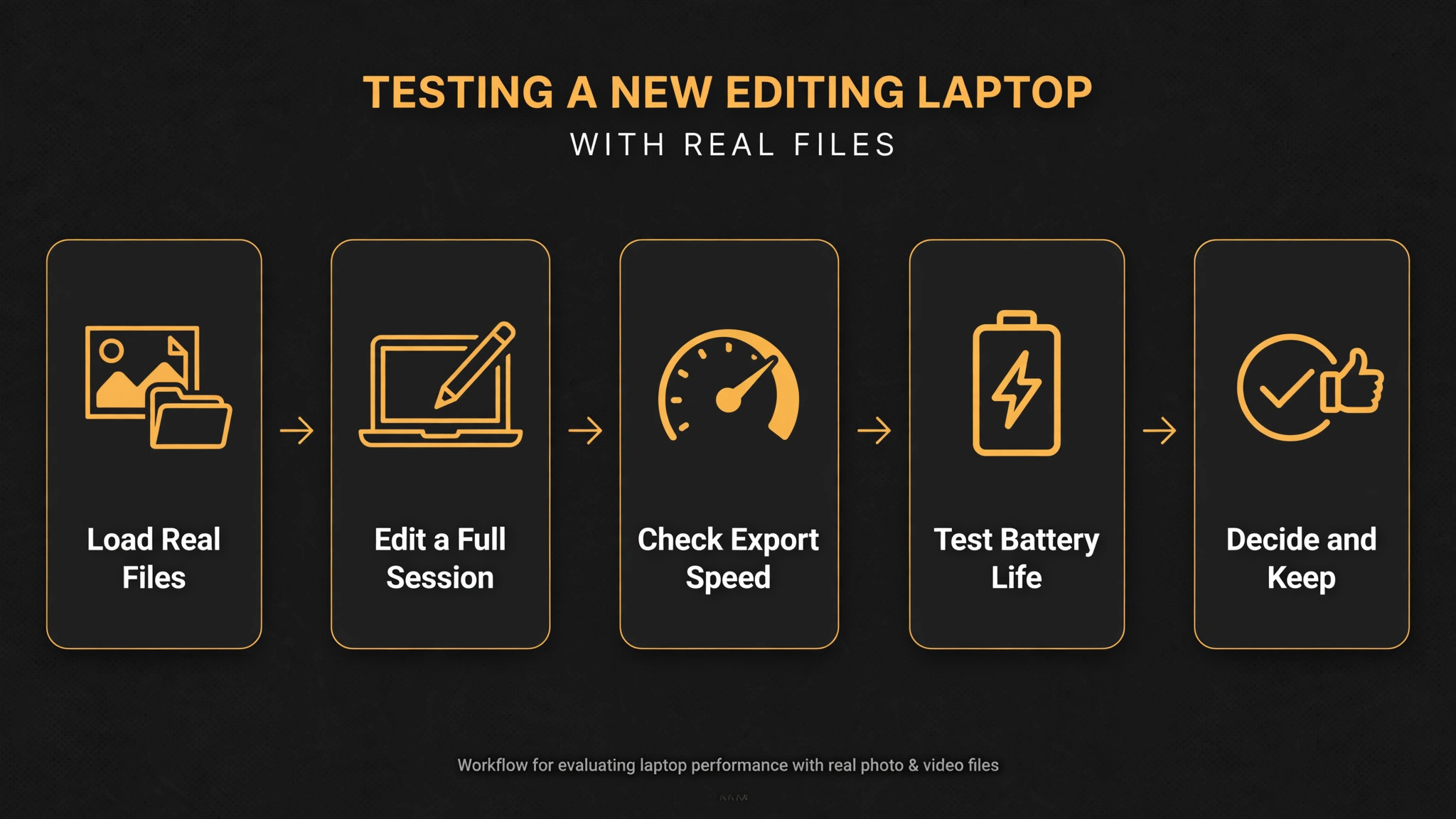
Buy the exact configuration, not just the model name. A Swift Go with 8 gigabytes of RAM is not the same purchase as a Swift Go with 16 gigabytes, and a MacBook Air with 256 gigabytes is not the same purchase as one with 512 gigabytes. Check RAM, storage, screen type and warranty on the listing, and save a screenshot of the specification before you pay, especially for renewed units. Check return policy and warranty length, and test the laptop in the first days with your real files, not just with sample images. Import a full shoot, edit a batch, export at full size, and check color on a phone and on a print if you print.
If the laptop stalls, shifts color badly, or fails a software compatibility check, return it within the window rather than hoping a future update will fix it.
Budget for extras in the total price. An external SSD for photo libraries, a colorimeter for calibration, a hub for ports, and a good bag or sleeve can add 150 dollars to 300 dollars to the real cost. That does not change the laptop ranking, but it changes which laptop fits a strict 1,000 dollar total budget. If your total budget is firm, the Aspire or OmniBook leave more room for extras, while the ProArt renewed leaves less room and may need a backup drive sooner. Finally, keep the box and receipt until you have tested the laptop fully, and register the warranty on arrival.
A laptop is a tool for years of work, and a few days of careful testing at the start will save months of frustration later.
A Quick Check Before You Choose
Run a simple test before you commit to any machine on this list. Import a recent shoot, edit ten images to your usual standard, export them at full size, and view the results on your phone and, if you print, on a test print. Note how long exports take, whether the screen shows shadow detail clearly, and whether colors shift when you change brightness. A best laptop for photo editing under 1000 should pass that test without forcing you to change your workflow, and a best laptop for photo editing under 1000 that fails on color or stalls on exports is not a bargain at any price.
Repeat the test with a second candidate if the first one disappoints, because the difference between a good screen and a great screen is easier to feel with your own files than with a specification sheet. The best laptop for photo editing under 1000 for a traveler may not be the best laptop for photo editing under 1000 for a studio photographer, so let your own test, not a headline score, make the final call.
More Reading on Stratilyze
Editing laptop choices sit beside the screen and display choices that matter just as much, so readers choosing a machine usually check the neighbouring gear guides next. The guide to the best laptop for video editing under 1000 shows the same budget applied to the heavier video workload, the guide to the best monitor for video editing under 500 covers the external screen that fixes most colour complaints, and the guide to setting up an iPad as a second monitor explains the portable second display for editing on the move.
Frequently Asked Questions
Is 16 GB of RAM enough for photo editing
Yes for most Lightroom and Photoshop work with modern RAW files, especially with a fast SSD and a modern multi core processor. Photographers working with very large panoramas, layered composites or video alongside photos may benefit from 32 gigabytes, but 16 gigabytes is the sensible minimum under 1,000 dollars.
Do I need a discrete GPU for photo editing
Not for most photo work. Integrated graphics handle culling, basic adjustments and exports well, while a discrete GPU helps with AI masking, denoise, heavy filters and video. A best laptop for photo editing under 1000 with a good screen and 16 gigabytes of RAM will usually beat a gaming laptop with a strong GPU but a poor screen.
Is OLED better than IPS for photo editing
OLED offers deeper blacks and stronger contrast, which helps shadow detail, but it can make images look more vivid than a print. IPS is more predictable for print work and easier to calibrate consistently. Both can work well if gamut coverage is high and the screen is calibrated.
Should I buy a renewed laptop for photo editing
Renewed can offer strong value, as with the MacBook Air M2 and ProArt models here, but check seller reputation, return policy, battery health, screen condition and warranty length before buying. Test the laptop with your real files in the first days, and return it promptly if anything fails.
What screen color coverage should I look for
Look for 100 percent sRGB as a minimum for web work, and P3 or Adobe RGB coverage if you print or deliver for wide gamut displays. Brightness of 400 nits or more is more comfortable in bright rooms, while 250 nits is usable indoors with controlled lighting.
How much storage do I need for photo editing
A 512 gigabyte SSD is a good starting point, with an external drive for archives. A 256 gigabyte drive fills quickly with RAW files, so budget for external storage if you choose a base model with that capacity.
The Final Verdict for Photo Editors
Buy the Acer Swift Go 14 if you want the most balanced editing laptop under 1,000 dollars, with an OLED screen, portable weight and a price that leaves room for storage and calibration. Buy the MacBook Air M2 renewed if you live in the Apple system, value silence and battery life, and can manage storage with an external drive. Buy the ProArt Studiobook renewed only if color detail and GPU power matter more than weight and warranty, and buy the Aspire or OmniBook if budget or battery life is the deciding factor and your software passes the ARM check.
The best laptop for photo editing under 1000 is the one that makes your colors trustworthy, your exports smooth and your bag light enough to carry. Check the exact configuration, test it with your real work, and do not let a single specification, whether GPU power or battery claim, override the screen, RAM and weight that you will live with every day. That discipline, more than any brand name, is what turns a budget laptop into a reliable editing tool, and the best laptop for photo editing under 1000 for your work is the one that passes that test in your hands.