

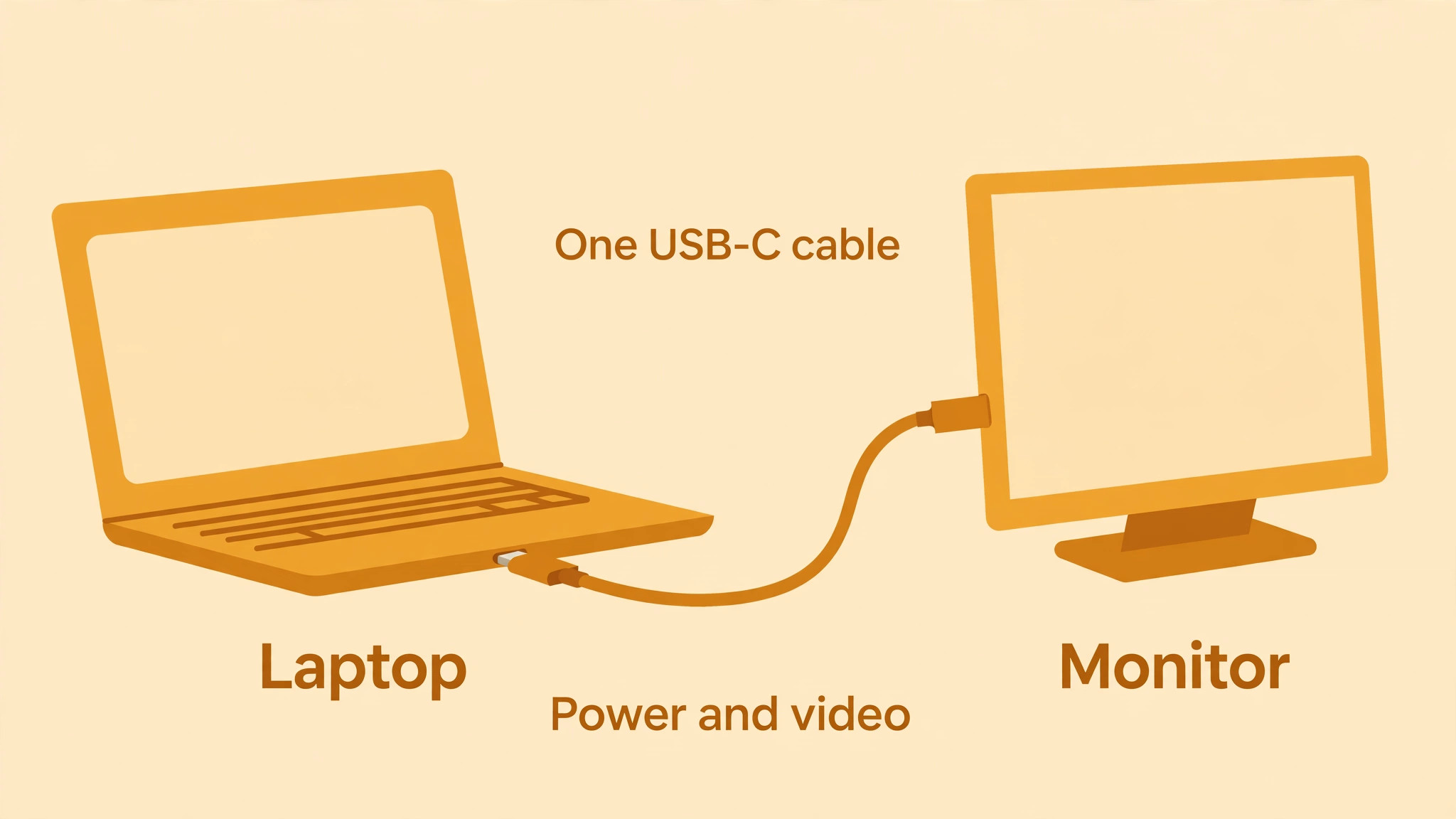
You open a laptop in a cafe, a coworking space or a hotel room, and suddenly the screen that felt fine at home feels cramped. Email, a document, a video call and a spreadsheet cannot all fit comfortably on one 13 or 14 inch display, so you end up switching windows, losing your place, and working slower than you do at a desk. The best portable monitor for remote work solves that problem by giving you a second screen that fits in a laptop bag, connects with one USB-C cable, and sets up in under a minute.
The challenge is choosing one that is bright enough for a cafe, light enough to carry daily, and reliable enough that you do not spend the first ten minutes of every work session fighting cables, stands or drivers. This guide to the best portable monitor for remote work compares six real monitors on the factors that matter for remote work, and gives a clear winner for most workers, plus specialist winners for battery life, sharpness and budget.
How to Choose the best portable monitor for remote work
Panel type is the first decision, and for most remote work an IPS panel is the safe choice. IPS offers wide viewing angles, consistent colors and readable text, which matter when a screen is tilted on a small cafe table or viewed from a slight angle. OLED panels offer deeper blacks and stronger contrast, which look impressive, but they cost more, can be harder to read in bright light depending on brightness, and are less common in the budget portable range. Resolution is the second decision.
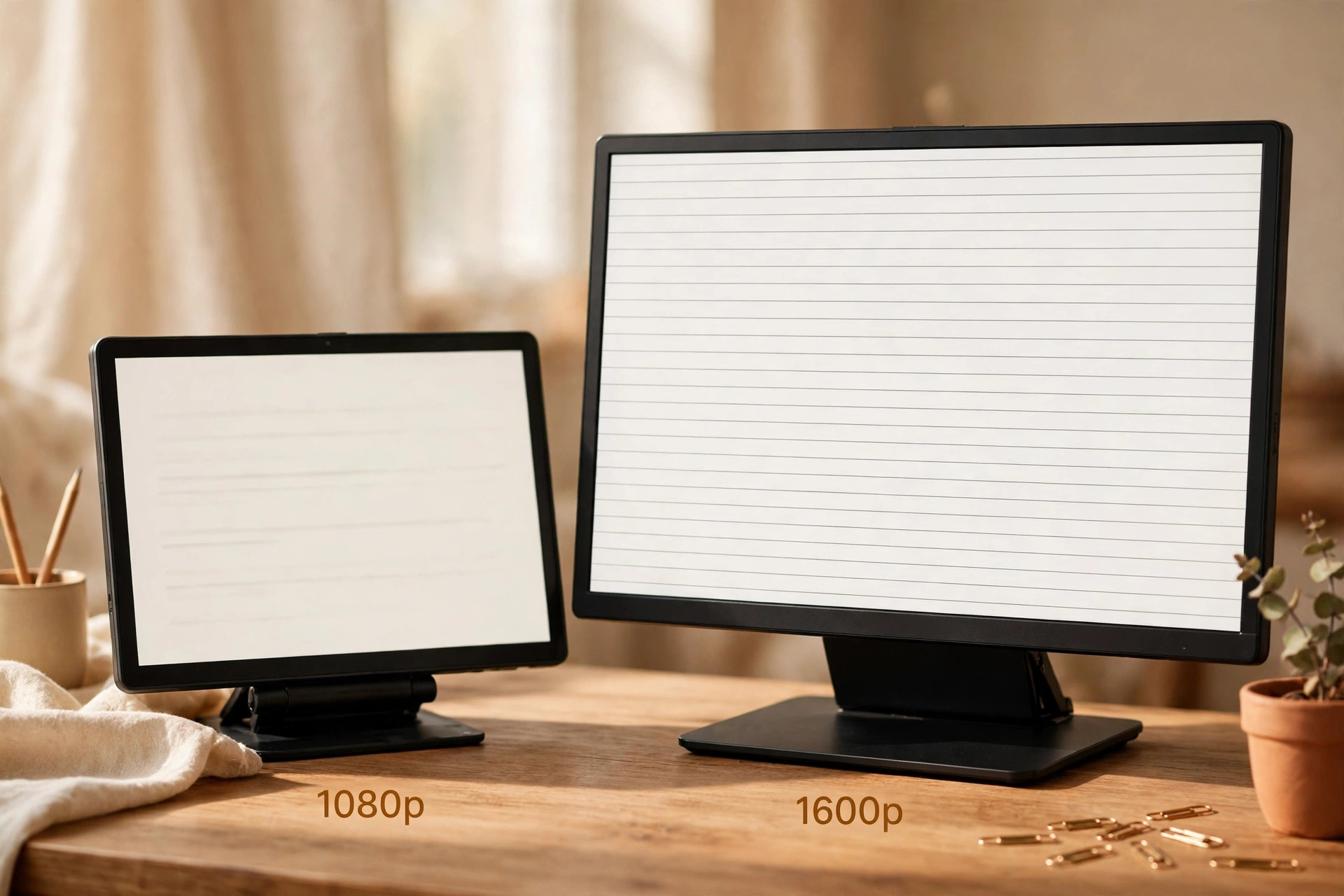
A 1920 by 1080 panel at 15.6 inches gives sharp enough text for documents, email and spreadsheets, while a 2560 by 1600 panel at 16 inches gives more vertical space and sharper text for code, long documents and design work. Higher resolution is worth paying for if you read code or edit documents all day, but it is not essential for email and video calls.
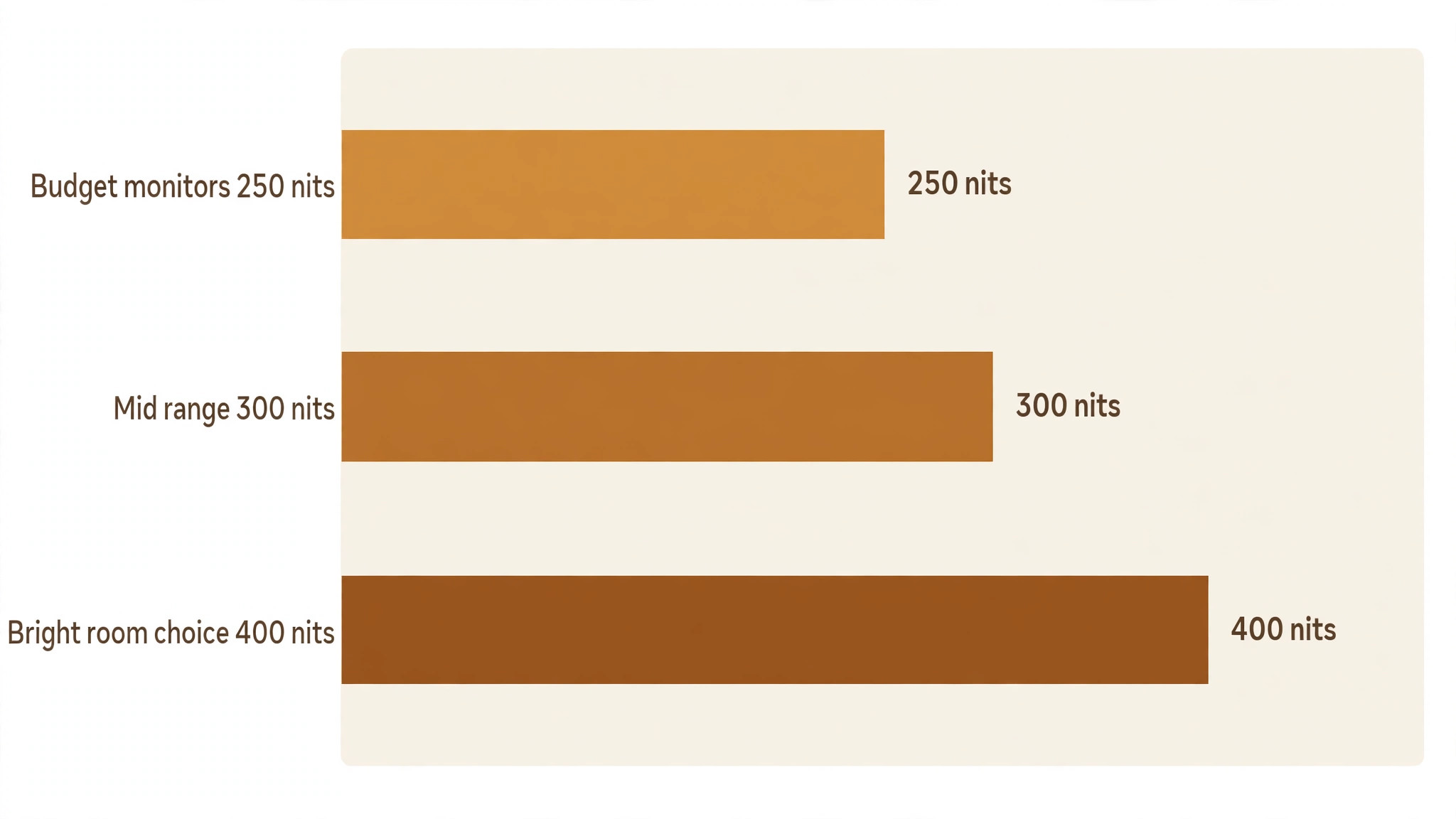
Brightness is the factor most buyers underestimate. A 250 nit panel, common on budget portable monitors, is fine indoors with controlled lighting, but it struggles near a sunny window or in a bright coworking space. A 300 to 350 nit panel is more comfortable in mixed lighting, and a 400 nit panel gives real headroom for bright rooms. If you work mainly at home or in a dim office, 250 nits may be enough. If you work in cafes, airports or bright shared spaces, prioritize 300 nits or more, and choose a matte finish where possible, because glare can make a bright panel feel dim.
Check the stand as well, because many portable monitors rely on a folio cover or a fold out leg that wobbles when you type. A stable kickstand or a sturdy folio case matters for a full workday, not just for a product photograph.
USB-C power is the third decision, and it is where many first time buyers get confused. Most portable monitors draw power from the laptop over the same USB-C cable that carries video, provided the laptop port supports DisplayPort Alt Mode. That single cable setup is the ideal remote work experience. Some monitors also offer a second USB-C port for pass through charging, so you can charge the laptop while using the monitor, which is useful for long sessions. A monitor with a built-in battery, such as the ZenScreen Go below, can run without draining the laptop, which helps on flights or in places with limited power. Check your laptop port before buying.
If your USB-C port does not support video output, you may need a monitor with a hybrid USB-A solution using DisplayLink software, which adds a driver install and a small amount of latency, but makes the monitor work with almost any laptop.
Weight and size complete the decision. A 15.6 inch monitor at about 1.7 pounds adds noticeable weight to a bag, but it gives a large second screen. A 14 inch monitor at about 1.4 pounds is easier to carry daily, but gives less space. Thickness matters too, because a slim monitor slides into a laptop sleeve, while a thicker monitor with a bulky stand may need its own case. Measure your bag, weigh your current load, and be honest about how often you will actually carry the monitor. A monitor that stays at home because it is too heavy to carry is not a portable monitor, no matter what the box says.
The Six Monitors Compared
The table below compares panel, brightness, USB-C power and weight. Prices are street prices reported in recent guides, and they move with sales and retailer, so check the exact model before buying.
| Monitor | Panel | Brightness | USB-C power | Weight | Street price |
|---|---|---|---|---|---|
| ASUS ZenScreen MB16ACV | 15.6 inch IPS, 1920 by 1080 | 250 nits | Single cable, hybrid USB-A option | 780 grams, 1.72 pounds | Around 190 dollars to 220 dollars |
| ASUS ZenScreen MB16AHG | 15.6 inch IPS, 1920 by 1080, 144 hertz | 250 nits | USB-C plus mini HDMI | 920 grams, 2.03 pounds | Around 200 dollars to 280 dollars |
| ASUS ZenScreen Go MB16AHP | 15.6 inch IPS, 1920 by 1080 | Typical 250 nits class | USB-C plus built in battery | 860 grams | 249 dollars ASUS store |
| Lenovo ThinkVision M15 | 15.6 inch IPS, 1920 by 1080 | 250 nits class | Single USB-C cable | About 1.3 pounds in guides | Around 200 dollars |
| ViewSonic VG1655 | 15.6 inch IPS, 1920 by 1080 | 250 nits class | USB-C plus mini HDMI | 1.75 pounds | Around 200 dollars |
| Arzopa Z1RC | 16 inch IPS, 2560 by 1600 | 350 nits on US listing | USB-C plus mini HDMI | 1.46 pounds | Around 125 dollars |
The table shows a clear pattern. Most budget and mid range portable monitors cluster around 250 nits and 1080p, with weight between 1.3 and 2.0 pounds. The Arzopa stands out on resolution and brightness for its price, while the ZenScreen Go stands out on battery life. The Lenovo stands out on lightness, while the ZenScreen MB16ACV stands out on reliability and hybrid connectivity. No monitor wins every column, so the winner below is split by situation, with a clear overall pick for most remote workers.
The Right Monitor for Each Setup
For most remote workers who want a reliable second screen that just works, the ASUS ZenScreen MB16ACV is the overall winner. It offers a proven IPS panel, single cable USB-C, a hybrid USB-A option for older laptops, a stable folio stand, and ASUS Eye Care features for long sessions, at a price that is fair for its build quality. For workers who need sharper text and more vertical space for code or long documents, the Arzopa Z1RC is the sharpness winner, because its 2560 by 1600 panel and 350 nit brightness offer more detail and more light than most budget monitors at about 125 dollars.
For workers who need to run a monitor without draining a laptop, the ASUS ZenScreen Go MB16AHP is the battery winner, because its built in 7800 milliamp hour battery supports up to four hours of display use in manufacturer claims.
For workers who prioritize the lightest bag, the Lenovo ThinkVision M15 is the lightness winner, at about 1.3 pounds in guides, with a simple single cable setup. For workers who want smoother motion for casual gaming or fast scrolling alongside work, the ASUS ZenScreen MB16AHG is the smoothness winner, because its 144 hertz refresh rate and kickstand make it more versatile than a standard 60 hertz monitor. For workers who want a simple, widely available monitor with USB-C and mini HDMI at a fair price, the ViewSonic VG1655 is the straightforward winner, because it does the core job without fuss, even though its stand and brightness are less impressive than specialist models.
Choose by the factor you will notice daily, whether that is weight, brightness, sharpness or battery life, because that factor will decide whether the monitor leaves the house.
The Monitors in Detail
ASUS ZenScreen MB16ACV
The MB16ACV is the default recommendation for a reason. It does everything a portable monitor needs to do, without a headline feature that creates a new problem. The 15.6 inch IPS panel at 1920 by 1080 resolution gives good viewing angles and acceptable color for office work, documents and video calls, while the 250 nit brightness is adequate indoors. The single cable USB-C setup keeps a desk tidy, and the hybrid signal solution is a genuine advantage.
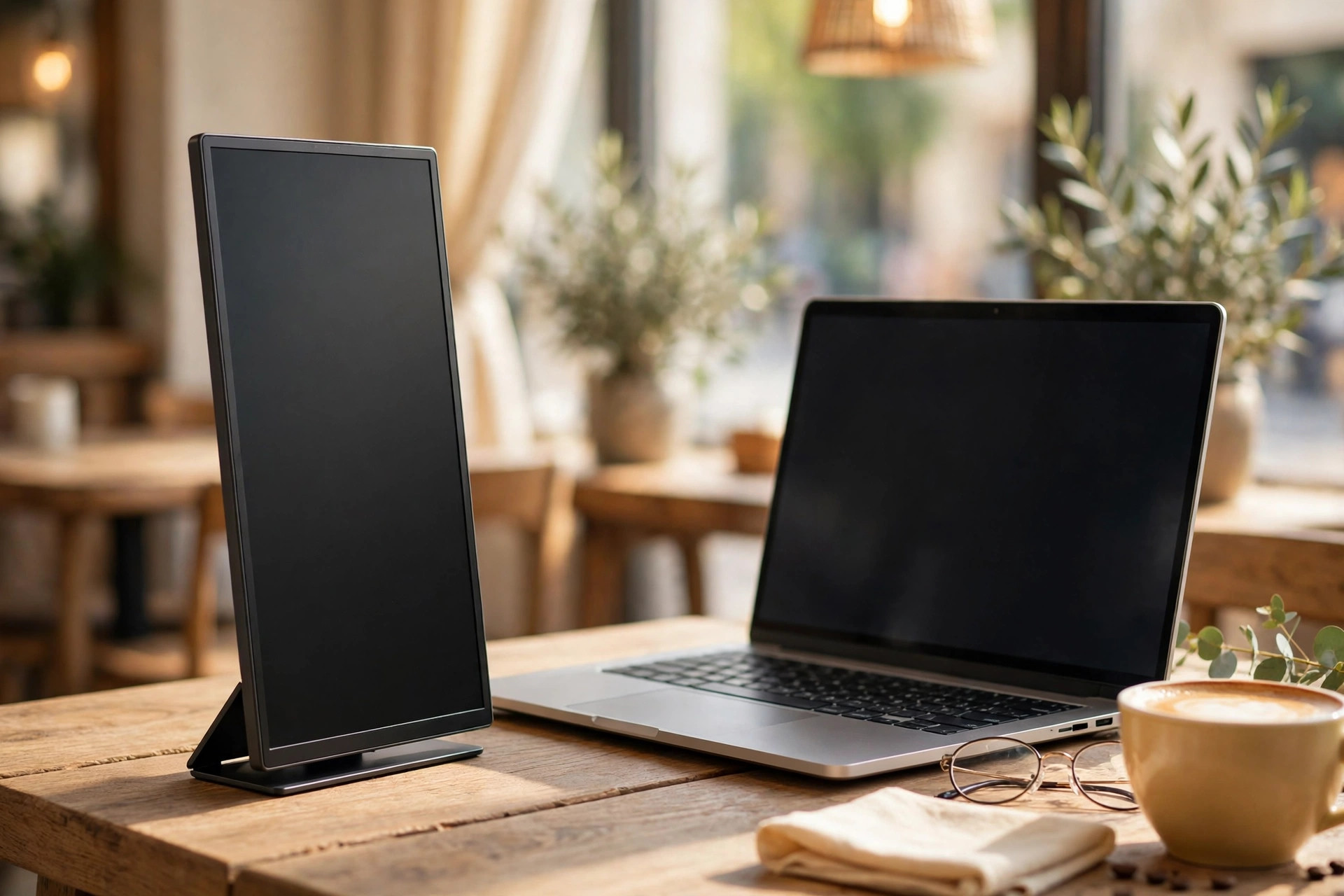
If a laptop USB-C port does not support DisplayPort Alt Mode, the monitor can connect over USB-A with an included adapter using DisplayLink compression, which requires a driver install and adds a small amount of latency, but means the monitor works with almost any laptop from the last decade. The folio smart case doubles as a stand with multiple angles, and it is more stable than the flimsy fold out legs found on many budget monitors. The main limits are brightness and speakers. At 250 nits, it is not ideal for bright outdoor settings, and it has no built in speakers, which is not a problem for most work, but matters if you plan to watch video without headphones.
For a remote worker who wants a proven, reliable second screen, this is the safest buy in the group.
ASUS ZenScreen MB16AHG
The MB16AHG adds smoothness and a better stand to the ZenScreen formula. Its 15.6 inch IPS panel runs at 144 hertz, which makes scrolling, window movement and casual gaming feel smoother than a standard 60 hertz monitor. That smoothness does not improve document readability by itself, but it makes the whole interface feel more responsive, which some workers notice and appreciate over a full day. The monitor offers USB-C and mini HDMI, a fold out kickstand that props it up on any flat surface, a tripod socket for a table mount, and ASUS Eye Care features for flicker free viewing and low blue light.
At 920 grams, it is heavier than the MB16ACV, and at 250 nits it shares the same brightness limit. It is also more expensive in many listings, so it only makes sense if you value the higher refresh rate, the kickstand, or the tripod option. For a worker who also games casually, or who wants a monitor that can stand on its own without a folio case, the MB16AHG is a versatile choice. For pure document work, the MB16ACV offers similar core quality at a lower price and weight.
ASUS ZenScreen Go MB16AHP
The ZenScreen Go MB16AHP is the monitor to buy if power is your main constraint. Its built in 7800 milliamp hour battery supports up to four hours of display use in manufacturer claims, which means you can use a second screen on a flight, in a park, or in a meeting room without draining your laptop battery or hunting for a power outlet. The 15.6 inch Full HD IPS panel, USB-C and micro HDMI ports, and foldable smart case that works in portrait or wide mode make it a complete travel monitor, not just a battery novelty.
At 860 grams and 9 millimeters thin, it is slim and light enough for a laptop bag, and ASUS Eye Care features help during long sessions. The price, 249 dollars on the ASUS store in recent listings, is higher than budget monitors, and brightness is in the typical portable class rather than a bright outdoor panel. If you work mainly at a desk with power nearby, the battery is an extra you may not need, and the MB16ACV is cheaper. If you work in places where power is uncertain, the battery changes what is possible, and this monitor is worth the premium.
Lenovo ThinkVision M15
The ThinkVision M15 is the lightness winner, and that matters more than it sounds on paper. At about 1.3 pounds in guides, it is noticeably lighter than most 15.6 inch portable monitors, which makes a difference when you carry a laptop, a charger, a notebook and a monitor every day. The IPS panel at 1920 by 1080 resolution is clear for documents, spreadsheets and video calls, and the single USB-C cable setup keeps things simple. Lenovo business design is understated and sturdy, which suits an office or coworking environment.
The limits are brightness, at a typical 250 nit class, and a simpler feature set than ASUS models, with no built in battery and no hybrid USB-A fallback in the same way as the MB16ACV. If your laptop has a USB-C port with video output, and you want the lightest large second screen you can carry daily, the M15 is an excellent choice. If your laptop lacks video over USB-C, check compatibility carefully before buying, because a light monitor that cannot connect is not light at all in practical terms.
ViewSonic VG1655
The ViewSonic VG1655 is a straightforward, widely available portable monitor that does the core job well. Its 15.6 inch IPS panel at 1920 by 1080 resolution gives a large second screen for documents, email and video calls, with USB-C and mini HDMI connectivity for laptops and other devices. The price, around 200 dollars in guides, is fair for a known brand with a simple setup. The main compromises are the stand and brightness. Guides note that the monitor is functional but less premium in build than ASUS models, and its brightness is in the typical portable class, so bright rooms will challenge it.
For a worker who wants a second screen for a home office or a coworking desk, where the monitor can sit on a stable surface and lighting is controlled, the VG1655 is a solid, no fuss buy. For a worker who moves between cafes and bright spaces, or who needs a very stable stand for typing, a ZenScreen model with a folio case or kickstand may feel more secure over a full day.
Arzopa Z1RC
The Arzopa Z1RC is the sharpness and value surprise in this group. Its 16 inch panel at 2560 by 1600 resolution in a 16 by 10 frame gives more vertical space and sharper text than a standard 1080p monitor, which helps for code, long documents and design work where scrolling less matters. The US listing brightness of 350 nits is higher than most budget monitors, and the matte screen cuts glare, though it may still struggle near a very sunny window. At about 1.46 pounds, with a built in stand, USB-C or mini HDMI connectivity, and a street price around 125 dollars, it offers a lot for the money.
The limits are that it is not a touchscreen, it runs at 60 hertz only, and its built in speakers are not a reason to buy it, especially in a cafe where headphones are better. Some listings also show different brightness claims, so treat 350 nits as a US listing figure rather than a guarantee for every region. If you want the sharpest text for the lowest price, and you do not need touch or a battery, the Z1RC is hard to beat. If you need a proven brand warranty and a hybrid USB-A fallback, the ZenScreen MB16ACV remains safer.
Setting Up a Portable Monitor in One Minute
The fastest setup is also the simplest. Connect one USB-C cable from a laptop port that supports video output to the monitor, wait a few seconds for the laptop to recognize the display, and set the monitor to extend, not mirror, your main screen. Mirroring shows the same image on both screens, which is useful for presentations, but useless for extra workspace. Extending gives you a second desktop where you can place email, reference material or a video call while you work on the main screen.
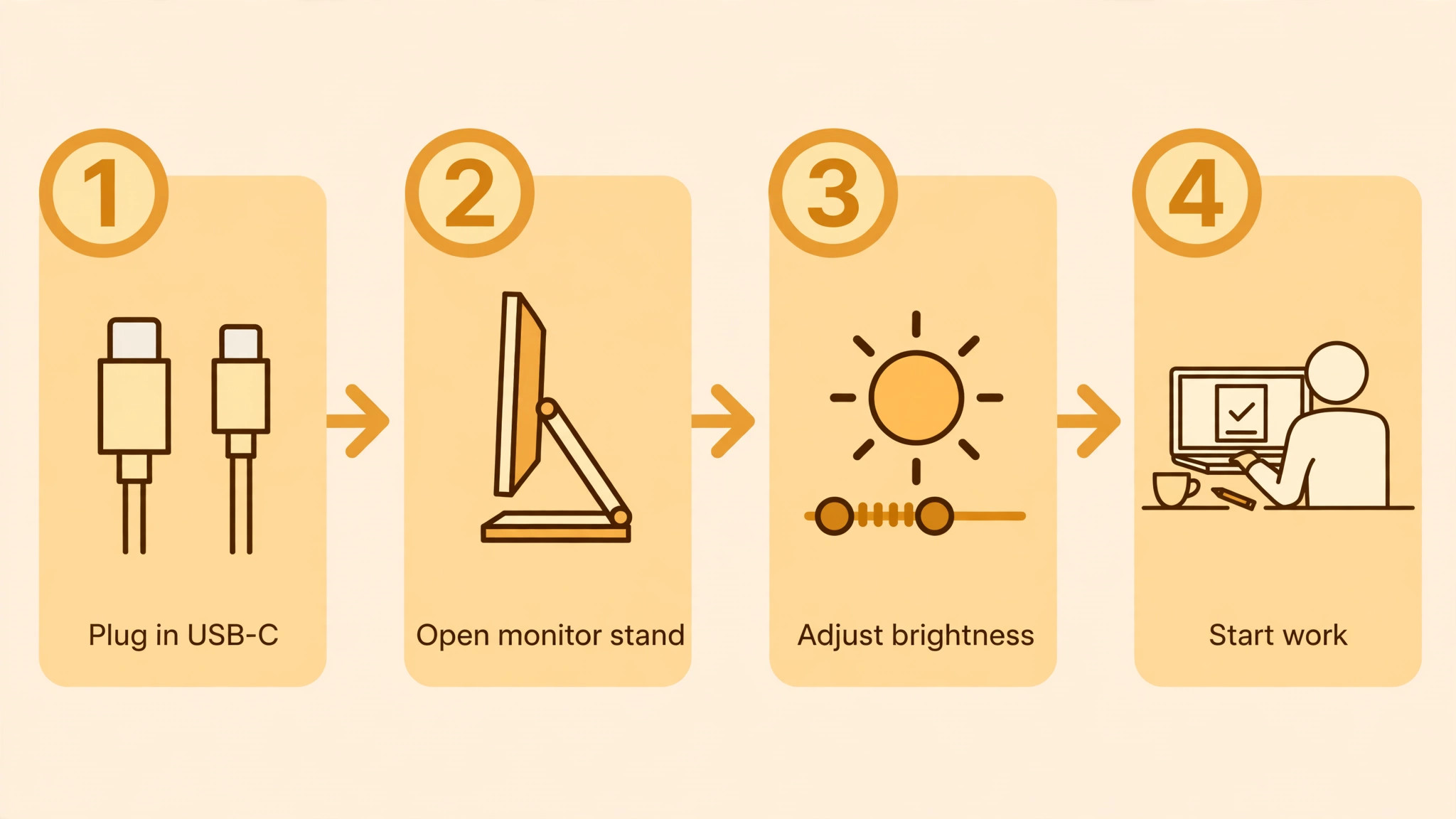
Arrange the screens in display settings so the monitor position matches its physical position, left or right of the laptop, because a mismatch causes the cursor to jump in the wrong direction and feels frustrating all day. Set scaling to a comfortable level, usually 100 percent or 125 percent for a 1080p portable panel, and check text size in your main apps before a work session, not during a call.
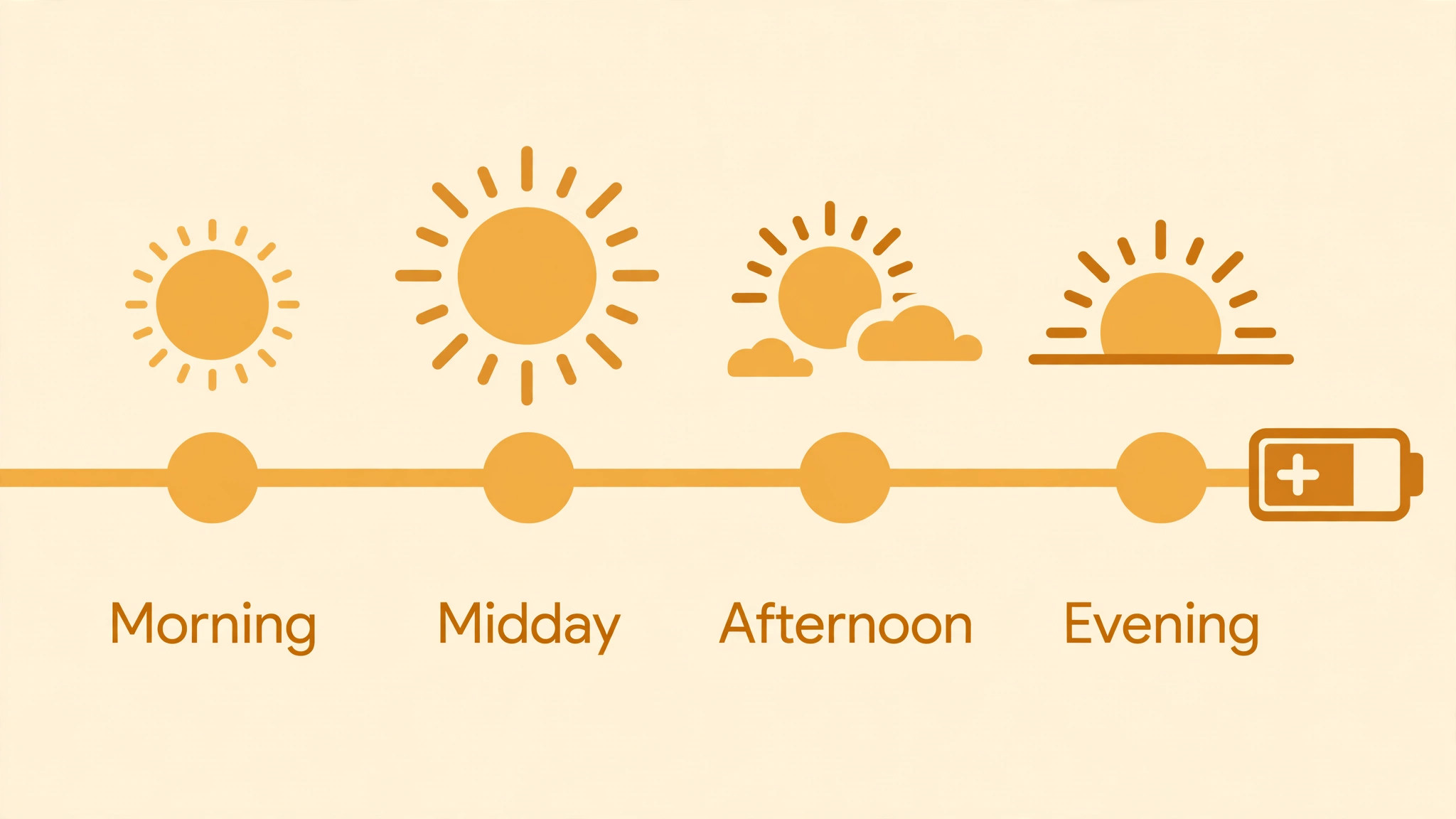
If the monitor does not appear, check the cable first, then the port. Not all USB-C cables carry video, and not all USB-C ports support video output. Use the cable supplied with the monitor, or a cable rated for video, and try a different port if one fails. If the monitor appears but is dim, check brightness settings on the monitor itself, not just on the laptop, because portable monitors often have their own brightness controls. If the monitor flickers or disconnects, check whether the laptop is supplying enough power, especially when the laptop is also charging other devices, and try a powered USB-C hub or a second power cable for the monitor where the model supports it.
Keep a spare cable in your bag, because a lost or damaged cable can end a work session, while a spare cable costs little and weighs almost nothing.
Ergonomics matter even with a portable screen. Place the monitor at eye level where possible, using a laptop stand, a stack of books in a hotel room, or a portable riser, so you do not hunch over a low screen all day. Keep the monitor close enough that text is readable without leaning forward, and take breaks to look away from screens. A second screen should reduce window switching, not increase neck strain. If you work in a cafe for hours, choose a table with enough depth for both screens, and avoid placing the monitor at an angle that forces you to twist. A small adjustment in position can make a long session far more comfortable, and it costs nothing.
Why Some Good Monitors Still Lose Here
Rejection reasons help you avoid buying a monitor that is good in general but wrong for remote work. We did not pick the ZenScreen MB16AHG as the overall winner, despite its 144 hertz panel and kickstand, because it is heavier and more expensive than the MB16ACV, and its refresh rate does not improve document work enough to justify the extra weight for most workers. We did not pick the ZenScreen Go MB16AHP as the overall winner, despite its battery, because its higher price only makes sense if you regularly work without power, and most remote workers have power nearby.
We did not pick the Lenovo ThinkVision M15 as the overall winner, despite its lightness, because it lacks the hybrid connectivity fallback and the proven folio stand of the MB16ACV.
We did not pick the ViewSonic VG1655 as the overall winner, despite its fair price and simple setup, because its stand and brightness are less impressive for mobile use. We did not pick the Arzopa Z1RC as the overall winner, despite its sharpness and low price, because its brand support, warranty and brightness claims are less established than ASUS or Lenovo, and some buyers will prefer a proven brand for a daily work tool. We also passed over very cheap portable monitors with poor stands, dim panels and unreliable USB-C connections, because a monitor that wobbles, flickers or disconnects will cost more in lost work time than it saves in purchase price.
The best portable monitor for remote work is the one that connects reliably, stays stable while you type, and is bright enough for the rooms where you actually work.
Buying Advice Before You Order
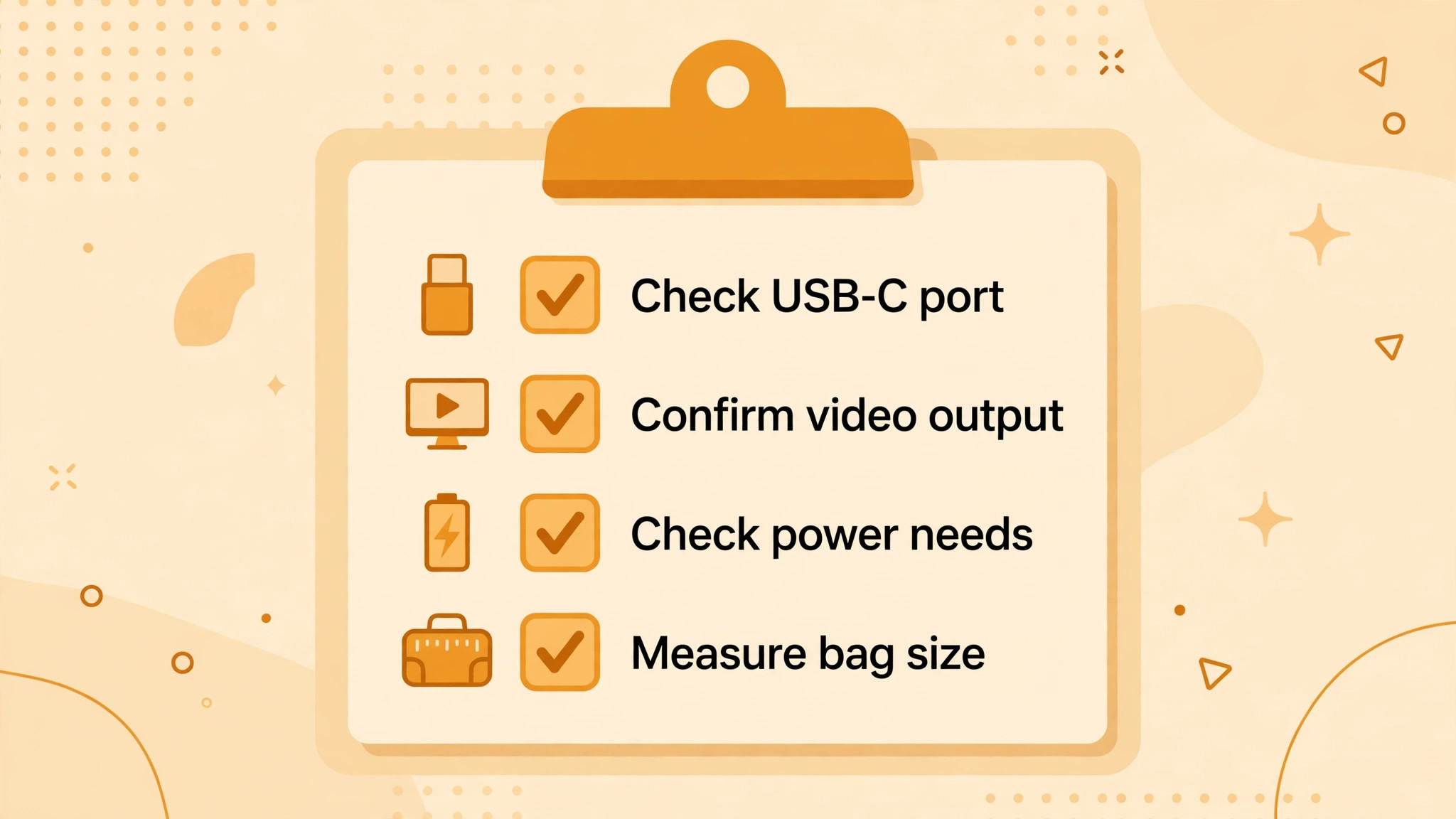
Check your laptop port before you order anything else. Look in the laptop manual or manufacturer specification for DisplayPort Alt Mode or Thunderbolt support on USB-C. If the port supports video, a single cable monitor will work. If it does not, choose a monitor with a hybrid USB-A solution or a DisplayLink option, and accept the driver install that comes with it. Check the monitor size against your bag, and check whether a case or sleeve is included, because a portable monitor without protection will scratch in a bag with keys, chargers and notebooks. Check warranty length as well.
ASUS models in guides were noted with a three year warranty in some listings, which is a real advantage for a daily work tool, while budget brands may offer shorter cover. Save the specification and return policy, and test the monitor in the first days with your real apps, your real cable and your real work locations. A monitor that works at home but fails in a cafe is not a remote work monitor, and a test in both places is worth the time.
Budget for a cable and a stand if they are not included. A good USB-C video cable, a portable laptop riser and a protective sleeve can add 50 dollars to 100 dollars to the total cost, but they improve daily use far more than a small panel upgrade. If your total budget is tight, the Arzopa Z1RC leaves room for those extras, while the ZenScreen Go uses more of the budget on its battery. Finally, keep the box until you have tested the monitor for a week, because a monitor with a dead pixel, a faulty port or a wobbly stand should be returned promptly, not tolerated.
A second screen should make work easier from day one, and if it does not, the right response is a return, not a workaround that you resent every day.
A Last Check on Brightness, Weight and Power
Before you order, write down the three factors that matter most for your daily rooms, because a monitor that is perfect at home can fail in a cafe. A best portable monitor for remote work for a bright coworking space needs higher brightness, while a best portable monitor for remote work for daily travel needs lower weight, and a best portable monitor for remote work for flights or power uncertain rooms needs a battery or pass through charging.
Check your laptop port, weigh your bag with the monitor inside, and test brightness in a bright room if you can, because the best portable monitor for remote work is the one that still works well in the room where you actually spend your day.
More Reading on Stratilyze
Portable screen choices sit beside the other remote-work display setups, so readers building a mobile desk usually check the neighbouring monitor guides next. The guide to setting up a portable monitor for laptop travel covers the travel setup this buying guide points toward, the guide to setting up a dual monitor desk for productivity explains the home version of the same two-screen workflow, and the guide to the best monitor for a home office under 300 shows the budget desk screen for the days you work from home.
Frequently Asked Questions
Does a portable monitor work with any laptop
It works with laptops whose USB-C port supports video output, or with a hybrid USB-A solution using DisplayLink software on some models. Check your laptop specification for DisplayPort Alt Mode or Thunderbolt before buying, and use a cable rated for video.
Is 250 nits bright enough for remote work
Yes indoors with controlled lighting, but it struggles near sunny windows or in bright coworking spaces. The best portable monitor for remote work for bright rooms should offer 300 nits or more and a matte finish to reduce glare.
Do I need a 144 hertz portable monitor for work
No for most document, email and spreadsheet work, where 60 hertz is fine. A 144 hertz panel feels smoother for scrolling and casual gaming, but it does not improve text readability or color accuracy for office tasks.
Can a portable monitor charge my laptop
Some models offer pass through charging over a second USB-C port, so you can charge the laptop while using the monitor. Others draw power from the laptop, which reduces laptop battery life, while battery models such as the ZenScreen Go can run independently for a few hours.
What size portable monitor should I buy
A 15.6 inch monitor gives a large second screen and fits most laptop bags, while a 14 inch monitor is lighter and easier to carry daily. Choose 16 inch models with higher resolution if you read code or long documents all day and want more vertical space.
Should I choose IPS or OLED for a portable monitor
IPS is the safer choice for most remote work, because it offers wide viewing angles, consistent colors and readable text at a fair price. OLED offers deeper blacks and stronger contrast, but it costs more and is less common in budget portable monitors.
The Final Verdict for Remote Workers
Buy the ASUS ZenScreen MB16ACV if you want a reliable, proven second screen that connects with one cable, works with older laptops through its hybrid option, and stays stable on a desk. Buy the Arzopa Z1RC if sharp text and value matter most, buy the ZenScreen Go if battery life matters most, and buy the Lenovo ThinkVision M15 if lightness matters most. The best portable monitor for remote work is not the brightest, sharpest or cheapest monitor in isolation. It is the monitor that fits your laptop, your bag and your daily rooms, connects without fuss, and stays in use after the novelty wears off.
Check your port, test it in a cafe as well as at home, and choose the factor you will notice every day, because that factor, more than any specification sheet, will decide whether a second screen becomes part of your work or stays in a drawer.