
You tap the Bluetooth switch and nothing happens. The toggle slides back, stays grey, or flips on for a second and then drops, and every headphone, speaker, and car kit in the house is suddenly useless. When bluetooth won’t turn on, the fault is almost always in software, a stuck service, a corrupt cache, or a bad update, and the fixes below work in order from the quickest to the most disruptive so you stop as soon as the toggle works again. This guide covers Android and iPhone, with exact menu paths for Samsung, Pixel, and Motorola.
This is a different problem from a phone that pairs badly or drops audio. If your toggle switches on fine but one accessory refuses to connect, you have a pairing problem, and the related reading at the end points you to the right fix for that. Here the switch itself will not stay on. Work the steps in order, test the toggle after each one, and do not jump to a factory reset. Most dead toggles come back at step one, two, or three, and the later steps exist so you can prove a hardware fault before you pay for a repair.
The Fix Order Checklist
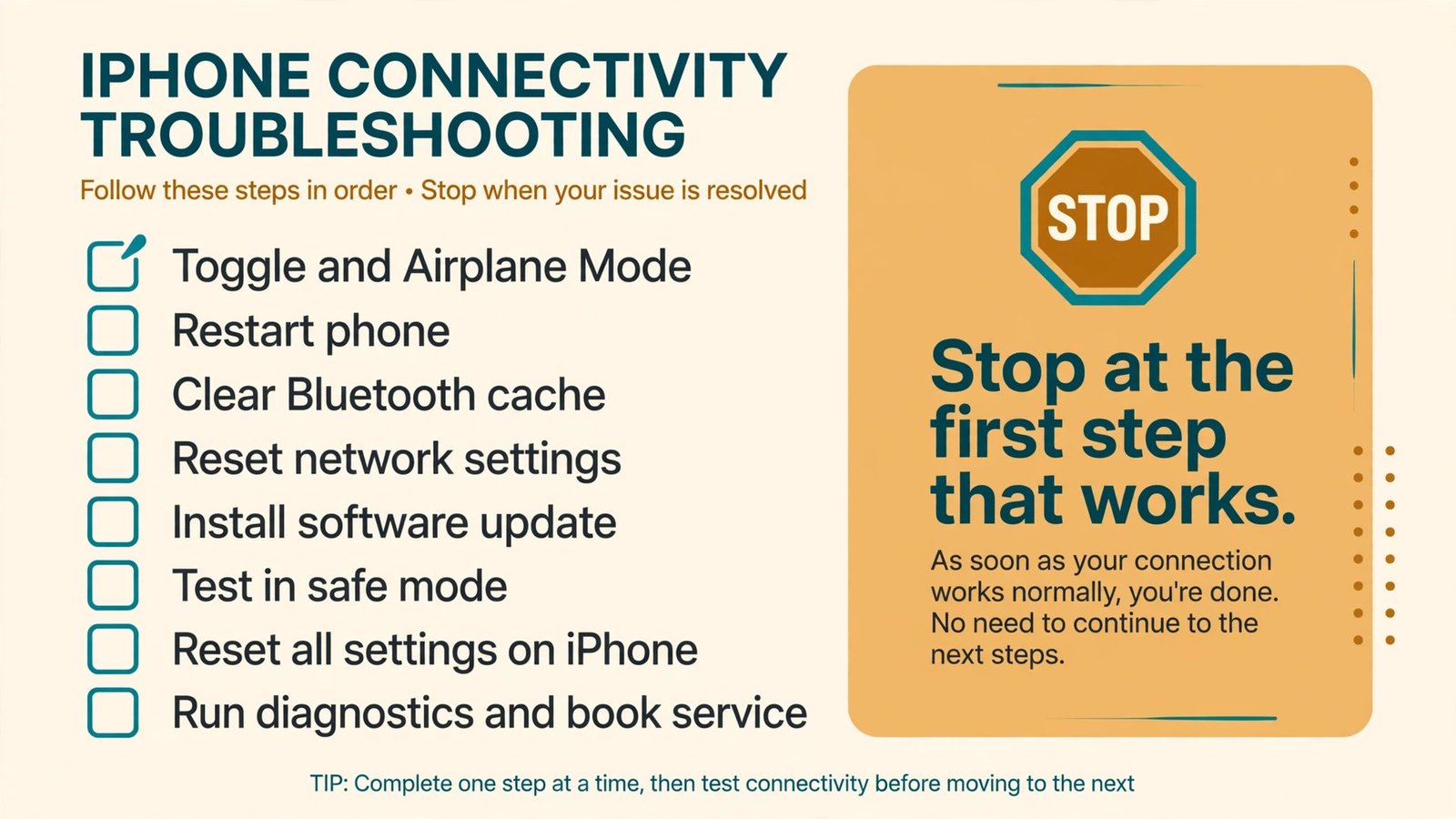
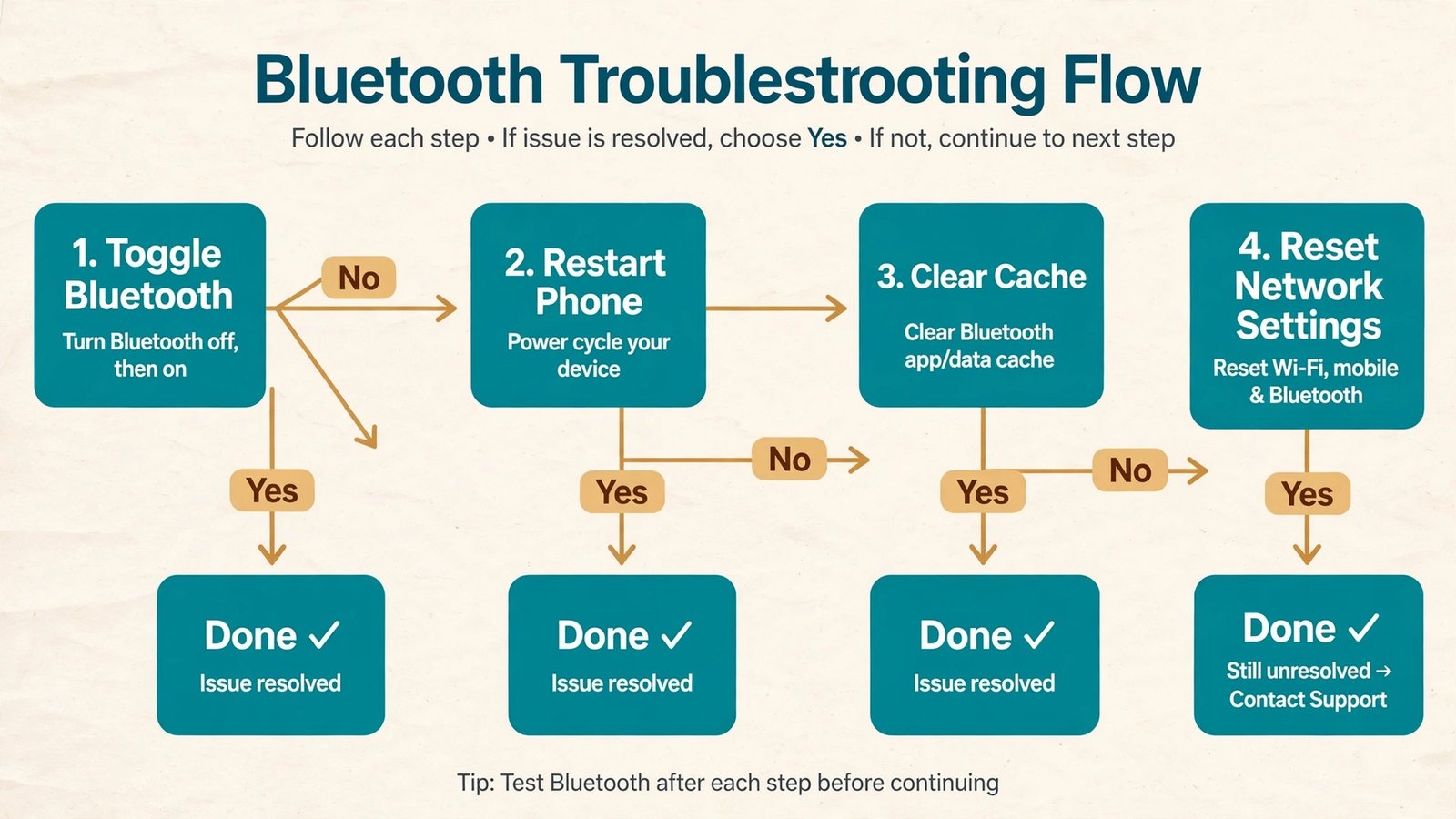
Use this list as your map. Do one step, test the toggle, and stop the moment it stays on. Each step costs a little more time or loses a little more saved data than the one before it.
- Turn Bluetooth off and back on in Settings, then cycle Airplane Mode on and off.
- Restart the phone properly, not just lock and unlock the screen.
- On Android, clear the Bluetooth app cache, then clear its storage if the cache clear fails.
- Reset network settings, knowing you will re-enter Wi-Fi passwords and re-pair accessories.
- Install any pending software update, then restart again.
- On Android, test in safe mode to rule out a third-party app.
- On iPhone, reset all settings as the last software step.
- Run the maker diagnostics and book service if the toggle is still dead.
If bluetooth won’t turn on after step 4, do not repeat steps 1 to 4 hoping for a different result. A fault that survives a network reset is a bug that needs a patch, an app conflict, or hardware, so move on to the update and the safe mode test.
Why Bluetooth Won’t Turn On in the First Place
Bluetooth on a phone is not one switch. It is a small chain, and a break anywhere in the chain shows up as the same symptom, a toggle that will not stay on. The chain starts with the Bluetooth service, the software that manages the radio. It continues through stored pairing data and network settings, and it ends at the radio chip and antenna inside the phone. A stuck service is the most common break and the easiest to fix. A corrupt cache or a half finished update is the next most common, and both are fixable without losing personal data. A failed radio chip is the rarest break, but it is the only one that no setting can fix
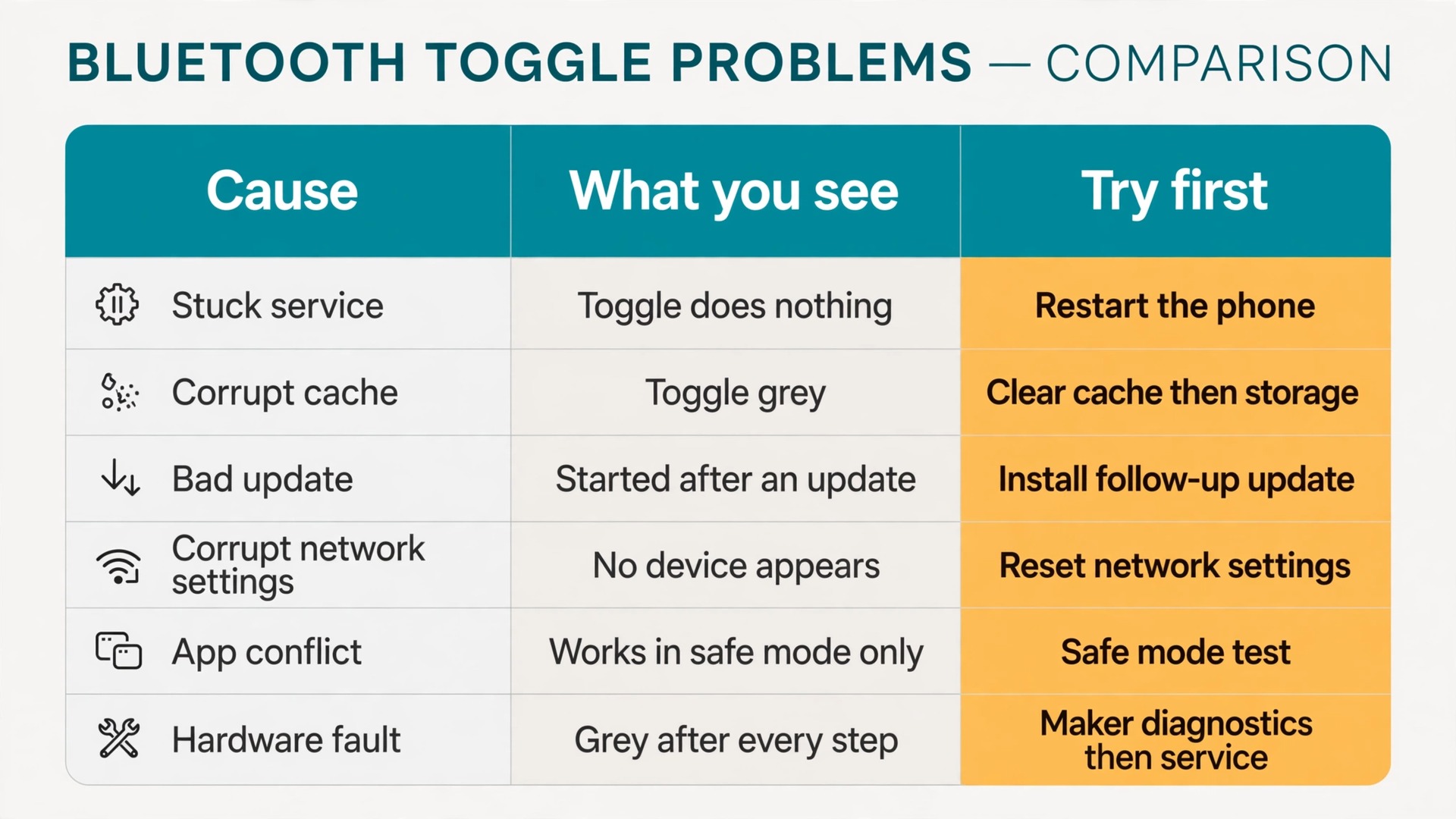
The table below matches what you see to the most likely cause, so you can skip ahead when your symptom is obvious. If the first guess fails, work the checklist in order, because two causes often overlap.
| Cause | What you see | Try first | How you confirm the fix |
|---|---|---|---|
| Stuck Bluetooth service | Toggle does nothing or flips back off | Restart the phone | Toggle stays on after reboot |
| Corrupt Bluetooth cache or storage on Android | Toggle grey or pairing list empty | Clear cache, then storage | Toggle works and a scan finds devices |
| Bad or half finished update | Problem started right after an update | Install the follow up update | Toggle works after update and restart |
| Corrupt network settings | Toggle works but no device appears | Reset network settings | Fresh scan finds devices |
| Third party app conflict | Toggle works in safe mode only | Safe mode test, then remove recent apps | Toggle works after removing the app |
| Hardware fault | Toggle grey after every software step | Maker diagnostics, then service | Repair report confirms a radio fault |
A toggle that works in safe mode but fails in normal mode points to an app conflict, while a toggle that fails identically after a cache clear and a network reset points to the system software or the hardware. Each step removes one suspect, and the suspects that remain after step 7 are few.
Before You Start, Two Quick Checks
Charge the phone and turn off battery saver before you judge any step. Battery saver modes restrict background activity and radios to stretch the remaining charge, and a phone at very low battery can behave as if its radios are broken when it is really just conserving power. Plug in, turn battery saver off, and test the toggle again.
Second, look at Airplane Mode and at whether the phone is managed by an employer or a school. Airplane Mode turns all radios off at once, and a stuck Airplane Mode state can hold Bluetooth down even when the icon looks off. Cycle it on, wait about fifteen seconds, and turn it off again. A managed work phone is different. Device management profiles can restrict Bluetooth by policy, and no cache clear will override a policy your employer set. If the phone is managed and the toggle is grey, check with the IT team before you reset anything.
Finally, write down what the toggle actually does. A toggle that is grey and cannot be tapped at all suggests a service crash or a hardware fault. A toggle that moves but slides back suggests a service that starts and then fails. A toggle that stays on but finds nothing suggests a scan or pairing problem. Keep that note, because support will ask for it. If the toggle changes behaviour after a step, even without being fixed, that change is information.
Fix It on Android
Android gives you one repair tool that iPhone does not, which is direct access to the Bluetooth system app and its stored data. Follow the steps below in order, and if bluetooth won’t turn on after any single step, move to the next one without repeating it. Use the Settings search box whenever a menu path here looks different, because Samsung, Pixel, and Motorola all rename menus.
Start With the Toggle and a Full Restart
Open Settings and go to the Bluetooth screen, not only the Quick Settings tile. On a Pixel, the path is Settings, then Connected devices, then Connection preferences, then Bluetooth. On Samsung, it is Settings, then Connections, then Bluetooth. On Motorola, it is Settings, then Connected devices, then Bluetooth. Turn the switch off, wait about ten seconds, and turn it back on. If the switch is grey here, move straight to the restart.
Restart the phone properly. Press and hold the power button until the power menu appears, then tap Restart. Locking the screen does nothing for a stuck service, while a restart reloads the Bluetooth service from scratch and fixes the largest share of dead toggles on its own. If the phone is frozen and the power menu will not appear, press and hold the power button until the phone vibrates or the maker logo appears, then let go.
Clear the Bluetooth Cache, Then the Storage
If a restart did not fix the toggle, the next suspect is the stored data of the Bluetooth system app, a step Google, Samsung, and Motorola all publish. Open Settings, then Apps, then See all apps. Tap the three dot menu and choose Show system. Scroll to Bluetooth, then open Storage and cache.
Tap Clear cache first. This removes temporary data only, so your paired devices stay in the list. Restart and test the toggle. If it now works, the fault may already be gone.
If the cache clear fails, go back to the same screen and tap Clear storage, labelled Clear data on some phones. This stronger step removes all stored Bluetooth data, so every paired device is forgotten. It does not delete photos, messages, contacts, or apps. Restart and check the toggle before you re-pair anything. If it works on a clean slate, pair your most used accessory first and confirm it connects, then add the rest one at a time.
Reset Network Settings
A network reset is the heaviest step that still leaves your personal data alone, so it belongs after the cache steps. On a Pixel or Motorola phone, the path is Settings, then System, then Reset options, then Reset Wi-Fi, mobile and Bluetooth. On Samsung, it is Settings, then General management, then Reset, then Reset network settings, which newer software may label Reset Wi-Fi and Bluetooth settings.
Before you confirm, understand what you lose. Saved Wi-Fi networks and their passwords go, saved Bluetooth pairings go, and VPN and mobile data settings return to defaults. Photos, messages, contacts, apps, and files stay. Make sure you know your home Wi-Fi password and how to set up a work VPN again. Confirm the reset, let the phone restart, and test the toggle before you reconnect or re-pair anything. If Wi-Fi misbehaves on the same phone, a network reset is even more likely to help, because Wi-Fi and Bluetooth share the 2.4 GHz band and some of the same network state.
Install the Software Update
Check for a software update even if the phone checked recently. On Pixel or Motorola, open Settings, then System, then Software update. On Samsung, open Settings, then Software update, then Download and install. Plug into power, connect to Wi-Fi, and install anything offered. Restart after the update, then test the toggle.
Makers ship Bluetooth fixes in system updates, so a fault that appeared after an update is often fixed by the follow up patch. A half finished update can also leave the Bluetooth service broken, and the next update can finish the job. If no update is offered, check again in a few days, and run the safe mode test below in the meantime. Pixel owners should also check the Google Play system update under Settings, then Security and privacy, then System and updates.
Test in Safe Mode
Safe mode starts Android with only the apps that shipped with the phone, the cleanest way to tell an app conflict from a system fault. Press and hold the power button until the power menu appears, then touch and hold Power off until a safe mode prompt appears. The phone restarts with Safe mode visible on screen and third party apps greyed out.
Test the toggle in safe mode. If it works there, a third party app is interfering and the radio itself is healthy. Restart normally, then remove recently installed or recently updated apps one at a time, testing the toggle after each removal, starting with VPN, battery saver, automation, and Bluetooth manager apps. If the toggle still fails in safe mode, the fault is in the system software or the hardware, so do not factory reset until you have run the maker diagnostics. A hardware fault will survive a factory reset, and you will have wiped the phone for nothing.
Fix It on iPhone
The iPhone fix order is shorter than the Android order, because iOS does not let you clear the Bluetooth system app cache directly. The steps therefore lean harder on the toggle, the restart, the network reset, and the software update. Follow them in order, test the toggle after each one, and do not skip the restart, the step people skip most and the step that fixes the fault most often.
Toggle Bluetooth in Settings, Not Only in Control Center
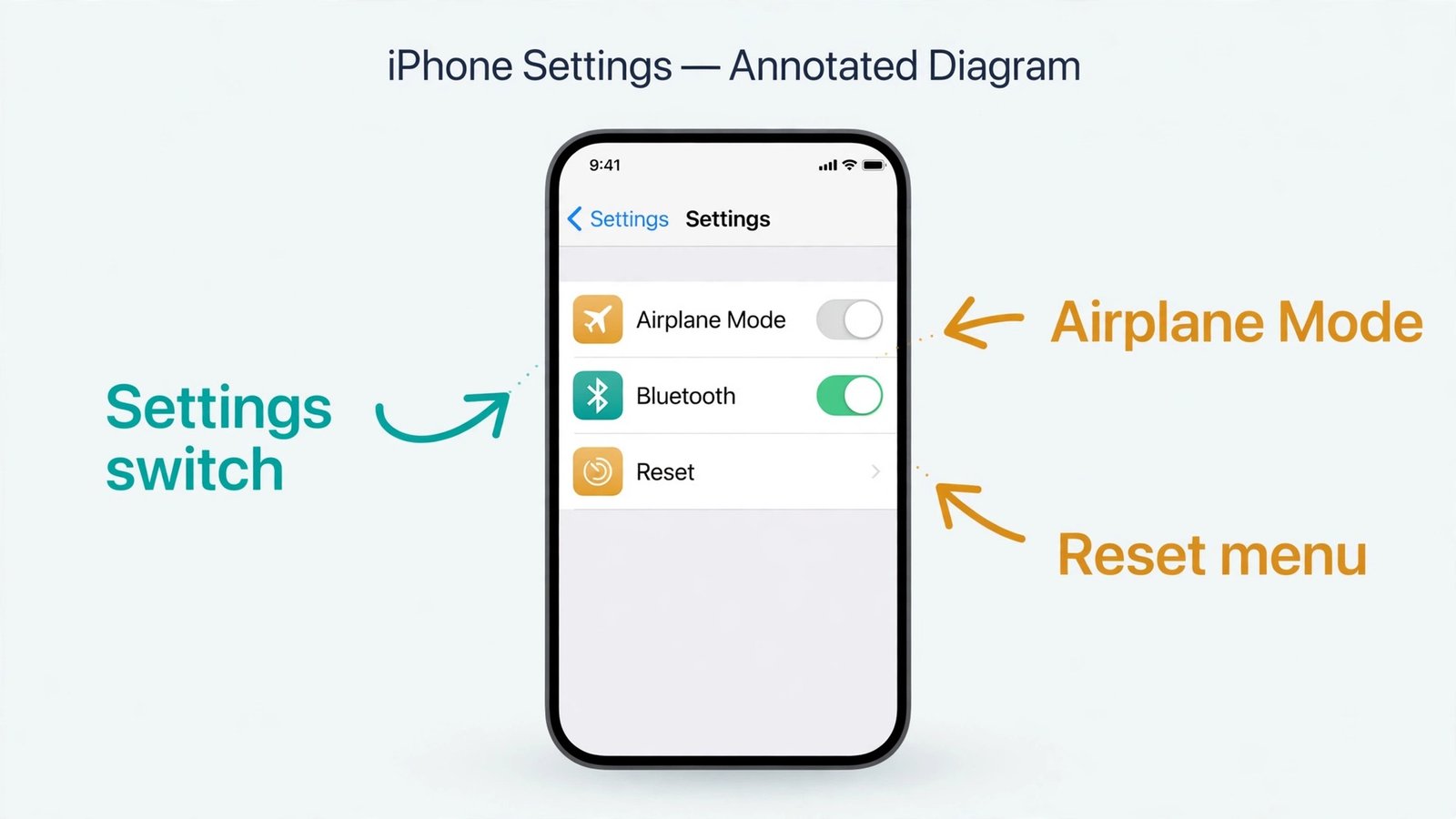
Open Settings, then Bluetooth, and use the switch at the top. Turn it off, wait about ten seconds, and turn it back on. This matters because the Control Center button does not fully switch Bluetooth off. It disconnects accessories until the next day while leaving the radio available for AirDrop. For a dead toggle, you want a true off and on, and only the Settings switch gives you that.
If the Settings switch is grey and cannot be moved at all, note that and move to the force restart below. Apple treats a greyed out switch as a serious symptom, and its support pages say to contact Apple Support when Bluetooth is greyed out, will not switch on, or no accessories connect after the standard steps. A grey switch after a force restart and a network reset is the strongest early sign of a hardware fault.
Force Restart the iPhone
If bluetooth won’t turn on after a normal restart, a force restart is the next move. The button combination depends on the model. On an iPhone 8 or later, including every iPhone with Face ID, press and release volume up, press and release volume down, then press and hold the side button until the Apple logo appears. On an iPhone 7 or 7 Plus, press and hold volume down and the sleep wake button together until the logo appears. On an iPhone 6s, 6s Plus, or first generation iPhone SE, press and hold the home button and the sleep wake button together until the logo appears.
Let go when the logo appears, then test the switch in Settings. A force restart does not delete data, but if the phone has not been backed up in a long time, back it up once the toggle works again. If the toggle works, pair one accessory and confirm it connects. If it is still dead, do not force restart repeatedly. One clean force restart rules out a stuck service, and repeating it will not fix a corrupt network state or a hardware fault.
Reset Network Settings on iPhone
The iPhone network reset lives in Settings, then General, then Transfer or Reset iPhone, then Reset, then Reset Network Settings. Enter the passcode and confirm. The phone restarts, and the reset clears saved Wi-Fi networks and passwords, cellular settings, VPN and APN settings, and all Bluetooth pairings. Photos, messages, contacts, apps, and files stay. Know your home Wi-Fi password before you confirm.
After the restart, test the switch before you rejoin Wi-Fi or re-pair anything. If it now stays on, the stored network state was the fault. Rejoin Wi-Fi and pair accessories one at a time, most used first. If the switch still fails, update iOS next, since a patch may fix the fault without touching another preference.
Update iOS
Open Settings, then General, then Software Update, and install anything offered. Plug into power and connect to Wi-Fi before a large update, and back up first if it is a major version. Apple ships Bluetooth fixes in iOS updates, so a fault that started after an update is frequently fixed by the next patch. If no update is offered, check again over the next few days and keep the phone backed up so you are ready when the patch lands. Once the toggle works again, leave an Apple accessory charging near the phone so its firmware can catch up.
Reset All Settings as the Last Software Step
If the toggle is still dead after the toggle, the force restart, the network reset, and the update, the last iPhone software step is Reset All Settings. Open Settings, then General, then Transfer or Reset iPhone, then Reset, then Reset All Settings. Enter the passcode and confirm. This returns system preferences to their defaults, but it does not delete photos, messages, contacts, apps, or files. You will still need to re-enter Wi-Fi passwords, re-pair accessories, and redo preferences like wallpaper and notifications.
Test the switch as soon as the phone restarts, before you restore preferences. If it works on a clean preference slate, rebuild your settings slowly and test as you go. If it still fails, you have exhausted the iPhone software fixes. Do not factory reset on your own unless support asks you to, because a full erase is a large disruption and a hardware fault will survive it.
Brand Differences That Change the Steps
Menu names shift between makers and Android versions, and that shift causes more confusion than any single fault. The steps are the same, but the labels are not, so use this section to translate the guide to the phone in your hand.
On Samsung phones, Bluetooth lives under Settings, then Connections, then Bluetooth, and the network reset under Settings, then General management, then Reset, then Reset network settings. Samsung also gives you a built in diagnostic. Open Samsung Members, tap Support, run Phone diagnostics, and choose Bluetooth. Samsung lists this diagnostic as the step to take when the standard fixes fail, and it is worth running before you contact support. For a frozen Samsung phone, press and hold the side key and the volume down key together for more than seven seconds until the device restarts.
On Pixel phones, Bluetooth lives under Settings, then Connected devices, then Connection preferences, then Bluetooth, and the network reset under Settings, then System, then Reset options, then Reset Wi-Fi, mobile and Bluetooth. Pixel phones also carry the separate Google Play system update under Settings, then Security and privacy, then System and updates.
On Motorola phones, the support pages keep the order simple. Check the basics first, which means charge both devices, keep them close, turn Bluetooth off and back on, and power cycle both the phone and the accessory. If the problem continues, clear data for the Bluetooth system app through Settings, then Apps, then All apps, then Show system apps, then Bluetooth, then Storage and cache, then Clear storage. A phone that has not fully powered off in weeks can hold a stuck service through every settings change, and a genuine power cycle, off for a full minute and then back on, clears states that a quick restart sometimes does not.
Whatever brand you own, use the Settings search box when a path here does not match your screen. Search for Bluetooth to reach the toggle, Reset to reach the reset options, and Software update to reach the update screen. Searching avoids the most common error in this kind of fix, changing the wrong setting because the menu looked similar. If two similar options appear, open the one mentioning Bluetooth or network settings, not the one mentioning a factory reset.
When the Toggle Stays Dead
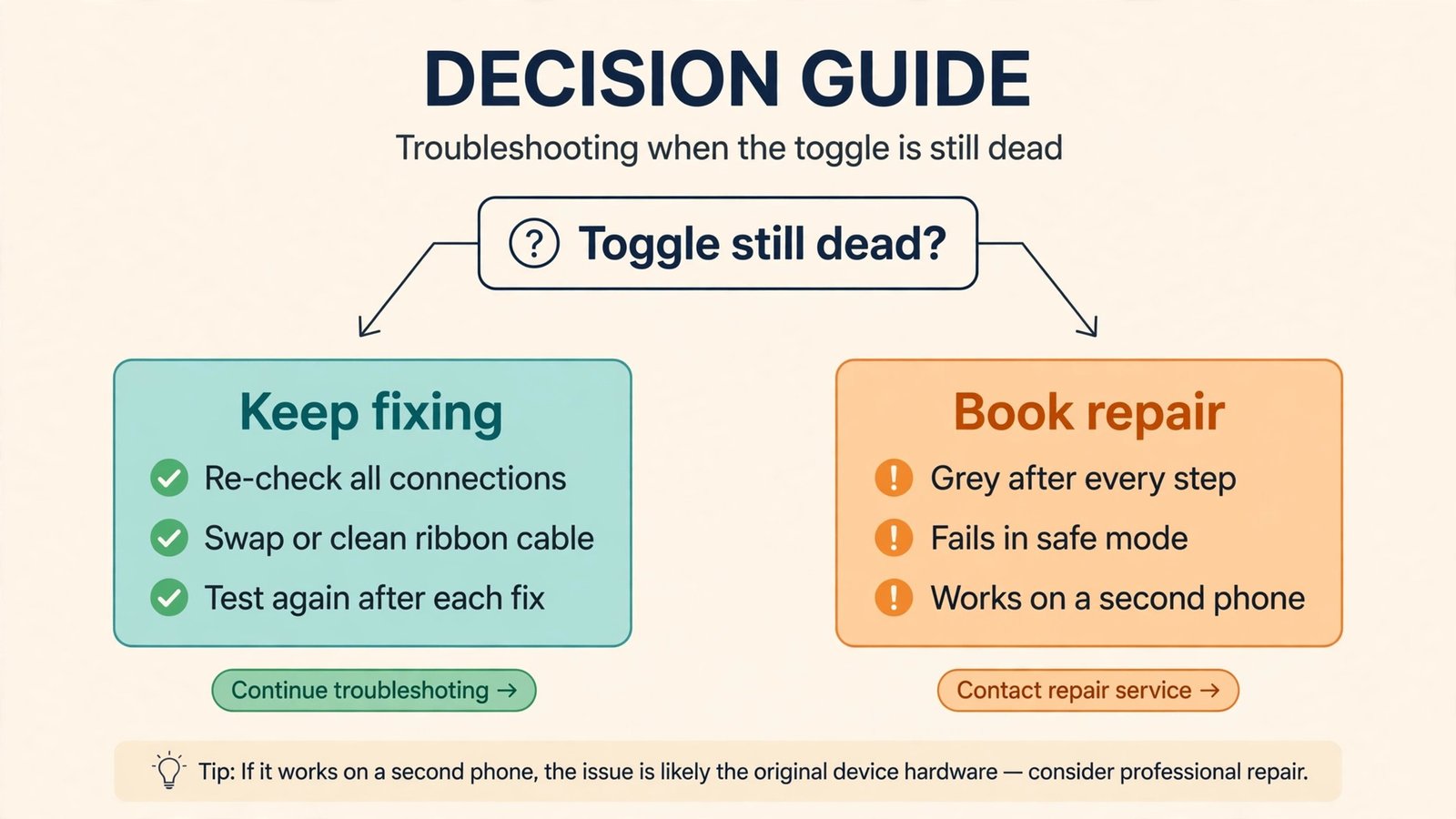
When bluetooth won’t turn on after the full software order, the signs below are how you tell that the honest answer has changed from another setting to a repair. No single sign proves hardware failure on its own, but several together leave little room for doubt.
- The toggle stays grey or missing after a restart, a cache clear, a network reset, and an update.
- The toggle fails identically in safe mode on Android.
- Bluetooth fails with every accessory, while those accessories work on a second phone.
- The fault started after a drop, a hard knock, or water exposure
- Other radios fail at the same time, such as Wi-Fi refusing to switch on.
- The phone runs unusually hot, or the battery drains sharply even when idle.
If several of those signs apply, run the maker diagnostics before you book anything. Samsung owners should run the Samsung Members Bluetooth diagnostic above. iPhone owners should contact Apple Support, which can run remote diagnostics and direct you to a store or an authorised repair provider. Other Android owners should check the maker support app for a diagnostic tool. Tell support exactly which steps you already tried and what the toggle did after each one. A report that says the toggle stayed grey after a restart, a storage clear, a network reset, an update, and a safe mode test gets a faster answer than a report that says Bluetooth does not work.
Before you hand the phone over, back it up. Service can involve a software restore or a board level repair, and either one can end with the phone wiped. Make sure the backup finished before you travel to the repair shop. Check the warranty and any device protection plan, and ask for a repair quote before authorising work. A radio repair on an older phone can cost a large share of the price of a replacement, so the sensible choice may be a trade in or a new phone. Do not accept a full board replacement without a diagnosis naming the Bluetooth radio as the fault, and keep the diagnostic report with your receipt.
One last software option exists before service, and it is a factory reset. It erases the phone and returns it to its factory state, removing any software fault that survived every other step, but it will not fix a hardware fault. Take it only when support asks for it, or when the phone shows no hardware signs at all and you have a complete, tested backup. If the phone shows the hardware signs above, skip it and go to service.
Once the toggle is working again, the next problem is often a different one. If the switch now stays on but one pair of headphones still refuses to connect, the fault has moved from the toggle to the pairing, covered in the guide to fix Bluetooth headphones not pairing. If your trouble started right after a system update and the phone also loses charge faster than it used to, the guide to battery drain after an update covers the battery side of that same update. A fix that restores the toggle does not automatically restore battery life.
Frequently Asked Questions
Why did Bluetooth stop working right after a software update?
An update replaces system software while the phone keeps its old stored data, and the two do not always agree. A pairing record or cache file written by the old version can block the new Bluetooth service from starting, which is why bluetooth won’t turn on the morning after an update even though nothing else changed. Restart first, clear the Android Bluetooth cache or reset network settings, then install the follow up patch if one is offered. If no patch is offered yet, keep the phone backed up and check again every few days.
Will resetting network settings delete my photos, messages, or apps?
No. A network reset clears saved Wi-Fi networks and passwords, Bluetooth pairings, VPN settings, and cellular settings, and returns those settings to their defaults. It does not delete photos, messages, contacts, apps, or files. The cost is reconnection work, not data loss. You will re-enter your home Wi-Fi password, set up a work VPN again, and pair accessories again from scratch. Advice that says a network reset wipes the phone is confusing it with a factory reset.
Does clearing Bluetooth storage on Android delete anything besides pairings?
Clearing Bluetooth storage removes the stored Bluetooth data of the system app, so every paired device is forgotten and Bluetooth settings return to their defaults. It does not delete photos, messages, contacts, or apps. Cache is temporary data, and clearing it keeps your pairings. Storage is the full saved state, and clearing it forgets them. Try the cache first, restart, and test the toggle. Use storage only when the cache clear fails, and pair your most used accessory first afterward.
Why is the Bluetooth toggle greyed out instead of just off?
A greyed out toggle cannot be operated at all, unlike a switch that is simply off. The service behind it is either crashed, blocked by a failed update, or unable to reach the radio hardware. On iPhone, Apple treats a greyed out switch as a serious symptom and directs users to support when the standard steps fail. A switch that stays grey after a restart, a storage clear, a network reset, and an update is the clearest early warning of a hardware fault.
Can an app I installed stop Bluetooth from switching on?
Yes, on Android. Connection manager, VPN, battery saver, and automation apps can hold the radio in a bad state or block the service from starting. Safe mode is the test that proves it. If bluetooth won’t turn on in normal mode but works in safe mode, an app you installed is interfering. Restart normally, remove recently installed or recently updated apps one at a time, and test the toggle after each removal. On iPhone, third party apps have less direct access to the radio, so a failing toggle is more likely a system or hardware fault.
Should I factory reset the phone if nothing in this guide works?
A factory reset is the last software option, not the next step after a failed network reset. It erases the phone completely, so it needs a complete and tested backup in place. It will not fix a hardware fault, which is why the guide puts diagnostics and the hardware signs before it. If the phone shows hardware signs, such as a toggle grey after every step, a fault after a drop, or accessories that work on a second phone but never on this one, go to service instead. If no hardware signs are present and support asks for a factory reset, back up, reset, restore, and test the toggle before reinstalling third party apps.
When to Stop Fixing and Book a Repair
You have a working fix order, a cause table, and a set of hardware signs, and the right stopping point is the moment those tools agree that software has nothing left to offer. That moment arrives when the toggle stays dead after a restart, a cache or storage clear on Android, a network reset, an update, and a safe mode test, or on iPhone after a force restart, a network reset, an update, and a reset of all settings. Continuing past that point does not make the repair cheaper or faster. It usually makes it slower, because every extra reset is another change a repair technician has to untangle.
The better ending to this kind of fault is a short, precise report. Note the phone model, the software version, the date the fault started, whether it followed an update or a drop, what the toggle does when tapped, and which steps you already tried with what result. Take that note to the maker support channel or the repair shop, and ask for a quote before authorising work. If bluetooth won’t turn on even on a clean software slate, the radio or its connection to the board is the remaining suspect, and a quoted repair on a named fault is a decision you can weigh against the age of the phone and the price of a replacement.
Fix what software can fix, prove what it cannot, and spend the repair money only on the fault you have proven.