
A story lasts only 24 hours, so a loading failure that eats an evening can mean a missed moment, not just a delay, and that short window is why story failures feel more urgent than a slow feed. The spinner turns, the story stays black, or the app jumps past the story you wanted, while the rest of the phone seems fine online. When you fix Instagram stories not loading, the cause is usually one of four things, which are the app itself, the connection, the phone’s storage or cache, or the account and server side, and each needs a different fix, so reinstalling immediately wastes a step that a restart or a cache clear might have solved.
This guide works through the fixes in order, from the fastest app and connection checks, through cache, update, and storage steps, to logout, reinstall, and account checks, plus the signs that point to an Instagram outage rather than a phone problem. It covers stories that never load, stories that load without sound or video, and stories that fail for one account but not another, because those patterns point to different causes. Follow the steps in order, test with a known story after each step, and stop as soon as stories play normally.
What Kind of Story Failure You Have
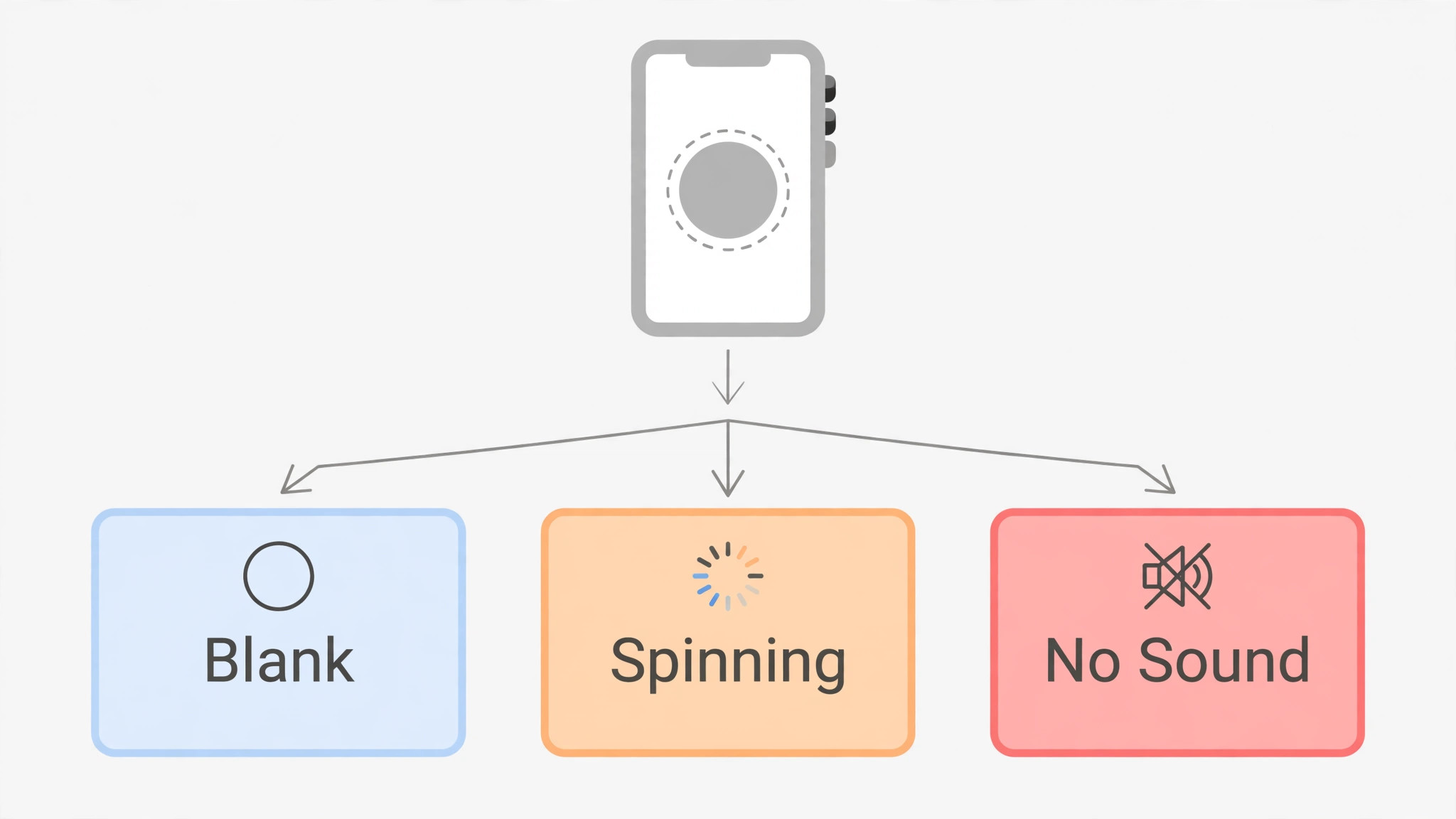
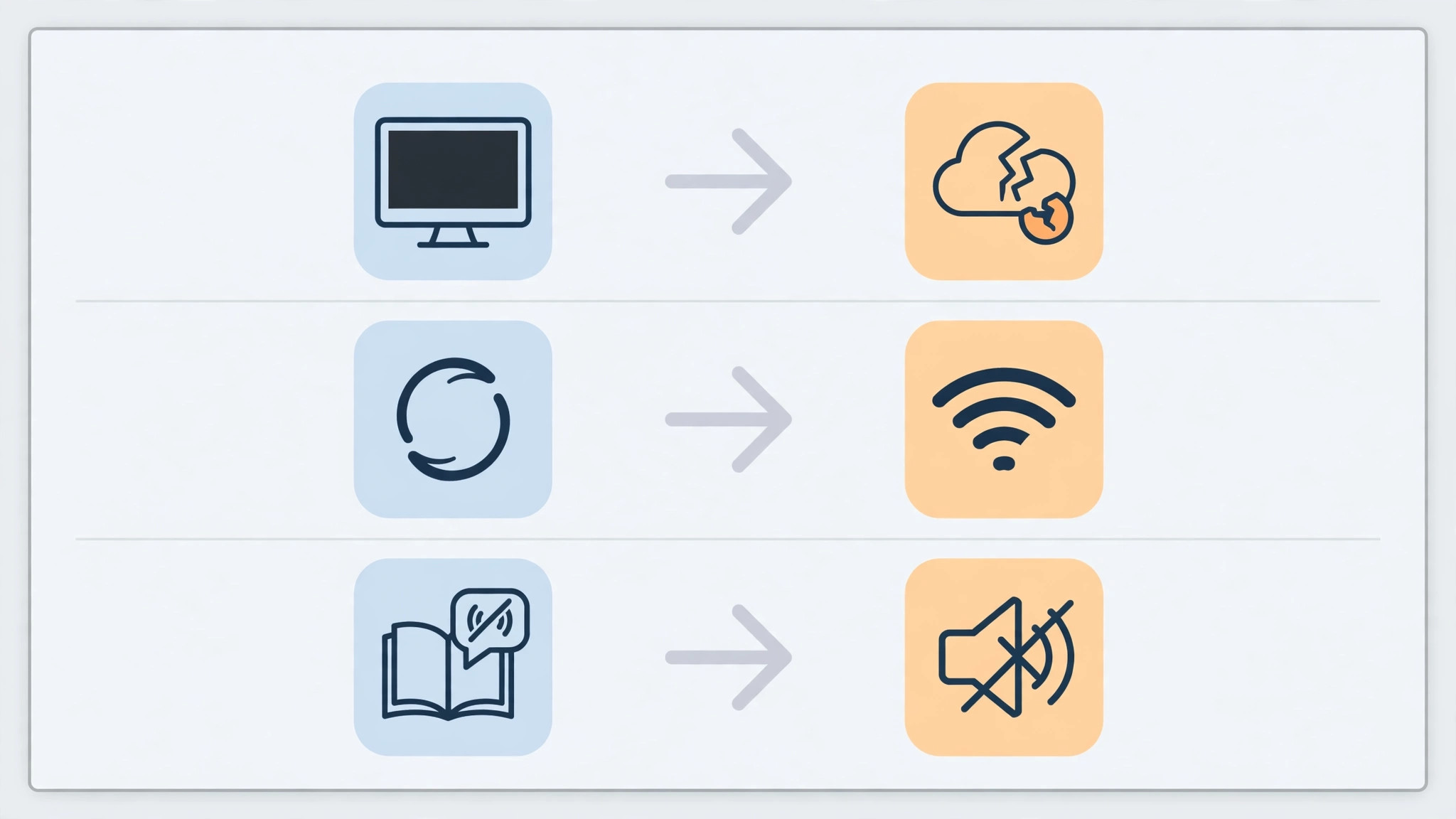
The pattern of story failure narrows the cause faster than any single fix, so note exactly what happens before changing settings. If no stories load at all, while the feed, reels, or other apps work, the cause is more likely the app’s cache, a temporary app fault, or a server problem affecting stories specifically, rather than the connection as a whole. If stories and everything else fail, including other apps, the cause is more likely the connection, the router, or mobile data, and app steps will not help until connectivity returns.
If stories load but play without sound, without video, or in low quality, the cause is more likely a media, audio, or bandwidth issue, such as a muted setting, a Bluetooth audio route, or a slow connection that cannot stream video smoothly.
Check whether the failure affects one account, one person, or everyone, because that distinction decides the next step. If stories fail for one person only, that person’s stories may be unavailable, restricted, or removed, or the app may have a cached bad version of that person’s stories, and clearing cache or viewing from another account can reveal which. If stories fail for your account on every device, the account itself, its settings, or an Instagram restriction is more likely, and phone steps will not help until the account side is checked.
If stories fail for everyone on your phone but work on another phone on the same network, the app or phone is the fault, and cache, update, and reinstall steps become the priority.
Also note when the failure started, because timing names the cause in many cases. A failure that started right after an app update points to that update, a failure after a phone update points to a system or permission change, and a failure that started suddenly for many users at once points to an Instagram outage, which no phone fix can cure. Check a second device, a friend’s phone, or an outage report source, before spending an hour on phone steps for a server problem, because an outage that affects stories widely will resolve on Instagram’s side, and the best response is to wait and retry later, rather than reinstalling an app that was never at fault.
Check another device first when you fix Instagram stories not loading, before spending an hour on phone steps.
How to fix Instagram stories not loading in Order
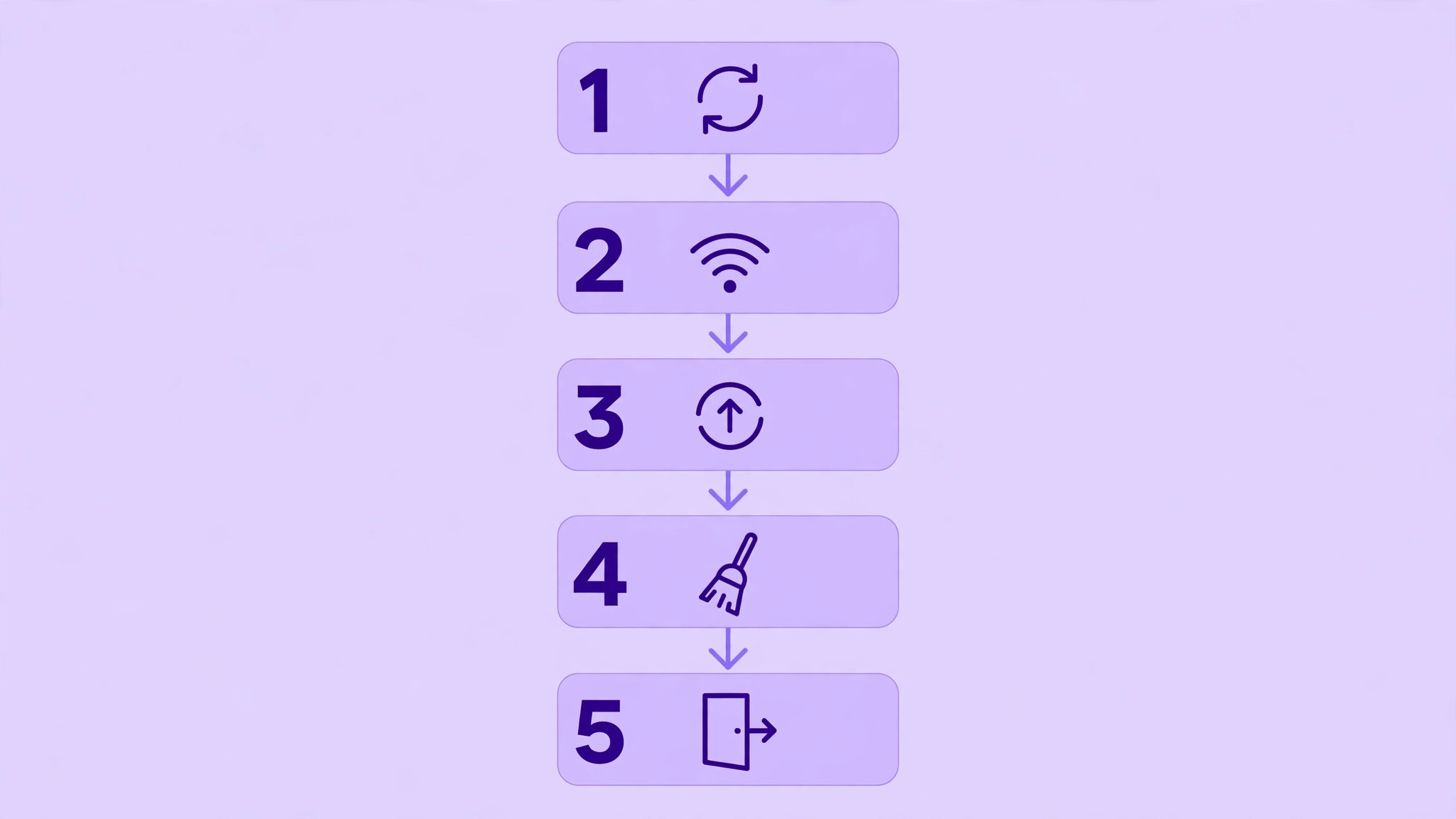
Work through this order, testing a known story after each step, and stop when stories play normally with sound and video. The order runs from quick and harmless to slow and disruptive, so a restart or a connection check can solve the problem before any data is cleared, and a reinstall comes only after cache and update steps have been tried. Keep your Instagram login details handy from step nine onward, because logout and reinstall require signing in again.
- Force close Instagram fully, reopen it, and try the story again, to clear a temporary app state.
- Restart the phone fully, then open Instagram and test a story, because a restart clears deeper temporary states than an app close.
- Check the connection by opening a web page and a video in another app, switch between Wi-Fi and mobile data, and restart the router if Wi-Fi is the problem.
- Test stories on another device or another network, if possible, to split app and phone causes from account and server causes.
- Clear only the Instagram cache in Settings under Apps, Instagram, and Storage and Cache, then reopen Instagram and test, because cache is safe and often the cause.
- Free storage on the phone if it is nearly full, because stories need working room for media, and a full phone stalls media loading.
- Update Instagram from the store, and check for a system update as well, install either if available, restart, and test again.
- Check Instagram permissions, including storage, network, and media permissions, and confirm no battery optimisation is pausing Instagram in the background.
- Log out of Instagram, restart the phone, log in again, and test, because a fresh sign in refreshes account session data that can go stale.
- Uninstall and reinstall Instagram, sign in again, and test, as a stronger step when cache, update, and logout have all failed.
- If stories fail for your account on every device, check account status, restrictions, and whether the account needs verification, and contact Instagram help with a note of steps tried.
That order protects your data, because early steps delete nothing, cache steps delete only temporary files, and logout and reinstall steps, which require signing in again and re-downloading media, come only after simpler fixes have failed. Clearing cache is safe and repeatable, while clearing data, where Android offers it separately, resets app settings and requires reconfiguration, so it should follow cache steps, not precede them. Reinstalling is stronger still, because it removes the app entirely and requires a fresh download and sign in, so it belongs near the end, after a logout has already tested whether a fresh session alone helps.
When you fix Instagram stories not loading, test with a story from a large, active account that you know posts regularly, rather than only with the story that first failed, because a known active story proves the app works, while a single failed story may be unavailable, restricted, or removed for reasons unrelated to your phone. If known stories play but one person’s stories still fail, focus on that person’s stories, cache, and account relationship, rather than repeating app wide steps. An app that plays known stories is a healthy app, and the remaining problem belongs to the specific story, its poster, or its availability, not to your phone as a whole.
Cache, Storage and Permission Steps in Detail
Cache steps deserve detail, because cache and data are often confused, and the difference decides whether a step is safe or disruptive. Cache means temporary files Instagram keeps to load faster, such as story thumbnails, media fragments, and feed records, and clearing it deletes nothing you need, because the app rebuilds those files as you use it. To clear cache on Android, open Settings, go to Apps, find Instagram, open Storage and Cache, and tap Clear Cache, then reopen Instagram and test a story, because the app needs a moment to rebuild its lists.
On iPhone, Instagram offers no separate cache clear in system settings, so the equivalent step is offloading or reinstalling the app, which is why iPhone users should try restart, update, and logout before reinstalling, rather than searching for a cache button that does not exist. Clear cache before data when you fix Instagram stories not loading, without exception.
Storage blocks story loading in a quieter way, because stories are media rich, and a phone with almost no free space cannot download and play video smoothly, even when the feed, which is lighter, still works. Check storage in Settings, aim to keep at least a few gigabytes free, and free space by uninstalling unused apps, deleting large videos, and clearing caches from heavy apps, then test stories again before moving to account steps. A phone that plays stories again after freeing space had a storage problem all along, and no app reinstall would have helped until space existed, which is why storage checks belong in the middle of the order, not as an afterthought.
Permissions and battery settings cause a subtler failure, because Instagram needs storage, network, and media permissions to load stories, and a permission revoked by a system update or a privacy change can break stories while leaving the feed apparently working. Check Instagram permissions in Settings under Apps, confirm storage and media permissions are allowed, and check battery settings to confirm Instagram is not restricted in the background, because a restricted app may load the feed when opened but fail to preload stories.
Also check whether a VPN, data saver, or firewall app blocks Instagram’s media servers specifically, by pausing it temporarily and testing, because those tools commonly allow browsing while blocking media streams, which produces a story only failure that looks like an app fault.

Cause Table for Story Symptoms
Use this table to match what you see with the most likely cause and the first fix, so a clear symptom leads straight to the relevant section without working blindly. The table does not replace the full order, but it speeds diagnosis when a pattern is distinctive.
| Symptom | Most likely cause | First fix to try |
|---|---|---|
| No stories load, feed works | App cache, app fault, or stories server | Restart app, clear cache, test another device |
| Nothing loads anywhere | Connection or router fault | Check connection, restart router, try mobile data |
| Stories load but no sound | Muted setting, audio route, or media fault | Check volume, Bluetooth route, restart app |
| Stories load in low quality or stall | Slow connection or low bandwidth | Switch network, test speed, try Wi-Fi versus data |
| One person’s stories fail only | That story unavailable or cached bad copy | Clear cache, test another account, check availability |
| Stories fail on every device for one account | Account restriction or server side fault | Check account status, wait, contact help |
| Stories fail after an app update | Faulty update or changed permission | Update again, check permissions, reinstall if needed |
| Stories fail when storage nearly full | No working room for media | Free storage, then test stories again |
A symptom that changes after a step is useful, even when the step does not fully fix the problem, so note what changed. If clearing cache turns a total story failure into stories that load without sound, the cache was part of the problem and an audio setting or route is the rest. Use the table first when you fix Instagram stories not loading and the pattern is clear. If switching networks fixes stories, the original network, its DNS, or its filtering was the cause, and further app steps would have wasted time. Troubleshooting is narrowing, not magic, and a short note of symptoms, steps, and changes makes that narrowing fast, especially if you later seek help.
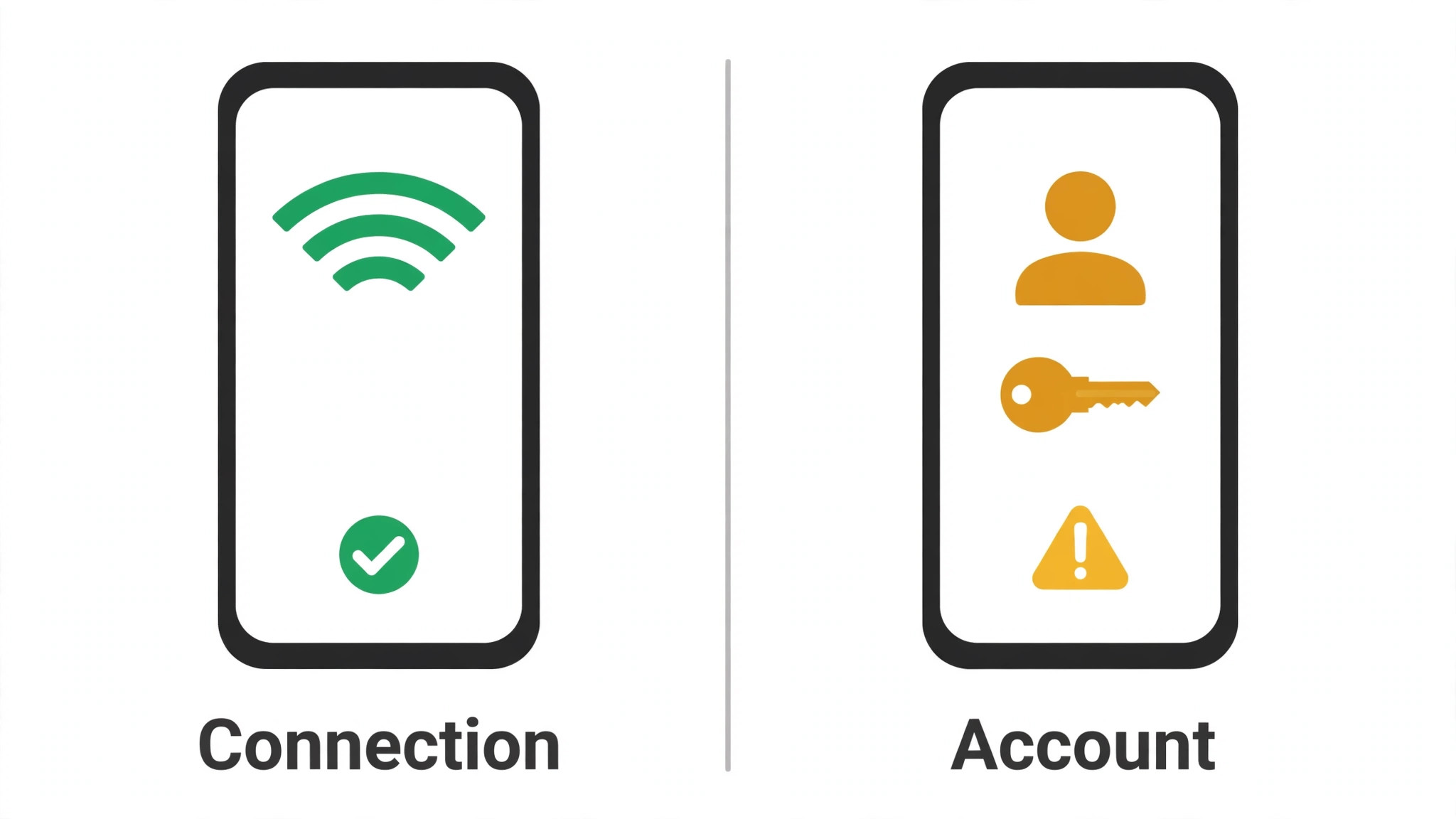
Connection Versus Account Causes
Connection and account causes look alike at first, because both produce a spinner and a failed story, but they separate cleanly with two tests. First, test stories on another network, such as mobile data instead of Wi-Fi, because a story failure that disappears on mobile data points to the home network, its DNS, or its filtering, while a failure on both networks points to the app, phone, or account. Second, test stories on another device with the same account, and with a different account on the same phone, because those two tests together separate account causes from phone causes.
A failure that follows the account across devices is an account or server cause, while a failure that follows the phone across accounts is a phone or app cause, and that distinction decides whether phone steps or account help is the right next move.
Network filtering deserves attention, because some home, school, or work networks block or throttle social media traffic, and a story failure that occurs only on one network, while feed and browsing work, can mean media servers specifically are filtered. Test on mobile data when you fix Instagram stories not loading with a network only failure. Test with a VPN temporarily, only if you normally use one and understand its risks, or simply test on mobile data, because a mobile data success proves the network, not the app, is the blocker.
Also check whether a data saver, a parental control, or a security app blocks Instagram media, by pausing it briefly and testing, because those tools commonly allow text and images while blocking video streams, which produces a story specific failure.
Account causes include restrictions, verification holds, and server side faults that affect one account while others work normally. Check whether the account can post, comment, or view other features, because a broader account restriction usually affects more than stories, while a stories only account fault is rarer and more likely a temporary server issue. Check Instagram’s own status through a second device or a trusted outage source, and if many users report story failures at the same time, wait and retry later, because no phone step can fix a server outage, and reinstalling during an outage only adds a sign in problem to a server problem.
When Stories Fail for One Person Only
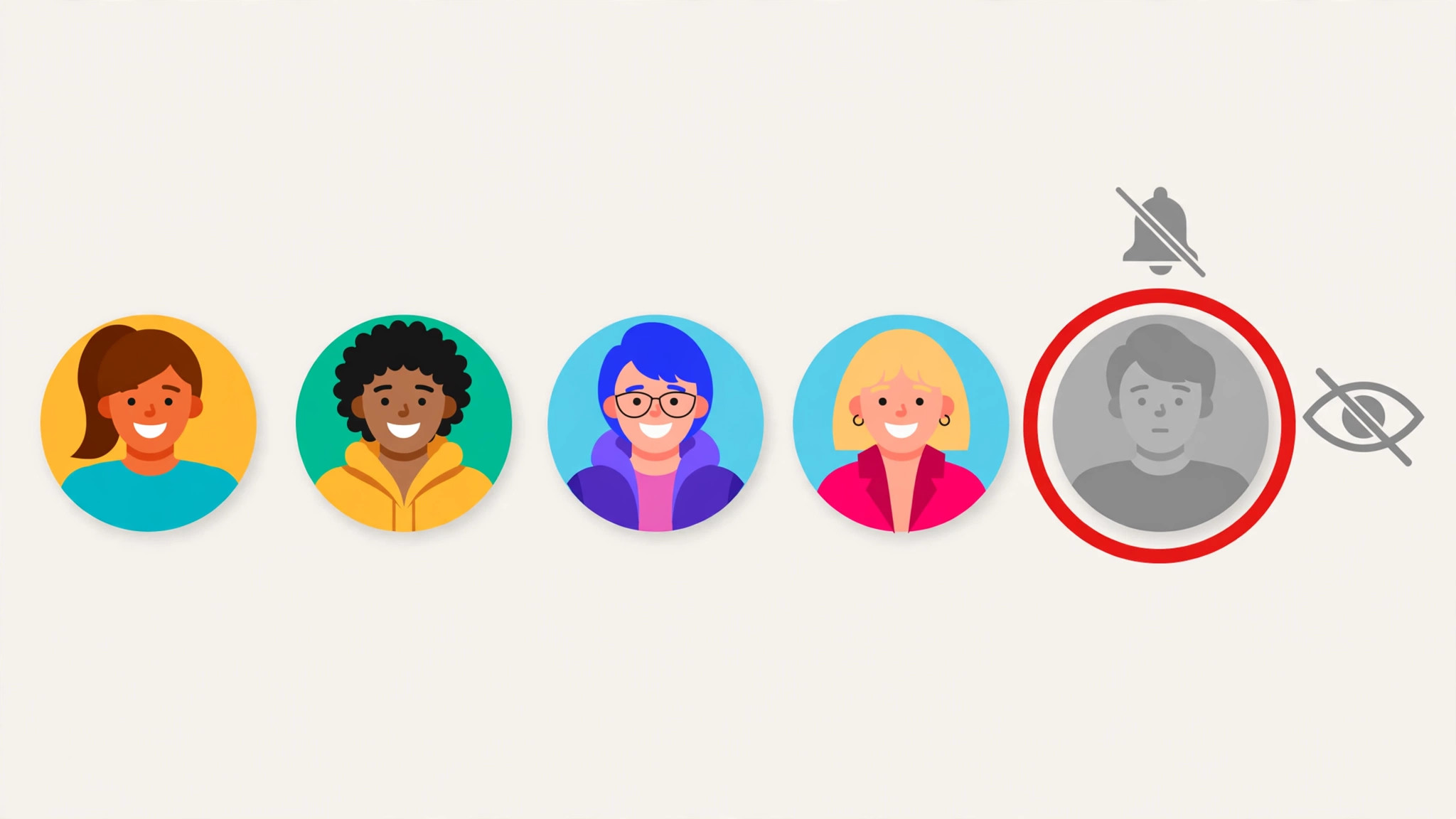
A failure limited to one person’s stories needs a narrower lens, because an app wide fix cannot help a single unavailable story. First, check whether that person’s stories are still available, by viewing their profile and looking for a story ring, because a story that expired, was deleted, or was restricted will not load no matter how healthy your app is. Stories last 24 hours, so a story that was viewable in the morning may simply have expired by evening, and that expiry looks exactly like a loading failure if you expected it to still be there.
Check whether you can view that person’s feed posts and reels, because a profile that loads normally while only stories fail points to story availability or cache, rather than to a block or a connection fault.
Cache can also explain a single person failure, because Instagram caches story data per account, and a corrupt cached copy for one person can fail while other people’s stories load normally. Clearing cache, then viewing that person’s stories again, often resolves it, because the app fetches a fresh copy instead of retrying a corrupt cached one. If clearing cache does not help, test from another account or device, because a story that loads for another viewer but not for you may be restricted to a close friends list you are not on, or may have been hidden from you, and no phone fix can change a poster’s audience choice.
Respect that possibility, and do not assume a technical fault when a privacy choice explains the pattern, because chasing a privacy setting as if it were a bug wastes time and causes frustration.
If a single person’s stories fail for you on every device and account, while other viewers see them normally, consider whether an app version, a network filter, or a regional availability issue affects your setup specifically, and test on mobile data and on a different network to narrow it. When you fix Instagram stories not loading with a single person failure, start with availability and cache, because those two checks resolve most cases in minutes, and only then move to app wide steps, which are unlikely to help a problem that affects one story source.
Mistakes That Waste Time on Story Fixes
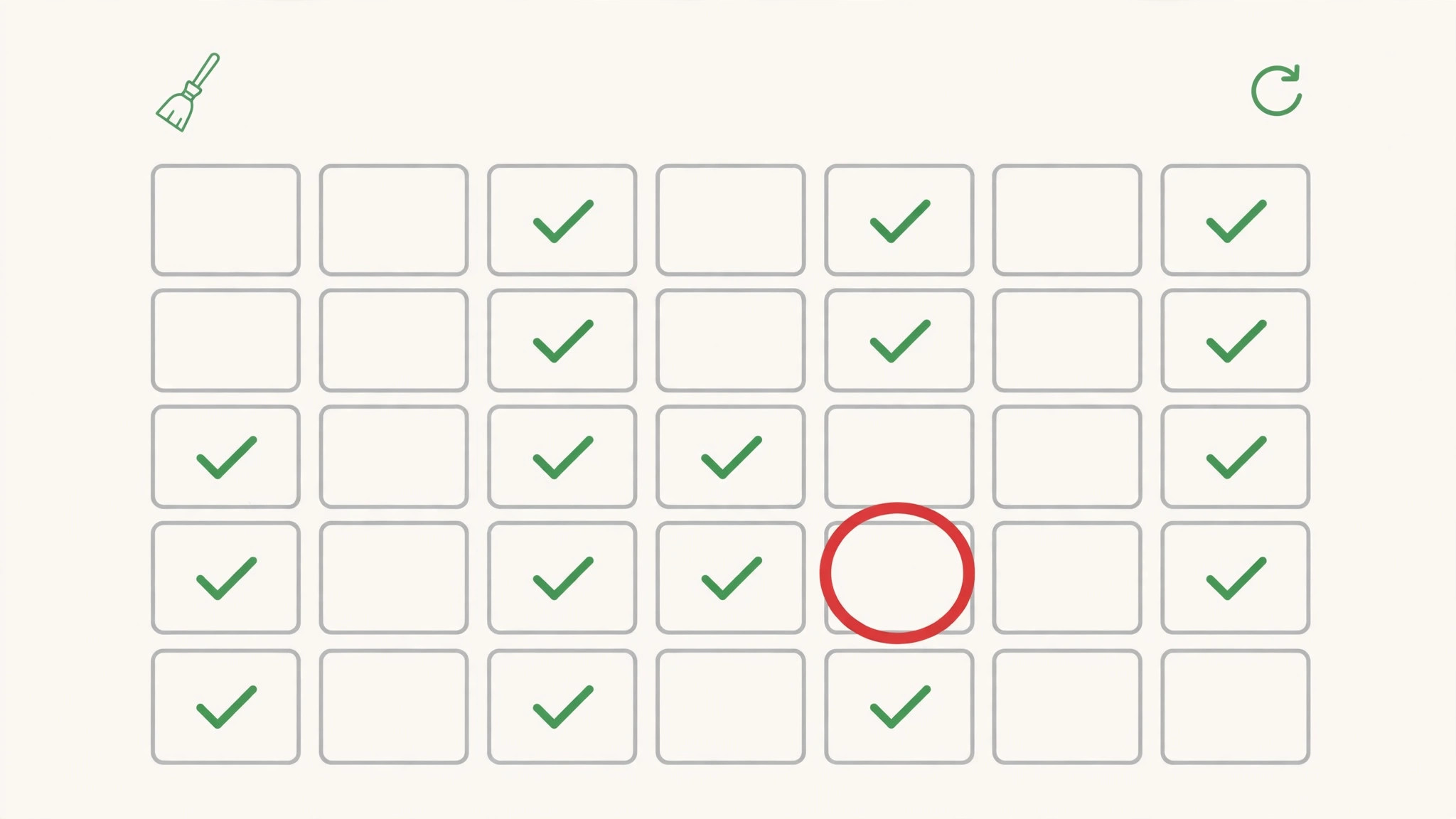
The first mistake is reinstalling immediately, before restarting, checking connection, or clearing cache, which costs a download and a sign in for a problem that often needs only a restart or a cache clear. The second mistake is clearing data before cache, where both options exist, because data clearing resets app settings unnecessarily, while cache clearing is safe and often sufficient. The third mistake is ignoring an outage, because a story failure that affects many users at once will not respond to any phone step, and an hour spent reinstalling during an outage only adds frustration.
The fourth mistake is testing only with the story that first failed, instead of with a known active story, because a single expired, deleted, or restricted story cannot prove whether the app works, and it sends troubleshooting down the wrong path. The fifth mistake is ignoring storage, because a nearly full phone stalls media loading while lighter features still work, and freeing space is the only fix that helps in that case. The sixth mistake is changing several settings at once, such as network, permissions, and app data together, which makes it impossible to know which change helped, and can leave the phone in a worse state than before.
Change one thing, test a known story, and note the result, before changing another.
Preventing the Next Story Failure
Prevention for story loading is mostly about app, storage, and network awareness, because most failures come from a corrupt cache, a full phone, or a network change that builds up quietly. Keep Instagram updated, because updates fix known media bugs, and restart the phone weekly, because a regular restart clears temporary states before they freeze story loading. Keep a few gigabytes free by reviewing storage monthly, and clear Instagram cache occasionally if stories ever feel slow, even before they stall completely, because a proactive cache clear costs nothing and prevents the corrupt file that causes a failure.
Keep network settings noted, especially any VPN, data saver, or parental control that affects media, so a future story failure can be checked against known settings instead of guessed at. After any app or system update, test stories promptly, because a quick test catches a permission or update problem while rollback or reconfiguration is still easy. Test stories after updates when you fix Instagram stories not loading through a prevention routine. Check story loading after every app update, because an update can change permissions silently, and a quick test catches that change early.
A few minutes of app, storage, and network care each month keeps stories playing smoothly, which is exactly how a short lived format should work, and it means the next story failure, if it comes, will be a quick restart and cache clear instead of a reinstall.
More Reading on Stratilyze
If this guide helps your stories load again, the wider Stratilyze guides cover the Instagram problems around it. The guide to Instagram account login problems helps when sign in itself fails, the guide to Instagram reels not uploading covers the other media direction, and the guide to YouTube app not working on TV helps when video fails on a different screen. Read the login guide next if logout and reinstall lead to sign in trouble, because account recovery needs its own steps.
Frequently Asked Questions
Why are Instagram stories not loading but the feed works?
That pattern points to an app cache fault, a media streaming problem, or a stories server issue, rather than to the connection as a whole, because the feed is lighter than story video. Restart the app, clear only its cache, and test a known active story, then test on another network to split app causes from network causes. If known stories play after a cache clear, the cache was the cause, and if stories fail on every network and device, an Instagram server problem becomes more likely.
Is it safe to clear Instagram cache when you fix Instagram stories not loading?
Yes, clearing cache is safe, because cache means temporary files the app rebuilds as you use it, such as story thumbnails and media fragments, and it deletes no posts, messages, or account data. On Android, clear cache in Settings under Apps, Instagram, and Storage and Cache, then reopen Instagram and test a story. On iPhone, there is no separate system cache clear for Instagram, so restart, update, and logout come before reinstalling, which is the iPhone equivalent of a fresh app state.
Why do Instagram stories load without sound?
A story without sound usually means the phone is muted, sound is routed to a Bluetooth device, the story itself has no audio, or the app’s media audio failed to load. Check volume, disconnect Bluetooth temporarily, and test another story with known audio, because a Bluetooth route to headphones or a car can silently divert story sound. If sound fails for every story after a restart and a cache clear, check app permissions and update the app, because a media fault can also block audio while video still plays.
How do I know if Instagram is down or my phone is at fault?
Test stories on another device and another network, and check a trusted outage source or a friend’s phone, because a failure that affects many users at once points to an Instagram outage, while a failure limited to your phone points to app, storage, or connection causes. A story failure that disappears on mobile data points to your home network, while a failure that follows your account across devices points to the account or server. An outage needs waiting, not reinstalling, because phone steps cannot fix a server problem.
Should I uninstall Instagram if stories will not load?
Uninstall and reinstall only after restart, connection checks, cache clearing, updates, and logout have all failed, because reinstalling costs a download and a sign in for a problem those earlier steps often solve. Keep login details handy before reinstalling, and test a known active story after reinstalling, because a single failed story cannot prove whether the reinstall worked. If stories fail for your account on every device after a reinstall, the cause is account or server side, and Instagram help becomes the next step.
Can low phone storage stop Instagram stories loading?
Yes, stories are media rich, and a phone with almost no free space cannot download and play story video smoothly, even when the lighter feed still works. Check storage in Settings, aim to keep at least a few gigabytes free, and free space by uninstalling unused apps, deleting large videos, and clearing caches from heavy apps, then test stories again. A phone that plays stories again after freeing space had a storage problem all along, and no app reinstall would have helped until space existed.
Stories Loading Again
An Instagram story failure resolves fastest when the pattern is read first, because a feed that works while stories fail points to cache, media, or server causes, while total failure points to connection causes. Restart the app and the phone, check connection on another network, clear cache, free storage, update the app, and test a known active story after each step, before logging out or reinstalling. Check whether the failure follows the account across devices or the phone across accounts, because that test separates account and server causes from phone causes cleanly.
Keep storage free, the app updated, and cache cleared occasionally, and the next story failure will be a quick restart instead of a reinstall, with the 24 hour window still intact for the stories that matter. Share the working fix with friends who hit the same failure, because a story outage or a cache fault often affects several people at once, and a shared fix saves everyone a reinstall, and keep the app updated after the fix, so the next update does not silently reintroduce the same fault.
Keep a short note of the fix that worked, so the next story failure can be solved by repeating it instead of starting over, and share that note with friends who use the same phone.