
A small store doing steady but modest sales can save real money when it decides to migrate Shopify to Squarespace, but only if the store is simple enough for the simpler platform. If your catalog is under 50 products, your shipping rules fit on one page, and your monthly app bill is creeping past your subscription, the move usually pays. If your store runs on subscriptions, complex discounts, or marketplace sync, the same move can quietly cost you sales. This guide shows how to tell which store you run before you move anything.
The move itself is part data transfer, part rebuild. Products can travel by CSV file. Pages, blog posts, and design cannot travel the same way, so you rebuild them by hand on the new site. Search traffic survives only if you map every old address to a new one before you switch the domain. Keep your Shopify store live and selling until the new store passes every test in the go-live section.
When to migrate Shopify to Squarespace and When to Stay
Start with an honest look at how your store actually sells, not how you wish it sold. Squarespace suits a store where the website is also the brand. Its templates look polished with little effort, blogging sits next to the store instead of in a separate tool, and one subscription covers hosting, security, templates, and the store. That bundle is the whole point.
Move when most of these are true. Your catalog is small, roughly under 100 products, with a handful of variants per product. You sell physical products or services, not digital downloads that must import in bulk. Your shipping is simple, with flat rates or a few zones, and you do not need calculated carrier rates at checkout for every order. You sell mainly through your own site, not through marketplaces that must stay in sync every hour. Your content matters, with a blog, lookbook, or story pages that bring in search visitors.
Stay on Shopify when any one of these is central to your revenue. Subscriptions are the clearest stop sign, because customer subscriptions do not transfer and every subscriber would need to sign up again. Multi-location inventory, wholesale pricing, and complex discount rules are also weaker on Squarespace. So is any workflow that depends on a specific Shopify app with no Squarespace equivalent, such as a print-on-demand connection, a marketplace sync tool, or a custom checkout step.
| Your situation | Better call |
|---|---|
| Under 100 products, simple shipping, content-led site | Move to Squarespace |
| App bill higher than the Shopify subscription | Move, then cut the apps you no longer need |
| Subscriptions, gift cards, or saved customer payment details drive repeat sales | Stay on Shopify |
| Heavy marketplace sync, wholesale, or multi-location stock | Stay on Shopify |
| Digital downloads as the main product line | Stay, or plan a manual rebuild of every download |
| You mainly want a cheaper bill and a prettier site | Move, but only after the audit below |
The Real Monthly Cost After the Move
Shopify Basic, the plan most small stores start on, lists at 39 dollars a month when billed monthly and 29 dollars a month when billed annually, in US prices checked at draft time. Card payments through Shopify Payments cost 2.9 percent plus 30 cents per online transaction on Basic. If you take cards through a different gateway instead, Shopify adds a further 2 percent fee on Basic. Those two numbers explain why a 39 dollar plan rarely costs 39 dollars.
Squarespace list prices checked at draft time run from 25 dollars a month billed monthly, or 19 dollars a month billed annually, for Basic, up to 139 dollars a month billed monthly, or 99 dollars a month billed annually, for Advanced. Core lists at 39 dollars a month billed monthly, or 29 dollars a month billed annually, and Plus lists at 65 dollars a month billed monthly, or 49 dollars a month billed annually. Squarespace adds a 2 percent transaction fee on physical product sales on Basic, and no platform transaction fee on physical sales on Core and above.
Fees on digital products and memberships are higher and differ by plan, so check them before you budget if you sell downloads or memberships.
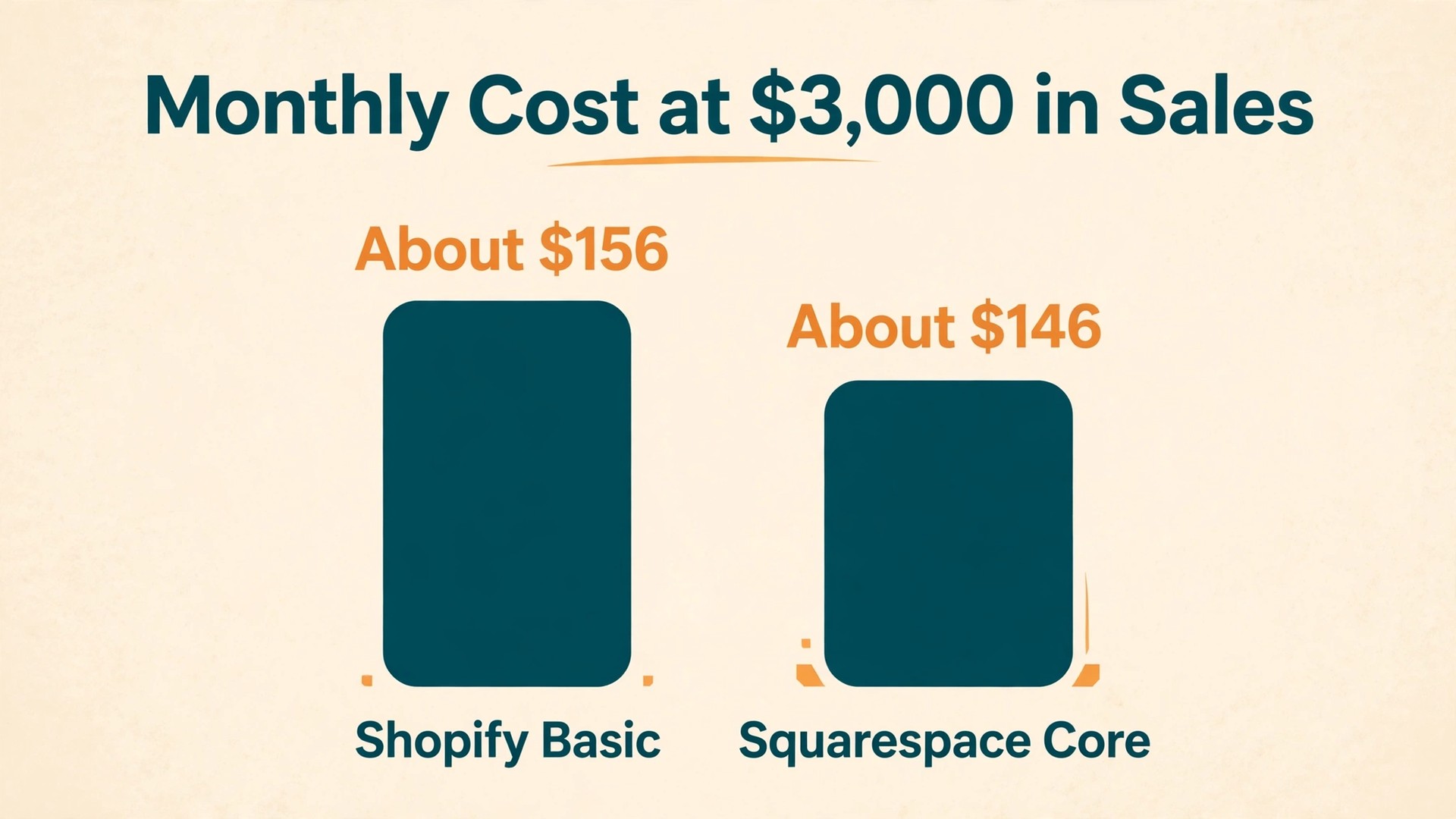
Before you migrate Shopify to Squarespace, run the numbers on your own last three months, not on a hypothetical store. Take a store selling 3,000 dollars a month across 100 orders, an average order of 30 dollars. On Shopify Basic billed monthly, the subscription is 39 dollars and card fees at 2.9 percent plus 30 cents come to about 117 dollars, for a platform total near 156 dollars before any apps. On Squarespace Core billed annually, the subscription is 29 dollars and card fees through Stripe at a similar rate come to about 117 dollars, for a total near 146 dollars with no platform transaction fee.
On Squarespace Basic billed annually, the subscription is 19 dollars, card fees are about 117 dollars, and the 2 percent platform fee adds 60 dollars, for a total near 196 dollars. Basic looks cheapest and costs the most once you sell.
That example gives you a simple break-even rule. Core billed annually costs 10 dollars a month more than Basic billed annually. The 2 percent Basic fee reaches 10 dollars at 500 dollars of monthly sales. Above roughly 500 dollars a month in physical sales, Core is cheaper than Basic, and it also unlocks features such as custom code that Basic lacks.
Apps decide the rest of the comparison. A small Shopify store commonly pays for a reviews app, an email popup, a page builder, and a search or upsell tool, at roughly 10 to 30 dollars a month each. Four apps at 15 dollars each add 60 dollars a month, which turns a 39 dollar plan into a 99 dollar stack before card fees. Squarespace bundles blogging, basic email campaign tools, and merchandising into the subscription, though some extras such as full email marketing still cost more. List every app you pay for today, and mark which ones Squarespace replaces, which ones need a paid extension, and which ones you can simply drop.
Audit Before You Touch Anything
A migration fails in the planning gap, not in the import tool. Before you build anything, make a full inventory of the store you have. Pull your Shopify sitemap, your product list, your page list, and your blog list into one spreadsheet. Add a column for each item with its current address, its monthly traffic or sales if you can see them in analytics, and a decision to keep, merge, or drop. Every item marked keep or merge needs a new home or a redirect. Every item marked drop that still gets traffic or has links pointing at it needs a redirect to the closest live page.
Your audit list should cover more than products. Include every page, including shipping, returns, privacy, terms, contact, and about pages. Include every blog post, even old ones, because old posts often carry the search traffic. Include collections, discount codes, gift cards, customer groups, every app, every form, and your domain and email hosting details.
Export everything while Shopify is still your live store. Export products, customers, orders, discounts, inventory, and gift cards as separate CSV files, because Shopify has no single button that exports the whole store at once. Download product images in full size, save page text for pages that may not copy cleanly, and screenshot your homepage, product page, cart, and checkout for design reference. Keep these files outside your downloads folder. You will need the order history for tax and customer service long after the move, even though order history itself does not import into Squarespace.
Set a realistic timeline while you audit. A store with under 50 products, ten pages, and a small blog can move in one to two weeks of part-time work, while a larger catalog needs three to four weeks. Do not plan a rebrand, a price change, and a platform move in the same week.
Move Your Products Without Losing Variants
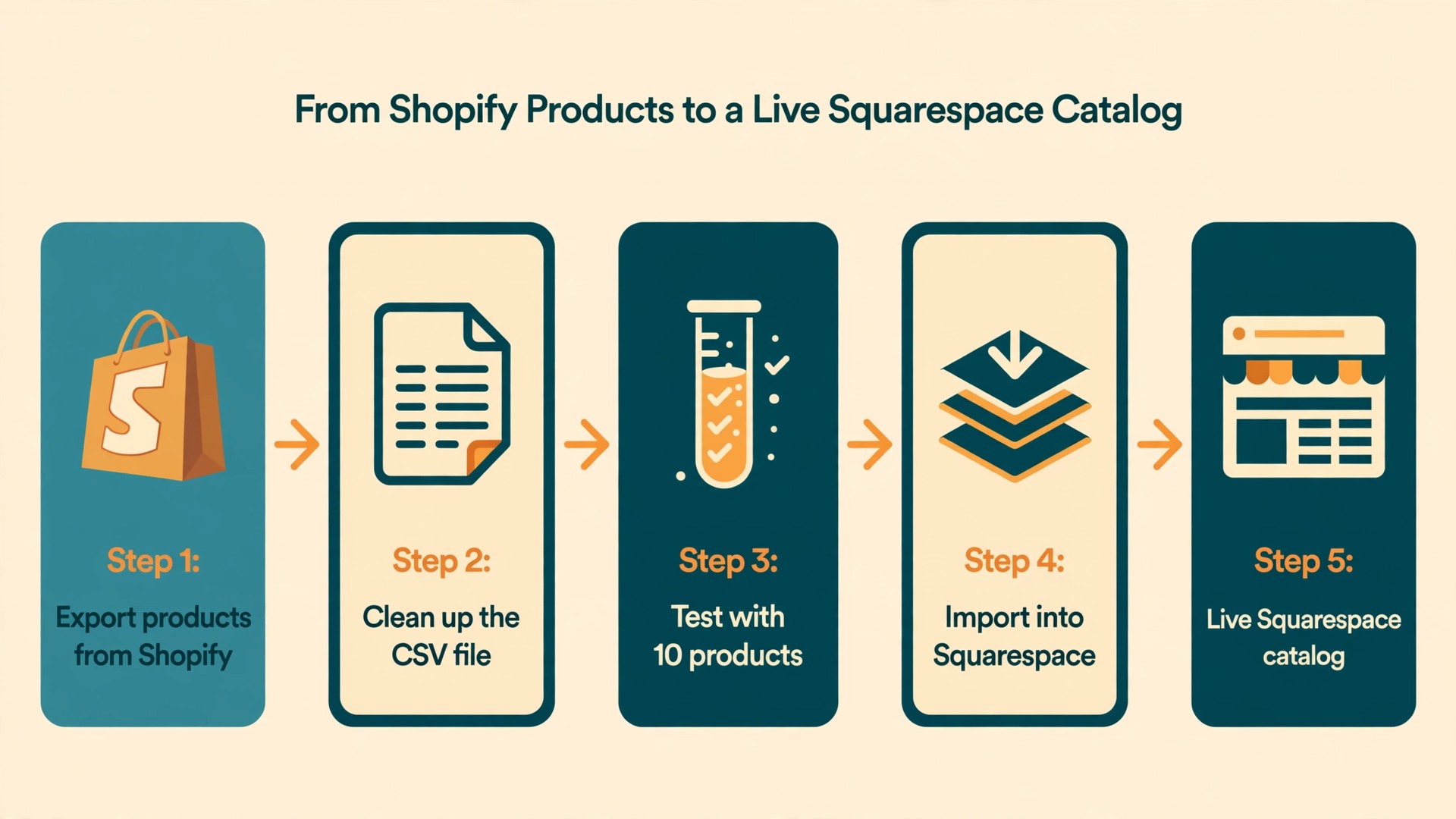
Product import is the one part of this move that has a real tool behind it, and it still needs care. In Shopify, go to Products, choose Export, pick whether to export all products or only the ones you select, and download the CSV file. In Squarespace, open the product import tool in your Commerce area and upload that file. Squarespace reads the Shopify format directly, so you do not need to rebuild the spreadsheet column by column for a standard catalog.
When you migrate Shopify to Squarespace, test first with a small file of about ten products, because a formatting problem that affects ten rows is a quick fix, while the same problem across 500 rows is a long weekend.
Squarespace publishes clear limits for product imports, and your audit should be checked against each one. You can import up to 10,000 products to a version 7.1 site, but only up to 200 products to a version 7.0 site, so confirm your site version before you start. You can import up to 250 variants per product. Only physical and service products import, so digital downloads do not come across in the file. Products priced over 1,000,000 in any currency cannot import. Imported products cannot be scheduled, so each one arrives either published or hidden. Imported products also arrive without a set featured image and without set variant images, so plan time to assign those by hand.
Print-on-demand connections do not transfer either.
Those limits shape your cleanup. Delete dead products and dead variants before you export. If a product has more than 250 variants, split it into two or more products and link them from each description so shoppers still find the full range. If you sell digital products, recreate them as digital products inside Squarespace by hand and test the download link with a real purchase. If your catalog sits on a version 7.0 site and holds more than 200 products, start a fresh version 7.1 site instead.
After import, check titles, descriptions, prices, compare-at prices, SKUs, variant names, stock levels, and weight on every product, or on a sample of at least twenty if your catalog is large. Any variant that lost its image needs one assigned. Fix problems in the CSV and re-import the affected products rather than patching hundreds of listings one by one.
Product and Page Mapping Table
Use this table as your working map. Fill in the middle column from your own store as you go, and keep it until at least a month after launch, because redirect questions keep coming up after go-live.
| Shopify item | What happens on Squarespace | Your job before launch |
|---|---|---|
| Product title and description | Imports by CSV | Check formatting, links, and line breaks |
| Product price and compare-at price | Imports by CSV | Verify against Shopify, including sale prices |
| SKU and barcode | Imports by CSV | Confirm every SKU is unique and searchable |
| Variants up to 250 per product | Imports by CSV | Split products over the cap, assign variant images by hand |
| Product images | Import, but no featured image is set | Assign a featured image to every product |
| Inventory levels | Imports by CSV | Recount top sellers by hand after import |
| Collections | Rebuild as categories on Squarespace | Recreate each collection and assign products to it |
| Product SEO title and description | Re-enter in Squarespace SEO fields | Copy from Shopify, do not leave them blank |
| Customers | Do not import with products | Import contacts separately as a mailing list |
| Orders and order history | Do not transfer | Keep the Shopify CSV export for records and support |
| Discount codes | Do not transfer | Recreate active codes, retire expired ones |
| Gift cards | Do not transfer | Stop selling them before the move, honor balances with codes |
| Pages and blog posts | Do not import from Shopify | Copy by hand, covered in the next section |
| Store design, fonts, and theme code | Do not transfer | Rebuild with a Squarespace template |
Pages, Blog Posts, and Content That Will Not Import
Squarespace can import content from WordPress, Blogger, and Tumblr, and products from Shopify, Etsy, and Big Cartel. It does not offer a page and blog import from Shopify, so treat every page and post as a manual move. Start with the pages that earn money or trust, meaning the homepage, top product landing pages, shipping, returns, contact, and about pages. Then move the blog posts that bring search traffic, starting with the highest traffic post and working down.
Copy text by hand rather than pasting straight from a browser and hoping the formatting survives. Paste as plain text, then re-apply headings, bold text, lists, and links in the Squarespace editor. Re-upload images in full size instead of hotlinking Shopify image addresses, because those addresses stop working reliably once you close or change the old store. Check every internal link inside a post, because a link that pointed at a Shopify collection address will break unless you update it.
Keep your page and post addresses as close to the old ones as you can. Shopify product addresses look like /products/product-name, page addresses look like /pages/page-name, and blog addresses look like /blogs/blog-name/post-name. Squarespace addresses are simpler, with a store page commonly at /shop or /store followed by the product slug. If you name your store page /shop and keep each product slug identical to its Shopify handle, your redirect list becomes a simple pattern instead of hundreds of one-off rules.
Rebuild the parts of a page that are not words and pictures. Forms, newsletter blocks, announcement bars, menus, footers, and popups all need recreating and reconnecting to the right tool. Legal pages need a fresh read, not a blind copy, because the checkout, payment provider, and returns process have changed.

Keep Your Search Traffic With Redirects and SEO
Redirects are the part of the work that protects your income when you migrate Shopify to Squarespace, and they are also the part most often left until launch day. Do them during the build, not after it. A redirect tells browsers and search engines that a page has permanently moved from one address to another. Without one, a visitor who clicks an old link, a bookmark, or a search result lands on a dead page. With a correct redirect, most of that ranking strength carries over, though rankings often wobble for a few weeks after any platform move.
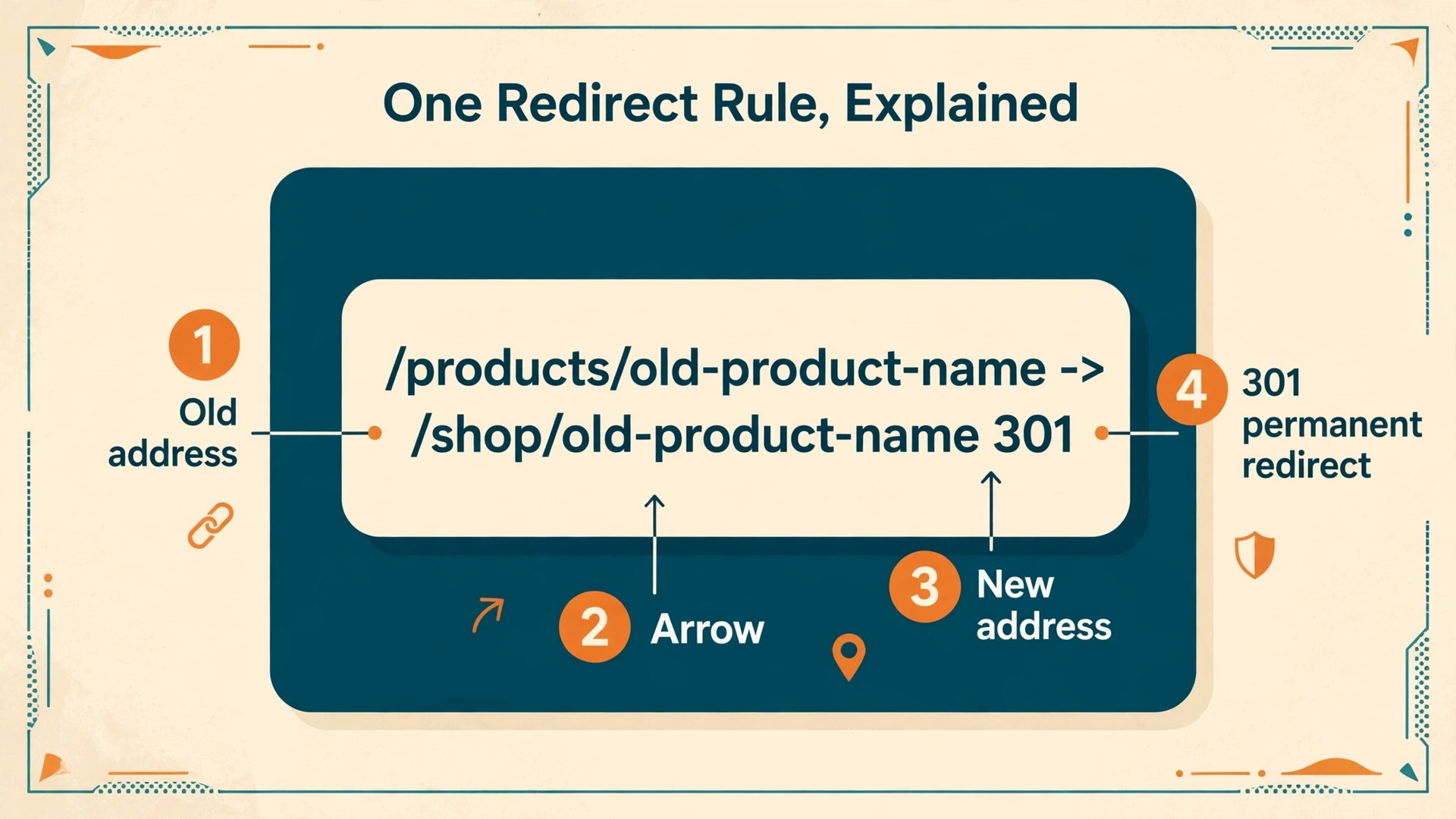
Squarespace handles redirects in its URL Mappings area, found under Settings, then Advanced, or under Developer Tools depending on your account view. Each rule sits on its own line in this format, with the old path, an arrow, the new path, and the number 301 at the end.
/products/old-product-name -> /shop/old-product-name 301 /collections/summer-sale -> /shop?category=summer-sale 301
Two rules about mappings catch people out. First, the old address must not still exist as a live page on the new site, because a live page overrides its mapping. Second, Squarespace does not create a redirect automatically when you change a page address, so every slug change needs a matching rule. Test each important redirect in a private browser window and confirm it returns 301.
Build your redirect list from your audit spreadsheet, not from memory. Start with every product, every collection, and every page, then add blog posts, then add any address that shows up in analytics or Search Console as a landing page. Redirect each old address to the closest matching new page, not to the homepage. A discontinued product should go to the closest live product or its category page, and a merged blog post should go to the stronger post that replaced it.
Redirect Checklist
Work through this list in order, and do not switch the domain until every item is checked.
- Every product address from Shopify has a redirect rule to its new Squarespace product page
- Every collection address redirects to its new category or shop page
- Every standard page, including shipping, returns, privacy, terms, and contact, has a redirect
- Every blog post address redirects to the matching new post, not to the blog index
- The top twenty landing pages by traffic are tested one by one in a private browser window
- Discontinued products redirect to the closest live product or category, never to the homepage by default
- Internal links inside pages, posts, menus, and footers point at new addresses, not old ones
- Links you control elsewhere, such as social profiles, email templates, and marketplace bios, are updated
- The new sitemap is submitted in Search Console after launch, and the old sitemap is left to expire
- Search Console and analytics are connected to the new site before the domain switch, not after
- A 404 report is checked weekly for the first month, and every real 404 gets a redirect or a fix
- No redirect chains exist, meaning no old address points to another redirect instead of a live page
SEO work beyond redirects is mostly about keeping what already worked. Copy each page title and meta description from Shopify into the matching Squarespace SEO fields. Keep the same domain, because changing the domain and the platform in the same week doubles the risk. Keep the content itself as close as possible for the first month. Squarespace generates a sitemap automatically, so submit it in Search Console once the domain points at the new site, and update paid ad destinations before launch.
Payments, Shipping, and Tax on the New Store
Payment setup is where a migration most often breaks on launch day, because it is tested with a preview instead of a real order. Connect payments early in the build, not on launch morning. Squarespace takes card payments through Squarespace Payments, which runs on Stripe in supported regions, and also connects to Stripe directly, PayPal, and Apple Pay, with buy-now-pay-later options such as Afterpay, Clearpay, and Klarna available depending on your region. Then place a real test order with a real card, confirm the payment lands, confirm the confirmation email looks right, and refund the order.
Tell customers plainly what does not carry over. Saved payment details, customer accounts, subscriptions, and gift card balances do not transfer from Shopify to Squarespace, so every returning customer will need a new account and must enter payment details again. Put a short note on the homepage and in your launch email explaining that accounts are new and past orders are safe in your records. Stop selling gift cards a few weeks before the move, honor remaining balances with matching discount codes, and contact subscribers before the switch with a simple way to resubscribe.
Shipping needs the same rebuild treatment. Squarespace supports flat rate, weight-based, and price-based shipping, plus carrier-calculated rates on the top plan, along with local pickup and printed UPS and USPS labels from the dashboard. Write down every zone, rate, free shipping threshold, and product that ships differently, such as heavy, fragile, or pickup-only items. Then rebuild those rules and test them with orders to at least three destinations, including a multi-item cart, because a flat rate that works for a single mug fails on an order of six.
Tax settings follow the same rule of checking, not assuming. Squarespace calculates tax automatically for the regions you sell into, but confirm the regions, the rates, and whether prices show tax included or excluded. Keep your Shopify tax reports and order exports, because your tax filings still need the old store records.
Move the Domain Without Downtime
Build the new store on its free built-in Squarespace address first, and keep Shopify live and selling the whole time. Only point your real domain at Squarespace when the new store is finished, tested, and filled with redirects.
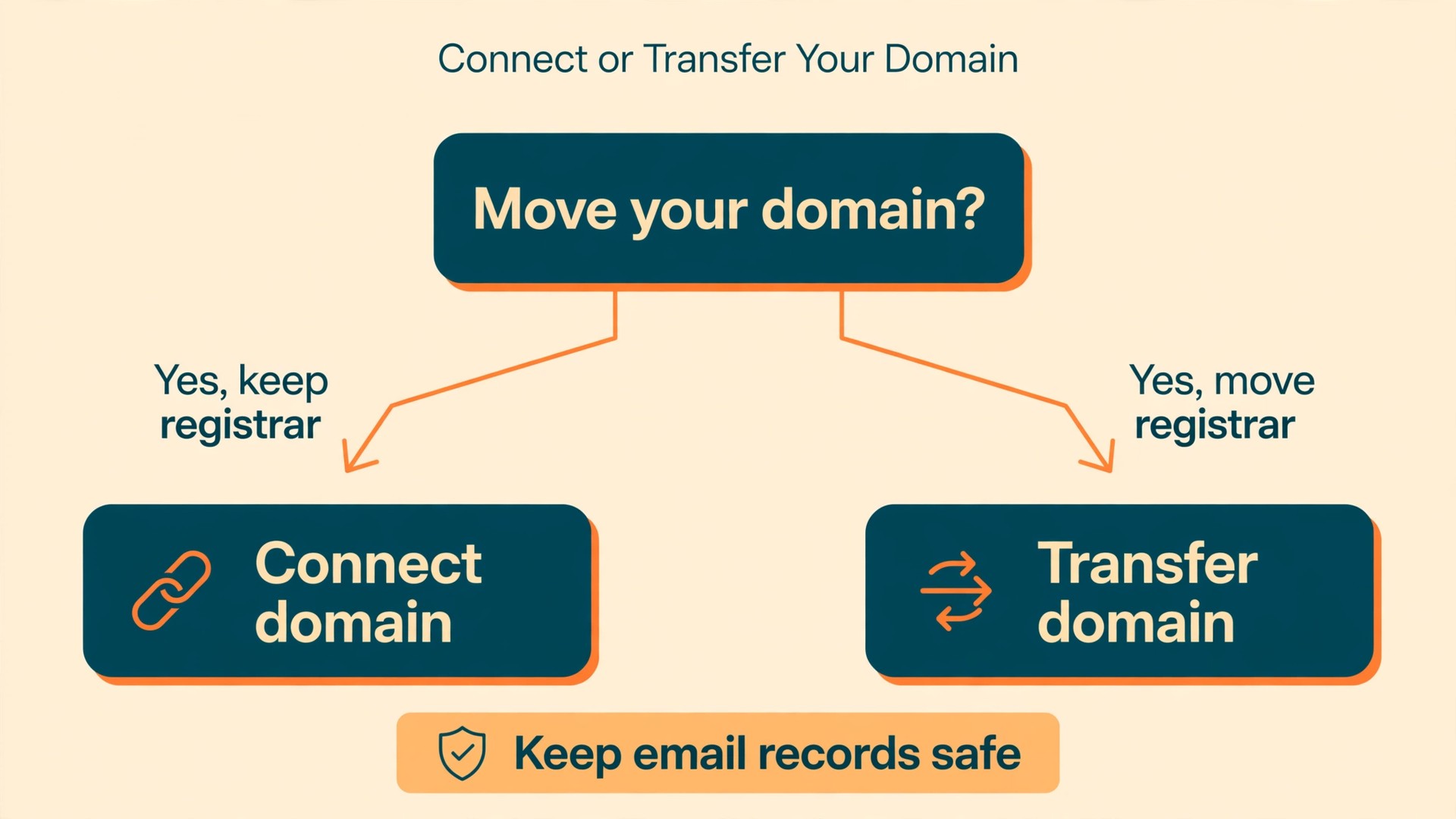
You have two ways to attach your domain, and the safer one for most small stores is to connect it rather than transfer it. Connecting means the domain stays registered where it is today, and you point it at Squarespace by changing DNS records. Transferring means moving the registration itself to Squarespace, which needs the domain unlocked, an authorization code, and approval of the transfer email. Transfers take several days, and a domain cannot be transferred within 60 days of registration or a previous transfer.
Before you change any DNS record, copy your existing DNS settings, especially your email records. Mail records, known as MX records, tell the internet where your business email lives. If you replace your DNS settings wholesale without copying those records, your email stops working at the same moment your new store launches. Write down every record, add the new Squarespace records alongside the old email records, and confirm email still flows after the change with a test message.
Switch at a quiet hour, late evening on your slowest sales day, and watch the new site on the live domain immediately. Place a test order on the live domain, check it on a phone as well as a computer, and confirm the confirmation email arrives. Keep the Shopify store open for at least two weeks after the switch, until payouts have cleared and straggler orders are fulfilled, then close it after a final export.
Go-Live Checklist for a Small Store
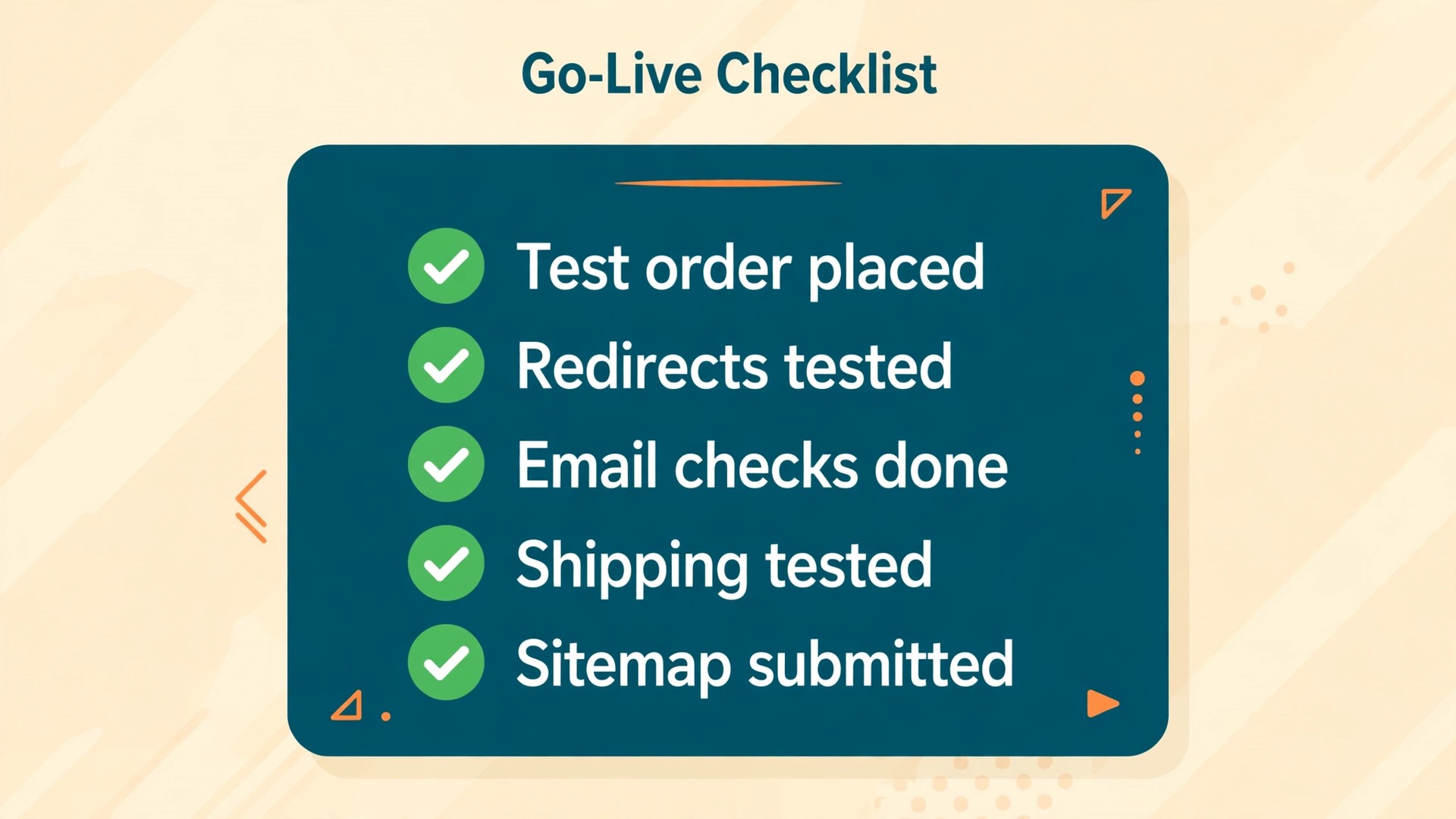
When you migrate Shopify to Squarespace, run this checklist top to bottom on the live domain, with a second person checking if you have one.
- Place a real test order with a real card, then refund it
- Test a second order with PayPal if you offer it, and confirm the confirmation email matches your brand
- Check the store on a phone, including product pages, cart, and checkout
- Test shipping to three zones, including a multi-item cart and your furthest delivery area
- Confirm tax shows correctly at checkout for your main selling regions
- Open every product page and confirm the image, price, variants, and stock are right
- Click every menu link, footer link, and homepage button, and fix anything that leads nowhere
- Test the top twenty redirects from the redirect checklist on the live domain
- Submit the new sitemap in Search Console
- Confirm email works, including order confirmations, contact form messages, and your business inbox
- Check that discount codes work, including any codes issued to honor old gift cards
- Confirm no image is missing or broken
- Announce the move to your email list, with a note about new accounts
- Keep Shopify open until payouts clear and every open order is fulfilled, then close it after a final export
If any item fails, fix it before you announce the launch. A store that opens with a broken checkout loses more trust in one day than a store that opens two days late. After launch, watch orders, search traffic, and 404 errors daily for the first month.
If Squarespace turns out to be the wrong fit after this audit, the honest alternative for many small stores is WooCommerce, which keeps the wider app and gateway choice of Shopify while cutting the platform transaction fee. Our guide to moving a Shopify store to WooCommerce covers the costs and steps for that route, and our roundup of Shopify alternatives compares the other platforms worth a look before you commit either way.
Frequently Asked Questions
Will I lose my search rankings if I migrate Shopify to Squarespace?
You should expect some movement, but a careful move protects most of your rankings. Redirect every old address to its closest new page, keep the same domain, copy your page titles and descriptions, and keep the content itself unchanged for the first month. Rankings often wobble for a few weeks after any platform move, then settle.
Can I import my customers and order history into Squarespace?
When you migrate Shopify to Squarespace, products import by CSV, but customers do not import with products, and order history does not transfer at all. You can import contacts separately as a mailing list, which keeps your email marketing working, but customers will need to create new accounts on the new store. Keep your Shopify exports of customers and orders for tax, support, and repeat-buyer records, and do not close Shopify until those exports are safely stored.
What happens to subscriptions and gift cards when I move?
Subscriptions do not transfer, because the payment details and billing agreements sit with the old platform. Subscribers must sign up again on the new store, so warn them before the switch and offer a simple resubscribe path. Gift card balances do not transfer either. Stop selling gift cards before the move, and honor remaining balances by issuing matching discount codes on Squarespace.
How long does the move take for a small store?
When you migrate Shopify to Squarespace, a store with under 50 products, about ten pages, and a small blog can move in one to two weeks of part-time work, with the new site built in private while Shopify keeps selling. A store with several hundred products, heavy variants, or custom pages should plan three to four weeks. The product import itself takes hours, while rebuilding pages, setting images, writing redirects, and testing checkout takes most of the time.
Do I need the Core plan, or is Basic enough for a small store?
Basic works for a store that is testing Squarespace or selling under about 500 dollars a month in physical products, because the 2 percent transaction fee on Basic stays small at that volume. Above roughly 500 dollars a month, Core billed annually costs less overall, since its subscription is only about 10 dollars a month more than Basic while the platform fee drops to zero on physical sales. Core also adds custom code and deeper commerce tools.
Should I keep my Shopify store open after launch?
Yes, for at least two weeks, and longer if you have open orders or payouts still clearing. Keep it selling or at least live with a notice pointing to the new store, so stragglers, old bookmarks, and missed redirects still land somewhere useful. Use that window to fulfill remaining orders and confirm the new store handles real traffic. Close Shopify only after a final export of orders and customers, and after payouts have reached your bank account.
The Bottom Line for a Small Store
A move to Squarespace pays when your store is small, your shipping is simple, and your content does as much selling as your ads. It fails when a single feature you depend on, such as subscriptions, marketplace sync, or calculated shipping, has no good replacement on the new platform. That is why the audit comes first and the import comes second. If the audit shows a clean fit, the work is straightforward. Export products, rebuild pages by hand, map every address to a redirect, rebuild payments and shipping, test a real order, and only then point the domain at the new store.