
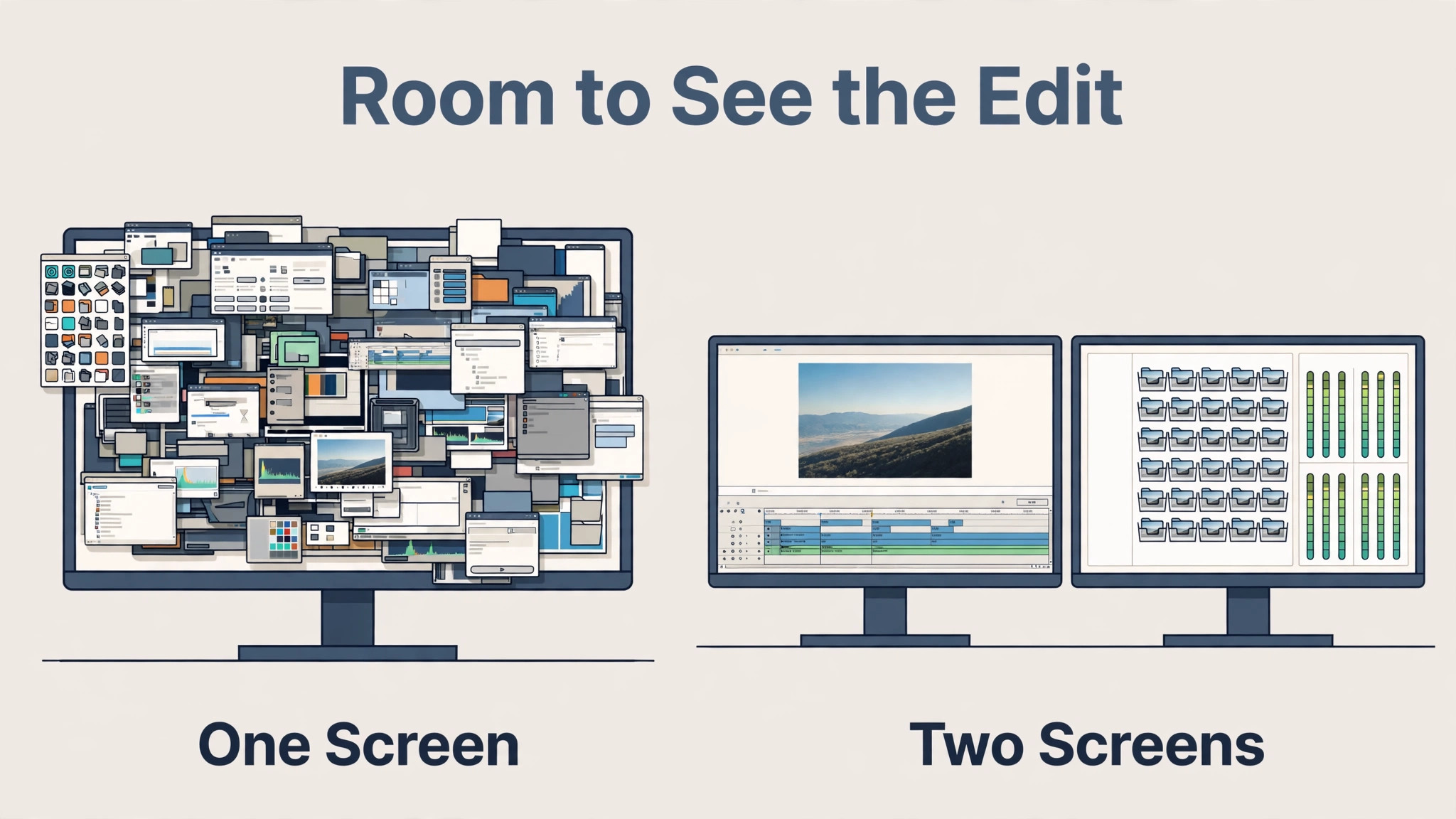
An editor on one screen spends the day switching, because the timeline, the preview, the media bins and the effects panels cannot all fit at once, and every switch costs a few seconds of attention. An editor on two screens keeps the timeline and preview visible together, with bins and tools on the second screen, and the work flows instead of stuttering. When you set up dual monitor for video editing, that difference shows up in the first session, because you stop hunting for panels and start watching the edit itself.
The second screen does not make you more talented, but it removes a constant friction that single screen editors learn to tolerate, and over a full project that friction adds up to hours.
This guide covers a complete dual screen editing setup, from choosing matching monitors to arranging panels, checking colour, managing cables and fixing the ergonomic mistakes that cause neck and eye strain. It assumes a desktop computer or a laptop with an external output, a standard editing program, and a desk that can hold two screens side by side. Whether you edit short social videos or long client projects, the same principles decide whether the second screen helps or merely adds clutter, and this guide keeps the focus on the setup that helps.
One Screen Versus Two for Editing Work
Single screen editing forces a compromise on every project, because the editor must choose which panels stay visible and which hide behind tabs. A typical single screen layout shows the preview and the timeline, while media bins, audio meters and effects controls wait behind clicks, and each click breaks the editor’s focus on timing and story. That cost is small per click, but an editor makes hundreds of panel switches in a day, and the lost seconds become lost concentration, which is far harder to recover than lost time. Editors who work this way often develop a habit of editing in short bursts, because the interface itself discourages long, focused passes.
Two screens change the balance by giving each job its own space. The main screen holds the preview at a useful size and the timeline below it, which is the heart of editing, while the second screen holds bins, audio, effects and scopes, all visible without a click. That arrangement supports a better working rhythm, because the editor can scan a bin, check a level, and return to the timeline without losing the current frame. It also supports better review, because a client or a collaborator can watch the preview while the editor works, without the interface crowding the picture.
For editors who review their own work, seeing the preview large and clean, separate from tool panels, makes faults in framing, pacing and colour far easier to spot.
There are limits, and a second screen is not magic. A mismatched pair, with different sizes, resolutions or colour behaviour, can cause more confusion than a single good screen, because footage looks different depending on which screen shows it. A second screen placed too far to the side causes neck strain, and a second screen filled with distractions, such as messages and social feeds, destroys focus faster than any panel switching ever did. The goal is a matched, well placed pair used only for editing, and the rest of this guide builds exactly that, step by step, so the second screen earns its desk space.
How to set up dual monitor for video editing From Scratch
The best way to set up dual monitor for video editing starts with your computer’s outputs, not with a shopping list, because the ports you have decide what monitors you can run and at what resolution. Check how many video outputs your computer has, what types they are, and the maximum resolution and refresh rate each supports, using the maker’s specifications rather than guessing from the shape of the port. A laptop with one output may need a dock or an adapter to run two external screens, while a desktop with two outputs may already be ready. Confirm this first, because buying monitors before checking outputs is the most common and most expensive false start in dual screen setups.
Next, choose two monitors that match as closely as your budget allows, with the same size, resolution and panel type, so footage and interface elements look consistent across both. A matched pair matters more than a single premium screen paired with an old spare, because your eyes adapt to one screen’s colour and brightness and then misjudge the other. If you already own one good monitor, buy a second that matches it in size and resolution, even if the brand differs, and calibrate both with the same settings.
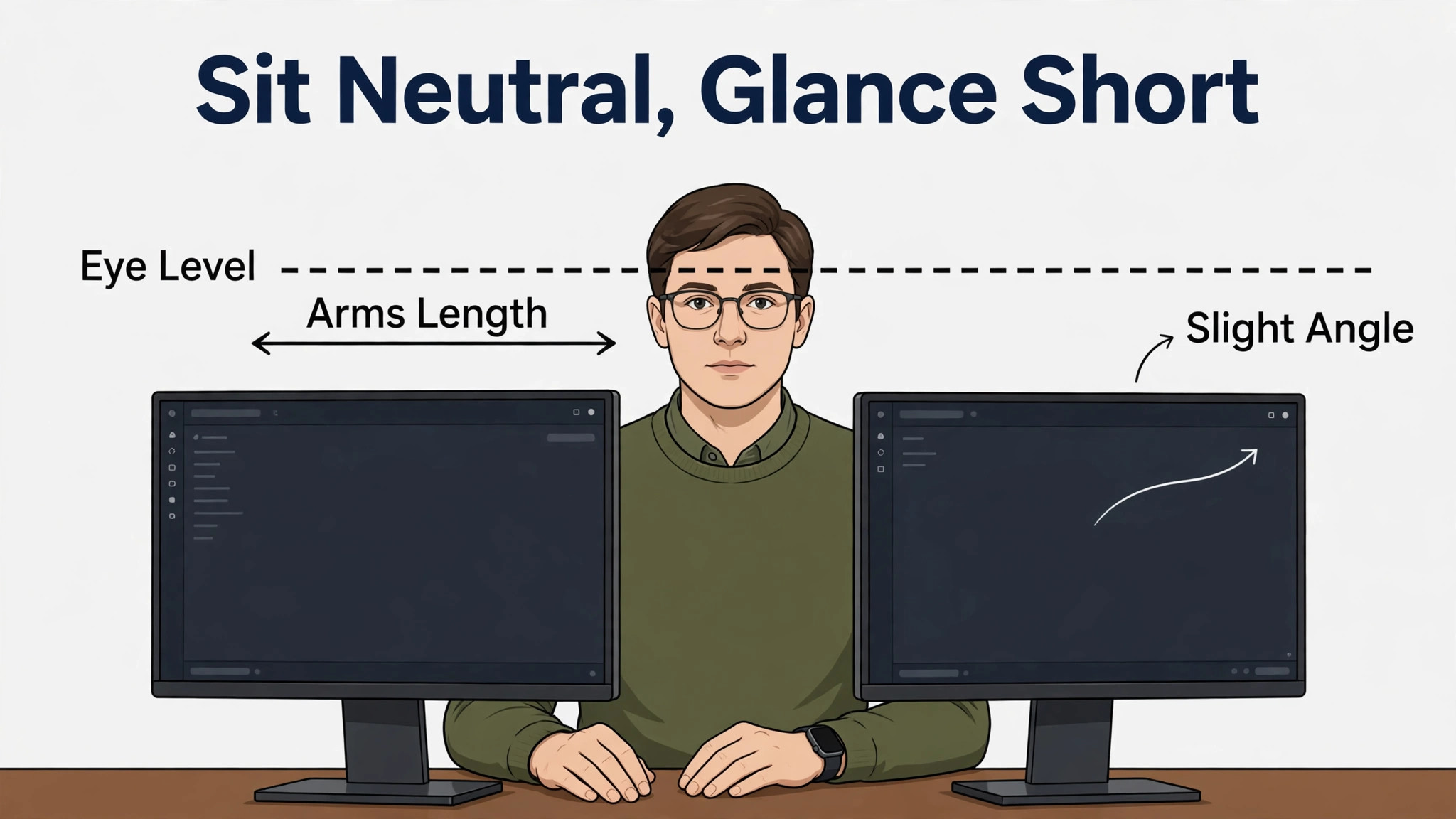
Place the main editing screen directly in front of you, and the second screen beside it at a slight angle, with the tops of both screens at or just below eye level, so your neck stays neutral while glancing between them.
Finally, arrange your editing program’s panels deliberately instead of accepting defaults. Put the preview and timeline on the main screen, bins and project panels on the second screen, and audio meters where you can glance at them without turning your head far. Save that arrangement as a workspace preset in your editing program, so a single click restores it after any update or accidental change. Test the setup on a real short edit before a client deadline, and adjust panel sizes until you can reach everything you use often without hunting.
A setup that survives a real project without changes is a setup that works, and a setup that needs daily fiddling is a setup that still needs one more adjustment.
Layout Options Compared
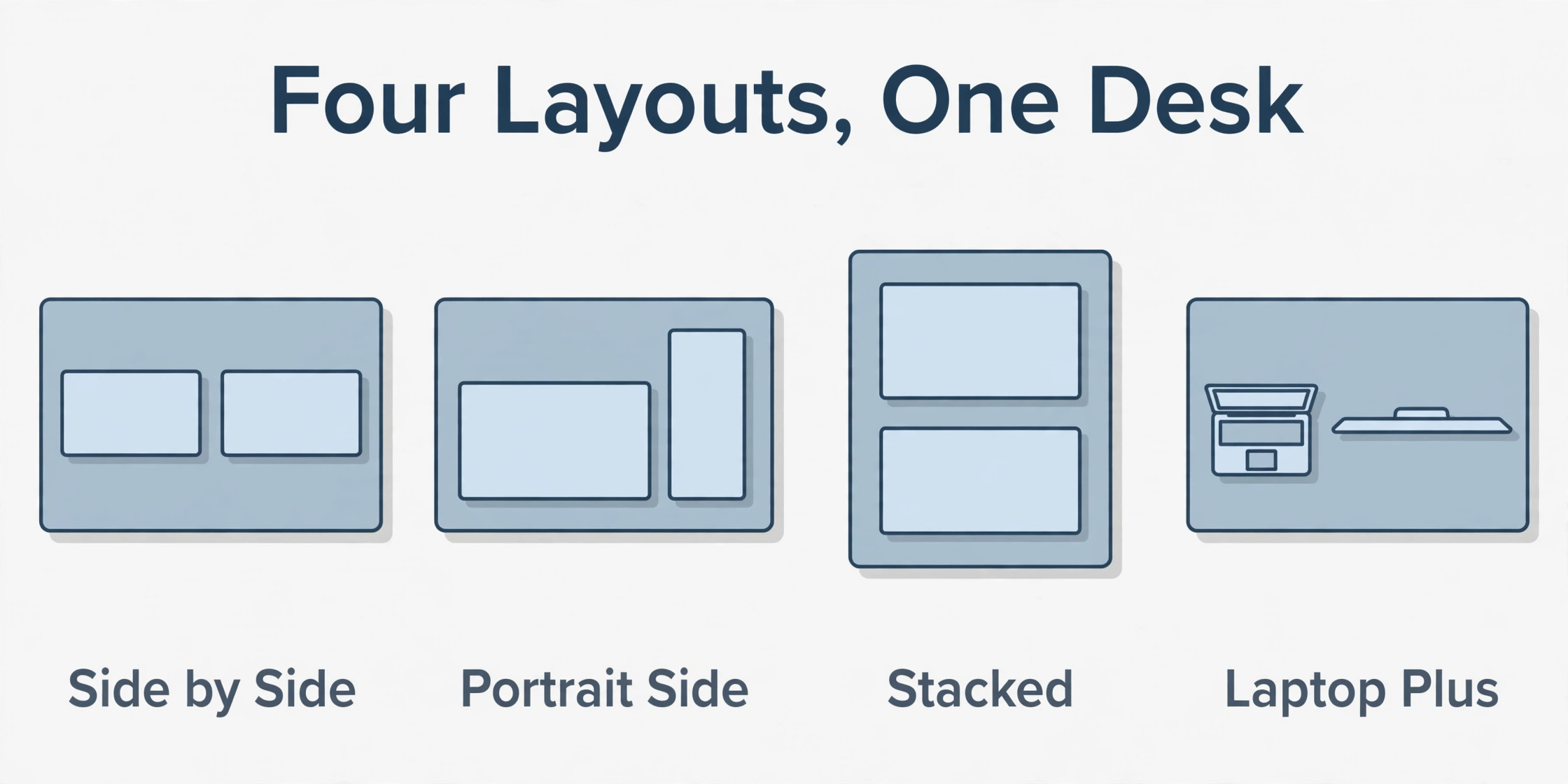
There is no single correct dual screen layout, because editors work differently and desks differ, but most good setups fall into four patterns. The table below compares them honestly, including the desk space and neck movement each one demands, so you can choose with your room and your body in mind, not just from a photo of someone else’s desk.
| Layout | Main screen job | Second screen job | Best for | Watch out for |
|---|---|---|---|---|
| Side by side | Preview and timeline | Bins, effects, audio meters | Most editors, standard desks | Second screen too far sideways strains the neck |
| Main plus portrait side | Preview and timeline | Tall bins, long timelines, scripts | Editors with long media lists | Portrait screen suits text, not video preview |
| Stacked screens | Preview on top or bottom | Timeline or bins on the other | Narrow desks, small rooms | Looking up or down for hours strains the neck |
| Laptop plus external | External as main preview | Laptop screen for bins and tools | Laptop editors, small desks | Laptop screen is small and sits too low |
Side by side is the default for a reason, because it keeps both screens at a similar height, lets the eyes move horizontally with little head turning, and fits most desks. Keep the second screen close to the main screen, with a minimal gap, and angle it slightly toward you, so the glance between screens is short. A portrait side screen suits editors who manage long lists of clips, scripts or subtitles, because a tall screen shows far more list items at once, but it should never hold the video preview, which needs a wide view.
Stacked screens solve narrow desks, but they force constant up and down head movement, so reserve stacking for a secondary reference screen you glance at occasionally, not for panels you use every minute.
When you set up dual monitor for video editing, test the layout for a full working day before declaring it finished, because a layout that feels fine for twenty minutes can ache after four hours. Note where your neck turns most, which panels you reach for often, and whether the preview ever feels cramped, then move the most used panels closer to the centre and push rarely used panels outward. Small moves of a few inches make a large difference over a working week, and the best layout is the one your body forgets, because nothing hurts and nothing hides.
A Colour Checklist for Two Screens
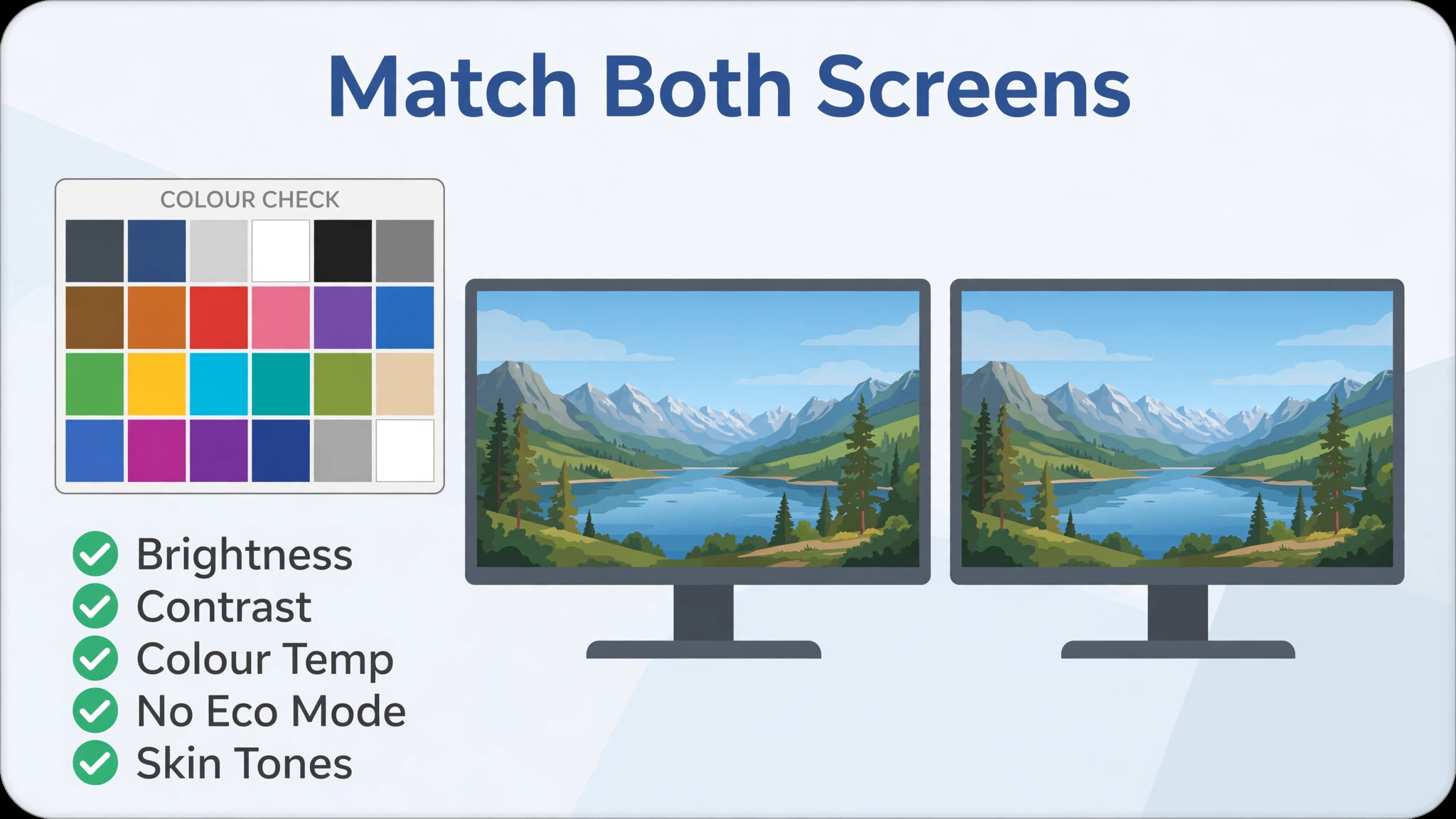
Colour is where dual screen setups most often go wrong, because two screens from different batches can show the same footage differently, and an editor who trusts the wrong screen will deliver inconsistent work. Start by setting both screens to the same brightness, contrast and colour temperature using their on screen menus, and disable any eco mode, dynamic contrast or vivid mode that changes brightness automatically, because those features make matching impossible. If your screens offer a standard colour preset, choose the same preset on both, and keep room lighting consistent, because a screen viewed in bright daylight looks different from the same screen viewed in a dim room.
Work through this colour checklist before any paid project, and repeat it whenever a screen, cable or room changes.
- Set both screens to the same brightness, contrast and colour temperature in their own menus.
- Turn off dynamic contrast, eco modes and automatic brightness on both screens.
- Choose the same colour preset on both screens, and avoid vivid or shop display modes.
- Display the same test image or colour bars on both screens and compare them side by side.
- Adjust the second screen to match the main screen, not the other way around, so your main preview stays stable.
- Check skin tones and neutral greys, because the eye notices errors in those areas first.
- View the screens from your normal seating position, not from close up or at an angle.
- Recheck colour after any driver update, cable change, or move to a new room.
- If colour accuracy is critical for delivery, use a hardware calibration tool on both screens.
- Keep a short note of the final settings, so you can restore them after a reset or a power cut.
Calibration tools deserve a plain explanation, because they sound more complex than they are. A small device hangs on the screen, measures the colours it shows, and builds a correction profile your computer applies automatically, so both screens show the same footage the same way. For hobby editing, careful manual matching is often enough, but for client work where colour decisions affect payment, a calibration tool is a sensible purchase, and it pays for itself the first time it prevents a rejected delivery. Even with a tool, recheck matching monthly, because screens drift as they age, and a pair that matched in January may differ noticeably by mid year.
Run the checklist again whenever you set up dual monitor for video editing in a new room, because light changes everything.
A Setup Workflow, Step by Step
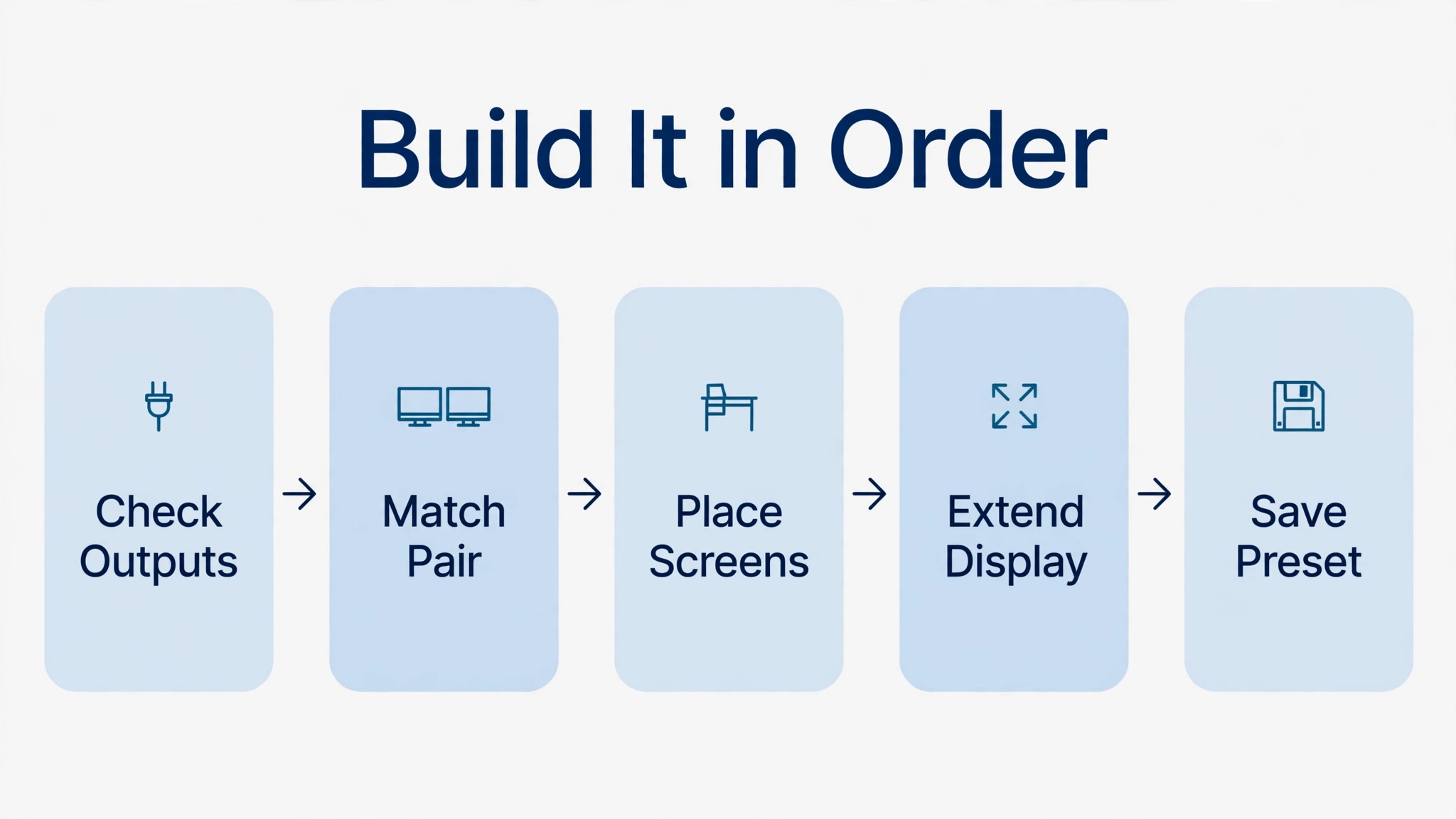
Follow these steps in order, and do not skip the testing step, because most dual screen problems are found only when real footage is playing. The whole setup takes an afternoon for a first build, and under an hour once you know your desk and your program. Work through them in order when you set up dual monitor for video editing for the first time, and tick each step off as you go.
- Confirm your computer’s video outputs, resolutions and refresh rates from the maker’s specifications.
- Choose a matched pair of monitors, or match a new second screen to the one you already own.
- Place the main screen directly in front of you, with the top at or just below eye level.
- Place the second screen beside it, close, slightly angled, at the same height as the main screen.
- Connect both screens with the best cables your ports support, and label cables if your desk has many.
- Set the operating system to extend the desktop across both screens, not to duplicate one screen.
- Arrange the screens in display settings so the on screen layout matches the physical layout on your desk.
- Match brightness, contrast and colour settings on both screens using the checklist in the previous section.
- Open your editing program, place preview and timeline on the main screen, and bins and tools on the second.
- Save the panel arrangement as a workspace preset, and test it on a short real edit before a deadline.
- Adjust panel positions after the test edit, moving the most used panels closer to the centre.
- Tidy cables, secure them away from feet and chair wheels, and photograph the back of the desk for future reference.
Cable planning deserves attention, because a tidy desk is easier to maintain and safer to work at. Route power and video cables separately where possible, use short cables that fit the distance without coils of spare length, and keep a spare cable of each type in a drawer, because a failed cable on a deadline day is a small problem only if a spare is at hand. Photographing the back of the desk sounds odd, but it saves real time when you later move the desk or replace a screen, because you can restore the exact setup from the photo instead of guessing which cable went where.
Ergonomics, Power and Desk Space
Ergonomics decide whether a dual screen setup helps you for years or hurts you within weeks, and the rules are simple enough to follow without specialist equipment. Sit with your back supported, feet flat, and elbows at roughly a right angle, and place the main screen about an arm’s length away, so you can read interface text without leaning forward. The second screen should require only eye movement and a small head turn, not a full shoulder turn, and if you find yourself turning your whole body to see it, move it closer or reduce its role to occasional reference.
Take a short break every hour, look away from screens for a few minutes, and adjust lighting so no bright window sits directly behind a screen, because glare forces squinting and leaning that accumulate into real strain. Recheck seating whenever you set up dual monitor for video editing with a new chair or desk, because small changes shift the whole geometry.
Power planning is less glamorous but equally practical. Two monitors, a computer, speakers and a dock can draw a meaningful amount of power, so use a good quality power strip with surge protection, keep total load within its rating, and avoid daisy chaining strips. If your area suffers power cuts, a small uninterruptible power supply for the computer and main screen can save an edit in progress, though it need not power both screens for long. Keep ventilation clear around monitors and computers, because heat shortens screen life and can cause brightness drift, and dust the vents and screens regularly with a soft cloth, since dust on a screen changes how colour and detail appear.
Desk space planning rounds out the setup. Measure your desk before buying, allowing room for the monitor stands or arms, a keyboard, a mouse or tablet, speakers, and a notebook, because a desk that fits two screens but no keyboard is not a working desk. Monitor arms are worth considering, because they free desk space, allow precise height and angle adjustment, and make cleaning easier, though they need a desk that can hold their clamp or mount. If your desk is small, a laptop plus one external screen may serve better than two large external screens, and an honest assessment of space now prevents an expensive return later.
Measure twice, including the depth needed for a monitor arm clamp and the swing room for an angled second screen, because a screen that cannot angle properly forces a worse seating position. Leave a small clear zone at the front of the desk for a notebook and a phone, since editors still jot timecodes and shot notes on paper, and a desk with no writing space pushes those notes onto the keyboard, where they get lost or damaged.
Mistakes That Waste a Second Screen
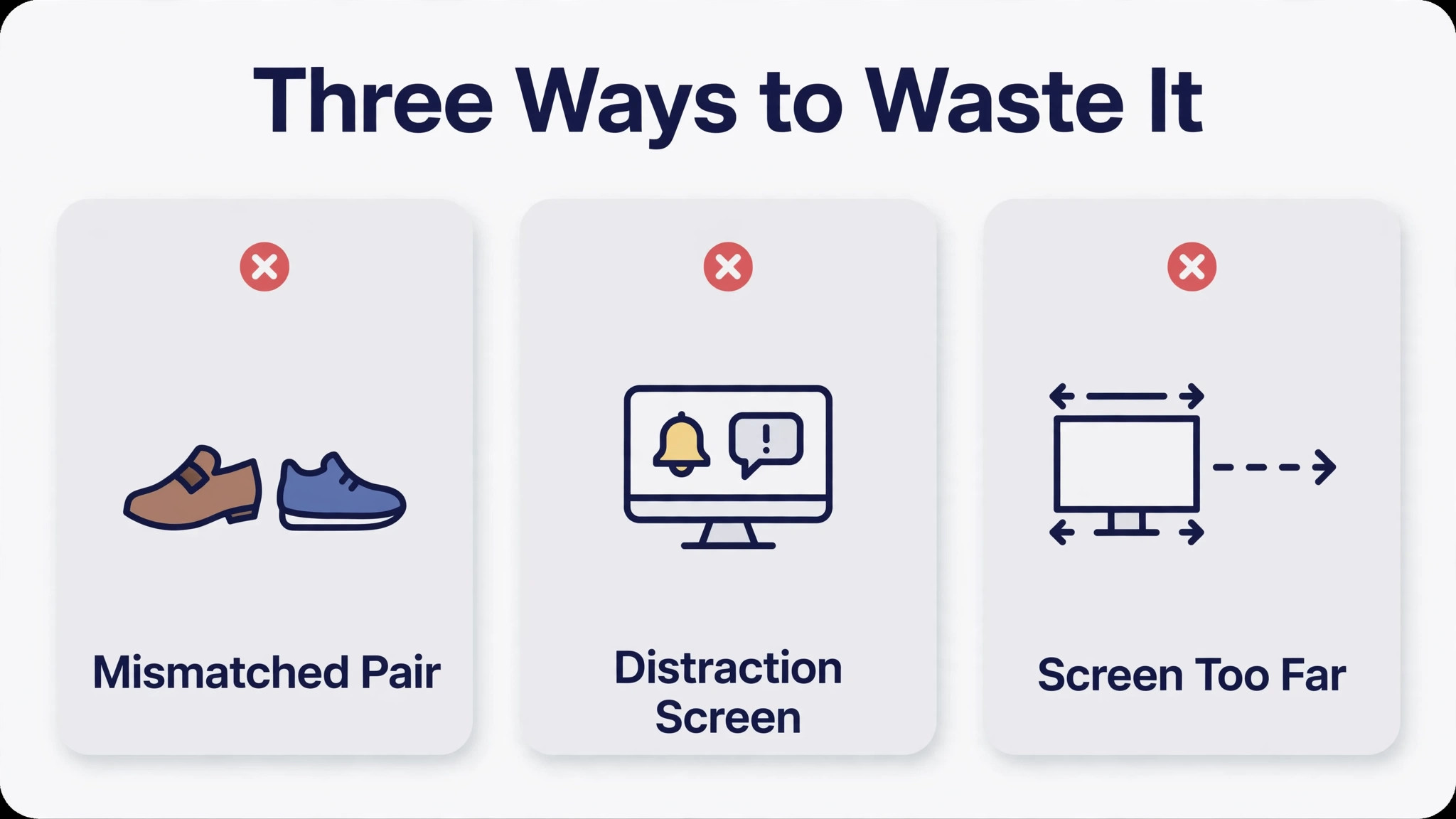
The first mistake is buying a second screen that does not match the first, then wondering why footage looks different on each. Match size and resolution as closely as possible, and calibrate both, because a cheap mismatched second screen used for colour decisions is worse than no second screen at all. The second mistake is filling the second screen with distractions, such as messages, social feeds and news, which pull attention away from the edit every few minutes. Reserve the second screen for editing panels during work sessions, and move everything else to a phone or to a break, because focus is the real product of a good setup.
The third mistake is placing the second screen too far away, too high, or at a sharp angle, which causes neck pain that the editor blames on editing itself. Keep screens close, level and slightly angled, and move your chair rather than your neck when reviewing a long section. The fourth mistake is never saving a workspace preset, so every program update or accidental drag forces a tedious rebuild of panels. Save the preset, export it if your program allows, and keep a screenshot of the layout for reference. The fifth mistake is ignoring audio, because editing is half sound, and a second screen full of video panels is no substitute for hearing levels clearly.
Keep audio meters visible, use decent speakers or headphones, and check the mix on both, because a video that looks right but sounds wrong still fails.
Budget Tiers and an Upgrade Path
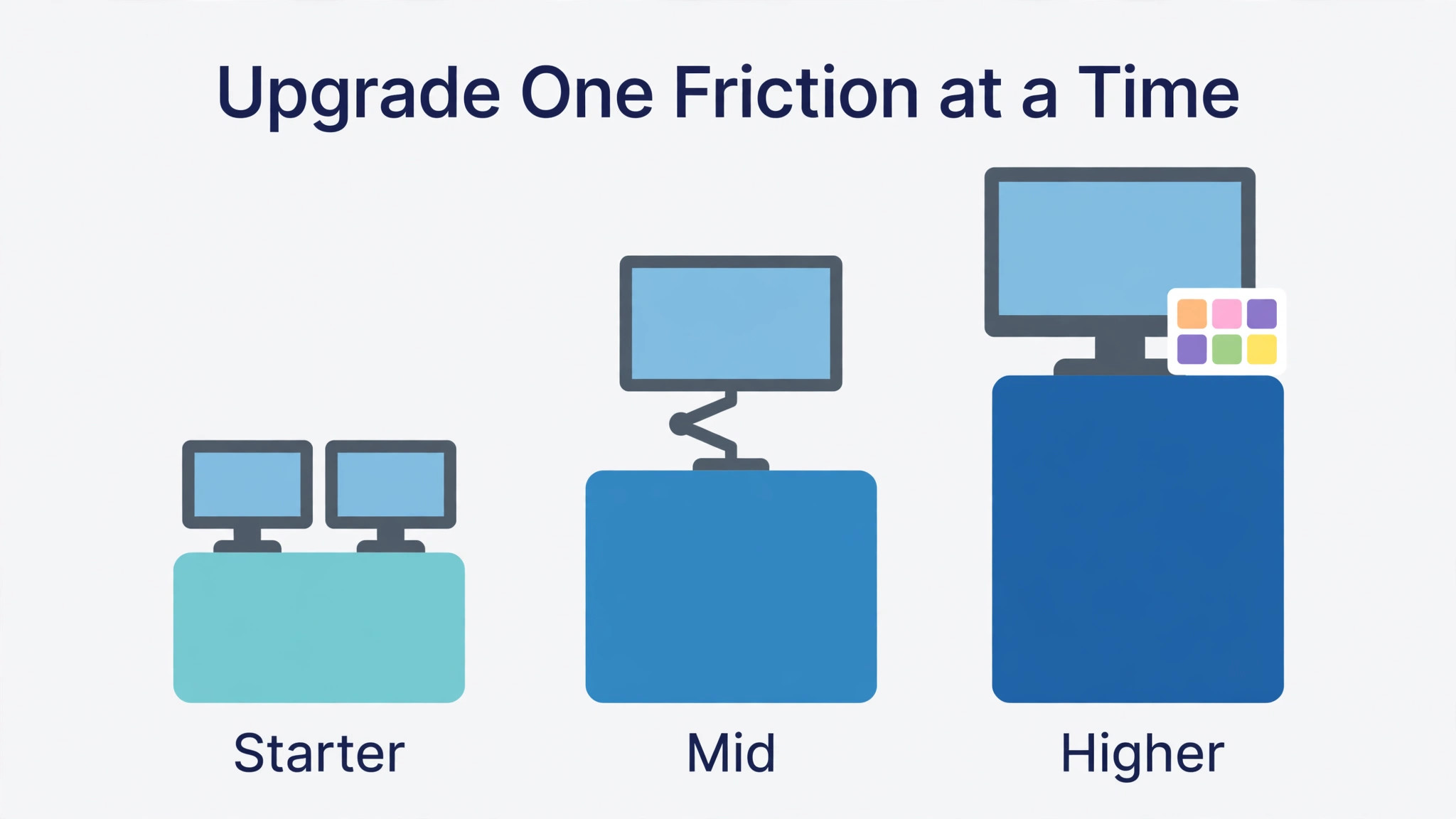
A dual screen setup does not need to start expensive, and a sensible upgrade path beats a single large purchase that guesses wrong. At a starter level, a second screen matching your existing monitor in size and resolution, plus the cables you need, is enough to transform editing, and most editors feel the benefit immediately. At a mid level, a matched pair of colour capable screens, a monitor arm, and a hardware calibration tool give consistent colour and a comfortable desk, which suits regular client work.
At a higher level, a larger main screen for preview, a second screen for tools, and a dedicated reference display for colour critical delivery serve editors whose work depends on exact colour, but that level is unnecessary for most social and corporate editing.
Upgrade in the order that removes your biggest friction first. If panel switching slows you most, add the second screen. If colour inconsistency troubles you most, calibrate or match screens. If neck pain troubles you most, fix placement and seating before buying anything. If storage or rendering speed limits you, spend on those before a third screen, because a third screen never fixes a slow computer. Review the setup every six months, note what still frustrates you, and spend on that one thing, because targeted upgrades build a better desk than a single shopping spree, and they keep the setup matched to the work you actually do.
Spend in that order when you set up dual monitor for video editing on a budget, and resist buying a third screen before the first two are right.
More Reading on Stratilyze
If this guide helps your editing desk, the wider Stratilyze guides cover the setup around it. The guide to dual monitors for general desk productivity explains layouts for office work, the guide to laptops for video editing under 1000 helps if your computer needs an upgrade too, and the guide to gaming monitors for console play covers refresh rates and panel types that also matter for smooth playback. Read the productivity guide next if your desk serves both editing and office work, because one layout can serve both with a saved preset each.
Frequently Asked Questions
Do I need two identical monitors when you set up dual monitor for video editing?
Identical monitors are ideal, but matching size, resolution and panel type matters more than matching brand. If you already own one good monitor, buy a second with the same size and resolution, then match brightness, contrast and colour settings on both. A matched pair keeps footage and interface elements consistent, while a mismatched pair can make the same footage look different depending on which screen shows it, which causes real problems for colour decisions.
Which screen should hold the preview and timeline?
Put the preview and timeline on the main screen directly in front of you, because those are the panels you watch and work with constantly. Put bins, effects, audio meters and scopes on the second screen, where you can glance at them without losing the current frame. Save that arrangement as a workspace preset in your editing program, so one click restores it after updates or accidental changes, and test it on a real short edit before a deadline.
Can a laptop run dual monitors for video editing?
Yes, if it has enough video outputs or a dock that supports two external screens at your chosen resolution. Check the laptop maker’s specifications for outputs, resolution and refresh rate limits before buying monitors, because one port may not drive two high resolution screens. Many laptop editors use one external screen as the main preview and the laptop screen for bins and tools, which works well on a small desk, though the laptop screen sits low and small compared with a full external pair.
How do I fix colour differences between two monitors?
Start by setting both screens to the same brightness, contrast and colour temperature, and turn off dynamic contrast, eco modes and automatic brightness on both. Display the same test image on both screens from your normal seating position, and adjust the second screen to match the main screen, checking skin tones and neutral greys first. For client work where colour accuracy affects payment, a hardware calibration tool that measures both screens and builds correction profiles is a sensible purchase.
Is a portrait second monitor useful for video editing?
A portrait second monitor is useful for tall lists, such as media bins, scripts and subtitles, because it shows far more items at once than a wide screen. It is not suitable for the video preview, which needs a wide view, and it should hold panels you consult rather than panels you watch constantly. If your work involves long bins or scripted edits, a portrait side screen is a strong choice, but for most editors a standard side by side pair is simpler and more flexible.
What is the biggest mistake when you set up dual monitor for video editing for the first time?
The biggest mistake is buying monitors before checking your computer’s video outputs, because ports, resolutions and refresh rates decide what you can actually run. A second common mistake is placing the second screen too far to the side, which causes neck strain within days. Check outputs first, place screens close and level, match colour settings, save a workspace preset, and test the setup on a real edit, and most first time problems disappear before they cost a deadline.
The Editing Desk Verdict
A dual monitor editing setup earns its desk space when the screens match, sit close and level, and hold a saved panel arrangement that puts preview and timeline in front of you and tools within a glance. Check your computer’s outputs before buying, match size and resolution, work through the colour checklist, and test the layout on a real edit before trusting it with a deadline. Fix placement before buying more gear, keep the second screen free of distractions during work, and upgrade the single biggest friction next, whether that is colour, seating, or storage. Done that way, the second screen stops being extra equipment and becomes the quiet reason your edits get faster, cleaner and easier to review.
Keep the workspace preset backed up with your project templates, so a new machine or a fresh install restores your desk in minutes rather than costing an afternoon of panel dragging, and revisit the layout whenever your work changes, because a setup tuned for short social edits may need a different panel balance for long documentary projects.