
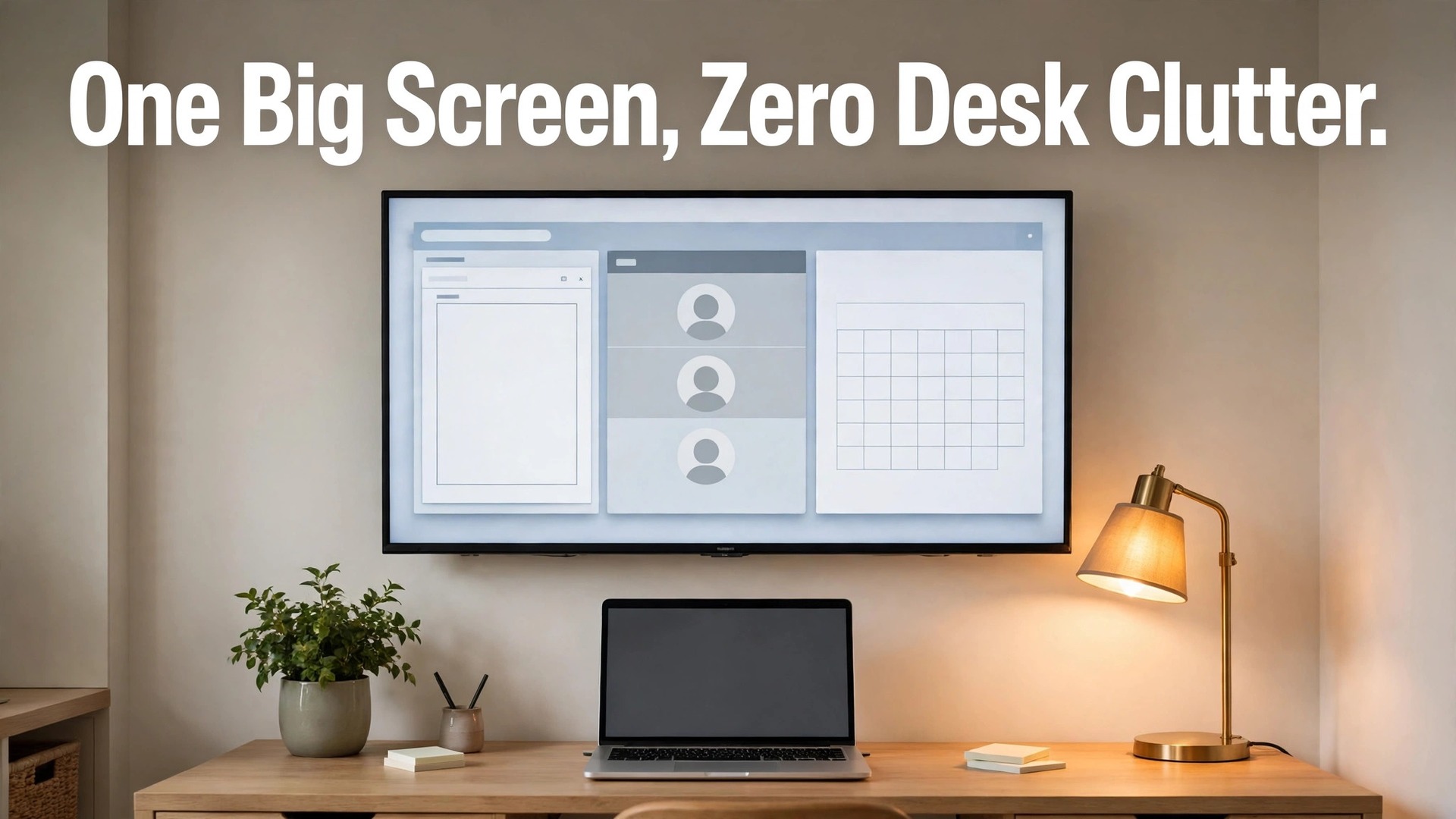
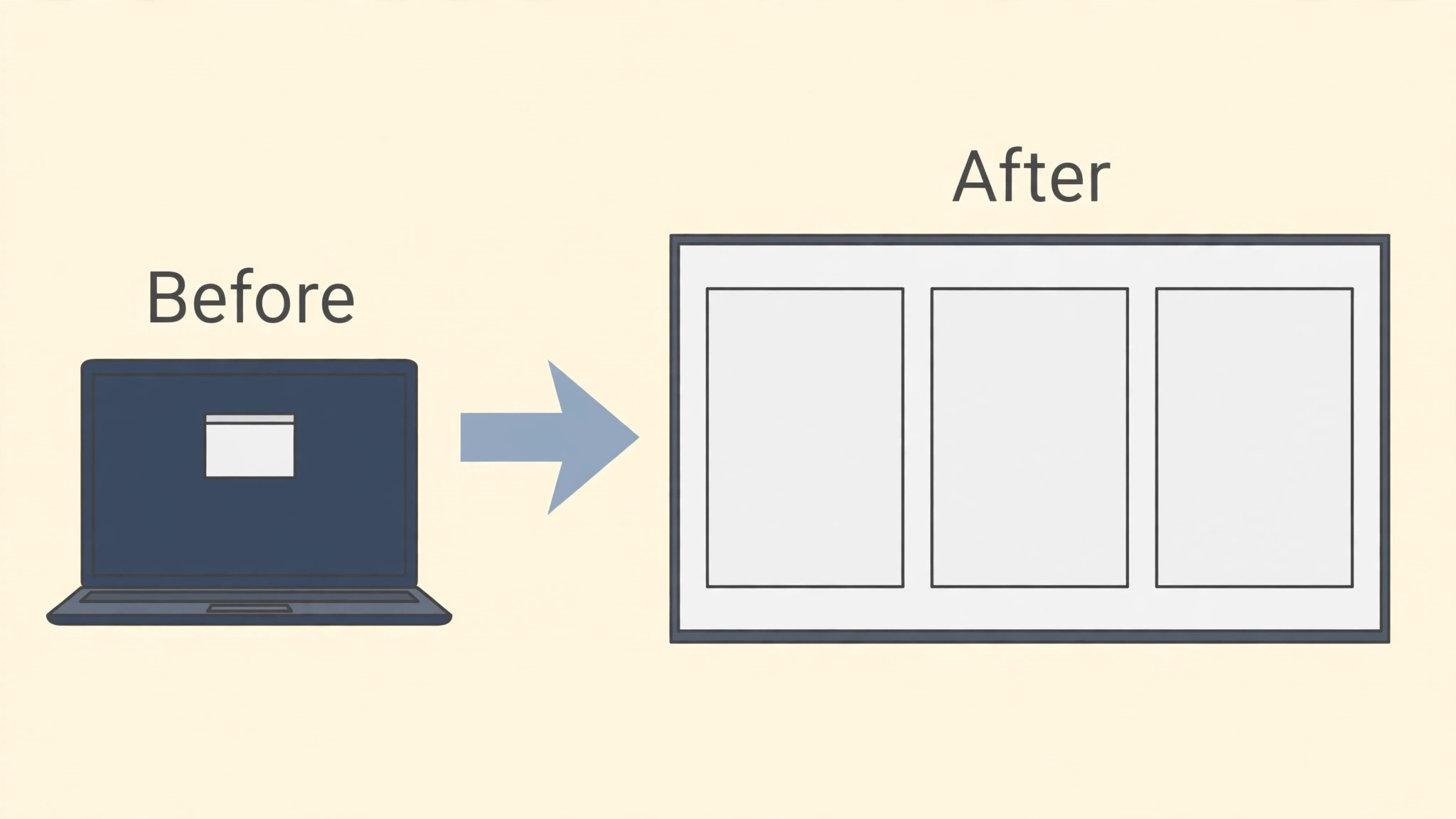
A home office with only a laptop screen forces constant window switching, squinting at small text, and a hunched posture that hurts by afternoon. When you use smart TV for home office display, a large screen already in the home becomes a second monitor or a main display, giving documents, video calls, and research room to breathe, without buying a dedicated monitor. That reuse is practical, provided resolution, text size, and viewing distance are set correctly, because a TV used badly can be worse than a small monitor used well.
This guide covers connection, display settings, ergonomics, and daily use. You will choose a connection method, set resolution and scaling, position the TV at a comfortable distance, configure sound and video calls, and build a routine that keeps the setup productive. TV models, ports, and prices vary widely, so confirm your TV’s inputs, resolution, and refresh rate from its manual or official specifications before buying cables or adapters.
Why This Approach Works
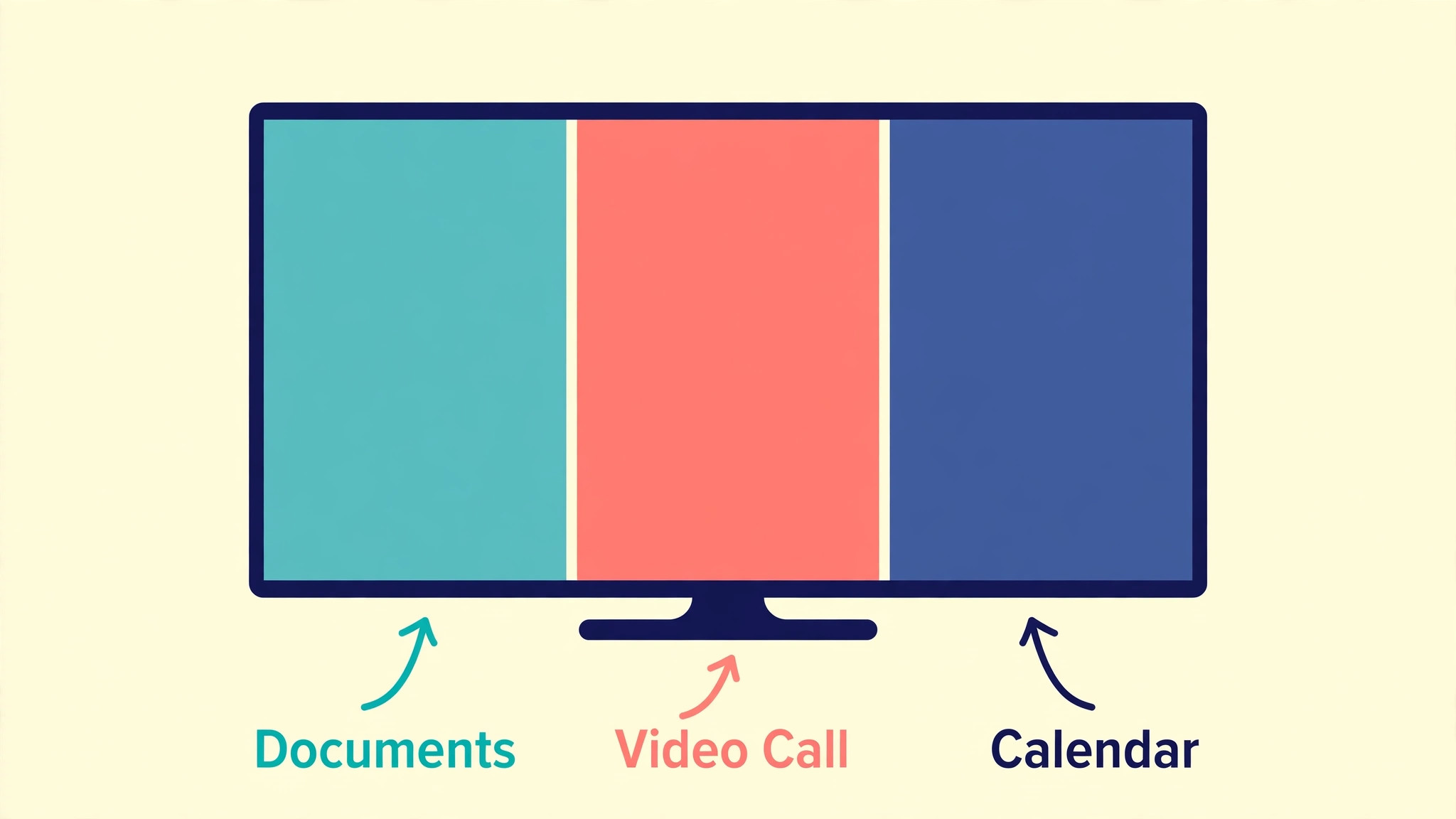
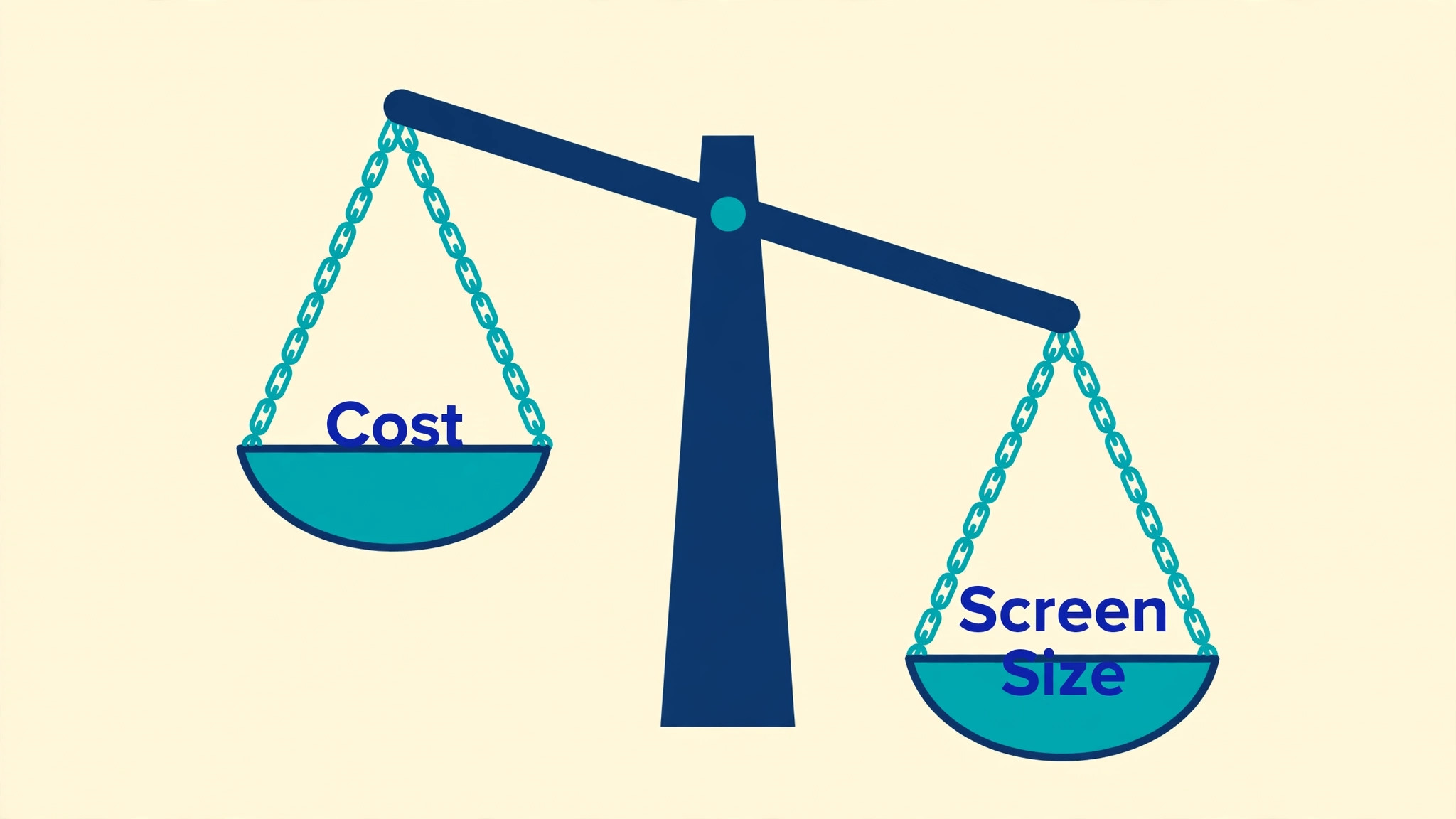
Large displays help office work in specific ways, by allowing two documents side by side, a video call beside notes, or a spreadsheet at a readable size without constant scrolling. A smart TV already owned costs nothing extra as a display, apart from a cable or adapter, and it can serve double duty for work in the day and entertainment in the evening, which suits small homes without space for a dedicated office monitor. The trade offs are real, including larger pixels on some TVs, higher input lag on others, and a viewing distance that must be larger than for a monitor, but those trade offs can be managed with correct settings and positioning, as this guide shows.
A TV display also changes how video calls and presentations feel, because faces appear larger, shared slides are easier to read, and a presenter can stand or move more naturally than when hunched over a laptop camera. For workers who present often, or who review visual work such as designs, photos, or data charts, a large screen can improve both comfort and communication. The key is to treat the TV as a display with its own settings, not as a television that happens to show a computer, because TV picture modes designed for films will distort text, colours, and motion for office work if left unchanged.
How to use smart TV for home office display Step by Step
Set up in the order below, starting with connection and resolution, not with furniture. When you use smart TV for home office display, a correct connection and display setting prevents the most common disappointment, which is a large, blurry screen that strains eyes and is abandoned after a week.
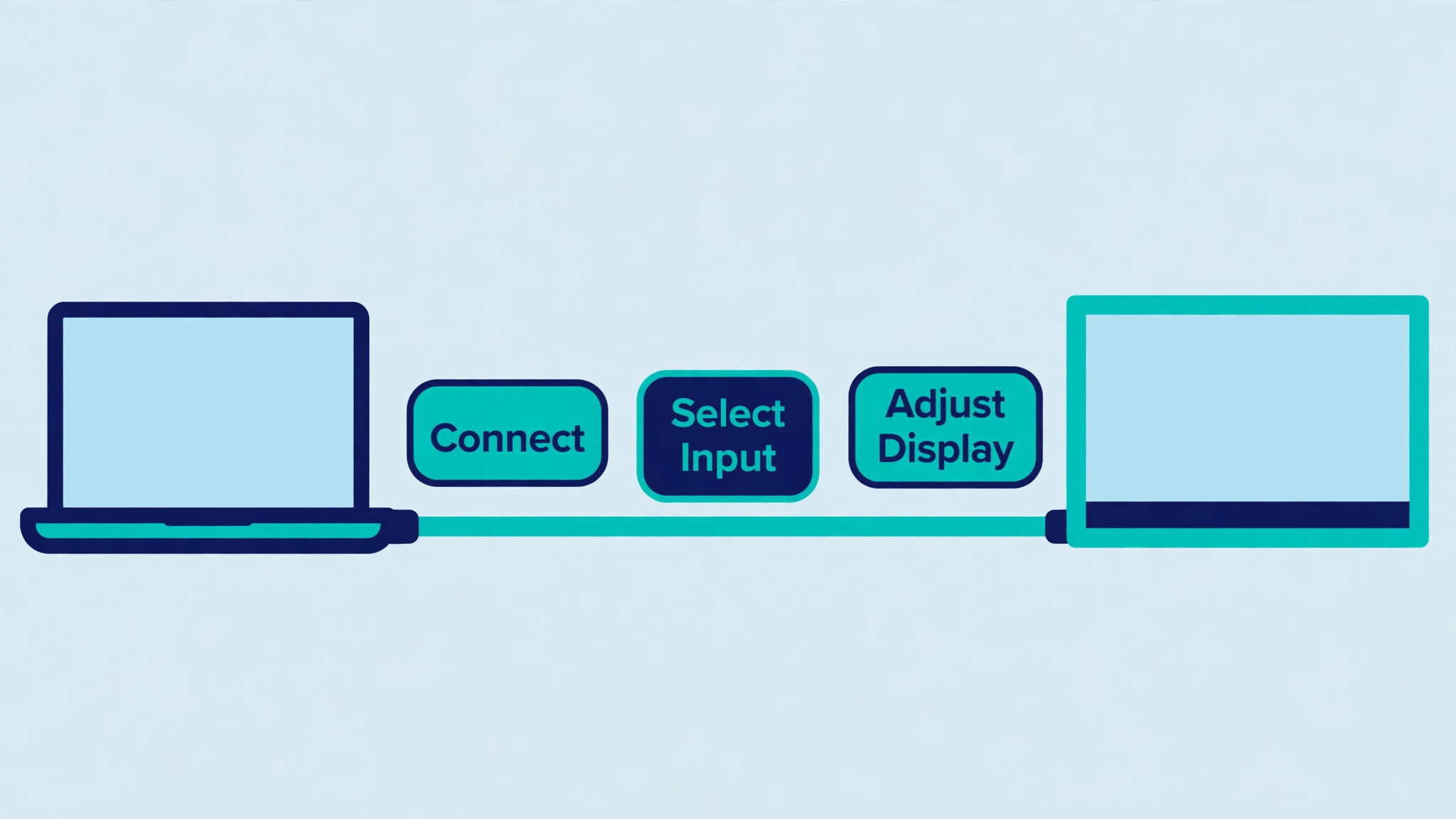
- **Check TV inputs, resolution, and refresh rate.** Check your TV manual or specifications for HDMI inputs, native resolution, such as 1080p or 4K, and refresh rate, and check your computer’s video outputs for matching ports. A 4K TV with a computer that only outputs 1080p will still work, but text will be larger and less sharp, while a computer that outputs 4K to a 1080p TV gains nothing. Knowing both ends before buying cables prevents wasted purchases and mismatched expectations.
- **Choose a wired connection first.** Connect the computer to the TV with an HDMI cable where possible, using an adapter only where the computer lacks HDMI, such as USB C to HDMI for many laptops. Wired connections give the most stable picture, lowest lag, and most reliable audio, while wireless casting suits occasional sharing but can lag and drop during calls. Use a cable length that reaches comfortably without tension, and route it safely to avoid trips.
- **Set resolution and scaling for readable text.** On the computer, set the TV display to its native resolution, then adjust text scaling until body text is comfortably readable from your working distance, without making windows too large to use. On Windows, use display scaling settings, and on Mac, use scaled resolutions, testing several options with a real document rather than judging by the desktop alone. Readable text is the test that matters, because a sharp but tiny display will still cause eye strain.
- **Switch the TV to a computer or game picture mode.** In TV picture settings, select a computer, PC, or game mode where available, because those modes reduce image processing, lower input lag, and show text more sharply than film or vivid modes. Turn off motion smoothing, noise reduction, and dynamic contrast for office use, as those features blur text and shift colours. Save the office picture mode separately from entertainment modes where the TV allows it, so switching back in the evening is easy.
- **Position the TV at a comfortable distance and height.** Place the TV so the top of the screen is near eye level when seated, at a distance where text is readable without leaning forward, usually further than for a monitor, depending on screen size and resolution. Use a TV stand, wall mount, or desk riser to achieve the height, and avoid placing the TV where window glare washes out the screen. Good positioning prevents neck strain, which is the most common complaint from TV desk setups.
- **Configure sound, camera, and microphone for calls.** Use the computer’s speakers, external speakers, or a headset for call audio, rather than relying on TV speakers at a distance, which can echo and pick up room noise. Position a webcam at the top of the TV or on the desk at eye level, and test microphone quality on a real call before an important meeting. A large screen with poor audio will still frustrate call participants, so audio deserves the same attention as picture.
- **Arrange windows and workspaces for a large screen.** Set up window layouts that suit a large screen, such as two documents side by side, a call window beside notes, or a main document with a reference panel, using the operating system’s window snapping or workspace features. Avoid filling the whole screen with one window when two smaller windows would reduce switching, because the advantage of a large screen is seeing more at once, not seeing one thing larger. Save a preferred layout where the system allows it, so each workday starts organised.
- **Test a full workday before committing.** Work a full day on the TV display, including documents, email, video calls, and any visual work, noting eye comfort, neck comfort, text readability, and lag during calls. Adjust scaling, distance, and picture mode based on that day, rather than on a ten minute test, because comfort problems appear after hours, not minutes. A setup that passes a full day test is ready to keep, while a setup that only passes a short test may need further adjustment.
After the test day, note the final settings, including resolution, scaling, picture mode, distance, and audio setup, in a short note kept near the desk. If the TV is also used for entertainment, note how to switch between office and entertainment modes quickly, so the evening switch does not disturb the next morning’s work setup. A documented setup can be restored in minutes after a software update or a cable change, while an undocumented setup must be rediscovered each time.
Options Compared
TV displays suit different office needs, and the right setup depends on screen size, resolution, and work type. When you use smart TV for home office display, the table below compares the main display approaches, so a worker can choose between a TV as a main display, as a second display, or as a presentation screen, rather than forcing one setup onto every task.
| Display approach | Best for | Watch out for |
|---|---|---|
| TV as main display | Large documents, presentations | Needs larger viewing distance |
| TV as second display | Reference material beside laptop | Window management takes practice |
| TV for video calls only | Meetings and presentations | Wasted when not in calls |
| TV plus dedicated monitor | Visual work, long days | Higher cost and desk space |
| Laptop only | Portable work, small desks | Small text, frequent switching |
For most home workers, a TV as a second display beside a laptop works best at first, because the laptop remains the main work surface while the TV holds reference material, calls, or a large document. Move to TV as main display only after a full day test proves comfort at your desk distance and screen size. A gradual move, from second display to main display, lets ergonomics and settings be proven before the laptop screen is abandoned entirely.
Costs and Tools to Budget For
Budget for a TV desk setup in cables, adapters, and furniture, assuming the TV itself is already owned. An HDMI cable and, where needed, a USB C to HDMI adapter cost relatively little, while a wall mount, TV stand, or desk riser for correct height may cost more, depending on the solution chosen. A webcam and headset, where call quality matters, add further cost, but they improve calls far more than a more expensive cable ever will. Confirm TV specifications and computer outputs before buying, so cables and adapters match both ends first time.
Time budgeting should include a full day test, not just a quick connection check, because comfort and settings problems appear after hours of use. Budget an hour for initial setup, a full workday for testing, and a short follow up session for adjustments to scaling, distance, and picture mode. That time investment is small compared with months of comfortable use, and it prevents the common outcome where a TV display is tried briefly, found uncomfortable, and abandoned without ever being set up correctly.
Template and Checklist
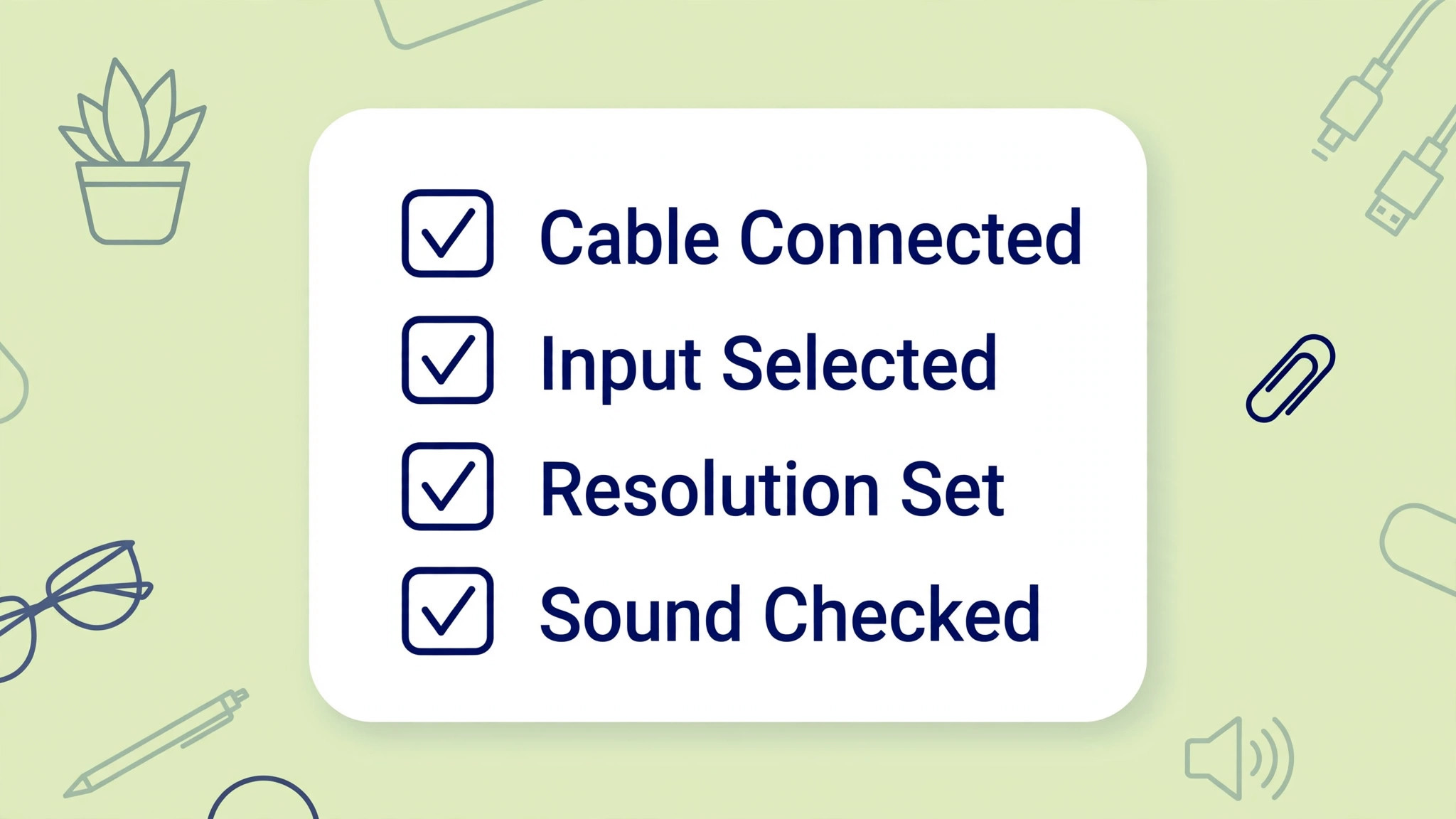
Run this checklist after setup and again after any software update or cable change. When you use smart TV for home office display, the checklist is the gate that confirms the display is sharp, readable, comfortable, and reliable for calls, rather than merely showing a picture.
- TV inputs, resolution, and refresh rate are checked against computer outputs.
- A wired HDMI connection is used where possible, with cables routed safely.
- Display resolution is set to the TV native resolution.
- Text scaling is adjusted until body text reads comfortably at working distance.
- TV picture mode is set to computer, PC, or game mode for office use.
- Motion smoothing, noise reduction, and dynamic contrast are off for work.
- TV height and distance allow comfortable posture without leaning forward.
- Glare from windows is controlled, with screen readable in normal daylight.
- Call audio uses speakers, external speakers, or a headset, tested on a real call.
- Webcam is positioned at eye level and tested before important meetings.
- Window layouts suit a large screen, with reference material visible beside main work.
- A full workday test is completed, with settings noted for future restoration.
Keep the completed checklist with the settings note near the desk, including resolution, scaling, picture mode, and audio setup. When a software update resets display settings, or a cable is replaced, the checklist lets the setup be restored quickly without rediscovering comfortable values. Documentation near the desk is what turns a one off setup into a reliable daily workspace.
Mistakes to Avoid
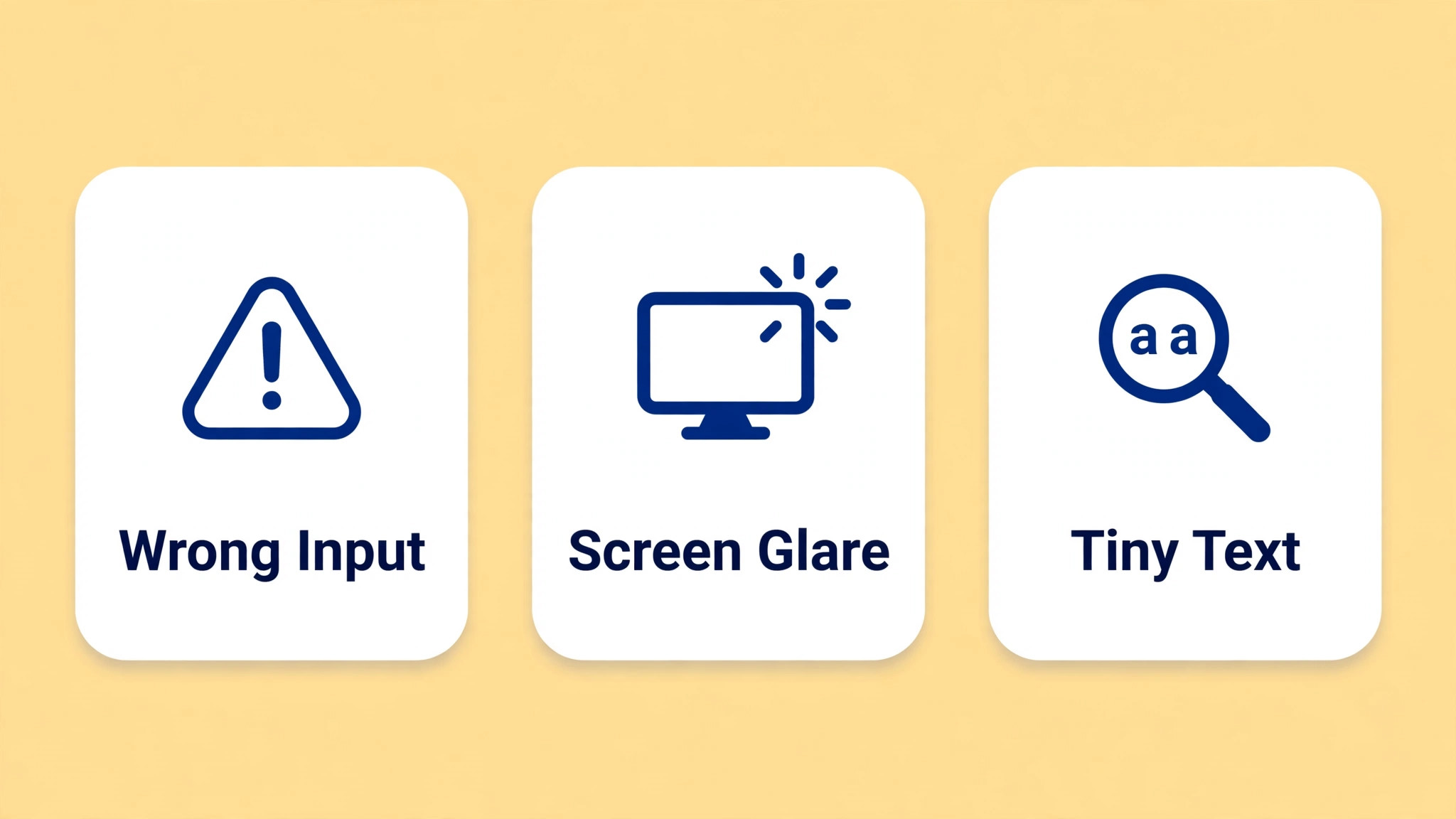
TV desk setups fail in predictable ways, usually because TV picture settings designed for films are left unchanged for office work. When you use smart TV for home office display, watch for these five mistakes, because each one causes eye strain, poor calls, or abandonment of an otherwise useful large screen.
- **Leaving film picture modes on.** Film, vivid, or sports picture modes add processing that blurs text, shifts colours, and increases lag, making office work tiring and imprecise. Switch to computer, PC, or game mode for work, and turn off motion smoothing and dynamic contrast. A picture mode change takes a minute and transforms text sharpness more than any cable upgrade.
- **Sitting too close to a large TV.** A large TV viewed from monitor distance shows large pixels, forces head movement to read across the screen, and strains neck and eyes. Move back until text reads comfortably without head turning, and use scaling to adjust text size rather than sitting closer. Distance is part of display setup, not just furniture placement.
- **Using tiny text scaling.** Tiny text on a large screen defeats the purpose of the display and causes eye strain, even if the picture looks sharp. Increase scaling until body text reads comfortably at your working distance, and test with real documents, not only with desktop icons. Readable text matters more than fitting maximum content on screen.
- **Relying on distant TV speakers for calls.** TV speakers at a distance can echo, pick up room noise, and make the speaker hard to hear, which frustrates call participants. Use a headset or close speakers for calls, and test audio on a real call before important meetings. Good audio is as important as a good picture for remote work.
- **Skipping the full day test.** A setup that feels fine for ten minutes can cause neck strain, eye fatigue, or lag problems after hours of real work. Test a full workday, including documents, email, and calls, before committing to a TV as a main display. A full day test reveals comfort problems while they are still easy to fix by adjusting distance, scaling, or picture mode.
If eye strain persists after correct settings, check viewing distance, lighting, and break habits before blaming the TV itself. Take regular breaks from the screen, ensure room lighting does not create glare or harsh contrast, and consider whether a smaller monitor at closer distance suits your desk better than a large TV at a distance your room cannot provide. A TV display should adapt to the room, not force the room to adapt uncomfortably to the TV.
A Worked Example
A home worker who already owns a television can prove the desk setup with one ordinary workday before moving anything permanently. The day starts as a second display arrangement, with the laptop remaining the main work surface and the television holding reference material, so the change is reversible if comfort fails. First, the television manual is checked for HDMI inputs, native resolution and refresh rate, and the laptop outputs are checked to match, then a wired HDMI connection is made, with an adapter only where the laptop lacks HDMI, and the cable is routed so it cannot be tripped over.
On the computer, the display is set to the television’s native resolution, whether 1080p or 4K, and text scaling is adjusted until a real document reads comfortably from the intended chair, rather than judging sharpness from desktop icons alone.
In the television picture settings, a computer, PC or game mode is selected, and motion smoothing, noise reduction and dynamic contrast are switched off for work, because those film features blur text and shift colours. The television is placed so the top of the screen sits near eye level when seated, at a distance where text reads without leaning forward or turning the head across the screen, and window glare is checked in normal daylight. For calls, a headset or close speakers replace distant television speakers, a webcam is positioned at eye level on top of the television or on the desk, and audio is tested on a real call.
During the workday, two documents sit side by side for part of the day, a call window sits beside notes for another part, and the worker notes eye comfort, neck comfort, text readability and any lag during calls. At the end of the day, the final settings, including resolution, scaling, picture mode, distance and audio setup, are written into a short note kept near the desk, with a line on switching between office and entertainment modes. A setup that survives that full day, with its notes kept, is ready to keep, while a setup that only felt fine for ten minutes has not yet been tested at all.
Advanced Tips Worth Trying
Once a full workday has passed comfortably, the setup can be refined so it restores itself after disruption instead of needing rediscovery. The settings note near the desk is the foundation, and it should record resolution, scaling, picture mode, viewing distance and audio arrangement in one place, so a software update that resets display settings, or a cable that is replaced, costs minutes rather than an afternoon of trial and error.
Window layouts can be saved where the operating system allows it, with a preferred arrangement for documents side by side, another for a call beside notes, and a third for a main document with a reference panel, because the advantage of a large screen is seeing more at once rather than seeing one window larger. Checking the note after any software update, and re-running the checklist at that point, catches a reset picture mode or a changed scaling value before it causes a day of eye strain.
Glare and posture repay attention across the day as light changes, so the television position should be checked in morning and afternoon daylight, not only at setup time, and the chair distance should be rechecked if furniture moves. For calls, keeping both a headset and close speakers available allows a choice by call type, with the headset for long or sensitive calls and speakers for short check ins where notes need both hands, and each option should have been tested on a real call before it is relied on.
A worker who presents often can also keep a presentation arrangement ready, with slides large on the television and notes on the laptop, which uses the second display strength without forcing the television to become the main display for every task. A desk arrangement that is documented, saved as layouts, checked after updates and tested for light across the day will stay comfortable when work patterns change, rather than drifting back to film settings and a hunched posture.
How to Measure Success
A television desk setup can be judged on readability, comfort, call quality and stability, and each of those can be checked with a simple test rather than a feeling. Readability can be tested by opening a real document, sitting at the normal working distance, and noting whether body text reads without leaning forward, whether the whole width of a side by side layout can be read without head turning, and whether the display is at its native resolution.
Comfort can be recorded at the end of a workday with a short note on eye comfort and neck comfort, written in the worker’s own words, so a comparison across days shows whether a scaling or distance change helped or merely moved the problem. Call quality can be measured by counting, over a week of calls, how many calls drew a complaint about audio, how many suffered lag or a dropped wireless connection, and how many needed a repeat of something already said, because those counts come from the other participants rather than from the worker’s impression alone.
Stability can be tracked by noting every time a setting drifts after a software update, a cable change or a switch to entertainment mode, and whether the settings note restored it without a fresh round of adjustments. Review readability, comfort, call counts and drift together at the end of each month, and change only one setting at a time, such as scaling, distance or picture mode, testing it for a full day before changing another, so any improvement in comfort or any fall in call complaints can be linked to that change.
A setup whose readability passes at working distance, whose comfort notes improve, whose call complaints fall, and whose settings restore quickly after updates is a setup that is genuinely working, rather than a large screen that merely looks impressive on the desk.
Review and Next Steps
The monthly review should test the four checks from the guide in the same order each time, beginning with text readability at the normal chair distance, then posture comfort after a workday, then call audio quality on a real call, and then whether the window layout still matches current work. If any check fails, adjust one setting only, whether scaling, distance or picture mode, and test it for a day before changing another, because changing several settings at once hides which one helped. Record each check, each change and each equipment change in a monthly desk note kept near the desk, so the setup can be restored after an update or a move without rediscovering comfortable values.
When you use smart TV for home office display on a regular review cycle, that desk note also helps anyone else who shares the television, because office and entertainment modes can be switched without disturbing each other’s settings.
The next step depends on what the monthly checks show. If the television has worked well as a second display for a full month, with readable text, comfortable posture and reliable calls, a move to main display can be considered, but only after another full day test in that arrangement, because a main display demands more from distance and scaling than a reference screen does. If glare, distance or eye comfort remain problems after adjustments, the honest next step may be a smaller dedicated monitor at closer distance, rather than forcing a room to suit a television it cannot accommodate.
Either outcome is a success, because the review has produced a desk arrangement based on tested comfort rather than on the appeal of a large screen alone, and the settings note means the chosen arrangement can be kept, restored and shared without starting again.
For related reading on Stratilyze, the guide to dual monitor desk productivity covers dedicated monitor setups, and the guide to fixing smart TV app crashes helps when TV software misbehaves. Read the dual monitor guide first if you are comparing a TV with a dedicated monitor, because ergonomics habits there transfer directly, and the method here for use smart TV for home office display shares the same distance and scaling principles.
Frequently Asked Questions
Is a smart TV good as a computer monitor?
A smart TV can work well as a display, especially as a second display, provided resolution, scaling, picture mode, and viewing distance are set correctly. A 4K TV at a suitable distance with computer mode enabled can show sharp, readable text, while a TV left in film mode at close distance will strain eyes. Test a full workday before committing to a TV as a main display.
What cable do I need to connect a laptop to a TV?
An HDMI cable suits most laptops with HDMI outputs, while laptops with only USB C need a USB C to HDMI adapter or dock. Wired HDMI gives the most stable picture and lowest lag for office work and calls, while wireless casting suits occasional sharing but can lag. Check both TV inputs and laptop outputs before buying cables.
What resolution should I set for a TV display?
Set the TV display to its native resolution, such as 1080p or 4K as specified for your TV, then adjust text scaling until body text reads comfortably at your working distance. Native resolution gives the sharpest picture, while scaling controls readability, so both settings matter together. Test with real documents, not only with the desktop view.
Why does text look blurry on my TV display?
Blurry text usually comes from a film picture mode with heavy processing, a non native resolution, or incorrect scaling, rather than from the TV itself. Switch to computer, PC, or game mode, set native resolution, turn off motion smoothing, and adjust scaling. If text remains blurry after those changes, check cable quality and try a different HDMI input.
How far should I sit from a TV used as a monitor?
Sit far enough that text reads comfortably without head turning or leaning forward, which is usually further than for a dedicated monitor, depending on TV size and resolution. Use scaling to adjust text size at that distance, rather than sitting closer to make text larger. If your room cannot provide a comfortable distance for the TV size, a smaller monitor may suit the desk better.
How do I use smart TV for home office display for video calls specifically?
Position a webcam at eye level on top of the TV or on the desk, use a headset or close speakers for audio, and test on a real call before important meetings. Arrange the call window beside notes on the large screen, so you can refer to material without switching away from the call. A large screen helps calls most when audio and camera are set up as carefully as the picture.
A Bigger Screen Without a New Desk
A smart TV can become a productive home office display when connection, resolution, scaling, picture mode, distance, and audio are all set correctly and tested over a full workday. Start as a second display, move to main display only after comfort is proven, and note settings for easy restoration after updates. When you use smart TV for home office display in that careful way, a screen already in the home gives documents, calls, and research room to breathe, without the cost or desk space of a dedicated monitor.