The problem with a new Steam Deck is not that setup is hard. The problem is that the device looks like a console, behaves like a computer, and tempts every new owner to install ten large games before the first update has finished. The result is a full drive, a hot handheld, and a first evening spent watching download bars instead of playing. This guide explains how to set up Steam Deck for beginners in the order that avoids that trap, with first boot, updates, storage, and settings sorted before a single large download begins.
A Steam Deck is a handheld gaming PC made by Valve, running a system called SteamOS, with your Steam library at its centre. It has a touchscreen, two thumbsticks, two trackpads, face buttons, and four programmable grip buttons on the back. That combination gives it far more flexibility than a typical console, but flexibility also means more settings to learn. The good news is that most of those settings can wait. Week one needs only a handful of choices, made well, and this guide covers exactly those.
Before You Press Power for the First Time
Charge the Steam Deck before first boot, using the supplied USB-C power adapter plugged into a wall outlet. The battery ships partly charged, but an update during setup can take a while, and a handheld that dies mid update is a needless risk. While it charges, find your Steam account details, or create a Steam account on a phone or computer if you do not have one. Two factor authentication on that account is worth enabling now, since the account holds your game library and payment details, and a handheld is easier to lose than a desktop computer.
Check your Wi-Fi situation too. First boot needs Wi-Fi for account sign in and for the system update, and game downloads afterwards need far more bandwidth than setup does. If your router sits far from where you will play, test the connection on a phone from that spot before you start. A weak signal at your favourite chair will turn every download into a slow crawl, and knowing that now lets you move closer to the router or plan downloads overnight rather than discovering the problem mid game.
Decide on storage before you buy anything. Steam Deck models ship with different internal storage sizes, and every model accepts a microSD card for extra game storage. A microSD card bought in advance, ideally 512 gigabytes or larger from a known brand, gives you room to install several games without juggling files. Buy the card before you need it, because a card ordered after the drive fills means days of waiting while a half installed library sits idle.
Think about where the Deck will live between sessions. The included carrying case protects the screen and sticks during travel, and a simple stand or dock spot at home keeps the device from sliding off a sofa arm. Keep the charger in one fixed place, since the USB-C charger is also your lifeline during long download sessions, and a charger that migrates around the house is a charger that goes missing on the night you need it most.
How to set up Steam Deck for beginners
The first boot sequence is short, and the on screen prompts carry you through it, but the notes below cover the choices that beginners usually rush. Take your time, keep the charger plugged in, and do not start downloading games until the update step is fully done. To set up Steam Deck for beginners well, the update is not an optional extra. It is the foundation for everything that follows.
- Power on the Deck. Press and hold the power button on the top edge until the Valve logo appears. The first screen asks for language and time zone, and you can answer with the touchscreen, the thumbsticks, or the trackpads, whichever feels natural.
- Connect to Wi-Fi. Select your network from the list and enter the password with the on screen keyboard. If the keyboard feels awkward, press the Steam button and X together to bring it up or dismiss it, a shortcut worth learning early, since text entry appears in many places on this device.
- Sign in to Steam. You can sign in by scanning a QR code with the Steam mobile app, which is faster than typing a password on a touchscreen, or by entering your email and password manually. If two factor authentication is on, have your phone nearby for the code, since the sign in will pause until you approve it.
- Install the system update. The Deck checks for updates and installs them, restarting as needed. Leave it plugged in and do not force a restart during this step, even if the progress bar pauses. The first update commonly takes ten to twenty minutes, and a second smaller update sometimes follows immediately after.
- Tour the main interface. After the update, you land in Gaming Mode, a console style interface with your library, the store, and settings. Press the Steam button on the left side to open the main menu, and press the three dots button on the right side to open the Quick Access menu, which holds performance settings, friends, and downloads. Learning those two buttons now saves endless menu hunting later.
- Check controller basics. Open a free game or a demo if you own one, and test the thumbsticks, triggers, trackpads, and grip buttons. The trackpads feel unusual at first, especially for mouse style games, and a short test now tells you whether sensitivity needs adjusting before you commit to a long game.
- Install one small game first. Pick a game under ten gigabytes from your library, ideally one marked as verified for Steam Deck, and install it before any large title. A small first install proves that downloads, storage, and controls all work, and it gives you something to play while larger games download in the background.
Once that first game runs, the setup is essentially done, and the rest of this guide is about tuning rather than fixing. Storage choices, performance settings, and daily habits decide whether the Deck stays enjoyable over months, and those topics matter more than any single setup screen. To set up Steam Deck for beginners in full, treat first boot as the start of a week of small adjustments, not as a one time event that must be perfect on day one.
First Boot Checklist and Storage Choices
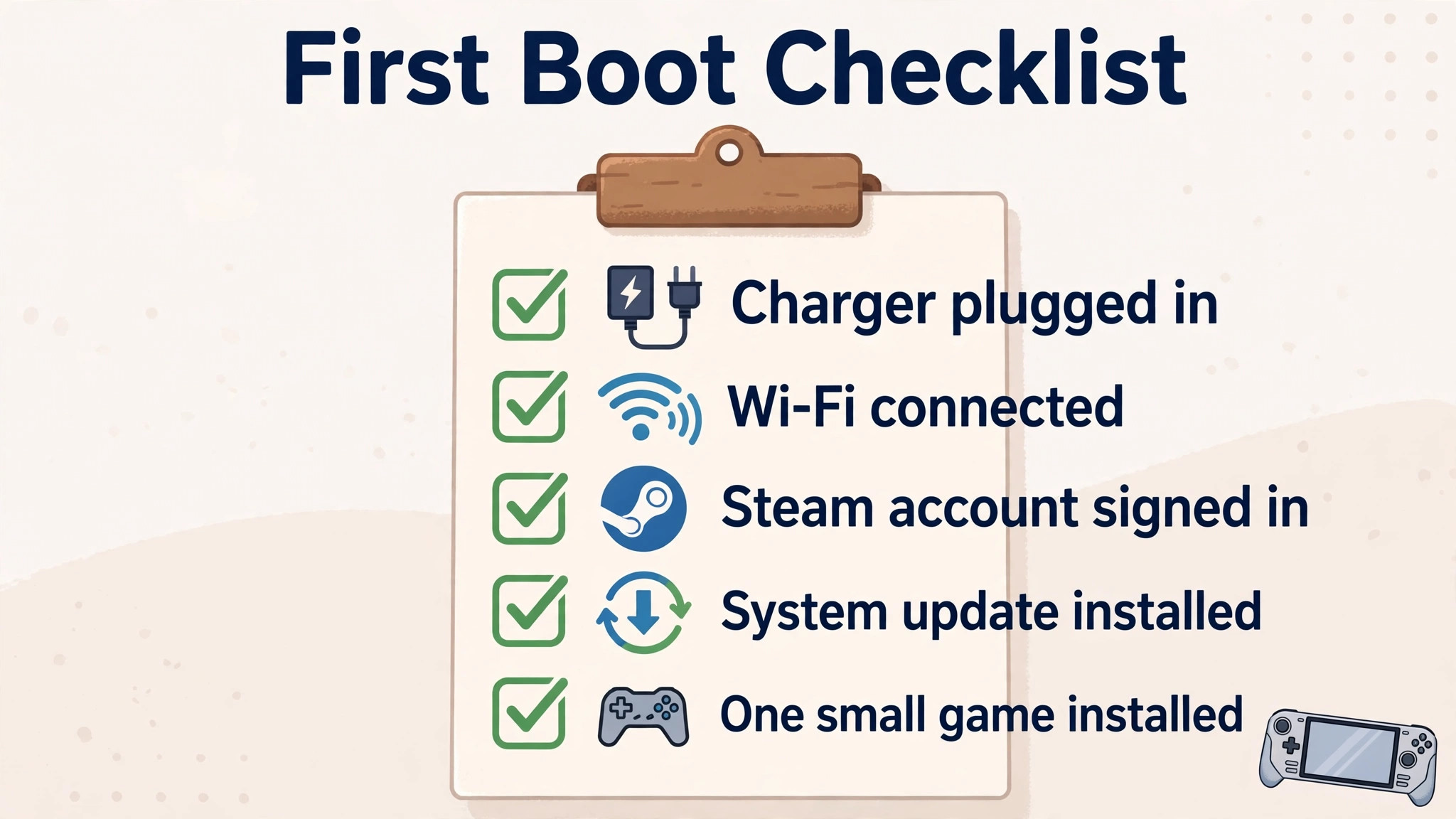
A short checklist turns first boot into a repeatable routine you can also use after a factory reset or when helping a friend. Tick each item before you consider setup complete, and note anything that failed, since a note now is far easier to act on than a vague memory next week.
- Charger plugged into a wall outlet, not a low power USB port, for the whole of first boot and updating.
- Wi-Fi connected, with the network name confirmed, and a speed test run from the same spot where you will usually play.
- Steam account signed in, with two factor authentication enabled and the Steam mobile app installed on your phone.
- System update installed and the Deck restarted cleanly at least once after the update.
- One small verified game installed and launched, with controls tested and sound confirmed through speakers or headphones.
- Storage checked in the settings menu, with free space noted, and a microSD card formatted if you bought one.
- Screen brightness, volume, and sleep settings given a first pass, even if you fine tune them later.
Storage deserves a longer look, because it is the setting most beginners regret ignoring. Internal storage is faster than a microSD card, so keep your current favourite game and any game with long loading times on internal storage, and put larger, slower paced games on the card. The Deck lets you choose install location per game, and moving a game between drives later is possible, though it takes time, so a thoughtful first choice saves a later shuffle.
Formatting a microSD card is done in the settings menu under storage, and the Deck formats the card for its own use. Buy from a known brand and avoid suspiciously cheap cards, since a fake card can report more capacity than it has and corrupt saves when it fills. After formatting, install one game to the card and launch it, proving the card works before you trust it with a large library. A card that fails on a small test is a card you can return quickly, while a card that fails after ten installs is a weekend lost.
Storage and Performance Settings Table
Performance settings live in the Quick Access menu, reached with the three dots button, and they control the balance between visual quality, frame rate, and battery life. The table below gives starting points for week one, not permanent rules, since every game behaves differently and your own tolerance for lower frame rates matters more than any table.
| Setting | Where to find it | Week one starting point |
|---|---|---|
| Frame rate limit | Quick Access, then Performance | 60 frames per second for most games, 30 for demanding games on battery |
| Refresh rate | Quick Access, then Performance | Match it to your frame rate limit where the game allows |
| TDP limit | Quick Access, then Performance | Leave off for week one, use it later to extend battery on light games |
| Scaling filter | Quick Access, then Performance | Leave at default unless text looks blurry in a specific game |
| Brightness | Quick Access, then Display | Around 60 percent indoors, higher only in bright rooms |
| Volume and audio | Quick Access, then Audio | Test speakers first, then Bluetooth headphones for quiet play |
| Sleep and power | Settings, then Power | Allow sleep on idle, but save the game first in titles without autosave |
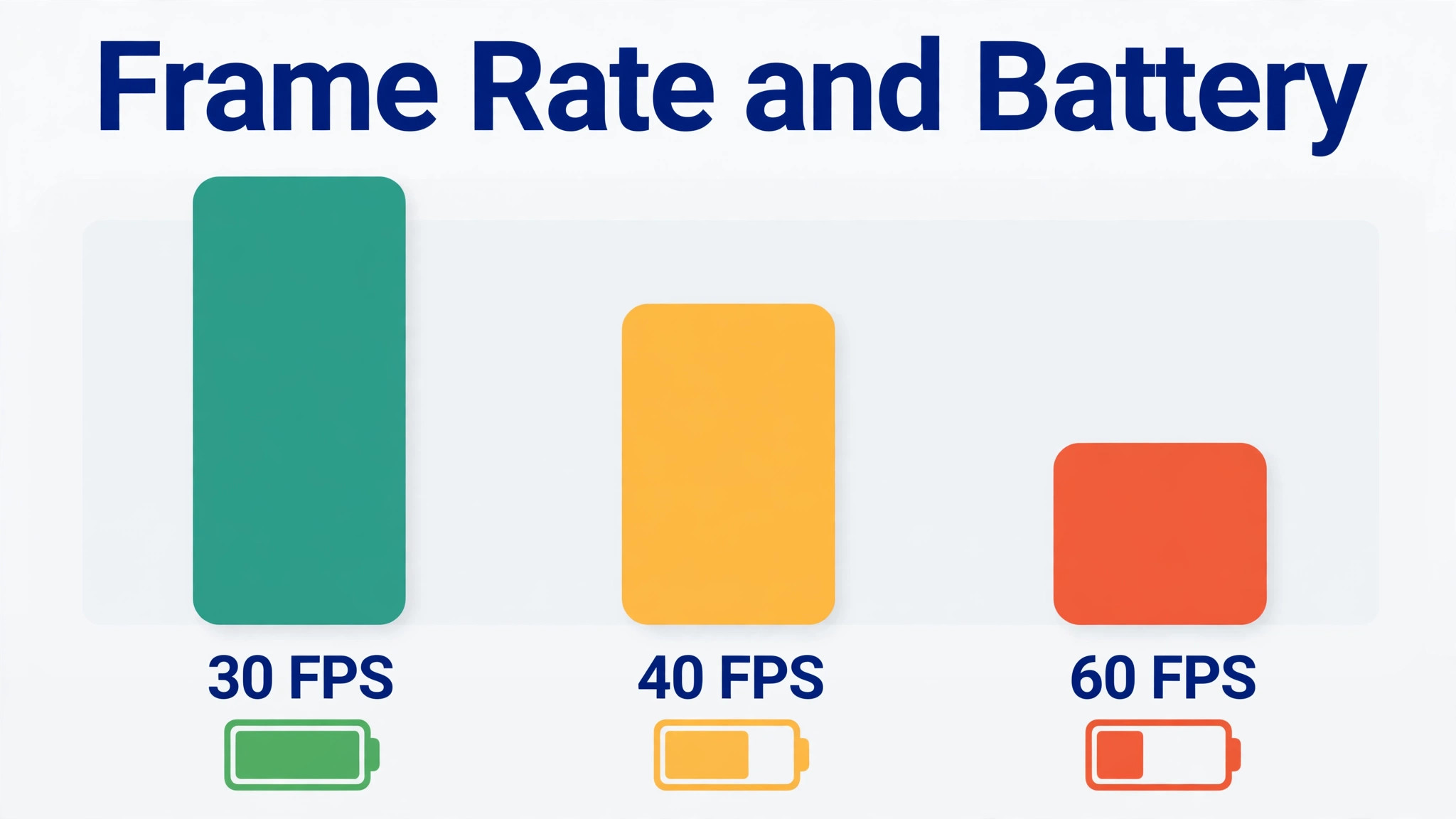
Battery life on a Steam Deck varies widely, from under two hours in demanding games to far longer in light indie titles or video playback. That range surprises console owners, but it is normal for a PC handheld, and the performance settings above are the levers that move it. Lowering the frame rate limit is the single most effective battery saver, and it often costs little visible quality on a small screen. Try 40 frames per second as a middle ground if 30 feels choppy and 60 drains the battery too fast, since many players find 40 a comfortable compromise on a handheld screen.
Fan noise follows a similar logic. A Deck working hard on a demanding game will run its fan audibly, and that is normal cooling, not a fault. Playing on a soft surface like a bed blocks the vents on the back and makes the fan work harder, so play on a firm surface or hold the Deck clear of bedding when possible. If the fan runs loudly in a light game, check for a stuck update or download in the background, since background work adds heat that the game alone would not cause.
Choosing Your First Games and Checking Compatibility
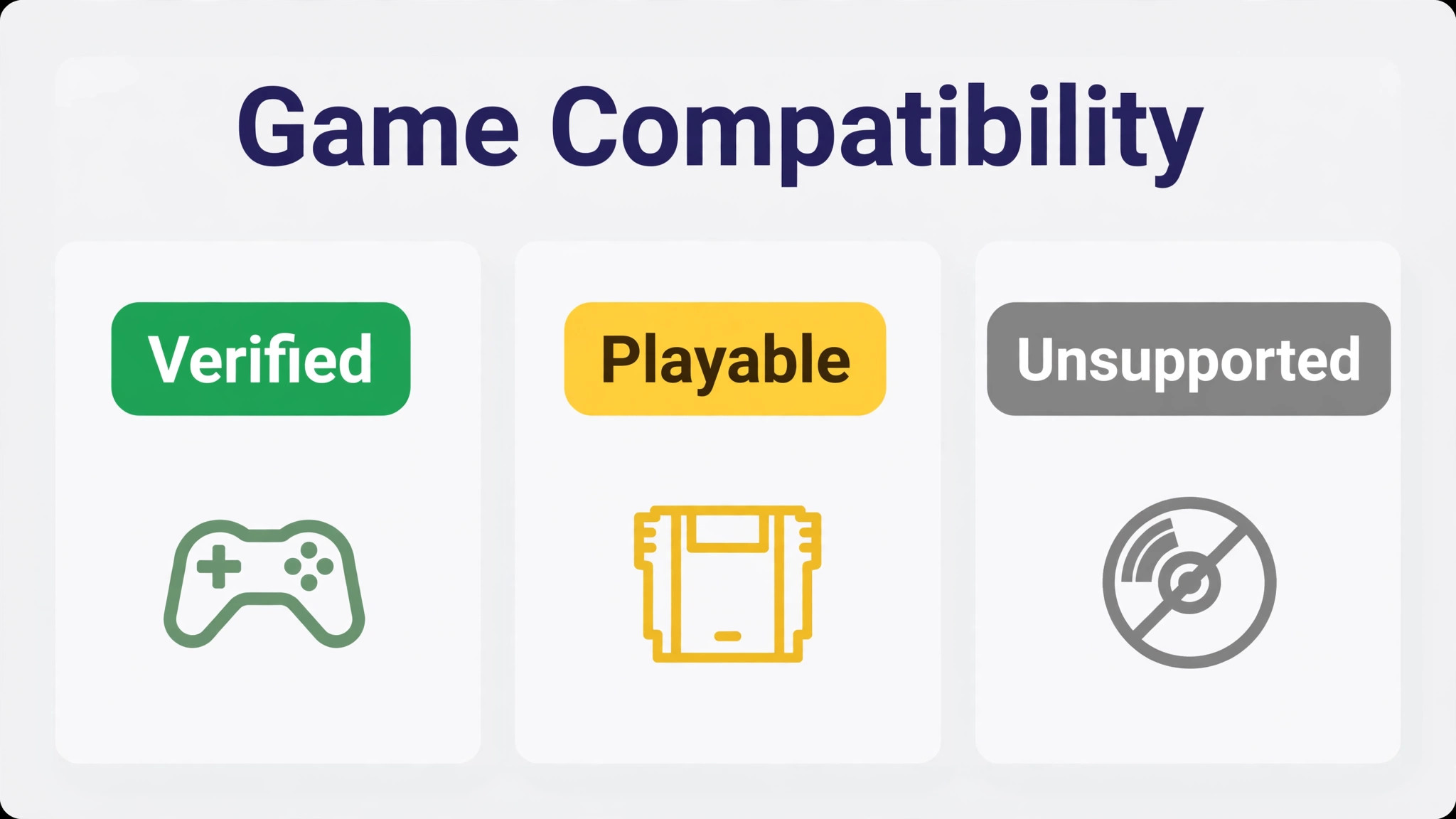
Steam marks games with compatibility badges that save beginners a great deal of trial and error. A green verified badge means the game should run well on Deck with no changes, including readable text and working controls. A yellow playable badge means the game runs but may need a small adjustment, such as bringing up the on screen keyboard manually for text entry. An unsupported badge means Valve found a problem, though some unsupported games still run fine with community settings, which is an advanced topic best left for later.
Start with verified games in week one, and prefer smaller titles while you learn the controls. A short, polished game teaches you more about the Deck than a huge open world game that needs twenty hours before it feels good, and a small game also downloads quickly, which keeps momentum up. If a game you already own is only marked playable, try it after your first verified game, and read its store notes for the specific adjustment needed, since playable usually means one known quirk rather than a broken game.
Proton compatibility is the background technology that lets Windows games run on the Linux based SteamOS, and beginners do not need to manage it directly. The Deck picks a Proton version automatically, and changing it manually is a troubleshooting step for a specific game, not a setup step. If a game fails to launch, checking for a Deck update and verifying the game files in its properties menu fixes more cases than changing Proton versions, so try those first and leave Proton changes until a game specific guide recommends them.
Cloud saves deserve a mention here, because they protect your progress. Most Steam games sync saves to the cloud automatically, which means progress made on the Deck appears on a desktop computer and vice versa. Check that cloud sync is enabled for a game before playing it on two devices, and allow the sync to finish before closing the Deck, since closing mid sync can create a conflict where the Deck must choose between a local and a cloud save. When a conflict prompt appears, read it carefully and pick the newer save, not the first option by habit.
Problems Beginners Meet in Week One
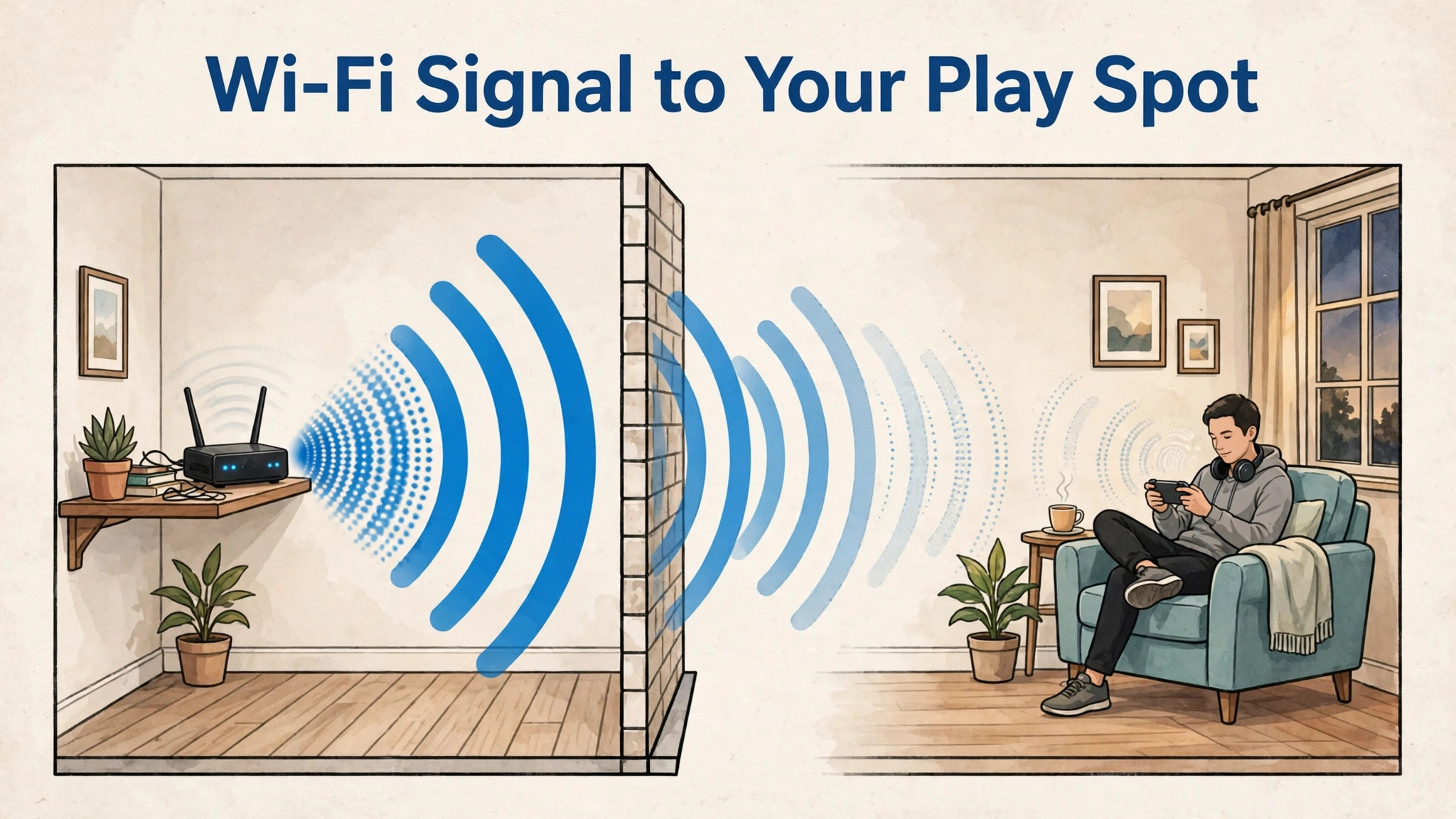
Wi-Fi dropping during downloads is the most reported week one problem, and it usually has a simple cause. The Deck may be connected to a crowded 2.4 GHz network while a 5 GHz network sits unused, or the router may be two rooms away behind thick walls. Switching to the 5 GHz network in the Wi-Fi settings, moving closer to the router for large downloads, or scheduling large downloads overnight all help, and a wired USB-C dock with ethernet is the most reliable fix for a home base setup, though it is an optional purchase rather than a necessity.
A game that will not launch usually needs one of three checks. First, confirm the game finished downloading, since launching a partially downloaded game produces vague errors. Second, verify game files from the game properties menu, which repairs corrupted downloads without reinstalling. Third, restart the Deck fully, since a restart clears temporary states that a sleep and wake cycle does not. Work through those in order before searching for game specific fixes, since the general fixes solve a large share of launch faults.
Controls feeling wrong is often a settings issue rather than a hardware fault. Trackpad sensitivity, stick dead zones, and grip button assignments can all be adjusted per game from the controller settings menu, and community controller layouts shared by other players often solve a game that feels awkward with defaults. Try a highly rated community layout before concluding that a game suits a keyboard better, since many games designed for mouse play surprisingly well with a tuned trackpad layout.
Overheating worries usually fade once a beginner learns what normal looks like. The back of the Deck gets warm during demanding play, the fan runs audibly, and battery life shortens, all of which are expected. True overheating warnings are rare and should be taken seriously, with the game closed and the Deck allowed to cool on a firm surface. If warnings repeat in light games, check for blocked vents, background downloads, and a case that traps heat, since those environmental causes are far more common than a hardware fault.
To set up Steam Deck for beginners with fewer week one surprises, keep this section in mind as a checklist rather than a warning list. Most problems have a short, ordered fix, and the habit of trying the general fix first saves far more time than jumping straight to a forum thread for a single game.
Daily Habits That Keep the Deck Enjoyable
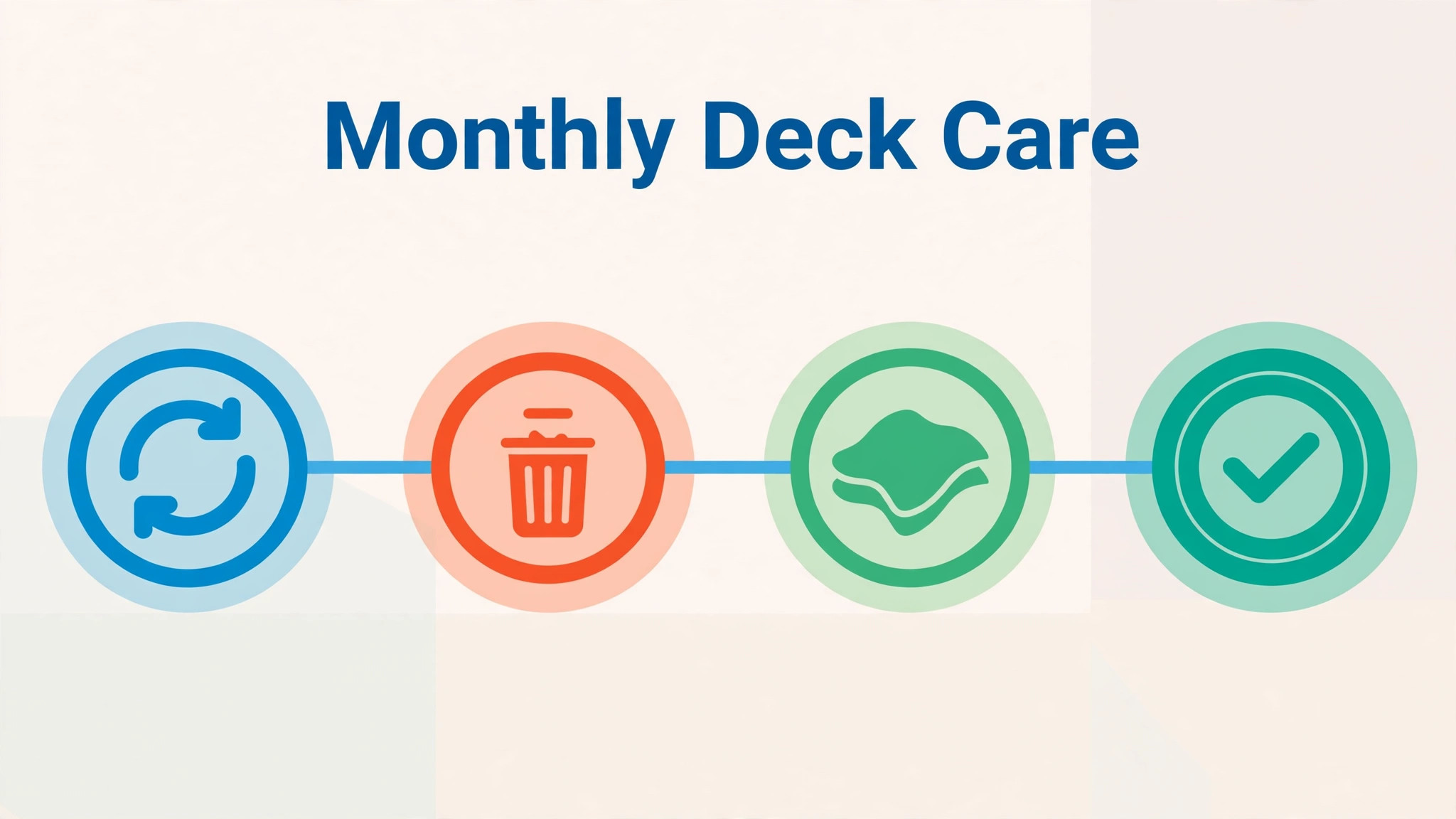
Update habits matter on a Steam Deck, because both the system and games update often. Enable automatic updates where offered, and let updates run while the Deck charges rather than interrupting play. Before a trip, open the Deck the night before, check for updates, and finish downloads while on home Wi-Fi, since hotel or mobile Wi-Fi is slower, less reliable, and sometimes blocks game downloads entirely.
Storage hygiene is the second habit. Review installed games monthly, uninstall titles you have finished, and keep at least ten percent of each drive free, since a full drive slows updates and can stop a game patch from installing. Your library keeps every purchase, so uninstalling is reversible, and a smaller installed list also makes the library screen faster to browse, which sounds minor until you have fifty installed games to scroll through.
Care habits are simple but worth stating. Use the carrying case for travel, wipe the screen with a microfibre cloth, and keep the Deck away from food and drink during play, since a spill on a handheld is far harder to clean than a spill on a desk. Avoid leaving the Deck in a hot car, since heat ages batteries, and charge with the supplied adapter or a known good USB-C charger with enough power, since a weak phone charger charges slowly and may not keep up while you play.
Desktop Mode is the advanced area beginners should peek at, not live in, during week one. Pressing the power menu and choosing Switch to Desktop reveals a Linux desktop where you can install other software, browse files, and change deeper settings. It is powerful, but it is also easy to change something you do not understand, so treat Desktop Mode as a place to visit for a specific task, with a guide open, rather than a place to explore aimlessly. Gaming Mode remains home base for daily play, and returning to it is one menu choice away.
Docking, TV Play and Accessories Worth Considering
A Steam Deck works well as a handheld, but many owners eventually connect it to a television, and that step is worth planning rather than improvising. The official dock and good third party USB-C docks both add HDMI output, USB ports, and wired network, turning the Deck into a small console for the living room. Connect the dock to power first, then connect the Deck, then switch the television to the dock input, and test controls before starting a game, since a dock that works for video may still need a controller pairing check for play.
Television play changes the performance picture. A game that runs smoothly on the small built in screen may struggle at a higher television resolution, so expect to lower graphics settings or accept a lower frame rate on the big screen. The performance table from earlier still applies, but the numbers shift, and a frame rate limit that felt generous on handheld may feel choppy on a television. Test one familiar game on the television before judging the dock, since a familiar game gives you a baseline for what smooth should feel like.
Accessories beyond a dock fall into three useful groups and one group to avoid in week one. Useful group one is protection, meaning the carrying case and a screen protector, both cheap insurance for a device that travels. Useful group two is power, meaning a spare USB-C charger with enough output for the Deck, kept where you actually play. Useful group three is control, meaning a Bluetooth controller for television play, since holding the Deck while it sits in a dock defeats the purpose. The group to avoid early is modification, meaning replacement shells, sticks, and internal parts, which are best left until you know the stock device well and have a specific reason to change it.
Controller pairing for television play is simple once you know the path. Put the controller in pairing mode, open the Bluetooth settings on the Deck, and select the controller from the list, then test it in a game menu before starting a long session. Keep the Deck controller layout in mind too, since a television session with a standard controller loses the trackpads and grip buttons, and some games feel different without them. A game that relies heavily on trackpad aiming may be better played handheld, even when a television is available, and that is a preference to discover rather than a fault to fix.
When you finish a television session, return the Deck to handheld mode and check that audio routes back to the built in speakers, since audio sometimes stays routed to the television after undocking. A quick sound test in the main menu confirms the switch, and if sound stays on the television, toggling the audio output in the quick settings panel usually restores it. This small check prevents the next handheld session starting in silence, which is a confusing fault when the cause was yesterday dock session. To set up Steam Deck for beginners with television play included, treat docking as a second setup, tested once and then trusted, rather than a cable plugged in hopefully each time.
More Reading on Stratilyze
More Reading on Stratilyze. If handheld setup leads you toward other living room gear, the guides on Roku for streaming beginners and Apple TV for home entertainment cover the television side, and the guide on home Wi-Fi mesh networks for a small house helps when downloads feel slow far from the router. Read the Wi-Fi guide first if large game downloads crawl, since signal at your play spot affects every install after setup.
Frequently Asked Questions
Do I need a Steam account before first boot?
Yes, first boot asks you to sign in to Steam, since the Deck is built around your Steam library. Create the account on a phone or computer before powering on if you can, and enable two factor authentication, since the account holds your games and payment details. The QR code sign in method with the Steam mobile app is the fastest way to sign in on the Deck itself.
Can I play games that are not marked as verified?
Yes, many playable and even some unsupported games run well, but verified games are the safest week one choice. Playable usually means one small adjustment is needed, such as manual keyboard entry, while unsupported means Valve found a specific problem. Try playable titles after your first verified game, and read the store notes for the exact adjustment before deciding a game is broken.
How long does the battery last on a Steam Deck?
Battery life ranges from under two hours in demanding games to much longer in light games or video playback, and that range is normal for a PC handheld. Frame rate limits are the most effective way to extend life, with 40 frames per second a popular middle ground. Playing while plugged in removes the limit entirely, though it tethers you to an outlet, so plan demanding sessions near power where possible.
Should I buy a microSD card straight away?
It helps, especially on smaller internal storage models, since modern games are large and a card gives you room for several titles. Buy a known brand card of at least 512 gigabytes, format it in the Deck settings, and test it with one small install before trusting it with a large library. Keep your current favourite on internal storage for faster loading, and use the card for the rest.
What is the difference between Gaming Mode and Desktop Mode?
Gaming Mode is the console style interface for daily play, with your library, store, and settings designed for controller use. Desktop Mode is a Linux desktop for advanced tasks like installing other software or managing files, and it is reached from the power menu. Beginners should live in Gaming Mode and visit Desktop Mode only for a specific task with a guide, since deeper settings there are easier to change by accident.
Why does my Steam Deck feel hot during games?
Warmth and audible fan noise during demanding games are normal cooling behaviour, not a fault. The Deck works hard to run PC games on a small device, and the fan removes that heat. Play on a firm surface with vents clear, check for background downloads adding extra work, and take a genuine overheating warning seriously by closing the game and letting the device cool. If heat warnings repeat in light games, check vents and background tasks first.
Setting Up Once, Then Playing for Months
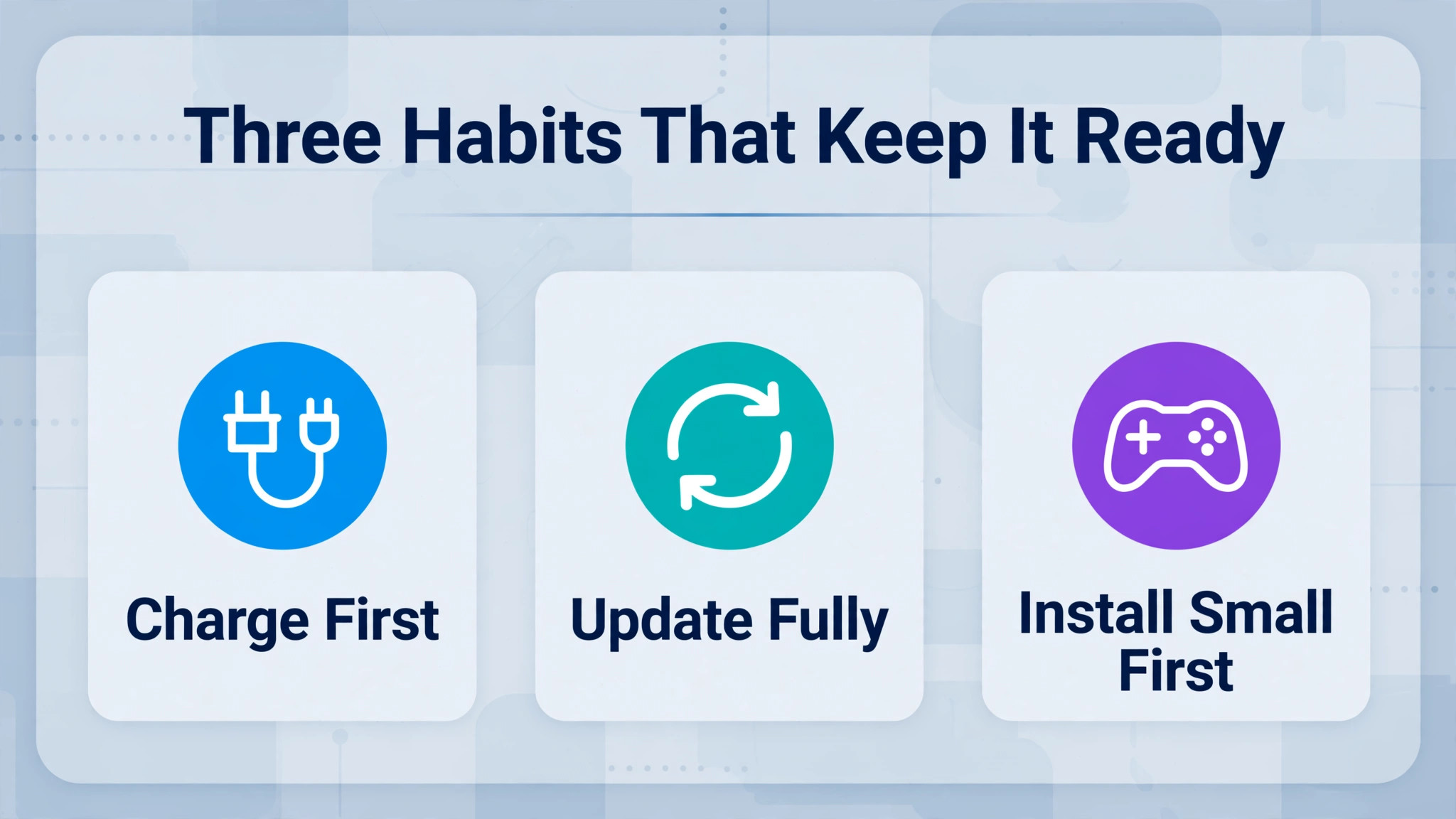
The best Steam Deck setup is one you barely think about after week one, because the updates run, the storage has room, and the controls feel natural. That state comes from small choices made early, in the order this guide used. Charge first, update fully, install small before large, and tune performance one setting at a time, and the Deck rewards you with a library that is always ready to play.
Revisit the performance table whenever a new game feels off, and revisit storage whenever a download stalls for space. Those two habits, plus a monthly uninstall pass, keep the device feeling new long after the novelty fades. To set up Steam Deck for beginners and keep it enjoyable, the rule is simple. Set it up calmly, play a little every day, and let the settings grow with your experience rather than trying to master them all on day one.