
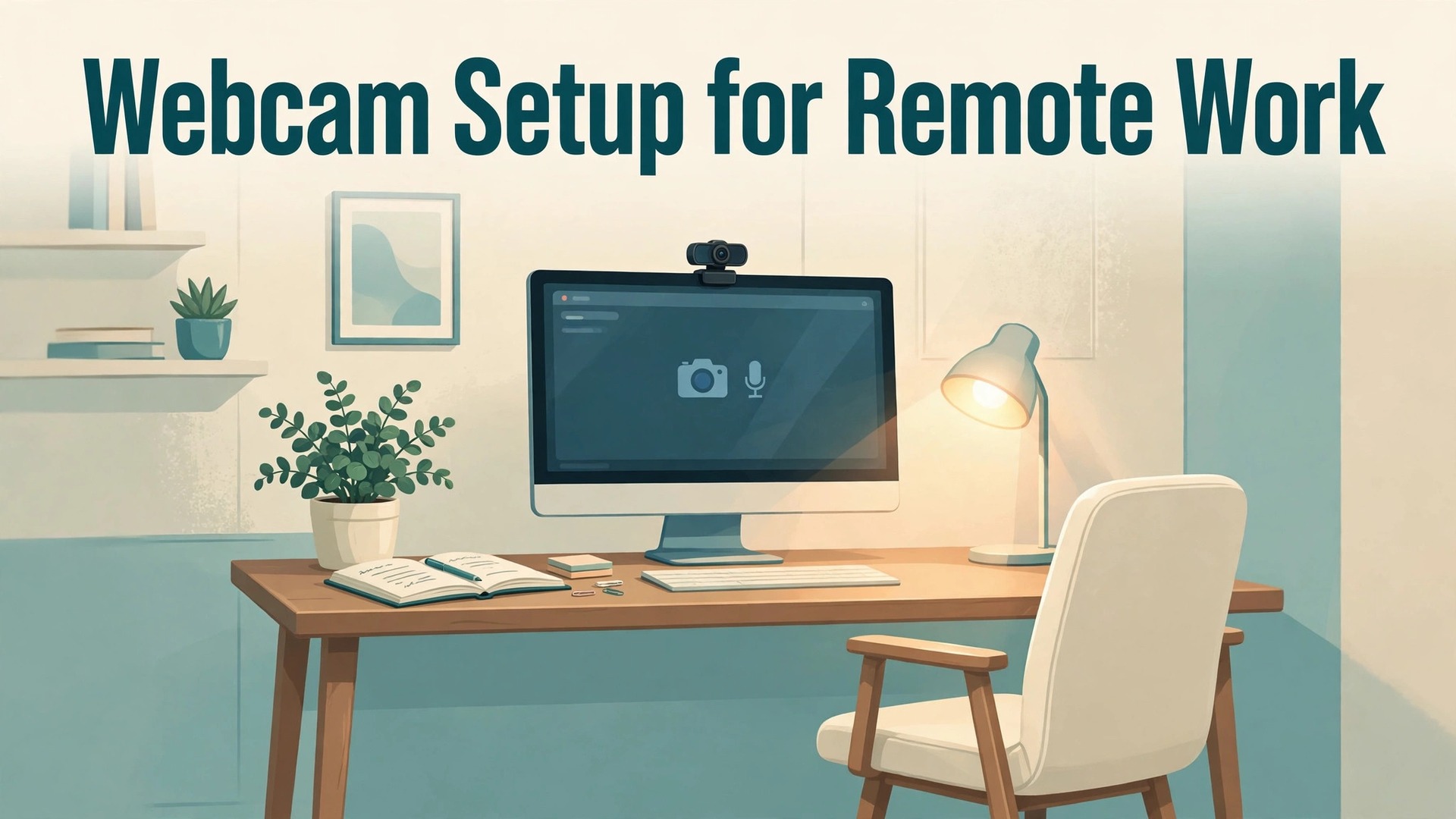
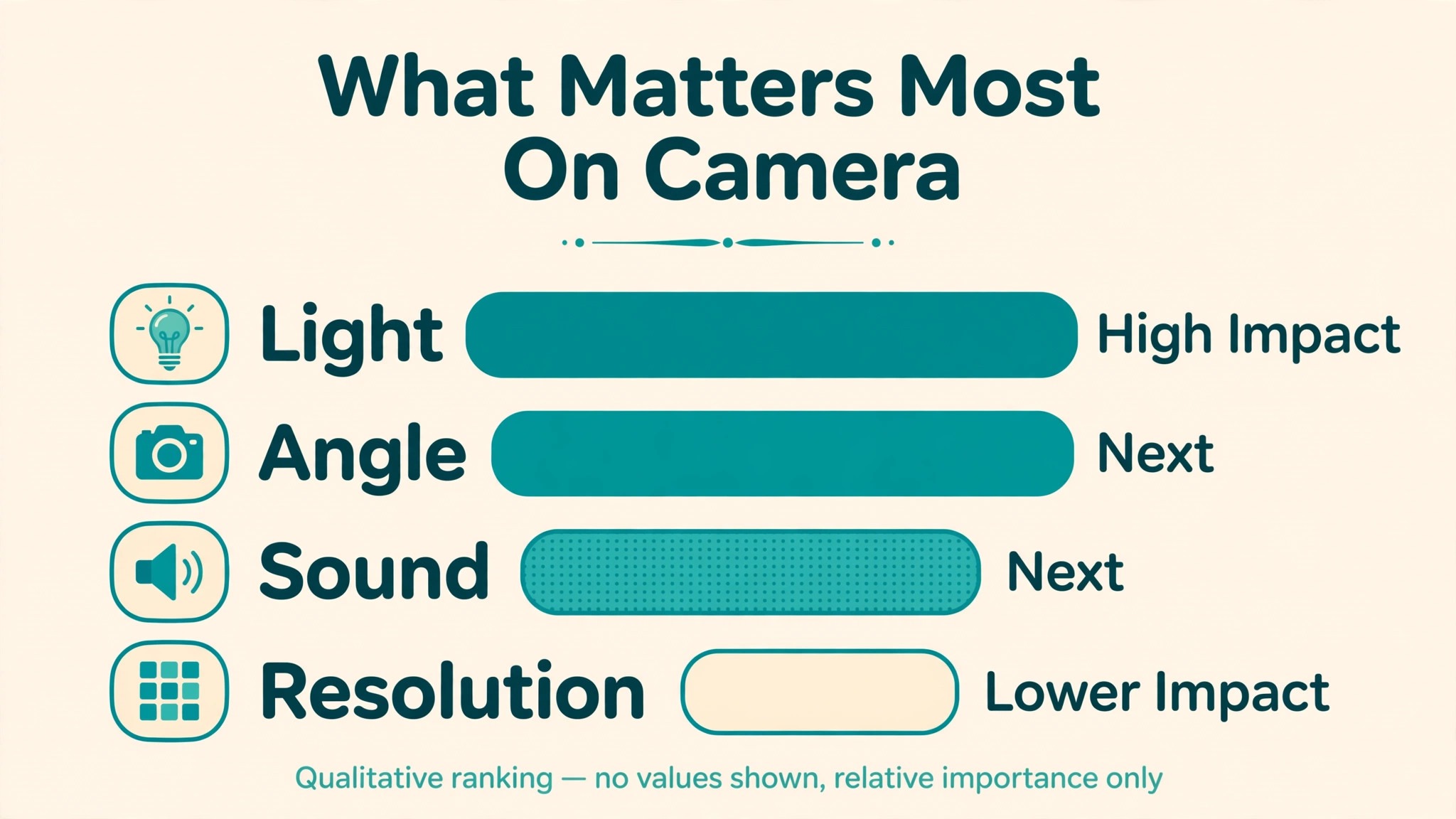
The best way to set up webcam for remote work beginners is not the most expensive camera you can buy. It is a mid range webcam at eye level, with soft light facing you, a plain background, a headset microphone selected in your call app, and a quick test before every important meeting. That combination beats a high resolution camera sitting low on a laptop in a dark room with a bright window behind you, because light, angle, and sound decide how professional you look far more than a resolution number does.
If you want to set up webcam for remote work beginners in a way that works on the first call, start with position and light, then choose a camera that fits your room, then set up Zoom, Teams, or Meet correctly, and only then worry about advanced features such as background blur or manual exposure. This guide follows that order, with a framing and lighting diagram in words, a call-app settings checklist, and practical fixes for the problems that make beginners look and sound worse than they need to.
Place the Camera at Eye Level Before You Buy Anything Else
Camera height is the single change that improves most remote work video, and it costs nothing. A laptop webcam sits below eye level and looks up at your chin and ceiling, which feels unflattering and distant. Raise the laptop on a stand or a stack of stable books, or mount an external webcam on top of your main monitor, so the lens sits at or slightly above eye level and looks straight at you. Sit at arm’s length or a little further from the camera, with your head and shoulders filling most of the frame and a small amount of space above your head.
Centre yourself in the frame, keep both shoulders visible, and avoid sitting so close that your face fills the whole picture or so far away that you look small in a large room. Check the frame by taking a screenshot in your call app preview, because a preview shows exactly what colleagues see, including a messy shelf or a bright window you had forgotten. A preview check is a basic step when you set up webcam for remote work beginners for a first call. Move the camera, not just yourself, when the frame looks wrong, because a camera on a flexible mount or a small tripod is easier to adjust than your chair and desk together.
Logitech C920 Webcam and Monitor Mounting
The Logitech C920 has become a common beginner webcam because it offers 1080p video, a built-in microphone, and a clip that mounts on a monitor without extra parts. Mount it on the centre of your main monitor, not on a second monitor you rarely look at, because looking at the wrong screen makes your eyes point away from the lens. If you use a laptop as your main screen, mount the webcam on a small tripod behind the laptop at eye level, and use the laptop screen for notes while the webcam stays centred.
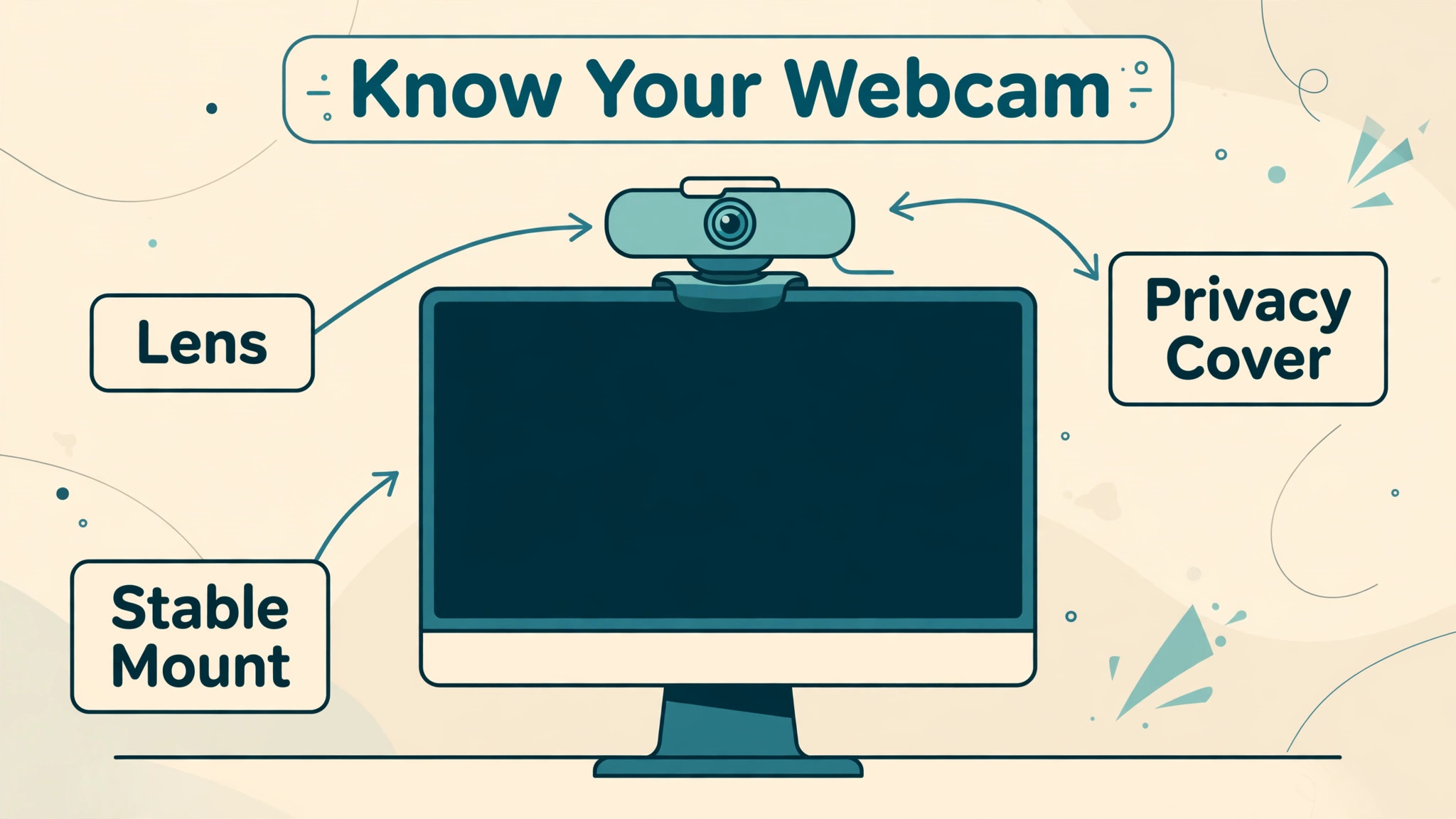
Keep the webcam lens clean with a soft cloth, and check for a privacy shutter or cover that you can close between calls, because a physical cover gives clearer peace of mind than a software off switch alone. Test the mount by tapping the desk lightly and watching the preview, because a mount that wobbles with every keystroke will make your video shake all day. A stable mount matters more than a slightly higher resolution, and it is the first accessory worth buying if your webcam came without one.
Logitech Brio Webcam and Higher Resolution Trade Offs
Higher resolution webcams such as the Logitech Brio offer 4K video and better low light performance, but they also need more bandwidth, more processing, and better light to show their advantage. For most remote workers, a 1080p webcam in good light looks better than a 4K webcam in poor light, and many call apps compress video so heavily that the extra resolution never reaches colleagues. Buy a higher resolution camera only if you present often, record training videos, or work in a room with good light and a fast connection, and test it in a real call before relying on it for an important presentation.
Check whether your computer handles the higher resolution without fan noise or lag, because a camera that heats up your laptop can cause audio problems that outweigh any video gain. For beginners, a reliable 1080p camera with good light is the smarter first purchase, and a higher resolution camera can wait until you know your room, your calls, and your editing needs better.
Framing and Lighting Diagram for a Home Desk
Picture your desk from the side and from the front, because framing and lighting together decide the picture. From the side, the camera sits at eye level, you sit facing it, a soft light sits behind or beside the camera facing you, and any window sits in front of you or to your side, never directly behind you. From the front, your head and shoulders sit in the centre of the frame, the background is calm and uncluttered, and the brightest object in the frame is your face, not a lamp, a window, or a white wall. Light direction matters more than light price.
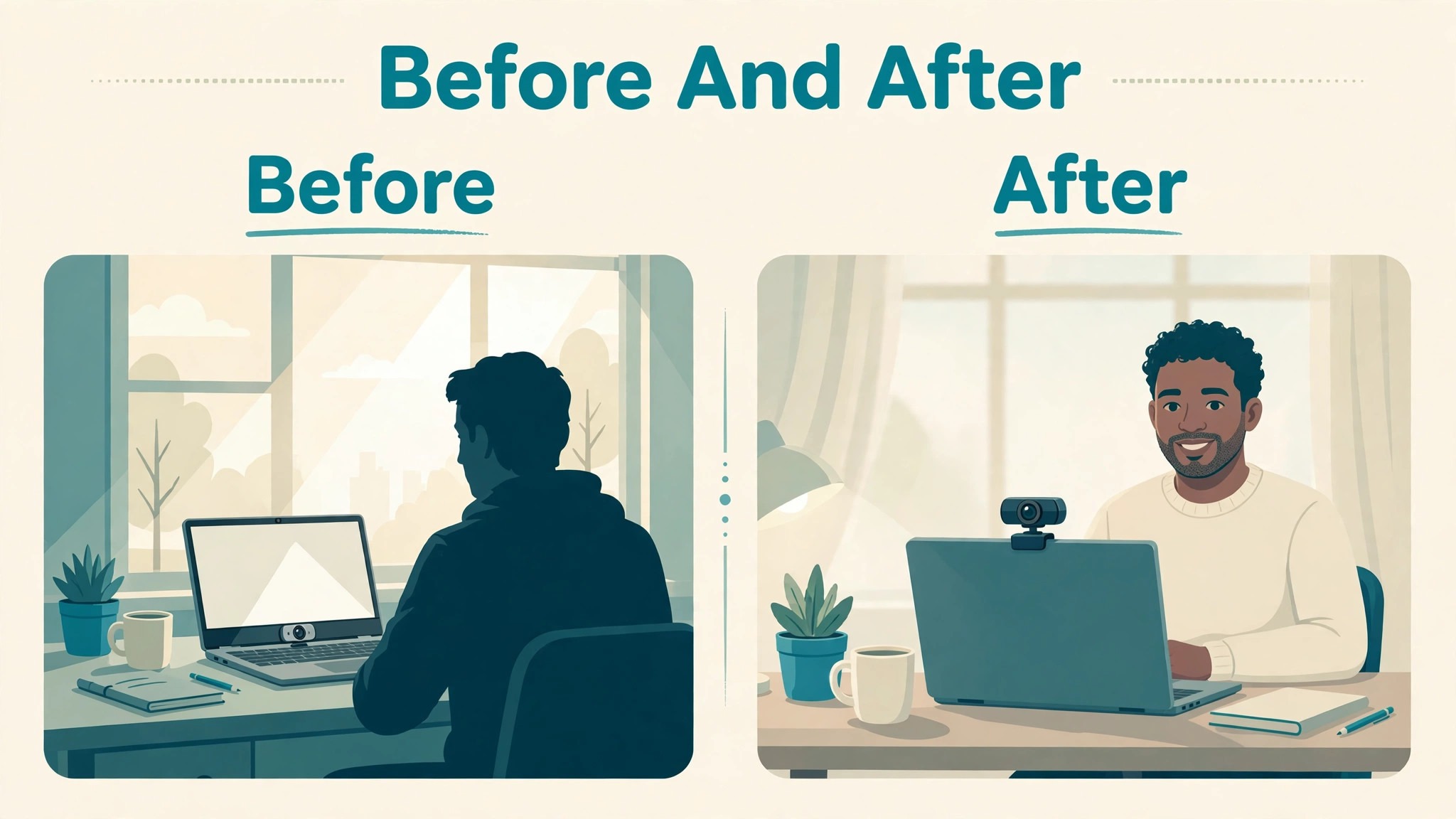
A window in front of you on a cloudy day can beat an expensive ring light used badly, while a bright window behind you turns you into a silhouette no software filter can fix. If you cannot move your desk, close the blind behind you and use a lamp in front of you instead, because controlling the brightest source in the frame is the whole trick. Test lighting at the time of day you usually call, because morning light, midday light, and evening lamp light behave very differently in the same room.
| Light position | Effect on your face | When to use it |
|---|---|---|
| Window in front of you | Soft, even light on your face | Best daytime option, use sheer curtains to soften harsh sun |
| Lamp in front of you, slightly to one side | Clear face with gentle shadow for shape | Best evening option, use a lampshade or diffuser |
| Ring light behind the camera | Even light with a catchlight in the eyes | Good for frequent presenters who want consistent light |
| Overhead ceiling light only | Shadows under eyes and nose | Avoid as the only light, add a front lamp |
| Bright window behind you | Silhouette, dark face | Avoid, close blinds or move the desk |
| Two lamps, one front and one side | Balanced light with depth | Good for longer presentations and recordings |
| Screen light only in a dark room | Harsh, uneven light and tired eyes | Avoid, add a room light and lower screen brightness |
For a simple two light setup, place your main light in front of you at about camera height, slightly to one side, and add a dimmer second light on the other side or a room light behind you to keep the background from going completely dark. Keep both lights the same colour temperature where you can, because mixing warm and cool light creates a colour cast that is hard to fix in a call app. Sit about an arm’s length from the main light, and move it closer for a softer effect or further away for a harder effect, testing with a preview screenshot each time.
Avoid a light directly under your face, because uplighting creates unflattering shadows, and avoid a bare bulb pointed straight at your face, because it creates a hotspot on the forehead and harsh shadows under the eyes. A sheet of white paper or a lampshade can soften a harsh lamp at no cost, and that simple diffusion often improves video more than buying a new light.

Call-App Settings Checklist for Zoom, Teams, and Meet
Use this checklist in each app you actually use, because settings in one app do not transfer to another, and a webcam that works in Zoom can still be wrong in Teams. Work through the checklist once per app, then repeat the quick version before important calls. Checking each app separately matters when you set up webcam for remote work beginners across Zoom, Teams, and Meet.
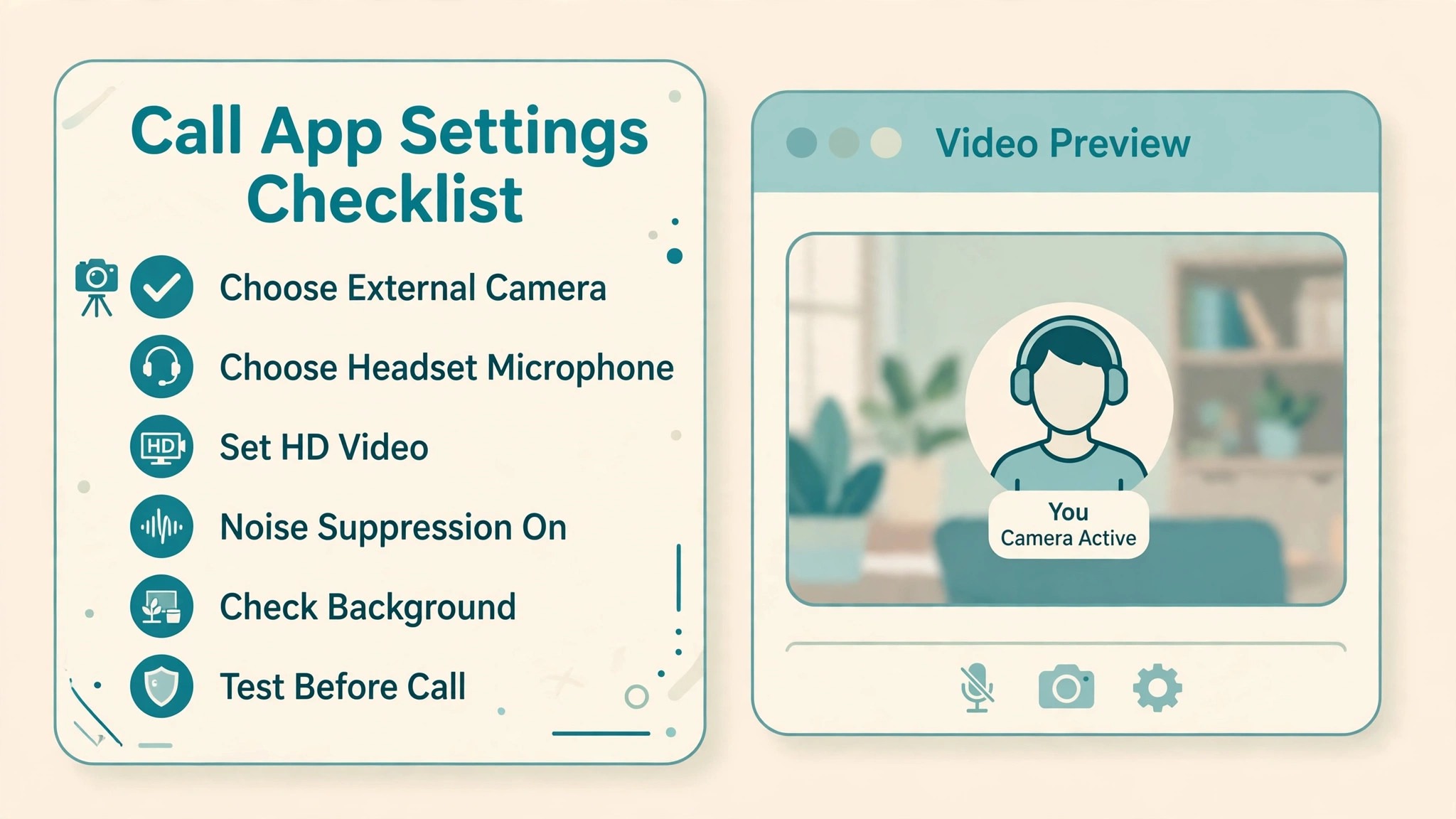
- Select the external webcam as the video source, not the built-in laptop camera, and confirm the preview shows the correct camera and framing.
- Select your headset or external microphone as the audio input, and select your headset or speakers as the audio output, testing both with the app test call feature.
- Set video to HD where your connection supports it, and turn off HD temporarily if video stutters on a slow connection, because a stable standard picture beats a stuttering HD one.
- Turn on noise suppression or background noise removal at a moderate level, and test it by typing and shuffling paper while speaking, so you know what colleagues will hear.
- Check background settings, choosing a real tidy background first, and using blur or a virtual background only when it renders cleanly without edge glitches.
- Turn on the option to mirror your preview if the app offers it, only if that matches how you want to see yourself, and remember colleagues see an unmirrored view.
- Check that the camera permission is granted in your operating system, and that no other app is holding the camera when you join a call.
- Test screen sharing before a presentation, confirming shared content looks sharp and that notifications are silenced during the share.
- Join a test meeting with a friend or a second device, and ask for honest feedback on framing, light, sound, and background before a real meeting.
- Save a note of the correct settings for each app, so a software update that resets a setting can be fixed in a minute rather than during a live call.
Sound, Background, and Presence on Video Calls
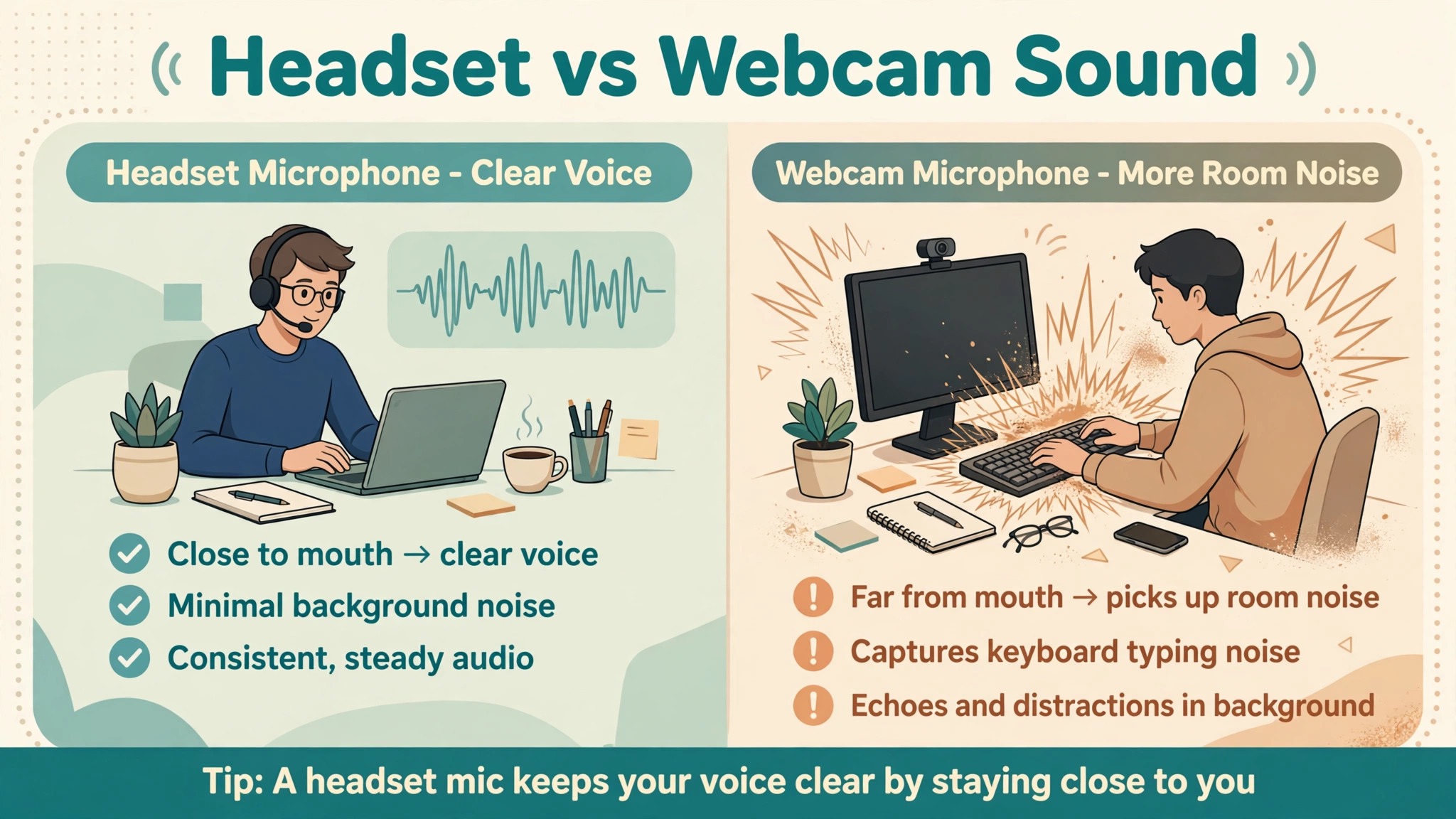
Sound decides whether colleagues stay engaged, because a clear voice keeps attention while a muffled or echoing voice tires listeners quickly. Use a headset with a microphone close to your mouth for most calls, because it reduces room echo and keyboard noise far better than a webcam microphone at arm’s length. If you prefer a webcam microphone, sit closer to the camera, keep the room quiet, and avoid typing loudly during a call, because the microphone will pick up every keystroke. Speak at a normal volume, slightly slower than in person, and pause after important points, because video calls compress sound and make fast speech harder to follow.
For background, choose a real, tidy background with one or two calm objects, such as a shelf or a plant, rather than a busy wall of personal items that distracts from your face. Keep the background consistent from call to call, because a familiar background helps colleagues focus on you rather than on what changed behind you. Sit upright, look into the lens when you make an important point, and glance at the screen only to read reactions, because eye contact through the lens feels like eye contact to the other person.
Elgato Key Light and Consistent Lighting for Presenters
Presenters who call daily benefit from a dedicated light such as an Elgato Key Light, because it gives consistent brightness and colour temperature that a window cannot guarantee. Place the light behind or beside the camera, facing you, at about eye level, and set brightness so your face is well lit without looking washed out. Use the same light setting for every call, so your appearance stays consistent and you do not need to adjust lighting before each meeting. A dedicated light also helps in rooms with poor daylight, in evening calls, and in winter when natural light fades early.
Keep the light out of the camera frame, check for reflections in glasses by tilting the light slightly, and dim the light if you wear glasses and see a bright spot. A single consistent light, used every day, beats a collection of lamps that change with the weather and the time of day.
Troubleshooting Webcam Problems Without Buying a New Camera
Most webcam problems have a simple cause, and a calm check saves an unnecessary purchase. If the camera shows a black screen, check that no other app is using it, that the operating system permission is granted, and that the correct camera is selected in the call app, because those three causes cover most black screen reports. If video looks dark, add a front light, move away from a bright window behind you, and check exposure settings in the camera app before blaming the camera sensor. If video looks blurry, clean the lens, check focus distance, and sit at the distance your camera manual recommends, because sitting too close can push a fixed focus camera out of its sharp range.
If audio echoes, use a headset, mute when you are not speaking in large calls, and check that the call app is not playing sound through speakers that the microphone then picks up. If video stutters, lower the resolution setting, close unused apps and browser tabs, and test on a wired connection if Wi-Fi is weak. If the camera disconnects, try a different USB port, preferably a direct port rather than a hub, and check the cable for damage. Write down the fix that worked, because webcam settings often reset after an update and a note turns a repeat problem into a one minute fix.
Choosing a Webcam, Microphone, and Light on a Beginner Budget
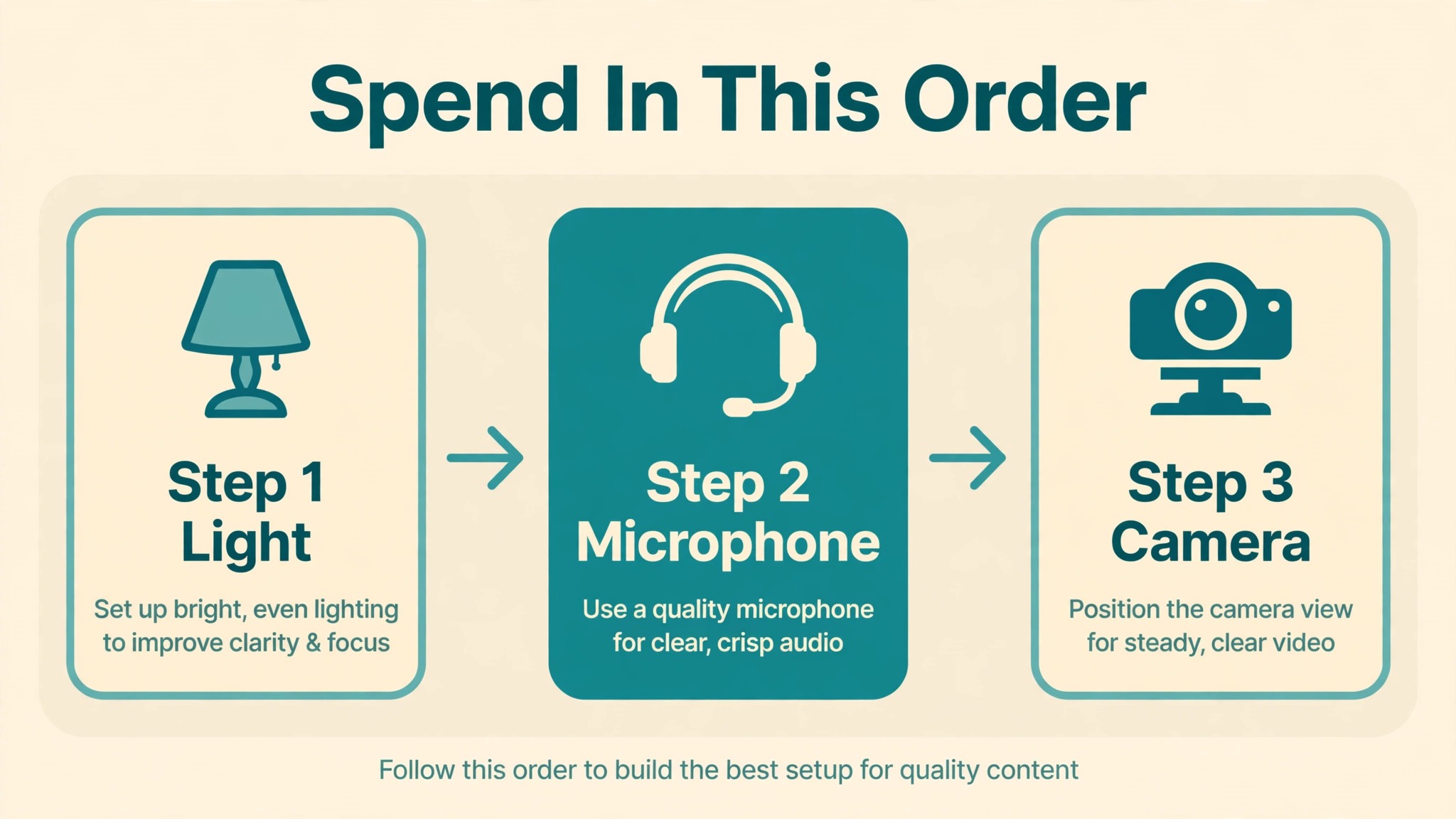
Spend your budget in the order that improves calls most, which is light first, microphone second, and camera third, because a good light and a clear microphone help even a basic camera look and sound professional. That spending order helps anyone who wants to set up webcam for remote work beginners on a tight budget. Start with a lamp you already own, placed in front of you, and add a headset you already own for sound, before you buy any new camera. If you then buy a camera, choose a 1080p model with a stable mount, a privacy cover, and a microphone you can use as a backup, rather than chasing the highest resolution number.
If you buy a light, choose one with adjustable brightness and colour temperature, so you can match daylight in the morning and lamp light in the evening without buying two lights. If you buy a microphone, choose a headset for calls or a small USB microphone for recordings, depending on whether you move around during calls or sit at a desk to record. Compare total cost, including a stand or tripod if your desk needs one, because a camera without a stable mount can cost more in frustration than the camera itself.
Test any new purchase in a real call within the return window, and return it if the improvement over your current setup is not clear, because a purchase that does not improve a real call is not worth keeping.
Recording, Presentations, and Looking Good on Longer Calls
Longer calls and recordings need a slightly different setup from a quick daily check-in, because small annoyances grow over an hour. Set your camera, light, and microphone once, then sit in the same position for the whole session, because shifting position changes framing and light in ways that distract viewers. Keep water nearby but out of the camera frame, keep notes on paper or a second screen where you can glance without turning your head sharply, and keep a charger connected if the call is long, because a laptop that dies mid presentation is hard to recover gracefully.
For presentations, share your screen from a clean desktop, close unrelated tabs, and silence notifications, because a stray message on a shared screen distracts more than a slightly imperfect camera angle. Practise the first minute of a presentation on camera, because the opening sets the tone and a calm, well framed opening gives you confidence for the rest. If you record training videos, record a short test clip, watch it back on a larger screen, and check framing, light, sound, and background before recording the full session, because a test that takes two minutes can save a re-recording that takes an hour.
Daily Habits That Keep Your Setup Working
A webcam setup stays good only if you maintain it, and the maintenance takes less than five minutes a day. Before your first call, wipe the lens, check the preview for framing and light, test the microphone with a short sentence, and confirm the correct camera and microphone are selected in the app. Between calls, close the privacy cover, tidy the background, and charge the headset if it is wireless, so the next call starts ready rather than rushed. Once a week, check for camera and app updates, clean the desk area behind you, and review a recorded call if your app allows it, looking for framing drift, light changes, or background clutter that crept in during the week.
Once a month, check cables for wear, check the mount for looseness, and retest your settings after any system update, because updates can reset camera permissions and audio selections without warning. These small habits turn a setup that works on day one into a setup that still works in month six, and they cost far less time than fixing a problem during a live meeting.
How to Set Up Webcam for Remote Work Beginners as a Routine
A routine beats a one time setup, because remote work repeats every day and small daily checks prevent most call problems. Build a two minute pre-call routine. Check lens, check framing, check light, check microphone, check background, and join the call a minute early so any problem shows up before colleagues arrive. Build a weekly routine. Review one recorded call, adjust one setting that annoyed you, and update any app that needs it. Build a monthly routine. Clean the camera and light, check the mount and cables, and test a backup headset or microphone so you know it works before you need it.
People who set up webcam for remote work beginners as a routine, rather than as a single purchase, tend to look consistently professional, because their setup is tested daily rather than assumed. That consistency builds trust with colleagues and clients, and it lets you focus on the work of the call rather than on the technology behind it. A webcam setup that becomes a habit is a setup that will serve you well for years, even as cameras and apps change.
Virtual Backgrounds, Privacy, and Glasses on Camera
Virtual backgrounds can help when your room is busy or private, but they work well only when light and framing are already good. A virtual background needs even front light and a clear contrast between you and the wall behind you, because the software must separate you from the background many times per second. If light is uneven, the background will flicker around your hair and shoulders, and that flicker distracts more than a tidy real background ever would. Test a virtual background in a test call, moving your head and hands as you would in a real meeting, and check for edge glitches before you use it with a client.
Blur is often a better choice than a full virtual scene, because blur hides detail without creating a fake room that can look odd when you move. Keep a plain wall or a curtain as a backup background, so you can switch to a real background quickly if a virtual one fails mid call. Privacy matters too, so check what is visible behind you, including whiteboards, photos, and screens that might show personal information, and move or cover anything you would not want a colleague to read. Close the privacy cover between calls, and check the camera indicator light habitually, so you always know when the camera is live.
Glasses create a specific webcam challenge, because a front light can reflect in the lenses and hide your eyes. Tilt a lamp slightly up or to the side, move the light a little further away, and check the preview for reflections before a call, because a small angle change often removes a large reflection. Anti-reflective coatings help, but they do not remove all reflections, so light position remains the main fix. If reflections persist, use two dimmer lights from the sides rather than one bright light from the front, and lower screen brightness so the screen itself does not reflect in the lenses.
People who set up webcam for remote work beginners with glasses in mind often find that a slightly dimmer, well placed light beats a bright light that creates glare. Take a screenshot in your call preview with glasses on, and adjust until your eyes are clearly visible, because eye visibility matters for trust and engagement on video. A webcam setup that respects glasses, privacy, and background together feels professional without feeling staged, and it is worth testing once rather than fixing in a hurry before every call.
OBS Studio Webcam Settings for Recorded Lessons
OBS Studio suits beginners who want to record lessons or presentations with more control than a call app preview gives. In OBS, you can add the webcam as a source, adjust resolution and frame rate, add a simple background or text overlay, and record locally without joining a call. Start with the same framing and light you use for calls, set the webcam source to 1080p at 30 frames per second for a reliable recording, and test audio with the same headset you use for calls. Keep scenes simple at first, with one scene for talking to camera and one scene for screen sharing, because complex scenes create more chances for a mistake during a recording.
People who set up webcam for remote work beginners and later move to recorded lessons often find OBS a natural next step, because the camera habits transfer directly and only the software layout is new.
Frequently Asked Questions
Should I buy an external webcam or use my laptop camera?
Use an external webcam if you call often, present, or record, because it sits at eye level on a monitor, gives better video in low light, and frees your laptop position from camera position. Use a laptop camera for occasional short calls if it already gives a clear picture in good light, because a laptop camera with a raised stand and a front light can look surprisingly good. Test both in a real call, and choose the one that gives clearer video and more natural eye contact, rather than choosing by price alone.
Why do I look dark on video calls even though the room feels bright?
You look dark when the brightest light in the frame sits behind you, because the camera exposes for that bright background and leaves your face in shadow. Close blinds behind you, move so a window faces you, or add a lamp in front of you, and check the preview after each change. A room can feel bright to your eyes while still leaving your face dark on camera, because eyes adjust to light far better than a small webcam sensor does.
Do I need a ring light for remote work?
You do not need a ring light, but a soft front light of some kind helps almost everyone, and a ring light is one convenient way to get it. A desk lamp with a shade, a window in front of you, or a dedicated panel light can all work well, as long as the light faces you and is diffused. Choose a light you will actually use every day, with adjustable brightness, rather than a light that looks impressive but stays in a cupboard.
How do I stop background noise on calls?
Use a headset microphone, turn on noise suppression in your call app, and reduce noise at the source by closing windows, moving away from a noisy appliance, and asking household members to avoid loud tasks during important calls. Mute when you are not speaking in larger meetings, and test noise suppression by typing and shuffling paper during a test call, so you know what colleagues hear. A quiet room plus a headset beats any software filter alone.
Why does my webcam look blurry on Zoom but clear in another app?
Different apps apply different compression, resolution, and processing settings, so the same camera can look different in each one. Check the video settings in the app that looks blurry, confirm HD is on where your connection supports it, and check that the correct camera is selected. Clean the lens and sit at the recommended distance as well, because a dirty lens or a too close position can look like an app problem when it is actually a physical one.
Can I use a phone as a webcam for remote work?
Yes, many phones can act as a webcam through a built-in feature or an app, and a modern phone camera often gives better video than a basic webcam. Mount the phone at eye level on a stable tripod, connect it by cable where possible for stability, and test it in a real call before relying on it. Keep the phone charged during long calls, and check that notifications do not interrupt the video feed, because a phone used as a webcam still behaves like a phone in other respects.
A Final Verdict for Remote Workers
Start with eye level, front light, and a headset, and let those three choices carry your first month of remote calls. Add a better camera only when you can point to a specific problem it will fix, such as poor low light performance or a shaky mount, rather than buying on resolution alone. Test before important calls, keep settings notes for each app, and maintain the setup with a two minute daily check. That disciplined, simple approach gives you video that looks professional, sound that colleagues can follow easily, and a setup that stays reliable through software updates, room changes, and long working days.
It is the steady way to set up webcam for remote work beginners for the long term.
More Reading on Stratilyze
Readers who enjoyed this webcam guide often continue with the laptop docking station guide for a home office, the security camera guide for apartment renters, and the GoPro setup guide for beginners, because those guides share the same practical method of fixing position and light first, checking settings second, and building a short daily routine that keeps the setup working.