
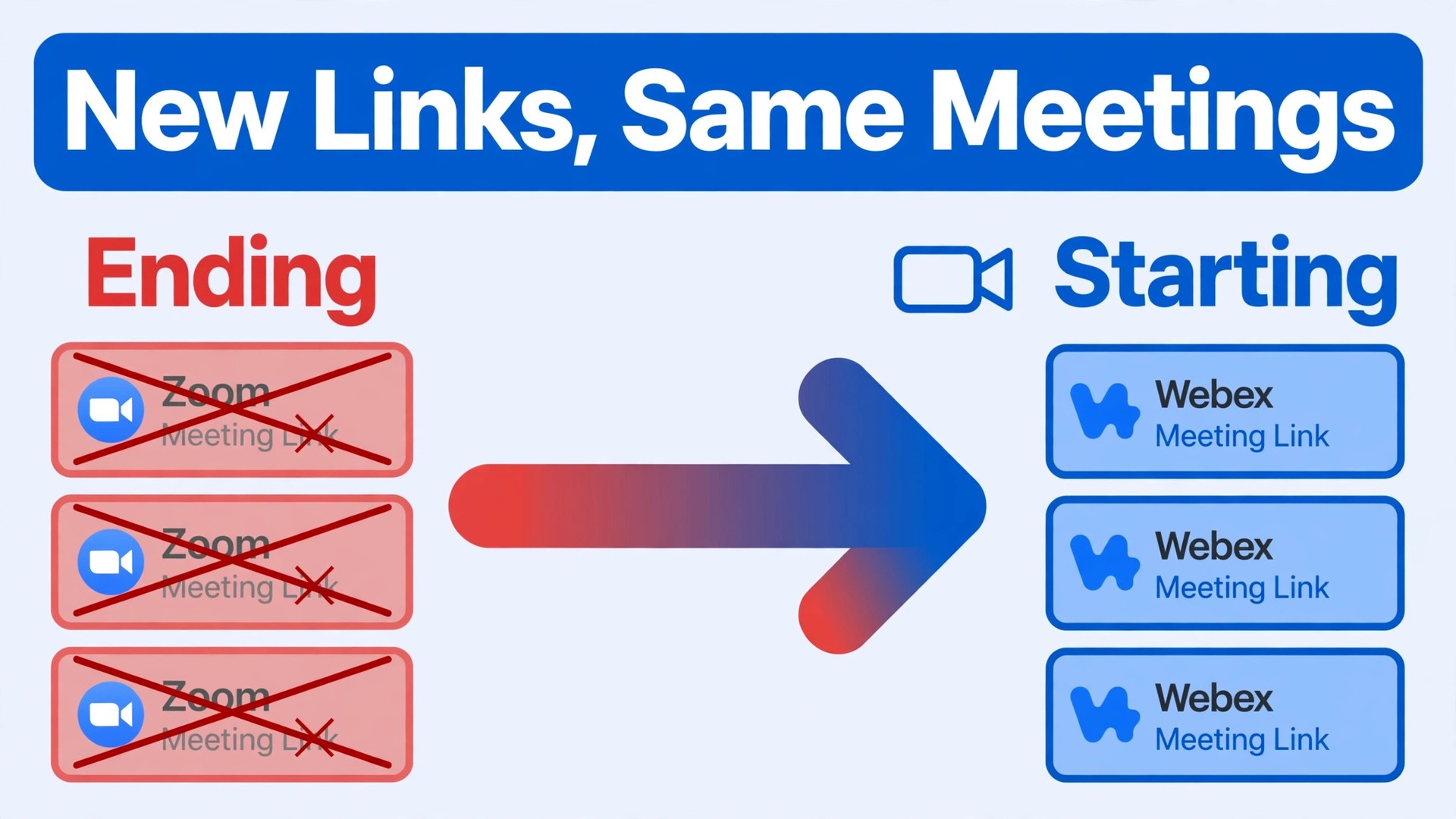
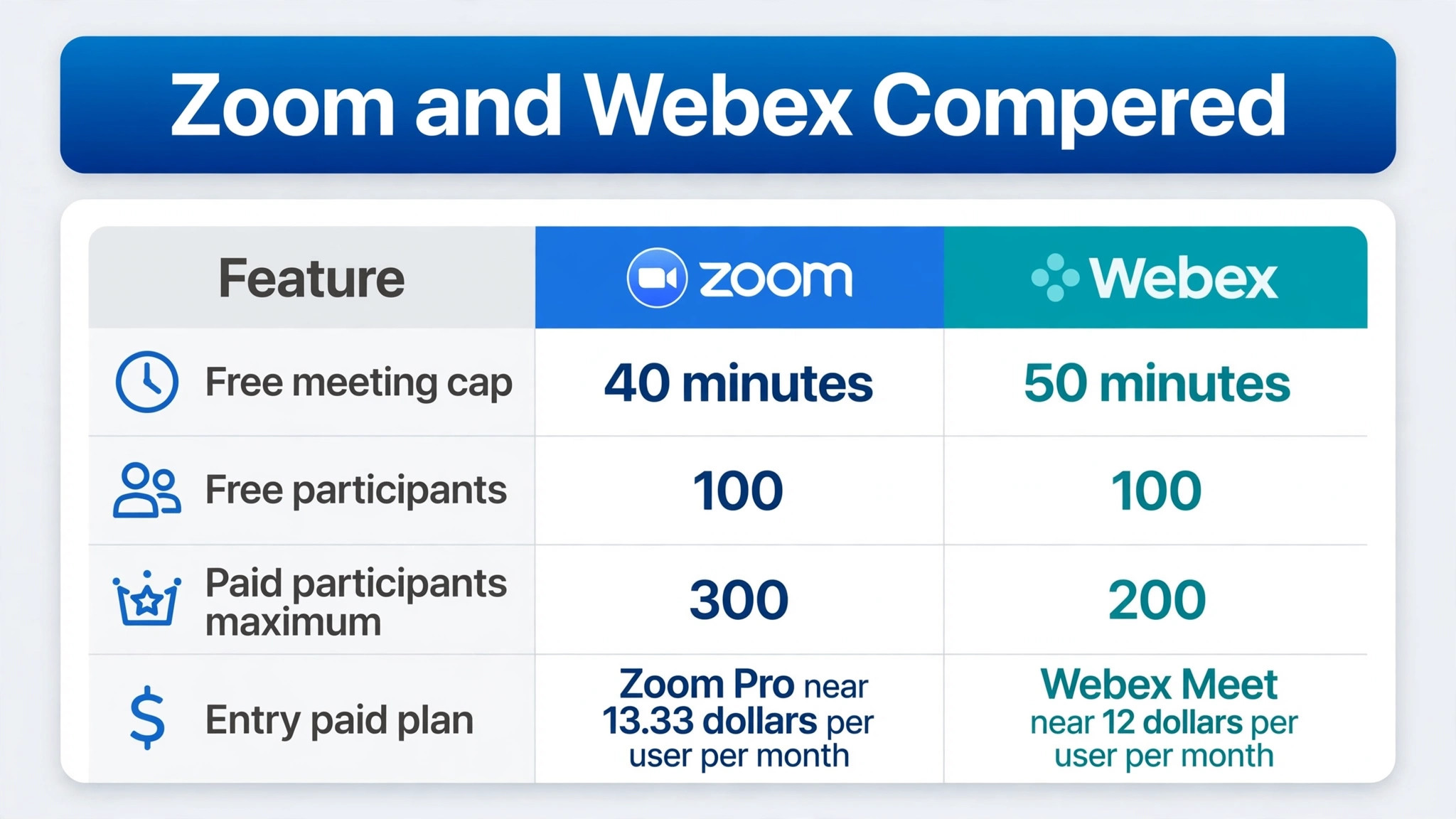
Forty minutes against fifty minutes. That is the free plan gap that starts many comparisons, with Zoom group meetings on the free plan capped at forty minutes and Webex free meetings listed at fifty minutes on published guides. Paid plans close the gap quickly, so the free minute count should never decide the switch alone. The real decision sits elsewhere, in host licences, participant limits, recording storage, and how meeting links reach the calendar. A team that decides to switch Zoom to Webex small team meetings needs a plan for every recurring link, because links do not migrate, and a single missed link means a client waiting in an empty room.
This guide covers the move as a meeting operation, not as a software install. It explains what transfers, which is almost nothing automatically, what must be recreated by hand, what the switch costs at last published list prices, and a first week cutover plan that keeps every scheduled meeting covered. It also covers the honest reason many teams stay. Zoom is the default that clients already know, and familiarity has real value when external guests join. Webex wins when compliance, admin control, and hardware integration matter more than familiarity, and the closing section helps a small team judge which side it sits on.
Zoom and Webex Compared for a Small Team
Zoom built its reputation on joining ease. A guest clicks a link, enters a name, and joins without an account in most setups. Its paid plans add longer meetings, cloud recording, and an AI companion on current lists. Webex built its reputation on enterprise control, with admin tools, security options, and hardware integration that larger organisations value. For a small team, the comparison narrows to joining ease against control, and to host licence costs against participant limits.
The daily difference shows up in the calendar invite. A Zoom invite carries a meeting link and a personal meeting ID that regular clients recognise. A Webex invite carries a new link, a new personal room, and a new joining flow that clients must learn. Internal meetings absorb that change in a day. Client meetings need a notice period, a test call, and a fallback link for the first two weeks. A team that switches links without telling clients will spend week one apologising for missed starts, no matter how good the new platform is.
| Area | Zoom | Webex |
|---|---|---|
| Free group meeting cap | 40 minutes on published guides | 50 minutes on published guides |
| Free participants | 100 on published guides | 100 on published guides |
| Entry paid plan | Workplace Pro, listed near 13.33 to 14.16 dollars per user per month billed annually | Meet, listed near 12 dollars per user per month on some guides |
| Mid paid plan | Workplace Business, 18.33 dollars per user per month billed annually | Suite, listed near 20 dollars per user per month on some guides |
| Paid participants | Pro 100, Business 300 on published guides | Meet and Suite 200 on published guides |
| Cloud recording | Included on paid plans, storage varies | Included on paid plans, storage varies |
| Calendar integration | Calendar add ins for major calendar apps | Meeting list integrates with Webex, device, and Office 365 calendars |
| Guest joining | Familiar to most external guests | Works well, less familiar to some guests |
Prices need strong qualifiers, because published guides disagree. Zoom Pro appears as 13.33 dollars in some guides and 14.16 dollars in others, depending on billing presentation and date. Webex standalone meeting prices appear across a range from 14.50 dollars to 26.95 dollars per host per month in some guides, while Suite prices appear near 14.50 dollars to 25 dollars per user per month. Confirm your exact quote at checkout for your host count and billing term, and compare the plan that holds your participant limit and recording storage, not the cheapest headline price.
Zoom Habits That Clients Expect
Zoom clients expect a link that works first time, a waiting room they understand, and a recording link that arrives after the call. They also expect the host to control screen sharing, breakout rooms, and chat without fuss. Webex covers those needs, but the buttons sit in different places and the joining screen looks different. Run a test call with a friendly client before the first real client meeting on Webex, and send a short joining note with the new link. Familiarity is a feature, and a test call buys it cheaply.
Webex Habits Worth Learning Early
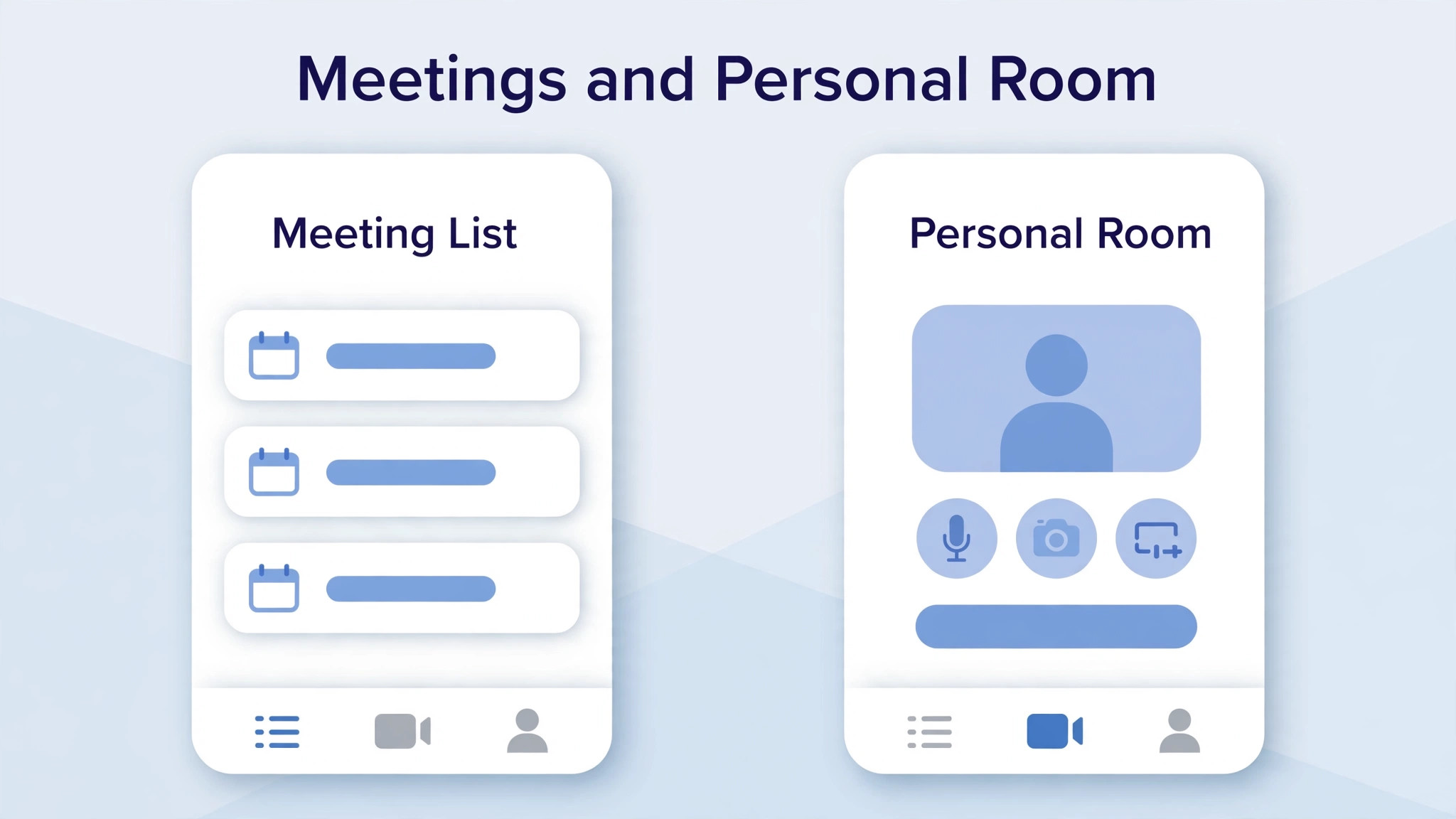
Webex rewards a tidy personal room setup and a consistent meeting list. Set the personal room name, the audio defaults, and the recording defaults before the first meeting, so every invite looks the same. Teach hosts to check the meeting list in the Webex app as well as the calendar, because the two lists can disagree if calendar integration is incomplete. A host who checks both lists will never walk into a meeting that the calendar forgot.
What Actually Moves and What Must Be Rebuilt
Almost nothing moves automatically between Zoom and Webex. There is no native migration that carries scheduled meetings, recurring series, personal meeting IDs, or cloud recordings from one platform to the other. Meeting links change, recording libraries stay where they are, and settings must be rebuilt by hand. A team that plans for manual recreation will finish on time. A team that expects an import will discover the gap on the morning of its first Webex client call.
Scheduled meetings need a full inventory before anything is recreated. List every recurring meeting, its host, its participants, its link, and its calendar series. Recreate each series in Webex, then update the calendar invite with the new link, and tell participants directly. Do not rely on participants noticing a changed link in a calendar update, because many people join from an old invite saved in an email thread. Send a fresh invite for the first Webex occurrence, with a note that the link has changed.
| Item | What happens in the move | Action for your team |
|---|---|---|
| Scheduled meetings | Do not transfer | Recreate each series in Webex |
| Recurring series | Do not transfer | Rebuild the series, then update invites |
| Meeting links | Change completely | Send fresh invites for first occurrences |
| Personal meeting IDs | Change completely | Publish the new personal room link |
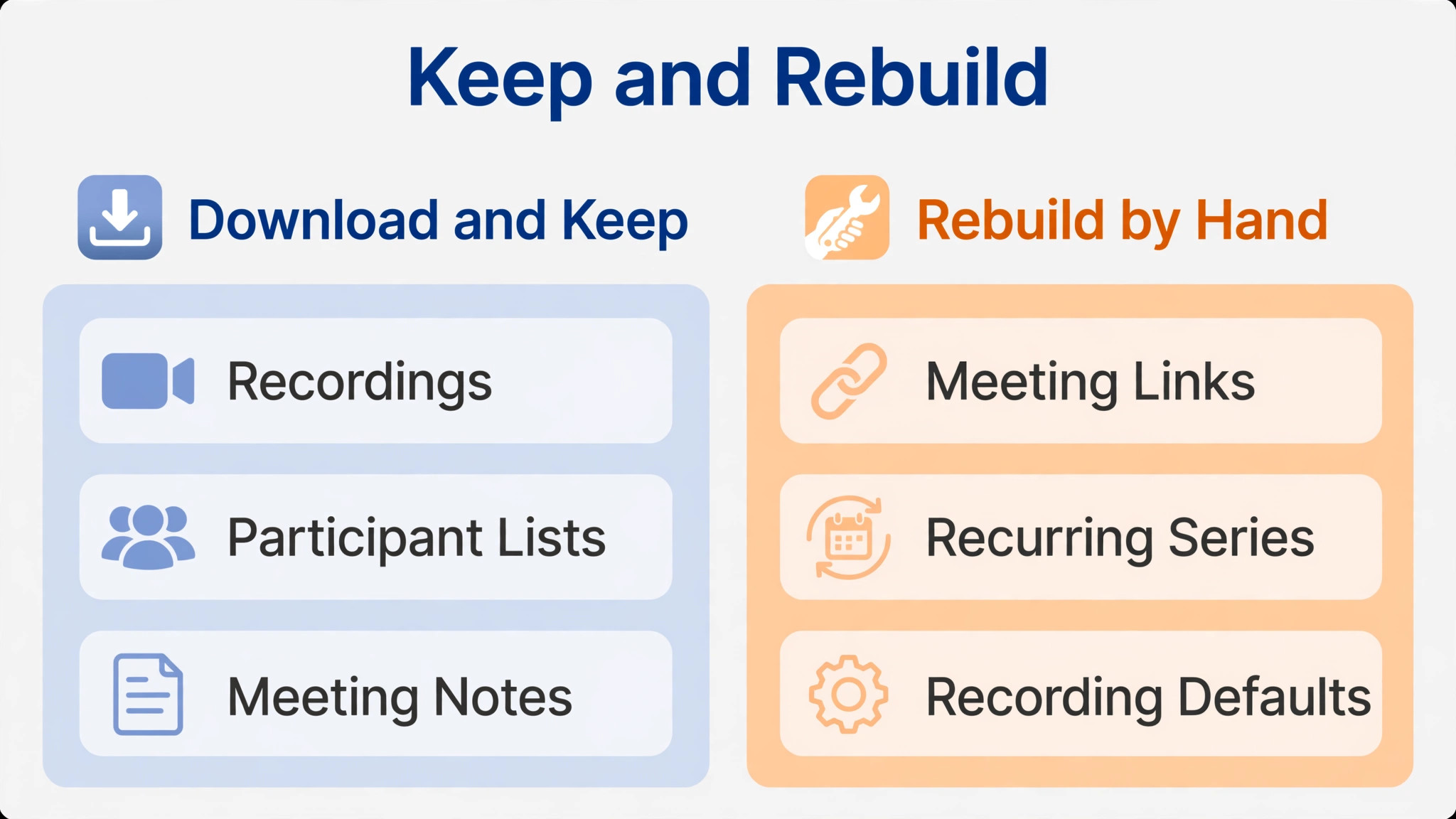
| Cloud recordings | Stay in Zoom | Download and archive important recordings |
| Local recordings | Move as files | Store them in a shared folder |
| Host settings | Do not transfer | Rebuild audio, video, and waiting room defaults |
| Calendar integration | Rebuilt in Webex | Connect calendars and test the meeting list |
| Webinar settings | Do not transfer | Rebuild registration and panelist setup |
| Chat history | Stays in Zoom where applicable | Save key links and decisions elsewhere |
Recordings need a retention decision, not just a download. Zoom cloud recordings should be downloaded for meetings the team must keep, such as client approvals, training sessions, and dispute relevant calls. Store them in a shared folder with meeting dates and participant names in the file names, because a folder of files named by random IDs is an archive nobody can search. Check storage limits on the new Webex plan before assuming every recording fits, and confirm how long cloud recordings are kept on each plan at signup.
How to Switch Zoom to Webex Small Team Meetings Without Missing a Call
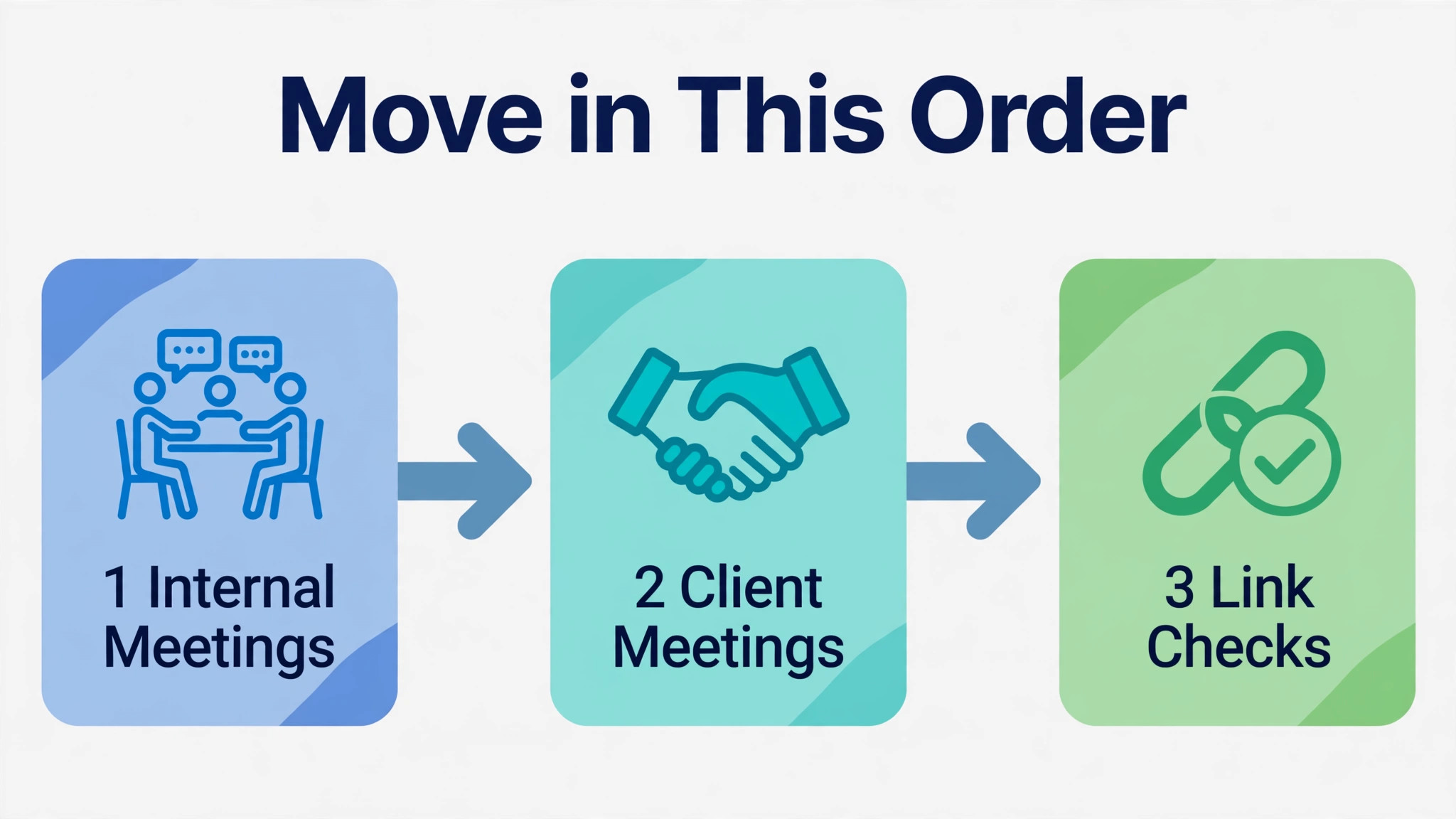
Work meeting by meeting, in order of next occurrence, not by alphabetical host name. Start with internal meetings, because a missed internal standup costs minutes while a missed client call costs trust. Recreate the internal series first, run them in Webex for a week, and fix audio, waiting room, and recording defaults from real use. Then move client meetings, one client at a time, with a test call and a fresh invite for each.
Build a link tracker as the single source of truth. One row per meeting, with the old Zoom link, the new Webex link, the host, the next occurrence date, and a tick for whether participants were notified. Update the tracker daily during cutover, and review it in the morning check in. A tracker that nobody updates is worse than no tracker, because it looks authoritative while going stale. Assign one owner to the tracker for the whole cutover week, and make updating it part of the morning routine.
Freeze new recurring Zoom meetings once the move begins. New series created in Zoom during cutover will need recreating in Webex later, which doubles the work and doubles the chance of a missed link. Any genuinely new meeting during cutover should be created in Webex directly, even if the team is still learning it. The short term awkwardness is cheaper than a second migration of the same meetings a week later.
Zoom Export Steps That Protect Recordings
Download important Zoom cloud recordings before the account changes, and check that each downloaded file plays from start to finish. A download that stops halfway is worse than no download, because the team will assume the recording is safe. Note the meeting date, participants, and decisions for each kept recording, and store the notes beside the files. Local recordings should be gathered from host computers into the same shared folder, so the archive lives in one place rather than on five laptops.
Webex Setup Steps That Prevent Missed Starts
In Webex, create host accounts first, set personal rooms, and rebuild waiting room, audio, and recording defaults for each host. Create the recurring series, connect the calendar, and check that each meeting appears in both the calendar and the Webex meeting list. Run a test meeting with each host, including screen sharing and recording, before that host runs a real meeting. A test meeting takes ten minutes and prevents the most embarrassing failure a new platform can produce, which is a host who cannot start the call.
Meeting Links, Recordings, and Calendar Links in Webex Shape
Meeting links are the critical path of this switch, because every other piece of work depends on people arriving in the right room. Webex personal rooms give each host a stable link that regular contacts can reuse, which replaces the Zoom personal meeting ID habit. Publish the new personal room links in the team directory, in email signatures for hosts who meet clients often, and in the calendar invites themselves. A personal room link that lives only in one host memory will be retyped wrongly at least once.
Recordings need defaults set per host, not per meeting. Decide whether recordings save to the cloud or locally, who can view them, and how long they are kept, then set those defaults for every host before cutover. A host who discovers mid call that recording is off will either restart the meeting or lose the record, and neither outcome helps. Test one recording per host in week one, check that it plays, and confirm that the sharing link reaches the people who need it.
Calendar links tie the whole system together. A meeting that exists in Webex but not in the calendar will be missed. A meeting that exists in the calendar with an old Zoom link will send people to the wrong room. Both failures look like platform problems, but both are really calendar hygiene problems. Check every migrated meeting in both places, and fix discrepancies on the day they appear, not at the next weekly review.
Office 365 Calendar and Device Calendar in Webex
The Webex Meetings app can show meetings from the Webex calendar, from a device calendar, and from an Office 365 calendar, with Webex calendar entries taking priority where duplicates appear. Connect the calendar the team actually uses, then check that personal room meetings and scheduled meetings both appear in the meeting list. If a personal room meeting does not appear, check the device management policy and the app deployment, because managed devices can restrict calendar access for third party apps. Confirm the behaviour on a real device, not just in a help article, because calendar behaviour varies by device and setup.
Zoom Recording Library Decisions Before Cutover
Decide which Zoom recordings to keep, which to download, and which to let expire with the old account. Keep client approvals, training sessions, and any recording tied to a dispute or a contract. Download them, name them clearly, and store them beside short notes. Let routine internal standups expire, because an archive that holds everything is an archive nobody searches. Write the retention decision down, so a future team member does not have to guess why one recording was kept and another was not.
Host Licences and Participant Limits That Catch Teams Out
Host licences are where small teams overspend or underbuy. In Zoom, only the host usually needs a paid licence, while attendees join free. Webex works on a similar host licence model on most plans, but the exact rules, participant limits, and feature gates vary by plan and must be confirmed on your quote. Count hosts, not total team members, when pricing the move. A fifteen person team with three regular hosts needs three host licences, not fifteen, on a host based model, but confirm that model applies to your chosen plan before budgeting.
Participant limits catch teams at the worst moment, which is a large client call. Zoom Business allows up to three hundred participants on published guides, while Webex Meet and Suite allow up to two hundred. A team that regularly hosts calls near those limits should check the limit on its exact plan, including any large meeting add on, before cutover. An add on bought after a failed large call is a lesson priced in embarrassment. Webinar needs differ again, with registration, panelists, and attendee tiers priced separately on both platforms, so price webinars as their own line, not as part of the meeting plan.
The Migration Checklist for a Small Team Meeting Switch
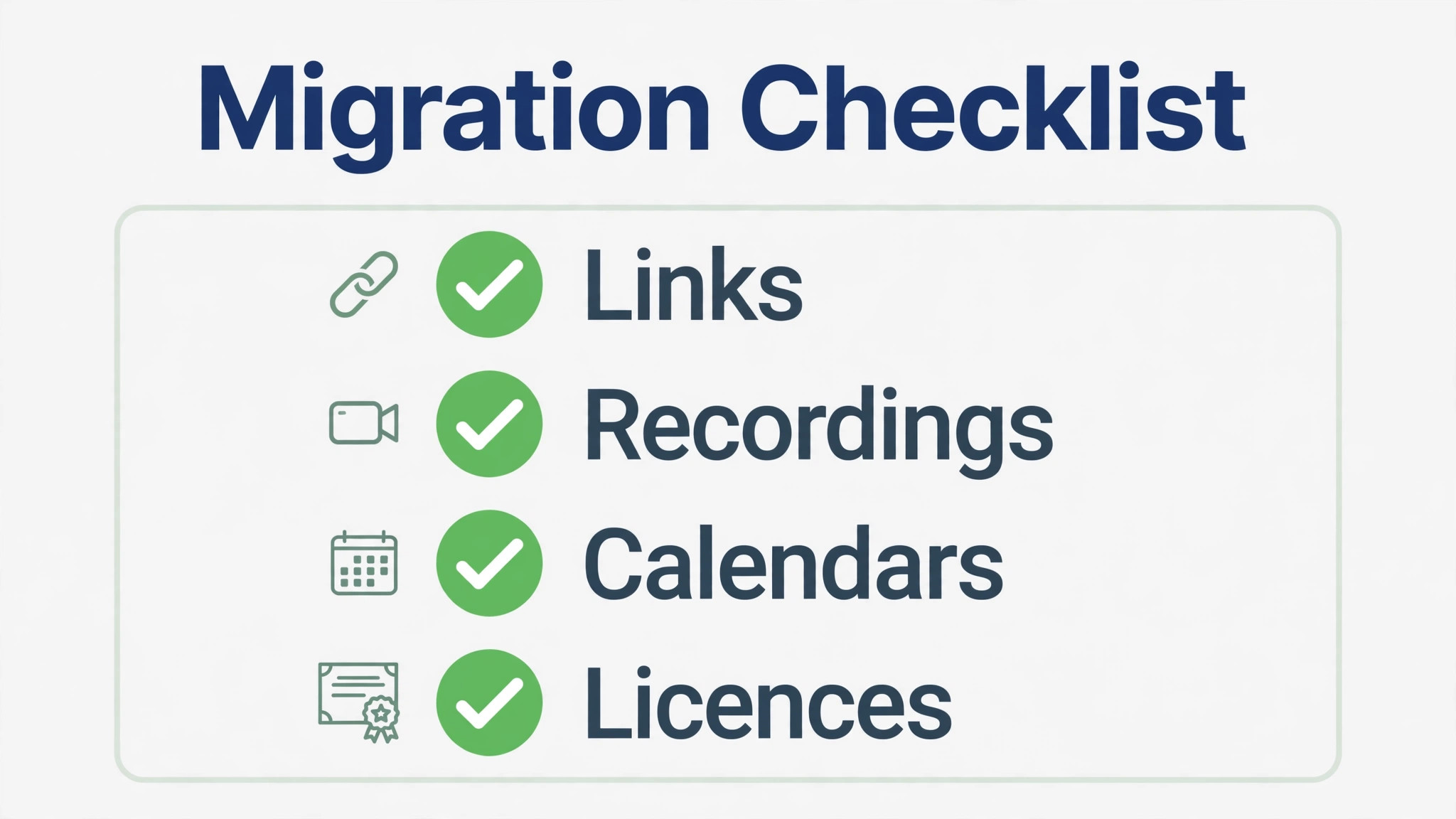
Use this checklist as the project plan, and check each item only when there is evidence, such as a tested link or a playable recording. The checklist covers meeting links, recordings, calendar integrations, and host licences, plus the surrounding work that keeps a switch safe. A team that decides to switch Zoom to Webex small team meetings should treat the checklist as the contract for the move.
– Confirm the reason for the switch and the Webex plan that covers participant limits, recording storage, and host count – List every recurring Zoom meeting, its host, its participants, its link, and its calendar series – Count paid hosts, not total team members, and confirm the host licence model on your Webex quote – Create Webex host accounts, set personal rooms, and rebuild waiting room, audio, and recording defaults – Recreate internal meeting series first, run them in Webex for a week, and fix defaults from real use – Recreate client meeting series one client at a time, with a test call and a fresh invite for each – Build a link tracker with old links, new links, hosts, next dates, and notification ticks, and update it daily – Connect calendars in Webex, and check that every meeting appears in both the calendar and the meeting list – Download important Zoom cloud recordings, check each file plays, and store them with clear names and notes – Gather local recordings from host computers into one shared folder with meeting dates and participants – Freeze new recurring Zoom meetings during cutover, and create any new series in Webex directly – Train every host with a test meeting covering starting, screen sharing, recording, and ending the call – Send clients a short joining note with the new link before the first Webex client meeting – Keep Zoom readable for thirty days, with new meetings in Webex and old recordings accessible in Zoom – Review the link tracker, recording defaults, and host licences at the end of week one, and fix gaps
What Webex Costs After Zoom
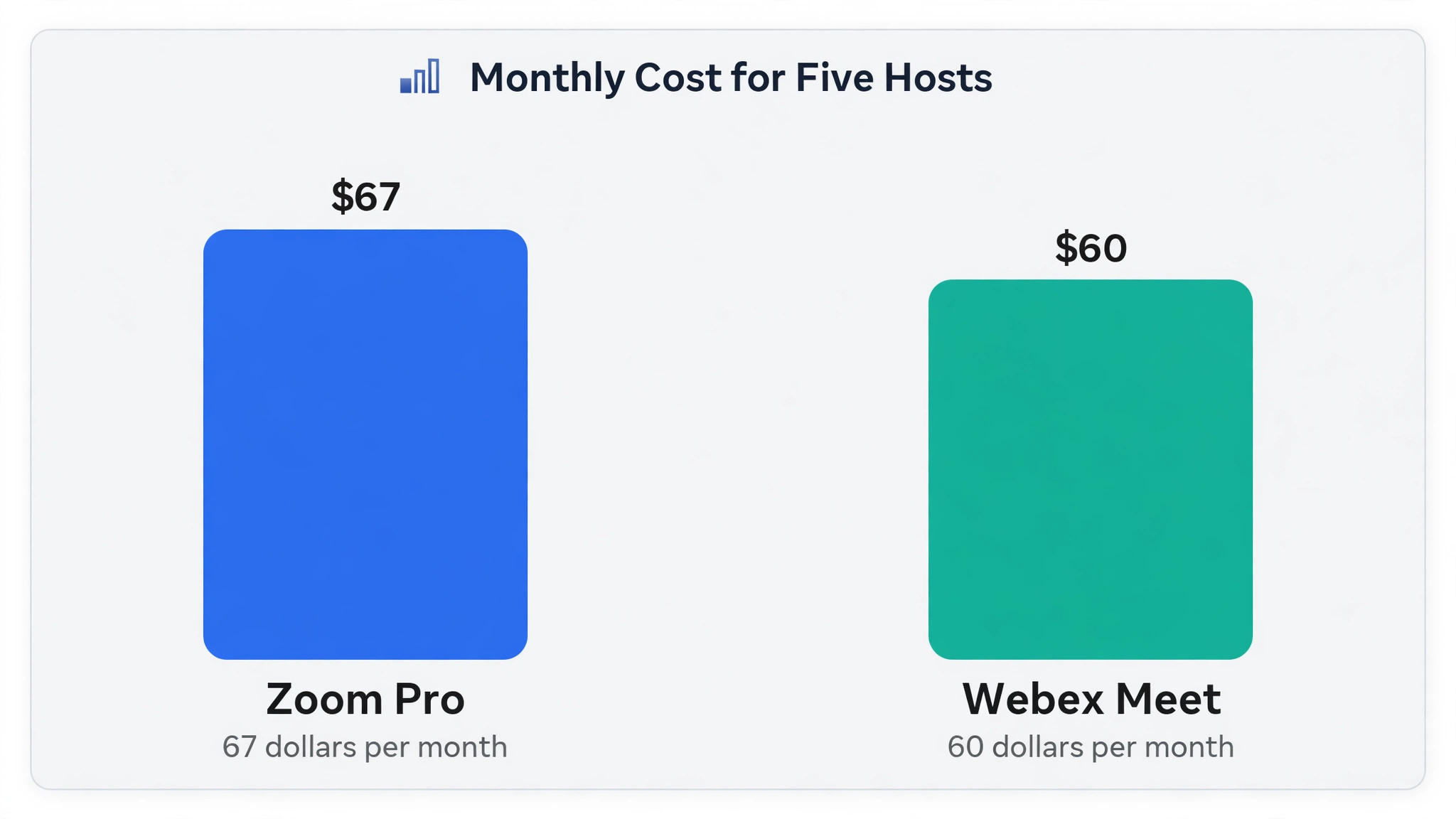
The price comparison is close enough that features should decide the move, not the invoice alone. Zoom Workplace Pro is listed near 13.33 dollars to 14.16 dollars per user per month billed annually, depending on the guide and billing presentation, and Business at 18.33 dollars. Webex Meet is listed near 12 dollars per user per month on some guides, and Suite near 20 dollars, while standalone meeting prices appear across a wider range in other guides. For five hosts, Zoom Pro at the lower published figure costs about 67 dollars a month, while Webex Meet at the listed figure costs about 60 dollars a month. Those totals are close, and taxes, add ons, and participant limits can reverse the order.
A team that decides to switch Zoom to Webex small team budgets should price hosts, not seats, and should price webinars, large meeting add ons, and extra recording storage as separate lines. Confirm the exact quote at checkout, because guides disagree on Webex pricing more than on Zoom pricing, and a comparison built on the wrong Webex tier will mislead the whole decision. If the totals are within ten percent, choose on control, hardware, and client familiarity, not on a few dollars a month.
The First Week Cutover Plan for Meetings
To switch Zoom to Webex small team cutovers work best as a five day plan built around the meeting calendar, not around the calendar week. Day one is internal proof day. Internal meetings run in Webex, hosts test starting and recording, and the evening check reviews the link tracker for missed updates. Day two moves the first client meetings, with fresh invites and joining notes sent the day before, and a fallback plan if a client cannot join.
Day three is the first full Webex day for most meetings. Hold a short morning check in on audio and waiting room defaults, because those two settings cause most early friction. Day four moves the remaining series, including webinars if any, and rebuilds the recording defaults from what the team learned. Day five is decision day. Review the link tracker, confirm every recurring series has a Webex link and a notified participant list, and agree whether Zoom stays readable for another month.
Keep Zoom readable for at least thirty days after cutover, with old recordings accessible and old links clearly marked as retired. A client who joins an old link in week two should find a message pointing to the new link, not an empty room. The rule stays simple. New meetings go in Webex, old meetings are read in Zoom, and nobody creates a new recurring series in Zoom during cutover. A team that breaks that rule once will break it for every urgent meeting that follows.
Rolling Back to Zoom If Webex Fails
Rollback triggers should be agreed before cutover, so the decision stays calm. Useful triggers include repeated client joining failures, a participant limit hit on a critical call, or a recording failure that affects a client deliverable. If a trigger fires, return live meetings to Zoom for the affected series, keep Webex running for internal meetings while the problem is fixed, and decide based on evidence from real calls, not from first day discomfort. Early awkwardness is normal on any new platform and should not trigger a rollback by itself.
Never cancel Zoom billing during week one, and never delete Zoom recordings until the Webex archive is proven. Teams that switch Zoom to Webex small team meetings should keep the link tracker and the meeting inventory, so a rollback means returning to known links instead of rebuilding the old system from memory. Most teams never roll back fully, but a partial rollback is reasonable, such as keeping Webex for internal meetings while returning client meetings to Zoom until joining friction is fixed. Judge the outcome by completed meetings, not by whether the original plan survived untouched.
Mistakes That Disrupt Meetings
The most common mistake is changing links without telling participants directly. A calendar update alone does not reach people who join from saved email invites, and those people will wait in the old room while the new meeting starts without them. Send fresh invites and a short joining note for the first Webex occurrence of every series. The second mistake is assuming recordings moved. They did not, and the team discovers the gap when a client asks for a recording that lives only in the old account.
The third mistake is undercounting hosts or ignoring participant limits until a large call fails. Count hosts, check limits, and price add ons before cutover. The fourth mistake is skipping test calls. A ten minute test call per host prevents the most common failure, which is a host who cannot start, share, or record the call. Teams that switch Zoom to Webex small team meetings successfully are the teams that track every link, test every host, and tell every participant before the first real call.
Should a Small Team Make This Switch
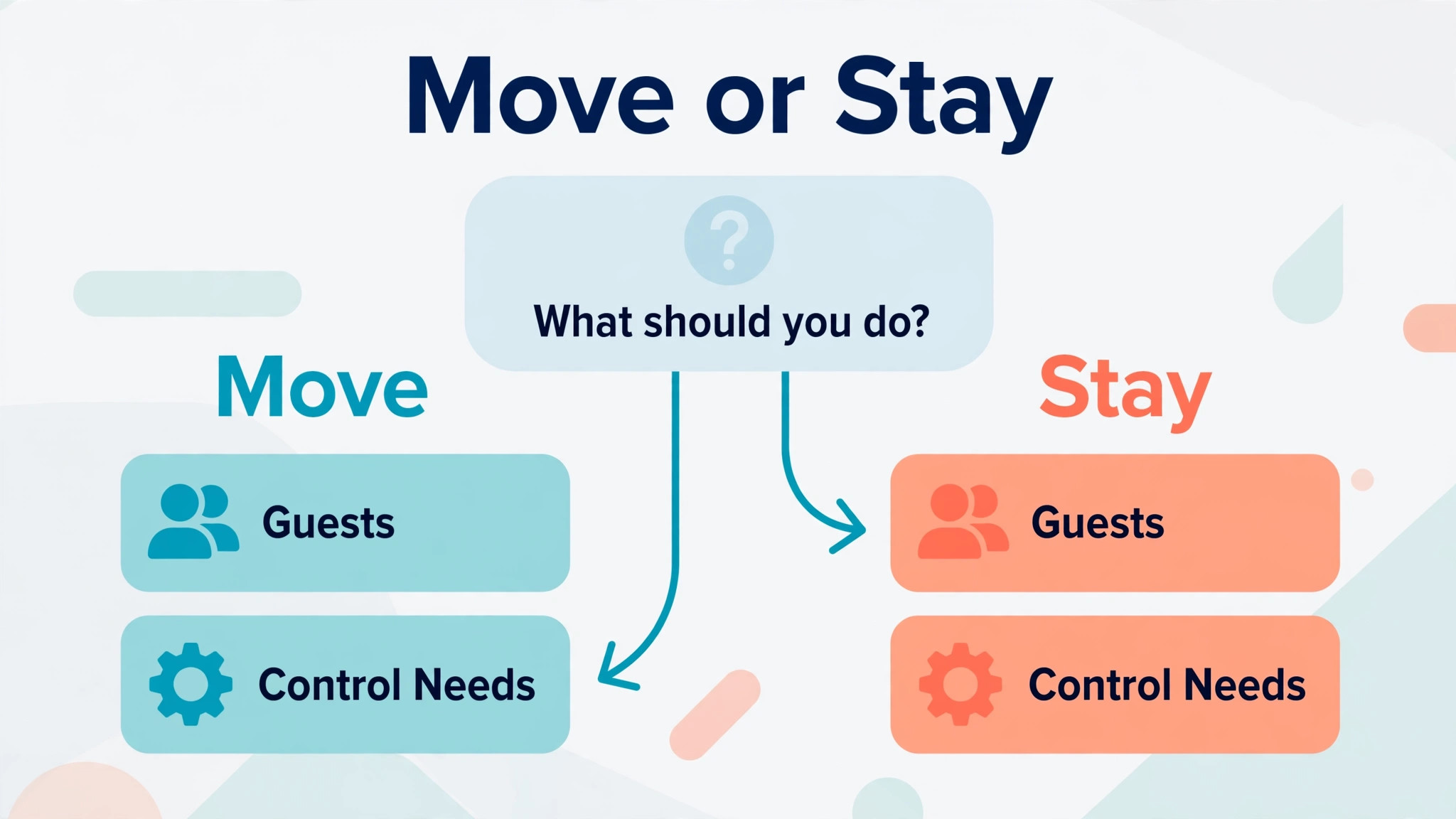
Move when compliance, admin control, or hardware integration matters more than guest familiarity, when host counts are small, and when the team will run test calls and fresh invites properly. Stay when most meetings involve external guests who expect Zoom, when participant limits favour Zoom, or when the saving is only a few dollars a month. For teams that switch Zoom to Webex small team meetings, the meeting that matters most should decide, whether that is the large client call or the regulated internal review.
Frequently Asked Questions About This Switch
Teams that switch Zoom to Webex small team meetings usually ask about links, recordings, and cost first, so the answers below start there.
Do Zoom meeting links transfer to Webex
No. Meeting links, recurring series, and personal meeting IDs do not transfer. Recreate each series in Webex, update the calendar invite with the new link, and send a fresh invite for the first Webex occurrence. Participants who join from an old saved invite will land in the old room, so tell them directly that the link has changed, rather than relying on a calendar update alone.
What happens to Zoom cloud recordings after the switch
Cloud recordings stay in Zoom and must be downloaded if the team needs to keep them. Download important recordings before the account changes, check that each file plays from start to finish, and store them in a shared folder with meeting dates and participant names in the file names. Check recording storage limits and retention periods on the new Webex plan before assuming every recording fits.
Can the team keep using Zoom during the move
Yes, and it should. Move internal meetings first, then client meetings one client at a time, and keep Zoom readable for at least thirty days after cutover. New meetings go in Webex, old meetings and recordings are read in Zoom, and nobody creates a new recurring series in Zoom during cutover. That rule prevents a second migration of the same meetings a week later.
How long does a Zoom to Webex migration take for a small team
A small team with a handful of hosts usually needs one to three weeks. One week covers inventory, host setup, and internal proof meetings. A second week covers client series, test calls, and fresh invites. Teams with many recurring series, webinars, or large participant counts should allow an extra week, because link tracking and participant communication take longer than the setup itself.
What does Webex cost compared with Zoom for five hosts
Using last published guides, Zoom Workplace Pro near 13.33 dollars per user per month billed annually costs about 67 dollars a month for five hosts. Webex Meet near 12 dollars per user per month costs about 60 dollars a month for five hosts. Guides disagree on Webex pricing more than on Zoom pricing, so confirm your exact quote at checkout, including participant limits, webinar costs, and extra recording storage.
Do participants need a Webex account to join a meeting
Guests can usually join a Webex meeting from a link without needing a full account, but the joining flow differs from Zoom and some guests will need guidance on their first call. Send a short joining note with the first invite, run a test call with a friendly client, and keep a fallback contact method for the first two weeks. Familiarity is a real feature, and a test call buys it cheaply.
Does Webex integrate with the team calendar
The Webex Meetings app can show meetings from the Webex calendar, from a device calendar, and from an Office 365 calendar, with Webex calendar entries taking priority where duplicates appear. Connect the calendar the team actually uses, then check that scheduled meetings and personal room meetings both appear in the meeting list. Test on a real device, because calendar behaviour varies by device and by managed device policy.
Can the team roll back to Zoom if Webex does not fit
Yes, if Zoom billing and recordings are kept. Do not cancel Zoom during week one, and do not delete Zoom recordings until the Webex archive is proven. A partial rollback is reasonable, such as keeping Webex for internal meetings while returning client meetings to Zoom until joining friction is fixed. Agree rollback triggers before cutover, so the decision stays calm and evidence based, rather than driven by first day discomfort.