Many small business owners reach a point where running their website starts to feel like a second job. Plugin updates pile up, a theme breaks after an update, and a simple text change turns into a support ticket. If that sounds familiar, you may be ready to switch WordPress to Squarespace small business owners often choose when they want one managed home for pages, blogging, and bookings.
This guide walks through the move in practical order. You will learn what the importer actually carries across, what you must rebuild by hand, how to protect search rankings with redirects, and how to plan a first week that keeps customers informed. It is written for a small team with no developer on staff, and it flags every place where a price or limit should be checked again before you commit.
The honest starting point is that this is a redesign as much as a migration. Squarespace imports your words and pictures, but it does not import your theme, your plugins, or your layout. Budget time for design work, and you will be pleased with the result. Expect a one click transfer, and you will be disappointed on day one.
Should You Switch WordPress To Squarespace Small Business Owners Weigh First
A move makes sense when your site is mostly pages and blog posts, your booking or contact forms are simple, and maintenance is eating time you would rather spend serving customers. Squarespace bundles hosting, security updates, templates, and support into one bill, so there is no plugin stack to patch and no separate host to monitor. For a brochure site, a services site, or a portfolio with a blog, that simplicity is the whole point.
A move makes less sense when your site depends on custom functionality. Membership areas with complex rules, booking systems with unusual logic, multilingual setups, or custom post types built by a developer will not translate cleanly. In those cases, price the rebuild honestly before you cancel anything. Sometimes the right answer is to simplify the site first on WordPress, then move a smaller site.
Ask three questions before you start. First, which five pages earn the most enquiries or sales. Second, which features would break the business if they stopped working for a week. Third, who on your team will own the new site after launch. If you cannot name that person, pause the project until you can, because an unmanaged Squarespace site drifts just as surely as an unmanaged WordPress site.
WordPress And Squarespace At A Glance
WordPress gives you near total control and near total responsibility. You choose the host, the theme, and every plugin, and you or someone you pay keeps them updated and compatible. That freedom suits businesses with unusual needs and a budget for upkeep. It punishes businesses that set a site up once and then ignore it for two years.
Squarespace trades some of that freedom for predictability. Templates share a common structure, updates happen behind the scenes, and support answers questions about one platform rather than a stack of products from different vendors. The tradeoff shows up when you want a feature the platform does not offer. You either accept a workaround, add a third party embed, or accept that the feature is not available.
The table below sums up the practical differences for a small business rather than a developer audience.
| Question | WordPress answer | Squarespace answer |
|---|---|---|
| Who updates the software | You or your developer | The platform, automatically |
| Design freedom | Very wide, with themes and builders | Wide within template structure |
| Plugin ecosystem | Thousands of plugins, mixed quality | Built in features plus selected integrations |
| Ongoing maintenance | Regular updates and checks | Very little routine maintenance |
| Best fit | Custom or complex sites | Standard pages, blogs, and simple stores |
Use that table as a decision filter, not a verdict. A business with a simple site and no developer gains a lot from the move. A business with a heavily customised site may gain little and lose features it relies on.
What Transfers And What Must Be Rebuilt
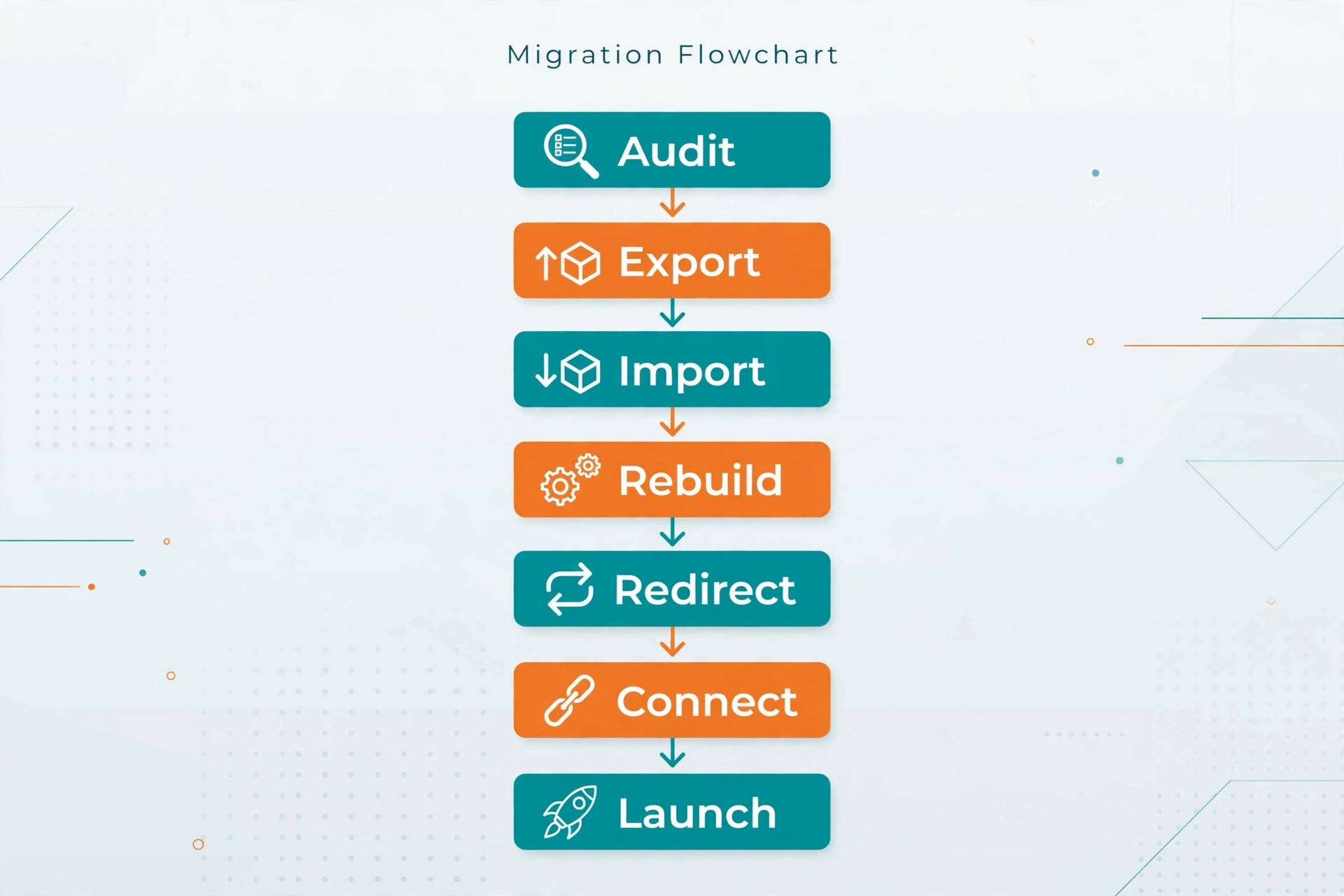
Squarespace provides a WordPress importer that reads the export file WordPress produces. It brings across blog posts, pages, images, categories, tags, and comments in most cases. That covers the bulk of a typical small business site, and it is the reason the move is feasible without retyping every article.
What does not transfer matters just as much. Your theme and its settings stay behind. Plugins stay behind, including forms, galleries built by plugins, search tools, and any custom functionality. Gallery images collected by a plugin may arrive as single images or not at all, and image captions are unreliable in the import. Pages built with a visual page builder often arrive as plain text mixed with shortcodes, which you will need to clean up by hand.
Custom post types deserve a special warning. If your WordPress site stores testimonials, team members, properties, or products as a custom type, the importer will not recreate that structure. You will need to decide whether those items become regular pages, blog posts, or a different collection on Squarespace, and rebuild them accordingly. Count those items before you start, because they are easy to overlook until launch week.
| Item | What happens in the move |
|---|---|
| Blog posts and pages | Imported from the export file |
| Images attached to posts | Imported if the old site stays live during import |
| Categories and tags | Imported, sometimes as separate blogs |
| Comments | Imported in most cases |
| Theme and layout | Rebuilt from scratch on a template |
| Plugins and forms | Rebuilt with built in features |
| Image captions and galleries | Often lost or partial, check each one |
| Search rankings metadata | Re-entered by hand on the new site |
Treat the import as moving furniture into a new building. The furniture arrives, but you still choose every room, every wall colour, and where each piece goes. Plan a full review pass after import, page by page, before you touch redirects or the domain.
The Cost Picture Before You Commit
Costs split into three buckets, and only the first is easy to quote. The platform subscription is the visible cost. Squarespace pricing changes over time and varies by plan, so check the current pricing page and confirm at checkout rather than trusting any figure in a guide, including this one. A business plan covers most small business sites, while a commerce plan is needed once you sell online with fuller store features.
The second bucket is your time or a hired helper. A small site with twenty pages and a modest blog can take two to four weekends of part time work, with design and cleanup taking most of it. A content heavy site can take four to eight weeks. If you hire help, get a quote that covers import, rebuild, redirects, and launch checks, not just design, because the unglamorous parts are where rankings are won or lost.
The third bucket is what you stop paying for. Cancel hosting, premium themes, and plugins only after the new site is live and checked. Overlap of one month is cheap insurance. Keep a list of every recurring charge tied to the old site, including domain registration, email hosting, and any booking tool, and decide the fate of each one separately. A domain transfer is not the same as cancelling email, and confusing the two is a common and painful mistake.
Step By Step Migration For A Small Team
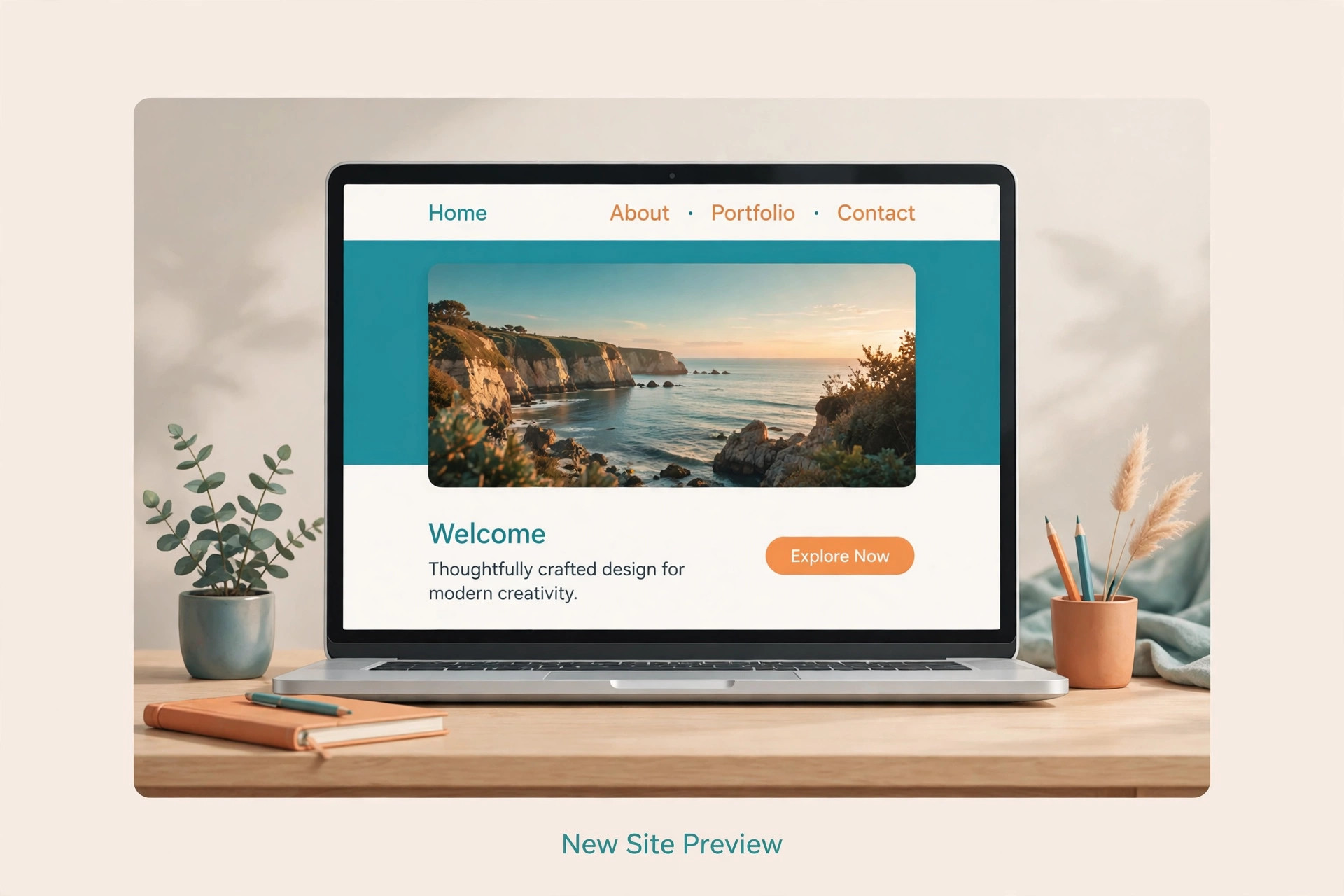
Work in this order and keep the old site live until the new site is finished. Nothing in the early steps requires downtime, and that is the point. A rushed cutover helps nobody, least of all your customers.
Step 1 Audit The Old WordPress Site
List every page, post, form, and feature, and mark each one as keep, rewrite, or drop. Pull your search performance data for the last year and highlight the pages that actually earn visits. Those pages get the most care in the rebuild and the first redirects. Delete or merge thin pages now, because migrating clutter only moves the problem.
Step 2 Export Content From WordPress
In the WordPress dashboard, open the export tool and download the full content file. Keep a second copy somewhere safe, such as a folder you control outside the site. Confirm the file size looks plausible for your site. A tiny file on a large site usually means the export was partial, and it is far easier to redo it now than after you have started rebuilding.
Step 3 Set Up Squarespace And Import
Start a trial, choose a template close to the look you want, and run the WordPress importer against your export file. Keep the new site private with a password while you work, so visitors and search engines do not find a half built site. Check that the old WordPress site stays online during import, because the importer fetches images from it.
Step 4 Rebuild Pages And Design
Work through pages in traffic order, not menu order. Rebuild the homepage, the top service pages, and the contact page first, then the rest. Recreate forms with built in blocks, rebuild galleries by hand, and rewrite any page builder shortcode mess into clean text. Set page titles and descriptions as you go, because doing it later means reopening every page.
Step 5 Fix Blog Structure And Images
Imported categories sometimes arrive as separate blogs, which confuses visitors. Consolidate posts into one main blog and use categories for organisation. Open every post with images and check that pictures loaded, captions survived, and formatting reads cleanly. Compress oversized images during this pass, since old media libraries often hold files several times larger than the web needs.
Step 6 Map Every Redirect
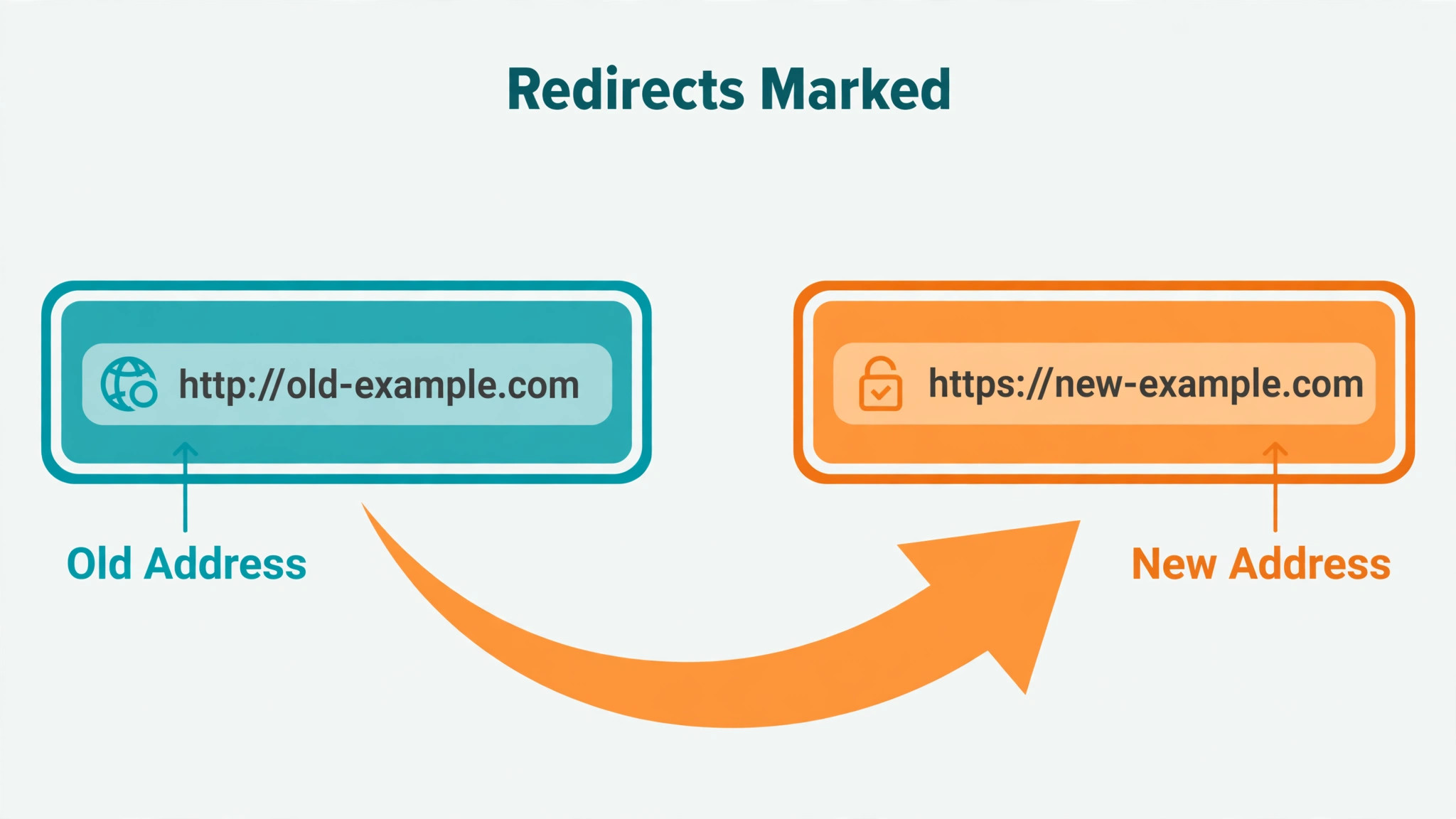
Build a spreadsheet with two columns, old address and new address, covering every page and post that ever earned traffic or links. Squarespace supports redirect rules in its URL mapping panel, using a simple old address to new address format with a permanent redirect marker. Redirect each old address to its closest new match, never to the homepage by default, and keep the list under the published line limit by consolidating only truly dead addresses.
Step 7 Connect The Domain And Test
Point the domain to Squarespace only when content, forms, and redirects are ready. After the domain moves, test the homepage, the top ten pages, every form, and a sample of old addresses to confirm they redirect correctly. Check that secure browsing is active, that the site loads on a phone, and that contact messages actually arrive. Fix failures before announcing the new site anywhere.
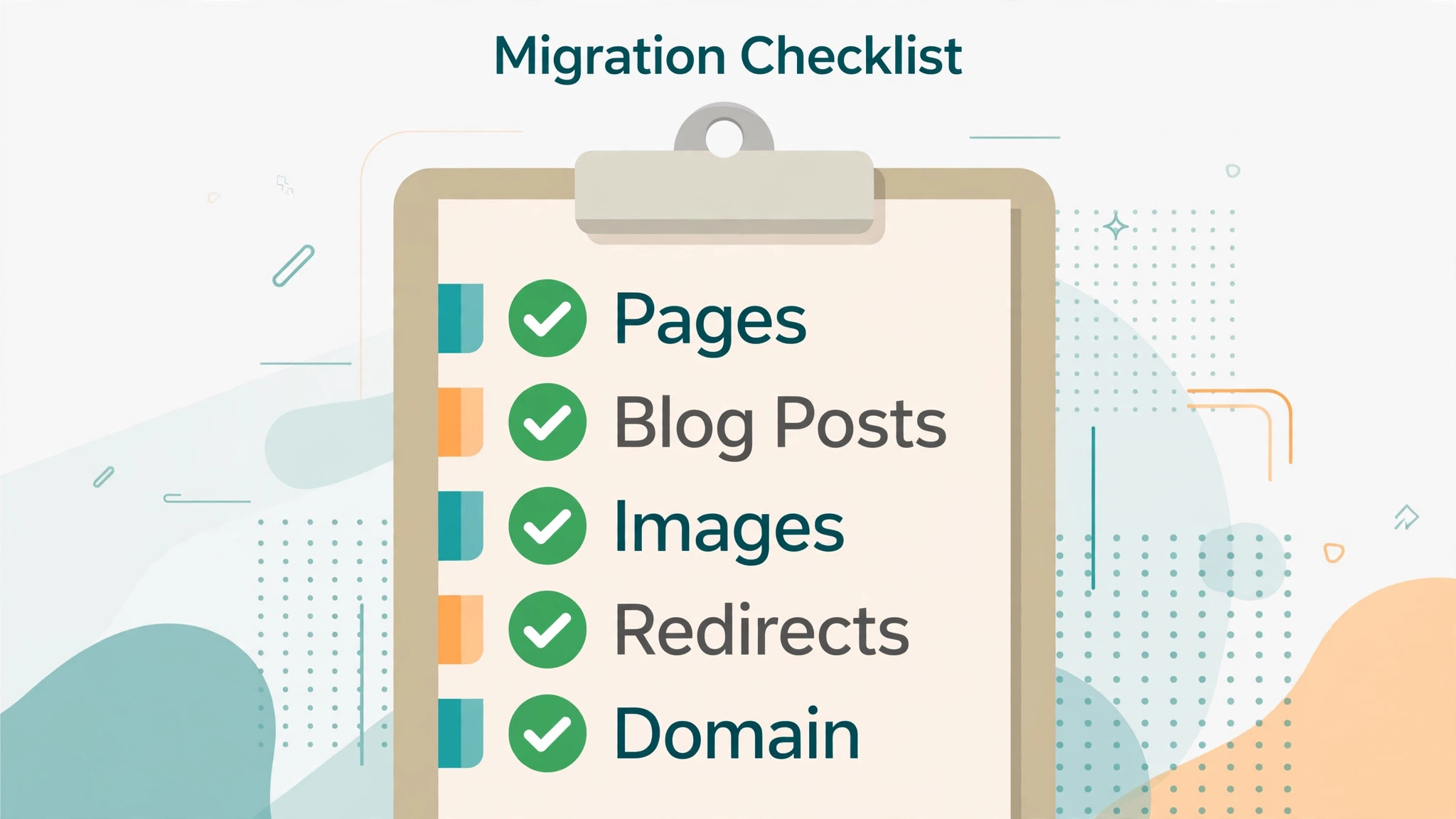
Migration Checklist For Pages Blog Posts Images Redirects And Domain
Use this checklist as your working document from audit day to launch day. Tick items only when they are tested, not when they are planned. A checklist that says done for untested work is worse than no checklist at all.
– Inventory every page and post with its current address and traffic level – Decide keep, rewrite, or drop for each page before export – Export the full WordPress content file and store a second copy safely – Record every form, its fields, and where its messages must go – List every gallery and check captions and image order separately – Start the Squarespace trial and set a site password during the build – Import content and confirm posts, pages, images, and categories arrived – Consolidate imported blogs into one main blog with categories – Rebuild the homepage, top service pages, and contact page first – Recreate every form with built in blocks and test each submission – Rewrite search titles and descriptions for every important page – Build the redirect map covering every old address with traffic or links – Enter redirect rules and test a sample before domain cutover – Confirm domain registration, renewal date, and email hosting details – Point the domain, confirm secure browsing, and test on a phone – Submit the new sitemap to search tools and watch for crawl errors – Announce the move to customers only after forms and redirects pass – Keep the old site and its backups for at least one month after launch
Two items on that list cause most trouble. The first is email. A domain move can disturb email if mail records are copied wrongly, so confirm with your email provider before you change domain settings, and test sending and receiving on launch day. The second is forms. A form that looks finished but sends messages nowhere will cost you enquiries silently, so send a real test message through every form and confirm it arrives.
Protecting Search Rankings During The Move
Search engines do not care which platform you use. They care whether old addresses still lead somewhere useful. Because Squarespace uses different address patterns from WordPress, most blog addresses will change even when page slugs stay similar. A dated WordPress address that includes year and month will almost certainly change, and that is normal, provided a redirect carries it to the new address.
Write your redirect map before you move the domain, and prioritise by traffic. A page with steady visits deserves a one to one redirect to its exact replacement. A page with no visits and no links can redirect to the closest relevant section page. Only use the homepage as a redirect target when no closer match exists, because visitors who land on a generic page after clicking a specific link usually leave.
After launch, watch for broken address reports in search tools for at least four weeks. Fix every reported error by adding or correcting a redirect, and recheck internal links inside blog posts, since hard coded old addresses inside article text will still point at the old patterns. Update navigation and footer links first, then work through high traffic posts. A redirect protects the visitor, but a clean internal link is better still.
First Week Cutover Plan After Launch
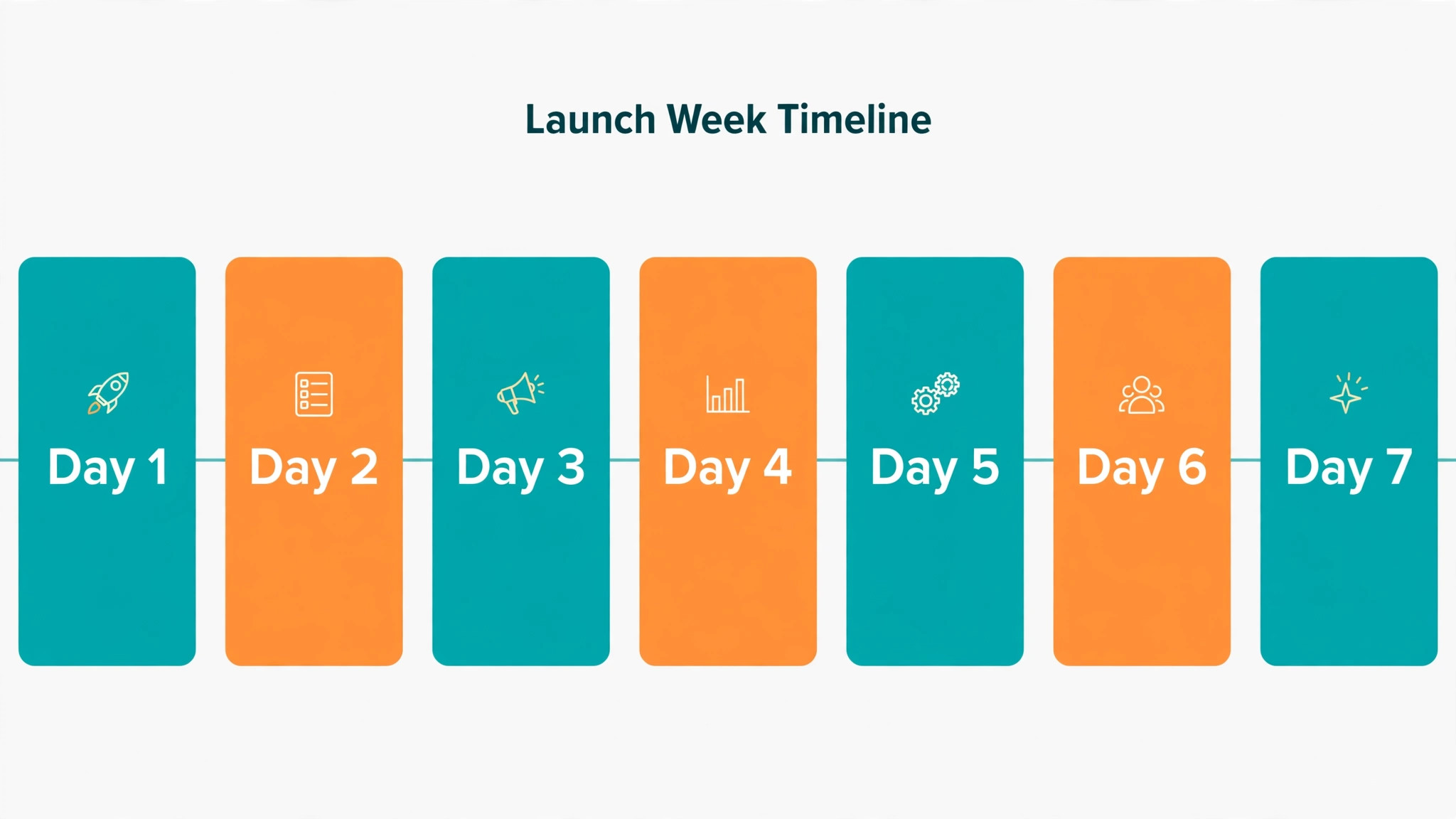
The first week is about watching, not celebrating. Traffic and enquiries need daily attention while search engines relearn your addresses and customers learn the new layout. Assign one owner for the week, even in a one person business, and keep a simple log of every issue and fix.
| Day | Focus for the day |
|---|---|
| Launch day | Test forms, redirects, phone links, and secure browsing |
| Day 2 | Check search tool reports and fix broken addresses |
| Day 3 | Review top pages on a phone and fix layout problems |
| Day 4 | Confirm email sending and receiving still works |
| Day 5 | Compare enquiries and visits with the previous week |
| Day 6 | Fix slow pages and oversized images found in testing |
| Day 7 | Review the full issue log and close or schedule each item |
Tell regular customers about the move in plain language. A short message that the website has a fresh look, that booking and contact details are unchanged, and that they should report anything odd will catch problems faster than any tool. Do not claim the site is faster or better until the first week data supports it. Customers notice broken things far more than they notice marketing claims.
Rollback Advice If The Move Goes Wrong
A rollback plan is not pessimism. It is the reason you can launch calmly. Keep the old WordPress site, its database backup, and its content export until the new site has run cleanly for a full month. Do not cancel hosting or delete the old site in launch week, no matter how tidy that feels.
If a serious problem appears, judge it by customer impact, not embarrassment. A broken contact form or a failed checkout affects revenue and should trigger a fast fix or a temporary return to the old site. A design detail you dislike is not a rollback reason. Fix it on the new site and move on.
To roll back, point the domain back to the old host, confirm the old site loads, and tell customers the change is temporary if the outage was visible. Keep the Squarespace build private rather than deleting it, so you can fix the problem and relaunch without starting over. The cheapest rollback is the one you prepared before launch and never needed.
Mistakes That Cost Small Businesses Rankings And Enquiries
The most expensive mistake is moving the domain before redirects are ready. Visitors and search engines then meet error pages, and recovery takes weeks even after redirects are added. Finish the redirect map first, test a sample, and only then move the domain.
The second mistake is trusting the import without reading the result. Shortcode debris, missing captions, and split blogs look unprofessional and confuse visitors. Read every important page on the new site as a customer would, on a phone, before launch. The third mistake is forgetting the small operational pieces. Phone numbers in images cannot be tapped, opening hours in a footer get missed, and a booking link buried three clicks deep loses bookings. Put contact details in text, keep them in the header or footer, and test the path a new customer actually takes.
A quieter mistake is launching without a way to measure. Record visits, enquiries, and calls for the two weeks before the move, then compare the same measures for the two weeks after. Without that baseline, you cannot tell whether a dip is a migration problem or normal variation, and you will argue about feelings instead of fixing facts.
Planning Time Team And Budget Realistically
A migration plan fails most often on resourcing, not technology. The owner assumes evenings will cover it, evenings fill with customer work, and the half built site sits private for months. Decide up front how many hours per week the project gets, who does the work, and what date the domain moves. Put those three decisions in writing, even if the document is just a note on your desk. A plan nobody can see is a plan nobody follows.
When you switch WordPress to Squarespace small business schedules usually work best in short focused blocks. Two evenings a week for three weeks beats a single heroic weekend, because fresh eyes catch layout problems and wording errors that tired eyes miss. Use the first block for audit and export, the second for import and cleanup, and later blocks for design, redirects, and testing. If a block is missed, move the launch date rather than cutting the testing block, because testing is the block that protects revenue.
Budget for help in the places where your own time is most expensive. A designer can set up the template and style once, leaving you to fill in content you know better than anyone. A writer or editor can tighten service pages during the rebuild, which is a good moment to fix weak copy anyway. Paying for a few hours of skilled help often costs less than three extra weeks of your own evenings, and the result usually looks more polished.
Expect the learning curve to be real but short. Squarespace editing differs from WordPress editing, and the first pages will feel slow. By the fifth page you will know where blocks live, how sections behave, and which settings matter. Record short notes as you learn, such as where form notifications are set and how the blog index is organised, so a team member can take over without rediscovering everything.
When you switch WordPress to Squarespace small business owners sometimes forget the content they publish while the new site is being built. New blog posts, price changes, and new testimonials added to the old site after export will not appear in the new site automatically. Freeze non urgent changes during the final two weeks, or keep a running list of late changes to copy across before launch. A single missed price change can cause an awkward customer conversation that a checklist would have prevented.
Staff training belongs in the plan, not after it. Show the person who updates the site how to edit a page, publish a post, and check a form before launch day, using the private site. Give them a simple written routine for weekly checks, covering new enquiries, broken links reported by visitors, and fresh content. When you switch WordPress to Squarespace small business teams gain most when the handover is deliberate, because the platform only saves time if someone actually uses it confidently.
Content quality deserves the same attention as technical steps. The rebuild is a rare chance to fix pages that have not been read in years. Shorten introductions that bury the point, replace vague claims with specific services and places served, and add a clear next step to every service page. When you switch WordPress to Squarespace small business sites improve most when owners treat migration as an edit, not a copy, and remove pages that no longer earn their place.
Finally, set a review date one month after launch. Revisit traffic, enquiries, and the issue log, and decide what still needs work. Some fixes will be quick, such as a clearer button label or a faster image. Others, such as a missing feature, may need a workaround or a different tool. When you switch WordPress to Squarespace small business owners who schedule that review keep improving, while owners who never look back slowly repeat the neglect that made the old site feel tired.
One more practical point concerns images and branding. Gather your logo files, brand colours, and approved photos before design starts, and check that the logo works on both light and dark backgrounds. A missing logo file on design day stalls the whole project for a trivial reason. When you switch WordPress to Squarespace small business branding work goes faster with assets ready, and the finished site looks intentional rather than assembled from leftovers.
Frequently Asked Questions About This Switch
Will I lose my Google rankings if I switch from WordPress to Squarespace?
Not necessarily. Rankings follow addresses and content, not the platform name. If every important old address redirects to a matching new page, and the new pages carry the same useful content, rankings usually stabilise within a few weeks. Expect some short term movement while search engines recrawl, and watch error reports closely during that window.
How long does a small business migration usually take?
A small site with around twenty pages and a modest blog often takes two to four weekends of part time work. Content heavy sites take longer, with redirect mapping and quality checks consuming most of the time. Keep the old site live throughout, so the calendar matters less than the checklist. Rushing the domain move is the one shortcut that regularly backfires.
Does Squarespace import my WordPress theme and plugins?
No. The importer moves content such as posts, pages, images, categories, tags, and comments. Design, theme settings, and plugin functionality must be rebuilt with templates and built in features. Treat the project as a redesign with imported content, and the workload will feel honest rather than surprising.
What happens to my blog categories after import?
Categories sometimes arrive as separate blogs, which can fragment your archive. The usual fix is to consolidate posts into one main blog and use categories for organisation inside it. Check the blog index after import before you publish anything, and merge duplicates while the site is still private.
Can I keep my domain name when I move?
Yes. You can transfer the domain to Squarespace or connect a domain that stays registered elsewhere. Confirm renewal dates and email hosting before changing settings, because a domain move handled carelessly can disturb email. Test mail sending and receiving on launch day either way.
Do I need a developer to make this move?
Most small business sites do not need one. A careful owner can export, import, rebuild pages, and set redirects by following the steps in this guide. Hire help if your site uses custom functionality, a large archive, or a store with complex rules, since those cases reward experience and punish guesswork.
Should I cancel WordPress hosting right after launch?
No. Keep hosting, backups, and the content export for at least a month after launch. That overlap is your rollback path if a serious problem appears, and it costs far less than rebuilding a lost site. Cancel only after forms, redirects, email, and enquiries have all run cleanly.
Will my contact forms still work on Squarespace?
They will work once you rebuild them. Forms do not transfer from WordPress plugins, so recreate each form with built in blocks, set the correct recipient address, and send a real test message through every form. Confirm each message arrives before you announce the new site to customers.
Final Verdict For A Small Business Owner
Move to Squarespace when simplicity is worth more to you than total control. A standard site with pages, a blog, and simple forms becomes easier to run, easier to keep updated, and easier to hand to a team member. Stay on WordPress when custom features, complex booking logic, or a heavily customised build are central to how you earn money, because rebuilding those on a new platform costs more than maintaining them where they are.
If you decide to move, work the checklist in order, protect your redirects, and give the first week the attention it deserves. A careful migration feels uneventful, and uneventful is exactly what you want. Customers should notice a fresh site and unchanged service, not a project. When you switch WordPress to Squarespace small business owners succeed most often by treating the move as a redesign with a safety net, not as a one click import.