
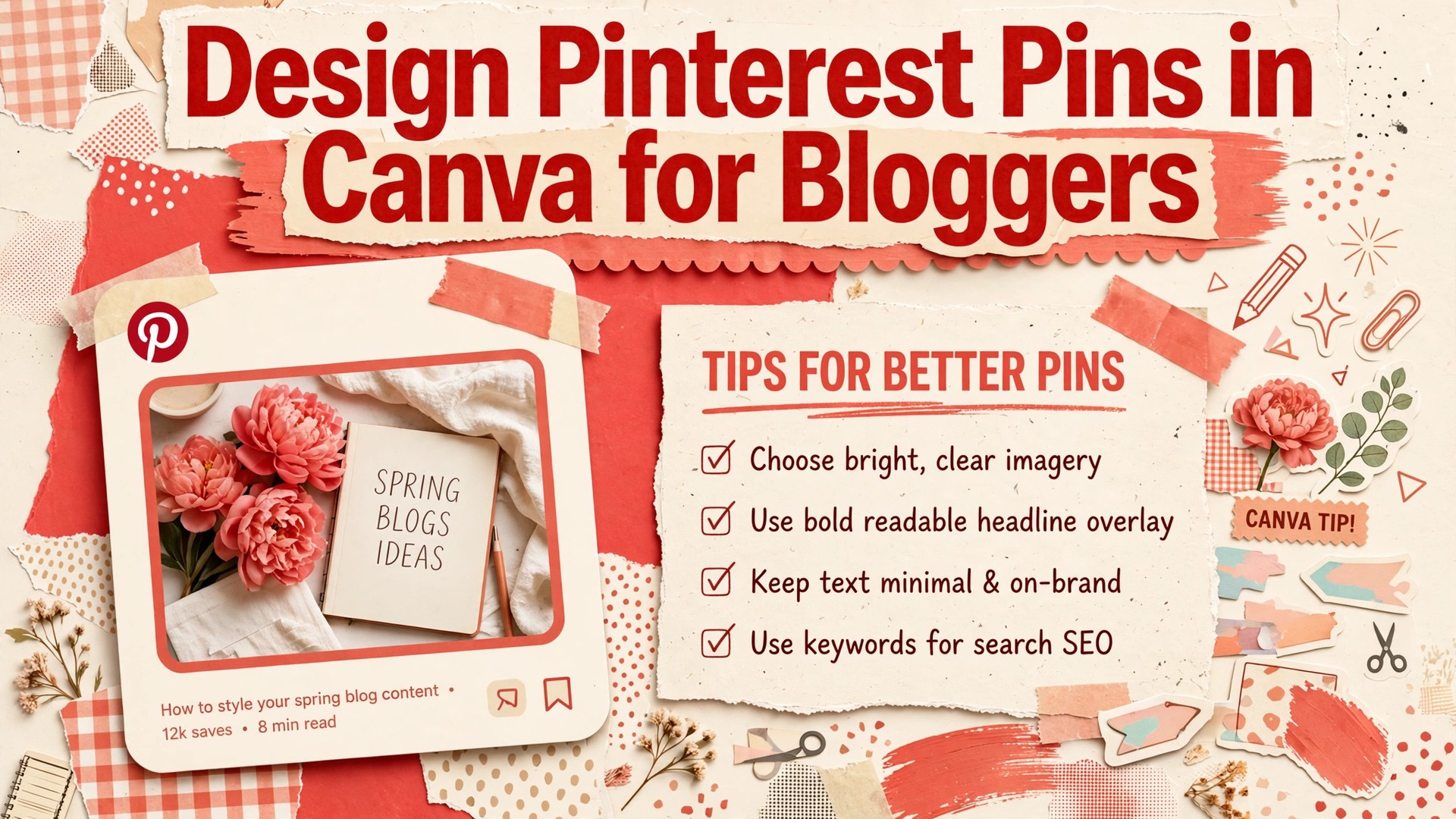
The verdict is simple. If you blog and you are not designing pins that are sized correctly, readable on a phone, and matched to the post they link to, you are leaving search driven traffic on the table, and no amount of extra posting will fix a pin that people save but never click, which is the problem you solve when you use Canva for Pinterest pins bloggers. A pin that gets saved but never clicked is a mood board, not a traffic source, and the difference usually comes down to three things, which are a clear promise, text people can read on a small screen, and a design that matches the post behind the link.
Bloggers who use Canva for Pinterest pins bloggers can test and repeat will find this guide useful, because it covers size, layout, headline writing, batch creation, and the click through checklist that turns a pretty image into a working traffic asset.
Why Pins Fail Even When They Look Good
Many bloggers who use Canva for Pinterest pins bloggers judge a pin by how it looks on a large computer screen, in full size, with time to admire it. Pinterest users judge it in a feed, on a phone, in under a second, surrounded by dozens of competing images. That gap explains most failures. A pin with elegant thin type looks refined at full size and unreadable in the feed. A pin with a beautiful but vague photo looks artistic and gives no reason to click. A pin with a clever headline that does not match the post creates a click that bounces, which helps no one.
The feed test should happen before publishing, every time. Shrink the pin to thumbnail size on your phone and ask three questions. Can you read the headline without zooming. Can you tell what the post is about from the image and headline together. Would you click it if you did not already know the blog. If any answer is no, fix that element before worrying about colours or fonts. Design polish matters, but only after the pin passes the feed test, because polish on an unreadable pin is wasted effort.
Another common failure is designing for saves rather than clicks. Saves feel rewarding, and they do signal that an image is appealing, but a blogger needs visits, not just saves, because visits bring readers, subscribers, and income. A pin designed for clicks makes a specific promise that only the post can fulfil, such as a full template, a step by step method, or a comparison with real numbers. A pin designed for saves often makes a vague inspirational promise that feels complete on its own, so the reader saves it and moves on. Check your pin copy for completeness. If the pin already gives away the whole answer, there is no reason to click.
Size, Ratio, and the Rules That Actually Matter
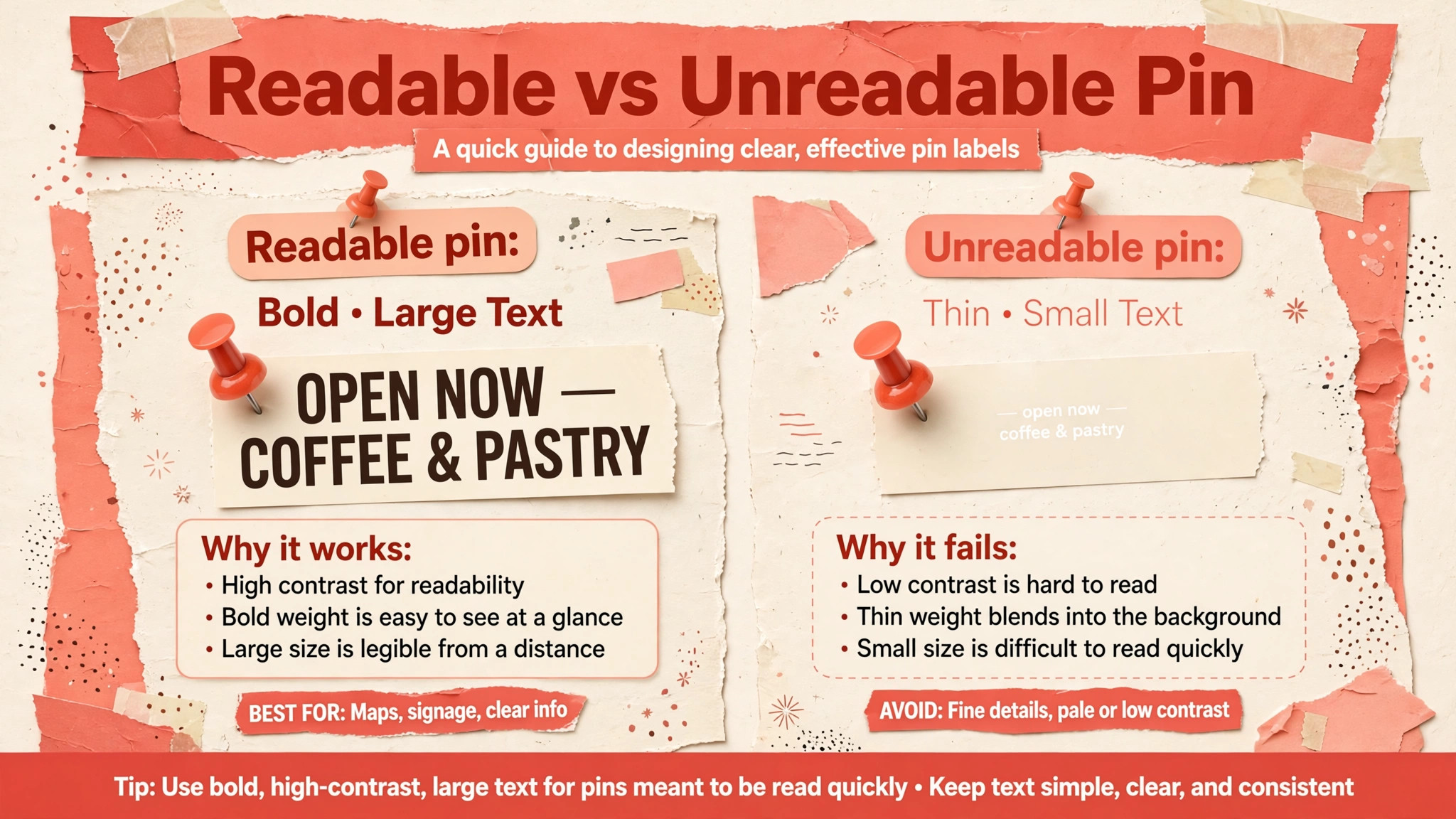
Pinterest pins work best at a vertical ratio of two to three, which in pixels is commonly 1000 by 1500. That size displays fully in the feed without cropping, keeps text readable, and matches the shape users expect when scrolling. Square pins at 1000 by 1000 can work for some content, but they take up less feed space and are easier to scroll past. Very long pins, such as 1000 by 2100 or infographic lengths, risk being cut off in the feed, so important information should never sit only at the bottom of a long pin.
In Canva, when you use Canva for Pinterest pins bloggers create, start from a Pinterest pin design or a custom size of 1000 by 1500 pixels, and check the dimensions before customising anything. Templates from third parties are sometimes set to other ratios, and a template that looks right but is sized wrong will either crop badly or leave dead space. Checking dimensions takes seconds and prevents the most common beginner error. Export as a high quality PNG for crisp text, or as a JPG if file size becomes a problem, and keep the original Canva file editable, so you can create variations later without starting over.
Safe margins matter as much as size. Keep headlines, key details, and your blog name away from the edges, so they are not clipped by platform interface elements or by cropping on different devices. A margin of roughly one tenth of the width on each side is a practical rule. Test the pin on a phone after export, not only in Canva, because colours and contrast can shift slightly and small text that looked fine on a monitor may blur on a smaller screen. That phone test is the final size check, and it should never be skipped for a pin you expect to drive traffic.
How to Use Canva for Pinterest Pins Bloggers Can Reuse Every Week
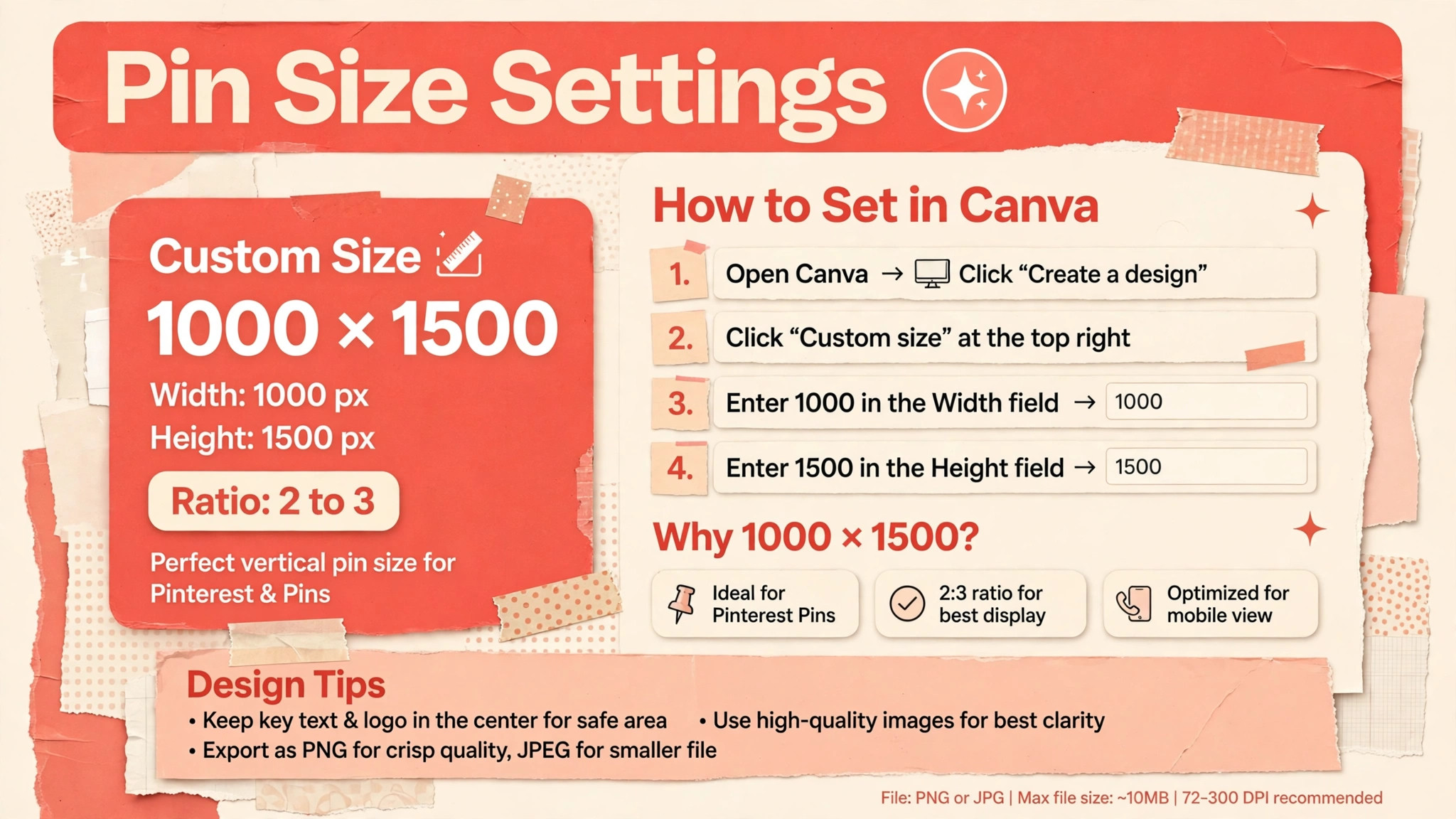
A reusable layout template, for bloggers who use Canva for Pinterest pins bloggers regularly, saves time and builds recognition, because readers start to recognise your pins in the feed before they read the headline. A good template has fixed zones, which are a headline zone, an image zone, a support detail zone, and a brand zone, with the same fonts and colours each time, while the photo, headline, and support detail change per post. Fixed zones do not mean identical pins. They mean a consistent structure that readers learn to trust, with enough variation in image and wording to avoid a repetitive feed.
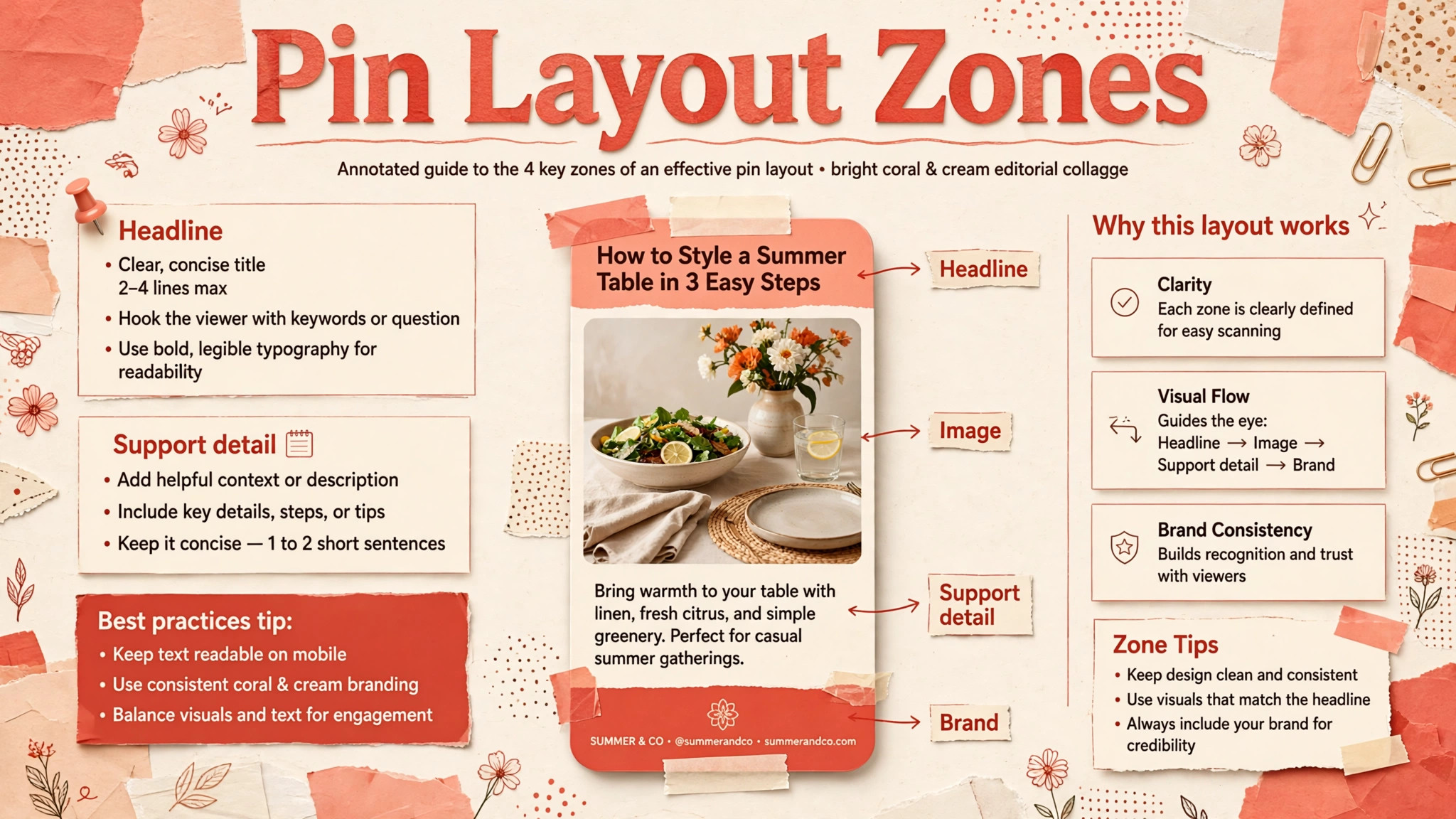
Start with the headline zone at the top or upper third, where eyes land first in a vertical feed. Use one strong headline in a bold, readable font, limited to about six to ten words, with high contrast against its background. If the background is a photo, add a solid or semi solid panel behind the text, or darken the photo in that zone, so contrast stays strong. Avoid placing headline text over busy parts of a photo, such as faces, detailed patterns, or bright highlights, because readability drops sharply even when the font is large.
The image zone should show the result, the process, or the subject of the post, not a generic stock image that could belong to any article. If the post is a recipe, show the finished dish. If the post is a tutorial, show the finished project or a clear before and after. If the post is a guide, show an image that signals the topic immediately, such as a workspace for a productivity post. The support detail zone, below the headline or image, can hold a short line such as a number of steps, a time saving, or a specific outcome, but it should not repeat the headline.
The brand zone, small and consistent, holds your blog name or logo in the same place each time, so recognition builds without distracting from the promise.
| Zone | Job | Common mistake |
|---|---|---|
| Headline | Make a specific promise fast | Too many words or thin type |
| Image | Show the post subject clearly | Generic photo unrelated to post |
| Support detail | Add one proof point | Repeating the headline |
| Brand | Build recognition quietly | Logo too large or distracting |
Headlines That Earn Clicks Without Clickbait
A click worthy headline makes a specific promise and keeps it. It names the audience, the outcome, or the problem, and it hints at the method or proof inside the post, without giving away everything. Formulas help, but only when filled with real details from the post. A formula such as a number plus a benefit plus a timeframe works when the number is real, the benefit is specific, and the timeframe is honest. The same formula fails when the number is invented, the benefit is vague, or the timeframe is unrealistic, because readers who click and feel misled will not return.
Write headlines from the post, not before it, especially when you use Canva for Pinterest pins bloggers will publish at scale. Read the post, find its strongest specific claim, and turn that claim into the headline. If the post teaches a method in seven steps, say so. If the post compares five tools with prices, say so. If the post solves a problem in under thirty minutes, say so, but only if the post actually delivers that result. Headline writing after drafting the post also prevents the common mismatch where a pin promises a template, a checklist, or a free download that the post does not contain.
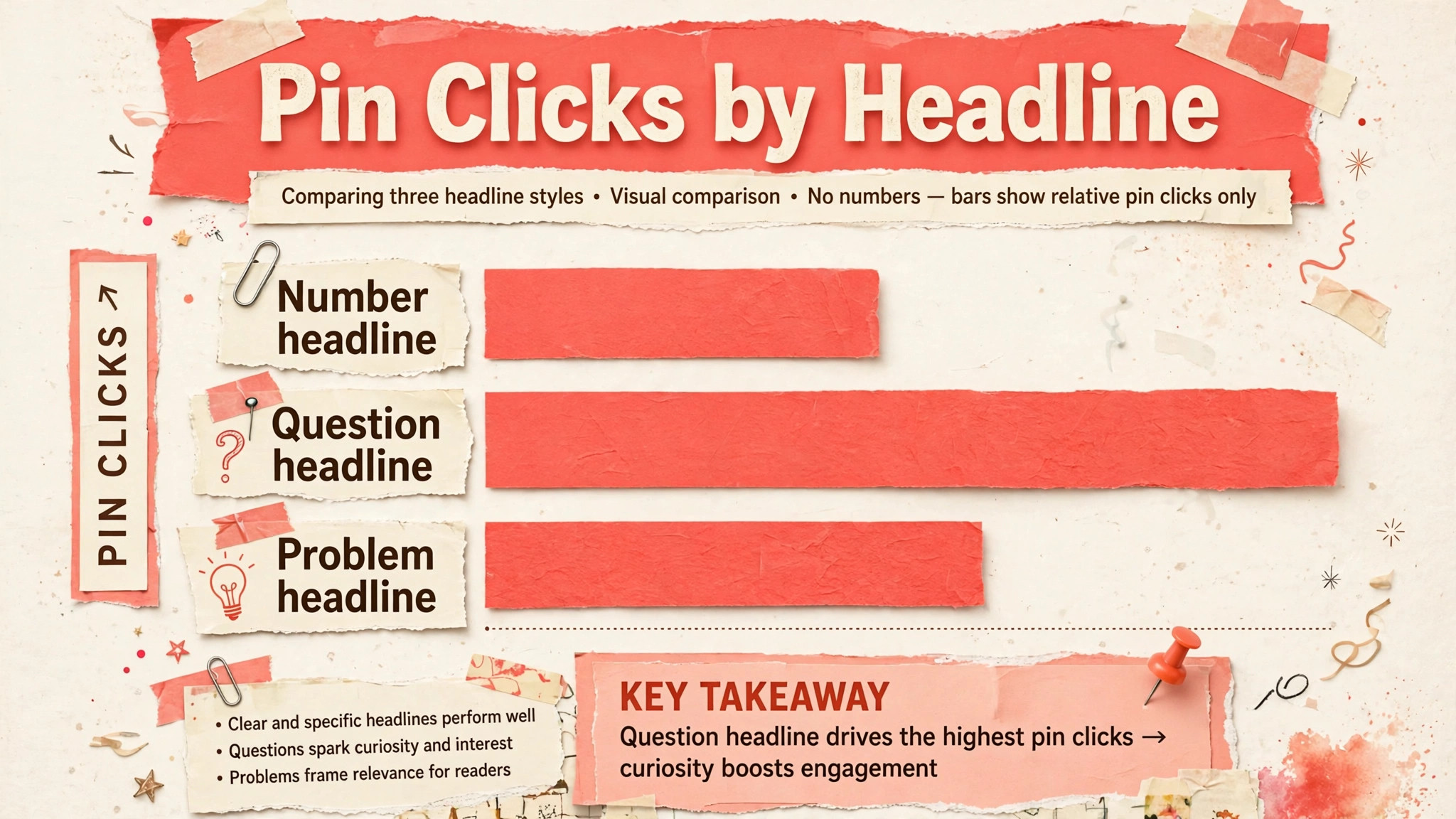
Test headlines in pairs. Create two pins for the same post with different headlines, publish them at different times, and compare clicks over a few weeks, not a few days. Early results are noisy, because timing and audience activity vary. Over weeks, a pattern emerges, showing whether specific numbers, questions, or problem focused headlines work better for your audience. Keep a note of winning headline styles for each topic area, because what works for recipes may not work for tutorials. Testing is slow, but it replaces guessing with evidence, and evidence compounds across dozens of posts.
Batch Creation in Canva Without Looking Templated
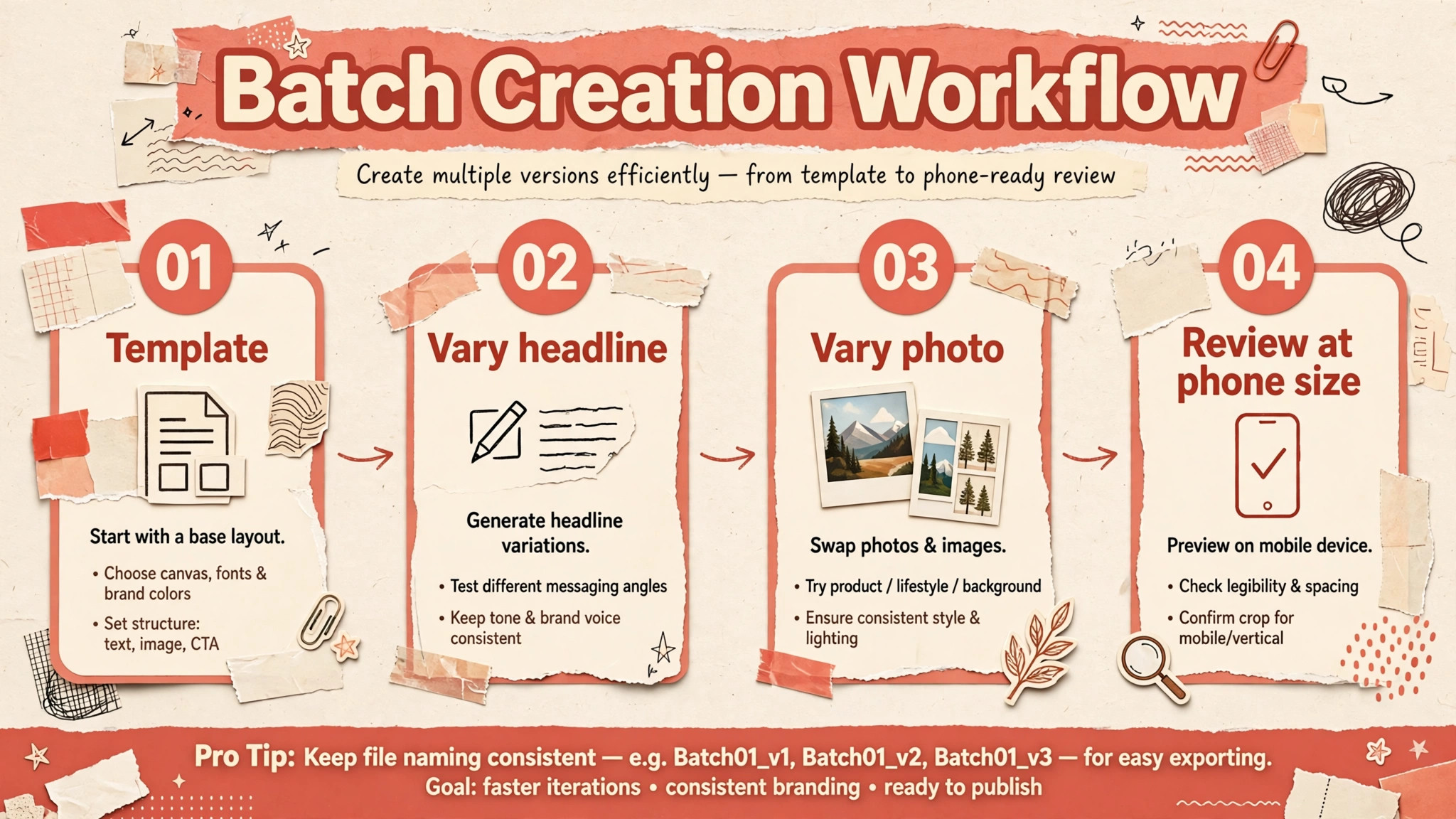
Batch creation is how bloggers who use Canva for Pinterest pins bloggers produce enough pins without spending an hour per post, but it must be done carefully to avoid a feed full of identical images. Start by choosing three layout variations from your template, such as a text heavy version, an image heavy version, and a minimal version, all using the same brand colours and fonts but different arrangements. For each post, create three to five pins using those variations, with different headlines, different photos, and different support details. That variety gives Pinterest more chances to match different searches, and it gives you data on which variation your audience prefers.
Use Canva folders and naming rules to keep batches organised. Create a folder per post or per topic, duplicate the base template inside it, and rename each file with the post title and a variation number. That naming habit saves time later, when you need to find the pin for a specific post to update it or create a seasonal version. It also prevents the common chaos of dozens of untitled designs, where finding one pin takes longer than designing it did.
Bulk editing features can help, but they should not replace judgment. If Canva offers a way to apply a change across designs, use it for brand elements such as colours or logos, not for headlines or photos, which need individual thought. After a batch is created, review all pins together at thumbnail size. If they look like the same pin repeated, change at least one element per pin, such as the photo crop, the headline angle, or the support detail. A batch that looks varied at thumbnail size will perform as varied pins in the feed, while a batch that looks identical will compete with itself.
The Click Through Checklist Before You Publish
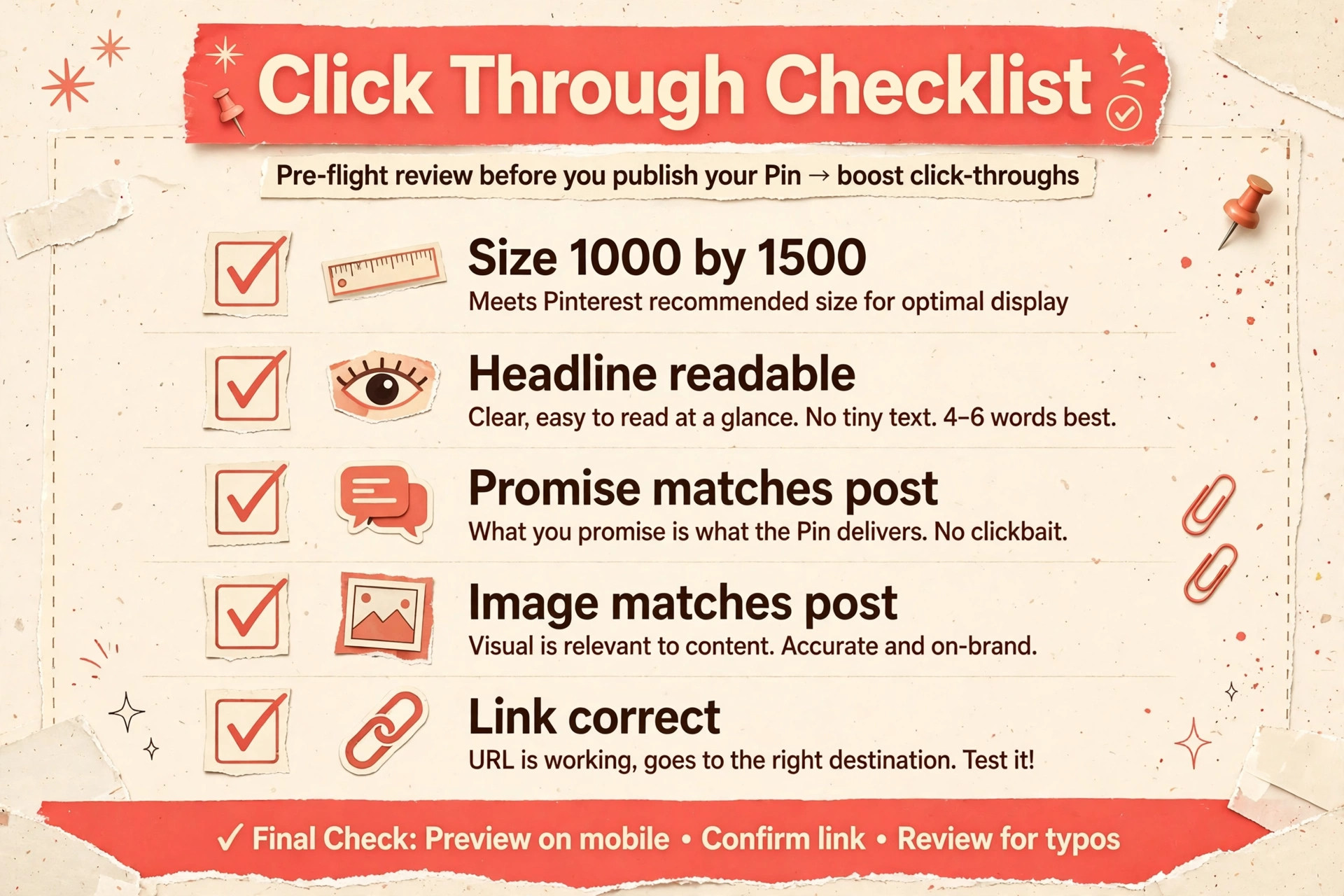
Every pin should pass a checklist before it is scheduled, because small errors compound across many pins. The checklist below is short enough to use every time, and strict enough to catch the errors that cost clicks. Work through it in order, and do not publish a pin that fails the first three items, because those are the items that decide whether a pin is read at all.
First, check size and ratio, confirming 1000 by 1500 pixels or another two to three ratio, with no important element near the edge. Second, check headline readability at phone thumbnail size, confirming high contrast, bold type, and no more than about ten words. Third, check the promise, confirming the post actually delivers what the headline promises, including any template, number, or timeframe mentioned. Fourth, check the image match, confirming the photo shows the post subject and is high quality, not blurry or pixelated. Fifth, check the link, confirming it goes to the correct post, not the homepage or a related but different article.
Sixth, check the pin title and description on Pinterest itself, confirming they include relevant keywords naturally and describe the post accurately, because the pin image alone does not carry all search information.
| Checklist item | Pass test | Fix if failed |
|---|---|---|
| Size and ratio | 1000 by 1500, margins safe | Resize or rebuild from correct template |
| Headline readability | Readable at phone size | Larger bold type, stronger contrast |
| Promise match | Post delivers headline claim | Rewrite headline to match post |
| Image match | Photo shows post subject | Replace with relevant high quality photo |
| Link accuracy | Link opens correct post | Correct link before scheduling |
| Title and description | Keywords natural, post described | Rewrite title and description |
If a pin fails the promise test, rewrite the headline rather than stretching the post to fit a misleading claim. A pin that overpromises may earn a short term click, but it creates a bounce, a disappointed reader, and a lower chance of future clicks from that reader. Long term traffic comes from pins that consistently deliver what they promise, because readers learn that your pins are worth opening.
Pin Titles, Descriptions, and Boards
The pin image gets attention, but the pin title, description, and board placement help Pinterest understand what the post is about and show it to the right people. Write pin titles that include the main keyword naturally, in a phrase a reader might actually search for, rather than stuffing keywords into an unreadable string. Write descriptions that summarise the post in two or three sentences, mention the key benefit, and include relevant keywords in context. Avoid copying the blog meta description word for word if it reads like a search snippet rather than a helpful summary, because Pinterest descriptions work best when they sound written for a person browsing a feed.
Board placement matters too. Pin to the most relevant board first, with a clear board name that matches the topic, rather than a vague board such as ideas or stuff. Relevant boards help Pinterest categorise the pin and help readers who visit your profile find related posts. Over time, boards become a second navigation system for your blog, so their names should be as clear as post titles. A board named weeknight dinners tells a visitor far more than a board named food, and it attracts the right audience for the pins inside it.
Scheduling should be steady rather than burst driven. Publishing many pins in one day and then disappearing for weeks creates uneven exposure and makes it hard to learn what works. A steady rhythm, such as a few pins per week spread across posts, gives each pin time to be seen and gives you time to review results. Use a scheduler if it helps you stay consistent, but do not automate so heavily that you stop checking links, titles, and descriptions. Automation should handle timing, not quality control.
Mistakes That Quietly Kill Click Through Rate
The first mistake is too much text. A pin crammed with paragraphs, bullet points, and multiple calls to action becomes unreadable at feed size, and readers scroll past rather than trying to decode it. Keep pin text to a headline and at most one support line. Put the detail in the post, where it belongs, and let the pin do its job, which is to earn the click that leads to the detail.
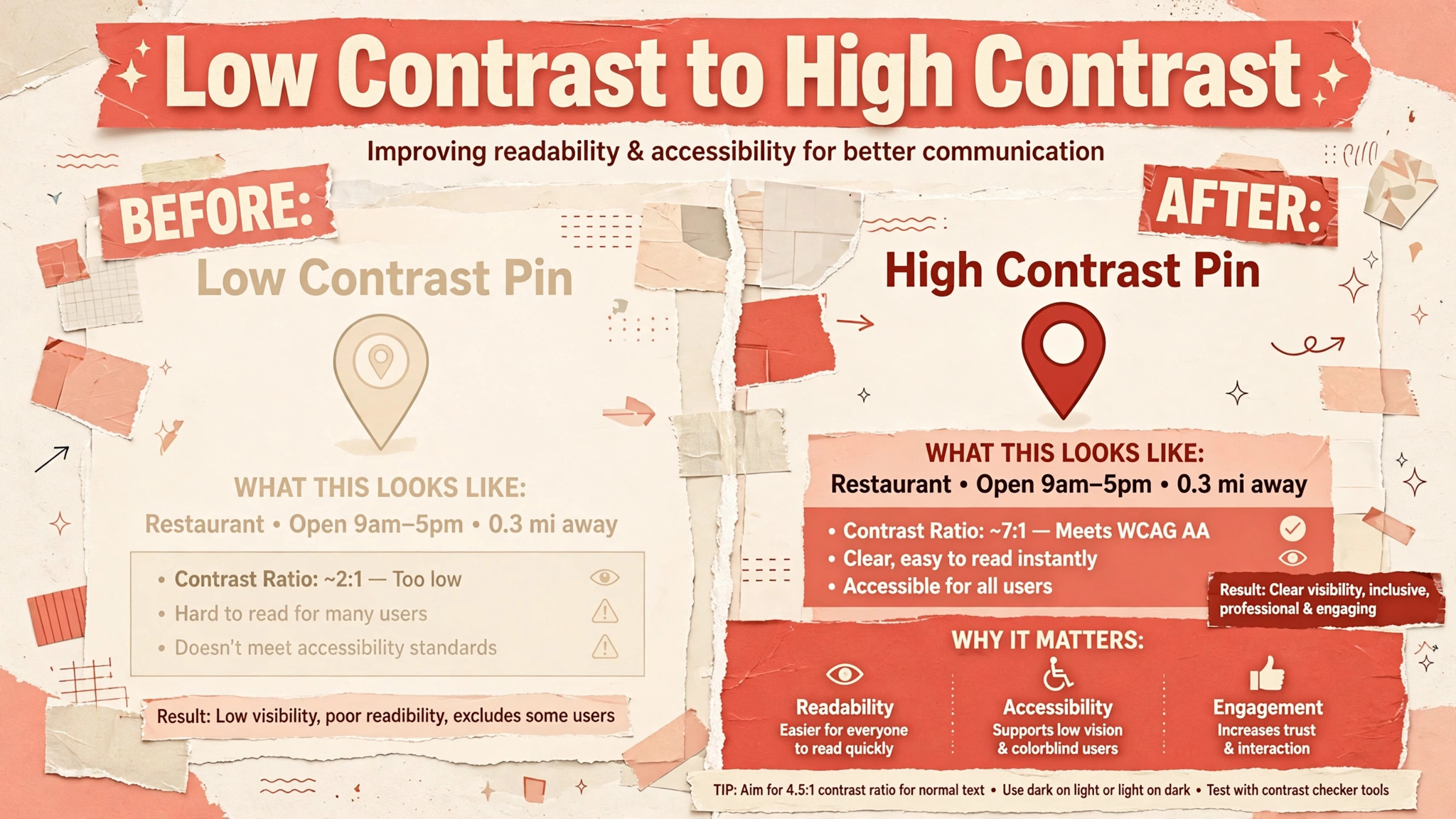
The second mistake is low contrast. Light text on a light photo, thin type on a busy background, and pale colours that look elegant on a monitor all fail in a bright feed on a phone. Test contrast by converting the pin to greyscale mentally, or by squinting at the thumbnail. If the headline disappears, increase contrast, darken the background zone, or change the text colour. Contrast is not a style preference. It is a readability requirement, and it affects every pin you publish.
The third mistake is linking to the wrong page. Pins that link to a homepage, a category page, or a post that has moved frustrate readers and waste the click you worked to earn. Check every link after scheduling, by opening it as a reader would, and fix broken or redirected links promptly. A pin with a correct link and a modest design will outperform a beautiful pin with a broken link, because only the first one can actually deliver traffic.
The fourth mistake is never updating old pins. Posts get updated, photos improve, and headlines that worked two years ago may no longer match the post. Review top performing posts annually and refresh their pins with new headlines, new photos, or a cleaner layout. Refreshing is often faster than creating a new post, and it can revive traffic to an article that already ranks well but whose pins have grown stale.
Refreshing Old Pins and Seasonal Versions
Old pins do not stay effective forever, even for posts that still rank well. Photos age, headline styles change, and a pin that once stood out can start to blend into a feed full of newer designs. A yearly refresh for your top posts is one of the highest return tasks in Pinterest marketing, because it improves traffic to content that already exists, without the work of writing a new article. Start with the posts that already bring the most search traffic, because a small improvement in click rate there produces more visits than a large improvement on a post nobody reads.
To refresh a pin, keep what worked and change what did not. If clicks were strong but saves were low, the headline may be fine and the image may need replacing. If saves were strong but clicks were low, the pin may be too complete on its own, and the headline should promise something that only the post delivers. Change one element at a time when you can, so you learn what caused the improvement. Changing headline, image, and layout all at once makes the result hard to interpret, even if traffic rises.
Seasonal versions deserve the same care. A post about winter recipes, holiday planning, or back to school preparation can earn a seasonal pin that uses seasonal colours, a seasonal photo, and a headline tied to the season, while the evergreen pin continues to run the rest of the year. Schedule seasonal pins a few weeks before the season peaks, so they have time to circulate, and archive or pause them after the season ends rather than leaving outdated seasonal claims in the feed. That timing habit keeps your profile feeling current without requiring new posts for every season.
When you refresh, also check the post itself. A pin that links to an outdated post, with old prices, broken tools, or missing steps, will disappoint readers even if the new design is excellent. Update the post first, then refresh the pin to match the updated content. That order matters, because a refreshed pin that leads to stale content damages trust faster than an old pin that leads to a still useful post. Together, post updates and pin refreshes keep your best content working for years, rather than fading after its first season.
Learning From Your Own Pin Data
Pinterest analytics, even in basic form, can teach you more about your audience than generic design advice, if you review it with specific questions. Do not start by asking which pin got the most impressions, because impressions reflect distribution as much as quality. Start by asking which pins earned clicks relative to impressions, which topics earned saves, and which headlines were associated with the strongest click rates. Those questions point to design and wording choices you can repeat, rather than to luck or timing.
Compare pins for the same post before comparing pins across topics, because topic popularity confuses the comparison. If three pins for one post show very different click rates, the difference is likely headline, image, or layout, and you can learn from it. If pins for different topics show different rates, the difference may simply be that one topic is more popular, and copying its design to another topic may not transfer. Within post comparisons are the cleanest experiments most bloggers can run without special tools.
Keep a simple record of experiments. Note the post, the pin variation, the headline, the image type, and the click rate after a month. That record, kept in a spreadsheet or a note, becomes a personal design guide over time. After twenty or thirty experiments, patterns will appear that generic advice cannot predict for your niche. Perhaps question headlines outperform number headlines for your tutorials, or perhaps image heavy pins outperform text heavy pins for your recipes. Those patterns are worth more than any template, because they are based on your readers, not on averages from other blogs.
More Reading on Stratilyze
Readers building a visual traffic system often continue with the guides on writing captions for a small business, planning a content calendar in a spreadsheet, and designing infographics for marketing, because those pieces cover wording, planning, and visuals as one workflow rather than separate tasks.
Frequently Asked Questions
What size should a Pinterest pin be in Canva
Use 1000 by 1500 pixels, a two to three ratio, which displays fully in the feed without cropping. Start from a Pinterest pin design in Canva or a custom size with those dimensions, and check the size before customising, because third party templates are sometimes set to other ratios. Keep important text away from the edges, and test the exported pin on a phone at thumbnail size before publishing.
How many pins should I create per blog post
Three to five pins per post is a practical range for most bloggers. That gives Pinterest several chances to match different searches and gives you data on which headline and layout work best, without creating so many variations that review becomes impossible. For a high value evergreen post, you can create more over time, adding seasonal or updated versions rather than publishing all variations at once.
Should pin text match the blog post title exactly
It does not need to match exactly, and often it should not, because a pin headline and a search title serve different jobs. A pin headline should make a specific, clickable promise in a few words, while a post title can be longer and more descriptive. The pin headline must still be honest about the post content, and it should use the main keyword naturally, but it can rephrase the title to work better in a visual feed.
Can I use Canva templates without looking like everyone else
Yes, if you customise them beyond colours and text. Change the photo, rewrite the headline from the post, adjust the layout zones, and use your own brand fonts and colours consistently. A template is a starting structure, not a finished design. Bloggers who only swap text into a popular template end up with pins that look identical to thousands of others, while bloggers who change image, headline angle, and arrangement keep the speed benefit without the sameness.
How long does it take to see traffic from Pinterest pins
Results vary by niche, posting consistency, and existing audience, but most bloggers should judge pins over weeks and months, not days. Early pins build a profile and a body of work, and traffic often grows as more pins are published and older pins continue to circulate. Review clicks monthly, refresh underperforming pins for top posts, and keep publishing steadily rather than expecting a single pin to transform traffic overnight.
Do I need a paid Canva plan to design good pins
No. The free plan covers the core needs for most bloggers, including custom sizes, templates, fonts, colours, and PNG export. A paid plan adds conveniences such as background removal, brand kit storage, and resizing across formats, which can save time for high volume creators. Start with the free plan, learn the layout and headline skills in this guide, and upgrade only when a specific paid feature saves you measurable time each week.
Design for the Click, Not Just the Save
A good pin is a promise made well. It is sized correctly, readable at a glance, honest about the post behind it, and matched to a photo that shows the subject. Those qualities are not glamorous, but they are what turn Pinterest from a place where images are admired into a source of readers who actually visit, subscribe, and return. Design with the feed test in mind, batch with variation, check every pin before publishing, and let monthly results teach you which headlines and layouts your audience trusts.
Start with your next post, and use Canva for Pinterest pins bloggers can repeat, as the system for it. Build three pins from the template in this guide, test them at phone size, run the click through checklist, and schedule them steadily. Then do the same for the post after that. Over a season, that routine builds a library of working pins, each one a small doorway into your blog, and that library is what produces traffic long after the day you designed it.