
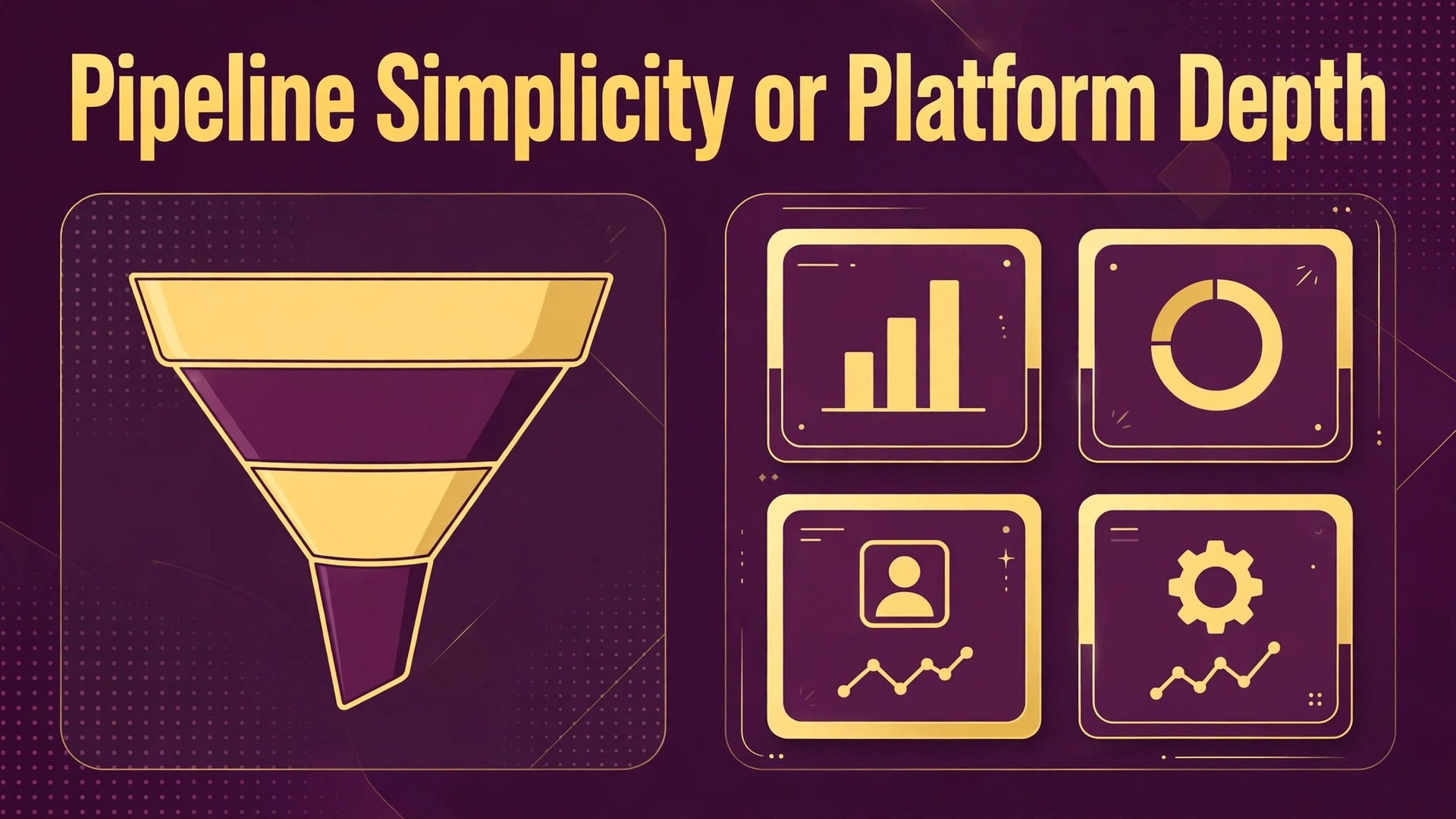
Pipedrive sells a pipeline you can use in an afternoon. Zoho CRM sells a platform you can run a business on after a month of setup. Neither description is an insult, and the gap between them is the whole migration decision. A team that lives in its pipeline, closes deals from a board, and wants nothing else will feel Zoho as friction. A team that needs marketing, quoting, inventory, and forecasting tied to the same customer record will feel Pipedrive as a ceiling. That question frames every switch Pipedrive to Zoho CRM small business decision, because the answer decides what to migrate first.
The comparison hook is therefore a question, not a verdict. Does the business need a better pipeline, or does it need a bigger system with a pipeline inside it.
Small businesses usually arrive at this move for one of three reasons. The first is cost pressure, because Pipedrive seats and add ons add up as the team grows, while Zoho offers a free edition for up to three users according to comparison guides. The second is breadth, because the business now needs campaigns, quotes, or stock tracking that Pipedrive handles through add ons rather than natively. The third is consolidation, because the business already uses Zoho Books, Zoho Mail, or Zoho Desk, and running the CRM inside the same family removes duplicate data entry. Each reason points to a different migration priority, and the guide below treats them separately where they diverge.
This guide covers the move for a small business with roughly three to twenty sales and support users. It maps pipelines, fields, and automations, gives a data cleanup checklist, and walks through a numbered sequence. Zoho import limits in this guide come from Zoho help pages, so they are stated as published, with edition differences noted. Trial lengths and free edition details come from comparison guides, so they are flagged as reported, and the guide says plainly to confirm them on the vendor page before committing.
Pipedrive and Zoho Side by Side
The two tools optimise for different users. Pipedrive optimises for the salesperson, with a visual pipeline, drag and drop deal movement, and activity reminders that need almost no training. Zoho optimises for the business, with modules for leads, contacts, accounts, deals, campaigns, quotes, and orders, plus workflow rules, blueprint processes, and forecasting that a sales manager configures rather than a salesperson discovers. A salesperson opening Pipedrive sees deals. A salesperson opening Zoho sees a system, and that first impression predicts adoption better than any feature list.
Pipeline handling shows the difference most clearly, and it is the first test in any switch Pipedrive to Zoho CRM small business assessment. Pipedrive pipelines are visual, flexible, and easy to change, which suits a team that adjusts stages often. Zoho pipelines are structured, with stage probabilities, forecasting categories, and blueprint rules that can require fields or approvals before a deal advances. A team that changes stages weekly will fight Zoho blueprint. A team that needs forecast accuracy will fight Pipedrive freedom. Ask which pain the business feels more often. Forecast arguments point to Zoho. Stage change arguments point to staying put.
Reporting follows the same split. Pipedrive reports answer pipeline questions well, such as conversion by stage and activity per rep. Zoho reports answer business questions, such as revenue by product, campaign return, and forecast against target across teams. A business that reports to a board or an investor will use Zoho reports weekly. A business that reports to itself will find Pipedrive reports sufficient, and the extra Zoho depth becomes shelfware that nobody opens after the first month.
Support and setup complete the picture. Comparison guides consistently report that Pipedrive includes live chat support on every plan, while Zoho default support is community based and faster help needs a paid upgrade. Zoho also needs significantly more setup time, which is a real cost for a small business without a CRM administrator. Budget that setup time honestly. A migration that assumes a weekend of setup will still be configuring in week four, and the sales team will have lost faith by then.
Pipeline, Field, and Automation Mapping
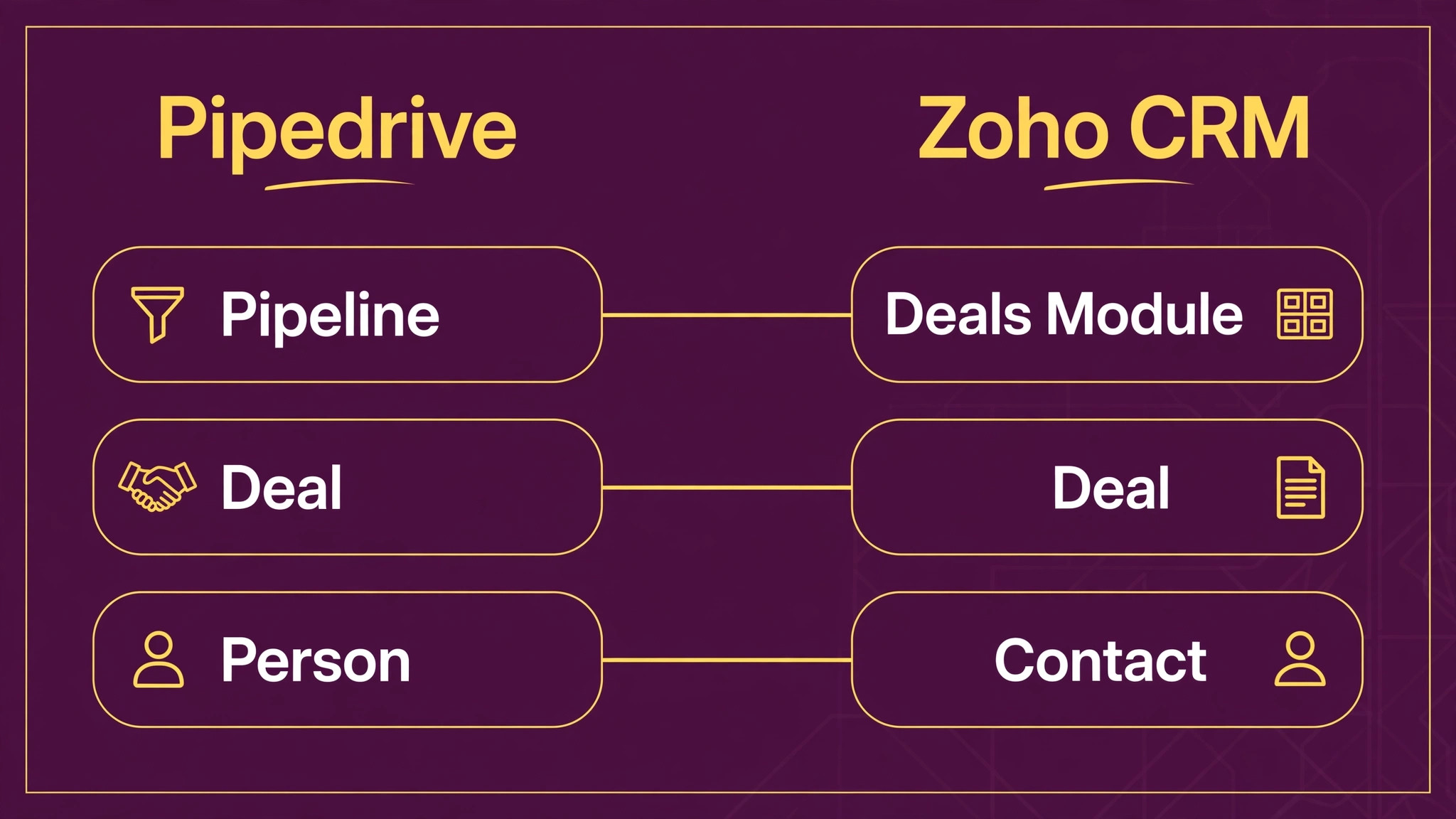
Map before exporting, and map at three levels, because a switch Pipedrive to Zoho CRM small business migration that maps only deals will lose the context that makes deals meaningful. Pipeline mapping decides stage names and probabilities. Field mapping decides which custom fields survive and which become clutter. Automation mapping decides which workflows protect revenue and which only sent noise. The table below covers the core objects, and the team should extend it with its own custom objects before touching an export.
| Pipedrive element | Zoho CRM equivalent | What to decide before import |
|---|---|---|
| Pipeline | Pipeline in Deals module | One Pipedrive pipeline becomes one Zoho pipeline, with stages rebuilt by hand |
| Pipeline stage | Deal stage with probability | Match stage names, then set probabilities and forecast categories |
| Deal | Deal record | Keep the deal name and closing date, since Zoho treats closing date as mandatory |
| Deal value and currency | Deal amount and currency | Confirm currencies match, since multi currency needs plan support |
| Person | Contact | Match by email, since email is the usual duplicate key |
| Organisation | Account | Match by name, and merge duplicate organisations before export |
| Activity, call or meeting | Activity, task, call, or meeting | Map activity types explicitly, since types do not translate automatically |
| Note | Note on the record | Notes travel with the record, but formatting may simplify |
| File attachment | Attachment on the record | Reattach key files, and link the rest to the archive |
| Custom field | Custom field of matching type | Create fields in Zoho first, with identical names and types |
| Dropdown option | Picklist value | Add every option to Zoho before import, or values may not map |
| Label or tag | Tag | Clean tags first, merging near duplicates |
| Filter or view | List view or custom view | Rebuild the views the team actually opens, not every saved filter |
| Automation rule | Workflow rule or blueprint | Rebuild by hand, since rules do not transfer between systems |
| Email integration | Email integration in Zoho | Reconnect mailboxes, and confirm sent mail history handling |
| User and role | User, role, and profile | Create users and roles first, since ownership mapping needs them |
Stage mapping deserves a working session, not a spreadsheet alone. Sit the sales lead down with both stage lists and agree the new stages before import day, because stage names drive forecasting, and a stage renamed after import breaks every report built on it. Keep the stage count low. A pipeline with twelve stages looks thorough and reports badly, because deals sit in vague middle stages for weeks. A pipeline with five or six stages, each with a clear exit test, reports honestly and trains new reps faster.
Custom fields deserve a cull. Pipedrive custom fields accumulate over years, including fields nobody fills and fields that duplicate standard data. Audit every custom field for fill rate before migrating it. A field filled on fewer than one in five records is clutter, not data, and migrating it spreads clutter into the new system. Keep the fields that drive a decision, a report, or an automation, and archive the rest in the export file. Zoho lets administrators mark fields mandatory, so use that power sparingly. A mandatory field that reps resent becomes a field filled with placeholder text, which is worse than no field at all.
Data Cleanup Checklist
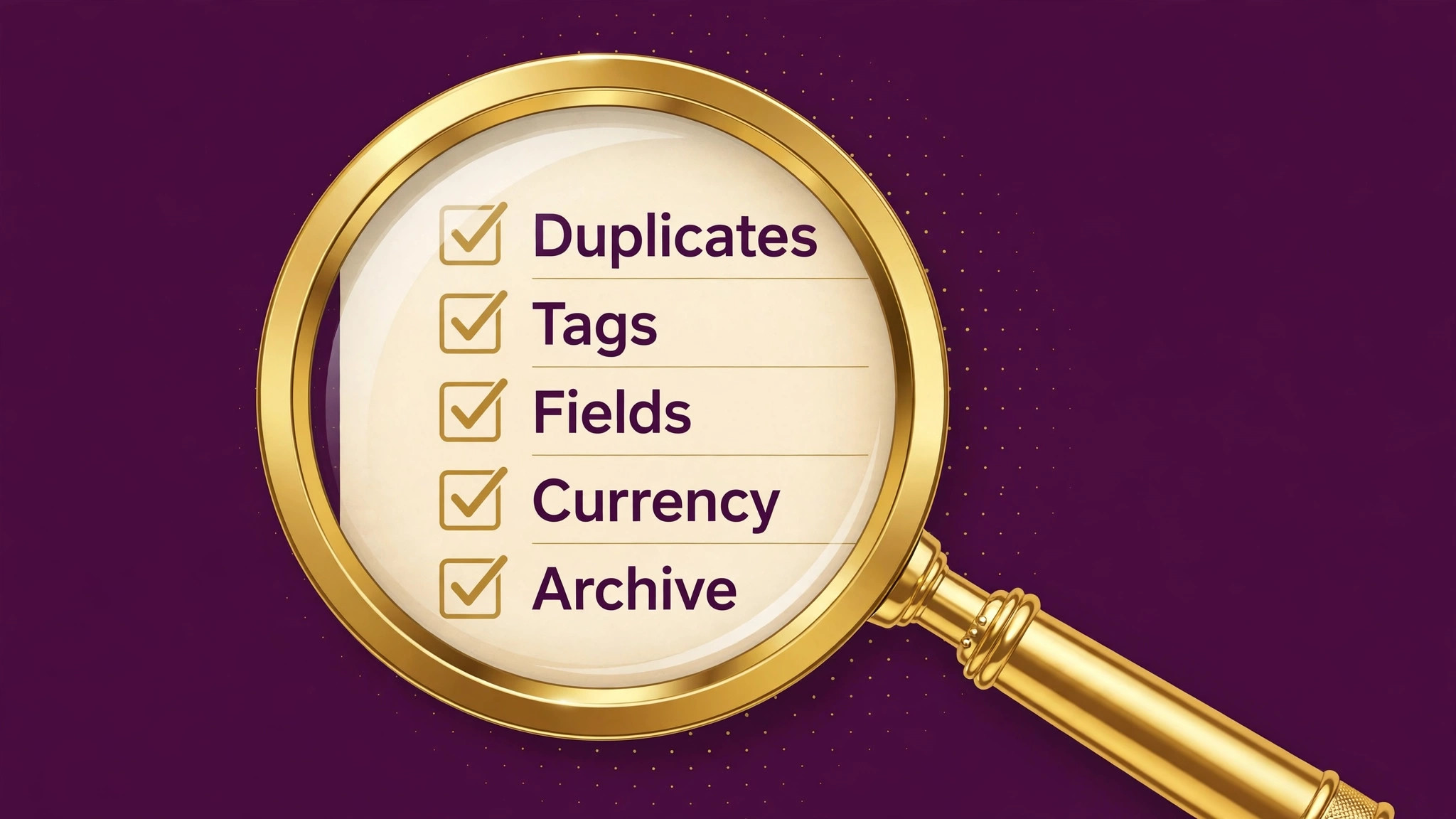
Work through this list in order, and do not start an export until the cleanup is done. A CRM migration imports whatever mess the old system holds, and Zoho will preserve that mess faithfully across thousands of records.
– List every pipeline, its stages, and its deal count, and agree the new Zoho stages with the sales lead. – Merge duplicate organisations and contacts, using email as the primary key and name as the second check. – Delete or archive lost and dead deals older than the retention window, and keep only live and recent history. – Standardise currencies, countries, and industry values, so picklists map cleanly. – Clean tags, merge near duplicates, and delete tags used on fewer than five records. – Audit every custom field for fill rate, and migrate only fields that drive a decision or a report. – Create all Zoho custom fields, picklist values, users, roles, and pipelines before importing any data. – Confirm mandatory fields for each module, including deal name and closing date for deals, and account name for accounts. – Remove blank rows between data rows, since Zoho help pages warn that many blank rows can be read as the end of the file. – Split files to fit Zoho edition limits, and record which file fed which module. – Back up all Pipedrive exports and store them outside both tools, so a bad import can be redone from source. – Test the full import on a sample of one hundred records, and check counts, owners, stages, and values before the full run. – Plan the parallel period, with Pipedrive read only after cutover and available as the reference archive for a month.
Duplicate handling needs a decision before import, not after, and it is a common failure point in a switch Pipedrive to Zoho CRM small business project. Zoho import lets the team choose a matching field, typically email for people modules, to decide whether an incoming row creates a new record or updates an existing one. Choose email for contacts, name for accounts, and a deal identifier for deals, and test the choice on the sample. A wrong matching field creates duplicates that take days to merge, while a right one keeps the import clean. Record the matching field per module in the migration log, because the next import must use the same choice or duplicates return.
The sample import is the cheapest insurance in the whole move. One hundred records reveal mapping errors, picklist gaps, mandatory field misses, and owner mismatches while they are still cheap to fix. A team that skips the sample discovers those errors across ten thousand records, when fixing them means either a full re-import or weeks of manual edits. Run the sample, check it with the sales lead, fix the map, and only then run the full import. That discipline is the difference between a migration and a mess.
The Switch Pipedrive to Zoho CRM Small Business Sequence
Run this sequence in order, and do not skip the pilot. A CRM holds revenue data, so a careless import is not a cosmetic problem. It is a forecasting problem that the business discovers at month end.
- Set up Zoho CRM before importing anything. Create the organisation, add users and roles, build the pipelines with agreed stages and probabilities, and create every custom field and picklist value the map requires. Zoho help pages state that dropdown values must already exist in the target field before import, or values may not map cleanly, so this setup step is not optional preparation. It is part of the import.
- Export from Pipedrive by object, not as one giant file. Export organisations, people, deals, and activities as separate files, and note the record count per file in the migration log. Clean each file in a spreadsheet, standardising values, removing blank rows between data rows, and confirming that mandatory fields are filled for every row. A row missing a deal name or a closing date will not import, and the import log will list it as skipped.
- Check edition limits before uploading. Zoho help pages state row limits per file by edition, with the free edition at 1,000 rows, Standard at 20,000, Professional at 50,000, and Enterprise at 100,000, plus a 500 column maximum per file. File size limits also vary by edition, so confirm the current limits on the vendor page for the edition the business actually buys. Split any file that exceeds its limit, and keep the split log so counts can be reconciled later.
- Import organisations first, then contacts, then deals, then activities, in that order. That order matters, because deals link to contacts and accounts, and activities link to deals. Importing deals before their accounts exist leaves deals unlinked or linked to the wrong records. Use the matching field chosen in the checklist for each module, and choose the insert and update behaviour deliberately rather than accepting a default that may duplicate records.
- Run the sample check on the full import, not just the pilot. Compare record counts per module with the Pipedrive counts, open twenty deals across stages, and verify owner, stage, value, closing date, and linked contact and account. Check the import history log for skipped rows, download the failed row report, fix the causes, and re-import only the failed rows. A skipped row is a lost deal until someone fixes it, so treat the failed row report as urgent work, not as admin.
- Rebuild automations one at a time, starting with the ones that protect revenue. Recreate deal stage notifications, task creation on stage change, and email alerts for stalled deals, testing each with a real deal before moving to the next. Then rebuild blueprint processes for the stages that need required fields or approvals, and keep blueprint strictness low at first. A blueprint that blocks every stage change will be resented within a week, while a blueprint that guides the two critical stages will be appreciated.
- Rebuild reports and forecasts, and reconcile them against Pipedrive before cutover. Build the pipeline report, the forecast report, and the activity report, then compare their totals with Pipedrive reports for the same period. A mismatch means a mapping error, a stage error, or a missing record, and it must be fixed before the team relies on Zoho numbers. Do not cut over with unreconciled reports, because the first forecast meeting will expose the gap in front of leadership.
- Reconnect integrations, including email, calendars, telephony, and any quoting or accounting tool. Test each integration with a real record, confirming that emails attach to the right contact and that calendar meetings create the right activities. Integrations that worked in Pipedrive do not automatically work in Zoho, and an untested integration fails silently, leaving the team to discover missing emails weeks later.
- Train the sales team on real deals, not demo data. Walk each rep through their own pipeline, their own stalled deals, and their own next actions in Zoho, and let them practise stage changes, activity logging, and note taking on live records. Demo data teaches clicks. Real deals teach the judgement of when to advance a stage, when to log a call, and when to ask for help, which is what actually drives forecast accuracy.
- Cut over after a parallel week in which Zoho is the system of record for new deals while Pipedrive stays available for history. On cutover day, make Pipedrive read only, send the team the Zoho links and the report list, and keep the exports for a month. Treat every mismatch report in the first two weeks as a data defect to be fixed the same day, until counts and forecasts reconcile cleanly.
What Breaks When Pipedrive Deals Move to Zoho
Email history breaks first in the sense that matters most to reps, and it surprises many teams during a switch Pipedrive to Zoho CRM small business move. Pipedrive email sync attaches messages to deals and people, and Zoho email integration attaches messages to its own records, but the historical thread does not move as a thread. Reps lose the ability to scroll a deal and see every email in order. The fix is partial. Reconnect the mailbox so new mail attaches correctly, import key emails as notes where a deal depends on them, and keep Pipedrive available for the historical thread during the first month.
Teams that promise reps a full email history in Zoho on day one set an expectation the migration cannot meet.
Activity history breaks second, in a subtler way. Calls, meetings, and tasks export as records, but their context, such as which pipeline stage a call related to, may not survive. Rebuild activity types explicitly, and train reps to log activities with a clear subject and outcome from day one in Zoho. A CRM with vague activity subjects is a CRM nobody trusts for handoffs, and the migration is the moment to set the logging standard that the old system never enforced.
Automations break third, and Zoho workflow rules are more powerful and more complex than Pipedrive automations. A Pipedrive rule that said “when a deal moves to negotiation, create a task” becomes a Zoho workflow rule with conditions, and a blueprint step if the stage needs a required field. The extra power tempts teams to build complex automation in week one. Resist that temptation. Rebuild the five automations that protect revenue, run them for a month, and only then add complexity. A workflow library built slowly stays understandable. A library built in a weekend becomes a mystery nobody dares to edit.
Forecasting breaks fourth, because Zoho forecast categories and stage probabilities differ from Pipedrive stage logic. A deal that counted as committed in Pipedrive may count as best case in Zoho, and the forecast total will shift even though no deal changed. Reconcile the forecast before cutover, agree the new category definitions with the sales lead, and explain the shift to leadership before the first Zoho forecast meeting. A forecast that moves without explanation looks like a sales problem, when it is really a mapping decision.
Workflows, Blueprint, and the Zoho Learning Curve
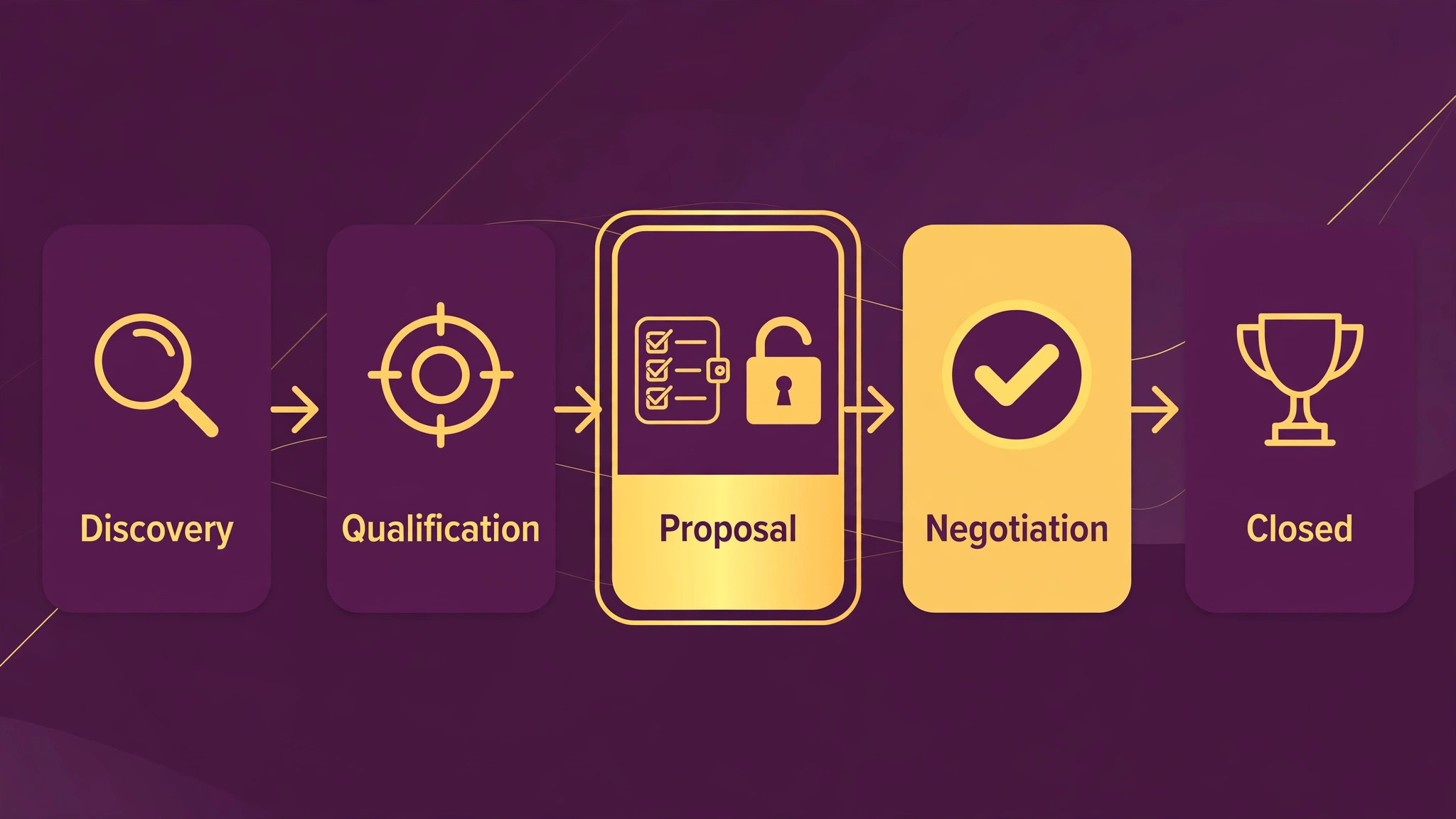
Zoho blueprint is the feature teams either love or resent, and the difference is restraint. Blueprint guides a record through stages, requiring fields, sending notifications, and enforcing approvals at chosen steps. Used on two or three critical stages, it improves data quality and forecast accuracy. Used on every stage, it turns selling into form filling, and reps start gaming the system by entering placeholder data just to advance a deal. Start with blueprint on the stages where bad data costs money, such as proposal and negotiation, and leave the early stages free. Expand only when reps ask for guidance, not when administrators want control.
Workflow rules need the same restraint. Zoho lets a rule trigger on creation, edit, or field change, with conditions across modules, and the temptation is to automate every notification the team ever wanted. Each rule adds a failure point, and a rule that fires wrongly at scale creates hundreds of bad tasks or emails before anyone notices. Keep the rule list short, name each rule clearly, and assign one owner per rule who tests it after every Zoho update. A rule nobody owns is a rule that will eventually misfire unnoticed.
Training should respect the learning curve honestly, and that honesty matters most in a switch Pipedrive to Zoho CRM small business rollout. Pipedrive reps learned their tool in hours. Zoho reps need days, and managers need longer, because configuration lives in Zoho rather than in a separate admin tool. Plan two training sessions, one for daily selling and one for reporting, plus a weekly office hour for the first month where reps can ask the questions they were embarrassed to ask in training. Appoint a Zoho champion inside the sales team, not in IT, because reps ask peers the questions they will not ask administrators.
Cost Reality for a Small Business
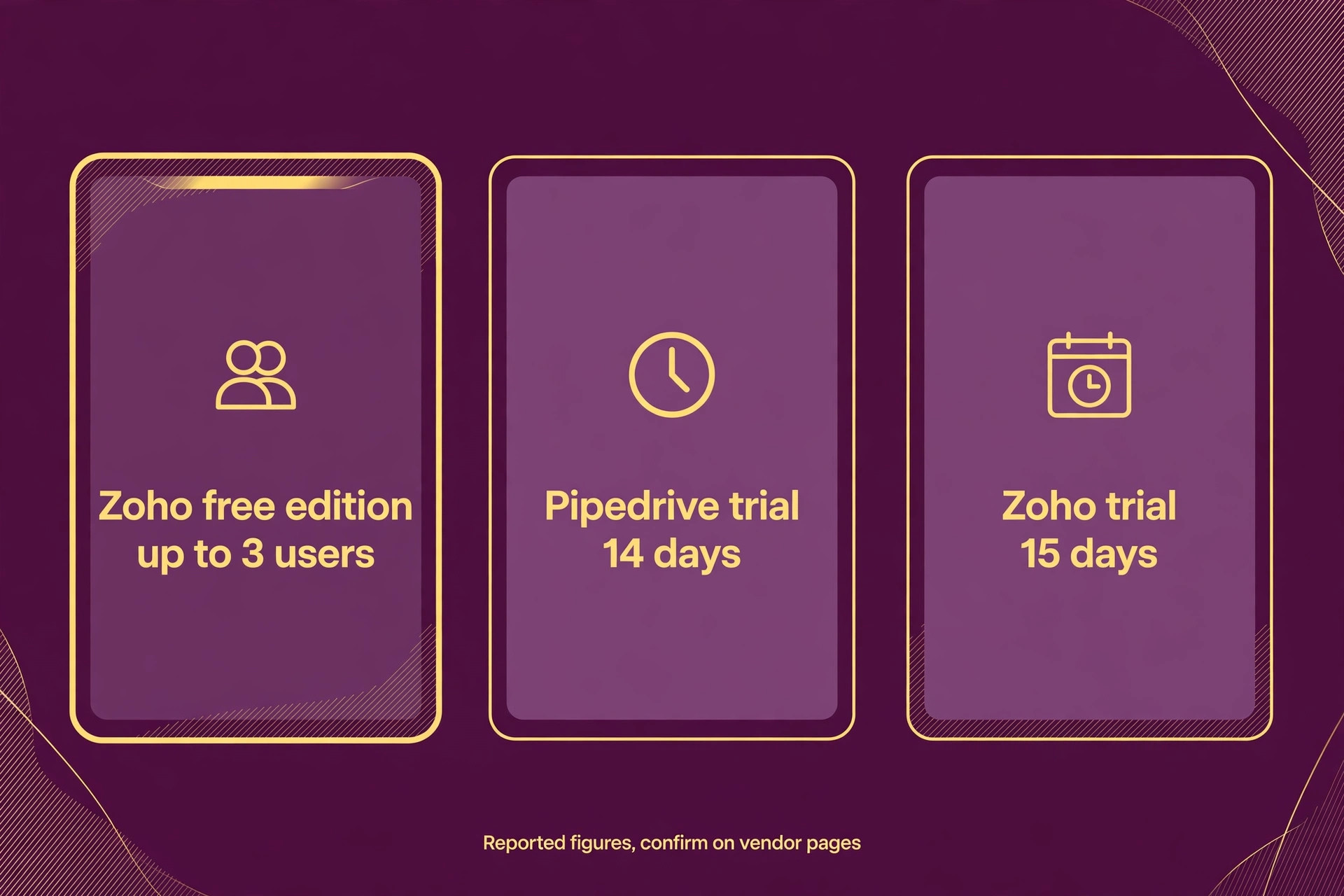
Cost is often the stated reason for this move, so a switch Pipedrive to Zoho CRM small business budget should check it honestly rather than assuming Zoho is cheaper. Comparison guides report a Zoho free edition for up to three users and a Pipedrive trial of fourteen days, while Zoho trial length is reported as fifteen days, but those details change, so confirm them on the vendor pages before budgeting. The real comparison is not the headline seat price. It is the seat price plus the add ons each business actually uses, plus the setup time, plus the support level the team needs.
Pipedrive add ons for calling, document signing, and advanced reporting can raise the effective seat cost well above the headline rate. Zoho bundles more natively, but its higher editions carry the features a growing business needs, such as advanced forecasting and blueprint depth, and the free edition limits that matter, including import row limits, will push a real team to a paid edition quickly. Model three totals before deciding. The current Pipedrive total including add ons, the Zoho total on the edition that actually fits, and the Zoho total plus setup help if the team has no CRM administrator. The cheapest honest total wins, not the cheapest headline.
Support cost belongs in the same model. A team that relies on live chat support will feel the Zoho community default as a downgrade, and the paid support upgrade is a real line in the budget. A team that rarely contacts support will not notice. Ask the team how often it contacted Pipedrive support in the last quarter, and what would have happened if the answer had taken a day instead of an hour. That answer prices the support gap better than any comparison table.
Verdict, Pipedrive or Zoho CRM for a Small Business
A switch Pipedrive to Zoho CRM small business move pays when the business needs breadth, forecasting depth, or consolidation inside the Zoho family, and when it can invest the setup time and training the platform demands. It does not pay when the team lives happily in a visual pipeline, when forecast needs are simple, or when the real problem is messy Pipedrive data that a cleanup would fix. Moving messy data into a bigger system produces a bigger mess, not a better CRM.
Budget a month from setup to confident cutover, not a weekend. Run the sample import, reconcile the forecast, rebuild only the automations that protect revenue, and judge the move after thirty days by three measures. Forecast accuracy, rep adoption, and time spent on manual data work. If all three improve, Zoho earned its place. If reps still work around the system, the configuration needs simplifying, and the fix is usually fewer mandatory fields and fewer blueprint steps, not more features.

More Reading on Stratilyze
For the seat costs behind this move, see cost of Pipedrive for small business monthly and cost of Zoho CRM for small business monthly. For a related tool comparison, read Asana alternatives.
Frequently Asked Questions
Can Pipedrive pipelines import directly into Zoho CRM
Zoho offers a data migration path for other CRMs, and comparison guides list Pipedrive among the supported sources, but pipelines, stages, and probabilities still need rebuilding by hand in Zoho. Import the records first, then set stages, probabilities, and forecast categories with the sales lead, and reconcile the forecast before cutover.
What are Zoho CRM import limits by edition
Zoho help pages state row limits per file by edition, with the free edition at 1,000 rows, Standard at 20,000, Professional at 50,000, and Enterprise at 100,000, plus a 500 column maximum per file. File size limits also vary by edition, so confirm the current limits on the vendor page for the edition the business actually buys, and split files that exceed them.
Do Pipedrive automations transfer to Zoho
No. Automations must be rebuilt as Zoho workflow rules or blueprint steps, because the trigger and action systems differ. Rebuild the automations that protect revenue first, test each with a real deal, and keep blueprint strictness low at first so reps do not fill stages with placeholder data just to advance a deal.
What happens to Pipedrive email and activity history
New mail attaches correctly once the mailbox is reconnected, but the historical email thread does not move as a thread, and activity context may simplify during import. Import key emails as notes where a deal depends on them, and keep Pipedrive available as the reference archive for the first month after cutover.
How long does a small business CRM migration take
Plan a month from setup to confident cutover, including cleanup, a sample import, a full import, automation rebuilding, forecast reconciliation, and a parallel week. A weekend migration skips the checks that catch mapping errors, and those errors surface at month end when the forecast does not reconcile.
Should a team that loves Pipedrive simplicity still switch
Only if breadth, forecasting depth, or Zoho family consolidation outweighs the simplicity loss, and only if the team can invest setup and training time. A team that lives in a visual pipeline and reports simply will feel Zoho as friction, and should fix its Pipedrive data and stages before considering a platform move.