
Trello gives a team one board and does it beautifully. ClickUp gives a team boards, docs, goals, time tracking and reporting in one workspace, and asks for more setup in return. That trade is the whole decision in one sentence. A team that needs one board per project and nothing else should stay on Trello, because ClickUp will feel heavy for a job Trello already does well. When you switch Trello to ClickUp small team success comes when the team has outgrown single boards, meaning several projects share deadlines and owners, reporting now takes a spreadsheet every week, and work keeps escaping the board into docs and chat.
This guide is for a team of five to fifteen people making that move deliberately. It covers the native Trello import, the choice that shapes the whole workspace, meaning whether Trello lists become ClickUp statuses or ClickUp lists, and the three rebuild jobs the import cannot do, meaning custom fields, automations and team habits. Prices use published plan ranges at writing time, so confirm on the vendor page before you buy. The goal is a ClickUp workspace that feels like Trello on day one and grows into something more over the following month, rather than a powerful system the team avoids because it arrived all at once.
Why a Team Outgrows Boards
Trello breaks down in predictable ways, and a team usually recognises at least two of them before it starts shopping. The free plan caps a workspace at ten boards, which a team running a board per client or per project hits within weeks, and busy boards with more than a hundred cards turn into a flat wall that is hard to scan. There is no hierarchy above the board, so a team cannot group related boards into a programme or collapse a section of work, and there is no native reporting, so a manager asking for completion rates must export everything to a spreadsheet first.
ClickUp answers those specific pains rather than offering a vague upgrade. Its hierarchy of workspace, Space, Folder and List lets a team group related work, its free plan carries no board cap in the sense that matters here, and its dashboards report across lists without an export. Paid plans in published guides start around 7 dollars per user a month, which sits below Trello Premium for a comparable seat, though the two tools bundle different features, so a line by line comparison on the team’s real needs matters more than a headline rate.
A team that only needs the board cap removed may find Trello Standard cheaper and simpler, and should say so honestly before migrating.
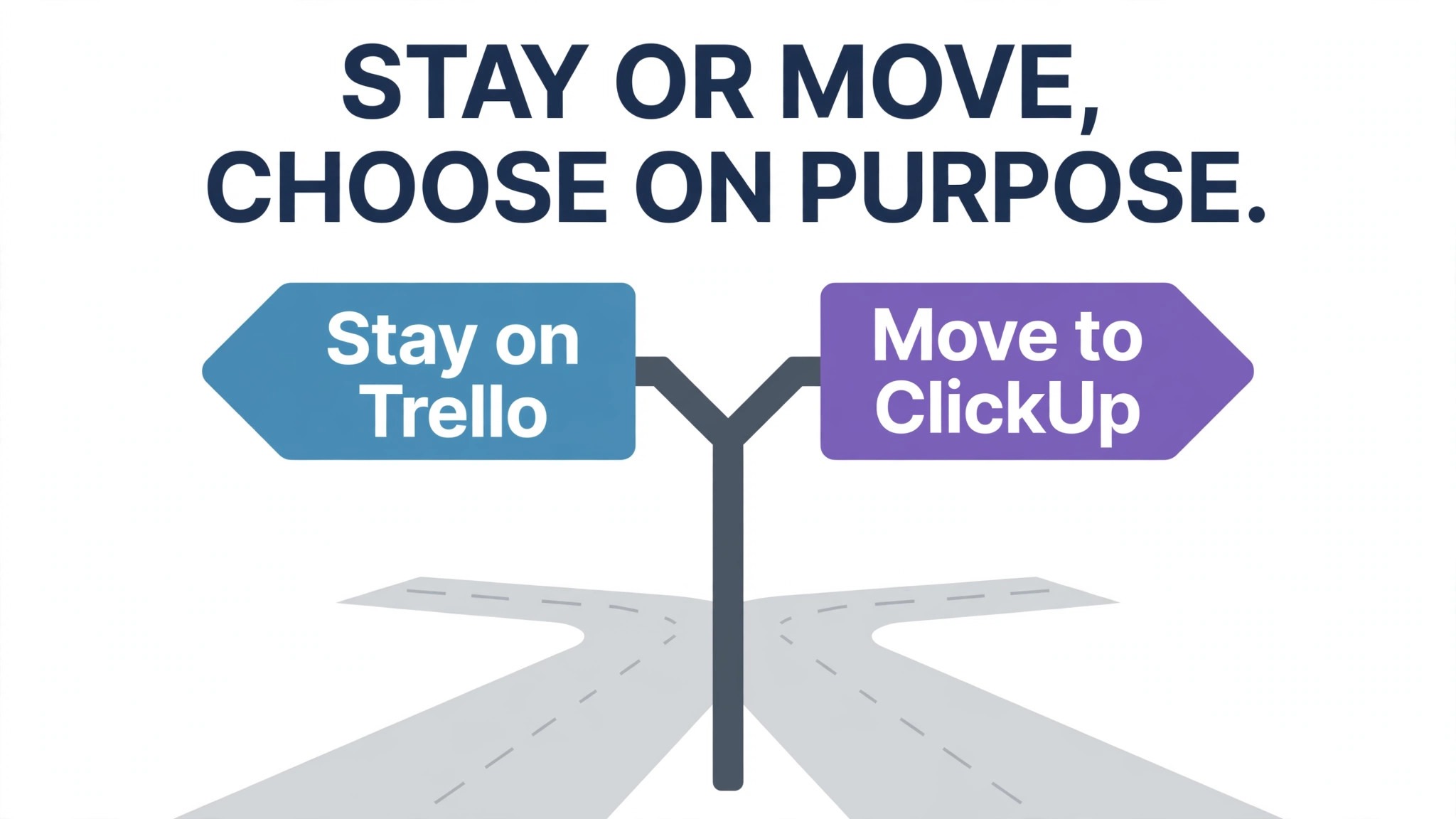
The honest test is a count, not a feeling. Count how many boards the team runs, how many projects share a deadline or an owner, how often a manager exports data for a report, and how often work lives outside Trello because the board cannot hold it. If the answers are many boards, shared deadlines, weekly exports and frequent escapes to docs, the move has a clear case. If the answers are one board, one project at a time and no reporting, the move is a solution looking for a problem, and the team should stay put and spend the migration week on the work itself.
What the Native Import Carries
ClickUp offers a native Trello import, reached from workspace settings through Imports and Exports, where the team authorises Trello, selects boards and maps them into ClickUp Spaces and Folders. The import carries the core of a board, meaning card names, descriptions, assignees where users are mapped, due dates, creation dates, comments, checklists, tags, priorities and custom fields, with attachments up to 1 GB in published help notes. Cover images are a noted exception, so a team that relies on card covers for visual scanning should expect to reapply those after import and should not discover that gap on launch day.
Member mapping is the step that preserves history. The import asks the team to map Trello users to ClickUp members, and unmapped users still import as data but without a link to a real member, which breaks assignee filters and activity history for those cards. Invite the team to ClickUp first, with the same email addresses where possible, and map every active member before importing anything. Archived cards deserve a decision too, because importing every archived card from every board will clutter the new workspace with finished work. Import open cards for live boards, and import archived cards only for boards where history genuinely matters, such as client records or compliance work.
Power Ups and Butler automations do not travel. A Trello board that leans on a calendar Power Up, a voting Power Up or a custom field Power Up will lose that behaviour on import, and Butler rules must be rebuilt as ClickUp automations, covered later in this guide. A team should list every Power Up and every Butler rule before importing, mark each as rebuild, replace or drop, and treat that list as part of the migration plan rather than a surprise for week two.
When you switch Trello to ClickUp small team owners who audit Power Ups first rarely regret the move, while owners who discover them later often blame the new tool for a gap the old tool created.
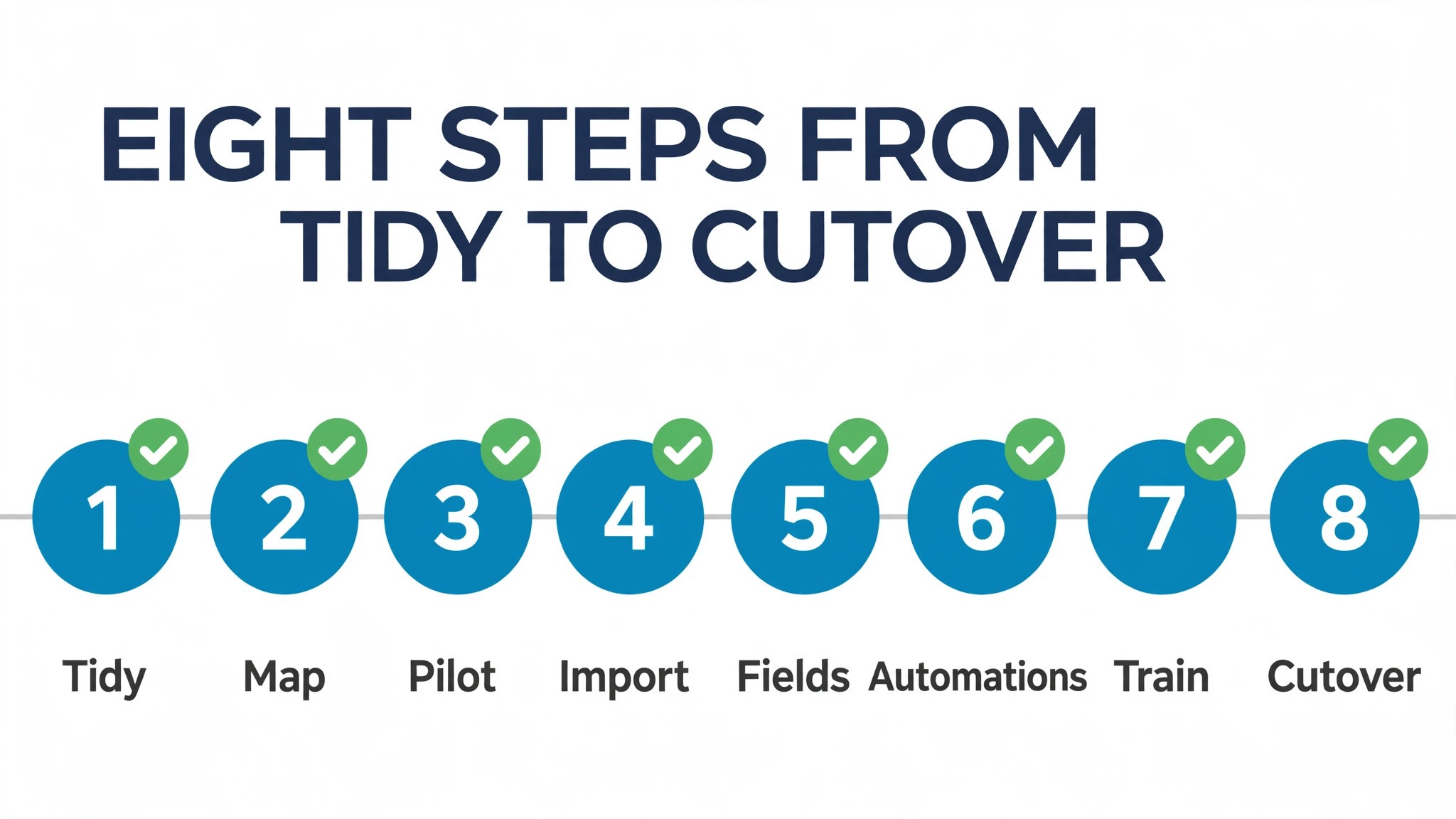
How to Switch Trello to ClickUp Small Team in Eight Steps
Step one is to tidy Trello before importing anything. Archive finished boards that will not move, close or complete stale cards on live boards, and rename boards and lists so their purpose is clear to a newcomer. A clean Trello workspace imports into a clean ClickUp workspace, while a cluttered one imports clutter faster than any team can clean it afterwards. Record the board list, list names, labels and custom fields in a single audit document.
Step two is to build the ClickUp hierarchy first, meaning Spaces for teams or work areas, Folders for programmes or clients, and a naming rule for lists. A team that imports into an empty workspace without structure will spend weeks reorganising lists that arrived in a flat pile. Build the shelves first, then place each imported board where it belongs as it lands, and keep the hierarchy shallow at first, because a deep hierarchy that nobody understands is worse than a flat one the team already knows.
Step three is the pilot import. Choose one live board of middling complexity, run the native import for that board alone, and check it against the original, meaning card titles, assignees, due dates, checklists, comments, labels and attachments. Fix mapping issues on the pilot, and only then import the remaining boards in batches, checking each batch before the next. A pilot afternoon is the cheapest insurance in the whole project.
Step four is to choose the list mapping for each board, covered in full in the next section, and apply it consistently. Step five is to rebuild custom fields so they show where the team works, because imported custom fields can hide until they are added to a list view. Step six is to rebuild automations as ClickUp automations, starting with the rules that protect deadlines. Step seven is to set views and permissions, meaning a board view that feels like Trello for week one, plus list and calendar views for managers, and membership cleaned of ex staff and finished contractors.
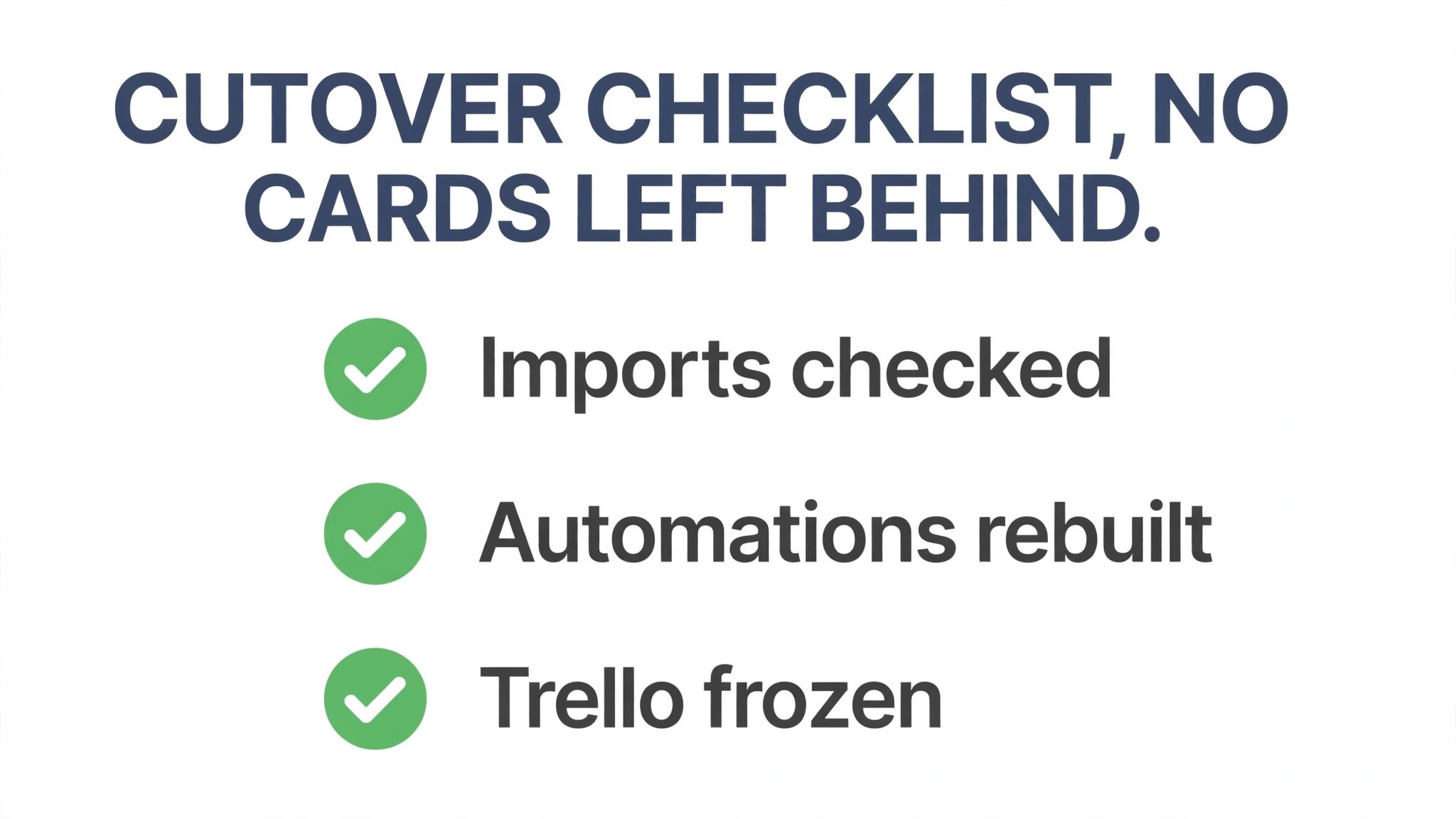
Step eight is cutover day. Freeze editing in Trello, run any final import for cards changed since the batch imports, announce in one message that ClickUp is now the source of truth, and keep Trello readable for at least a month as a fallback. A team that leaves Trello editable after cutover will split its work within days, and reconciling two versions of the same card costs more than the migration saved.
Choosing How Trello Lists Land in ClickUp
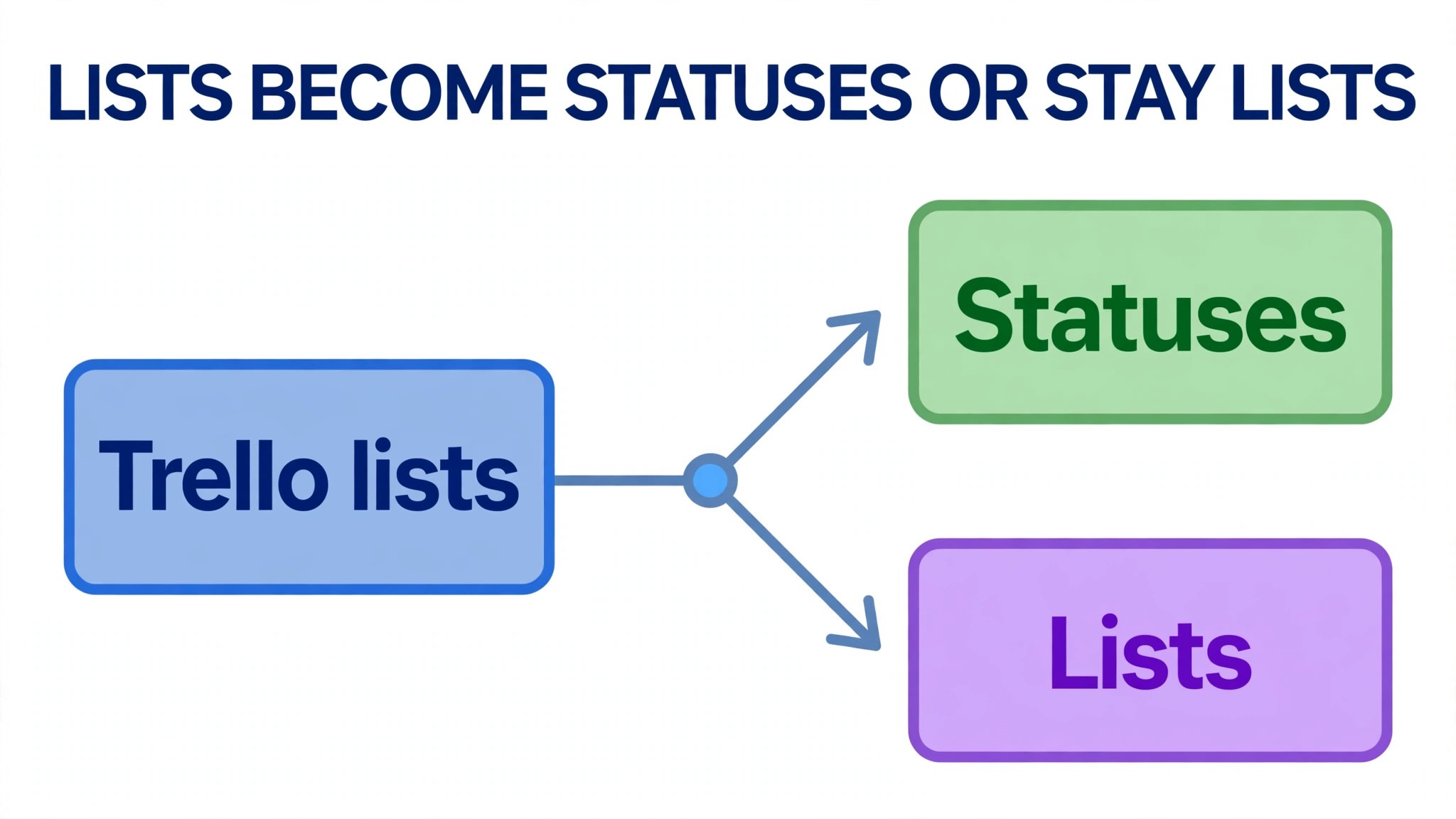
This choice shapes every day after the move, so it deserves a full section rather than a default click. The native import offers two ways to handle Trello lists, meaning import columns as statuses, or import columns as lists, and the right answer depends on how the team actually worked in Trello. A team that moved cards across lists as work progressed, from To Do to Doing to Done, should usually choose columns as statuses. In that option the board becomes a Folder with a list inside it, and the old lists become statuses the team moves tasks through, which preserves the workflow feeling Trello users already know.
A team that used Trello lists as categories rather than stages, such as a list per client, per topic or per work type, should usually choose columns as lists. In that option the board becomes a Folder and each old list becomes its own ClickUp list, which preserves the grouping the team relied on, while status becomes a separate field inside each list. Mixing the two approaches across boards is allowed, but it should be a deliberate decision per board, recorded in the audit document, rather than a different guess for each import batch. A workspace where some boards treat lists as stages and others treat them as categories will confuse every new member.
Test the choice on the pilot board with real work, not just by looking at the imported structure. Move a card through its full path, filter by owner and by due date, and ask the board owner whether the result matches how the team thinks about that work. If the pilot board feels wrong, reimport it with the other option before importing anything else, because reimporting one board costs an afternoon while reorganising twenty boards costs a month. When you switch Trello to ClickUp small team list mapping is the decision that cannot be fixed later without rework, so it earns the time it takes to test properly.
| Trello habit | Best import choice | Result in ClickUp |
|---|---|---|
| Lists are workflow stages | Columns as statuses | One list, statuses to move through |
| Lists are categories | Columns as lists | Folder with a list per category |
| Mixed use across boards | Decide per board | Record the choice in the audit |
Rebuilding Custom Fields So They Show Up
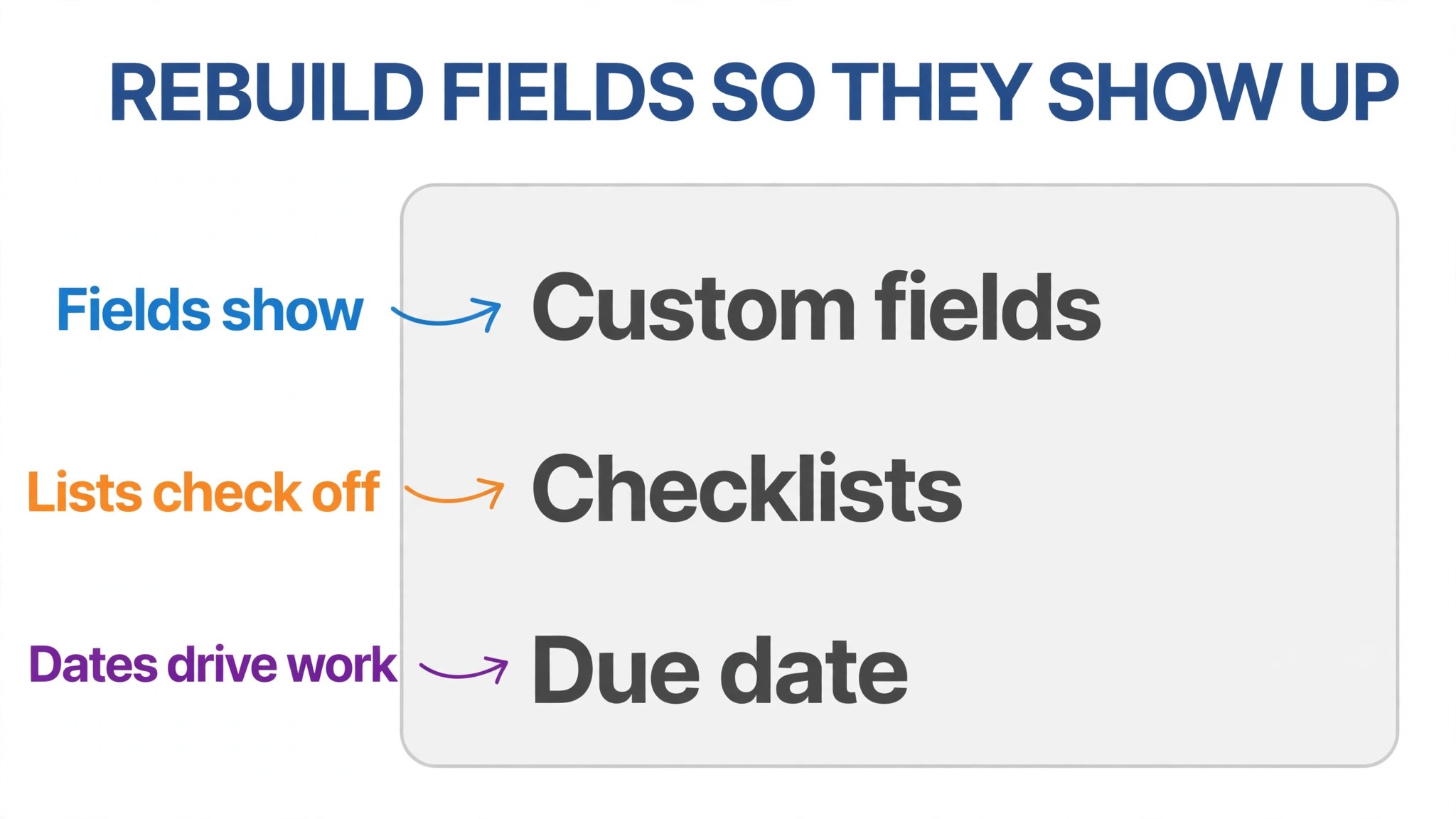
Custom fields are a quiet trap in this migration, because they import successfully and then hide. Published ClickUp help notes explain that imported custom fields must be added to a list view before they are visible, which means a team can import a board, see its cards, and wrongly conclude that its fields were lost. After each batch import, open the list view, add the imported fields, and check that values landed on the right cards, meaning a priority field shows its priority, a cost field shows its cost, and a client field shows its client.
Standardise field values during the rebuild rather than carrying every variation forward. Trello labels and custom fields often accumulate near duplicates, such as Urgent, urgent and URGENT, or three spellings of the same client name, and ClickUp will faithfully preserve that mess unless somebody cleans it. Agree a short value list for each field, merge duplicates, and delete fields that only one card ever used. A field that serves one card is not a system. It is a note that should live in the card description, and removing it makes every report built on that field more reliable.
Build the fields the team actually filters and reports on first, and leave decorative fields for later. A service team needs owner, due date, priority and client as visible fields before it needs anything else. A content team needs channel, publish date and status. A team that rebuilds every field on day one will spend launch week on fields nobody filters, while the field the manager needs for the weekly report sits hidden in a list view nobody opened. When you switch Trello to ClickUp small team custom field discipline is a reporting decision disguised as a data decision, and it should be made by the people who read the reports.
Swapping Butler Rules for ClickUp Automations
Butler automations in Trello and ClickUp automations share a purpose but not a language, so every rule must be rebuilt rather than transferred. Start by listing every Butler rule on every board being moved, including rules that move cards on due dates, add checklists from templates, notify owners on changes and create recurring cards. For each rule, write down its trigger, its condition and its action in plain language, and mark it as rebuild, replace with a ClickUp feature or drop. Most Trello workspaces carry rules for finished projects that should never be rebuilt, and dropping them now saves maintenance later.
Rebuild the deadline rules first, because those are the rules whose absence causes missed work. A due date reminder, a status change when a date passes, and an owner notification when a card is created are the three rules a small team feels immediately, and they should be tested with test tasks that follow each path.
Then rebuild the checklist and template rules, meaning a rule that adds a standard checklist when a card reaches a status, or creates a recurring task on a schedule. Test those with a real project rather than a test board, because a template rule that works on a test board but adds the wrong checklist to a live project will be distrusted from then on.
Watch for automation limits and behaviour differences on the new plan. ClickUp automation availability and limits vary by plan and user role in published help notes, so confirm that the plan chosen carries the automation volume the team actually uses, and check that a rebuilt rule fires once rather than twice when two triggers overlap. A team that had three Butler rules doing one job should rebuild them as one ClickUp automation, because the migration is the moment to simplify, not to preserve every workaround the old tool required. Keep a short automation list with owners, so a rule that misfires in month two can be traced to a person and a purpose rather than to a forgotten setup.
Adoption Checklist for Trello Users
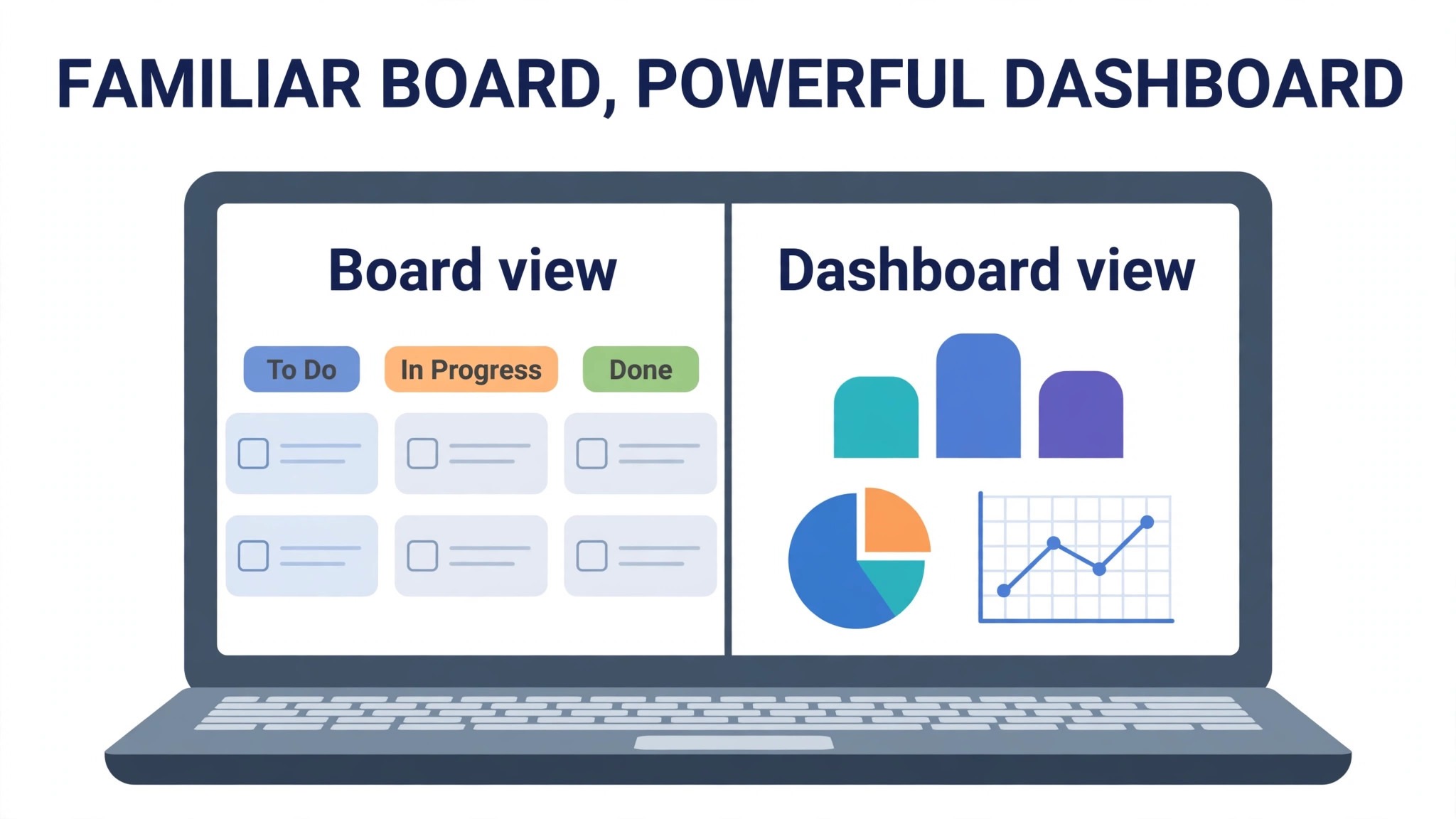
Trello users need a gentle first week in ClickUp, because the new tool can feel overwhelming on first sight. Start every team member on a board view that looks and behaves like Trello, with the same statuses and the same card layout the team already knows, and introduce list, calendar and dashboard views gradually over the following weeks. A team that opens ClickUp to a wall of features will retreat to chat and email, while a team that opens it to a familiar board will keep working and discover the extra views when they need them.
Run a single training session on real boards, covering creating a task, changing a status, commenting, attaching a file, filtering by owner and finding work assigned to the viewer. Pair each member with a buddy for week one, and run a one to two week parallel period in which Trello stays readable while ClickUp becomes the place where new work is created. That parallel period should have a firm end date, because a parallel period without an end date becomes two permanent systems, and two permanent systems are worse than either tool alone.
Managers should run the first weekly review from a ClickUp dashboard, because a review run from a spreadsheet signals that the new tool is optional. End week two with a short feedback session where the team names the two things that still frustrate them, and fix those two things visibly before week three. When you switch Trello to ClickUp small team adoption is not a training video watched once. It is a fortnight of familiar views, buddy support and visible fixes that prove the new workspace belongs to the team using it.
Cost and the Overlap Month
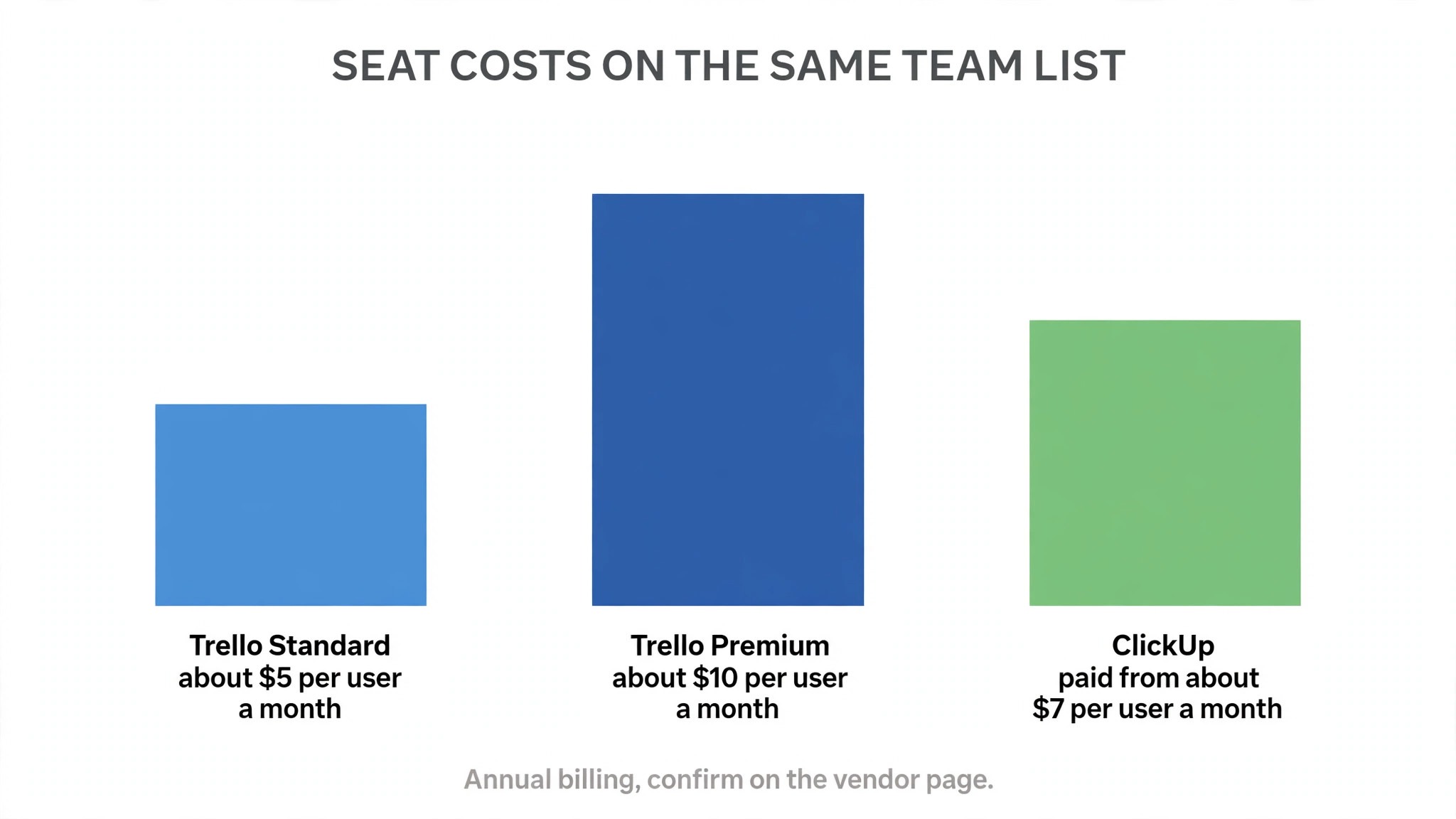
Cost comparison starts with the same seat list on both tools. Trello Standard in published guides sits around 5 dollars per user a month on annual billing, with Premium around 10 dollars, while ClickUp paid plans in published guides start around 7 dollars per user a month.
A team on Trello Free that moves to a paid ClickUp plan is not comparing like with like, because it is buying reporting, hierarchy and automation depth it did not have, and the honest comparison should name those gains rather than pretend the move is a pure saving. A team on Trello Premium moving to ClickUp may save a little per seat, or spend a little more for a deeper tool, depending on the tier chosen.
Budget for an overlap month in which both tools are paid, with Trello readable but not editable after cutover. That month is the fallback for a missed attachment, a forgotten board or a card that was archived in error, and it costs far less than rebuilding lost work from memory. Also budget time, meaning a pilot afternoon, a mapping session, a custom field tidy and an automation rebuild day spread across a fortnight. A team that migrates during its busiest delivery week will cut testing corners, and testing is the part of a migration that cannot be recovered later without rework. Confirm all plan prices on the vendor page, because limits, guest rules and automation allowances change without much announcement.
Mistakes That Leave Cards in Two Places
The first mistake is importing without tidying Trello. Stale cards, finished boards and duplicate labels all travel faithfully, and the new workspace starts life looking like the old one at its worst. The second mistake is skipping the pilot and importing in one large batch, which turns a mapping error into a workspace wide cleanup. The third mistake is choosing the list mapping per batch on impulse, which leaves some boards treating lists as stages and others treating them as categories, confusing every new member who joins later.
The fourth mistake is leaving Trello editable after cutover, which splits work within days and makes reconciliation a weekly chore. Freeze editing, announce the freeze in one message, and point every bookmark and document link at the new lists. The fifth mistake is rebuilding every Butler rule, including dead ones, which triples automation maintenance for no gain. The sixth mistake is hiding custom fields by forgetting to add them to a list view, which makes the team believe data was lost when it was merely hidden. Each of these mistakes is cheap to prevent and expensive to fix, which is why this guide places them before cutover rather than after it.
After Cutover, Settling Into ClickUp
The first month in ClickUp should feel calmer than the migration week, but only if the team resists the urge to switch everything on at once. ClickUp offers docs, goals, whiteboards, time tracking, chat and many views, and a team that enables all of them in week one will spend more time exploring features than doing work. Pick one extra capability per fortnight, starting with the one that solves a pain the team already named, such as dashboards for the weekly review or docs for project briefs that previously lived in a separate tool.
When you switch Trello to ClickUp small team reporting is usually the first extra capability worth adding properly. Build one dashboard for the manager and one for the team, and no more, in the first month. The manager dashboard should answer workload, overdue work and progress across lists in a single view. The team dashboard should answer what is due this week and what is stuck, without requiring anyone to open five lists. A dashboard that nobody opens in week two should be deleted or rebuilt, because a dashboard built to impress rather than to answer a question will be ignored by week four.
Views deserve the same restraint. Keep the board view as the default for the first month, add a list view for bulk editing and a calendar view for deadline work, and leave Gantt, timeline and workload views until a real scheduling question demands them. Each new view should have a named owner who can explain what it shows and who uses it. A view without an owner becomes a stale screen that confuses new members, and a workspace with twelve views per list is a workspace where nobody knows where the truth lives.
Clean the workspace at the end of week two and week four, using the same tidy habits that made the import clean. Close tasks that finished during the move but were never marked done, assign owners to tasks that arrived unassigned, and archive lists that were created for the migration itself and are no longer needed. When you switch Trello to ClickUp small team workspace hygiene in month one decides whether the new system stays readable for a year or needs a second cleanup in six months, and a thirty minute tidy session per week is enough to hold the line.
Finally, measure the move against the reasons it was made, and do it with numbers the team agreed before cutover. If reporting was the reason, time the weekly review now and compare it with the old spreadsheet routine. If shared deadlines were the reason, count how many deadlines slipped in month one against the month before the move. If escaping work was the reason, count how many briefs and notes now live inside ClickUp rather than in separate docs.
When you switch Trello to ClickUp small team success is not a feeling that the new tool looks modern. It is a smaller review time, fewer slipped deadlines and less work living outside the system, measured and reported back to the team that did the moving.
Frequently Asked Questions About Moving to ClickUp
Will my Trello boards, cards and comments move to ClickUp?
Yes, for the core data. The native import carries card names, descriptions, assignees where users are mapped, due dates, comments, checklists, tags, priorities and custom fields, with attachments up to 1 GB in published help notes. Cover images are a noted exception, and Power Ups and Butler rules do not travel, so list those before import and plan their rebuild separately.
Should Trello lists become statuses or lists in ClickUp?
It depends on how the team used them. Lists that were workflow stages, such as To Do to Doing to Done, usually become statuses, preserving the movement feeling. Lists that were categories, such as one list per client or topic, usually become lists inside a Folder, preserving the grouping. Decide per board, record the choice, and test it on a pilot board before importing the rest.
How long does a small team migration take?
A team with a handful of boards and simple automations can complete the move in one to two weeks of part time work, including tidying, pilot import, mapping, field rebuild and cutover. A team with many boards, heavy custom fields or complex Butler rules should allow three to four weeks, and should plan around delivery deadlines rather than through the busiest week of the quarter.
Do we lose work if we freeze Trello too early?
No, if the freeze comes after the pilot, the batch imports and the automation tests have passed, and Trello remains readable for at least a month. Freeze editing, not access, so the team can still look up an old card or attachment while ClickUp becomes the single source of truth. A freeze that never comes leaves the team in two tools, which is the worse outcome.
Is ClickUp harder for the team to learn than Trello?
It can feel heavier at first, because it offers more views and features, but a team that starts on a familiar board view and adds list, calendar and dashboard views gradually usually adapts within two weeks. A short training session on real boards, a buddy for week one and a firm end to the parallel period do more for adoption than any library of tutorials.
What should we check in the first week after cutover?
Check that assignees, due dates, checklists and custom fields landed correctly on every imported board, that automations fire once rather than twice, that forms and integrations point at ClickUp, and that no new work is being created in Trello. Fix the two biggest frustrations the team names in week two, and keep Trello readable for a month as a fallback while those fixes land.
More Reading on Stratilyze
– Cost of Trello for a Small Business Monthly – Cost of ClickUp for a Small Business Monthly – Trello to ClickUp Migration Plan – Moving Team Boards Without Losing Task History, plain text title, link not verified at writing time