
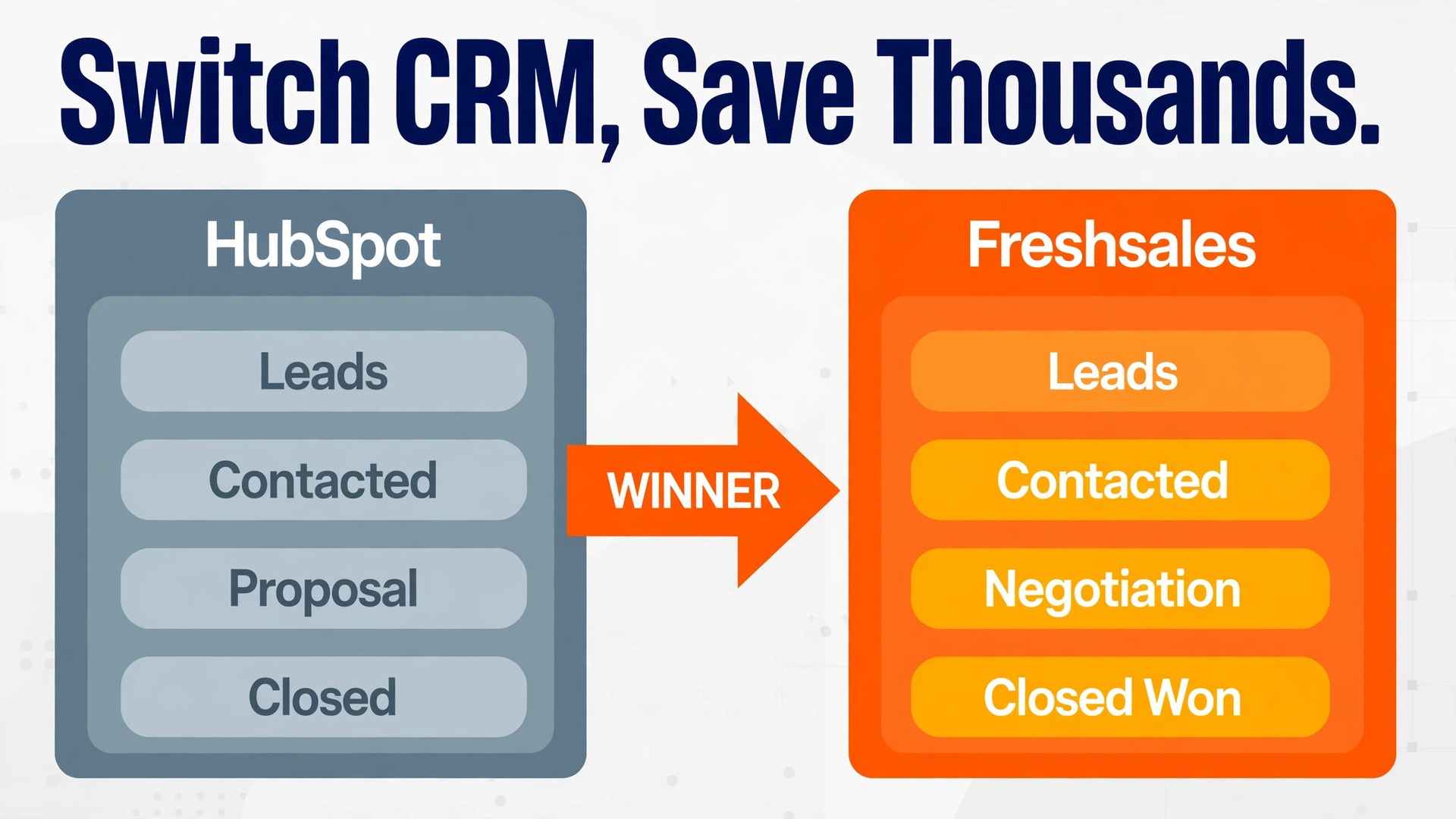
For a five person sales team, the price gap between comparable paid CRM plans can reach several thousand dollars in a single year. Published list prices put Freshsales Pro at 39 dollars per user per month billed annually, while HubSpot Sales Hub Professional is listed near 90 dollars per seat per month billed annually, with a one time onboarding fee often added on top. It is the push that makes many teams switch HubSpot to Freshsales small business plans.
That gap is the reason many small teams decide to switch HubSpot to Freshsales small business budgets can sustain for the long term. Price alone, however, never justifies a move. A CRM switch touches every live deal, every open conversation, and every follow up your team has promised. This guide shows the full move in order, what transfers cleanly, what must be rebuilt by hand, and how to run the first week so no deal falls through a crack.
The decision usually starts with a bill, not a feature list. A team grows from two users to six, adds a second pipeline, and discovers that the plan it needs for sequences and scoring sits two tiers above where it started. Freshsales Growth at 9 dollars per user per month billed annually covers basic automation and scoring for many small teams, and Pro at 39 dollars adds sequences and territory tools. Confirm both figures at checkout, because vendors change list prices and promotions often.
HubSpot free tools remain strong for very small teams, and its paid tiers add depth that some teams genuinely need. The question is whether your team uses that depth every week, or pays for it while living in three screens.
Why Small Teams Leave HubSpot for Freshsales
Most small teams leave for one of three reasons, and naming yours before you start keeps the project honest. The first reason is cost at the tier where sequences, scoring, and forecasting live. The second is simplicity. HubSpot can feel like a platform with many products attached, while Freshsales feels like one sales tool with email and phone built in. The third is a change in how the team sells. A team that once needed marketing automation may now need a tighter pipeline, faster call logging, and fewer dashboards.
None of those reasons means HubSpot is a weak product. Its reporting, its integration catalogue, and its free tier are genuinely strong. A team with complex marketing journeys, many connected apps, or heavy forecasting needs may be better off staying. The switch makes sense when the team sells mainly by phone and email, runs one or two pipelines, and wants a lower monthly bill without losing deal visibility. Write your reason down and check it again at the end of week one.
HubSpot Strengths Worth Missing
HubSpot reporting is the feature former users mention most often. Its dashboards combine marketing, sales, and service data in one place, and its free tier gives a small team contact management and deal tracking without paying anything. Its integration catalogue is also far larger, so unusual tools are more likely to connect without extra work. If your team relies on ten or more connected apps, list each one before you commit.
Freshsales Strengths That Win Small Teams
Freshsales wins small teams with built in phone and email tools on low priced plans and a visual pipeline that is easy to read at a glance. Its Growth plan includes workflow automation and lead scoring, which means a small team often avoids the jump to the top tier. The trade off is narrower reporting and fewer native integrations. Teams that accept that trade off usually value daily selling speed over boardroom reporting.
HubSpot and Freshsales Side by Side
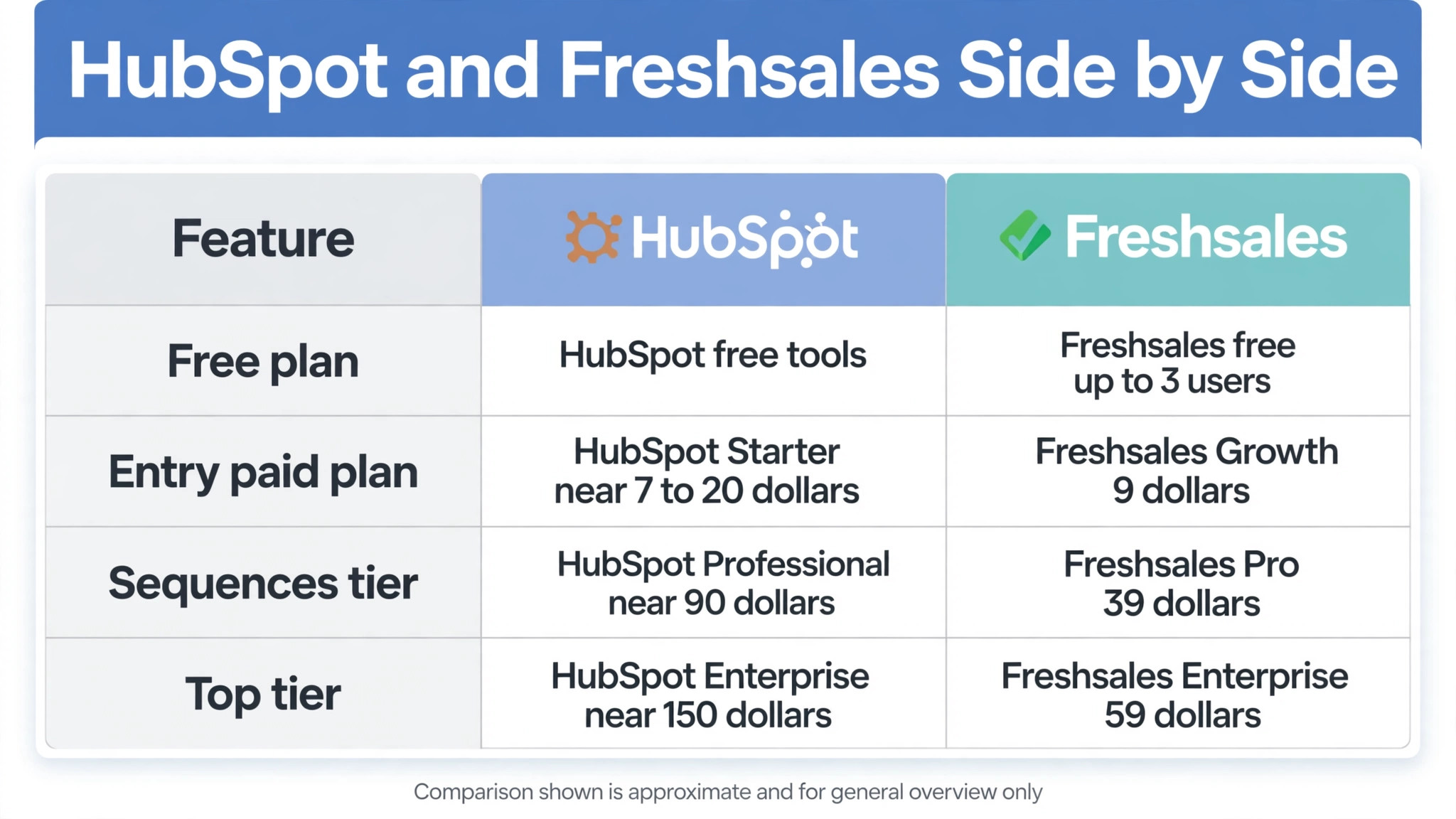
A side by side view helps a team compare like with like instead of comparing a free plan with a paid plan. The table below uses last published list prices, and every figure should be confirmed at checkout before you sign anything. Prices change, promotions differ by region, and seat counts change the total fast.
| Area | HubSpot | Freshsales |
|---|---|---|
| Free plan | Free tools for contact and deal tracking | Free plan for up to three users |
| Entry paid plan | Starter, listed near 7 to 20 dollars per seat per month depending on promotion | Growth, 9 dollars per user per month billed annually |
| Sequences tier | Professional, listed near 90 dollars per seat per month billed annually | Pro, 39 dollars per user per month billed annually |
| Top tier | Enterprise, listed near 150 dollars per seat per month billed annually | Enterprise, 59 dollars per user per month billed annually |
| Onboarding fee | Often 1,500 dollars on Professional, confirm at checkout | No onboarding fee listed on the pricing page |
| Built in phone | Calling allowance varies by plan, confirm at checkout | Built in phone included, credits and rates vary by account |
| Reporting depth | Strong across marketing, sales, and service | Good for pipelines, narrower for cross team reporting |
For a five person team, the arithmetic is stark. Five seats on Freshsales Pro at the listed annual price cost about 2,340 dollars a year. Five seats on HubSpot Professional at the listed annual price cost about 5,400 dollars a year before any onboarding fee. That is a gap of more than 3,000 dollars before onboarding. Your own quote may differ, because seat bundles, promotions, and contract terms all shift the total. Run the comparison at your real headcount, with taxes and add ons included, and keep the quote beside the migration plan.
The feature gap matters as much as the price gap. HubSpot forecasting and advanced reporting suit teams that report upward every week. Freshsales suits teams that want reps to update deals fast and log calls without switching screens. A team that buys Freshsales expecting HubSpot reporting will be disappointed, while a team that buys it for pipeline speed will feel the benefit on day one.
What Actually Moves and What You Rebuild
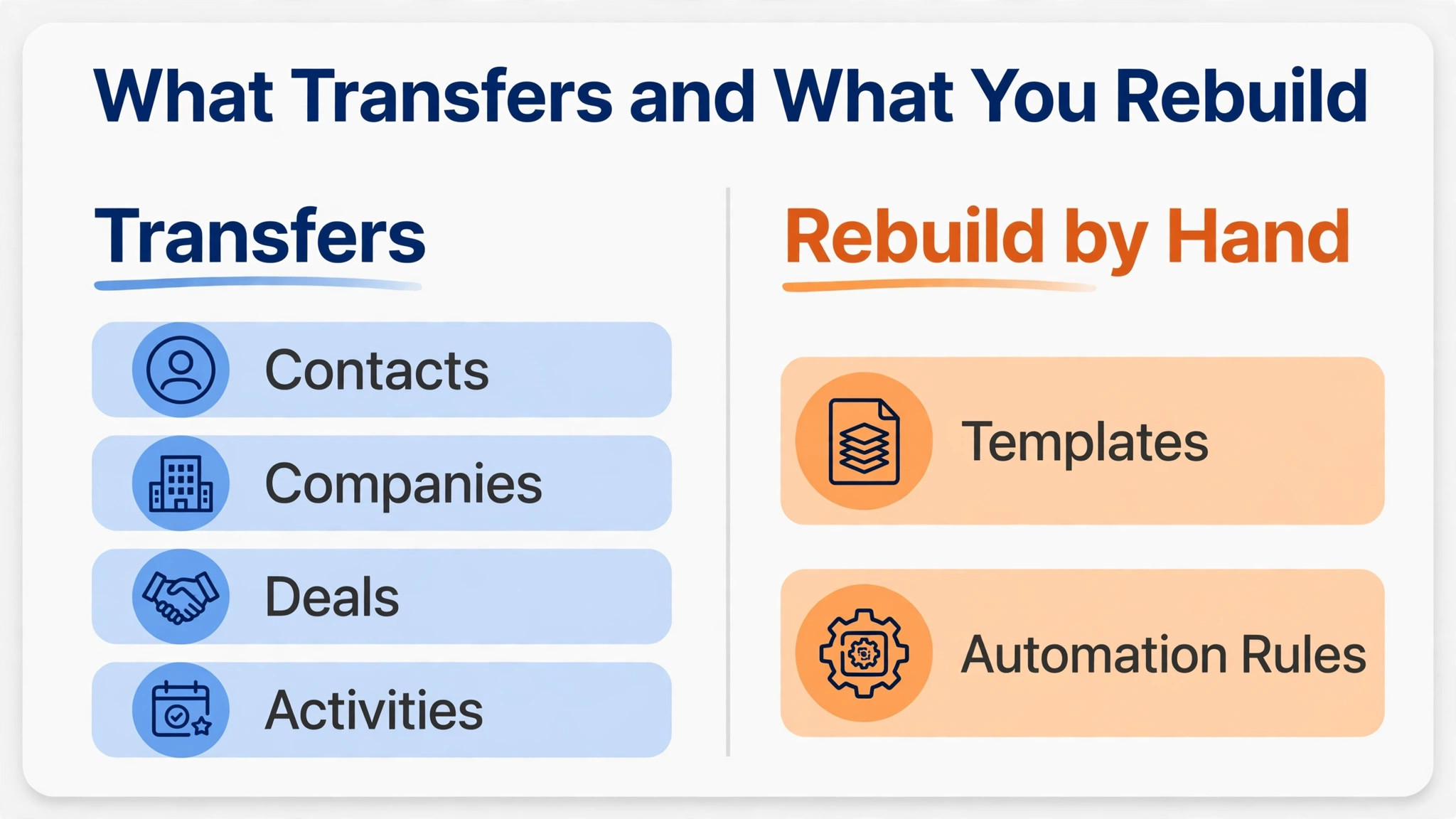
No CRM migration moves everything. Records move well. Behaviour does not. Contacts, companies, deals, and activities transfer through files or through the built in HubSpot integration in Freshsales, but workflows, sequences, scoring rules, and reports must be rebuilt by hand. Plan the rebuild as real work with owners and deadlines, not as a footnote to the import.
Freshsales offers a HubSpot migration path under its admin settings that accepts file imports, with a published file size limit near 250 megabytes per file. Confirm the current limit before you export. Records without a valid email address need special attention, since some sync paths skip them. Clean those records before you import.
| Item | What happens in the move | Action for your team |
|---|---|---|
| Contacts and companies | Move by file import or sync, matched on email | Deduplicate first, then map every field |
| Deals and pipelines | Move as records with stage values | Rebuild stage names in Freshsales before import |
| Notes and activities | Move with records in most paths, check a sample | Spot check ten records end to end |
| Email templates | Do not transfer as usable templates | Copy text and rebuild in Freshsales |
| Workflows and sequences | Do not transfer | Rebuild from a written spec, then test |
| Lead scoring rules | Do not transfer | Redefine scores on the new fields |
| Reports and dashboards | Do not transfer | Rebuild only the five reports the team uses weekly |
| Files and attachments | Move only if the path supports them, check first | Store critical files in a shared folder as backup |
Attachments deserve a separate warning. Some import paths carry files, others carry only record data. Export a backup of critical attachments before you start, and keep the old account readable until the new pipeline is proven. A missing contract file is the kind of loss a team discovers at the worst moment.
How to Switch HubSpot to Freshsales Small Business Records in the Right Order
Order matters more than speed. Importing deals before contacts creates orphans. Importing activities before deals creates notes with nowhere to land. The sequence below keeps every record attached to something real, and it gives the team a checkpoint after each stage instead of one large moment of truth at the end.
Start with people and permissions. Create Freshsales user accounts for every rep, manager, and admin who will work in the new system, and match their email addresses to the HubSpot records. Mismatched emails are the most common cause of orphaned ownership after an import. Next, build the field model. Create custom fields in Freshsales with the same names and types as the HubSpot fields you actually use, and delete or ignore fields that nobody has touched in six months. A migration is a rare chance to drop clutter without an argument.
Then build pipelines and stages. Freshsales pipelines should mirror the stages your team uses in conversation, not every stage that exists in the old system. If two old stages always move together, merge them. If one stage has held no deals for a quarter, drop it. Import a pilot batch next, no more than fifty contacts and twenty deals, and inspect every field. Check phone numbers, deal values, close dates, owners, and stage names. Fix the mapping, then import the rest in batches by pipeline or by owner. Importing in batches means a mapping error affects one batch, not the whole company history.
After records land, attach activities and notes, then rebuild templates and rules. Only then should the team start working live deals in Freshsales. Keep HubSpot readable throughout, and freeze edits in the old system once the final import begins. Two live systems create two truths, and reps will trust neither.

HubSpot Export Steps Before You Touch Freshsales
Export from HubSpot in separate files for contacts, companies, deals, and activities, so a problem in one file does not block the others. HubSpot allows a large number of exports in a rolling day, with a published ceiling near 300 exports in 24 hours for many accounts, but confirm the limit on your plan. Check each file for blank emails, duplicate domains, and deal values stored as text. Fix those rows in the file, not after import, because post import fixes are slower and easier to get wrong.
Freshsales Import Steps That Prevent Orphans
In Freshsales, create users and custom fields first, then map each file column to a Freshsales field before running the import. Run the pilot batch, then compare record counts in both systems. Counts must match before you continue. If ten contacts are missing, find out why before importing thousands more. Common causes are missing emails, duplicate matches, and a required field that rejected the row. Keep the import report for each batch, because it is the audit trail if a deal later looks wrong.
Contact Fields and Deal Stages That Need Remapping
Field mapping is where migrations quietly fail. Two systems can both have a field called source, yet mean different things by it. One team uses source for the channel that created the lead. Another uses it for the campaign that closed the deal. Mapping by name alone merges those meanings and corrupts reporting for months. Map by meaning, and write the meaning beside each mapping in a shared sheet.
Start with the fields sales actually filters and reports on. Lead source, industry, deal type, close date, deal value, and owner cover most small team reporting. Then add the fields that drive automation, such as lead score, subscription status, and next step date. Everything else can live as a text field or be dropped. A field that nobody filters, reports, or automates on is clutter with a label.
Deal stages need the same discipline. HubSpot pipelines often grow extra stages over time, such as a stage for waiting on paperwork that every rep treats as closed. Freshsales stages should reflect the commitments a deal has actually reached. A useful test is whether a manager can look at a stage name and know the next action without asking the rep. Agree the stage list with the team before import, because renaming stages after deals land means rechecking every open deal.
HubSpot Custom Fields to Audit First
Audit HubSpot custom fields by last use, not by creation date. Export a field list, mark each field as keep, merge, or drop, and get the sales lead to sign the list. Fields tied to old campaigns, departed reps, or retired products should be dropped. Fields with near duplicate names should be merged into one field with a clear definition. This audit takes an afternoon for most small teams, and it prevents the new system from inheriting years of drift on day one.
Freshsales Fields to Create Before Import
Create Freshsales fields in the same order as the import files, with matching types for dates, numbers, dropdowns, and text. Dropdown values must match exactly, including spelling and capitalisation, or values will land as free text and break filters. Test one dropdown heavy record in the pilot batch and check that every value survived. A dropdown that imports as text looks fine in a list view and fails silently in every report.
Email Templates and Automation Rules After the Move
Templates and automation rules are the part of the move that cannot be imported, so they need a written spec before anyone rebuilds them. List every template the team sent in the last ninety days, with its purpose, its subject line, and its trigger. Templates nobody sent in ninety days should be retired, not rebuilt. Rebuilding a dead template wastes the one week when the team has energy for the new system.
Automation rules need the same treatment. HubSpot workflows often include steps that made sense for an old process, such as notifying a departed manager or updating a retired field. Rebuild only the rules that fire weekly and that the team can explain in one sentence. A rule that nobody can explain will surprise someone later. Test each rebuilt rule with a test contact before it touches live deals.
Sequences deserve special care. Freshsales sequences live on the Pro plan, so confirm your plan includes them before promising the team a like for like replacement. Rebuild the highest volume sequence first, usually the new lead follow up sequence, and measure reply rates for two weeks before rebuilding the rest. A sequence rebuilt in a hurry with the wrong delay will hurt reply rates, and the team will blame the new tool instead of the rushed rebuild.
The Migration Checklist for a Small Business CRM Switch
Use this checklist as the project plan, not as a reading list. Check each item off only when there is evidence, such as a matching record count or a tested rule, not when someone says it is probably done. The checklist covers contact fields, deal stages, email templates, and automation rules, plus the surrounding work that keeps a switch safe.
– Confirm the reason for the switch and the Freshsales plan that covers sequences, scoring, and phone needs – List every HubSpot user, pipeline, template, workflow, and report the team used in the last ninety days – Audit HubSpot contact fields and mark each one as keep, merge, or drop, with a written definition for each kept field – Build the Freshsales field model first, with matching names, types, and dropdown values – Agree the Freshsales deal stages with the sales lead and merge or drop stages nobody uses – Export HubSpot contacts, companies, deals, and activities as separate files, and back up critical attachments – Clean duplicate contacts, blank emails, and text formatted deal values before any import – Create Freshsales users with matching email addresses and assign pipeline ownership – Run a pilot import of fifty contacts and twenty deals, and inspect every field end to end – Compare record counts between systems after each batch, and keep every import report – Rebuild email templates from the ninety day usage list, and test each one with a test contact – Rebuild automation rules from a written spec, starting with the highest volume rule, and test before going live – Rebuild only the five weekly reports the team actually reads, and check them against HubSpot numbers – Connect the team email accounts and phone lines, and test sending, logging, and call recording – Freeze edits in HubSpot, run the final import, and verify open deals, values, and close dates – Train the team on the new pipeline, the new sequence steps, and where to find the old system during week one

What the Switch Costs and Where the Saving Comes From
The saving from a CRM switch comes from the plan tier, not from a single month of seat prices. Compare the plan that actually contains sequences and scoring in both systems, at your real headcount, over twelve months. A team that compares a free plan with a paid plan will always feel misled later, and a team that compares entry plans will miss the tier jump that caused the move in the first place.
Use last published list prices as a starting point, then replace them with your own quotes. Freshsales Growth is listed at 9 dollars per user per month billed annually, Pro at 39 dollars, and Enterprise at 59 dollars. HubSpot Sales Hub Professional is listed near 90 dollars per seat per month billed annually, with a one time onboarding fee near 1,500 dollars often required. Confirm every figure at checkout, because promotions, seat bundles, and contract terms change the total. Add taxes, phone credits, and any paid integration costs to both sides before deciding.
A team that decides to switch HubSpot to Freshsales small business budgets benefit most when it lands on Growth or Pro and stops paying for reporting depth it never opened. A team that needs Enterprise reporting, advanced forecasting, or a large integration catalogue may find the saving smaller than expected once add ons are counted. The honest comparison is total cost for the features the team uses weekly, not the cheapest headline price on either pricing page.
Hidden costs deserve a line in the budget. Allow time for field cleanup, template rebuilds, and two training sessions. Allow a week of slower deal updates while reps learn new screens. If the team uses a paid sync service during a parallel run, include that fee. These costs are small beside a multi thousand dollar annual saving, but naming them prevents the project from looking more expensive than promised in its first month.

The First Week Cutover Plan
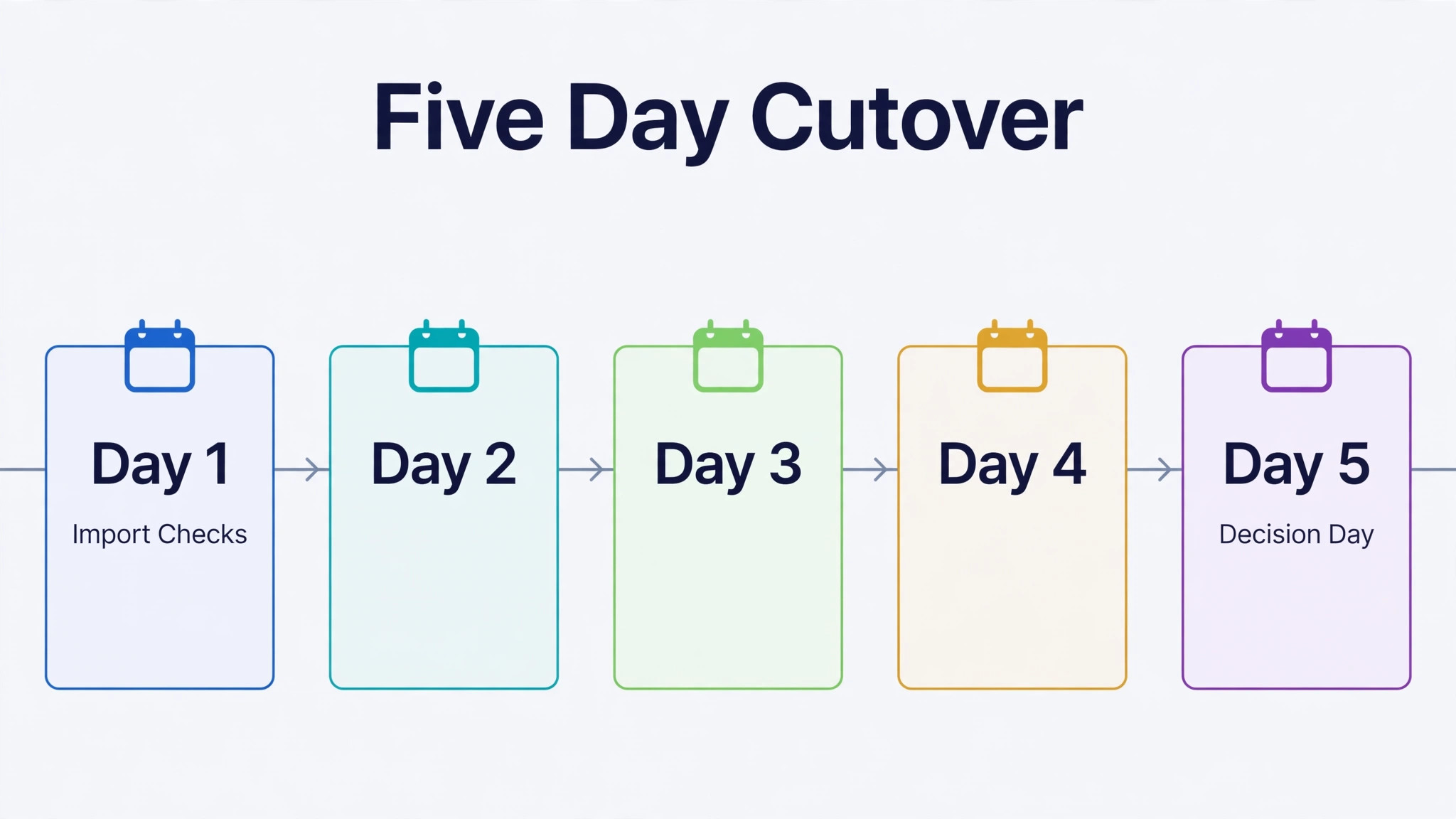
A cutover plan turns a migration into a calendar, with one owner per day and one check per morning. To switch HubSpot to Freshsales small business owners should run the plan over five working days, keep HubSpot readable throughout, and delete nothing until week two. The goal of week one is not speed. It is proof that every live deal is visible, owned, and moving in the new system.
Day one is import and verification day. Run the final import in the morning, compare record counts by pipeline, and check the ten largest open deals line by line. Values, close dates, owners, and stages must match. Any mismatch stops the rollout for that pipeline until it is explained. Day two is template and rule testing day. Send test emails from every rebuilt template, trigger each rebuilt rule with a test contact, and check that activities log where reps expect to find them.
Day three is the first live selling day in Freshsales. Reps work new activity in the new system and read history in the old one. Hold a short morning check in and a short afternoon check in, and log every friction point in one shared list. Day four is cleanup day. Fix field values that surfaced during live use, rebuild the one report managers missed most, and retire any duplicate view that confused reps. Day five is the decision day. Review the friction list, confirm open deal totals match, and agree whether HubSpot stays readable for another week or moves to archive only.
Keep the old system in read only mode for at least thirty days after cutover. Deals close late, contracts resurface, and a rep will need one old note that did not transfer. The rule is clear. New work goes in Freshsales, old work is read in HubSpot, and nobody edits in both places. That single rule prevents the duplicate truth problem that ruins otherwise clean migrations.
Rollback Advice If the Move Goes Wrong
Rollback is not failure. It is the plan that lets a team move boldly because the way back is known. Before cutover, agree the rollback triggers in writing. Useful triggers include a record count mismatch that cannot be explained, a broken sequence that touches live prospects, or a reporting gap that blocks a weekly management meeting. If a trigger fires, pause new work in Freshsales, return live deal updates to HubSpot, and fix the problem without time pressure.
Teams that switch HubSpot to Freshsales small business records should never delete the old account during week one, and should never cancel billing until the new pipeline has run for a full sales cycle. Export a final backup from both systems at cutover, and keep the import reports that show what landed where. A rollback without a backup is a second migration under stress, which is exactly what the plan exists to avoid.
Mistakes That Cost Small Teams Time
The most expensive mistake is importing everything, including dead records, dead fields, and dead templates. A migration doubles the cost of clutter, because the team pays to clean it twice, once in the old system and once in the new one. Drop what nobody used in ninety days, and let the archive hold the rest. The second mistake is rebuilding every report. Rebuild five reports, use them for a month, and let managers request the sixth with evidence that they need it.
The third mistake is skipping the pilot import. A pilot batch of fifty contacts costs an hour and catches mapping errors while they are cheap. A full import without a pilot catches the same errors after thousands of records land wrong. The fourth mistake is training once and hoping. Reps need a short session before cutover, a check in on day three, and a cleanup session at the end of week one. Each session should answer real questions from live use, not repeat a slide deck. A team that plans to switch HubSpot to Freshsales small business operations should budget training time as seriously as seat prices, because adoption decides whether the saving survives contact with real work.
Final Verdict for a Small Business CRM Switch
Freshsales is the better buy for a small team that sells by phone and email, runs a short pipeline, and wants sequences and scoring without a top tier bill. HubSpot remains the better fit for teams that need deep cross team reporting, a large integration catalogue, or marketing automation tied tightly to sales. For teams that switch HubSpot to Freshsales small business pricing is only part of the verdict. Choose by weekly use, not by feature count. If the team lives in the pipeline and the phone, move, and move in the order this guide sets out.
Frequently Asked Questions About This Switch
If you switch HubSpot to Freshsales small business teams most often ask about timing, history, and cost first, so the answers below cover those questions directly.
How long does a HubSpot to Freshsales migration take for a small team
Most small teams finish in two to four weeks, with one week for cleanup and mapping, one week for pilot and rebuilds, and one week for cutover. Teams with clean data and one pipeline often finish faster. Teams with many custom fields, old campaigns, or heavy automation should allow an extra week for rebuilds, because templates and rules cannot be imported and must be tested before they touch live deals.
Do contacts, deals, and activities transfer to Freshsales
Contacts, companies, deals, and activities transfer through file imports or the built in HubSpot path, matched mainly on email address. Records without a valid email need cleaning before import, because some paths skip them. Notes and activities usually travel with their records, but always check a sample of ten records end to end before trusting the full import, and keep the old account readable until the check passes.
Do email templates and workflows transfer automatically
No. Email templates, workflows, sequences, and scoring rules must be rebuilt by hand in Freshsales. List the templates and rules used in the last ninety days, retire the rest, and rebuild from a written spec. Test each rebuilt item with a test contact before it touches live prospects, and rebuild the highest volume sequence first so reply rates can be measured early.
What does Freshsales cost compared with HubSpot for five users
Using last published list prices, five seats on Freshsales Pro at 39 dollars per user per month billed annually cost about 2,340 dollars a year. Five seats on HubSpot Professional near 90 dollars per seat per month billed annually cost about 5,400 dollars a year before any onboarding fee. Teams that switch HubSpot to Freshsales small business plans should still confirm both quotes at checkout, because promotions and seat bundles change totals, and taxes and phone costs belong on both sides.
Can the team keep using HubSpot during the move
Yes, and it should. Run HubSpot as the live system while Freshsales is built and tested, then freeze edits in HubSpot when the final import begins. Keep HubSpot readable for at least thirty days after cutover so reps can check old notes and attachments. The rule that prevents confusion is simple. New work goes in Freshsales, old work is read in HubSpot, and nobody edits in both places at once.
What happens to reports and dashboards after the switch
Reports and dashboards do not transfer, so rebuild only the five reports the team reads weekly. Compare the rebuilt numbers against HubSpot for one full week before trusting them.
Is Freshsales free plan enough for a small team
The free plan for up to three users suits a founding team that needs contact and deal tracking with built in phone and email tools. It does not include workflows or full automation, so a team that needs sequences, scoring, or larger user counts should plan for Growth or Pro. Confirm the current free plan limits at signup, because free plan features change over time.
Can the team roll back to HubSpot if Freshsales does not fit
Yes, if the old account and its backups are kept. Do not delete HubSpot during week one, and do not cancel billing until the new pipeline has run for a full sales cycle. Keep the final exports and import reports, so a rollback means returning to a known state instead of running a second migration under stress. Agree rollback triggers before cutover, so the decision is calm and evidence based.