
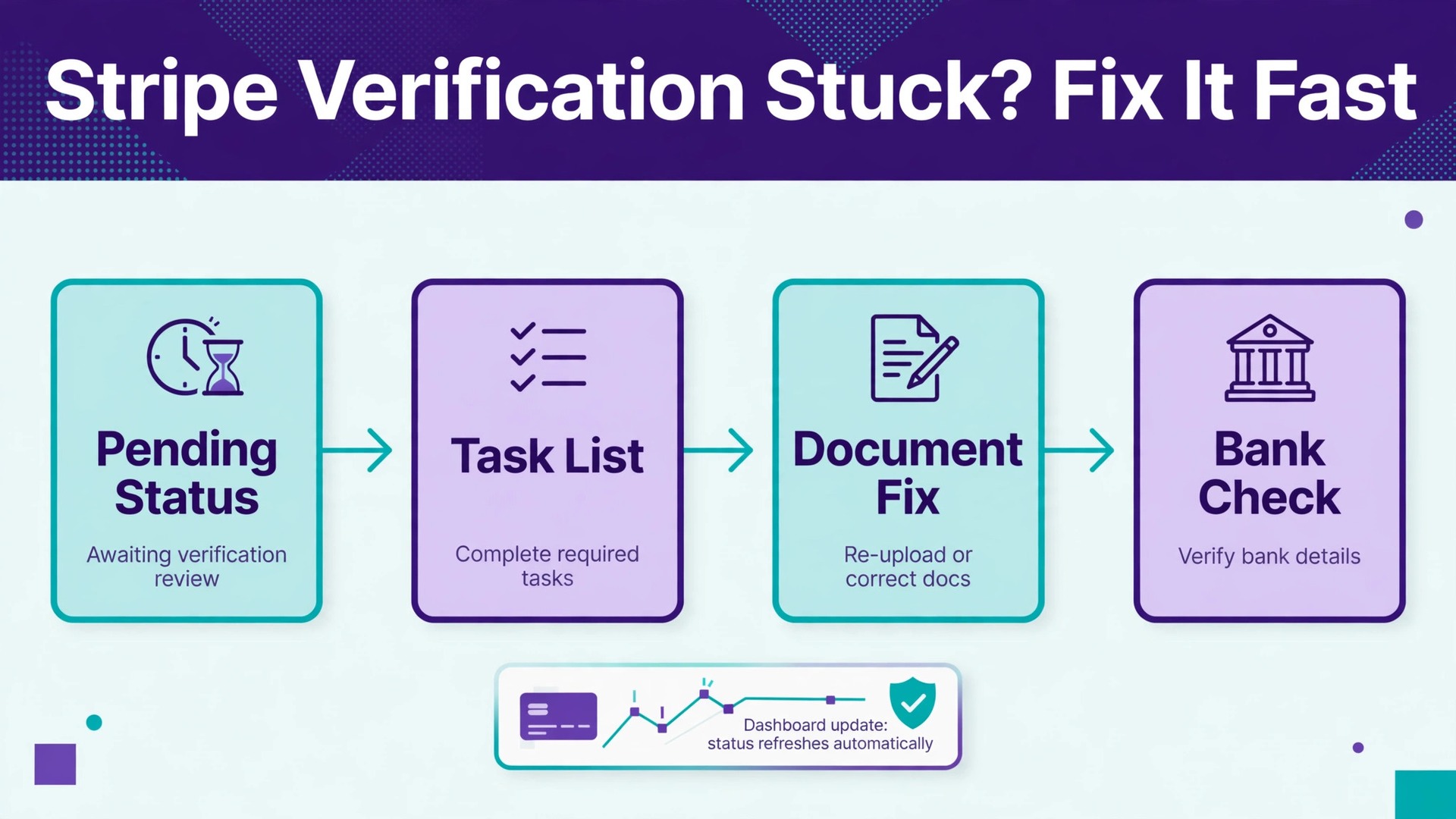
Stripe support material states that document reviews can take up to 24 hours. That single figure explains much of the anxiety around a pending account. A small business that has just started taking payments sees a pending badge, assumes something is broken, and either waits silently or uploads the same document three times. Neither response helps. In most cases, pending means Stripe is still checking, or Stripe is waiting for one specific item, and the Dashboard names that item. This guide shows how to fix Stripe account verification pending small business accounts face, starting with the exact task Stripe lists and ending with a support escalation that actually gets answered.
Verification exists because payment providers must confirm who runs a business before money moves at scale. Regulators and banking partners require identity checks, business checks, and bank account checks, a process commonly called Know Your Customer checks. Those checks protect the business as well as Stripe, because a verified account is harder for an impostor to misuse. The frustration is real, though, especially when payouts pause while a document sits in review. The fastest path through is precision. Submit exactly what Stripe asks for, in the format it asks for, with details that match the account exactly.
This guide is written for a small business owner or manager, not for a developer building on Stripe Connect. It covers the Dashboard verification section, the document checklist, business detail matching, bank confirmation, and support escalation. It flags where Stripe publishes a clear rule and where timelines vary by country, business type, or review depth. If your account is in a country or structure not covered by the examples here, the Dashboard task list for your own account is the authority, and this guide shows you how to read it correctly.
What Pending Really Means
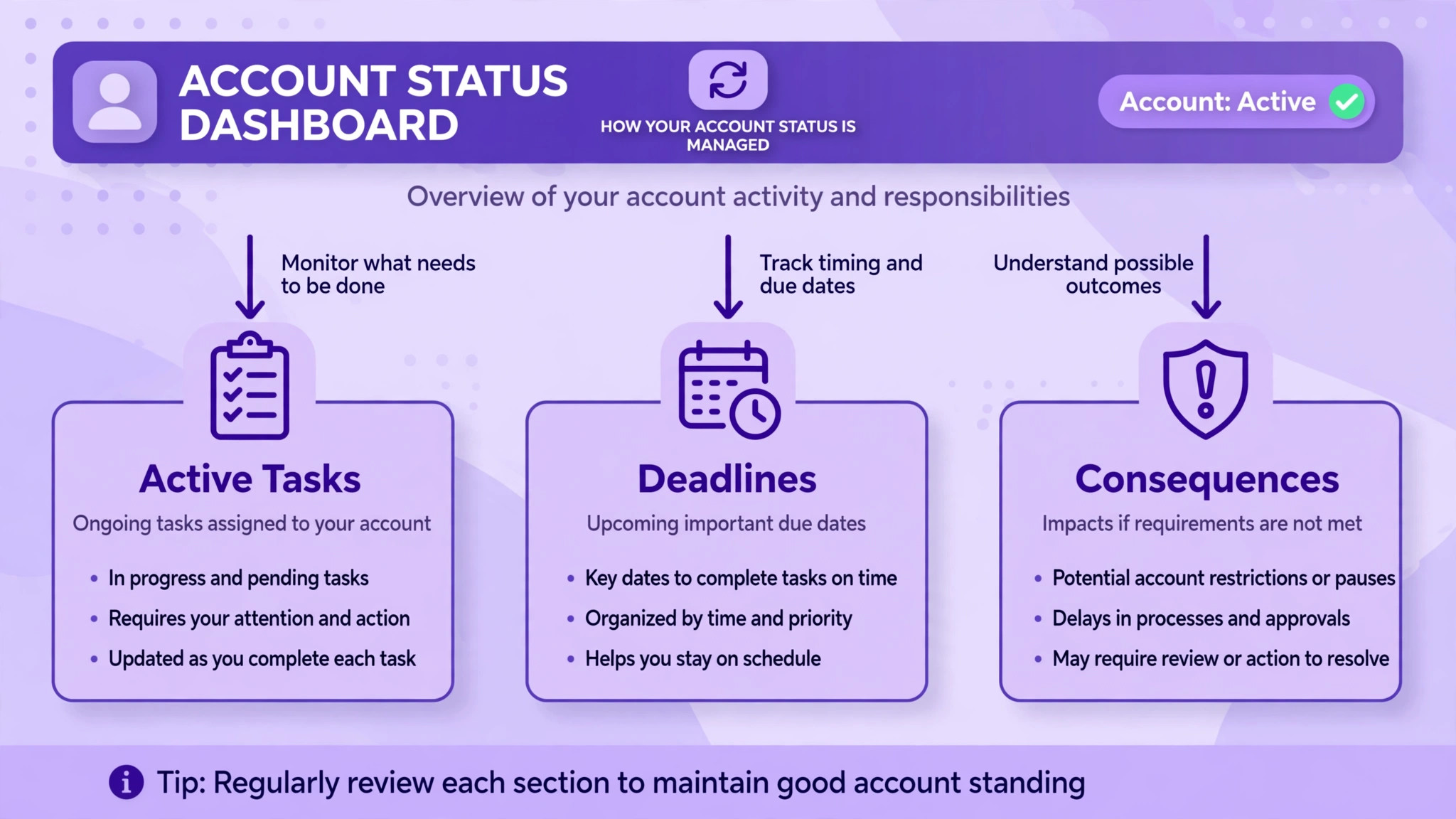
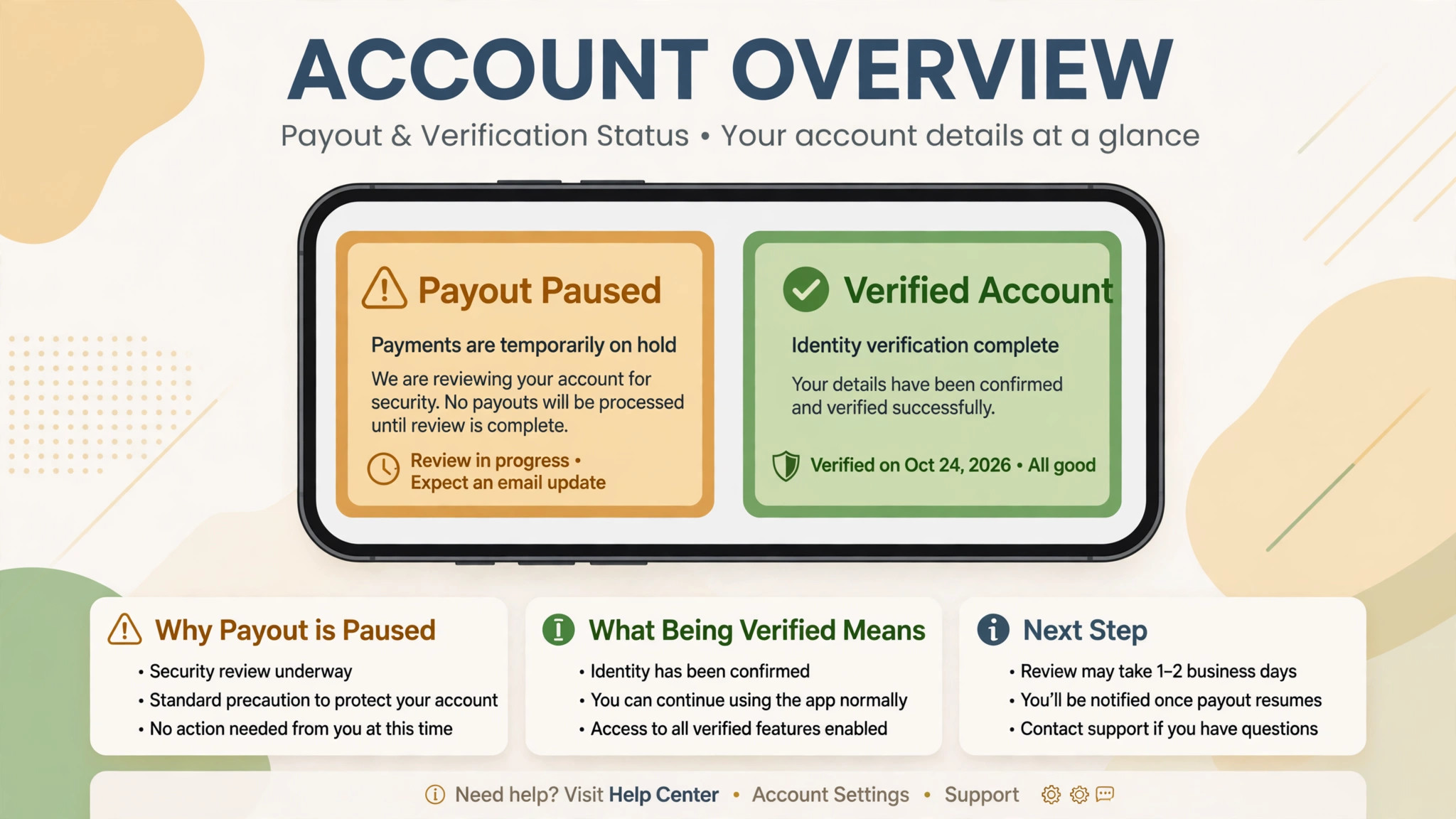
Pending is a status, not a verdict. It can mean Stripe has not yet reviewed a submitted document, Stripe could not verify typed details automatically and now needs a document, or Stripe is waiting for a detail that was never entered. Each meaning has a different fix, and the Dashboard tells you which one applies if you read the task rather than the badge. Open the Dashboard, go to Settings, then Business, then Account status, and read the active tasks. Each task names what Stripe needs and what happens if it is missed, usually a pause on payouts first rather than an immediate account closure.
A common confusion is the difference between payments and payouts. An account can sometimes accept payments while payouts are paused, which means money comes in but does not reach the bank account until verification completes. That distinction matters for cash flow planning. Do not promise suppliers or staff that money will arrive on a normal schedule while payouts are paused. Check the task deadline, submit the item promptly, and plan cash flow around the review period rather than around the usual payout date.
Deadlines matter more than most owners realise. Stripe sets deadlines on outstanding verification tasks, and missing them can pause payouts and, if the account stays unresponsive, disable payments. The exact deadline depends on the task and the account, so read the deadline on your own task list rather than trusting a general figure from an article. A task submitted a day late may still be accepted, but a task ignored for weeks creates a harder recovery, because support must then reopen a restricted account rather than simply review a document.
| Status you see | What it usually means | Your next move |
|---|---|---|
| Information in review | Document submitted, review in progress | Wait for the review window, then check again |
| Action required | Stripe needs a document or detail | Open the task and submit exactly what is named |
| Verification pending | A check has not completed yet | Read the task list to find the blocking item |
| Payouts paused | A deadline passed or a check failed | Complete the blocking task, then contact support if needed |
| Payments disabled | Account stayed unresponsive or failed checks | Escalate with full evidence, do not open a duplicate account |
The Step Workflow to Clear Verification
Step 1. Open Account status and list every active task
In the Stripe Dashboard, go to Settings, then Business, then Account status. List every active task, with its deadline and its consequence. Do not start with the document you happen to have handy. Start with the task Stripe names first, because tasks can depend on each other. For example, identity verification for the account representative may need to complete before owner verification can be confirmed. Working in task order prevents a submission that Stripe cannot yet use.
Step 2. Compare every typed detail with official records
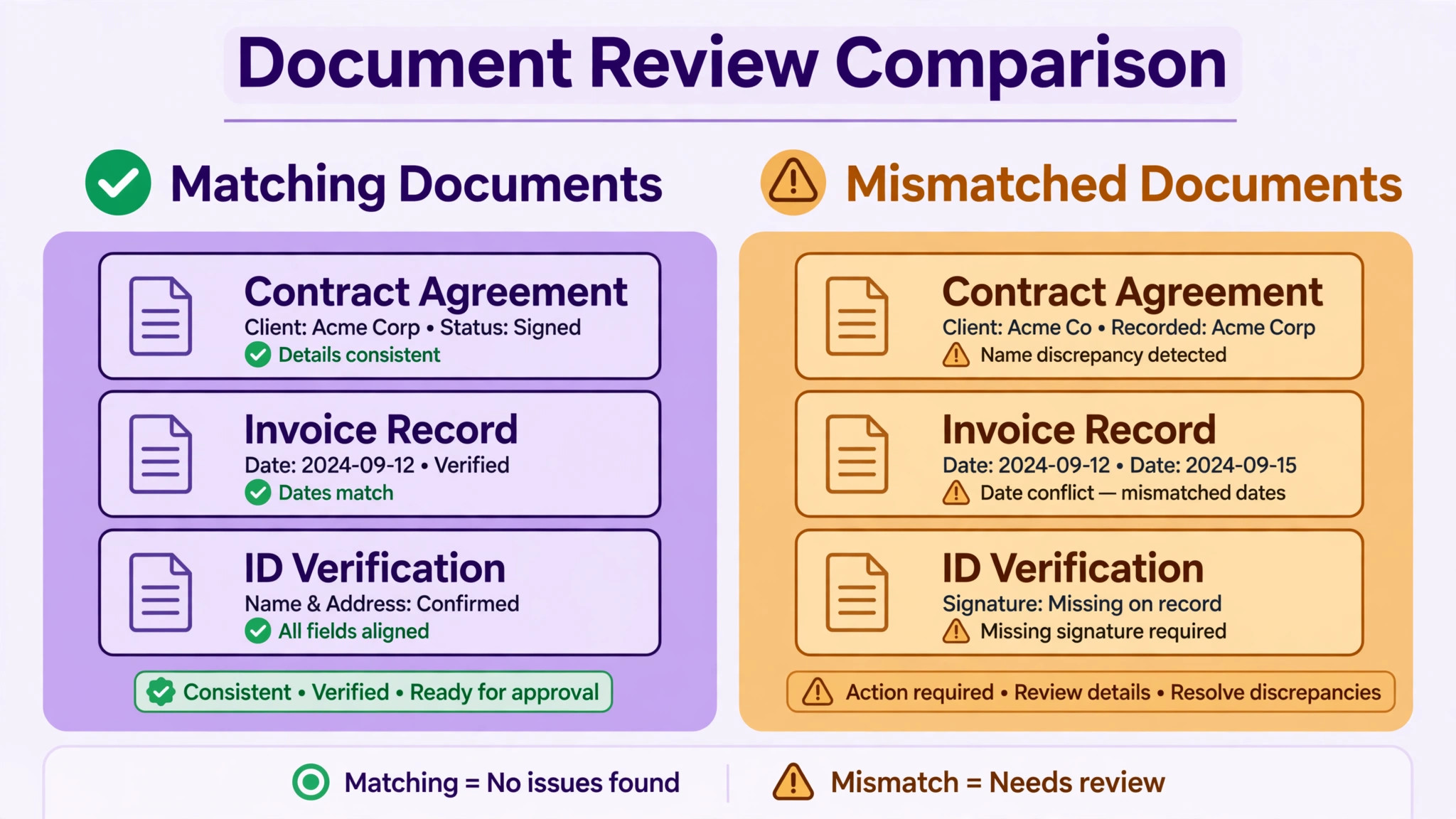
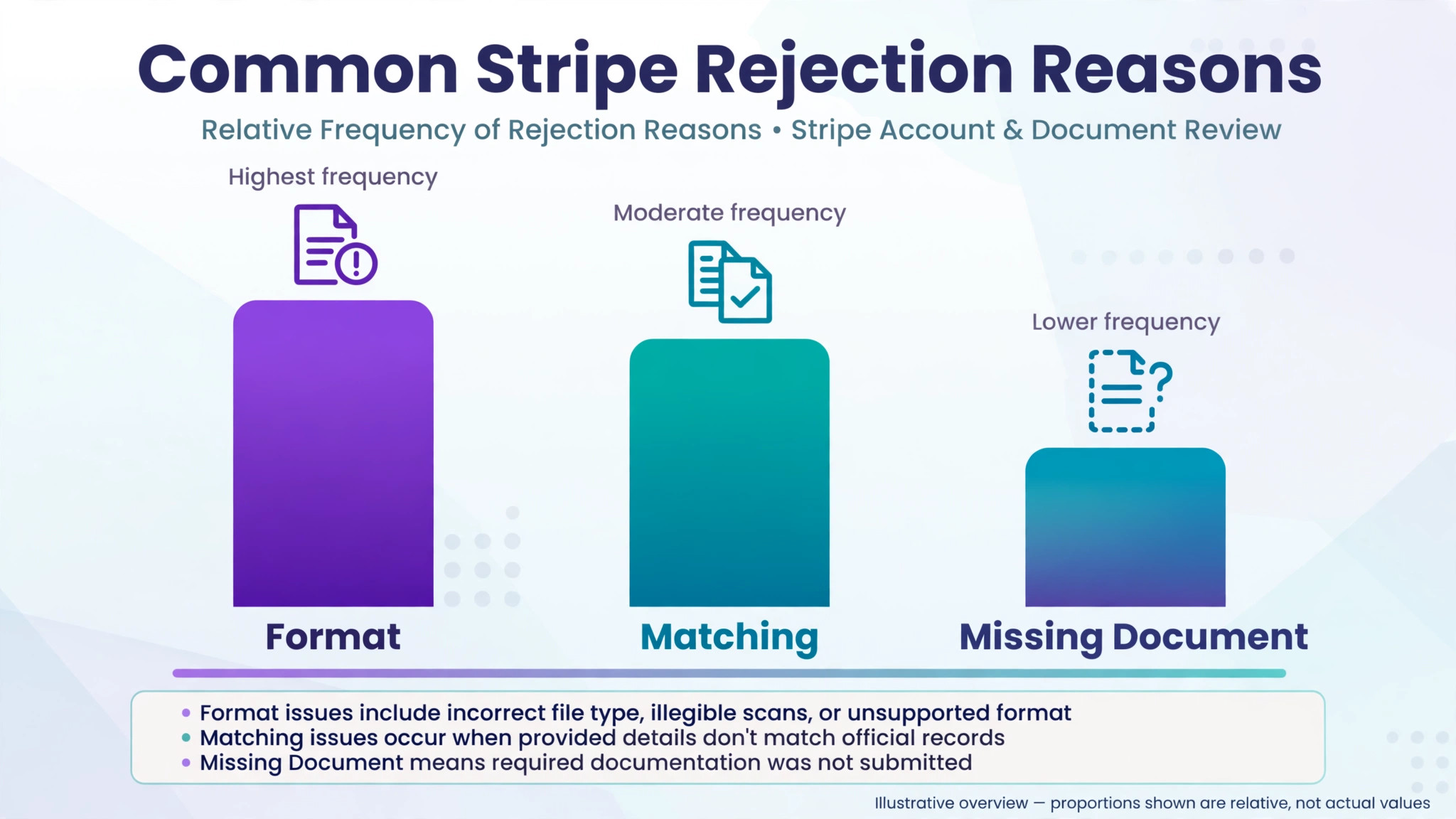
Before uploading anything, compare the account details with official records. Check the legal business name against registration documents, the business address against a lease or utility bill, the representative name and date of birth against identity documents, and the tax identification number against tax records. A mismatch here is the most common reason a document is rejected even when the document itself is genuine. Fix typed details first through the Edit option beside personal details, then upload documents that match the corrected details.
Step 3. Gather documents before starting the upload
Collect every document the tasks name, and check each one against the format rules below before uploading. A colour photo or scan, fully visible edges, readable text, and an unexpired document are the baseline. If a document has two sides with information, prepare both sides. Uploading in one focused session is better than uploading one document, waiting days, and uploading the next, because partial submissions can leave the account pending longer while each item is reviewed separately.
Step 4. Upload through the Dashboard only
Upload documents only through the Dashboard verification section. Stripe support material states that verification documents must not be sent by email, because email is not a secure channel for sensitive documents. If someone claiming to be Stripe asks for documents by email, treat that request with suspicion and log in to the Dashboard directly to check whether a task actually exists. Never share a password or full card details by email either, since Stripe does not ask for those by email.
Step 5. Confirm bank details and payout account
Check the payout bank account in the Dashboard. Confirm the account holder name matches the business or representative name Stripe has on file, and confirm the account and routing numbers were entered without transposed digits. If Stripe asks for bank proof, such as a statement, a voided cheque, or a bank letter, prepare the version that shows the required details and falls within the recency window Stripe names for your country. A bank account in a different name from the account holder is a frequent cause of payout verification failure.
Step 6. Track the review and respond to rejections once
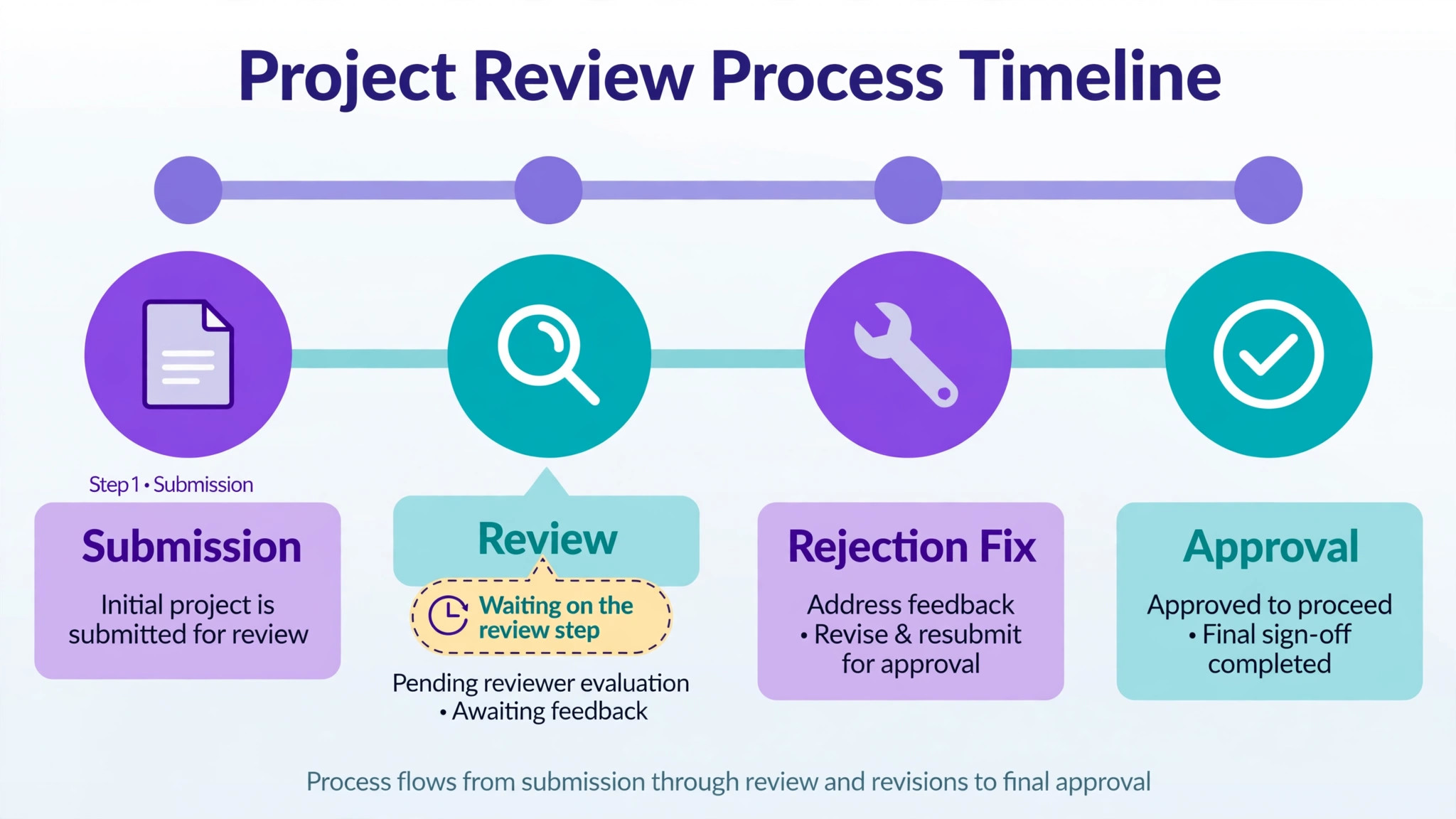
After submission, the task should move to information in review. Stripe support material states that document reviews can take up to 24 hours, while third party guides report that some reviews take a few business days depending on readability and review depth, and manual reviews have no published estimate. If a document is rejected, read the rejection reason, fix that specific problem, and upload a corrected document. Do not re-upload the identical file, since an identical file will fail for the identical reason, and duplicate uploads can complicate the review.
The Document Checklist to Fix Stripe Account Verification Pending Small Business Cases
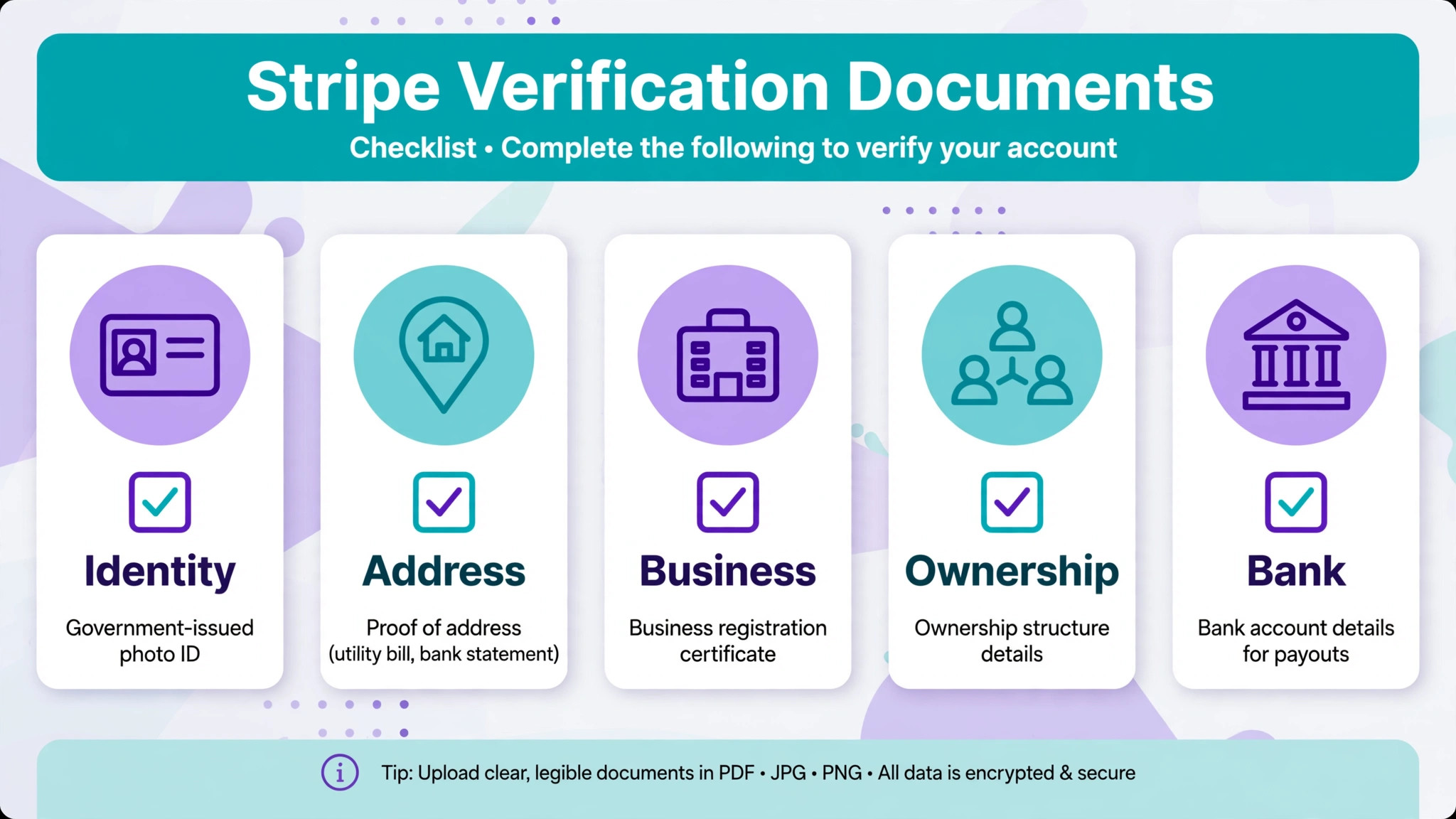
Identity documents prove who the representative is. Stripe typically accepts a government issued photo identity document, such as a driving licence or passport, in colour and unexpired. Photocopies of identity documents are not acceptable, screenshots are not acceptable, and a black and white scan is not acceptable. Both front and back must be uploaded when both sides carry information, and every edge must be visible. A cropped photo that cuts off a corner can fail even when the name and photo are clear.
Address documents prove where a person or business is based. For a home address, Stripe commonly accepts a utility bill or bank statement dated within the past six months, with the name and address matching the account. For a business address, acceptable proof can include a signed lease, a utility bill, a tax return, or articles of incorporation showing the business or owner name, depending on country and business type. Check the exact document list for your country in the Dashboard, because accepted documents vary by jurisdiction.
Business documents prove the business exists and is structured as claimed. A registered company may need registration documents, while a sole proprietor may need identity and tax details rather than company formation papers. Ownership documents matter when the business has owners beyond the representative, since Stripe must verify people who own or control a significant share. Third party guides commonly cite a 25 percent ownership threshold for beneficial owners, but the exact threshold and list for your account appear in the Dashboard tasks, and that list is the authority.
One document cannot satisfy two requirements. A driving licence used for identity cannot also serve as address proof, and a bank statement used for address proof cannot also serve as bank account proof if Stripe asks for separate items. Prepare a separate document for each task, even when one document seems to cover two needs. Submitting the same file twice is a common cause of a second rejection that feels unfair but follows directly from the one document rule.
| Requirement | Common proof | Format rules that cause rejections |
|---|---|---|
| Identity | Driving licence or passport | Colour, unexpired, both sides, all edges visible |
| Home address | Utility bill or bank statement within six months | Name and address match the account exactly |
| Business address | Lease, utility bill, tax return, or incorporation papers | Business or owner name shown, as Stripe specifies |
| Business existence | Registration documents for the business type | Legal name matches the account legal name |
| Ownership | Owner details for significant owners | Every owner Stripe lists must be covered |
| Bank account | Statement, voided cheque, or bank letter | Account holder name matches, details readable |
Business Details That Must Match Exactly
Matching is where most verification failures hide. Stripe compares the document with the account details, and a small difference can trigger a rejection. A legal name that includes a suffix on the registration document but omits it in the Dashboard is a mismatch. A trading name entered where the legal name belongs is a mismatch. An address with an old flat number or a different spelling of a street name is a mismatch. The fix is boring and effective. Copy details character by character from official documents into the Dashboard, and correct the Dashboard before uploading.
Tax identification deserves special care. For a United States business, the company name and employer identification number must match tax records, and a mismatch here is a frequent cause of delay reported by third party guides. If the business recently changed structure, for example from sole proprietor to a limited liability company, the tax details, legal name, and ownership list may all need updating together. Updating only one of the three leaves the other two mismatched, and the account will keep failing on the unchanged items.
Website and product description matching also matters. Stripe documentation notes that a business website should be publicly accessible and should match the business name and product description on the account. A placeholder website, a website for a different business, or a product description that does not match what the business actually sells can trigger further questions. Before submitting, open the website as a visitor, confirm it names the business, describes the product or service, and shows contact routes. A sole proprietor without a website should use the product description field carefully, describing the real offer in plain words.
Ownership and representative details need the same precision. The representative is the person authorised to manage the account, and owners are people who own or control a significant share. Each person details, including full legal name, date of birth, and home address, must match their identity documents. A nickname, a shortened name, or a previous address will cause a mismatch. If an owner has changed address recently, update the account first, then upload an address document that matches the new address, rather than uploading an old document and hoping the reviewer overlooks the difference.
Bank Confirmation Without Guesswork
Bank confirmation fails for three main reasons, and all three are preventable. The first is a typing error in the account or routing number, which is easy to make and hard to spot without reading the numbers aloud against the bank record. The second is a name mismatch, where the bank account holder name differs from the name Stripe has for the business or representative. The third is a missing proof document, where Stripe asks for a statement or letter and the owner uploads a screenshot of an app balance that does not show the required details.
Confirm the payout account step by step. Open the bank record, read the account holder name, and compare it with the Dashboard. Read the account number digit by digit, and confirm the routing or sort code for the country. If the business uses a joint account, a personal account for a registered company, or an account in a different legal name, expect a question from Stripe and prepare the explanation and proof in advance. In many cases, the cleanest fix is to add a business bank account in the correct legal name, rather than trying to justify a mismatched account repeatedly.
If Stripe asks for bank proof, check the recency and content rules for your country before uploading. A statement must usually show the account holder name, the account number or a recognisable portion of it, and the bank name, and it must fall within the window Stripe specifies. A voided cheque must show the same details without alterations. A bank letter must come from the bank and confirm the account holder and number. A cropped screenshot that hides the bank name or the account holder name will fail, even when the owner knows the account is genuine.
Payout timing after approval also needs a realistic expectation. Once verification completes, payouts usually resume on the normal schedule, but a payout that was paused during review does not always arrive instantly, since payout schedules and bank processing still apply. Check the Dashboard payout schedule after approval, and confirm the first payout lands before telling suppliers that cash flow is fully restored. That final check closes the loop and proves the fix worked in money terms, not only in status terms.
What to Send and What Never to Send
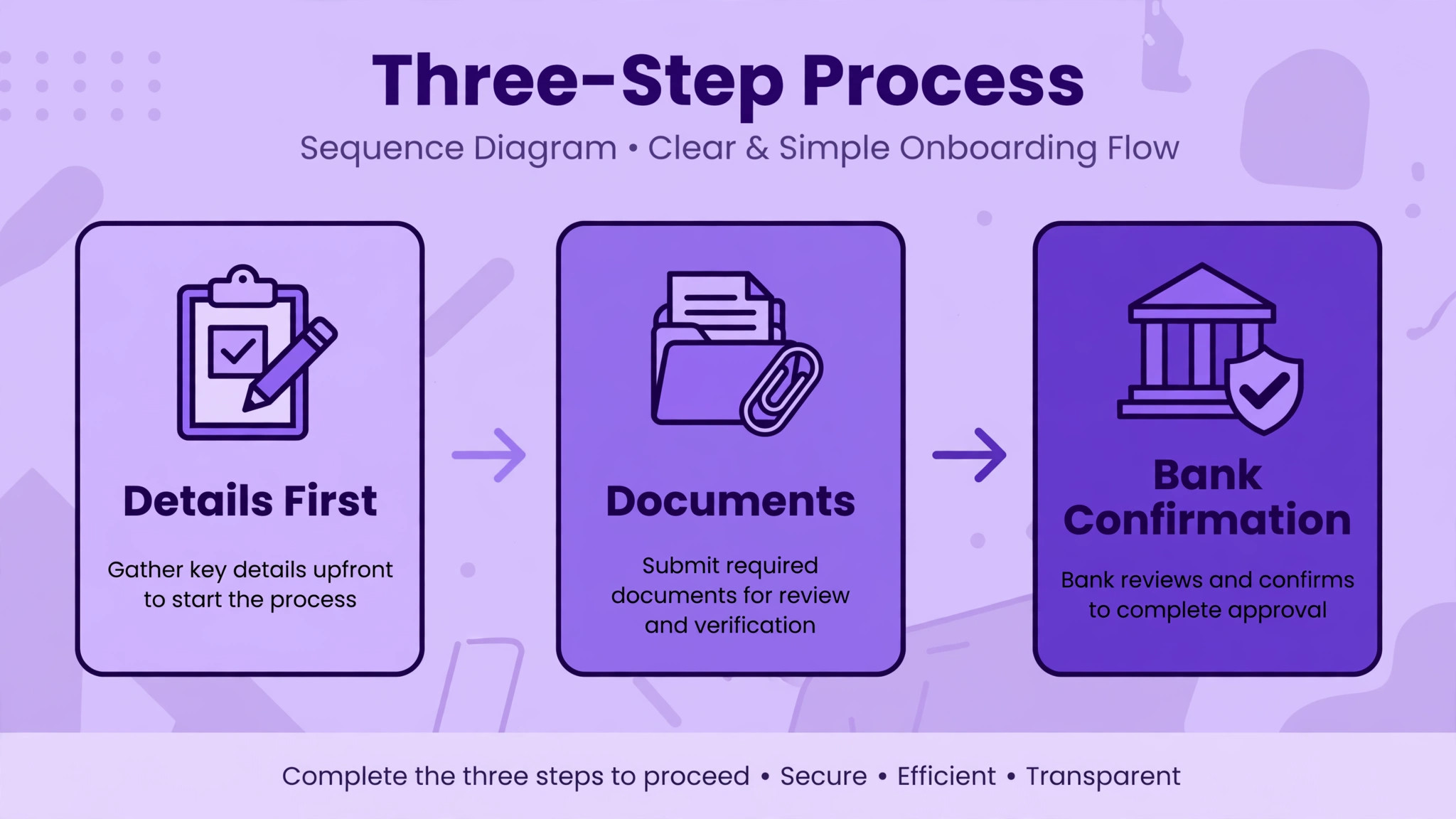
Send documents only through the Dashboard, in the format and recency Stripe specifies, with details matching the account. Send one distinct document per requirement, with both sides where needed, in colour, fully visible, and unexpired. Send corrected details before corrected documents, so the document matches the account it is meant to prove. That sequence, details first and documents second, is the single most reliable habit in verification.
Never send verification documents by email, by chat message to an unverified contact, or through a link in an unsolicited message. Never share a Dashboard password, a full card number, or a full bank login with anyone claiming to need it for verification. Never upload a document belonging to another person, an edited document, or a document with details obscured. Edited or obscured documents fail review and can create a trust problem that is far harder to repair than a simple rejection for a blurry photo.
Also avoid opening a second Stripe account to escape a pending verification. A duplicate account does not bypass identity or business checks, and it can create confusion about which account holds the business history, payouts, and customer payments. If the original account is pending, fix the original account. If the original account was created in error, contact support about the correct path, such as closing or correcting it, rather than quietly running two accounts in parallel.
Support Escalation That Gets Answered
Escalate when the Dashboard shows no clear task, when a corrected document has been rejected without a clear reason, when a deadline is near and a review has exceeded the stated window, or when payouts remain paused after every task shows complete. Before contacting support, gather the evidence a support agent needs. Note the account business name, the task names and deadlines, the dates documents were submitted, the rejection reasons given, and what you changed after each rejection. Screenshots of the task list help, but never include full identity document images in a support message unless support explicitly asks for them through a secure channel.
Write the support message in the same precise style as the submission. State the task, state what was submitted, state what was rejected and why, and state what was changed. Ask a specific question, such as whether a particular document type will satisfy the task or whether a typed detail still mismatches. A message that says verification is stuck, with no task names or dates, will receive generic questions and lose days. A message with task names, dates, and changes will receive a specific answer, because the agent can check the exact items.
If support asks for a different document, submit that document through the Dashboard, not by replying with an attachment, unless support gives a secure upload route. After submitting, note the date and check the task status daily until it changes. If support confirms the account is in manual review, ask for the expected handling route and whether any further document would help, then wait for that review rather than uploading further documents unprompted. Extra uploads during manual review can reset or complicate the queue, so patience after a confirmed manual review is a strategy, not passivity.
Mistakes That Keep an Account Pending
Uploading the same rejected file again is the most common mistake, and it is understandable. The owner believes the document is genuine, so a rejection feels like an error. In most cases, though, the rejection names a format or matching problem, and the identical file will fail for the identical reason. Read the rejection reason literally, fix that reason, and only then upload. A new photo with better light, full edges, and both sides will succeed where the same cropped photo failed three times.
A second mistake is fixing documents while leaving typed details wrong. A perfect passport photo cannot prove a name that is spelled differently in the Dashboard. Always correct typed details first, then upload documents that match. A third mistake is ignoring a task because it looks minor, such as a website description or a support phone number. Stripe tasks are not ranked by how important they feel to the owner. An ignored minor task can still pause payouts, so clear every active task, not only the ones that look serious.
A fourth mistake is waiting without checking. An account in review needs a daily check until it clears, because a rejection can arrive at any point and its deadline keeps running. Set a daily reminder to open Account status, read the task list, and act on any change the same day. That habit turns a two week pending period into a two day fix in many cases, because the owner responds to the first rejection instead of discovering it a week later.
A Final Pre-Submission Review
Before you press submit on any document, run one last review. When you fix Stripe account verification pending small business cases, this review is where most avoidable rejections are caught. It takes five minutes, and it saves the days that a rejection and a second review would cost. Treat it as a required step, not as an optional extra for careful owners.
Read each task name again and match it with the document you are about to upload. If a task asks for address proof, confirm the document shows the same name and address as the Dashboard, and that it falls within the recency window. If a task asks for ownership details, confirm every person Stripe lists is covered. Owners who fix Stripe account verification pending small business reviews in this order, details first and documents second, give reviewers a clean file to approve.
Check the bank account one more time, including the holder name and the account number read digit by digit. A business that tries to fix Stripe account verification pending small business delays at this stage often finds the problem is not a document at all, but a single transposed digit that no reviewer can overlook. That digit is easier to fix before submission than after a rejection, when the payout clock is already running.
Finally, note the submission date and set a daily reminder to check Account status. If you fix Stripe account verification pending small business tasks with a dated note and a daily check, a rejection becomes a one day fix instead of a one week discovery. That habit, more than any single document, is what turns a pending account into a verified one without drama.
Frequently Asked Questions
How long does Stripe verification take?
Document reviews can take up to 24 hours according to Stripe support material, while third party guides report that some reviews take a few business days depending on readability and review depth. Manual reviews have no published estimate. The practical approach is to submit clean, matching documents, check the Dashboard daily, and escalate with evidence if a review exceeds the stated window without a task update.
Why is my Stripe account pending when I already uploaded documents?
Pending after upload usually means the documents are still in review, a document was rejected for a format or matching reason, or another task remains open. Open Account status and read every active task, including tasks beyond the document you uploaded. A single open task, such as a bank detail or an owner detail, can keep the whole account pending even when identity documents have cleared.
What documents does Stripe need for a small business?
Stripe needs identity proof for the representative, address proof where required, business existence proof for the business type, ownership details for significant owners, and bank account details for payouts. The exact list varies by country and business structure, and the Dashboard task list for your account is the authority. Prepare a separate, colour, unexpired, fully visible document for each task, with both sides where the document carries information on both sides.
Can I accept payments while verification is pending?
In some cases, yes, while payouts remain paused, but the exact capabilities depend on the account, the task, and the deadline. Do not assume payments and payouts share the same status. Check the Dashboard for which capabilities are active, plan cash flow around paused payouts, and clear the blocking task promptly rather than building a sales period on money that cannot yet reach the bank account.
What happens if I miss a Stripe verification deadline?
Missing a deadline can pause payouts first, and continued unresponsiveness can disable payments. The exact consequence appears on the task itself, so read it rather than guessing. If a deadline has passed, complete the task as soon as possible and contact support if payouts do not resume after the task clears, with the task name, submission date, and any rejection history ready.
Why was my identity document rejected when it is genuine?
A genuine document can fail for format or matching reasons, such as a black and white scan, a cropped edge, an expired date, a screenshot, a photocopy, or a name that differs from the Dashboard details. Read the rejection reason literally, correct the typed details first if they differ, then upload a new colour photo or scan with full edges, both sides where needed, and readable text.
Should I send Stripe documents by email?
No. Stripe support material states that verification documents must be uploaded through the Dashboard and must not be sent by email. If a message asks for documents by email, log in to the Dashboard directly to check whether a task exists, and treat the message with suspicion. Never share a password or full card details by email in connection with verification.
How do I fix Stripe account verification pending small business cases that stay stuck after resubmission?
Gather the task names, deadlines, submission dates, rejection reasons, and changes made after each rejection, then contact support with that evidence and a specific question. When you fix Stripe account verification pending small business accounts in this way, support can check the exact items rather than asking generic questions. Avoid duplicate accounts and avoid re-uploading identical files, since both steps complicate rather than clear a stuck review.
Verification Cleared, Business Moving Again
A pending Stripe account feels like a block on the whole business, because payouts are the point where sales become cash. In most small business cases, though, the block is a single task, a single mismatch, or a single unreadable document. The workflow in this guide finds that item in the Dashboard, fixes the typed details first, uploads a clean matching document through the Dashboard, confirms the bank account, and tracks the review daily until it clears.
Start today by opening Account status and writing down every active task with its deadline. Fix the details, gather the documents, and submit once, cleanly. If a rejection arrives, read it literally and fix that reason, not a different one. If the account stays stuck after a clean resubmission, escalate with the evidence list in this guide. Verification is a process with a finish line, and a precise submission reaches it far faster than repeated guesses.