
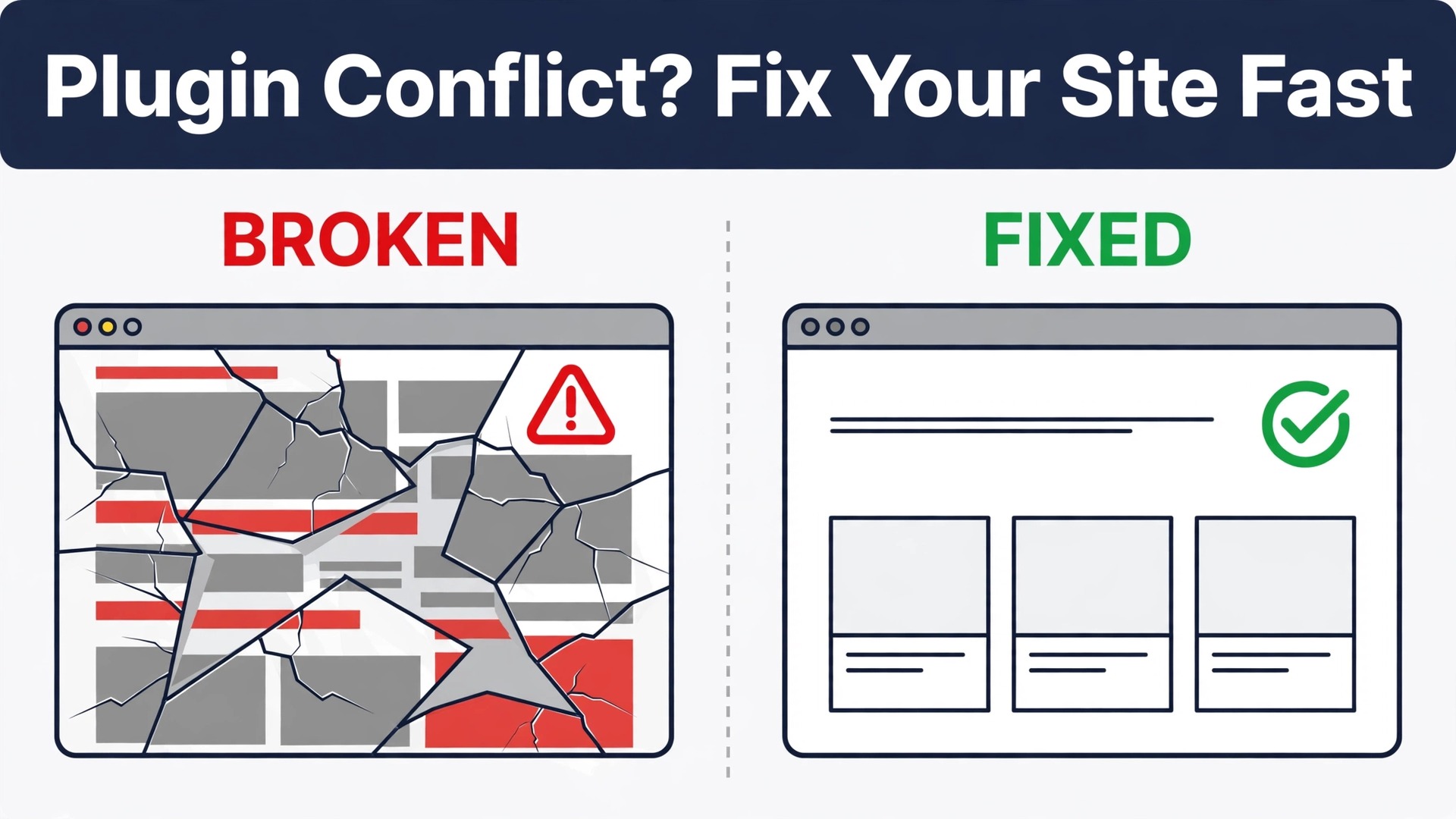
The verdict is simple. Never deactivate everything on the live site at once, and never delete the plugin you suspect before you have proof. A broken contact form, a checkout button that stops working, or a white screen after an update can shut a small business website down in minutes, and learning how to fix WordPress plugin conflict small business problems safely with a calm, staged test is the difference between a short outage and a lost week of enquiries. Guessing hides the real cause and can lose settings you will need later.
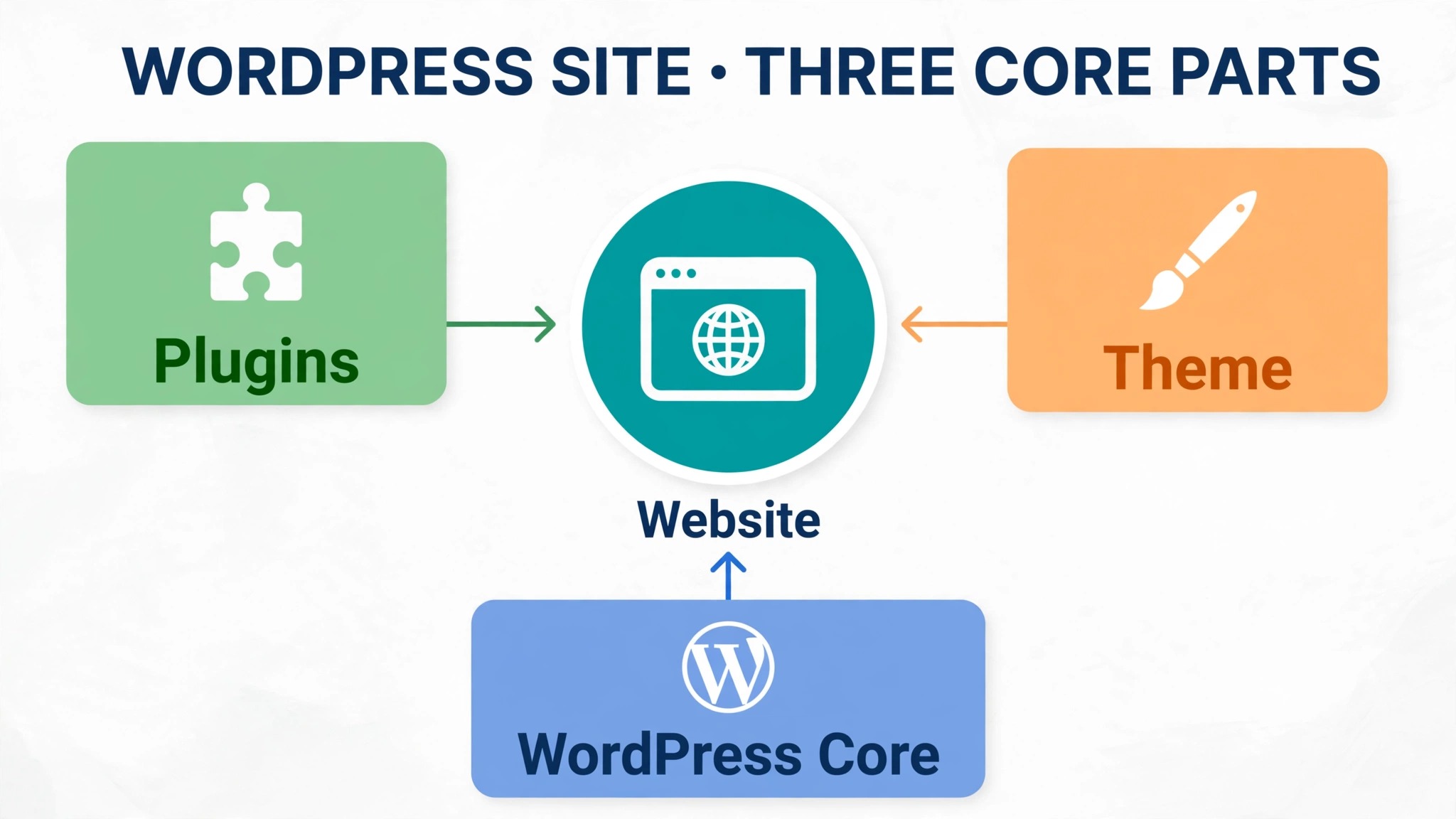
A plugin conflict happens when two pieces of code that work well alone break each other once they share a site, or when a plugin clashes with the theme, the WordPress version, or the PHP version on the server. The fault may appear right after an update, or it may appear slowly as a feature stops working in one corner of the site. Either way, the diagnosis follows the same logic. Remove variables one at a time, test the exact fault after each change, and record what changed, so the fix can be repeated and proved.
This guide uses the safest order first. It starts with a backup and a clear fault description, then uses Health Check Troubleshooting Mode to test without changing what visitors see, then covers the manual method for sites where that plugin cannot run, then explains rollback, replacement, and prevention. Exact admin paths are named throughout, because a small business owner should not have to guess where a setting lives while the site is broken.
Why Plugin Conflicts Hit Small Business Sites Hard
Small business sites carry more plugin weight than their size suggests. A typical site may run a form plugin, a booking or shop plugin, a search optimisation plugin, a security plugin, a caching plugin, and a page builder, all at once. Each plugin adds code, scripts, styles, and database tables, and each update can change how that code interacts with the rest. A large company has a staging site and a developer on call. A small business often has neither, so a conflict lands directly on live customers.
The business cost is also uneven. A blog that loads slowly for a day loses readers, but a shop whose checkout breaks for a day loses orders that may never return. A service business whose contact form fails loses enquiries it never sees, which makes the problem harder to spot. That is why the first step in any conflict fix is not a technical step at all. It is writing down exactly what broke, when it broke, and what changed just before it broke, because that record narrows the search from dozens of plugins to two or three suspects.
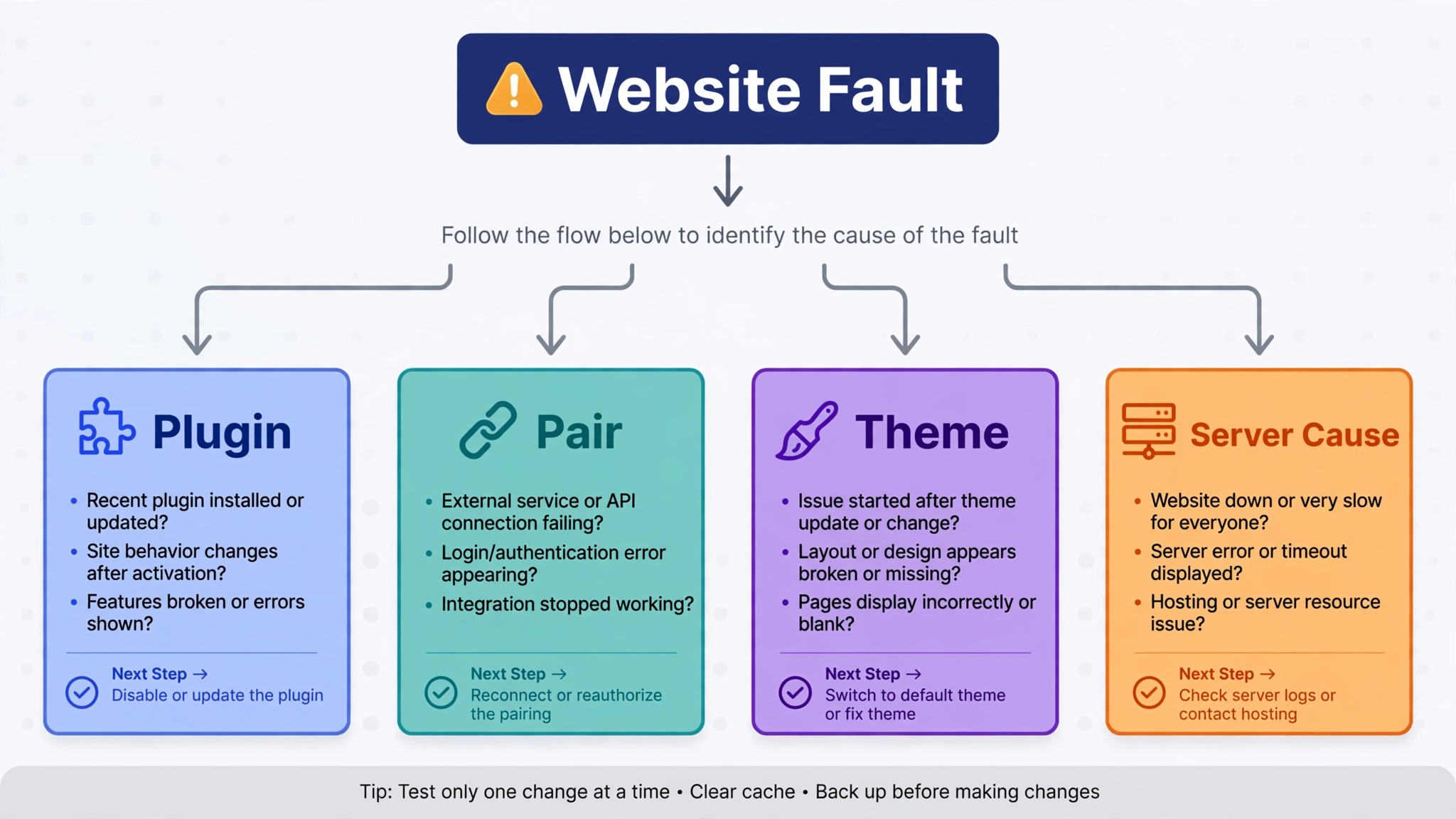
Timing gives the strongest clue when you fix WordPress plugin conflict small business faults, because a recent change narrows the suspect list fast. If a plugin, theme, or PHP version changed in the last two days, that change is the first suspect. If nothing changed and the fault appeared suddenly, look at automatic updates, a hosting change, or a plugin that updates in the background. If the fault appears only on one page, one device, or one browser, the cause is more likely a script or style clash on that page than a site wide failure. Those distinctions shape the test plan that follows.
Common Conflict Signals at a Glance
| Signal | What it often points to | Check first |
|---|---|---|
| White screen or fatal error | Code clash or PHP version problem | Error log and last updated plugin |
| Form or checkout button dead | Script clash between two plugins | Form plugin and caching plugin |
| Layout broken on one page | Style clash with page builder or theme | Page builder and theme settings |
| Site slow after an update | Caching or optimisation clash | Caching plugin and image plugin |
| Admin page will not load | Admin script clash | Recently updated admin plugin |
| Feature works when logged out only | Caching or login related clash | Cache settings and user role plugin |
How to fix WordPress plugin conflict small business sites with a safe test
The safest test on a live site uses the free Health Check and Troubleshooting plugin, maintained by the WordPress core team. Its Troubleshooting Mode deactivates all plugins and switches to a default theme for your browser session only, while visitors and customers keep seeing the normal site. That single feature makes it the right first tool for a small business, because you can test in the middle of the day without closing the shop.
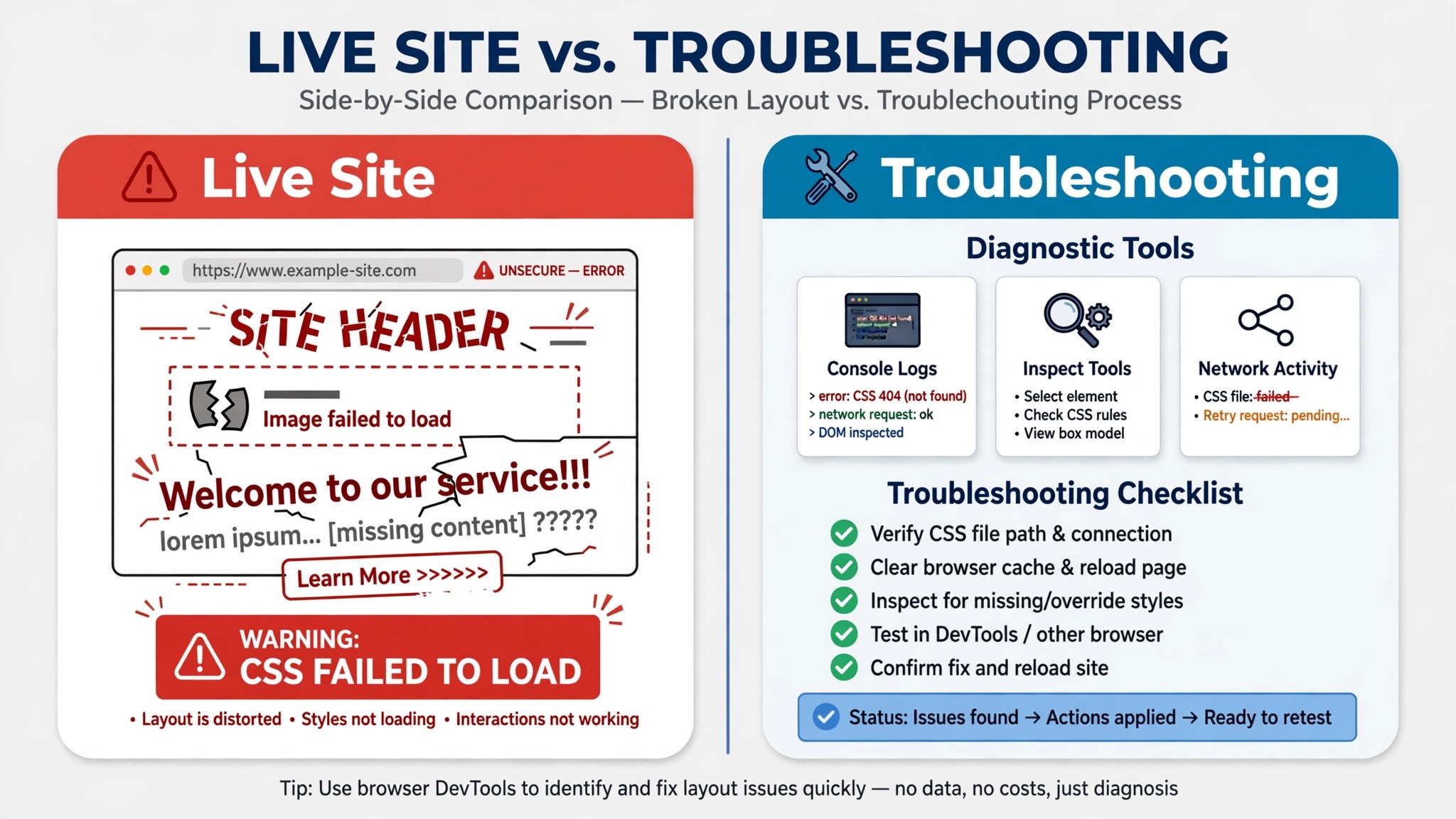
Before you start any test, take a full backup, including files and database, and confirm that you can restore it. A backup is not a formality. It is the only way back if a rollback goes wrong or a setting is lost during testing. Store the backup outside the site itself, note the backup date and time, and check that the backup file is complete before you touch a plugin. If your host offers a staging copy, use it for the deeper tests, but Troubleshooting Mode remains the fastest safe test on live.
Step 1 Write down the exact fault
Open the broken page in a private browser window and write down what you see, what you expected to see, and the exact steps that trigger the fault. Note the page address in words, the device and browser, whether you were logged in, and whether the fault happens every time or only sometimes. A fault that happens every time is easier to test, because each plugin change gives a clear yes or no answer.
Also note the last changes to the site. List every plugin, theme, and WordPress update from the last week, with dates, and list any new plugin installed in that window. If an error message appears, copy it in full, including any file path it names, because a path inside the plugins folder often names the plugin directly. That note becomes your test script, and it stops the common drift where each test changes two things at once and proves nothing.
Step 2 Install Health Check and Troubleshooting
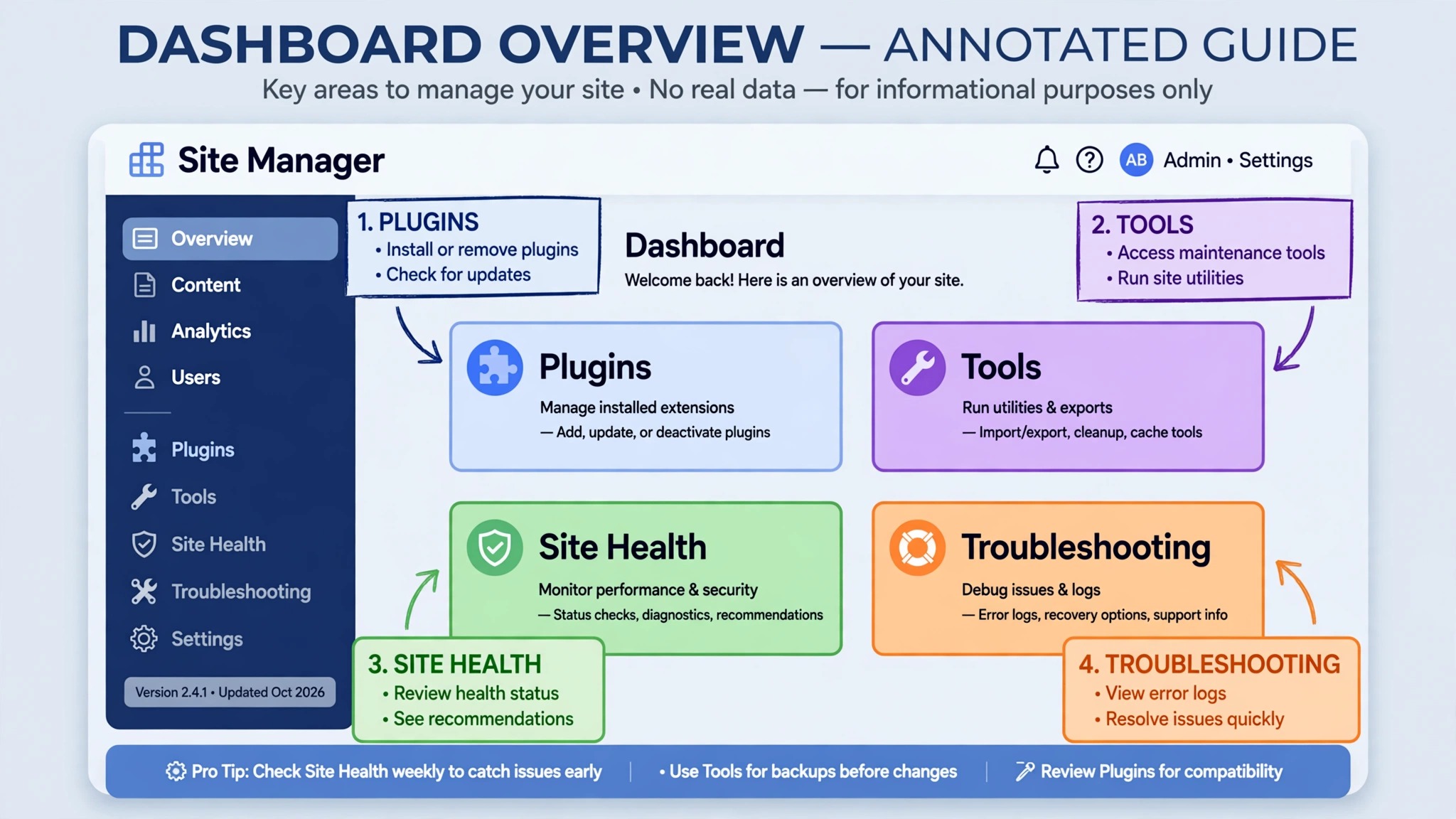
In the WordPress dashboard, go to Plugins, then Add New, search for Health Check and Troubleshooting, install it, and activate it. The plugin is free and comes from the WordPress directory, so install it from the dashboard rather than from a downloaded file of unknown origin. Once activated, it adds its tools under Tools, then Site Health, where a Troubleshooting tab appears.
Do not confuse this plugin with the built in Site Health screen alone. Site Health gives general health information, while the Troubleshooting tab adds the session only test mode that makes safe live testing possible. If you already have the plugin installed from an earlier fix, check for an update before you start, because an outdated test tool can itself behave oddly on a current WordPress version.
Step 3 Enable Troubleshooting Mode
Go to Tools, then Site Health, open the Troubleshooting tab, and click Enable Troubleshooting Mode. At that point all plugins are deactivated for your session only, and a default theme is used for your session only. Visitors still see the normal site with its normal plugins and theme, which is the key safety feature. An admin bar item appears for troubleshooting, and you can manage the test session from there.
Now visit the broken page again in the same browser session. If the page now works, a plugin or the theme is the cause, and you have proved that WordPress core, the server, and the page content itself are not the main fault. If the page still fails with all plugins off and a default theme active, the problem lies elsewhere, such as in WordPress core, the server, a corrupt file, or the content itself, and plugin testing will not fix it. That negative result is still valuable, because it stops hours of plugin guessing.
Step 4 Reactivate plugins one at a time
Stay in Troubleshooting Mode and go to Plugins. Use the troubleshooting controls to enable plugins one at a time, testing the broken page after each single change. When the fault reappears right after one plugin is enabled, that plugin is involved in the conflict. Disable it again in the test session to confirm that the fault disappears, because a toggle that turns the fault on and off is strong evidence.
Work in a sensible order when you fix WordPress plugin conflict small business faults, because testing the broken feature first gives the clearest early answer. Enable the plugin that provides the broken feature first, then the most recently updated plugins, then caching and optimisation plugins, then the rest. Caching plugins deserve special care, because a cached page can hide a fix or hide a fault. Clear the cache after each change during testing, and test in a private window where possible, so you see the current page rather than a stored copy.
Step 5 Test for a pair conflict and a theme conflict
Some faults need two plugins together, not one alone. If no single plugin brings back the fault, keep the first suspect enabled and continue enabling the rest one by one, because the fault may appear only when a particular pair is active together. A conflict between two plugins is common where both load the same script, both modify the same form, or both try to control the same page element.
Test the theme separately. In Troubleshooting Mode, switch between the default theme and your normal theme while plugins are off, and see whether the fault follows the theme. If the fault appears only with your normal theme, the theme is involved, even if a plugin seemed suspect earlier. Contact the theme provider with the same fault note you wrote at the start, because a theme fix may need a theme update rather than a plugin change.
Step 6 Exit Troubleshooting Mode cleanly
When testing is done, click Disable Troubleshooting Mode from the admin bar or from the Troubleshooting tab. Your plugins and theme return to their normal state for all visitors, including you. Confirm that the site looks normal again, then apply the real fix on the live site, which usually means deactivating the culprit plugin, updating it, or replacing it, as covered below. Do not leave Troubleshooting Mode running as a workaround, because it is a test session, not a fix.
The Manual Method When Troubleshooting Mode Cannot Run
If the dashboard is unreachable, or if Troubleshooting Mode cannot be installed, the manual method still works, but it changes the live site for everyone, so use it at a quiet time and warn the team first. The manual method deactivates plugins from the dashboard by selecting all plugins and choosing Deactivate from the bulk actions, then reactivates them one at a time with a test after each step. The logic is identical to Troubleshooting Mode, but the risk is higher, because visitors see the site with plugins off during the test.
If the dashboard itself will not load, hosting file access or SFTP can disable plugins by renaming the plugins folder, or by renaming a single plugin folder inside it. Renaming a folder deactivates that plugin without deleting its settings, which is an important distinction. Deactivation stops the plugin running while settings and database tables stay in place. Deletion may remove data depending on how the plugin was built, so never delete a plugin while testing. Rename, test, and rename back, one folder at a time, and keep a note of every folder you renamed.
A binary search can speed up the manual method on a site with many plugins. Deactivate half the plugins, test, and narrow the search to the half that contains the culprit, repeating until one plugin remains. With thirty plugins, that approach takes about five rounds rather than thirty single tests. Keep plugin dependencies in mind during this method, because an add on plugin may need its parent plugin active to work, so deactivate add ons first and the parent last.
Fix WordPress Plugin Conflict Small Business Rollback Steps
Finding the culprit is only half the job. The next decision is whether to update, roll back, replace, or wait for a fix, and each option carries a different risk for a small business. Start by checking whether an update for the culprit plugin is already available. A conflict caused by an update is often fixed by the next update, especially where the plugin author has already seen reports from other sites. Update on a staging copy first if you can, and test the exact fault before you update live.
Rollback means returning the culprit plugin to the previous version that worked. Some plugins offer a previous version download from their directory page, and some hosts or backup tools can restore a single plugin folder from a backup. Rollback is a useful short term fix, but it is not a long term plan, because an old version may miss security fixes. If you roll back, set a review date, note the version you returned to, and check for a fixed update on that date rather than leaving the old version in place indefinitely.
Replacement is the right choice when the culprit plugin is abandoned, when its support does not reply, or when the same conflict returns after two updates. Choose a replacement that covers the one job you actually need, not the longest feature list. A form plugin that handles your form cleanly beats a form plugin with fifty features that clash with your shop. Test the replacement on staging, migrate the settings and any form or content it controls, and keep the old plugin deactivated, not deleted, until the replacement has run cleanly for two weeks.
If the feature is essential and no replacement is ready, a temporary workaround may be needed, such as a simpler form, a manual order process, or a holding page for one service. A workaround should be honest with customers, clearly labelled as temporary, and given an end date, and it should still be recorded as part of how you fix WordPress plugin conflict small business faults for that week. Workarounds that quietly stay in place for months become the new system, with no owner and no fix, so review them weekly until the real fix lands.
WordPress Debugging Checklist for a Small Business
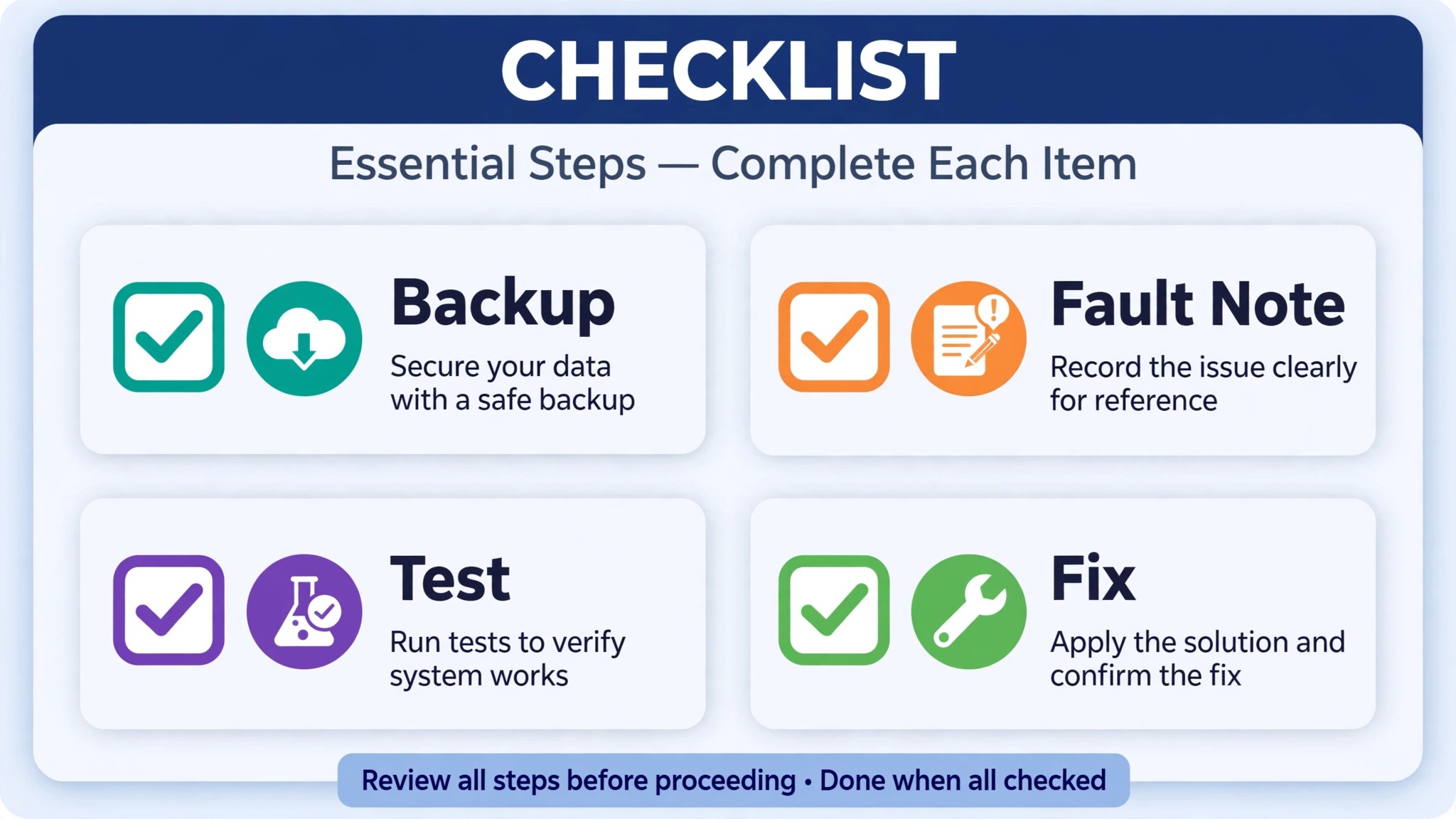
Use this checklist in order and record the result of each step, because a debugging log is what turns a one off fix into a repeatable process for the next update.
– Full backup taken and stored outside the site, with date and time noted – Exact fault written down, with page, steps, device, browser, and login state – Last week of plugin, theme, and WordPress updates listed with dates – Error message copied in full, including any file path it names – Health Check and Troubleshooting installed and updated – Troubleshooting Mode enabled and broken page tested with all plugins off – Plugins reactivated one at a time, with a test and a cache clear after each – Pair conflict tested by keeping the first suspect active while enabling others – Theme tested by switching between default theme and normal theme – Troubleshooting Mode disabled cleanly and normal site confirmed – Culprit plugin decision recorded as update, rollback, replacement, or workaround – Fix tested on the exact fault, not just on the home page – Plugin author or theme provider contacted with version numbers and error text – Backup taken again after the fix, so the working state is saved
Mistakes That Make a Plugin Conflict Worse
Deleting the suspect plugin during testing is the most damaging mistake, because deletion can remove settings, forms, or data that deactivation would have kept. A small business that deletes a form plugin may lose every form on the site, even if the plugin was not the culprit. Deactivate first, test, and delete only after a replacement has run cleanly and a backup of the old settings exists.
Changing two things at once is the second mistake. If you update a plugin and change a theme setting in the same test, a fixed page proves nothing about which change mattered, and a still broken page proves nothing either. Change one thing, test, record, and then change the next thing. Slow testing feels frustrating during an outage, but it is faster overall than a series of unproved changes that must be undone.
Ignoring the cache is the third mistake. A cached page can show the old broken version after a fix, or the old working version after a new fault, and both results mislead the test. Clear the caching plugin cache, clear any server cache your host provides, and test in a private window during diagnosis. If your host uses a content delivery network, check whether its cache also needs clearing, because that layer can hide a fix for hours.
Updating everything at once after a conflict is the fourth mistake. A bulk update after a fault can introduce a second conflict on top of the first, and the site ends up with two culprits instead of one. Update the culprit plugin alone first, test the fault, and then update the remaining plugins one at a time on a quiet day. That discipline is tedious, but it is what keeps a small business site stable across a year of updates.
Prevention That Fits a Small Business Budget
Prevention does not require a developer retainer. It requires a short routine, applied consistently. Keep the plugin count as low as the business actually needs, and remove plugins that duplicate a job already covered by another plugin. Each plugin removed is one less update, one less script, and one less possible clash. Review the plugin list quarterly and ask, for each plugin, what job it does and what would break if it were gone. A plugin with no clear job is a candidate for removal.
Update on a schedule, not on impulse. Choose a quiet day each week for updates, take a backup first, update plugins one at a time, and test the key pages after each update. Key pages for most small businesses are the home page, the contact page, the main service page, and the checkout or booking page. A five minute test of those pages after each update catches most conflicts before customers do.
Use a staging copy for major updates, such as a WordPress major version, a theme change, or a shop plugin update. Many hosts offer a staging copy at no extra cost, and a staging test of a major update takes far less time than fixing a live outage. If staging is not available, update at a quiet time, keep the backup ready, and test immediately, so a rollback is quick if the fault appears.
Keep a simple site log, with one line per change, showing the date, the plugin or theme changed, the version, and the test result. That log is the single most useful document during the next conflict, because it answers the question of what changed just before the fault appeared. A log kept in a shared document, rather than in one person’s memory, also helps when a different team member must fix the next fault.
Testing After the Fix So the Fault Stays Fixed
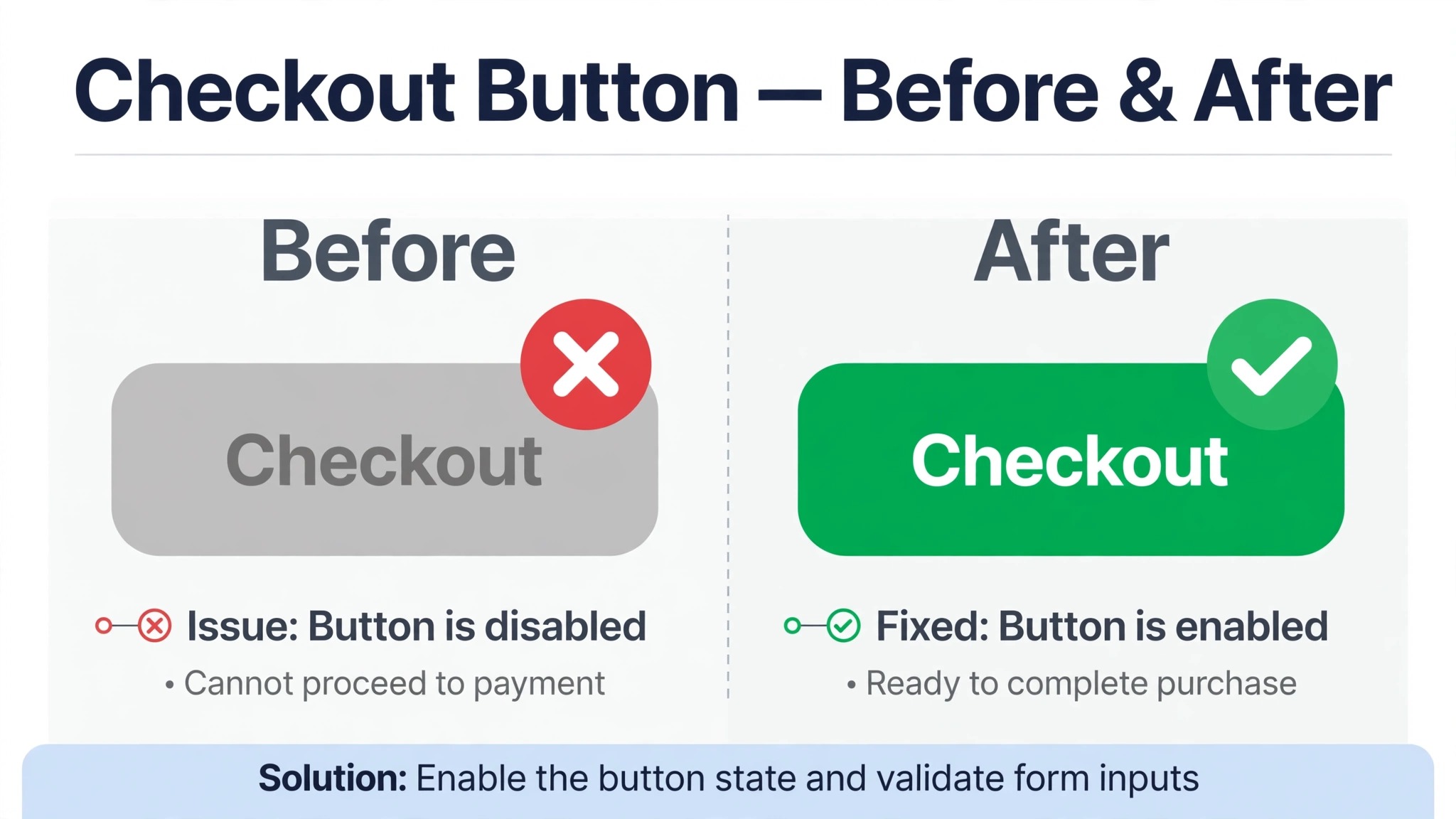
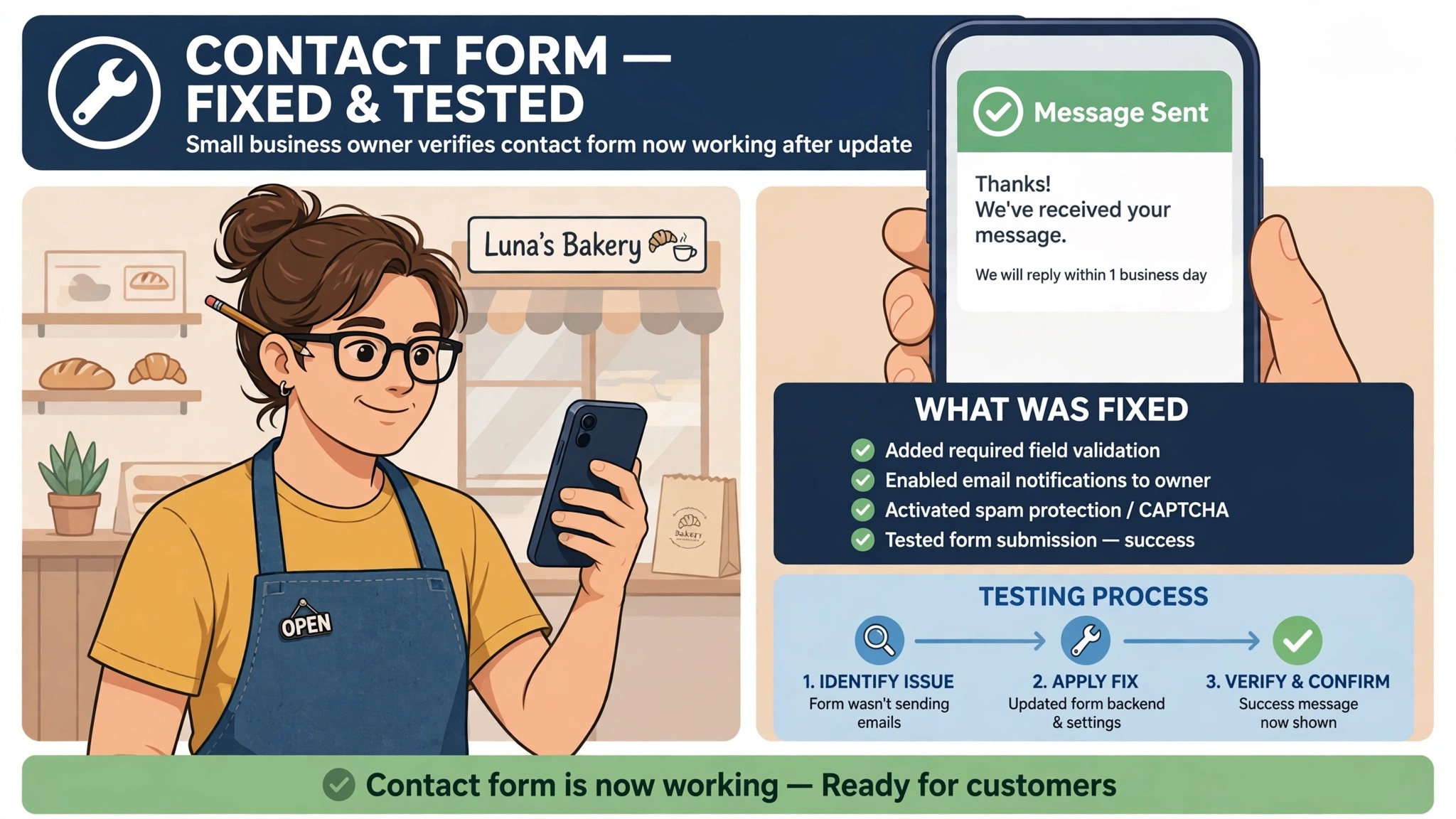
A fix that is not tested on the exact fault is only a guess with a better name. Return to the page, device, and steps from your original fault note, and repeat them exactly, including the login state that triggered the fault. If the fault was a dead checkout button, complete a test order to the confirmation screen, not just to the cart. If the fault was a broken form, submit a test form and confirm that the entry arrives in the inbox or database where real enquiries land. A home page that loads cleanly does not prove that a checkout or form now works.
Test the neighbouring features as well, because a plugin change can fix one page and break another. Check the pages that share the same plugin, the same form, or the same script, and check the site on a phone as well as on a desktop, since script clashes often show up on one screen size first. Keep the test short but specific, with a written pass or fail for each page, so the team can see that the fix was proved rather than assumed. This final test is also the point where you fix WordPress plugin conflict small business problems in a way that survives the next update, because the test list becomes the regression list for future updates.
Record the final state in the site log, with the culprit plugin, the version that works, the replacement if one was chosen, and the date of the next review. Take a fresh backup of the working site, and store it outside the site with a clear name and date. A working backup taken right after a proved fix is worth more than a month of older backups, because it captures the site in the exact state that customers can use. With that backup in place, the next update can be tested with confidence rather than fear.
Frequently Asked Questions
Will deactivating a plugin delete my data?
Deactivation only stops the plugin running, while settings and database tables stay in place. Deleting a plugin may remove its data depending on how the plugin was built, so deactivate during testing and delete only after a replacement has run cleanly and a backup exists.
What is Troubleshooting Mode in WordPress?
Troubleshooting Mode is part of the Health Check and Troubleshooting plugin. It deactivates all plugins and switches to a default theme for your browser session only, while visitors keep seeing the normal site. That session only behaviour makes it safe to test a live small business site during the day.
How do I find a conflict if the dashboard will not load?
Use hosting file access or SFTP to rename the plugins folder, which deactivates all plugins, then rename single plugin folders back one at a time while testing. Rename rather than delete, keep a note of every folder changed, and restore the backup if the site does not recover.
Can two plugins conflict even if each works alone?
Yes, a pair conflict happens when two plugins together load the same script, modify the same form, or control the same page element. Test for a pair by keeping the first suspect active while you enable the remaining plugins one by one, rather than stopping at the first single plugin test.
Should I roll back a plugin or wait for an update?
Rollback is a sound short term fix when a previous version worked and the business feature is essential, but set a review date and check for a fixed update, because an old version may miss security fixes. If the plugin is abandoned or the conflict returns twice, replacement is usually the better long term choice.
How can I tell a plugin conflict from a theme conflict?
Test the theme in Troubleshooting Mode by switching between the default theme and your normal theme while plugins are off. If the fault follows the normal theme, the theme is involved. If the fault follows a plugin regardless of theme, the plugin is the stronger suspect.
Does caching hide a plugin conflict?
Caching can hide both a fault and a fix, because a stored page may not reflect the current plugin state. Clear the caching plugin cache and any server cache after each test change, and test in a private window, so the page you see matches the plugins currently active.
How often should a small business update plugins?
A weekly update routine at a quiet time works well for most small businesses, with a backup before updates and a test of key pages after each update. Major updates, theme changes, and shop plugin updates deserve a staging test first where the host provides one.
The Verdict for a Small Business Site
A plugin conflict is a diagnosis problem before it is a repair problem, and the business that diagnoses cleanly fixes faster and breaks less. Start with a backup and a written fault note, test safely in Troubleshooting Mode, reactivate one plugin at a time, and confirm the fault toggles with the culprit before you act. That method works whether the culprit is one plugin, a pair of plugins, or the theme.
For a small business, the lasting fix is not just the plugin you deactivate today. It is the routine you keep tomorrow, with fewer plugins, weekly staged updates, a site log, and a backup you have actually tested. Put that routine in place now, while the fault is fresh, and the next update will be a routine task rather than another outage. To fix WordPress plugin conflict small business problems for good, make the diagnosis repeatable, not just the repair.