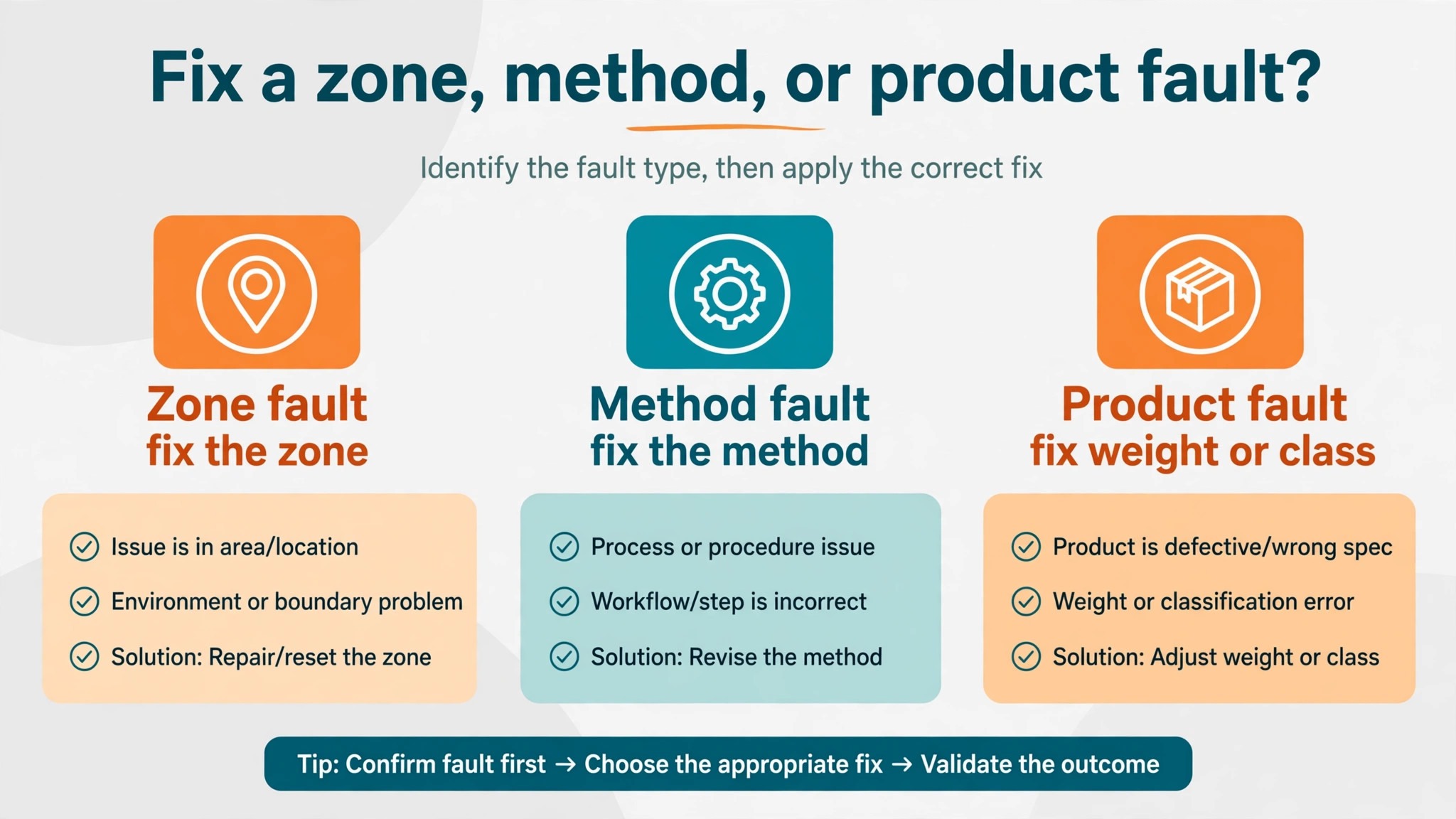
The verdict is simple, and it saves a lot of wasted effort. When you fix WooCommerce shipping rates wrong small store problems, start with shipping zones, not with your carrier account, and test one address at a time. Most wrong rates come from a zone that matches the wrong customers, a method inside the zone with the wrong cost formula, or a product missing the weight and size data a live rate needs. Carrier prices, plugin bugs, and caching problems do happen, but they are far less common than a zone or method setting that was set once and never reviewed.
Check the boring settings first, prove the fault with a test cart, and change one setting at a time.
A wrong shipping rate hurts in both directions, and both directions cost money. A rate that is too high drives customers away at checkout, especially on low value orders where shipping can rival the product price. A rate that is too low feels like a win until the store owner pays the difference on every order, quietly eroding margin on products that looked profitable. A rate that appears for some customers and not others creates support messages that are hard to answer, because the owner cannot see why one postcode works and another does not.
All three symptoms usually trace back to the same chain, and that chain is worth understanding before changing anything.
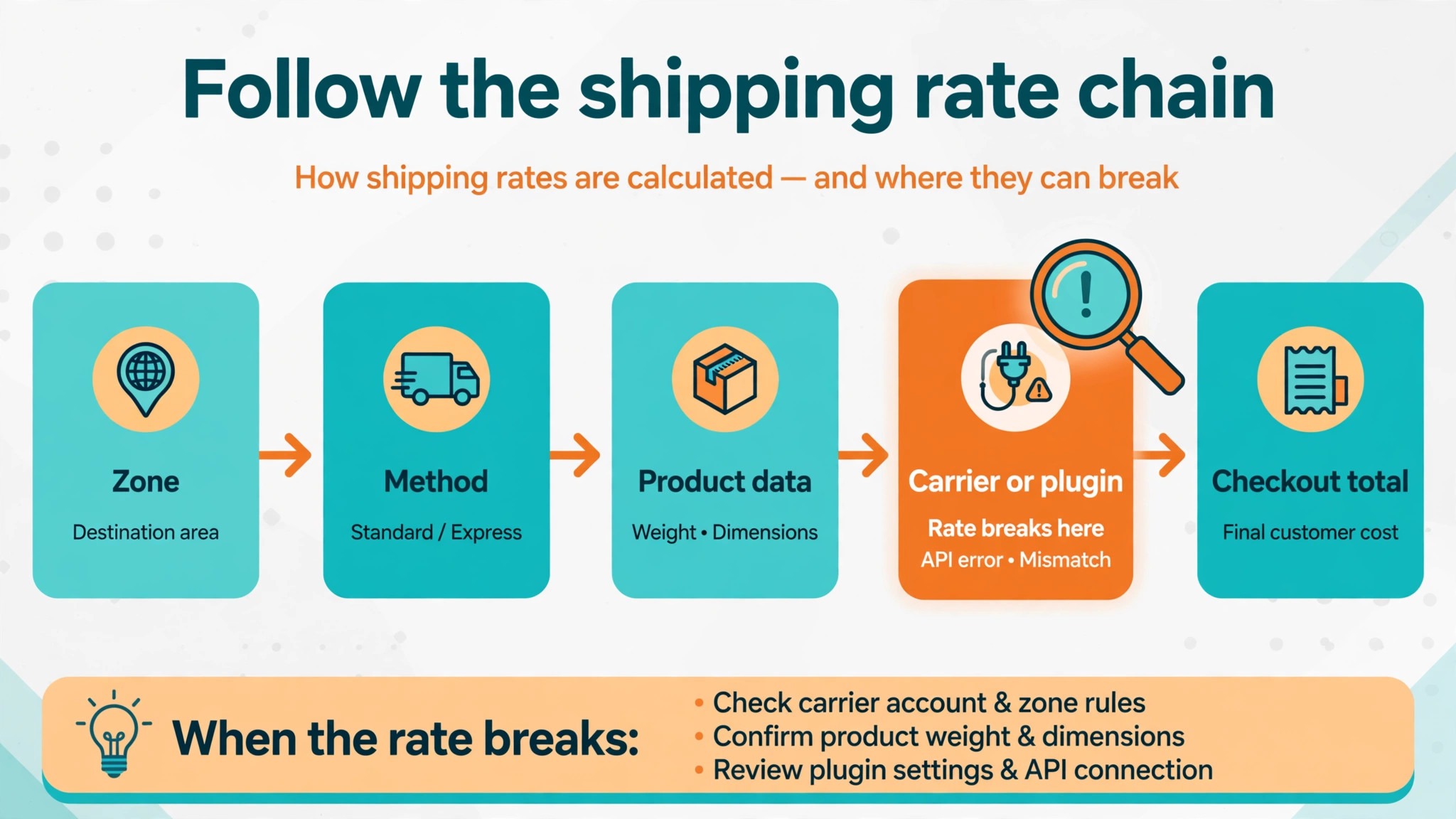
WooCommerce builds a shipping quote through a short chain of decisions. First it checks whether shipping is enabled for the destination country. Then it finds the first shipping zone that matches the customer address, reading zones from top to bottom. Then it looks at the methods enabled inside that zone. Then it checks whether the cart meets each method rules, such as a free shipping minimum or a valid cost formula. If any link in that chain fails, the rate is missing or wrong. If the wrong zone matches first, the customer sees another zone rates.
That chain gives you a diagnosis order, and this guide follows it step by step.
How to Fix WooCommerce Shipping Rates Wrong Small Store in Order
Start with one failing example, described exactly. Write down the customer address, or at least the country, region, and postcode, the products and quantities in the cart, the rate the customer saw, and the rate you expected. Without those details, you will test the wrong address and declare the problem fixed while the original customer still sees the wrong rate. A rate that is wrong for one postcode but right for another is a zone problem. A rate that is wrong for one product but right for others is a product data problem. A rate that is wrong everywhere is a method or plugin problem.
That distinction, made from a single example, directs the whole diagnosis.
Turn on the debugging help WooCommerce provides before you start changing settings. Under WooCommerce, then Settings, then Shipping, then Shipping options, there is a debug mode setting. Debug mode shows which zones match the address in the cart calculator, and it bypasses cached rates, which removes a common source of confusion, where the owner fixed a setting but kept seeing the old rate. Use the cart shipping calculator with the failing address, and note which zone WooCommerce says matched. If no zone matches, the problem is zone coverage. If the wrong zone matches, the problem is zone order or overlap.
If the right zone matches but the rate is still wrong, the problem lives inside the method or the product data.
Work through the steps below in order, testing the same failing cart after each change. Do not change zones, methods, and product data all at once, since you will never know which change fixed the rate, and you may break a rate that was working for other customers. Keep a note of each setting before you change it, so you can restore it if a test proves the change wrong.
Zones First, Because the First Match Wins
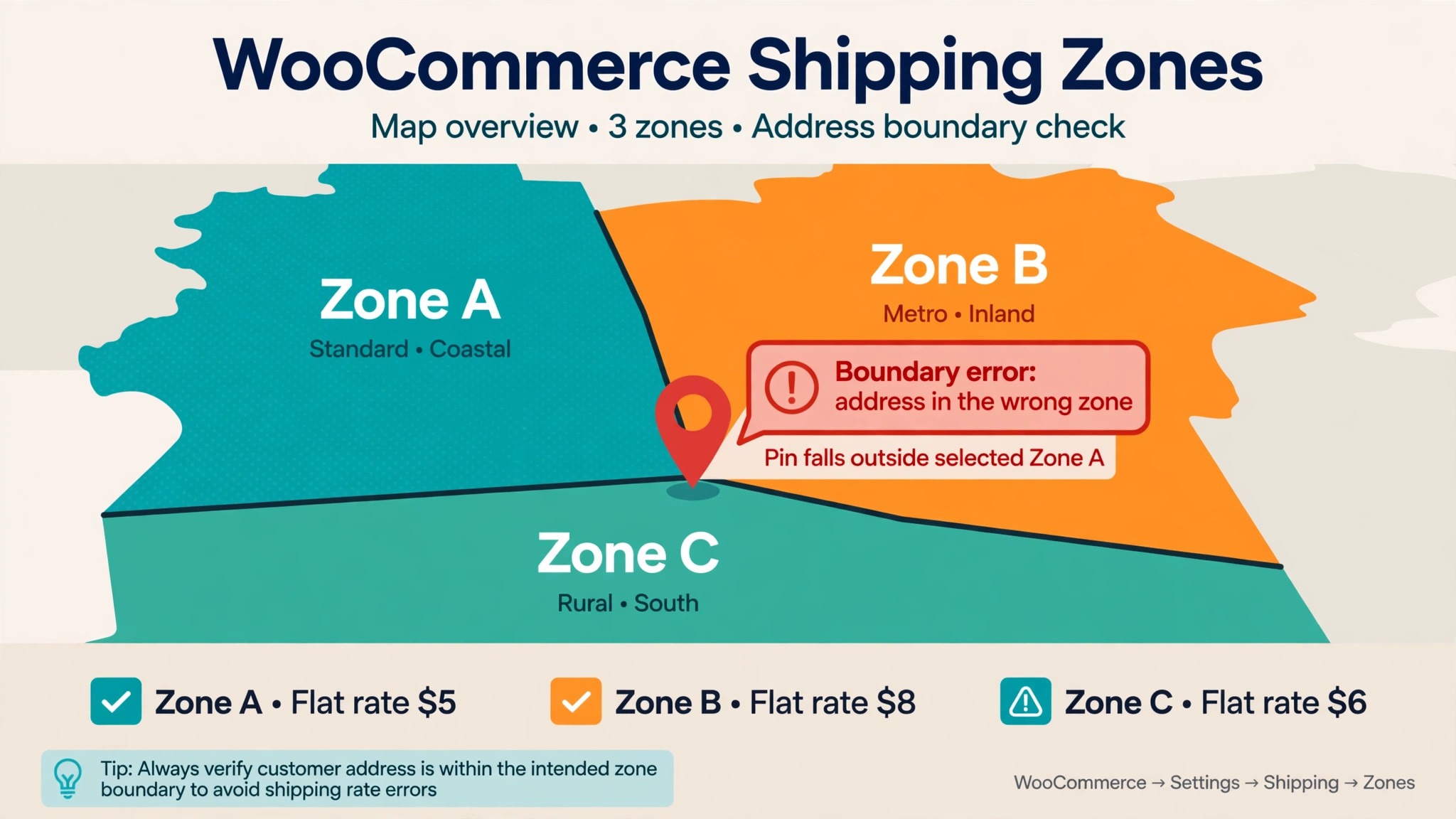
When you fix WooCommerce shipping rates wrong small store zone faults, open WooCommerce, then Settings, then Shipping, then Shipping zones. Read the list from top to bottom, because WooCommerce uses the first zone that matches the customer address, and a broad zone placed above a narrow one will swallow addresses that were meant for the narrow zone. A common example is a zone for one country placed above a zone for a single region inside that country. Customers in that region will always see the country zone rates, and the region zone will never be used, no matter how carefully its rates are set. Reorder zones so the most specific zone sits above the broader one, and retest.
Check each zone regions carefully. A zone may cover a country but miss a region, or it may use a postcode rule with a typo that excludes real customers. Postcode rules in WooCommerce accept wildcards and ranges, so a rule written with the wrong wildcard can include or exclude whole areas by accident. Compare the zone regions against the failing address character by character, including spaces and capitalisation in postcodes, and test with two or three nearby postcodes to see where the boundary falls. A boundary that falls in the wrong place usually reveals a postcode rule error, not a carrier error.
Also check whether the destination country is enabled for shipping at all. Under WooCommerce, then Settings, then General, the selling location and shipping location settings can block a country even when a zone exists for it. If a customer in a blocked country sees no rates, or sees rates from a fallback zone, the general setting is the cause, and no zone edit will fix it until that setting is corrected. This check takes a minute, and it explains failures that otherwise look like zone gaps.
Every zone also needs at least one enabled method. A zone that exists but contains no enabled method will match the address and then offer nothing, which customers experience as missing rates rather than wrong rates. Open each zone, confirm its methods list, and check that each method you expect is both present and enabled. A method that looks enabled in a list but is switched off inside its own settings is a classic trap, so open the method itself and confirm its status, cost, and conditions.
Flat Rate Costs, Formulas, and Free Shipping Minimums
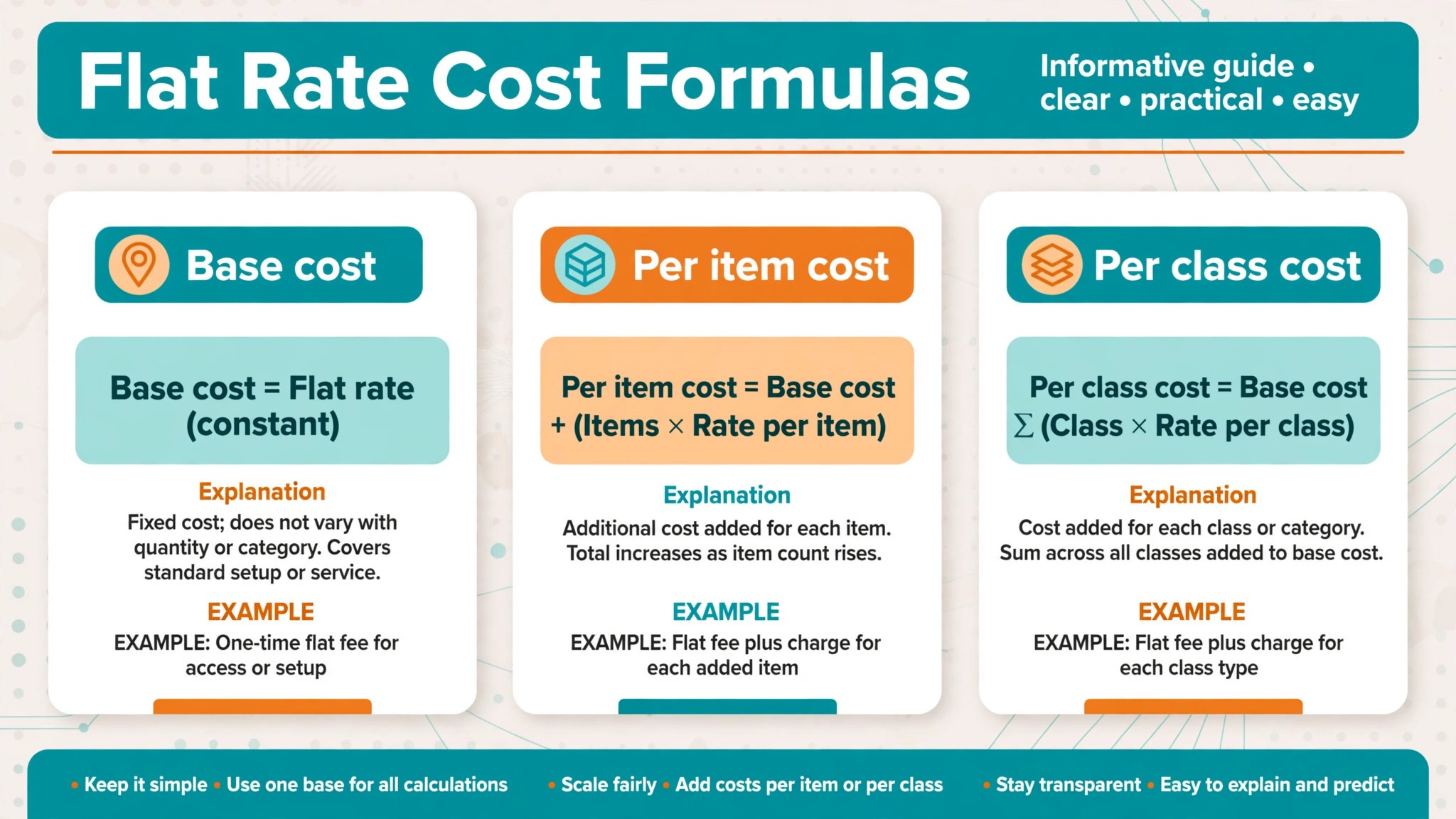
Once the right zone matches, and you still need to fix WooCommerce shipping rates wrong small store totals, the method settings decide the number the customer sees. For flat rate methods, open the method and read its cost field. Flat rate costs in WooCommerce accept a plain number, and they also accept placeholders for quantity and cart cost in cost formulas. A formula with a typo, a missing bracket, or a placeholder the store no longer uses can stop the method from returning a rate, or return a rate far from the intended one. The fastest test is to replace the formula temporarily with a plain number, test the cart, and see whether the rate becomes correct.
If it does, the formula was the fault, and you can rebuild it carefully, testing each part.
Free shipping needs its own check, because its conditions are easy to misread. Free shipping may require a minimum order amount, a valid coupon, or both, depending on its settings. A minimum that counts the cart total before discounts will behave differently from one that counts after discounts, and a minimum that counts only certain products will behave differently again. Test free shipping with a cart just above the minimum, a cart just below it, and a cart that meets the minimum only when ineligible items are included. Those three tests reveal whether the minimum is calculated the way you intended.
Table rate methods, where they are used, add another layer, because they calculate by weight, item count, price, or destination bands. A band with a gap, such as a weight band that jumps from one kilogram to three kilograms with no band in between, will produce no rate, or a wrong rate, for carts in the gap. A band with overlapping ranges will produce the first matching band, which may not be the one you intended. Read the table from top to bottom with a real cart weight in mind, and check that every realistic weight and price falls inside exactly one band.
Shipping classes deserve a check too. A product assigned to a shipping class can attract a surcharge, or be excluded from a method, depending on how the class is used in the method settings. A product that moved classes during a catalogue tidy up may suddenly cost more or less to ship, without any zone or method change. Open the failing product, check its shipping class, and compare it with a product whose rate is correct. If the class differs, you have found a likely cause, and the fix is to correct the class, not the zone.
Product Weight, Dimensions, and Packing
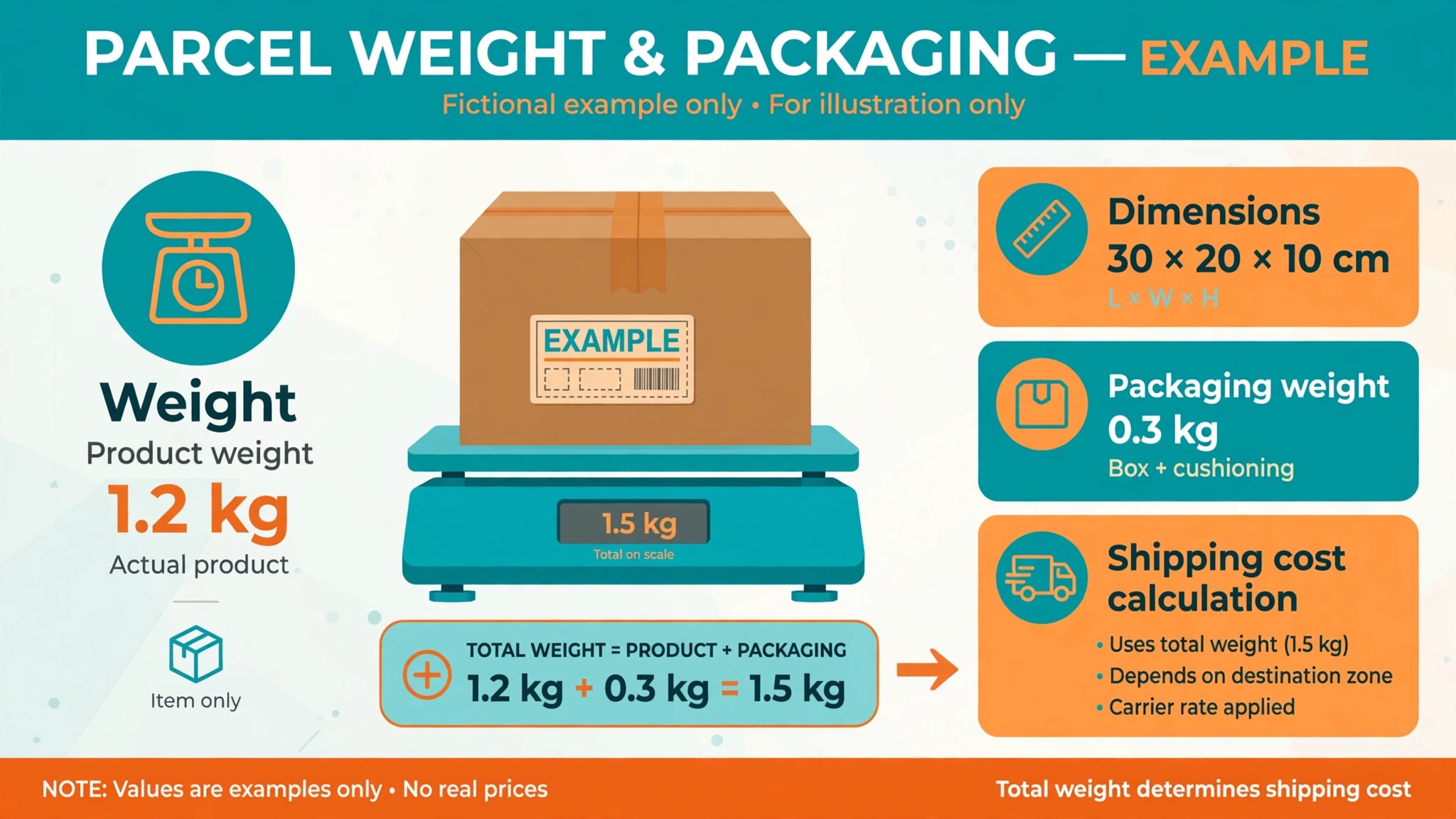
Flat rate methods do not need product weight, but when you fix WooCommerce shipping rates wrong small store live rates, remember that live carrier rates and many table rate methods do need it, and missing or wrong product data is a leading cause of wrong live rates. Open the failing product, then its shipping settings, and check weight and dimensions. Every product that ships by live rate needs a weight, and most need length, width, and height as well, in the units the store is configured to use. A product with no weight may be packed as zero weight, which produces a suspiciously low rate, or it may be rejected by the carrier calculation, which produces no rate at all.
Units cause quiet errors. A store configured for kilograms that holds products entered in grams will calculate rates for parcels far lighter than reality, while a store configured for pounds with products entered in ounces will do the reverse. Check the store units under WooCommerce, then Settings, then Products, and audit a sample of products against their real packed weights. Weigh a packed order, including packaging, and compare it with the sum of product weights in the cart. Packaging weight is often forgotten, and on light products it can be a large share of the total, which explains rates that are consistently a little low.
Packing settings in carrier plugins add another variable. A plugin may pack all items into one box, pack each item separately, or use box sizes you defined. The wrong packing choice changes the billable weight and size, and therefore the rate, even when every product weight is correct. Check the plugin packing settings, test with a single item cart and then a multi item cart, and see whether the rate jump matches the packing logic you intended. A rate that is correct for one item but wildly wrong for three usually points at packing, not at zone settings.
Also check for products that should not ship at all, such as digital products or services, that are marked as shippable by mistake. A digital product in a cart can add weight, trigger a shipping method, or block free shipping, depending on settings. Mark non physical products as virtual in their product settings, so they do not enter shipping calculations, and retest mixed carts after the change.
Carrier Plugins, Credentials, and Live Rate Failures
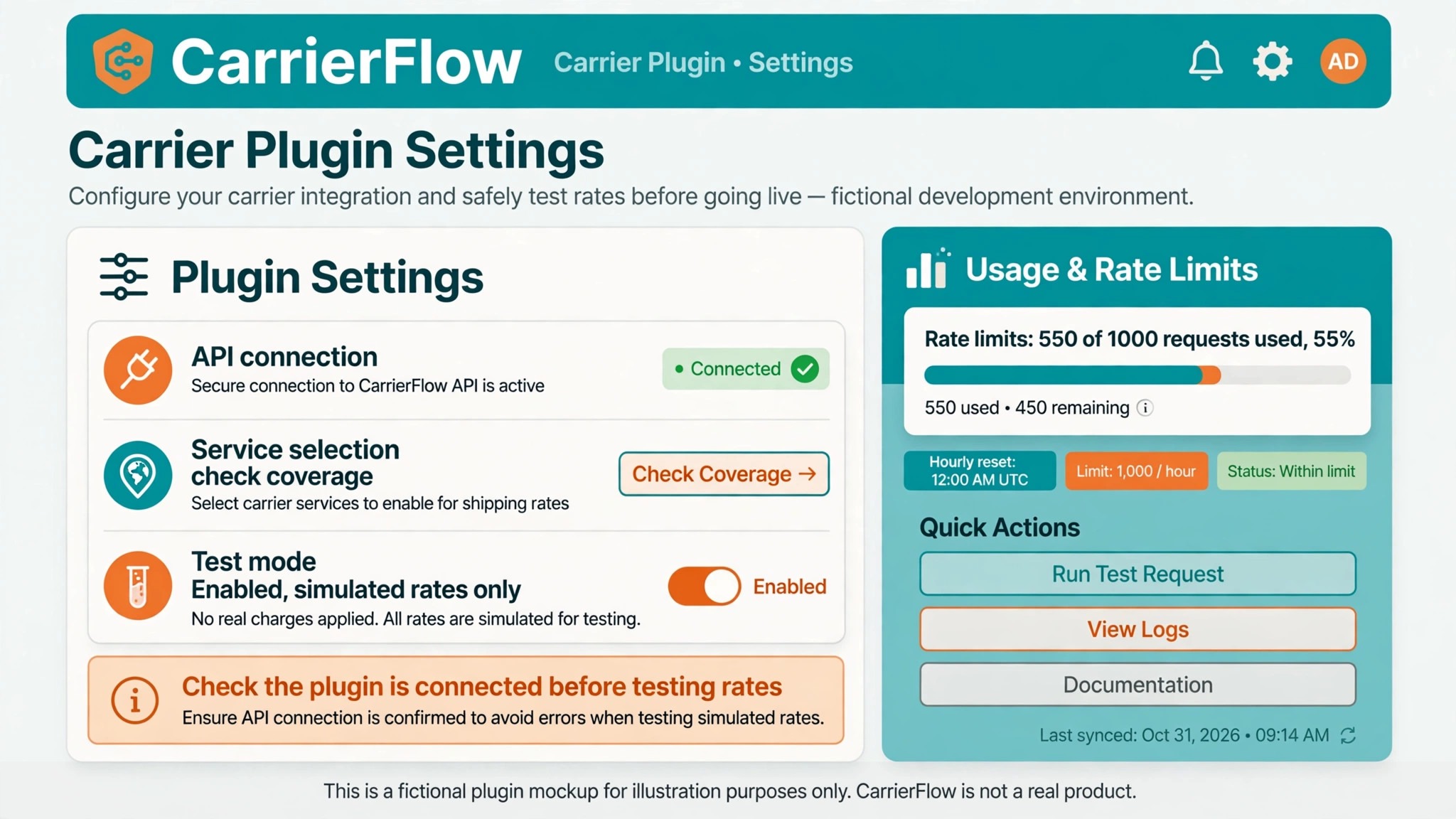
When zones, methods, and product data all check out but you still must fix WooCommerce shipping rates wrong small store live quotes, the carrier plugin becomes the suspect. Carrier plugins fetch rates from a carrier through an API, and several things can go wrong in that fetch. Credentials may be in test mode rather than live mode, which returns test rates or no rates. The origin address may be wrong, missing, or set to a warehouse that closed, which changes every rate the carrier returns. The service options selected in the plugin may include services you do not offer, or exclude the service you promised customers.
Open the plugin settings and check each of those points in turn. Confirm the account is in live mode, confirm the origin address matches the place parcels actually leave from, and confirm the enabled services match the services you sell. Check the plugin log, usually found under WooCommerce, then Status, then Logs, for API errors on the failing orders. An API error that appears only for certain destinations often points at a service availability problem for that destination, not at a general plugin failure.
Duplicate rates are a specific plugin symptom worth recognising. Rates can be duplicated when the same service is enabled both in the plugin settings and in WooCommerce shipping zones, so the customer sees the same service twice at different prices. The fix is to manage the service in one place only, either through the plugin or through zones, and to disable it in the other. After disabling the duplicate, test with a fresh cart, since a cached rate list can keep showing the duplicate until the cache clears.
Plugin conflicts follow the same pattern as other WooCommerce conflicts. Another plugin that touches checkout, pricing, or shipping can alter the cart before the carrier plugin sees it, or alter the rate after it returns. Test with only WooCommerce and the shipping plugin active on a staging copy, and see whether the rate becomes correct. If it does, reactivate other plugins one at a time until the rate breaks again. That plugin is the conflict, and the next step is its documentation or developer, with the exact cart that fails.
Cache, Theme, and Checkout Display Problems
Cache is a common trap when you fix WooCommerce shipping rates wrong small store problems, and it is the reason many owners believe a fix failed when it actually worked. Page caching on the cart and checkout pages, WooCommerce transients that store rate results, and browser caching can all keep showing an old rate after a setting change. Exclude the cart, checkout, and account pages from page caching, clear WooCommerce transients after changing shipping settings, and test in a private browser window. Debug mode helps here too, since it bypasses cached rates and shows the live calculation for the test address.
Themes and checkout customisations can also distort what the customer sees, even when the underlying rate is correct. A theme that does not handle WooCommerce checkout updates correctly may fail to recalculate rates when the customer changes address, so the rate shown belongs to the previous address. Test by entering an address, noting the rate, changing to a different zone address, and confirming the rate updates. If it does not update, suspect the theme or a checkout plugin, and test with a default theme on staging to confirm.
A rate that is right in admin tests but wrong on the live checkout, for the same address and cart, is a strong sign of a display or recalculation problem, not a zone problem.
Checkout type matters as well. Some shipping plugins support the classic shortcode checkout but behave differently on the newer block checkout, or vice versa. Check the plugin documentation for the checkout type you use, and test both if you recently switched checkout types. A rate failure that began on the date of a checkout change usually points at that change, and the fix may be a plugin update, a setting in the plugin for the new checkout, or a return to the previous checkout until the plugin catches up.
How to Test Rates Before Customers See Them
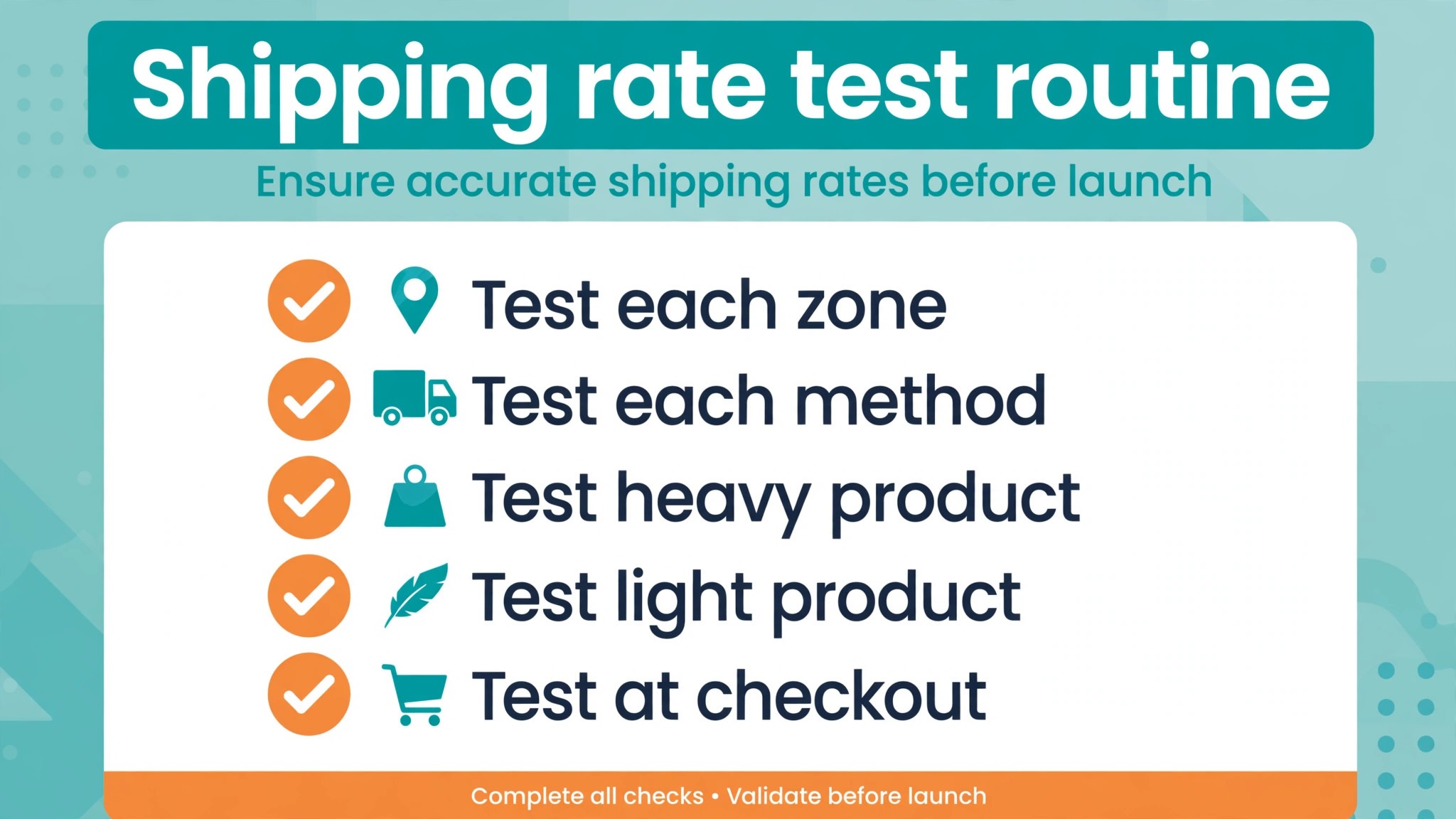
A rate test routine is cheaper than a week of support messages, and it should be run after any shipping change, not just after a failure. Build a small test set of addresses that covers each zone, including a postcode near each zone boundary, an address in a region with a special rate, and an international address if you ship internationally. Build a small test set of carts that covers a single light item, a single heavy item, a multi item cart, a cart that just meets a free shipping minimum, and a cart that just misses it.
Run each test cart against each test address that matters, and record the rate shown, the zone matched, and the method offered. That record becomes your baseline, and the next time a customer reports a wrong rate, you can compare their example against the baseline and see whether the fault is new or long standing. Run the full routine before a sale, before a carrier price change, and after any plugin update, since all three events can change rates silently.
Use a staging copy for tests that involve disabling plugins or changing live settings, and use the live cart calculator for quick checks that do not change settings. When a test reveals a wrong rate, fix one setting, clear caches, and retest only the affected address and cart first, then run the full routine again before declaring the problem solved. A fix that corrects one address but breaks a neighbouring zone is not a fix, and only the full routine catches it.
The Rate Test Checklist to Run After Every Shipping Change
Use this checklist whenever you change a zone, method, product weight, or plugin setting. It is the overview proof element of this guide in practical form.
Step 1, confirm the zone that matches
Use debug mode and the cart calculator with the failing address, and note the zone matched. If no zone matches, fix coverage before touching methods.
Step 2, confirm zone order and regions
Check that specific zones sit above broad zones, that postcode rules include the failing address, and that the destination country is enabled for shipping.
Step 3, confirm methods inside the zone
Open each method, confirm it is enabled, read its cost or formula, and check free shipping conditions with carts just above and just below any minimum.
Step 4, confirm product data
Check weight, dimensions, units, shipping class, and whether non physical products are marked virtual. Weigh a packed order and compare it with the cart total weight.
Step 5, confirm carrier plugin settings
Check live mode, origin address, enabled services, and the plugin log for API errors. Manage each service in one place only, to avoid duplicate rates.
Step 6, clear caches and retest
Exclude cart and checkout pages from page caching, clear transients, and test in a private window. A fix that is hidden by cache looks like a failure.
Step 7, run the full test set
Run the address and cart test set, record every rate, and compare it with the baseline. Only declare the problem solved when the full set passes.
Step 8, record the change
Write down what was wrong, what you changed, and the test results. The next shipping problem will be diagnosed faster with that record, and the next person to manage shipping will not repeat the same error.
Mistakes That Turn a Shipping Error Into a Margin Leak
The first mistake is lowering all rates to stop complaints, without finding the cause. A blanket rate cut may quiet customers for a week, but it subsidises every order, including orders whose rates were already correct, and it hides the zone or product error that will return with the next catalogue change. Fix the cause, then set rates from real costs. The second mistake is adding a new zone or method on top of a broken one, instead of fixing the original. The old zone still matches some customers, the new zone matches others, and the store ends up with two overlapping systems that nobody fully understands.
The third mistake is ignoring packaging weight and box sizes. Product weights alone rarely equal the shipped weight, and a store that prices shipping from product weights only will undercharge on every multi item order. Weigh packed orders, include packaging, and review box settings in the carrier plugin at least twice a year. The fourth mistake is never reviewing zones after expanding delivery. A store that starts shipping to a new region, adds a new product range, or changes carrier often keeps old zones that no longer reflect its real delivery costs. Review zones quarterly, and after any change to products, carriers, or delivery areas.
The fifth mistake is trusting a single test. A rate that is correct for the owner address, on the owner device, with the owner logged in, may still be wrong for a guest customer in another region, on mobile, with a different cart. Test as a guest, test across zones, and test with the exact carts customers actually buy. A shipping setup tested only from the owner perspective is not tested at all.
What to Tell Customers About a Wrong Rate
When a customer reports a wrong rate, answer with specifics, not with a general apology. Ask for the delivery postcode, the items in the cart, and the rate shown, and tell them you will test that exact combination. That response alone reassures most customers, because it shows the store is investigating their case rather than dismissing it. When you find the cause, explain it in plain language, such as a zone boundary, a weight that was missing, or a carrier service that was not available to that postcode, and tell the customer what you changed.
If the customer was overcharged, refund the difference promptly and say how much was refunded. If the customer was undercharged and the order has not shipped, contact them before shipping, explain the correct rate, and offer the choice to pay the difference or cancel. Shipping an undercharged order without comment teaches the customer to expect the wrong rate again, while cancelling without explanation loses the customer entirely. A clear choice, given promptly, preserves both margin and trust. If the order already shipped at the wrong rate, treat the loss as the cost of the settings error, learn from it, and fix the setting before the next order.
For related reading, see Shopify payments on hold, choosing a payment processor, Etsy listing not showing in search and WordPress plugin conflict fixes. Those posts cover adjacent checkout, payment, and plugin problems, and the same lesson applies when you fix WooCommerce shipping rates wrong small store issues. Follow the rate chain in order, test real addresses and carts, and record the fix.
Frequently Asked Questions
Why do some customers see no shipping options at all?
Usually no zone matches their address, the matched zone has no enabled method, or the cart fails every method conditions. Check the shipping location setting, use debug mode to see which zone matched, and test the exact address in the cart calculator.
Why is my shipping rate correct for one postcode but wrong for the next?
That pattern points at zone order, postcode rules, or a zone boundary. A broad zone above a specific zone will swallow addresses meant for the specific zone, and a postcode wildcard error can shift a boundary by a whole area. Test postcodes on both sides of the boundary to find where it falls.
Do I need product weight for flat rate shipping?
No, flat rate methods do not need weight, but live carrier rates and most table rate methods do. If you use live rates, every product needs an accurate weight and dimensions in the store units, plus packaging weight, or the carrier calculation will be wrong or missing.
Why does the rate look right to me but wrong to customers?
Cache is a common cause, since the owner may see a cached rate while customers see a live one, or vice versa. Clear caches and transients, test in a private window as a guest, and test with the customer address and cart, not your own.
Why do I see duplicate shipping options at checkout?
The same service is often enabled both in a carrier plugin and in WooCommerce shipping zones. Manage each service in one place only, disable it in the other, clear caches, and test with a fresh cart.
Should I just offer free shipping to avoid rate problems?
Free shipping removes rate complaints, but it does not remove rate costs, and it can hide a broken zone setup that still affects international or remote customers. Fix the zones and methods first, then decide on free shipping as a pricing strategy with a minimum that protects margin, not as a workaround for a fault.
A Practical Verdict on Wrong Shipping Rates
Wrong shipping rates are rarely a mystery, and they are rarely a carrier conspiracy. They are usually a zone that matches the wrong customers, a method formula that was never tested at its edges, or a product missing the data a live rate needs. Follow the chain in order, from country settings to zones, from zones to methods, from methods to product data, and from product data to the carrier plugin, testing the same failing cart after each step. Clear caches before you judge a fix, run the full test set before you declare victory, and record what changed.
Stores that work that way set rates customers trust, protect margin on every order, and spend far less time answering shipping complaints. That is the practical payoff when you fix WooCommerce shipping rates wrong small store problems properly, and it lasts longer than any single rate correction.