
Your marketing team needs twenty social graphics by Friday, and only two people on the team can work confidently in Figma. Everyone else waits, sends requests, or edits in screenshots and chat messages. That bottleneck is the problem this guide solves. When you switch Figma to Canva design team output can spread across more people, but only if brand rules, templates and review steps move with the files. A careless move gives you speed with sloppy output. A planned move gives you speed with control.
Why the Bottleneck Happens
Figma is built for precision. Components, variants, auto layout and variables let a skilled designer build a system that scales. That power has a cost. A non designer who opens a complex Figma file often feels lost. Layers are nested, frames have constraints, and a small edit can break a layout in ways that are hard to undo. So requests pile up with the design team, even for simple jobs like resizing a post or swapping a headline.
Canva is built for speed and access. Templates, drag and drop editing, a large asset library and simple sharing let a marketer or founder produce a usable graphic fast. That access has a different cost. Without locked brand elements and clear templates, output drifts. Colours shift, fonts change, logos stretch and spacing becomes inconsistent. The team ships faster, but the brand looks less disciplined over time.
The right question is not which tool is better in general. The right question is which jobs belong in each tool, and how to move the repeatable jobs to Canva while protecting the brand. Many design teams keep Figma for product UI and complex brand systems, and move social, presentation and everyday marketing production to Canva. That hybrid split often works better than a total switch on day one, and it gives the team a fallback while Canva templates mature.
Cost is part of the decision, but confirm current prices on the vendor pages before you budget, because plans and limits change. The cost of Figma for small business helps you compare what you pay now. The cost of Canva for small business helps you model the new spend, including seats for non designers who previously needed no licence. Count total seats, not just designer seats, or the new total will surprise you.
How to Switch Figma to Canva Design Team Work Without Rebuilding Twice
A clean switch has five stages. First, inventory what you own and what is actually reused. Second, export assets in formats Canva can use well. Third, rebuild the brand kit and the top templates first, before you touch old files. Fourth, pilot with one content type, like social posts, and fix quality problems. Fifth, cut over in waves by content type, not all at once. Teams that try to move every file in one weekend usually rebuild the same templates twice, once in a rush and once properly.
Name a design owner for the migration. That person approves the brand kit, the template set and the review rules. Without an owner, every team member recreates brand colours from memory, and the new library fills with near duplicates. The owner does not need to build every template, but they need to approve every template before it goes into the shared library.
Set a simple rule for the migration period. No new Figma marketing templates should be created for jobs that Canva will own after cutover. New work for those jobs should start in Canva, even during the pilot, so the team builds skill in the new tool. Complex product work can stay in Figma. That split keeps the migration focused and prevents the team from doing the same job in both tools for months.
What Actually Transfers and What Does Not
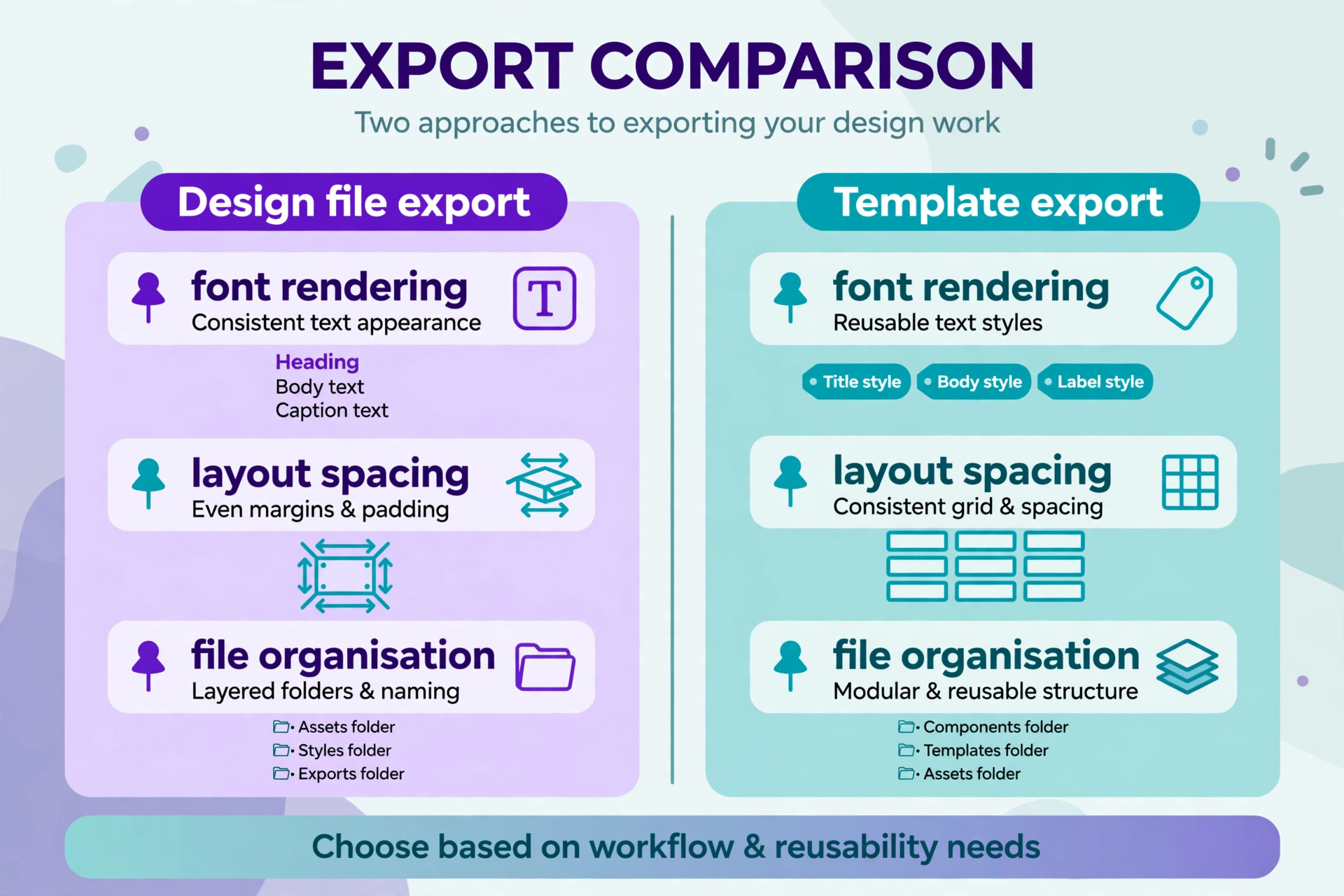
Be honest about limits at the start, or the team will expect a one click import that does not exist. There is no native Figma to Canva file import that preserves components, variants, auto layout and interactive prototypes. You can export assets from Figma as SVG, PNG or PDF, and upload those assets to Canva. Editable vectors can be reused, flat images can be placed, but the original Figma structure does not travel with them.
Components become templates in Canva, not components. Auto layout becomes careful manual layout plus features like Magic Resize for format changes, but resizing still needs checking. Variables for colour and type become Brand Kit values that editors pick by hand. Prototypes with clicks and flows do not transfer at all. Developer handoff with specs and code snippets does not transfer either. Plan a separate home for any job that depends on those features.
This does not mean the move is a bad idea. It means the move is a rebuild, not a transfer. Budget time for rebuild, and judge the move by output after rebuild, not by how fast files import. A social template rebuilt well in Canva will save hours every week. A Figma file dumped into Canva as a flat image will save nothing, because nobody can edit its text or colours.
| Figma element | What happens in Canva | Action for the team |
|---|---|---|
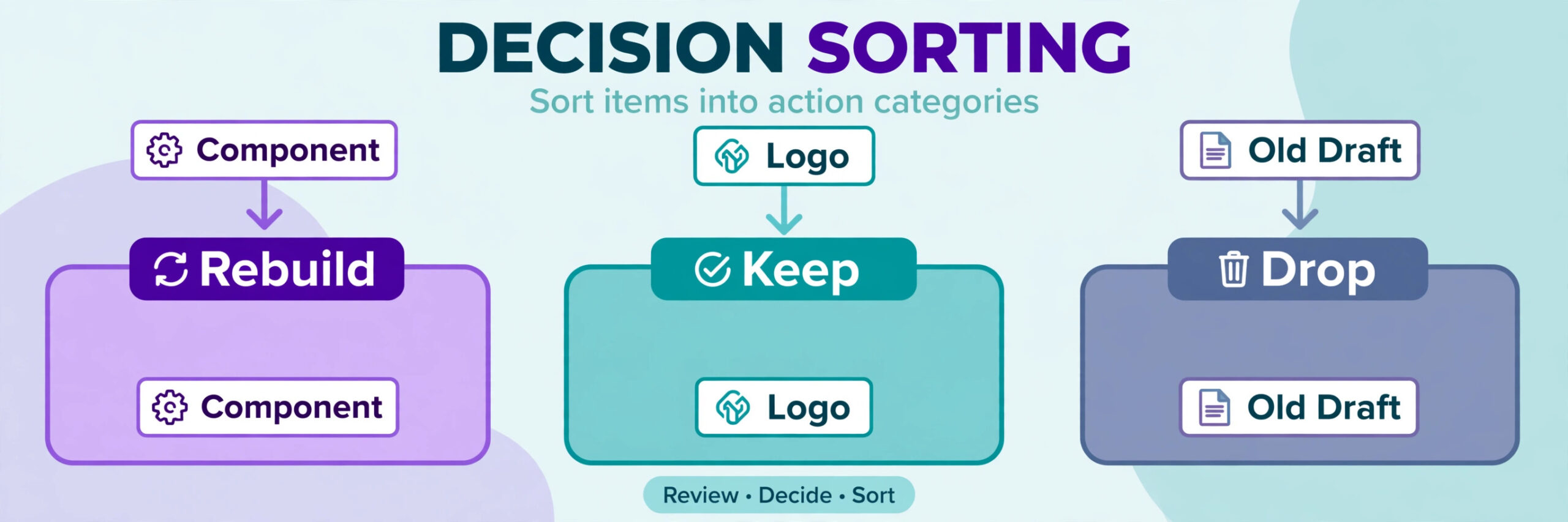
| Component | Becomes a template or locked element | Rebuild top components first |
| Auto layout | Manual layout, resize checked by hand | Test each size before release |
| Colour variable | Brand Kit colour value | Record exact hex values |
| Text style | Brand Kit font and size preset | Lock headings where needed |
| Prototype flow | Does not transfer | Keep prototypes in Figma or rebuild as slides |
| Developer handoff | Does not transfer | Keep UI specs in Figma |
Inventory Your Figma Files Before Export
List every Figma file, project and library the team uses. For each file, note its purpose, its owner, how often it is reused and when it was last updated. Files that power weekly content belong in the first rebuild wave. Files for a one off campaign from two years ago belong in an archive export, not in the new template library. Moving dead files wastes the rebuild budget on work nobody needs.
Rank templates by reuse, not by beauty. Teams that switch Figma to Canva design team templates by reuse order get faster value than teams that rebuild by beauty. A plain social post template used forty times a month matters more than a beautiful event poster used once. A presentation master used every week matters more than a single infographic. Start with the top ten reused templates. Rebuilding those ten well will cover most of the teams weekly output, and it gives the pilot a real test.
Check fonts early. List every font used in Figma, and check whether Canva offers the same font or a close match on your plan. Some brand fonts may need uploading, and uploaded fonts may have licence limits. If a key brand font is unavailable, decide on an approved substitute before you rebuild templates. Discovering a font gap after twenty templates are built means rebuilding twenty templates.
Check images, icons and logos in the same way. Export master logos as SVG and PNG, with clear, dark and light versions. Collect icons as SVG where possible, so they stay sharp at different sizes. Note any stock images with licence limits, and replace them with owned assets or properly licensed Canva assets. A template built on an image the team cannot legally reuse is a problem waiting for a client review.
Export Assets in the Right Formats
Export for reuse, not for archiving alone. SVG is the best choice for logos, icons and simple vector shapes, because Canva can place them and they stay sharp. PNG is best for photos and complex graphics with transparency. PDF is useful for print ready or multi page reference, but a PDF placed in Canva is not fully editable in the same way a native template is. Choose the format by how the asset will be edited, not by what is easiest to export.
When you switch Figma to Canva design team members should export in batches by project, with clear file names. Use a naming pattern like project, asset type and version, so uploads do not become a pile of untitled files. Create Canva folders by project or content type before you upload anything. Uploading first and organising later creates the same mess the team is trying to leave behind.
Export whole pages only when you need a visual reference. For rebuild work, export individual assets and key screens, not entire Figma pages as flat images. A flat image of a poster cannot be edited, so it does not help a marketer who needs to change a date or a headline. Keep flat exports as reference files in a separate folder, clearly marked as reference only, so nobody mistakes them for editable templates.
Test uploads with a small batch first. Upload five SVG logos and five PNG photos, place them in a test design, and check sharpness, colour and transparency. SVG files with complex effects or masks may render differently in Canva. If an asset looks wrong, simplify it in Figma and re export, rather than fixing it in Canva with workarounds that will break later.
Rebuild the Brand Kit in Canva First
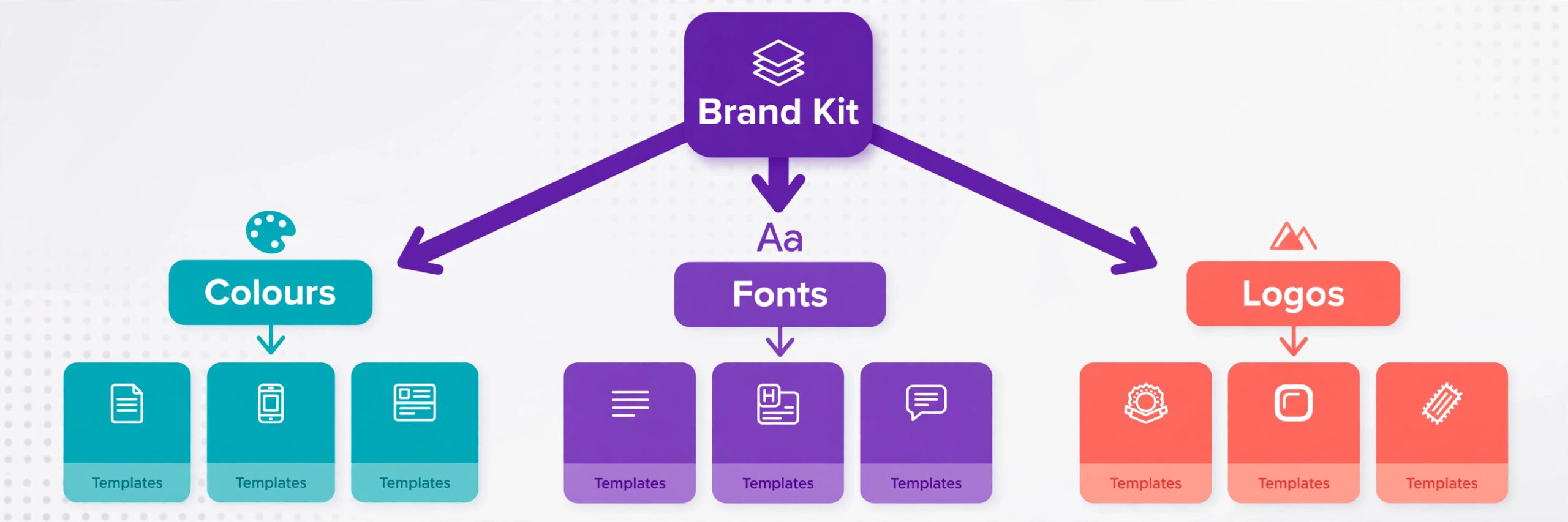
Do not build templates before the Brand Kit is approved. The Brand Kit holds colours, fonts and logos, and every template should draw from it. Enter exact hex values from Figma, not colours picked by eye from a screenshot. Record the source of each value in a brand sheet, so future editors can verify colours instead of guessing. A one digit hex error is hard to spot on screen, but it shows up when brand assets sit side by side.
Set font rules with the same care. When you switch Figma to Canva design team fonts need an approved list before templates are built. Choose a heading font, a body font and an accent font if the brand uses one. Set approved sizes for common jobs, like social headlines, slide titles and document headings. Lock brand elements where Canva allows it, so editors cannot accidentally move a logo or change a headline colour. Locking is not about control for its own sake. It protects the parts of a design that must stay consistent, while leaving text and images free for editors to change.
Upload logos with usage rules. Show the minimum size, the clear space rule and the backgrounds each logo version suits. Put those rules on a single brand page inside Canva, so new editors see them before they design. A brand page that nobody reads is useless, so link it from the start here page and mention it in training. Keep the page short. One page with examples beats a long brand manual that nobody opens.
For infographic work, the same discipline matters even more, because charts and diagrams invite colour drift. The guide to use Figma for infographic design shows how structured design thinking carries into visual content. Use that discipline in Canva too. Pick one chart colour set, one icon style and one layout grid, and reuse them across infographics instead of inventing a new style for each post.
Turn Components Into Templates
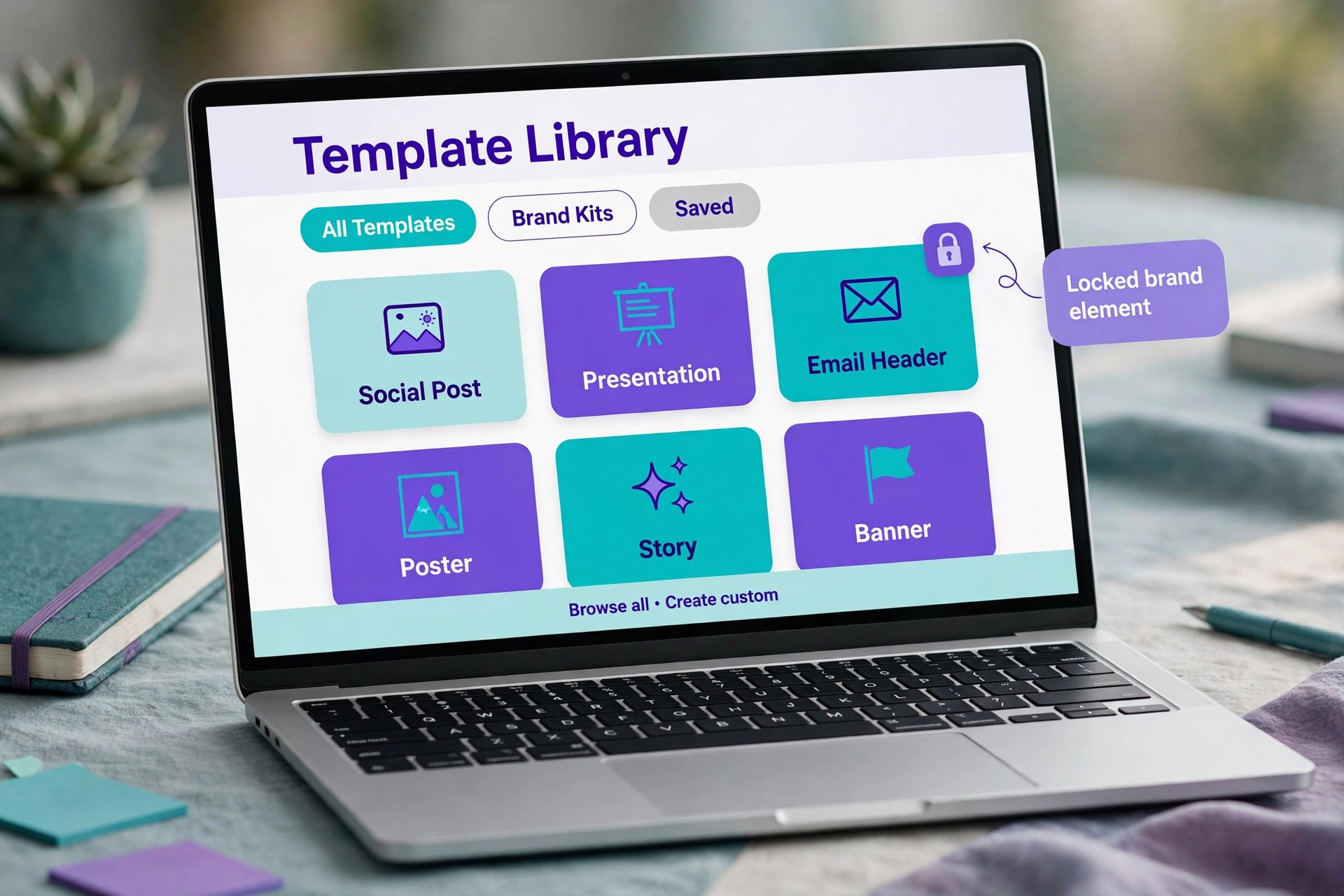
Start with the most reused component and turn it into a Canva template, not a single design. A template should have placeholder text, placeholder images and locked brand elements. An editor should be able to open it, swap the headline and image, and export without touching layout. If an editor needs to move boxes to fit text, the template is not finished. Fix text sizing, spacing and overflow rules before release.
Build templates by job, not by Figma file name. A social campaign needs templates for feed posts, stories and banners, even if those sizes lived in one Figma file. A presentation needs a title slide, a content slide, a chart slide and a closing slide, as separate templates that share the same styles. Group templates into folders by job, so editors find them by the work they need to do, not by the old file structure.
Test each template with real content, including long headlines and long names. A template that looks perfect with a short headline often breaks with a real client name or a long event title. Test with the longest realistic text, the shortest text and a photo with a busy background. Fix overflow, contrast and alignment problems now, while the design owner is still reviewing. Templates released with known overflow problems will be fixed badly by editors under deadline pressure.
Version templates clearly. When a template changes, update the version note and tell the team what changed. Keep old versions in an archive folder for a short period, in case a live campaign still uses them. Do not leave three versions of the same template in the main library. Editors will pick the wrong one, and brand consistency will drift again through version confusion.
Fix Fonts, Layout and File Organisation
Fonts cause more visible migration problems than any other single factor. After rebuild, compare a Canva export side by side with the original Figma export. Check headline weight, line spacing and character fit. A font that looks close in the editor can still overflow a button or a headline box in export. Adjust box sizes and line spacing for the Canva font, rather than forcing Figma measurements onto a different font.
Layout needs the same check. Figma auto layout kept spacing consistent when text changed. In Canva, spacing must be checked by hand after text changes. Teach editors a simple check. After editing text, zoom out, check alignment, check spacing between blocks and check that nothing touches the edge. That thirty second check prevents most layout complaints, and it is faster than fixing a published graphic after a client spots an error.
File organisation in Canva needs rules from day one. Use folders by client, campaign or content type, and use a naming pattern for designs. A design named Final Final 2 helps nobody. A design named with client, campaign, format and date can be found in search months later. Assign folder owners, and review folders monthly during the first quarter. Without review, Canva folders grow into the same tangle the team left in Figma.
For social content planning, structure helps even more. The guide to use Canva for a social media content calendar shows how organised Canva work supports a publishing rhythm. Use folders and a calendar view for planned content, so the team can see what is ready, what is in review and what is still missing before a campaign launches.
Replace Prototyping, Handoff and Review Workflows
Prototyping is the clearest loss in this move, so plan for it openly. If the team prototypes product flows in Figma, keep that work in Figma. Do not try to force interactive prototypes into Canva slides and call it a prototype. For marketing flows, like a landing page walkthrough, Canva slides or a simple recorded walkthrough may be enough. Decide by job, and write the decision down, so nobody wastes time rebuilding a prototype that Canva cannot support.
Developer handoff also stays in Figma for product work. Specs, spacing values and code snippets do not move to Canva in a useful form. Keep a clear boundary. Product UI and handoff stay in Figma. Marketing production moves to Canva. When a marketing asset needs a product screenshot, export the screenshot from Figma and place it in Canva. That boundary is simple to explain and easy to defend in a review.
Review workflows need rebuilding in Canva. Set who reviews, what they check and how feedback is given. Use comments in Canva for design feedback, and keep approval in one place, not split across chat, email and Canva comments. A simple review checklist helps. Check brand, check copy, check image rights, check format sizes and check export quality. A reviewer who checks those five items will catch most errors before publication.
Train Non Designers Without Lowering Quality
Training should focus on templates and limits, not on design theory. Show editors how to open a template, replace text and images, check alignment and export at the right size. Show them what not to touch, like locked logos and brand colours. Give them three practice jobs with real content, and review their exports before they publish live work. Practice with feedback builds confidence faster than a long training video.
Create a short quality guide with visual examples. Show a good post and a post with common errors, like stretched logos, low contrast text and crowded layout. Visual examples teach faster than written rules, especially for non designers. Keep the guide to one page per content type, and link it from each template folder. When someone asks a repeat question, add the answer to the guide instead of answering only in chat.
Set a review period for new editors. For the first month, every live export from a new editor gets a quick design review. After that, review only campaign launches and high visibility work. This graduated review builds skill without creating a permanent bottleneck. It also protects the brand during the riskiest period, when enthusiasm for the new tool is high and skill is still growing.
The reverse move is also worth reading, because it shows what Canva users miss when they move the other way. The guide to switch Canva to Figma as a design team highlights the design system features that Figma adds. Reading it helps your team understand what you are giving up, and which Figma work is worth keeping even after the main move to Canva.
Pilot Cutover and First Two Weeks Plan
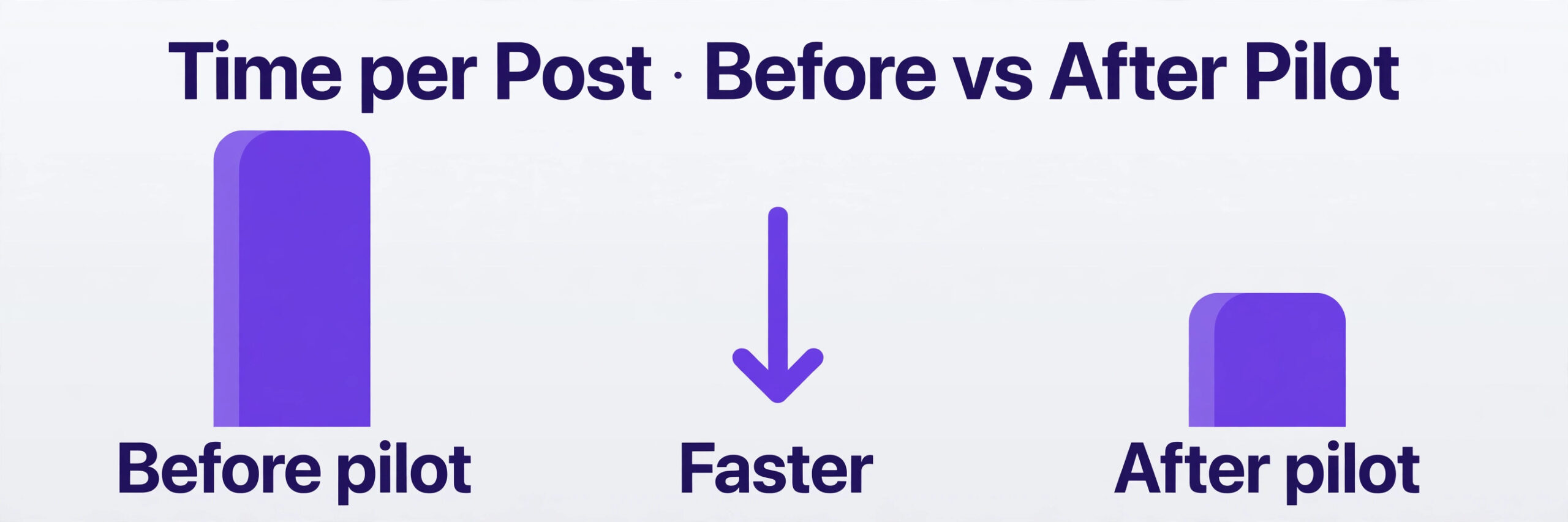
Pilot with one content type only. Social posts are a good pilot, because volume is high, feedback is fast and errors are visible but fixable. Choose two editors and one reviewer for the pilot. They produce real social content in Canva for two weeks, while other content types stay in Figma. Track time per post, revision rounds and brand errors. Compare those numbers with the old Figma workflow for the same content type.
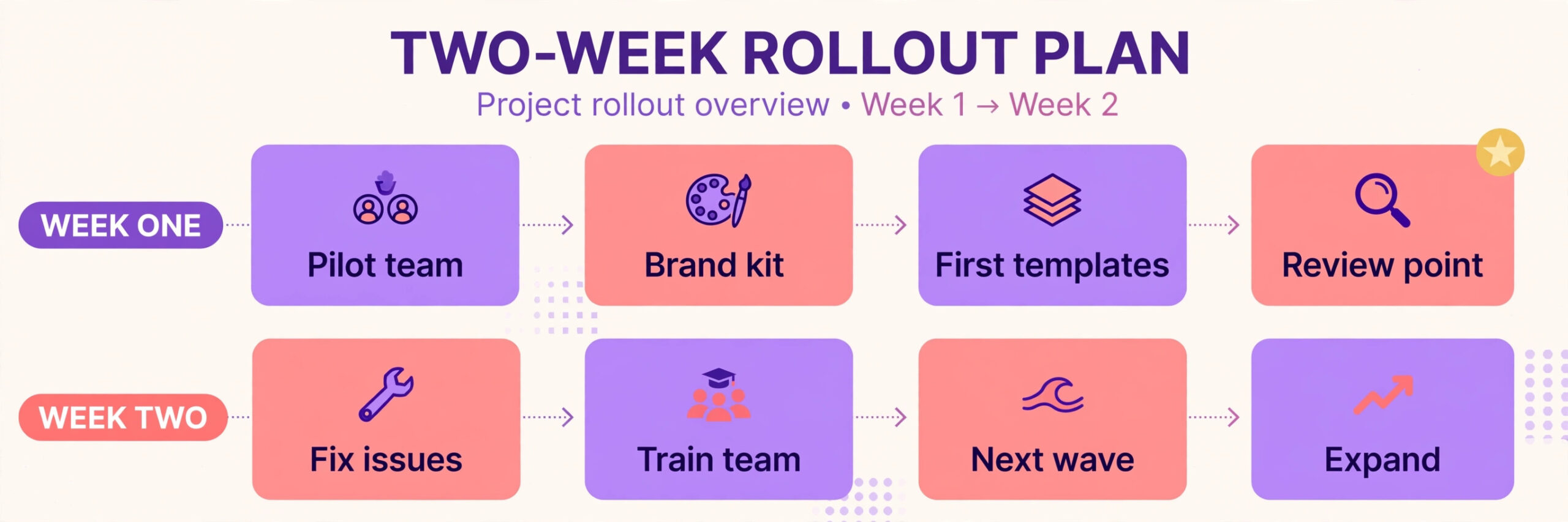
At the end of week one, review templates and fix the top problems. Teams that switch Figma to Canva design team pilots in this staged way learn faster than teams that cut over everything at once. At the end of week two, decide whether to expand to the next content type. Expansion should be by content type, not by team member alone. When social is stable, move presentations, then documents, then print assets if Canva suits them. Each wave gets its own template set and its own short review, so problems stay small and fixable.
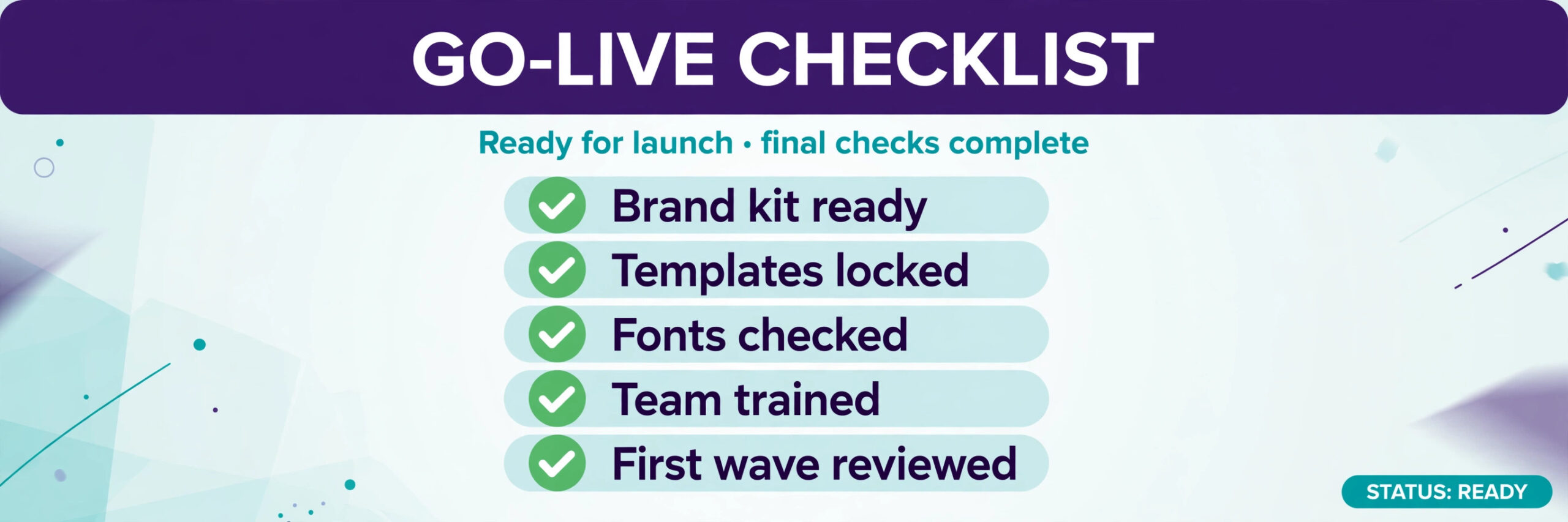
Go live for a content type only when its templates pass a quality test. The test is simple. Three different editors produce the same type of asset from templates, and all three exports meet brand and layout checks without designer rescue. If editors still need designer help on every export, templates are not ready. Fix templates before you declare go live, or the design team will become a rescue service for Canva work.
Use this go live checklist for each wave.
– Brand Kit approved, with exact colours, fonts and logo versions – Top templates rebuilt, tested with long text and real images – Folders and naming rules live, with archive folders separate – Review checklist live, with reviewer named for the wave – Training done, with practice exports reviewed for new editors – Old Figma files exported as reference, with access still available – Cutover date shared, with a contact for problems in week one
In week one after a wave goes live, hold a short daily check for fifteen minutes. Editors report blockers, the design owner fixes templates, and the reviewer shares one good example and one fix. In week two, move to a twice weekly check. By week three, the wave should run without daily support. If it still needs daily support, pause the next wave and fix the current one first.
When to Keep Figma for Some Work
Keeping Figma for some work is not a failed migration. It is a smart split. Keep product UI, design systems, icon libraries and interactive prototypes in Figma. Keep complex brand systems with many variants in Figma until Canva templates prove they can handle them. Keep developer handoff in Figma. These jobs use Figma strengths that Canva does not replace.
Keep print work under review. Canva handles many print jobs well, but complex print specifications, bleed control and colour profiles may still need a dedicated print tool or Figma export checks. Test one real print job end to end before moving all print work. Check the exported file with the printer, not just on screen. A screen preview can hide a print problem that only appears on paper.
Review the split every quarter. As Canva templates improve and the team gains skill, more jobs may move over. As product work grows, Figma may need more attention. A quarterly review keeps the split honest. Without review, the split freezes at the pilot decision, even when team needs have changed.
Mistakes That Waste the Most Time
The biggest time waster is rebuilding every file instead of the top templates. Teams spend weeks on old campaign files nobody will reuse, while weekly templates stay unfinished. Rank by reuse, rebuild the top ten, and archive the rest as reference exports. You can always rebuild an old file later if a client asks for it again.
The second waster is skipping font and colour checks. If you switch Figma to Canva design team templates without exact colour values, a template set built on guessed colours or unmatched fonts will need rebuilding after brand review. Spend the extra day on Brand Kit accuracy at the start. It saves weeks of rework later, and it protects client trust.
The third waster is leaving both tools fully live with no wave plan. When editors can choose either tool for any job, they choose the familiar tool, and Canva templates never get real use. A wave plan with cutover dates forces real use, real feedback and real template fixes. Without dates, migration becomes a side project that never finishes.
Bottom Line for Design Teams
Canva can give a design team wider output and faster turnaround, but only when templates, brand rules and review steps are rebuilt with care. The move is not an import. It is a rebuild of the repeatable part of design work, so more people can produce on brand output without waiting for a designer. Teams that accept that rebuild, and budget for it, usually see real gains within a month of the first stable wave.
Teams that expect Figma files to appear in Canva unchanged will be disappointed, and they may blame Canva for a planning gap. Judge the move after templates are tested with real content and real editors. If output is faster, brand errors are low and designers spend more time on high value work, the switch is working. If designers still rescue every export, fix templates and training before expanding further.
When you switch Figma to Canva design team leaders should keep one clear measure in view. How many on brand assets can non designers ship without designer rescue. Track that number weekly during rollout. When it rises and stays high, the migration has done its job. When it stalls, the cause is usually a template, a brand rule or a review gap, and all three are fixable without abandoning the move.
Frequently Asked Questions
How long does it take to switch Figma to Canva design team production?
A pilot for one content type usually takes two to four weeks, including Brand Kit setup, template rebuild and training. A full move across social, presentations and documents often takes six to twelve weeks, depending on template count and team size. Rebuild time, not file export time, drives the timeline, so rank templates by reuse before you estimate.
Can Figma files be imported directly into Canva for editing?
No direct import preserves components, auto layout and prototypes for editing in Canva. You can export assets as SVG, PNG or PDF and upload them, but the design must be rebuilt as a Canva template for full editing. Keep complex Figma files as reference, and rebuild the templates your team reuses most.
Will brand colours and fonts stay exact after the move?
They stay exact only if you enter exact values and test exports. Record hex values from Figma, check font availability in Canva, and compare exports side by side. Upload brand fonts where allowed, and approve a substitute font early if the original font is unavailable. Do not pick colours by eye from screenshots.
Should the whole design team stop using Figma?
Not necessarily. Many teams keep Figma for product UI, design systems, prototypes and developer handoff, while moving marketing production to Canva. That split uses each tool for its strengths. Review the split quarterly, and move more work to Canva only when templates and review prove stable.
How do we stop Canva output from looking inconsistent?
Use a locked Brand Kit, tested templates, folders by job and a short review checklist. Lock logos and brand colours, test templates with long text, and review new editors exports for the first month. Inconsistency usually comes from missing templates or missing review, not from the tool alone.
What happens to old Figma files after cutover?
Export them as reference files and keep access during the transition. Archive files that are no longer reused, and keep active product files in Figma where they belong. Do not delete Figma files on go live day. Keep them until Canva templates have run successfully for at least a month, then archive with your other project records.