
A five person team can collect more than a thousand notes in its first year. Meeting records, client briefs, checklists, screenshots and half finished ideas pile up in different notebooks. Search still works, but finding the current version of a decision becomes harder each month. That friction is the real reason many small teams look for a change. When you switch Evernote to Notion small team work changes from storing notes to running projects, docs and databases in one shared place. This guide shows how to make that move without losing content, breaking access or forcing the team to relearn everything at once.
Why Small Teams Start Looking Beyond Evernote
Evernote is strong at capture. You can clip a page, scan a receipt, save a voice note and find it later with search. For one person, that is often enough. For a team, capture is only the first step. People also need to assign work, track status, link related docs and see progress at a glance. Evernote can hold that information, but it was not built to turn notes into a live project board. Teams start to copy the same information into spreadsheets or chat threads. Soon there are three versions of the truth, and nobody is sure which one is current.
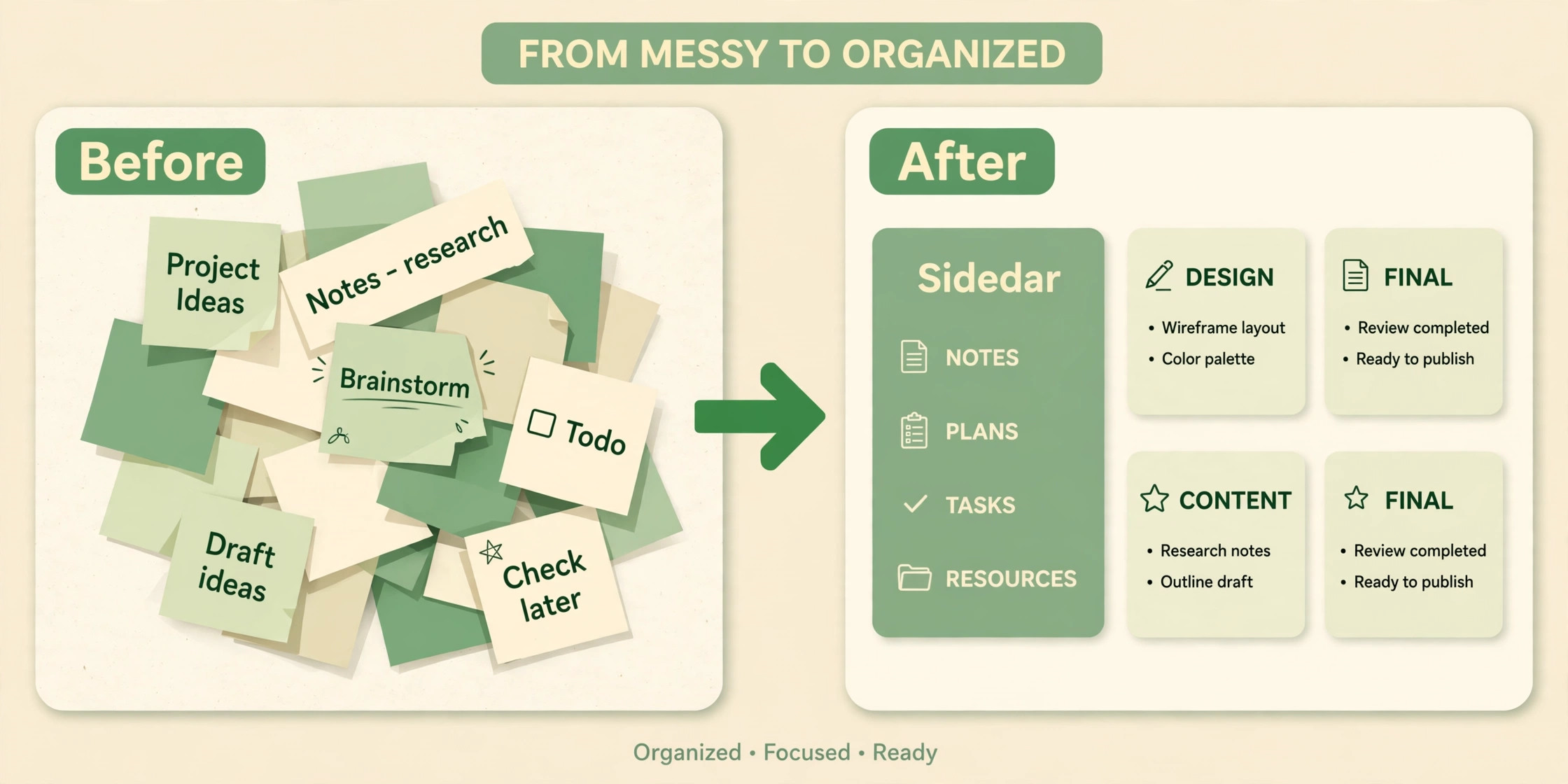
Notion takes a different approach. A page can be a simple note, and the same page can also live inside a database with owners, dates and status fields. That flexibility is useful, but it is also the main risk in a migration. If you import everything without a plan, you end up with a large pile of pages in a new tool. The goal is not to move a mess from one app to another. The goal is to decide what stays, what becomes a database and what can be archived before the move.
Cost also matters for a small team. Plans change often, so confirm current prices on the vendor pages before you budget. The cost of Evernote for small business gives a useful starting point for comparing monthly spend. The cost of Notion for small business helps you test the same comparison from the other side. Do not pick a plan on price alone. Pick the plan that covers the number of guests, file sizes and admin controls your team actually needs.
How to Switch Evernote to Notion Small Team Without Losing Structure
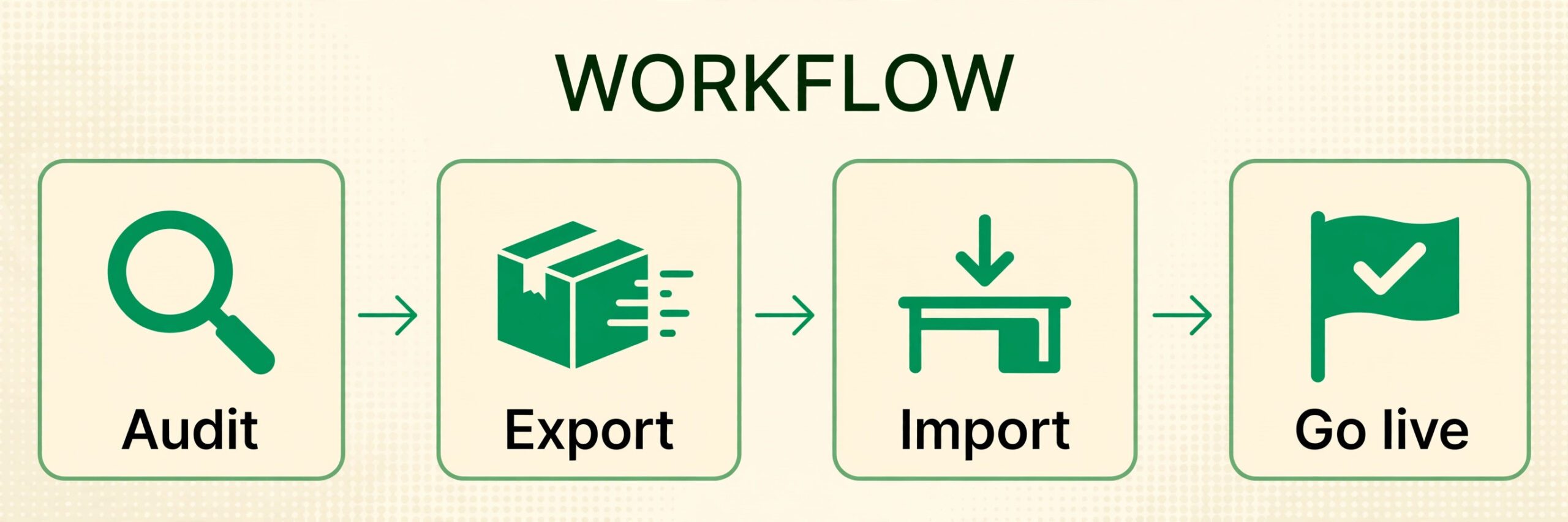
A safe migration has four stages. First, audit what you own. Second, export a clean backup. Third, import in small batches and fix problems early. Fourth, rebuild structure in Notion instead of copying Evernote structure exactly. Teams that skip the audit stage usually import duplicate notes, dead projects and personal clips. Teams that skip the pilot stage discover permission problems on go live day, when everyone needs access at once.
Set a migration owner before you start. That person does not need to do all the work, but they need to own decisions about naming, permissions and cutover timing. Give them a deadline for the audit and a second deadline for the pilot review. Without an owner, small choices pile up. One person creates a database one way, another person creates a different version, and the team ends up with two systems again.
Agree on a freeze rule for the migration week. During the pilot, the team can still add notes in Evernote, but major restructuring should pause. New notes created during import can be missed if the import runs twice. A short freeze avoids that confusion. Tell clients and partners nothing will change for them. This is an internal tool change, not a change to how you deliver work.
Audit Before You Export
Start by listing every notebook and shared notebook in Evernote. Note the owner, the purpose and the last activity date. Notebooks with no activity for a year are candidates for archive, not migration. Notebooks that hold active client work, operating procedures and team knowledge belong in the first import batch. Personal notebooks should stay personal. Do not import a colleagues private notes into a shared workspace by accident.
Count notes by type, not just by total. How many are meeting notes. How many are reference articles. How many are checklists that are already done. How many contain large attachments. Large attachments matter because file size limits differ between plans, and a note with a 200 megabyte video will behave differently from a short text note. Check attachment sizes in the largest notebooks first, so you do not discover a blocker halfway through import.
Review tags next. When you switch Evernote to Notion small team tags need a clean up first, or the new workspace inherits the old clutter. Evernote tags often grow without rules. Teams end up with client, clients, Client Work and client-work for the same idea. List every tag, merge duplicates and delete tags used on only one or two notes. A clean tag list becomes the basis for Notion properties later. If a tag was only useful for one project, turn it into a project property instead of carrying it forward forever.
Check sharing and permissions before you move anything. Who can edit each notebook. Who is only a viewer. Who left the team but still has access. A migration is a good time to remove former staff and outside contractors who no longer need access. Write down the correct permission for each notebook, because Notion permissions work at page and database level. You will need that list when you rebuild sharing.
Export From Evernote the Safe Way
Evernote exports use the ENEX format from the desktop app. Export notebook by notebook, not as one giant file. A separate file per notebook keeps the structure clear and makes it easier to retry one notebook if an import fails. Name each file with the notebook name and the export date. Store the files in a folder that only the migration owner can access until the move is verified.
Keep a backup copy separate from the import files. Do not overwrite your only backup during a test import. If a test import corrupts formatting, you want a clean copy to start again. Keep the backup until at least two weeks after go live. That window gives the team time to find missing notes while Evernote is still available as a safety net.
Before you switch Evernote to Notion small team work in full, test the export on one small notebook. Choose a notebook with mixed content. Include text, images, a checklist, a table and an attachment. Export it, import it into a test Notion workspace, and check every element. This small test tells you more than any feature list. It shows what formatting survives, what breaks and how much cleanup each notebook will need.
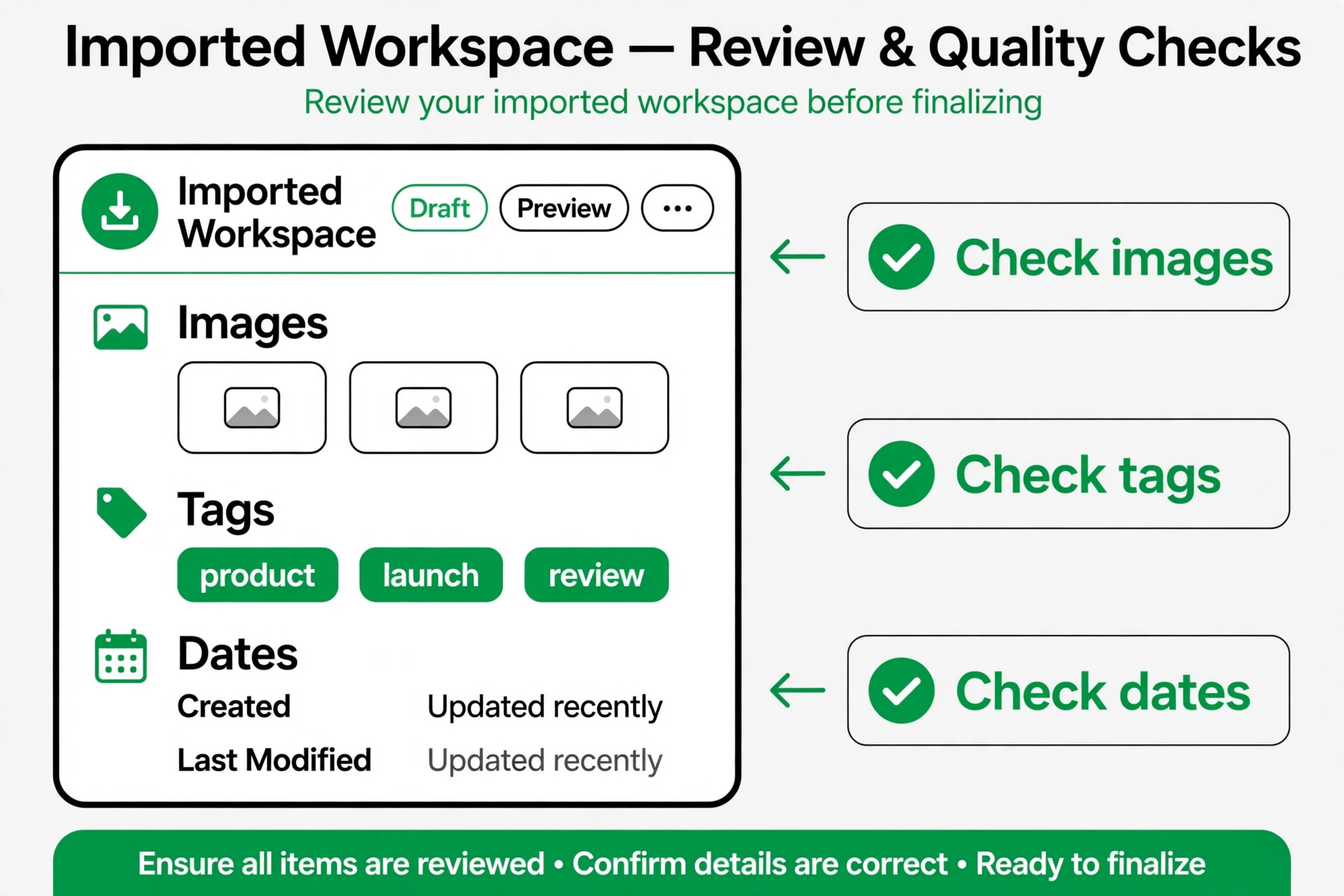
Watch for known trouble spots during the test. Web clips often lose layout. Complex tables may flatten. Internal links between Evernote notes may not point to the right Notion pages after import. Dates can shift in some imports, so check created and updated dates on a few notes. If dates matter for compliance or client records, add a date property in Notion and record the original date during cleanup.
Import Into Notion and Fix What Breaks
Notion offers an Evernote importer that connects to your Evernote account. That route works well for many teams, especially when the library is not huge. Published guidance suggests the importer is reliable up to roughly 5,000 notes, and larger libraries can fail partway. If your library is larger, import in notebook batches and verify each batch before starting the next one. Do not start a second batch while the first is still running.
Imported notebooks usually arrive as pages with their notes inside a list database. That is a starting point, not a finished structure. Open each imported database and check titles, tags and attachments. Fix broken images first, because they are the easiest to spot and the most likely to confuse readers. Then fix headings and lists that flattened during import. Leave deep restructuring for the next stage, so the team can still find notes while you improve them.
Create a cleanup log during import. For each notebook, record what imported cleanly, what needed fixes and what was left behind on purpose. A short log saves hours later. When someone asks where a note went, you can check the log instead of searching both tools. It also helps the migration owner estimate how long the remaining notebooks will take, based on real cleanup time rather than a guess.
If an import fails, do not keep retrying the same large batch. Split it into smaller notebooks or smaller note groups and try again. Check whether Evernote rate limits or a large attachment caused the failure. Remove the problem note, import the rest, then handle that note by hand. A single difficult note should not block a whole notebook.
Rebuild Notebooks as Databases
This is where the migration pays off. In Evernote, a notebook is a folder. In Notion, a database is a folder with fields, views and filters. A meeting notes database can have date, attendees, project and follow up status. A client database can have contact, stage, next step and last update. Once those fields exist, the team can filter for open items instead of searching through titles.
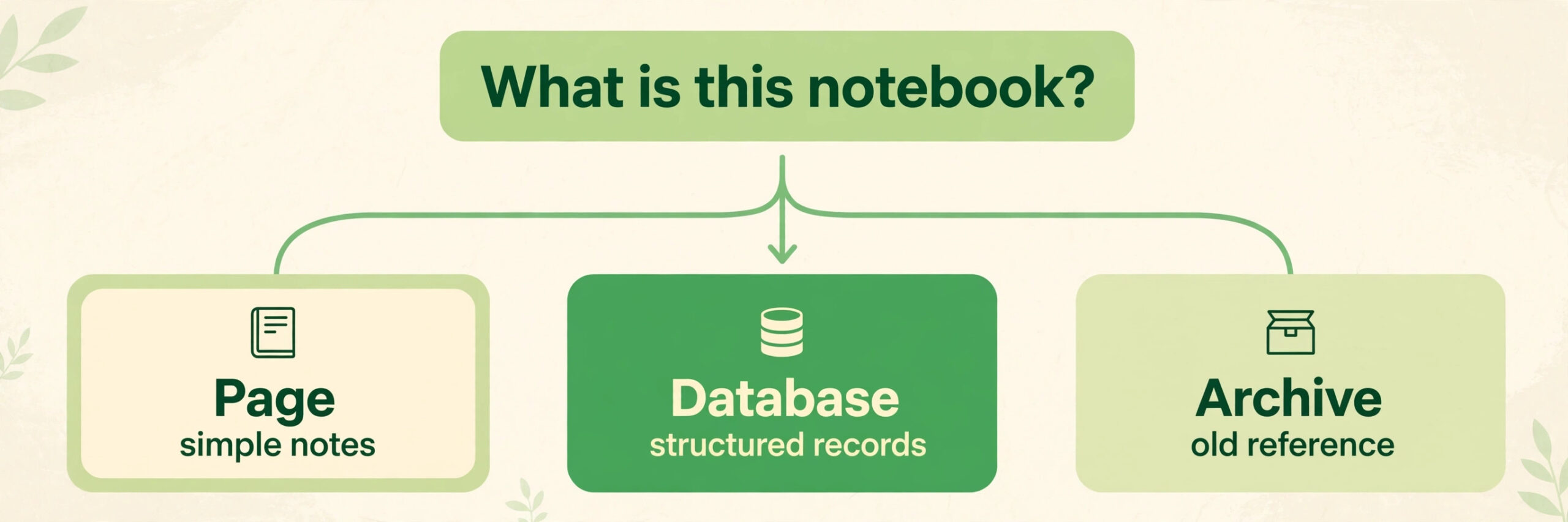
Do not turn every notebook into a database. Some notebooks are best as simple pages. A company handbook, a brand guide or a set of standard procedures works well as linked pages with clear headings. Databases are best when the team needs to sort, filter or track many similar items. Use a simple test. If you need to ask which items are open, overdue or assigned to one person, use a database. If you only need to read the page, keep it simple.
Map Evernote fields to Notion properties in a short table before you rebuild. Tags can become multi select properties. Notebook names can become a select property or a relation to a project database. Reminder dates can become date properties. Checkboxes in notes can become task properties only when they represent real work. This mapping step prevents a common mistake, which is carrying every old tag into Notion and recreating the same clutter.
| Evernote element | Notion approach | Team check |
|---|---|---|
| Notebook | Page or database, by use | Owner confirms purpose |
| Tag | Multi select or select property | Duplicates merged first |
| Reminder | Date property with reminder | Owner and due date set |
| Shared notebook | Page permissions or database sharing | Former staff removed |
| Attachment | File property or inline file | Size checked against plan |
Keep database views simple at first. Teams that switch Evernote to Notion small team work often add too many views on day one, which slows adoption. A table view for editing, a board view for status and a calendar view for dates cover most small team needs. You can add gallery or timeline views later, once the team is comfortable. Too many views on day one confuse new users. They click through views looking for their work instead of doing their work.
Tags need rules in Notion just as they did in Evernote. Decide which properties are required and which are optional. A project property should be required for task pages, so nothing floats without a home. A priority property can stay optional for reference notes. Write the rules on one page in the new workspace, so new joiners follow the same pattern. Without written rules, tags drift again within a few months.
Reminders work differently in Notion. A date property can send a reminder, but the team needs to agree on how reminders are used. Will the owner get a reminder on the due date, or a day before. Who follows up when a task passes its date. Put those answers in the team guide. A reminder that nobody acts on is just noise, and the team will soon ignore all reminders.
Sharing needs a fresh review. In Evernote, sharing was often notebook by notebook. In Notion, you can share a whole workspace, a page or a single database. Start with the smallest access that still lets people do their jobs. Give editors access to active work, viewers access to reference material, and guests access only to specific client pages. Review sharing again after the first month, because early permissions often include test accounts and pilot users who no longer need access.
Train the team on two habits that replace old Evernote habits. First, link pages instead of copying text. A linked project page stays current in every place it appears. Second, use the database filter instead of creating a new notebook for every query. These two habits reduce duplication, which was often the reason the old system felt messy.
Swap Integrations and Daily Habits
List every integration connected to Evernote before cutover. That includes calendar tools, email clipping, task apps, automation tools and any browser extension the team uses daily. For each one, find the Notion equivalent or decide to drop it. Some tools connect directly to Notion. Others need an automation platform in between. A few may have no good equivalent, and the team needs a manual workaround for a few weeks.
Replace the web clipper habit with a clear capture habit in Notion. The Notion web clipper saves pages, but results vary on complex sites. For research that must stay exact, save a PDF or screenshot alongside the clipped page. For quick saves, a simple page with a link and a short summary is often more useful than a full clip. Teach the team to add a source link and a one line note about why the page was saved. That context is what makes a saved page useful later.
Calendar habits also change. Evernote reminders and calendar links do not move automatically. Connect Notion dates to the team calendar where possible, and test the connection with a few real tasks before go live. If the team relies on calendar events for client meetings, keep those events in the main calendar tool and link them from Notion, rather than trying to replace the calendar entirely.
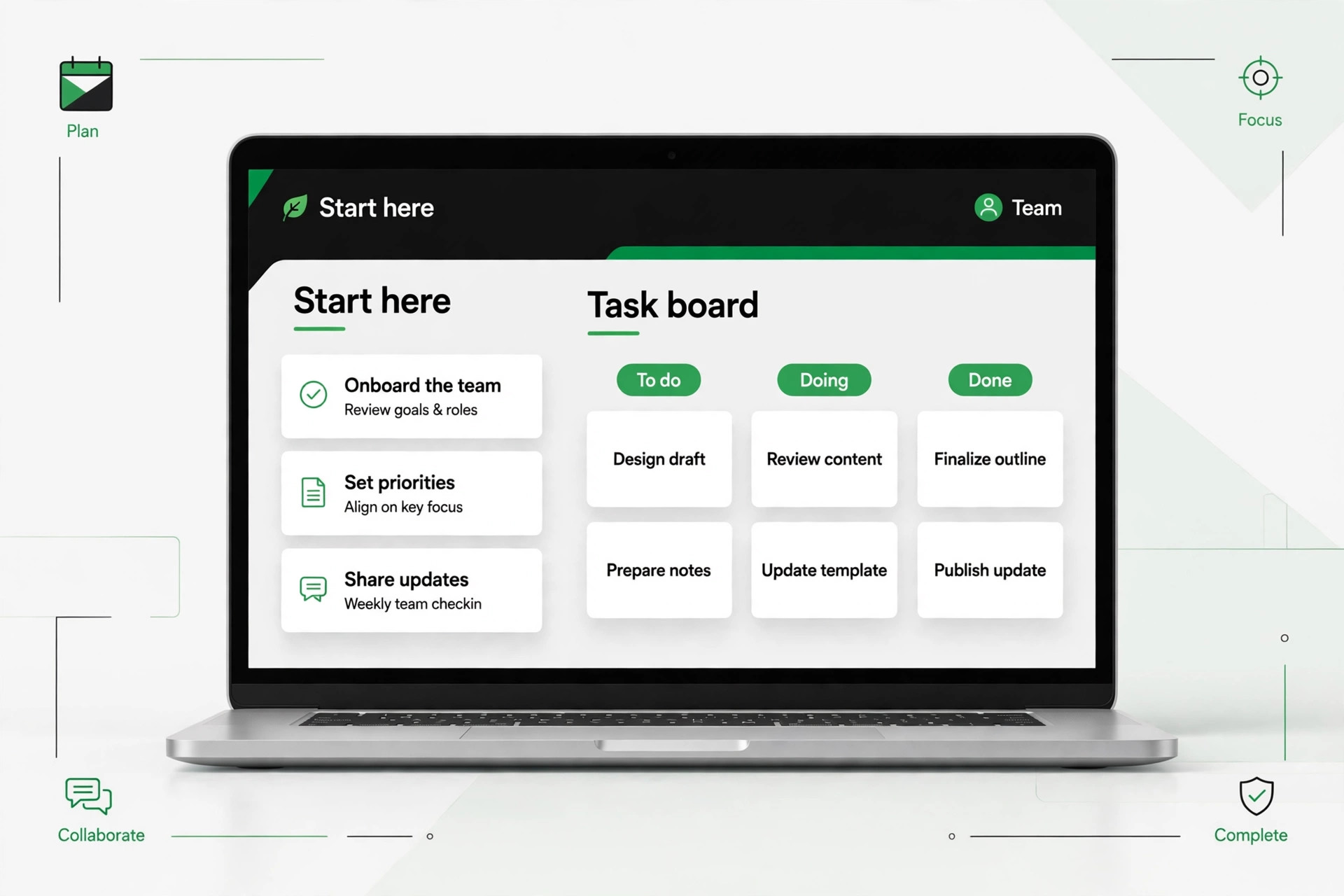
For onboarding, the new workspace should help new hires find their way fast. The guide to use Notion for remote team onboarding shows how a structured workspace supports new starters. Use that idea in your own setup. Create a start here page with links to active projects, key docs and the team guide. New hires should find their first tasks without asking three people for links.
Pilot With One Team Before Full Cutover
Choose a pilot group of two or three people who do real work every day. Give them the new workspace and a clear pilot task. They should run one active project in Notion for one week while Evernote stays available. Ask them to log friction, missing notes and confusing permissions. A pilot with fake data will not reveal real problems. A pilot with real work will.
Hold a short review at the end of the pilot week. Ask what was faster, what was slower and what was missing. Fix the top three problems before wider rollout. If search feels worse, check titles and properties. If people cannot find their tasks, check database views and filters. If permissions block work, fix sharing before you invite the rest of the team. A pilot that only collects praise is not a pilot. It is a demo.
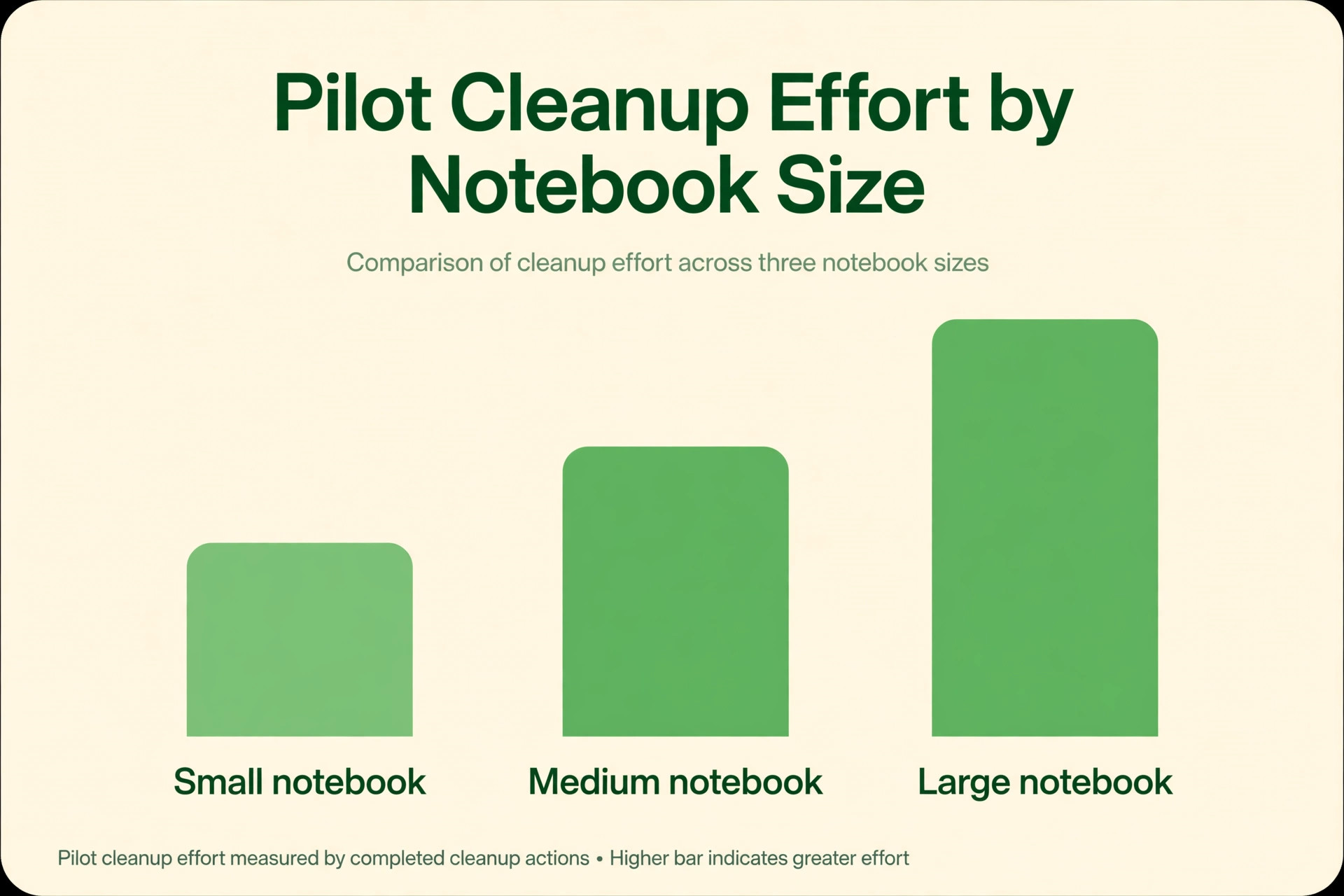
Use the pilot to set a realistic cleanup estimate. Time how long it takes to fix one imported notebook properly. Multiply that time by the number of remaining notebooks, then add time for training and questions. That estimate is far more useful than a vendor timeline. It also helps the migration owner decide whether to import everything, or to archive older notebooks and import only active work.
Keep Evernote running during the pilot and for at least two weeks after go live. The team needs a safety net while they learn new habits. Announce the date when Evernote becomes read only, and the later date when it will be closed. A clear timeline prevents a sudden loss of access, and it gives the team a reason to finish cleanup instead of leaving both tools running forever.
Go Live Checklist and First Week Cutover Plan
Go live day should be boring. That is a good sign. It means the hard work happened during audit, import and pilot. Start the day by confirming all active notebooks are imported and verified. Check that every team member can open the workspace, edit their tasks and find client docs. Check that guests and clients with shared pages still have the correct access. Then send one short message with links to the start here page, the team guide and the place to report problems.
Use this checklist on go live morning. Tick each item before you tell the team to stop using Evernote for new work.
– Active notebooks imported and spot checked for images and attachments – Tags merged and mapped to properties, with rules written on the guide page – Permissions reviewed, former staff removed, guests limited to specific pages – Integrations reconnected or replaced, clipper and calendar tested – Start here page live, with links to projects, docs and the team guide – Backup ENEX files stored safely, with a note of where they live – Evernote set to read only after the team confirms the new workspace works
The first week cutover plan keeps momentum without chaos. On day one, the team works only in Notion for new notes and tasks. On day two, the migration owner fixes the top reported problems and shares a short update. On day three, each person checks their own old notebooks for anything still missing and reports gaps. On day four, the team reviews database views and removes any view nobody uses. On day five, the owner confirms what will stay in Evernote as archive and what will be deleted later.
By the end of week one, hold a 30 minute review. Ask each person to name one thing that is better and one thing that still hurts. Fix the painful items that affect daily work first. Small fixes in week one build trust. If the team sees problems fixed fast, they will adopt the new system. If problems sit untouched, they will quietly return to old habits and private docs.
What to Keep in Evernote During Transition
Do not delete Evernote on go live day. Keep it as a read only archive for at least a month. Some notes may contain old client approvals, contract details or research that nobody needs daily but may need later. Keeping the archive avoids panic when someone asks for a note from two years ago. It also gives you time to verify that imported copies are complete.
Decide what never moves. Personal notes, sensitive HR records and old financial scans may belong outside a shared workspace. If a note does not fit the new shared structure, the guide to migrate Evernote to Obsidian for notes users shows a different path for personal archives, and that option is worth noting before you switch Evernote to Notion small team shared work. If a notebook contains sensitive data, do not import it into a shared Notion workspace without a privacy review. Keep sensitive material in its original secure location, or move it to a private Notion page with strict permissions. A migration is not a reason to widen access to sensitive records.
After the archive period, export a final backup and store it with your other business backups. Then downgrade or close Evernote accounts that are no longer needed, after confirming no active integration still points to Evernote. Closing accounts too early can break an automation or a shared link you forgot about. Check integrations one last time before you close anything.
Common Migration Mistakes
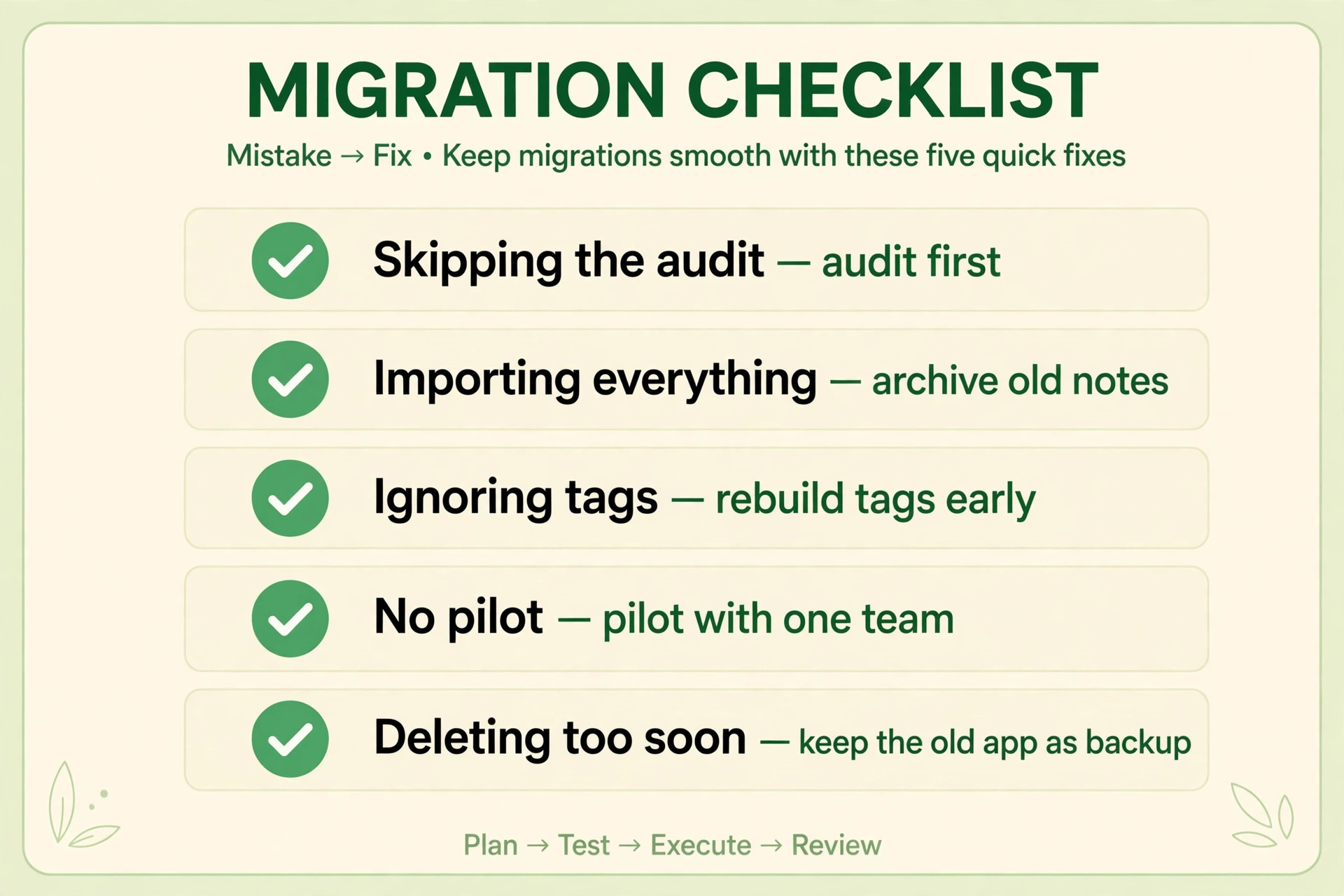
The most common mistake is importing everything. Old notes feel valuable, but a large import slows search and makes the new workspace feel as messy as the old one. Archive ruthlessly. If a note has not been opened in a year and holds no legal or client value, leave it in the backup, not in the live workspace. The team can still retrieve it if needed, but it will not clutter daily search.
Another mistake is copying Evernote structure exactly. When teams switch Evernote to Notion small team structure without rethinking it, notebooks become pages, tags stay tags, and nothing improves. The team then asks why they moved at all. Use the migration to fix structure. Turn repeated meeting notes into a database. Turn scattered checklists into task templates. Turn a long reference notebook into linked guide pages. The move should feel like an upgrade, not a rename.
A third mistake is underestimating training. Notion looks simple, but databases, relations and views take time to learn. Give the team two short training sessions, not one long lecture. The first session covers capture, search and tasks. The second session, a week later, covers databases, filters and templates. People learn more from a second session after real use than from a long session before they have tried anything.
The final mistake is leaving two systems running with no end date. When both tools stay live, people save notes in whichever tool is open. Duplication returns fast. Set a read only date for Evernote and a close date after that. Share both dates early, so the team can plan. A migration with no end date is not a migration. It is an extra tool.
A Practical Verdict for Small Teams
Notion suits small teams that want notes, tasks and docs in one place and are willing to set simple rules. It suits teams that repeat similar work, like client onboarding, content production or project delivery, because templates and databases save time on every repeat. It is less suited to a team that only needs fast personal capture and never shares structured work. For that team, a simpler note app may be enough, and the migration cost may outweigh the gain.
Before you switch Evernote to Notion small team leaders should test the pilot honestly. If the pilot team finds work faster and spends less time copying information between tools, proceed. If the pilot team finds Notion slower for their core daily tasks, pause and fix structure before wider rollout. A good migration improves daily work within the first month. If it does not, the problem is usually structure or training, not the tool itself.
For teams that move for the right reasons, the payoff is a single source of truth. Meeting notes link to projects. Projects link to clients. Tasks show owners and dates without extra spreadsheets. That clarity is worth the cleanup effort, as long as the team keeps the workspace tidy after go live. Assign a workspace owner for the long term, review properties every quarter, and archive completed projects promptly. A tidy workspace stays useful. A neglected one becomes the next migration project.
For wider planning, compare this move with other team tool changes. The guide to the best project management tool for remote teams helps you see where Notion fits beside dedicated project tools. If your team needs deep project reporting or resource planning, a dedicated tool may still be needed alongside Notion. If your team needs shared docs with light task tracking, Notion alone may be enough.
Frequently Asked Questions
How long does it take to switch Evernote to Notion small team work in practice?
A small team with a few hundred notes can finish in one to two weeks, including audit, pilot and cleanup. A team with several thousand notes should plan three to four weeks, because cleanup time grows with volume. The import itself is often the fastest part. Audit, mapping and training take most of the time, so budget for those stages first.
Tags usually survive as text, but they work better when rebuilt as properties. Merge duplicate tags before import, then map the clean list to multi select or select properties in Notion. Check a sample of imported notes to confirm tags arrived correctly, and fix any tag that split or merged incorrectly during import.
What happens to attachments and images during import?
Most images and attachments import with their notes, but large files and complex web clips need checking. Test one mixed notebook first and check file sizes against your Notion plan. If a file is too large, store it in your main file storage and link it from Notion instead of embedding it. Keep your ENEX backup until you have verified attachments.
Do I need to keep paying for Evernote after the move?
Keep Evernote until the new workspace is verified and the team has worked in Notion for at least two weeks. After that, you can downgrade or close accounts that are no longer needed. Keep a final ENEX backup with your business backups, so old notes remain retrievable even after accounts close.
Can the team still use Evernote while Notion is being set up?
Yes, and that is the safest approach. Run both tools during audit, import and pilot. Use Evernote for daily work until go live day, then switch new work to Notion. Set a read only date for Evernote after go live, so the team has a clear end point and does not drift back to two systems.
What should we do if an import fails halfway?
Stop and check the cleanup log for the last verified notebook. Split the failed batch into smaller groups and retry. Look for a very large attachment or a complex web clip that may have caused the failure. Import the rest of the batch, then handle the problem note by hand. Do not retry the same large batch repeatedly without changing the batch size.