
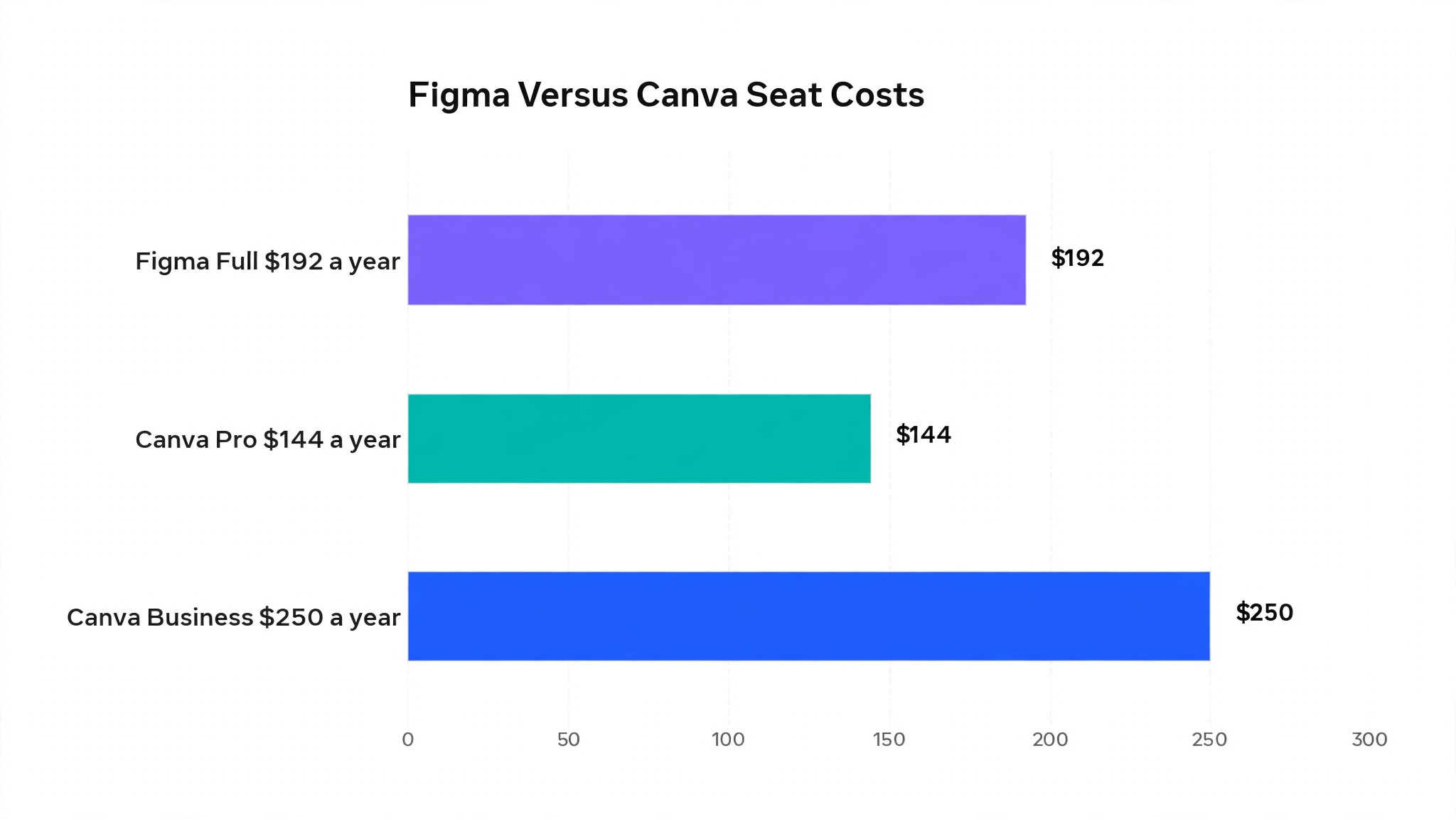
A Figma Full seat on Professional is reported at 192 dollars a year, while Canva Pro is reported at 144 dollars a year and Canva Business at 250 dollars per user a year. Those three numbers explain why the decision to switch Canva to Figma design team tooling is not a simple price comparison.
Figma costs more than Canva Pro per designer and less than Canva Business per user, yet the real cost difference sits in who needs a paid seat at all. In Figma, reviewers view and comment for free, while in Canva Business every member uses a paid seat. A team of one designer and four marketers therefore pays for five Canva seats but only one Figma Full seat plus free viewers.
That seat arithmetic changes the whole business case.
Pricing figures in this guide come from comparison pages checked at writing time, and both vendors change prices and plan names from time to time, so confirm the current price on the vendor page before buying. Where a figure is reported rather than published on the vendor pricing page, the text says so plainly. The migration itself is not a file transfer. Canva designs do not open natively in Figma, so the move is a rebuild guided by a mapping table, and this guide shows how to run that rebuild without losing brand assets, templates, or momentum.
Two Tools Built for Different Jobs
Canva answers a simple question. How does anyone on the team make something good looking quickly, without design training. Its template library covers social posts, presentations, documents, and print, its editor is drag and drop, and its AI tools help with writing, background removal, and resizing. A marketer can ship a post in twenty minutes, a founder can build a deck in an afternoon, and nobody waits for a designer. That speed is Canva greatest strength, and it is also the reason design teams outgrow it.
Figma answers a different question. How does a team build a design system once and reuse it everywhere, with consistency enforced by the tool rather than by memory. Designers build components with variants, define styles for colour and type, and let changes flow through every file automatically. Developers inspect designs, copy values, and hand off without screenshots and guesswork. Prototypes link screens into flows that stakeholders can click through. That system power is Figma greatest strength, and it is also the reason non designers find Figma intimidating.
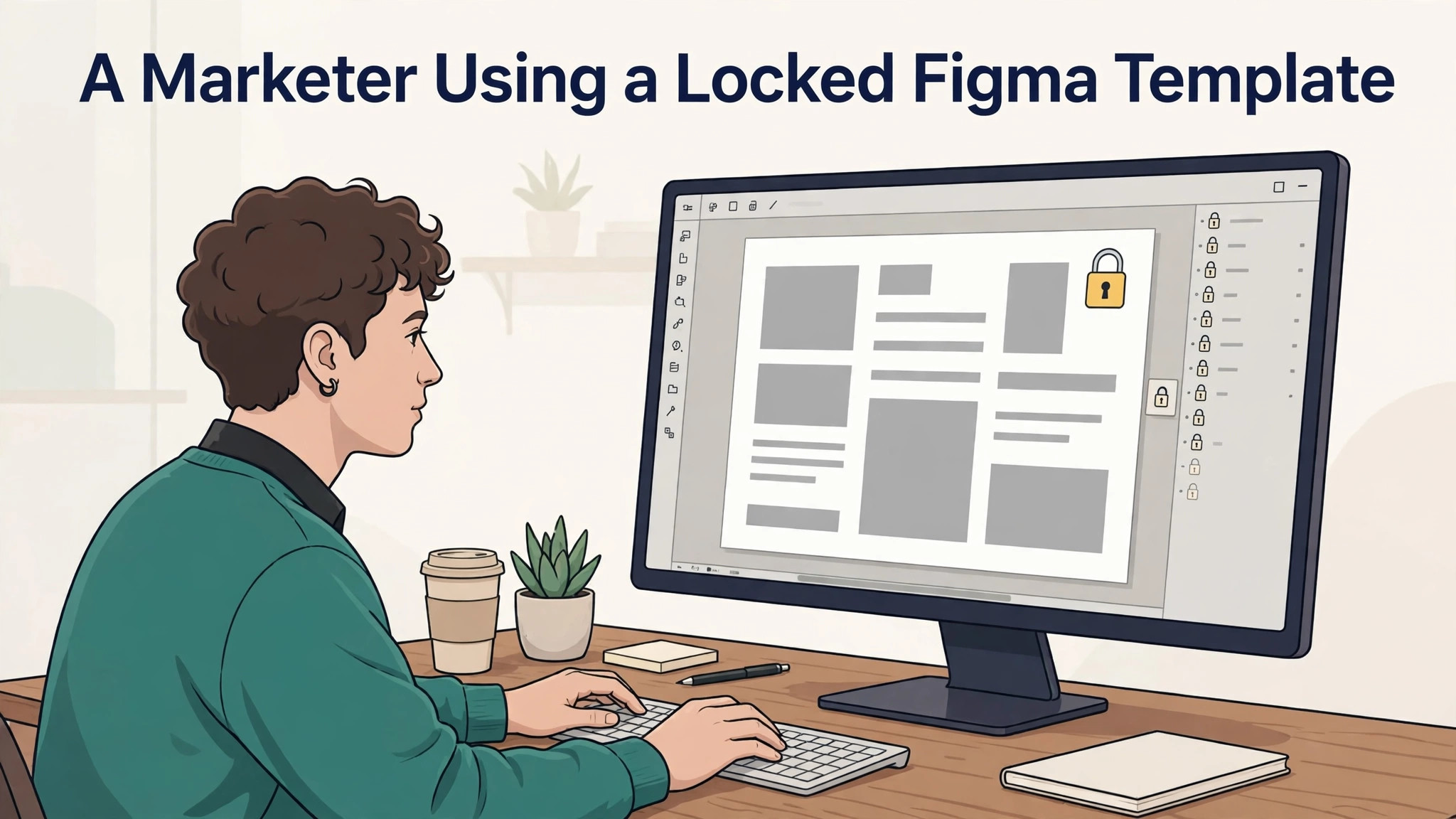
The overlap between the tools grows every year. Figma Buzz, free on all seats while in beta according to comparison sources, lets designers publish locked brand templates for teammates, which covers part of what Canva does. Canva now supports UI design and prototyping too. Yet the core difference remains. Canva optimises for individual speed, while Figma optimises for team consistency at scale. A design team should move when consistency, components, and developer handoff matter more than individual speed, and when the team has designers who can build and maintain a system.
A team should not move when most of its output is marketing assets made by non designers. Social posts, one pagers, and decks are Canva home ground, and moving that work to Figma slows marketers down without improving the output. The best answer for many companies is a split, with designers in Figma and marketers in Canva, and this guide covers that split as a legitimate outcome rather than a failure to commit.
The Switch Canva to Figma Design Team Mapping Table
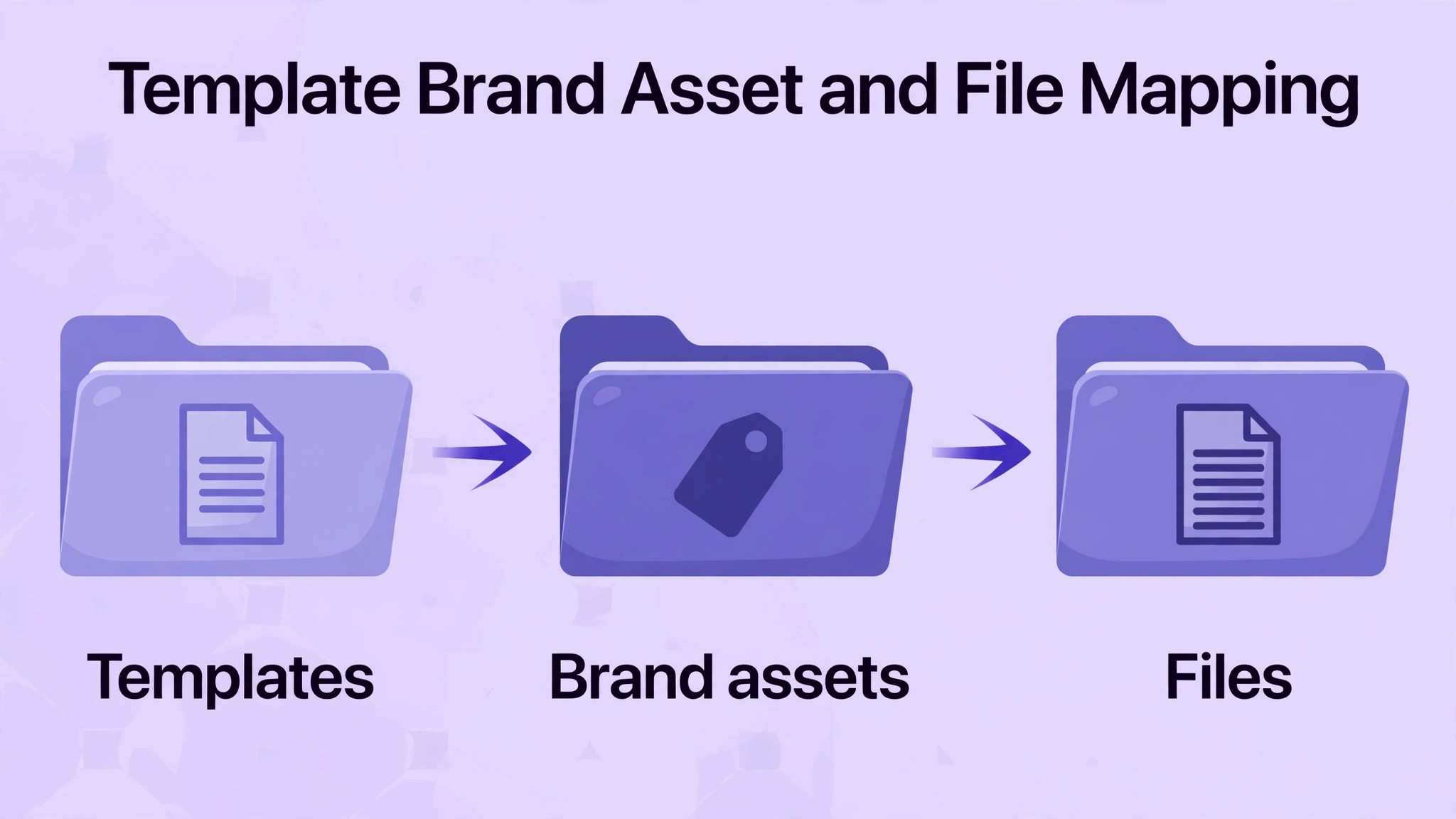
The mapping table below is the working document for the move. Fill it in during week one, and use it to check every asset the team migrates. Each row names the Canva item, its Figma destination, and the action required.
| Canva item | Figma destination | Migration action |
|---|---|---|
| Design file, social post | Figma frame in a marketing file | Export as SVG or PNG, rebuild in Figma, retype text where SVG import flattens it |
| Design file, presentation | Figma Slides deck | Rebuild in Slides, since Canva decks do not import as editable slides |
| Brand template | Figma component or Buzz template | Rebuild as a component with variants, publish through a library or Buzz |
| Brand kit, colours | Figma colour styles | Recreate each colour as a named style, document hex values |
| Brand kit, fonts | Figma text styles | Recreate each font pairing as a text style, confirm licences |
| Brand kit, logos | Figma library asset | Upload master logo files, preferably SVG, to the library |
| Uploaded image | Figma file asset | Reupload originals, never screenshots of Canva exports |
| Stock photo or element | Figma plugin asset or upload | Replace with licensed equivalents, check licences carry over |
| Team folder | Figma project | Recreate project structure, move files by priority |
| Shared template link | Figma library file or Buzz template | Publish the rebuilt template, share the library link with the team |
| Comment thread | Figma comment | Copy open feedback into Figma comments, close resolved threads in Canva |
| Design version | Figma version history checkpoint | Save a named version after each rebuilt file is approved |
| Print design | Figma frame plus export | Rebuild, export as PDF, check bleed and crop settings with the printer |
| Video design | External video tool or Figma embed | Keep video work outside Figma, since Figma is not a video editor |
| Document, such as a report | Figma frame or external document tool | Rebuild short documents in Figma, keep long documents in a document tool |
| Social scheduler queue | External scheduler | Keep scheduling in Canva or move to a dedicated scheduler, since Figma does not schedule |
| Team member, paid seat | Full seat, Collab seat, or View seat | Assign Full seats to designers, Collab seats to light editors, free View seats to reviewers |
| Approval workflow | Figma comment and branch review | Replace Canva approvals with comment threads and branch reviews |
Three rows in that table cause most of the pain. The first is design files themselves. There is no native Canva to Figma import, so SVG export plus drag and drop moves shapes well but often flattens text, forcing retyping before the text becomes editable again.
Third party converters exist, but they cost money and still need checking, so budget rebuild time rather than expecting a clean conversion. The second is templates. A Canva template becomes a Figma component only through a rebuild, and that rebuild is the moment to add variants, constraints, and auto layout, rather than copying a flat layout. The third is seats. Assigning everyone a Full seat wastes money, while assigning designers a Collab seat blocks the work they need to do, so seat mapping deserves a deliberate decision per person.
Design System Foundations Before You Switch Canva to Figma Design Team Files
A design system is not a folder of components. It is a set of decisions about colour, type, spacing, and behaviour, written down so that every designer and developer applies them the same way. Before any file moves, the team should agree on those decisions, because rebuilding files without agreed foundations produces a Figma library that looks organised and behaves inconsistently. Start with colour. Define primary, secondary, and neutral palettes with named styles, and retire near duplicate shades that accumulated in Canva over years. A palette with forty blues is not a system. It is a history of indecision.
Type comes next. Define heading, body, and caption styles with font, size, weight, and line height, and test them at small sizes on mobile screens, where many Canva designs were never checked. Spacing follows, with a simple scale the whole team can remember, such as multiples of four or eight pixels, applied through auto layout rather than by eye. Behaviour comes last, meaning the states a component must support, such as default, hover, active, disabled, and error for buttons, and selected and unselected for toggles. A component without states forces designers to invent behaviour per file, which is exactly the inconsistency the system exists to prevent.
Documentation turns those decisions into a system the team can actually use. Write one page per foundation area, with examples of correct and incorrect use, and link those pages from the library file itself. When a team plans to switch Canva to Figma design team workflows, documentation is often skipped as overhead, yet it is the difference between a library designers trust and a library they work around. A new hire should be able to build a correct screen from the library and its documentation alone, without asking a senior designer what the right blue is.
The Canva to Figma Sequence, Week by Week
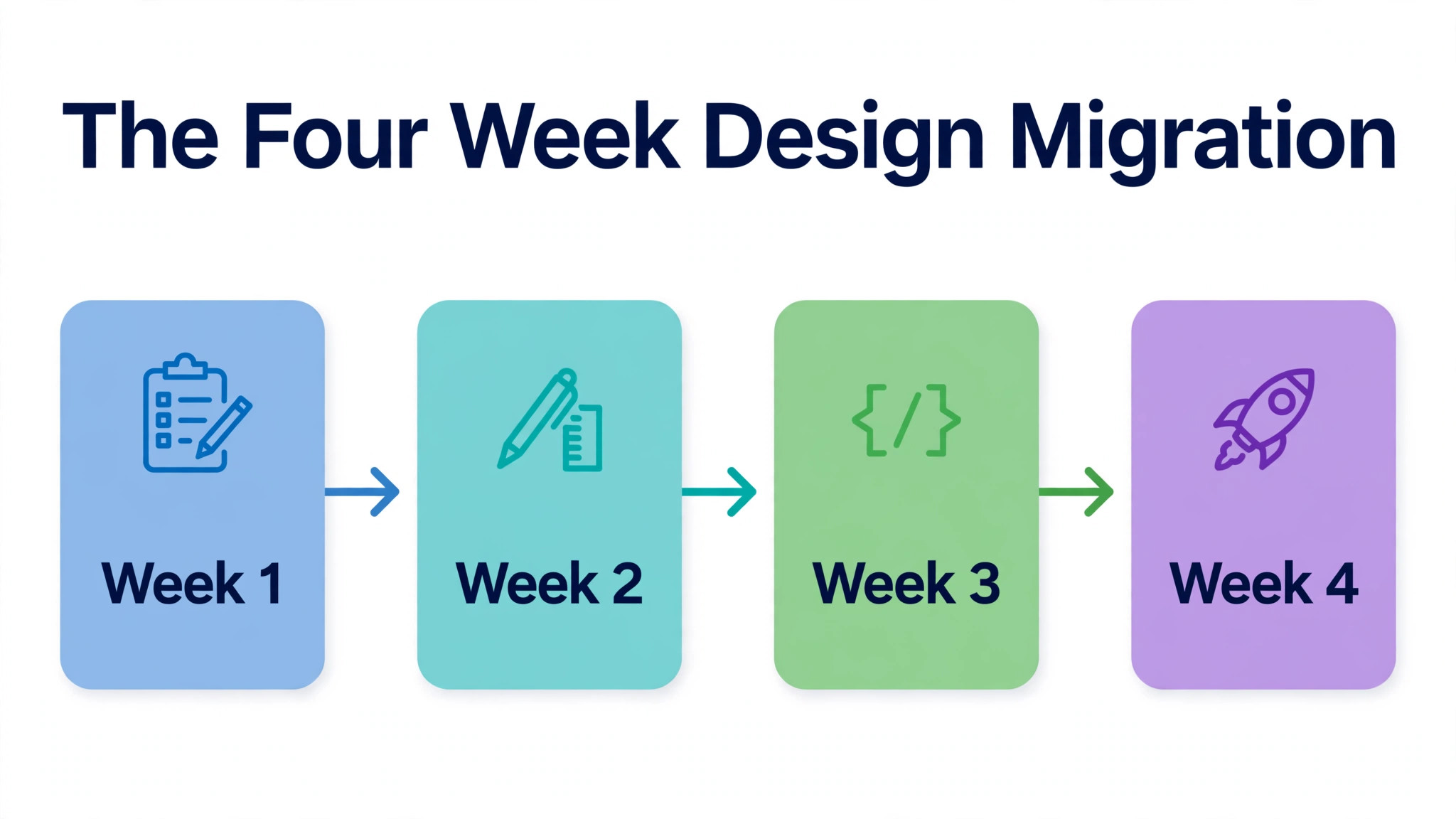
A design team migration fits into four weeks, with the first week spent on audit and system design and the remaining weeks on rebuild and training. Rushing the system design week produces a Figma library that mirrors Canva chaos instead of replacing it.
1. Audit the Canva account. List every folder, template, and brand kit asset, and decide what moves, what gets archived, and what gets deleted. Archive anything unused for ninety days rather than rebuilding clutter. 2. Design the Figma structure. Define projects, libraries, naming conventions, and file organisation before any file is rebuilt. A library built without naming rules becomes unsearchable within a month. 3. Build the foundation library. Recreate colour styles, text styles, logo assets, and the ten most used components first, and publish them as a shared library. Every later file should draw from this library, not from pasted copies. 4. Rebuild templates as components. Convert the most used Canva templates into Figma components with variants, and publish them through the library or through Buzz for non designer teammates. Test each template with a real marketer before rolling it out. 5. Migrate files by priority. Rebuild active product and marketing files first, using SVG export where it helps and full rebuild where it does not. Save a named version after each file is approved. 6. Move brand assets and documentation. Upload master logos and image originals to the library, write a short brand usage guide inside Figma, and retire the Canva brand kit once the Figma library is trusted. 7. Set up collaboration and handoff. Work from the checklist in the next section, invite the team with the right seat types, and run a handoff exercise with developers on a real file. 8. Train in two tracks. Train designers on components, variants, auto layout, and branching, and train marketers on using published templates without breaking them. A single training session for both groups teaches neither well. 9. Run parallel for two weeks. Keep Canva available while the team works in Figma, and track which tasks still pull people back to Canva. Those tasks reveal templates or features the Figma setup still lacks. 10. Retire Canva deliberately. Export anything still needed, cancel or downgrade the Canva plan, and remove old template links from shared documents so nobody keeps using the retired system by habit.
The parallel period in step nine is not indecision. It is a test that reveals gaps while the old tool still works, and it gives marketers time to learn templates without missing deadlines. A team that cancels Canva on day one discovers every gap under deadline pressure, which is the worst moment to learn a new tool.
What Breaks When Canva Files Become Figma Files
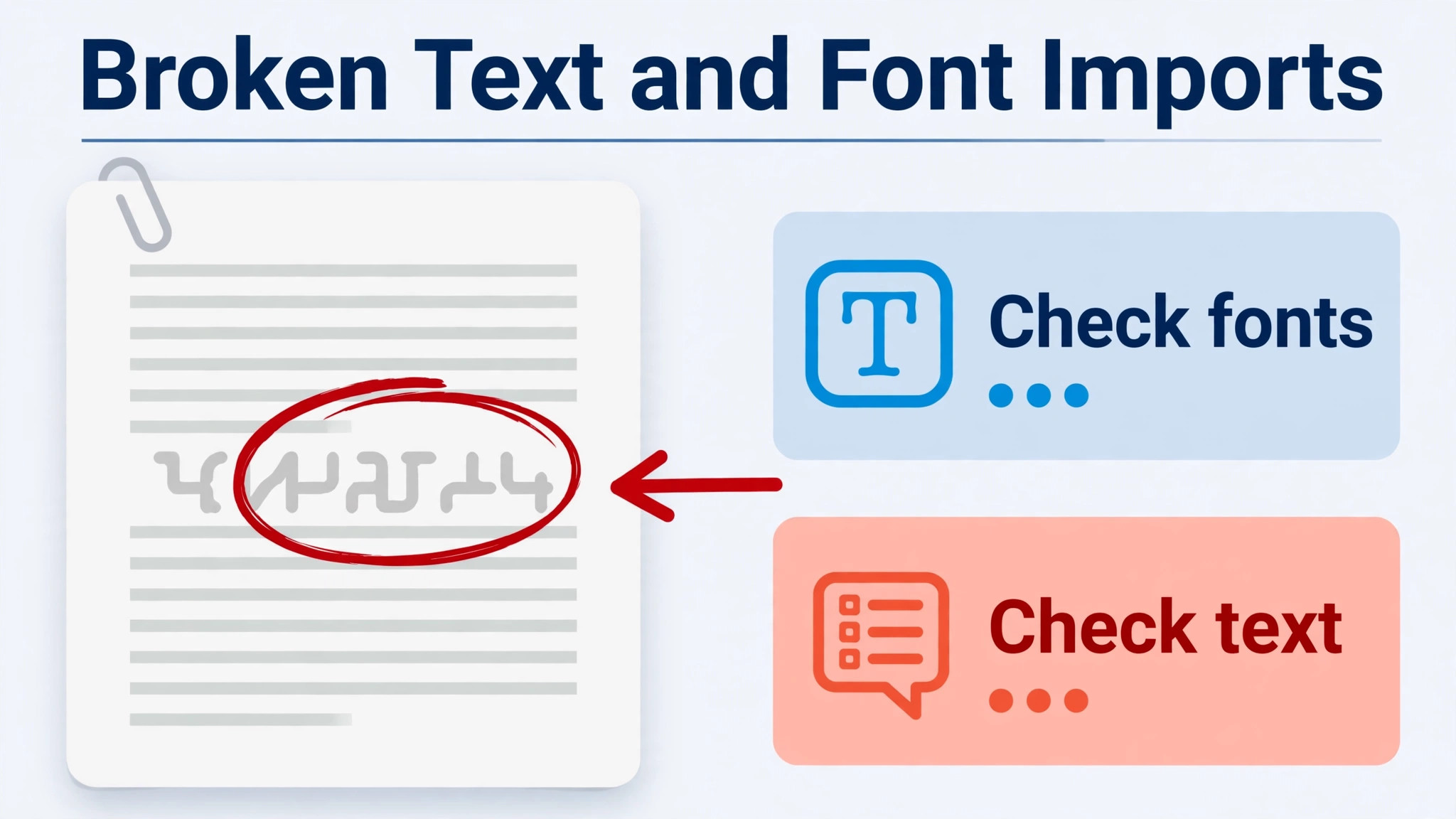
Text breaks most visibly. SVG imports carry shapes well, but text often arrives as outlines or flattened layers that cannot be edited without retyping. Budget retyping time for every imported file, and treat any converter claim of perfect text transfer with scepticism until tested on the team own files. Fonts break next, because a Canva font may not be available in Figma, or may render with different spacing, which shifts layouts. Check font licences and availability before rebuilding templates, not after.
Print and export settings break quietly. Canva handles print bleed, crop marks, and PDF export with friendly defaults, while Figma exports need manual checking against printer requirements. A team that prints regularly should test one rebuilt print file end to end with its printer before migrating the rest. Video breaks completely, since Figma is not a video editor, and social scheduling breaks too, since Figma does not schedule posts. Both jobs need a home outside Figma, whether that means keeping a small Canva plan, using a dedicated scheduler, or using a video tool.
What to rebuild, in priority order, starts with the foundation library, meaning colours, type, and logos, because every file depends on them. Next come the ten most used templates as components, then active product files, then marketing files, then documentation, and finally the long tail of old designs, most of which should be archived rather than rebuilt. A team that rebuilds in that order gains a usable system in two weeks, even if the long tail takes another month.
The Collaboration and Handoff Checklist
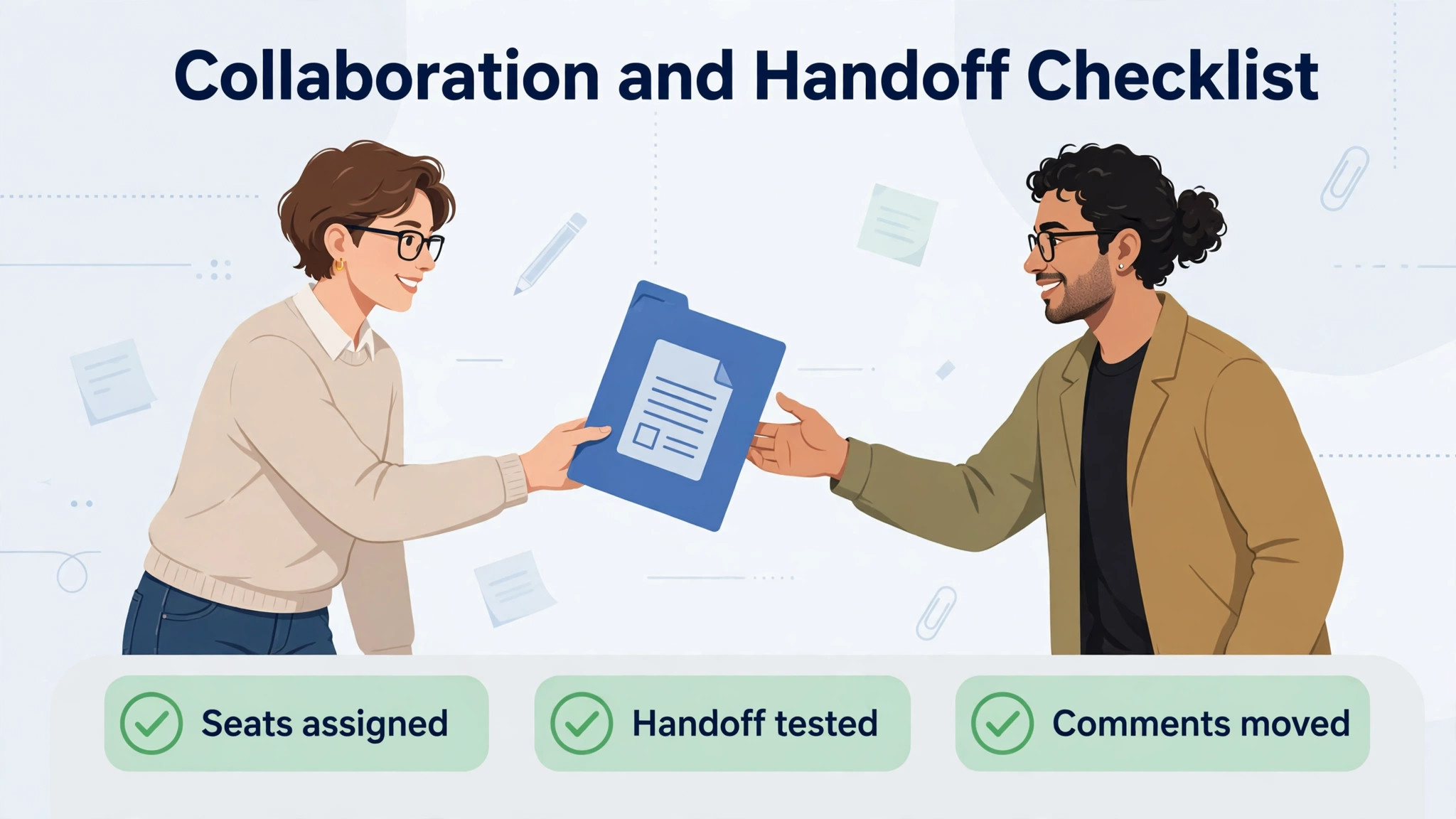
Figma collaboration only works when seat types, libraries, and handoff habits are set deliberately. A library nobody trusts and a handoff nobody follows will push the team back to screenshots and chat threads, which defeats the purpose of the move.
– [ ] Assign a Full seat to every designer who builds components or edits system files – [ ] Assign a Collab seat, reported at 36 dollars a year, to light editors who adjust templates but do not build systems – [ ] Give free View seats to reviewers, stakeholders, and clients who only view and comment – [ ] Publish the foundation library and confirm every designer can access it – [ ] Set library update rules, including who can publish changes and how updates are announced – [ ] Create a naming convention for files, pages, frames, and components, and document it in one page – [ ] Set up branching for major work, so experiments do not break the main file – [ ] Train designers on version history checkpoints, and save a checkpoint after each approved change – [ ] Run a handoff exercise with developers on a real file, including inspection, values, and asset export – [ ] Document design tokens, meaning colours, spacing, and type values developers should use in code – [ ] Set comment etiquette, including who resolves threads and how feedback is tracked – [ ] Create Buzz templates for marketers, with locked elements they cannot break and editable fields they can change – [ ] Test a marketer creating a social post from a Buzz template without designer help – [ ] Decide what stays in Canva, if anything, such as video or scheduling, and document the split – [ ] Review library usage monthly, and retire components nobody uses
One checklist item deserves emphasis. Library update rules decide whether the system stays trustworthy. A library where anyone can publish changes without notice will drift, and designers will stop trusting it and paste local copies instead. Name a library owner, require a short note with each publish, and announce breaking changes in the team channel before they land.
Cost and Seat Arithmetic for the New Setup
Seat arithmetic is where the Figma business case is won or lost. A team of one designer and four marketers on Canva Business at a reported 250 dollars per user a year pays 1,250 dollars a year, because every member needs a paid seat. The same team on Figma Professional, with one Full seat reported at 192 dollars a year and four free View seats, pays 192 dollars a year for design tooling, plus whatever the team keeps for marketing work outside Figma. That comparison flatters Figma, and it should be read honestly, because marketers who still need Canva templates will need a Canva plan as well.
A team of five designers tells a different story. Five Full seats at a reported 192 dollars a year cost 960 dollars a year, against five Canva Business seats at 1,250 dollars a year, so Figma still wins, but by a smaller margin. A team of ten designers pays a reported 1,920 dollars a year on Figma against 2,500 dollars on Canva Business, and the gap narrows further once Collab seats for light editors are added. The pattern is clear. Figma wins most when reviewers and marketers outnumber designers, and wins least when everyone on the team designs full time.
The split setup deserves its own budget line. A company that keeps Canva for marketers and adds Figma for designers pays both bills, and the combined total can exceed either tool alone. That split is still worth it when designers gain system power and marketers keep their speed, because the alternative, forcing marketers into Figma or designers into Canva, costs more in lost productivity than the second subscription. Price the split honestly, and judge it on output, not on subscription count.
Renewal discipline matters too. Set a calendar reminder before each renewal to audit seats, remove Full seats from people who stopped designing, and check whether Collab seats or View seats fit them better. A seat audit takes an hour and often saves more than any discount negotiation, because unused Full seats are the most common waste in a Figma bill. Treat the audit as part of the design operations routine, not as a finance chore, and the seat arithmetic will stay honest year after year.
Keeping Marketers Happy After the Move
The migration fails if marketers feel they lost their tool. Designers celebrate components, while marketers quietly keep using Canva because Figma templates feel fragile or hard to find. Prevent that split by shipping Buzz templates early, with locked brand elements and clear editable fields, and by testing them with real marketers before launch. A template that survives a marketer test is ready. A template that only survives a designer demo is not.
Support matters as much as templates. Run a short weekly help session in the first month, where marketers bring real tasks and learn by doing them in Figma. Publish a one page guide to finding templates, changing text and images, and exporting finished work. Celebrate the first marketer shipped post from Figma in the team channel, because social proof moves adoption faster than another training video.
If marketers still struggle after a month, ask what is missing instead of insisting they adapt, because the missing piece is usually a template, a font, or an export setting, not a lack of effort. A short survey of marketers at the end of month one, asking which three tasks still feel hard, will surface the gaps faster than any usage dashboard. Fix those three tasks first, and adoption usually follows.
Measuring Success After the Switch Canva to Figma Design Team Move
A migration without success measures drifts, because nobody can tell whether the new system works better than the old one. Measure four things in the first quarter. First, time to first draft for a standard marketing asset, measured from brief to a reviewable draft, which should fall once templates are trusted. Second, design review cycles, meaning how many rounds of feedback a typical screen needs, which should fall once components enforce consistency. Third, handoff questions from developers, counted per sprint, which should fall once inspection and tokens replace screenshots.
Fourth, and most honestly, ask the team how it feels. Survey designers and marketers at thirty, sixty, and ninety days with three questions, covering speed, confidence in brand consistency, and frustration. Numbers alone can hide a team that ships faster and hates the tool, and a hated tool gets abandoned the moment pressure rises.
A fifth measure is component adoption, meaning the share of new screens built from library components rather than from pasted copies or fresh drawing. Low adoption signals a library problem, such as missing components, poor naming, or templates that do not fit real work, and it should trigger a library review rather than a lecture about compliance.
Track adoption monthly, publish the trend to the team, and treat a rising trend as proof the system earns its keep. When a team measures a switch Canva to Figma design team move on both output and morale, it learns whether the system works or merely looks like it works. Report the results to leadership with the same honesty, including the metrics that got worse, because a migration that hides its weak spots never gets the fixes it needs.
Verdict, Canva or Figma for a Design Team
Move the design team to Figma when the team builds products, maintains a design system, or hands off to developers regularly, and when designers outnumber casual creators in the work that matters.
Keep Canva as the marketing tool, or keep the whole team on Canva, when most output is social posts, decks, and one pagers made by non designers. For teams ready to switch Canva to Figma design team systems, the migration in this guide replaces a pile of templates with a system that scales, and the seat arithmetic makes the price easy to defend. For teams in the second group, the honest advice is to stay on Canva and revisit Figma when product design work grows into a real need. Either way, decide on the job the team actually does, not on the tool that looks most impressive in a demo.
More Reading on Stratilyze
For a related design tool cost guide, read Canva pricing for small teams and project management software for interior designers. For a different team workflow, see Asana alternatives.
Frequently Asked Questions
Can I import Canva designs directly into Figma
No, there is no native Canva to Figma import. The usual route is exporting a Canva design as SVG and dragging it into Figma, which moves shapes well but often flattens text, so text usually needs retyping before it becomes editable. Third party converters exist, but they cost money and still need checking on the team own files, so budget rebuild time rather than expecting a clean conversion.
Do I need a paid Figma seat for everyone on the team
No, and that is one of Figma biggest advantages. Designers need Full seats, light editors can use Collab seats reported at 36 dollars a year, and reviewers, stakeholders, and clients can view and comment with free View seats on paid plans. Assign seats by job, not by headcount, and audit them quarterly, because a Full seat given to a reviewer wastes money every month.
What happens to my Canva brand kit
The brand kit must be rebuilt in Figma as colour styles, text styles, and library assets, including master logo files uploaded as SVG where possible. Recreate each colour as a named style and each font pairing as a text style, and confirm font licences before rebuilding templates. Retire the Canva brand kit only once the Figma library is trusted and marketers can find what they need in it.
Yes, through published templates, and Figma Buzz, free on all seats while in beta according to comparison sources, lets designers publish locked brand templates for teammates. Test each template with a real marketer before rolling it out, and keep editable fields obvious while brand elements stay locked. If marketers still need video or scheduling, keep those jobs in Canva or a dedicated tool, since Figma does not cover them.
How long does the migration take
A design team migration fits into about four weeks, with the first week spent on audit and system design and the remaining weeks on rebuild and training. The foundation library and the ten most used templates should be usable within two weeks, even if the long tail of old designs takes another month. Rushing the system design week on a switch Canva to Figma design team project produces a Figma library that mirrors Canva chaos instead of replacing it.
Should I cancel Canva completely after moving to Figma
Cancel Canva only after the Figma library is trusted, marketers can ship from templates without designer help, and anything still needed has been exported. Many companies keep a small Canva plan for video, print, or scheduling, because Figma does not cover those jobs, and that split is a legitimate outcome. Remove old template links from shared documents so nobody keeps using the retired system by habit.