
Compare two infographics on the same topic. One is a wall of icons, bright colours, and large numbers that look impressive for five seconds and teach nothing, because the reader cannot tell which number matters, how it was measured, or what to do next. The other is quieter, with a clear title, a logical reading order, charts that match the data, and sources noted at the bottom, and it is shared, saved, and referenced, because it helps the reader understand and decide. Marketers who use Figma for infographic design marketers can repeat should aim for the second kind, because Figma rewards structure, and structure is what turns decoration into communication.
This guide covers the grid, the story, the chart choices, and the accuracy checks that separate a useful infographic from a pretty poster.
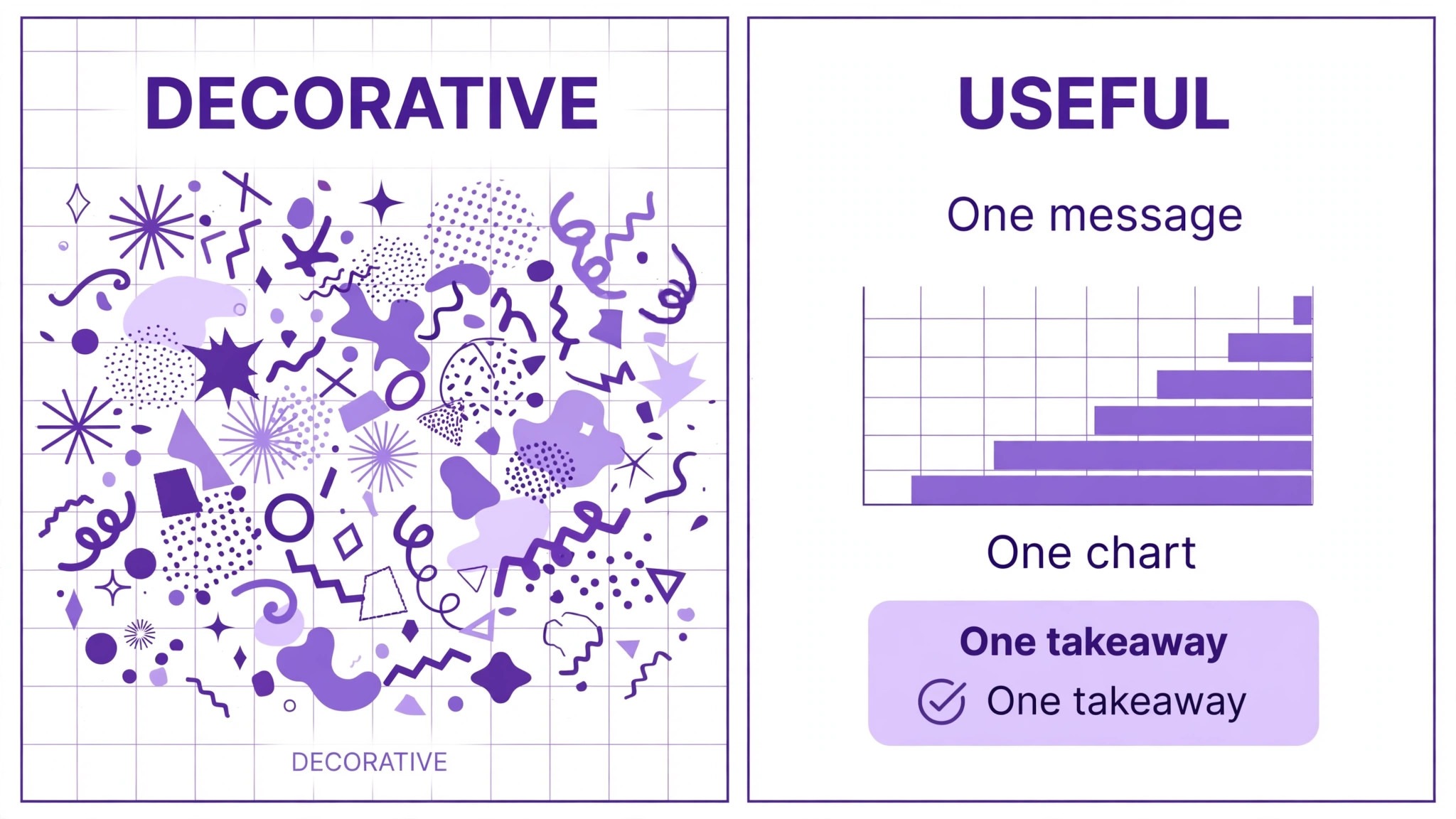
What Makes an Infographic Useful Instead of Decorative
An infographic is useful, for marketers who use Figma for infographic design marketers projects, when a reader can answer three questions after looking at it for a minute. What is the main point. What evidence supports it. What should I do, think, or remember next. If those answers are unclear, the infographic has failed, no matter how polished it looks. That test should be applied to every draft, by showing it to someone unfamiliar with the topic and asking them to summarise it without help. Their summary reveals whether the hierarchy works or whether the design is carrying decoration that hides the message.
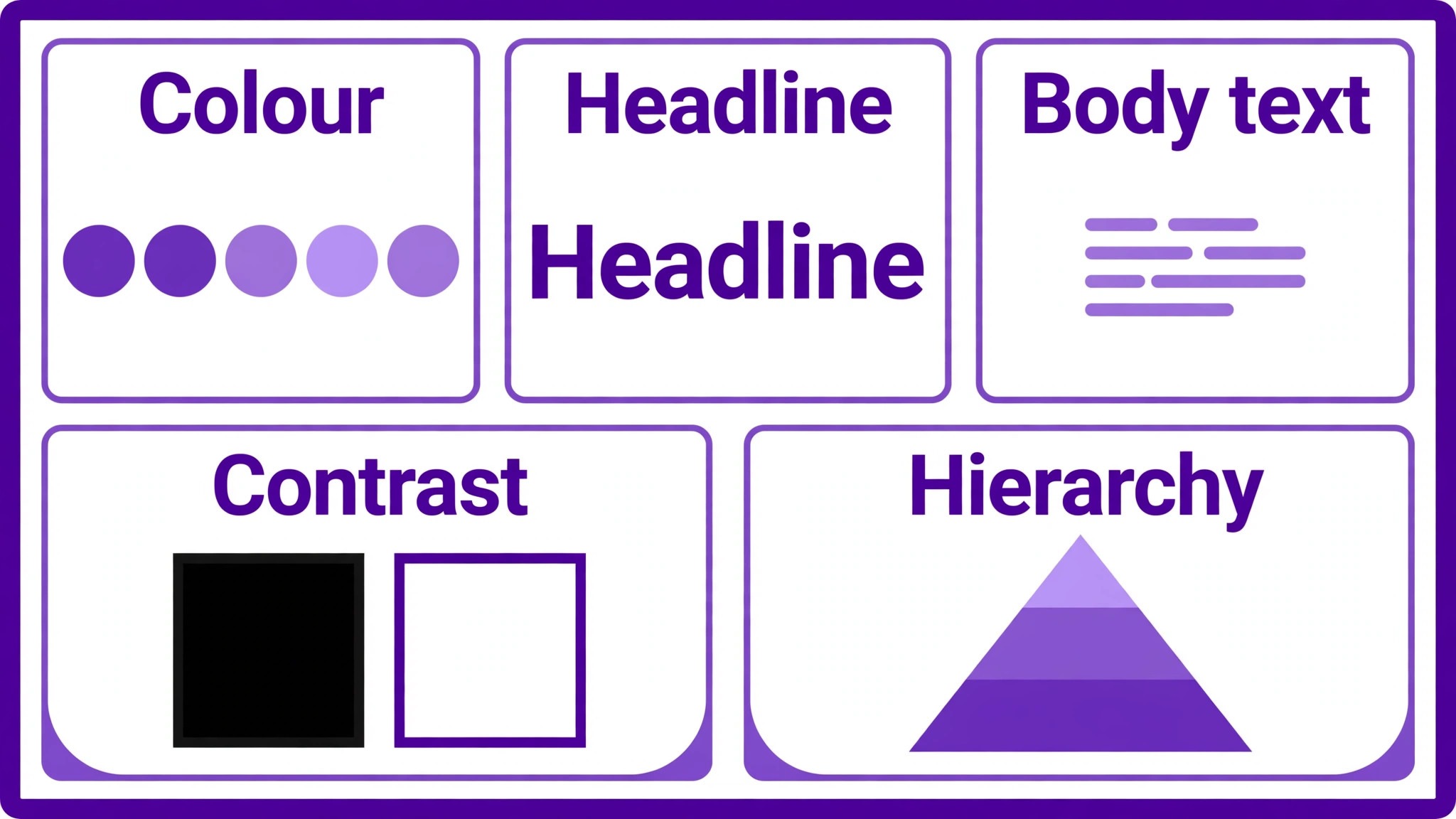
Hierarchy is built with size, position, and contrast, in that order. The title should be the largest and most prominent element, because it frames everything else. The main finding or recommendation should be next, large enough to find without searching. Supporting charts and details should follow in reading order, which for most audiences is top to bottom and left to right, unless the design deliberately uses a different flow, such as a timeline or a process diagram, and signals that flow clearly with numbers or arrows. When every element competes for attention with similar size and colour, hierarchy collapses, and the reader sees noise.
Data honesty is part of usefulness, not a separate concern. A chart that truncates an axis to exaggerate a small change, a percentage without a base number, or a comparison without a time period all mislead, even if unintentionally. Marketers should treat an infographic as a published claim, with the same responsibility as an article. That means checking numbers, noting sources, and avoiding visual tricks that make differences look larger or smaller than they are. An infographic that is caught misleading loses trust for the brand, not just for that graphic.
Planning the Story Before Opening Figma
The most common Figma mistake, when you use Figma for infographic design marketers workflows, is opening the tool before deciding the story. Designers then arrange elements to fill space, rather than arranging a story to be understood. Planning should take at least as long as the first design pass, and it should produce a one page outline before any frame is created. That outline answers five questions. Who is the reader and what do they already know. What is the single main message in one sentence. What three to five supporting points prove or explain that message. What data, if any, supports each point. What action or takeaway should the reader leave with.
That outline also decides the infographic type. A comparison infographic suits two or more options with shared criteria. A timeline infographic suits change over time or a process with stages. A statistical infographic suits a set of related numbers about one topic. A process infographic suits steps in order. A hierarchical infographic suits parts of a whole or levels of importance. Choosing the type after outlining prevents the common error of forcing timeline data into a comparison layout, or process steps into a statistical layout, where the structure fights the content.
Write all copy before designing, or at least draft it fully, because copy length decides layout. A headline that grows by five words, a chart label that needs explanation, or a source note added late can break a finished layout and force awkward resizing. Draft copy in a document, check it for accuracy, and then paste it into Figma. That order keeps design decisions honest, because the layout must serve the words and numbers that are actually true, not the shorter version that would fit neatly.
How to Use Figma for Infographic Design Marketers With a Clean Grid Template
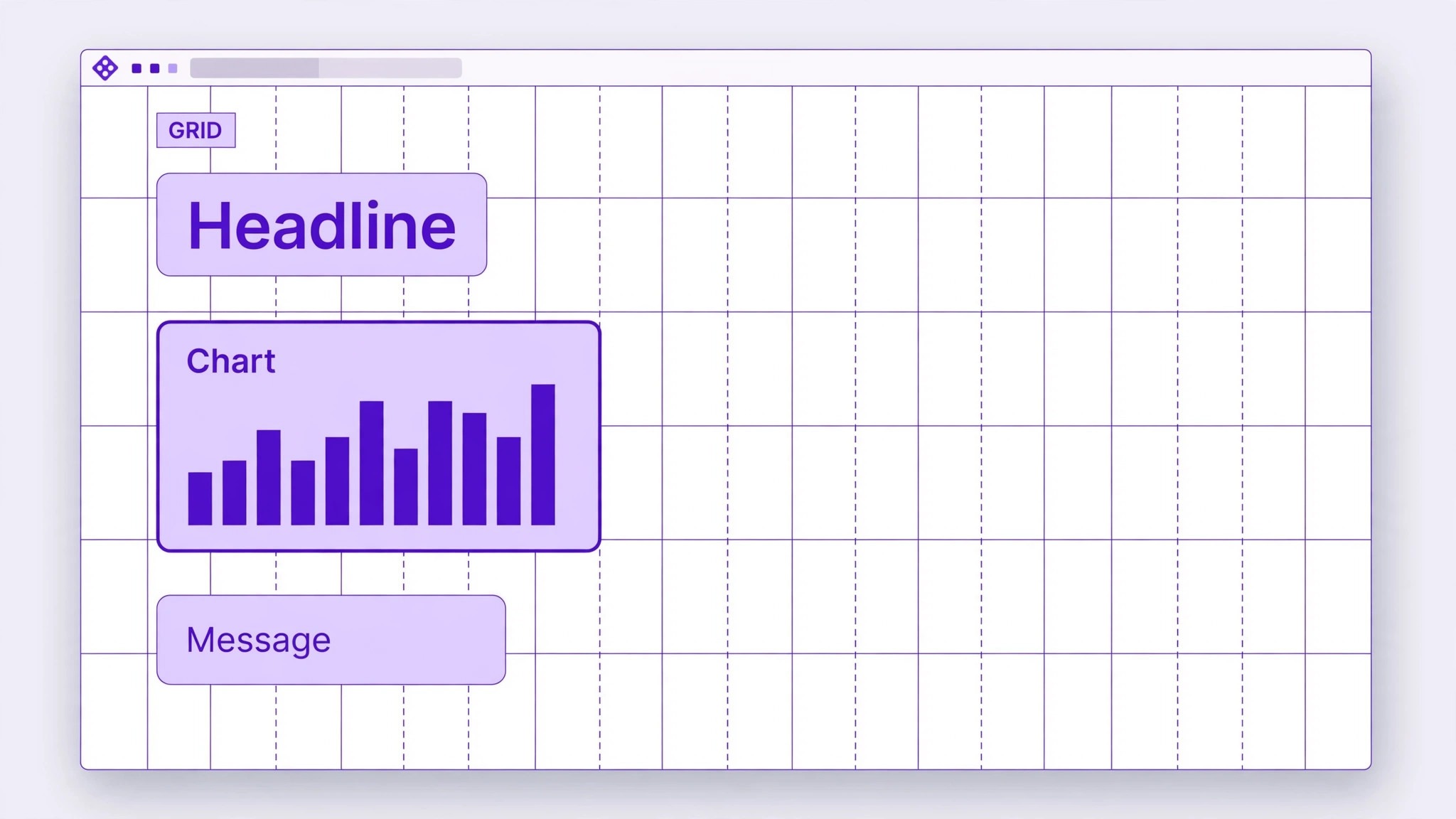
A grid is a set of invisible columns, margins, and gutters that align elements consistently across a design. In Figma, layout grids can be applied to frames, with options for columns, rows, and uniform grids, and settings for count, gutter width, and margin. For infographics, a twelve column grid is a practical standard, because twelve divides evenly into halves, thirds, and quarters, which covers most layout needs without complex maths. Set margins to keep content away from edges, and gutters to separate columns with consistent white space, rather than eyeballing spacing per element.
Start with a frame sized for the intended use. A vertical infographic for a blog or social post will have different proportions from a wide infographic for a presentation slide or a landing page section. Do not design one size and hope it works everywhere, because text that is readable at one size may be tiny at another, and charts may need rearranging, not just resizing. Choose the primary use, design for it, and create a second version for other uses if needed, rather than stretching one design across formats.
Apply the grid, then place elements on it deliberately. Headlines can span many columns, charts can span half or a third, and callouts can align to column edges rather than floating arbitrarily. Use auto layout for repeated elements, such as stat cards or step blocks, so spacing stays consistent when copy changes length. When an element breaks the grid, it should do so intentionally, such as a full width hero image or a large key number, and that break should draw attention to the most important element, not to a random detail. A grid that is followed most of the time, with rare intentional breaks, produces a design that feels both ordered and alive.
| Grid element | Practical setting | Why it helps |
|---|---|---|
| Columns | Twelve columns | Divides into halves, thirds, quarters |
| Margins | Consistent edge space | Keeps content from touching edges |
| Gutters | Consistent column gaps | Creates even white space |
| Rows or baseline | Even vertical rhythm | Aligns text and charts vertically |
| Breaks | Rare, for key elements only | Draws attention where it matters |
Choosing Charts That Match the Data
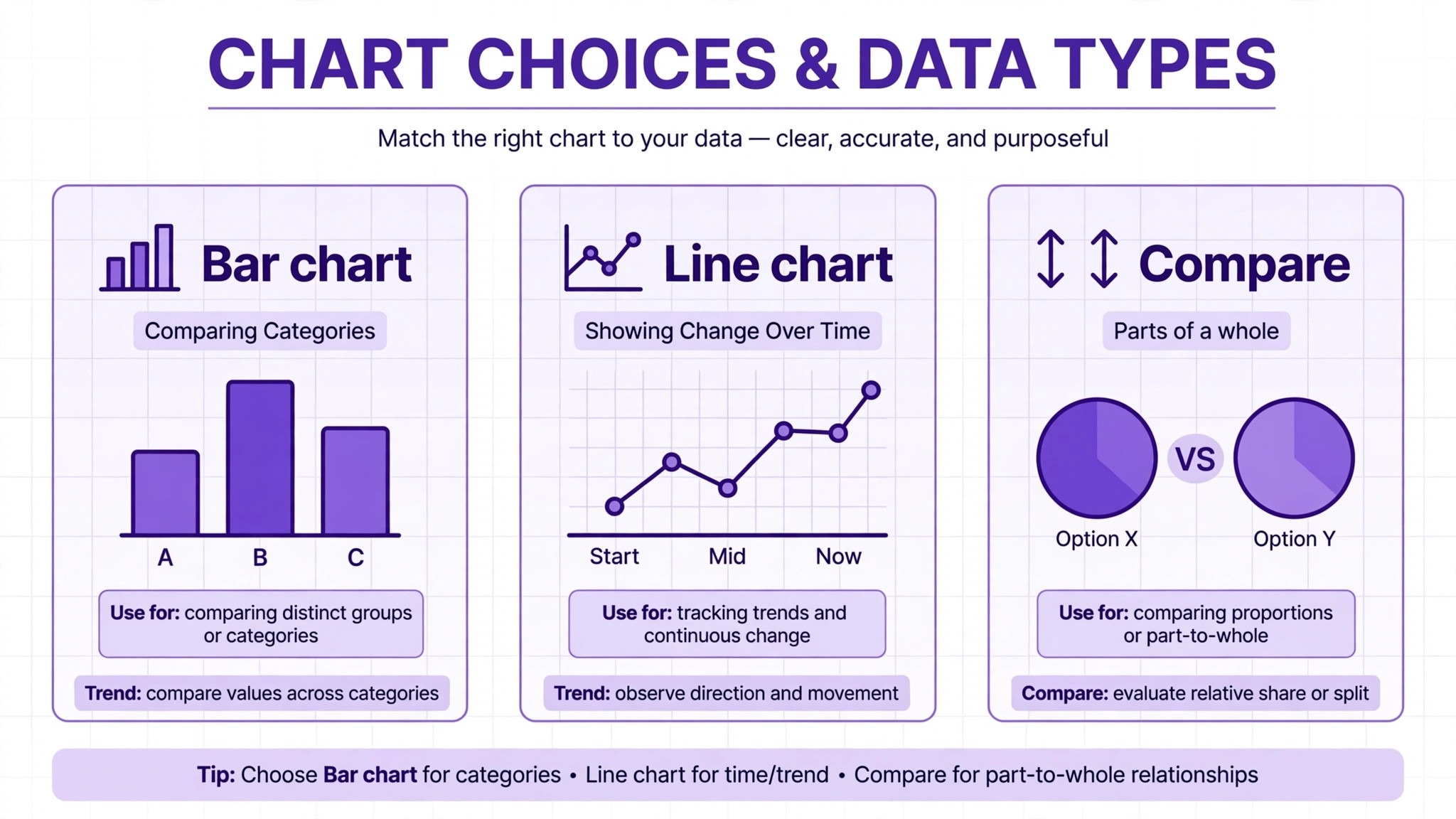
Chart choice, when you use Figma for infographic design marketers work, is a communication decision, not a decoration decision, and the wrong chart can mislead even when numbers are correct. Bar charts suit comparisons between categories, because length is easy to compare. Line charts suit change over time, because slope shows direction and speed. Pie or donut charts suit parts of a whole, but only when there are few categories and one or two dominate, because many small slices become unreadable. Tables suit precise values that readers need to look up, while charts suit patterns and comparisons. Choosing a chart because it looks interesting, rather than because it matches the data type, is a common source of confusion.
Keep charts simple. One chart should show one relationship, with a clear title, labelled axes, and a legend only if needed. Avoid three dimensional effects, decorative icons inside bars, and dual axes that make comparisons hard to interpret, unless you have a strong reason and you explain the axes clearly. Directly label bars or lines where possible, rather than forcing readers to match colours to a distant legend, because direct labels reduce errors and speed understanding. Use colour to highlight the key finding, such as the largest bar or the trend that matters, and keep other elements in muted tones, so attention goes where the story needs it.
Numbers on charts need context. A percentage should state what it is a percentage of, or link to a base number nearby. A change over time should state the period covered. A comparison should state what is being compared and whether the comparison is fair, such as same period, same definition, or same sample. That context can live in a subtitle, a footnote, or a small note under the chart, and it should be readable, not hidden in tiny type that signals unimportance. A chart without context invites misreading, and misreading is the designer fault as much as the reader fault.
Colour, Type, and Accessibility in Practice
Colour, in projects where you use Figma for infographic design marketers regularly, should encode meaning, not just decorate. Use a limited palette, typically one primary colour, one accent colour, and neutrals for text and backgrounds, with additional colours only when data categories genuinely need distinguishing. That limit keeps the infographic coherent and prevents colour from becoming noise. Check contrast for all text, especially small labels and white text on coloured backgrounds, because low contrast text may look stylish on a large monitor and be unreadable on a phone or for readers with low vision. A contrast checker or a simple thumbnail test at small size can catch most problems before publishing.
Typography should follow a clear hierarchy, with at most two or three font families, and consistent sizes for title, headings, body, and labels. The title should be clearly larger than section headings, which should be clearly larger than body text, which should be clearly larger than footnotes, but footnotes must still be readable. Avoid decorative fonts for body text or chart labels, because they reduce legibility, especially at small sizes. Use bold for emphasis sparingly, so that when something is bold, it actually stands out, rather than competing with many other bold elements.
Accessibility also includes structure and alternatives. Provide the key data in text form alongside the infographic, such as in the article body or in alt text and a data table, so readers who cannot see the graphic, or who use assistive technology, can still access the information. Do not rely on colour alone to convey meaning, because some readers cannot distinguish the colours used. Pair colour with labels, patterns, or direct text, so the meaning survives in greyscale or for colour blind readers. Those practices do not just help a minority. They make the infographic clearer for everyone, especially on small screens and in poor lighting.
The Data Accuracy Checklist
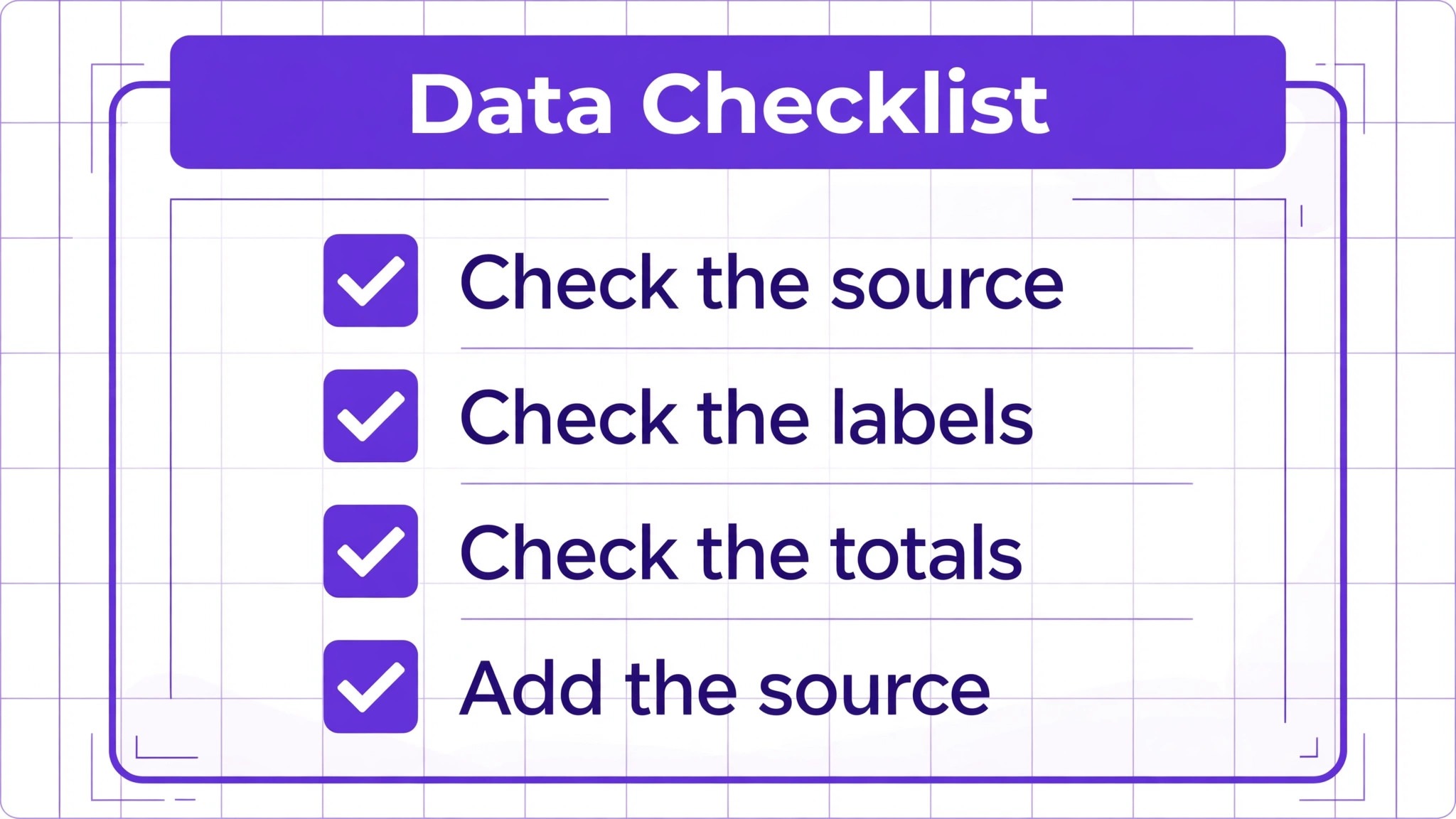
Accuracy checking, when you use Figma for infographic design marketers publish, should happen twice, once when data is gathered and once when the infographic is finished, because numbers can change during design through typos, rounding, or chart scaling errors. The checklist below is designed for that second check, when the design looks finished and errors are hardest to spot because familiarity makes you blind to them. Work through it with the source data beside the design, not from memory, and have a second person check it if possible, because a fresh pair of eyes catches errors the designer has stopped seeing.
First, check every number against its source, including titles, labels, callouts, and chart values. Second, check every axis, scale, and unit, confirming that axes start where they should, that units are consistent, and that no axis has been truncated without clear labelling. Third, check every percentage and comparison, confirming the base, the period, and the definition are stated or obvious. Fourth, check sources and dates, confirming each source is named, each date is correct, and no source is cited for data it does not contain. Fifth, check spelling of names, places, and terms, because a misspelled brand or place undermines trust in the numbers.
Sixth, check that the visual matches the claim, confirming that a chart showing growth actually shows growth in the data, and that an icon or illustration does not imply a claim the data does not support.
| Checklist item | What to verify | Common error |
|---|---|---|
| Numbers | Every value against source | Typo during design |
| Axes and units | Scale, start point, units | Truncated axis exaggerating change |
| Percentages | Base, period, definition | Percentage without base |
| Sources and dates | Source named, date correct | Outdated or mismatched source |
| Names and spelling | Brands, places, terms | Misspelled name undermining trust |
| Visual match | Chart shows claimed pattern | Illustration implying unproven claim |
If any item fails, fix the design, not just the note. A footnote correcting a misleading chart does not fix the misleading impression, because most readers will see the chart and skip the footnote. Change the chart, the scale, or the headline so the visual and the claim agree. Accuracy is not a footnote task. It is a design task, and it should be treated as such from the first draft.
Working With Stakeholders and Revisions
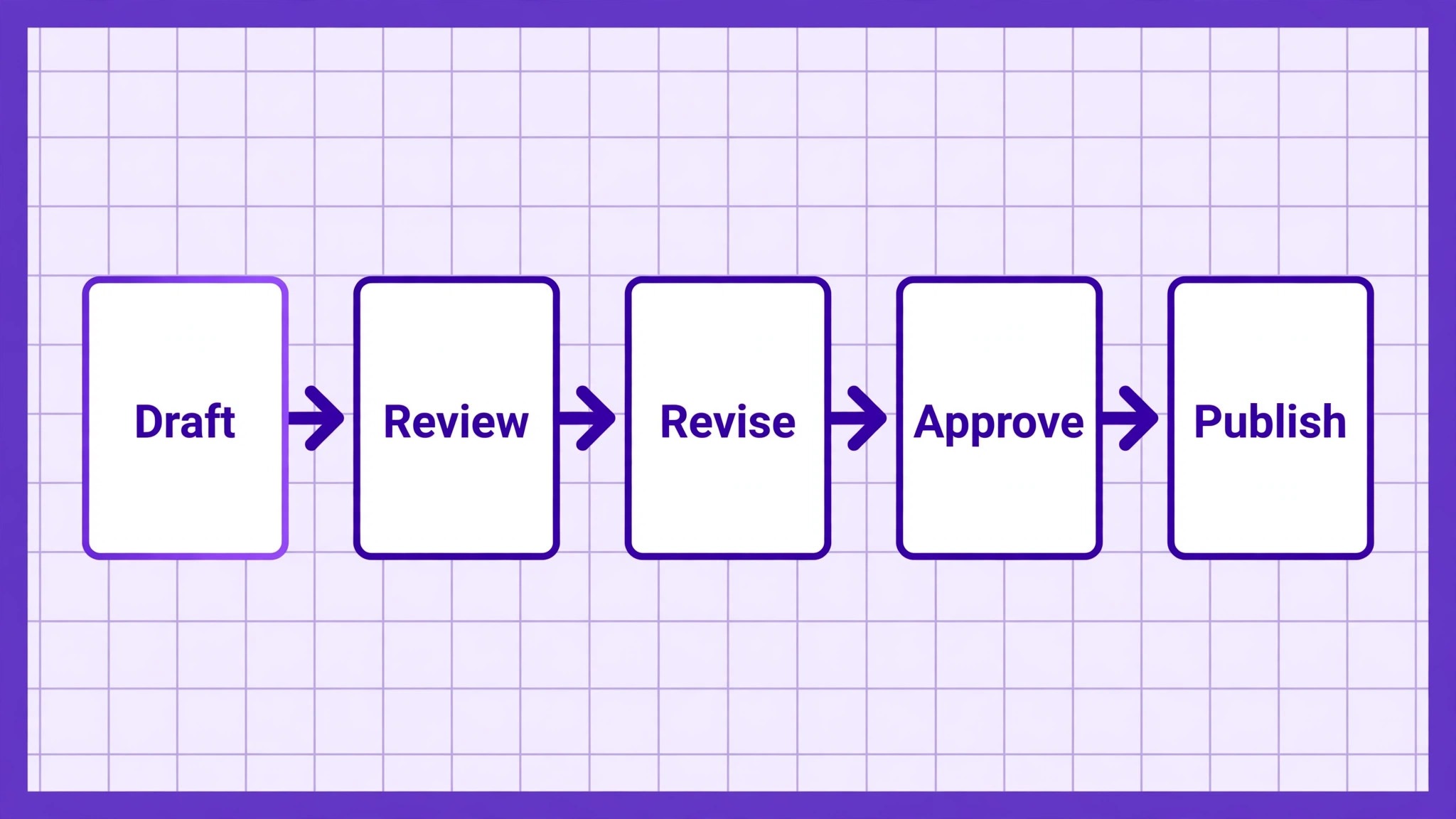
Infographics for marketing usually involve stakeholders, such as a product manager, a data owner, or a client, and revision rounds can easily become chaotic without a clear process. In Figma, use comments on specific elements, rather than general messages, so feedback is tied to the element it concerns. Ask stakeholders to comment on the frame, on the chart or headline in question, and to state whether a comment is a factual correction, a preference, or a strategic change. That distinction matters, because factual corrections must be made, while preferences can be discussed against the design goals.
Version control also matters. Duplicate the frame before major revisions, name versions clearly, such as version one for review, version two after data check, and final for publishing, and keep old versions in the file rather than overwriting them. That habit prevents the common disaster of losing a good version during a round of changes that did not improve it. It also makes it easy to show stakeholders what changed and why, which builds trust and reduces repeated debates about elements that were already decided.
When feedback conflicts, return to the outline and the reader test. If two stakeholders want different headlines, test both with a reader unfamiliar with the topic and see which summary is clearer. If a stakeholder wants more data added, ask which supporting point it serves and whether it strengthens the main message or dilutes it. Design decisions grounded in the outline and the reader test are easier to defend than decisions grounded in taste alone, and they keep revisions focused on communication rather than personal preference.
Exporting, Publishing, and Reusing Infographics
Export settings depend on use. For web publishing, export as a high quality PNG or JPG at a resolution that keeps text crisp on large screens, while keeping file size reasonable for loading speed. For print, export at higher resolution and check colours in the print colour mode if relevant. For social sharing, create a version sized for the platform, with text large enough to read at feed size, rather than shrinking a large infographic until its text becomes illegible. A version designed for a specific platform will outperform a resized version of a large graphic, because it respects how that platform is viewed.
Alt text and surrounding copy matter for publishing. Write alt text that summarises the main finding and key data, not just a description such as infographic, so readers using assistive technology and search engines can understand the content. In the article or post surrounding the infographic, repeat the key findings in text form, with the data table or source links, so the infographic is an enhancement, not the only place the information lives. That practice also helps search visibility, because search engines index text more reliably than text inside an image.
Reuse should be planned, not accidental. A well designed infographic can be broken into smaller graphics for social posts, slides, or email, each focusing on one chart or one finding, with consistent branding. When breaking it apart, check each piece standalone, because a chart that made sense in context may need its title and source added when used alone. Keep the original Figma file organised, with named frames, components for repeated elements, and a style guide page for colours and fonts, so future updates and reuse take minutes rather than a rebuild.
Mistakes That Make Infographics Forgettable
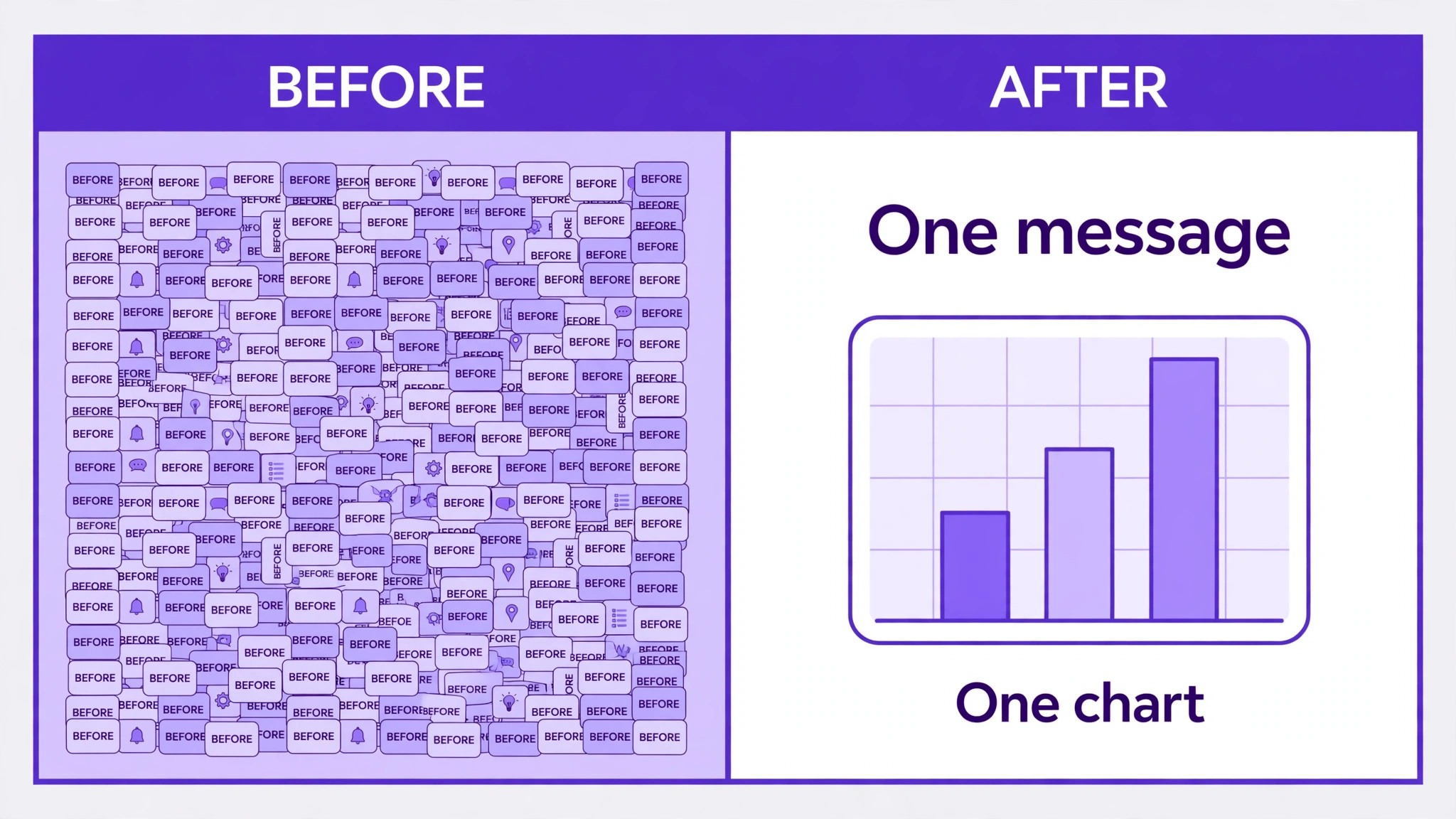
The first mistake is data overload. An infographic that tries to show everything about a topic shows nothing clearly, because the reader cannot find the main point among dozens of numbers. Limit the infographic to one main message and three to five supporting points, and move additional detail to the article or a linked report. Less data, presented clearly, is more persuasive than more data presented confusingly.
The second mistake is decorative chart junk, such as icons inside bars, three dimensional effects, and background illustrations that compete with data. Decoration that does not encode information should be minimal and should never reduce readability. If removing a decorative element makes the chart clearer, remove it. The goal is understanding, not visual complexity, and the most memorable infographics are often the simplest, because their message is easy to recall and repeat.
The third mistake is inconsistent style across a series. Infographics from the same brand should share colours, fonts, grid, and chart styles, so readers recognise them and trust them as a series. Inconsistent style makes each graphic feel like a one off, and it wastes the recognition that a series can build. Create a simple style guide in Figma, with colour styles, text styles, and components for stat cards and charts, and reuse them across graphics. That investment pays off after the second or third infographic, when production becomes faster and more consistent.
Building a Reusable Infographic System in Figma
A single infographic is a project. A series of infographics is a system, and systems save far more time than individual templates, because they standardise decisions that would otherwise be remade for every graphic. A reusable system in Figma starts with styles and components, continues with a file structure that anyone on the team can navigate, and ends with a review process that checks data and design together. Building that system takes an afternoon, but it pays back on every subsequent infographic, especially when deadlines are tight and consistency matters.
Start with styles. Define colour styles for primary, accent, background, and text colours, and text styles for title, heading, body, label, and footnote. Use those styles everywhere, rather than picking colours and sizes per element, so a palette change updates the whole file and a new designer cannot accidentally introduce a fourth font size for body text. Next, build components for repeated elements, such as stat cards, chart containers, callout boxes, and source footnotes. Components ensure that a stat card looks the same in every infographic, which builds recognition and reduces design decisions to content decisions.
File structure matters as much as components. Keep a cover page with the project name and version, a style guide page with colours, fonts, and components, a drafts page for work in progress, and a finals page for published graphics. That structure lets a new team member find the current version without asking, and it prevents the common problem of multiple final versions scattered across a file. Name frames clearly, with topic and version, and archive old versions rather than deleting them, so you can return to a previous design if a revision goes wrong.
Finally, document the system briefly. A one page note in the file, stating the grid, the palette, the chart rules, and the accuracy checklist, is enough. That note turns personal knowledge into team knowledge, so the system survives staff changes and busy periods. A system that lives only in one designer head is not a system. It is a habit, and habits leave when people leave. A documented system, with styles and components, keeps producing consistent infographics long after the original designer has moved on.
More Reading on Stratilyze
Readers who design visual content often continue with designing Pinterest pins in Canva for bloggers, designing podcast cover art in Midjourney for creators, and planning a content calendar in Google Sheets for bloggers, because those pieces cover distribution, branding, and planning alongside infographic design.
Frequently Asked Questions
What size should an infographic be in Figma
It depends on where it will be used. A vertical infographic for a blog or social post is commonly designed at a width around 800 to 1000 pixels, with length determined by content, while a wide infographic for a presentation may be designed at slide proportions. Choose the primary use first, design for it, and create a separate version for other formats rather than stretching one design, because text and charts need rearranging, not just resizing, across formats.
Do marketers need advanced Figma skills to design infographics
No. The core skills are frames, layout grids, text styles, shapes, and components, all of which can be learned in a few focused sessions. More advanced features, such as auto layout and variables, help with consistency and speed, but they are not required for a first good infographic. Start with a simple grid, a limited palette, and clear copy, and add advanced features as you repeat the process.
How do I use Figma for infographic design marketers who need to check data quickly
Build the data accuracy checklist into your workflow, checking numbers against sources at draft stage and again at final stage, with a second person checking if possible. Keep source links or notes in the Figma file, beside the frame or in a separate page, so checks do not require searching through emails. That habit makes checking fast, because sources are where the design is, not scattered across messages.
Should infographics include sources on the graphic itself
Yes, at least in brief form. Include source names and dates in a footnote on the graphic, with fuller links or references in the surrounding article. Sources on the graphic build trust for readers who encounter the graphic alone, such as through social sharing, where the article context may not travel with it. A graphic without sources looks like an opinion, even when its data is sound.
How many data points should an infographic contain
There is no fixed number, but a useful guide is one main message, three to five supporting points, and only the data needed to support those points. Additional data that does not serve the main message should be moved to the article or a report. An infographic that tries to include every available statistic becomes a data dump, and readers will remember none of it clearly.
Can I reuse Figma infographic components across campaigns
Yes, and you should. Create components for stat cards, chart frames, callouts, and headers, with shared colour and text styles, so new infographics start from a consistent system rather than from scratch. Reuse speeds production and builds brand recognition, but check each reuse for context, because a component that worked for one dataset may need its title, source, or scale updated for another.
Design the Message First, the Graphic Second
A strong infographic is a story told with numbers, charts, and layout, in that order. The story decides what matters. The numbers prove it. The charts show it. The layout guides the reader through it. Figma makes the layout and chart parts easier, with grids, components, and collaboration, but it cannot decide the story or check the data. Those responsibilities remain with the marketer, and they are what separate infographics that are shared and remembered from infographics that are scrolled past.
Start your next infographic with an outline, not a frame. Write the main message in one sentence, choose three supporting points, gather and check the data, and then open Figma with a grid, a limited palette, and a clear hierarchy in mind. Run the accuracy checklist before publishing, and show the draft to someone unfamiliar with the topic. If they can summarise it in a minute, you have designed something useful. If they cannot, revise the story before revising the decoration, because decoration cannot rescue a message that was never clear.