
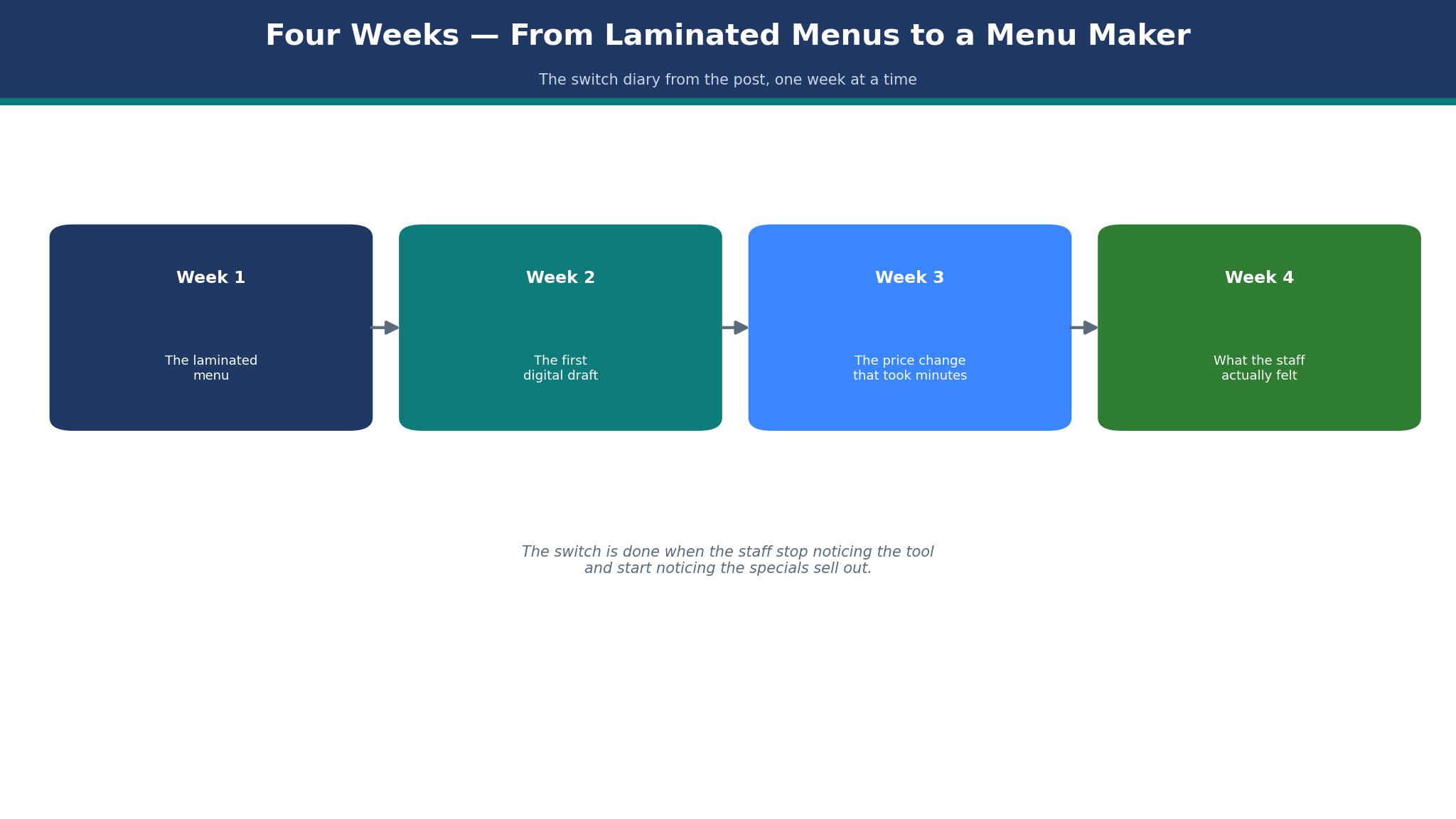
Week 1: a restaurant owner decides to leave the laminated menu behind and test the best menu makers for small businesses. The laminated menu is stained, the prices are wrong, and every change means a trip to the printer. Canva wins for most small restaurants, because its free plan covers a good menu, its templates are plentiful, and a price change takes ten minutes instead of a week.
Week 2: The First Digital Draft
Week 2 brings the first digital draft, and the owner learns the same lesson every restaurant learns. A menu is not a list of dishes. It is a sales tool, and the dishes that earn the most should be the easiest to find. The draft puts the specials at the top, the prices in a clear column, and the allergen notes where a customer can read them without asking. The chef reads the draft, moves one dish higher, and removes a dish nobody orders. That edit takes two minutes on screen, and it would have taken a week on paper.
Week 3 brings the price change that took ten minutes. The cost of fish has risen, and the owner raises the price of two dishes by a pound. On the old laminated menu, that change would have meant a reprint, a delay, and a week of serving at the old price. On the new menu, the owner changes the numbers, exports a fresh PDF, and prints the new menus before lunch. The saving is not the printing cost. It is the week of lost margin, recovered in ten minutes, and the staff never have to explain why the menu price and the bill disagree.
Week 4 brings what the staff actually felt. The servers like the new menu because the type is larger, the sections are clearer, and customers ask fewer questions about what a dish contains. The kitchen likes it because the specials can change daily without a reprint. The owner likes it because the menu finally matches the till, and the till matches the bank. A menu tool is not a design tool. It is a way to keep the price, the kitchen, and the customer in agreement, and that agreement is worth more than any template.
The 12 Tools at a Glance
This table compares the best menu makers for small businesses on price, templates, and the job each one does best. The prices shown are the entry paid plans as published in November 2026, and all twelve tools let you start free or on trial, so a first menu costs an evening of work and nothing else.
| Tool | Entry paid plan | Free plan | Best for |
|---|---|---|---|
| Canva | $120 a year | Yes | Most small restaurants |
| MustHaveMenus | $29 a month | Trial | Menu-first businesses |
| Adobe Express | $9.99 a month | Yes | Adobe users |
| Design.com | Free to start | Yes | Logo and menu together |
| iMenuPro | $15 a month | Trial | Print-ready menus |
| PosterMyWall | $9.95 a month | Yes | Menus and posters |
| Visme | $12.25 a month | Yes | Data-led menus |
| GloriaFood | Free | Yes | Online ordering menus |
| Waiterio | $25 a month | Trial | Menus with ordering |
| Square | Free to start | Yes | Menus with payments |
| Fotor | $8.99 a month | Yes | Quick photo menus |
| Venngage | $10 a month | Yes | Infographic menus |
The 12 Tools in Detail
This section tests the best menu makers for small businesses one at a time, on templates, ease of use, and the menu each one produces. A tool earns its place by making a menu a customer will read, at a price a small restaurant can carry. Entry paid plan prices in this section were reported in November 2026.
1. Canva
For a restaurant menu, Canva is the easiest route from a blank page to a printed menu on the table. The free plan covers a good menu, with hundreds of templates for cafés, restaurants, bars, and takeaways, and a design tool a beginner can learn in an hour. Pro at $120 a year adds brand colours, fonts, a background remover, and a larger photo library, which is the plan a restaurant that changes its menu monthly should buy. An owner can make a menu in an hour, print it through Canva’s partner, and have it on the tables by the weekend.
The template range is the real strength. Canva has menus for breakfast, lunch, dinner, drinks, desserts, and daily specials, and each template is a starting point rather than a finished design. A beginner can change the dishes, swap the photo, and keep the layout, which is the fastest route to a menu that looks designed. The risk is sameness: a template used by a thousand restaurants will look familiar, so change the colours, the photo, and the headings before you print. A menu that looks like every other menu gets read like every other menu, which is to say it gets skimmed and forgotten.
A worked example shows the cost. A restaurant makes a new menu every month on Pro, at $120 a year, and prints 20 menus a month for about $20, or $240 a year. The yearly total is $360, which is $30 a month. A restaurant that used a printer for every change would pay $50 a change, or $600 a year, and wait a week each time. Canva saves $240 a year and a week of waiting, and the menu is always current. The saving is real, and it repeats every month the menu changes.
Canva’s weak spot is that it tries to do everything, and a menu built here can end up reading like a social post instead of a menu. The remedy is to design for the table: set the type large, keep breathing room, and run off a trial copy before ordering the full batch. A menu that charms on a laptop and disappoints on paper catches out plenty of owners, and one trial sheet at the real size spots the trouble for pennies. The brand kit is the reason to pay for Pro, because it stores the logo, the colours, and the fonts, and every menu starts with them in place.
2. MustHaveMenus
MustHaveMenus is the pick for a business whose menu is its main marketing, and it earns that place on menu depth. The templates are made for menus first, with layouts for every kind of restaurant, and the tool includes a QR code menu, a website, and a print service in one place. The entry plan is $29 a month, which is dearer than Canva, and the value is in the menu-specific features: a dish can be added once and appear on the print menu, the QR menu, and the website at the same time. A restaurant that changes its menu weekly will use that feature every week.
The price is the trade-off. At $29 a month, or $348 a year, MustHaveMenus costs three times Canva Pro, and the extra cost must be earned by the time saved. A restaurant that changes its menu weekly saves an hour a week, or 52 hours a year, which is worth far more than $348 to an owner whose time is worth $20 an hour. A restaurant that changes its menu once a quarter will not save enough time to justify the price, and should use Canva instead.
A worked example makes the cost clear. A restaurant with a weekly special changes the menu 52 times a year. On Canva, each change takes 30 minutes, or 26 hours a year. On MustHaveMenus, each change takes 10 minutes, or about 9 hours a year. The saving is 17 hours, which at $20 an hour is $340, almost exactly the price of the plan. The decision is not about the tool. It is about how often the menu changes, and a restaurant that changes its menu weekly should pay for the tool that changes it fastest.
3. Adobe Express
Adobe Express is the choice for a restaurant that wants its menu to carry a designed feel, and it earns that standing on craft. The free tier covers a solid menu, with layouts, stock shots, and an editor that behaves like a professional tool with the rough edges smoothed away. Premium at $9.99 a month adds more templates, more photos, and the brand kit. A kitchen already working inside Adobe’s apps, or one that cares how its printed matter looks, will find the learning curve a fair trade.
Express wins on the fine detail, where Canva stays broad. Dish names can be curved, layered, and spaced with finer control, and the photo work goes deeper, with background removal and colour correction built in. A menu whose food shot has been cleaned up properly reads as a dearer piece of printing than one with a raw phone snap, and Express makes that cleanup straightforward. The cost is time: Express takes longer to master, and a newcomer will finish a first menu more slowly here than on Canva. Adobe Express does not print, so the owner must export the file and order from a printer, which is an extra step that costs ten minutes and a second login.
4. Design.com
Design.com earns its place because a small restaurant often wants a menu that echoes its logo and colours, and sorting both in one account keeps the brand hanging together. A logo can be designed here, a menu layout picked in the same colours, and the pair sent out as a matching set. The menu maker stays deliberately plain beside Canva, which suits an owner after a neat menu in an afternoon rather than a full design workout.
The honest limit is template depth. Design.com has fewer menu templates than Canva or MustHaveMenus, and the design tools are lighter. An owner who changes the menu every week will outgrow it, and should move to MustHaveMenus. An owner who changes the menu once a season will find it enough, and the match to the logo is a genuine advantage. You can begin free, and premium features cost extra, and the exact total should be checked at checkout.
5. iMenuPro
Among the best menu makers for small businesses, iMenuPro is built for print-ready menus, and it shows in the details. The tool handles prices in columns, allergen notes, and multi-page menus without fuss, and the print files are clean enough for a professional printer. The entry plan is $15 a month, with a trial to test it, and the templates are practical rather than pretty. A restaurant that prints its menu at a professional printer, and needs the file to be right first time, should look at iMenuPro before Canva, because a clean print file saves a reprint.
The trade-off is design flair. iMenuPro’s menus look professional, and they do not look distinctive. A restaurant that competes on appearance should use Canva or Adobe Express for the look, and iMenuPro for the print file. A restaurant that competes on food should use iMenuPro and be done, because the menu is a list, not a work of art.
6. PosterMyWall
PosterMyWall is built for posters and flyers, and its menu templates are a useful extra inside that range. The free plan covers a good menu, with templates for cafés and restaurants, and Premium at $9.95 a month adds more templates and removes the watermark. A business that makes a menu, a poster, and a flyer every week will find PosterMyWall’s range convenient, because the whole week’s marketing stays in one tool. The menu tools are lighter than MustHaveMenus, and a restaurant that changes its menu daily should use a menu-first tool instead.
7. Visme
A menu packed with figures belongs on Visme: price lists, comparisons, and tasting-course numbers all sit tidier there than anywhere else in this list. Its tables and layouts are stronger than any other tool here, and a menu that explains a price rise, a set menu, or a tasting course will look clearer on Visme. The entry plan is $12.25 a month, and the free plan covers a basic menu with a watermark. The trade-off is that Visme is built for presentations first, and menus second, so a simple dinner menu will take longer here than on Canva. Use Visme for the menu that must explain, and Canva for the menu that must invite.
8. GloriaFood
Among the best menu makers for small businesses, GloriaFood is free, and it earns its place by making an online ordering menu that costs nothing. A restaurant can build a menu, take orders online, and avoid the commission that delivery apps charge, which is often 20% or more per order. A restaurant taking $1,000 a month in online orders saves $200 a month in commission, which is $2,400 a year, for a tool that costs nothing. The menu design is simpler than Canva, and the print tools are lighter, but the ordering is the point. Use GloriaFood for the menu that takes orders, and Canva for the menu that sits on the table.
9. Waiterio
Waiterio combines a menu maker with ordering and table management, and its entry plan is $25 a month. A small restaurant that takes orders at the table, tracks them in the kitchen, and prints the bill from the same system will find Waiterio’s bundle useful, because the menu, the order, and the bill stay in agreement. The menu design is practical rather than pretty, and a restaurant that cares about the look should design the print menu on Canva and use Waiterio for the ordering. The trade-off is scope: Waiterio does more than a menu maker, and a restaurant that only needs a menu should not pay for the rest.
10. Square
Square is best known for payments, and its menu tools are a useful extra inside that system. A business that already takes payments on Square can build a menu, take orders online, and keep the sales data in one place, without a second login. The menu tools are free to start, with payment fees on each order, and the design is simple. A café that sells online and in person will find Square’s menu convenient, because the prices match the till. A restaurant that only needs a print menu should use Canva instead, because Square’s print tools are lighter.
11. Fotor
Fotor is the quickest tool here for a simple menu, with a free plan, a simple editor, and a photo tool that cleans up a food photo in minutes. The entry paid plan is $8.99 a month, and the templates are practical, though fewer than Canva. A business that needs a menu in twenty minutes, with a photo and a list of dishes, will finish fastest on Fotor. A kitchen that reprints its menu weekly will outgrow Fotor within a season, and Canva’s broader library and brand kit become the better home.
12. Venngage
Venngage is the pick for an infographic menu, with layouts that make a set menu, a tasting course, or a price comparison readable at a glance. A business that needs a menu explaining a process, a price, or a choice will find Venngage’s templates clearer than Canva’s. The entry plan is $10 a month, and the free plan covers a basic menu. The trade-off is that Venngage is built for infographics first, and a simple dinner menu will take longer here than on Canva. Use Venngage for the menu that must explain, and Canva for the menu that must invite.
Canva vs MustHaveMenus: Which One Runs the Dining Room?
Canva wins on breadth and price, and MustHaveMenus wins on menu depth, and the dining room test decides which one matters. Canva makes a good menu in an hour, prints it in one place, and costs $120 a year. MustHaveMenus makes a menu that updates on print, QR, and web at once, and costs $348 a year. A restaurant that changes its menu once a month should use Canva, because the extra features of MustHaveMenus will sit unused. A restaurant that changes its menu weekly should use MustHaveMenus, because the time saved pays for the plan.
The numbers settle the choice. A restaurant that changes its menu weekly saves 17 hours a year on MustHaveMenus, which at $20 an hour is $340, almost exactly the price of the plan. A restaurant that changes its menu monthly saves 4 hours a year, or $80, which is less than the $228 price difference between the two tools. Count the changes before you count the price, because the right tool is the one whose saving matches its cost. Among the best menu makers for small businesses, the winner is the one that fits the rhythm of the kitchen, not the one with the longest feature list.
How to Choose the Best Menu Makers for Small Businesses
Start with the rhythm of the kitchen, not the template. A restaurant that changes its menu daily needs a tool that updates in minutes, with a QR code that customers can scan. A restaurant that changes its menu once a season needs a tool that makes a beautiful print menu, and the update speed does not matter. Write down how often the menu changes, and choose the tool that fits that rhythm. A tool built for daily changes is wasted on a seasonal menu, and a tool built for seasonal menus will frustrate a kitchen that changes its specials every morning.
Check the allergen notes before you choose. A menu that hides allergen information in small type at the bottom is a menu that will cause a problem, and a tool that makes allergen notes clear and easy to update is worth paying for. The law requires allergen information, and the customer requires it to be readable. A tool that lets you update an allergen note in two minutes is a tool that keeps the business safe, and a tool that requires a reprint for every change is a tool that invites a mistake.
Count the real cost, and the printing will dominate it for a print menu, while the subscription will dominate it for a QR menu. A restaurant that prints 20 menus a month spends $240 a year on printing, and a restaurant that uses a QR menu spends nothing on printing, but pays for the tool that keeps the QR menu current. Decide whether the menu lives on paper or on a phone, and budget for the form the customer actually uses.
The Dish That Sold Out by 7 p.m.
A dish sold out by 7 p.m., and the menu tool decided what happened next. On the old laminated menu, the servers told every customer the dish was gone, and the customers ordered something else, or left. On the new menu, the owner crossed the dish out on the QR menu in two minutes, and the customers who scanned the code saw the dish marked as sold out before they sat down. The difference was not the food. It was the information, and the information arrived in time to change what the customer ordered.
Daily specials are the test of a menu tool. A special that changes every day needs a menu that changes every day, and a tool that cannot update in minutes will leave the special on the menu after it has sold out. A customer who orders a special that is gone feels misled, and a customer who sees the special marked as sold out feels informed. The tool that updates fastest wins the customer’s trust, and the trust is worth more than the template. A menu tool is not a design tool. It is a way to tell the truth about what the kitchen has, and the truth changes every day.
Best Pick by Job
The table below matches each job to one of the best menu makers for small businesses, so you can decide by the menu you need rather than by the price list alone.
| Job | Pick | Why it wins here |
|---|---|---|
| Most small restaurants | Canva | Fastest templates, print in one place |
| Menu changes weekly | MustHaveMenus | One edit updates print, QR and web |
| Menu that must look designed | Adobe Express | Strongest design tools |
| Logo and menu together | Design.com | Matched brand in one place |
| Online ordering menu | GloriaFood | Free, no commission |
| Print-ready menu file | iMenuPro | Clean files for a printer |
What Would I Do in Week One of the Switch?
If I were switching a restaurant to a menu maker in week one, I would start with Canva, make the current menu in an hour, and print a test copy for the staff to read. I would ask the servers which dishes customers ask about most, and I would move those dishes higher on the menu. I would add the allergen notes in large type, and I would put the specials at the top. Then I would print twenty menus, put them on the tables, and watch what customers order for a week. The menu that sells the right dishes is the menu that works, and the switch is worth it when the till shows the difference.
How Much Does a Menu Maker Really Cost?
A menu maker costs nothing on a free plan, $120 a year on Canva Pro, and $348 a year on MustHaveMenus, with printing adding $240 a year for twenty menus a month. A restaurant that prints a menu monthly spends $360 a year in total on Canva, while a restaurant that changes its menu weekly spends $588 a year on MustHaveMenus with printing. The printing is the larger cost for a print menu, and the subscription is the larger cost for a QR menu. Budget for the form the customer actually uses, because a menu that lives on a phone costs nothing to print and everything to keep current.
Time is the second cost. A menu takes an hour to make on Canva, longer on Adobe Express, and ten minutes to update on MustHaveMenus. A restaurant that changes its menu weekly spends 52 hours a year on Canva, or a working week and a half, and the tool that saves twenty minutes a change saves 17 hours a year. Choose the tool that fits the rhythm of the kitchen, because a menu made quickly and updated on time beats a menu made slowly and left out of date.
Frequently Asked Questions
Is it hard to switch from printed menus to a menu maker?
No, not if you start with the current menu. Type the dishes into the tool, choose a template, and print a test copy for the staff to read. The switch takes an afternoon, and the first update takes ten minutes. The hard part is not the tool. It is deciding what the menu should say, and that decision is the same whether the menu is printed or digital. Start with the menu you have, improve it one dish at a time, and the switch will feel easy.
Can I update my menu every day?
Yes, and a QR menu makes it easy. Change the dish, export the new menu, and the QR code points to the updated version without reprinting. A print menu can also change daily, but each change means a new print run, which costs time and money. A restaurant with daily specials should use a QR menu for the specials and a print menu for the main dishes, so the daily change costs nothing and the main menu stays beautiful.
Should my menu have photos?
A menu should have photos only when the photo sells the dish. A photo of a signature dish, well lit and well presented, will sell more of that dish. A photo of every dish will make the menu look crowded, and the photos will be small enough to look unappetising. Use one or two photos, of the dishes that earn the most, and leave the rest to words. A menu is a sales tool, not a photo album.
How do I show allergen information on a menu?
Show allergen information clearly, in type large enough to read, beside each dish or in a clear key at the bottom of the menu. The law requires it, and the customer requires it to be readable. A tool that lets you update an allergen note in two minutes is worth paying for, because an allergen note that is out of date is worse than no note at all. Check the notes every time the recipe changes, and update the menu the same day.
Can a menu maker help with online ordering?
Yes, and some tools in this guide are built for it. GloriaFood is free and takes online orders without commission, Square takes orders inside its payment system, and Waiterio combines ordering with table management. A restaurant that takes orders online should choose a tool that handles the order as well as the menu, because a menu that cannot take an order is a menu that sends the customer elsewhere.
What size should a printed menu be?
A4 suits a table menu, because it can be read at arm’s length. A3 suits a wall menu, because it can be read from across the room. A DL menu, which is a third of A4, suits a takeaway menu that fits in a pocket. Choose the size for the place the menu will live, and design at that size, because a menu designed small and printed large will look blurry.
The Verdict: Canva Takes It for Most Small Restaurants
Canva wins this list of the best menu makers for small businesses because it makes a good menu fastest, prints it in one place, and costs nothing to start. MustHaveMenus is the better pick when the menu changes weekly, Adobe Express is the better pick when the menu must look designed, and GloriaFood is the better pick when the menu must take orders without commission. Start with the menu you have, move the dishes that earn the most to the top, and update the price in ten minutes instead of a week. A menu that tells the truth about what the kitchen has is a menu that works, and the tool that keeps it current is the one to trust.