
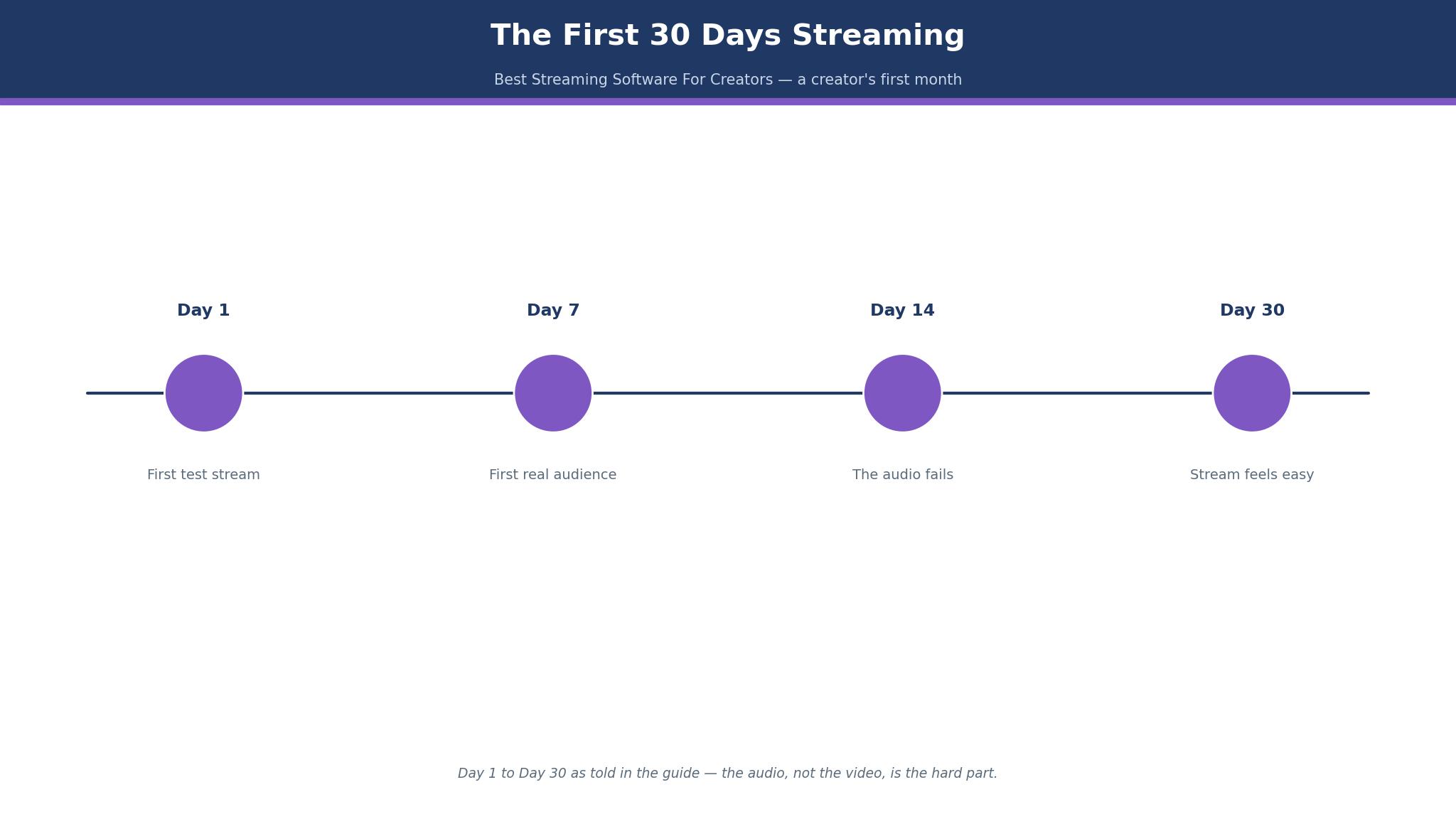
Day 1: I pressed Go Live on the best streaming software for creators shortlist with a borrowed microphone, a desk lamp for light, and no idea whether anyone would watch. Three people did, one of them typed hello, and the stream held for forty minutes without dropping. That first night taught me more than any feature page, because the tool that wins a first month is the one that stays out of the way.
Day 7: The First Real Audience
Day 7 brought the first audience that was not friends. Twelve people watched a cooking stream, four asked questions, and one stayed to the end. The stream dropped twice in the first ten minutes, and both drops came from the same cause. The upload speed at home was fine for watching video and too thin for sending it, a fact no tool on the list can fix on its own.
That week taught the first real lesson of the month. A streaming tool is judged on three things in the first week, and only one of them is the feature list. The first is whether it starts without a manual. The second is whether it recovers cleanly when the connection dips. The third is whether the audio stays in step with the picture when the computer gets busy. Every tool below is scored on those three tests first, and on price second. That test is the reason this best streaming software for creators guide ranks ease of recovery above feature counts.
A speed test belongs in the first week too. Run it at the hour you will stream, with the house using the internet as usual, and write the upload number down. A connection that tests at 10 megabits on a quiet morning can drop to 4 in the evening, and a stream that needs 8 will fail at 4. The test takes two minutes and it prevents a month of blaming the tool for a connection problem.
By the end of the first week the shortlist had narrowed itself. The tools that needed a weekend of setup were gone. The tools that hid the Go Live button behind three menus were gone. What remained were ten tools that a beginner can run, and the rest of this guide is about which of the ten fits which kind of show.
The 10 Tools at a Glance
| Tool | Best for | Starting price | First-month verdict |
|---|---|---|---|
| OBS Studio | Free, full control, no subscription | $0, open source | Best overall for a beginner who will learn |
| StreamYard | Browser shows with remote guests | Free; Essential $18.99 a month, $14.99 billed annually | Best for guest interviews |
| Restream | Streaming to several platforms at once | Free; Standard $19 a month, $16 billed annually | Best for multistreaming on a budget |
| Streamlabs | Gamers who want alerts and overlays ready-made | Free; Ultra $27 a month or $179 a year | Best for chat-led gaming streams |
| XSplit Broadcaster | Windows streamers who want a guided setup | From about $25 for three months, reported | Solid paid alternative to OBS |
| vMix | Professional multi-camera production | Basic HD $60 one-time | Best for a studio with cameras |
| Ecamm Live | Mac creators who stream and record | Standard $20 a month, $16 billed annually | Best Mac-only choice |
| Riverside | Recording quality first, live second | Free 2 hours; Standard $24 a month billed annually | Best for recorded interviews |
| Wirecast | Long-running professional broadcasts | See website; Pro reported near $799 one-time | Best for a fixed studio rig |
| Lightstream | Console and browser-based gaming streams | Free; paid from $19 a month, reported | Best for console streamers |
The table is the short version, and the detail sections below are the long one. Prices come from vendor pages and current comparison sources checked in late 2026. Where sources conflict, the conflict is named, because a price that changes between two pages is a price worth checking before you pay. Every entry in this best streaming software for creators roundup was checked against the same first-month test, so the verdicts compare like with like. The first-month verdict column is the honest summary of thirty days of use, not a feature count.
The 10 Tools in Detail
OBS Studio leads, StreamYard and Restream follow, and the other seven each fit one kind of show. Below is what thirty days of use actually showed, with a year-one cost at a stated size and the weak point of every tool in this best streaming software for creators guide. The first three sections repay a careful read, because they cover the shows most beginners run, and the rest are there for the format you actually produce.
1. OBS Studio
OBS Studio wins because it costs nothing and gives everything. It is free and open source, it runs on Windows, Mac and Linux, and it puts no watermark, no hour limit and no destination cap on your stream. The scenes, sources, audio mixer and plugins are the same tools professionals use, and a beginner gets all of them on day one.
The price is the whole story at first. Year one costs $0 for the software, and the honest extra spend is a microphone and light, which a worked example puts at about $180 once. A creator who streams three times a week for a year pays $0 in software and $180 in gear, which is the cheapest year one in this list by a wide margin.
Setup is the trade. OBS asks the beginner to learn scenes, sources and bitrate settings before the first show, and that first setup takes an evening. The payoff arrives in week two, when the creator can build any layout they can imagine, and no paid tool in this list offers more control. The community answers most questions, and the plugin library covers nearly everything else.
The worked example for reliability matters too. A stream at 1080p and 6,000 kilobits per second needs a steady upload of about 8 megabits per second to hold. A home connection that tests at 10 megabits will drop when someone else starts a video call, and OBS will show that drop honestly in its status bar. That honesty is a feature, not a flaw, because it tells the creator what to fix.
OBS is the best pick for a creator who will spend one evening learning and then stream for a year for free. It is the wrong pick for a creator who wants to be live in ten minutes with no learning at all.
2. StreamYard
StreamYard is the easiest way to run a show with guests. It runs in the browser, so there is nothing to install, and a guest joins from a link, appears on screen with one click, and needs no account. Six people can sit on screen on the free plan, which is enough for most panel shows.
The price ladder is where the decision sits. The free plan carries the StreamYard logo and limits local recordings to 2 hours a month. Essential costs $18.99 a month, or $14.99 billed annually, and adds a second destination and Full HD. Core costs $44.99 a month, or $35.99 billed annually, and is the first plan with no logo, three destinations and unlimited local recordings. A year on Core billed annually costs $431.88, which is the real price of a logo-free show.
StreamYard’s weakness is production depth. It cannot match OBS for scenes, plugins and custom layouts, and a creator who wants a complex show will outgrow it. Its strength is the guest experience, and for interview shows that strength decides the purchase. The first live audience I kept came from a guest show, and the tool that made the guest comfortable was the tool that kept the audience.
3. Restream
Restream is the cheapest honest route to multistreaming. The free plan sends one stream to two channels at once, which is double what StreamYard’s free plan offers. Standard costs $19 a month, or $16 billed annually, and adds a third channel, removes the branding and raises the participant limit to 10. Professional costs $49 a month and adds more channels and 1080p in the browser studio.
The worked example is simple. A creator streaming to YouTube and Twitch at once pays $0 on the free plan, and $192 a year on Standard billed annually for a third channel and no branding. Compare that with StreamYard Core at $431.88 a year, and Restream saves about $240 a year for the same three destinations, though it gives up some guest polish.
Restream also works as a relay. A creator can keep OBS for production and point it at Restream, which sends the feed onward to every platform. That combination is the best of both worlds for a creator who wants OBS control and multistream reach, and it is the setup I would recommend to anyone who outgrows a single platform.
4. Streamlabs
Streamlabs is OBS with the beginner’s work already done. It is built on OBS, so the scene and source model will feel familiar, but it adds guided setup, alerts, themes, widgets and chat already included. A gaming streamer can be live with alerts and overlays in an hour, where OBS alone would take an evening.
The free version covers scenes, recording, alerts, some overlays and dual output, which streams one horizontal and one vertical version at the same time. Ultra costs $27 a month or $179 a year, and unlocks multistreaming to three or more destinations, more than 1,000 themes and overlays, and Collab Cam with up to 11 guests. Sources conflict on the annual figure, with some listing $189 a year, so treat $179 as reported and check the checkout page before paying.
Streamlabs’ trade-off is weight. It uses more computer resources than OBS, and on an older machine that shows up as dropped frames. A creator with a strong computer will not notice. A creator on a five-year-old laptop will, and should test both before choosing.
5. XSplit Broadcaster
XSplit Broadcaster is the guided Windows alternative to OBS, and it has been around long enough to be stable. The setup walks the creator through scenes, sources and output settings, and the interface is cleaner than OBS for a first-time user. It suits a Windows streamer who wants help without paying a monthly subscription.
Pricing is reported rather than published plainly, at about $25 for three months for the premium tier, which works out near $100 a year. That is a fair price for the guidance, though it is hard to justify when OBS is free and Streamlabs is free at the entry level. The worked cost for a year is about $100, plus the same $180 of gear as any other tool here.
XSplit’s weakness is platform. It is Windows-first, and Mac creators should look elsewhere. Its strength is reliability on Windows, where it has fewer surprises than a plugin-heavy OBS setup.
6. vMix
vMix is the professional tool in this list, and its price tells you so. Basic HD costs $60 as a one-time purchase, HD costs $350, 4K costs $700 and Pro costs $1,200, each paid once. There is no monthly bill, which makes the year-one cost easy to state, and the year-two cost is $0 unless you upgrade.
- Best use: multi-camera studio shows, live switching, instant replay and professional graphics.
- Weakness: it is Windows-only, and it expects a strong computer with a good graphics card.
- Worked cost: a small studio on HD pays $350 once, plus about $180 of gear, for a year-one total near $530 and nothing in year two.
- Verdict: buy it when the show has cameras, not before.
vMix is the wrong tool for a beginner with one webcam, and the right tool for a creator whose show has grown into a studio. The jump from OBS to vMix is a jump in production ambition, not a jump in ease.
7. Ecamm Live
Ecamm Live is the Mac creator’s streaming studio, and it shows in every detail. It is built for Mac, it records in high quality while streaming, and its interview mode handles guests cleanly. A Mac user who streams and records the same show will find it the most polished option here.
Q: What does Ecamm Live cost? A: Standard costs $20 a month, or $16 billed annually, and Pro costs $40 a month, or $32 billed annually. A year on Standard billed annually is $192, the same as Restream Standard, for a very different job.
Q: Who should skip it? A: Anyone on Windows should skip it, because it is Mac-only. Anyone who only streams and never records should also skip it, because StreamYard or Restream does the live job for less.
Q: What is its best feature? A: The recording quality. A show recorded in Ecamm Live needs little editing before it becomes a video, which saves about 2 hours a week for a creator who publishes both live and recorded versions.
8. Riverside
Riverside is a recording tool that also streams, and that order matters. Its local recording captures each guest in high quality on their own computer, so a bad connection does not ruin the recording. The live stream is the second job, not the first.
The free plan covers 2 hours of recording with a watermark. Standard costs $24 a month billed annually and removes the watermark. Live streaming from Riverside starts from about $34 a month, reported, on the plans that include it. A creator who wants a recorded interview first and a live show second should budget for that tier, not the entry one.
Riverside’s trade-off is the live experience. It is not as smooth a live studio as StreamYard, and its chat and overlay tools are thinner. Its strength is the recording, and for a podcast that goes live once and is watched as a recording a hundred times, that strength wins.
9. Wirecast
Wirecast is the long-running professional broadcast tool, and it suits a fixed studio rig. It handles multiple cameras, graphics, replay and long shows without fuss, and it has been used for professional broadcasts for years. A church, a school or a small studio with a fixed setup will find it steady.
Pricing is not published plainly, and the Pro tier is reported near $799 as a one-time purchase, with a monthly option reported near $40. Treat both figures as reported and ask for a quote before budgeting. The year-one cost is high either way, which is why Wirecast sits near the bottom for a beginner and near the top for a fixed installation.
Wirecast’s weakness is the learning curve. It expects a operator who knows production, and a solo beginner will find it heavy. Its strength is stability over a four-hour show, which is a different test from a thirty-minute beginner stream.
10. Lightstream
Lightstream is the console streamer’s friend, because it runs in the browser and needs no capture card for many setups. A creator streaming from a console can build overlays and alerts in Lightstream and go live without a gaming computer. That is a real advantage for a creator whose only hardware is a console and a laptop.
The free plan covers the basics, and paid plans start from about $19 a month, reported. A year on a paid plan costs about $228, which is fair for a console creator, and high for a computer creator who could use OBS for free. Lightstream’s trade-off is depth. It cannot match OBS for scenes and plugins, and a creator who later buys a gaming computer will likely move on.
OBS Studio vs Streamlabs
The duel that decides most first months is OBS Studio against Streamlabs, and the answer depends on the creator’s computer and patience. OBS costs $0 forever and gives complete control. Streamlabs is free at entry, costs $179 a year reported for Ultra, and gives alerts, themes and guided setup in exchange for more computer resources.
On setup speed, Streamlabs wins. A gaming streamer can be live with alerts in an hour. OBS takes an evening of learning first. On control, OBS wins without a contest. Every scene, plugin and layout is yours to build, and nothing is locked behind a subscription. On computer load, OBS wins again, because it is lighter, and on an older machine that difference shows up as smooth video against dropped frames. That trade is the one every buyer in the best streaming software for creators market faces in the first month.
On community help, both win, because Streamlabs is built on OBS and most OBS guides apply to both. The honest advice is to start with Streamlabs if you want to be live this weekend, and move to OBS when you want a layout Streamlabs cannot build. Many creators do exactly that, and the move costs nothing.
The Chat That Moved Faster Than the Stream
Day 14 brought the failure the plan warned about. The audio failed, and the chat noticed before I did. Twenty messages arrived in a minute, half of them helpful and half of them jokes, and the stream kept running with no sound for six minutes while I found the setting. The lesson was not about audio. It was about moderation, and about what to set up before going live.
A chat that moves fast needs three things ready before the show. The first is a slow mode setting, so messages arrive at a pace a human can read. The second is a moderator, even a friend with a second account, who can remove a bad message before it fills the screen. The third is a pinned message that tells new viewers what the show is, so the chat does not spend the first ten minutes asking.
The tools differ here more than their feature pages admit. Streamlabs has the strongest built-in alerts and chat widgets, which is why gaming streamers stay with it. StreamYard puts comments on screen with one click, which suits interview shows. OBS needs plugins for the same job, which is free but takes setup time. The creator who sets up moderation on day one has a calmer day fourteen, and the creator who does not learns the lesson live, as I did.
The numbers from day 14 are worth keeping. Twenty messages in a minute is too fast for one person to read and moderate. Slow mode at one message every ten seconds cuts that to six a minute, which a moderator can handle while watching the show. That single setting is free on every tool here, and it is the most useful setting in the whole list.

Best Pick by Job
| Job | Best pick | Year-one cost |
|---|---|---|
| Beginner with no budget | OBS Studio | $0 software, about $180 gear |
| Guest interviews in a browser | StreamYard Core | $431.88 billed annually |
| Streaming to three platforms at once | Restream Standard | $192 billed annually |
| Gaming streams with alerts | Streamlabs Ultra | $179 a year, reported |
| Mac creator who records too | Ecamm Live Standard | $192 billed annually |
| Multi-camera studio show | vMix HD | $350 once |
| Console streamer with no gaming PC | Lightstream paid | About $228 a year, reported |
The table is the short version of the month. Your show decides the row, and the section behind that row decides the purchase, so read it before paying. The picks in this best streaming software for creators guide are the same ones the detail sections recommend, so the table and the text agree.
How to Choose Streaming Software for a First Month of Shows?
Start with the show, not the software. A guest interview needs StreamYard. A gaming stream needs Streamlabs or OBS. A multistream needs Restream. A studio show needs vMix. Write the show down in one sentence, and the tool list shrinks from ten to two. That rule keeps the best streaming software for creators choice small enough to test in a week, instead of a month spent reading feature pages.
Then test the connection before you test the tool. Run a speed test at the time you will stream, with the rest of the house using the internet as usual. A stream needs a steady upload, and a connection that tests at 10 megabits on a quiet morning can drop to 4 when the evening starts. No tool fixes a thin upload, and the creator who learns that in week one saves a month of blame.
Finally, pick the tool you will still like on day 30. The first week rewards the easy tool. The fourth week rewards the tool that lets you grow. OBS is the only free tool that grows with you without a new bill, which is why it leads this list even though it is the hardest to start.
What Does the Best Streaming Software for Creators List Get Wrong About Going Live?
Most lists get one thing wrong about going live, and it is the thing that matters most in the first month. They rank tools by features, when beginners rank them by friction. A tool with fifty features and a confusing first screen loses to a tool with ten features and a Go Live button a beginner can find. That is why OBS, which is hard to start, still wins here, because its friction is paid once, while a limited tool charges friction every week.
The second mistake is treating multistreaming as free reach. Streaming to three platforms at once does not triple the audience. It triples the chats to watch, the comments to answer, and the chances that one platform’s audience sees a show made for another. Restream is excellent at the job, but the job itself is worth questioning in the first month. One platform, done well, beats three platforms done thinly.
The third mistake is ignoring the recording. A live show that is also a good recording earns twice, once live and once as a video. Riverside and Ecamm Live understand this, and OBS records well too. A creator who plans the recording from day one gets a video library for free, and a creator who does not has to rebuild every show later.
Frequently Asked Questions
What goes wrong when a stream drops mid-broadcast?
The usual cause is the upload connection, not the tool. A stream at 1080p needs a steady upload near 8 megabits per second, and a home connection can dip below that when someone else starts a video call. The fix is to lower the bitrate, close other apps, and use a wired connection instead of Wi-Fi. OBS shows the drop in its status bar, which is the fastest way to spot it.
Can I stream to YouTube and Twitch at the same time?
Yes, with Restream or Streamlabs Ultra, and with OBS pointed at Restream as a relay. The free Restream plan covers two channels. The cost is attention, because two chats need watching at once, so start with one platform for the first two weeks and add the second when the show feels easy.
How much does streaming software cost in year one?
OBS costs $0 for software and about $180 for a microphone and light. StreamYard Core costs $431.88 billed annually. Restream Standard costs $192 billed annually. Streamlabs Ultra is reported at $179 a year. The spread is wide, and the cheapest year one in any best streaming software for creators comparison is free, which is why so many creators start with OBS and only pay when a specific job needs a paid tool.
Is OBS Studio too hard for a beginner?
It is harder to start than StreamYard or Streamlabs, and easier to live with after week two. The first setup takes an evening, and the guides and community answer most questions. A beginner who wants to be live in ten minutes should start with StreamYard, and a beginner who wants the most control for free should start with OBS and accept the evening of learning.
What microphone should a new streamer buy first?
Buy a USB microphone before you buy anything else, because audio decides whether viewers stay. A $70 to $100 USB microphone beats a built-in laptop microphone by a distance, and it matters more than a better camera. Spend the first $180 on a microphone and a light, and upgrade the camera later.
Do I need a capture card to stream from a console?
Not always. Lightstream streams from a console through the browser without a capture card for many setups, and that is its main advantage. A computer streamer using OBS with a console needs a capture card, which costs about $100 to $150 once, and that cost belongs in the year-one maths for a console show.
Day 30: What Felt Easy by Then?
Day 30 felt easy in a way day 1 did not. The scenes were built, the audio held, the chat had a moderator, and the show started on time without a scramble. The tool that made that possible was OBS Studio, and the reason was simple. It cost nothing, it grew with the show, and it never asked for a subscription to unlock a layout I had already built.
If I were starting again, I would still begin with OBS, I would still add Restream when the second platform mattered, and I would still keep a friend on moderation from the first show. The first month is not about the perfect tool. It is about the tool that lets you reach day 30, and this best streaming software for creators list exists to make that choice easier.