

The verdict first: if you homeschool and want the best AI tools for homeschool parents without buying a shelf of apps your children will ignore, start with one planning tool, one tutoring tool and one creative tool, then add only where a real gap appears. Most families do not need eleven tools at once. They need a plan for Monday morning, a way to explain a hard topic at a child’s level, a check on written work, and a creative outlet that does not turn into a battle over screen time. The tools below cover those jobs, and each profile names the age range, the job it does best and the point where a parent still needs to step in.
Homeschooling is different from classroom teaching in one important way. You are teacher, planner, marker and head of pastoral care at the same time, often while working, caring for younger children or managing a household. That is why the best tools for this audience are not the most powerful tools in general. They are the tools that save planning time, give instant feedback a parent cannot give to three children at once, and produce work a child can actually finish in one sitting. A tool that needs an hour of setup for a twenty minute lesson will fail, however clever its technology is.
Safety and learning quality also matter more at home than in a marketing demo. Children will paste homework into a chat tool, ask it for answers, and trust a confident reply. Set ground rules early. AI can explain, quiz and give feedback, but it should not do the work that is meant to be the learning. Keep personal details out of public tools, check age settings, sit beside younger children for chat tools, and review output before a child treats it as fact. The profiles below flag where a tool is prone to giving answers too easily, inventing facts or pitching content above or below a child’s level.

The best AI tools for homeschool parents at a glance
| Tool | Best for | Watch out for |
|---|---|---|
| MagicSchool AI | Lesson plans and worksheets | Plans need level checks |
| SchoolAI | Guided tutoring spaces | Setup takes a first week |
| Diffit | Leveled reading passages | Level is an estimate, not a verdict |
| Curipod | Interactive lessons and polls | Needs a live session to shine |
| Khanmigo | Guided maths and reading help | Answer hints can become answers |
| ChatGPT | Explaining topics at any level | Facts and citations need checking |
| Claude | Long reading help and writing feedback | Long replies can overwhelm younger learners |
| Photomath | Step by step maths working | Copying steps without understanding |
| Duolingo | Daily language and reading practice | Streaks can replace depth |
| Grammarly | Spelling, grammar and clarity | Style fixes can flatten a child’s voice |
| Canva | Projects, posters and portfolios | Design play can eat lesson time |
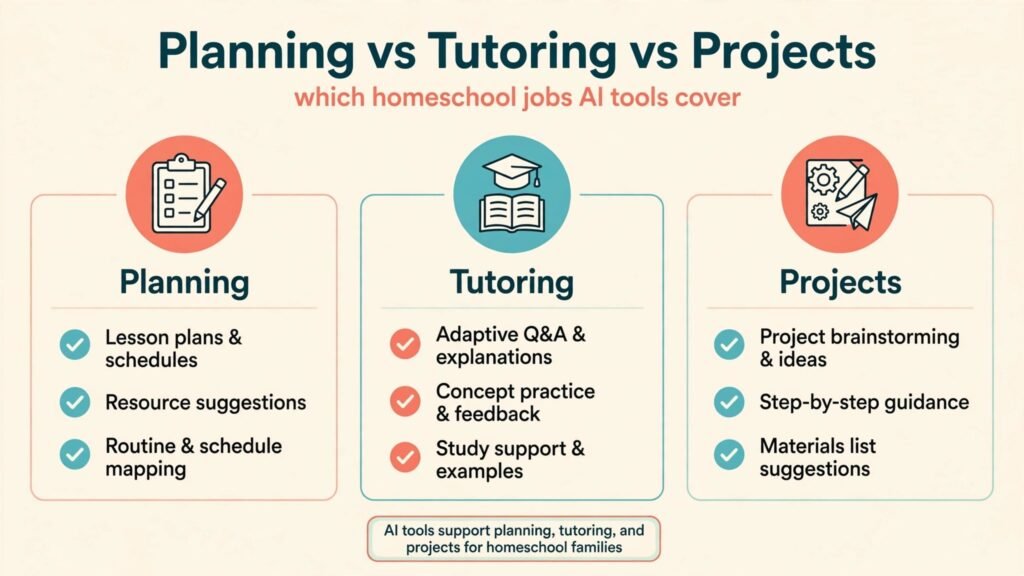
Planning the week without losing the weekend
Planning is where homeschool parents burn out first. A good planning tool should turn a topic into a usable week, not into a longer document to read on Sunday night.
1. MagicSchool AI
MagicSchool AI is built for teachers, and homeschool parents can borrow that strength directly. Give it a topic, a grade level and a goal, and it produces a lesson plan, a worksheet, a quiz, a rubric and a set of discussion questions in minutes. That speed matters when you plan for two or three children at different levels. You can generate a simpler version for a younger child and a harder version for an older child from the same topic, which keeps a family learning together without forcing everyone onto the same worksheet. It also helps with the small jobs that pile up, such as writing learning objectives, creating exit tickets and drafting a weekly overview a partner or grandparent can follow.
The plans still need a parent check. A generated plan can pitch too high, assume knowledge a child does not have, or include an activity that needs materials you do not own. Read the plan as a draft, cross out what does not fit, and add one hands on task, one reading task and one check for understanding. MagicSchool AI also works best when you give it a clear standard or skill, such as fractions with unlike denominators, rather than a vague topic like maths. The more specific the prompt, the more usable the plan. Check pricing at checkout before you commit to a paid plan, because school and family plans differ.
Watch out for: level mismatch, activities needing missing materials, and plans that look complete but have no real check for understanding.
2. SchoolAI
SchoolAI creates guided learning spaces where a child interacts with a tutor that follows rules a parent sets. Instead of an open chat that can wander anywhere, a parent can set the topic, the level, the tone and the guardrails, such as asking questions first instead of giving answers. That control is the main reason to choose SchoolAI over a general chat tool for younger learners. A child can practise a topic, get hints, and be asked to explain their thinking, while the parent can review the conversation later and see where the child got stuck. For families with several children, separate spaces keep each child’s work organised.
Setup is the cost. The first week takes time to create spaces, test prompts and teach a child how to use the tutor well. A child who is used to asking a chat tool for the answer will need coaching to accept hints and struggle productively. SchoolAI also depends on the quality of the space you build. A vague space produces vague tutoring, while a space with a clear topic, examples and a rule to ask one question at a time produces a much better session. Use it for one subject first, learn what works, then expand.
Watch out for: setup time in week one, children gaming hints into answers, and spaces that are too broad to tutor well.
3. Diffit
Diffit turns a topic, a text or a video into reading passages at different levels, with vocabulary lists and questions. For a homeschool family, that solves a daily problem. One article about volcanoes can become a short, simple version for a younger reader and a longer, richer version for an older reader, so siblings can discuss the same topic at the dinner table. Diffit also helps parents who teach children with a wide reading range, or who want to use real world news and science topics without handing a child a text that is far too hard. The generated questions give a quick check that can be done orally, which suits families who prefer discussion to worksheets.
Reading level is an estimate, not a verdict. A passage labelled for a grade may still contain a concept that needs teaching, or may simplify a topic so much that it loses the interesting detail. Read the passage yourself first, check names, dates and key facts, and be ready to explain the hard word in person. Diffit works best as a source of material, not as a teacher. Pair a passage with a short discussion, a drawing or a written summary, and the learning sticks far better than reading alone.
Watch out for: level labels that miss concept difficulty, simplified passages that lose key detail, and unchecked facts in generated text.

4. Curipod
Curipod builds interactive lessons with polls, word clouds, drawing prompts and short writing tasks, which helps when a lesson feels flat. A homeschool parent can turn a science or history topic into a session where a child votes, draws, predicts and writes, instead of only listening. That interactivity helps children who learn by doing, and it gives a parent instant evidence of understanding. If every child in a co-op group answers a poll wrong, the parent knows to reteach that point at once, rather than discovering the gap in a test a week later. Curipod also works well for co-op days, where several families learn together and a shared screen keeps everyone involved.
Curipod needs a live session to shine. It is less useful as a quiet, independent task, and a child working alone may rush through polls without thinking. It also needs a device and a stable connection, which can be a limit for families who prefer low screen days or who share one device. Use Curipod for one lively lesson a week, such as a science starter or a history debate, and keep other days for reading, writing and hands on work. Check pricing at checkout, because classroom plans and family use can differ.
Watch out for: rushed poll answers, device and connection needs, and overuse turning every lesson into a screen session.
Tutoring, explaining and getting unstuck
Tutoring tools should help a child think, not think for the child. The best ones ask questions, show working and let a parent see where understanding breaks down.
5. Khanmigo
Khanmigo is the AI tutor inside Khan Academy, and it is designed to guide rather than give answers. When a child is stuck on a maths problem, it asks what they have tried, prompts the next step, and checks understanding before moving on. That guided style fits homeschool well, because it mirrors what a good tutor does, and it links to Khan Academy lessons and practice that a parent can assign and track. For reading and writing, it can discuss a text, ask about a character’s choice, or help a child plan an essay without writing it for them. Parents get a view of progress that helps with record keeping, which matters in states and regions where homeschool reporting is required.
The risk is hint creep. A child who keeps asking for hints will eventually be led to the answer without doing the thinking, and a parent who only checks completion will miss that pattern. Review Khanmigo sessions with your child, ask them to explain the method in their own words, and set a rule that hints are for getting unstuck, not for finishing faster. Khanmigo also works best inside Khan Academy subjects, so a topic outside its coverage will need another tool. Availability and pricing can vary by region, so check current terms before you plan a term around it.
Watch out for: hints turning into answers, progress that hides shallow understanding, and coverage gaps outside Khan Academy subjects.
6. ChatGPT
ChatGPT is the most flexible explainer in this list. It can explain photosynthesis to a ten year old, then to a fourteen year old, give five examples of a grammar rule, write a quiz, or turn a child’s messy paragraph into a clearer version to discuss together. That flexibility helps when a child asks a question a parent cannot answer on the spot, or when a family wants to explore a topic beyond the textbook. It can also role play a historical figure for a history lesson, generate debate prompts, or help a parent draft a term plan. For older children, it is a useful research starting point, provided the next step is checking sources.
Flexibility is also the danger. ChatGPT can invent facts, dates and quotations with total confidence, and a child will often accept them. It can also do homework outright if a child pastes a question and copies the answer. Set clear rules. Use ChatGPT to explain and to practise, not to complete assignments. Always check facts that will go into assessed work, and teach older children to ask for sources and then open them. Keep personal details out of chats, use a supervised account for younger children, and treat ChatGPT as a study partner that needs supervision, not as a teacher.
Watch out for: invented facts, homework copying, and unsupervised use by younger children.
7. Claude
Claude is useful for longer reading and writing work. It can summarise a chapter, explain a difficult passage in simpler language, give feedback on an essay draft, or help a teenager structure a research project. Its longer context helps when a child is working with a full story, a long article or a set of notes, because it can refer back to earlier parts without losing the thread. For writing, Claude tends to give structured, calm feedback, which suits children who shut down under harsh marking. A parent can ask it to praise two strengths, name one clear improvement, and suggest a rewrite of one paragraph, which gives a child a manageable next step.
Long replies can overwhelm younger learners. A page of feedback on a short paragraph will not help a ten year old, and may make writing feel like a bigger task than it is. Ask for short, specific feedback, and read it together rather than handing it over as a document. Claude can also miss the point of a creative piece, praising structure while missing voice, humour or originality. Keep human judgment central, especially for stories, poems and personal writing, where a child’s voice matters more than a tidy structure. Check pricing at checkout for family use.
Watch out for: overlong feedback, feedback that misses creative voice, and reliance on AI marking for personal writing.
8. Photomath
Photomath solves maths problems from a photo and shows step by step working. For a homeschool parent who is not confident in algebra or geometry, that working is a lifeline. You can see the method, learn it alongside your child, and check homework without guessing. It also helps a child who got the wrong answer to find where the working went wrong, instead of only seeing a red cross. Used well, Photomath turns a frustrating evening into a short, focused lesson on one method, such as solving equations or simplifying fractions.
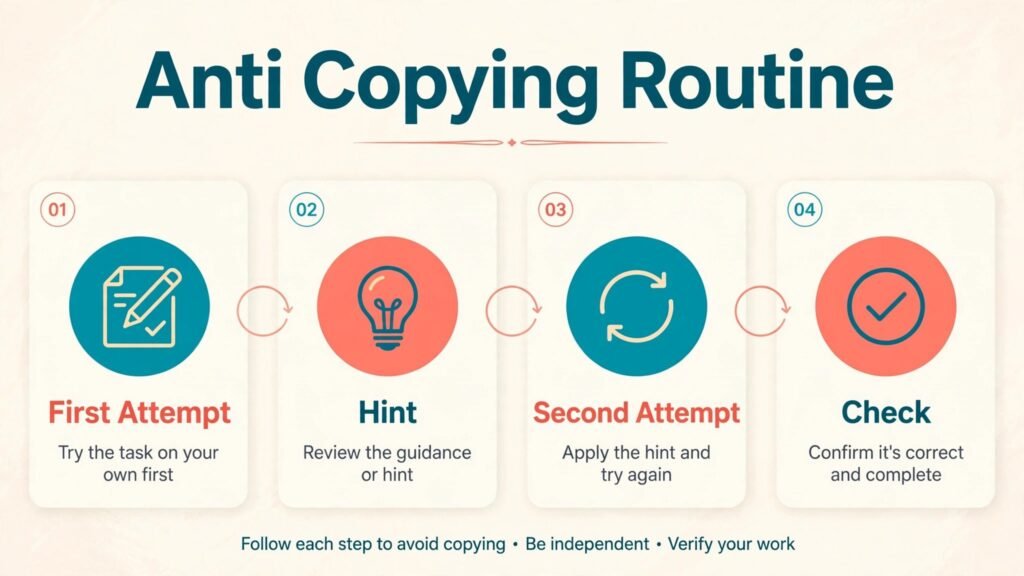
The obvious risk is copying. A child can photograph a problem, copy the steps, and learn nothing. Set a rule that Photomath is for checking and learning, not for first attempts. Ask the child to try the problem first, then use Photomath to find the error, then redo a similar problem without it. That routine builds understanding instead of dependence. Photomath also shows one method, while a curriculum may teach another, so check that the method matches what your child is meant to learn. If methods differ, use the difference as a teaching point about maths having more than one valid route.
Watch out for: copying steps without understanding, method mismatch with the curriculum, and use before attempting the problem.

Skills, language and creative output
Once planning and tutoring are covered, the remaining jobs are daily practice, clear writing and creative projects that a child can be proud of. These three tools cover those jobs without adding a heavy system to manage.
9. Duolingo
Duolingo gives children a short, daily language and reading routine. Lessons are short, game like and self paced, which helps families who want language learning without a full curriculum. A child can practise Spanish, French or another language for ten minutes a day, hear native pronunciation, and build vocabulary gradually. For younger readers, Duolingo ABC focuses on letters, sounds and early reading in a similar short burst format. The daily streak and gentle rewards keep many children coming back, which is half the battle with language learning, where regularity matters more than long, occasional sessions.
Streaks can replace depth. A child can keep a streak alive with easy lessons while avoiding the harder speaking and writing tasks that build real skill. Pair Duolingo with real use, such as labelling objects at home, singing a song, cooking a recipe in the target language, or talking with a tutor or community member. Duolingo also teaches a limited range well, but it will not replace conversation, grammar teaching or cultural learning. Treat it as daily practice inside a wider language plan, not as the whole plan, and check age settings and in app purchase controls before a child uses it alone.
Watch out for: streak chasing, avoidance of speaking tasks, and treating app progress as full language learning.
10. Grammarly
Grammarly checks spelling, grammar and clarity in a child’s writing, and for a homeschool parent it saves marking time on routine errors. A teenager can run an essay draft through Grammarly, fix the clear errors, and bring a cleaner draft to a parent for feedback on ideas and structure. That split helps. Parents spend less time circling commas and more time discussing argument, evidence and voice. Grammarly can also help a child notice patterns in their own errors, such as repeated comma splices or vague word choice, if a parent points the pattern out rather than only accepting every fix.
Style suggestions need a filter. Grammarly can push a child’s writing toward a safe, adult, uniform style, and can suggest changes that alter meaning. Teach children to accept clear errors, question style changes, and keep sentences that sound like them. Grammarly also sees the text it checks, so avoid pasting personal journals, sensitive family writing or a child’s private work into it without thinking about privacy settings. Use it for school writing and portfolio drafts, not for private diaries. Check pricing at checkout, because free and paid tiers differ in the feedback they give.
Watch out for: flattened voice, meaning changes from style fixes, and private writing pasted into a checking tool.
11. Canva
Canva lets children turn learning into something visible. A history project becomes a poster, a science topic becomes an infographic, a book report becomes a presentation, and a term’s work becomes a portfolio a parent can show at a review. That visible output matters for homeschool motivation and record keeping. Children can design with templates, add their own photos and drawings, and learn basic design skills such as layout, contrast and clear headings along the way. Canva also helps parents make worksheets, certificates, timetables and reading trackers that look inviting rather than photocopied and dull.
Design play can eat lesson time. A child can spend an hour choosing fonts for a poster that should have taken twenty minutes, and learn little about the topic in the process. Set a time limit for design, require the content first, and judge the final piece on content as well as looks. Check image use too. Teach children to use their own photos, licensed images or Canva stock correctly, and to credit sources. Canva is at its best when content leads and design follows, not the other way round.
Watch out for: design time swallowing learning time, content judged only on looks, and image credit mistakes.

Best pick by job
| Job | First pick | Why it wins for most families |
|---|---|---|
| Weekly lesson planning | MagicSchool AI | Plans, worksheets and quizzes in one pass |
| Guided tutoring with guardrails | SchoolAI | Parent set rules and reviewable sessions |
| Leveled reading material | Diffit | One topic at several reading levels |
| Lively group lessons | Curipod | Polls and interaction in a live session |
| Guided maths help | Khanmigo | Hints and linked practice, not bare answers |
| Explaining any topic | ChatGPT | Level matched explanations on demand |
| Long reading and essay feedback | Claude | Structured, calm feedback on longer work |
| Checking maths working | Photomath | Step by step working to find errors |
| Daily language practice | Duolingo | Short, regular, game like lessons |
| Writing checks | Grammarly | Fast routine error checks before parent feedback |
| Projects and portfolios | Canva | Visible, shareable output for reviews |
Start with MagicSchool AI for planning, Khanmigo for guided tutoring and Canva for projects. That trio covers the week, the hard lesson and the visible output, and it is small enough to learn properly.
How to choose the right tools for your family
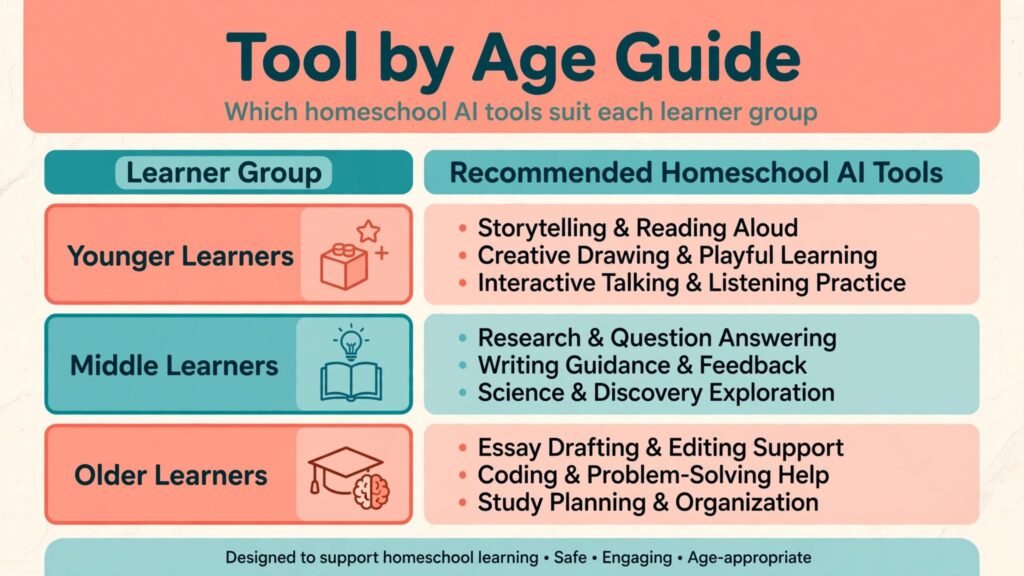
Start with your child’s age, level and learning style, not with a feature list. A tool built for teenagers will frustrate a seven year old, and a tool built for classrooms may assume a teacher is managing thirty children. Test one tool for one subject for two weeks before you add another, and judge it on three questions. Did planning get faster? Did the child understand more, or only finish faster? Did the tool create a new argument about screens, answers or time? If planning did not get faster and understanding did not improve, the tool is not earning its place, however popular it is.
Next, check the practical details. Confirm pricing at checkout, check whether a family plan exists, and check device needs, offline options and age settings. Set up a simple weekly routine. Planning on Sunday, tutoring help during lessons, a short language burst daily, and a project slot on Friday gives each tool a clear job and stops tools competing for the same hour. Keep a one page family AI rule sheet. It should say which tools are allowed, whether AI may explain or only check, what must never be pasted in, and how a child should handle a fact they are unsure about. Review the sheet each term as children grow.
Mistakes to avoid
The biggest mistake is letting AI do the learning. If a child pastes an essay question into a chat tool and copies the answer, the assignment is finished and the learning has not happened. Build routines that protect struggle, such as first attempt, hint, second attempt, then check. A second mistake is buying a stack of tools at once. Families who adopt six tools in a month usually use none of them well. Start with three, learn them, then add one at a time. A third mistake is trusting AI facts for assessed work. Check dates, names and quotations in a reliable source before they go into a portfolio or exam preparation. A fourth mistake is ignoring screen balance. AI tools are screen tools, and a homeschool week still needs reading on paper, outdoor time, conversation and hands on projects. A fifth mistake is skipping the parent review. Even the best tool needs a parent to read the plan, check the level and review the session, especially for younger children.
Frequently asked questions
Is it cheating to use AI in homeschool?
It depends on the job. Using AI to explain a topic, generate practice questions or check a draft is tutoring and editing, which are normal parts of learning. Using AI to complete an assignment that is meant to show what a child can do alone is not learning. Set the rule by task, and be consistent.
What age is safe for chat tools?
Younger children should use chat tools only with a parent beside them, in a guided space with clear rules. Older children can use them more independently once they can spot an invented fact, check a source and resist copying answers. Age settings and supervision matter more than a single age number.
How much should a family spend on AI tools?
Start free or low cost, prove value for one subject, then pay only for tools that save real planning time or measurably help understanding. Check pricing at checkout, watch for family plans, and drop any tool that has not been used in a month.
Can AI replace a homeschool curriculum?
No. AI can support a curriculum, generate practice and explain topics, but it does not provide a coherent progression, assessment plan or record system on its own. Use AI inside a curriculum or a clear term plan, not instead of one.
How do parents keep records with AI tools?
Save the plan, the child’s work and a short note on what was learned, rather than saving chat transcripts alone. Portfolio pieces from Canva, completed Khan Academy practice and reviewed writing drafts together give a clearer record than a pile of AI output.
What about children with learning differences?
AI can help with leveled reading, audio support, step by step maths and writing checks, but it needs a parent to set the level, check the output and adapt tasks. Talk to a specialist for specific needs, and test tools with your child rather than trusting a marketing claim.
Conclusion
Homeschool success with AI comes from restraint, not from collecting tools. Plan with one strong planning tool, tutor with a guided tool that asks questions before it gives answers, and let children show learning through projects they can be proud of. Check facts, protect struggle, review sessions, and keep paper, conversation and outdoor time in the week. Done that way, AI gives a busy parent time back and gives a child instant, patient help at the exact moment of stuckness, which is a genuine gain. Done without rules, it gives finished work with little learning, which is a loss no portfolio can hide. Start small, test honestly for two weeks, and keep only the tools that make your family’s learning deeper, calmer and more enjoyable.
For families planning wider learning, see our guide to best AI tools for tutors and our guide to best AI tools for course creators.