On a phone, a YouTube thumbnail is often shown smaller than a credit card, and a viewer decides whether to tap in two seconds. That fast decision is why the best AI youtube thumbnail generators matter more than most creators expect. A strong video with a weak thumbnail gets ignored, not because viewers dislike the video, but because they never open it. A clear thumbnail with readable text, one strong focal point, and an honest promise about the video earns the click, and then the video itself must deliver. No thumbnail tool fixes a weak video, but a good thumbnail tool removes the design bottleneck that stops good videos from being seen.
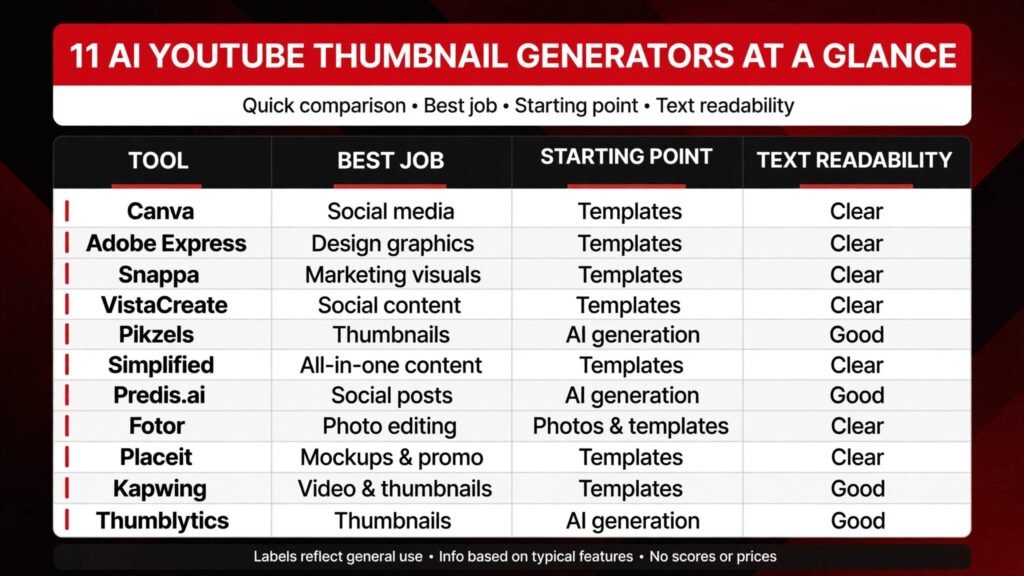
This guide compares eleven tools for YouTube creators in 2026. It judges them on text readability at small size, ease of starting from a video frame or a prompt, template quality, brand consistency, export size for YouTube, and whether they help you test variations rather than settling for the first design. Prices change often, so check the vendor checkout page before you buy any paid plan, and test each tool with your real channel art, not only with a demo image. A tool that makes a beautiful gaming thumbnail may make a poor finance thumbnail, and vice versa, because colour, text, and image style must fit your audience.
A note on honesty before the tools. Clickbait thumbnails that promise something the video does not deliver may raise clicks for one video and damage a channel over time, through low watch time, negative comments, and lost trust. The tools in this guide should be used to make a true promise clearer and more visible, not to invent a promise the video cannot keep. If a thumbnail shows a result, a comparison, or a face reacting to an event, the video should show that result, comparison, or event early, and clearly.
What makes a thumbnail work at small size
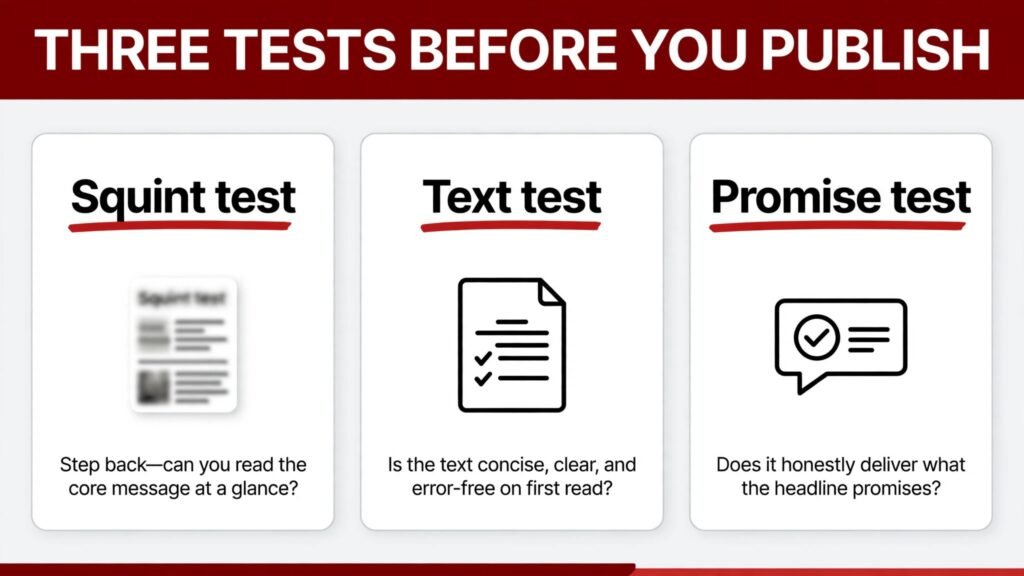
Three tests decide most thumbnails. First, the squint test. Shrink the thumbnail to phone size, squint, and ask what you see first. If you see one face, one object, or one short phrase, the thumbnail passes. If you see five words, three objects, and a busy background competing for attention, it fails, even if it looks impressive at full size. Second, the text test. Read the thumbnail text from arm’s length. If you cannot read it instantly, shorten it, enlarge it, or increase contrast. Three to five words usually work better than a full sentence, because the video title already carries the detail. Third, the promise test. Ask a stranger what they expect the video to be about from the thumbnail alone. If their answer matches your video, the thumbnail is honest and clear. If their answer is vague or wrong, redesign, even if the design looks polished.
Colour and contrast matter within those tests. High contrast between text and background helps at small size, but colour must also fit the niche. Finance and tech audiences often respond to clean, high contrast designs with a clear focal point. Gaming and entertainment audiences often respond to bolder, more saturated designs with expressive faces. The mistake is copying a style from another niche without testing it on your audience. A thumbnail style that works for a gaming channel can look loud and untrustworthy on a finance channel, and a minimal finance style can look dull on an entertainment channel. Use AI tools to generate variations in your niche style, then test the top two with real viewers or with a small audience sample, rather than trusting your own taste alone, because you are too close to your own video to judge its thumbnail objectively.
At a glance
| Tool | Best for | Starting point | Text at small size | Check before buying |
|---|---|---|---|---|
| Canva | Most creators, templates plus AI | Template, frame, or prompt | Strong, with contrast tools | Pro features in the plan you choose |
| Adobe Express | Brand consistent creators | Template or brand kit | Strong, clean type | Brand kit features on the plan |
| Pikzels | AI first thumbnail generation | Prompt or video link | Good, test readability | Generation limits on the plan |
| Simplified | AI design plus writing help | Prompt or template | Good | AI generation limits |
| Predis.ai | AI content plus thumbnails | Topic or caption | Good | Plan limits for AI outputs |
| Snappa | Fast, simple thumbnails | Template | Good, clean layouts | Template and export limits |
| VistaCreate | Template variety, low cost | Template | Good | Pro template access on the plan |
| Fotor | Photo editing plus thumbnails | Photo or template | Good, with photo tools | AI features on the plan |
| Placeit | Mockups and templates | Template | Good | Licence terms for commercial use |
| Kapwing | Video creators, frame to thumbnail | Video frame | Good | Export quality on the plan |
| Thumblytics | Testing and inspiration | Existing thumbnails | N/A, analysis focus | Data coverage for your niche |
Best pick by job
| Job | First pick | Why it fits | Second option to test |
|---|---|---|---|
| New creator, first thumbnails | Canva | Templates, easy text, and fast learning | Snappa |
| Creator with a clear brand style | Adobe Express | Brand kit keeps colours and fonts consistent | Canva |
| AI first, many variations fast | Pikzels | Prompt based generation for quick options | Simplified |
| Creator who also needs captions | Predis.ai | Content and thumbnail ideas in one place | Simplified |
| Fast thumbnail before publishing | Snappa | Simple templates, minimal setup | VistaCreate |
| Low budget, template variety | VistaCreate | Many templates at a lower entry cost | Fotor |
| Photo heavy thumbnail | Fotor | Photo editing plus text in one tool | Adobe Express |
| Mockup style thumbnail | Placeit | Mockups for products and devices | Canva |
| Thumbnail from a video moment | Kapwing | Pull a frame, add text, export quickly | Canva |
| Improving an existing thumbnail | Thumblytics | Analysis and inspiration from real thumbnails | Pikzels |
| Team with many channels | Adobe Express | Brand consistency across channels | Canva |
For most creators: templates plus AI help
1. Canva
Canva is the default starting point for most YouTube creators, and for good reason. It offers a huge template library for YouTube thumbnails, easy text tools with contrast and shadow options, background removal, and AI features that help generate images, remove backgrounds, and suggest layouts. For a new creator, Canva removes the two biggest barriers: starting from a blank canvas, and learning complex design software. You can start from a template in your niche, replace the image with your own frame, shorten the text to three or four words, and export at YouTube size in minutes.
Canva strength is also its risk. Because templates are popular, many channels end up with similar looking thumbnails, which hurts stand out in a crowded feed. Avoid that by customising templates: change the focal image to your own photo or frame, use your brand colours consistently, keep text short and in your own wording, and avoid using a template exactly as supplied. For graphic designers and for course creators, Canva also serves beyond thumbnails, for slides, social posts, and course art, which helps justify a Pro plan. Visit Canva and check which AI and Pro features are in the plan you choose.
Watch out for: template sameness across channels, and text that looks readable at full size but blurs at phone size. Always test at small size before publishing.
2. Adobe Express
Adobe Express suits creators who care about brand consistency across many videos. Its brand kit features let you save colours, fonts, and logos, and apply them to every thumbnail, so a viewer recognising your style in a feed is more likely to tap, because familiarity builds trust over time. For a channel publishing weekly, that consistency compounds. Viewers learn your look, find your videos faster in search results, and associate a clean, consistent style with reliable content.
Adobe Express templates are clean and professional, which suits education, finance, tech, and business channels particularly well. For entertainment channels that need bolder, more expressive designs, test Adobe Express against Canva and Pikzels, because clean design can feel restrained in a loud niche. Check plan features for brand kits, AI image tools, and export quality, because some features sit in higher tiers. Visit Adobe Express and check the current plan page.
Watch out for: a brand kit that becomes a cage, where every thumbnail looks identical and no video stands out. Keep brand elements consistent, but vary the focal image and the hook text for each video.
3. Snappa
Snappa is the fast option. It offers simple YouTube thumbnail templates, easy text editing, and a short learning curve, which suits creators who publish frequently and need a thumbnail in ten minutes, not an hour of design. For news, commentary, and daily content, where speed matters and the video itself carries the value, Snappa removes friction. You choose a template, change the image and text, export, and publish, without a complex feature set to learn.
Snappa limit is depth. It does not offer the AI generation range of Pikzels or the brand depth of Adobe Express, so creators who want many AI variations or strict brand control may outgrow it. That is fine. Snappa is a strong tool for its job: fast, clean thumbnails for regular publishing. If you later need AI variations, add Pikzels for idea generation and keep Snappa for final layout, or move to Canva for a broader toolkit. Visit Snappa and check template and export limits on the current plan page.
Watch out for: speed becoming sameness, where every thumbnail uses the same layout and viewers stop noticing new videos.
4. VistaCreate
VistaCreate offers a large template library at a lower entry cost than some competitors, which suits new creators, small teams, and creators in regions where subscription costs matter. Its templates cover many niches, and its editor is straightforward, with text, image, and background tools that are enough for a strong thumbnail without professional design training. For a creator testing YouTube seriously for the first time, VistaCreate gives a low cost way to produce consistent, good looking thumbnails while learning what style your audience responds to.
Check Pro template access, because the free library and the Pro library differ, and the template you want may sit behind a paid tier. Also test text readability at small size, because some VistaCreate templates look rich at full size and busy at phone size. Simplify before publishing: one focal point, short text, high contrast. Visit VistaCreate and check Pro access on the current plan page.
Watch out for: busy templates that look impressive at full size and unreadable at phone size, and free templates that many other creators also use.
For AI first generation and many variations
5. Pikzels
Pikzels is built for AI first thumbnail generation, which suits creators who want many variations quickly and then choose the best. You can start from a prompt, a video title, or a video link, generate several thumbnail concepts, and refine the strongest one with your own image and text. For creators who struggle with a blank canvas, Pikzels removes that block, and for creators who publish in competitive niches, the ability to test five concepts instead of settling for one is a real advantage.
The key discipline with Pikzels is editing. AI generated thumbnails can look striking and still fail the small size test, with text that is too small, faces that look odd on close inspection, or a promise that does not match the video. Always replace AI text with your own short hook where needed, check faces and hands at full size, and test at phone size before publishing. Also check generation limits and commercial use terms on your plan, because AI image rights and limits vary. Visit Pikzels and check the current checkout page for generation limits.
Watch out for: publishing an AI thumbnail without a small size and honesty check, and using AI faces that look unnatural on close viewing.
6. Simplified
Simplified combines AI design with writing help, which suits creators who need thumbnail text ideas as well as images. You can generate design options, get hook text suggestions, and adjust layouts in one place, which helps when you know the video topic but cannot decide on the three words that will carry the thumbnail. For small teams and solo creators who handle scripting, filming, editing, and publishing alone, that combined help saves time and reduces decision fatigue.
Simplified is less specialised than Pikzels for thumbnails alone, so compare the two if thumbnails are your main bottleneck. If you also need social posts, captions, and other design work from the same tool, Simplified bundle value increases. Check AI generation limits, because a creator generating many variations per video will use limits faster than a creator generating one thumbnail per video. Visit Simplified and check AI limits on the current plan page.
Watch out for: accepting AI hook text without checking that it matches the video promise, and generating many variations without ever testing which one actually earns clicks.
7. Predis.ai
Predis.ai generates content ideas, captions, and thumbnails from a topic, which suits creators who plan content in batches and want thumbnail concepts alongside post ideas. For a creator who runs a YouTube channel plus Instagram and TikTok, Predis.ai helps keep thumbnail and social ideas consistent, because the same topic generates assets for several platforms. That consistency helps a small team publish regularly without starting each platform from scratch.
Predis.ai thumbnail output is good for ideas and drafts, but for a flagship video, you will usually want to refine the output in Canva or Adobe Express, with your own frame, brand colours, and short hook text. Treat Predis.ai as a concept tool, not always as a final design tool, and test its output at small size before publishing. Visit Predis.ai and check plan limits for AI outputs.
Watch out for: using a concept thumbnail as a final thumbnail without refinement, and using the same AI concept across platforms without adjusting size and text for each one.
For photo, mockup, and video frame thumbnails
8. Fotor
Fotor is a photo editor with thumbnail tools, which suits creators whose thumbnails start from a photo, such as travel, food, product, and tutorial channels. You can enhance a photo, remove a background, adjust colour and contrast, add short text, and export a thumbnail that looks like a polished photo rather than a template. For channels where the photo itself is the hook, such as a before and after, a product close up, or a location shot, Fotor photo strength matters more than template variety.
Check which AI features are in your plan, because Fotor offers several tiers with different AI tools. Also keep text short and high contrast, because a beautiful photo with unreadable text still fails the small size test. If your channel is mainly talking head videos, a template tool may serve you better than a photo editor. Visit Fotor and check AI features on the current plan page.
Watch out for: over editing a photo until it looks unrealistic, and text placed over a busy part of the photo where it cannot be read.
9. Placeit
Placeit suits creators who need mockup style thumbnails, such as product reviews, app tutorials, and device focused videos. You can place your product, app screen, or book cover into a realistic mockup, add a short headline, and produce a thumbnail that looks professional without a photo shoot. For creators reviewing products, software, or books, that mockup approach is faster and more consistent than photographing each product in different lighting.
Placeit licence terms matter, because mockup assets and templates have commercial use rules that differ by plan. Check the licence for YouTube commercial use before you build a channel style around Placeit assets. Also avoid mockup sameness: customise the headline, the focal product, and the background colour for each video, so thumbnails do not all look like the same template with a different product swapped in. Visit Placeit and check licence terms on the current plan page.
Watch out for: licence limits on commercial use, and mockups that look generic because only the product changed between videos.
10. Kapwing
Kapwing suits video creators who want a thumbnail from a real moment in the video. You can pull a frame, enhance it, add text and shapes, and export a thumbnail that honestly represents the video, because it literally comes from the video. That honesty helps with watch time, because viewers who click for a moment they saw in the thumbnail will find that moment in the video, rather than feeling tricked by a stock image.
Kapwing also helps with speed, because you do not need to export a frame to another tool, design there, and reimport. The workflow stays in one place, which suits creators editing in Kapwing already. Check export quality and size on your plan, because a thumbnail exported at low quality will look soft at full size, even if it looks fine at phone size. For creators who need many AI variations, pair Kapwing with Pikzels for concepts, then finalise the chosen concept from a real frame in Kapwing. Visit Kapwing and check export quality on the current plan page.
Watch out for: choosing a frame that is dramatic but unrepresentative, and exporting at a quality that looks soft on larger screens.
11. Thumblytics
Thumblytics is different from the other tools in this list, because its main job is analysis and inspiration, not generation. It helps you study thumbnails that perform well in your niche, understand patterns in text, colour, and layout, and test your own thumbnail ideas against those patterns. For a creator whose thumbnails are not earning clicks, Thumblytics answers a better question than a generator alone: is the problem your design, your hook, your niche style, or your title and thumbnail combination.
Use Thumblytics alongside a design tool, not instead of one. Study top thumbnails in your niche, note what they have in common, then build your own version in Canva, Adobe Express, or Pikzels, with your own image and hook. Do not copy a competitor thumbnail directly, because that harms trust and can create copyright issues. Learn the pattern, then make it yours. Check data coverage for your niche, because analysis is only useful if it covers channels similar to yours. Visit Thumblytics and check data coverage on the current plan page.
Watch out for: copying a top thumbnail instead of learning its pattern, and analysing thumbnails without also testing your own variations with real viewers.
How to choose the best AI youtube thumbnail generators for your channel
Choose by bottleneck first. If your bottleneck is starting from blank, choose an AI first tool such as Pikzels, or a template rich tool such as Canva, because both remove the blank canvas problem. If your bottleneck is brand consistency, choose Adobe Express with a brand kit, and accept a slightly slower start in exchange for a recognisable style. If your bottleneck is speed, choose Snappa or Kapwing, depending on whether you start from a template or a video frame. If your bottleneck is clicks despite good videos, choose Thumblytics for analysis first, then a design tool to act on what you learn, because generating more thumbnails without understanding the problem will not fix it.
Next, test with your real channel, not with demos. Take your last three videos, including one that performed well and one that performed poorly, and rebuild their thumbnails in two tools. Check small size readability, promise accuracy, and how long each rebuild takes. Ask three people who do not watch your channel what each thumbnail promises, and whether they would tap. Their answers will reveal problems you cannot see, because you know the video and they do not. Keep the tool that produces the clearest, fastest, most honest thumbnails for your niche, even if another tool has more features you will never use.
Finally, build a testing habit. For important videos, create two thumbnail variations with different hooks, focal images, or text placements, and test them if your channel has access to testing features, or by comparing performance across similar videos over time. Record what you learn: which text length works, which colour contrast works, whether faces help or hurt in your niche, and whether a question hook beats a statement hook. Over months, that record becomes more valuable than any single tool, because it encodes your audience preferences, not general design advice.
Mistakes to avoid with AI thumbnails
The most common mistake is overcrowding. AI tools make it easy to add text, objects, arrows, and effects, and a thumbnail that looks rich at full size becomes unreadable at phone size. Cut until one focal point and three to five words remain, and let the title carry the rest. The second mistake is dishonesty. A thumbnail that promises a result, a confrontation, or a reveal that the video does not deliver may win a click and lose a subscriber, because viewers remember being misled longer than they remember a good video. The third mistake is sameness. Using the same template, layout, and colours for every video makes new videos invisible in a feed, because viewers learn to skip a look they have already seen.
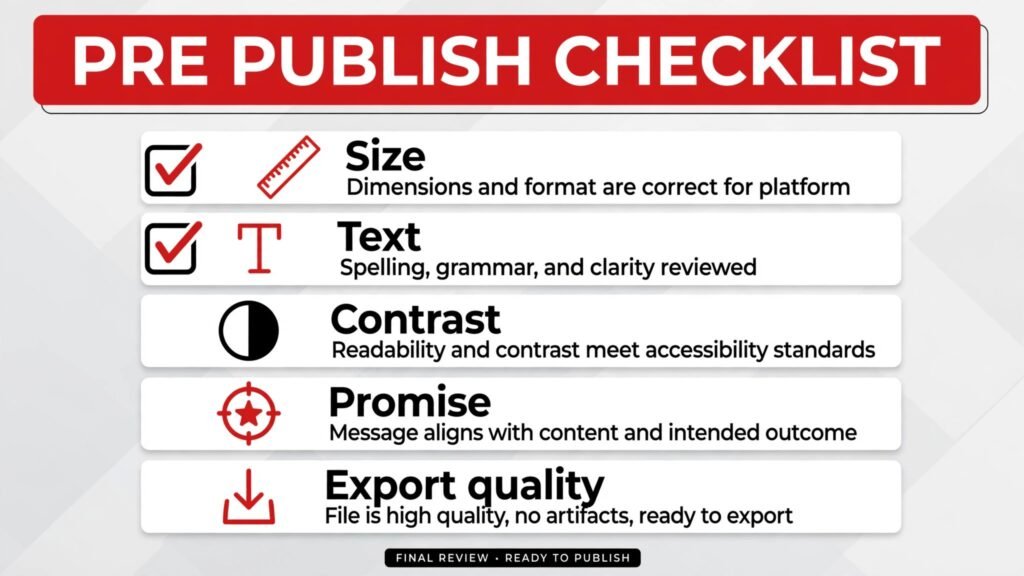
Other mistakes are technical and easy to fix. Exporting at the wrong size or low quality, so a thumbnail looks soft on larger screens. Using text over a busy background, so it cannot be read at small size. Using an AI face that looks odd on close inspection, which undermines trust. And never testing at small size, which is how all of these mistakes survive to publication. Build a pre publish checklist: shrink to phone size, read text from arm’s length, ask what the thumbnail promises, check that the video delivers that promise early, and check export size and quality. That two minute check prevents most thumbnail failures.
Frequently asked questions
How many words should a YouTube thumbnail have?
Usually three to five words, because the video title already carries detail, and thumbnail text must be readable at phone size in about two seconds. Longer text can work if it is very short and high contrast, such as a number plus a noun, but a full sentence on a thumbnail almost always fails the small size test. If you cannot read the text instantly at phone size, shorten it.
What size should a YouTube thumbnail be?
YouTube recommends 1280 by 720 pixels, with a minimum width of 640 pixels, in an image format such as JPG or PNG, and under the file size limit shown on the upload page. Always check the current YouTube help page before exporting a batch, because size and format guidance can change. Export at full recommended size, not at a smaller size that looks fine on a phone but soft on a larger screen.
Should I use my face on thumbnails?
It depends on your niche and audience. Faces with clear emotion work well in entertainment, vlogging, reaction, and personal brand niches, where the creator is part of the promise. Faces work less well in tutorial, finance, and tech niches where the result, product, or comparison is the promise, unless the face adds a clear reaction to that result. Test both styles on your channel, and judge by click through and watch time together, not by clicks alone.
Can AI thumbnails really improve click through rate?
They can, when they help you produce clearer, more readable, and more varied thumbnails faster, and when you test variations instead of settling for the first design. AI alone does not guarantee higher clicks. The improvement comes from better hooks, clearer focal points, honest promises, and testing, with AI removing the design bottleneck. A weak video with a strong thumbnail may get clicks but lose watch time, so judge thumbnails by clicks plus retention, not clicks alone.
Is it okay to use AI generated faces or images on thumbnails?
Yes, if the image is honest about the video, does not mislead viewers, and respects the tool licence and platform rules. Check commercial use terms on your plan, avoid images that imply a person, event, or result that is not in the video, and check AI faces at full size for unnatural details. When in doubt, use your own photo or a real video frame, because authenticity builds trust faster than a perfect AI image.
How do I test two thumbnails for the same video?
If your channel has access to YouTube test and compare features, use them for important videos, and let the test run long enough to get meaningful data. If you do not have that feature, compare performance across similar videos over time, with one variable changed at a time, such as text length or focal image, and record results. Avoid changing title, thumbnail, and topic at once, because you will not learn which change helped.
Should thumbnail style match my video title?
Yes. Title and thumbnail should work as one promise, not as two separate promises. The thumbnail should show the hook visually, and the title should explain it in words, without repeating the exact same words on both. If the thumbnail says a short phrase and the title expands it, viewers understand the video faster and are more likely to tap. If thumbnail and title promise different things, viewers hesitate, and hesitation loses the click.
Conclusion: one clear promise, readable at phone size
The best AI youtube thumbnail generators in 2026 help you make a true promise visible in two seconds, at phone size, with one focal point and a few readable words. For most creators, Canva is the strongest starting point, with Adobe Express for brand consistency, Pikzels for AI first variations, and Kapwing for thumbnails built from real video frames. For a creator whose clicks are low despite good videos, Thumblytics analysis before more generation is the smarter first step. Whichever tool you choose, test at small size, keep text short, keep the promise honest, and build a record of what your audience actually taps. A thumbnail does not need to be the most beautiful image on YouTube. It needs to be the clearest promise for your video, seen in two seconds, by a viewer scrolling past a hundred other choices, and that clarity, repeated video after video, is what grows a channel.