
The best AI tools for graphic designers in 2026 are not the ones that produce the flashiest first image. They are the ones that survive the revision loop. A client asks for a warmer palette, a logo that still reads at 16 pixels, a poster in three sizes by Friday, and a file the printer will actually accept. Most AI tools look strong on the first prompt and weak on the second round, when the work has to match an existing brand, stay editable, and export cleanly. That gap is where design time really goes, and it is the test this guide uses.
This guide covers 11 tools, grouped by the job they actually do in a design workflow: image generation, layout and brand, vector and illustration, and client delivery. Each tool gets an honest description, its pricing model as published in October 2026, what it is best for, and what to watch out for. Prices are given only where a vendor publishes a clear model; elsewhere the entry says check checkout, because guessing a price helps nobody when a client is waiting on a quote.
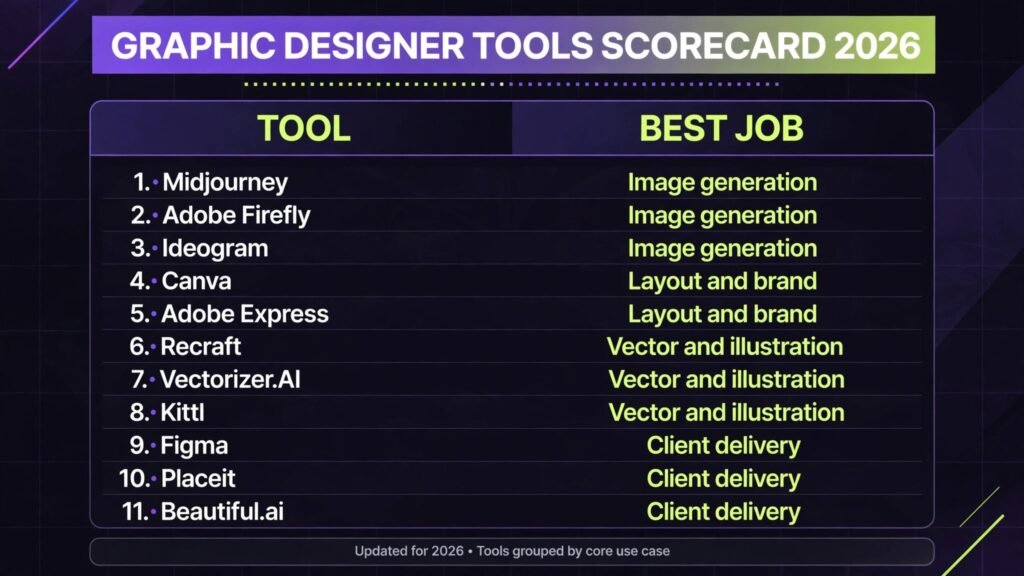
The 11 best AI tools for graphic designers at a glance
| Tool | Best job | Free option | Paid model |
|---|---|---|---|
| Midjourney | Image generation | None | Subscription, check checkout |
| Adobe Firefly | Image generation | Free tier | Subscription, check checkout |
| Ideogram | Image generation | Free tier | Subscription, check checkout |
| Canva | Layout and brand | Free tier | Subscription, check checkout |
| Adobe Express | Layout and brand | Free tier | Subscription, check checkout |
| Recraft | Vector and illustration | Free tier | Subscription, check checkout |
| Vectorizer.AI | Vector and illustration | Free trial | Subscription, check checkout |
| Kittl | Vector and illustration | Free tier | Subscription, check checkout |
| Figma | Client delivery | Free tier | Subscription, check checkout |
| Placeit | Client delivery | Limited free templates | Subscription, check checkout |
| Beautiful.ai | Client delivery | Free trial | Subscription, check checkout |
Start here: the right pick for each designer job
| Your job this week | Start with | Why |
|---|---|---|
| You need original imagery fast | Midjourney or Adobe Firefly | Strongest image quality, with Firefly safer for commercial client work |
| You need text inside the image | Ideogram | The most reliable text rendering of the three image tools here |
| You need a full brand kit quickly | Canva | Templates plus logo and social sizes in one place |
| You need editable vector art | Recraft or Kittl | Output stays editable instead of flattening into a picture |
| You need to present and hand off | Figma | Clients comment in place, and developers get specs from the same file |
| You need mockups for a pitch | Placeit | Realistic product and apparel mockups without a photo shoot |
Image generation: where ideas start, and where they stall
1. Midjourney
Midjourney remains the strongest tool in this guide for pure image quality, especially for mood, texture, and atmosphere. A poster background, a book cover concept, or a campaign key visual comes out with a richness that most rivals still chase. Its community gallery is also a practical research tool: you can see how other designers phrased prompts for a similar look before spending your own generation credits.
Pricing: subscription only, no free tier. Check checkout for current plans, which are billed by usage tier.
Best for: concept art, campaign visuals, mood boards, and editorial illustration where atmosphere matters more than exact text.
Watch out for: text rendering is still unreliable, and output is raster, not vector, so a logo made here still needs redrawing in a vector tool. Commercial use terms depend on your plan, so read them before using output for a paying client.
Try it at: https://www.midjourney.com
For a fuller comparison of image generators, see our Midjourney alternatives guide.
2. Adobe Firefly
Firefly is the image generator to reach for when the work is going to a real client with a real legal team. Adobe trained it on licensed and public domain content, which removes the largest worry that comes with using AI imagery commercially. It also sits inside Photoshop, Illustrator, and Express, so generated art can move straight into an editable layout instead of living as a separate download.
Pricing: free tier with limited monthly generations, paid plans for higher volume. Check checkout for current limits.
Best for: commercial client work, stock style imagery, and designers already inside the Adobe workflow.
Watch out for: image quality is very good but sometimes less distinctive than Midjourney for unusual styles, and the free tier runs out quickly on a busy week.
Try it at: https://firefly.adobe.com
3. Ideogram
Ideogram earns its place for one specific reason: it renders text inside images far more reliably than its rivals. Posters, social graphics, packaging mockups, and book covers all need words that are spelled correctly and placed sensibly, and Ideogram gets that right far more often. That single strength saves the tedious cycle of generating, checking, fixing in Photoshop, and generating again.
Pricing: free tier with daily limits, paid plans for higher volume. Check checkout for current limits.
Best for: posters, social graphics, logos with wordmarks, and any image where the text is part of the design.
Watch out for: overall image style can feel flatter than Midjourney, and fine detail at small sizes still needs checking before delivery.
Try it at: https://ideogram.ai
Layout and brand: from a blank page to a usable kit
4. Canva
Canva is the layout tool most non-designer clients already know, which is itself a selling point. A designer can build a brand kit, a set of social templates, and a presentation deck, then hand the client templates they can actually edit without breaking the layout. The AI features cover background removal, image generation, and text suggestions, but the real value is speed: a full social kit in an afternoon instead of a week.
Pricing: free tier with a large template library, Pro subscription for brand kits, background removal, and premium assets. Check checkout for current pricing.
Best for: social kits, presentations, small business branding, and client editable templates.
Watch out for: print work needs care, since colour profiles and bleed settings are easier to get wrong here than in a dedicated print tool, and heavy template reliance can make different clients look alike if you do not customise.
Try it at: https://www.canva.com
5. Adobe Express
Adobe Express is Adobe’s answer to Canva, and it makes most sense for designers already paying for Creative Cloud. Templates, stock photos, and Firefly generation sit in one place, and files move into Photoshop or Illustrator when a job outgrows a template. Brand controls are stronger than they first appear, with locked fonts, colours, and logos that stop a client from drifting off brand.
Pricing: free tier, premium plan for full brand controls and premium assets. Check checkout for current pricing.
Best for: Adobe users, quick social and marketing assets, and teams that need brand controls on shared templates.
Watch out for: the template library is smaller than Canva’s, and advanced layout control still means opening the file in a full desktop app.
Try it at: https://www.adobe.com/express
Vector and illustration: art that stays editable
6. Recraft
Recraft is built around vector output, which is the feature that matters most in this section. Most AI image tools hand you a flat picture; Recraft hands you shapes you can still move, recolour, and resize without losing quality. It also handles style control well, letting you keep a consistent look across a set of illustrations instead of rolling the dice on every generation.
Pricing: free tier with daily credits, paid plans for higher volume and commercial use. Check checkout for current limits.
Best for: icons, illustrations, patterns, and any artwork that must scale from a favicon to a billboard.
Watch out for: complex scenes still come out simpler than raster generators, and exported files sometimes need tidying in Illustrator before they are print ready.
Try it at: https://www.recraft.ai
7. Vectorizer.AI
Vectorizer.AI does one job and does it well: it turns raster images into clean vector files. A client sends a low resolution logo, a scanned sketch, or a photo of signage, and this tool converts it into shapes that can be resized and edited. For designers who regularly rescue bad source files, that single function pays for itself in saved redrawing time.
Pricing: free trial with limited conversions, paid plans for higher volume. Check checkout for current pricing.
Best for: logo cleanup, tracing sketches, and converting client supplied artwork into usable files.
Watch out for: fine detail and gradients can come out simplified, so always compare the vector against the original at full size before delivering.
Try it at: https://vectorizer.ai
8. Kittl
Kittl combines text effects, illustration, and mockups in a browser tool aimed squarely at print on demand, apparel, and poster designers. Vintage text effects, badge layouts, and distressed textures that would take an hour in Illustrator are a few clicks here, and the mockup step means you can show a client the design on a shirt or poster immediately.
Pricing: free tier with limited features, paid plans for full commercial use and premium assets. Check checkout for current pricing.
Best for: apparel graphics, posters, badges, and print on demand design.
Watch out for: the style library leans heavily toward vintage and retro looks, so modern minimalist work may need a different tool, and export settings for print should be checked on every job.
Try it at: https://www.kittl.com
Client delivery: presenting work so it gets approved
9. Figma
Figma is where design work gets approved, because it is where clients can comment directly on the work instead of replying to a PDF with vague notes. A designer can present a full brand system, a website layout, or a social kit, and the client clicks the exact element they want changed. Developers get measurements, colours, and assets from the same file, which removes the usual handoff document entirely.
Pricing: free tier for small teams, paid plans for larger teams and advanced features. Check checkout for current pricing.
Best for: client presentations, design systems, website layouts, and developer handoff.
Watch out for: Figma is a layout and prototyping tool, not an image generator, so it pairs with the tools above rather than replacing them, and very large files can slow down on older machines.
Try it at: https://www.figma.com
For a fuller comparison of design platforms, see our Figma alternatives guide.

10. Placeit
Placeit is the fastest way to show a client what a design looks like in the real world. Logos on business cards, artwork on apparel, app screens on phones, all rendered in realistic photos without booking a photographer. For a pitch, that context often matters more than the design itself, because clients approve what they can picture using.
Pricing: limited free templates, subscription for full access. Check checkout for current pricing.
Best for: pitch mockups, apparel and product presentations, and social previews.
Watch out for: mockups are templates, so two designers can end up presenting the same scene, and print colour accuracy should never be judged from a mockup alone.
Try it at: https://placeit.net
11. Beautiful.ai
Beautiful.ai builds presentation decks that stay on brand without manual formatting. Pick a layout, add content, and the tool adjusts spacing, alignment, and colour automatically as you edit. For designers who present strategy, brand guidelines, or campaign results to clients, that removes the most boring part of deck building and keeps the focus on the argument.
Pricing: free trial, paid plans for full features and team use. Check checkout for current pricing.
Best for: client presentations, brand guideline decks, and pitch decks that need to look consistent slide after slide.
Watch out for: layout automation also limits creative freedom, so highly custom decks still belong in a full design tool, and exported files should be checked in PowerPoint or Google Slides before sending.
Try it at: https://beautiful.ai
Pricing compared: what a designer actually pays in 2026
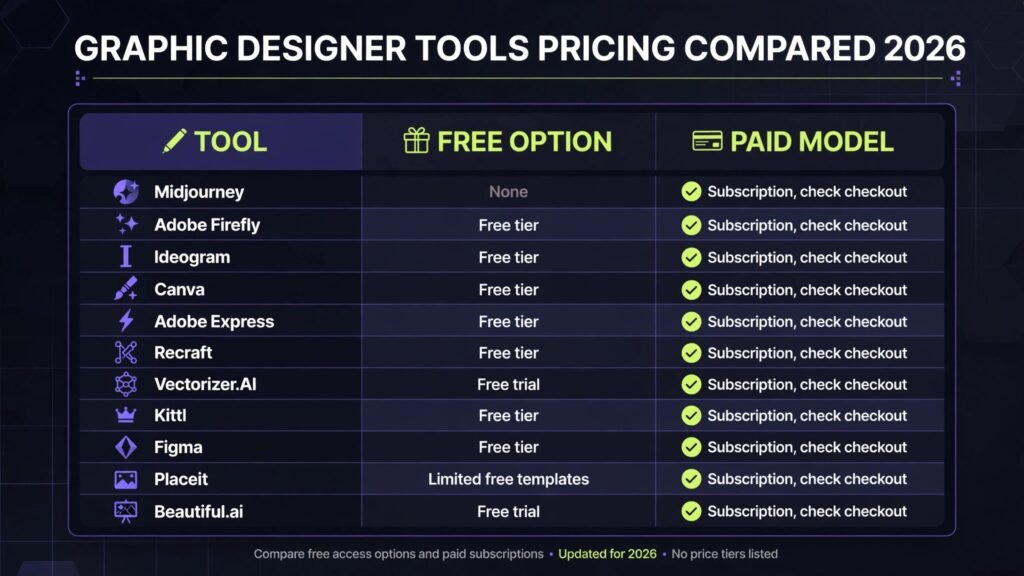
| Tool | Free option | Paid model |
|---|---|---|
| Midjourney | None | Subscription, check checkout |
| Adobe Firefly | Free tier | Subscription, check checkout |
| Ideogram | Free tier | Subscription, check checkout |
| Canva | Free tier | Subscription, check checkout |
| Adobe Express | Free tier | Subscription, check checkout |
| Recraft | Free tier | Subscription, check checkout |
| Vectorizer.AI | Free trial | Subscription, check checkout |
| Kittl | Free tier | Subscription, check checkout |
| Figma | Free tier | Subscription, check checkout |
| Placeit | Limited free templates | Subscription, check checkout |
| Beautiful.ai | Free trial | Subscription, check checkout |
The pattern worth noting: almost every tool here is subscription based, so the real cost is the stack, not any single tool. A designer using Midjourney, Canva, and Figma together pays three subscriptions before a single client invoice is sent. Audit the stack quarterly, drop tools that duplicate each other, and keep one tool per job. That discipline saves more money than chasing discounts.
How to Choose without buying three tools that do the same thing
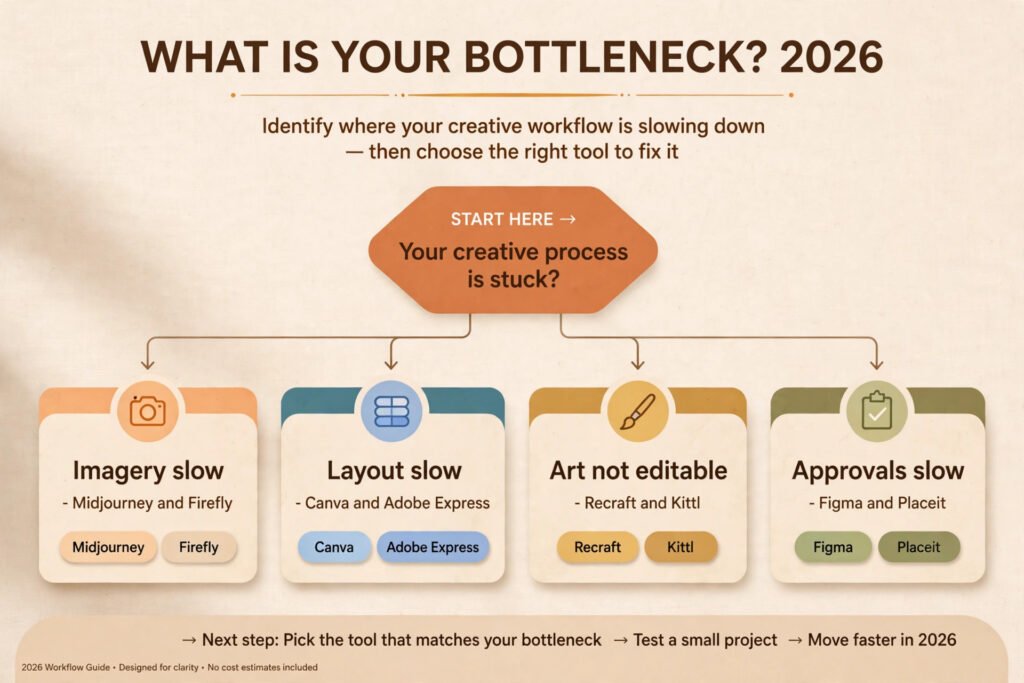
Start with the bottleneck, not the demo. If your slowest step is generating imagery, pick one image tool and learn its prompting properly before adding a second. If your slowest step is client revisions, Figma will save more time than any generator. If your slowest step is print ready files, vector tools matter more than templates.
Then run three checks before paying. First, the edit test: can you change the output after generation, or is it frozen as a picture? Second, the brand test: can you lock fonts, colours, and logos so a client cannot drift off brand? Third, the export test: does the file open cleanly in the tool your printer or developer actually uses? A tool that fails any of these three will cost more time than it saves, however impressive its demo looks.
Finally, check commercial use terms before using any AI output for a paying client. Terms differ by tool and by plan, and a client project is the wrong place to discover a restriction. When in doubt, use Firefly or a tool with clearly licensed training data for commercial work, and keep a note of which tool produced each asset in the project file.
Mistakes to avoid when AI enters a design workflow
The most common mistake is delivering AI output without checking it at full size. Text errors, extra fingers on illustration hands, and warped logos only show up at 100 percent zoom, and clients notice them immediately. Build a full size check into every delivery, even on a rush job.
The second mistake is letting templates flatten your work. Canva, Express, and Kittl all make it easy to produce something good looking quickly, and that ease is the trap. If three clients get the same layout with different colours, your portfolio starts to look like a template catalogue. Customise the layout, the type pairing, and the colour treatment on every job, even when the starting point is a template.
The third mistake is skipping the vector step. A raster logo or icon looks fine on screen and falls apart in print, on signage, or at large sizes. Any mark that will live beyond a single social post should exist as a vector file, whether it started in Recraft, was traced in Vectorizer.AI, or was redrawn in Illustrator.
The fourth mistake is buying overlapping tools. Image generation, layout, and presentation each deserve one primary tool. A second tool in the same category should only be added when it clearly does a job the first cannot, such as Ideogram for text heavy images alongside Midjourney for atmosphere.
Frequently asked questions
Can I use AI generated images for commercial client work?
Yes, with conditions that vary by tool and plan. Adobe Firefly is the safest choice here because of its licensed training data, while other tools require checking the commercial terms of your specific plan. Keep a record of which tool produced each asset, and confirm terms before a project ships, not after.
Will AI tools replace graphic designers?
No, and the revision loop explains why. Clients do not buy a first image; they buy judgement about brand, audience, and context, plus the ability to revise work through several rounds until it fits. AI tools speed up production, but the decisions about what to make, what to change, and what to reject still belong to the designer.
Which tool is best for logos?
No single tool here produces a finished, trademark ready logo on its own. Ideogram is useful for concepts, Recraft and Kittl produce editable artwork, and the finished mark still needs refining in a vector tool, with trademark checks done separately. Treat AI logos as starting points, not final identities.
Do I need Adobe Creative Cloud to use these tools?
No. Only Firefly, Express, and Illustrator tie closely to Adobe, and Firefly and Express both have free tiers that work standalone. Canva, Figma, Recraft, Kittl, and the rest of this list work in a browser without an Adobe subscription, so a designer can build a full workflow without Creative Cloud.
How do I keep AI work looking original?
Start from a client brief, not a trending prompt. Define the palette, type pairing, and reference images before generating anything, then edit the output substantially: recolour, recompose, combine elements, and redraw key shapes. Work that goes through that process reads as designed, while work posted straight from a generator reads as generated.
What file formats should I deliver to clients?
Deliver what the client can actually use: editable source files where agreed, plus print ready PDFs with bleed for print, PNG files for digital use, and SVG files for logos and icons. Confirm the format list before starting, because a beautiful design in the wrong format is a revision waiting to happen.
Conclusion: buy the bottleneck, not the demo
The best AI tools for graphic designers in 2026 are the ones that shorten your slowest step and survive the revision loop. For most designers, that means one strong image generator, one layout tool with brand controls, one vector tool that keeps art editable, and Figma for presentation and handoff. Start there, test each tool on a real client job before committing to a yearly plan, and add a second tool in any category only when it clearly does a job the first cannot. The demo will always look impressive. The bottleneck is what you actually pay for, in time and in subscriptions, so let it decide.