Tableau gives you polish, Power BI gives you Microsoft integration, and a chat based analyst gives you speed. The question is not which tool is best in general, but which trade off fits your team. The best AI data visualization tools in this guide range from full dashboards to publishable charts and AI analysts that answer questions from a spreadsheet. This guide compares 15 options by job, with a glance table and a best pick for each job, so you can choose on data size, audience, and how much analysis skill your team already has.
Who this guide helps, and how we compared the tools
This guide is written for a working seller, maker, analyst or marketer who needs a decision, not a catalogue. We grouped each tool by the job it does best, because a keyword tool and a listing audit tool solve different problems even when they sit in the same subscription. For each tool we note what it does, who it suits best, and what to watch out for. Pricing changes often in this market, so we do not quote a price that may be out of date by the time you read this. Check the vendor checkout page for current plans, trials and limits, and judge a tool on a real task from your own work, not on a demo dataset. A short trial with your own listings, models or data will tell you more than any feature list.
If you are new to this category, start with one tool and one job. Learn its workflow, measure one result, and only then add a second tool. Buying three tools at once usually leads to three half used subscriptions and no clear winner. The sections below follow that logic: a glance table first, then grouped reviews, then a best pick table, then a practical workflow, then how to choose, common mistakes, and answers to the questions buyers ask most often.

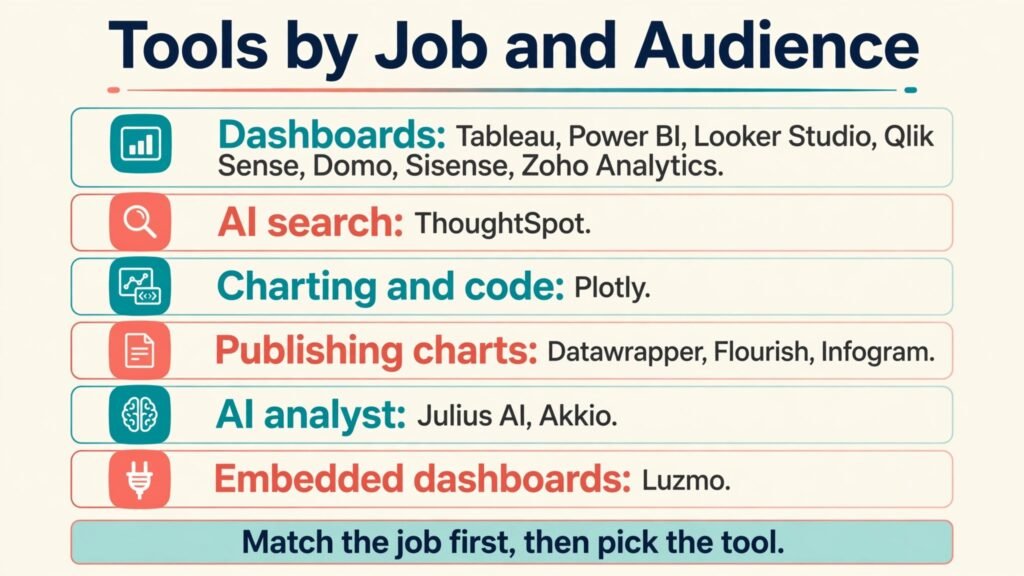
The best AI data visualization tools at a glance: every tool, its job, and who it suits
| Tool | Main job | Best for |
|---|---|---|
| Tableau | Dashboards | Analysts and teams who need presentation quality dashboards. |
| Microsoft Power BI | Dashboards | Microsoft centred teams that want dashboards tied to Excel, SharePoint and Teams. |
| Google Looker Studio | Dashboards | Small teams and freelancers who need shareable reports without a large budget. |
| ThoughtSpot | AI search analytics | Teams where managers and sales staff need answers without waiting for an analyst. |
| Qlik Sense | Dashboards | Analysts who explore freely and need to see how selections affect every chart. |
| Domo | Dashboards | Larger teams that want connectors, dashboards and alerts in one place. |
| Sisense | Dashboards | Product teams embedding dashboards for customers or partners. |
| Zoho Analytics | Dashboards | Small businesses already using Zoho apps or needing affordable BI. |
| Plotly | Charting and code | Data teams who build custom charts inside Python apps and notebooks. |
| Datawrapper | Publishing charts | Writers, journalists and marketers publishing charts for a public audience. |
| Flourish | Publishing charts | Storytellers who need animated charts for presentations and articles. |
| Infogram | Publishing charts | Marketers and small teams making client ready reports without a designer. |
| Julius AI | AI analyst | Solo analysts and founders who need fast answers from a spreadsheet. |
| Luzmo | Embedded dashboards | SaaS teams adding customer facing analytics to their product. |
| Akkio | AI analyst | Small businesses that want forecasts and lead scoring without hiring analysts. |
Read the glance table as a shortlist, not a ranking. The best tool for a solo seller is rarely the best tool for a team with a large catalogue, and the cheapest tool is rarely the best value if it leaves out the job you need most. Keep your top two or three candidates and test them on the same task before you commit.
Dashboards: tools that do this job well
Tools in this group share one job, but they differ in depth, price stage and learning curve. Use the notes below to see which one matches how you work day to day, and pay close attention to the watch out note for each tool, because that note is often the reason a tool is returned or left unused after a month.
1. Tableau
What it does: Tableau Tableau builds polished interactive dashboards with strong visual controls and a large community of chart examples. In practice, that means you spend less time guessing and more time acting on a short, ranked list of next steps for a listing, a model, a dashboard or a test.
Best for: Analysts and teams who need presentation quality dashboards.
Watch out for: Its depth can slow a simple report, so use it where polish and interactivity matter.
Pricing note: Check the vendor checkout page for current plans and limits before you buy, because plans, trials and add on pricing change through the year.
2. Microsoft Power BI
What it does: Microsoft Power BI Power BI combines AI assisted charting with Microsoft 365 integration, which suits teams already working in Excel and Teams. In practice, that means you spend less time guessing and more time acting on a short, ranked list of next steps for a listing, a model, a dashboard or a test.
Best for: Microsoft centred teams that want dashboards tied to Excel, SharePoint and Teams.
Watch out for: Licensing and workspace setup need planning, so map who views, edits and publishes before you scale.
Pricing note: Check the vendor checkout page for current plans and limits before you buy, because plans, trials and add on pricing change through the year.
3. Google Looker Studio
What it does: Google Looker Studio Looker Studio builds free shareable dashboards from Google Analytics, Sheets and other sources with simple collaboration. In practice, that means you spend less time guessing and more time acting on a short, ranked list of next steps for a listing, a model, a dashboard or a test.
Best for: Small teams and freelancers who need shareable reports without a large budget.
Watch out for: It is lighter than enterprise BI, so very large or complex models may need a stronger platform.
Pricing note: Check the vendor checkout page for current plans and limits before you buy, because plans, trials and add on pricing change through the year.
4. Qlik Sense
What it does: Qlik Sense Qlik Sense offers associative analytics and AI assisted insight generation for teams exploring data from many angles. In practice, that means you spend less time guessing and more time acting on a short, ranked list of next steps for a listing, a model, a dashboard or a test.
Best for: Analysts who explore freely and need to see how selections affect every chart.
Watch out for: Its associative model takes time to learn, so plan onboarding for new dashboard builders.
Pricing note: Check the vendor checkout page for current plans and limits before you buy, because plans, trials and add on pricing change through the year.
5. Domo
What it does: Domo Domo brings data connectors, dashboards and AI summaries into one business platform for larger teams. In practice, that means you spend less time guessing and more time acting on a short, ranked list of next steps for a listing, a model, a dashboard or a test.
Best for: Larger teams that want connectors, dashboards and alerts in one place.
Watch out for: Breadth can mean higher cost and setup, so scope your first use case tightly.
Pricing note: Check the vendor checkout page for current plans and limits before you buy, because plans, trials and add on pricing change through the year.
6. Sisense
What it does: Sisense Sisense embeds analytics into products and internal tools, with AI features that help teams build and explain dashboards. In practice, that means you spend less time guessing and more time acting on a short, ranked list of next steps for a listing, a model, a dashboard or a test.
Best for: Product teams embedding dashboards for customers or partners.
Watch out for: Embedded projects need design and data governance work, so do not treat embedding as a one click job.
Pricing note: Check the vendor checkout page for current plans and limits before you buy, because plans, trials and add on pricing change through the year.
7. Zoho Analytics
What it does: Zoho Analytics Zoho Analytics offers AI assisted charting, dashboards and forecasting at a price point that suits small and mid sized businesses. In practice, that means you spend less time guessing and more time acting on a short, ranked list of next steps for a listing, a model, a dashboard or a test.
Best for: Small businesses already using Zoho apps or needing affordable BI.
Watch out for: Its ecosystem works best inside Zoho, so check connectors for tools outside that suite.
Pricing note: Check the vendor checkout page for current plans and limits before you buy, because plans, trials and add on pricing change through the year.
AI search analytics: tools that do this job well
Tools in this group share one job, but they differ in depth, price stage and learning curve. Use the notes below to see which one matches how you work day to day, and pay close attention to the watch out note for each tool, because that note is often the reason a tool is returned or left unused after a month.
8. ThoughtSpot
What it does: ThoughtSpot ThoughtSpot lets users ask questions in plain language and get charts and answers, which lowers the barrier for non analysts. In practice, that means you spend less time guessing and more time acting on a short, ranked list of next steps for a listing, a model, a dashboard or a test.
Best for: Teams where managers and sales staff need answers without waiting for an analyst.
Watch out for: Plain language answers still need data checks, so verify a surprising result against the source data.
Pricing note: Check the vendor checkout page for current plans and limits before you buy, because plans, trials and add on pricing change through the year.
Charting and code: tools that do this job well
Tools in this group share one job, but they differ in depth, price stage and learning curve. Use the notes below to see which one matches how you work day to day, and pay close attention to the watch out note for each tool, because that note is often the reason a tool is returned or left unused after a month.
9. Plotly
What it does: Plotly Plotly builds interactive charts in Python and web apps, with AI assisted chart creation for analysts who work in code. In practice, that means you spend less time guessing and more time acting on a short, ranked list of next steps for a listing, a model, a dashboard or a test.
Best for: Data teams who build custom charts inside Python apps and notebooks.
Watch out for: Code based charting needs developer time, so it is not the fastest route for a one off report.
Pricing note: Check the vendor checkout page for current plans and limits before you buy, because plans, trials and add on pricing change through the year.
Publishing charts: tools that do this job well
Tools in this group share one job, but they differ in depth, price stage and learning curve. Use the notes below to see which one matches how you work day to day, and pay close attention to the watch out note for each tool, because that note is often the reason a tool is returned or left unused after a month.
10. Datawrapper
What it does: Datawrapper Datawrapper makes clean publishable charts and maps for newsrooms, blogs and reports, with a focus on readable design. In practice, that means you spend less time guessing and more time acting on a short, ranked list of next steps for a listing, a model, a dashboard or a test.
Best for: Writers, journalists and marketers publishing charts for a public audience.
Watch out for: It is built for publishing, not deep BI, so use a BI tool when you need live multi source dashboards.
Pricing note: Check the vendor checkout page for current plans and limits before you buy, because plans, trials and add on pricing change through the year.
11. Flourish
What it does: Flourish Flourish creates animated and interactive stories from data, which helps teams explain change over time in a memorable way. In practice, that means you spend less time guessing and more time acting on a short, ranked list of next steps for a listing, a model, a dashboard or a test.
Best for: Storytellers who need animated charts for presentations and articles.
Watch out for: Animation should serve the point, so keep motion simple when the data itself is the story.
Pricing note: Check the vendor checkout page for current plans and limits before you buy, because plans, trials and add on pricing change through the year.
12. Infogram
What it does: Infogram Infogram offers templates for infographics, charts and reports that non designers can customise quickly. In practice, that means you spend less time guessing and more time acting on a short, ranked list of next steps for a listing, a model, a dashboard or a test.
Best for: Marketers and small teams making client ready reports without a designer.
Watch out for: Templates can make reports look alike, so customise colours, labels and sources for each audience.
Pricing note: Check the vendor checkout page for current plans and limits before you buy, because plans, trials and add on pricing change through the year.
AI analyst: tools that do this job well
Tools in this group share one job, but they differ in depth, price stage and learning curve. Use the notes below to see which one matches how you work day to day, and pay close attention to the watch out note for each tool, because that note is often the reason a tool is returned or left unused after a month.
13. Julius AI
What it does: Julius AI Julius AI analyses spreadsheets and data files through chat, producing charts, summaries and analysis from uploaded data. In practice, that means you spend less time guessing and more time acting on a short, ranked list of next steps for a listing, a model, a dashboard or a test.
Best for: Solo analysts and founders who need fast answers from a spreadsheet.
Watch out for: Chat analysis needs clean data, so check column names and totals before you trust a chart.
Pricing note: Check the vendor checkout page for current plans and limits before you buy, because plans, trials and add on pricing change through the year.
14. Akkio
What it does: Akkio Akkio builds no code AI models, forecasts and dashboards from business data, aimed at teams without a data science team. In practice, that means you spend less time guessing and more time acting on a short, ranked list of next steps for a listing, a model, a dashboard or a test.
Best for: Small businesses that want forecasts and lead scoring without hiring analysts.
Watch out for: No code models still need clean inputs and a reality check, so validate a forecast against recent actuals.
Pricing note: Check the vendor checkout page for current plans and limits before you buy, because plans, trials and add on pricing change through the year.
Embedded dashboards: tools that do this job well
Tools in this group share one job, but they differ in depth, price stage and learning curve. Use the notes below to see which one matches how you work day to day, and pay close attention to the watch out note for each tool, because that note is often the reason a tool is returned or left unused after a month.
15. Luzmo
What it does: Luzmo Luzmo focuses on embedded dashboards for SaaS products, with AI features that help customers explore their own data. In practice, that means you spend less time guessing and more time acting on a short, ranked list of next steps for a listing, a model, a dashboard or a test.
Best for: SaaS teams adding customer facing analytics to their product.
Watch out for: Customer facing analytics need careful permission and performance work, so test with real customer data volumes.
Pricing note: Check the vendor checkout page for current plans and limits before you buy, because plans, trials and add on pricing change through the year.
Best pick by job: start here if you are short on time
| Job | Best pick | Why it wins for that job |
|---|---|---|
| Dashboards | Tableau | Analysts and teams who need presentation quality dashboards. |
| AI search analytics | ThoughtSpot | Teams where managers and sales staff need answers without waiting for an analyst. |
| Charting and code | Plotly | Data teams who build custom charts inside Python apps and notebooks. |
| Publishing charts | Datawrapper | Writers, journalists and marketers publishing charts for a public audience. |
| AI analyst | Julius AI | Solo analysts and founders who need fast answers from a spreadsheet. |
| Embedded dashboards | Luzmo | SaaS teams adding customer facing analytics to their product. |
If you only buy one tool, buy the best pick for your main job, not the most popular tool overall. Popularity reflects marketing and market size as much as fit, and a tool built for large teams can slow a solo seller down. If you already own a tool in one group, your next buy should fill a different job, not duplicate the first one. That rule alone saves many sellers from paying twice for the same keyword data.
If this guide covers only part of your workflow, these related guides can fill the gaps. See data analysis tools, research tools, product manager tools, course creator tools for adjacent tools and workflows that use similar skills, so you can build a full stack without buying overlapping subscriptions. Read them after you have shortlisted a tool here, because they are most useful once you know which job you still need to cover.
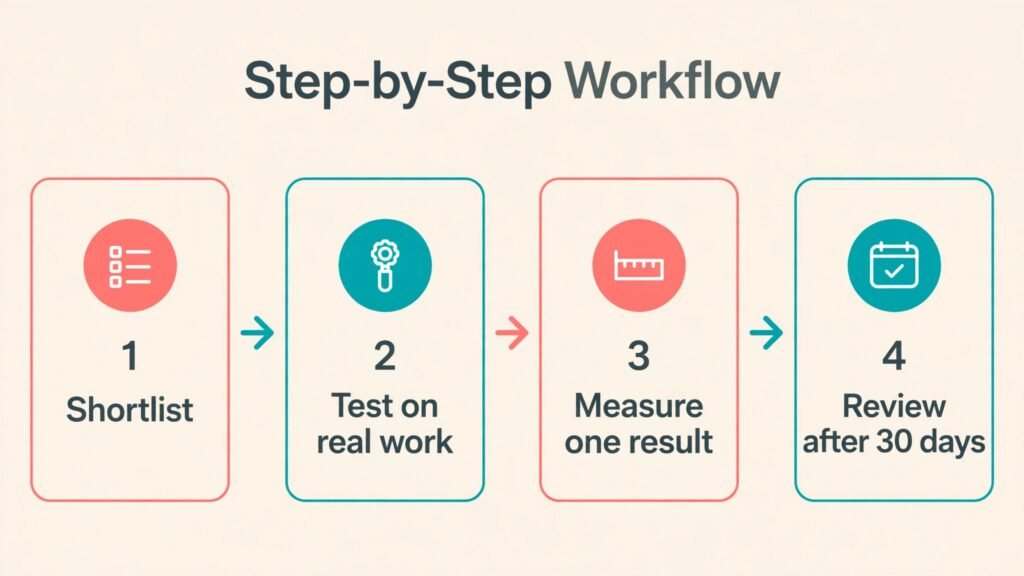
A practical workflow you can run this week
Start with a single, measurable goal. For a seller that goal might be more search views on five listings. For a maker it might be one successful print with fewer supports. For an analyst it might be one dashboard a manager actually opens each week. For a tester it might be one experiment with a clear primary metric. Write the goal down, because a vague goal like get better results makes every tool look good and no tool look accountable.
Next, run your shortlist on the same item. Use the same listing, model, dataset or page for each candidate, and record time taken, output quality and the decision each tool changed. Then pick the tool that changed a decision, not the tool with the longest feature list. Finally, set a review date after 30 days. Check usage, results and cost together. If usage is low, the problem is usually workflow fit, not a missing feature, and a simpler tool may serve you better than a larger one.
Keep your data clean as you go. Rename files clearly, save the version that worked, and note the settings that produced it. This habit matters in every category here, because a good result you cannot repeat is not a workflow, it is luck. A short log of what you tried, what worked and what failed will also make your next tool trial much faster.
How to choose without overbuying
Match the tool to your main job. List the three tasks you do most often, then buy the tool that does the first task best. A tool that is average at five tasks rarely beats a tool that is excellent at the one task that earns your income. If two tools tie on that task, choose the one with the simpler daily workflow.
Check data quality, not just feature count. Ask where the data comes from, how often it updates, and whether it covers your marketplace, printer, data source or traffic level. A beautiful dashboard built on stale data is worse than a plain report built on fresh data, because it gives you confidence in the wrong direction.
Test with your own work, not a demo. Demos use clean data and ideal cases. Your listings, models, datasets and pages are messier, and that mess is where a tool earns its price. Run a trial on real work, involve the person who will use the tool daily, and ask support one real question during the trial to gauge response quality.
Count total cost, including time. A low monthly price can still be expensive if it needs hours of setup, training or manual export each week. Add setup time, learning time and any add on you will actually need, then compare that total with the result you expect. If the result is unclear, start with the simpler tool and upgrade only when you hit a clear limit.
Plan for growth and exit. Check export options, cancellation terms and whether your work stays usable if you leave. A tool that locks your keyword lists, models, dashboards or experiment history inside its own format creates a switching cost that grows every month. Prefer tools that export in common formats and document their limits plainly.
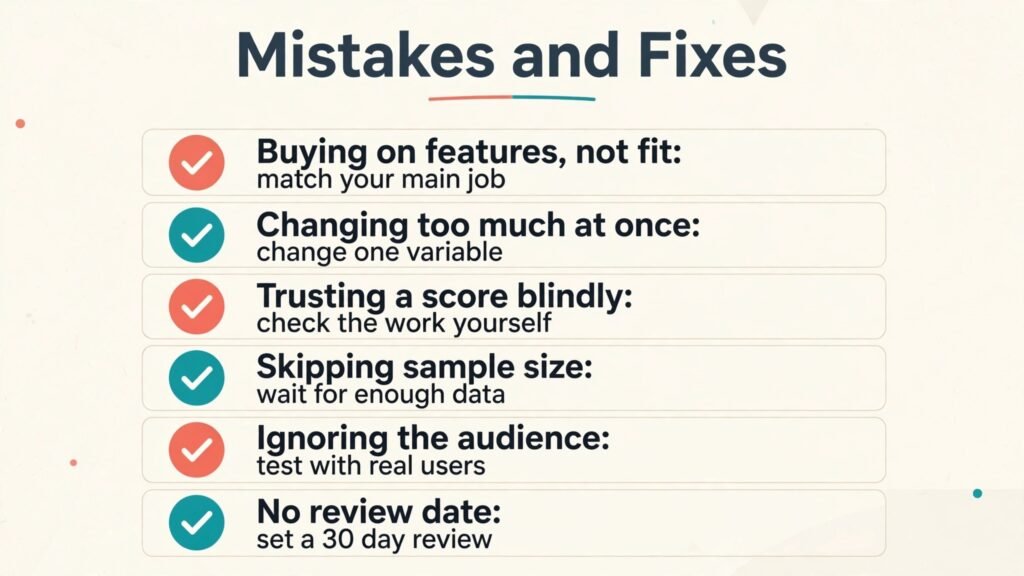
Mistakes to avoid
Mistake 1: Buying on features instead of fit. A long feature list is easy to market and hard to use. Pick for your main job and your daily workflow, and ignore features you will not use in the next 90 days.
Mistake 2: Changing too much at once. If you rewrite a title, swap an image and change tags on the same day, you will never know which change helped. Change one variable, wait for enough data, then decide. This discipline applies to listings, prints, dashboards and tests alike.
Mistake 3: Trusting a score without checking the work. Scores, estimates and AI suggestions are starting points. Open the listing, model, chart or test result yourself and ask whether it makes sense for a real buyer, user or reader. If it does not, trust your check over the score.
Mistake 4: Skipping the sample size question. Small samples produce confident looking but unreliable results. For search, wait for views. For prints, test on a small model. For dashboards, check with real users. For tests, confirm traffic and duration before you call a winner.
Mistake 5: Ignoring the audience. A keyword, chart or test variant that pleases an internal team but confuses a buyer will not perform. Keep the end user in view at every step, and test language, visuals and offers with real people where you can.
Mistake 6: No review date. Tools drift, markets shift and habits change. Without a 30 day review, a tool you outgrew keeps charging you quietly. Put the review in your calendar on the day you subscribe, and treat it as part of the purchase, not an afterthought.
Frequently asked questions
Do I need more than one of the best AI data visualization tools? Usually not at first. Start with the best pick for your main job, measure one result for 30 days, and add a second tool only when you can name the specific job it will cover that the first tool cannot. Two overlapping tools cost more and create conflicting advice.
How long before I see results? It depends on the category. Search changes need views over weeks, print changes show up on the next print, dashboard adoption shows up when managers return to it, and test results need enough traffic to reach a reliable sample. Judge a tool on process quality in week one and on outcomes after a full cycle, not after a single day.
Can a free tool replace a paid tool? Sometimes, for a single job. Free and native tools are strong for basic research, analytics and slicing, but they often lack competitor depth, automation or support. Use free tools to learn the job, then pay when a limit is costing you time or results.
Should I trust AI suggestions without edits? No. AI suggestions are a strong draft, not a finished decision. Edit for relevance, accuracy and audience fit, and keep a human check on anything a buyer, reader or user will see. The best results in this guide come from AI plus a skilled human review, not AI alone.
What if two tools give different answers? That is normal, because data sources, update times and methods differ. Do not average them blindly. Check which source matches your own records, test the conflicting advice on a small scale, and keep the tool whose advice matches real outcomes over time.
How do I avoid paying for tools I stop using? Set a review date, track logins and outcomes monthly, and cancel quickly when usage drops. A tool you use weekly is an asset. A tool you open once a quarter is a subscription looking for a reason, and that reason should be a result, not a feature you might need someday.
Conclusion
The best AI data visualization tools are not about collecting software. They are about removing one bottleneck that is costing you views, time, material or decisions. Pick the tool that fits your main job, test it on real work for a week, and review it after 30 days with honest usage and outcome notes. That simple discipline will do more for your results than any feature list, and it will keep your stack lean as your work grows. Start with one pick from the table above, run the workflow in this guide, and let real results, not marketing, decide whether you keep, upgrade or switch.