
Start with the verdict, because most battery guides waste your time by asking you to change twenty settings before anyone knows what is wrong. If the drain began within a few days of an update, wait for the update work to finish, then check one app, one setting group, and battery health, in that order. That sequence will fix iPhone battery drain after update in most cases, and it will also tell you plainly when the problem is not software at all. A worn battery, a weak signal, or one misbehaving app will not be fixed by turning off every feature on the phone.
This guide works by elimination, not by a long list of tips to try at random. You will run a short checklist that rules out each likely cause, read the Battery screen the way a technician would, and change settings only where the evidence points. Prices mentioned here are ranges reported in October 2026, and you should confirm the exact fee for your model on Apple’s repair page before you book anything.
The Cause-Elimination Checklist That Comes First
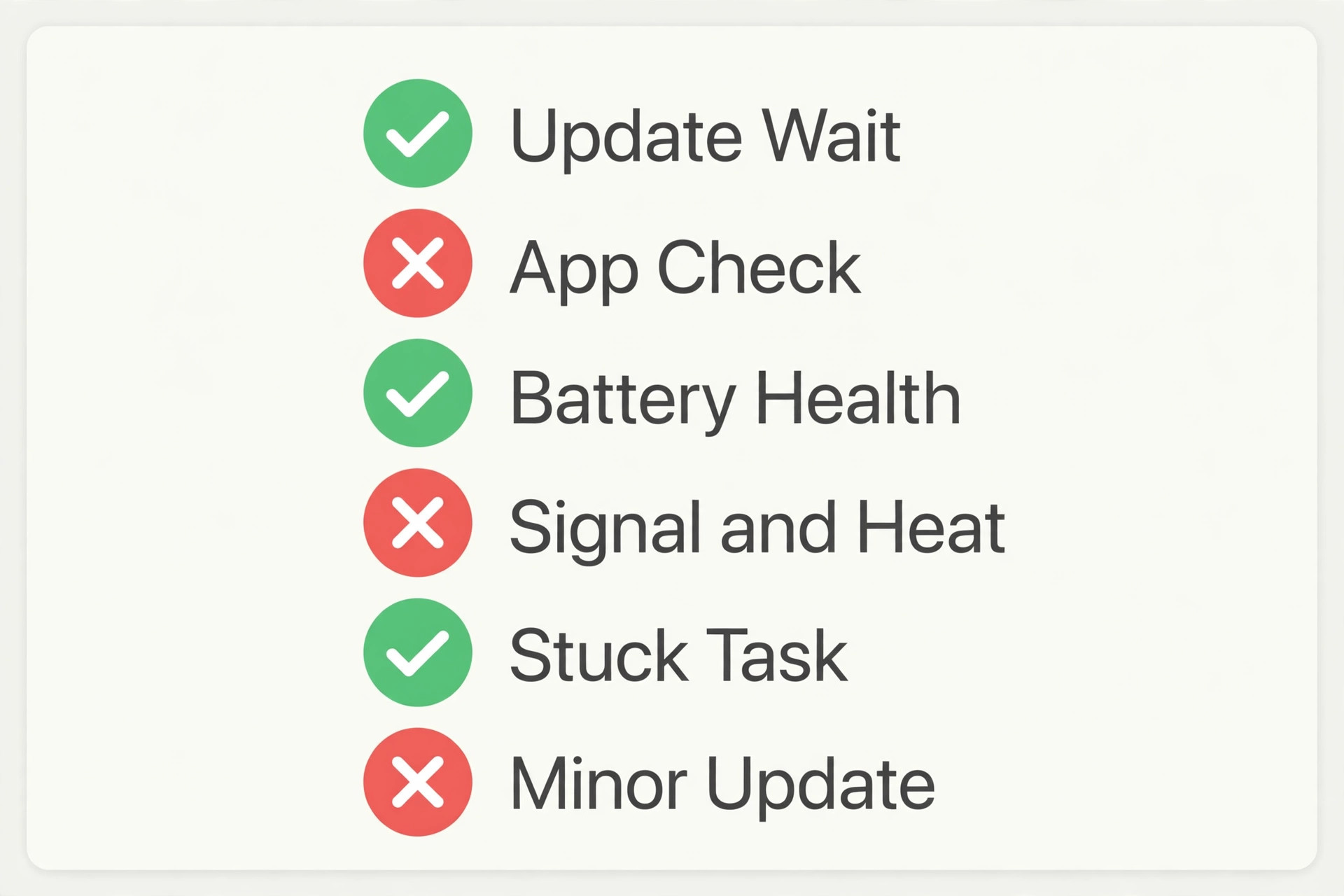
Do these checks in order, and stop as soon as one of them explains the drain. This is the fastest way to fix iPhone battery drain after update without guessing. The point of a checklist is not to complete every item. It is to avoid changing six things at once, seeing an improvement, and never knowing which change helped, which leaves you living with worse notifications and a dimmer screen for no benefit.
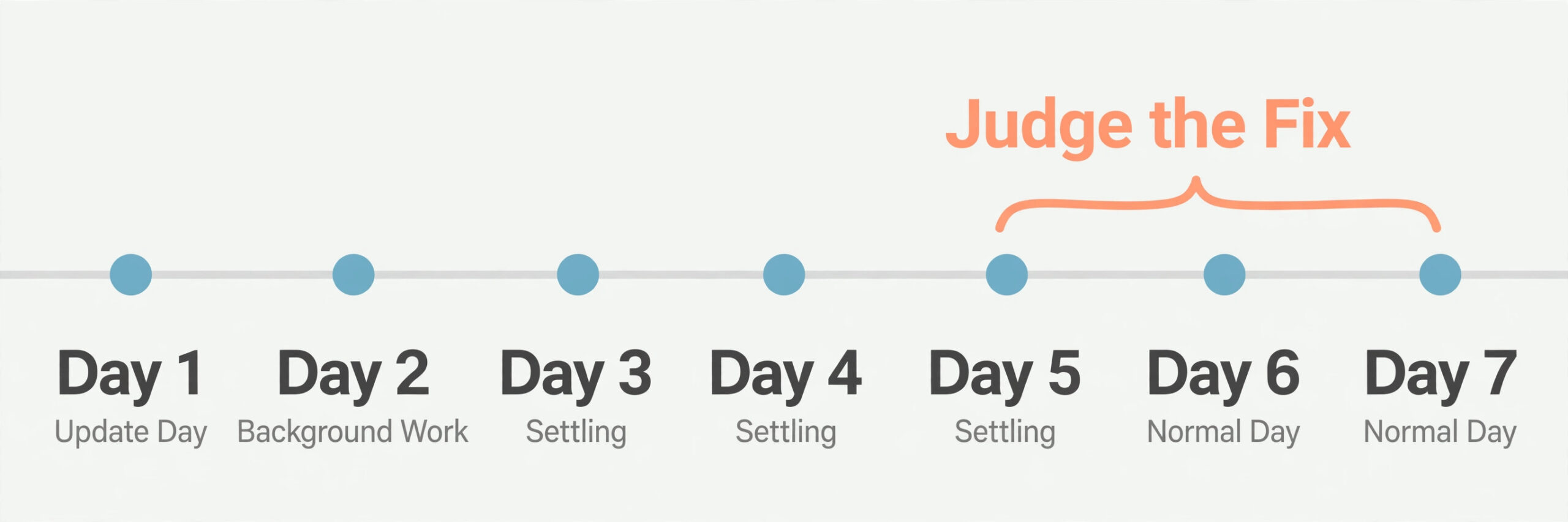
First, check the calendar. If the update finished less than three days ago, and the Battery screen shows an update or setup insight, the honest answer is usually patience plus charging. Indexing photos, rebuilding search data, and finishing app updates all use power, and they do not happen on a schedule you can hurry. Keep the phone on Wi-Fi and on power overnight during that window, and judge battery life only after the insight disappears and you have had two ordinary days of normal use.
Second, open Settings, then Battery, and look at the last 10 days rather than the last 24 hours. A ten day view shows whether the drain started on the update day or whether it was already getting worse before the update arrived. Tap the app at the top of the list. If its background time is far larger than its on screen time, you have a suspect. If no single app stands out, the cause is more likely system wide, which points to display, signal, or battery health rather than one app.
Third, check battery health before you change anything else. Go to Settings, then Battery, then Battery Health. Note the maximum capacity number and any service message. A phone at 96 percent capacity with a new drain problem is a very different case from a phone at 79 percent that has been fading for months. The first case is worth troubleshooting. The second case is a battery at the end of its useful life, and no settings change will give it back the capacity it has lost.
Fourth, check signal and heat together, because they explain drain that looks random. A phone that spends the day hunting for a weak mobile signal, or that stays warm in a pocket or under a thick case while charging, will drain faster even when the screen is off. If the drain is worst on travel days, in one building, or in one rural area, signal is a stronger suspect than software. If the phone is warm when you pick it up and no app is running, heat and background activity deserve attention first.
Fifth, check for a stuck task. A photo library that never finishes syncing, a mail account that keeps failing to connect, or a backup that never completes can keep the phone busy in the background. These are easy to miss because they do not show up as one app using a huge share of battery. They show up as steady, low level drain across the day, plus warmth. Fix the stuck task and the drain often stops the same day.
Sixth, check whether a minor update is already waiting. Go to Settings, then General, then Software Update. A point release that follows a major update often fixes exactly the kind of power bug that sends people searching for battery tips. If an update is available, install it on Wi-Fi and on power, then give the phone another two days before you judge the result, because the new update brings its own short period of background work.
Work through that list once, write down what you found, and only then move to settings changes. That note stops you from rechecking the same screens a week later, and it gives Apple Support a clear history if you need them.
How to Fix iPhone Battery Drain After Update Without Wiping Anything
Wiping the phone is the most suggested and least useful fix for post update drain, and it should be last, not first. A full erase and restore takes hours, risks losing data, and often restores the same misbehaving app and settings that caused the problem. Work through the targeted fixes in this section one at a time.
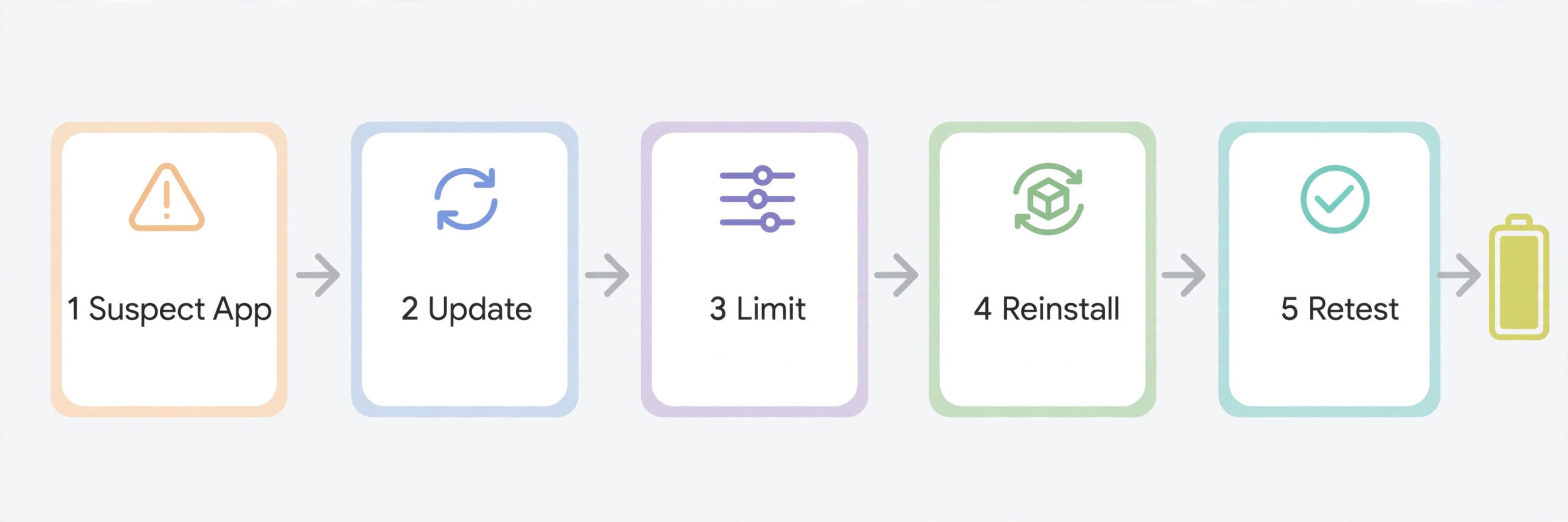
Start with the suspect app, if you found one. Update it from the App Store first, because developers often ship a compatibility fix within days of a major iOS release. If no update is available, turn off Background App Refresh for that app alone, under Settings, then General, then Background App Refresh. If the drain continues, delete and reinstall that app. A reinstall clears corrupted cached data that can survive an update, and it forces a clean login and a clean sync. Only if the app still drains after a reinstall should you consider removing it for a week to prove the case.
Next, use Low Power Mode as a test, not as a permanent crutch. Turn it on for one full day and note whether the drain improves a lot, a little, or not at all. A large improvement tells you the drain is driven by background activity and fetch intervals that Low Power Mode trims, which means the settings in the next section are worth tuning. No improvement at all suggests the drain is driven by signal, heat, a stuck task, or battery health, none of which Low Power Mode can fix.
Then reset settings, not content, if you have changed many things and lost track of what you changed. Go to Settings, then General, then Transfer or Reset iPhone, then Reset, then Reset All Settings. This keeps your photos, apps, and files, but returns network, privacy, location, and display settings to their defaults. It is not useful as a first step, because it also wipes Wi-Fi passwords, and it will not fix a worn battery or a bad app.
A restart is worth doing once, properly, after a change that should matter. Hold the side button and a volume button, slide to power off, wait about thirty seconds, and power the phone back on. If you need to restart every day to keep battery life acceptable, something else is wrong, and daily restarts are hiding it rather than fixing it.
Finally, resist the urge to close apps from the app switcher all day. Apple has said plainly that iOS manages background apps itself, and forcing apps closed can use more power, because reopening an app from scratch costs more than waking it from its suspended state. Close a single app that is visibly stuck, and leave the rest alone.
Read the Battery Screen Like Evidence
The Battery screen is the most useful diagnostic tool on the phone, and most people read only the percentage at the top. That percentage tells you almost nothing about the cause. Reading the screen this way is part of how you fix iPhone battery drain after update with evidence instead of tips. The useful information is further down, in the usage list, in the split between on screen and background time, and in the insights at the top of the screen on newer versions of iOS.
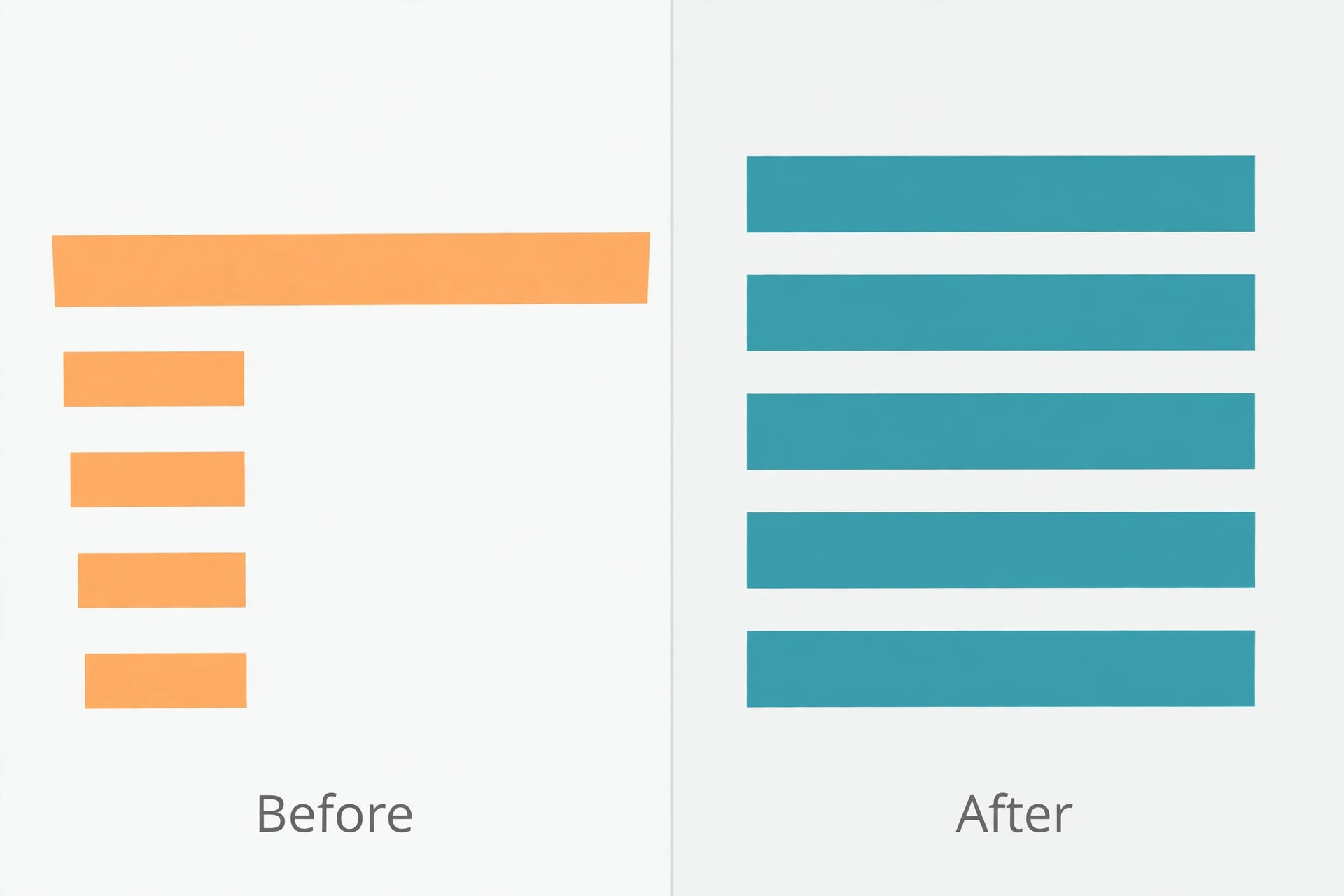
Start with the time range. The 24 hour view is good for spotting what happened today. The 10 day view is good for spotting what changed. A sharp drop in the morning before you have used the phone much points to background activity overnight. A drop that tracks your screen time closely, during video, navigation, or gaming, points to display and processor load rather than a hidden bug.
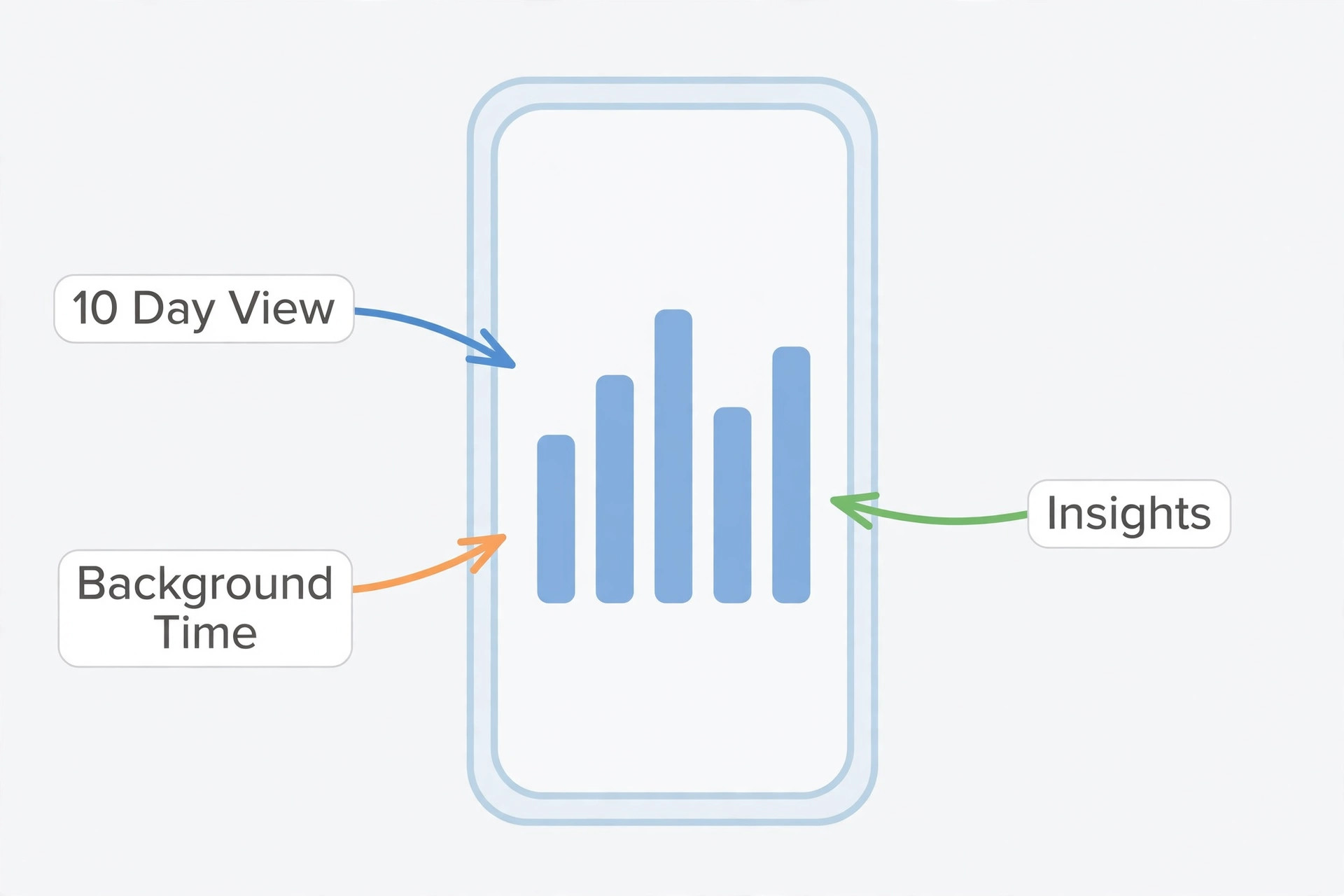
Tap into the top apps and read the detail, not just the percentage. An app at 30 percent sounds alarming until you see that you used it on screen for four hours. An app at 18 percent with only ten minutes of on screen time and two hours of background time is the real suspect. A sharp rise in background time for one app right after an update, with no change in how you use it, is worth acting on.
Pay attention to the insights and suggestions at the top of the Battery screen. On recent iOS versions these can flag an ongoing update, high background activity, or high display brightness. Treat an “Ongoing iOS Update” or “Ongoing Device Setup” insight as a direct instruction to wait. Treat a brightness suggestion as a hint, not an order.
Keep a simple log for three days while you test. Note the starting percentage in the morning, the percentage at midday and at bedtime, the top app, and whether the phone felt warm. A fix that looks good on a quiet Sunday may fail on a busy Monday with a long commute, and the log is what catches that difference.
The Settings Table That Actually Helps
Most battery guides list every setting that can possibly save power, without saying what each one costs. That is why so many people end up with a phone that lasts longer but is less useful. Use this table when you fix iPhone battery drain after update, and change only the rows that match your evidence. Each row names the setting, the change, when it helps, and what you give up.
| Setting | Change to try | Helps most when | Tradeoff to accept |
|---|---|---|---|
| Background App Refresh | Off for suspect apps only, or Wi-Fi only | One app shows high background time | That app updates only when you open it |
| Location Services | While Using the App for most apps, Never for the rest | Apps track location in the background | Some features need location while you use them |
| Display brightness | Auto-Brightness on, manual level lower indoors | Screen is the top battery user by far | Screen is dimmer in bright rooms |
| Auto-Lock | 30 seconds or 1 minute | Phone often sits lit and forgotten | You unlock more often |
| Mail fetch | Fetch every 30 minutes or manually for low priority accounts | Mail checks constantly in the background | New mail arrives later on that account |
| Low Power Mode | On for heavy days, or below 20 percent | You need extra hours on a long day | Background activity and some visual effects pause |
| Adaptive Power | On where your model offers it | Drain varies a lot from day to day | Phone may dim or slow slightly on heavy days |
| Always On Display | Off on models that offer it | Screen stays lit all day on a desk | You lose glanceable time and notifications |
| 5G and mobile data | 5G Auto where available, Wi-Fi where possible | Signal is weak or you move between cells | Peak download speed may drop in some spots |
Two settings deserve special care. The first is mail fetch. An account that fails to connect, or a mailbox with a huge backlog, can keep the phone checking again and again. Switching a problem account to manual fetch, or to a longer interval, is a precise fix. The second is Always On Display. It is a genuine drain on models that offer it, because part of the screen stays lit. Turning it off is a clean win if you do not use it.
After you change a setting, give it a fair test. Judge a display or location change over two full days, and a Background App Refresh change for one app over one full day of normal use. If you change three settings at once and battery life improves, you will not know which one mattered.

When the Update Itself Is the Problem
Sometimes the update really is at fault, and it helps to know what that looks like. A genuine update bug tends to affect many people on the same model and the same version, it tends to appear right after the update with no change in habits, and it tends to show up in forums and support threads with the same symptoms. Check whether others report the same drain on the same version before you assume Apple broke your phone specifically. That check takes five minutes and can save you hours of settings changes that were never going to help.
If a minor update is available, install it. Point releases often carry power and thermal fixes that are not mentioned in the headline features, and they are the fastest official fix for a real bug. Install on Wi-Fi, on power, and with a backup completed first. If no update is available, and the drain is severe, report it through Apple Support with your log, your model, your version, and your battery health number. A report with numbers helps Apple see a pattern if many people report the same thing.
Do not downgrade unless you have a specific, trusted reason and a full backup, and understand the risks. Downgrading iOS is not a normal user setting. It can fail, it can lose data, and Apple stops signing older versions quickly. For most people, the safer path is to wait for the next point release while using Low Power Mode and the targeted settings from the table above.
There is also a subtler update effect worth knowing about. A major update can add features that use more power by design, such as richer lock screen widgets or more frequent photo analysis. That is not a bug. It is more noticeable on older models with smaller batteries and older chips. If your phone is four or five years old, a new version may simply ask more of a battery that already has less to give. Tune the new features you do not use, and judge the battery against its health number, not against how it felt when it was new.
Heat, Signal, and Accessories That Fake a Software Problem
Heat is both a symptom and a cause. A phone that is hot while charging, while navigating in a car, or while running a video call will drain faster and charge slower, because the system protects the battery by limiting power. That protection is working as intended, even though it feels like a fault. Move the phone out of direct sun, take it out of a thick case while charging or navigating, and avoid running demanding apps while the phone is already hot. If the phone cools down and battery life returns to normal, heat was the cause.
Signal is the quietest drain of all, because it leaves no app at the top of the Battery list. A phone in a weak coverage area works harder to hold a connection, and it retries more often. That work shows up as steady drain, sometimes with warmth, and it is worst on trains, in basements, and in rural areas. Compare a day on Wi-Fi at home with a day out and about. If home days are fine and travel days are terrible, signal is the main suspect. Wi-Fi calling, where your carrier supports it, can help a lot, and it costs nothing.
Accessories can fake a software problem too. A cheap or damaged cable, a low output charger, and a battery case that keeps the phone warm can all make battery life look worse than it is. Test with Apple or certified gear you trust, and test without a case for a day. Also check for a swollen battery, a screen lifting from the frame, or a phone that rocks on a flat table. Those are safety signs, not settings problems. Stop using the phone, do not charge it unattended, and contact Apple Support or an authorised service provider promptly.
If drain started when you paired a new accessory, unpair it for a day as a test, since a device that keeps disconnecting and reconnecting can drain power. That test matters when you fix iPhone battery drain after update, because it rules out a cause no settings screen will show.
Battery Health and the Replacement Decision
Battery health is the number that decides whether troubleshooting is still worth your time. Apple designs iPhone batteries to retain about 80 percent of original capacity after a typical number of full charge cycles, with newer models rated for more cycles than older ones. Treat 80 percent as the practical service threshold. Below that point, the phone may shut down under heavy load, throttle performance to protect itself, and show shorter life no matter what settings you change. Above 90 percent, a sudden drain after an update is far more likely to be software, an app, or signal.
Check the health screen for a service message as well as the number. A message that health is significantly degraded, or that the battery needs service, is a clear instruction, even if the number looks borderline. Also watch for unexpected shutdowns, or a phone that drops from 30 percent to dead in minutes. Those behaviours point to a battery that can no longer deliver peak power.
Replacement pricing is where many guides invent numbers, so here is the honest version. Reports in October 2026 put Apple out of warranty battery service in the United States at roughly 69 dollars to 129 dollars depending on the model, with older models at the low end and the newest Pro models at the high end, before tax and any shipping fee. If you have AppleCare+ and capacity has dropped below 80 percent, Apple replaces the battery at no additional charge under that cover. Those figures change, so confirm the price on Apple’s repair page before you book, and read Apple’s battery and performance guidance for how capacity and ageing affect performance.
A third party shop may quote less, but it may also use a non genuine part or affect water resistance.
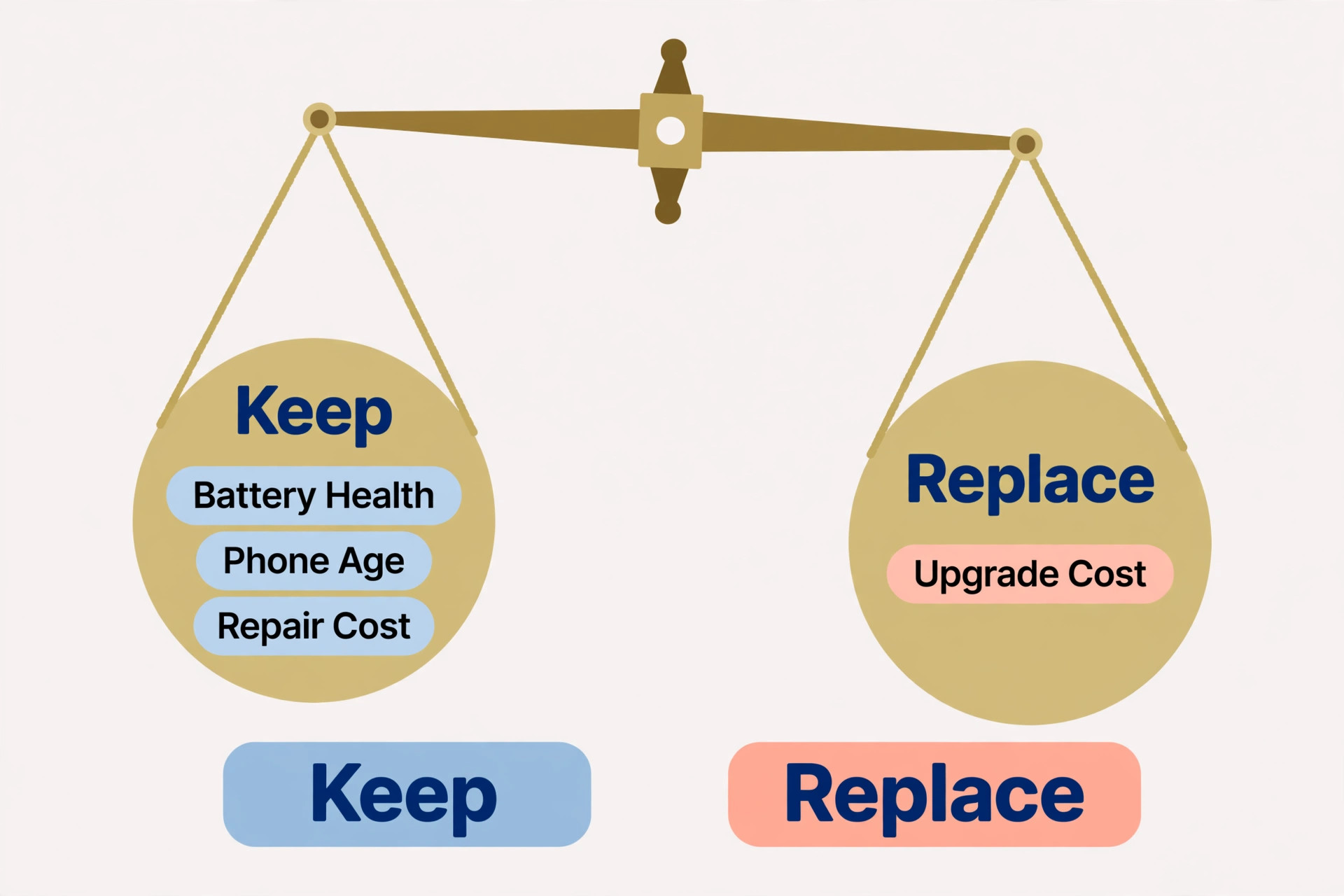
Replace the battery if capacity is below 80 percent, or a service message is present, or shutdowns happen, and the rest of the phone still serves you well. Do not replace the battery if capacity is above 90 percent and the drain started with an update, because the new battery will show the same drain if the cause is software. Consider a new phone only if the battery is worn and the phone also struggles with storage, camera, or software support. For a phone that is otherwise good, a battery replacement is usually far cheaper than an upgrade.
Book service through Apple Support or an authorised provider, back up first, and note your battery health number and your log before you go. If battery life does not improve after a genuine replacement, return with the same log, because that result points back to software, signal, or an app. When you fix iPhone battery drain after update and the battery itself is worn, that comparison is what proves the repair worked.
Mistakes That Make Post Update Drain Worse
The first mistake is changing everything at once. A guide that tells you to turn off ten features in one sitting feels productive, but it leaves you with no way to know what helped, and it often disables features you use every day. Change one thing, test it, and keep only what earns its place. The second mistake is judging too early. A fix tested on the day of an update, or on a day with unusual travel or poor signal, will mislead you. Judge fixes on ordinary days, after update work has finished.
The third mistake is trusting battery percentage as a precise measurement. Percentage is an estimate, and it can drop quickly after a restart, after a cold morning, or after a demanding task, then settle. Judge the trend across a day, not a single drop of ten percent in an hour. The fourth mistake is installing a battery saver app that promises to fix drain. iOS does not allow third party apps to manage system power the way they claim to, and such apps often add their own background activity. Delete them, and rely on the built in Battery screen instead.
The fifth mistake is ignoring heat. Continuing to charge a hot phone in direct sun will shorten battery life and make drain look worse. Let the phone cool and charge it in a cooler spot. The sixth mistake is blaming the update for a battery that was already failing. Check the health number before you blame software, because a battery at 78 percent did not become worn overnight.
How to Choose Your Next Step From the Evidence
Use this short decision guide to pick one next step, not five. If the update finished less than three days ago and an update insight is still visible, wait and charge overnight on Wi-Fi. If one app shows high background time, update it, limit its background refresh, and reinstall it if needed. If no app stands out and the screen dominates usage, tune brightness and Auto-Lock. If drain is worst while travelling or in one building, test Wi-Fi calling and compare a home day with a travel day. If capacity is below 80 percent, or a service message is present, book a battery assessment. If the phone is hot, swollen, or shutting down, stop troubleshooting and seek service promptly.
That guide is the whole point of this post. A guide that ends with one next step, matched to your evidence, has helped you choose. Write down your evidence, pick the matching step, and test it properly. If that step fails, move to the next most likely cause, not back to the start.
If you have worked through the checklist, tuned the matching settings, and installed any available minor update, and the drain is still severe after a week of ordinary use, contact Apple Support with your log. Mention your model, your iOS version, your battery health number, your top app and its background time, and whether the drain tracks screen use, travel, or heat. That package lets support rule out the common causes quickly. To fix iPhone battery drain after update at this stage, support needs that evidence, not a fresh round of generic tips.
For readers whose heavy phone use comes from creative work, related reading may help you judge which apps deserve their battery cost. The guide to best AI video editing tools is useful if video work dominates your Battery list, the guide to best AI tools for photographers helps if photo editing and sync explain the drain, and the guide to best note taking apps is worth a look if your phone is mainly a capture and planning device. A new app will not fix a worn battery, a weak signal, or a stuck sync, and it should come after the checklist, not instead of it.
Frequently Asked Questions
How long should I wait after an update before worrying about battery drain?
Wait at least three days of ordinary use, and longer if the Battery screen still shows an update or setup insight. Indexing, app updates, and photo processing continue after the progress bar disappears. Judge battery life only after that work finishes and you have had two normal days.
Why does my iPhone get warm after an update?
Warmth after an update is common while the phone indexes photos and files, finishes downloads, and rebuilds caches. Mild warmth that fades over a few days is expected. Persistent warmth with the screen off, or a temperature warning on screen, is different. In those cases check background activity, remove the case while charging, move the phone out of direct sun, and seek service if warmth continues with no app running.
Should I turn off Background App Refresh for every app to fix iPhone battery drain after update?
No. Turn it off only for the app or apps that show high background time, or switch those apps to Wi-Fi only where that option fits your use. Turning it off everywhere delays messages and updates you may rely on, and it will not fix drain caused by signal, heat, or battery health.
Will Low Power Mode damage my battery if I leave it on?
Low Power Mode does not damage the battery. It reduces background activity, fetch intervals, and some visual effects to stretch the remaining charge. It is safe to use on heavy days, and it is a useful test to see whether background activity drives your drain. It is not a cure for a worn battery, and leaving it on all the time will make mail, photos, and app updates feel slower.
Is a factory reset the best way to fix iPhone battery drain after update?
No, a factory reset should be a last resort, not a first step. It takes hours, risks data loss if the backup is incomplete, and often restores the same app and settings that caused the problem. Try the checklist, the suspect app fixes, a reset of all settings, and any available minor update first. If you do reset fully, back up first and add apps back gradually so you can spot the one that reintroduces the drain.
When should I replace the battery instead of changing settings?
Replace the battery when maximum capacity is below 80 percent, when a service message appears, or when the phone shuts down unexpectedly or drops sharply under load. Those signs point to a battery that can no longer deliver peak power, and settings cannot restore lost capacity. If capacity is above 90 percent and drain began with an update, troubleshoot software, apps, and signal first.
Keep the Fix, Then Stop Chasing the Percentage
A good battery fix ends with fewer changes, not more. You waited for update work to finish, you found the one app or the one setting group that mattered, you checked health honestly, and you kept the phone useful. Keep the changes that earned their place, undo the rest, and let the phone settle for a week before you judge the final result.
If the drain returns, do not start from scratch. Open your note, check whether the same app, travel pattern, or heat pattern is back, and test that cause first. The checklist still works then, because it depends on evidence, not on one version or one model.