

A visitor clicks a link, waits, and leaves before the page finishes. That is the daily cost of a slow WordPress site, and it is why so many owners search for a way to fix WordPress slow loading without breaking the site they already have. The problem rarely has one cause. It is usually a pile of small drags, a heavy theme, a dozen plugins doing overlapping jobs, images uploaded at full camera size, no caching, and hosting chosen for price rather than speed. Each drag on its own looks harmless. Together they push load time past the point where readers, buyers and search engines lose patience.
This guide gives you an order to work in, not a random list of tips to try at once. You will measure first, back up, then work from the fixes that help most sites first, which are caching, plugin cleanup, image work and code cleanup, before you spend money on a hosting move. You will learn how to tell whether each change helped, what to check before you publish a change, and when a hosting upgrade is the honest answer rather than another plugin. Prices quoted here were checked against public vendor and review pages in October 2026, and you should still check the checkout page before you pay, because plans and renewal terms change.
Measure Before You Change Anything
Speed work without a baseline is guesswork. Run the same test three times on the same page and write the numbers down before you touch a setting. Use Google PageSpeed Insights for a lab score and for Core Web Vitals field data where it is available, and add a second tool such as GTmetrix or WebPageTest for a second view of load time and page weight. Test your home page and one ordinary post or product page, because the home page often carries sliders, widgets and extra scripts that a post page does not.
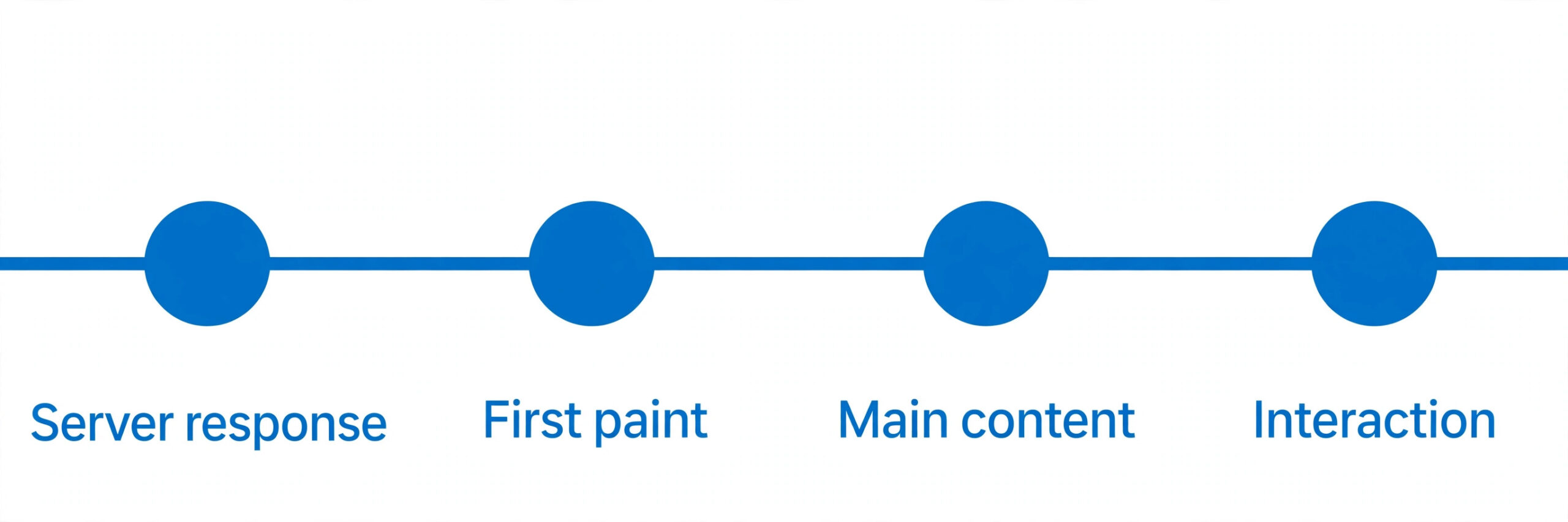
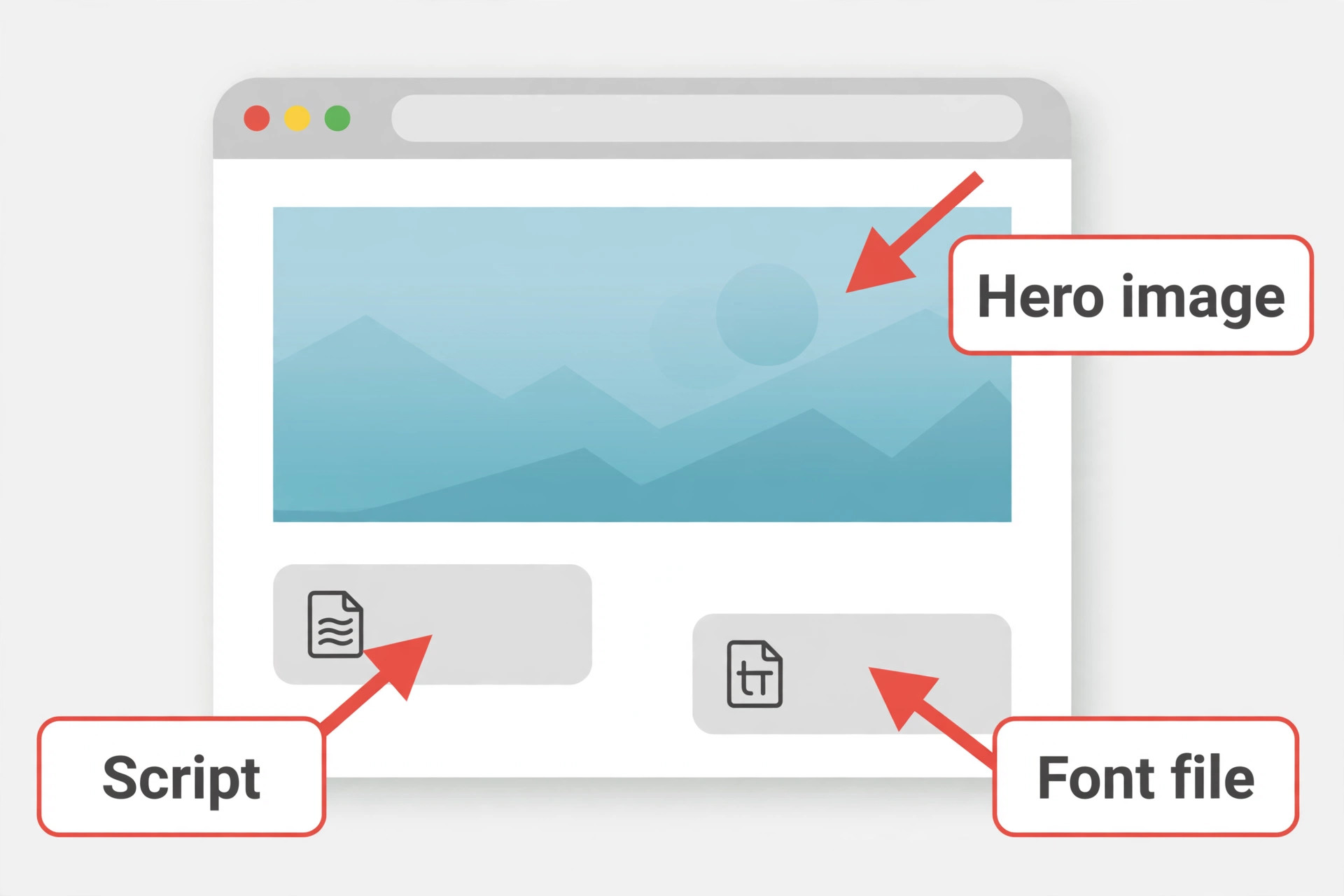
Pay attention to four numbers. Time to First Byte tells you how long the server takes to start answering. Largest Contentful Paint tells you when the main content becomes visible. Interaction to Next Paint tells you how quickly the page responds after a click or tap. Cumulative Layout Shift tells you how much the page jumps around while it loads. A high Time to First Byte points to hosting, server settings or uncached database work. A slow Largest Contentful Paint often points to a large hero image, a slow theme or render blocking code. A poor interaction score often points to heavy JavaScript. A high layout shift score often points to images and ads without reserved space.
Back Up, Then Work in This Order
Every speed fix carries a small risk, and the risk grows when you change five things at once and cannot tell which one broke a form, a checkout or a layout. Take a full backup first, files and database, and confirm you can restore it. Many hosts offer one click backups, and backup plugins such as UpdraftPlus can do the same job. Store a copy off the server if you can, so a server problem does not take the backup with it.
Then follow the order in this guide. First, caching and server basics. Second, plugin and theme cleanup. Third, images and media. Fourth, code, fonts and scripts. Fifth, database cleanup. Sixth, delivery through a content delivery network. Seventh, hosting, only after the cheaper fixes have been measured. This order puts the largest, cheapest gains first and leaves the most disruptive change, a host move, until you know whether you still need it. Work one step at a time and retest after each major step. When a change breaks something, you will know which change to undo. When a change helps a lot, you will know to keep it.
Keep a short log with the date, the change, and the before and after numbers for the two pages you tested at the start.

How to Fix WordPress Slow Loading in Order
The checklist below is the whole guide in miniature. Use it as your working list, then read the sections that follow for the settings, the trade offs and the checks behind each step. Tick a step only after you have tested the pages it affects and confirmed nothing important broke.
Step 1. Measure the home page and one post page on mobile and desktop, and save the results. Step 2. Back up files and database, and confirm the backup can be restored. Step 3. Turn on caching, and check the site while logged out. Step 4. Update WordPress, the theme and plugins, then test again. Step 5. Deactivate plugins you do not use, delete them, and replace overlapping plugins with one tool. Step 6. Check the theme for weight, and test a lighter alternative on a staging copy if the theme looks heavy. Step 7. Resize, compress and convert images, and turn on lazy loading for images below the fold. Step 8.
Delay or defer JavaScript that is not needed for the first screen, and remove unused CSS where it is safe to do so. Step 9. Host fonts locally or reduce font weights, and reserve space for images, ads and embeds. Step 10. Clean post revisions, spam, transients and autoloaded data from the database. Step 11. Add a content delivery network, and check pages from more than one location. Step 12. Check PHP version and server settings, and ask the host about object caching and server level caching. Step 13. If Time to First Byte stays high after steps 1 to 12, price a hosting move and test it on staging first.

Caching First, Because It Helps Almost Every Site
Caching means serving a ready made copy of a page instead of building that page from the database on every visit. Without caching, WordPress runs PHP, queries the database, assembles the page and sends it, for every visitor, every time. With page caching, the first visit builds the page, later visits receive the stored copy, and the server does far less work. That is why caching is usually the first fix to try when you fix WordPress slow loading, and why hosts that offer server level caching can make a site feel faster before any plugin is installed.
Start by checking what your host already provides. Many managed WordPress hosts include server level page caching, object caching or both, and adding a second caching plugin on top can cause stale pages, login problems or double caching conflicts. Ask support, or check the host control panel, before you install anything. If your host already caches pages, your job may be to confirm caching is on, to learn how to clear it after an edit, and to check that logged out visitors actually receive cached pages. If your host does not cache pages, a plugin is the next step.
WP Rocket is the best known paid caching plugin, and it is a sensible choice for owners who want most settings handled at activation. Public pricing pages in October 2026 listed the Single licence at about 59.95 dollars a year for one website, Plus at about 119.95 dollars a year for three websites, and Multi at about 299.95 dollars a year for 50 websites, with the same features on every licence and the difference being site count alone. Check the checkout page for the current price and renewal terms, because renewal pricing is not always shown on the pricing card.
WP Rocket includes page caching, browser caching, file optimisation and lazy loading in one place, and it offers a Cloudflare add on for sites that use that network. A full guide to its speed settings is available from the vendor at https://wp-rocket.me/blog/guide-to-page-speed-optimization-for-wordpress/, and reading that guide before you switch on advanced options will save you from a broken layout later.
Free options also work well when they match the server. LiteSpeed Cache is free and strong on LiteSpeed servers, and it includes page caching and database cleanup in one plugin. WP Super Cache and W3 Total Cache are long standing free options, though they need more manual setup than WP Rocket. The right choice is not the plugin with the longest feature list. It is the plugin that matches your server, that you understand well enough to clear and to test, and that does not duplicate a cache your host already runs.
Install one caching plugin, not three, and test forms, search, comments and any cart or login area after activation, because cached pages can hide a dynamic element that should change for each visitor. Turn on browser caching too, so repeat visitors load images, stylesheets and scripts from their own device instead of downloading them again. Then clear the cache, test while logged out, and retest your two pages. If load time drops sharply, caching was a major drag. If it barely moves, the drag sits elsewhere, most often in images, scripts or hosting.
Audit Plugins Like a Strict Editor
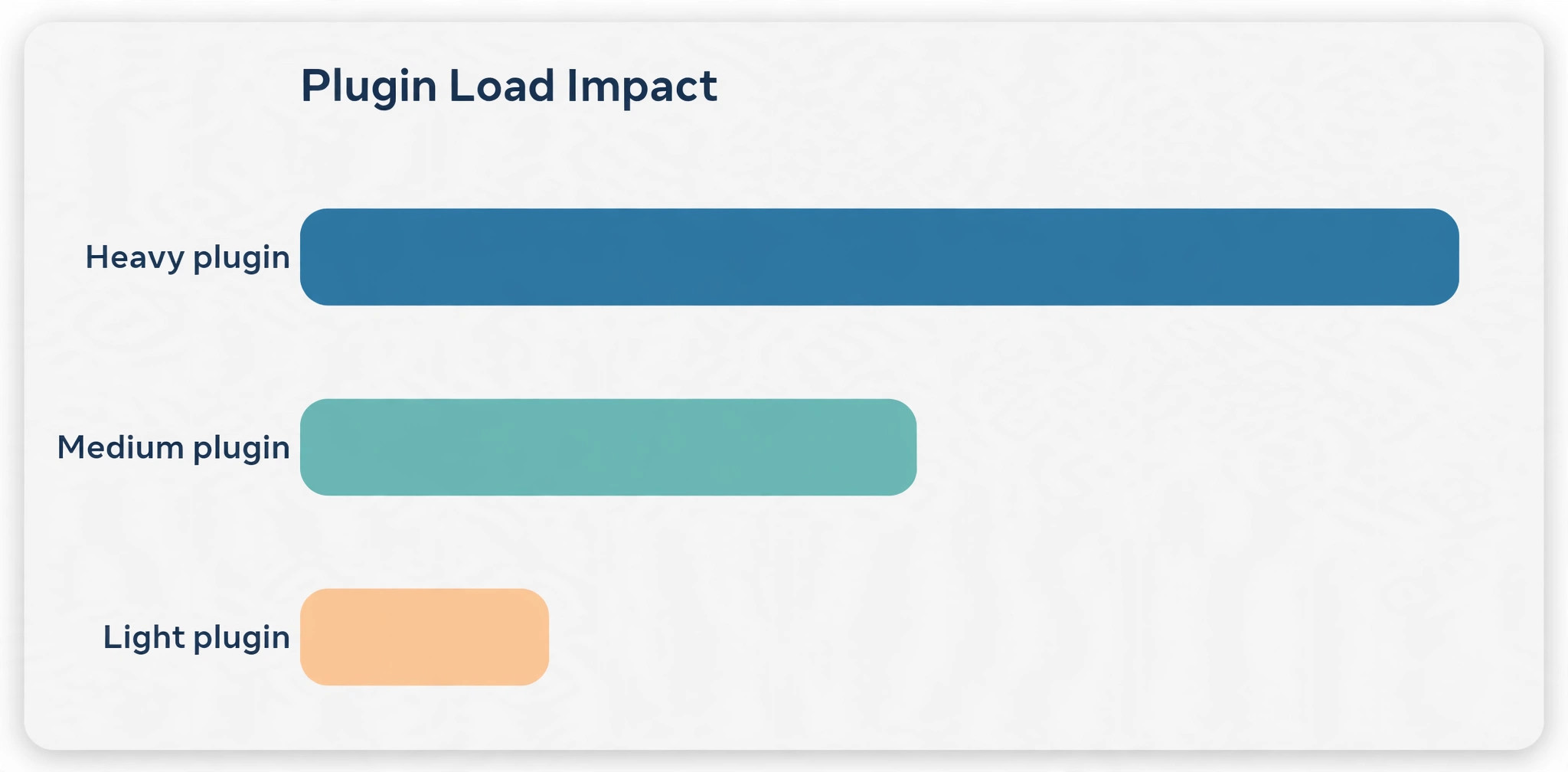
Plugins are the most common hidden cause of a slow WordPress site, and the audit is often uncomfortable, because every plugin was installed for a reason. Open the plugin list and ask a blunt question about each one. Does this plugin still earn its place, does another plugin already do the same job, and does the site lose an important feature if this plugin goes away. Deactivated plugins still matter, because they add clutter and update work even when they are not running, so delete anything deactivated that you do not plan to use again.
The number of plugins alone does not decide speed, since ten light plugins can be faster than three heavy ones, but a long list is a strong hint that overlap and old code are hiding in there.
Look for overlap first. Sites often carry two contact form plugins, two slider plugins, two social sharing plugins and two analytics plugins. Each overlap adds scripts and styles to pages that do not need them. Keep the one that does the job best, move any content that depends on the other, and then delete the spare. Look next for plugins that load on every page when they are only needed on one page. A gallery plugin, a map plugin or a booking form that loads its scripts on the home page, on posts and on archive pages is wasting load time where it never appears.
Some optimisation plugins let you disable scripts per page, and that setting alone can cut requests on ordinary posts.
Use Query Monitor, a free developer plugin, to see which plugins add slow database queries or heavy scripts, and use it on a staging copy rather than on a live site with heavy traffic, because it adds its own overhead while it runs. If a plugin shows up as a major drag and you cannot replace it, check its settings first. Many heavy plugins offer a light mode, a setting to disable a feature you never use, or a choice to load scripts only where needed. If no setting helps, search for a lighter alternative and test it on staging before you swap it live.
One careful way to fix WordPress slow loading is to remove a single heavy plugin, retest, and only then decide whether the next plugin on the list also needs to go, because that discipline stops you from breaking three things in one session.
Choose a Theme That Does Not Fight Speed
A theme sets the baseline for every page. A heavy theme with sliders, animations, icon fonts and dozens of included scripts will slow even a well cached site, while a light theme gives every later fix a better starting point. If your theme has not been updated in a year, if it bundles an old page builder you no longer use, or if it loads several large scripts on a plain post page, test an alternative on a staging copy. Popular light themes include Astra, GeneratePress and Kadence, all of which offer free versions with paid upgrades.
Check their current pricing at checkout, because free and paid tiers change, and the free version may already cover a simple blog or business site.
Fix Images Before You Buy Anything
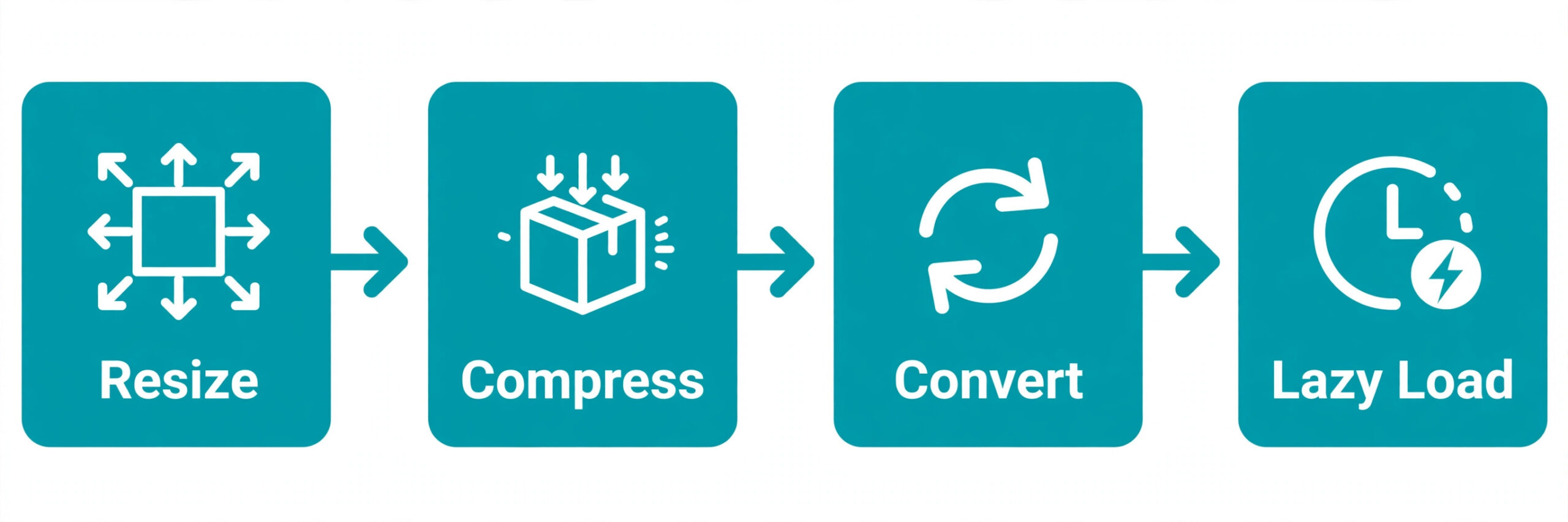
Images are the largest single weight on most WordPress pages, and they are also the easiest win to explain, because the fix is concrete. A photo uploaded at 4000 pixels wide, when it is displayed at 800 pixels wide, wastes bandwidth on every visit and pushes Largest Contentful Paint later. A gallery of ten such photos can add several megabytes to a page that should weigh under one megabyte. The fix has three parts, and all three matter. Resize the image to the size it will be displayed at, compress it so the file is smaller without visible quality loss, and serve it in a modern format such as WebP where the browser supports it.
Start with the images that matter most. Use a speed report to find the largest images on your slowest pages, and fix those first. A hero image, a featured image and the first images in a popular post usually matter more than a small icon buried in the footer. Resize in an editor before upload where you can, because WordPress will create smaller copies, but it will still store the original, and a theme or plugin can still call the large version by mistake. For images already on the site, an optimisation plugin can compress and convert existing images in bulk, and it can also handle new uploads automatically from then on.
That bulk step is often where owners who fix WordPress slow loading see the largest drop in page weight, because old uploads are usually the heaviest files on the site.
Lazy loading is the second image fix, and WordPress now includes basic lazy loading for images by default. Lazy loading delays images below the first screen until the visitor scrolls near them, so the first screen loads faster and uses less data. Do not lazy load the hero image or the featured image at the top of the page, because that image is often the Largest Contentful Paint element, and delaying it makes the main score worse. Most optimisation plugins let you exclude the first image, and that exclusion is worth setting. Also add width and height attributes to images, or reserve space with CSS, so images do not push text down as they load. Video deserves the same care.
A self hosted video file can outweigh every image on the page combined, so host video on a video platform and embed it, or use a light embed that shows a thumbnail and loads the full player only after a click.
Trim Code, Fonts and Scripts Without Breaking Layout
After images, the next drag is code that loads before the visitor can see anything. Stylesheets and scripts that block rendering, large JavaScript bundles from plugins, and fonts loaded from an outside server all delay the first paint. A caching plugin such as WP Rocket can help here with settings to minify CSS and JavaScript, to defer scripts that are not needed at once, and to delay scripts until after interaction. Use those settings one at a time, and test the affected pages after each one, because deferring or delaying the wrong script can break a menu, a form, a slider or a checkout.
Start with the scripts you can remove outright. If a plugin loads a script on every page but is only used on one page, disable it elsewhere. If a social sharing plugin loads five scripts for buttons that few visitors click, replace it with simple links or a lighter plugin. If a slider loads on every post, limit it to the pages that actually show a slider, or replace it with a single static image and a link. Each script removed is a request saved and a piece of JavaScript the browser no longer has to parse before it can respond to a tap.
Clean the Database and Keep WordPress Updated
A WordPress database grows quietly. Post revisions pile up, especially on long posts edited many times. Spam comments, trashed posts, expired transients and autoloaded options add rows that every page load may touch. Cleaning that data helps, though it rarely transforms a site on its own, and it should never be done without a backup. WP-Optimize and similar free plugins can remove revisions, spam, trashed items and expired transients, and they can optimise database tables. Set a sensible revision limit in the site configuration, such as three to five revisions per post, so the database does not grow back at the same rate.
Add a Delivery Network for Visitors Far From Your Server
A content delivery network, usually called a CDN, stores copies of static files such as images, stylesheets and scripts on servers around the world, and serves each visitor from the nearest server. That helps most when visitors are spread across countries, because a visitor in another continent no longer waits for every image to travel from your single origin server. A CDN helps less when all visitors sit near your server, or when the main drag is a slow database query, because a CDN does not fix server response time for uncached pages. Use a CDN as a delivery fix, not as a cover for a hosting problem.
Cloudflare offers a free plan that covers CDN delivery, basic security and DNS for many small sites, and it is a sensible first CDN for a blog or a small business site. Higher plans add image optimisation and stronger security, but the free plan already solves the distance problem for static files. BunnyCDN and similar services offer pay as you go pricing for sites that want a simple CDN without a larger platform, and RocketCDN is the CDN sold alongside WP Rocket, with public review pages in October 2026 reporting about 7.99 dollars a month for WP Rocket customers.
Check the current plan page for each service, because bandwidth pricing and included features differ, and a small site with modest traffic may pay very little on a pay as you go plan.
Judge Hosting Honestly, and Move Only With Evidence
Hosting is the foundation, and no plugin can fully cover a server that is too slow, too crowded or too far from your visitors. The sign of a hosting problem is a high Time to First Byte that stays high after caching, plugin cleanup and image work, or a site that slows sharply at busy times. Shared hosting can be fine for a small blog with modest traffic, because it is cheap and simple, but a busy blog, a store or a site with many concurrent visitors may outgrow it.
Managed WordPress hosting usually costs more, but it adds server level caching, automatic updates, staging, backups and support staff who understand WordPress, and that support can save hours when a speed problem is server related.
If you do move, move to staging first, or move a copy and test it before you point the domain at the new host. Test the same two pages, the same forms, the same checkout or contact flow, and the same mobile views, and compare the numbers with the old host. Also check renewal pricing, not only the first term price, because many hosts discount the first year heavily and renew at a much higher rate. Write down the renewal price, the included backups, the staging allowance and the support hours before you commit, so the decision is based on the real cost over two years, not on the first checkout total.
Related reading on this site can help with the wider decisions around a slow site. If you are weighing a platform change rather than a fix, wix vs wordpress compares the two platforms on cost and control. If the site is new and the structure still needs work, how to start a blog with ai covers setup choices that affect speed later. And if speed is part of a wider search plan, best ai seo tools covers tools that help you track rankings and technical issues alongside speed.
Mistakes That Undo Good Speed Work
The first mistake is installing several optimisation plugins that do the same job. Two caching plugins, two image plugins and two minification plugins can conflict, double process files and create stale pages that are hard to diagnose. Choose one tool per job, and remove the others fully, not just deactivate them. The second mistake is turning on every advanced setting at once. Delay JavaScript, remove unused CSS, minify everything and enable a CDN in one session, then spend days finding which setting broke a form. Turn settings on one at a time, test, and keep a note of what you changed.
That patience is part of any serious attempt to fix WordPress slow loading, because speed work that breaks a checkout costs more than the seconds it saves.
How to Choose Between a Plugin Fix and a Host Move
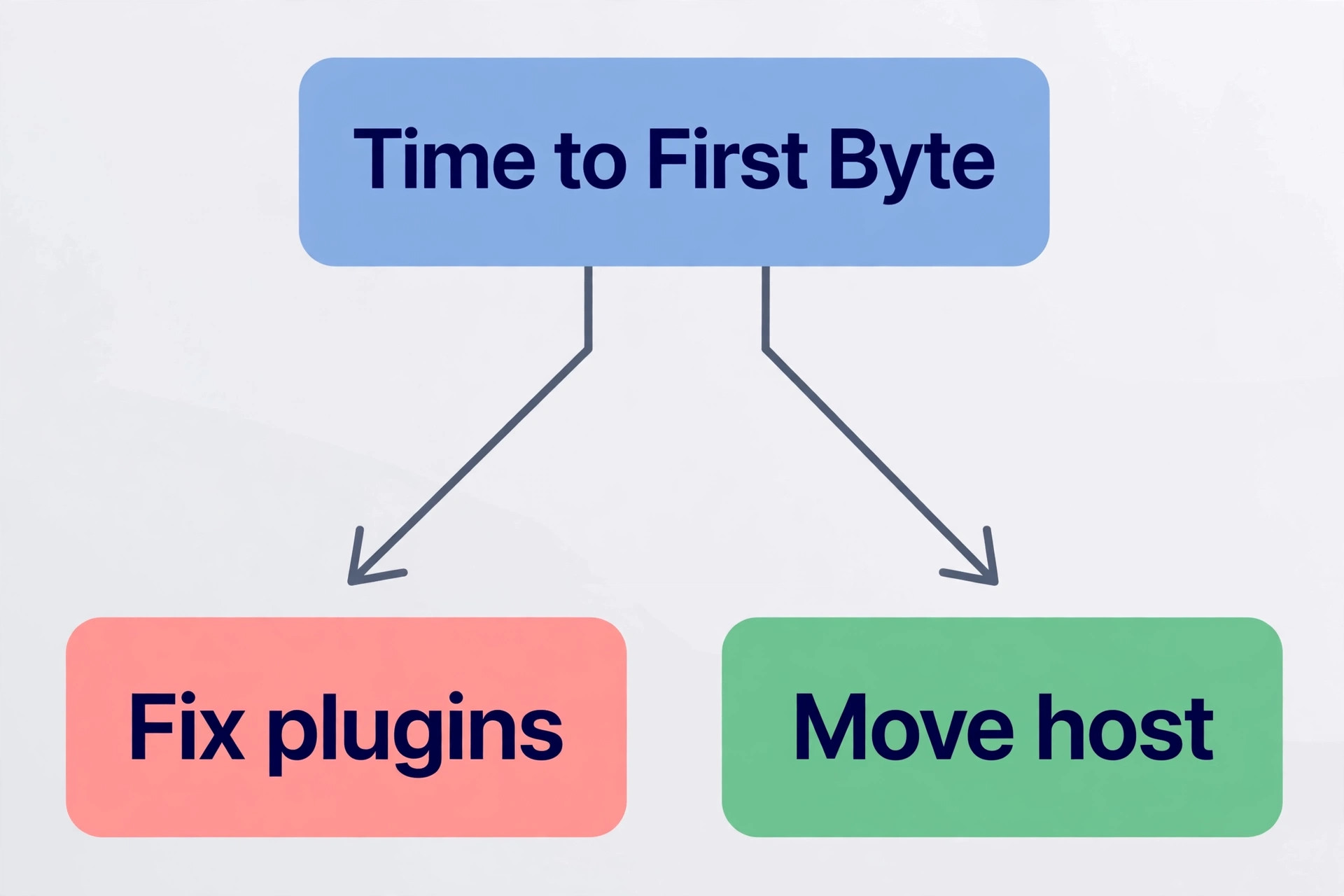
Use a simple decision rule. If Time to First Byte is low, under about 600 milliseconds, but the full page still loads slowly, the problem is usually page weight, scripts or images, and plugin and image fixes should come first. If Time to First Byte is high, above about 800 milliseconds, even on a cached page, and it stays high after you confirm caching is working, the problem is usually server related, and a host setting change or a host move should be priced seriously.
If the site slows only at peak times, the problem may be server resources, such as limited PHP workers, and a higher plan or a managed host with more resources may help more than another plugin.
Frequently Asked Questions
How long does it take to fix WordPress slow loading?
Most sites see a first gain within a few hours, from caching, plugin cleanup and image compression on the slowest pages. A full pass, including theme testing, code cleanup, database work and CDN setup, usually takes a few days of careful testing, not a single afternoon, because each change needs a logged out test. A host move adds more time for staging, testing and DNS changes, so plan a week for that step alone if the site earns money.
What is the single fastest fix for a slow WordPress site?
Caching usually gives the largest single gain, because it removes repeated database work on every visit. Image compression is often close behind on image heavy sites, because it cuts page weight at once. The honest answer depends on your numbers, so measure first. If Time to First Byte is high, caching and hosting matter most. If page weight is high, images matter most.
Do I need a paid caching plugin, or is a free one enough?
A free plugin is enough for many sites, especially when the host already provides server level caching or when the server runs LiteSpeed and LiteSpeed Cache fits it well. A paid plugin such as WP Rocket earns its price when you want most settings handled at activation, when you want support, and when you want caching, file optimisation and lazy loading in one place. Test a free option first, and pay only if it leaves a clear gap.
How many plugins are too many for WordPress speed?
There is no safe number that fits every site, because plugin weight matters more than plugin count. A site with 30 light, well coded plugins can load faster than a site with 8 heavy plugins that load scripts on every page. Use plugin count as a prompt to audit, not as a rule. If the audit finds overlap, dead plugins or heavy scripts, the count should fall. If every plugin earns its place and load time is good, the count alone is not a problem.
Will a CDN fix a slow WordPress site on its own?
A CDN helps visitors far from your server load static files faster, and it can cut load time for an international audience. It will not fix a slow database, a heavy theme or uncompressed images, and it will not fix a high Time to First Byte on uncached pages. Treat a CDN as a delivery layer after caching, plugin cleanup and image work, not as a replacement for those fixes.
Should I move hosts or keep optimising plugins?
Keep optimising first if Time to First Byte is reasonable and page weight or scripts are the main drag, because those fixes are cheaper and often sufficient. Price a host move if Time to First Byte stays high after caching is confirmed, if the site slows at peak times, or if support confirms a resource limit on your plan. Test the new host on staging with your real pages before you switch the domain, and compare renewal prices over two years, not only the first year discount.
Your Next Move After the Checklist
Work the checklist in order, and let the numbers tell you when to stop. Measure, back up, turn on caching, clean plugins, fix images, trim code, clean the database, add delivery help, and only then judge hosting. That sequence protects the site from careless changes, keeps costs low, and gives you a record you can reuse every quarter. A faster site is not a one time project. It is a habit of measuring the same pages, removing what no longer earns its place, and testing before you publish a change.
Start today with the two tests that cost nothing, which are the baseline measurement and the plugin audit. Those two steps alone often reveal the real drag, whether it is a single heavy plugin, a hero image at full size, or a server that answers slowly no matter what you do. Fix that drag first, retest, and then move to the next step on the list. When you fix WordPress slow loading in that order, readers will notice the difference before any score does, because pages will open, respond and stay stable, and that feeling is what keeps a visitor on the page long enough to read, to trust and to buy.