

Most cases of iPhone no sound are fixed in under ten minutes without a repair shop visit, because the cause is usually a setting, not a broken speaker. The trick is that different silences need different fixes. A phone stuck in Silent mode, a phone sending audio to earbuds in another room, and a phone with a blocked speaker all sound the same at first, which is nothing at all. This guide starts by naming which sound is missing, then works through the fixes in the order that solves the most cases first, so you stop changing settings at random.
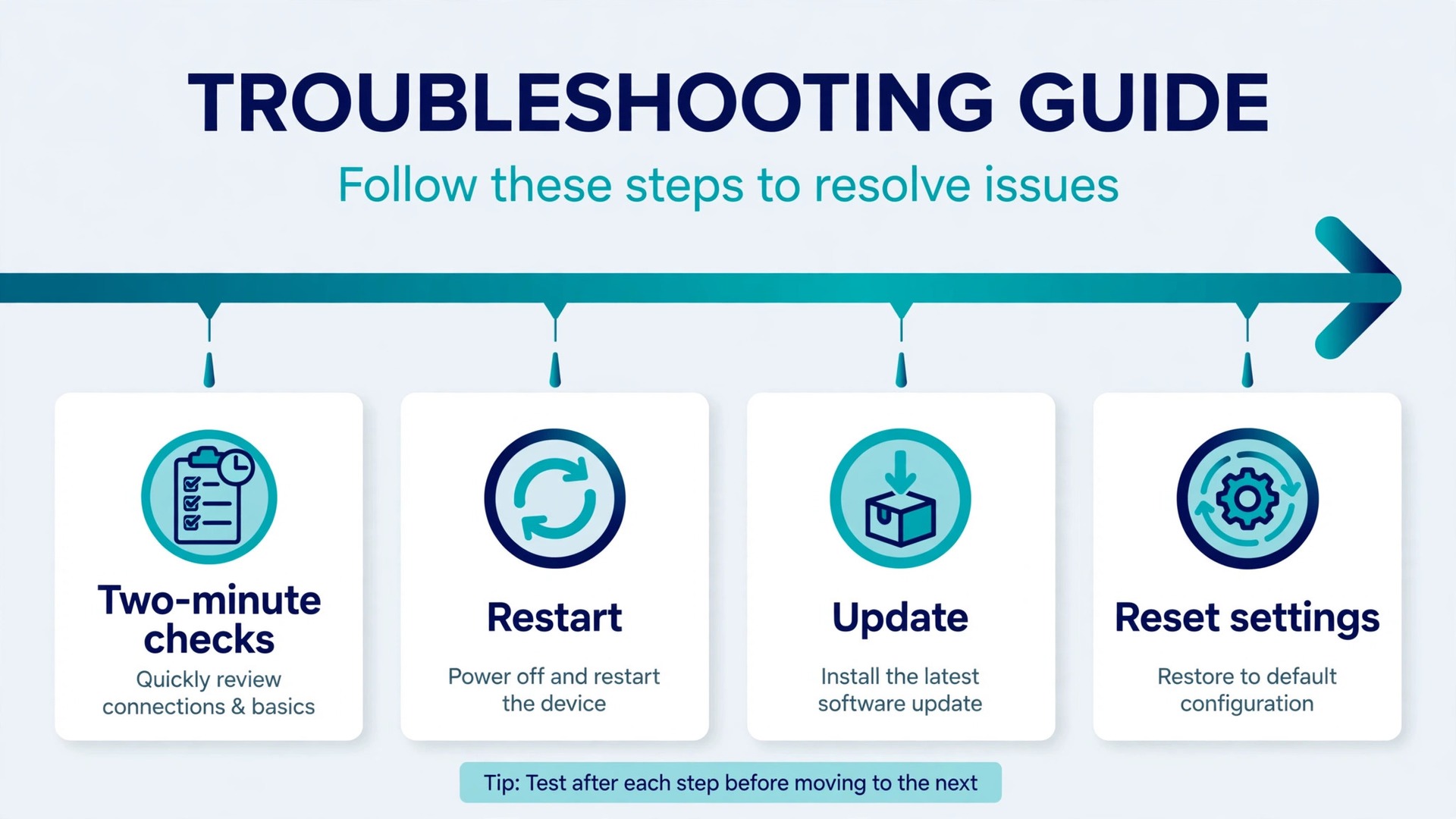
This guide works in a fixed order for a reason. You will start with the two minute checks that solve most cases, then move to the checks for calls, ringtones, and media separately, and only then to restarts, updates, and a settings reset. Follow the order, test after each section, and stop as soon as sound returns. Changing five settings at once might restore sound, but it will leave you unsure what caused the problem, and the same silence can return the next time that setting changes on its own.
Diagnose iPhone No Sound by What Is Missing
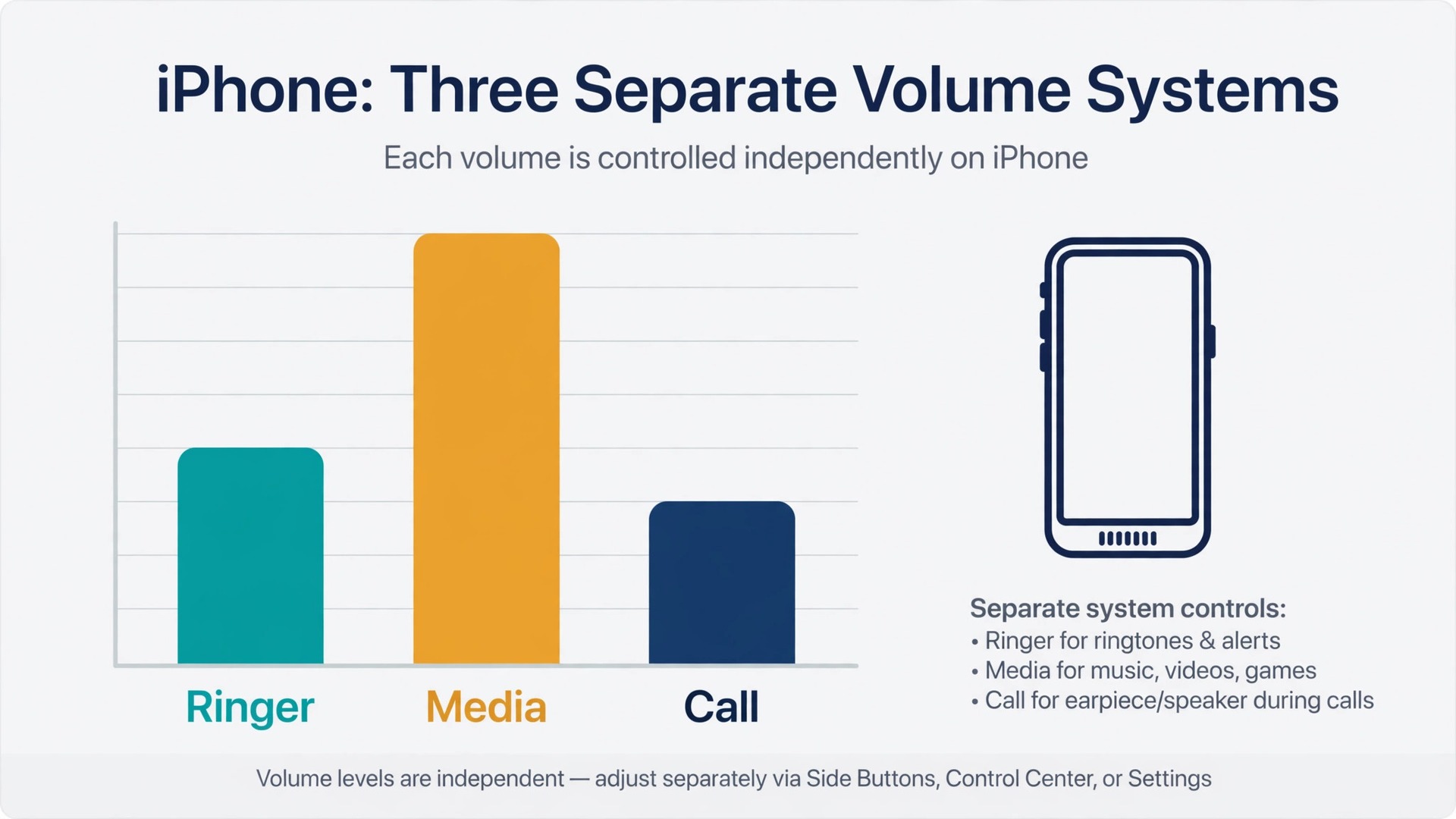
Do not start with a general fix. Start with a precise description of what is missing, because the iPhone treats ringer sound, media sound, and call sound as three separate systems. If music plays but the phone never rings, the speaker is almost certainly fine and a ringer setting is the cause. If nothing plays at all, the cause is more likely a global mute, a routing problem, or a speaker fault.
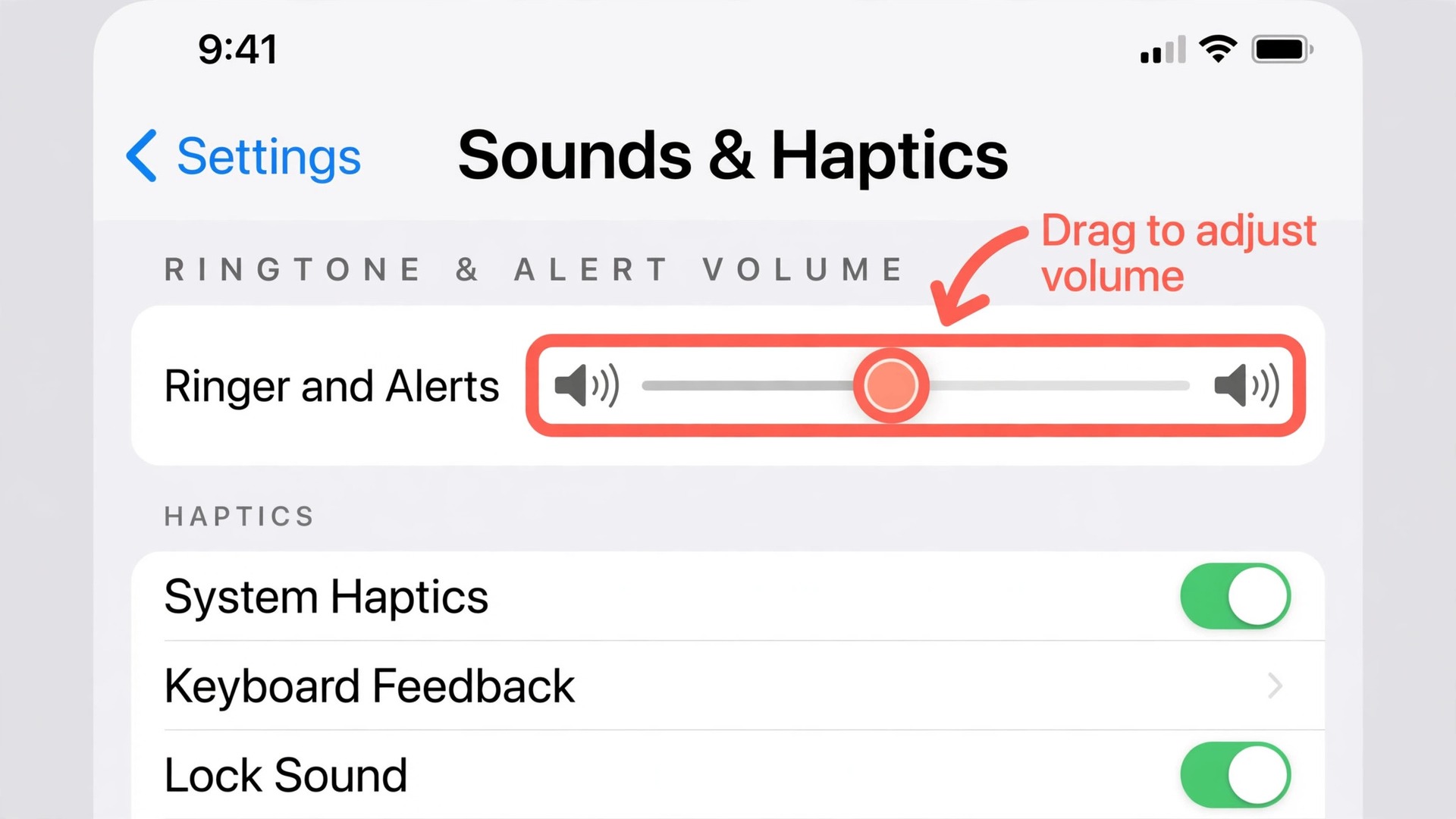
Run this quick test first. Open Settings, then Sounds and Haptics, and drag the ringer slider left and right. On a healthy phone you will hear a test tone. Next, play a video you know has sound and press volume up while it plays. Finally, ask someone to call you and watch whether the screen lights up even though no ring is heard. Write down each result.
| Sound that is missing | What you will notice | Most likely cause to check first |
|---|---|---|
| Ringer and alerts only | Music and videos play, calls show on screen but never ring | Silent mode, Focus, or a low ringer volume |
| Media only | Calls ring normally, but videos, music, and games stay quiet | Media volume turned down, a muted app, or audio routed elsewhere |
| Call sound only | Media plays, but you cannot hear the other person on a call | Call volume, earpiece blockage, or audio routed to another device |
| Every sound | No ring, no media, no test tone in Settings | Global mute, Bluetooth routing, software fault, or speaker damage |
| One app only | Sound works everywhere except in one app | That app muted, its own volume control, or a permission problem |
| One contact only | Most calls ring, but calls from one person never do | A custom silent tone, a muted thread, or a Focus exception |
The Fix Order Checklist
Work through this list in order and test after each item. It puts the checks with the highest success rate and the lowest risk at the top, and it leaves the checks that erase saved settings until last. If sound returns at any point, stop. This is the fastest route through iPhone no sound, and it stops you changing five settings at once and never learning which one mattered.
- Look at the side of the phone for the Silent switch or check the Action Button, and turn Silent mode off.
- Open Control Center and turn off any active Focus, including Do Not Disturb and Sleep.
- Open Settings, then Sounds and Haptics, and drag the ringer slider to the right until you hear a test tone.
- Play a video, press volume up while it plays, and confirm the media volume indicator rises.
- Open Control Center, tap the audio output control, and send audio back to the phone speaker if it points elsewhere.
- Turn Bluetooth off for one test minute to rule out a hidden accessory connection.
- Remove the case, check the speaker openings at the bottom of the phone, and brush away any visible lint with a soft dry brush.
- Restart the phone properly, then test the ringer slider and a video again.
- Check for an iOS update and install it on Wi-Fi while the phone is charging.
- Reset all settings only if every step above has failed, and back up first.

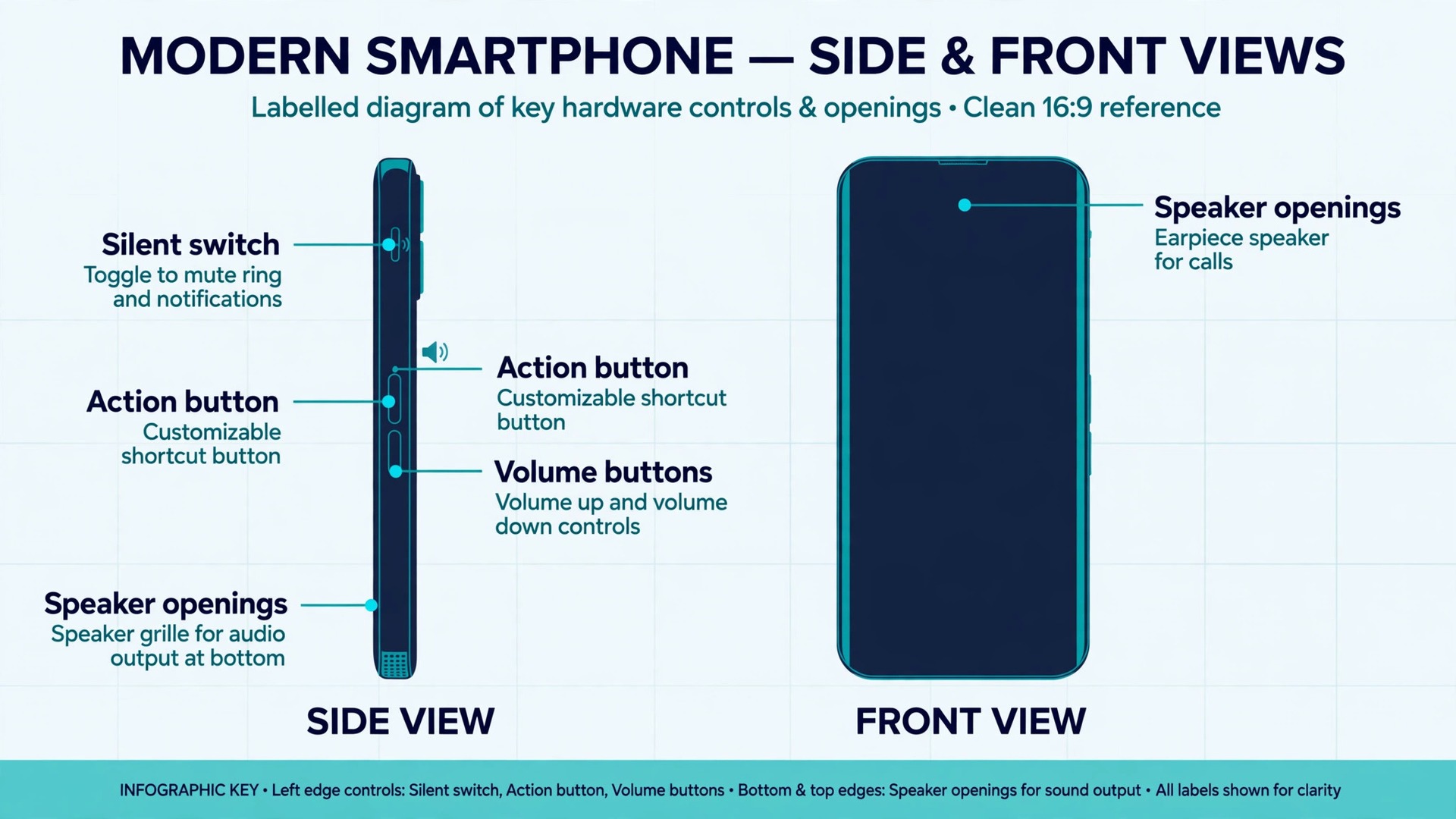
This is the most common cause and the fastest fix, and it is also the easiest to miss because the switch is small and easy to knock. On iPhones before the iPhone 15 Pro, a physical Ring and Silent switch sits on the left side of the phone, above the volume buttons. If you can see orange in the switch, Silent mode is on. Slide the switch forward, toward the screen, until the orange disappears. You should feel a small click and see a brief on screen notice that Silent mode is off. Test a ringtone straight away, because a phone that was silenced in a bag or a pocket often needs nothing more than this one movement.
On iPhone 15 Pro and later models, Apple replaced the switch with the Action Button. Press and hold it to toggle Silent mode and watch for the on screen notice. If you have changed the Action Button to do something else, such as opening the camera, pressing it will not change Silent mode. In that case, use the software control in Control Center or in Settings, then Sounds and Haptics, to confirm the state.
Every recent iPhone also has a software Silent control. Swipe down from the top right corner to open Control Center and look for the bell icon. If the bell shows a line through it, tap it once to turn Silent mode off. You can also open Settings, then Sounds and Haptics, and check the Silent mode control there. Use the software control to confirm what the physical control did, especially if you are unsure whether your Action Button is still set to Silent mode. Two controls saying the same thing is stronger evidence than one control you might have misread.
Raise the Right Volume, Not Just Any Volume
For ringtones, open Settings, then Sounds and Haptics. Find the ringer and alerts slider and drag it to the right. You should hear a test tone as you drag, and the tone should get louder as the slider moves right. If you hear nothing at all while dragging, note that fact. A silent slider with a dimmed speaker icon beside it is a warning sign that Apple itself flags as a possible speaker fault, and it moves the speaker hardware higher up your list of suspects. If you hear a tone, set the slider to a level you can hear across a room, not just at your desk.
Also check the Change with Buttons setting on the same screen. When this setting is on, the side buttons change the ringer volume when no media is playing. When it is off, the side buttons leave the ringer alone and only change media and call volume. Neither setting is wrong, but you should know which one you have, because it explains why the side buttons sometimes seem to do nothing for your ringtone. If you often find the ringer low after using the buttons for music, turning this setting off will protect your ringer level from accidental changes.
For media, open a video or a song first, then press volume up while it plays. Watch the on screen indicator and listen for a change. You can also open Control Center while media plays and drag the large volume slider there. If the slider moves but the sound stays silent, the problem is not the volume level. It is routing, a muted app, or a speaker fault, and raising the volume further will not help. Stop pressing the button and move to the routing section, because repeated volume presses only waste time once you have proved the level is not the issue.
For calls, the volume you need is call volume, and you can only adjust it during a call. Call someone you trust, or ask someone to call you, and press volume up while the call is connected. The on screen indicator during a call controls the earpiece or speaker volume for that call, not the ringer. Many readers discover that their call volume was set very low during a previous call, perhaps while the phone was in a pocket or against a shoulder, and that low setting persisted into the next call. Adjusting it during a live call is the only reliable way to reset it.
Turn Off Focus and Check Schedules
Focus modes, including Do Not Disturb, Sleep, Work, and Personal, can silence calls and notifications even when Silent mode is off and the volume is up. That is their purpose, and it is why they cause so much confusion. A Focus that turned on automatically at bedtime, at work, or when you arrived at a location can stay on long after you expected it to end. The phone gives you a clue in the status bar and on the Lock Screen, where a small moon icon or a Focus name appears, but that clue is easy to overlook when you are in a hurry.
Open Control Center by swiping down from the top right corner and look at the Focus control. If any Focus is highlighted, tap it to turn it off, then ask someone to call you again. Do not just check Do Not Disturb. Check every Focus that shows as active, because Sleep and Work silence calls in the same way. If sound returns the moment you turn a Focus off, you have found the cause, but you should still check why it turned on, or it will return tomorrow at the same time.
Go to Settings, then Focus, and open each Focus in turn. Look for a schedule, a location trigger, or Smart Activation, which turns a Focus on automatically based on time, location, or app use. A Sleep schedule tied to your bedtime is the most common surprise, because it can silence evening calls even on nights when you stay up late. A Work Focus tied to an office location can silence calls at home if the location boundary is wide. Turn off any schedule you do not recognise, or adjust its times, and test again the next day at the same hour to confirm the fix held.
Send Audio Back to the Phone Speaker
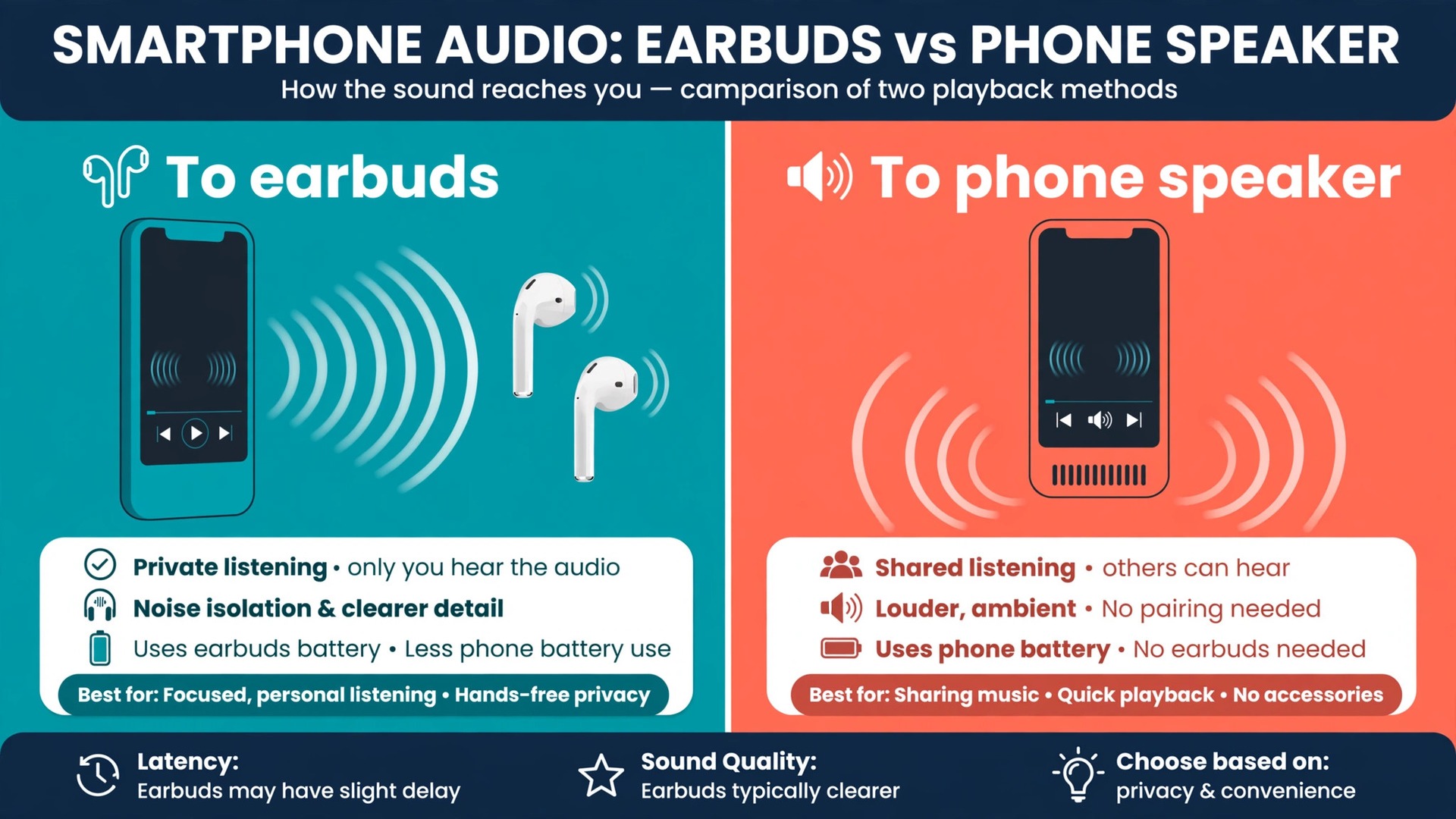
Start with Control Center. While media is playing, look for the audio output control, shown as a small AirPlay or speaker icon near the volume slider or on the Lock Screen player. Tap it and choose iPhone from the list. If iPhone is already selected and you still hear nothing, the problem lies elsewhere, but if another device is selected, choosing iPhone should restore sound at once. Make this check while media is playing, because the output list is clearest when audio is active and the phone can show where it is sending that audio.
Next, check Bluetooth directly. Open Settings, then Bluetooth, and look at the list of connected devices. If any device shows as connected, disconnect it for a test, or turn Bluetooth off entirely for one minute and test again. A device that connects automatically when it comes into range, such as earbuds in a nearby bag or a car system in a driveway, can steal audio without any visible warning. Turning Bluetooth off for a test is not a permanent fix, but it is a fast way to prove whether routing is the cause. If sound returns with Bluetooth off, turn it back on and forget or disconnect the specific accessory that caused the problem.
Fix Calls You Cannot Hear
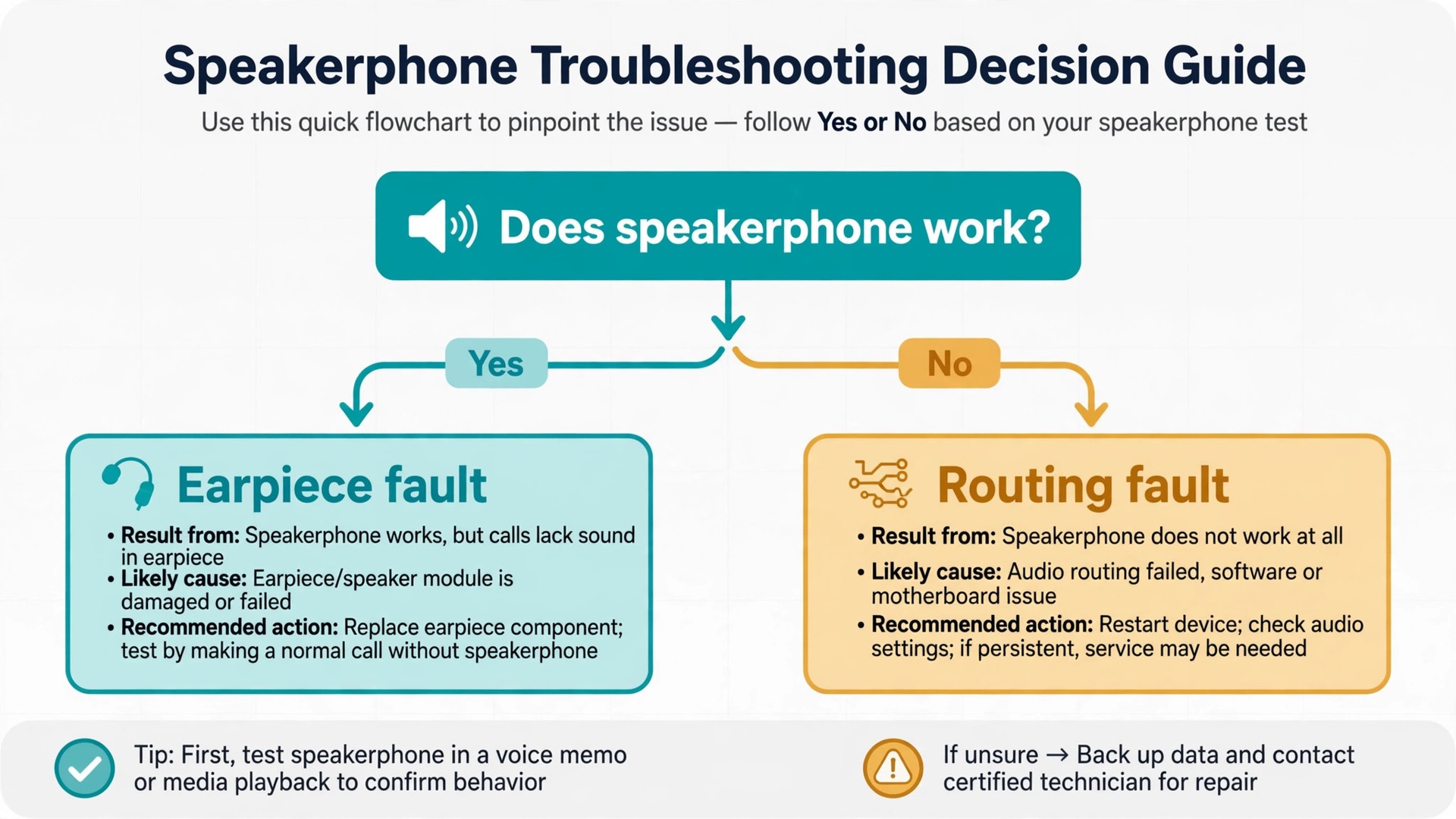
If you cannot hear the other person on a normal call, switch to speakerphone during the call. If speakerphone works but the earpiece does not, the earpiece speaker or its opening is the suspect. The earpiece sits in the narrow slot at the top of the phone, and it can be blocked by a screen protector, a case edge, or a build up of dust and skin oils. Remove the case, check whether a screen protector covers the slot, and clean the slot gently with a soft dry brush. Do not push anything sharp into the slot, because the mesh behind it is easy to damage.
If neither the earpiece nor speakerphone produces sound during a call, but media plays normally, the problem is more likely a call routing or software issue than a speaker fault. Check that the call audio is not going to a Bluetooth device by opening the audio button during the call and choosing iPhone. Check that the call volume is up during the call itself, as described earlier. Then end the call, restart the phone, and make a test call again. A single failed call after a software update or a network change can be a temporary fault, but repeated failures across different contacts point to a setting or a fault that needs the later steps in this guide.
Also check two call specific settings that silently send calls away. Open Settings, then Phone, and check Silence Unknown Callers. When this setting is on, calls from numbers not in your contacts go straight to voicemail without ringing. That is correct behaviour for that setting, but it feels like a fault when you are waiting for a call from a new number, such as a delivery driver or a clinic. Turn it off for a test week if you miss calls from unknown numbers, and add important new numbers to your contacts as they arrive.
On newer iOS versions the same setting may sit under Settings, then Apps, then Phone, so search Settings for Silence Unknown Callers if you cannot find it at first glance.
Fix Ringtones and Alerts That Stay Silent
Ringtones have their own settings apart from media, and several of them can silence a ringtone without affecting anything else. Start in Settings, then Sounds and Haptics, and confirm the ringtone itself is not set to None. Tap Ringtone and play a few tones. If the list plays tones normally but incoming calls stay silent, the ringtone file is fine and the problem is a mute, a Focus, or a per contact setting. If the list itself plays no sound, go back to the ringer slider test, because a silent tone list plus a silent slider points to a wider problem.
Check the per contact ringtone next, because it explains the strange case where most people ring normally but one person never does. Open the contact, tap Edit, tap Ringtone, and confirm it is not set to None. A contact set to a silent tone will never ring, no matter what the main settings say. The same idea applies to text tones, which are set separately on the same contact screen. If you changed a contact tone during a busy period and forgot about it, this check will find it in seconds.
Check notification settings for the app that stays silent. Open Settings, then Notifications, choose the app, and confirm that Allow Notifications is on, that Sounds is on, and that the alert style includes the Lock Screen or banners as you prefer. An app with notifications on but Sounds off will show banners silently, which looks like a sound fault but is really a notification setting. This check matters most for messaging apps, mail, and banking apps, where a silent banner can mean a missed message or a missed payment alert.
The guide to fixing a related audio fault on another device, fixing Zoom audio echo step by step, shows the same principle, which is that an app level sound setting can override the phone level volume.
Fix Media Sound in Videos, Music and Apps
Media sound problems often look like a phone fault but turn out to be an app setting or a muted video. For iPhone no sound that affects media only, start with a two app test. If YouTube is silent but Music plays normally, the problem lives in that app or that video, not in the phone. If every app is silent, the problem is phone wide and the earlier sections apply.
Check the mute controls inside the app and inside the video itself. Many video players start muted, especially in social apps where videos autoplay without sound until you tap the speaker icon. Tap the speaker icon in the video, check the volume slider inside the player, and confirm the video itself has an audio track. A video recorded without sound, or a clip with its audio removed, will stay silent on every phone, and no setting will restore sound that was never recorded. Test with a song you know well to rule out a silent source before you change phone settings.
Check the app sound settings and the phone notification settings together. Some apps have their own sound toggle under their in app settings, and turning that off silences that app even when the phone volume is high. Games often have separate music and effects toggles. Social apps often have a video sound toggle that defaults to muted autoplay. Open the app settings, turn its sound options on, force close the app, and reopen it to test. If the app still stays silent, delete and reinstall it from the App Store, because a corrupted install can lose sound while keeping video and controls working.
Clean the Speaker, Then Restart and Update
Clean the openings with a soft dry brush, such as a clean soft toothbrush, using light strokes away from the phone. Do not use compressed air at close range, do not use a pin or a needle, and do not use liquid cleaners or wet wipes inside the openings. Compressed air can push debris further in, and a sharp tool can tear the mesh that protects the speaker. If the phone has been exposed to water, let it dry fully before you test sound again, and do not charge it while a liquid warning is on screen.
A phone that sounds muffled after water exposure may recover as it dries, but persistent distortion after drying is a sign to seek service.
Restart the phone properly after the physical check. Press and hold the side button and either volume button until the power off slider appears, drag the slider, wait about thirty seconds, then press and hold the side button until the Apple logo appears. Test the ringer slider and a video after the restart. A restart clears temporary software states, including stuck audio routing and a frozen audio service, and it is the single most useful software step in this guide. If you need to restart every day to keep sound working, treat that as evidence of a deeper software or hardware fault, not as a routine fix.
Check for an iOS update next. Go to Settings, then General, then Software Update. If an update is available, install it on Wi-Fi while the phone is charging, and allow time after the install for background tasks to finish. Apple frequently fixes audio bugs, Bluetooth routing bugs, and Focus bugs in point releases, and a sound problem that began right after an update is often fixed by the next point release. If no update is available, note your iOS version and the date the problem began, because that pair of facts helps support staff judge whether your case matches a known issue.
Reset All Settings as a Last Resort Before Service
Reset All Settings is the strongest software fix that does not erase your personal content, and it should come only after every step above has failed for iPhone no sound. Go to Settings, then General, then Transfer or Reset iPhone, then Reset, then Reset All Settings. It returns network, privacy, location, and display settings to their defaults and removes saved Wi-Fi passwords. It does not delete photos, messages, apps, or files, but back up first anyway.
After the reset, test sound before you restore your old settings. Play a video, drag the ringer slider, and ask someone to call you. If sound returns, add your settings back gradually, starting with Wi-Fi and Bluetooth, and test after each group. Adding everything back at once can reintroduce the exact setting that caused the problem, and you will be back where you started without knowing which setting was responsible. If sound does not return after the reset, you have strong evidence that the problem is not a user setting at all, and the next section applies.
When the Speaker Itself Is the Problem
Hardware faults are less common than settings faults, but they do happen. For iPhone no sound that survives every settings check, the clearest hardware sign is a silent ringer slider. Open Settings, then Sounds and Haptics, and drag the slider. If you hear no test tone at any position, and the speaker icon beside the slider looks dimmed, Apple guidance points to a possible speaker fault. Repeat the test after a restart, because a temporary fault can mimic this sign once, but a hardware fault repeats every time.
Distortion is another hardware clue. A speaker that crackles, rattles, or sounds muffled at every volume, in every app, and after cleaning, is more likely damaged than misconfigured. Settings faults tend to produce clean silence or clean sound, not distortion. A speaker that sounds fine at low volume but distorts at high volume, or that cuts out when the phone is moved, also points to hardware, because a loose connection or a damaged speaker behaves differently with movement and volume. Note whether the distortion affects the bottom speaker, the earpiece, or both, because that detail helps a technician judge the repair.
Before you book service, run one final proof test. Turn Bluetooth off, turn Focus off, turn Silent mode off, set the ringer slider to maximum, and play a known good song on the phone speaker. Then make a test call on speakerphone. If both tests stay silent, and a settings reset has already failed, you have completed the home diagnosis. Back up the phone, note your iOS version and the tests you ran, and contact Apple Support or an authorised service provider. That note will shorten the service visit, because you can show that settings, routing, restart, update, and reset have already been ruled out.
If iPhone no sound keeps returning, the wider cause may be how the phone is used across the day, not one single setting. Readers who rely on the phone for work calls may benefit from the guide to fixing iPhone battery drain after an update, because a phone that is constantly low on power, hot, or restarting can show secondary faults, including audio glitches. Read that guide after the checklist above, not instead of it, because a battery fix will not restore a ringtone silenced by Silent mode or Focus.
Frequently Asked Questions
Why does my iPhone vibrate but make no sound?
Vibration without sound usually means Silent mode is on, or the ringer volume is low while vibration is still enabled. Silent mode still allows vibration for calls and alerts, so a phone can feel alive while staying silent. Turn Silent mode off, raise the ringer slider, and check vibration for both ring and silent modes.
Why is there sound on videos but no ringtone?
Ringtones and media use separate controls, so one can work while the other stays silent. A working video proves the speaker works, which is good news. Check Silent mode, then the ringer slider, then any active Focus, then the ringtone setting itself to confirm it is not set to None. If most contacts ring but one person does not, check that contact ringtone.
Why do I hear sound only through earbuds or a speaker?
That pattern means audio is routed to an accessory instead of the phone speaker. Open Control Center while media plays, tap the audio output control, and choose iPhone. Then open Settings, then Bluetooth, and disconnect or forget the accessory that keeps taking the output. AirPlay can cause the same pattern if a previous session left the output set to a television or a speaker.
Will a restart fix a silent iPhone?
A restart often fixes a silent iPhone when the cause is a temporary software state, such as stuck audio routing or a frozen audio service. It will not fix Silent mode, a Focus schedule, a low ringer volume, or a damaged speaker, because those causes survive a restart. Restart once, test the ringer slider and a video, and note the result.
Does Reset All Settings delete my photos and messages?
No, Reset All Settings does not delete photos, messages, apps, or files. It returns system settings to their defaults, including network, privacy, and location settings, and it removes saved Wi-Fi passwords and Apple Pay cards. Back up before you reset, and test sound before you restore your old settings, so you can tell whether the reset itself helped.
When should I take a silent iPhone for repair?
Take the phone for repair when iPhone no sound survives every step in this guide, especially when the ringer slider plays no test tone, when sound stays silent with Bluetooth off and Focus off, and when a settings reset changes nothing. Distortion in every app and sound that cuts out when the phone moves also point to service. Back up first, note your iOS version and the tests you ran, and contact Apple Support or an authorised service provider.
The Last Checks Before a Repair Shop Visit
A good fix ends with proof, not hope. Before you close this guide, run the proof test once more from the top. Silent mode off, Focus off, Bluetooth off, ringer slider at maximum with a test tone heard, a video playing on the phone speaker, and a real call ringing and audible. If all five pass, the iPhone no sound problem is solved, and you should note which step fixed it, because that note is your first place to look if silence returns.
If any part of the proof test still fails, do not keep changing settings at random. You have already ruled out the common causes in order, and further random changes are more likely to hide the fault than to fix it. Back up the phone, write down the failing test and the steps you completed, and take that note to service. A technician can work faster with a clear history than with a phone full of changed settings and no record of what was tried.