

Most students do not fail revision because they study too little. They fail it because their plan lives in five places at once. Dates sit in a calendar app, topic lists hide in a notebook, past paper scores live in a spreadsheet, and the vague feeling that one subject needs more work never turns into a decision. When you use Notion for student revision planner work, all of those pieces sit in one system. Subjects, topics, confidence ratings, deadlines and review dates share one database, so a single dashboard can answer the only question that matters each morning, which is what to study today and why that topic earned the slot.
A planner built this way does more than store lists. It changes how revision decisions get made. Instead of reopening the same comfortable chapter because it feels familiar, you open a filtered view that shows overdue reviews first, low confidence topics next, and the nearest exam deadline at the top. The rest of this guide builds that system from scratch, with the exact database fields, the review cycle rules, the countdown views and the daily routine that keeps it running when exams get close and time gets short.
Why Scattered Notes Cost Marks
Scattered revision tools fail in a predictable pattern. A student keeps a neat set of class notes, a separate to do list, and a mental note of weak areas, and each tool looks fine on its own. The failure appears at decision time. Nothing connects a weak topic to a date, a date to a study session, or a study session to a later check that the material stuck. Revision becomes a tour of familiar material, because familiar material is what the student remembers to open.
A single planner breaks that pattern by making weak topics visible. When every topic carries a confidence rating and a next review date, the system can sort the weakest and most overdue material to the top without any daily willpower. That matters more than any single study technique, because the biggest revision leak is not poor memory. It is the habit of restudying what you already know while the topics you avoid quietly grow into exam day surprises.
There is also a time cost to scattered tools. A student who spends ten minutes each evening rebuilding a plan from scattered sources loses more than an hour a week to administration. A dashboard that already knows what is due removes that nightly rebuild, and the saved time goes into actual study.
None of this requires expensive software. Notion’s free plan gives a solo user unlimited pages and databases, which is enough for a full revision planner. The limits that matter on the free plan are a 5 MB cap per uploaded file, a 7 day page history window, and a cap of 10 guests. A student who scans large textbook chapters as PDFs may hit the upload cap, and that is where the free Education plan helps, as covered later in this guide.
How to Use Notion for Student Revision Planner Setup in One Afternoon
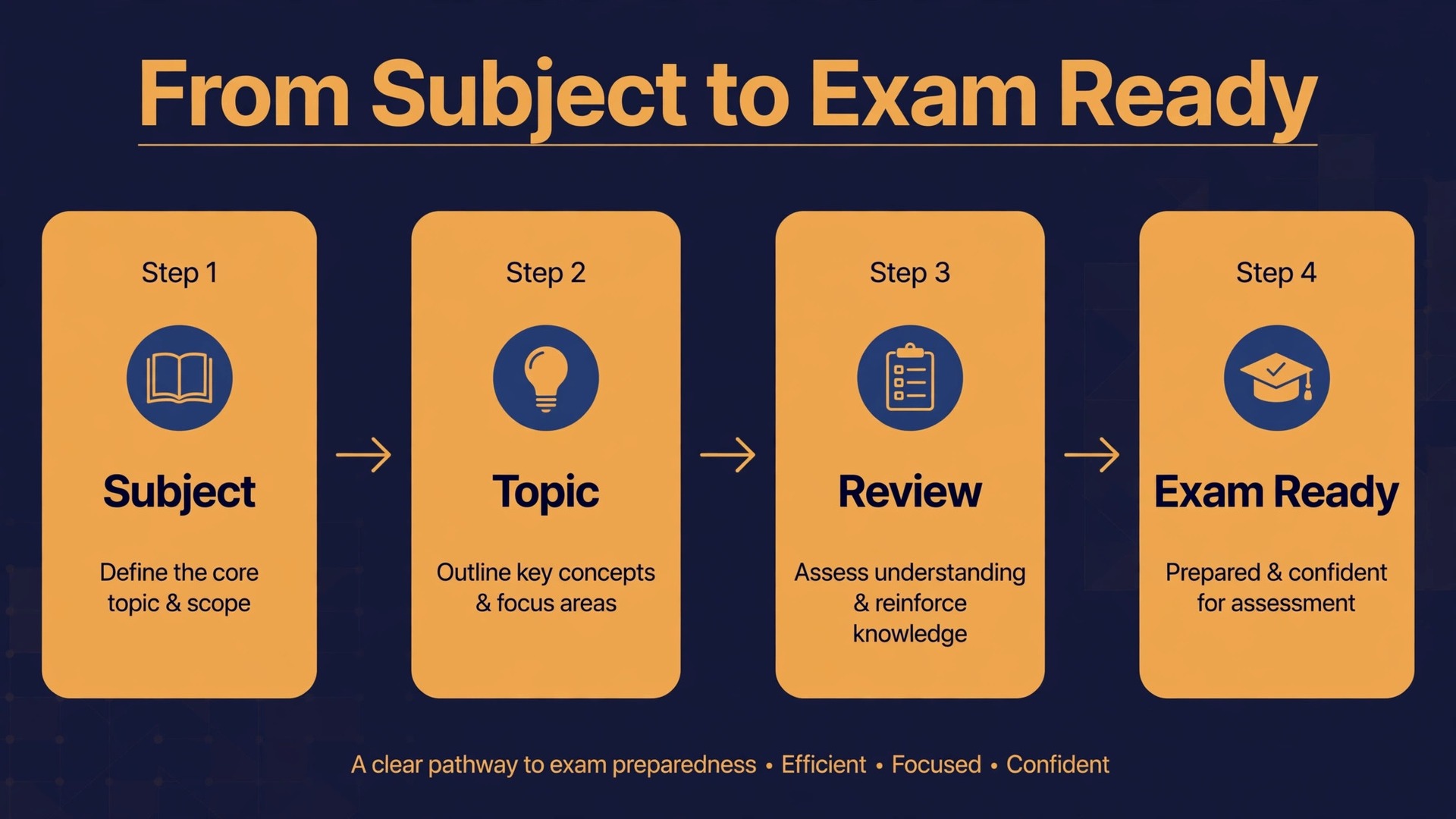
Set aside one afternoon and build the system in the order below. Resist the urge to design a beautiful dashboard first. Structure comes before decoration, because a pretty page with no working database is just another notebook.
- Create one workspace page and call it Revision HQ. This page holds every linked view, so you always start in the same place.
- Create a Subjects database on that page, with one row per subject. Add properties for exam date, exam weight if the mark scheme publishes one, and a simple status field with values for Not started, In progress and Exam ready.
- Create a Topics database, with one row per topic, not per chapter. Chapters are too large to rate honestly. A topic should be small enough to test in one sitting, such as quadratic equations rather than all of algebra.
- Link the two databases with a relation property, so every topic points at its subject. This single link powers every subject level rollup later, including counts of weak topics and average confidence.
- Add a Reviews database or, for a simpler start, add review fields directly to the Topics database. Beginners should keep reviews inside Topics, because one database is easier to maintain than three. Split it out only when the system grows past about 150 topics.
- Build the dashboard views described in the sections below, then add ten real topics from your weakest subject before you stop. A planner with no real data in it will not survive its first week.
When you use Notion for student revision planner setup, the most common mistake is building for every subject at once. Start with two subjects, run the system for a week, and only then add the rest. A planner that covers two subjects well beats a planner that covers eight subjects badly, and the week of real use will show you which fields you actually check and which ones you ignore.
The Database Structure That Makes Revision Decisions Easy
A revision planner needs four kinds of information, and no more. Every extra field is a small tax on every topic you add, and that tax is what kills planners in week three. The four kinds are what the topic is, where it belongs, how well you know it, and when it needs attention again.
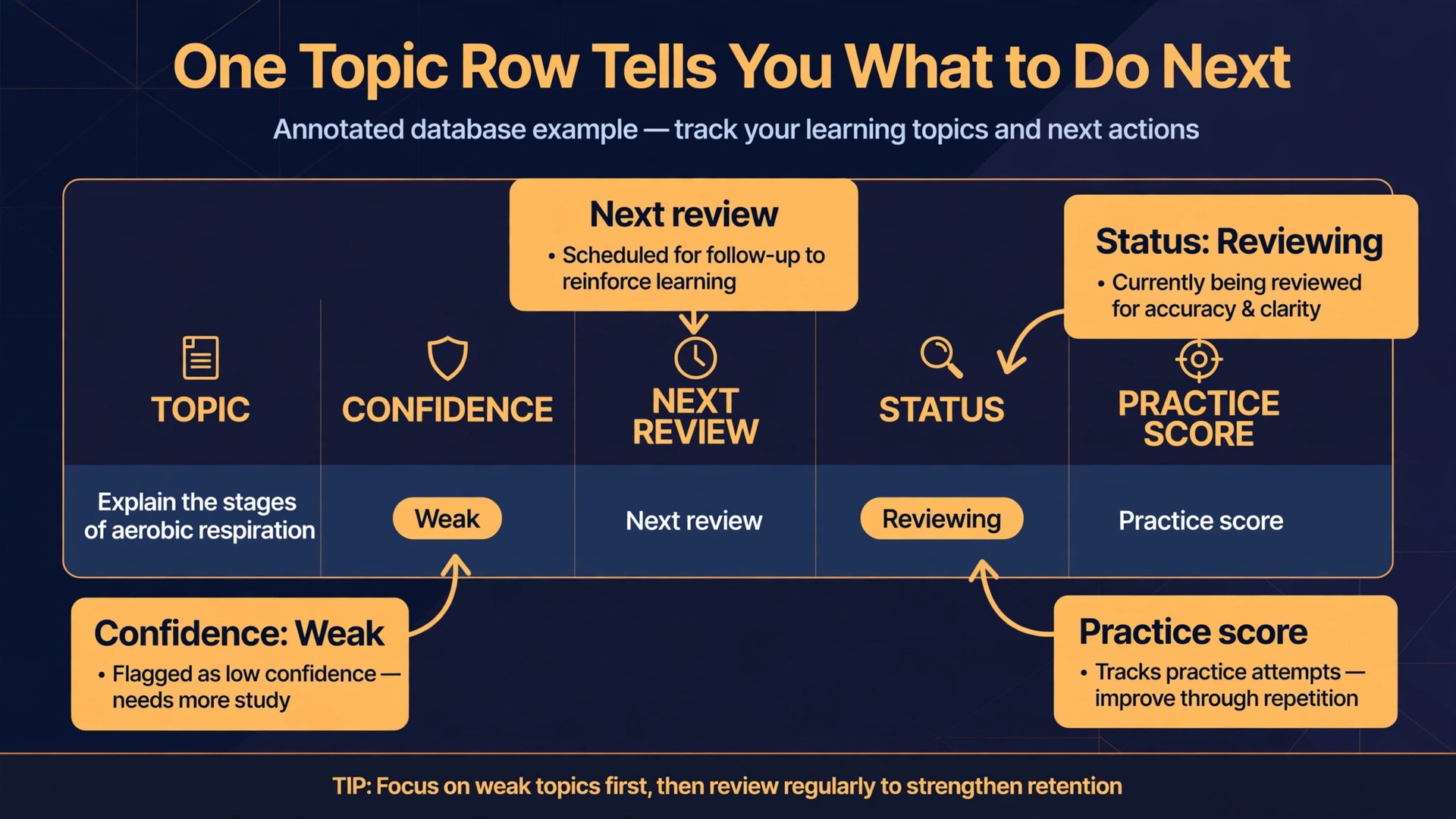
The Topics database carries most of the load. Use the fields in the table below, and treat any field you are tempted to add as guilty until proven useful. If you have not filtered or sorted by a field after two weeks of use, delete it.
| Field | Type | What it does |
|---|---|---|
| Topic | Title | The name of the topic, written as a testable skill |
| Subject | Relation | Links the topic to its subject row |
| Confidence | Select | Values for Weak, Shaky, Solid and Exam ready |
| Last reviewed | Date | The last date you actively tested this topic |
| Next review | Date | The date the review cycle says it comes due again |
| Exam date | Rollup | Pulled from the subject row, so deadlines stay in one place |
| Status | Select | Values for Not started, Learning, Reviewing and Done |
| Notes link | URL or relation | A link to the notes page for this topic |
| Practice score | Number | Your most recent timed practice score as a percentage |
Write topic names as skills you can test, not as chapter titles. “Cell respiration” is a chapter title, and it hides three different skills. “Explain the stages of aerobic respiration from a diagram” is a testable topic, and you can honestly rate it Weak or Solid after one practice question. This naming rule alone improves confidence ratings, because vague topics always get rated higher than they deserve. Nobody wants to admit that a whole chapter is weak, but most students will admit that one specific skill needs work.
Confidence ratings need rules, or they drift upward with optimism. Rate a topic Weak if you cannot answer a basic question on it without notes. Rate it Shaky if you can answer with hints or partial notes. Rate it Solid if you can answer a fresh question cold, but slowly or with small errors. Rate it Exam ready only after a timed practice question answered cold and correctly. Write these definitions at the top of the Topics database, where you see them every time you rate. Without written definitions, every topic quietly becomes Solid by the second week.
Deadlines belong in the Subjects database, not scattered across topic rows. Enter each exam date once, then pull it into Topics with a rollup. This keeps deadline changes cheap. When an exam moves, you change one date and every topic, countdown and view updates. Students who type exam dates into every topic row eventually face a wall of stale dates, and stale dates are worse than no dates, because they look authoritative while being wrong.
If you use Notion for student revision planner tracking across several subjects, add a priority note to Subjects. Not every subject deserves equal time. A subject worth half your final grade and examined in three weeks deserves more slots than one worth a tenth of your grade and examined in two months. Write that judgement down once, in the subject row, and let it guide the daily plan instead of re-deciding it every evening.
Spaced Review Cycles Without a Second App
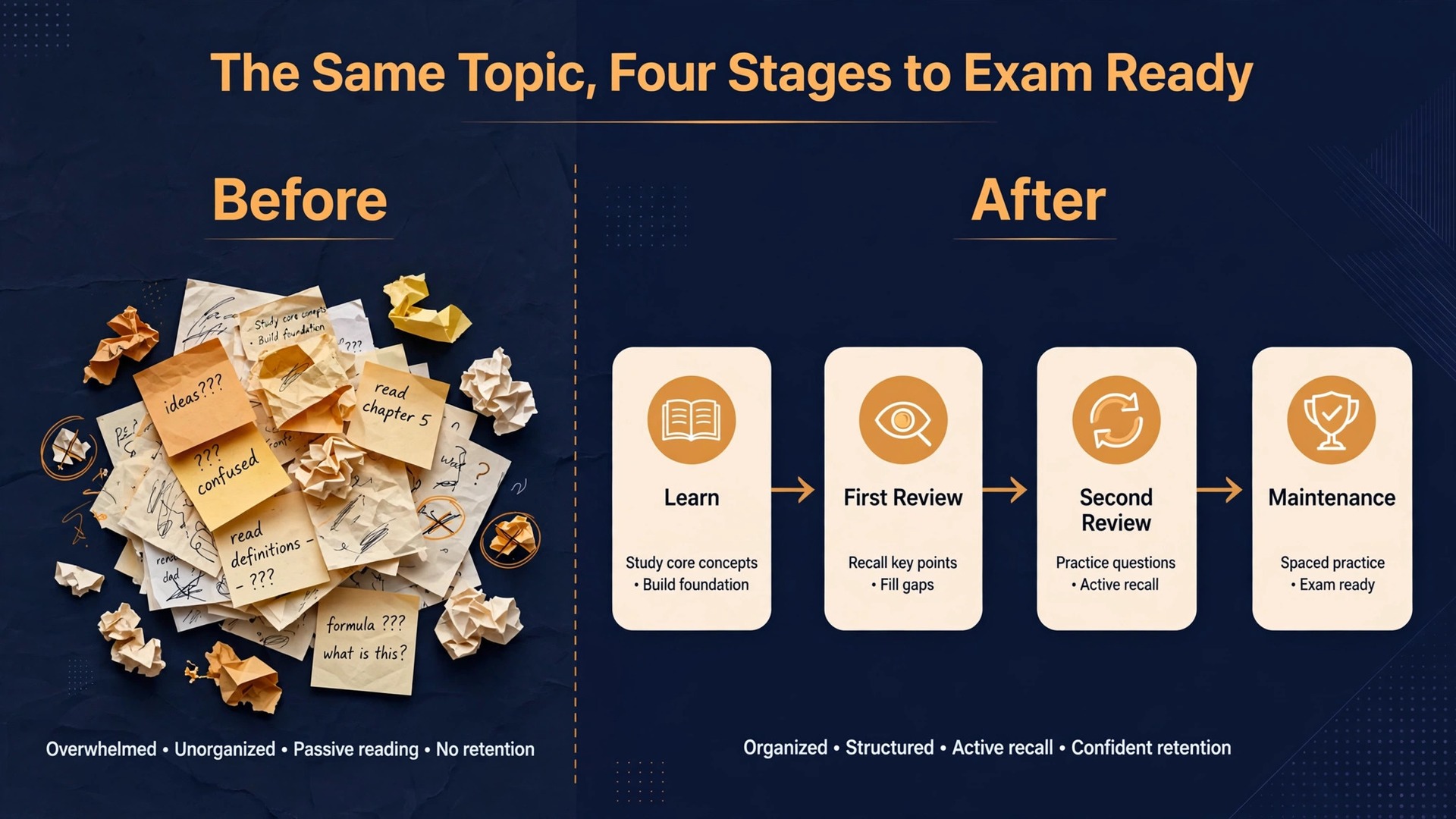
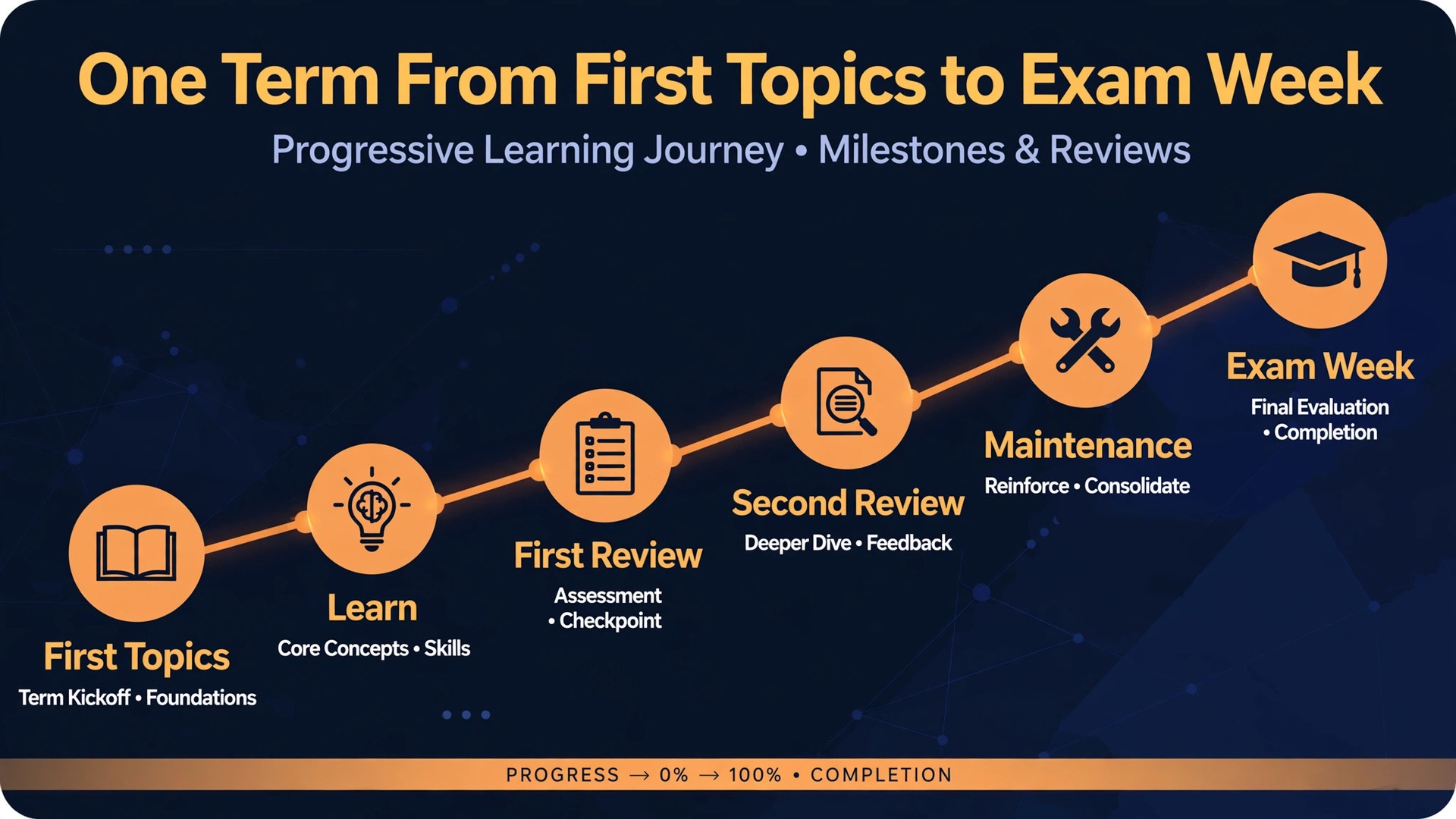
Notion has no built in spaced repetition engine, and pretending otherwise leads to fragile setups. What it does have is dates, filters and formulas, and those three tools are enough to run a review cycle that works. The cycle in this guide uses four stages, and the rule for moving between stages is a test result, not a feeling.
Stage one is Learn. You study a new topic, take notes, and attempt one practice question. If you cannot answer it, the topic stays in Learn and its next review is tomorrow. There is no shame in a topic staying at stage one for several days. That is the system telling you the material needs teaching, not re-reading.
Stage two is First review, three days after the Learn session. Test yourself cold, with notes closed, before you look at anything. If you pass, the topic moves to stage three and its next review is set seven days out. If you fail, it returns to stage one with a next review of tomorrow, and you change the study method. Re-reading a failed topic the same way rarely fixes it. Try a diagram from memory, a worked example, or explaining the idea aloud instead.
Stage three is Second review, seven days after the first review. Again, test cold first. A pass moves the topic to stage four with a next review fourteen days out. A fail sends it back to stage one, not to stage two. This sounds harsh, but a topic that fails after ten days was never learned, it was recognised. Recognition feels like knowledge during re-reading and collapses under exam conditions, so the cycle treats it as new material.
Stage four is Maintenance, with reviews every fourteen days until the exam. Topics at this stage need short checks, not full study sessions. Ten minutes of cold questions is enough, and the goal is to catch decay early, not to re-teach. Two weeks before an exam, maintenance topics for that subject move into the exam countdown plan described in the next section, so they get a final timed pass.
The reason to use Notion for student revision planner reviews this way, rather than trusting a separate flashcard app, is that the review queue lives next to the deadlines and the study plan. A filtered view called Due today shows every topic whose next review date is today or earlier, sorted by confidence, weakest first. You open that view in the morning and your review list is already made. No export, no sync, no second app to open and forget.
Keep the cycle honest with two rules. First, never mark a topic reviewed without a cold test. Reading notes and calling it a review is the fastest way to fill a planner with green ratings and empty knowledge. Second, never let the overdue list grow past twenty topics without a triage session. If the list is longer than that, you are adding new topics faster than you can review them, and the fix is to pause new material and clear the backlog first.
A simple formula can flag overdue topics automatically. Add a formula property that compares the next review date with today and returns Overdue, Due today or Upcoming. Filter the Due today view to the first two values, and the dashboard does the sorting for you. Students who prefer no formulas can get the same result with a date filter, showing topics with a next review date on or before today. Formulas save clicks, but they are not required, and a working filter beats a broken formula every time.
Exam Countdown Views That Show Real Risk
A countdown view is not a calendar with exam dates on it. It is a risk view, and it should answer one question at a glance. Which subjects are in trouble, and how much time is left to fix them. Build it from the Subjects database, sorted by exam date, with rollups that count weak topics and average confidence per subject.
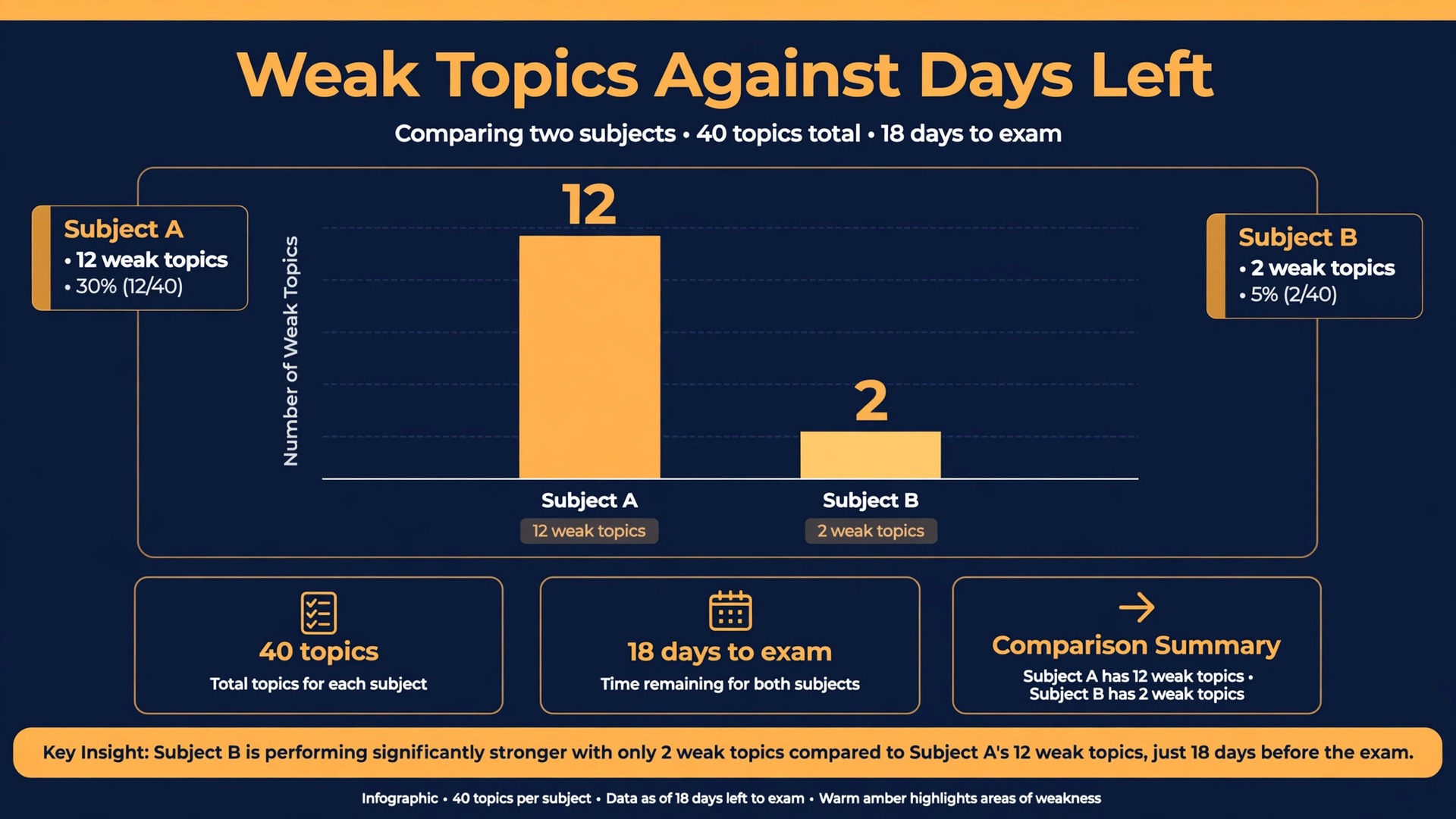
Start with a table view of Subjects, sorted by exam date ascending, so the nearest exam sits at the top. Add rollup columns for total topics, weak topics, shaky topics and topics not yet started. A subject with forty topics and twelve rated Weak, examined in eighteen days, is a different problem from a subject with forty topics and two rated Weak, examined in the same window. The table makes that difference visible in seconds, without opening a single topic row.
Next, add a board view grouped by subject status, so you can drag a subject from In progress to Exam ready only when its weak count hits zero and its last timed practice passed. The drag is satisfying, but the rule behind it matters more. A subject is not Exam ready because you feel good about it. It is Exam ready when the data says so, and that discipline prevents the most expensive revision error, which is declaring victory two weeks early.
Add a timeline view for the final month before exams. Timeline views in Notion show date ranges, so set each subject row to span from today to its exam date, and the shrinking bars make time pressure visible in a way that a list of dates never does.
The exam countdown also needs a rule for what happens when a subject falls behind. If a subject has more weak topics than remaining study days can cover at two topics per day, something has to give. Either drop lower value topics deliberately, with a note explaining the choice, or move study slots from a stronger subject. Make that trade explicitly, in the subject row, rather than letting it happen silently by neglecting the weak subject. Deliberate triage loses fewer marks than silent neglect, because it protects the topics most likely to appear and most heavily weighted.
When you use Notion for student revision planner countdowns, keep the countdown honest about practice scores too. A subject can show zero weak topics and still be at risk if practice scores sit in the sixties. Add a rollup for average practice score per subject, and treat any subject averaging below seventy percent as a review priority even if its confidence ratings look healthy. Confidence without timed evidence is a guess, and exams test evidence, not confidence.
Daily Study Load Planning That Fits Real Days
A daily plan that assumes six perfect study hours will fail on the first busy day, and a failed plan teaches students to ignore the planner. Build the daily plan around three slots, not around hours, and let the slots flex with the day.
The three slots are Review, Learn and Practice. Review takes the Due today view and works through it weakest first, with a cap. If the due list is longer than the time available, take the weakest ten and move the rest to tomorrow, then fix the backlog in the weekly triage session. Learn takes one new topic, or two at most, and ends with a cold practice question. Practice takes a timed set from the nearest exam subject, even if that subject feels comfortable. Comfortable subjects still need timed practice, because exam technique decays without use.
Size the slots to the day you actually have. On a full study day, Review might take ninety minutes, Learn ninety minutes, and Practice sixty minutes. On a school day with homework and activities, Review might take thirty minutes, Learn thirty minutes, and Practice fifteen minutes. The planner should record which slots were completed, not how many hours were logged. Hours reward sitting at a desk. Completed slots reward finished work, and finished work is what raises marks.
Build the daily view as a filtered list of Topics, grouped by slot. One practical way to do this is a Daily Plan page with three linked views of the Topics database. The first view filters to next review dates due today. The second filters to status Learning, sorted by exam date. The third filters to the nearest exam subject with status Reviewing. Each morning, pick from these three views, write the picks on the Daily Plan page, and check them off as you finish. The written pick matters, because a plan chosen in the morning survives the day better than a plan improvised at each break.
Protect the daily plan from overload with a simple cap rule. No day gets more than three Learn topics, and no day gets a Learn topic from a subject whose overdue review list already exceeds ten. These caps feel restrictive, and that is the point. A planner that says no to new material when reviews are overdue is doing its most valuable job, which is keeping the system honest about capacity. Students who ignore the cap usually discover the problem three weeks later, when the overdue list has grown past any realistic catch up.
If you use Notion for student revision planner days across a full term, add a weekly review session of thirty minutes, ideally on the same day each week. In that session, check four numbers, which are overdue topics, weak topics per subject, the nearest exam date, and practice score averages. Then make three decisions, which are which subject gets extra slots next week, which topics to drop or defer, and whether the daily slot sizes still fit your timetable. Write the decisions on the weekly page. A planner without a weekly review slowly drifts from reality, and the weekly session is what pulls it back.

Keeping the System Running During Exam Weeks
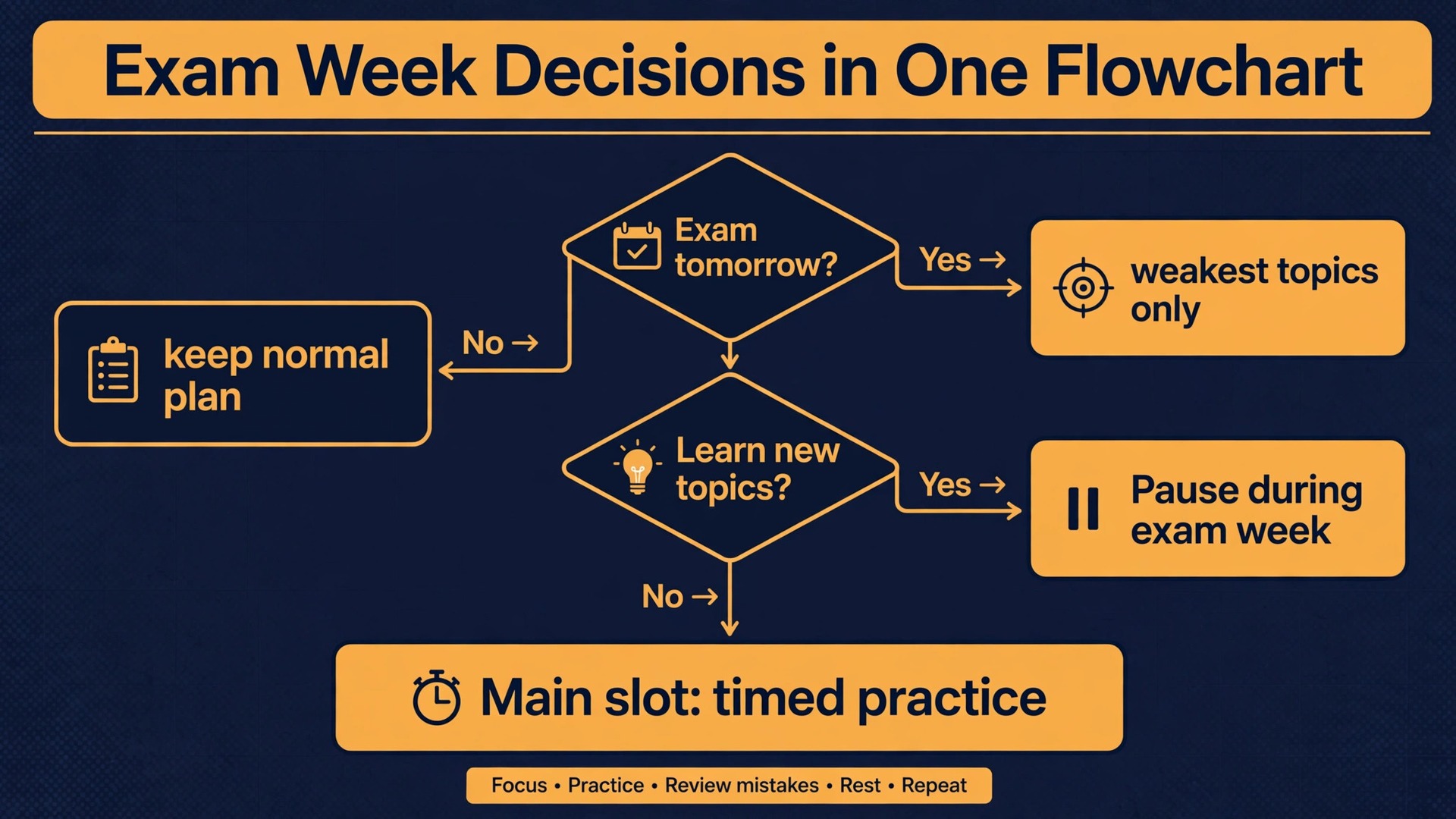
Exam weeks break planners because the routine changes. Study days become exam days, energy drops, and the temptation is to abandon the system and improvise. The fix is to plan a simpler exam week mode in advance, so the switch feels like part of the system rather than a failure of it.
Exam week mode has three rules. First, the Due today view shrinks to one rule, which is weakest topics for tomorrow’s exam only. Topics for later exams wait, because tomorrow’s paper is the only deadline that cannot move. Second, Learn stops entirely. Exam week is not the time to meet new material, and new topics added during exam week almost never reach Exam ready before their paper. Third, Practice becomes the main slot, with one timed paper or timed section per day, reviewed the same day while mistakes are fresh.
Keep the daily check in during exam weeks, but shrink it to two minutes. Open the dashboard, check tomorrow’s exam topics, pick the weakest five, and close the planner. A two minute check that happens beats a thirty minute planning session that gets skipped, and the habit of opening the planner daily is what carries students through the second and third exam weeks, when fatigue peaks.
After each exam, run a ten minute close out before moving on. Mark the subject Exam ready or Done, move its remaining topics to a Done status, and note the topics that surprised you on the paper. Those notes are valuable for later papers in the same subject family, and they are also the most honest feedback the system will ever get. A topic rated Solid that appeared on the paper and failed needs its confidence rule revisited, not just its rating lowered.
Students who use Notion for student revision planner routines during exam weeks often find that the system earns its keep most visibly in this period. When every other student is deciding what to study from scratch each morning, the planner owner opens one view and starts. That head start, repeated across five or six exam days, is worth more than any single study technique, because it converts panic time into study time at exactly the moment when time is scarcest.
What It Costs and What the Free Plans Actually Limit
Cost matters for a student planner, because a system that needs a paid subscription will be abandoned the moment money gets tight. The good news is that a full revision planner runs on Notion’s free plan for a solo student. Unlimited pages and databases cover every structure in this guide, including relations, rollups, filters and views.
The free plan limits that can bite are file uploads capped at 5 MB per file, page history of 7 days, and a guest cap of 10 people. Large scanned textbook chapters and long lecture recordings will exceed the upload cap, so store big files in a cloud drive and link them from the topic row instead of uploading them into Notion. The 7 day history window means a deleted database is recoverable for a week, so export the planner as a backup at the start of each month. That monthly export takes two minutes and removes the only serious free plan risk.
Students at an accredited college or university can claim more through Notion’s Education plan. With a qualifying school email address, an individual student gets the Plus plan free, as a one member workspace, with unlimited file uploads and a 30 day page history. That removes both limits that matter for revision, and it costs nothing while student status lasts. Student status is rechecked periodically, so keep the school email address active in the account settings.
For context, the standard Plus plan is listed at 10 dollars per member per month billed annually, or 12 dollars billed monthly, and Business is listed at 20 dollars billed annually, or 24 dollars billed monthly. Most students will never need Business, because its main additions are team administration and full AI access, not revision features. Check the official pricing page before paying for anything, because plan prices and education eligibility change, and this guide’s figures reflect listings available at the time of writing.
If the planner in this guide appeals to you, it helps to compare Notion with the wider field before committing a full term to it. This site’s notion vs obsidian guide compares the two apps head to head for study use, and ai tools for students places planners like this one among the wider set of study tools students actually use. Once you use Notion for student revision planner routines for a few weeks, the comparison that matters most is not between apps, it is between your first week’s overdue count and your last week’s, because that trend shows whether the system is working.
Frequently Asked Questions
Do I need the paid plan to build a revision planner in Notion?
No. The free plan covers every database, view, filter and formula in this guide for a solo student. The limits to watch are the 5 MB per file upload cap and the 7 day page history window. Link large files from a cloud drive instead of uploading them, and export a backup each month. If you qualify for the free Education plan, those two limits go away, with unlimited uploads and 30 day history at no cost.
How many topics should I put in the planner?
Aim for topics small enough to test in one sitting, which usually means 80 to 150 topics per subject for a full exam course, depending on the syllabus. Fewer, larger topics make confidence ratings meaningless, because a whole chapter is rarely uniformly weak or strong. If your topic count passes 200 for one subject, split the subject into two databases or two sections, because very long lists discourage daily use.
What if I fall behind on reviews?
Pause new Learn topics first, then work the overdue list weakest first in batches of ten. Do not try to clear a large backlog in one day, because rushed reviews produce false passes that collapse later. If the backlog stays above twenty topics for more than a week, drop or defer the lowest value topics deliberately, and record the choice in the subject row. A smaller honest plan beats a large plan you have stopped trusting.
Can I use this planner with a study group?
Yes, with one caution. Sharing the planner with guests works well for viewing the same topic lists and deadlines, but shared editing needs care, because one person’s confidence rating is not another person’s. The cleanest setup is one shared Subjects and deadlines page, with each student keeping a personal Topics database for their own ratings. Compare weak topics in the group session, but keep the ratings personal, or the data stops meaning anything.
Does Notion replace flashcards or past papers?
No, and it should not try. Notion plans and tracks revision, while flashcards drill recall and past papers build exam technique under time pressure. The planner tells you which topics to drill and when, and the drill itself still happens with questions, flashcards or timed papers. Students who try to turn Notion into a flashcard app usually build a fragile system and neglect timed practice, which is the skill exams actually reward.
How long does it take to set up and maintain?
The initial build takes one afternoon, roughly two to three hours including adding real topics for two subjects. Daily use takes five minutes in the morning to pick slots, plus the study itself, and the weekly review takes about thirty minutes. If daily maintenance creeps past fifteen minutes of administration, you have added too many fields. Remove fields until the morning check fits in five minutes again, because a planner that costs more time than it saves will be abandoned.
When the Planner Starts Running Itself
A revision planner is finished not when it looks complete, but when it starts telling you things you did not already know. The first time the Due today view surfaces a topic you had forgotten, the first time a countdown view shows a subject slipping while you still have time to fix it, and the first time an exam week morning starts with a plan instead of a panic, the system has paid for the afternoon it took to build. From there, the work is maintenance, not reinvention. Keep the topics small, keep the tests cold, keep the weekly review, and let the planner carry the remembering so your study time can carry the learning.
If you build it this week, start with your weakest subject and ten honest topics, and use Notion for student revision planner habits that survive contact with a real term, because a planner that survives is the only kind that raises marks.