
A family member who falls, gets lost, or needs help while away from home needs a device that is already on their wrist, already charged, and already set up to call for help. When you set up Apple Watch for family safety, fall detection, emergency calls, location sharing, and simple communication combine in one device that works even when a phone is left behind, provided a cellular model and the right settings are in place. That combination is why many families choose a watch for children and older relatives who do not carry a phone reliably.
This guide covers Family Setup, safety features, contacts, and daily habits that keep the watch useful. You will choose the right model, set up the watch from a family organiser iPhone, configure fall detection and emergency contacts, set location and communication controls, and test the setup with the wearer. Apple Watch models and cellular plan costs vary by region and carrier, so confirm current model prices and carrier plan details on official Apple and carrier pages before buying.
Why This Approach Works
Safety devices fail when they are complicated, forgotten, or left at home, and a watch avoids all three failure modes better than a phone in a pocket or a pendant in a drawer. A watch is worn all day, charges in one place at night, and can call for help with a button press or automatically after a hard fall when the wearer cannot respond. For children, a watch with Family Setup gives communication and location without a full phone, while for older relatives, fall detection and emergency contacts give family members confidence without constant checking.
The watch does not replace care or supervision, but it shortens the time between a problem and help arriving, which is often the most important factor in an emergency.
Family Setup is the key to using a watch without its own iPhone, because it lets a family organiser set up and manage a watch for a child or relative from the organiser’s iPhone, with its own phone number and account where a cellular plan supports it. That setup also allows controls for contacts, apps, and schooltime or downtime features, depending on the wearer’s age and needs, so the watch can be both a safety device and a communication tool without becoming a distraction. Setting up those controls thoughtfully at the start prevents most later problems, because a watch that is too open will be misused, while a watch that is too locked down will not be worn.
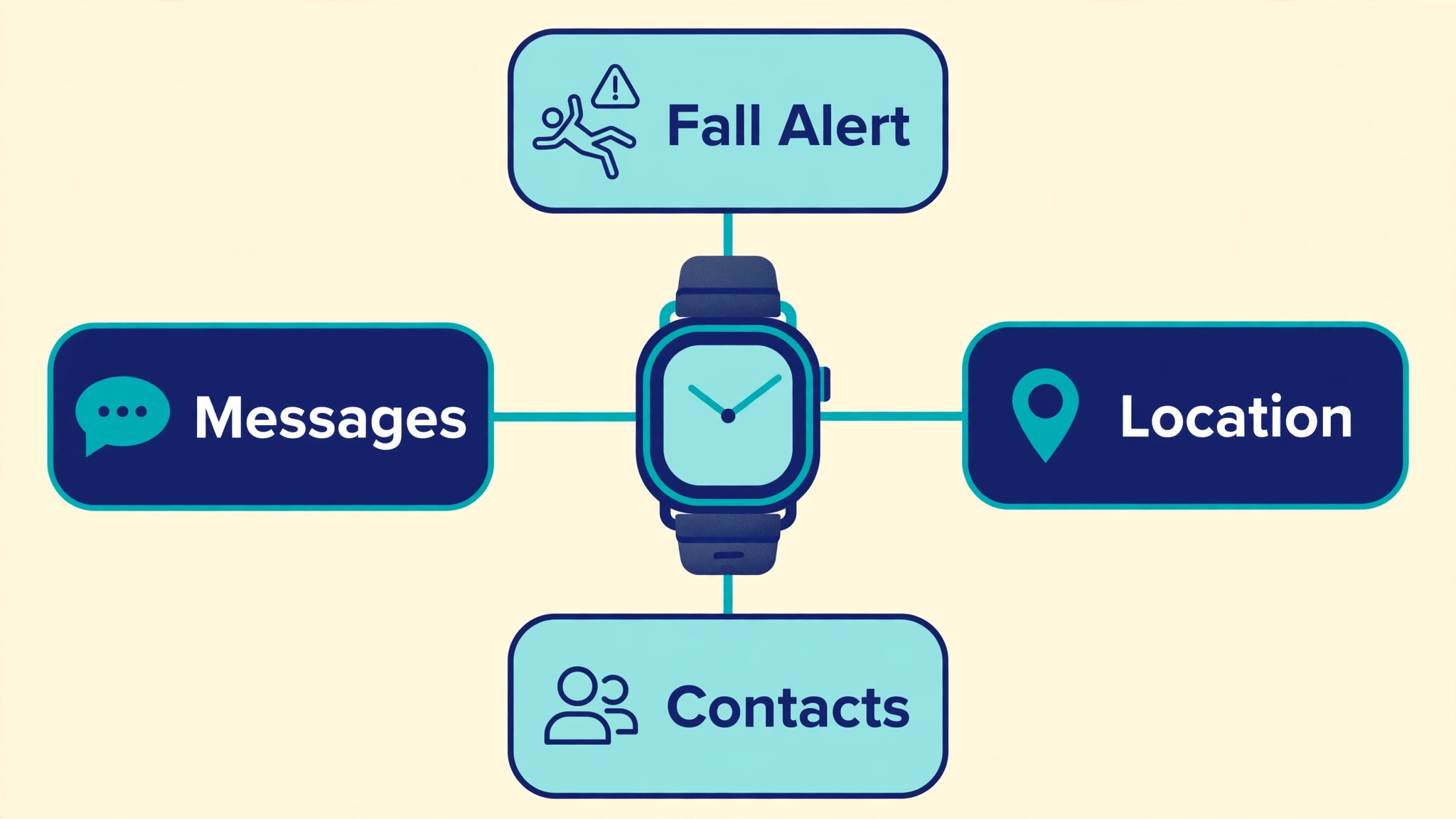
How to set up Apple Watch for family safety Step by Step
Set up in the order below, starting with the organiser account and the model choice, not with the watch itself. When you set up Apple Watch for family safety in this order, each later setting builds on an account and a connection that already work, so testing at the end confirms a complete system rather than revealing a missing foundation.
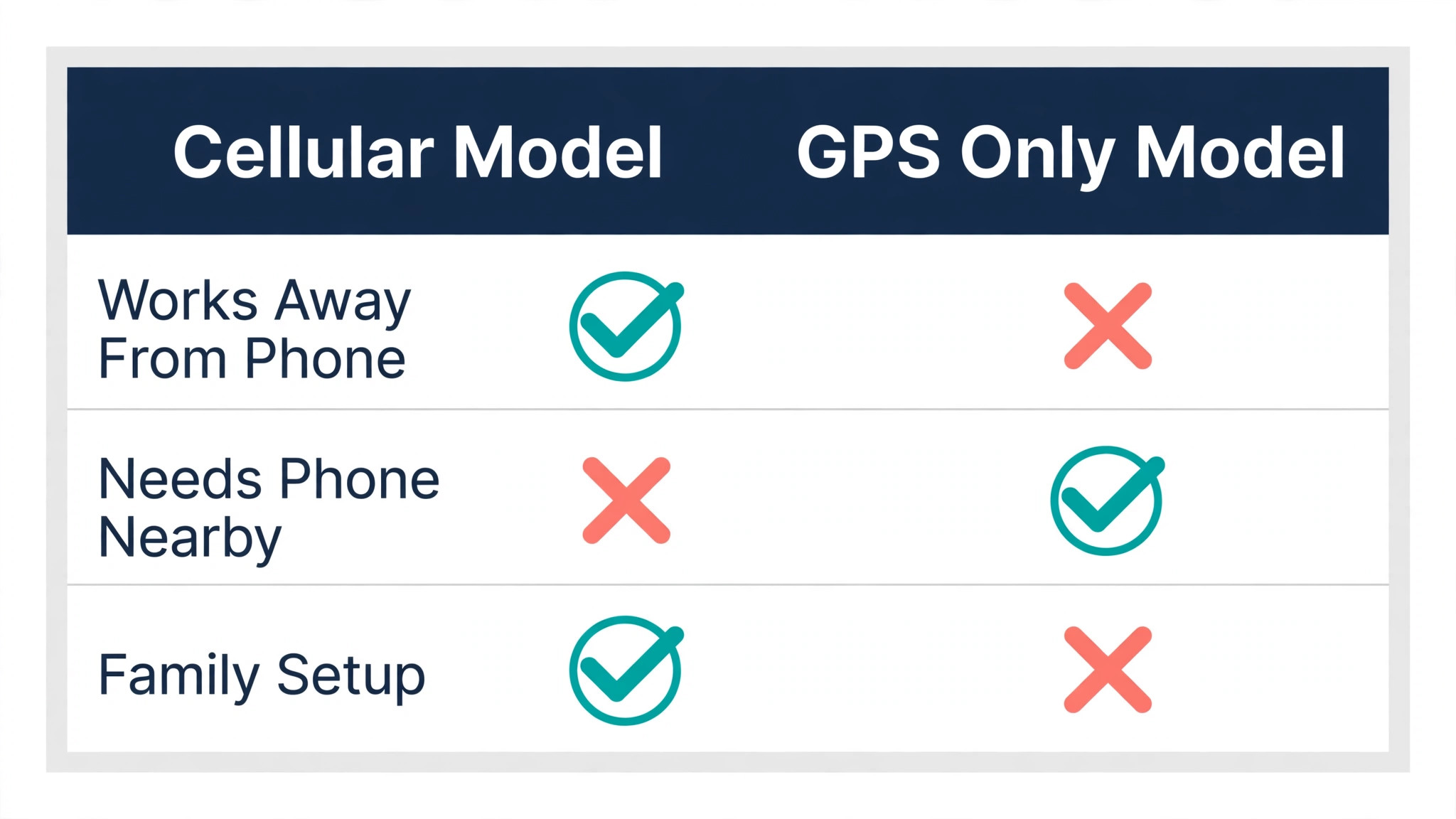
- **Choose a cellular model and a carrier plan.** Choose a cellular Apple Watch model, such as a cellular SE or Series model, because Family Setup safety features that work away from a phone need cellular connectivity. Check that your carrier supports Family Setup and Apple Watch cellular plans in your region, and confirm the monthly plan cost before buying. A GPS only watch can still help when a phone is nearby, but it cannot call for help alone when the wearer is away from that phone.
- **Prepare the organiser iPhone and Family Sharing.** On the family organiser iPhone, confirm Family Sharing is set up, the organiser Apple Account uses two factor authentication, and the watch wearer is a family member with their own Apple Account where required. Update the iPhone and watch software to current versions before setup, because outdated software can block Family Setup features. Preparation at this stage prevents setup errors that are hard to diagnose later.
- **Set up the watch with Family Setup.** Open the Watch app on the organiser iPhone, choose Set Up for a Family Member, and follow the prompts to pair the watch, create or select the wearer’s account, set a passcode, and add a cellular plan. Choose watch face, text size, and accessibility settings with the wearer present, so the watch is comfortable and readable from the first day. A setup done with the wearer present will be worn, while a setup done as a surprise may be rejected.
- **Configure fall detection and emergency SOS.** In the Watch app, confirm fall detection is on, set to Always On for older wearers where appropriate, and confirm Emergency SOS settings, including how to trigger a call and which emergency contacts will be notified. Add emergency contacts and complete Medical ID with allergies, conditions, and medications where the wearer consents, because that information helps responders. Test understanding with the wearer, by explaining what happens after a fall, without triggering a real emergency call.
- **Set location sharing and Find My.** Confirm Find My is on for the watch, and set location sharing with family members who should be able to check location, with clear agreement about when location will be checked. Location sharing should be a safety agreement, not secret surveillance, because trust determines whether the watch keeps being worn. Check that location appears correctly in Find My on the organiser iPhone before relying on it.
- **Set contacts, calls, and messages.** Add approved contacts for calls and messages, and set communication limits where available, so the wearer can reach family, school, or carers easily, without unwanted contacts. Test a call and a message from the watch to a family member, and from a family member to the watch, to confirm both directions work on cellular, away from the organiser iPhone. A safety device that cannot communicate in both directions is only half a safety device.
- **Set schooltime, downtime, and app controls.** Where the wearer is a child, set Schooltime to limit distractions during school hours, set downtime for night hours, and approve or restrict apps to those needed for safety and communication. For older wearers, keep controls light, focusing on simplicity, large text, and easy access to calls and emergency features. Controls should match the wearer’s age and needs, not a single template for all family members.
- **Test the full safety setup together.** Test location, calls, messages, fall detection understanding, and emergency contact details together with the wearer, in a real location away from home, on cellular. Confirm that the watch shows the correct time, location, and contacts, and that the wearer knows how to trigger Emergency SOS and how to cancel a false trigger. A tested setup gives both the wearer and the family confidence, while an untested setup gives only hope.
After testing, write down the key settings, emergency contacts, and carrier plan details in a safe place that family members can access, and schedule a monthly check of battery habits, software updates, and contact accuracy. Safety settings drift over time, as contacts change and software updates alter menus, so a monthly check keeps the system reliable. A watch that is checked monthly will work when needed, while a watch that is set up once and forgotten may fail silently.
Options Compared
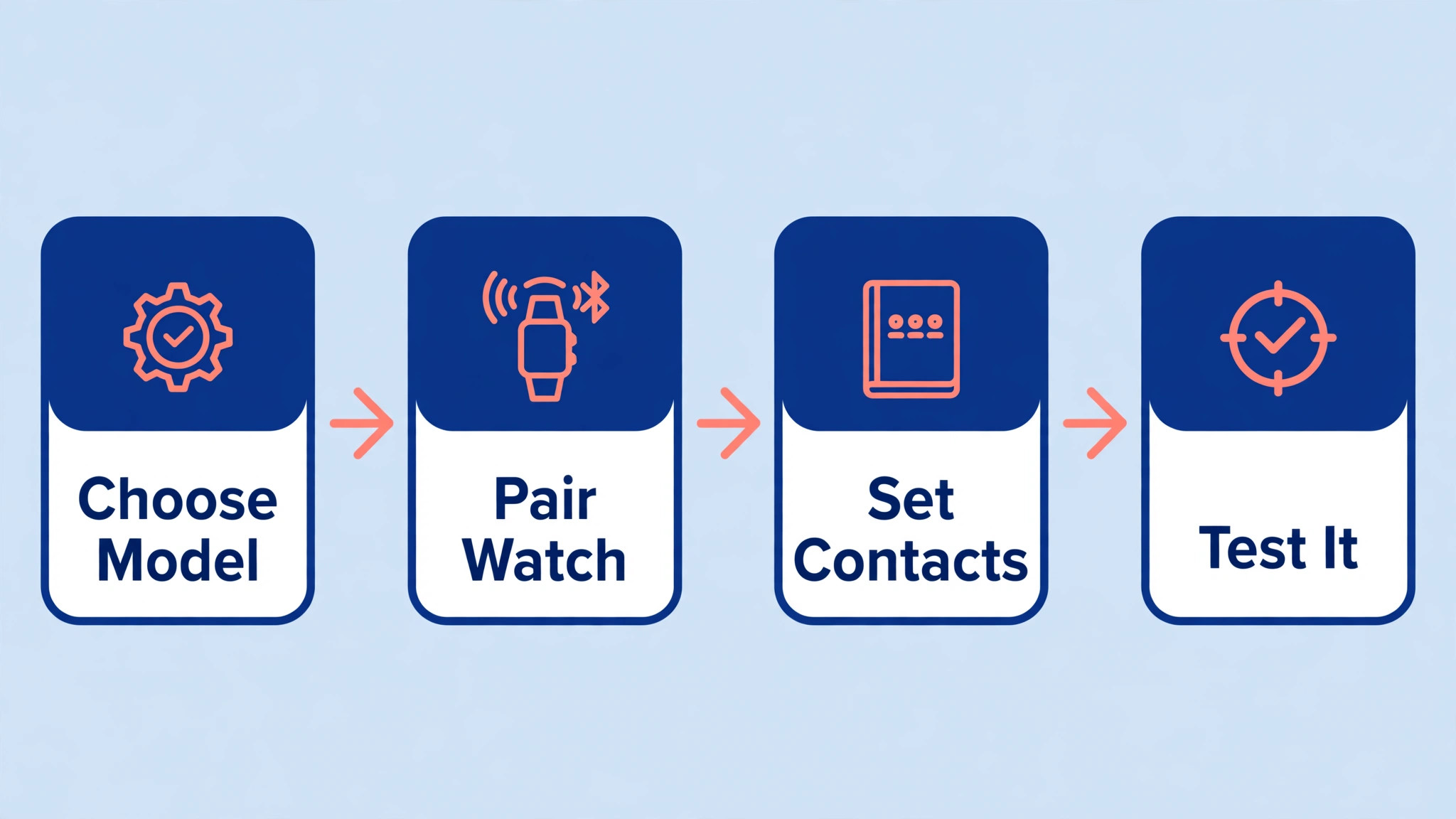
Safety options suit different family members, and when you set up Apple Watch for family safety, the right setup depends on age, mobility, and phone habits. The table below compares the main safety options, so a family can choose the combination that fits each wearer rather than applying one setup to everyone.
| Safety option | Who it helps most | Needs to work well |
|---|---|---|
| Fall detection | Older relatives, lone workers | Watch worn snugly, cellular or phone nearby |
| Emergency SOS | All wearers in an emergency | Wearer knows how to trigger and cancel |
| Location sharing | Children, relatives who wander | Family agreement on checking |
| Medical ID | Wearers with conditions or allergies | Accurate, consented information |
| Crash detection | Drivers and active wearers | Compatible model and software |
Combine options by wearer, rather than enabling everything for everyone without thought. An older relative may need fall detection, Emergency SOS, Medical ID, and location sharing, while a child may need location, approved contacts, and Schooltime most. Review the combination with the wearer, because a safety setup that the wearer understands and accepts will be worn and used, while a setup imposed without explanation may be removed or ignored.
Costs and Tools to Budget For
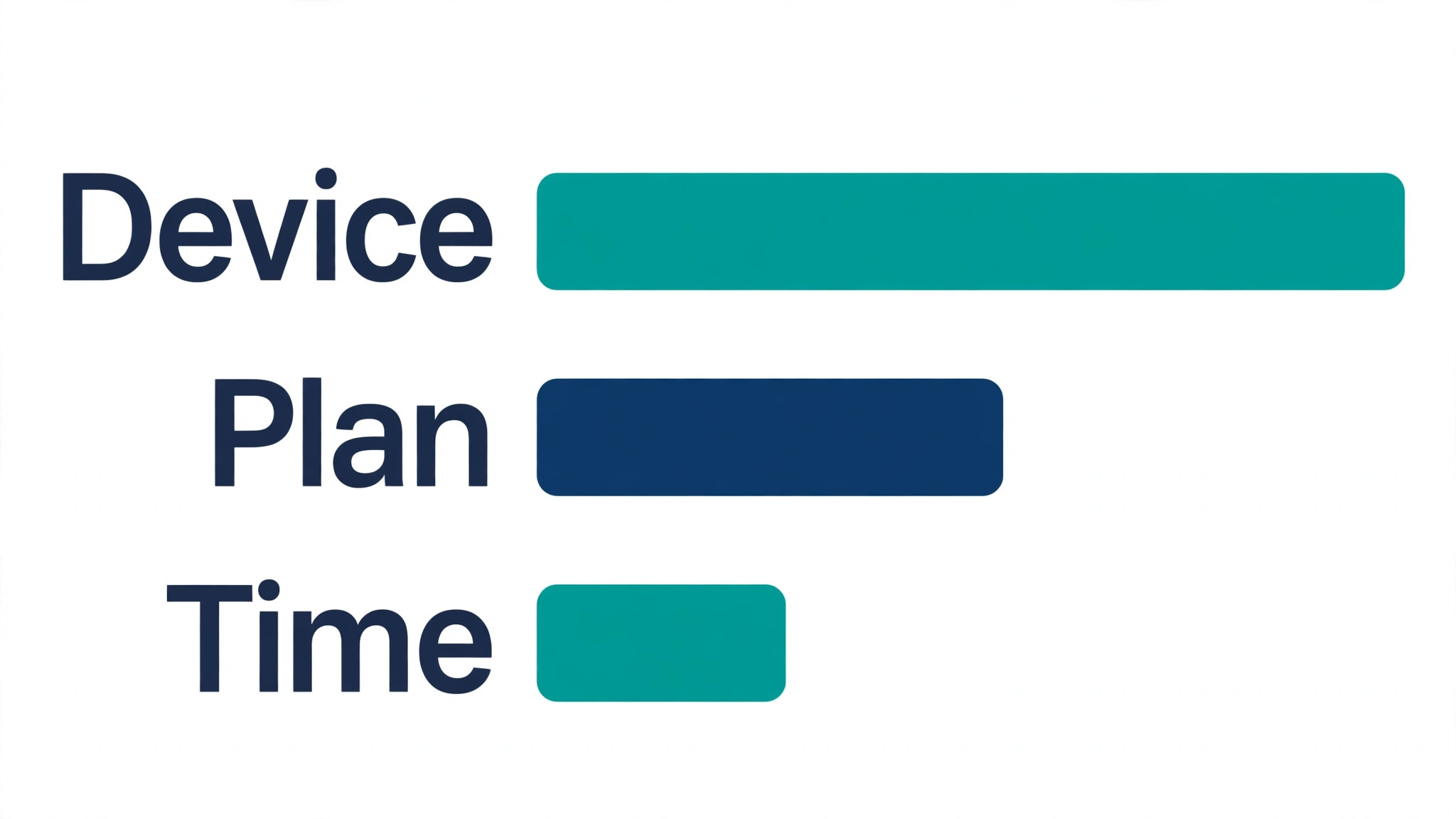
Budget for family safety watches in device cost, cellular plan cost, and setup time. Apple Watch prices vary by model, size, and region, with the SE usually the most affordable cellular option for family safety, while Series models add more health and safety features at higher prices. Cellular plans add a monthly carrier cost, which varies by carrier and region, so confirm the plan price and Family Setup support with your carrier before buying. Check official Apple pricing for the current model range, because models and prices change with new releases.
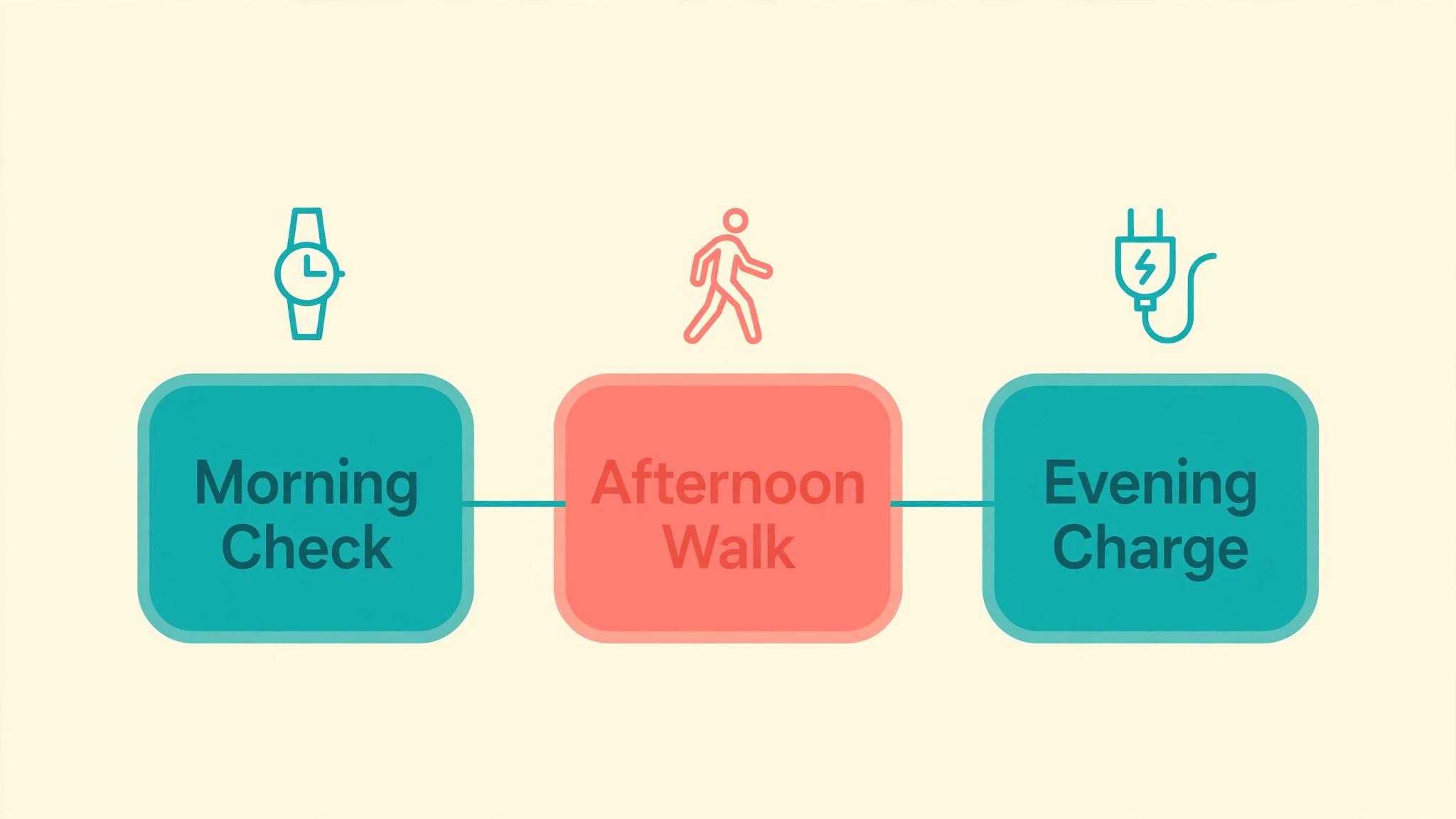
Setup time is usually an hour for Family Setup, contacts, and safety settings, plus testing time away from home on cellular. That time is well spent, because a rushed setup that is never tested may fail when it matters most. Budget also for a charging routine, such as a charger by the bed and a reminder to charge nightly, because a watch with an empty battery provides no safety benefit at all, regardless of how well it was configured.
Template and Checklist
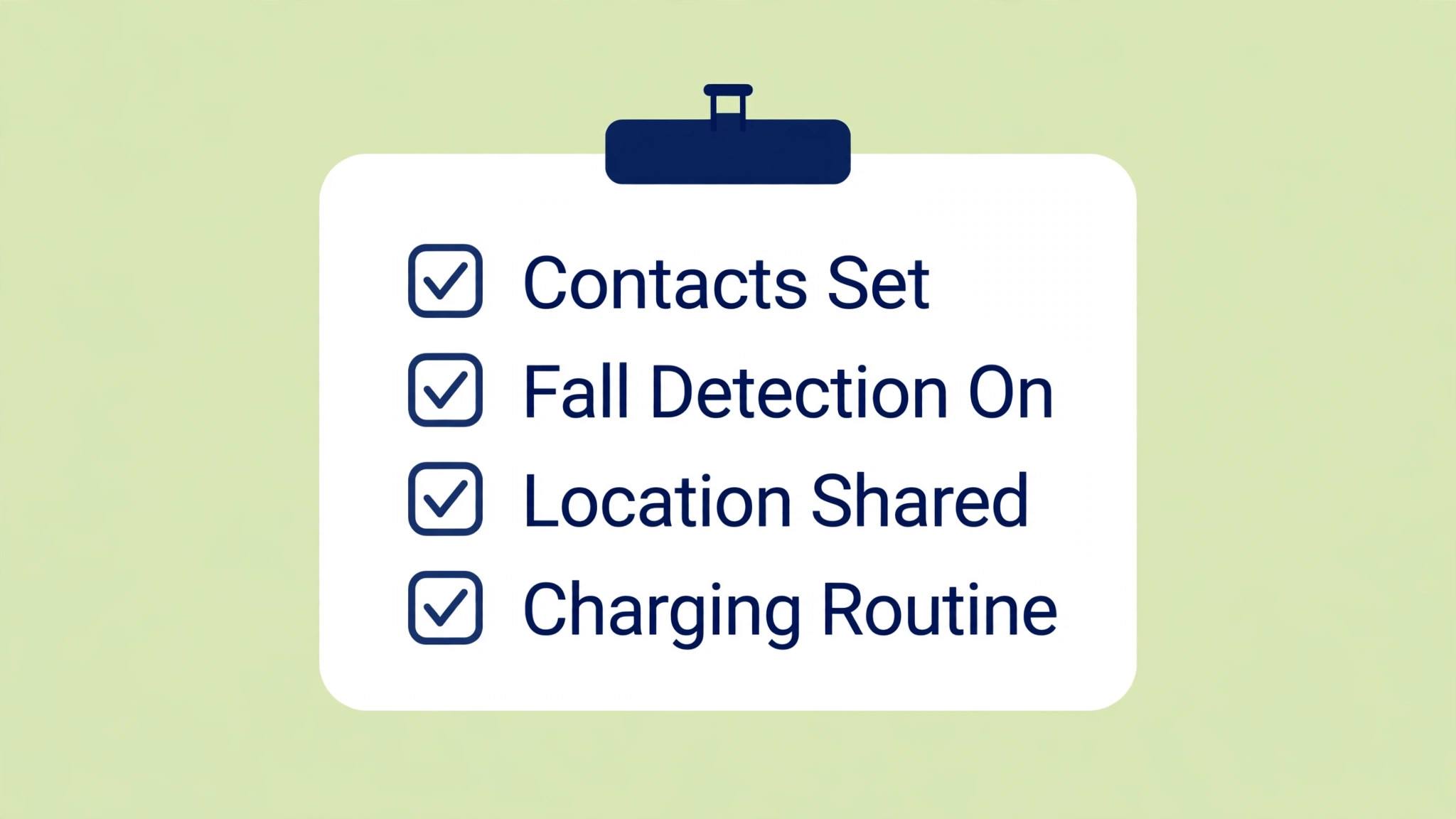
Run this checklist after setup and monthly thereafter. When you set up Apple Watch for family safety, the checklist is the gate that confirms the watch can actually call for help, share location, and reach family, rather than merely looking configured on a screen.
- A cellular model is chosen, with a carrier plan that supports Family Setup.
- Family Sharing is set up, with the wearer as a family member.
- The watch is paired with Family Setup from the organiser iPhone.
- Fall detection is on, set appropriately for the wearer’s age and risk.
- Emergency SOS is understood by the wearer, including how to cancel.
- Emergency contacts are added and verified, with Medical ID completed where consented.
- Find My and location sharing are on, with a family agreement on checking.
- Approved contacts work for calls and messages in both directions on cellular.
- Schooltime, downtime, and app controls match the wearer’s age and needs.
- A full test is completed away from home, on cellular, with the wearer.
- Charging routine is agreed, with a charger in a consistent place.
- A monthly check of settings, contacts, and software is scheduled.
Keep the completed checklist with carrier plan details and emergency contacts in a safe place accessible to family members. When a new family member needs to help, or when the watch is replaced, the checklist lets the setup be repeated quickly and correctly. Documentation of safety settings is part of safety itself, because a system that cannot be rebuilt after a change is a system that will eventually fail.
Mistakes to Avoid
Family safety watch setups fail in predictable ways, usually because setup was rushed or never tested. When you set up Apple Watch for family safety, watch for these mistakes, because each one can leave a wearer without help when help is most needed.
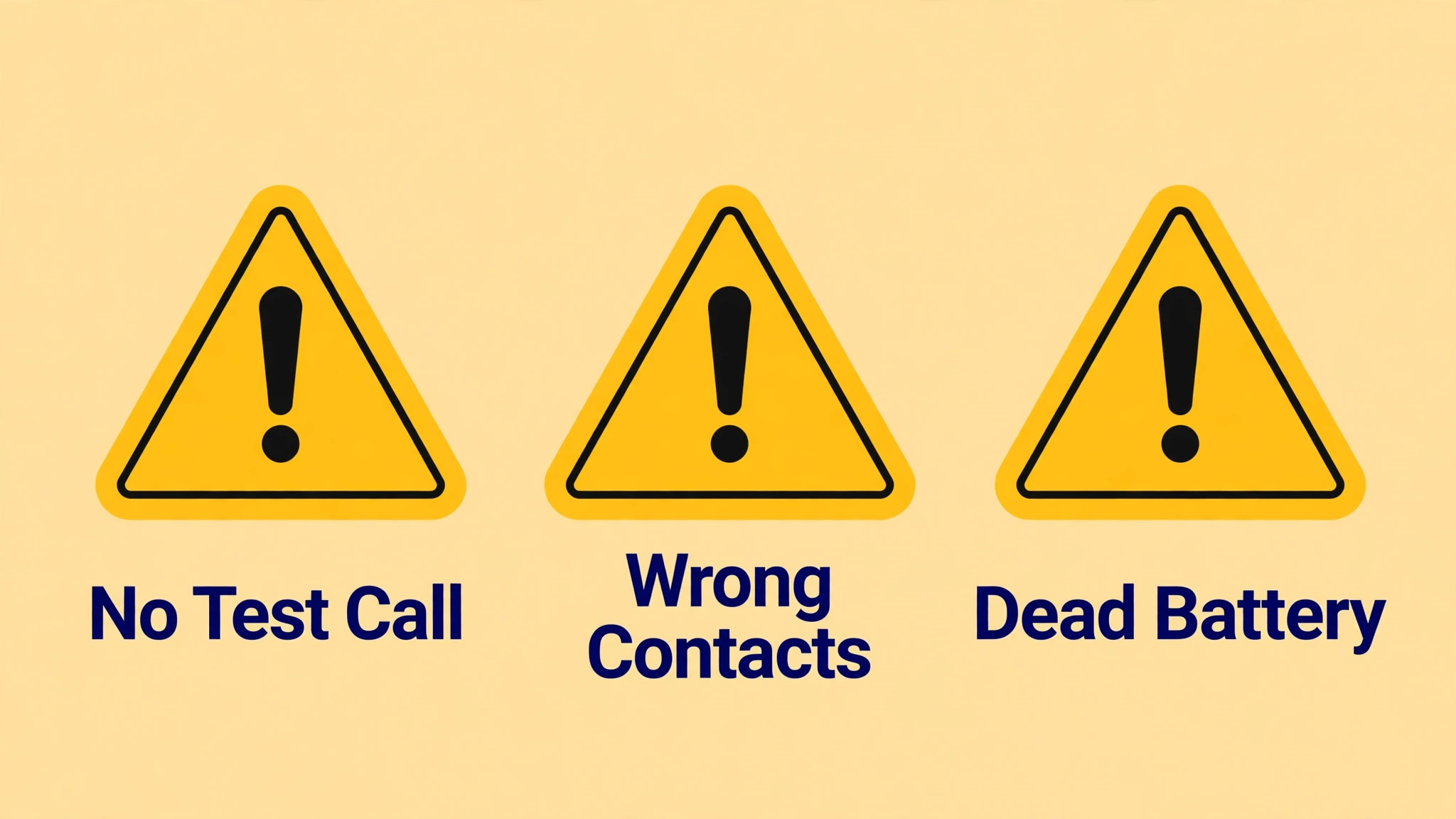
- **Choosing a GPS only watch for lone wearers.** A GPS only watch needs a nearby iPhone for calls and emergency features, so it cannot help a wearer who is alone without that phone. For children and older relatives who do not carry a phone reliably, a cellular model is essential for safety. Check the model type before buying, because the difference is not obvious from the watch face alone.
- **Skipping the away from home test.** A setup that works at home on Wi-Fi may fail away from home on cellular, where safety features actually matter. Test calls, messages, and location away from home, on cellular, with the wearer present. An untested setup gives false confidence, which is worse than knowing that a setup still needs work.
- **Setting location without agreement.** Secret location tracking damages trust, and a wearer who feels tracked may stop wearing the watch or find ways to disable sharing. Agree openly when location will be checked, such as after a missed check in or in an emergency, and keep that agreement. Trust is what keeps a safety device on a wrist.
- **Leaving Medical ID blank or outdated.** A blank Medical ID gives responders no help, while an outdated one can mislead them, so complete it accurately where the wearer consents and update it when conditions or medications change. Review Medical ID at the monthly check, alongside contacts and settings, so it stays useful in a real emergency.
- **Forgetting the charging routine.** A watch with an empty battery is not a safety device, yet charging is the most commonly forgotten habit. Agree a nightly charging place and routine, such as charging by the bed while the wearer sleeps, and check battery habits at the monthly review. A simple routine, consistently followed, matters more than any single feature.
If a wearer resists wearing the watch, listen to the reason before adding more controls or features. Discomfort, complexity, stigma, or a feeling of surveillance are all valid reasons, and each has a different fix, such as a different band, larger text, simpler faces, or a clearer location agreement. A watch that is worn daily with basic safety features helps far more than a fully configured watch that stays in a drawer.
A Worked Example
A family organiser set up a watch for an older relative who lives alone and walks each morning, after a fall on a quiet path had left the relative unable to reach a phone. The organiser chose a cellular model, because safety features that work away from a phone need cellular connectivity, and confirmed with the carrier that the plan supported Family Setup in their region before buying. A GPS only watch was ruled out at this stage, because it cannot call for help alone when the wearer is away from a paired phone.
Preparation came before pairing. On the organiser iPhone, Family Sharing was confirmed, the organiser account used two factor authentication, and the wearer was added as a family member, with iPhone and watch software updated to current versions so no Family Setup feature would be blocked. In the Watch app, the organiser chose the setup option for a family member and followed the prompts to pair the watch, set a passcode, and add the cellular plan, with the wearer present to choose a watch face and a text size that was comfortable and readable from the first day.
Safety settings were configured with the wearer, not for the wearer. Fall detection was set to Always On, Emergency SOS was explained including how to trigger a call and how to cancel a false trigger, without triggering a real emergency call, and emergency contacts were added with Medical ID completed for conditions and medications where the wearer consented. Find My was switched on and location sharing was agreed openly, with the understanding that location would be checked after a missed check in or in an emergency, because trust determines whether the watch keeps being worn. Approved contacts were added for calls and messages, and a call and a message were tested in both directions.
The full setup was tested away from home, on cellular, with the wearer present, covering location in Find My, calls, messages, fall detection understanding, and emergency contact details. The watch showed the correct time, location, and contacts, and the wearer knew how to trigger Emergency SOS and cancel a false trigger. Key settings, emergency contacts, and carrier plan details were written down in a safe place that family members could access, a nightly charging place by the bed was agreed, and a monthly check of battery habits, software updates, and contact accuracy was scheduled, so the setup would be maintained rather than forgotten.
Advanced Tips Worth Trying
Once the basic setup is tested, five refinements keep a family safety watch reliable as needs change. The first is matching controls to the wearer, not to a single template, because a child benefits from Schooltime during school hours, downtime at night, and approved apps, while an older wearer benefits from light controls, large text, and easy access to calls and emergency features.
- Re-test the setup after every software update, because updates can alter menus and settings, and a check that location, calls, and messages still work on cellular takes minutes while an untested change can fail silently.
- Test away from home on cellular at least quarterly, and after any major setting change, because a setup that works at home on Wi-Fi may fail where safety features actually matter.
- Review Medical ID at every monthly check and update it when conditions or medications change, because a blank entry gives responders no help and an outdated entry can mislead them.
- Review the location agreement with the wearer whenever it is used, and keep the agreement to checking after a missed check in or in an emergency, because a wearer who feels tracked may stop wearing the watch or find ways to disable sharing.
- Keep the written record of settings, emergency contacts, and carrier plan details where family members can reach it, so a new helper can repeat the setup quickly and correctly if the organiser is unavailable or the watch is replaced.
A final refinement is listening when a wearer resists wearing the watch, before adding more controls or features. Discomfort, complexity, stigma, and a feeling of surveillance are all valid reasons, and each has a different fix, such as a different band, larger text, a simpler face, or a clearer location agreement. A watch worn daily with basic safety features helps far more than a fully configured watch that stays in a drawer.
How to Measure Success
Judge a family safety setup by four monthly checks, recorded in a safety note kept with the written settings record. The first is charging habit, counted as nights the watch was charged in its agreed place, which shows whether the nightly routine is holding. The second is software currency, counted as whether watch and organiser iPhone software are on current versions at the check date. The third is contact accuracy, counted as emergency contacts and approved contacts verified as current, with a test call and message completed in both directions on cellular.
The fourth is wearer comfort and understanding, judged by asking the wearer directly whether the watch is comfortable, whether emergency features are understood, and whether any setting annoys them.
Add test results to the same note, recording whether location appeared correctly in Find My, whether calls and messages worked away from home, and whether Medical ID is accurate and consented. Compare each check with the previous month, and look for drift, such as a contact that changed, a setting altered by a software update, or a charging routine that slipped during a busy week. A check that fails should produce a fix in the same session, such as updating a contact, re-testing a call, or moving the charger to a more consistent place, rather than being noted and left.
Review the note with the wearer, not only about the wearer, because wearer feedback predicts whether the watch will keep being worn, and a setting that causes problems should be adjusted with the wearer rather than imposed. If a check keeps failing across two months, change the routine behind it, such as pairing charging with an existing bedtime habit, instead of repeating the same reminder. Keep the monthly check short enough to actually happen, because a simple check completed every month protects the setup far better than a thorough check that is skipped.
Review and Next Steps
Review family safety setups monthly with the four checks, battery and charging habits, software updates, contact accuracy, and wearer comfort and understanding. Ask the wearer directly whether the watch is comfortable, whether emergency features are understood, and whether any setting annoys them, because wearer feedback predicts whether the watch will keep being worn. If a setting causes problems, adjust it with the wearer, rather than imposing a change that may lead to the watch being removed.
Keep a monthly safety note with the four checks, any setting changes, and any test results. When you set up Apple Watch for family safety on a monthly cycle, the note becomes the record that helps family members take over setup if the organiser is unavailable, and it shows when the watch was last tested. Share the note with family members who may need to help in an emergency, so everyone knows the watch setup, the emergency contacts, and the charging routine.
Use the monthly review to schedule the next test, not only to record the last one. An away from home test on cellular belongs in the calendar at least quarterly, and immediately after any major setting change or software update. Medical ID belongs on the same schedule, reviewed whenever conditions or medications change. Controls belong on the same schedule too, revisited as the wearer needs change, such as a new school term for a child or reduced mobility for an older relative.
Use the review to prepare for changes in the wearer life, not only to record the current setup. A child starting a new school term needs Schooltime hours and approved contacts checked against the new timetable, and a term change is the right moment to revisit the location agreement together. An older relative whose routine changes, such as a new walking route or a new carer, needs emergency contacts and the charging place checked against the new routine, because a safety setup built around an old routine quietly stops fitting.
A software update that changes menus needs a re-test in the same week, not at the next monthly check, because a month of untested settings is a month of unknown protection.
Plan for replacement and handover before either becomes urgent. Keep the checklist, the written settings record, and the carrier plan details together, so a replacement watch can be set up from the same steps without reconstructing decisions from memory. If the organiser changes, the incoming organiser should be able to run the next monthly check from the note alone, and any question they ask points to a gap worth filling in the record.
For related reading on Stratilyze, the guide to fitness tracking with Apple Watch covers health features on the same device, and the guide to fixing smartwatch sync problems helps when a watch stops connecting. Read the fitness guide first if the wearer also wants activity tracking, because health and safety settings interact, and the approach here for set up Apple Watch for family safety pairs well with that health routine.
Frequently Asked Questions
Does Family Setup need a cellular Apple Watch?
Yes, for safety features away from a phone, a cellular model is needed, because Family Setup watches without their own iPhone rely on cellular for calls, messages, location, and emergency features. A GPS only watch can still work when a paired iPhone is nearby, but it cannot call for help alone. Check carrier support for Family Setup in your region before buying.
What happens after a fall is detected?
After a hard fall is detected, the watch shows an alert and, if the wearer does not respond within a short period, it calls emergency services and notifies emergency contacts with location where available. The wearer can also trigger Emergency SOS manually or cancel a false alert. Explain this sequence to the wearer during setup, without triggering a real emergency call during testing.
Can family members see the watch location?
Yes, with Find My and location sharing enabled and agreed, family members can check the watch location from their own devices. Location sharing should be agreed openly with the wearer, including when it will be checked, because trust determines whether the watch keeps being worn. Review location settings at the monthly check.
What should Medical ID include?
Medical ID should include conditions, allergies, medications, and emergency contacts, where the wearer consents to sharing that information with responders. Keep it accurate and update it when health details change, because outdated information can mislead responders. Review Medical ID monthly alongside contacts and settings.
How do I stop a child being distracted by the watch at school?
Use Schooltime to limit apps and complications during school hours, set approved contacts, and restrict apps to those needed for safety and communication. Agree the Schooltime schedule with the child and the school where relevant, so the watch supports learning rather than distracting from it. Review Schooltime settings each term as schedules change.
How do I set up Apple Watch for family safety with a monthly check routine?
Check settings monthly, including battery habits, software updates, contact accuracy, Medical ID, and wearer comfort. Monthly checks catch drift from software updates, contact changes, and forgotten charging routines before they become failures. Test calls, messages, and location away from home at least quarterly, or after any major setting change.
Safety Settings Worth Checking Tonight
A family safety watch works when it is cellular, set up with Family Setup, configured for fall detection and emergency contacts, tested away from home, and charged nightly. Agree location sharing openly, complete Medical ID accurately, and check settings monthly with the wearer. When you set up Apple Watch for family safety, that monthly routine becomes a habit, and a tested, worn, charged watch shortens the time between a problem and help, and that time is often what matters most for family safety.