
The best AI tools for project managers in 2026 are not the tools with the longest feature lists. They are the tools that answer three questions without a meeting: what is due next, who owns it, and what is blocked. Most projects do not fail from lack of effort. They fail because work is spread across chat threads, inboxes, spreadsheets and a board nobody trusts.
Instead of ranking tools by popularity, this guide groups them by the job a manager does during a week: planning work, tracking whether it is moving, keeping people aligned, and removing repetitive admin. Each tool was judged on one test. Can a manager open it on Monday morning and see the real state of the project in under five minutes?
Prices are October 2026 figures in US dollars. Where a vendor prices by team size, tier or quote, this guide says check checkout rather than guessing a number. A free tier is noted only where the vendor publishes one.
The 13 best AI tools for project managers at a glance
| Tool | Main job | Best for |
|---|---|---|
| Asana | Planning and scheduling | Teams that need clear ownership and timelines |
| Monday.com | Planning and scheduling | Visual boards and custom workflows |
| ClickUp | Planning and scheduling | Teams that want one workspace for everything |
| Jira | Tracking and reporting | Software teams with structured delivery |
| Smartsheet | Tracking and reporting | Spreadsheet style planning at scale |
| Wrike | Tracking and reporting | Cross functional teams with heavy approvals |
| Notion | Collaboration | Docs, wikis and lightweight project tracking |
| Miro | Collaboration | Workshops, mapping and early stage planning |
| Slack | Collaboration | Fast team communication linked to work |
| Basecamp | Collaboration | Simple project hubs with to-dos, messages and schedules |
| Motion | Automation | Automatic scheduling of tasks and meetings |
| Reclaim AI | Automation | Calendar defence for busy managers |
| Zapier | Automation | Connecting tools without code |

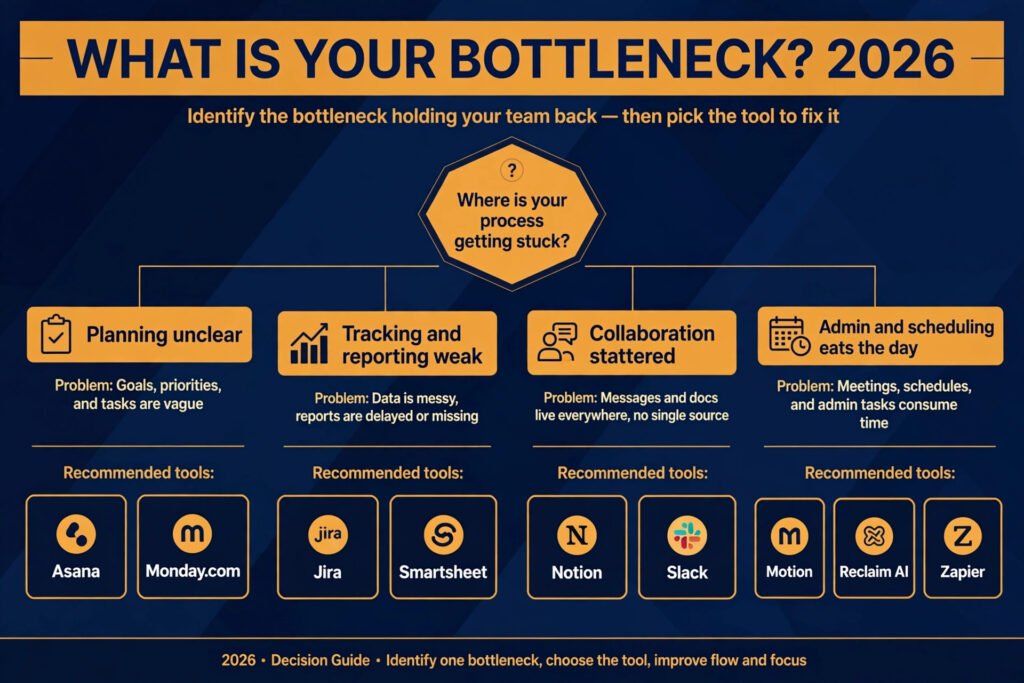
Start here: the right pick for each project manager job
| Your main problem | Start with | Why |
|---|---|---|
| Nobody knows who owns what | Asana | Ownership, due dates and timelines are visible in one place |
| Plans change every week | Monday.com | Boards and automations adapt without rebuilding the workspace |
| Work lives in five tools | ClickUp | Docs, goals, tasks and chat sit in a single system |
| Delivery is hard to measure | Jira | Sprints, backlogs and velocity reports are built in |
| Stakeholders want a spreadsheet view | Smartsheet | Grid views feel familiar while still supporting dependencies |
| Approvals keep stalling work | Wrike | Review and approval flows are part of the workflow |
| Knowledge is scattered | Notion | Docs and tasks live together, so context is easy to find |
| Planning sessions go nowhere | Miro | A shared visual board keeps a workshop moving |
| Updates get lost in chat | Slack | Channels, threads and integrations keep discussion attached to work |
| Everything lives in too many places | Basecamp | One project page holds to-dos, messages, schedule and files |
| The calendar eats the week | Motion | Tasks are placed on the calendar automatically |
| Focus time keeps disappearing | Reclaim AI | Habits and focus blocks are protected on the calendar |
| Tools do not talk to each other | Zapier | Small automations move data between apps without code |
Planning and scheduling: set the plan before work starts
Planning tools fail in two ways: too simple for a complex project, or so flexible that every team builds a different system. Pick the tool whose default structure matches how your team already works, then change as little as possible.
1. Asana
Asana is a work management tool built around tasks, projects, timelines and portfolios. A manager can turn a goal into a project, break it into tasks, assign each task to one owner, set a due date and link dependencies. Timeline view shows whether the plan is realistic. Portfolio view rolls several projects into one status picture for leadership.
Asana works best under one rule: every piece of work has one owner and one due date. With it, status updates can be generated from task progress.
Pricing: Free tier available for small teams. Paid plans are per user per month, with higher tiers adding portfolios, workload views and advanced reporting. Check checkout for current pricing.
Best for: Marketing, operations and product teams that need clear ownership and a timeline they can trust.
Watch out for: Asana can feel rigid if your work is highly creative and changes shape daily. It also rewards tidy habits. If tasks are created without owners or dates, reports will look clean while the real work is hidden elsewhere.
Try it at: https://asana.com

2. Monday.com
Monday.com is a visual work platform built around boards, columns and automations. A team can track a launch, a campaign or a hiring pipeline on a board where each row is an item and each column shows status, owner, date or priority. Dashboards pull several boards into charts and tables for reporting.
Monday.com bends to fit different work without forcing one template, so a manager can report across boards. The risk is the same flexibility: different status labels make cross team reporting messy.
Pricing: Free tier available for individuals. Paid plans are per user per month, with higher tiers adding automations, integrations and advanced dashboards. Check checkout for current pricing.
Best for: Teams that want visual planning and are willing to agree on shared status labels before they scale.
Watch out for: Pricing rises with seats and add ons, so a large team should model the full cost before rollout. Automations are powerful but need testing, because a badly written rule can move or close tasks without anyone noticing.
Try it at: https://monday.com
3. ClickUp
ClickUp aims to replace several tools at once. It combines tasks, docs, goals, whiteboards, chat and time tracking in one workspace. A manager can plan a quarter in a doc, turn headings into tasks, track progress on a dashboard and discuss blockers in the same place.
ClickUp suits a small or mid sized team tired of five subscriptions and lost context. For a large organisation, onboarding can be slow, so start with tasks and docs only.
Pricing: Free tier available. Paid plans are per user per month, with higher tiers adding goals, advanced automations and granular permissions. Check checkout for current pricing.
Best for: Teams that want one workspace and are willing to invest a week in setup and training.
Watch out for: Turn off views and features your team does not need, or ClickUp will feel heavier than the tools it replaced.
Try it at: https://clickup.com
Tracking and reporting: prove progress without chasing updates
A plan is only useful if a manager can tell whether it is working. Software teams often need sprints and backlogs, while operations teams need a grid they can filter and share. Either way, data must be entered where the work happens, or reports will be fiction.
4. Jira
Jira is Atlassian’s issue tracking and project management tool, widely used by software teams. Work is organised into epics, stories, tasks and bugs, then planned into sprints or Kanban boards. Reports show velocity, burndown, cycle time and backlog health. Integrations with code repositories link commits and pull requests to the work they complete.
Jira is strongest for sprint teams needing one record of shipped, in progress and blocked work. Imposed on a non technical team, its terminology alone can slow adoption.
Pricing: Free tier available for small teams. Paid plans are per user per month, with higher tiers adding advanced roadmaps and reporting. Check checkout for current pricing.
Best for: Software and product engineering teams that need structured delivery and reliable reporting.
Watch out for: Configuration takes time. A poorly configured Jira instance, with too many issue types and custom fields, will slow a team down instead of helping it. Keep fields minimal at the start.
Try it at: https://www.atlassian.com/software/jira

5. Smartsheet
Smartsheet combines a spreadsheet interface with project management features such as Gantt charts, dependencies, card views and automated alerts. A manager who lives in spreadsheets can build a plan in a grid, then switch to a timeline or dashboard without exporting data.
Smartsheet suits teams sharing plans with non specialists, who can read a grid without training. It also handles large programmes with hundreds of tasks well.
Pricing: Free trial available. Paid plans are per user per month, with higher tiers adding resource management and advanced reporting. Check checkout for current pricing.
Best for: Operations, construction, event and programme teams that think in rows, dates and dependencies.
Watch out for: Smartsheet is less suited to fast moving creative work where tasks change hourly. It rewards careful planning, so teams that plan loosely may find the grid feels heavy.
Try it at: https://www.smartsheet.com
6. Wrike
Wrike is a collaborative work management platform with strong support for approvals, proofing and cross functional workflows. Tasks can carry custom fields, request forms and approval stages. A creative or marketing team can route artwork through review, collect feedback in one place and keep an audit trail of approvals.
Wrike stands out when work passes through several hands. Legal, brand and compliance reviews are easier when approval is part of the task, and workload views spot overload early.
Pricing: Free tier available. Paid plans are per user per month, with higher tiers adding resource management, advanced approvals and business intelligence. Check checkout for current pricing.
Best for: Marketing, creative and professional services teams with formal review steps.
Watch out for: Wrike has a learning curve, especially around permissions and custom workflows. Pilot it with one team and one workflow before rolling it out company wide.
Try it at: https://www.wrike.com
Collaboration: keep people aligned without more meetings
Most project delays are communication delays: a missed decision, a file updated in the wrong place, a question left in a thread for three days. Collaboration tools cannot fix bad habits, but they can reduce the places where information hides. Decide where decisions live, then stick to that rule.
7. Notion
Notion combines docs, wikis, databases and lightweight project tracking in one workspace. A team can write a project brief, link it to a task database, and keep meeting notes beside the work they describe. Templates for roadmaps, sprint boards and content calendars make setup faster.
Notion is best as a knowledge and planning layer, not a strict delivery tracker. It excels at context: why a project exists and what was decided. For heavy delivery tracking, pair it with a dedicated tracker.
Pricing: Free tier available for individuals. Paid plans are per user per month, with higher tiers adding advanced permissions and analytics. Check checkout for current pricing.
Best for: Product, content and startup teams that need docs and light tracking in one place.
Watch out for: Notion databases can grow messy without an owner. Assign someone to maintain templates and archive old pages, or search will become harder over time.
Try it at: https://www.notion.so
8. Miro
Miro is a visual collaboration board for workshops, mapping and early stage planning. Teams can brainstorm on sticky notes, map a customer journey, draw a process flow or plan a product roadmap on an infinite canvas. Templates for retrospectives, org charts and Kanban boards speed up common sessions.
Miro is most valuable before a plan is fixed, and for remote workshops where a facilitator guides a group through a structured exercise.
Pricing: Free tier available. Paid plans are per user per month, with higher tiers adding advanced collaboration and security features. Check checkout for current pricing.
Best for: Remote teams, workshops, discovery work and visual planning sessions.
Watch out for: Miro boards need a facilitator and a clear outcome. An open board with no structure quickly becomes a wall of notes that nobody revisits. End every session by turning decisions into tasks in your tracker.
Try it at: https://miro.com
9. Slack
Slack is a team messaging platform built around channels, threads and integrations. A project channel can carry daily updates, decisions and files, while integrations post alerts from project tools, code repositories and calendars directly into the conversation.
Slack works when channels have a clear purpose and threads handle side discussions. Post decisions in the project channel, not in a private chat, and link the relevant task.
If team chat itself is the problem, see our guide to Slack alternatives.
Pricing: Free tier available. Paid plans are per user per month, with higher tiers adding unlimited history, advanced security and workflow automation. Check checkout for current pricing.
Best for: Teams that need fast communication and want project alerts inside the chat they already use.
Watch out for: Slack can fragment attention. Agree on response times, mute non urgent channels during focus work, and keep status in the project tool.
Try it at: https://slack.com

10. Basecamp
Basecamp is a deliberately simple project hub. Each project gets one page with to-dos, a message board, a schedule, docs and files, plus group chat for quick questions. There are no custom fields to configure and no dashboards to build, which is the point: a team can start a project in minutes and everyone knows where everything lives.
Basecamp suits teams drowning in tool sprawl, especially small businesses and agencies that want clients in the same place as the work. Automatic check-ins ask team members what they worked on, so status arrives without a meeting.
Pricing: Free tier available for small use. Paid plans include per-user pricing and a flat-rate unlimited plan. Check checkout for current pricing.
Best for: Small teams and agencies that want one calm place per project instead of a tracker, a chat tool and a file store stitched together.
Watch out for: Basecamp deliberately skips features other tools treat as standard, such as Gantt charts and task dependencies. If your projects need critical path planning or sprint reporting, pair it with a tracker rather than forcing it to be one.
Try it at: https://basecamp.com
Automation: remove the admin that eats a manager’s week
Automation only saves time when it replaces a task that is already well defined. Automating a messy process makes the mess faster, not smaller. Use this section for narrow, repeatable jobs: scheduling, calendar protection and moving data between systems.
11. Motion
Motion is an AI scheduling tool that builds a daily plan from tasks, priorities and calendar events. A manager enters tasks with deadlines and estimated effort, and Motion places them on the calendar around meetings. If a meeting moves, the plan reshuffles. Projects can be broken into tasks and tracked in a Kanban view.
Motion suits managers juggling many small tasks. Its strength is personal planning, not cross team reporting, so use it alongside a team tracker.
Pricing: Free trial available. Paid plans are per user per month, with higher tiers adding team features and project tracking. Check checkout for current pricing.
Best for: Individual managers and small teams that want their day planned automatically.
Watch out for: Automatic scheduling only works if tasks have realistic estimates and deadlines. If everything is marked urgent, Motion will produce a plan that looks busy but cannot be followed.
Try it at: https://www.usemotion.com
12. Reclaim AI
Reclaim AI is a calendar automation tool that protects time for habits, focus work and one to one meetings. It finds free slots for recurring habits, blocks focus time around meetings, and reschedules flexibly when the calendar changes. A manager can set rules for lunch, exercise, planning time or weekly reviews, and Reclaim will defend those blocks.
Reclaim starts from the calendar, where most managers lose time. If back to back meetings eat your week, it recovers focus time without negotiating every slot.
Pricing: Free tier available. Paid plans are per user per month, with higher tiers adding team features and advanced scheduling rules. Check checkout for current pricing.
Best for: Managers whose calendars are full and who need protected time for planning and review.
Watch out for: Reclaim works best when your calendar is the source of truth. If meetings are booked outside the connected calendar, its blocks will be ignored and the benefit disappears.
Try it at: https://reclaim.ai
13. Zapier
Zapier connects apps with automated workflows called Zaps. A new form response can create a task, a completed task can post a message, and a new row in a spreadsheet can trigger an alert. No code is needed for most common workflows, and thousands of apps are supported.
Zapier suits simple, repeatable transfers between tools that do not integrate directly. For complex logic or judgement at every step, a proper integration or manual check is safer.
Pricing: Free tier available with limited tasks. Paid plans are monthly, based on task volume, with higher tiers adding multi step workflows and advanced logic. Check checkout for current pricing.
Best for: Small teams that need simple, reliable connections between project tools, forms, chat and spreadsheets.
Watch out for: Zapier costs scale with task volume, so audit Zaps regularly and turn off ones nobody uses.
Try it at: https://zapier.com
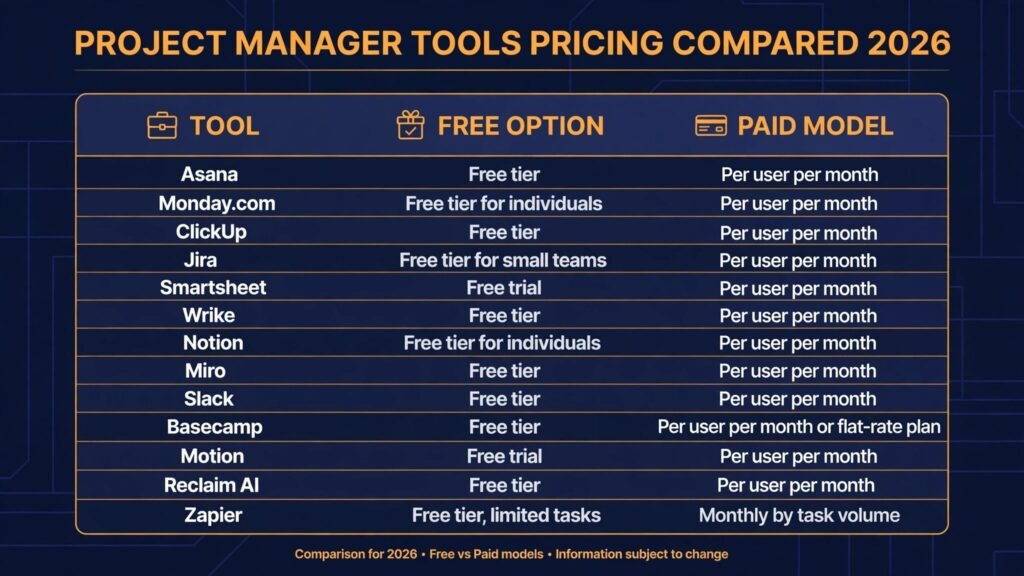
Pricing compared: what a project manager actually pays in 2026
| Tool | Free option | Paid model |
|---|---|---|
| Asana | Free tier | Per user per month, check checkout |
| Monday.com | Free tier for individuals | Per user per month, check checkout |
| ClickUp | Free tier | Per user per month, check checkout |
| Jira | Free tier for small teams | Per user per month, check checkout |
| Smartsheet | Free trial | Per user per month, check checkout |
| Wrike | Free tier | Per user per month, check checkout |
| Notion | Free tier for individuals | Per user per month, check checkout |
| Miro | Free tier | Per user per month, check checkout |
| Slack | Free tier | Per user per month, check checkout |
| Basecamp | Free tier | Per user per month or flat-rate unlimited plan, check checkout |
| Motion | Free trial | Per user per month, check checkout |
| Reclaim AI | Free tier | Per user per month, check checkout |
| Zapier | Free tier, limited tasks | Monthly by task volume, check checkout |
Almost every tool here offers a free tier or trial, and almost every paid plan is per user per month. The headline price matters less than three hidden costs: viewer seats, add ons for reporting and automation, and setup time. Check whether viewer seats are free and whether automations and dashboards are included in your tier. Budget a week for setup: a cheap tool that is badly configured costs more in rework than a pricier tool that fits on day one.
How to Choose without buying twice
Choosing a project tool is choosing a system of record, and that decision is hard to reverse. Use these steps to avoid buying one tool, then another six months later.
First, name the single job that matters most: planning, tracking, collaboration or automation. If you cannot pick one, you probably need a tracker plus a communication tool, not one platform that claims to do everything.
Second, test with a real project. Import a current plan, assign real owners and dates, and run a status meeting from the tool. If the meeting still needs a separate spreadsheet, the tool has failed.
Third, check reporting before features. You must be able to see, without manual work, which projects are on track, which are at risk, and who is overloaded.
Fourth, agree on status rules before rollout. Decide what Done and Blocked mean, and who can change a due date. Tools do not create discipline; shared rules do.
Fifth, count total cost, not list price. Include viewer seats, integrations, training and migration. A free tier without reporting is not free if it forces weekly manual reports.
Mistakes to avoid when buying project software
The most common mistake is buying for the demo. Demos show perfect data; real work is messy and late. Judge a tool by how it handles a missed deadline, changed scope and a team member on leave, not by how it looks on a sales call.
Another mistake is giving everyone admin rights. When anyone can create fields and automations, the workspace drifts within weeks. Limit admins to a small group and document changes.
A third mistake is tracking everything. Fifty custom fields slow entry and make reports noisy. Track only what changes decisions: owner, due date, status, priority and blocker.
A fourth mistake is keeping status in chat. An update that lives only in a thread will be lost when it scrolls away. Put status in the tracker; use chat to discuss, not to record.
A fifth mistake is skipping training. Even a simple tool needs onboarding, a written guide and a contact for questions. Without that, each team invents its own method.
Finally, check adoption after thirty days. If tasks are still in spreadsheets, find out why. Usually one fix, a missing view, a wrong permission or a step that is too long, will solve it.
Frequently asked questions
What is the best AI tool for project managers in 2026?
There is no single winner. Asana is a strong default for planning and ownership, Jira is stronger for software delivery, and ClickUp suits teams that want one workspace. Start from your main problem above, then test the shortlisted tool with a real project.
Do I need AI features, or is a standard tracker enough?
Standard tracking covers most needs. AI helps most with scheduling, drafting updates, summarising threads and spotting risk patterns. Treat AI as a bonus. If core tracking is weak, AI will simply summarise bad data faster.
Can a small team use these tools for free?
Yes, for a time. Most tools here offer a free tier, but free tiers usually limit reporting, automations, guests and history. A growing team should expect to pay once reporting and permissions matter.
How long does it take to set up a project management tool?
A basic setup takes a day. A useful setup, with templates, status rules, dashboards and integrations, takes one to two weeks. Rushing setup is the fastest way to end up with a tool nobody trusts.
Should project managers use one tool or several?
Most managers end up with two or three: a tracker, a chat tool and a doc tool. That is normal. The goal is a clear rule for where each kind of information lives.
What should I check before renewing a project tool?
Check usage, not just cost. If the tool is used daily and reports are trusted, renewal is easy to justify. If usage is low or reports are still built by hand, fix the workflow or switch first.
Conclusion: buy the system your team will actually use
The best AI tools for project managers share one trait: they make the state of a project visible without extra work. Asana makes ownership visible, Jira makes delivery visible, Monday.com and ClickUp make plans visible across teams, Notion, Miro and Basecamp make context and decisions visible, and Motion, Reclaim AI and Zapier remove admin that hides real work.
Start with the job that causes the most pain this month. Test one tool with a real project for two weeks, agree on status rules, keep fields minimal, and put decisions in the tracker rather than in chat. If meetings get shorter and the overdue list gets smaller, you have found the right system. If not, the problem is rarely the tool. It is usually a missing rule, a missing owner or a plan that was never realistic. Fix that first.