
The best AI tools for UX designers in 2026 are not the ones that generate the prettiest screen in ten seconds. They are the ones that shorten the slowest part of real design work: turning a vague problem into evidence, turning evidence into a testable screen, and turning a tested screen into something engineers can build without a week of follow up questions. That distinction matters because most UX work is not drawing. It is deciding, and then proving the decision was right.
This guide tests 14 tools against that standard. Each one is judged on what it removes from a normal project week, what it gets wrong, and what it costs to run in practice. Prices below are October 2026 figures. Where a vendor prices by seat, usage, or quote, the guide says check checkout rather than guessing a number that will be wrong by the time you read it.
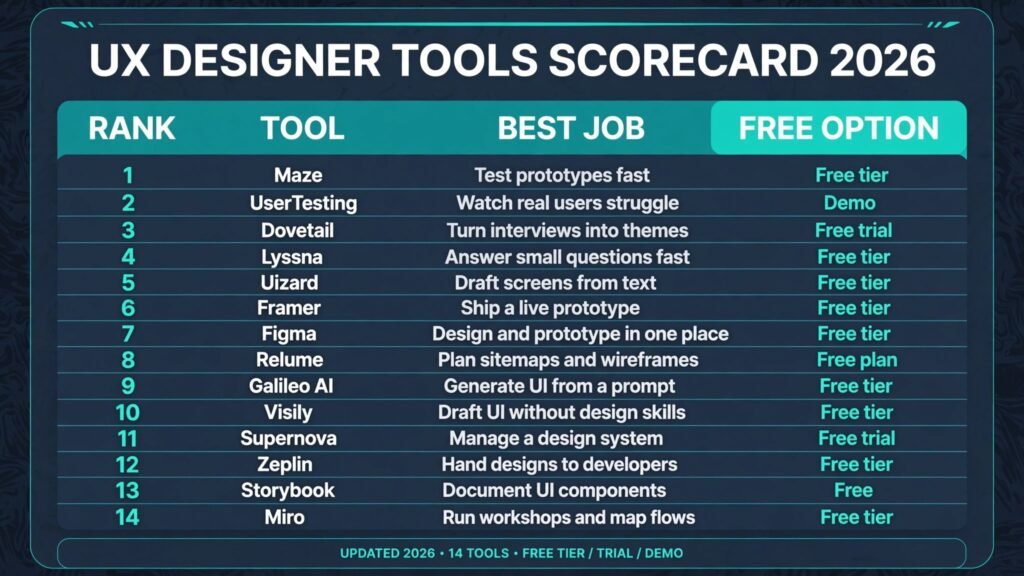
The 14 best AI tools for UX designers at a glance
| Tool | Best job | Free option | Paid model |
|---|---|---|---|
| Maze | Test prototypes fast | Free tier | Subscription, check checkout |
| UserTesting | Watch real users struggle | Demo | Subscription, check checkout |
| Dovetail | Turn interviews into themes | Free trial | Subscription, check checkout |
| Lyssna | Answer small questions fast | Free tier | Subscription, check checkout |
| Uizard | Draft screens from text | Free tier | Subscription, check checkout |
| Framer | Ship a live prototype | Free tier | Subscription, check checkout |
| Figma | Design and prototype in one place | Free tier | Subscription, check checkout |
| Relume | Plan sitemaps and wireframes | Free plan | Subscription, check checkout |
| Galileo AI | Generate UI from a prompt | Free tier | Subscription, check checkout |
| Visily | Draft UI without design skills | Free tier | Subscription, check checkout |
| Supernova | Manage a design system | Free trial | Subscription, check checkout |
| Zeplin | Hand designs to developers | Free tier | Subscription, check checkout |
| Storybook | Document UI components | Free tier | Subscription, check checkout |
| Miro | Run workshops and map flows | Free tier | Subscription, check checkout |
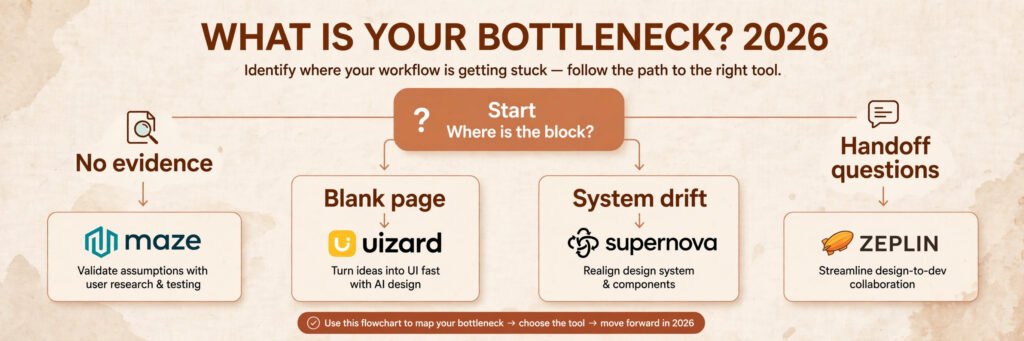
Start here: the right pick for each UX job
| Your bottleneck | Start with | Why it helps first |
|---|---|---|
| No evidence before design | Maze | You get test results before you polish anything |
| Users behave differently than they claim | UserTesting | Video shows hesitation that surveys miss |
| Interview notes pile up unread | Dovetail | Themes emerge without a week of manual tagging |
| Small question blocks a decision | Lyssna | Five second and first click tests settle it in hours |
| Blank page at the start | Uizard | A draft screen beats a blank canvas |
| Stakeholders need to feel the flow | Framer | A live link convinces faster than a static mock |
| Team already works in one file | Figma | AI features sit inside the tool they know |
| Website structure is undecided | Relume | Sitemap and wireframes give the whole site shape first |
| Need many UI options quickly | Galileo AI | Prompt to screen in minutes, then edit by hand |
| Non designers must draft screens | Visily | Screenshots become editable UI fast |
| Design system drifts apart | Supernova | Tokens and components stay in one source |
| Handoff creates endless questions | Zeplin | Specs, assets, and code snippets live together |
| Components get rebuilt each time | Storybook | One catalogue stops duplicate work |
| Discovery is scattered across docs | Miro | Flows, maps, and votes live on one board |
Research and testing: evidence before pixels
1. Maze
Maze turns a Figma prototype, a live site, or a survey into a test that runs without a moderator. You set tasks such as find the checkout button, then Maze records where people click, where they hesitate, and where they give up. The result is a set of numbers you can show a stakeholder: completion rate, misclick rate, and time on task. That is far more useful than asking a room whether they like a design.
Pricing is a free tier for small tests, then subscription plans. Check checkout for current seat and response limits, because Maze prices by monthly responses as well as seats.
Best for: teams that test every sprint and need numbers, not opinions.
Watch out for: unmoderated tests reward clear tasks. A vague task produces vague data, and Maze will not fix a badly written test for you.
Try it at: https://maze.co

2. UserTesting
UserTesting recruits people who match a profile, records them using your product, and returns video with a transcript. The value is in the moments a participant pauses, sighs, or reads a label aloud. Those moments tell you where copy confuses people, which no click map can show. You can also ask follow up questions after the session, which helps when a test result is ambiguous.
Pricing is quote based and aimed at teams with a regular research budget. Check checkout for a demo and current plans, because UserTesting does not publish a single headline price for every team size.
Best for: high stakes flows such as checkout, onboarding, and pricing pages, where one misunderstanding costs real money.
Watch out for: video is slow to review. Budget time to watch sessions, or the recordings will sit unwatched and the insight will never reach the design.
Try it at: https://www.usertesting.com
3. Dovetail
Dovetail stores interview transcripts, survey answers, and support tickets in one place, then helps you tag and group them into themes. Its AI features suggest tags and summarise long transcripts, which cuts the most tedious part of research: reading 20 interviews and trying to remember what the seventh person said. The output is a theme library you can link back to raw quotes, so a claim in a design review can be traced to a real person.
Pricing is a free trial, then subscription plans by seat and analysis usage. Check checkout for current limits on AI summaries, because heavy transcript volumes can push you into a higher tier.
Best for: teams with a growing research archive that nobody searches because it lives in five different docs.
Watch out for: AI summaries smooth over disagreement. Read the raw quotes behind a theme before you present it as consensus.
Try it at: https://dovetail.com
4. Lyssna
Lyssna runs fast, small research studies that answer one question at a time: which headline is clearer, where do people click first, and does a page make sense in five seconds. You set up a first click test, a five second test, a preference test, or a card sort, and Lyssna recruits participants from its own panel or lets you bring your own audience. Results often arrive within hours, which makes it the right tool for questions that are too small for a full Maze test but too important to guess.
Pricing is a free tier for small studies, then subscription plans. Check checkout for current credits and panel pricing, because recruiting participants through Lyssna’s panel costs extra on top of the plan.
Best for: small, specific questions that block a design decision, such as which hero copy wins or whether users find the right first click.
Watch out for: quick tests answer narrow questions. A five second test tells you what people remember, not whether they can complete a task, so use Lyssna for first impressions and Maze or UserTesting for full flows.
Try it at: https://www.lyssna.com
Wireframing and prototyping: from idea to something testable
5. Uizard
Uizard generates app screens and wireframes from a text prompt, a sketch photo, or a screenshot. Type a description of a booking flow, and you get editable screens you can rearrange in its editor. The point is speed at the start of a project, when a team needs something concrete to react to. A rough screen that exists beats a perfect idea that stays in a meeting.
Pricing is a free tier with limited generations, then subscription plans. Check checkout for current generation limits, because heavy use across a team adds up quickly.
Best for: early concepts, hackathons, and client pitches where a draft in an hour matters more than pixel precision.
Watch out for: generated screens look finished before the thinking is finished. Do not let a polished draft skip the research step, or you will test the wrong flow beautifully.
Try it at: https://uizard.io

6. Framer
Framer builds live websites and prototypes from a canvas, with AI that drafts pages and sections from a prompt. The difference from a static mock is that stakeholders can click, scroll, and use the thing on their own phone. That kills a whole class of feedback: comments about how a flow might feel, replaced by evidence of how it actually feels.
Pricing is a free tier for small sites, then subscription plans by site and features. Check checkout for current limits on pages, bandwidth, and collaboration seats.
Best for: landing pages, marketing sites, and interactive prototypes that must feel real before engineering starts.
Watch out for: a live prototype invites scope creep. People will ask for content, copy, and edge cases that belong in a later phase, so agree what the prototype is meant to prove before you share the link.
Try it at: https://www.framer.com
7. Figma
Figma remains the centre of most UX workflows, and its AI features now sit inside that centre: draft UI from a prompt, rename layers, remove backgrounds, and generate placeholder content. The advantage is not any single feature. It is that AI output lands in the same file where the team already reviews, comments, and hands off work, so nothing is lost in export.
Pricing is a free tier for individuals and small teams, then subscription plans by seat. Check checkout for current AI limits and organisation pricing, because enterprise plans differ from the standard seat price. If you are comparing the wider field, our list of Figma alternatives covers tools that compete on price, offline work, and simpler editors.
Best for: teams that already design in Figma and want AI as a speed boost, not a separate tool to learn.
Watch out for: AI drafts in Figma inherit the same risk as anywhere else. A generated screen that looks clean can hide a broken flow, so test it like any other design.
Try it at: https://www.figma.com
8. Relume
Relume turns a short website brief into a sitemap, page wireframes with draft copy, and a style guide, built from a library of human designed components. You describe the company and the pages you need, review the proposed structure, then export the wireframes to Figma or Webflow for detailed design. The value is at the start of a website project, when the team argues about structure: Relume gives everyone a concrete plan to react to instead of a blank document.
Pricing is a free plan with limited projects and exports, then subscription plans. Check checkout for current limits on pages, components, and exports, because free exports run out fast on a real project.
Best for: website projects where the sitemap and page structure need agreement before detailed screen design starts.
Watch out for: Relume plans websites, not apps. Its wireframes are a starting structure, not a finished design, so budget time to rebuild the chosen direction with your own tokens and components in Figma.
Try it at: https://www.relume.io
UI and design systems: many options, one source of truth
9. Galileo AI
Galileo AI turns a text prompt into editable UI screens, with a focus on mobile and web layouts that look like real products rather than wireframes. You describe a screen, pick a style, and get components you can export to Figma for detailed work. It is best used as a divergence tool: generate five versions of a dashboard, pick the strongest direction, then rebuild it properly.
Pricing is a free tier with limited generations, then subscription plans. Check checkout for current generation and export limits, because free credits run out fast on a real project.
Best for: designers who want fast visual options before committing to one layout.
Watch out for: generated UI often ignores your design system. Colours, spacing, and type will drift unless you rebuild the chosen direction with your own tokens. For image heavy directions, compare how image tools handle style: our list of Midjourney alternatives shows what happens when generation is optimised for pictures rather than interfaces.
Try it at: https://www.usegalileo.ai
10. Visily
Visily converts screenshots and sketches into editable UI, and offers AI generation for screens, themes, and data. Its strength is for product managers, founders, and analysts who need to show an idea without hiring a designer for a first draft. The editor is simpler than Figma, which is a feature when the user is not a designer, and a limit when the user is.
Pricing is a free tier, then subscription plans. Check checkout for current limits on projects and AI generations.
Best for: non designers who must produce a credible screen for a spec, a pitch, or a user test.
Watch out for: simplicity cuts both ways. Complex interactions, precise spacing, and system components are harder here than in a full design tool, so plan a handoff to Figma for production work.
Try it at: https://www.visily.ai
11. Supernova
Supernova connects design tokens, components, and documentation into one system that designers, engineers, and product managers can all read. Change a colour token once, and the documentation, code snippets, and component library update together. That matters because most design systems fail not from bad components, but from drift: three versions of the same button living in three files.
Pricing is a free trial, then subscription plans. Check checkout for current pricing, because Supernova prices by team and system size rather than a single flat rate.
Best for: organisations with a design system that has grown past a shared Figma file and now needs governance.
Watch out for: a system tool only works if someone owns it. Without a named owner for tokens and releases, Supernova becomes another catalogue nobody trusts.
Try it at: https://www.supernova.io

Handoff and collaboration: where designs become products
12. Zeplin
Zeplin takes finished designs and turns them into developer ready specs: measurements, colours, typography, assets, and code snippets in common frameworks. Developers stop asking for hex codes in chat, and designers stop exporting the same asset three times. Version history shows what changed between releases, which reduces the classic handoff bug where engineering builds last week’s screen.
Pricing is a free tier for small projects, then subscription plans by seat and project. Check checkout for current limits on screens and collaborators.
Best for: teams where handoff friction, not design quality, is the reason releases slip.
Watch out for: Zeplin reflects your file structure. A messy Figma file produces a messy spec, so clean layers and naming before you publish.
Try it at: https://zeplin.io

13. Storybook
Storybook is an open source workshop for building UI components in isolation. You develop a button, a card, or a form field on its own, document its states, and test it across variants before it lands in a product. AI tooling around Storybook now helps generate tests and documentation, but the core value is older: one place where every component lives, with its edge cases visible.
Pricing is free for the open source tool itself, with paid hosting and collaboration options from vendors around it. Check checkout for current hosted plans if you need private sharing and review workflows.
Best for: engineering heavy teams with a component library that keeps getting rebuilt in slightly different forms.
Watch out for: Storybook needs engineering time to maintain. If no engineer owns the catalogue, it goes stale and designers stop trusting it as a source of truth.
Try it at: https://storybook.js.org
14. Miro
Miro is a shared whiteboard for discovery work: user journey maps, service blueprints, affinity diagrams, and workshop voting. Its AI features cluster sticky notes, summarise boards, and draft diagrams from a prompt, which helps after a workshop when 200 notes need to become five themes. The board becomes the record of why a decision was made, not just what was decided.
Pricing is a free tier with limited boards, then subscription plans by seat. Check checkout for current AI and board limits.
Best for: remote workshops, journey mapping, and any discovery phase where alignment matters as much as output.
Watch out for: a board with no owner becomes a graveyard. Assign someone to turn workshop output into tickets and decisions within 48 hours, or the insight evaporates.
Try it at: https://miro.com
Pricing compared: what a UX designer actually pays in 2026
| Tool | Free option | Paid model | Cost watchpoint |
|---|---|---|---|
| Maze | Free tier | Subscription | Response limits per month |
| UserTesting | Demo | Subscription | Quote based, budget approval needed |
| Dovetail | Free trial | Subscription | AI summary usage |
| Lyssna | Free tier | Subscription | Participant credits and panel costs |
| Uizard | Free tier | Subscription | Generation limits |
| Framer | Free tier | Subscription | Sites and seats |
| Figma | Free tier | Subscription | Seat count grows fast |
| Relume | Free plan | Subscription | Export limits on lower tiers |
| Galileo AI | Free tier | Subscription | Generation credits |
| Visily | Free tier | Subscription | Project limits |
| Supernova | Free trial | Subscription | System size and team size |
| Zeplin | Free tier | Subscription | Screens and collaborators |
| Storybook | Free, open source | Paid hosting optional | Engineering maintenance time |
| Miro | Free tier | Subscription | Seat count grows fast |
The pattern is consistent: most tools are cheap to try and expensive to run across a whole team. Before you commit, count seats, not just the headline plan. A tool that looks affordable for two designers can double in cost when researchers, product managers, and engineers all need access.

How to Choose without buying four tools that do the same thing
Start with your bottleneck, not a feature list. If tests are slow, buy testing first. If the blank page is slow, buy generation first. If handoff is slow, buy handoff first. One tool that fixes the slowest step is worth more than four tools that each fix a step you do not have.
Run a one week test on a real project, not a demo file. Give the tool a messy brief, a real deadline, and a real stakeholder. Measure three things: time saved, quality of output, and how many questions the output creates. A tool that saves two hours and creates three hours of cleanup is not saving time.
Check integration before you check price. Does the tool export cleanly to Figma? Does it keep your tokens? Does it work with your research archive? A cheap tool that forces manual rework is the most expensive option on this list.
Finally, agree who owns the tool. Research tools need a researcher or a designer who will actually review results. Design system tools need an owner for tokens. Testing tools need someone who will watch sessions. Without an owner, even the best tool on this page becomes shelfware within a quarter.
Mistakes to avoid when buying UX AI tools
First, testing a polished draft instead of a rough idea. AI screens look finished, so teams skip early testing and discover problems after engineering has started. Test rough, test early, and treat polish as a later step.
Second, trusting AI summaries without reading raw evidence. Summaries hide disagreement, and disagreement is often the most valuable finding in research. Always check the quotes behind a theme.
Third, generating many options and choosing none properly. Five dashboard directions are only useful if you have criteria for picking one. Decide what good means before you generate, or you will pick the prettiest option by default.
Fourth, ignoring handoff until the end. A beautiful screen that engineers cannot build on time is a failed design. Involve engineering in tool choice, especially for handoff and component tools.
Fifth, buying for the whole team before one person proves value. Start with one project, one owner, and one measurable result. Expand only when that result is real.
Frequently asked questions
Do AI tools replace UX designers?
No. They replace specific slow tasks: drafting screens, tagging interviews, and writing specs. Judgement about what to build, what to test, and what a result means still belongs to a designer. Teams that treat AI as a replacement get fast output and weak decisions.
Which tool should a solo designer buy first?
Figma, if you do not already use it, plus Maze for testing. That pair covers design, prototyping, and evidence for most freelance projects. Add Dovetail only when interview volume makes manual analysis painful.
Can AI generate a full product on its own?
It can generate screens, but a product is more than screens: flows, edge cases, error states, accessibility, and content strategy. AI drafts help you start faster. They do not remove the work of thinking through what happens when a user fails, cancels, or loses connection.
How do I keep AI generated UI consistent with my brand?
Rebuild the chosen direction with your own tokens, type scale, and spacing rules. Treat AI output as a sketch, not a final system. If you paste generated screens into production without rebuilding, your product will drift within a month.
Is user testing still needed if AI can predict behaviour?
AI can suggest likely problems, but it cannot replace watching a real person hesitate on your actual flow. Use AI to find candidates for testing, then test the risky flows with real users before release.
Seats and maintenance. A tool that is cheap for one designer becomes expensive when the whole product team needs access, and component or system tools need ongoing ownership. Budget for both before you commit.
Conclusion: buy the bottleneck, not the demo
The best AI tools for UX designers in 2026 share one trait: they remove a specific delay from a real project week. Maze removes waiting for test results. Lyssna answers small questions in hours. Dovetail removes manual tagging. Uizard and Galileo remove the blank page. Relume settles the sitemap argument before screens are drawn. Zeplin and Storybook remove handoff questions. Miro removes scattered discovery.
Start with the delay that hurts most on your current project. Test one tool on real work for one week, measure time saved and questions created, and expand only when the result holds up. That discipline matters more than any single feature on this list, because the fastest tool in the world is useless if it solves a problem you do not have.