
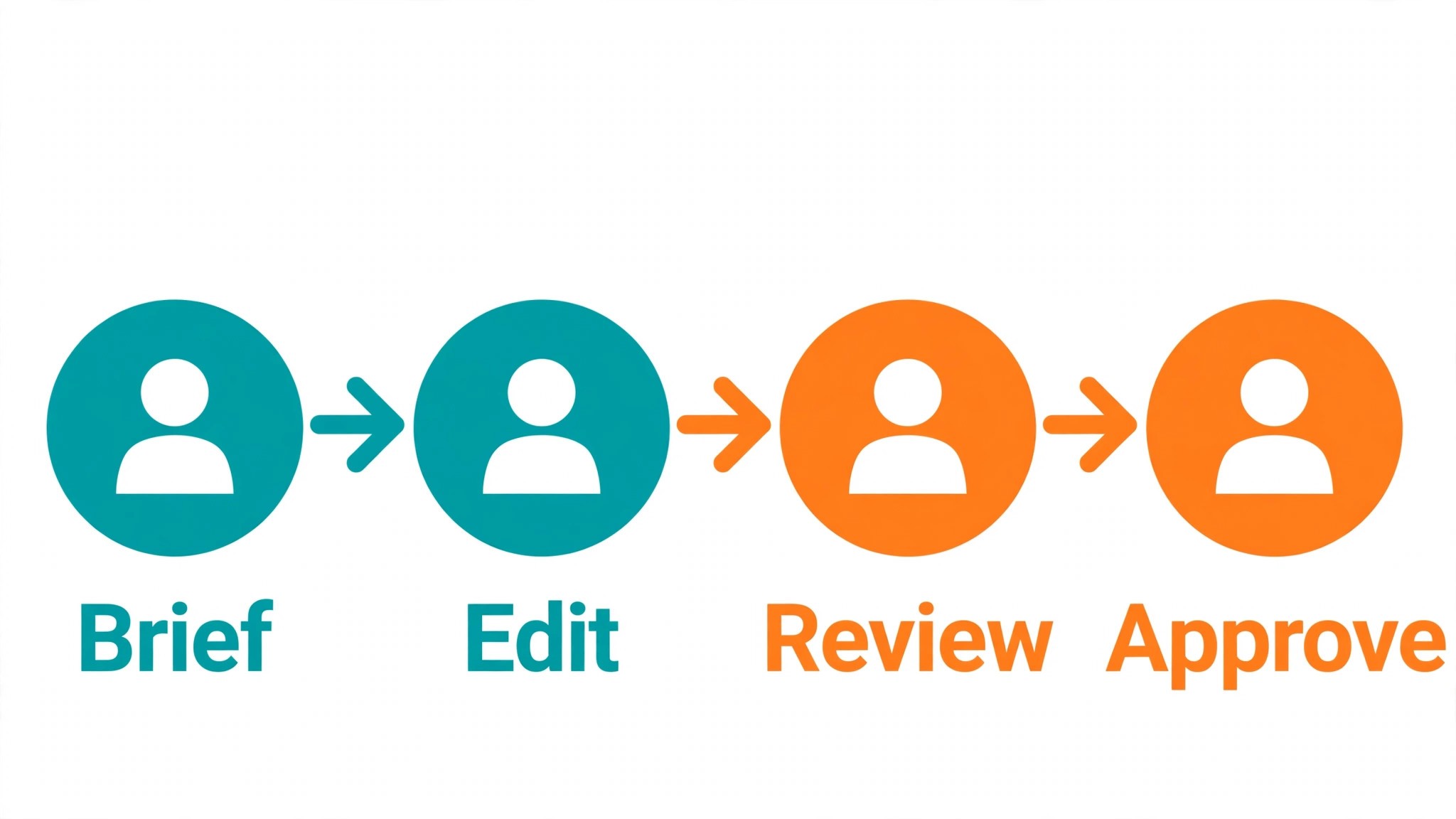
The job has four steps. First, name the result you need and the audience it must serve. Second, shortlist tools that do that job well, not tools with the longest feature list. Third, test the top two on a real piece of work. Fourth, pick the one your team will actually use every week. That four-step job is what decides the best photo editors for teams, because a tool that looks good in a demo can still fail on a real deadline.
Most buyers start with price or with a famous name, and both are weak guides. Price tells you what a subscription costs, not what a finished piece of work costs. A famous name tells you what other people bought, not what your teams need. The better test is the workflow itself. Can the tool take a brief, turn it into a finished piece, and hand it over without a second tool fixing the gaps.
This guide compares 15 tools that teams actually use in 2026, judged on the work they do, the time they save, and the price they charge at real volume. Prices here come from vendor pages checked in late 2026, so check the vendor pricing page before you commit, because prices and plan names change often. The rule running through the whole guide is simple. A tool earns its place by finishing the job, not by promising it.
How a Team Actually Ships Edited Photos
Step one is the brief. Write down the result in one sentence, the audience in one line, and the deadline in one date. A brief that fits on a sticky note is a brief a tool can actually serve. A brief that runs to two pages will be ignored, and the tool will be blamed for a failure that started with the brief.
Step two is the shortlist. Pick three tools that match the brief, not ten. Three is enough to compare honestly and few enough to test properly. Read the pricing page, check the export options, and confirm the tool works with the software your team already uses. A shortlist built in an hour beats a spreadsheet built over a week.
Step three is the real test. Take a real piece of work, not a demo file, and run it through each tool. Time the work, check the output at full size, and show it to the person who will use it. A tool that passes a real test will pass on a deadline. A tool that only passes a demo will fail when it matters.
Step four is the decision. Pick the tool that finished the test fastest with the least fixing, and commit to it for three months. Switching tools every month costs more than any subscription, because every switch means new templates, new habits and new mistakes. A good tool used well beats a great tool used badly.
The 15 Photo Editors for Teams at a Glance
The table below gives the short version of the best photo editors for teams. Use it to build your shortlist of three, then read the detail section for the tools that survive that cut. Prices are starting paid prices, and free tiers are noted where they matter.
| Tool | Main job | Best for | Starting paid price |
|---|---|---|---|
| Adobe Lightroom | Shared RAW catalogs | Photo teams | about $10 a month per user |
| Adobe Photoshop | Shared retouching | Design teams | about $23 a month per user |
| Affinity Photo | Free team editing | Budget teams | free |
| Canva | Team templates and photos | Marketing teams | free, Pro about $15 a month |
| Pixelmator Pro | Mac team editing | Mac-based teams | about $50 one time per seat |
| Capture One | Studio team RAW | Studio teams | about $24 a month per user |
| Luminar Neo | Fast AI team edits | High-volume teams | about $12 a month per user |
| DxO PhotoLab | Quality RAW per seat | Quality-led teams | about $230 one time per seat |
| Fotor | Quick team photo edits | Small marketing teams | about $9 a month |
| Pixlr | Browser team editing | Distributed teams | about $8 a month |
| Photopea | Free browser Photoshop | Teams on zero budget | free |
| Figma | Design plus photo tweaks | Product teams | free, about $15 a month per editor |
| Adobe Express | Quick team graphics | Social teams | free, Premium about $10 a month |
| PicMonkey | Simple team photo design | Small business teams | about $8 a month |
| BeFunky | Fast fun team edits | Social teams | about $10 a month |
Two patterns stand out in that table. The cheapest tools are usually the simplest, and the most expensive are usually the ones built for teams with real volume. Neither pattern is a verdict on its own. A solo user paying for an enterprise platform is wasting money, and a team of ten sharing a free tool is wasting time.
Best Pick by Job
The right pick for the best photo editors for teams depends on the job, not on a ranking. A tool that wins for a solo user can lose for a team, and a tool that wins for a studio can lose for a blogger. The table below matches the first pick to the job, with a second tool for the cases where one tool cannot cover everything.
| Job type | First pick | Second tool | Why this pair works |
|---|---|---|---|
| Photo team with shared libraries | Adobe Lightroom | Adobe Photoshop | Catalog plus retouching, one ecosystem |
| Marketing team, templates first | Canva | Adobe Express | Photos inside the design workflow |
| Team on zero budget | Affinity Photo | Photopea | Full editing free on every desk |
| Mac-only team | Pixelmator Pro | Affinity Photo | Pay once per seat, no subscriptions |
| Distributed team, no installs | Pixlr | Photopea | Browser editing from anywhere |
Read that table as a starting point, not a final answer. Your brief may sit between two rows, and your budget may push you one row down. That is fine. The table exists to stop you buying the most expensive tool when a cheaper one does your job, and to stop you buying the cheapest tool when your job needs more.
How to Judge the Best Photo Editors For Teams
Start with a real piece of work, not a demo. Take the hardest job you do in a normal week, run it through two tools, and compare the results side by side. Judge the output at full size, on the device your audience will use. A tool that looks good in a thumbnail and bad at full size is a tool that will embarrass you in front of a client.
Next, test the workflow you will actually use every week. The best photo editors for teams are not judged on a single image or page, they are judged on whether the work flows from brief to finished piece without a workaround. Check the export, the file format, the sharing step and the handoff to the next person. A tool with a broken export is a tool with a broken workflow, whatever its editor feels like.
Then model the cost at your real volume. A tool that costs $10 a month for one user costs $120 a year, and $1,200 a year for a team of ten. A one-time purchase looks cheap until you count the upgrades, and a free tool looks free until you count the hours it wastes. Work out the yearly cost for your team size, and compare that with the hours the tool saves.
Finally, test the licence and the lock-in. Check who owns the output, whether the files export cleanly, and what happens if you stop paying. A tool that holds your work hostage is a bad buy at any price. The best test is to export a finished piece on day one, before you have invested a month in templates.
The 15 Photo Editors for Teams in Detail
1. Adobe Lightroom
Lightroom lets a team share presets, catalogs and cloud libraries, so a photo edited in one office matches one edited in another. Its main job is shared raw catalogs, and it suits photo teams best. In practice that means the tool earns its place when the brief matches its strength, and it should be judged on that job rather than on features it was never built for.
Pricing starts at about $10 a month per user. Check the vendor pricing page before you buy, because plan names and limits change, and the starting price rarely includes the features a serious user needs. Per-seat subscriptions add up fast, and a team of ten pays $100 a month before any other tool.
2. Adobe Photoshop
Photoshop is the shared standard for retouching, with libraries, cloud documents and version history for teams. Its main job is shared retouching, and it suits design teams best. In practice that means the tool earns its place when the brief matches its strength, and it should be judged on that job rather than on features it was never built for.
Pricing starts at about $23 a month per user. Check the vendor pricing page before you buy, because plan names and limits change, and the starting price rarely includes the features a serious user needs. It is the most expensive seat here, and a team that only adjusts photos will waste most of its power.
3. Affinity Photo
Affinity Photo is free, so a team can put a full editor on every desk without a licence conversation. Its main job is free team editing, and it suits budget teams best. In practice that means the tool earns its place when the brief matches its strength, and it should be judged on that job rather than on features it was never built for.
Pricing starts at free. Check the vendor pricing page before you buy, because plan names and limits change, and the starting price rarely includes the features a serious user needs. It has no shared catalog or cloud sync, so a team needs a separate system for files and versions.
4. Canva
Canva lets a team edit photos inside templates, with brand kit controls and shared folders. Its main job is team templates and photos, and it suits marketing teams best. In practice that means the tool earns its place when the brief matches its strength, and it should be judged on that job rather than on features it was never built for.
Pricing starts at free, Pro about $15 a month. Check the vendor pricing page before you buy, because plan names and limits change, and the starting price rarely includes the features a serious user needs. Its photo editing is lighter than a dedicated editor, so a team needing deep RAW work should pair it with Lightroom.
5. Pixelmator Pro
Pixelmator Pro is a one-time buy per Mac, which makes team budgeting simple and predictable. Its main job is mac team editing, and it suits mac-based teams best. In practice that means the tool earns its place when the brief matches its strength, and it should be judged on that job rather than on features it was never built for.
Pricing starts at about $50 one time per seat. Check the vendor pricing page before you buy, because plan names and limits change, and the starting price rarely includes the features a serious user needs. It is Mac only, so a mixed team of Mac and Windows users cannot standardise on it.
6. Capture One
Capture One gives a studio team tethered shooting, colour control and session sharing. Its main job is studio team raw, and it suits studio teams best. In practice that means the tool earns its place when the brief matches its strength, and it should be judged on that job rather than on features it was never built for.
Pricing starts at about $24 a month per user. Check the vendor pricing page before you buy, because plan names and limits change, and the starting price rarely includes the features a serious user needs. Its per-seat cost is high, and its learning curve means a team needs training time.
7. Luminar Neo
Luminar Neo speeds up a high-volume team with AI fixes for light and colour. Its main job is fast ai team edits, and it suits high-volume teams best. In practice that means the tool earns its place when the brief matches its strength, and it should be judged on that job rather than on features it was never built for.
Pricing starts at about $12 a month per user. Check the vendor pricing page before you buy, because plan names and limits change, and the starting price rarely includes the features a serious user needs. Its AI can drift from a brand look, so a team needs presets and review to keep photos consistent.
8. DxO PhotoLab
DxO PhotoLab gives a team the best noise reduction and lens corrections as a one-time buy. Its main job is quality raw per seat, and it suits quality-led teams best. In practice that means the tool earns its place when the brief matches its strength, and it should be judged on that job rather than on features it was never built for.
Pricing starts at about $230 one time per seat. Check the vendor pricing page before you buy, because plan names and limits change, and the starting price rarely includes the features a serious user needs. It is a big per-seat cost upfront, and it lacks the collaboration tools of the cloud editors.
9. Fotor
Fotor is quick and friendly for social photos, with templates and batch tools a small team can learn in a day. Its main job is quick team photo edits, and it suits small marketing teams best. In practice that means the tool earns its place when the brief matches its strength, and it should be judged on that job rather than on features it was never built for.
Pricing starts at about $9 a month. Check the vendor pricing page before you buy, because plan names and limits change, and the starting price rarely includes the features a serious user needs. Its depth is limited, so a team doing serious retouching will hit its ceiling fast.
10. Pixlr
Pixlr runs in a browser, so a distributed team can edit without installing anything. Its main job is browser team editing, and it suits distributed teams best. In practice that means the tool earns its place when the brief matches its strength, and it should be judged on that job rather than on features it was never built for.
Pricing starts at about $8 a month. Check the vendor pricing page before you buy, because plan names and limits change, and the starting price rarely includes the features a serious user needs. Browser editing is slower for large RAW files, and its RAW support is limited.
11. Photopea
Photopea is a free browser editor that opens PSD files, which is remarkable for a team with no budget. Its main job is free browser photoshop, and it suits teams on zero budget best. In practice that means the tool earns its place when the brief matches its strength, and it should be judged on that job rather than on features it was never built for.
Pricing starts at free. Check the vendor pricing page before you buy, because plan names and limits change, and the starting price rarely includes the features a serious user needs. It is ad-supported on the free tier, and it has no catalog or team management.
12. Figma
Figma lets a product team tweak photos inside the design file, with comments and version history. Its main job is design plus photo tweaks, and it suits product teams best. In practice that means the tool earns its place when the brief matches its strength, and it should be judged on that job rather than on features it was never built for.
Pricing starts at free, about $15 a month per editor. Check the vendor pricing page before you buy, because plan names and limits change, and the starting price rarely includes the features a serious user needs. It is not a photo editor, so a team needing RAW work or retouching must use another tool.
13. Adobe Express
Adobe Express pairs quick photo edits with templates and brand kit features for social teams. Its main job is quick team graphics, and it suits social teams best. In practice that means the tool earns its place when the brief matches its strength, and it should be judged on that job rather than on features it was never built for.
Pricing starts at free, Premium about $10 a month. Check the vendor pricing page before you buy, because plan names and limits change, and the starting price rarely includes the features a serious user needs. Its photo depth is basic, so a team needing real retouching should not rely on it alone.
14. PicMonkey
PicMonkey is simple and friendly for photo design, with templates a small team can use without training. Its main job is simple team photo design, and it suits small business teams best. In practice that means the tool earns its place when the brief matches its strength, and it should be judged on that job rather than on features it was never built for.
Pricing starts at about $8 a month. Check the vendor pricing page before you buy, because plan names and limits change, and the starting price rarely includes the features a serious user needs. It is lighter than the pro editors, and its RAW support is minimal.
15. BeFunky
BeFunky is fast for social photos, with filters, collages and batch tools. Its main job is fast fun team edits, and it suits social teams best. In practice that means the tool earns its place when the brief matches its strength, and it should be judged on that job rather than on features it was never built for.
Pricing starts at about $10 a month. Check the vendor pricing page before you buy, because plan names and limits change, and the starting price rarely includes the features a serious user needs. Its professional depth is thin, so a team with brand standards should look at Canva or Lightroom first.
From Brief to Approved Image in Four Moves
A good workflow beats a good tool, and the best photo editors for teams work best inside a four-move routine that any team member can follow. The table below shows the routine, the tool that fits each move, and what good looks like at each step.
| Step | Job | Best tool | What good looks like |
|---|---|---|---|
| 1 | Brief the work | Adobe Lightroom | One sentence, one audience, one deadline |
| 2 | Build the first draft | Adobe Photoshop | A draft worth showing, not a placeholder |
| 3 | Refine and check | Affinity Photo | Full-size check, every detail read |
| 4 | Export and hand over | Canva | Clean files, right format, on time |
Run that routine on five real pieces of work before you scale it. Time each step, note where the work stalls, and fix the stall before you buy a bigger plan. A workflow that takes two hours per piece ships three pieces a week. A workflow that takes six hours ships one, and the schedule, not the tool, decides who keeps the audience.
Keep the routine written down where the team can see it. A workflow that lives in one person’s head dies when that person is away, and a team that improvises every piece will produce uneven work. Write the four moves on a shared page, and review them once a month.

What Team Photo Editing Costs Per Seat
The honest cost of the best photo editors for teams is the yearly bill for your team size, not the monthly sticker price. A $10 monthly plan is $120 a year for one person and $1,200 a year for ten, and the difference decides whether a tool is cheap or expensive for you. The table below works the cost out by user type.
| User type | Volume | Likely stack | Monthly cost |
|---|---|---|---|
| Solo user, testing | Low | Adobe Lightroom free tier | 0 dollars |
| Solo user, weekly work | Medium | Adobe Lightroom paid | about $10 a month per user |
| Small team, regular work | Medium | Adobe Lightroom plus Adobe Photoshop | About $30 a month |
| Larger team, high volume | High | Adobe Lightroom plus Affinity Photo | About $60 a month |
Start free where a free tier exists, and pay only when the free tier blocks real work. A hobbyist can test for nothing, a weekly user pays for one tool, and a team pays for the stack that covers its volume. The stack is what you actually pay for, so price the stack, not the single subscription.
Watch for the costs that hide behind the sticker price. Onboarding fees, per-seat charges, contact limits and export limits all add up, and a tool that looks cheap can cost more than a tool that looks expensive. Read the pricing page in full, and ask the vendor what the bill looks like at your volume before you sign.
Where Team Photo Workflows Break Down
The first mistake is buying on features instead of on the job. A long feature list looks impressive in a comparison table, and it tells you almost nothing about whether the tool will finish your work on a deadline. Buy on the test, not on the list, and run the test on your hardest real job.
The second mistake is skipping the export test. Many buyers of the best photo editors for teams discover too late that the files do not open cleanly in the next tool, or that the licence does not cover the use they planned. Export a finished piece on day one, open it where it will be used, and check the licence for that exact use before you invest a month in templates.
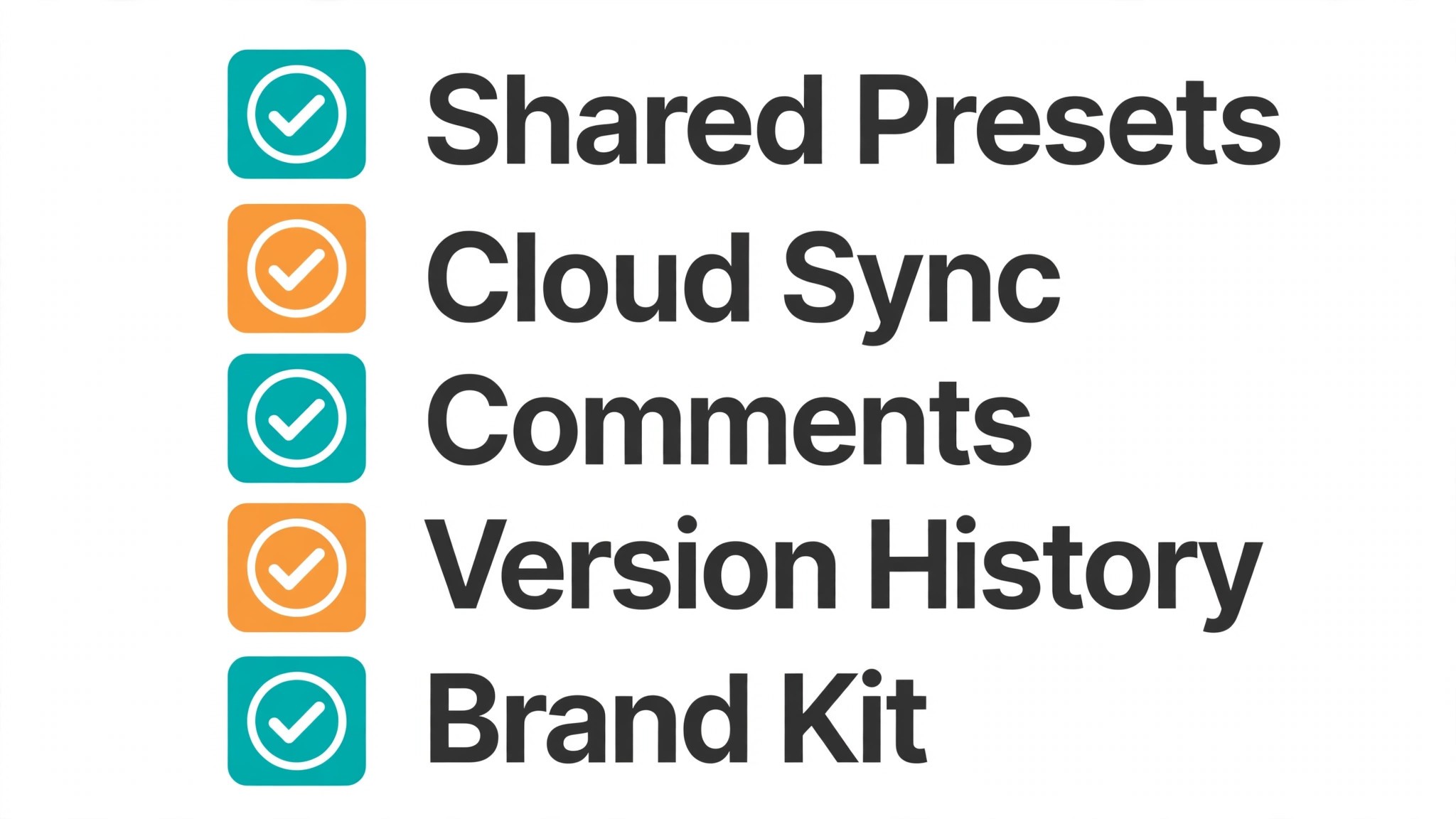
The third mistake is letting every person on the team work in a different style. One person uses one preset, another uses another, and the output looks like it came from five different companies. Set one style, share the presets, and let one person review before anything goes out. Consistency is a process, not a feature.
Team Photo Editing Setup Checklist for Shared Libraries
Use this checklist when you set up your pick from the best photo editors for teams for teams, and keep a copy with your project notes.
- Write the brief in one sentence, with the audience and the deadline attached.
- Shortlist three tools that match the brief, and read their pricing pages in full.
- Test the top two on a real piece of work, and time each step.
- Check the export and the licence for the exact use you planned.
- Build your four-step workflow and time it on five real pieces of work.
- Set up shared presets and templates before the team starts using the tool.
- Name one person to review output before anything goes out.
- Review the cost and the results monthly, and switch only when the test proves it.
Related Guides
Keep exploring with these guides on Stratilyze:
- Best Photo Editors for Mac (12 Tools)
- Best Photo Editors for Food Bloggers (8 Tools)
- Best Free Photo Editors for Mac (12 Tools)
Frequently Asked Questions
Can Lightroom keep a whole team editing in the same style?
Yes, with shared presets. A team lead builds the presets, shares them to every seat, and every photo gets the same starting point. Without shared presets, ten editors produce ten looks.
Is Affinity Photo enough for a professional team?
For pixel editing, yes. It is free and deep, so a team can standardise on it without licence costs. It lacks shared catalogs, so the team needs a file system and naming rules to stay organised.
Does Canva replace a real photo editor for a team?
No, not for RAW work. Canva edits photos inside templates well, but a team needing RAW development or retouching should pair it with Lightroom or Affinity Photo.
How do I stop a team drifting into different photo styles?
Shared presets, a style guide and a review step. The preset sets the look, the guide sets the rules, and one person reviews before publish. Tools alone cannot fix a missing review step.
Is Pixelmator Pro a problem for a mixed Mac and Windows team?
Yes. It is Mac only, so a mixed team cannot standardise on it. Affinity Photo or Lightroom work on both platforms and keep the team on one tool.
Which team editor is cheapest per seat over a year?
Affinity Photo, because it is free. Pixelmator Pro is next at $50 once per seat. Lightroom at $10 a month per seat costs $120 a year, so a team of ten pays $1,200 a year before any other tool.
The Costly Mistake Is Letting Every Designer Edit in a Different Style
There is no universal winner among these 15 tools, because the right pick follows the job your teams actually do. The best photo editors for teams that fit a solo user will not fit a team of ten, and the tool that fits a studio will not fit a blogger. Start with the brief, test on real work, and let the test decide.
The mistake that wastes the most money is the one this guide opened with. Buying a tool before you test it on real work, then paying for a year of a subscription that nobody opens. It happens because the demo looked good and the price looked small. Test first, buy second, and review monthly. A tool that earns its fee on your busiest week is the right tool, and the rest of the feature list will take care of itself.