
A file that uploads to 90 percent and then freezes feels worse than a file that never starts, because the progress bar promises success while delivering nothing, and the usual response, which is to wait longer, rarely helps. Compare that with an upload that never starts at all, which points more cleanly to a connection, sign in, or file problem that can be checked directly. When you fix Google Drive upload stuck, the distinction between stuck mid upload, stuck at start, and failing at the end matters, because a large file, a weak connection, a full storage quota, and a browser fault each stall uploads in a different place, and each needs a different fix.
This guide works through the fixes in order, from the fastest file and connection checks, through storage, browser, and app steps, to the large file and folder strategies that prevent stalls in the first place. It covers uploads on the web, on desktop sync, and on mobile, because each path fails differently, and it explains what each step deletes or risks, so you never cancel an upload blindly. Follow the steps in order, test with a small file after each step, and stop as soon as uploads complete reliably.
What Kind of Upload Stall You Have
The pattern of stalling narrows the cause faster than any single fix, so note exactly where and how the upload stops before changing settings. An upload that never starts, showing a queue or an error immediately, points to a sign in problem, a connection problem, or a file problem, such as an unsupported name, a locked file, or a file that exceeds a limit. An upload that progresses then freezes, especially near the end or at a consistent percentage, points to a network interruption, a large file that exceeds a timeout, or a storage quota that fills mid upload.
An upload that completes but never appears, or appears without content, points to a sync conflict, a duplicate name, or a browser cache showing an old folder view, rather than to a true upload failure.
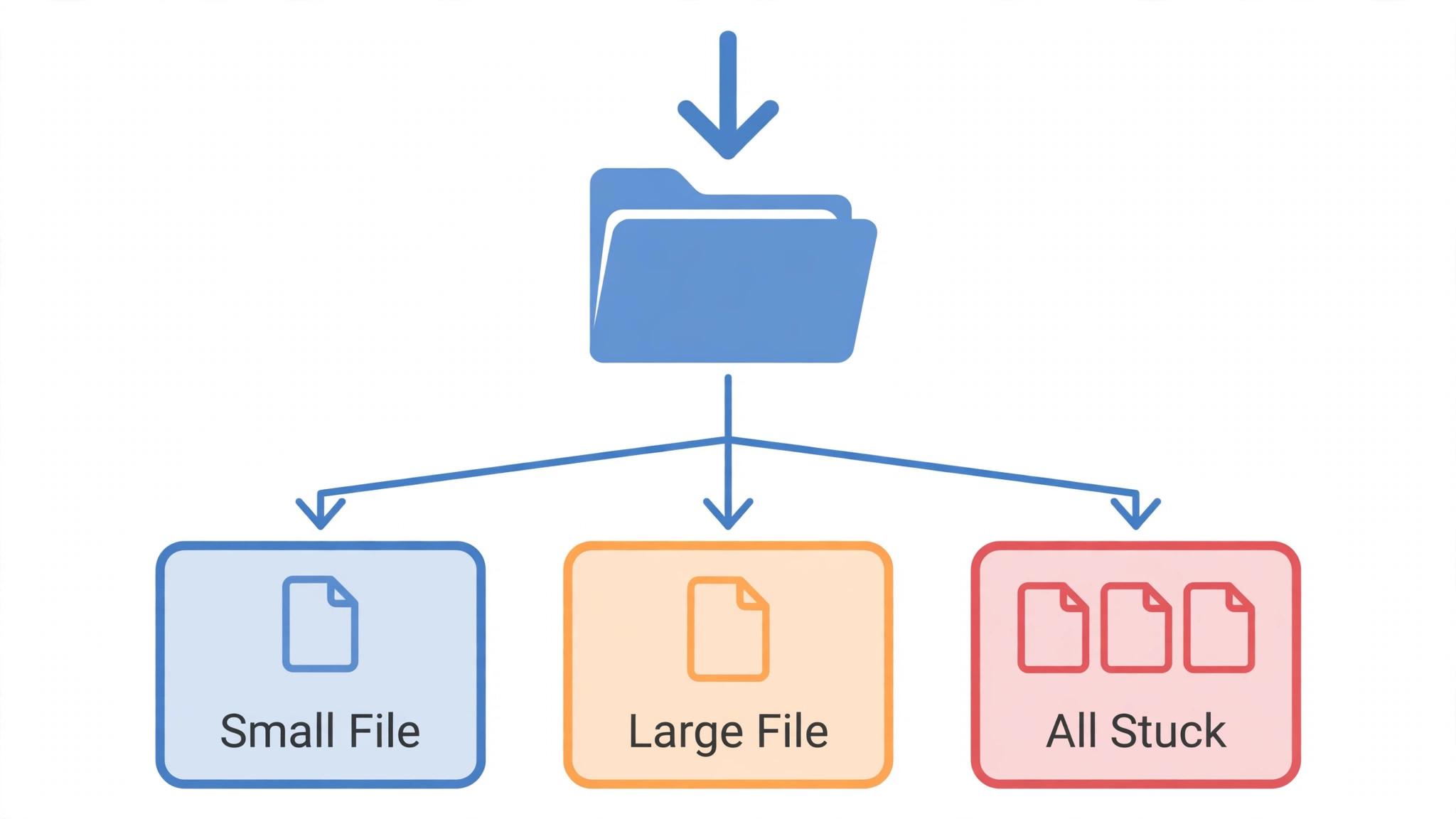
Check whether the failure affects one file or all files, because that distinction decides the next step. A single file that stalls while small files upload normally points to that file’s size, name, type, or lock status, and renaming, splitting, or closing the program that holds the file open becomes the priority. All files stalling points to connection, storage, browser, or account causes, and file specific fixes will not help until the broader cause is addressed.
Also check whether the failure affects one device or every device, because a device specific stall points to that device’s browser, app, or network, while an every device stall points to the account, its storage quota, or a Google service problem, and those two patterns need very different responses.
Also note the file size and type, because Drive handles small documents differently from large videos, and a 10 gigabyte video will stall for reasons a 100 kilobyte document never encounters, such as timeouts, network drops during a long transfer, and storage quota limits that a small file would never reach. Note whether the file is open in another program, because an open spreadsheet, document, or video editor can lock a file and prevent upload, and closing that program often releases the upload immediately.
That file, device, and size check, done before any fixing, prevents the most common waste in upload troubleshooting, which is reinstalling an app for a locked file, or restarting a router for a storage quota that is already full. Note the pattern first when you fix Google Drive upload stuck, before changing settings.
How to fix Google Drive upload stuck in Order
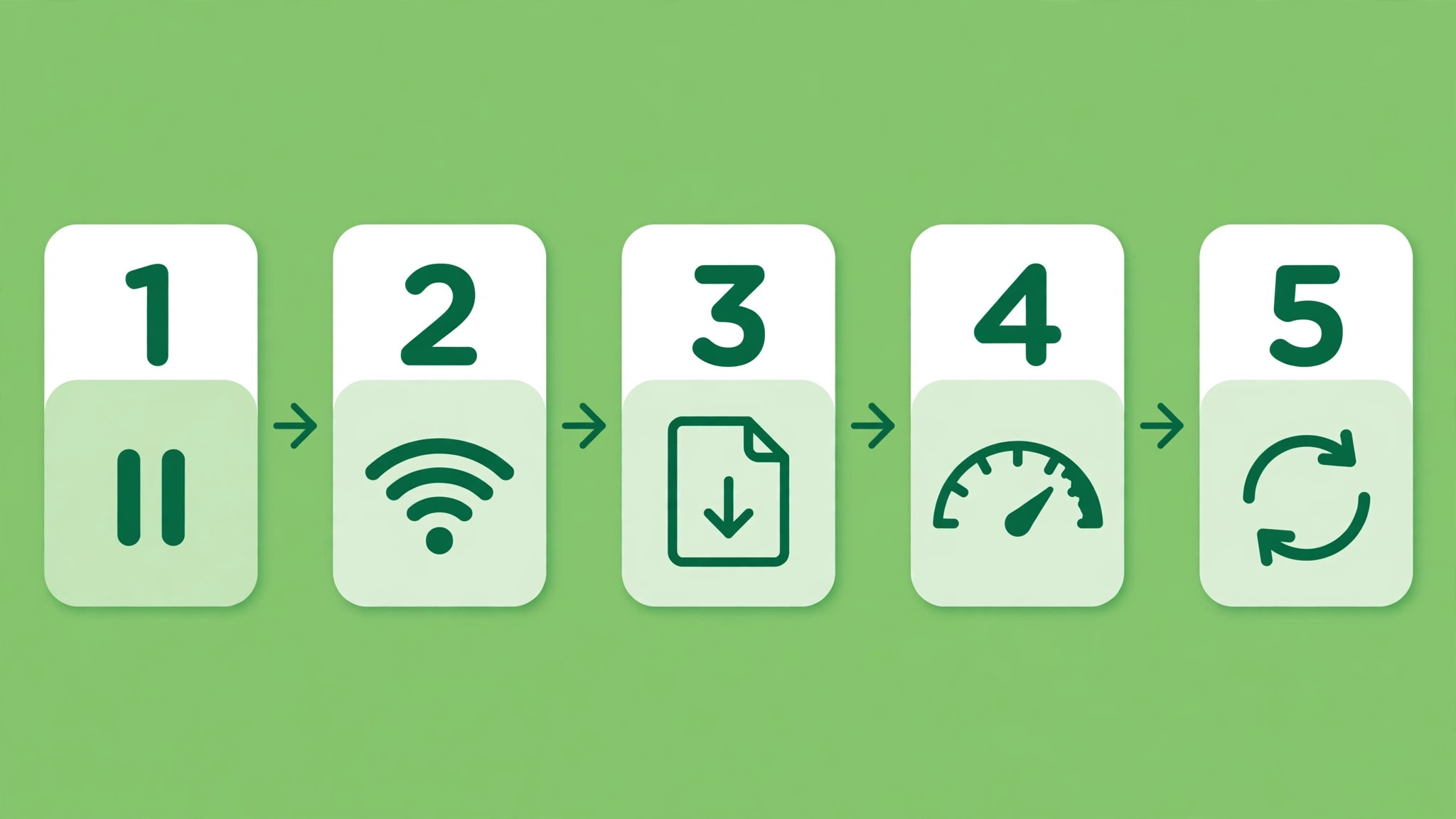
Work through this order, testing with a small file after each step, and stop when uploads complete reliably. The order runs from quick and harmless to slow and disruptive, so a file check and a connection test can solve the problem before any cache or account work begins, and an account re-sign in comes only after simpler steps have failed. Keep the original file safe during every step, because cancelling an upload should never delete the source file, and a backup copy protects against accidental deletion during troubleshooting.
- Confirm the file is closed in every program, check its name for unusual characters, and try uploading a small test file first, to split file causes from system causes.
- Check the connection by opening a web page and a video, switch between Wi-Fi and mobile data or another network if possible, and restart the router if nothing connects well.
- Refresh the Drive page, sign out and back into the Google account in the browser, and try the upload again, because a stale session blocks uploads silently.
- Check Drive storage in Drive settings, and free space or upgrade if the quota is full, because a full quota stalls uploads without a clear error.
- Clear only the browser cache for Drive, or try an incognito window, and test again, because a corrupt cache or an extension can block uploads.
- Disable browser extensions temporarily, especially ad blockers, privacy tools, and VPN extensions, and test again, then re-enable one at a time.
- Try a different browser, and try the Drive desktop app or mobile app if the web upload fails, because a path that works isolates the faulty path.
- Split a large file into smaller parts, or compress a large folder into smaller archives, and upload the parts one at a time, to avoid timeouts.
- Pause and resume the upload where the app offers it, or cancel and restart the single upload, rather than queueing many large uploads at once.
- Update the browser, the Drive app, and the system, restart, and test again, because updates fix known upload bugs.
- Remove and re-add the Google account in the Drive app, or reinstall the Drive app, as a last resort, after noting settings and ensuring files are backed up.
That order protects your files, because early steps delete nothing, cache and extension steps affect only the browser, and account and reinstall steps, which cost time and settings, come only after simpler fixes have failed. Testing with a small file deserves emphasis, because a small success proves the account, connection, and browser work, and isolates the remaining problem to the large file itself, while a small failure proves the broader path is broken and file splitting would waste time. Queueing many large uploads at once deserves avoidance, because simultaneous large uploads compete for bandwidth, time out together, and leave every file stuck, while one upload at a time completes reliably and reveals the true speed of the connection.
When you fix Google Drive upload stuck, do not delete the source file while an upload is stuck, because a stuck upload has not yet delivered the file, and deleting the source turns a stall into a loss. Keep the source until the uploaded copy is verified, by opening it in Drive on another device or in an incognito window, and only then consider deleting the local copy. A verified upload, checked from a second view, is the only safe signal that the file is truly in Drive, because a progress bar that reached 100 percent but never synced can still mislead, especially on desktop sync where local and cloud states can diverge.
File Size Steps in Detail
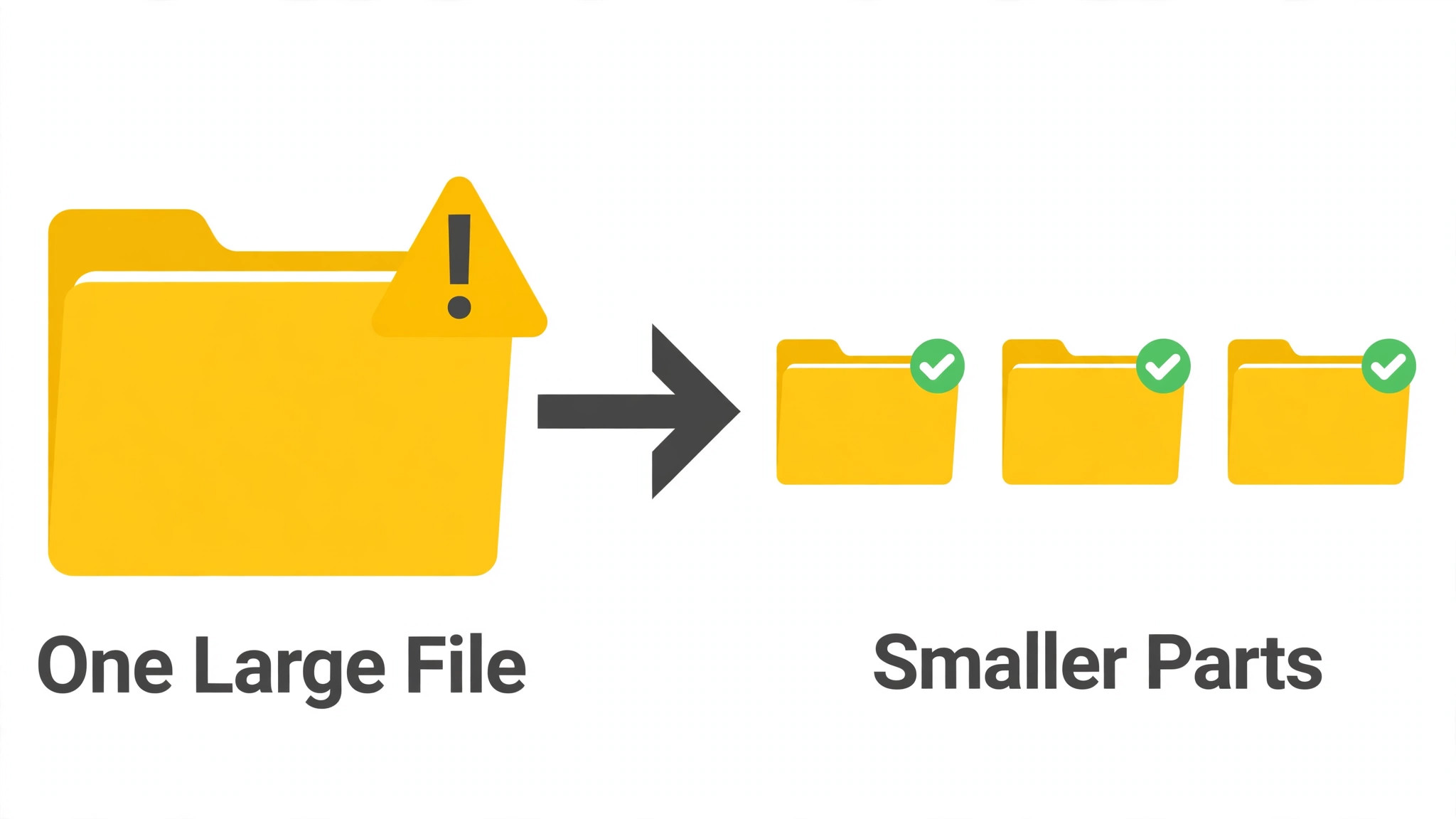
Large files stall for reasons small files never encounter, and the fixes for large files are specific, so they deserve a dedicated section. First, check the file size against practical limits, because a very large video, disk image, or backup file can exceed a browser timeout, a network stability window, or a storage quota, even when Drive itself accepts large files in principle. Split the file where possible, such as exporting a long video in parts, archiving a large folder into several smaller archives, or uploading a project folder file by file rather than as one huge archive, because smaller parts complete faster, resume more easily, and isolate a corrupt part without losing the whole upload.
Second, use the most reliable upload path for large files, because the web uploader, the desktop sync app, and the mobile app handle large files differently. The desktop sync app generally handles large files and resume better than a browser tab, because it can pause, resume, and retry in the background, while a browser tab depends on the tab staying open and the network staying stable for the whole transfer. If a web upload stalls repeatedly for a large file, try the desktop app, and if the desktop app stalls, try uploading from a different network, such as a stable wired connection, because a wired connection removes the Wi-Fi drops that most often break long uploads.
Avoid uploading large files over a mobile hotspot or a public Wi-Fi network where possible, because those networks commonly throttle, drop, or time out long transfers.
Third, manage the upload queue deliberately, because uploading several large files at once divides bandwidth, increases timeout risk, and makes it impossible to tell which file actually failed. Upload one large file at a time, wait for verification, then start the next, and schedule very large uploads for a quiet network period, such as overnight or early morning, when household bandwidth is free. If an upload must be paused, use the app’s pause control where offered, rather than closing the browser or powering off, because a controlled pause resumes cleanly while an abrupt close can corrupt the partial upload and force a restart from the beginning.
When you fix Google Drive upload stuck with large files, patience and splitting beat repeated retries, because a retry of the same huge file on the same weak network will stall the same way every time.
Cause Table for Upload Stalls
Use this table to match what you see with the most likely cause and the first fix, so a clear symptom leads straight to the relevant section without working blindly. The table does not replace the full order, but it speeds diagnosis when a pattern is distinctive.
| Symptom | Most likely cause | First fix to try |
|---|---|---|
| Upload never starts, error at once | Sign in, file lock, or file name problem | Close file, check name, re-sign in, test small file |
| Progress freezes mid upload | Network drop, large file timeout, or quota | Stable network, split file, check storage quota |
| Upload reaches 100 percent but never appears | Sync conflict, duplicate, or stale folder view | Refresh, check other device, check duplicates |
| Small files upload, large files stall | Large file timeout or bandwidth limit | Split file, use desktop app, wired connection |
| All files stall on one device only | That device’s browser, app, or network | Try another browser, app, network, update |
| All files stall on every device | Account storage full or service problem | Check Drive storage, check service status |
| Upload stalls only on Wi-Fi, works on data | Home network, router, or DNS fault | Restart router, try wired, test other network |
| Upload stalls after a browser update | Extension or profile fault from update | Incognito test, disable extensions, clear cache |
A symptom that changes after a step is useful, even when the step does not fully fix the problem, so note what changed. If a small file succeeds after a cache clear but a large file still stalls, the cache was part of the problem and file size is the rest, so splitting becomes the next step. Use the table first when you fix Google Drive upload stuck and the pattern is clear. If switching networks fixes uploads, the original network, its router, or its filtering was the cause, and further browser steps would have wasted time.
Troubleshooting is narrowing, not magic, and a short note of file size, device, network, storage, and steps makes that narrowing fast, especially if you later seek help.
Connection, Storage and Browser Checks
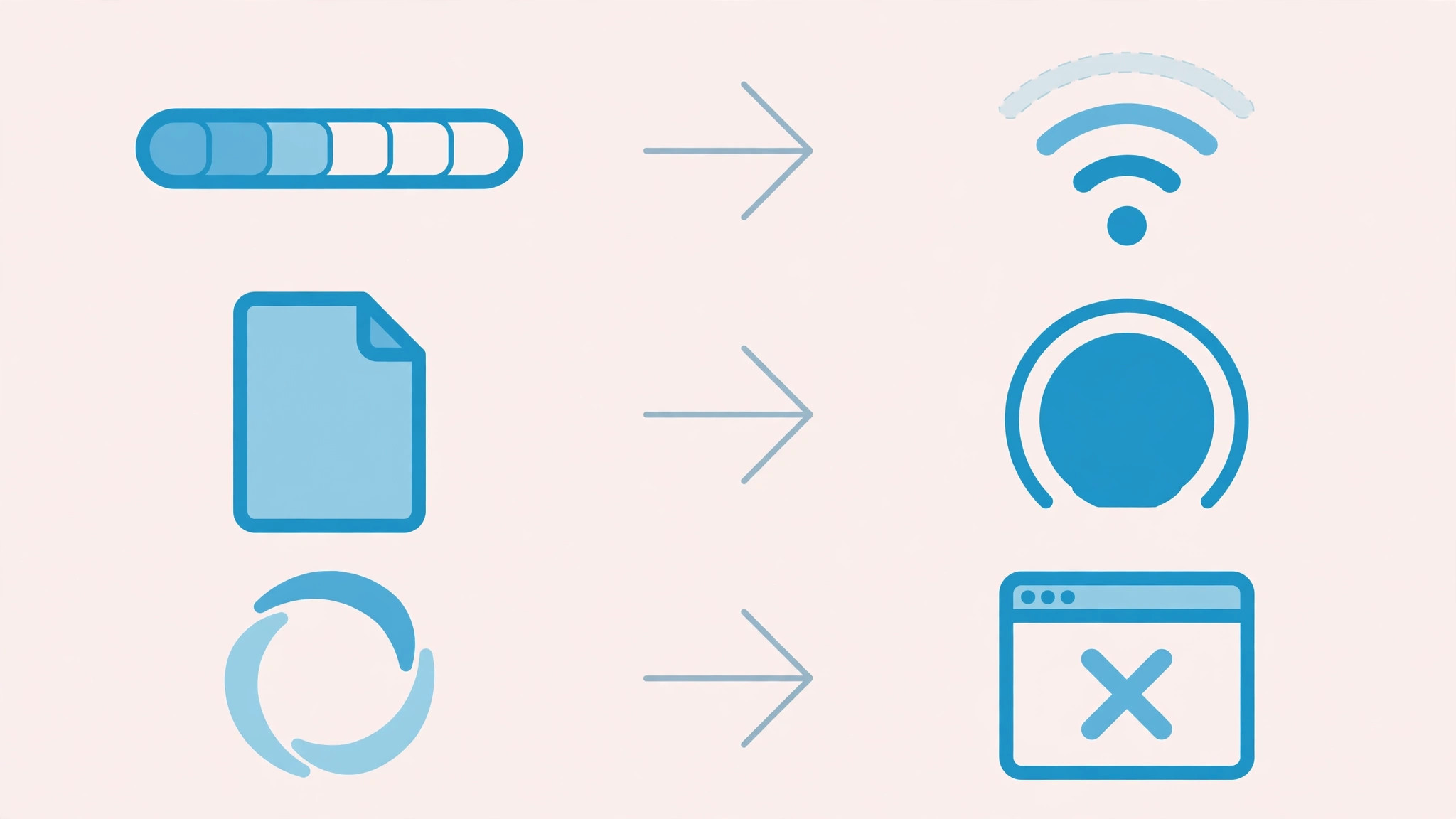
Connection checks for uploads need more than a speed test, because an upload needs stable, sustained upstream bandwidth, while browsing and streaming mainly need downstream bandwidth, and a connection can browse normally while uploading poorly. Test upstream specifically when you fix Google Drive upload stuck with large files. Test upstream specifically, by uploading a small file and timing it, and by uploading the same file on another network, because a network with fast downloads but slow or unstable uploads will stall Drive uploads while feeling fast for everything else.
Restart the router properly, by unplugging for a full minute, plugging the modem back first, then the router, and waiting for lights to settle, then test again, because a router restart clears temporary states that cause intermittent upload failures. If uploads work on mobile data but not on home Wi-Fi, the home network, its router, or its DNS deserves the focus, and a wired connection test can confirm whether Wi-Fi specifically, rather than the internet connection as a whole, is at fault.
Storage checks need both Drive quota and device free space, because either can block an upload, and both are easy to miss. Check Drive storage in Drive settings, where the quota, usage, and largest files are shown, and free space by deleting large Drive files, old backups, or unnecessary mail attachments, or consider a storage upgrade if the account is genuinely full, because a full quota stalls uploads without a clear error in some upload paths. Check device free space as well, because desktop sync needs working room, and a device with almost no free space cannot stage an upload properly.
A Drive account that uploads again after freeing quota had a storage problem all along, and no browser fix would have helped until space existed.
Browser checks complete the picture, because extensions, cache, and profile faults block uploads while leaving browsing apparently normal. Test in an incognito window first, because extensions are off there by default, then disable extensions one at a time if incognito succeeds, to find the culprit, paying special attention to ad blockers, privacy tools, and VPN extensions that intercept uploads. Clear cache for Drive specifically where the browser allows site data clearing, rather than clearing all browser data at once, because targeted clearing preserves logins elsewhere while fixing the Drive fault.
If another browser uploads normally, the original browser’s profile, extension, or cache is at fault, and a profile reset or a switch to the working browser becomes a sensible path, rather than repeating network steps that cannot help.
Desktop Sync and Mobile Upload Differences
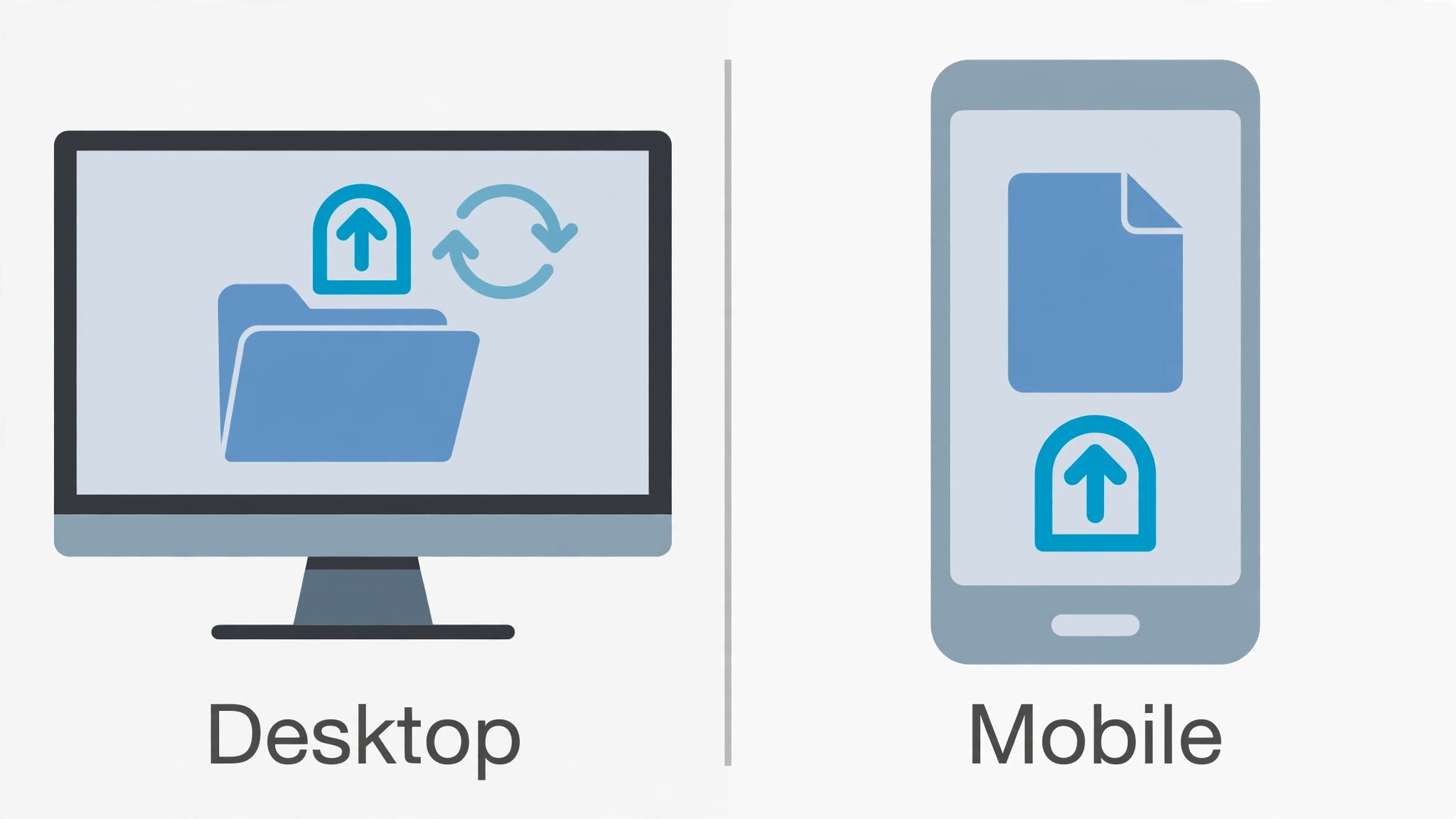
Desktop sync and mobile uploads fail differently, and recognising the path matters, because a fix for one path may not help the other. Desktop sync uploads through a background app that watches folders, and its common faults are a paused sync, a disconnected account, a file locked by another program, or a selective sync setting that excludes the folder being uploaded. Check the sync app’s status icon, confirm sync is not paused, confirm the correct account is signed in, and confirm the folder is included in sync settings, because a folder outside the sync set will never upload no matter how healthy the network is.
Restart the sync app, and check its preferences for bandwidth limits, because a bandwidth limit set long ago can throttle uploads to a crawl that looks like a stall.
Mobile uploads fail differently, because phones add battery optimisation, data saver, background restrictions, and storage limits that desktops do not face. Check that Drive is allowed background activity and unrestricted data while Data Saver is on, because a phone that pauses Drive in the background will stall uploads whenever the app leaves the foreground. Check mobile storage, because a phone with almost no free space cannot stage an upload, and check whether uploads are set to Wi-Fi only, because a phone on mobile data with that setting will queue uploads indefinitely without a clear error.
Try uploading on Wi-Fi with the app open and the phone charging, because that combination removes battery, data, and background restrictions at once, and a mobile upload that succeeds under those conditions had a restriction problem, not a file problem.
When you fix Google Drive upload stuck on desktop sync, verify uploads from the web view on another device, because desktop sync can show a local file as synced while the cloud copy lags, and a second view is the only safe proof. When you fix Google Drive upload stuck on mobile, verify the same way, because a mobile upload that reports success but never appears in the web view has not truly completed, and retrying from the mobile app, with restrictions removed, is the next step. That verification habit, of checking from a second view before deleting a source file, prevents the most painful upload outcome, which is a deleted source for a file that never actually reached Drive.
Mistakes That Waste Time on Upload Fixes
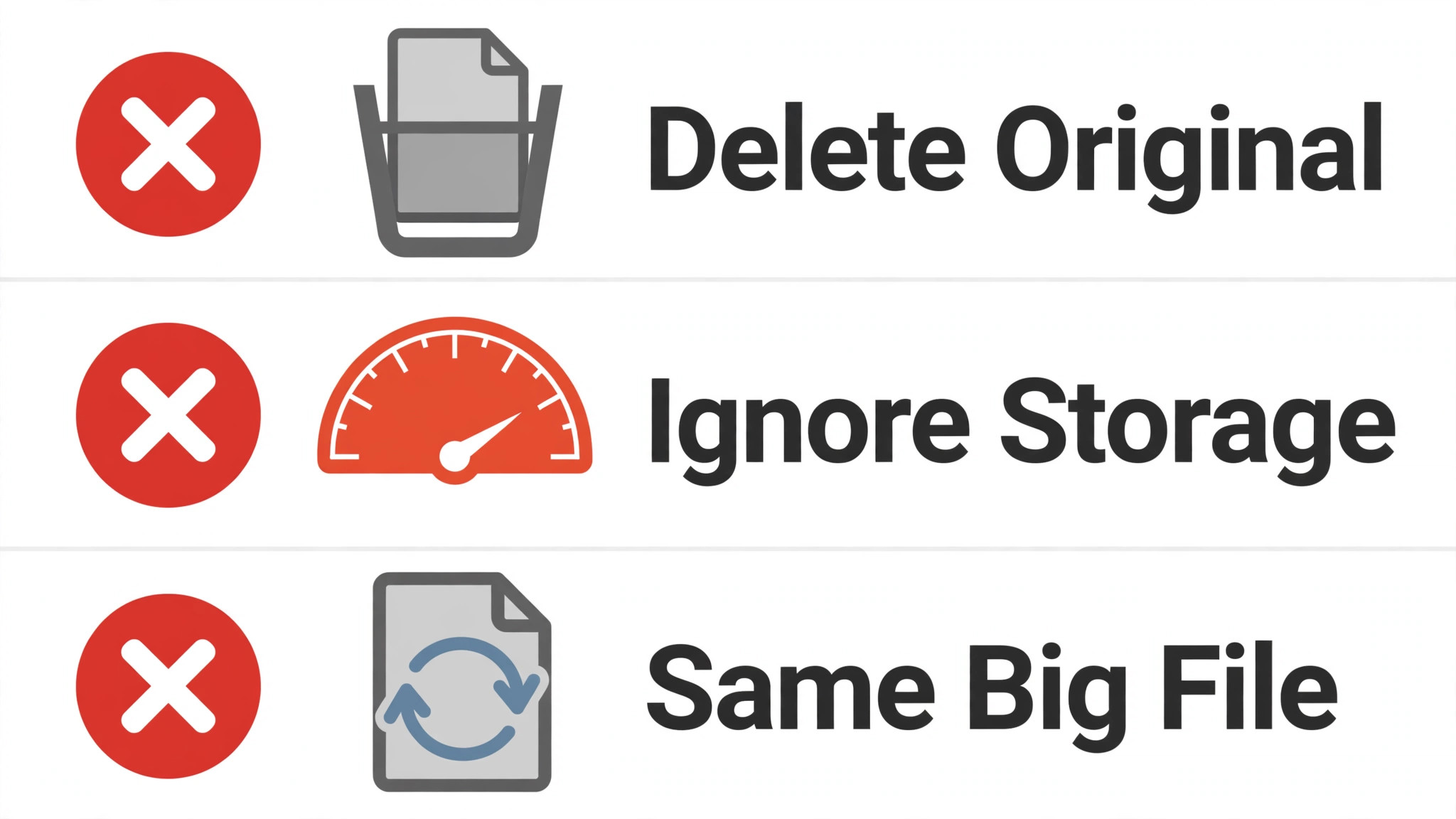
The first mistake is deleting the source file while an upload is stuck, because a stuck upload has not delivered the file, and deleting the source turns a stall into a loss. The second mistake is queueing many large uploads at once, which divides bandwidth, increases timeout risk, and leaves every file stuck, while one upload at a time completes reliably. The third mistake is retrying the same huge file on the same weak network repeatedly, because a retry without splitting, changing networks, or switching upload paths will stall the same way every time.
The fourth mistake is clearing all browser data before trying an incognito test or a targeted site clear, which signs you out of every site for a problem that a targeted clear might have fixed. The fifth mistake is ignoring storage quota, because a full Drive account stalls uploads without a clear error in some paths, and freeing quota is the only fix that helps. The sixth mistake is changing several settings at once, such as network, browser, and account settings together, which makes it impossible to know which change helped, and can leave the setup in a worse state than before. Change one thing, test with a small file, and note the result, before changing another.
Preventing the Next Upload Stall
Prevention for Drive uploads is mostly about file habits, network habits, and storage awareness, because most stalls come from a huge file, a weak network, or a full quota that built up quietly. Upload large files one at a time, split very large files where possible, and schedule huge uploads for a quiet network period, because a calm network and a single upload complete far more reliably than a busy network with a queue of large files. Keep Drive storage reviewed monthly, deleting large files no longer needed and checking quota before a major upload project, because a quota check before uploading prevents a stall halfway through the most important file.
Keep browsers and Drive apps updated, because updates fix known upload bugs, and keep a note of any VPN, data saver, or extension that affects uploads, so a future stall can be checked against known settings instead of guessed at. Verify every important upload from a second view before deleting the source, and keep a local backup of critical files until that verification is done, because a verified cloud copy is the only safe signal to delete a local original.
A few minutes of file, network, and storage care before a major upload keeps Drive moving smoothly, which is exactly how cloud storage should work, and it means the next upload stall, if it comes, will be a quick small file test instead of a lost afternoon.
More Reading on Stratilyze
If this guide helps your uploads move again, the wider Stratilyze guides cover the Drive problems around it. The guide to Google Drive storage full cleanup covers the quota side in depth, the guide to Google Docs not saving changes helps when a document, not an upload, fails to save, and the guide to YouTube videos buffering on slow internet covers the bandwidth side that also affects uploads. Read the storage guide next if quota is tight, because a full account fails uploads silently.
Frequently Asked Questions
Why is my Google Drive upload stuck at a percentage when you fix Google Drive upload stuck?
A mid upload freeze usually means a network interruption, a large file timeout, or a storage quota filling mid upload, rather than a single app fault. Check connection stability, check Drive storage quota, and try splitting a large file or switching to the desktop app, which resumes better than a browser tab. Test with a small file first, because a small success proves the account and connection work, while a small failure proves the broader path is broken and file splitting would waste time.
Will cancelling a stuck Drive upload delete my original file?
No, cancelling an upload stops the transfer but does not delete the source file on your device, because the source and the cloud copy are separate. Keep the source until the uploaded copy is verified from a second view, such as Drive on another device or in an incognito window, and only then consider deleting the local copy. A progress bar that reached 100 percent but never synced can still mislead, especially on desktop sync, so verification from a second view is the safe signal, not the progress bar alone.
How do I upload a very large file to Google Drive without it stalling?
Split the file where possible, upload one file at a time, and use the desktop sync app rather than a browser tab, because the desktop app pauses, resumes, and retries in the background more reliably. Use a stable wired connection where possible, schedule the upload for a quiet network period, and avoid mobile hotspots or public Wi-Fi for very large transfers, because those networks commonly throttle or time out long uploads. Verify the upload from a second view before deleting the source.
Why do small files upload but large files stall?
Large files need sustained upstream bandwidth for a long time, so they encounter timeouts, network drops, and quota limits that small files never reach, even on a connection that browses normally. A connection with fast downloads but slow or unstable uploads will stall large Drive uploads while feeling fast for everything else, so test upstream specifically and try a wired connection or the desktop app. Splitting large files into smaller parts also helps, because smaller parts complete faster and resume more easily.
Does a full Google Drive storage quota stop uploads?
Yes, a full Drive quota stalls uploads, sometimes without a clear error, because there is no room for the new file, and the stall can happen mid upload when the quota fills partway through. Check Drive storage in Drive settings, free space by deleting large files, old backups, or unnecessary attachments, or consider a storage upgrade if the account is genuinely full. Check device free space as well, because desktop sync needs working room, and a device nearly full cannot stage an upload properly.
Should I use the Drive website or the desktop app for uploads?
Use the desktop sync app for large files and for folders, because it handles pause, resume, and retry better than a browser tab, which depends on the tab staying open and the network staying stable. Use the website for quick single file uploads, because it needs no install and works from any computer, and use the mobile app for phone files, with background and data restrictions removed. If one path stalls repeatedly, try another path, because a path that works isolates the faulty path and gets the file uploaded while the faulty path is fixed.
Uploads Moving Again
A Google Drive upload stall resolves fastest when the pattern is read first, because a single file stall points to size, name, or lock, while an every file stall points to connection, storage, browser, or account causes. Check the file is closed, test with a small file, check connection and Drive quota, try incognito and another browser or app, and split large files for a stable, one at a time upload. Verify every important upload from a second view before deleting the source, keep storage reviewed monthly, and schedule huge uploads for quiet network periods.
Done that way, Drive uploads complete reliably instead of freezing near the finish, and the next stall will be a quick small file test instead of a lost afternoon.