
Mail that arrives on a computer but not on a phone feels like a broken promise, because the phone is supposed to be the device that tells you first. Compare that with mail that arrives hours late, which is a different fault, because sync works but only in bursts, usually when the app is opened manually. When you fix Gmail app not syncing Android, the distinction between never syncing and syncing late matters, because a master sync switch, a battery optimisation, a storage shortage, and an account fault each produce a different pattern, and each needs a different fix.
This guide works through the fixes in order, from connection and sync toggles, through storage and battery settings, to cache, account, and system steps, plus the label and notification settings that make sync look broken when it is actually working. It covers both a Gmail app that shows no new mail at all and one that syncs only when opened, and it explains what each step deletes, so you never clear data blindly. Follow the steps in order, test by sending yourself a test mail after each step, and stop as soon as new mail arrives promptly.
What Kind of Sync Failure You Have
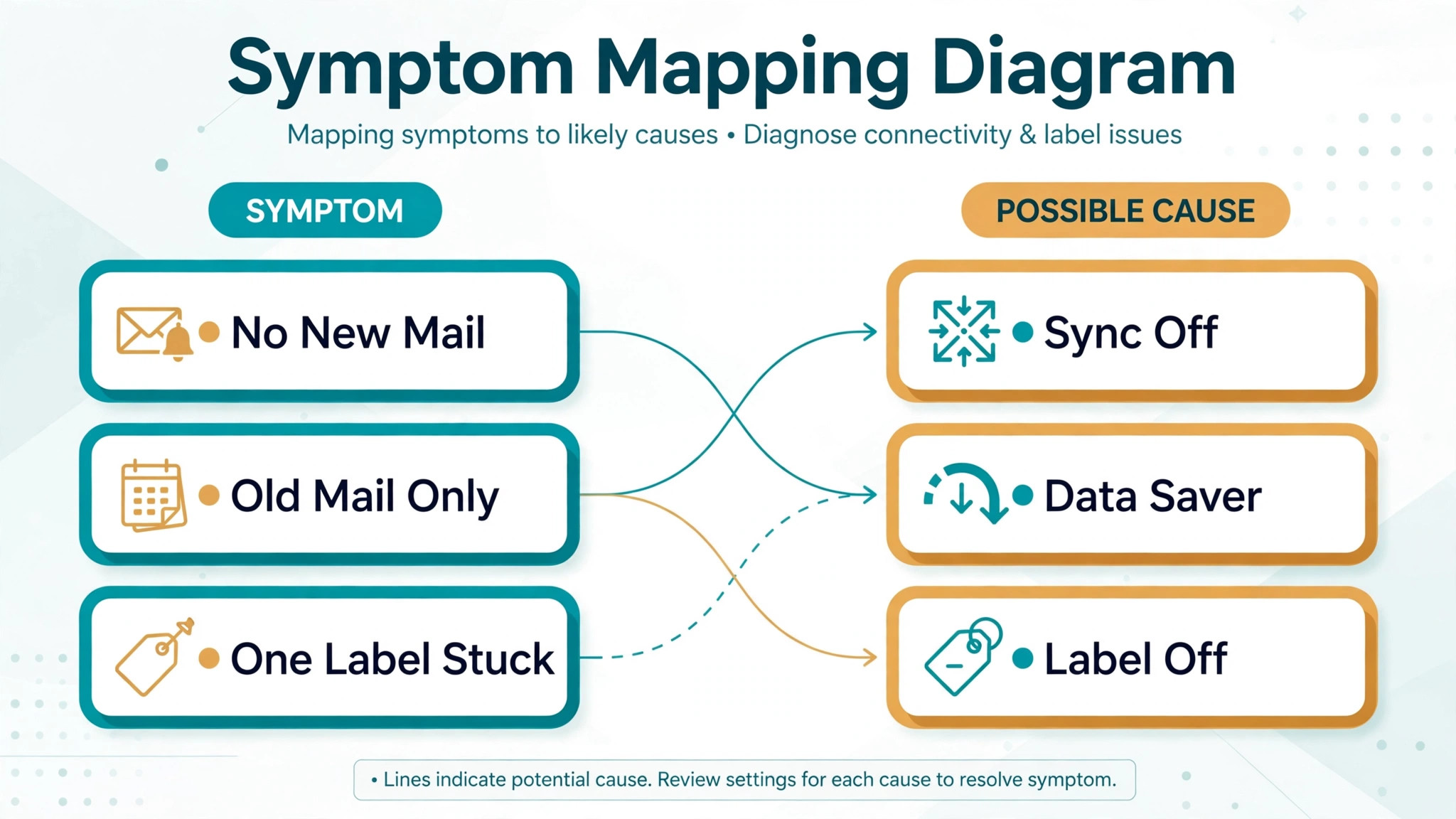
The pattern of sync failure narrows the cause faster than any single fix, so note exactly what happens before changing settings. If no new mail arrives at all, even after opening the app and pulling to refresh, the cause is more likely a sync switch, an account fault, or a connection problem, because manual refresh should force a sync if the account and connection are healthy. If new mail arrives only when you open the app, but not in the background, the cause is more likely a battery optimisation, a data saver, or a background data restriction, because those settings specifically block background sync while allowing manual sync.
If mail arrives late, in bursts every few hours, the cause is more likely a battery or sync interval setting that batches background work, rather than a total sync failure.
Check whether mail works elsewhere before touching the phone’s settings, because that single check splits the problem in half. If mail also fails on a computer or on the web, the account itself, its password, or a Google service problem is more likely, and phone steps will not help until the account is healthy. If mail works on the web but not in the app, focus on the app, its sync settings, its storage, and its battery permissions, because the account itself is fine and the phone app is the fault.
Also check whether the failure affects one label or all mail, because a label with sync turned off, or a filter that archives mail before it reaches the inbox, can look like a sync failure while sync itself works perfectly.
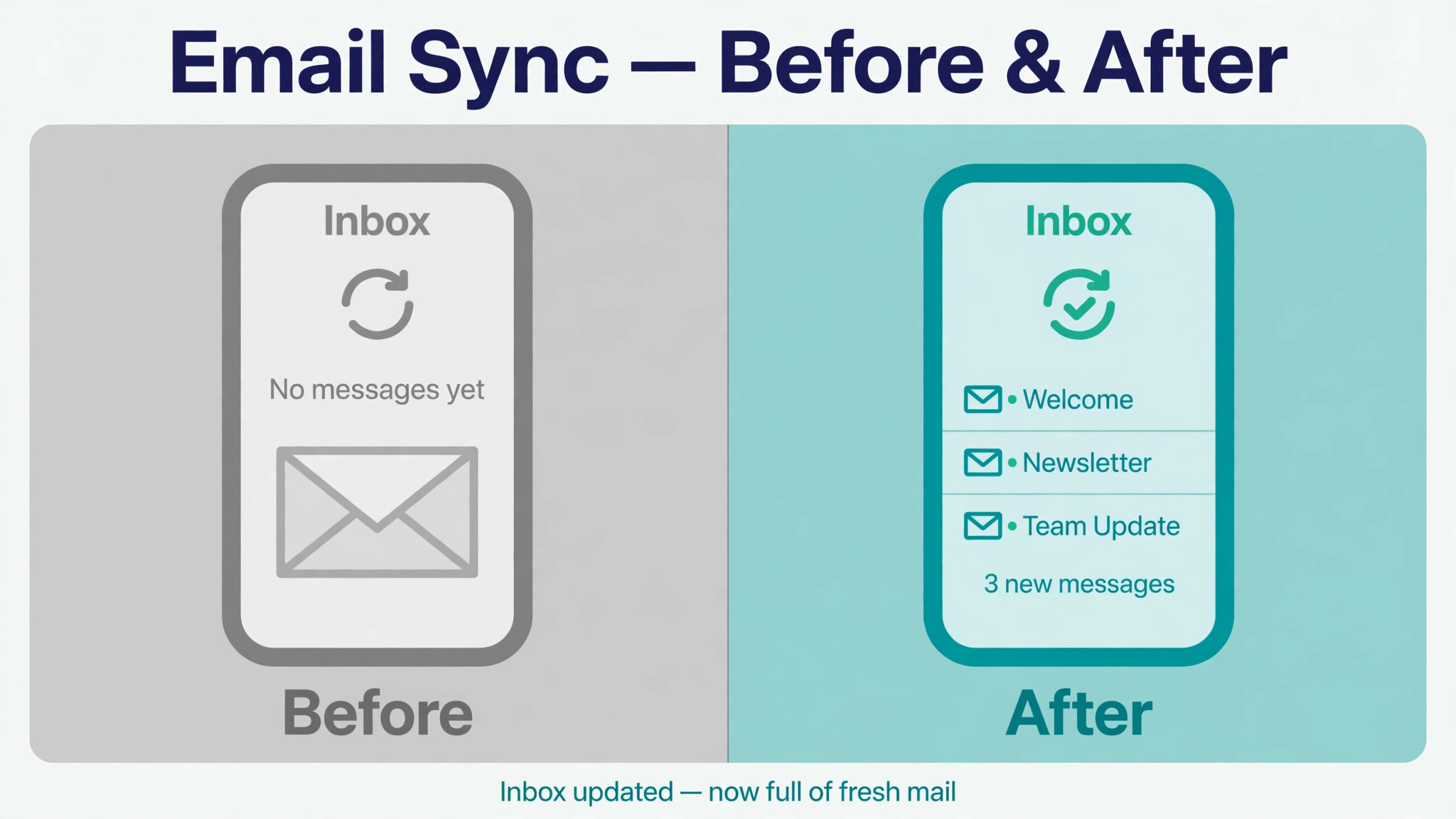
Notifications deserve a separate check, because a phone can sync mail silently while notifications fail, and the user experiences that as no new mail. Open the Gmail app, check that notifications are enabled for the account and for the inbox, and check the phone’s system notification settings and Do Not Disturb schedule, because a silenced notification hides synced mail just as effectively as a failed sync. Send a test mail to yourself, wait a minute, then open the app and check the inbox, the All Mail view, and the label where the mail should land, because that test separates sync, filtering, and notification causes in one pass, and it gives a clear baseline for every later step.
Run that test first when you fix Gmail app not syncing Android, because it separates three causes in one pass.
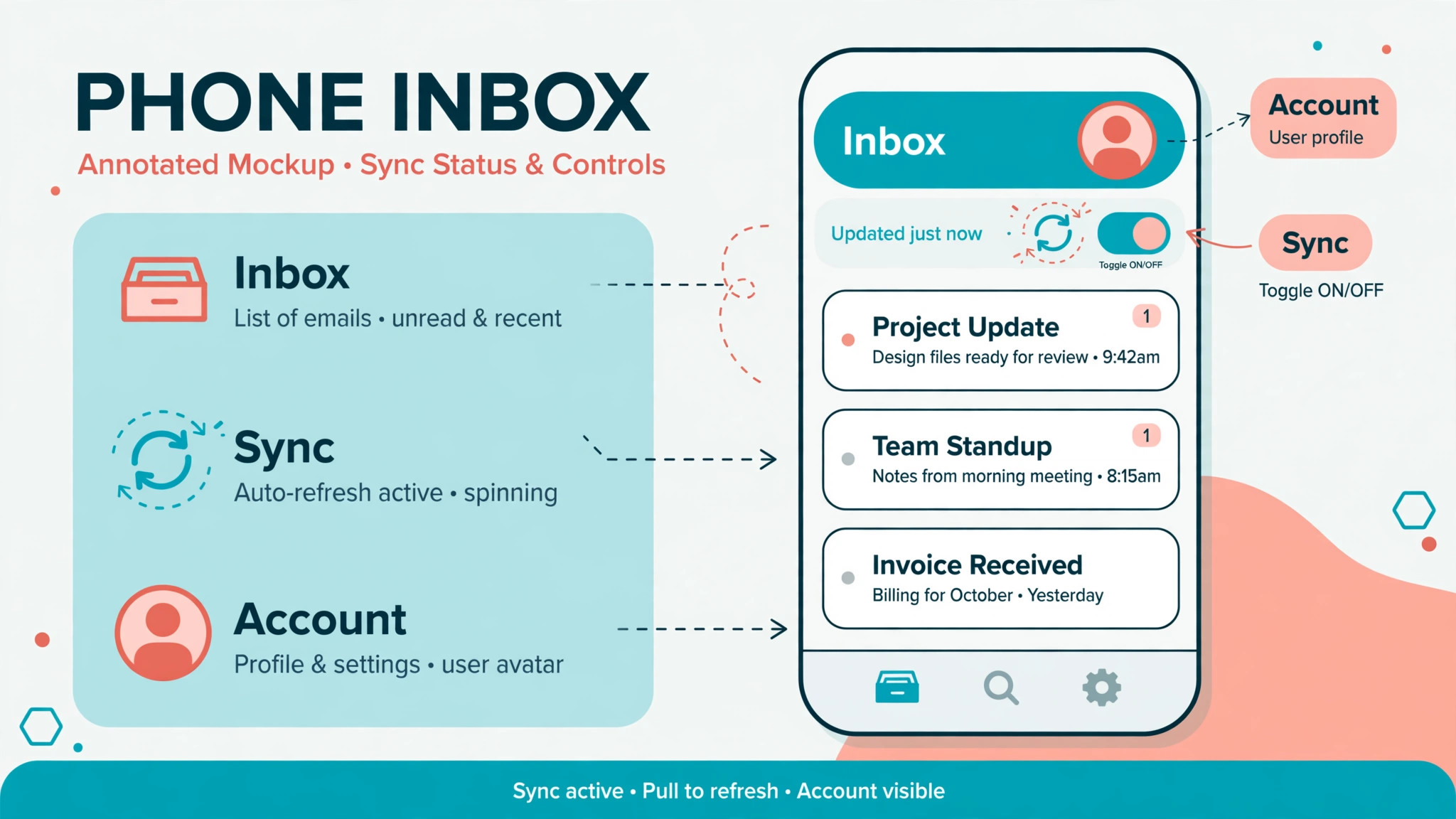
How to fix Gmail app not syncing Android in Order
Work through this order, sending yourself a test mail after each step, and stop when new mail arrives promptly in the background. The order runs from quick toggles to disruptive account steps, so a sync switch or a battery setting can solve the problem before any data is cleared, and an account re-add comes only after simpler fixes have failed. Keep your Google account password handy from step nine onward, because account steps require signing in again.
- Check the connection by opening a web page, switch between Wi-Fi and mobile data, and confirm mail loads on the web for the same account.
- Open Gmail, pull down to refresh manually, and check whether new mail appears, because manual success points to background restrictions.
- In Gmail settings, select the account, and confirm Sync Gmail is on, and that sync is enabled for the inbox and for labels you care about.
- Check the phone’s master sync in Settings under Accounts, and confirm Auto Sync Data or a similarly named switch is on for the Google account.
- Check free storage in Settings under Storage, and free space if the phone is nearly full, because sync needs working room for new mail and attachments.
- In Settings under Apps, Gmail, and Battery, set battery usage to Unrestricted or allow background activity, so the system does not pause Gmail.
- In Settings under Network or Data Usage, confirm Data Saver is off for Gmail, or that Gmail is allowed unrestricted data usage while Data Saver is on.
- Force stop Gmail, clear only its cache in Settings under Apps, Gmail, and Storage and Cache, reopen Gmail, and test again.
- Clear Gmail data, also called Clear Storage, only if cache steps failed, knowing it resets app settings and requires reconfiguration, but does not delete mail stored on Google’s servers.
- Remove and re-add the Google account in Settings under Accounts, restart, sign in again, and test, as a last resort before seeking maker support.
- Check for Gmail app updates and for a system update, install either if available, restart, and test again, because updates fix known sync bugs.
That order protects your mail, because early steps change only settings, cache steps delete only temporary files, and data and account steps, which reset more, come only after simpler fixes have failed. Battery and data saver settings deserve emphasis, because they are the most common cause of background sync failure on modern Android phones, where the system aggressively pauses apps to save power, and a user who never changed those settings can still suffer them after a system update changes defaults.
Clearing data is safe for mail itself, because Gmail stores mail on Google’s servers and re-downloads it after reconfiguration, but it resets app settings, so it should follow cache steps, not precede them, and account removal should follow data steps, not precede them, because it disrupts mail, contacts and calendar until sign in completes.
When you fix Gmail app not syncing Android, test with a test mail from another account or device, not just by waiting for real mail, because a test mail gives a controlled, timed result, while real mail may simply not arrive during the test window. Send the test, wait two minutes, check the inbox without opening the app first, to test background sync, then open the app and pull to refresh, to test manual sync, and note which of those two succeeds. A manual success with a background failure points to battery or data restrictions, while both failing points to sync, account, or connection causes, and that distinction decides the next step far better than guessing.
Sync Toggles and Label Settings in Detail
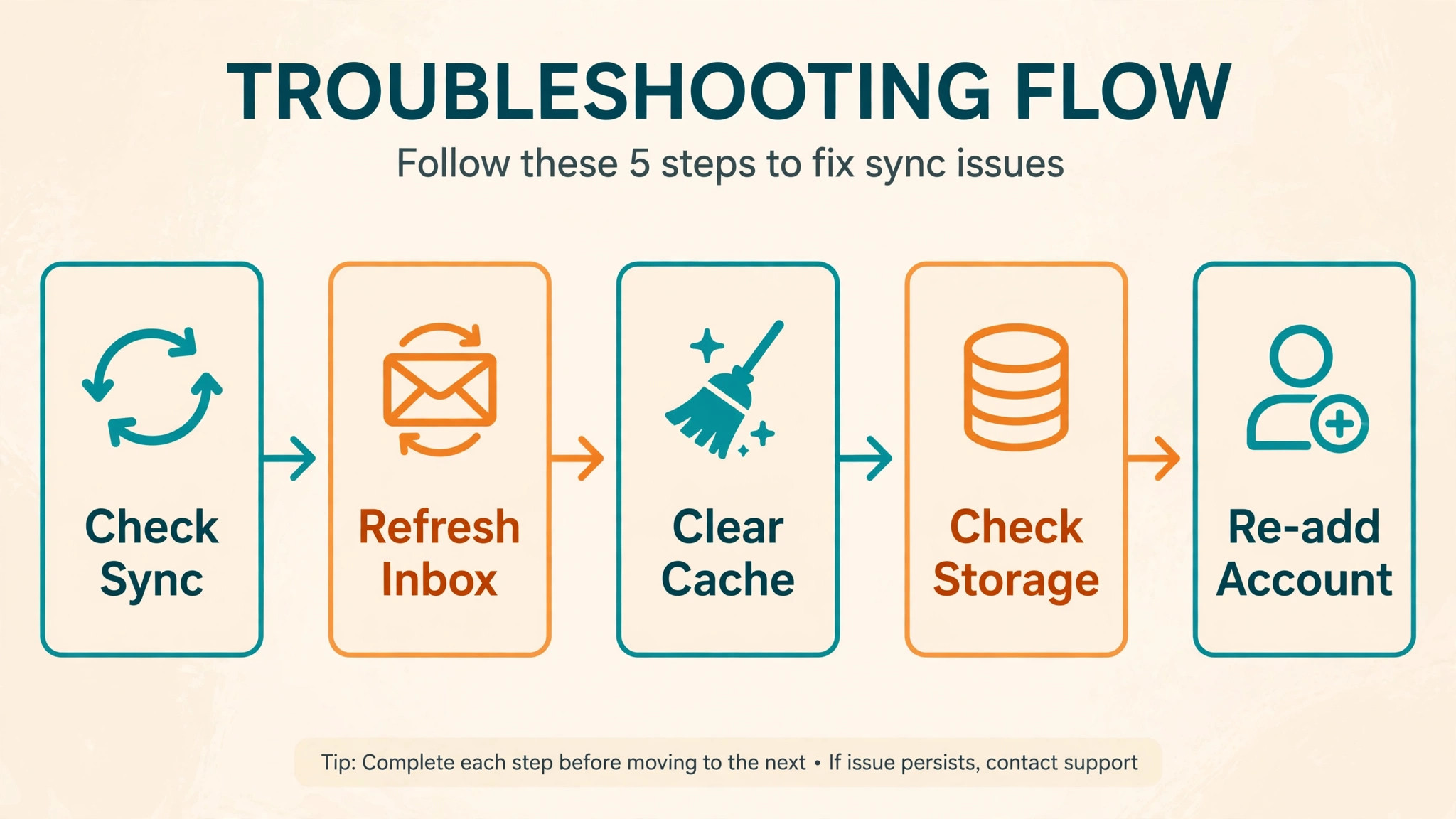
Sync toggles exist at several levels, and a single off switch at any level can stop mail, so check them all before concluding that sync is broken. At the app level, open Gmail settings, select the account, and confirm Sync Gmail is on, then check Days of Mail to Sync, because a very short window can hide older mail that the user expects to see, though it does not block new mail. At the account level, open Settings, go to Accounts, select the Google account, and confirm that Gmail sync is enabled there, because an account level switch off stops Gmail even when the app level switch is on.
At the system level, confirm that master auto sync is on, because some phones offer a global sync switch that pauses all accounts at once, often after a data saving mode or a battery saver is enabled.
Label sync settings cause a subtler failure, because Gmail can sync the inbox while ignoring a label the user watches closely. In Gmail settings, under the account, open Manage Labels, and check the sync setting for each important label, because a label set to sync never, or to sync only when opened, will not push new mail for that label in the background. Filters and archiving can also hide mail, because a filter that skips the inbox and applies a label will move new mail out of the inbox before the user sees it, and the user experiences that as missing mail while sync works perfectly.
Check All Mail and the relevant labels for a test mail that does not appear in the inbox, and review filters in Gmail settings on the web, because filters are managed most clearly there, and a filter created long ago can silently divert mail for months.
Notification settings complete the picture, because synced mail without a notification feels like unsynced mail. In Gmail settings, confirm notifications are on for the account, and check the inbox notification setting, which may offer all mail, high priority only, or none, depending on the version. In the phone’s system settings, confirm Gmail notifications are allowed, that notification categories for mail are enabled, and that Do Not Disturb is not silencing Gmail during the hours when mail seems missing. A test mail that appears in the inbox without a notification has a notification problem, not a sync problem, and fixing notifications is far quicker than repeating sync steps that cannot help.
Check every level when you fix Gmail app not syncing Android with a sync failure, not just the app level.
Cause Table for Sync Symptoms
Use this table to match what you see with the most likely cause and the first fix, so a clear symptom leads straight to the relevant section without working blindly. The table does not replace the full order, but it speeds diagnosis when a pattern is distinctive.
| Symptom | Most likely cause | First fix to try |
|---|---|---|
| No new mail even on manual refresh | Sync off, account fault, or connection | Check sync toggles, web mail, connection |
| Mail only on manual open, not background | Battery optimisation or data saver | Allow background activity, unrestricted data |
| Mail arrives late in bursts | Battery batching or sync interval | Battery unrestricted, check sync settings |
| Mail in All Mail but not inbox | Filter or label archiving mail | Check filters, check All Mail and labels |
| Mail syncs but no notification | Notification settings or Do Not Disturb | Enable Gmail notifications, check system settings |
| Sync fails after a system update | Changed battery or sync defaults | Recheck battery, data, and sync toggles |
| Sync fails for one account only | That account’s sync or sign in | Check that account’s sync, re-sign in if needed |
| Sync fails when storage nearly full | No working room for new mail | Free storage, then test sync again |
A symptom that changes after a step is useful, even when the step does not fully fix the problem, so note what changed. If a battery change turns manual only sync into background sync, the battery setting was the cause, even if notifications still fail, because notifications are a separate layer. Use the table first when you fix Gmail app not syncing Android and the pattern is clear. If clearing cache restores manual sync but background sync still lags, the remaining fault is battery or data related, not cache related, and the next step should follow that narrower clue.
Troubleshooting is narrowing, not magic, and a short note of symptoms, steps, and changes makes that narrowing fast, especially if you later seek help.
Battery, Data Saver and Storage Explained
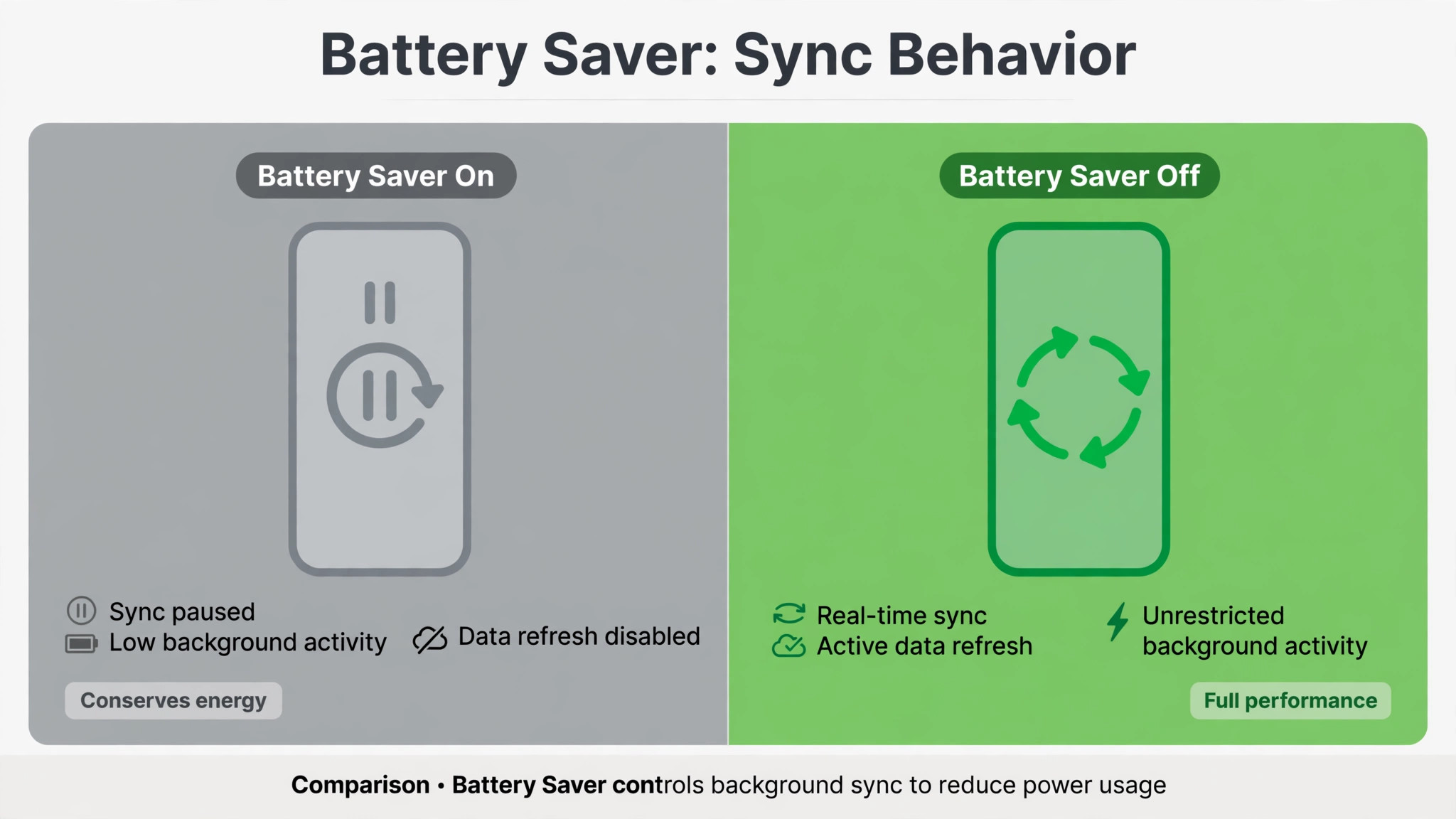
Battery optimisation is the most common background sync blocker on modern Android, because the system learns which apps to pause, and Gmail, if rarely opened, can be paused aggressively, especially after a system update resets optimisation defaults. To fix it, open Settings, go to Apps, select Gmail, open Battery, and choose Unrestricted, or allow background activity, depending on the phone’s wording, because that setting tells the system not to pause Gmail for power saving. Also check any maker battery manager or power saving mode, because some makers add a second layer of app management that overrides the standard Android setting, and Gmail must be allowed in both layers to sync reliably in the background.
Test after changing battery settings by sending a test mail and waiting without opening the app, because background sync is the only valid test for a battery fix.
Data Saver works similarly, by blocking background data for most apps, and Gmail needs an exception to sync while Data Saver is on. Open Settings, go to Network and Internet, then Data Saver, and check whether Gmail is set to unrestricted data usage, or turn Data Saver off entirely if your data plan allows it, because a Data Saver that blocks Gmail will allow manual sync, when the app is in the foreground, while blocking background sync completely.
Also check whether a VPN, firewall, or data monitoring app blocks Gmail’s background connection, by pausing it temporarily and testing, because those tools commonly allow browsing while blocking background sync, which produces a confusing pattern where the phone seems online but mail never arrives.
Storage blocks sync in a quieter way, because Gmail needs free space to download new mail, attachments, and sync records, and a phone with almost no free space will stop syncing without a clear error. Check storage in Settings, aim to keep at least a few gigabytes free, and free space by uninstalling unused apps, deleting large videos, and clearing caches from heavy apps, then test sync again before moving to account steps. When you fix Gmail app not syncing Android, battery, data, and storage checks come before cache and account work for a reason, because they are the most common background sync causes, and they cost nothing to fix, while account steps disrupt far more.
When One Label or One Account Fails
A failure limited to one label or one account needs a narrower lens, because a store wide or app wide fix cannot help a single label setting. For a label failure, open Gmail settings, manage labels, and confirm the label’s sync setting, because a label set to sync only when opened will not push new mail, and a label with notifications off will not alert even when it syncs. Check whether a filter archives mail to that label and skips the inbox, because that filter explains mail that appears in the label but never in the inbox, and the fix is editing the filter on the web, not fixing sync on the phone.
Send a test mail that should land in that label, and check the label directly, the inbox, and All Mail, because that three way check shows exactly where the mail went. Check the label directly when you fix Gmail app not syncing Android with a single label failure.
For a single account failure on a phone with several Google accounts, check that account’s sync toggles separately, because each account has its own Gmail sync switch, and one account can be off while others sync normally. Check whether that account’s password changed, whether it needs a security re-sign in, or whether it has a hold, such as a verification request, because those account events block sync for that account only, while other accounts continue. Sign out and sign in again for that account alone, if other steps fail, and back up anything that syncs only through that account before removing it, because removal pauses contacts, calendar and mail for that account until sign in completes.
A single account failure that persists after a clean re-sign in points to that account’s server side state, and Google account help, with a note of steps tried, becomes the next step, rather than repeating phone wide fixes.
Mistakes That Waste Time on Gmail Sync
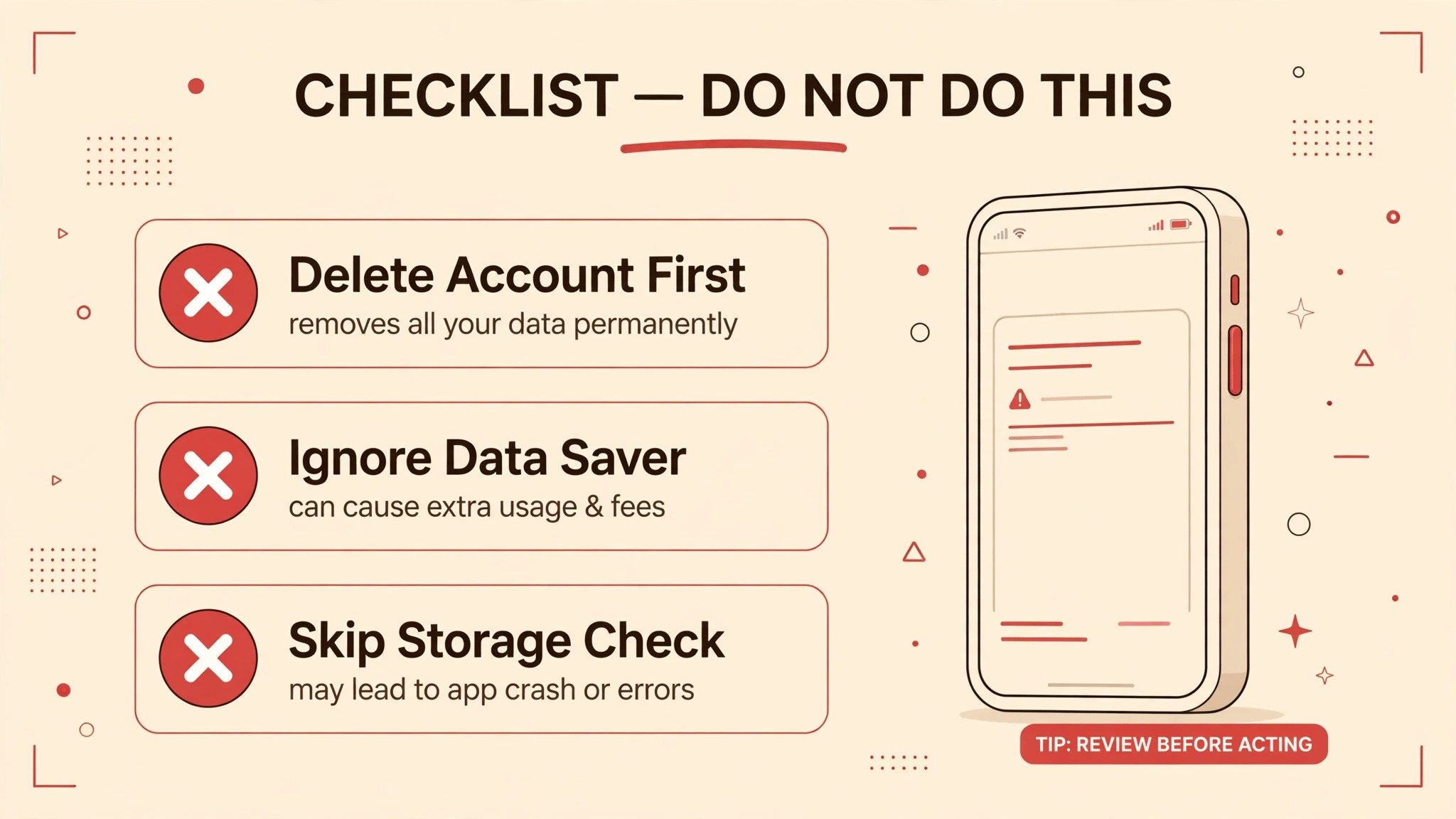
The first mistake is removing the Google account first, before checking sync toggles, battery settings, or storage, which disrupts mail, contacts and calendar for a problem that often needs only a battery exception. The second mistake is clearing data repeatedly, because clearing data once either fixes a corrupt app state or it does not, and repeating it only resets settings again without addressing a battery or account cause. The third mistake is testing by waiting for real mail, instead of sending a test mail, because real mail may not arrive during the test window, and a test without a known mail cannot prove whether sync works.
The fourth mistake is confusing notifications with sync, because a phone that syncs silently while notifications are off looks exactly like a phone that does not sync, and notification fixes are far quicker than sync fixes. The fifth mistake is ignoring storage, because a nearly full phone will stop syncing no matter how many sync steps are tried, and freeing space is the only fix that helps. The sixth mistake is changing several settings at once, such as battery, data saver, and sync toggles together, which makes it impossible to know which change helped, and can leave the phone in a worse state than before. Change one setting, test with a test mail, and note the result, before changing another.
Preventing the Next Sync Failure
Prevention for Gmail sync is mostly about battery, data, and storage awareness, because most failures come from a system update changing a default, a data saver left on, or a phone filling up quietly. After any system update, recheck Gmail’s battery setting and sync toggles, because updates commonly reset optimisation defaults, and a two minute check after an update prevents a week of missed mail. Recheck settings after updates when you fix Gmail app not syncing Android through a prevention routine. Keep a few gigabytes free by reviewing storage monthly, and keep Data Saver settings noted, so a temporary data saving change does not become a permanent sync block.
Restart the phone weekly, because a regular restart clears temporary states before they freeze sync, and it costs nothing.
Keep Gmail and the system updated, because updates fix known sync bugs, and keep a note of which accounts sync on the phone and which labels matter most, so a future failure can be checked against known settings instead of guessed at. Teach household members who share a tablet the same checks, because a shared device with several accounts fails in more complex ways, and a shared note of accounts and settings speeds diagnosis for everyone.
A few minutes of battery, data, and storage care each month keeps mail arriving promptly in the background, which is exactly how email should work, and it means the next sync failure, if it comes, will be a quick toggle check instead of an account removal. Share the working fix with family members who use the same phone, because a shared fix saves everyone a troubleshooting session.
More Reading on Stratilyze
If this guide helps your Gmail sync again, the wider Stratilyze guides cover the sync problems around it. The guide to Gmail not receiving emails covers the inbox side of the same problem, the guide to Outlook emails going to spam helps when mail lands in the wrong place, and the guide to smartwatch not syncing with a phone covers another sync fault with a similar diagnosis. Read the receiving guide next if mail is missing entirely, because its checklist covers server side causes as well.
Frequently Asked Questions
Why is my Gmail not syncing on Android when you fix Gmail app not syncing Android?
The most common causes are a sync switch turned off, a battery optimisation pausing Gmail in the background, a Data Saver blocking background data, or storage too full for new mail. Check Gmail sync in app settings, master sync in Accounts, battery usage set to Unrestricted for Gmail, and free storage, in that order, testing with a test mail after each step. A phone that syncs on manual refresh but not in the background almost always has a battery or data restriction, not an account fault.
Will clearing Gmail data delete my emails?
No, clearing Gmail data on Android resets the app’s settings and local cache, but mail itself lives on Google’s servers and re-downloads after you reconfigure the app. You will need to set preferences again, such as sync and notification settings, so note them before clearing data, and clear cache first, because cache clearing is safer and often sufficient. Clearing data should follow cache steps, not precede them, and account removal should follow data steps, not precede them.
Why does Gmail sync only when I open the app?
That pattern means background sync is blocked, most often by battery optimisation, Data Saver, or a background data restriction, while manual sync, which runs in the foreground, still works. Set Gmail battery usage to Unrestricted, allow unrestricted data usage for Gmail while Data Saver is on, and check any maker battery manager that adds a second layer of app pausing. Test by sending a test mail and waiting without opening the app, because background arrival is the only valid test for this fix.
How do I check if Gmail sync is on for my account?
Open Gmail settings, select the account, and confirm Sync Gmail is on, then open Settings, go to Accounts, select the Google account, and confirm Gmail sync is enabled there as well. Also confirm master auto sync is on, because a global sync switch can pause all accounts at once, and check Manage Labels for any important label set to sync only when opened. A sync switch off at any of those levels stops mail, so all levels need checking before concluding sync is broken.
What should I do if Gmail sync fails for only one account?
Check that account’s sync toggles separately, because each Google account has its own Gmail sync switch, and one account can be off while others work normally. Check whether that account’s password changed or needs a security re-sign in, and sign out and sign in again for that account alone if other steps fail, backing up anything that syncs only through it first. If a clean re-sign in still fails, the problem is more likely that account’s server side state, and Google account help becomes the next step.
Can low storage stop Gmail from syncing?
Yes, Gmail needs free space to download new mail, attachments, and sync records, and a phone with almost no free space will stop syncing without a clear error. Check storage in Settings, aim to keep at least a few gigabytes free, and free space by uninstalling unused apps, deleting large videos, and clearing caches from heavy apps, then test sync again. A phone that syncs again after freeing space had a storage problem all along, and no sync step would have helped until space existed.
Sync Restored
A Gmail sync failure on Android resolves fastest when the pattern is read first, because manual only sync points to battery or data restrictions, while total failure points to sync toggles, account, or connection causes. Check sync at app, account, and system levels, set Gmail battery usage to Unrestricted, allow unrestricted data while Data Saver is on, and free storage before clearing cache, data, or removing an account. Test with a test mail after each step, checking background arrival without opening the app, and stop as soon as mail arrives promptly. Keep battery, data, and storage settings noted, recheck them after system updates, and the next sync failure will be a quick toggle fix instead of an account removal.