

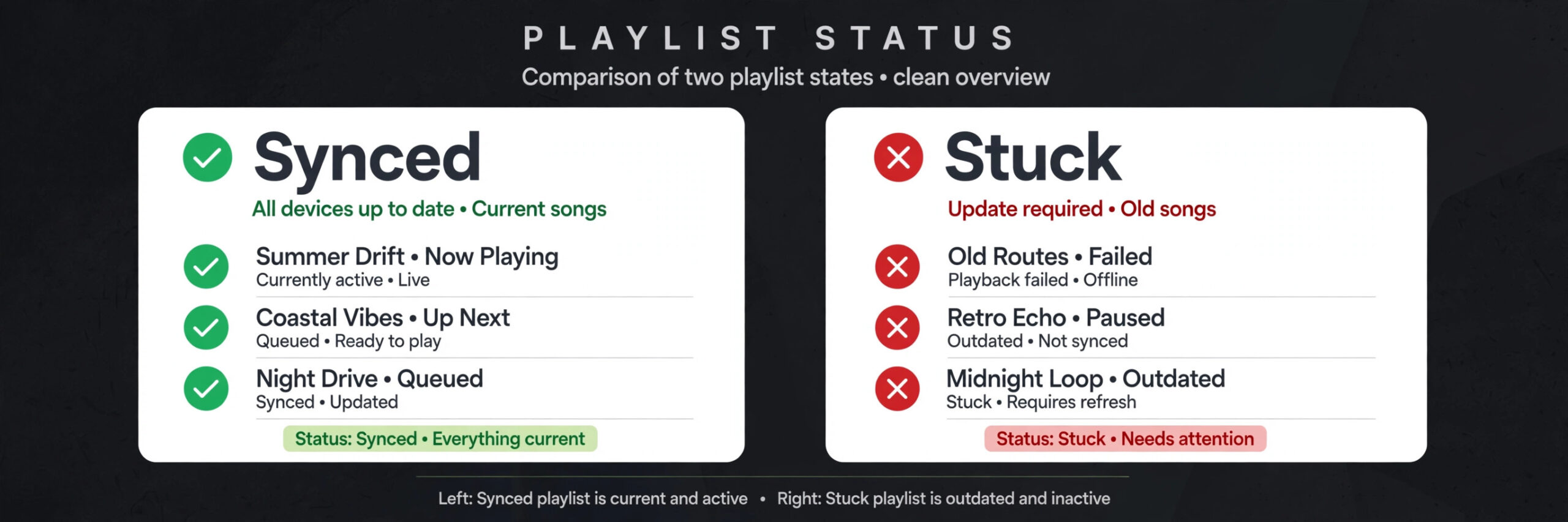
A playlist edited on your phone should appear, track for track, on your laptop a few seconds later. When it does not, the contrast is hard to miss. One device shows the new songs, the new order and the new cover. The other device shows yesterday’s version, or an empty playlist, or greyed out tracks that refuse to play. That gap is exactly where most people start to fix Spotify playlists not syncing, and it is also where most people waste time, because they reinstall the app before they check the one setting that actually caused the problem.
This guide works in the order that wastes the least time. You will first work out what kind of failure you have, then run a short sync checklist, then work through fixes from the fastest to the strongest. Prices for Premium plans are United States list prices at draft time, so check the Spotify checkout page for your country before you pay.
How to Tell What Kind of Sync Failure You Have
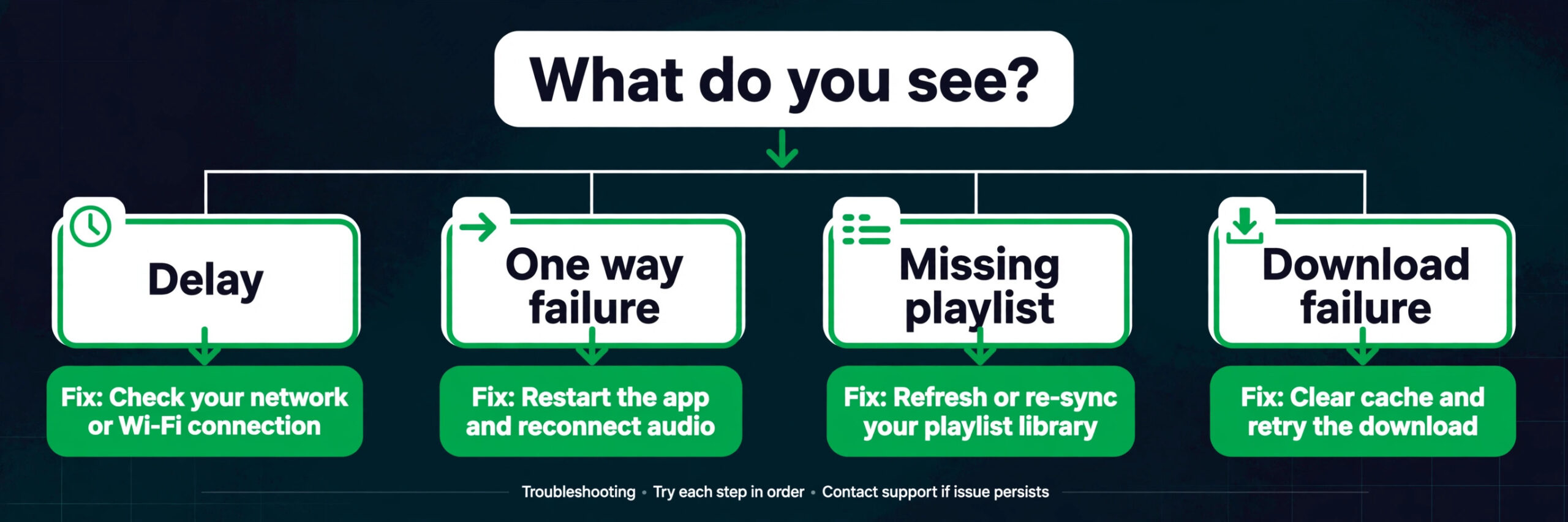
Sync failures look alike at first glance, but they have different causes, and the fix that helps one type can do nothing for another. Start by naming the pattern you see, because that pattern points to the right section later.
The first pattern is a delay. You add or remove a song on one device, and the other device catches up after a minute or two, or after you reopen the app. A short delay is normal on a weak connection. A delay that lasts past a full app restart is not.
The second pattern is a one way failure. Changes made on your phone never reach your desktop, but changes made on your desktop do reach your phone, or the reverse. One way failures often point to an outdated app, a stuck cache, or a device that is signed in to a different account.
The third pattern is a missing playlist. The playlist exists on one device and is absent on another, even after a restart. That pattern often points to a second account, a filtered library view, a playlist folder that is collapsed on desktop, or a local files playlist that was never meant to travel the same way as a normal playlist.
The fourth pattern is greyed out tracks. The playlist syncs, but some songs will not play on one device. That is usually a licensing, availability or local file issue, not a playlist sync issue. The track list can be correct while the audio itself is unavailable in that country, on that device, or from that source.
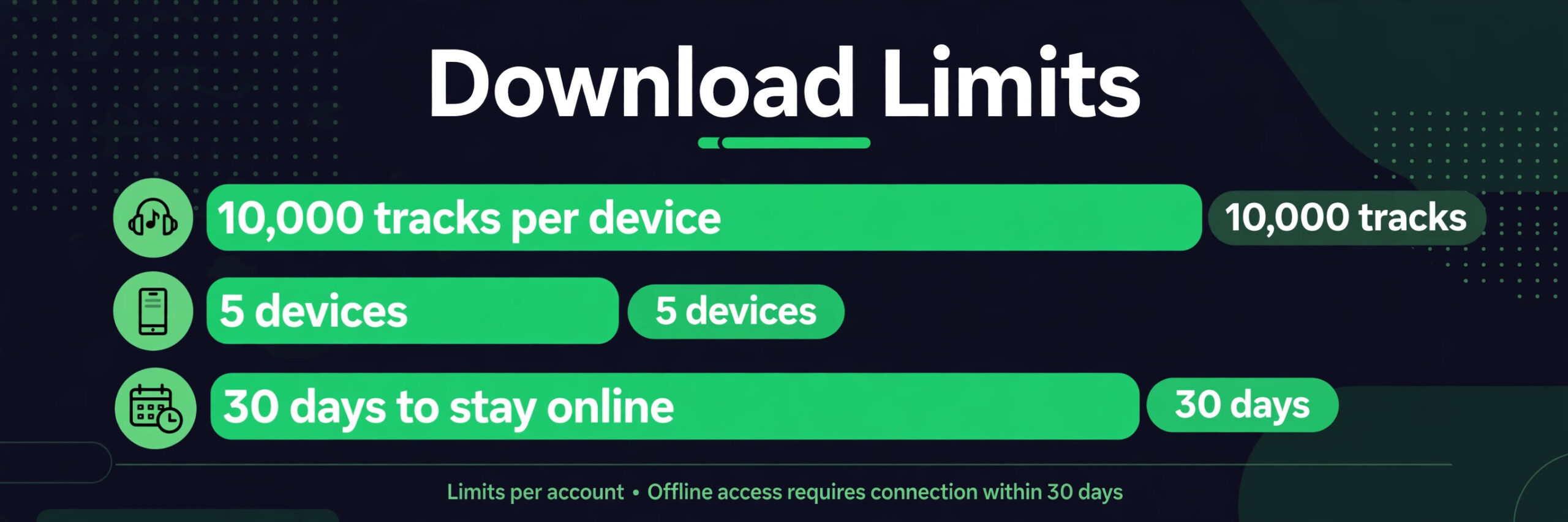
The fifth pattern is a download failure. The playlist looks right when you are online, but the downloaded copy is old, incomplete or missing. That pattern points to storage, download settings, the 30 day online check in rule, or the device limit for downloads, rather than to the playlist itself.
Note which pattern you have and which two devices are involved before you change anything.
The Sync Checklist to Run Before You Change Anything
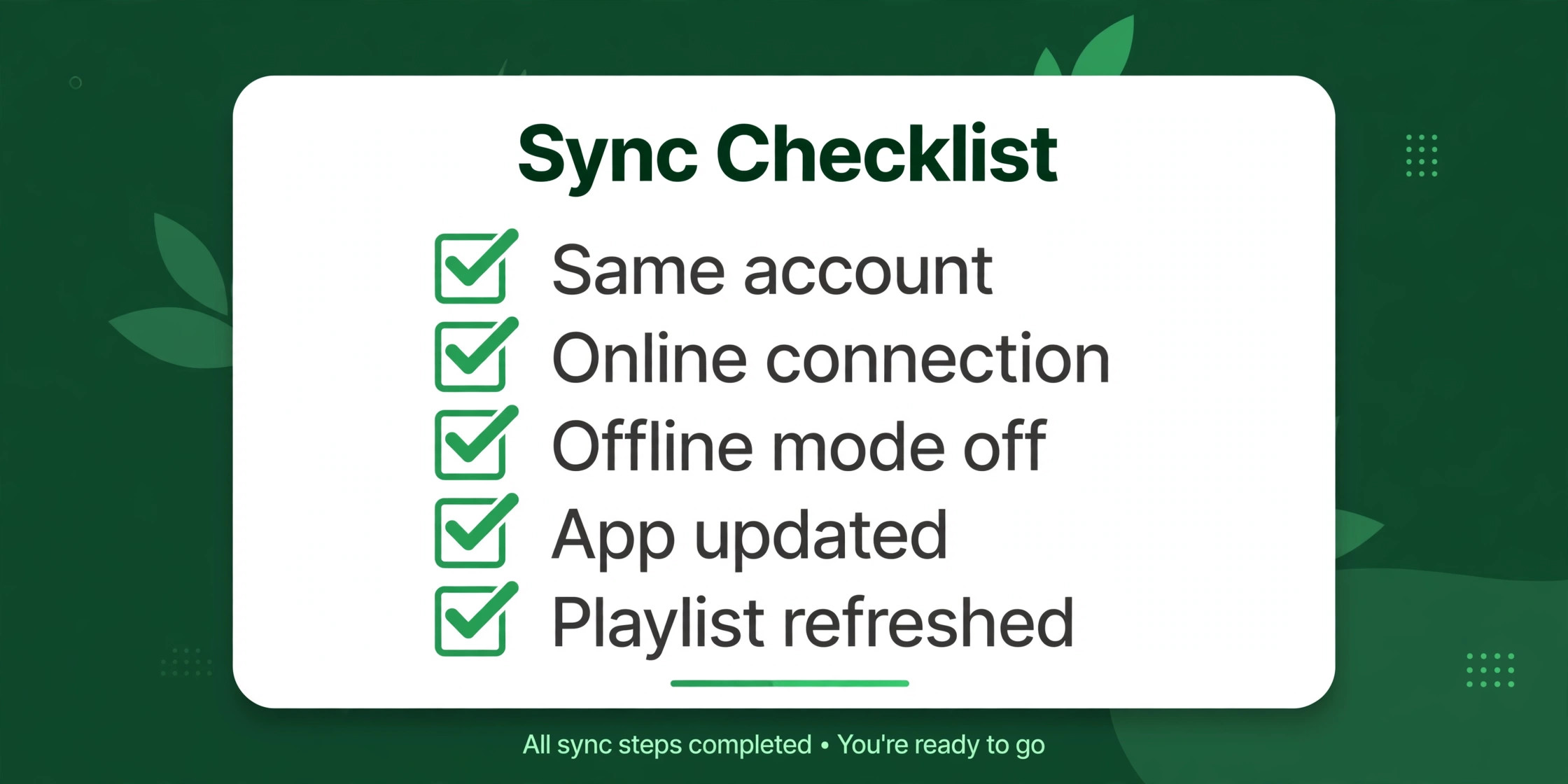
Run this checklist in order, on both devices, before you reinstall anything. Most sync problems are found here, and a reinstall will not fix an account mix up, an offline switch left on, or a phone that has blocked Spotify from using mobile data.
- Confirm that both devices are signed in to the same Spotify account. Open the profile menu on each device and compare the username and the email address shown there. A second account created with a different login method, such as a phone number instead of an email address, is a common cause of a playlist that seems to vanish.
- Confirm that both devices are online. Open a web page or another app that needs the internet, and check that it loads. A device connected to a Wi-Fi network with no internet access can look connected while Spotify cannot reach its servers.
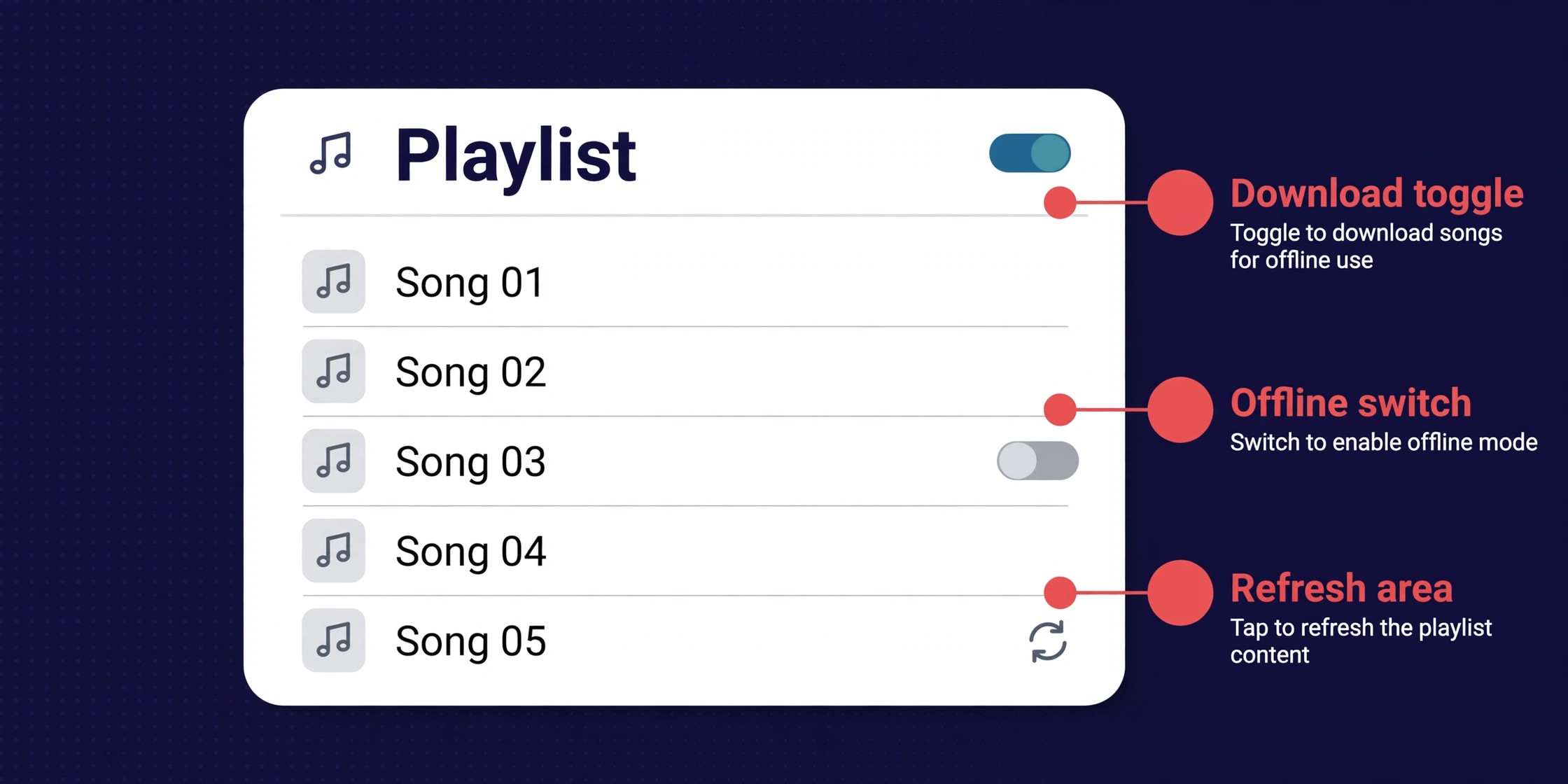
- Turn off Offline Mode on the device that is not updating. On mobile, open Settings and privacy, then Data-saving and offline, and check the offline switch. On Mac, open the Spotify menu and check Offline Mode. On Windows, open the main menu, then File, and check Offline Mode. When Offline Mode is on, Spotify only shows downloaded content, so new playlist changes will not appear.
- Check for a Spotify update on both devices. An app version that is months old can fall behind on playlist changes, especially after a larger app update on the other device. Update from the official app store on mobile, and from the app itself or the official download page on desktop.
- Pull to refresh the playlist on mobile, or close and reopen the playlist on desktop. On mobile, open the playlist and drag down until the refresh indicator appears. On desktop, click a different playlist and then click back. This forces a fresh fetch instead of relying on a cached view.
- Check that the playlist is not filtered or sorted in a way that hides the change. A sort by recently added, a search filter left inside the playlist, or a downloaded only filter can make a playlist look incomplete when the tracks are in fact present.
- Check storage and download settings if the problem is only with offline copies. Spotify states that Premium users can download up to 10,000 tracks on each of up to 5 devices, and must go online at least once every 30 days to keep downloads working. A full phone, a download set to Wi-Fi only while you are on mobile data, or a device that has not been online for weeks can each break the downloaded copy. The official offline listening help page confirms these limits and the download steps for mobile and desktop.
- Check Spotify service status if every device fails at once. If playlists, search and playback all fail together, the problem is rarely on your phone. Wait, check the official status information, and try again before you reset anything on your own devices.
If the checklist fixes the problem, stop there. There is no benefit in clearing a cache or reinstalling an app that is already syncing again. If the checklist does not fix it, move to the ordered fixes below, and test after each step so you know which step worked.
How to Fix Spotify Playlists Not Syncing, in Order
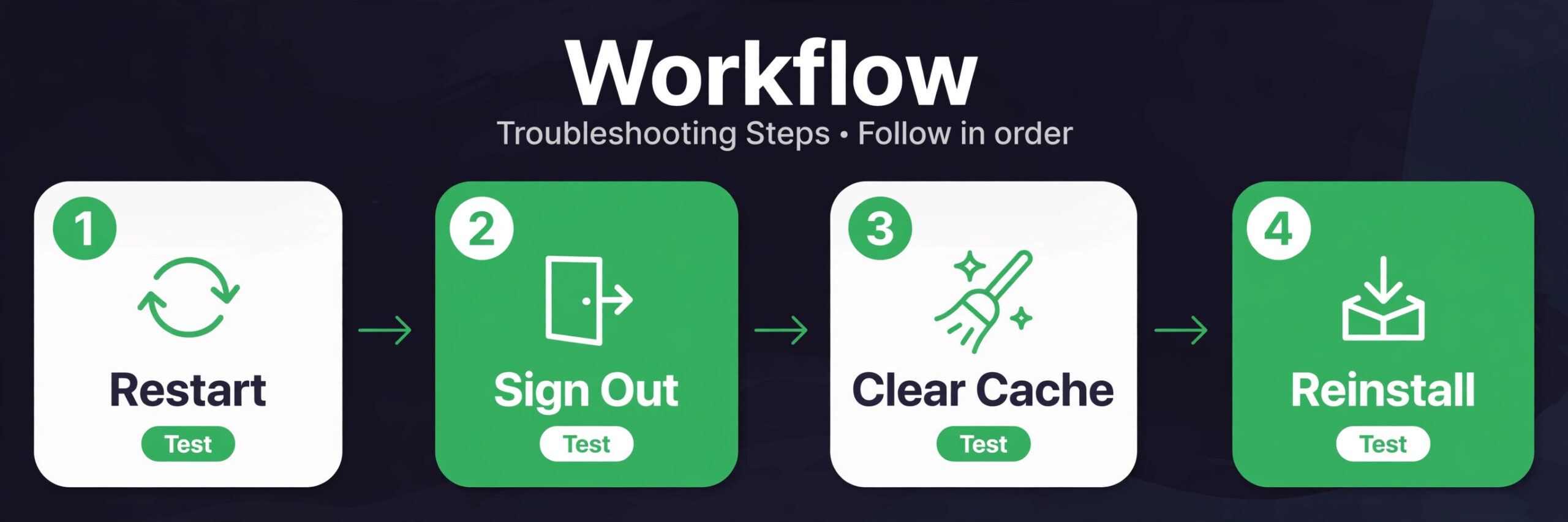
Work through these steps one at a time, in this order. Test the same playlist on both devices after each step, and give the second device up to a minute to catch up. Jumping ahead to a reinstall can erase downloads that were never the problem.
Step 1. Force a clean restart of the app on both devices
Close Spotify fully, not just by switching to another app. On iPhone, swipe up from the bottom and swipe Spotify away. On Android, open recent apps and swipe Spotify away, or use Force stop in App info if the app keeps running in the background. On desktop, quit Spotify from the menu or the system tray, and confirm it is not still running in the background. Then reopen Spotify on the device where you made the change first, wait for the playlist to load, and then reopen Spotify on the second device.
A clean restart clears a stuck sync queue in many cases, and it costs nothing. If the app shows an offline error on one device, fix the connection on that device first.
Step 2. Sign out and sign back in on the lagging device only
Sign out on the device that is not updating, then sign back in with the same account you confirmed in the checklist. Use the exact same login method you normally use. If you normally sign in with a social login or with an email address, do not switch to a different method for this test, because that can open a different account and make the problem look worse.
Signing out refreshes the session that matches your device to your library. After you sign back in, add a test song on the good device and check whether it appears on the device you just signed back in to.
Step 3. Clear the cache, without deleting downloads first
A damaged cache can hold an old playlist view even when the account data behind it has changed. Clearing the cache is different from clearing all app data, and that difference matters. On mobile, open Settings and privacy, then Storage, and use Clear cache. On desktop, open Settings, find the storage section, and use the cache clearing option for offline songs storage where it is offered. Restart the app after clearing the cache.
Do not choose a full data clear at this stage. A full clear can remove downloads and saved settings. Cache clearing is the lighter option, and it is enough for most stale playlist views.
Step 4. Check download settings and re-download the playlist
If the online playlist is correct but the offline copy is old, the download itself needs attention. Turn the download switch for that playlist off, wait a few seconds, and turn it back on. On mobile, check that Downloads over cellular is on if you are downloading away from Wi-Fi, and check that you have free storage for the playlist. A playlist with long audio files or many tracks can fail part way through a download on a nearly full phone, and the result looks like a sync failure when it is really a storage failure.
On desktop, the same idea applies. Turn the download off and on for the playlist, and check that the download progress reaches the end for every track. Tracks that stay marked as not downloaded after a full retry point to a track availability problem or a local file problem, not to a general sync problem. The official Spotify help page for offline listening is a useful check here, because it sets out the download limits and the 30 day online rule in one place. You can read it at Spotify offline listening help.
Step 5. Update the app and the device software together
Update Spotify on both devices, and then check for a device software update if the app update does not help. A phone running a very old operating system version can fail to run the newest Spotify build properly, and a desktop app installed from an older installer can fall behind the store version. After both updates, restart the device itself, not just the app, and then test the playlist again.
This step sits in the middle because it takes longer. A device restart also clears network and background problems that an app restart cannot reach.
Step 6. Remove the device from your account and add it back
Spotify lets you sign out everywhere from your account page on the web. That option is useful when a device is stuck in a half signed in state, or when you have old devices still holding a session. Sign out everywhere, then sign back in on your two main devices first, and test the playlist before you sign back in on speakers, TVs or a car system. Adding devices back one at a time makes it clear which device, if any, breaks the sync again.
Signing out everywhere can affect downloads, so you may need to re-download some playlists. That cost is why this step comes after the lighter fixes.
Step 7. Reinstall Spotify on the lagging device only
Reinstall only the device that is not updating, and only after the earlier steps have failed. Delete the app, restart the device, install Spotify again from the official app store or the official desktop download, and sign in with the same account. Then open the problem playlist and wait for it to load fully before you download anything. Test a new edit from the other device before you re-download a large library, so you do not spend an hour downloading playlists for a device that still has a deeper problem.
A reinstall removes the app, its cache and its local data, which is why it fixes problems that a cache clear cannot. It also removes downloads, so plan time to download your main playlists again.
Step 8. Recreate the playlist as a last resort, with the original kept
If one playlist refuses to sync while every other playlist syncs normally, the playlist itself may be damaged. Create a new playlist, add the same tracks in the same order, and test the new playlist on both devices before you delete anything. Keep the original playlist until the new one has synced and played correctly on both devices for a day. Then, if you want, rename the new playlist to the original name and remove the old one.
Recreating a playlist is a workaround, not a cure. It loses the creation date, the follower count and any collaborative history, so use it only for a single stubborn playlist after the earlier steps.
Fix Steps for Your Phone
Phones cause more sync confusion than any other device, because they add battery saving, data saving, background limits and permission settings that desktop apps do not have. To fix Spotify playlists not syncing on a phone, start with the phone settings before you blame the playlist.
On iPhone, check that Spotify is allowed to use mobile data away from Wi-Fi, and that Low Data Mode is not blocking background refresh. Open iPhone Settings, then Spotify, and confirm that background app refresh and mobile data are on. Also check that Local Network access is on if you use local files or Spotify Connect.
On Android, the settings vary by maker, but the pattern is the same. Open Settings, then Apps, then Spotify, and check Mobile data, Battery and Permissions. If battery optimisation is set to restricted, Android can pause Spotify in the background and delay sync until you open the app again. Set battery use to unrestricted or optimised rather than restricted for Spotify if sync delays keep returning, and check that Nearby devices or Local network permission is allowed if you use local files or Connect.
Also check phone storage. A phone with very little free space can fail to finish a playlist download, and the downloaded copy will look out of date. Free up space, then turn the playlist download off and on again.
Fix Steps for Your Desktop and Web Player
Desktop sync problems often come from a different source than phone problems. The desktop app can be installed from more than one source, it can run an old build, and it can hold a large local cache that a phone never builds up.
First, confirm which desktop app you are using. To fix Spotify playlists not syncing on desktop, note that the app from the official Spotify download and the app from a system store can behave differently after updates. If you are unsure, download a fresh copy from the official Spotify site, install it, and sign in again. Keep the web player as a test tool during this process. Open the web player in a browser, sign in to the same account, and check the problem playlist there. If the web player shows the correct playlist, your account data is fine, and the desktop app is the problem.
If the web player also shows the old playlist, the problem is with the account, the playlist or the service, not with the desktop app alone.
Second, check desktop settings. Confirm that Offline Mode is off and that local files are enabled only if you intend to use them. A desktop cache that has grown very large over years of use can hold stale playlist data, so clear it and restart the app before you reinstall.
Third, check firewall, VPN and work network rules if you are on an office or school network. Some networks block the connections Spotify uses for sync while still allowing normal web browsing. Test on a phone hotspot for a few minutes. If the playlist syncs on the hotspot but not on the office network, the network is the cause.
Some playlists do not sync the same way as a normal Spotify playlist, and treating them as if they should can waste a lot of time. Local files are the clearest example. A local file playlist depends on audio files stored on one computer, and Spotify needs extra steps to make those files visible to a phone.
To fix Spotify playlists not syncing when local files are involved, start on the phone. Open Spotify Settings, then Apps and devices or Local audio files, depending on your app version, and turn Local device visibility on. Then open the phone system settings and allow Spotify to use the local network. On iPhone, that is Settings, then Privacy and Security, then Local Network, with Spotify switched on. On Android, check Apps, then Spotify, then Permissions, and allow Nearby devices or Local network access. On desktop, keep both devices on the same Wi-Fi network name, keep Spotify open on both devices, and confirm that the playlist with local files is downloaded on desktop.
If the phone still cannot see the files, toggle Local device visibility off and on once, which often re-establishes the connection after an update.
Collaborative playlists add a different risk. When two people edit the same playlist at the same time, one edit can overwrite the other. Agree on one editor at a time for a large reordering. If a collaborator’s edits never appear, check that they are editing the same playlist link, and not a copy they made for themselves. A copy looks identical at first, but it will never sync with the original.
Shared and family accounts add a third risk, about identity rather than technology. A playlist saved under one family member’s account will not appear under another member’s account, even on the same device. If a playlist seems to vanish after a family plan change, check which account is signed in.
Sync of playlist names, track order and edits is not a Premium only feature. A free account can create playlists and see them across devices when it is online. Premium changes what you can download and play offline.
The United States list prices found at draft time were Individual at 12.99 dollars a month, Duo at 18.99 dollars a month for two accounts at the same address, Family at 21.99 dollars a month for up to six accounts at the same address, and Student at 6.99 dollars a month for verified students. A Basic Individual plan was also listed at 10.99 dollars a month, without the audiobook allowance that comes with the main Individual plan. Prices vary by country, and Spotify has raised prices in recent years, so check the checkout page for your country and for the current trial terms before you decide.
| Plan | United States price at draft time | Accounts | Offline downloads |
|---|---|---|---|
| Free | 0 dollars | 1 | Podcasts only, with limits |
| Basic Individual | 10.99 dollars a month | 1 | Yes, without the audiobook allowance |
| Premium Individual | 12.99 dollars a month | 1 | Yes |
| Premium Duo | 18.99 dollars a month | 2 | Yes |
| Premium Family | 21.99 dollars a month | Up to 6 | Yes |
| Premium Student | 6.99 dollars a month | 1 verified student | Yes |
Do not upgrade to Premium just to fix Spotify playlists not syncing online. If the online playlist is wrong, Premium will not correct it, because the playlist data is the same on both tiers. Upgrade only if your real problem is offline playback, download limits, or the need to download on several devices, and only after you have confirmed that the online playlist syncs correctly. If you are on a family plan, also check that every member who needs offline downloads is signed in to their own account, not to a shared login, because a shared login creates its own sync confusion.
Mistakes That Make a Sync Problem Worse
The first mistake is reinstalling on every device at once. That erases downloads everywhere and removes the one good device you could have used as a reference. Reinstall one device at a time.
The second mistake is creating duplicate playlists while you test. A test copy and a backup copy can quickly fill a library, and each copy will sync on its own. If you must create a test playlist, give it a clear test name and delete it after the test.
The third mistake is changing several settings at once. If you clear the cache, sign out and update the app in one session, you will not know which change fixed the problem. Change one thing, test, and note the result.
The fourth mistake is ignoring the account check. People often spend an hour on app settings before they notice that one device is signed in with a different email address. The account check takes less than a minute, and it should always come first.
The fifth mistake is assuming a greyed out track means the playlist did not sync. Greyed out tracks can mean the song is unavailable in your country, removed by the artist or label, or a local file missing from that device. Check the track on the web player before you rebuild the whole playlist.
The sixth mistake is leaving old devices signed in and forgotten. A phone you sold or a tablet you no longer use can still hold a session and a download slot. Sign out everywhere once a year, and sign back in only on the devices you actually use.
When to Stop Fixing and Ask Spotify for Help
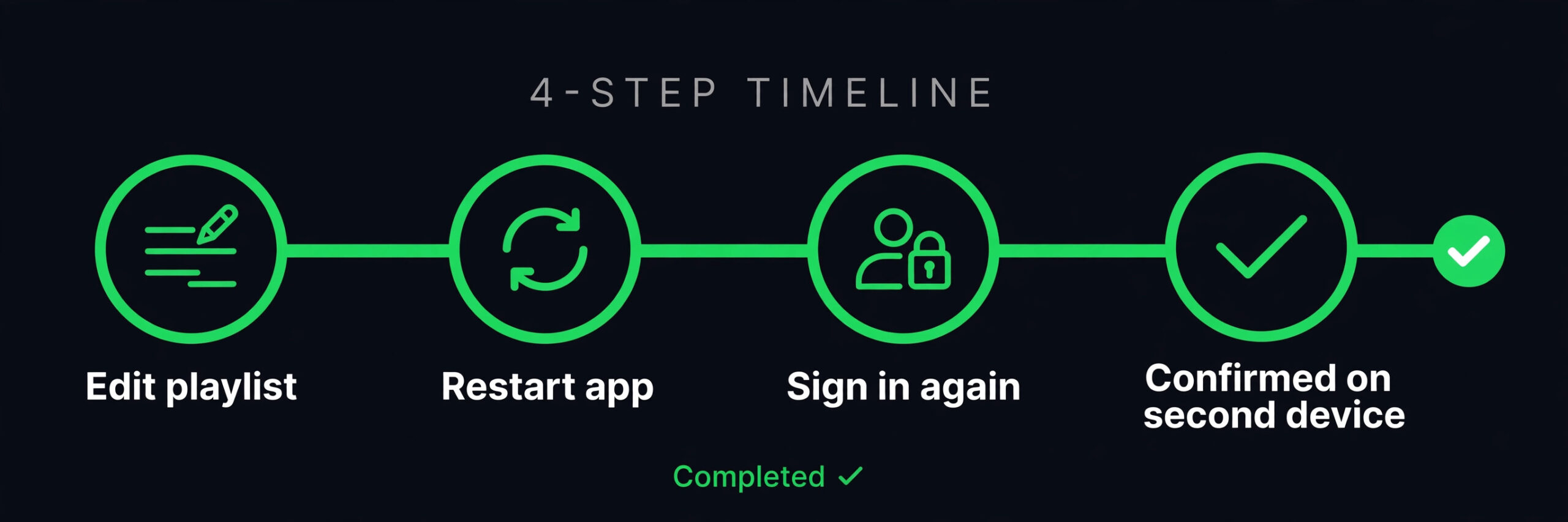
Stop the ordered fixes if you still need to fix Spotify playlists not syncing after the same playlist fails on the web player, on a second phone and on desktop, following a cache clear and a sign out and sign back in. That pattern points beyond your devices. Take a screenshot of the playlist on the good device and on the lagging device, note the account name, the app versions and the steps you already tried, and send that detail to Spotify support through the official help pages. A clear note with device names and test results gets a faster answer than a general message saying sync does not work.
Also stop and ask for help if tracks disappear from every device at once, or if your library looks as if it belongs to a different account. Check the account page on the web first, confirm the plan and the email address, and then contact support with that information.
For readers who build playlists for workouts, study sessions or road trips, and who want to go further with music tools, related reading on this site includes best AI music generators for creating original tracks to add to a set, and best AI podcast tools for listeners who mix music and spoken audio in one library.
Frequently Asked Questions
Why does my playlist update on my phone but not on my laptop?
This usually means the laptop app holds a stale cache, runs an old build, or has Offline Mode on, while the phone app is current. To fix Spotify playlists not syncing in this case, restart the laptop app fully, check Offline Mode, update the app, and then sign out and sign back in on the laptop only. Check the web player as well. If the web player is correct, the account data is fine and the laptop app is the problem.
How long should I wait for a playlist to sync?
On a good connection, most edits appear within a few seconds, and almost all appear within a minute. If a change has not appeared after a full app restart and a minute of waiting on the second device, treat it as a failure rather than a delay, and run the checklist in this guide. A wait of hours will not fix a stuck cache, a wrong account or an offline switch left on.
Will clearing the cache delete my downloads?
Clearing the cache alone should not delete your downloads, because it removes temporary files rather than downloaded audio. Clearing all app data, resetting the app, or reinstalling it is different, and those steps can remove downloads. Use the cache option first, and keep the stronger steps for later in the order, so you do not need to download a large library again for no reason.
No. Playlist names, track order and edits sync on a free account when the device is online. Premium adds offline downloads, ad free listening and on demand playback on mobile, among other benefits. If your online playlist is wrong, upgrading will not correct it. Upgrade only when your real need is offline listening, and check current prices at checkout first.
Why are some tracks greyed out even though the playlist synced?
Greyed out tracks usually mean the song is unavailable in your country, it was removed by the artist or label, or it is a local file missing from that device. Check the track on the web player and on another device. If it is greyed out everywhere, the track itself is unavailable, and rebuilding the playlist will not restore it. Find a replacement version of the track and add that instead.
What should I do if only one playlist refuses to sync?
Test other playlists first. If every other playlist syncs, the problem is likely with that one playlist, not with your account or your devices. Try a cache clear and a sign out and sign back in, then create a new playlist with the same tracks as a test. Keep the original until the new playlist has synced on both devices, and only then decide whether to replace it.
Your Playlists, Back in Step on Every Device
A playlist that will not sync feels like a small problem until it ruins a workout, a drive or a party. The fix is rarely dramatic. It is usually a second account, an offline switch, a stale cache, a download that never finished, or a phone setting that paused Spotify in the background. Work in order, test after each step, and keep the good device untouched while you fix the lagging one. That order protects your downloads, your edits and your time, and it tells you exactly which step solved the problem if it returns.
Start with the checklist at the top of this guide, run it on both devices, and then move through the steps only as far as you need to. When the test edit appears on the second device, stop and get back to the music. To fix Spotify playlists not syncing for good, check the account, the connection and the offline switch first, every time, before you reach for a reinstall.