
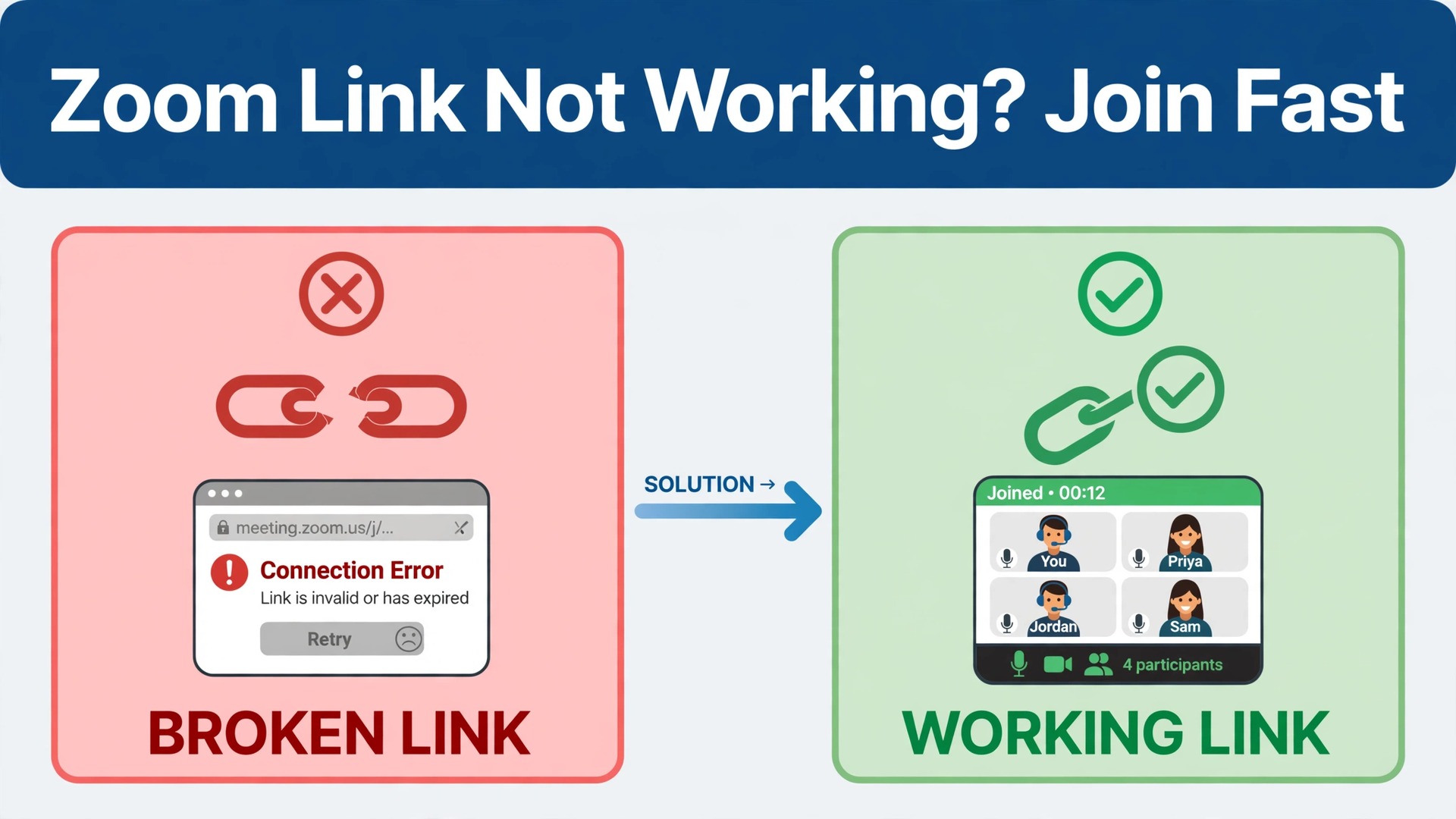
A phone call that fails is annoying, and learning how to fix Zoom meeting link not working small team calls before the next client meeting saves more than embarrassment. A Zoom link that fails is worse, because a whole team can watch the same error while a client waits, a candidate waits, or a deadline slips. Compared with a broken phone line, a broken meeting link has far more possible causes, from a copied link that lost a character, to a host setting that blocks guests, to a browser that will not launch the app. The comparison matters, because the fix depends on which layer failed, and trying the wrong layer first wastes the meeting itself.
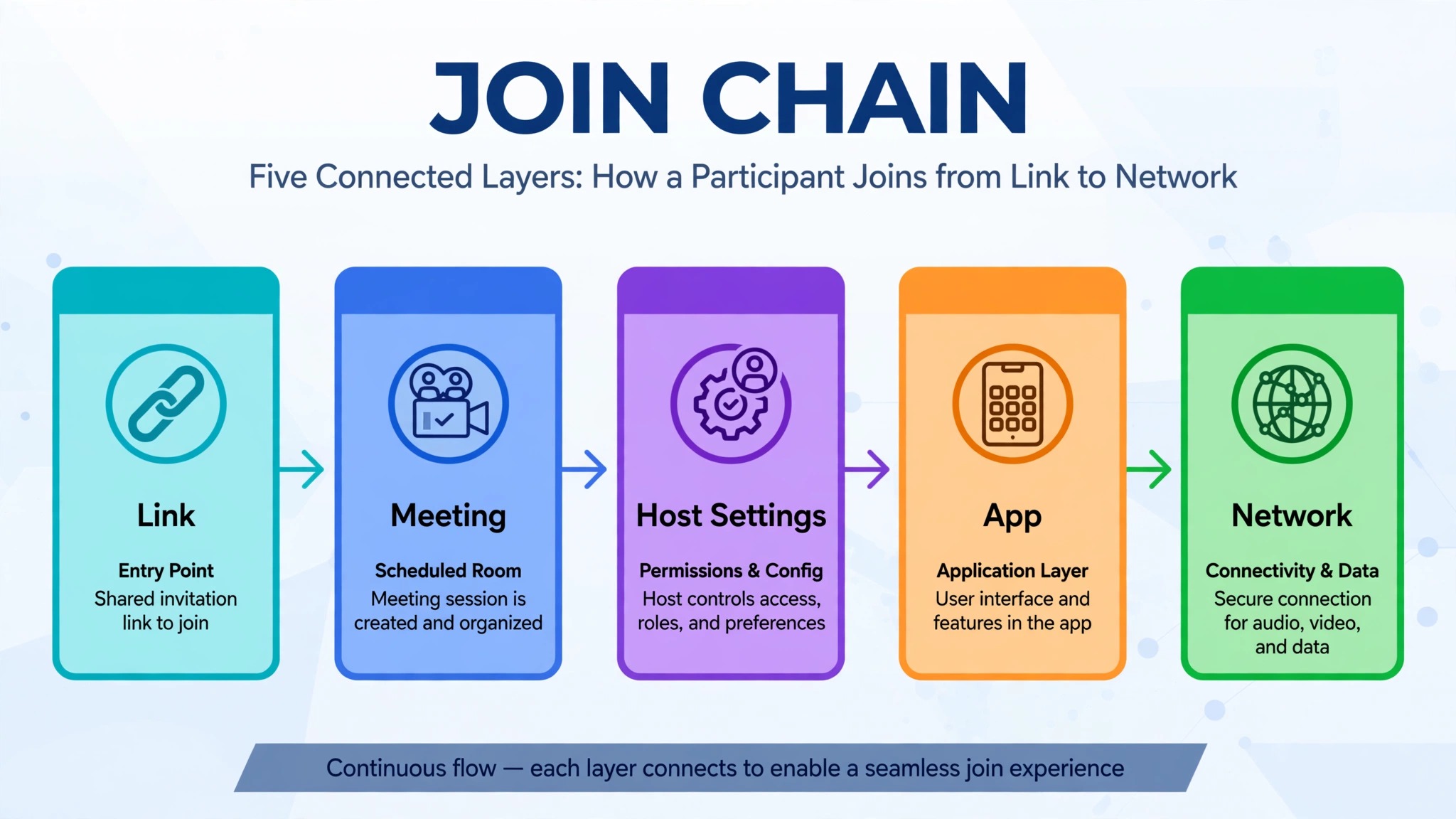
The fastest way to fix Zoom meeting link not working small team calls is to separate the link from the meeting, and the meeting from the device. Test the link itself, then test the meeting ID and passcode by hand, then test the same meeting in the browser, then in the app, and then from a different network. Each test removes one layer, and the layer where the result changes is usually the layer that holds the fault. This guide follows that order, with exact host settings to check in the Zoom web portal, because many link failures are host settings, not broken links.
Small teams face a particular version of this problem. One person usually schedules, hosts, and troubleshoots, while everyone else just clicks the link. When that link fails, the host is also the help desk, the meeting is already late, and the pressure to send a new link quickly can create a second broken link. A short, practised routine, plus a backup join method shared before the meeting starts, turns a failed link from a crisis into a two minute detour.
What Breaks When a Zoom Link Fails
A Zoom join link is not just a web address. It carries the meeting ID, and often an encoded passcode, and it relies on the meeting existing, the host settings allowing that guest, and the device opening Zoom correctly. If any part of that chain breaks, the click fails, even though the other parts are fine. A link that was copied from a chat message may have lost a character or gained a line break. A link from an old invite may point to a meeting that was rescheduled, deleted, or replaced with a new meeting ID.
Host settings create a second family of failures, and checking them early helps you fix Zoom meeting link not working small team calls without sending a second broken link. A meeting that requires authentication will block a guest who is not signed in to an allowed account. A meeting with a waiting room will look like a failure to a guest who is actually waiting for admission. A meeting that is locked, or that has reached a participant limit, will refuse new joins even though the link is correct. Registration settings add a third layer, because a registration link that was not completed, or that expired, will not behave like a normal join link.
Device and browser problems create the third family. An outdated Zoom app may fail to open a link that a current app opens cleanly. A browser that blocks pop ups, or that holds a stale Zoom cookie, may fail to hand the link to the app. A virtual private network, a corporate firewall, or a weak mobile connection may block the join after the link itself worked. Naming the family first, link, host, or device, is what makes the rest of this guide fast.
Link Failure Signals at a Glance
| Error or symptom | Likely layer | Test first |
|---|---|---|
| Invalid meeting ID | Link or meeting ID | Enter ID and passcode by hand |
| Passcode prompt with no passcode | Link encoding or host security | Ask host for passcode and full link |
| Link does nothing when clicked | Browser or app handoff | Try another browser and the web client |
| Waiting for host forever | Host not started or waiting room | Ask host to start and admit guests |
| Signed in required message | Authentication setting | Sign in to the allowed account |
| Registration page will not proceed | Registration settings or browser | Use web portal link and clear cache |
| App opens then drops the join | Network, firewall, or app version | Update app and try another network |
How to fix Zoom meeting link not working small team meetings in order
Work through these steps in order during a live failure, and do not jump to a new meeting link until the old link has been tested, because a new link for the same misconfigured meeting will fail in the same way. If you are the host, start at the host settings. If you are a guest, start at the link and device tests, and contact the host as soon as the hand entry test fails, because only the host can fix a meeting ID, passcode, or authentication problem.
Step 1 Check the link character by character
Open the original invite, not a forwarded copy, and compare the link with the one that failed. Look for a missing character at the end, a line break in the middle, or a link that was split across two lines in email or chat. A link pasted into a document can also gain extra characters, such as a trailing full stop from the end of a sentence, which breaks the meeting ID. Copy the link again directly from the original invite, and paste it into a fresh browser tab rather than clicking a forwarded version.
Check the meeting ID inside the link address as well, if it is visible, and compare it with the meeting ID in the invite text. If the invite text and the link address disagree, trust neither until the host confirms the correct ID. For recurring meetings, ask the host to confirm that the meeting ID in use is still correct, especially when some participants can join while others see an invalid meeting ID message, because a recurring series can change ID after an edit.
Step 2 Join by meeting ID and passcode by hand
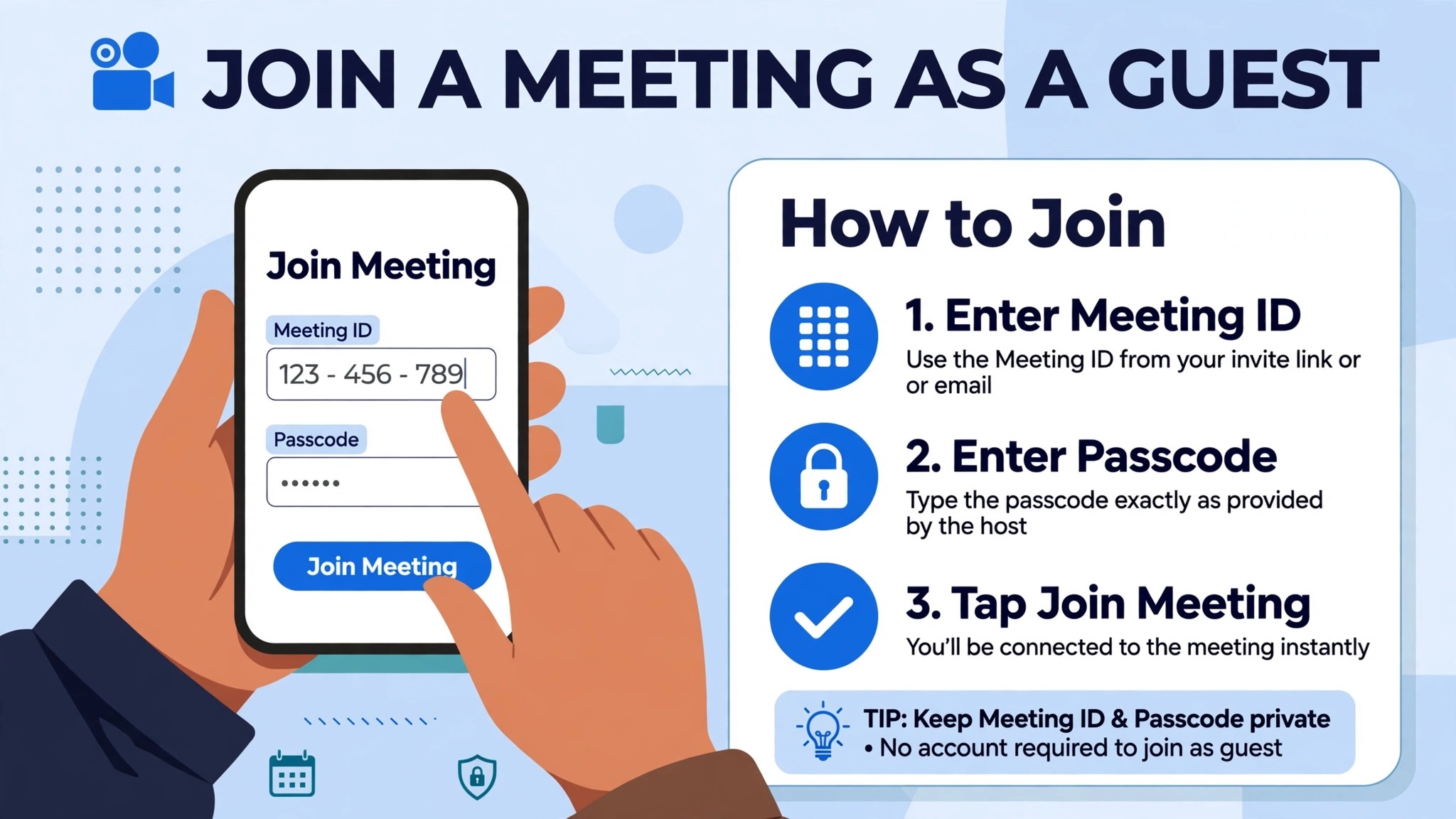
Open the Zoom app, choose Join, and enter the meeting ID and passcode manually, exactly as the host provided them. Zoom support guidance lists manual entry as the first troubleshooting step when a link does not work, and it is a powerful test, because it bypasses the link entirely. If manual entry works, the meeting is fine and the link was the problem, so the host only needs to send a fresh, correctly copied link. If manual entry fails with the same error, the problem is in the meeting, the host settings, or the account, not in the link text.
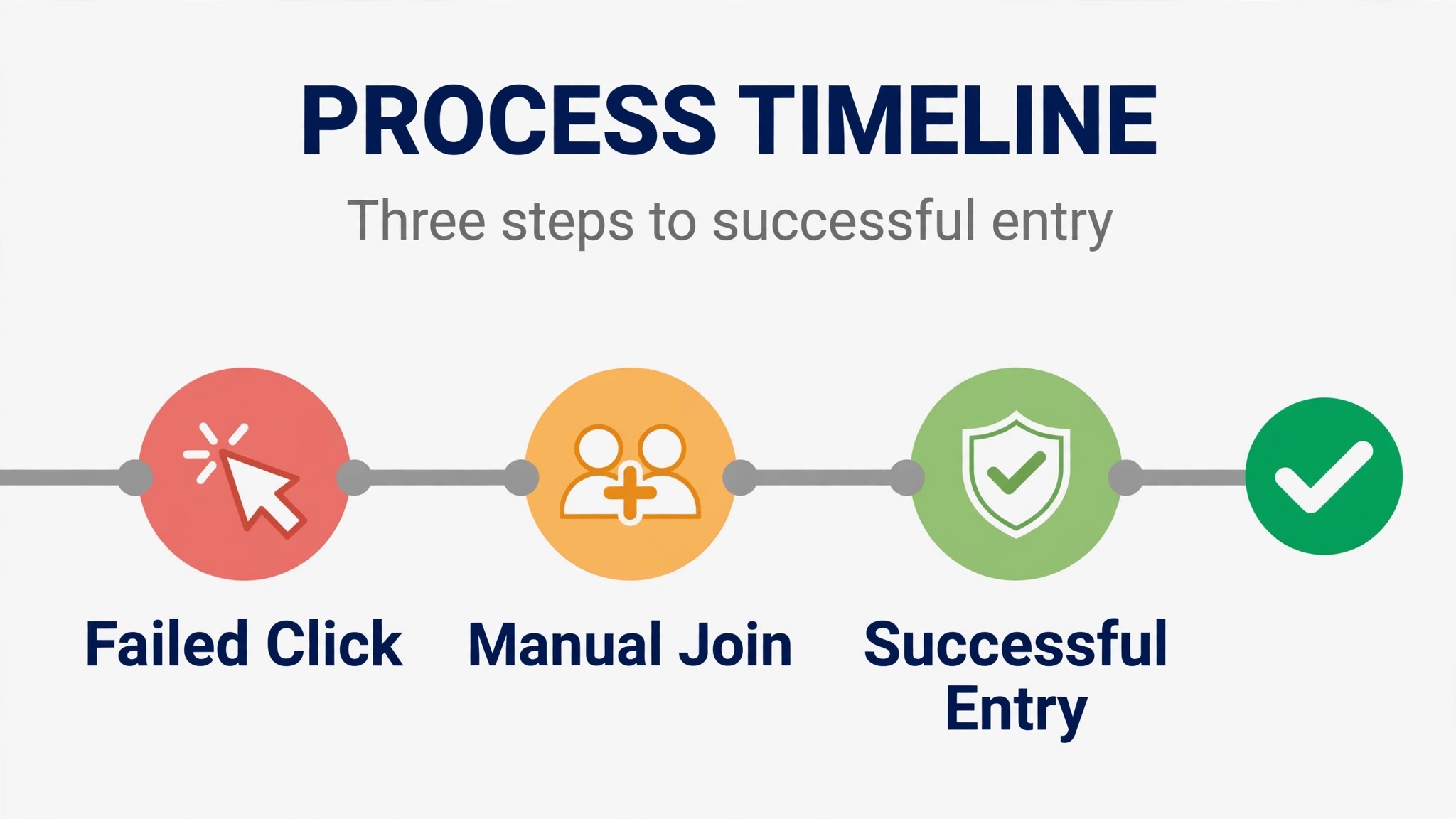
Enter the passcode with care, because passcodes are case sensitive in some contexts, and a passcode copied from a chat message can include a hidden space at the start or end. Type the passcode rather than pasting it if pasting fails, and check that the keyboard layout has not changed a character. If you do not have the meeting ID or passcode, contact the host and request the correct information, rather than guessing, because repeated failed joins can look like a security problem to the system.
Step 3 Try another browser and the Zoom web client
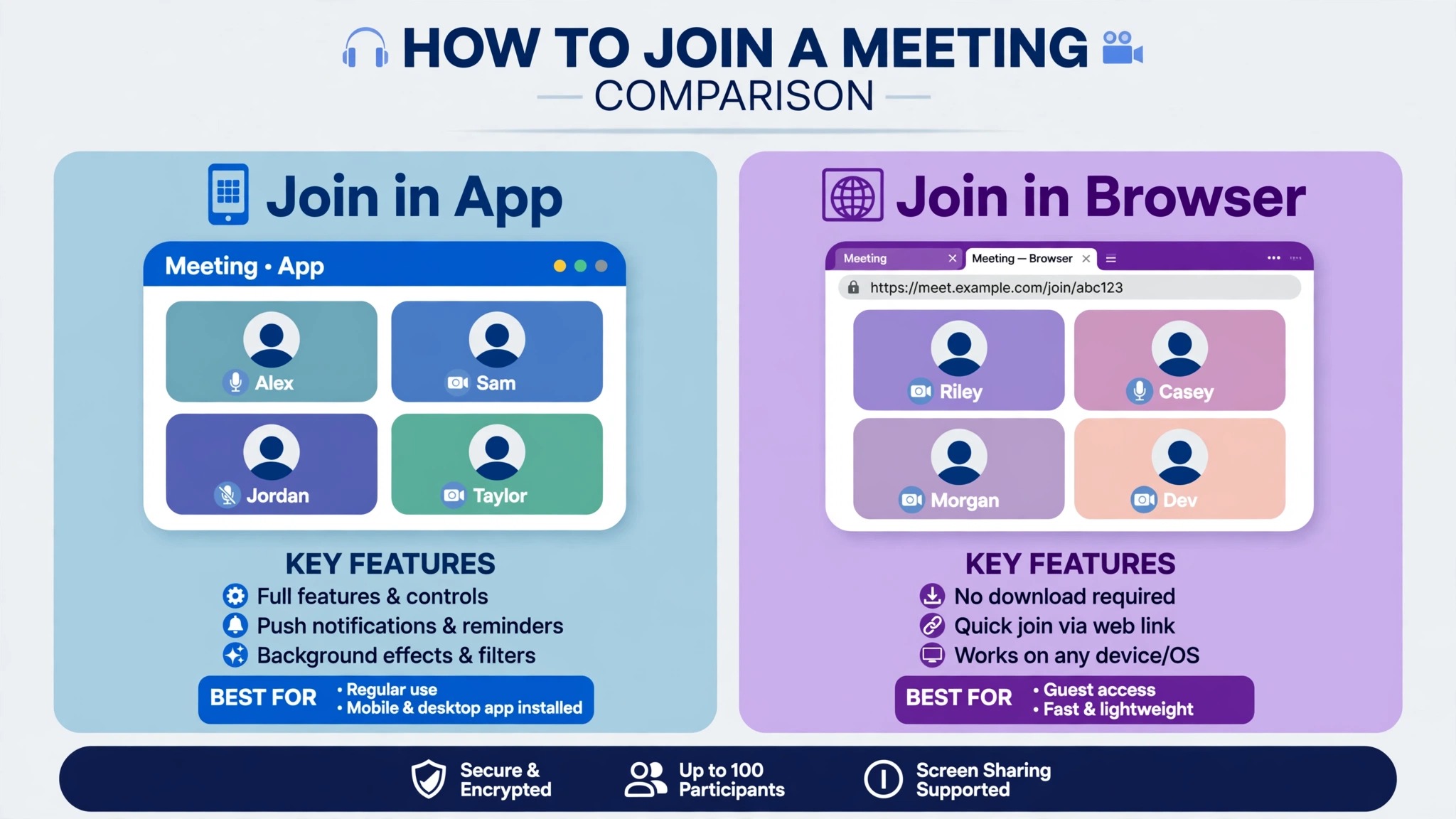
If the app handoff fails, try joining from a different browser, because Zoom support guidance lists a different browser as a standard test for browser join problems. Clear the browser cache and cookies for Zoom if the first browser previously worked and now fails, or simply use a private window for the test, so stale cookies do not affect the result. Allow pop ups for Zoom in the browser you test, because a blocked pop up can stop the browser from launching the app.
If the desktop app still will not open from the link, use the Zoom web client to join from the browser itself. The web client is a useful fallback during a live meeting, because it removes the app handoff layer entirely. If the web client works while the app fails, the fault is in the app installation or version, not in the meeting, and the team can stay in the web client for that meeting while the app is fixed afterwards.
Step 4 Update the Zoom app and test a known good meeting
Check that the Zoom app is on the current version, and update it before the next important meeting, not during a live failure if a working web client is available. An outdated app can fail to handle a link format, a security setting, or a meeting feature that a current app handles cleanly. After updating, test with the Zoom test meeting service if your team uses it, or with a short internal meeting, to confirm that the app now opens links correctly.
Also test whether the problem affects one meeting or every meeting. If every link fails on one device, the device, app, or network is the stronger suspect. If only one meeting fails on every device, the meeting or host settings are the stronger suspect. That single comparison, one meeting versus every meeting, saves more time than any other test in this guide, because it points the next step at the right owner, guest device or host settings.
Step 5 Check host settings in the Zoom web portal
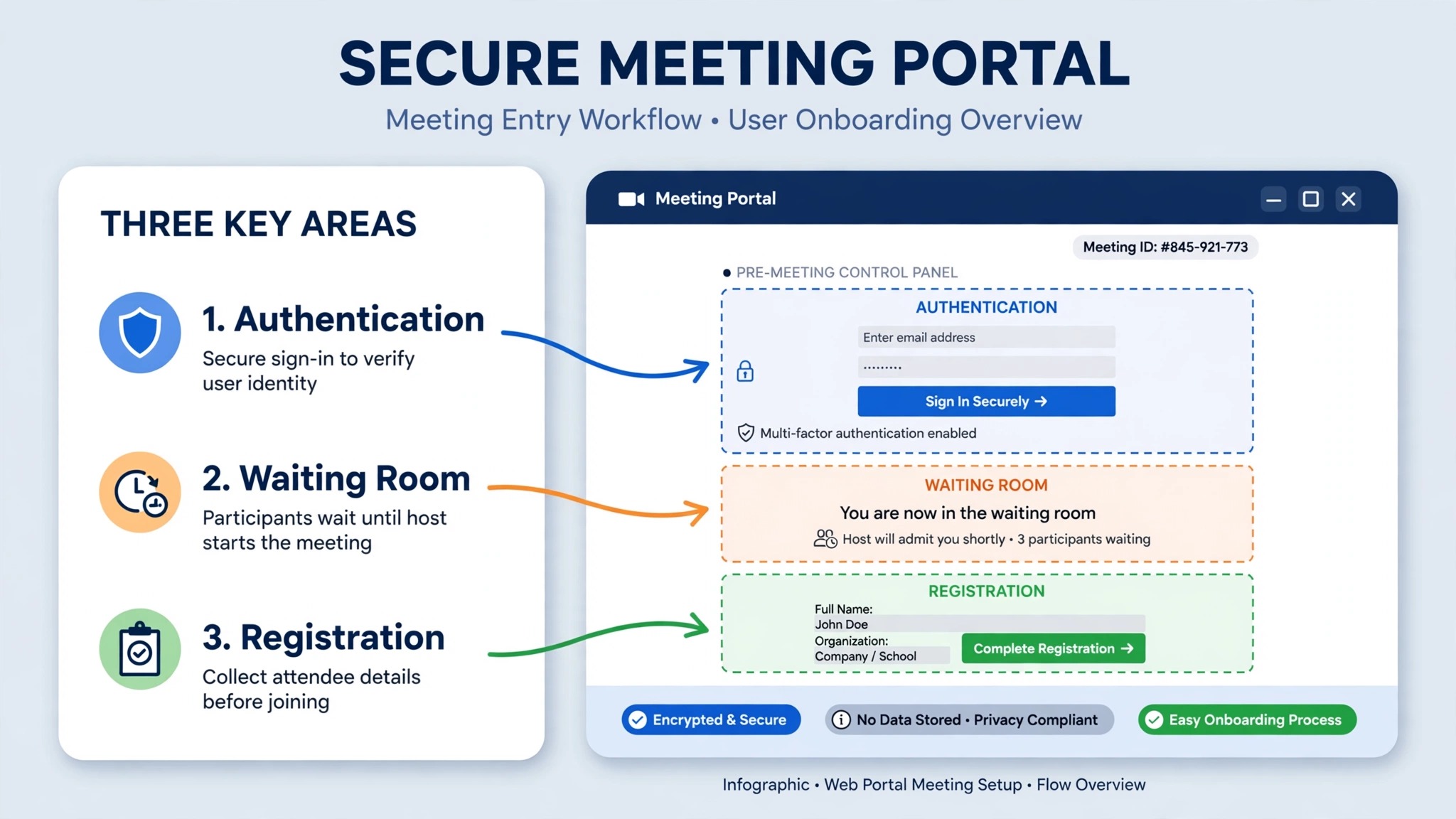
Hosts should sign in to the Zoom web portal, open Meetings, and open the meeting in question. Check whether the meeting requires authentication, and if so, whether guests are expected to sign in to a Zoom account or to a specific domain. A guest who is not signed in to an allowed account will see a sign in or access message even though the link is correct. For a small team meeting with external guests, the host may need to relax that setting for that meeting, or send guests the sign in instructions before the meeting, rather than during it.
Check the waiting room, passcode, and registration settings for the same meeting when you fix Zoom meeting link not working small team calls, because a guest stuck in a waiting room can look exactly like a failed link. If a waiting room is enabled, the host must admit guests, and a guest who waits without a message from the host may think the link failed. If registration is required, confirm
that registration was configured through the web portal, not only through the desktop app, because Zoom support guidance notes that registration must be configured through the web portal. Check whether the meeting uses a Personal Meeting ID or a No Fixed Time recurring setting, because those settings interact with registration in ways that can break a registration link.
Step 6 Re invite from the calendar, not from a forwarded message
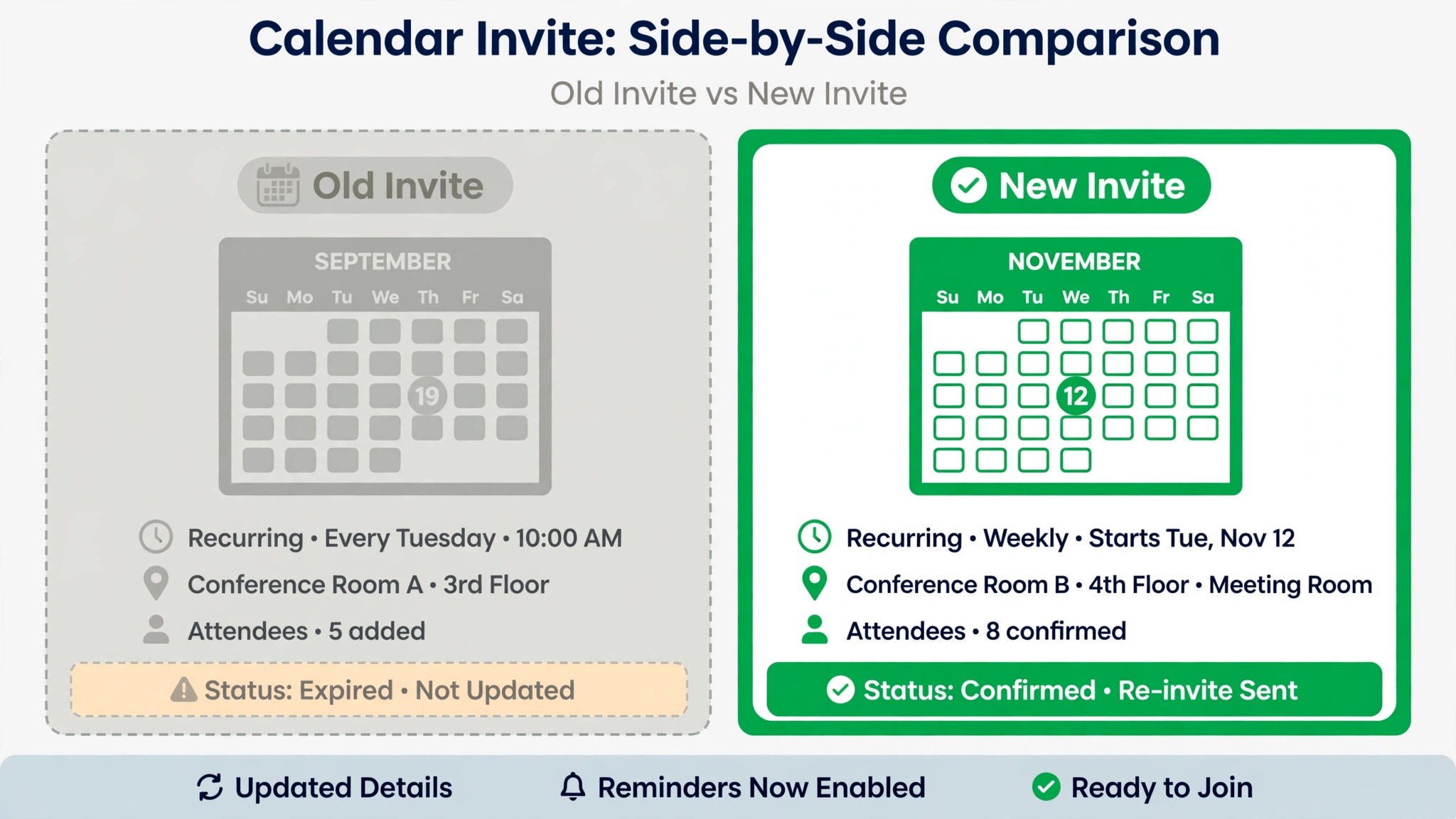
When a corrected link is needed, the host should send it from the original calendar event or from the Zoom web portal meeting page, not by forwarding a forwarded message. A calendar re invite carries the current meeting ID, passcode, and join link together, and it updates the event for every guest at once. A forwarded message carries the risk of an old link, a truncated link, or a passcode that no longer matches the meeting.
Include the meeting ID and passcode in plain text in the re invite, alongside the full join link, so guests can join by hand if the link fails again. That redundancy is the cheapest insurance a small team can buy for a live meeting. Also include a backup instruction in the re invite, such as a phone number or a chat channel where guests can report a failed join, so the host learns about a failure in seconds rather than discovering it after the meeting has started without key guests.
Step 7 Test app versus browser and network before the next meeting
After a failure, run a short app versus browser test before the next important meeting. Join a test meeting from the app, leave, and join again from the browser web client, and note which route worked. If only one route works, fix the failing route before the next client meeting, by updating the app, clearing browser data, or reinstalling the app if needed. A test that takes three minutes before a meeting saves thirty minutes of troubleshooting during it.
Test the network as well, by joining from a different network where possible, such as mobile data instead of office wifi, or by asking a colleague on a different network to join the same meeting. If the meeting works on one network and fails on another, a firewall, virtual private network, or bandwidth limit on the failing network is the suspect, and the team should join from the working network or ask the network administrator about Zoom traffic. Bandwidth problems often appear as a join that starts and then drops, rather than as a clean error message, so note the exact behaviour during the test.
Zoom Meeting Checklist for a Small Team
Use this checklist before important meetings, and keep a copy where the host can reach it during a live failure.
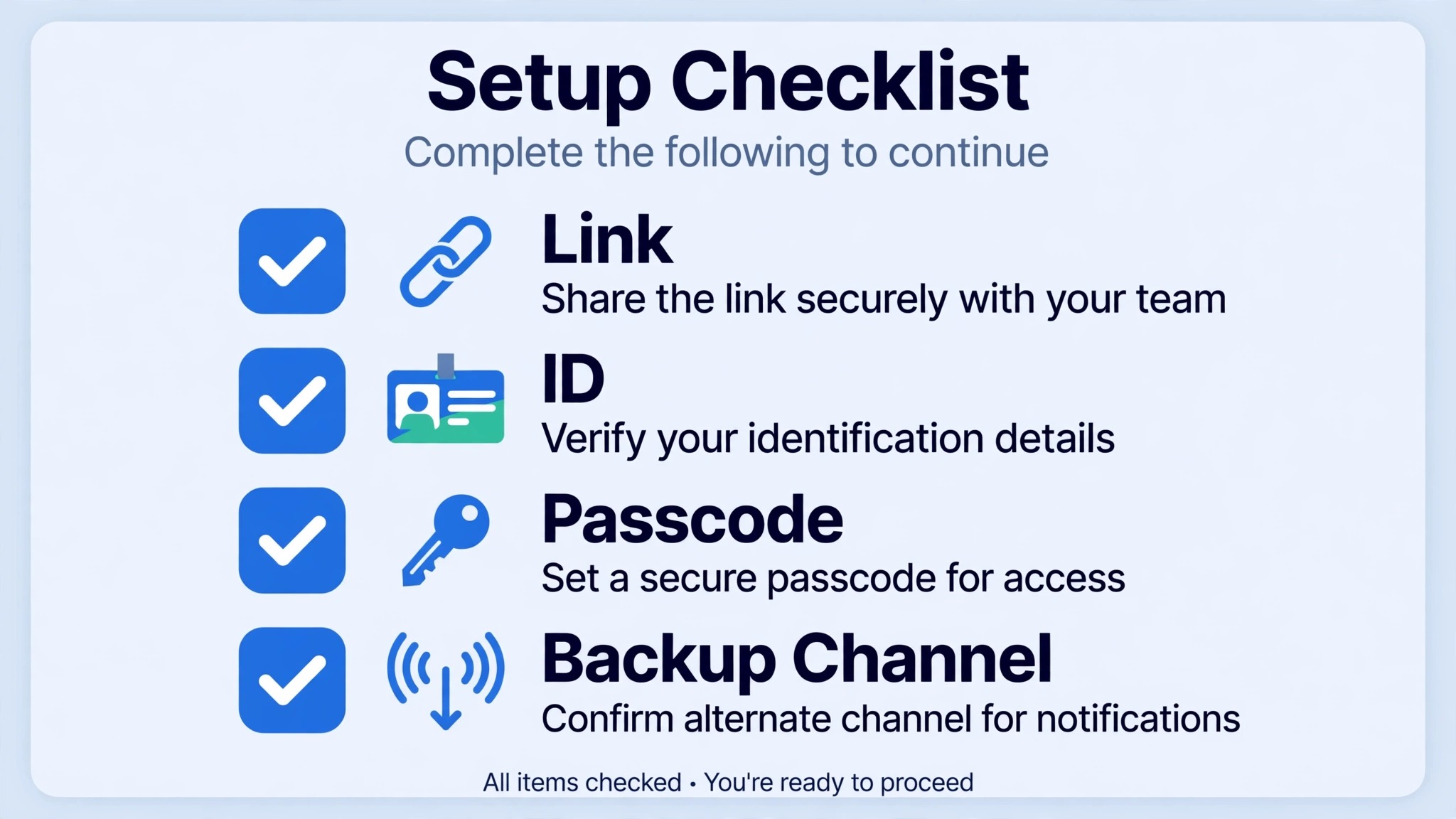
– Original invite checked, with link, meeting ID, and passcode confirmed – Manual join by ID and passcode tested when a link fails – Second browser tested, with pop ups allowed for Zoom – Web client tested as a fallback when the app handoff fails – Zoom app updated, with a test meeting completed after the update – Host settings checked in the web portal for authentication and waiting room – Registration settings checked in the web portal where registration is required – Calendar re invite sent from the original event, with ID and passcode in text – Backup contact channel shared, so guests can report a failed join fast – Network test completed, with a second network tried where a join drops – Waiting room admission assigned, so guests are not left waiting unseen – Meeting ID confirmed for recurring meetings, especially when some guests can join and others cannot
Mistakes That Turn a Failed Link Into a Failed Meeting
Sending a new link for the same misconfigured meeting is the most common mistake when teams try to fix Zoom meeting link not working small team calls in a hurry. If authentication blocks guests, a fresh link with the same authentication setting will block them again. If the meeting ID is wrong, a fresh link generated from the same wrong meeting will carry the same wrong ID. Fix the meeting setting or the meeting ID first, then send the new link, and include the ID and passcode in text so guests have a second route in.
Relying on a single join route is the second mistake. A team that only ever joins through the desktop app has no fallback when the app handoff breaks. A team that only ever joins through one browser has no fallback when that browser updates and breaks the handoff. Practise the web client route before it is needed, so guests know it exists and hosts know how to guide them to it during a live failure.
Leaving the waiting room unattended is the third mistake. A host who starts a meeting and then shares a screen without checking the waiting room may leave guests waiting for the whole meeting, while those guests assume the link failed. Assign waiting room admission to the host, or to a co host, and check the participant list in the first two minutes of every meeting. A short admission check at the start prevents a long apology at the end.
Using an old recurring link after the series changed is the fourth mistake. Recurring meetings can change ID, passcode, or settings after an edit, and an old invite saved in a document or a chat thread will not update itself. Always join from the latest calendar event, not from a saved link in an old message, and update any pinned link in a team channel when the series changes. That habit alone prevents a large share of invalid meeting ID reports in small teams.
Preventing Link Failures in a Small Team
Prevention for a small team is mostly about invite hygiene and host routine. Schedule meetings from the Zoom web portal or from the calendar integration, so the invite carries a current link, ID, and passcode together, and that habit alone prevents many cases where you must fix Zoom meeting link not working small team calls after the fact. Avoid copying a link into a separate document as the only record of the meeting, because that copy will go stale when the meeting changes. Keep the calendar event as the single source of truth, and point guests to it when they ask for the link.
Set host defaults that match how the team actually meets. If most meetings include external guests, the default authentication setting should allow those guests, or the host should know to adjust it for external meetings. If most meetings are internal, a stricter default is fine, but the host should warn external guests in advance when they are invited to a stricter meeting. A default that matches the usual guest list prevents most authentication surprises.
Run a monthly link test, especially after a Zoom app update or a browser update. A five minute internal meeting, joined from app and from browser, confirms that both routes still work after an update. That test is also a good time to check that the host knows how to admit from the waiting room, how to find the meeting ID in the web portal, and how to send a calendar re invite. A team that has practised those three actions will handle a real failure calmly, because the actions are familiar rather than new.
Keep a short meeting failure card for the team, with the manual join steps, the web client fallback, and the backup contact channel. Share that card in the team channel and in the onboarding notes for new joiners, so a guest who fails to join can self serve the first two tests before contacting the host. A card that guests can follow without host help reduces the load on the host during the exact minutes when the host is busiest.
Helping Guests Who Cannot Join From a Phone
Phone guests face a different join problem from desktop guests, because the phone must hand the link to the Zoom mobile app, and that handoff can fail when the app is outdated, when the browser opens a preview instead of the app, or when the phone has no Zoom app installed at all. Ask the phone guest to open the Zoom app first, then use Join, then enter the meeting ID and passcode by hand, rather than tapping the link again from email or chat. Manual entry on a phone bypasses the same broken handoff that fails on a desktop, and it often works on the first try.
Check the phone network as well, because a phone on weak wifi may join and then drop, while the same phone on mobile data joins cleanly. Ask the guest to move closer to the wifi router, to turn wifi off and try mobile data for a test, or to join audio only for the first minute while video is turned off. Audio only joining reduces bandwidth demand and confirms that the meeting itself accepts the guest, even when video cannot yet load. Once audio works, the guest can turn video on and test whether the connection still holds.
If the phone guest still cannot join, the host should check whether the meeting allows phone dial in, and whether a dial in number and meeting ID were included in the invite. Dial in audio is a useful last resort for a guest who must hear the meeting even when video joining fails, and it keeps that guest in the discussion while the video problem is fixed afterwards. Record the phone test result
in the meeting notes, so the next meeting with the same guest starts with the working route, whether that route is app, browser, or dial in. This extra route helps you fix Zoom meeting link not working small team calls for guests who rarely join from a desktop, because their join path is tested rather than assumed.
Frequently Asked Questions
Why does Zoom say invalid meeting ID?
An invalid meeting ID message usually means the ID in the link or entered by hand does not match a current meeting, or the recurring meeting ID changed after an edit. Ask the host to confirm the current ID from the web portal meeting page, and try manual entry with that ID and passcode before trying another link.
Why does the link do nothing when I click it?
A link that does nothing often points to a browser or app handoff problem, such as a blocked pop up, a stale browser cookie, or an outdated app. Try another browser, try a private window, allow pop ups for Zoom, and try the web client, which joins from the browser without the app handoff.
Do guests need a Zoom account to join?
Guests need a Zoom account only when the host has enabled authentication for that meeting, or when registration requires an account. For a normal meeting without authentication, guests can join from the link, the web client, or the app without signing in, subject to passcode and waiting room settings.
Why am I stuck in the waiting room?
A waiting room holds guests until the host admits them, so a guest who waits without admission is not experiencing a link failure. Contact the host through the backup channel, and ask the host to check the participant list and admit waiting guests, or to assign a co host to manage admissions.
Can I join a Zoom meeting without the app?
Yes, the Zoom web client allows joining from a supported browser without installing the desktop app. That route is a useful fallback when the app handoff fails, and it is worth testing before an important meeting so guests know it is available.
Why do some guests join while others see an invalid ID?
That pattern often points to a recurring meeting ID that changed, or to guests using different invites, one current and one old. Ask all guests to join from the latest calendar event, and ask the host to confirm the current meeting ID from the web portal, rather than from an old message.
What should a host do when a link fails during a live meeting?
The host should first check the meeting ID, passcode, authentication, and waiting room in the web portal, then send a calendar re invite with the full link plus ID and passcode in text. Guests should try manual entry and the web client while the host checks settings, so both layers are tested at once.
How can a small team prevent Zoom link failures?
Schedule from the calendar or web portal so invites stay current, set host defaults to match the usual guest list, test app and browser joins after updates, and share a short failure card with manual join steps and a backup contact channel. Those habits prevent most link failures before a meeting starts.
The Verdict for a Small Team on Zoom
A failed Zoom link is rarely a single broken address. It is usually a link, host setting, app, browser, or network layer failing while the others work, and the team that tests layers in order finds the fault fastest. Manual entry separates the link from the meeting, the web client separates the browser from the app, and a second network separates the device from the connection. Each test is short, and together they point to the owner who can fix the fault.
Make the calendar event the single source of truth, include ID and passcode in text alongside every link, and practise the web client fallback before it is needed. To fix Zoom meeting link not working small team calls for good, give every guest two ways to join and every host a short checklist for authentication, waiting room, and re invites, so the next failed click becomes a two minute detour rather than a lost meeting.