
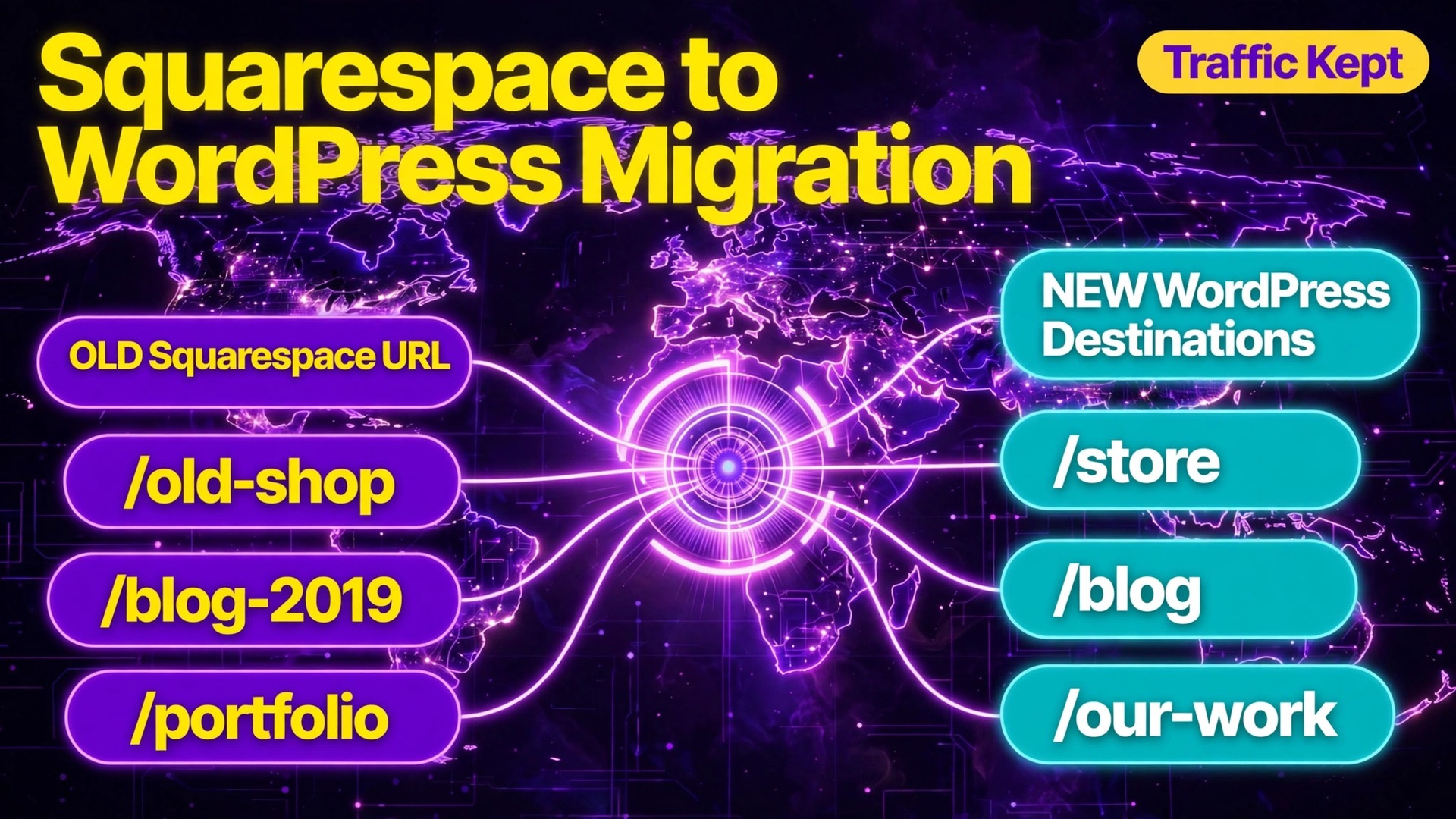
WordPress powers more than 40 percent of websites on the web, according to hosting comparisons that cite WordPress.org figures, while Squarespace holds a far smaller share built around hosted simplicity. That gap explains why so many site owners eventually decide to migrate Squarespace to WordPress. They want more control over design, more choice of plugins, lower long term running costs, and full ownership of their content and data. The move is worth doing, but it is not a one click switch. Design does not transfer, stores do not transfer, and search rankings can slip if redirects are left until launch day.
This guide walks through the full move in order. You will audit what you own, set up WordPress, export what Squarespace allows, import it cleanly, rebuild the design and store, protect search traffic with redirects, and test before you point your domain at the new site. Prices change often, so check the official pricing page and checkout before you pay. Every figure below is a planning range checked at draft time, not a quote.
Decide First Whether the Move Pays
A migration is a rebuild, not a copy. Saying that plainly at the start saves most of the disappointment later. Your words, posts, pages, and images can move. Your Squarespace template, its styling, its custom code, and its built in store cannot move as a finished design. If you love your current design exactly as it is and only want a cheaper bill, a move may cost more in time and design work than it saves in the first year. If you need features Squarespace cannot give you, the rebuild pays for itself quickly.
Move when one of these problems is real for you. You need a plugin Squarespace does not offer, such as a membership system, booking flow, or learning platform. You run a store and want WooCommerce, with its wider choice of gateways and shipping tools. You want full control of SEO, including redirects, schema, and speed tools, or you want to own your database and backups outright.
Stay when none of those apply. A small portfolio or a brochure site with under twenty pages and no store may be better left where it is, because Squarespace includes hosting, security, and updates in one bill. A WordPress site needs updates and backups, which is light work on a simple site but still yours to handle or pay for.
Time is the other honest cost. A blog with fifty posts can move in a weekend, while a store with hundreds of products and custom pages can take two to four weeks part time. Do not start a redesign and a rebrand in the same week as the move unless you have help. Change the platform first and redesign later once traffic is stable.
What Actually Moves and What You Rebuild
Squarespace export produces a WordPress format XML file carrying layout pages, project pages, gallery pages, one blog page with its posts, blog comments, and text and image blocks. It does not carry design, fonts, custom CSS, folders, index, album, event, or cover pages, product pages or blocks, audio or video blocks, drafts, or extra blogs. What stays behind matters more than what moves.
That split shapes your plan. Import the XML for posts and pages, then handle the rest separately. Products move by CSV into WooCommerce. Events, albums, and index pages are recreated as pages or with a plugin. Forms and newsletter blocks are rebuilt with a forms plugin and reconnected to your email tool. Audio and video are re-uploaded or re-embedded. Design is rebuilt with a theme. Treat any guide that promises a full one click transfer of a Squarespace site with suspicion, because the official export simply does not include those pieces.
Before you export, make your own backup. Download your images, save your custom CSS, copy page text for pages that may not export cleanly, and screenshot key pages for design reference. Save your sitemap from your domain followed by /sitemap.xml, because that URL list becomes your redirect map later. Note which blog is primary if you have more than one, since only one exports at a time, and do not delete a post that still earns search traffic without redirecting it.
| Content type | Moves in the XML file | Your WordPress job |
|---|---|---|
| Blog posts from one blog | Yes | Import, then check formatting and images |
| Standard pages and text | Yes | Import, then re-apply layout in the editor |
| Images in posts and pages | Partly, by link | Import attachments, then verify every image |
| Galleries | Basic form only | Rebuild with the gallery block or theme tools |
| Products and store pages | No | Export CSV, then import into WooCommerce |
| Events, albums, index pages | No | Recreate as pages or with a plugin |
| Forms and newsletter blocks | No | Rebuild with a forms plugin |
| Design, fonts, custom CSS | No | Choose a theme and re-apply styling |
The Real Cost of Moving
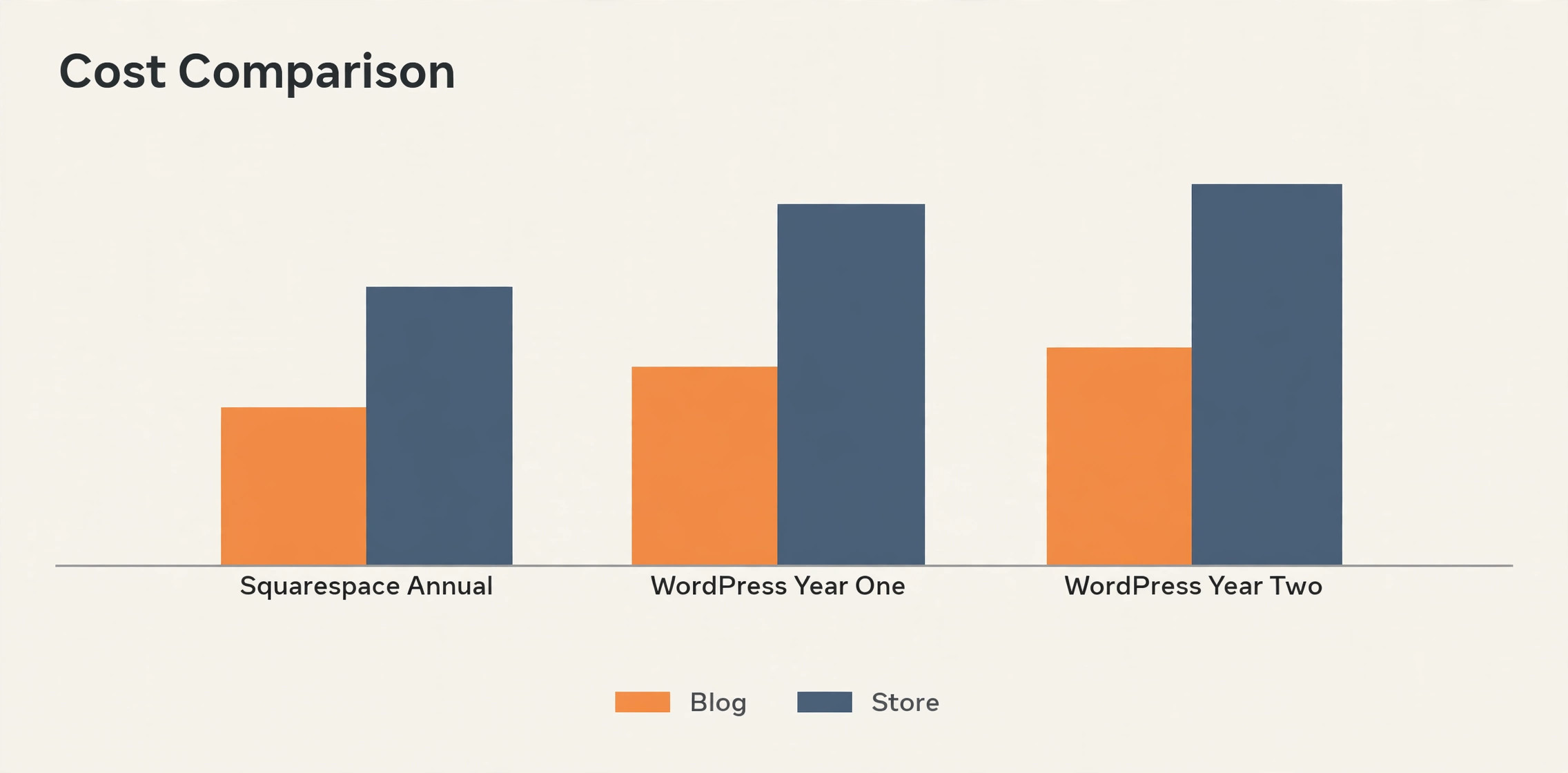
Squarespace charges one bill for hosting, templates, security, and updates. Many owners decide to migrate Squarespace to WordPress because WordPress splits the bill into hosting, domain, theme, and optional plugins. That split is why WordPress can be cheaper, and also why a careless comparison misleads. Compare your full current bill, including transaction fees and add ons, against the full WordPress bill for year one and year two, not just the intro hosting price.
Squarespace list prices checked at draft time start around 16 to 19 dollars a month on annual billing for the entry plan and rise to around 99 dollars a month on annual billing for the top commerce plan, with monthly billing higher at each tier, roughly 25 dollars to 139 dollars a month. Older plan names still appear in many guides, with Personal, Business, and two Commerce tiers in the same broad range, so check the current plan names on the Squarespace pricing page before you budget.
A Business style plan also carried a 3 percent transaction fee on store sales in older listings, while Commerce style plans carried no platform transaction fee, though payment processing fees still applied on top.
WordPress hosting starts far lower at signup. Budget shared hosts list entry prices around 2.99 to 3.99 dollars a month on long terms, with renewals commonly around 10.99 to 17.99 dollars a month depending on the host. That intro to renewal jump is the number to model, because a three year total at renewal rates can be triple the advertised first term. Managed WordPress hosting costs more and does more. WP Engine lists its entry Essential plan around 25 to 30 dollars a month on annual billing and around 35 dollars a month on monthly billing, for one site with visit and storage limits.
Kinsta lists a similar entry point around 30 dollars a month on annual billing and 35 dollars a month on monthly billing. Those managed plans include staging, daily backups, caching, and WordPress focused support, which is worth real money if you would otherwise pay a developer for the same tasks.
Add the rest of the WordPress bill honestly. A domain renewal commonly runs 10 to 20 dollars a year. A premium theme is often a one time purchase in the 40 to 90 dollar range, though some themes charge yearly. Most essential plugins have free tiers that cover a small site, with paid tiers from roughly 50 to 100 dollars a year each when you need them. WooCommerce itself is free, but payment processing is not. Stripe and PayPal commonly charge around 2.9 percent plus 0.30 dollars per online transaction in the United States, with rates varying by country and card type. Check checkout for every figure here.
| Cost item | Squarespace range | WordPress range |
|---|---|---|
| Platform and hosting | About 16 to 99 dollars a month annual | About 2.99 to 35 dollars a month to start |
| Renewal surprise | Low, one bill | High on budget hosts, check year two |
| Store transaction fee | 0 to 3 percent by plan | 0 percent platform fee, gateway fees apply |
| Payment processing | About 2.9 percent plus 0.30 dollars | About 2.9 percent plus 0.30 dollars |
| Theme and design | Included | Free to about 90 dollars, or a designer fee |
| Essential plugins | Included or add ons | Free tiers, paid tiers about 50 to 100 dollars a year each |
A typical small blog can run on WordPress for under 150 dollars in year one and under 250 dollars in year two, against 192 to 228 dollars a year for entry Squarespace on annual billing. A store is where the gap widens, because WooCommerce removes the platform transaction fee, but do not claim a saving until you add gateway fees, plugin renewals, and your own time. If you hire help, get a fixed quote tied to your page and product count, not an hourly guess.
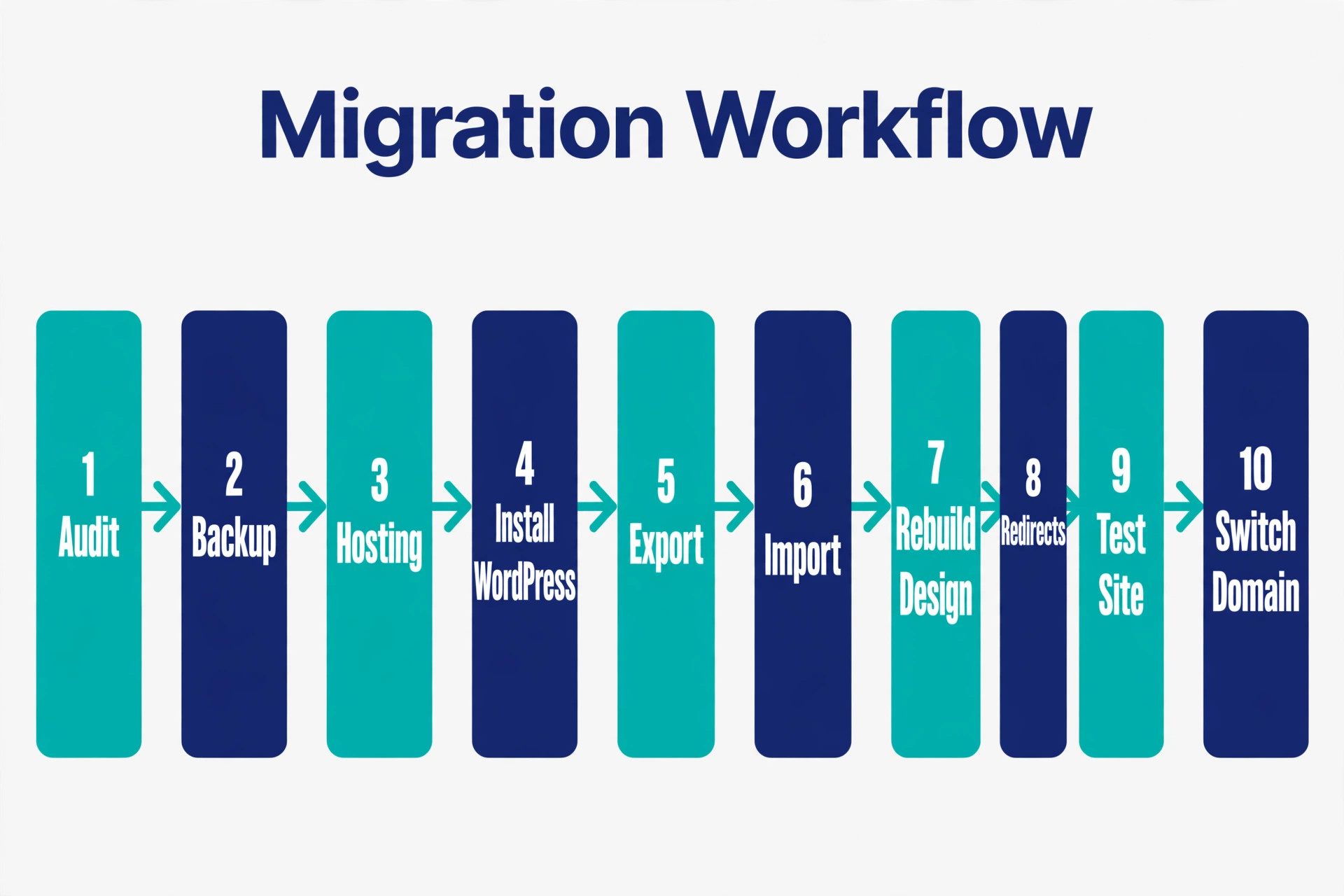
How to migrate Squarespace to WordPress in 10 Steps
When you migrate Squarespace to WordPress, follow this workflow in order. Do not skip ahead to the domain switch, and do not cancel Squarespace until the new site passes every test in the pre-launch section.
Step 1. Audit the Site and List Every URL
Start with a full inventory. Pull your sitemap, list every page, post, product, and landing page you want to keep, and record its URL, traffic, and ranking if you can see it in analytics or Search Console. Mark pages to keep, merge, or drop. Every kept or merged page needs a new home or a redirect, and every dropped page with links or traffic needs a redirect to the closest live page, not to the homepage. Keep this audit in a spreadsheet with columns for old URL, new URL, and redirect status.
Step 2. Set Up Hosting and Install WordPress
Choose hosting by traffic and maintenance appetite. Budget shared hosting suits a new blog or brochure site, while managed WordPress hosting suits a business site or store where downtime costs money. Install WordPress on a staging subdomain first, not on your live domain, so you can import, rebuild, and test while Squarespace keeps serving visitors. Turn on SSL and create an admin user with a strong password and two factor authentication if your host offers it.
Step 3. Export Content From Squarespace
In Squarespace, go to Settings, then Website, then Import and Export, then Export, and choose the WordPress option, selecting your primary blog first if you have several. Download the XML file when ready and store a copy outside your downloads folder, in case the first import goes wrong. A trial site cannot export, and the site generally needs to be public first, so do not let a subscription lapse before you have the file. Export products separately as CSV, and download media by hand for anything the XML may only link to.
Step 4. Import Posts and Pages Into WordPress
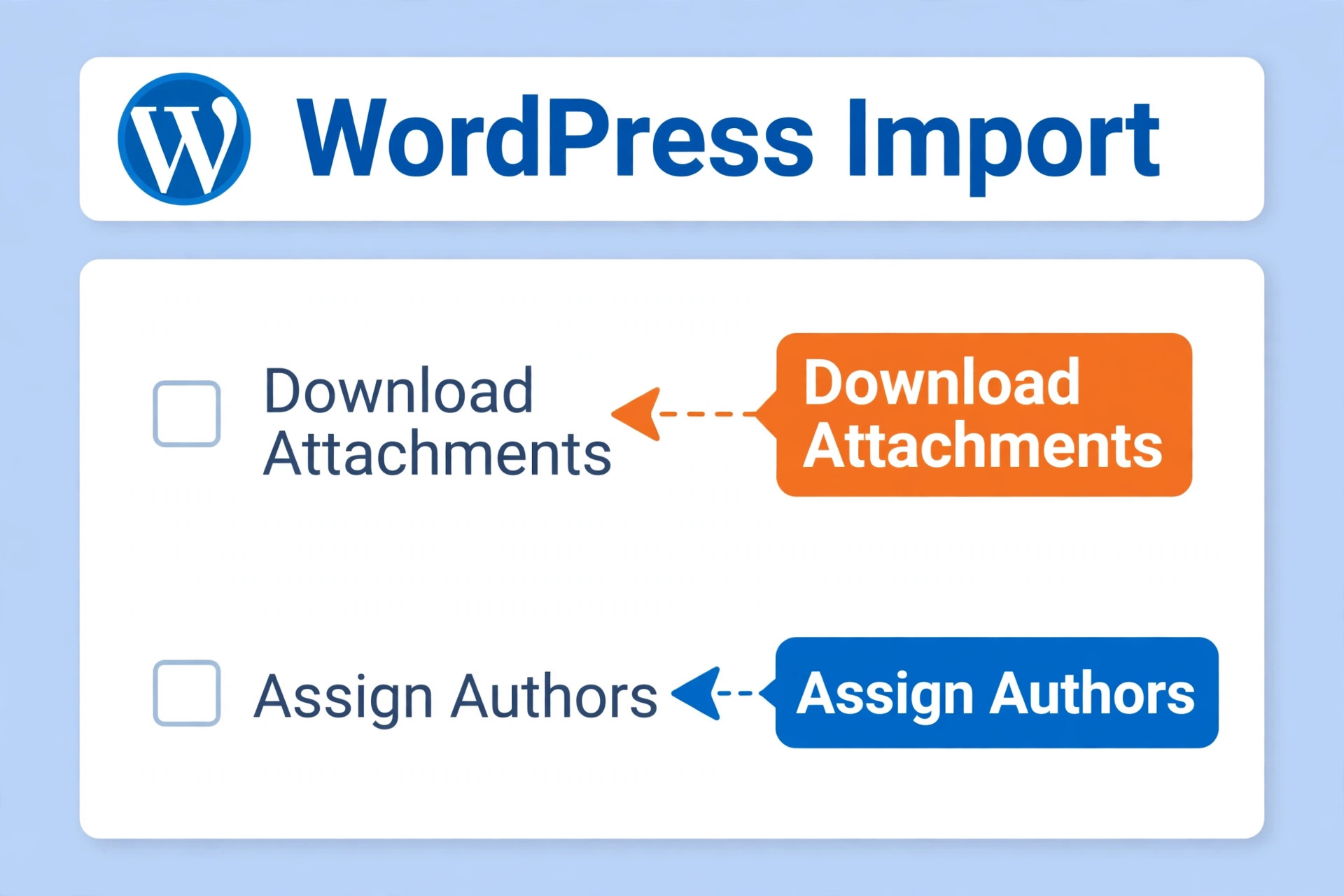
In WordPress, go to Tools, then Import, then WordPress, and install the importer plugin when prompted. Upload the XML file, assign authors, and tick the option to download and import file attachments. That step matters, because the XML links to images still hosted on Squarespace, and those links break when the old site is cancelled. Check post and page counts against your audit spreadsheet, import a second blog separately if needed, and expect formatting cleanup, since Squarespace blocks do not map perfectly to WordPress blocks.
Step 5. Fix Images, Links, and Formatting
Open your most important posts first, then work through the rest. Check that every image loads from your own media library, not from a Squarespace address. Re-upload any image that still points outward, and restore alt text where the import dropped it. Fix internal links to old Squarespace URLs, check embeds, restore heading order, and remove leftover empty blocks. This pass is where a migrated site starts to look cared for instead of roughly imported.
Step 6. Rebuild the Design With a Theme
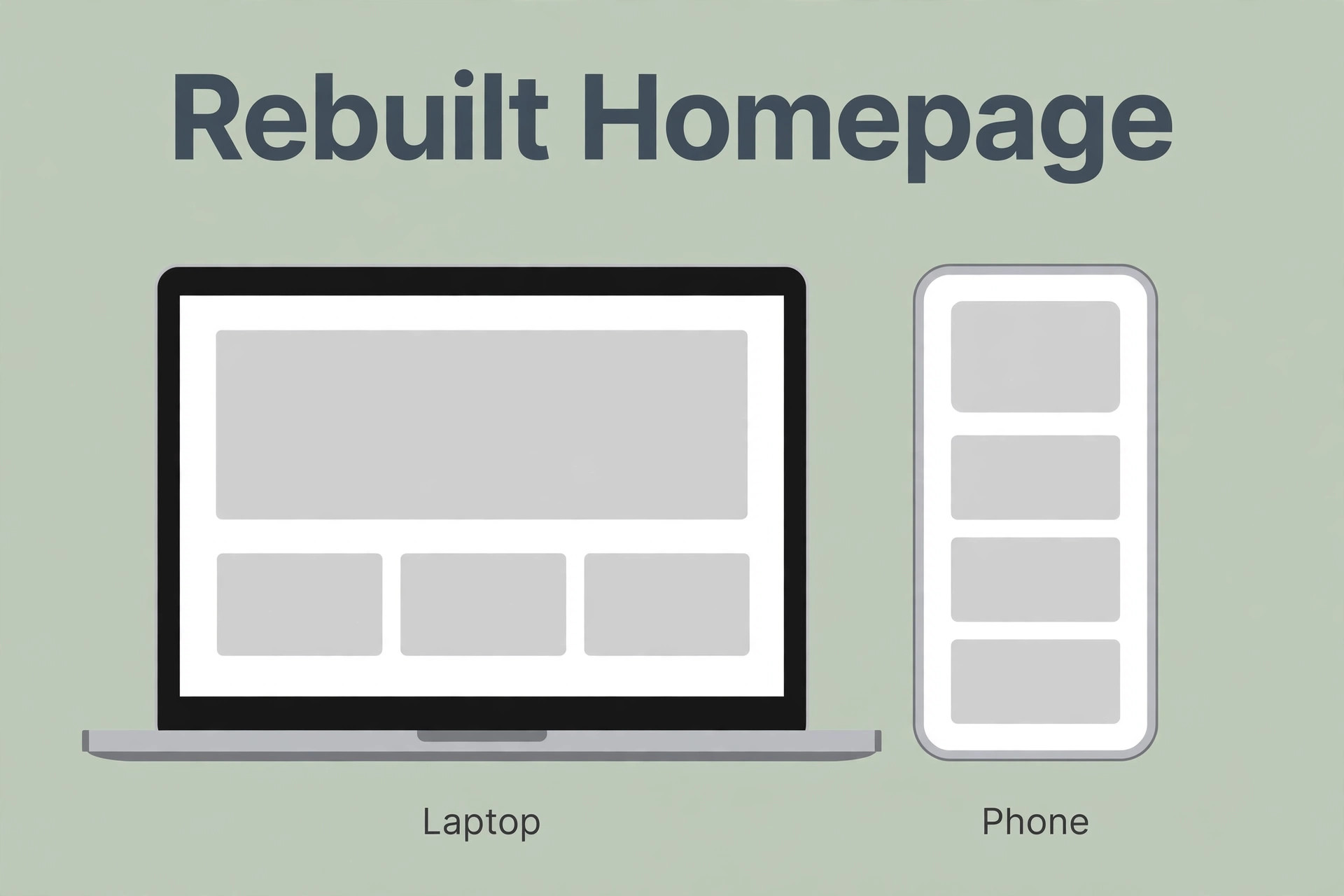
Choose a theme that matches your content, not the theme with the flashiest demo. A blog needs readable type and fast loading, a business site needs clear service pages and contact paths, and a store needs strong product and checkout layouts. Set colours, fonts, logo, header, footer, and navigation to match your brand, then rebuild the homepage and key landing pages in the block editor. Do not clone Squarespace pixel for pixel. Aim for the same message and structure in a faster, cleaner form, and test on a phone early.
Step 7. Rebuild the Store in WooCommerce
Install WooCommerce, run its setup wizard, and import your product CSV. Check every product for title, price, description, images, stock, and variants, because CSV imports drop details more often than sellers expect. Reconnect Stripe or PayPal, run a test order, rebuild shipping zones, tax settings, and order emails. Subscriptions and memberships need a dedicated WooCommerce extension and a careful customer plan, not a plain product import, so tell existing customers what changes before you switch.
Step 8. Set Permalinks and Protect SEO
Set WordPress permalinks to match your old URL pattern as closely as possible. Squarespace blog posts commonly live under a blog prefix, such as /blog/post-slug, while WordPress defaults to a date or post name pattern. Keeping the same prefix can remove much redirect work, but it will not fix pages whose slugs changed during import. Install an SEO plugin, such as Rank Math, set titles and descriptions on key pages, submit the new sitemap, and confirm no important page is blocked by a staging setting left on by mistake.
Step 9. Map and Test Every Redirect
This step protects your search traffic, and it deserves its own section below. Build the redirect map from your audit spreadsheet, add the rules with a redirect plugin, and test every high traffic URL before launch. A redirect is a permanent 301 rule from an old URL to the closest matching new URL. It is not a blanket rule to the homepage, and it is not optional for pages with backlinks. Test redirects on staging by editing your hosts file or by using the staging domain pattern, then test again the hour after the domain switch, when real URLs go live.
Step 10. Switch the Domain, Test Again, Then Cancel
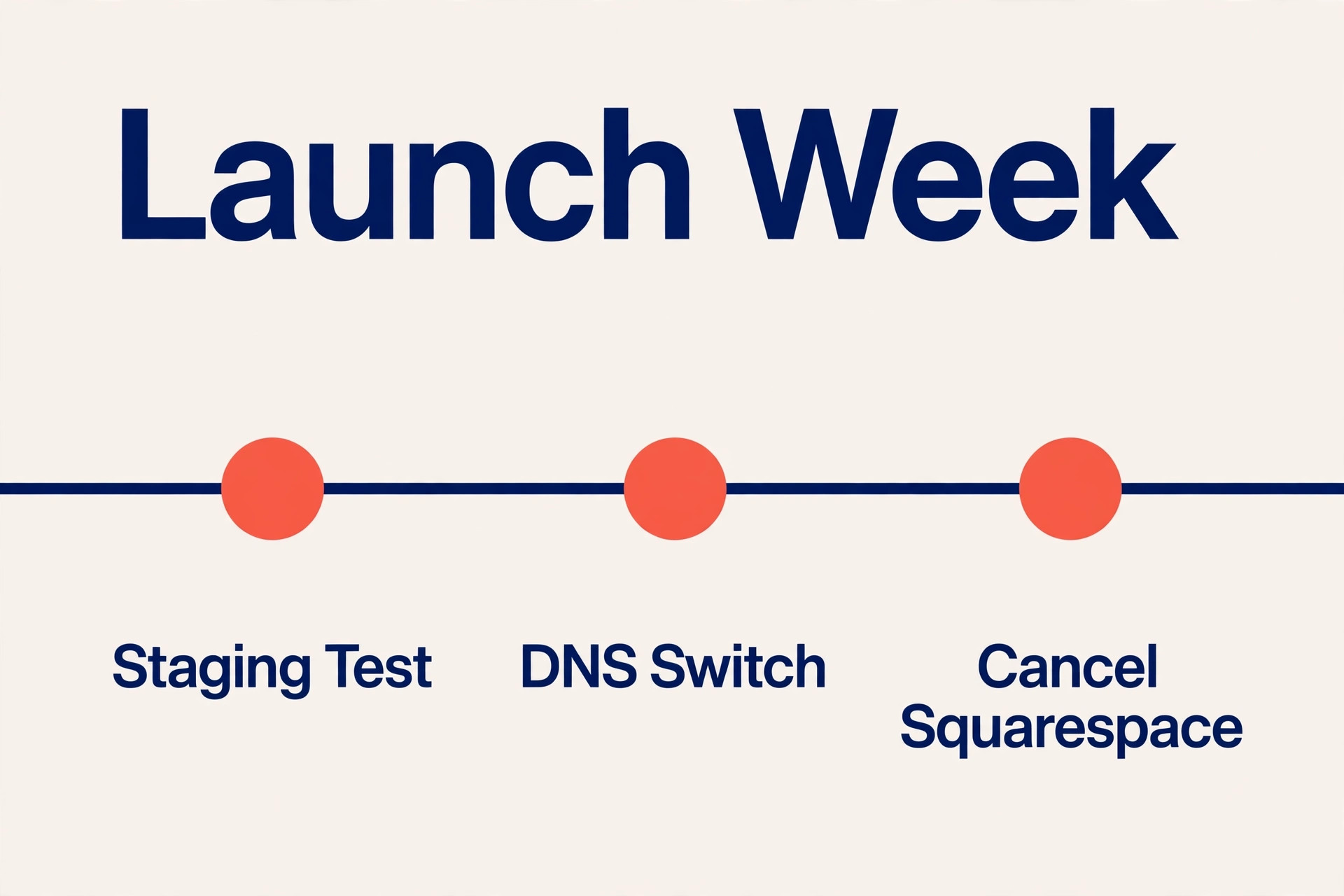
Point your domain at the new host by updating nameservers or DNS records, or transfer the domain if you prefer one registrar. DNS changes can take up to 48 hours to spread, though most visitors see the new site within a few hours, so keep Squarespace live during that window. Once the new site serves correctly, run the full test again and watch Search Console for crawl errors for two weeks. Cancel Squarespace only after a clean week on WordPress with images, products, and redirects confirmed on your own server.
Redirect and SEO Protection in Full
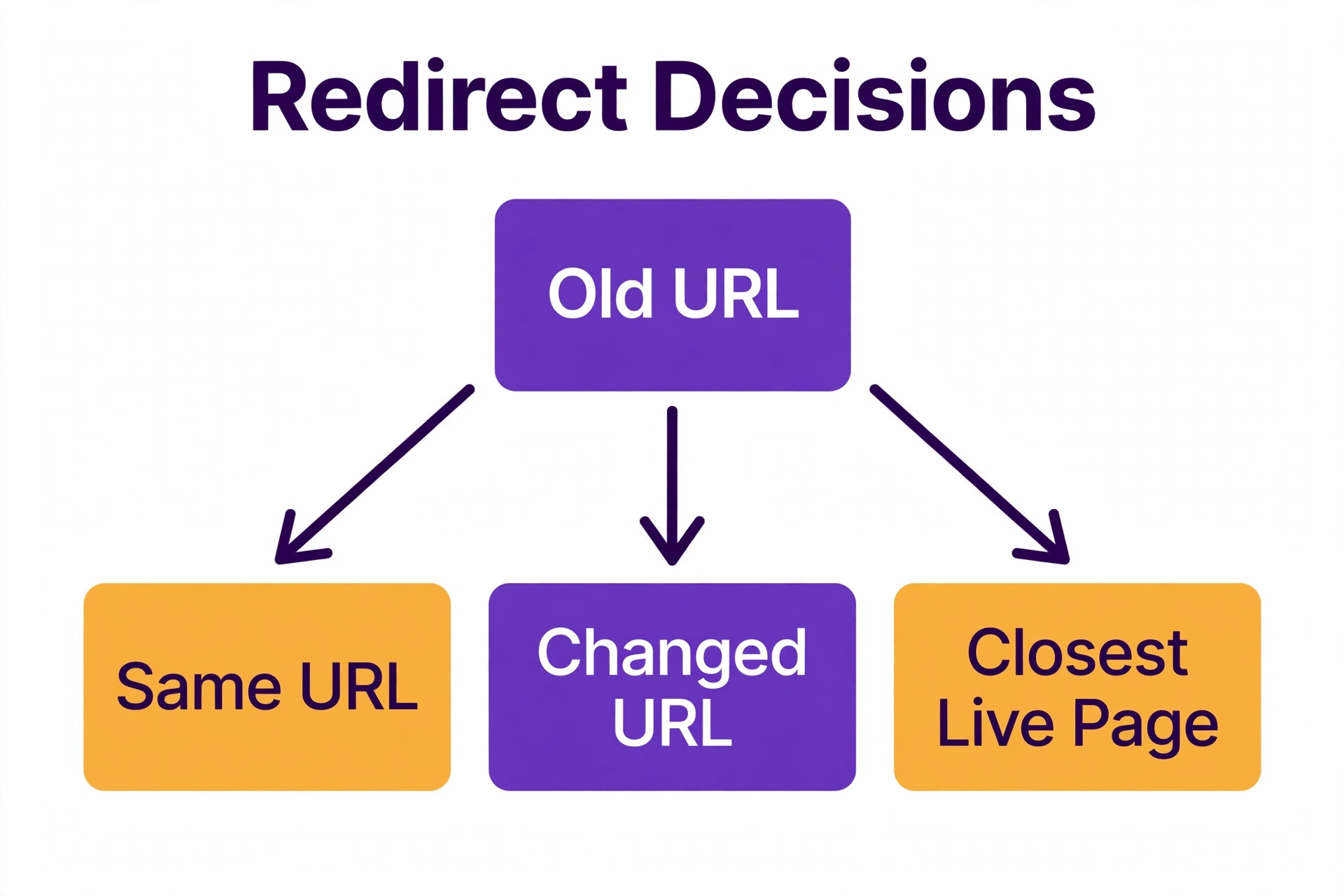
When you migrate Squarespace to WordPress, search engines and old links do not care that you changed platforms. They follow URLs. If an old URL returns a 404 error, its ranking and its referral traffic are at risk. Redirects pass most of that value to the new URL, and they keep visitors on a working page instead of an error page. The redirect table below is the overview proof for this guide. Use it as the template for your own map, and fill in your real slugs before launch.
| Old Squarespace pattern | New WordPress pattern | Redirect rule |
|---|---|---|
| Homepage on the root domain | Homepage on the root domain | No redirect needed, same URL |
| Blog post under /blog/post-slug | Same slug under /blog/post-slug | No redirect if permalinks match |
| Blog post under /blog/post-slug | Post under /post-slug | 301 from old blog URL to new post URL |
| Standard page at /about | Page at /about | No redirect if slug matches |
| Standard page with a changed slug | Page at the new slug | 301 from old slug to new slug |
| Product page at /shop/product-name | Product at /product/product-name | 301 from old product URL to new product URL |
| Category or tag archive | Category or tag archive | 301 from old archive URL to new archive URL |
| Deleted post with traffic | Closest live post on the same topic | 301 to that post, never a blanket homepage rule |
| Deleted page with no match | Closest live page or the relevant section | 301 to that page, and remove it from menus |
Build redirects with the free Redirection plugin or your host redirect tool. Redirection lets you import a CSV of old and new URLs, test each rule, and log 404 errors after launch. Add rules in bulk from your spreadsheet, not one by one on launch night. After launch, check the 404 log weekly for a month, add rules for missed URLs with traffic, and fix internal links to old addresses. Update valuable external listings to the new URLs over time, because a redirect is a safety net, not a permanent substitute for a correct link.
SEO work after launch is mostly monitoring. Resubmit the sitemap, request indexing for key pages, and watch for a short ranking dip in the first two weeks, which usually recovers if redirects, titles, and content are intact. A large or lasting drop points to missing redirects, a blocked sitemap, slow pages, or content lost in import. Check those causes before rewriting content, because a technical fix restores traffic faster than new posts will.
Rebuild Pages That the Export Cannot Carry
Forms are the first rebuild most owners forget. Squarespace forms and newsletter blocks do not export, so rebuild each form with a forms plugin, reconnect it to your email list, and send a test submission. Check spam folders, confirmation messages, and any automation that should fire on submission. A contact form that silently fails after migration loses enquiries you will never know about, so test it on staging and again on the live domain.
Events, portfolios, and galleries need the same treatment. An events plugin can carry dates and ticket links, and a gallery plugin can carry project images with better captions than a rough import gives you. CSS written for Squarespace selectors will not apply to WordPress markup, so re-apply only the styling you still need in the Customizer or theme settings. Tick off each rebuilt section only after seeing it work on a phone and on a desktop.
Speed and security are part of the rebuild, not extras. Use caching, compress images before upload, and keep only the plugins you use. Keep WordPress, themes, and plugins updated, set automated backups, and test a restore at least once. Store one backup copy away from your host, so a host problem cannot take both the site and its backup.
Migration Helper Tools Compared
You do not need many tools for this move, and buying a large migration suite for a small blog wastes money. The table below keeps the set small. The free importer handles the core content move, a redirect plugin protects traffic, and a paid service handles large sites where manual work would cost more than the fee.
| Helper tool | Best for | Cost | Watch out for |
|---|---|---|---|
| WordPress Importer | Posts and pages from the XML file | Free | Images and formatting still need a cleanup pass |
| Redirection plugin | 301 rules, 404 logs, bulk CSV import | Free | Rules need testing, a bad rule can loop |
| CMS2CMS style service | Large sites, stores, many posts | Paid, quoted by content volume | Design still rebuilds by hand, check what it covers |
Tool count for this guide is 3 helper tools. If you migrate Squarespace to WordPress with a paid service, it can be worth it for a store with hundreds of products, because it moves products, customers, and orders with less manual work than a CSV import. It still does not move design, and it still needs redirect and testing work after it runs.
For a blog under two hundred posts, the free importer plus a careful manual pass usually beats a paid service, because the manual pass forces you to check the content that matters most. Whatever route you choose, keep the XML file and the CSV files after launch. They are your fallback if an import step needs to run again.
Mistakes That Cost Traffic, Sales, or Weeks
The first mistake owners make when they migrate Squarespace to WordPress is cancelling Squarespace before the new site is proven. Images linked from Squarespace break, old URLs stop resolving, and content you forgot to copy is gone. Keep the old site live until the new site has run cleanly for a week, and download your media before you cancel, not after.
The second mistake is skipping the redirect map. Owners who rely on matching permalinks alone discover too late that product, archive, and changed slug URLs all return 404 errors. Build the map from the sitemap and test the top fifty URLs by traffic before launch.
The third mistake is importing without checking attachments. An import that reports success can still leave images pointing at Squarespace. Open posts, check image addresses, and re-upload anything hosted elsewhere. Search engines and visitors both punish a post full of broken images, and the fix takes minutes per post if you catch it early.
The fourth mistake is redesigning everything at once. A new theme, navigation, and page structure plus a new platform in one launch makes it impossible to tell which change caused a traffic drop. Migrate first and redesign later once rankings are stable.
The fifth mistake is forgetting the store details. Tax, shipping, email templates, and test orders are easy to leave until launch day, when a failed checkout costs real sales. Run a full test order on staging, including a refund or cancellation flow if your store supports it, and confirm that order emails reach the customer and the store owner.
The sixth mistake is ignoring speed. A heavy theme and twenty plugins can load slower than the Squarespace site it replaced, hurting rankings and conversions. Measure speed before and after with the same tool, remove unused plugins, compress images, and use caching from day one.
Pre-Launch Test Before You Point the Domain
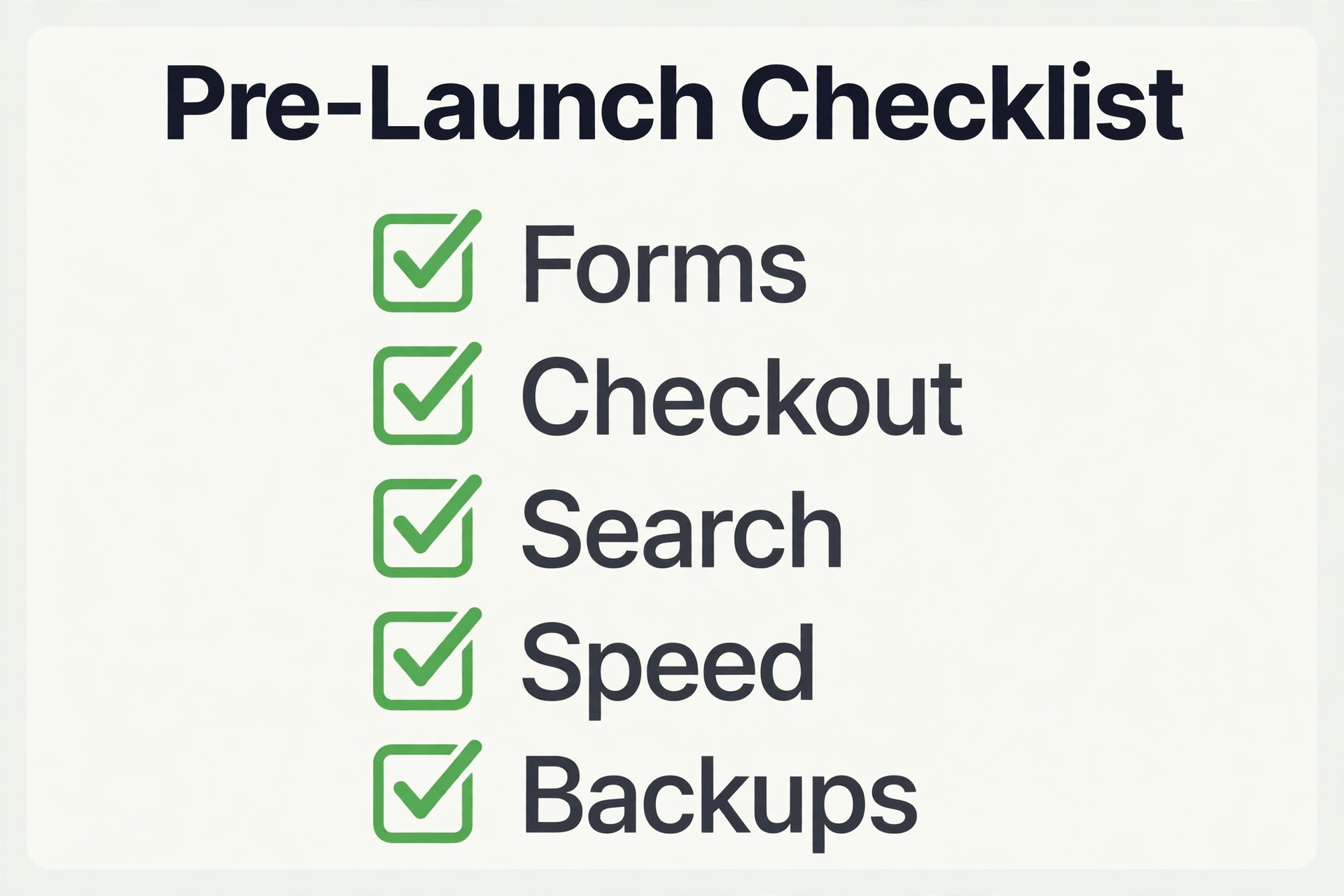
Run this test on staging, then again on the live domain. Tick each item only when you have seen it work. Check the homepage, top ten posts, top ten pages, and every product category. Click menu, footer, and homepage links. Submit every form, complete a test order, and confirm confirmation emails arrive.
Check technical items in the same pass. Confirm SSL loads without mixed content warnings, the sitemap lists the new URLs, titles and descriptions show correctly, and images load from your own domain. Confirm the site loads acceptably on a phone over a mobile connection, and that you can restore a file from backup. If any item fails, fix it on staging and retest before switching the domain. A delayed launch costs little. A launch with broken checkout costs far more.
For related reading, wix vs wordpress helps if you are still weighing hosted builders against WordPress, and wordpress alternatives shows the wider field. If you are building from scratch, how to build a website with ai covers planning, best ai website builders compares builders, and shopify vs woocommerce helps store owners before they rebuild on WooCommerce.
Frequently Asked Questions
Will I lose SEO rankings when I migrate Squarespace to WordPress?
You may see a short dip while search engines recrawl new URLs, but a lasting loss usually comes from missing redirects, lost content, or a blocked sitemap, not from the platform change itself. Match permalinks where you can, add 301 redirects for every changed URL, keep titles and content intact on key pages, resubmit the sitemap, and monitor Search Console for crawl errors for at least a month after launch.
How long does a Squarespace to WordPress migration take?
A small blog with under fifty posts can move in a weekend, including import, cleanup, and testing. A business site with many pages and forms commonly takes one to two weeks part time, and a store with hundreds of products or a redesign can take three to four weeks or longer. The audit, redirect map, and testing pass set the real timeline, not the import itself, which often takes under an hour.
Does the Squarespace export move my design?
No. The export moves posts, pages, and some media, but not templates, styling, fonts, or custom CSS. You rebuild the design with a WordPress theme and the block editor. Keep screenshots of the old site for reference, aim for the same message and structure, and treat the move as a chance to improve speed and mobile layout rather than cloning the old design exactly.
Can I move my Squarespace store to WooCommerce?
Yes, with a separate product step. Export products as CSV from Squarespace commerce inventory, import them into WooCommerce, and check titles, prices, images, stock, and variants product by product. Reconnect Stripe or PayPal, rebuild shipping and tax settings, and run a test order before launch. Subscriptions and memberships need a dedicated extension and a careful customer plan, so handle those before you switch the domain.
What happens to my domain during the migration?
Your domain stays with your registrar unless you choose to transfer it. Point it at the new host by updating nameservers or DNS records, a change that can take up to 48 hours to spread, though most visitors see the new site sooner. Keep Squarespace live during that window and cancel only after a clean week on WordPress.
Do I need a developer to migrate Squarespace to WordPress?
Not for a small blog or brochure site, if you are comfortable following the steps in order and testing carefully. A developer is worth hiring for a large store, a site with custom integrations, a membership or subscription business, or any site where downtime costs real revenue. Ask for a fixed quote based on your page count, product count, and redirect count, and ask what testing and post launch support the quote includes.
The Move Pays When the New Site Earns Its Keep
A migration succeeds when visitors cannot tell that the platform changed, except that pages load faster and the site does more of what the business needs. Audit every URL, import on staging, verify every image, rebuild the store and forms by hand, map every redirect, and test before you switch the domain. Keep Squarespace live until WordPress has proven itself for a week, then cancel with confidence.
To migrate Squarespace to WordPress successfully, start with the audit spreadsheet today, even if the move itself is a month away. List your URLs, mark what matters, and note what will not export. That single document turns a stressful rebuild into a series of small, checkable jobs, and it is the difference between a migration that protects your traffic and one that spends months recovering it. When the new site is live, stable, and faster than the old one, the extra control WordPress gives you stops feeling like maintenance and starts feeling like ownership. That is the point of the move, and it is worth doing properly.