

Most TV app failures are cache or outdated firmware, not YouTube being down. If you want to fix YouTube app not working on TV tonight, start with a full power cycle, then clear the app cache, then check for updates. That short sequence solves a large share of black screens, crashes at launch, endless loading wheels and sign-in loops, and it does so without deleting your accounts or wiping the TV. The rest of this guide works brand by brand, because Samsung, LG, Sony, Roku and Fire TV hide the same fix in different menus, and on some of them a cache button does not exist at all.
The order matters more than any single trick. Each step in this guide rules out one cause, and you stop as soon as YouTube works again. A power cycle rules out a stuck process in temporary memory. A cache clear rules out damaged temporary files. An update rules out a version mismatch between the app and the TV software. A reinstall rules out a damaged app package. Network tests rule out a Wi-Fi or router problem that looks like an app problem. If you jump straight to a factory reset, you lose all of that information, and you spend an hour rebuilding a TV that may only have needed a two minute restart.
The Verdict in 60 Seconds
For most people, the best sequence is power cycle, cache clear, update, reinstall, and only then a deeper reset. That is the fastest way to fix YouTube app not working on TV for most households. Unplug the TV for a full 60 seconds, plug it back in, and open YouTube again. If it still fails, clear the YouTube cache where your brand allows it. If that fails, update the app and then the TV software, restart once, and test again. If YouTube still fails, reinstall the app with a restart in between removal and reinstall. That last detail matters on Roku, where reinstalling without a restart can bring the old data back with the new install.
Diagnose in Two Minutes Before You Change Anything
Two minutes of diagnosis saves twenty minutes of random fixes. First, note exactly what happens. Does YouTube refuse to open at all, does it open and then close, does it show a black screen, does it spin forever on loading, or does it play for a few seconds and then stop. Each symptom points in a slightly different direction. A crash at launch points to damaged app data or a version mismatch. Endless loading points to a network problem or a stalled service connection. Playback that starts and then stops points to bandwidth, a weak Wi-Fi signal, or a storage problem on the TV.
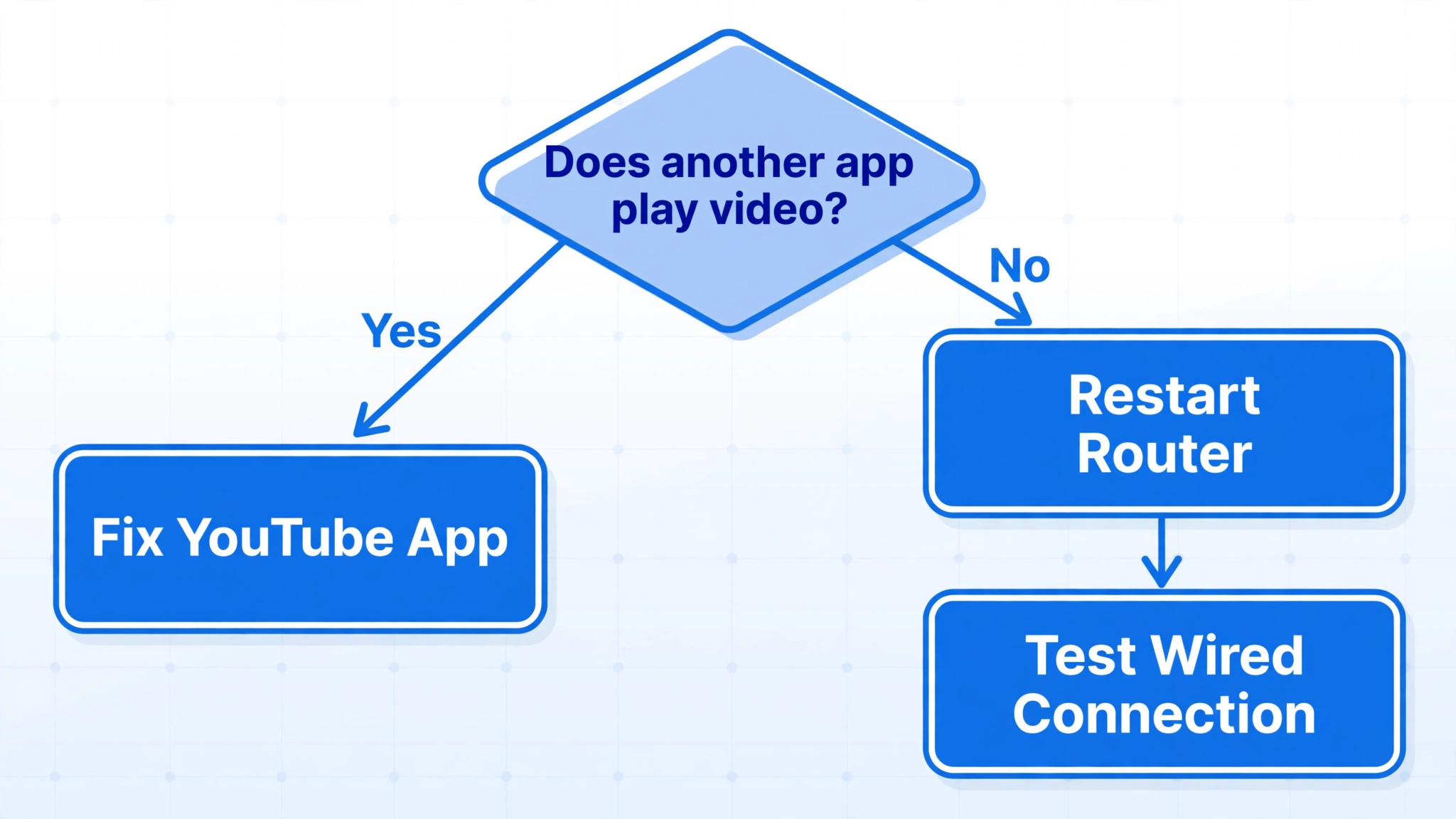
Second, run a split test. Open a second streaming app and play video for two minutes. If the second app plays fine, focus on YouTube itself. If the second app also stutters, closes, or refuses to load, focus on the TV, the network, or storage, because the problem is bigger than one app. Third, if you can, play YouTube on a phone or laptop on the same Wi-Fi network. If it plays fine there, the TV app or the TV connection is the weak link. If it fails there too, your home network or YouTube itself is the weak link, and no amount of TV resetting will help until that part is fixed.
| Symptom | Most likely cause | First test |
|---|---|---|
| App will not open | Damaged app data or stuck process | Full power cycle, then cache clear or reinstall |
| App opens then closes | Corrupt cache, low storage, or version mismatch | Cache clear, storage check, then update |
| Black screen with sound | App or firmware mismatch | Update app and TV software, then reinstall |
| Endless loading wheel | Network or DNS problem | Second app test, router restart, wired test |
| Video starts then stops | Weak Wi-Fi or low bandwidth | Move closer to the router or test Ethernet |
| Sign-in loop or code error | Account or app data problem | Reset the app, then sign in fresh |
How to fix YouTube app not working on TV in the Right Order
Work this ladder from fastest to deepest, and test YouTube for at least two minutes after each step. A five second open test is not enough, because some failures only appear when playback starts or when an advert break loads. Keep a note of which step worked, because the same fix will probably work again next time, and it tells you whether the cause was temporary memory, app data, software, or the network.
- Close YouTube fully and open it again. On most TVs, pressing Back or Home does not fully close an app. It leaves it running in the background. Use the recent apps view or the app switcher if your TV has one, close YouTube, and open it fresh. This step rules out a one-off freeze in the running app, and it costs nothing.
- Power cycle the TV properly. Turn the TV off with the remote, unplug the power cord from the wall, wait a full 60 seconds, plug it back in, and turn it on again. A remote power button alone often leaves the TV in a low power standby state, especially on LG sets with Quick Start turned on. The unplug step is what clears temporary memory. It does not delete apps, logins, or picture settings, which is why it is safe to try first on any brand.
- Restart the router and modem. Unplug both for 30 seconds, plug the modem back in first, wait for its lights to settle, then plug the router back in. Test YouTube again only after the network is fully back. This step rules out a stale router session, a DHCP problem, and a DNS hiccup, all of which can make one app fail while the TV menus still look normal.
- Test a second app and a second device. Open another streaming app on the TV for two minutes, and play YouTube on a phone on the same Wi-Fi. This step rules out a whole-TV problem or a whole-network problem, and it stops you from reinstalling an app that was never the cause.
- Clear the YouTube cache. Where your brand offers a cache button, use it before you touch app data. Clearing cache removes temporary files such as artwork, thumbnails, and playback fragments. It usually keeps you signed in, and it usually keeps your watch history and preferences, because those live in your Google account rather than in the local cache. This step rules out damaged temporary files.
- Update the app, then update the TV software. Update YouTube first if the store offers an update, then check for a TV system update, install it, and restart the TV once. This step rules out a version mismatch, where a newer YouTube service expects newer TV software, or an older app build no longer matches the service.
- Clear app data or reset the app. Clearing data resets YouTube to a fresh install state on most TVs, and it signs you out. Use it when cache, updates, and a restart have all failed. Keep your Google account details ready before you do this, because you will need to sign in again. This step rules out damaged account data and saved settings inside the app.
- Reinstall YouTube with a restart in between. Delete the app, restart the TV, install it again from the official store, and sign in fresh. The restart in the middle matters, because it stops the TV from restoring the old app data into the new install. This step rules out a damaged app package that updates cannot repair.
- Reset network settings on the TV. If YouTube fails but other apps work, and if reinstalling did not help, forget the Wi-Fi network on the TV and join it again from scratch, or reset the TV network settings where your brand offers that option. This step rules out a saved network profile that has gone stale, including a wrong DNS setting or an old IP address.
- Factory reset the TV as a last resort. Use this only when every app fails, when YouTube fails after a clean reinstall on a strong network, or when the TV restarts or freezes across many apps. Back up your settings first with phone photos, and expect to reinstall every app and sign in to each one again. This step rules out deep system corruption, and it is the point where you also start to suspect a hardware or support problem instead.

Brand Fix Table. Find Your TV and Start There
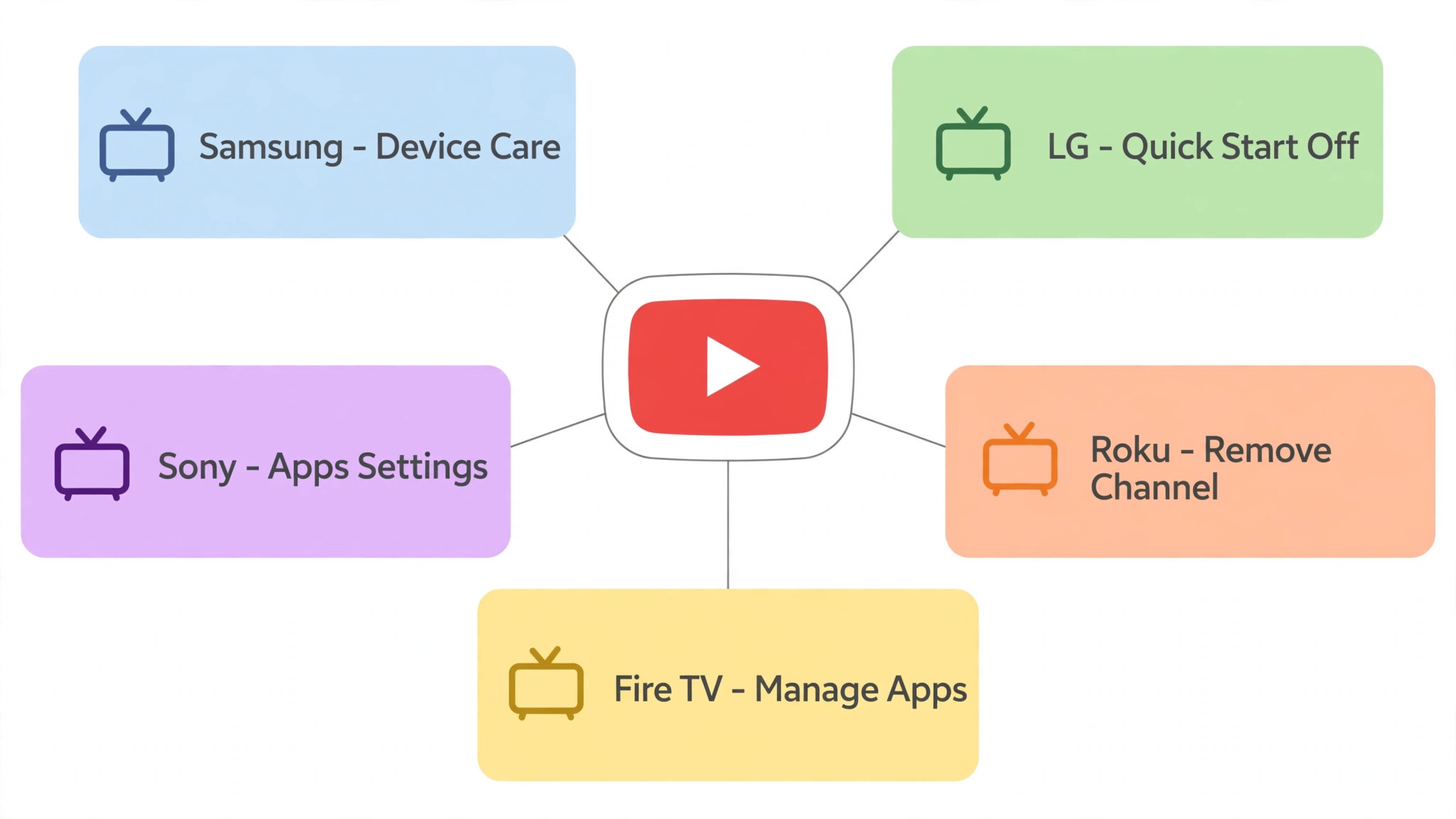
Use this table to jump to your brand section. Each brand section gives the menu path, the warning about what gets deleted, and the test to run after the fix. Do not run every brand section. Run yours, test, and only then move to the network and storage sections if the problem survives.
| Brand | First fix to try | If no cache button exists | Step people often miss |
|---|---|---|---|
| Samsung Tizen | Clear cache in Device Care, then power cycle | Reinstall the app from the Apps screen | Update TV software after the cache clear |
| LG webOS | Turn Quick Start off, then power cycle | Delete the app and reinstall from the Content Store | Check for updates under About This TV |
| Sony Google TV and Android TV | Clear cache in Apps settings | Clear data, then reinstall from Google Play | Check storage before reinstalling |
| Roku TV and Roku players | System restart, then remove and re-add the channel | Roku has no per-app cache button, so the reinstall is the cache clear | Restart between removal and reinstall |
| Fire TV | Clear cache, then force stop the app | Clear data, then uninstall and reinstall | Check storage and the power supply for the stick |
Samsung. Tizen Cache, Device Care, and Storage
Start Samsung with a true power cycle. Turn the TV off, unplug it for 60 seconds, plug it back in, and open YouTube. If it still fails, work through Device Care. Open Settings, then Support, then Device Care, and let it finish its scan. Open Manage Storage and check how much free space remains. A Samsung TV that is nearly full will close apps to protect system functions, and YouTube is often the first app to suffer, because it caches a large amount of artwork and playback data.
To clear the YouTube cache on Samsung, open Settings, then Support, then Device Care, then Manage Storage, then find YouTube and open View Details. Choose Clear Cache first and test the app. If the problem repeats, return to the same screen and choose Clear Data, then sign in again. Clearing data is a bigger step than clearing cache, so keep your Google account details ready. If both fail, delete YouTube from the Apps screen, restart the TV, and install it again from the Samsung app store.

LG. webOS Memory, Quick Start, and App Reinstalls
Start LG with Quick Start off, because Quick Start keeps the TV in a low power standby state instead of fully shutting it down, and a remote power button alone then fails to clear temporary memory. On newer webOS sets, open Settings, then All Settings, then General, then System, then Additional Settings, and turn Quick Start off. On older sets, the path may run through General, then Devices, then TV Management. Once Quick Start is off, unplug the TV for at least 60 seconds. LG guidance for memory errors suggests a longer unplug period in some cases, up to 10 minutes, so if a 60 second cycle does not help, try a longer unplug before you move on.
For the app itself, newer webOS sets offer an app info route. Highlight YouTube on the Home launcher, hold the Select button for a few seconds, open App Info, and choose Clear Cache if the option appears. On many webOS versions, no per-app cache button exists at all. In that case, the reinstall is the cache clear. Delete YouTube from the launcher, restart the TV, then install it again from the LG Content Store. Do not skip the restart in the middle. It is what stops the TV from restoring the old data into the new install.
Sony. Google TV and Android TV Cache, Data, and Storage
Sony Google TV and Android TV sets give you the clearest cache and data controls of any brand in this guide, so use them in order and do not jump to a factory reset. Start with a power cycle. Turn the TV off, unplug it for 60 seconds, plug it back in, and open YouTube. If it still fails, open Settings, then Apps, then See All Apps, then find YouTube. Open Storage and Cache, choose Clear Cache first, and test the app. Clearing cache removes temporary files and usually keeps you signed in.
If cache alone does not help, return to the same screen and choose Clear Data. This resets YouTube to a fresh state and signs you out, so keep your Google account details ready. After clearing data, open YouTube and sign in fresh. If the problem survives that, uninstall YouTube from the same Apps screen or from Google Play on the TV, restart the TV, and install it again from Google Play. Test playback for two minutes, not just the home screen, because some failures only appear when a video starts.
Roku. System Restart, Channel Removal, and the Reboot in Between
Roku works differently from the other brands in this guide, because Roku has no per-app cache button for YouTube. The cache clear on Roku is the remove, restart, and re-add cycle, and the restart in the middle is the step that makes it work. If you remove the channel and immediately add it again without a restart, Roku can restore the old channel data into the new install, and you end up exactly where you started.
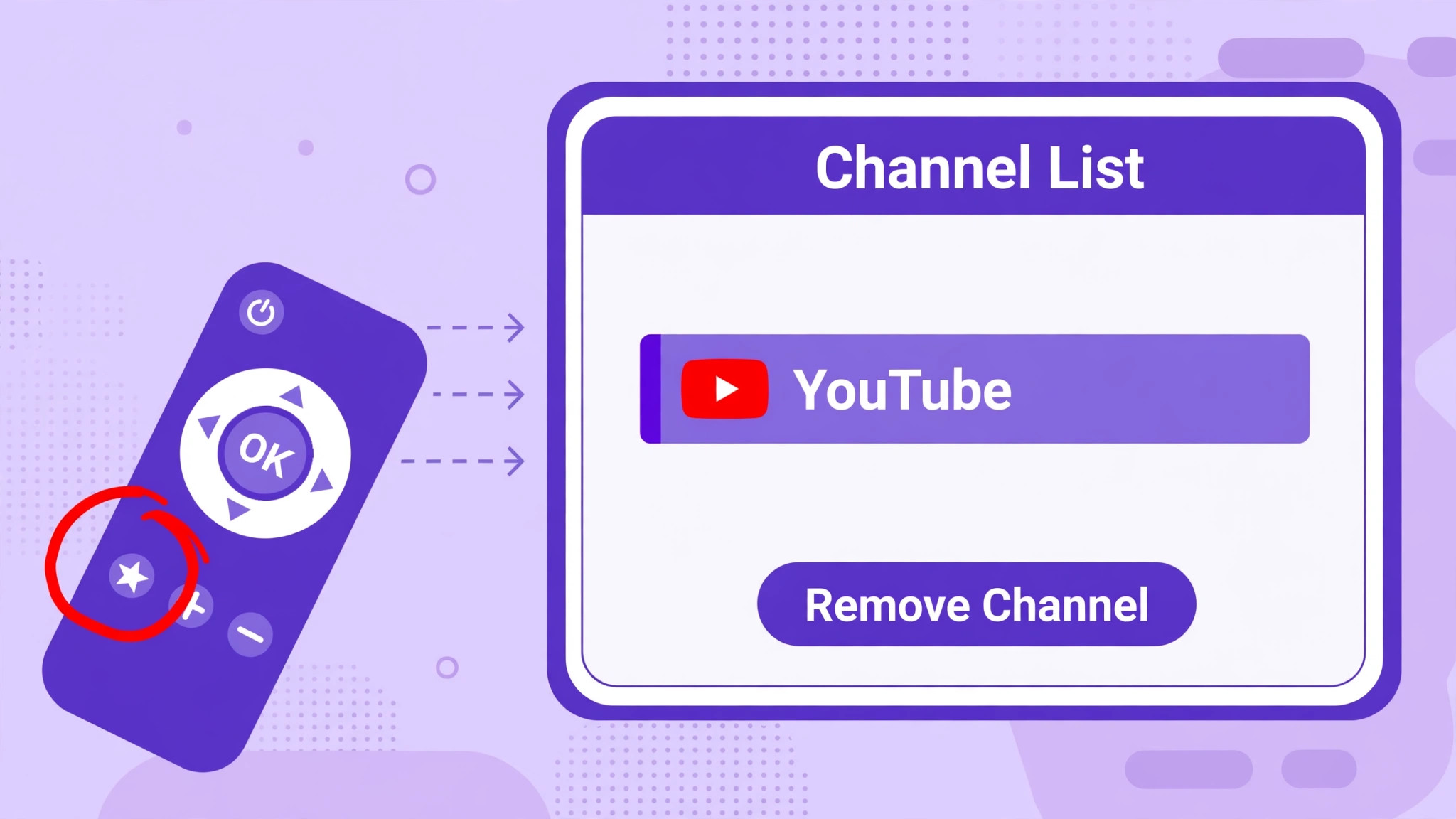
Start with a system restart. From the Home screen, open Settings, then System, then Power, then System Restart. If your Roku menu lacks a Power entry, choose Settings, then System, then System Restart. After the restart, open YouTube and test for two minutes. If it still fails, check for updates. Open Settings, then System, then System Update, then Check Now, and install any update. Then highlight the YouTube tile on the Home screen, press the star button on the remote, and choose Check for Updates for the channel itself.
If updates do not help, run the clean reinstall. Highlight the YouTube tile, press the star button, choose Remove Channel, and confirm. Then restart the Roku again, either from Settings, then System, then Power, then System Restart, or by unplugging the device for 30 seconds and plugging it back in. Only after that restart should you open the Channel Store, add YouTube again, and sign in. Keep your phone or laptop nearby, because sign-in on Roku usually needs an activation code entered on another device.
Fire TV. Cache, Force Stop, Data, and Stick Power
Fire TV gives you cache, force stop, and data controls in one place, so work them in order. Start with a restart. On a Fire TV Stick, unplug the stick power for 30 seconds and plug it back in. On a Fire TV television, unplug the TV for 60 seconds. If YouTube still fails, open Settings, then Applications, then Manage Installed Applications, then find YouTube. Choose Clear Cache first and test the app. Then, from the same screen, choose Force Stop, open YouTube again, and test for two minutes.
If cache and force stop do not help, return to Manage Installed Applications, open YouTube, and choose Clear Data. This signs you out and resets the app, so keep your account details ready. If that still fails, choose Uninstall from the same screen, restart the Fire TV device, and install YouTube again from the Appstore. After reinstalling, sign in fresh and test playback, not just the home screen.
Network Checks. Prove the Connection Before You Blame the App
Network problems wear an app disguise. A weak Wi-Fi signal, a stale router session, or a DNS fault can make YouTube spin forever while the TV menus still look normal, and the natural reaction is to reinstall an app that was never broken. Prove the connection first. Open a second streaming app on the TV and play video for two minutes. Play YouTube on a phone on the same Wi-Fi network. If the phone plays fine and the second TV app plays fine, the network is probably fine, and YouTube on the TV is the problem. If both fail, the network is the problem, and TV fixes will not help until it is fixed.
That proof comes before any attempt to fix YouTube app not working on TV by reinstalling.
Restart the router and modem in the right order. Unplug both for 30 seconds, plug the modem back in first, wait for its lights to settle, then plug the router back in, and wait for the network to come back fully before you test. If the TV is far from the router, or separated by thick walls or a floor, test with the TV moved closer for a few minutes, or test with an Ethernet cable if the TV has a port. A wired test is the cleanest network test you can run, because it removes Wi-Fi signal strength, interference, and band steering from the picture in one step.
If YouTube works on Ethernet but not on Wi-Fi, the fix is a Wi-Fi problem, such as router placement, a crowded channel, or a weak signal, not a YouTube problem.
Reinstall YouTube the Clean Way on Every Brand
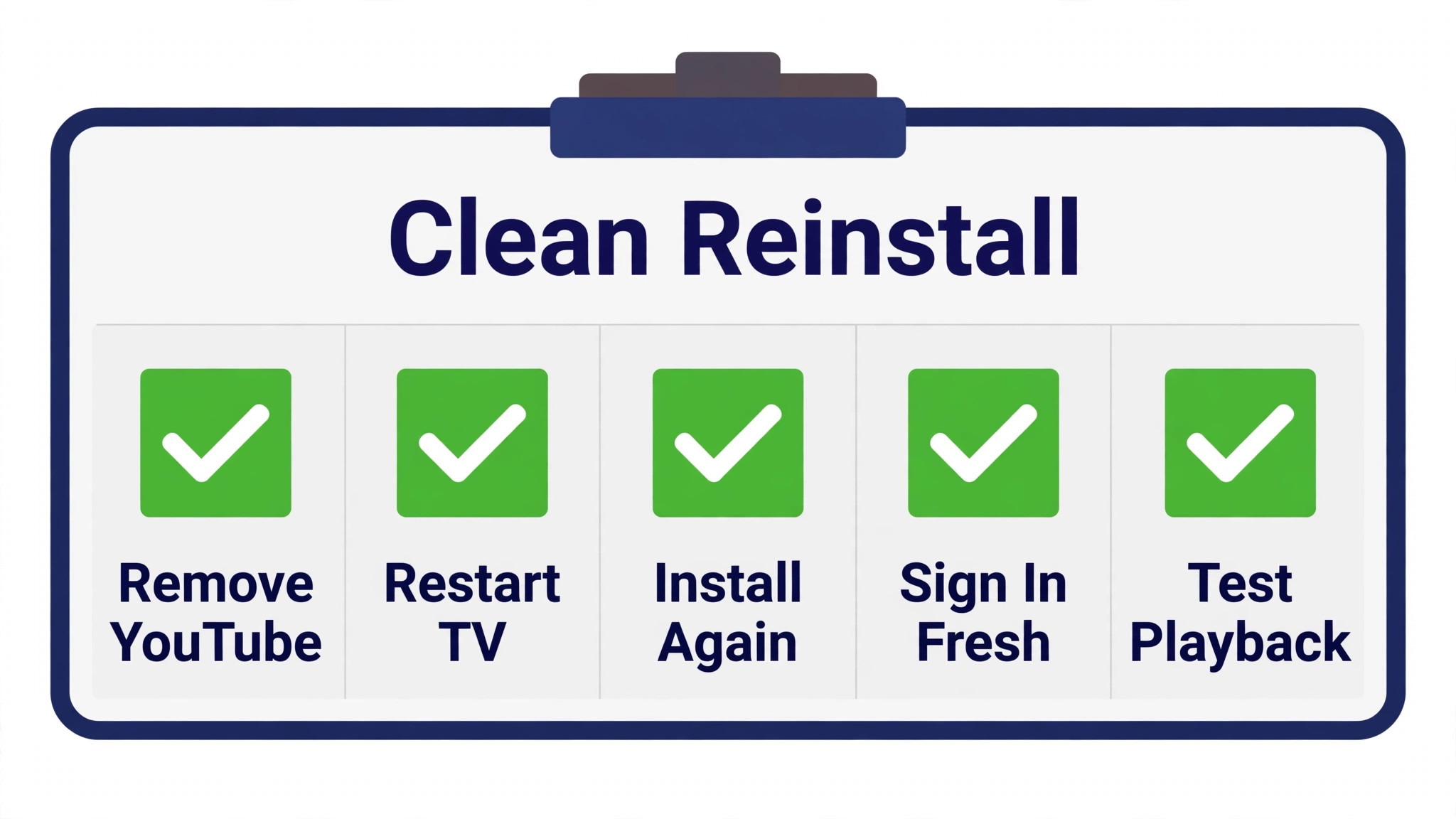
Reinstalling is the deepest app-level fix in this guide, and it only works if you restart between removal and reinstall. The clean sequence below is the one to follow when you need to fix YouTube app not working on TV after cache, data, and updates have all failed. Keep your Google account details and a second device nearby before you start, because you will sign in again at the end.
- Delete or remove YouTube from the TV or device, using your brand path. Samsung owners delete from the Apps screen. LG owners delete from the launcher. Sony owners uninstall from Apps or Google Play. Roku owners highlight the tile, press the star button, and choose Remove Channel. Fire TV owners open Manage Installed Applications and choose Uninstall.
- Restart the TV or device before you install anything. Unplug a TV for 60 seconds, or use the Roku system restart menu, or unplug a Fire TV Stick for 30 seconds. This restart clears the old app data from memory, so the new install starts clean.
- Install YouTube again from the official store only. Use the Samsung app store, the LG Content Store, Google Play on Sony, the Roku Channel Store, or the Fire TV Appstore. Do not sideload an app file from a random site, because a mismatched build can fail in new ways and can carry security risks.
- Open YouTube and sign in fresh. Use the QR code or activation code method the TV offers, and enter the code on a phone or laptop on the same network. If the code fails, check that the phone and TV are on the same Wi-Fi network, turn mobile data off on the phone so it uses Wi-Fi, and try the other sign-in method.
- Test playback for two minutes, including a second video. If the first video plays but the second fails, the problem may be network or storage rather than the app package, and the network section above is the next place to look.
Sign-in Loops, Wrong Accounts, and Activation Codes
Sign-in problems deserve their own check, because they look like app failures but need an account fix, not a reinstall. YouTube help for smart TVs lists the same order every time. Confirm you have the latest app version, confirm you sign in with a Google account, and reset the app if sign-in keeps failing. If you are signed in, an app reset signs you out, so keep your account details ready.
First, confirm the account itself works. Sign in to YouTube on a phone or laptop with the same Google account. If that fails too, the account is the problem, and TV fixes will not help until the account is fixed. Check the password, check two step verification, and check whether the account is a Brand Account with restricted access. Second, confirm the TV uses the right account. A TV signed in to a family member account, a work account, or an old account can show the wrong subscriptions, the wrong history, or a sign-in prompt that never clears. Sign out fully, then sign in with the intended account.
When the TV Model Itself Is the Limit
Some TVs cannot run a current YouTube app, no matter how carefully you follow the steps above. App makers end support for older platforms as the service changes, and TV makers end software updates for older models. The signs are consistent. YouTube no longer appears in the app store search at all. The store offers YouTube but the install fails every time. The app installs but crashes at launch even after a clean reinstall on a strong network. The TV reports no system update available, yet the app version on offer is years old. Any one of those signs, after a clean reinstall, points to a support limit rather than a settings error.
That is the point where trying to fix YouTube app not working on TV with more resets stops helping.
To confirm, check the model year. Find it in Settings, then Support or About, or on the sticker on the back of the TV. Then check the TV maker support site for that model and for YouTube support status. If the model is listed as no longer supported, or if no software update has shipped for it in years, another reset will not bring support back. The practical fix is a streaming stick or box. A current Roku, Fire TV Stick, or similar device plugs into an HDMI port, runs a current YouTube app, and costs far less than a new TV.
It also fixes the same problem for every other app that has ended support on the old TV, which is why it is the right call once the model limit is confirmed.
If YouTube works again but other apps still stutter, or if the wired test in this guide pointed to a Wi-Fi problem, the next step is the network itself rather than another app fix. Readers who want to fix YouTube app not working on TV as part of a wider TV cleanup may also find the guide to fix Smart TV apps crashing useful, because it covers the same cache, storage, and update ladder for every app on the set. If playback starts and then stops, the guide to fix YouTube videos buffering on slow internet covers bandwidth and buffering tests in more depth.
And if the TV keeps losing its connection entirely, the guide to fix Wi-Fi keeps dropping on laptop covers router, channel, and signal tests that apply to TVs as well as laptops, even though its examples use a laptop.
Frequently Asked Questions
Why does the YouTube app suddenly stop working on my TV?
The most common causes are damaged cache files, a pending update that has not installed, low storage, or a network hiccup. A full power cycle and a cache clear fix a large share of sudden failures. If the failure started right after an update or a router change, that event is the strongest clue to the cause, and the update or network section of this guide is the place to start.
Can I fix YouTube app not working on TV without a factory reset?
Yes, in most cases. Work the ladder in order, with a power cycle, a cache clear, an app update, a TV software update, app data clear, and a clean reinstall with a restart in between. A factory reset is only needed when every app fails, when YouTube fails after a clean reinstall on a strong network, or when the TV itself restarts or freezes across many apps.
Some brands do not offer a per-app cache button. Roku has no cache button for channels, and many LG webOS versions offer none either. On those brands, the reinstall is the cache clear. Remove the app, restart the TV or device, then install it again. The restart in the middle is what makes the reinstall clean.
Does clearing YouTube data delete my subscriptions and watch history?
No, in the usual case. Subscriptions, history, and playlists live in your Google account, not in the TV app local data. Clearing data signs you out of the TV app and resets in-app settings such as subtitle choices, but your account content returns when you sign in again. Keep your Google account details ready before you clear data.
Why does YouTube work on my phone but not on my TV?
That result points to the TV app, the TV software, or the TV connection, not to YouTube itself and not to your account. Run the brand steps for your TV, check for a TV software update, and test the TV on Ethernet if Wi-Fi is suspect. If a clean reinstall on a strong network still fails, check whether the TV model has reached the end of app support.
Is a streaming stick better than a factory reset for an old TV?
For a TV that has reached the end of app support, or that has very little storage left, yes. A stick brings a current YouTube app, current software, and its own storage, and it plugs into an HDMI port in minutes. A factory reset on such a TV costs an hour of rebuilding and leaves the same support limit and the same storage ceiling in place.
Back to Watching Tonight
Start with the fastest steps to fix YouTube app not working on TV and stop as soon as YouTube works. Power cycle the TV, clear the cache where your brand allows it, update the app and the TV software, and reinstall cleanly with a restart in between if you need to. Test playback for two minutes after each step, and change one thing at a time. If a clean reinstall on a strong network still fails, check the model year and support status. A TV at the end of support is not a TV you failed to fix. It is a TV that needs a stick, and a stick gets you back to watching tonight.